

This document explains how to set up and test PayPal Complete Payments Sandbox mode with MemberPress. Testing in sandbox mode lets you check the setup before accepting real payments.
PayPal Sandbox Overview
Connecting PayPal Complete Payments to MemberPress lets you accept payments from members worldwide. The setup supports both one-time and recurring payments for different membership models.
PayPal Sandbox is a testing area that copies the live payment system. However, it does not process real charges. As a result, you can test payment flows and settings using test card numbers instead of real payment details.
Testing with PayPal Sandbox before accepting live payments is a good idea. However, sandbox testing is optional. To skip testing and connect directly to Production, see How To Connect PayPal Complete Payments To MemberPress.
Voraussetzungen
Before testing with PayPal Sandbox, make sure you have:
- MemberPress Growth or Scale plan activated on the site;
- A PayPal Developer account (free to create);
- A PayPal Complete Payments gateway created in MemberPress settings;
- At least one Mitgliedschaft created for testing.
Creating Sandbox Accounts
PayPal Sandbox needs separate test accounts for the merchant (Business) and buyer (Personal). These sandbox accounts only exist in the test area.
Creating a Sandbox Business Account
- First, log in to the PayPal Developer Dashboard.
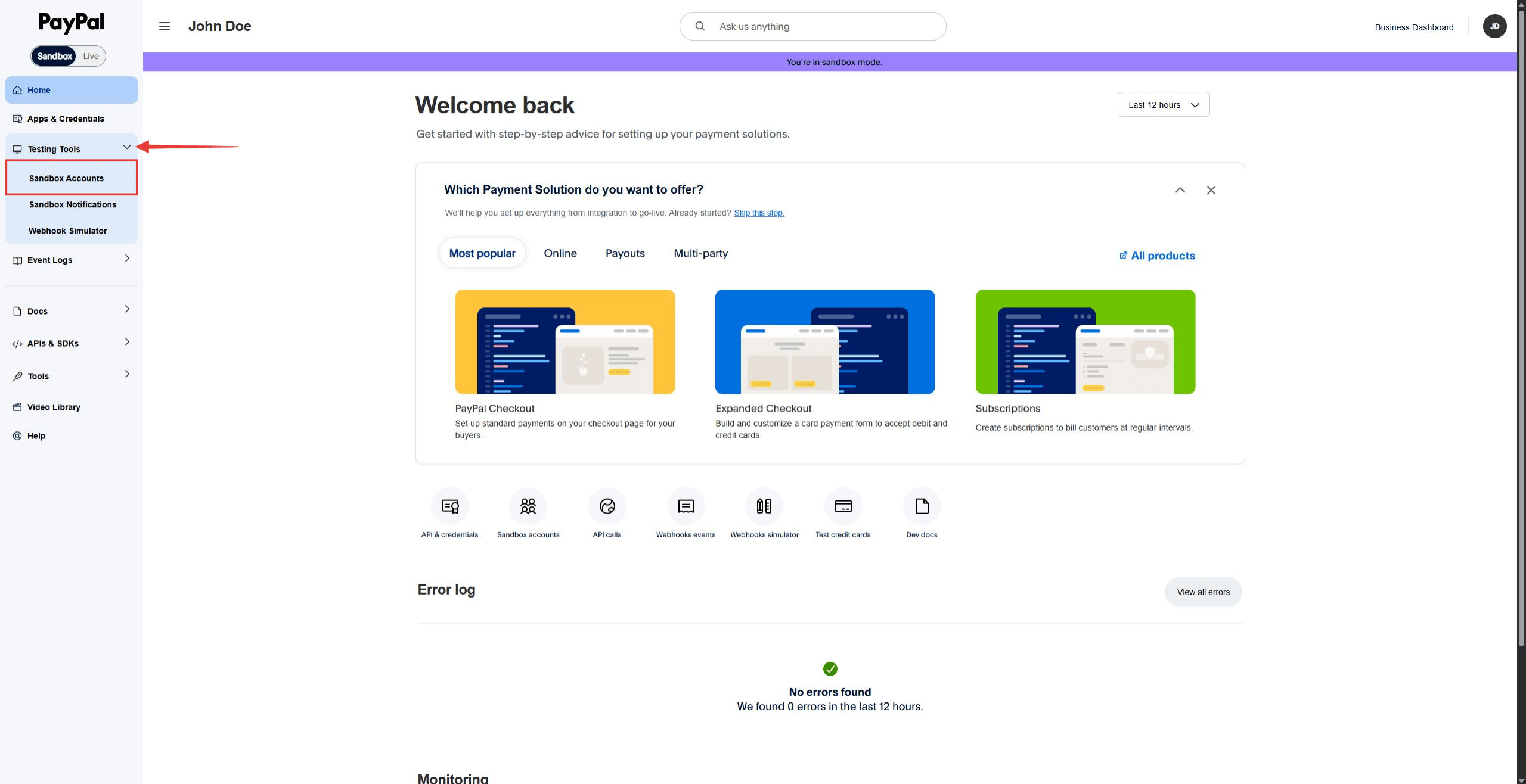
- Klicken Sie dann auf Testing Tools in the left menu. Then, click Sandbox Accounts.
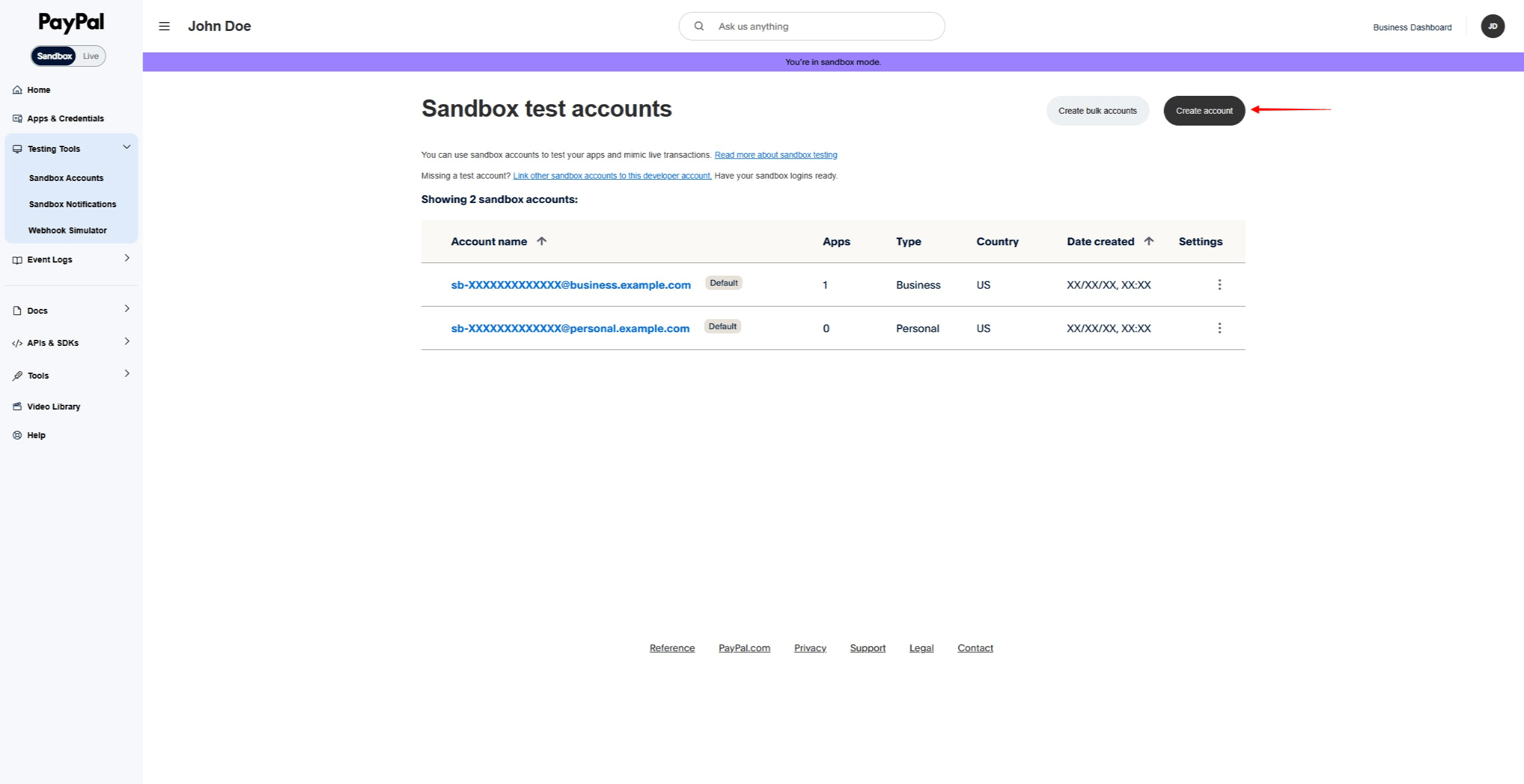
- Klicken Sie auf die Create account Taste.
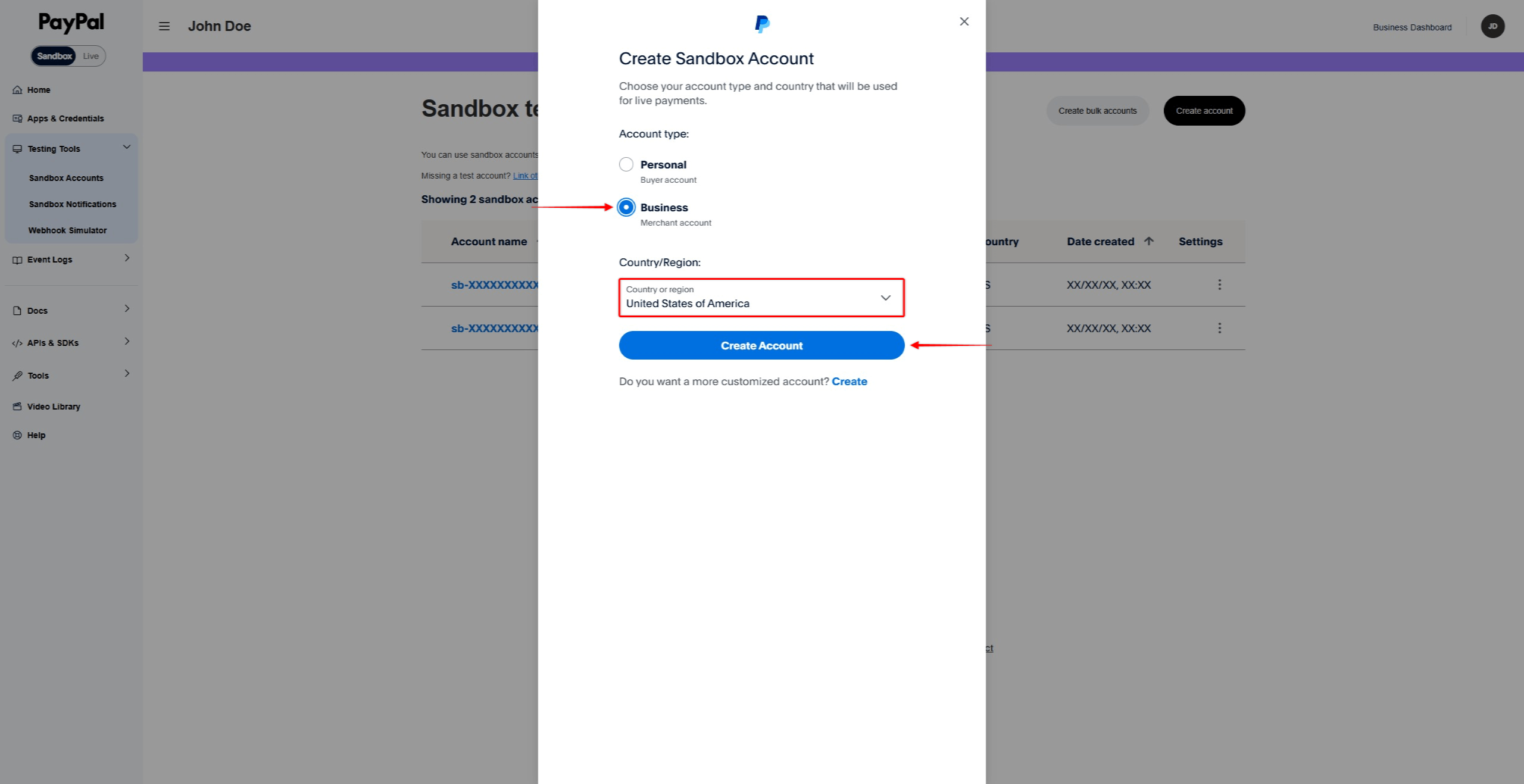
- Wählen Sie Business as the account type.
- Wählen Sie eine Country/Region for the test merchant.
- Klicken Sie schließlich auf erstellen. to make the sandbox Business account.
Creating a Sandbox Personal Account
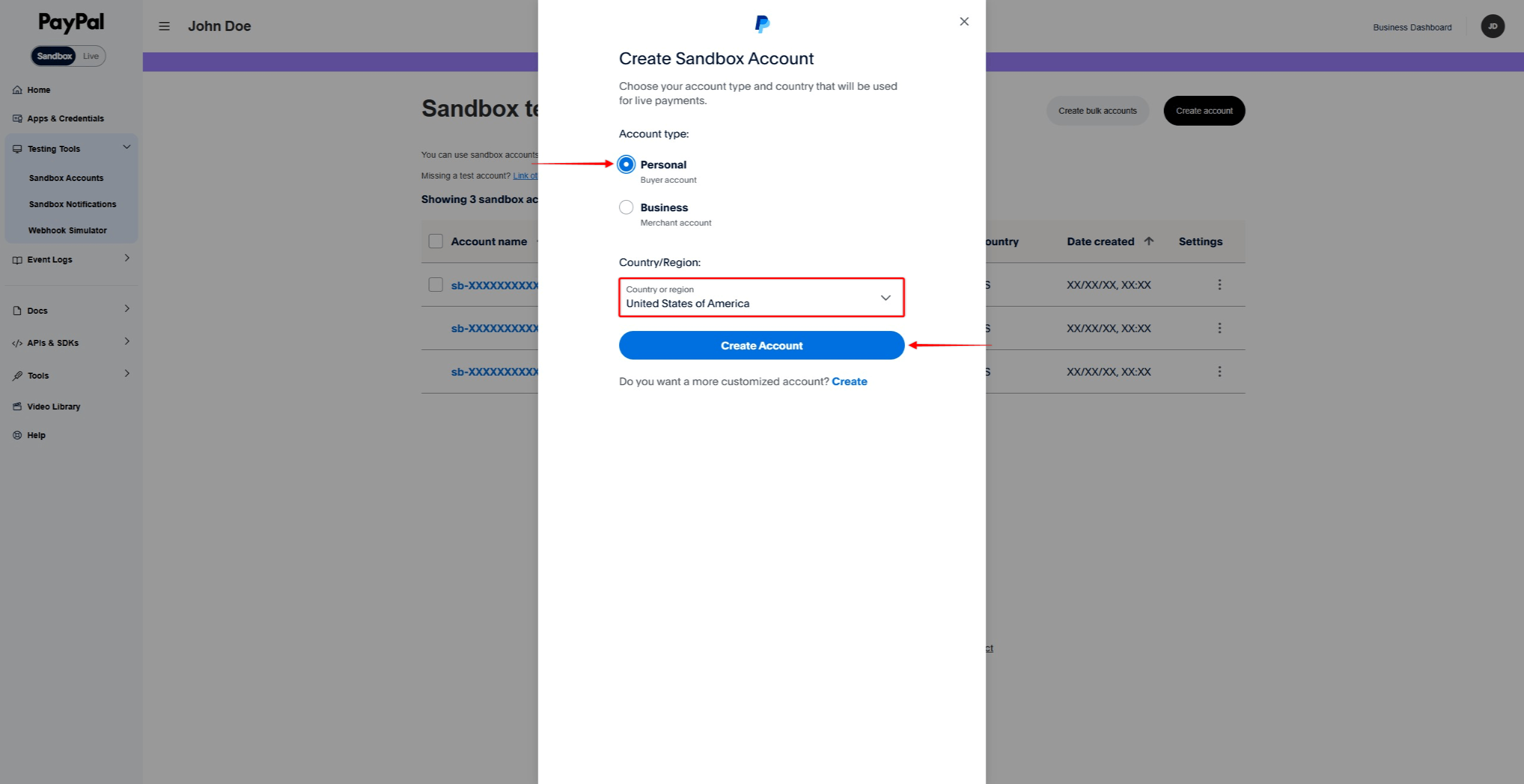
- Auf der Sandbox Accounts page, click Create account.
- Wählen Sie Personal as the account type.
- Wählen Sie eine Country/Region for the test buyer.
- Klicken Sie auf erstellen. to make the sandbox Personal account.
Viewing Sandbox Account Details
- Auf der Sandbox Accounts page, find the account you want to view.
- Click the three-dot menu (…) next to the account.
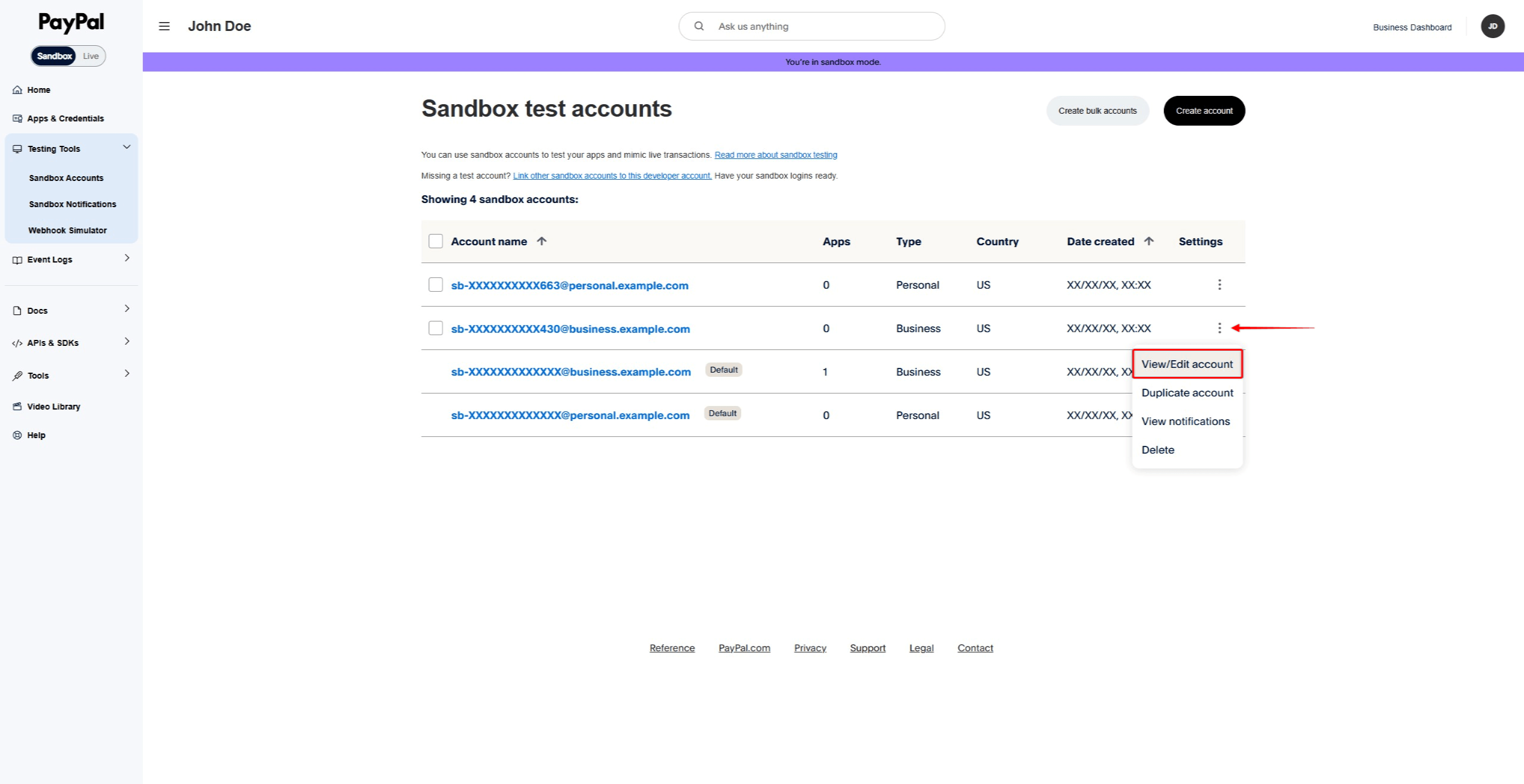
- Klicken Sie auf View/Edit Account.
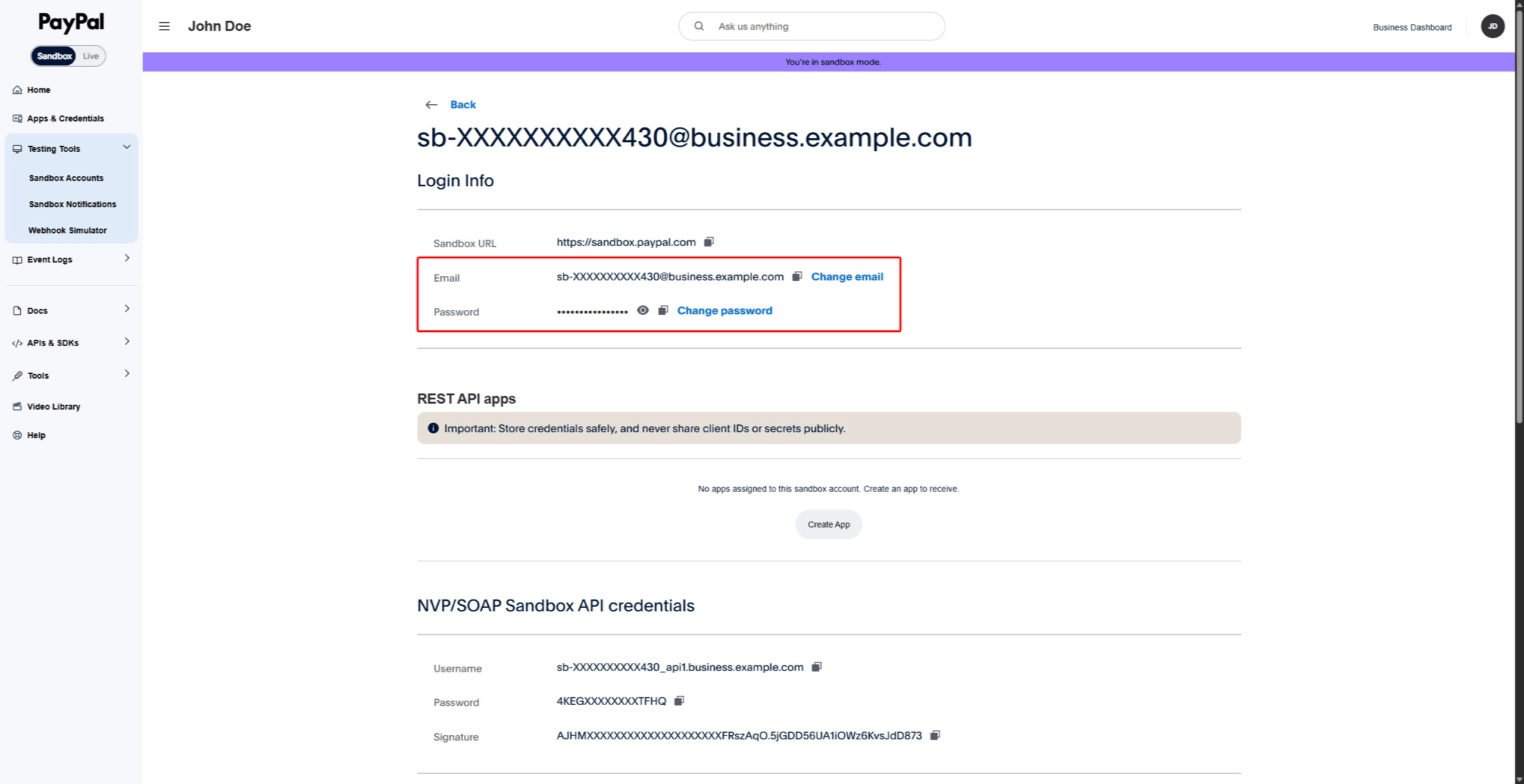
- Note the email address and system-made password.
Connecting MemberPress to PayPal Sandbox
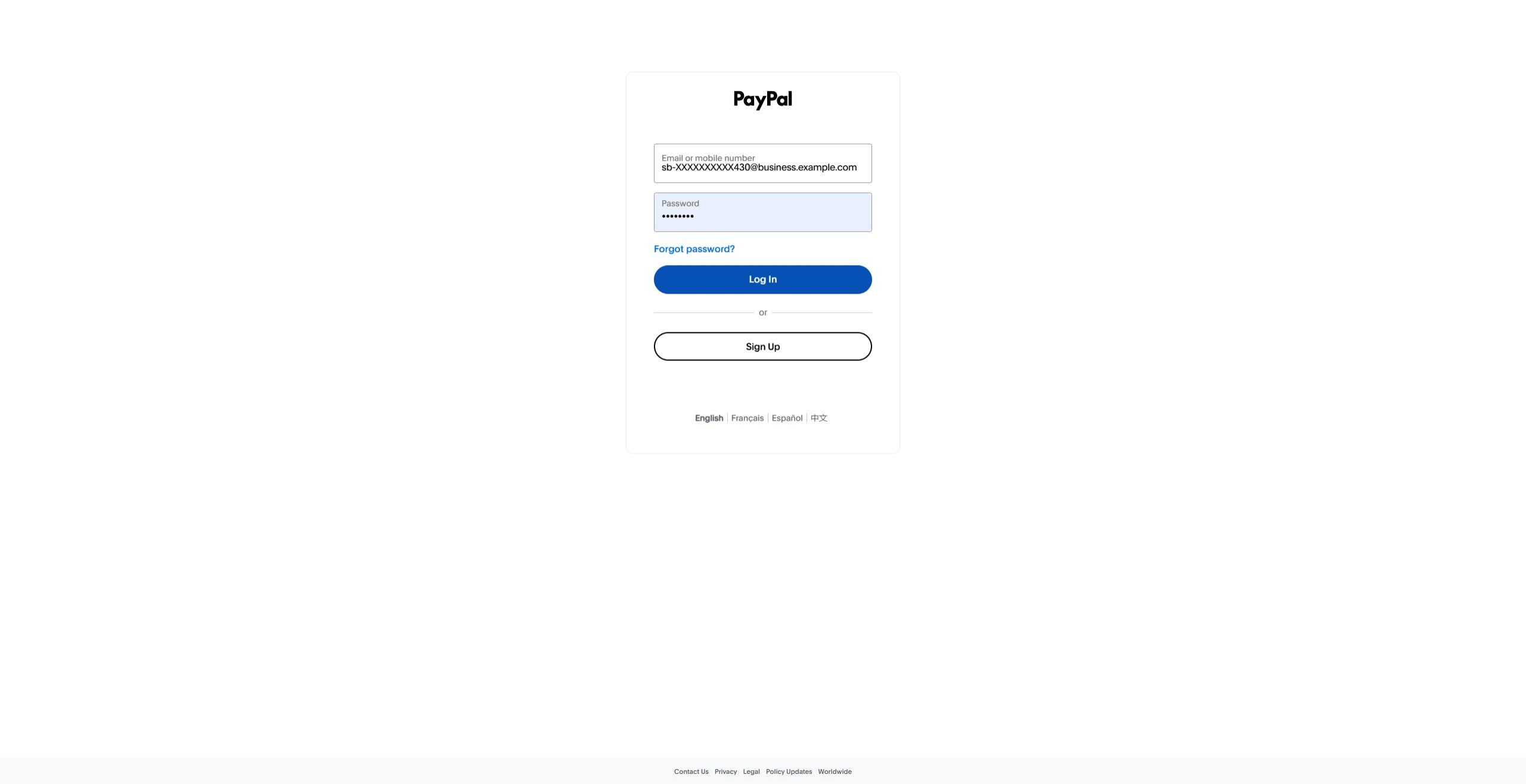
With sandbox accounts created, you can now connect MemberPress to the PayPal Sandbox area. During the connection process, you will need to log in with your sandbox Business account. Use the email and password you found in the “Viewing Sandbox Account Details” section above.
You can log in to your sandbox Business account before starting the connection. Alternatively, PayPal will prompt you to log in during the connection process.
Connecting the Sandbox Account
- Open another browser tab and log in to your WordPress website.
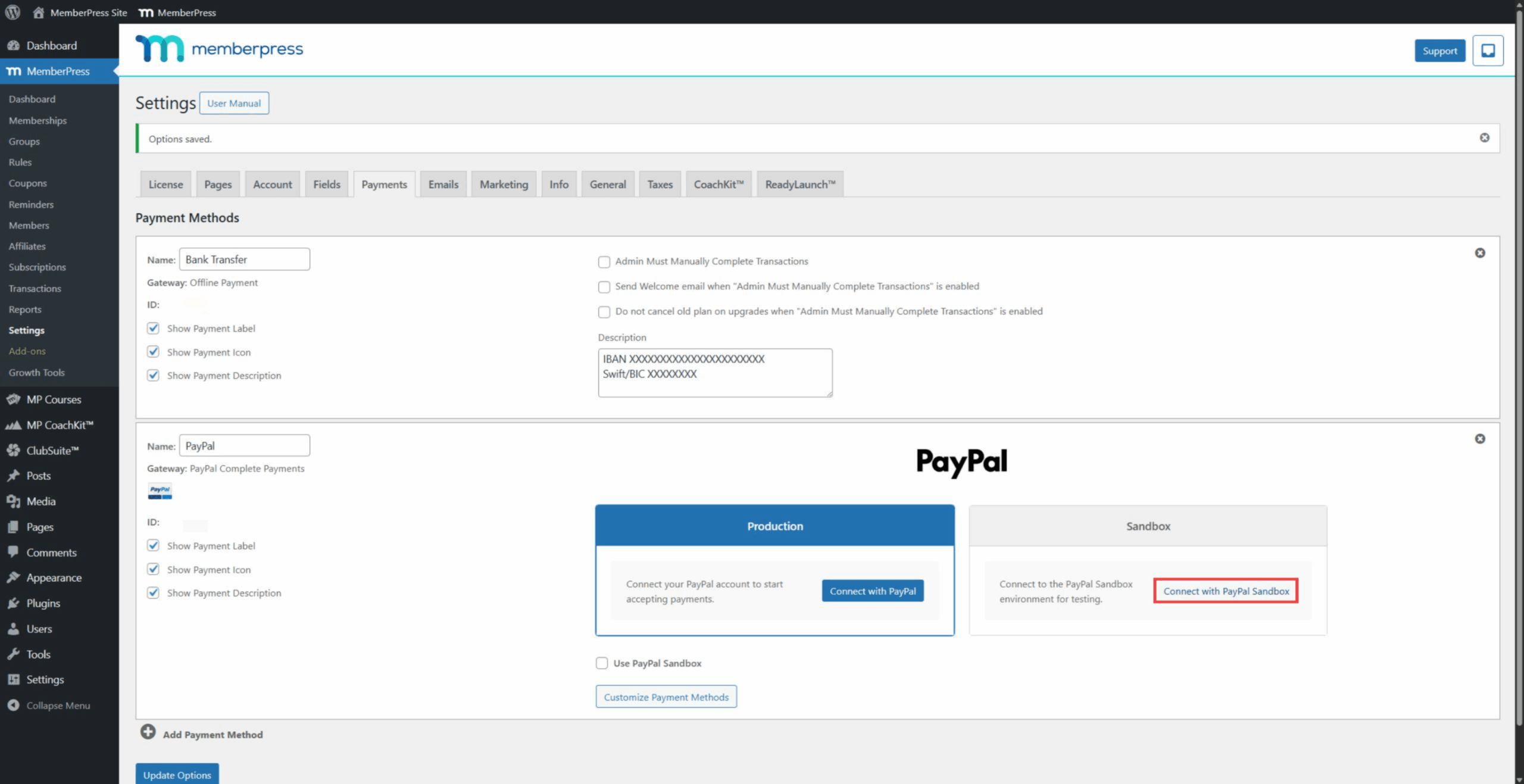
- Gehe zu Dashboard > MemberPress > Einstellungen > Zahlungen tab.
- Click on the PayPal Complete Payments gateway to expand its settings.
- Im Rahmen der Sandkasten Abschnitt, klicken Sie auf die Connect with PayPal Taste.
- If you are not already logged in, log in with your sandbox Business account details. Use the email and password from the account info.
- Grant permissions and complete the connection.
- After that, PayPal redirects back to the MemberPress settings page.
- Prüfen Sie die PayPal-Sandbox verwenden option to enable test payments.
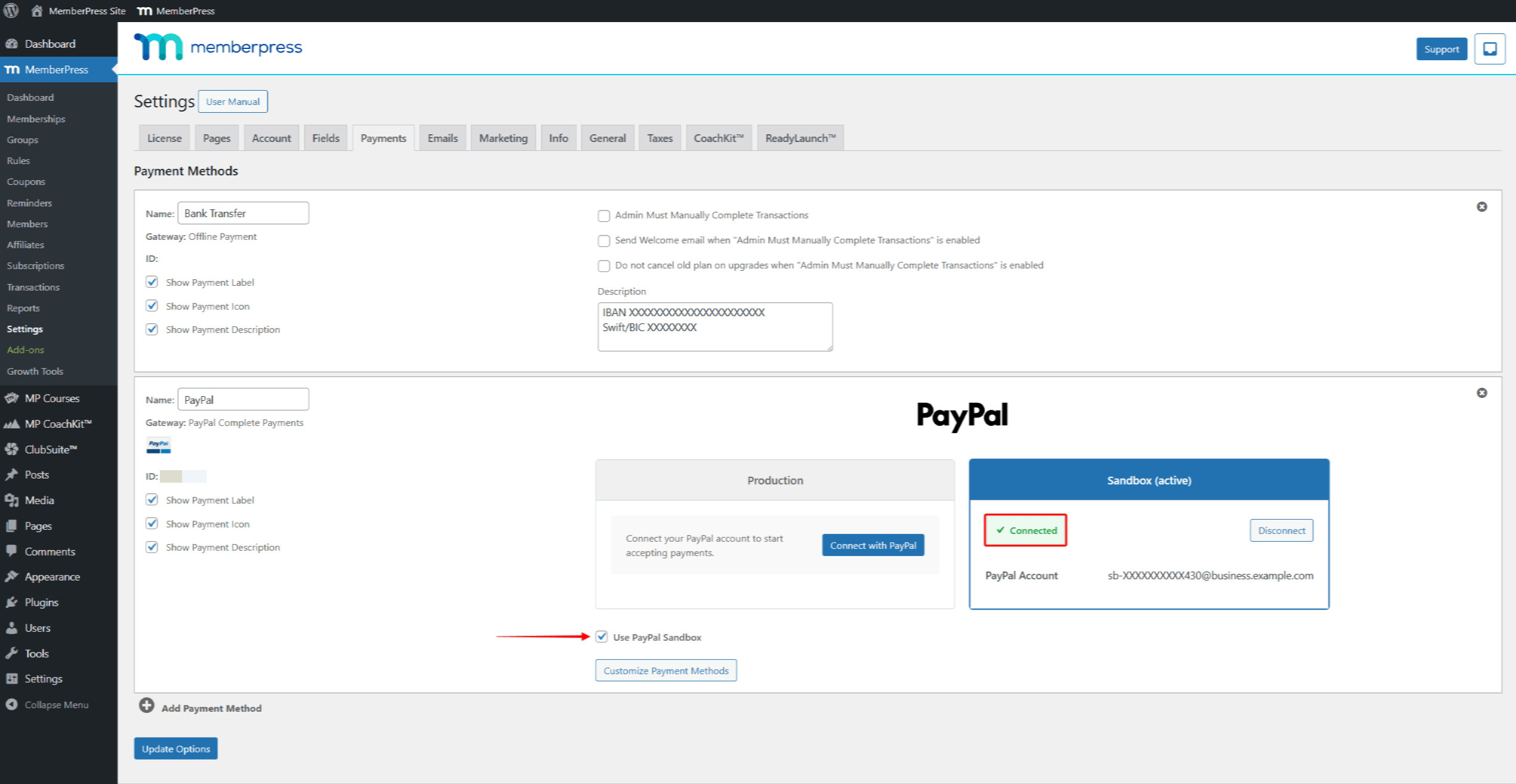
- Klicken Sie auf Optionen aktualisieren zu speichern.
Testing PayPal Payments
With Sandbox connected and enabled, you can now test the payment flow. You will use the Personal Sandbox account you created earlier for testing. During checkout, you can pay using a test credit card, bank account, or PayPal balance.
Managing Test Payment Methods
To manage test payment methods for your Personal Sandbox account:
- Gehe zu PayPal Developer Dashboard > Testing Tools > Sandbox Accounts.
- Find your Personal Sandbox account in the list.
- Click the three-dot menu (…) next to the account.
- Klicken Sie auf View/Edit account.
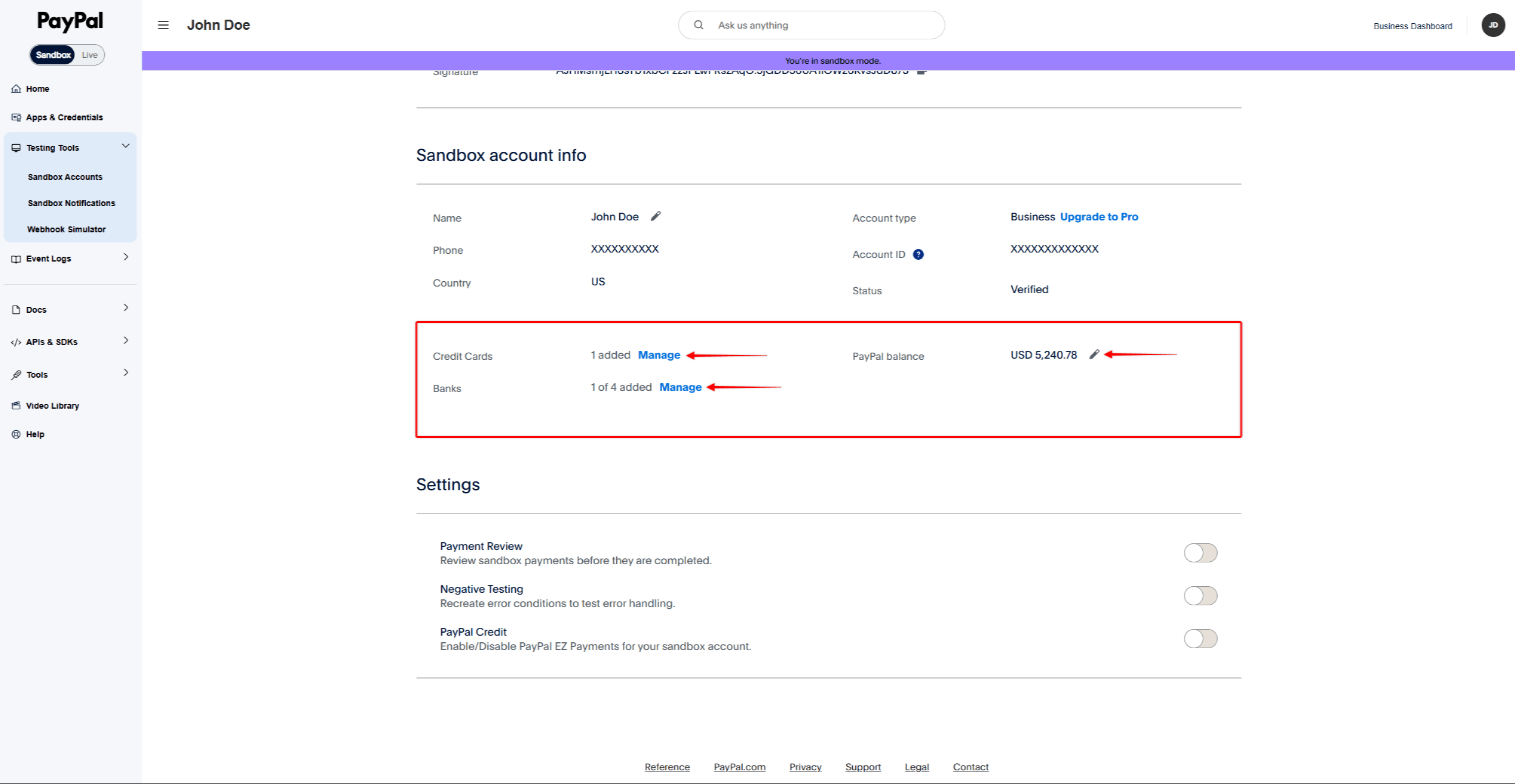
- Blättern Sie nach unten zum “Sandbox account info” Abschnitt.
- Manage your test payment methods:
- Credit Cards – Click Verwalten Sie to add or edit test credit cards;
- Banks – Click Verwalten Sie to add or edit test bank accounts;
- PayPal balance – Click the pencil icon to edit the test balance.
Processing a Test Payment
- First, open a new private or incognito window in your browser.
- Go to the registration page of any existing membership or a test membership.
- Fill in the registration form with test user details.
- Klicken Sie auf die PayPal button to open the payment pop-up.
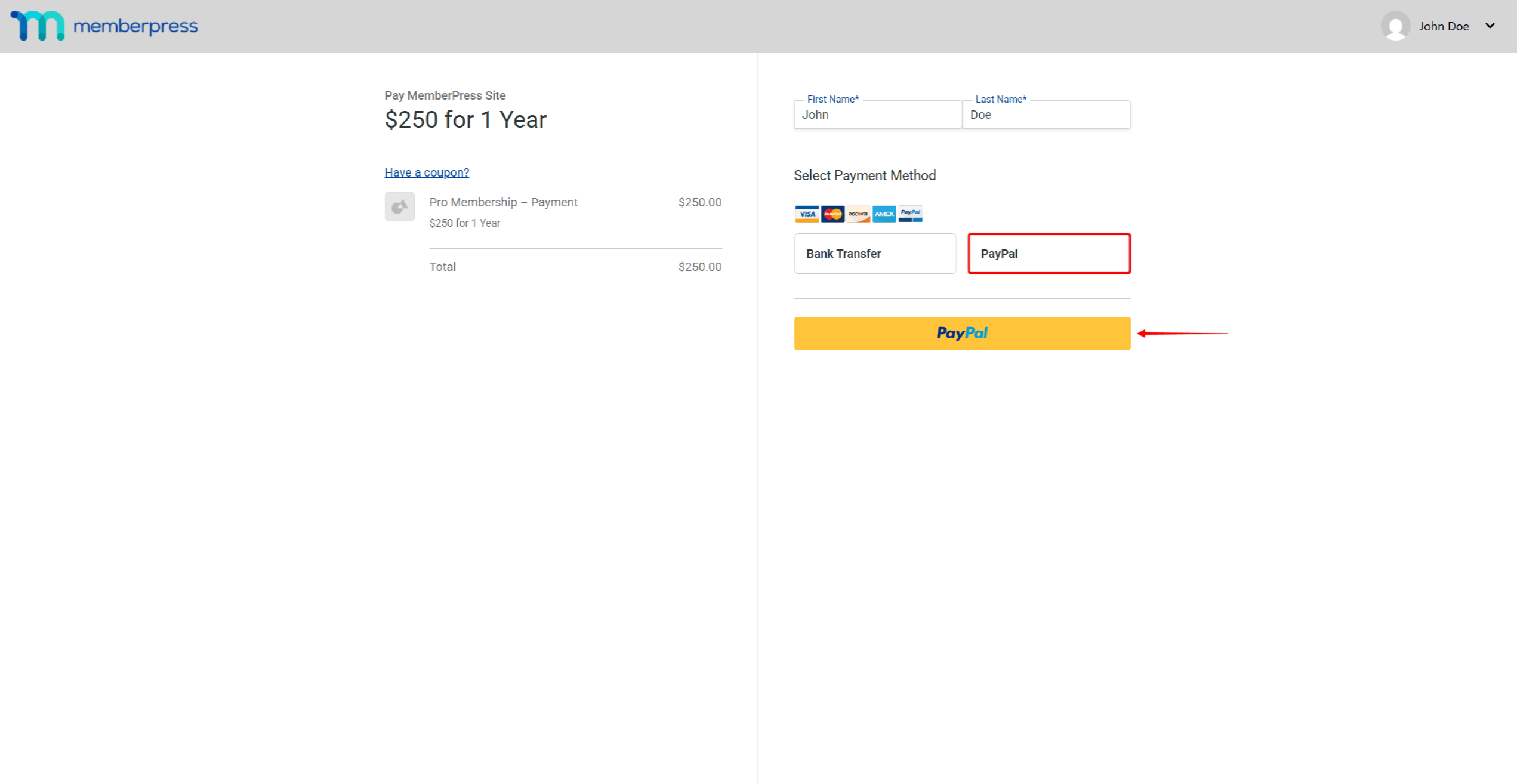
- Log in with the sandbox Personal account details.
- Complete the payment in the pop-up window.
Checking Test Transactions
After completing the test payment, verify the transaction in both MemberPress and PayPal.
In MemberPress:
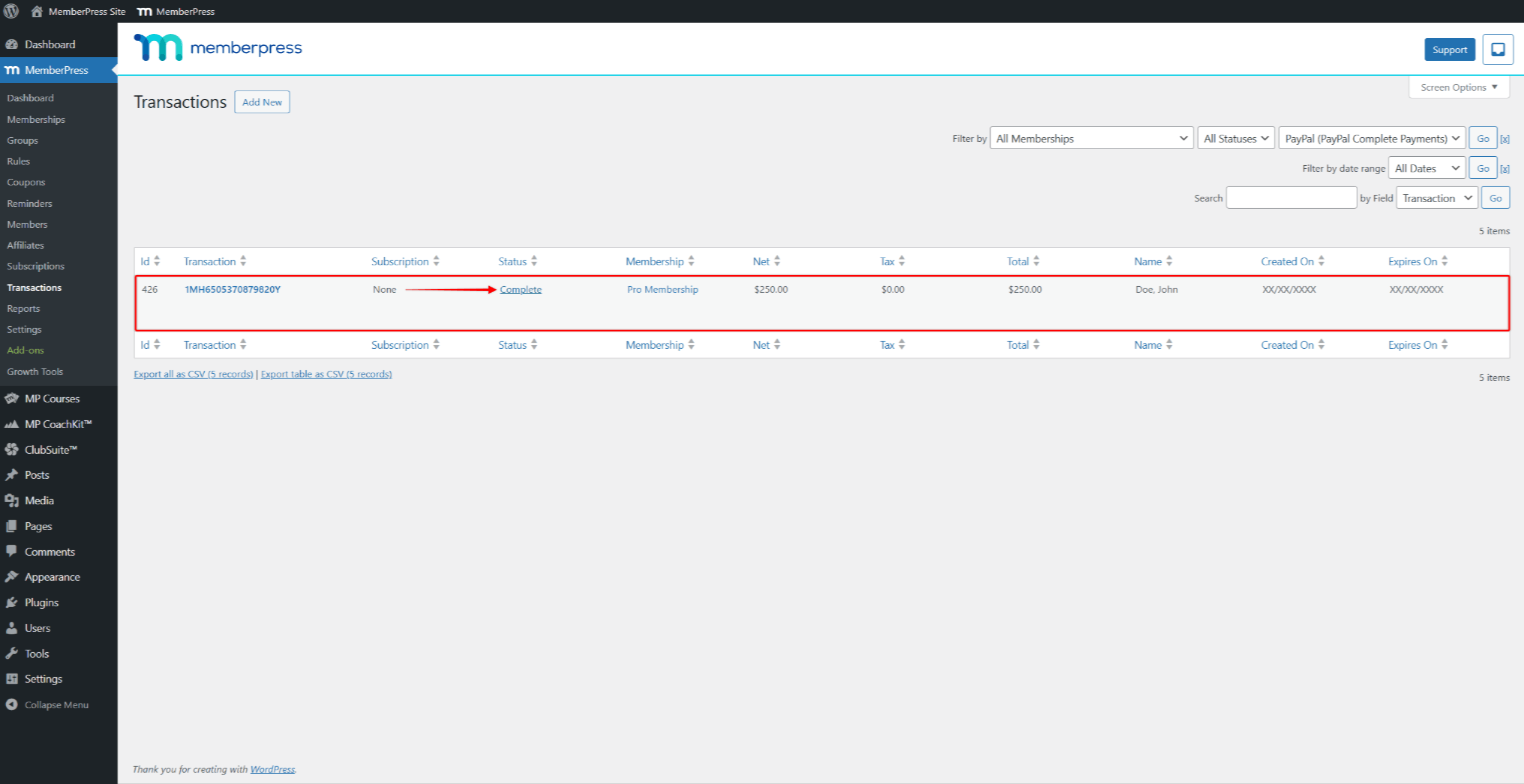
- Gehe zu Dashboard > MemberPress > Vorgänge.
- Find the test transaction in the list.
- Check that the transaction status shows Vollständig.
For recurring subscriptions, also check the subscription at Dashboard > MemberPress > Abonnements.
In PayPal Sandbox Dashboard:
- Gehe zu https://sandbox.paypal.com/.
- Log in using your Business Sandbox account credentials (email and password).
- Navigieren Sie zu Activity > All Transactions.
- Find the test transaction in the list and verify the details match.
The connection is working correctly if transactions appear in both MemberPress and PayPal Sandbox.
Testing Other Payment Methods
By default, the PayPal button is enabled. You can enable additional payment options to test them in Sandbox mode.
Enabling Payment Options
- Gehe zu Dashboard > MemberPress > Einstellungen > Zahlungen tab.
- Click on the PayPal Complete Payments gateway to expand its settings.
- Klicken Sie auf die Zahlungsarten anpassen button below the Production and Sandbox sections.
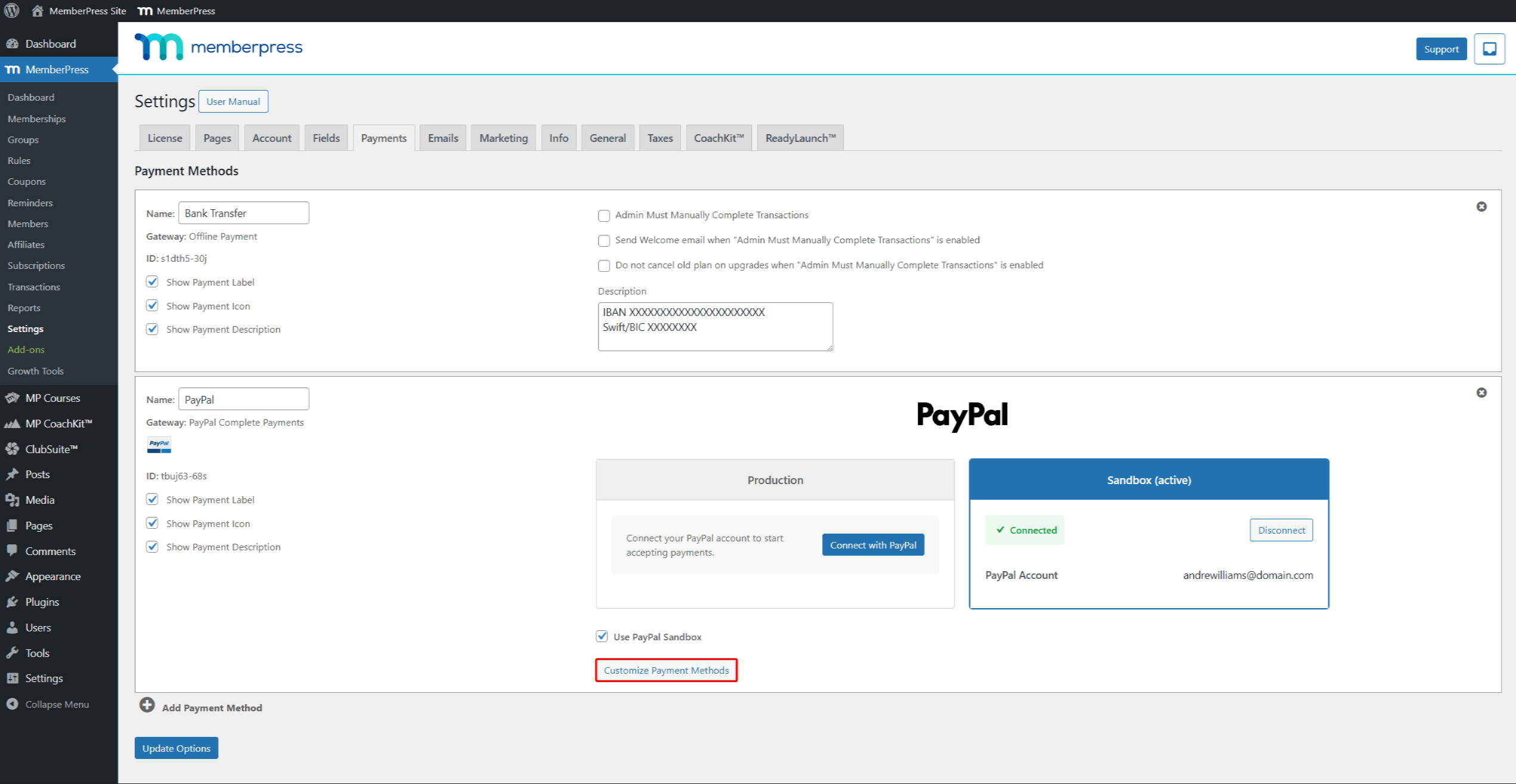
- In the pop-up, toggle the payment methods you want to test.
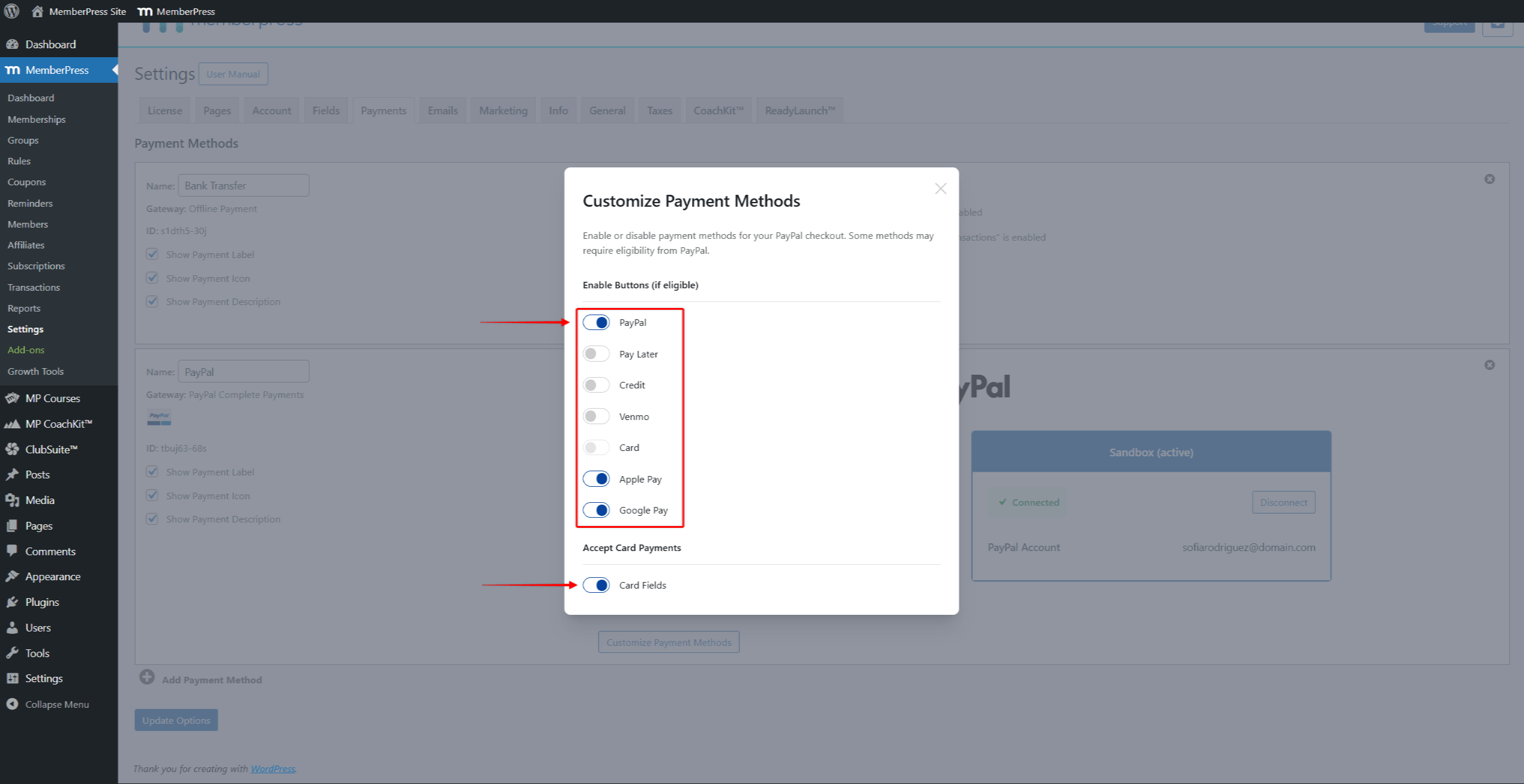
- Click outside the pop-up to close it.
- Klicken Sie auf Optionen aktualisieren um Ihre Änderungen zu speichern.
Testing Card Payments
To test card payments, enable the Card oder Card Fields option under “Accept Card Payments” in the Customize Payment Methods pop-up.
PayPal provides test card numbers for Sandbox testing. For a full list of test cards, visit the PayPal Card Testing documentation.
Testing Other Checkout Options
PayPal supports additional checkout options like Venmo, Pay Later, Apple Pay, and Google Pay. Each option has specific requirements:
- Venmo – Create a US sandbox Personal account and use USD currency. Venmo hides for other regions;
- Pay Later – Requires a supported currency (USD, GBP, EUR, AUD) and a minimum purchase amount;
- Apple Pay – Requires setup in the merchant PayPal account;
- Google Pay – Only works with one-time payments. PayPal hides Google Pay for recurring memberships.
For detailed testing instructions, visit the PayPal Checkout documentation.
Switching to Production
Nach erfolgreichem Test können Sie Live-Zahlungen aktivieren:
- Navigieren Sie zu Dashboard > MemberPress > Einstellungen > Zahlungen tab.
- Im Rahmen der Produktion section of your PayPal Complete Payments gateway, connect your live PayPal Business account (not the Sandbox Business account).
- Deaktivieren Sie das Kontrollkästchen PayPal-Sandbox verwenden Kontrollkästchen.
- Klicken Sie auf Optionen aktualisieren um Ihre Änderungen zu speichern.
Now, users can register for your memberships and pay through PayPal.
Troubleshooting Sandbox Issues
Blank screen when connecting – First, open the Sandbox Dashboard in another tab. Then, click Connect in MemberPress.
Cannot log in to sandbox – Use sandbox account details from the Developer Dashboard. Do not use regular PayPal login details.
Payment buttons not appearing – Check that PayPal-Sandbox verwenden is checked. Also, verify that Sandbox shows Connected status.
Test card declined – Ensure you are using valid test card numbers from the PayPal Card Testing documentation. Also, use a future expiration date.
Venmo not appearing – Create a US sandbox Personal account and use USD currency.
Transaction not recorded – Check for pending transactions. Also, verify no firewall blocks PayPal. Review the WordPress debug log for errors.










 DE
DE  EN
EN  ES
ES  FR
FR  PT
PT 