

Veröffentlichen Sie Ihre Apps mit dem MemberPress AppKit Publishing Service. Das MemberPress App Publishing Team verwaltet den Überprüfungsprozess, um sicherzustellen, dass Ihre mobile App den Richtlinien von Apple App Store und Google Play Store entspricht.
Folgen Sie dieser Anleitung, um Hilfe über den MemberPress AppKit Publishing Service zu erhalten und Ihre App effizient zu veröffentlichen.
Verständnis des Veröffentlichungsdienstes
Die Anforderungen an den Veröffentlichungsdienst definieren die professionelle Unterstützung bei der Einreichung von Apps im Store und bei der Verwaltung der Überprüfungsprozesse.
Der App-Publishing-Service umfasst:
- Ein engagiertes Mitglied des Veröffentlichungsteams, das Ihrer Veröffentlichungsanfrage zugewiesen wird, prüft Ihre App und die Informationen zur Auflistung im Store zunächst manuell, um Ihre Einreichung zu bewerten und Sie durch die empfohlenen Änderungen zu leiten, die erforderlich sind, um die strengen Richtlinien des App Stores zu erfüllen, was Ihnen zu einer reibungslosen Veröffentlichung verhilft.
- Nachdem Ihre App unseren internen Überprüfungsprozess durchlaufen hat, reichen wir Ihr Build für Sie bei den App-Stores ein. Sie wird dann erneut von Apple oder Google geprüft, die sicherstellen, dass sie ihren Anforderungen entspricht.
- Wenn die App-Einreichung noch überarbeitet werden muss, übernehmen wir für Sie die gesamte Kommunikation mit dem App-Store-Prüfungsteam und empfehlen Ihnen die letzten Anpassungen, die Sie eventuell vornehmen müssen.
Engagierter Einsatz des Teams bietet persönliche Unterstützung während des gesamten Einreichungsprozesses durch einen zugewiesenen Verlagsspezialisten. Die individuelle Betreuung gewährleistet eine konsistente Kommunikation und fachkundige Anwendung.
Interner Überprüfungsprozess bewertet die App und die Store-Liste vor der offiziellen Einreichung und verringert so das Risiko einer Ablehnung. Die Bewertung vor der Einreichung identifiziert potenzielle Probleme und ermöglicht eine proaktive Lösung.
Verwaltung der Filialeinreichungen kümmert sich im Auftrag von Entwicklern um Build-Uploads und Überprüfungseinreichungen bei Apple und Google. Die professionelle Einreichung reduziert die technische Komplexität und den Zeitaufwand.
Umgang mit Kommunikation verwaltet die Korrespondenz mit den App-Store-Prüfungsteams und geht dabei auf Feedback und Anforderungen ein. Die Team-Mediation rationalisiert die Lösung von Bedenken und Einwänden bei der Überprüfung.
Anleitung zur Revision bietet Expertenempfehlungen für Änderungen, die von App-Store-Prüfern verlangt werden. Professionelle Beratung beschleunigt die Genehmigung durch sachkundige Umsetzung der Anpassungen.
Bevor Sie beginnen
Die Vorbereitung vor der Einreichung stellt sicher, dass alle Anforderungen erfüllt sind, bevor der Veröffentlichungsprozess über den Dienst eingeleitet wird.
Vergewissern Sie sich, dass alle App-Anpassungen abgeschlossen sind, denn Screenshots der App müssen als Teil der Veröffentlichungs-Checklisten für Ihre White-Label-App erstellt werden.
iOS-App veröffentlichen
Die Veröffentlichung einer iOS-App leitet den Einreichungsworkflow für die Überprüfung und Genehmigung der Verteilung im Apple App Store ein.
Checkliste für die Veröffentlichung im Apple App Store ausfüllen
Das Ausfüllen der Checkliste stellt sicher, dass alle Apple-Anforderungen erfüllt sind, bevor eine Veröffentlichungsanfrage an das Team gestellt wird.
Zugriff auf den Veröffentlichungsdienst
Durch den Zugriff auf den Veröffentlichungsdienst wird der Workflow für die Einreichung von iOS-Apps über die WordPress-Verwaltungsoberfläche eingeleitet.
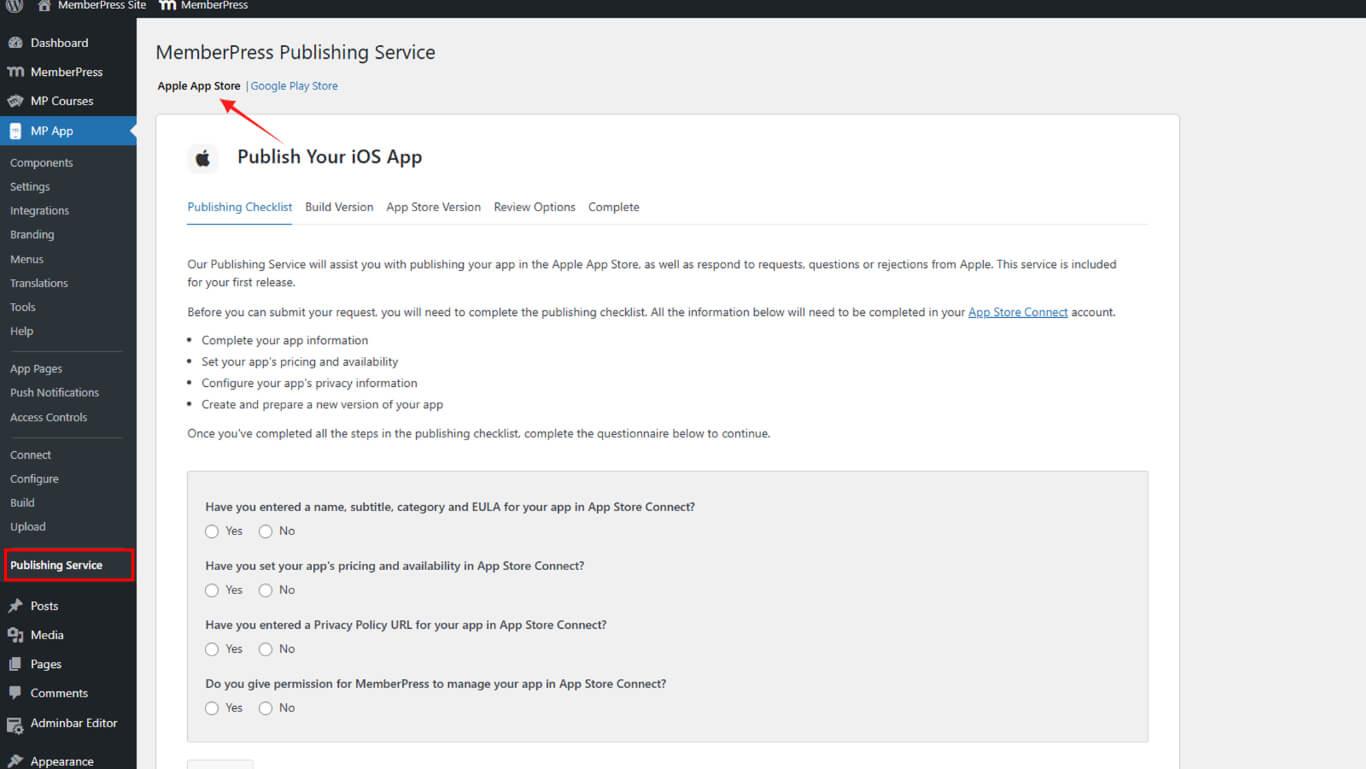
Gehen Sie in Ihrem WordPress-Admin zu Dashboard > MP AppKit > Veröffentlichungsdienst > Apple App Store.
Anfrage zur Veröffentlichung einreichen
Die Einreichung des Veröffentlichungsantrags versorgt das Veröffentlichungsteam mit den notwendigen Informationen und Builds für die Einreichung im App Store.
- Füllen Sie den Fragebogen zur Veröffentlichungs-Checkliste aus und klicken Sie dann auf Bestätigen Sie.
- Wählen Sie Ja zu allen Optionen; alle Schritte in der Checkliste sind erforderlich, damit das MemberPress App Publishing Team Ihre Anfrage bearbeiten kann.
- Wählen Sie die Build-Version die Sie im Apple App Store veröffentlichen möchten, und klicken Sie dann auf Bestätigen Sie Build.
- Überprüfen Sie die App Store Version, dann klicken Sie auf Bestätigen Sie die Version.
- Wenn Informationen fehlen, geben Sie diese in App Store Connect ein und klicken Sie auf Erneut prüfen.
- In der Optionen überprüfen Abschnitt wählen Sie aus, wie das MemberPress App Publishing Team Ihre Anfrage bearbeiten soll:
- Entscheiden Sie, ob MemberPress in Ihrem Namen bei Apple vorstellig werden soll;
- Alternativ dazu können Sie auch selbst antworten.
- Klicken Sie auf Zur Überprüfung einreichen.
Android-App veröffentlichen
Mit der Veröffentlichung einer Android-App wird der Einreichungsworkflow für die Überprüfung und Genehmigung der Verteilung im Google Play Store eingeleitet.
Ausfüllen der Checkliste für die Veröffentlichung im Google Play Store
Durch das Ausfüllen der Checkliste wird sichergestellt, dass alle Google-Anforderungen erfüllt sind, bevor eine Veröffentlichungsanfrage an das Team gesendet wird.
Zugriff auf den Veröffentlichungsdienst
Durch den Zugriff auf den Veröffentlichungsdienst wird der Workflow für die Einreichung von Android-Apps über die WordPress-Verwaltungsschnittstelle eingeleitet.
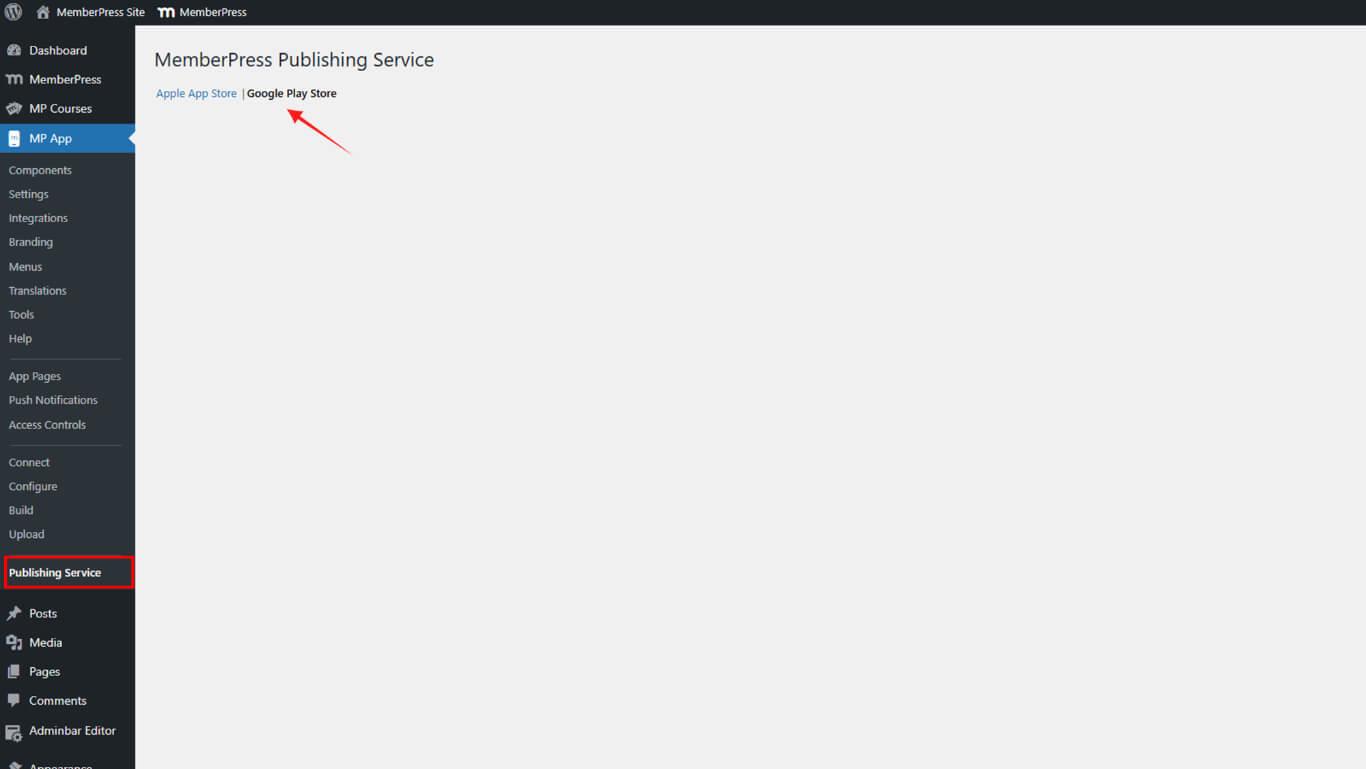
Gehen Sie in Ihrem WordPress-Admin zu Armaturenbrett > MP AppKit > Veröffentlichungsdienst > Google Play Store.
Anfrage zur Veröffentlichung einreichen
Die Übermittlung des Veröffentlichungsantrags versorgt das Veröffentlichungsteam mit den notwendigen Informationen und Builds für die Einreichung im Play Store.
- Füllen Sie den Fragebogen zur Veröffentlichungs-Checkliste aus und klicken Sie dann auf Bestätigen Sie.
- Wählen Sie Ja zu allen Optionen; alle Schritte in der Checkliste sind erforderlich, damit das MemberPress App Publishing Team Ihre Anfrage bearbeiten kann.
- Wählen Sie die Build-Version die Sie im Google Play Store veröffentlichen möchten, und klicken Sie dann auf Bestätigen Sie Build.
Eingabe der Google Play-Details
Der Eintrag in den Google Play-Details enthält die Kontokennung und die Freigabeinformationen für die korrekte Konfiguration der Übermittlung.
- In der Google Play-Details Abschnitt, geben Sie Ihre Google-Konto-ID für Entwickler.
- Melden Sie sich bei der Google Play-Konsole an:
- Gehen Sie in der Seitenleiste auf Einstellungen > Entwicklerkonto > Kontodetails;
- Klicken Sie auf ID kopieren und fügen Sie sie in das Feld Entwickler-ID ein.
- Bestätigen Sie Ihre Freigabe Name und Anmerkungen zur Veröffentlichung.
- Klicken Sie auf Details bestätigen.
- In der Optionen überprüfen Abschnitt wählen Sie aus, wie das MemberPress App Publishing Team Ihre Anfrage bearbeiten soll:
- Entscheiden Sie, ob Sie möchten, dass MemberPress in Ihrem Namen bei Google antwortet;
- Alternativ dazu können Sie auch selbst antworten.
- Klicken Sie auf Zur Überprüfung einreichen.
Reaktion auf empfohlene Änderungen
Empfohlene Änderungen Antwort implementiert Vorschläge des Veröffentlichungsteams für die Einhaltung der App-Store-Vorschriften und die erfolgreiche Genehmigung.
Nachdem Sie eine Veröffentlichungsanfrage eingereicht haben, wird das MemberPress App Publishing Team Sie per E-Mail auf dem Laufenden halten. Wenn wir Änderungen feststellen, die für die Genehmigung durch Apple oder Google erforderlich sind, erhalten Sie eine E-Mail mit den empfohlenen Anpassungen.
Um auf diese Veränderungen zu reagieren:
- Gehen Sie in Ihrem WordPress-Admin zu Dashboard > MP AppKit > Veröffentlichen > Apple App Store oder Dashboard > MP AppKit > Veröffentlichen > Google Play Store, je nachdem, um welche Anfrage es sich handelt.
- Unter Haben Sie die empfohlenen Änderungen vorgenommen?, wählen Sie die richtige Antwort aus:
- Ja, bitte überprüfen Sie die Änderungen – wählen Sie dies, wenn Sie die empfohlenen Änderungen vorgenommen haben. Das MemberPress-Team wird diese Ãnderungen Ã?berprÃ?fen, bevor sie erneut bei Apple oder Google eingereicht werden;
- Nein, bitte übermitteln Sie die aktuellen Informationen an Apple/Google – Wählen Sie diese Option, wenn Sie die Änderungen nicht vornehmen möchten. Beachten Sie, dass sich dadurch das Risiko einer Ablehnung durch Apple oder Google erhöhen kann.
- Unter Möchten Sie die Build-Version ändern?, wählen Sie die richtige Antwort aus:
- Wählen Sie Ja wenn die empfohlenen Änderungen einen neuen Build erfordern, dann geben Sie den zu verwendenden neuen Build an;
- Wählen Sie Nein wenn die Änderungen keinen neuen Build erfordern.
- Presse Antwort einreichen.
Die Antwort auf Apple und Google
Apple und Google reagieren auf Rückmeldungen zur Behandlung von Ablehnungen durch Kommunikation mit dem Veröffentlichungsteam oder durch direkte Interaktion mit den Entwicklern.
Apple oder Google können Ihre App während der Überprüfung ablehnen. Wenn Ihre App abgelehnt wird, erhalten Sie eine E-Mail, in der die Gründe für die Ablehnung und die Schritte zur Behebung der Einwände dargelegt werden.
Wenn Sie sich dafür entschieden haben, dass das MemberPress App Publishing Team die Kommunikation übernimmt, werden wir alle Korrespondenz in Ihrem Namen beantworten, bis Ihre App genehmigt ist. Sollten weitere Änderungen erforderlich sein, werden wir Sie über die empfohlenen Anpassungen informieren.










 DE
DE  EN
EN  ES
ES  FR
FR  PT
PT 