

Der App-Block "Kurse" hebt ausgewählte Kurse auf den App-Seiten mit einem Karussell-Layout hervor, über das man streichen kann. Mit diesem Block können Mitglieder schnell auf vorgestellte Kurse zugreifen oder den gesamten Kursindex auf der verbundenen WordPress-Website durchsuchen.
In diesem Dokument wird erläutert, wie Sie den Block Kurse in MemberPress AppKit hinzufügen, konfigurieren und verwalten.
Den Block der Kurs-App verstehen
Der App-Block Kurse zeigt die Kurse in einem horizontalen Karussell an, über das man streichen kann. Mitglieder können auf einen einzelnen Kurs tippen, um dessen Details anzuzeigen oder Alle sehen um den kompletten Kursindex der WordPress-Website zu öffnen. Der Block kann angepasst werden, um gefilterte oder manuell ausgewählte Kurse nach bestimmten Kriterien anzuzeigen.
Zugriff auf App-Seiten
Sie können den Kursblock im App-Seiten-Editor hinzufügen und konfigurieren.
- Navigieren Sie zu Dashboard > MP AppKit > Anwendungsseiten.
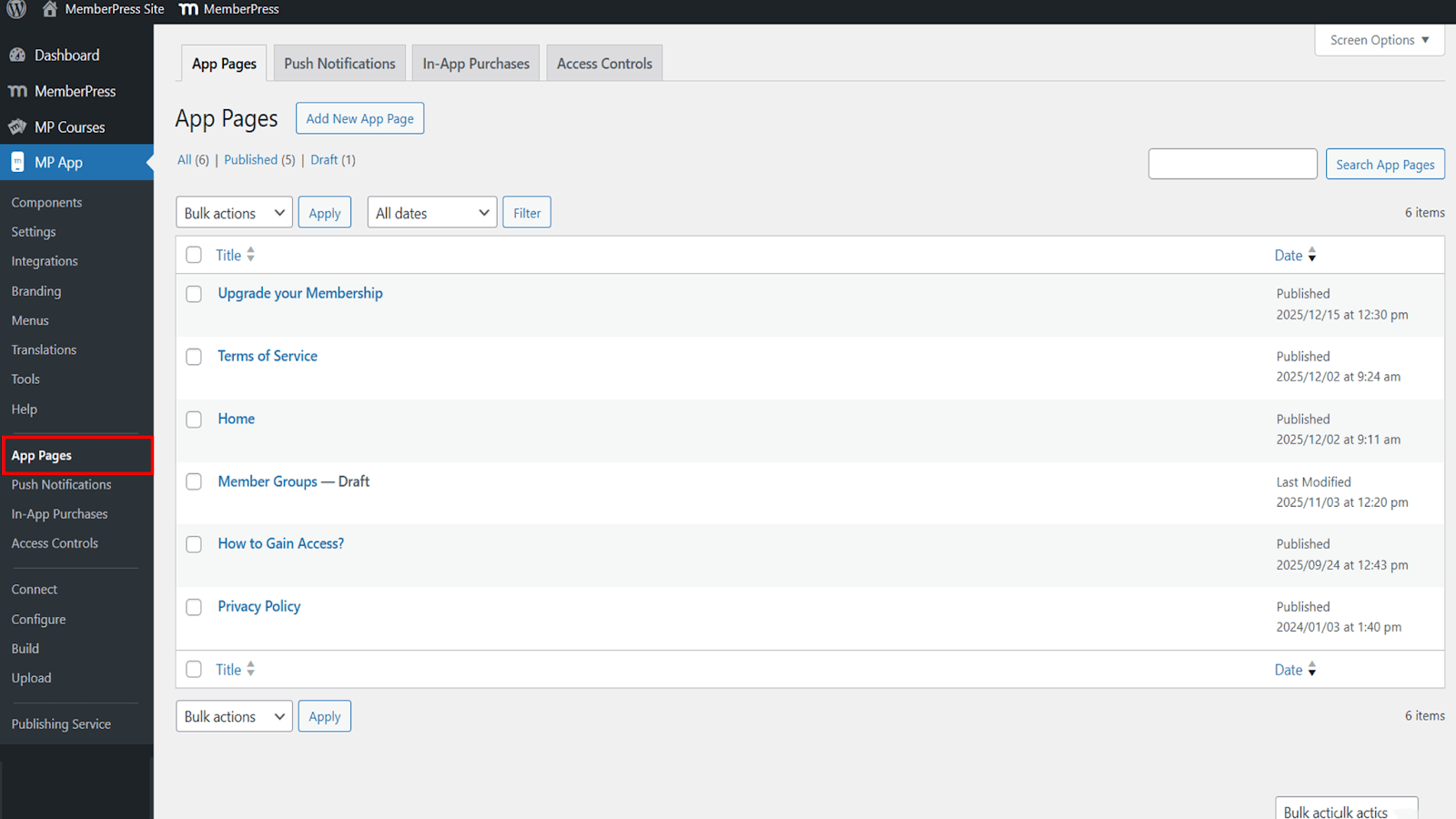
- Öffnen Sie eine vorhandene Seite, z. B. die Startseite, oder erstellen Sie eine neue Seite zur Bearbeitung.
Hinzufügen des Kursblocks
Der Kursblock ist in der MemberPress AppKit-Blockbibliothek verfügbar.
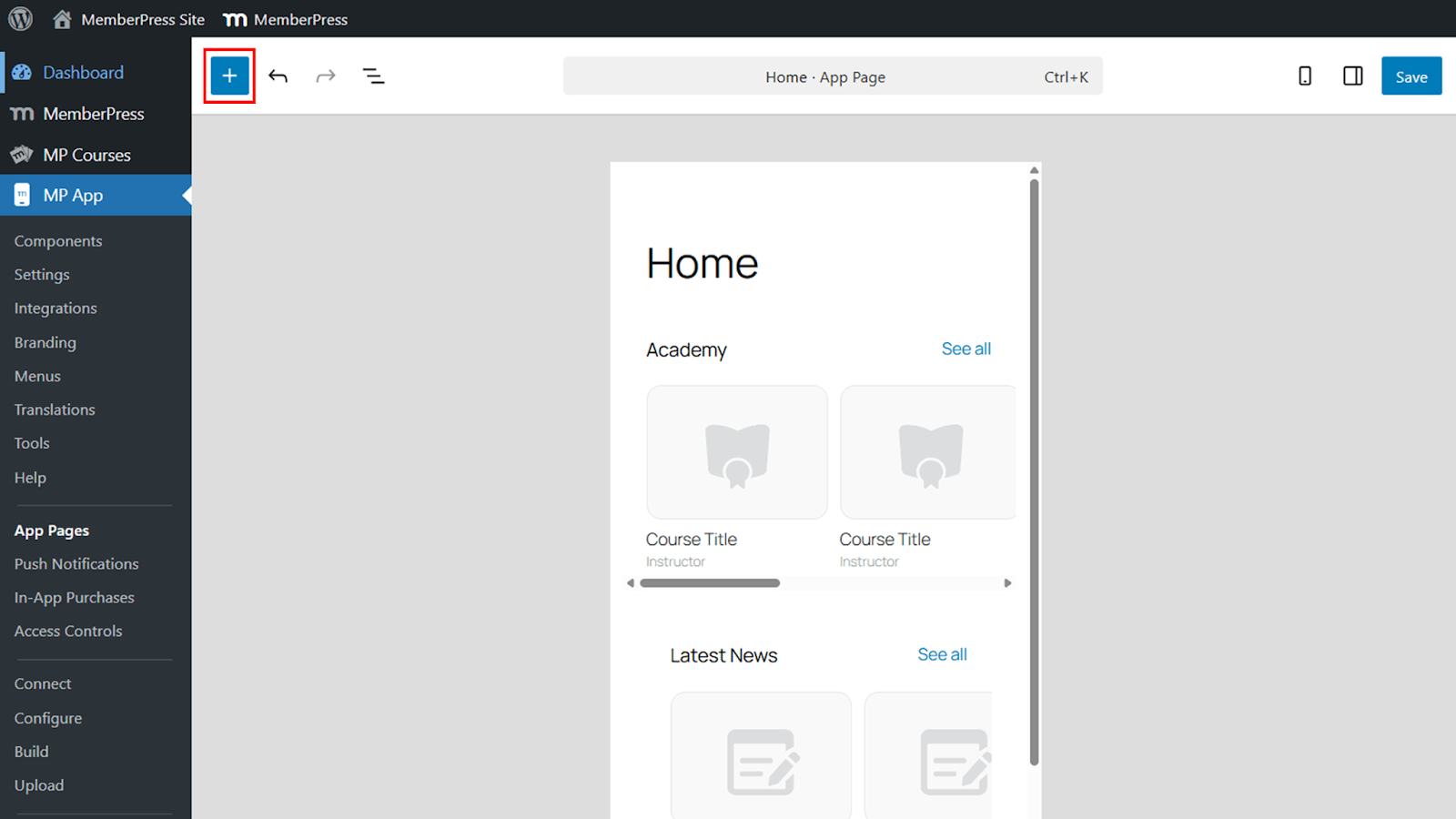
- Klicken Sie auf das Symbol +.
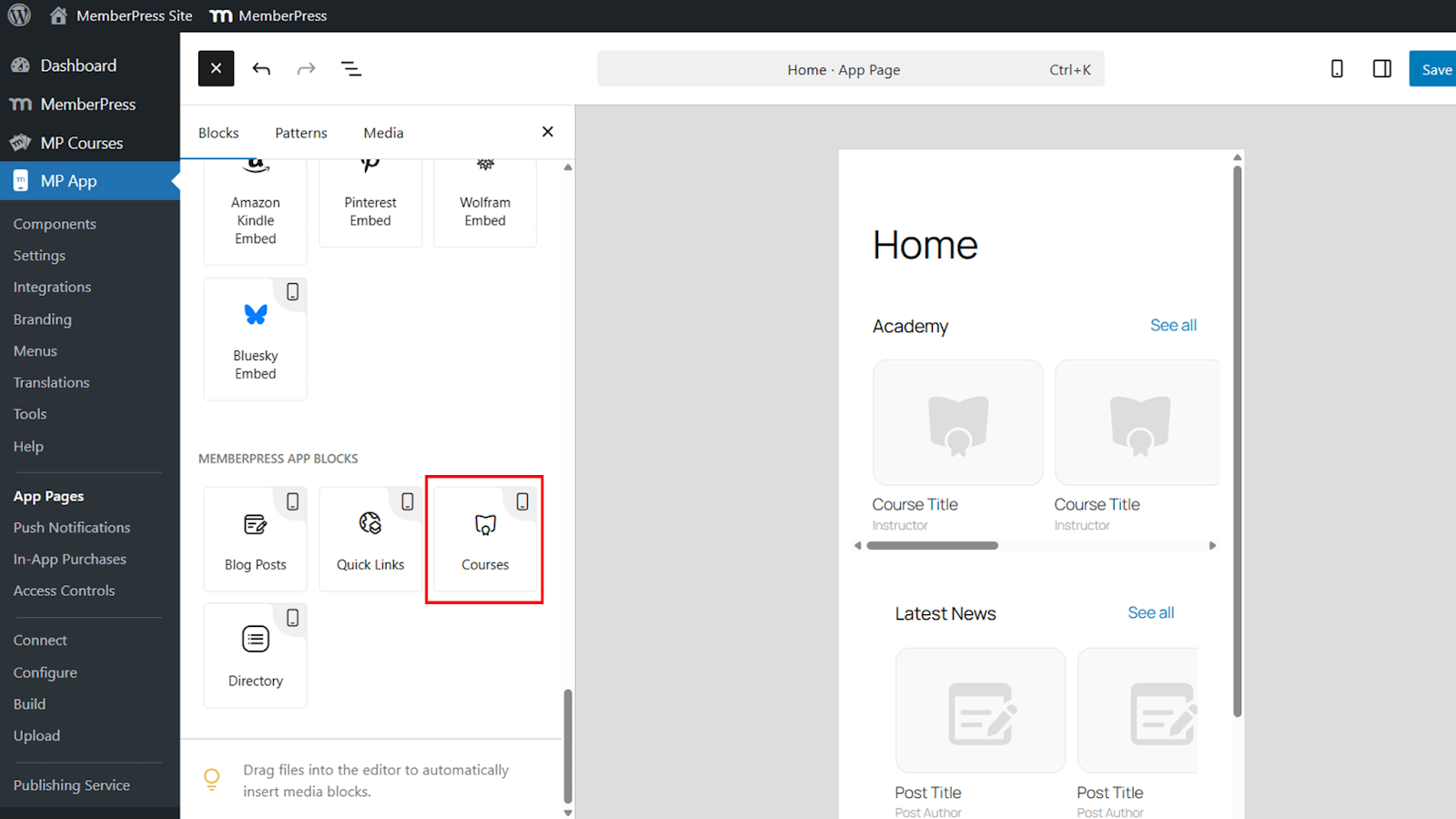
- Wählen Sie die Kurse Block aus dem MemberPress App-Blöcke Abschnitt.
- Verschieben Sie den Block an die gewünschte Position auf der Seite.
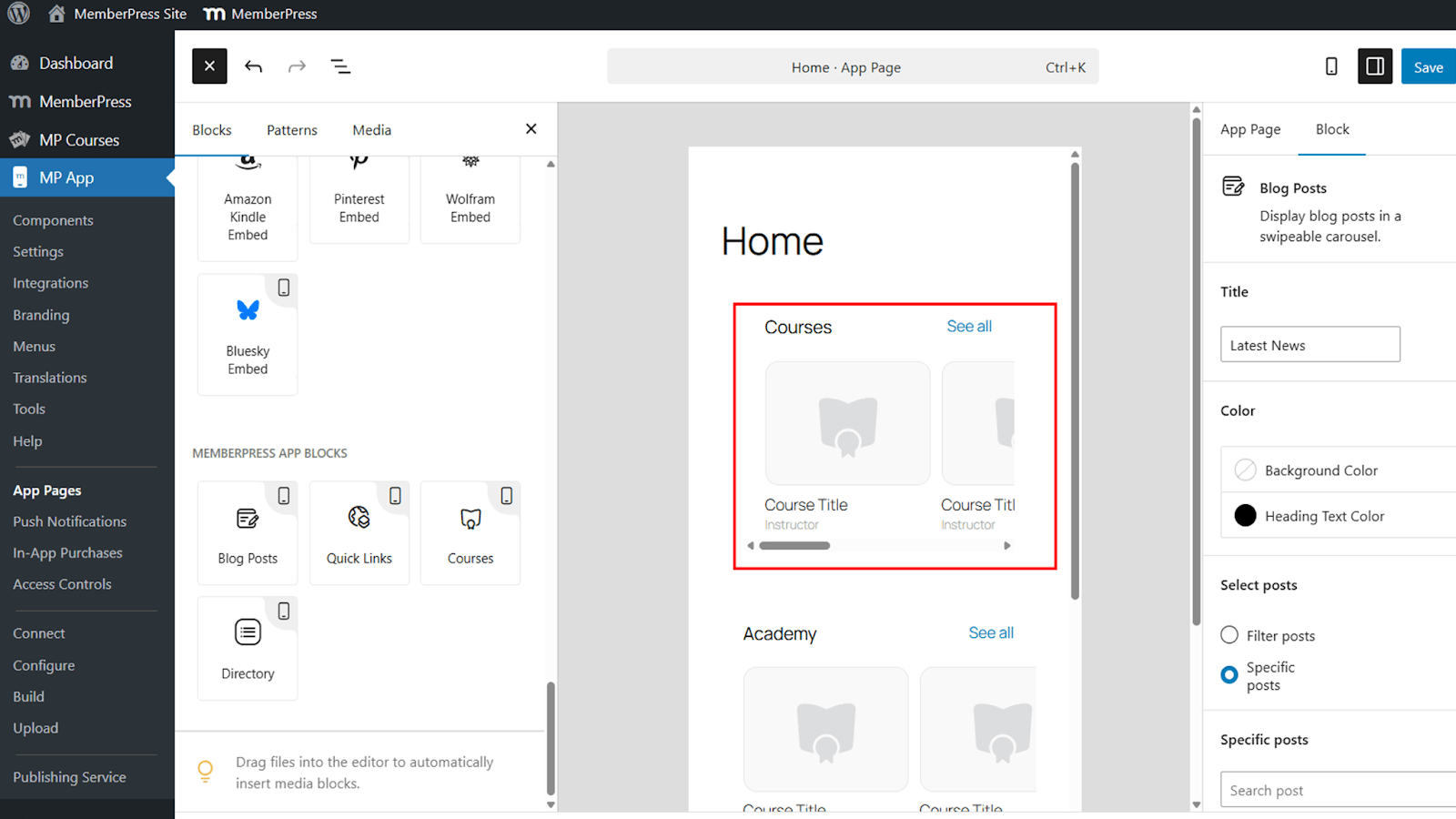
Eine Echtzeit-Vorschau zeigt an, wie der Block in der App aussehen wird.
Konfigurieren des Kursblocks
Der Kursblock bietet mehrere Konfigurationsoptionen zur Steuerung von Aussehen und Inhalt.
Titel
- Suchen Sie die Titel Feld.
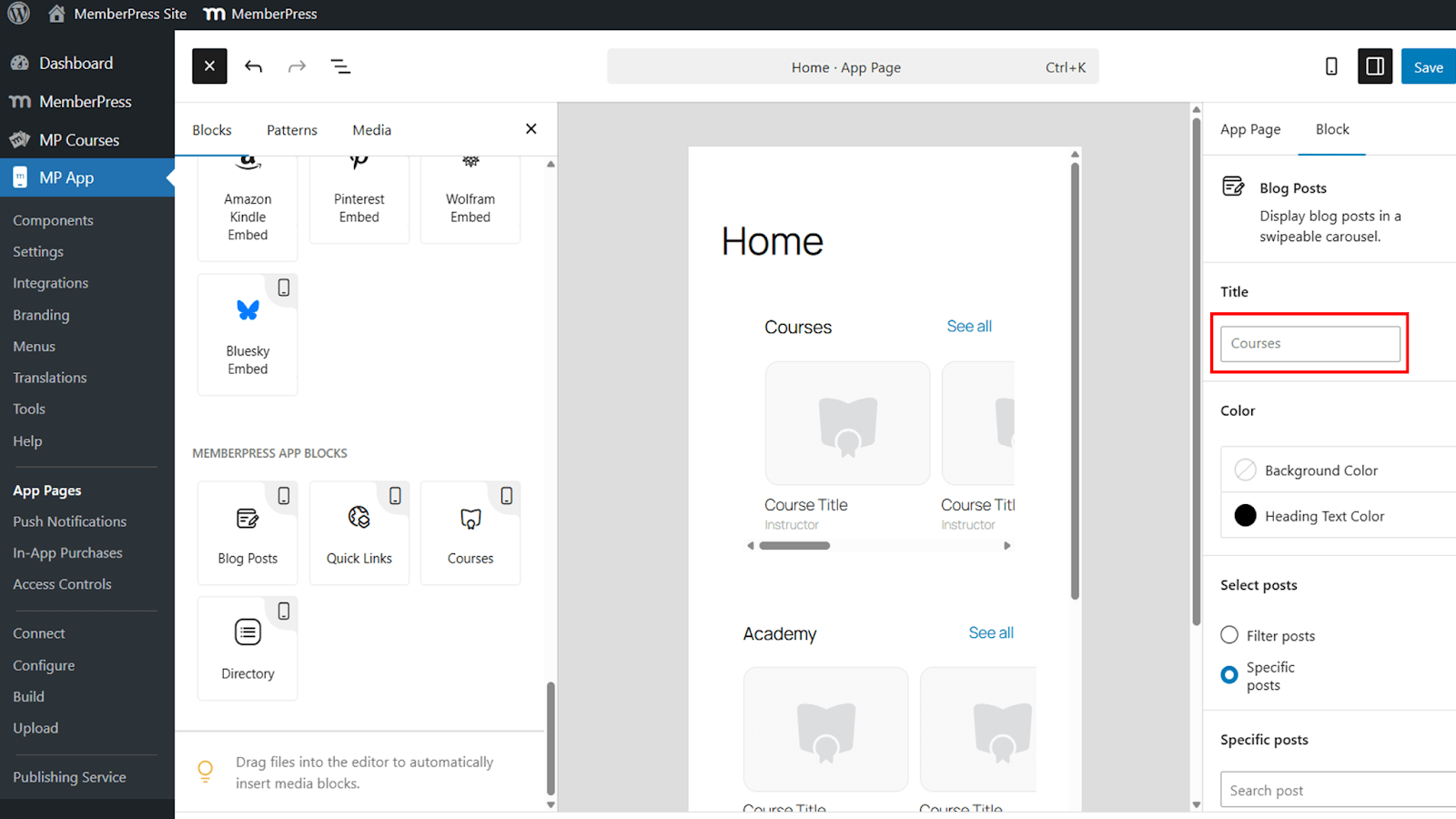
- Umbenennen des Blocktitels vom Standard Kurse zur Anpassung an das Branding oder den Kontext, wie z. B. Akademie.
Hintergrund- und Überschriftenfarbe
- Weisen Sie dem Block eine Hintergrundfarbe zu oder lassen Sie ihn transparent, damit er sich in das Seitendesign einfügt.
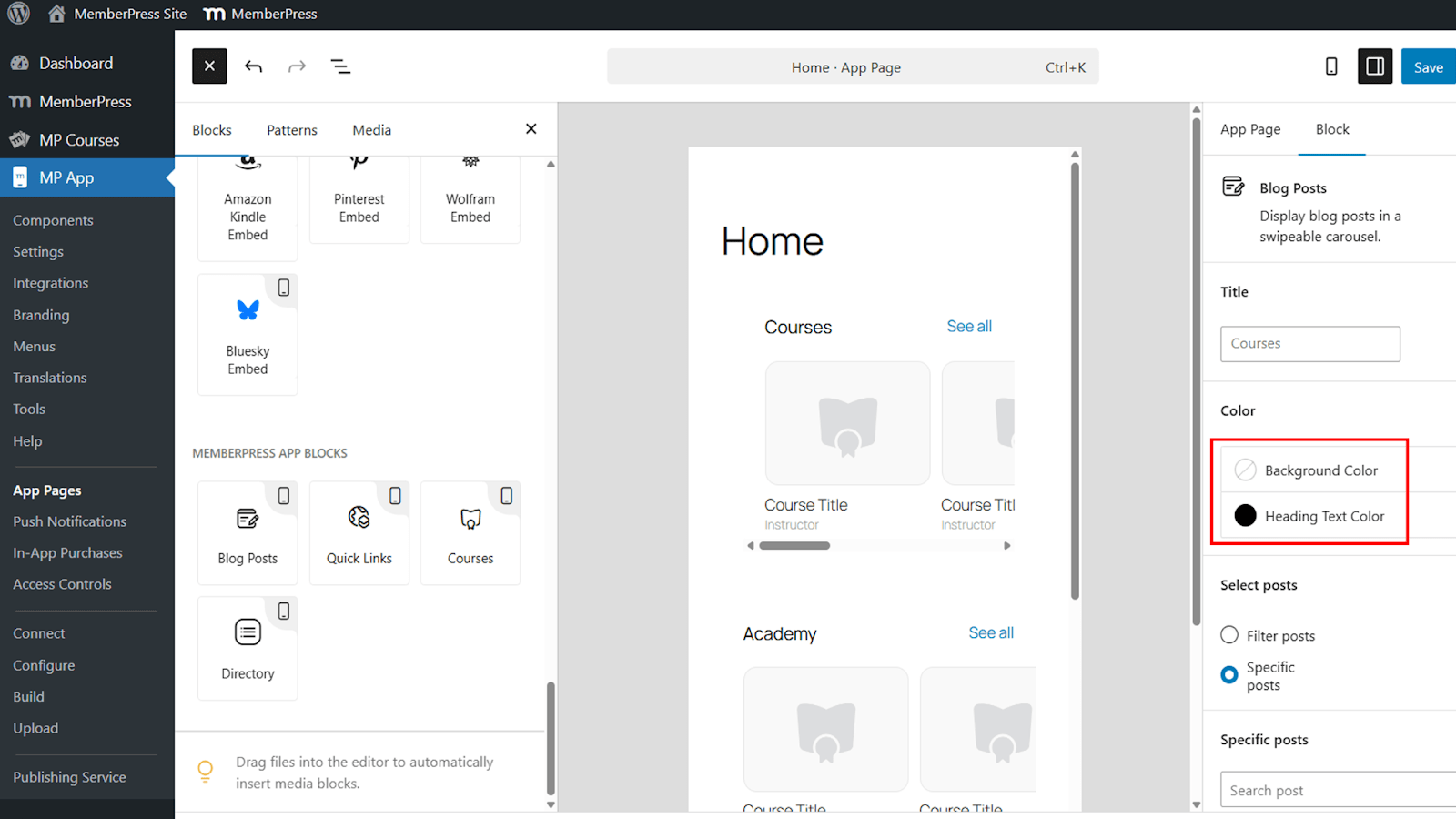
Optionen für die Inhaltsanzeige
- Legen Sie fest, ob Sie die Kurse mit filtert oder spezielle Kurse.
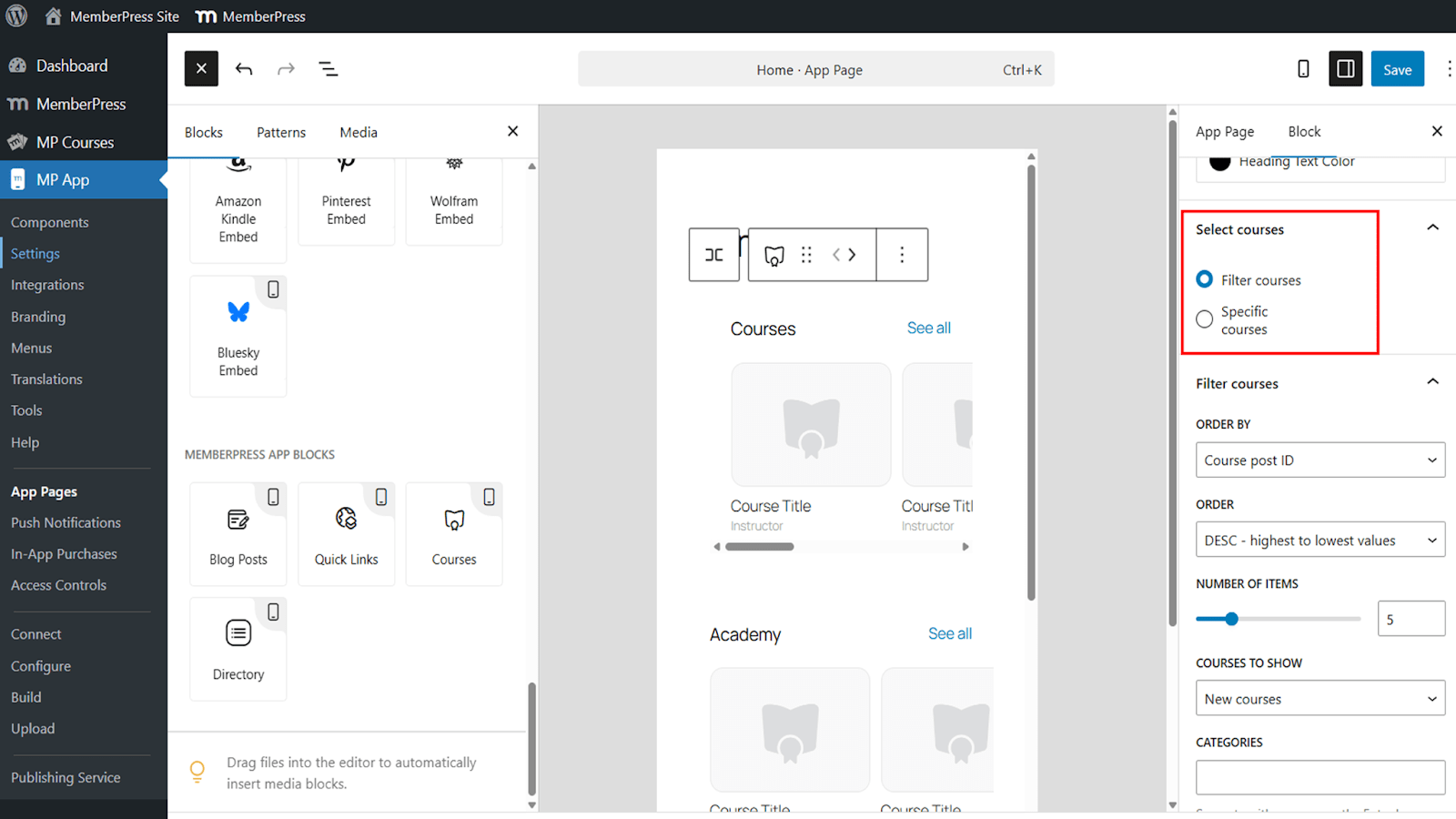
Verwenden von Filtern zur Anzeige von Kursen
Mit Hilfe von Filtern können Sie dynamisch steuern, welche Kurse im Karussell erscheinen.
- Sortieren Sie Kurse nach Kurs-ID, Titel oder Veröffentlichungsdatum.
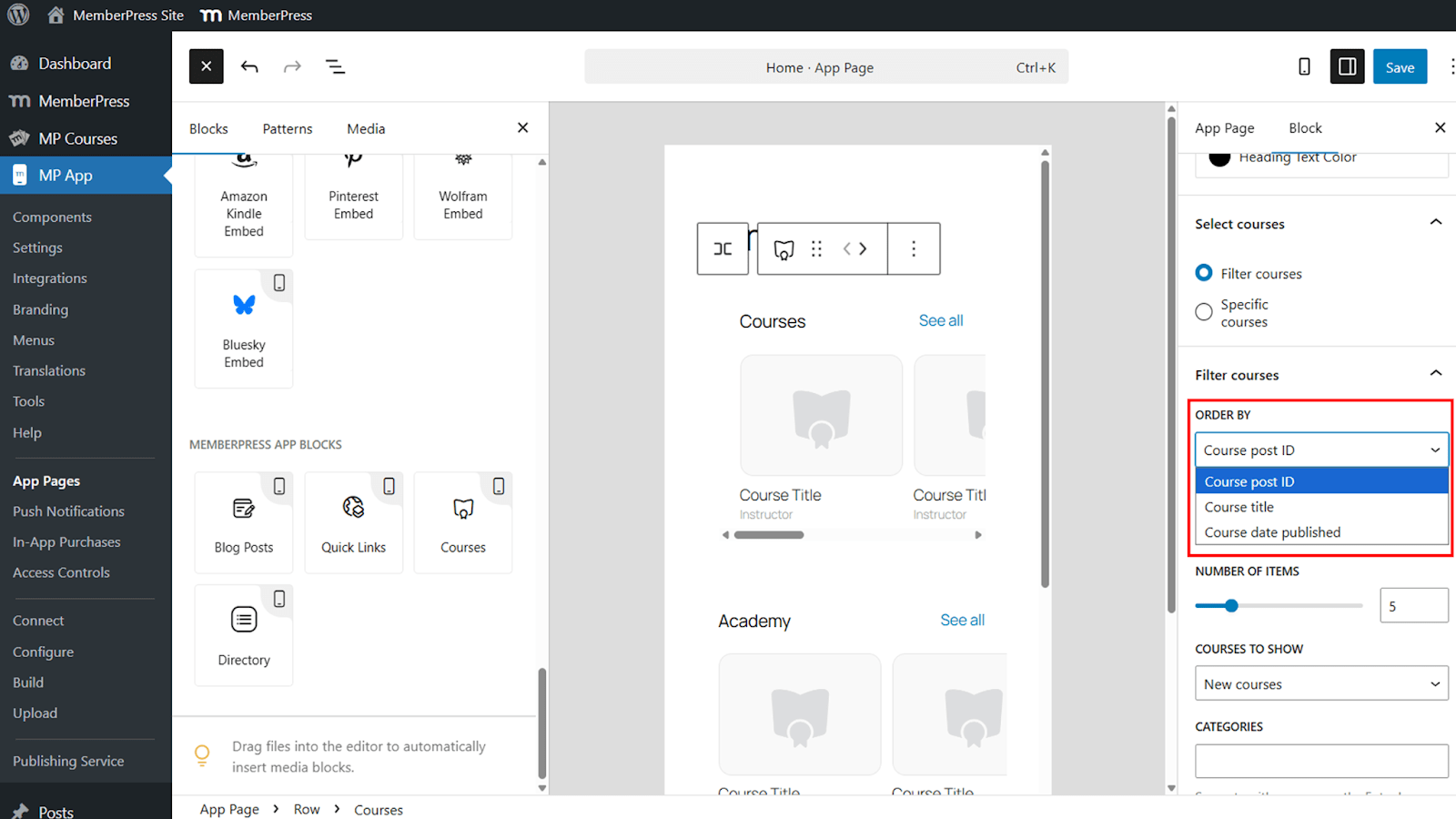
- Wählen Sie aufsteigende oder absteigende Reihenfolge.
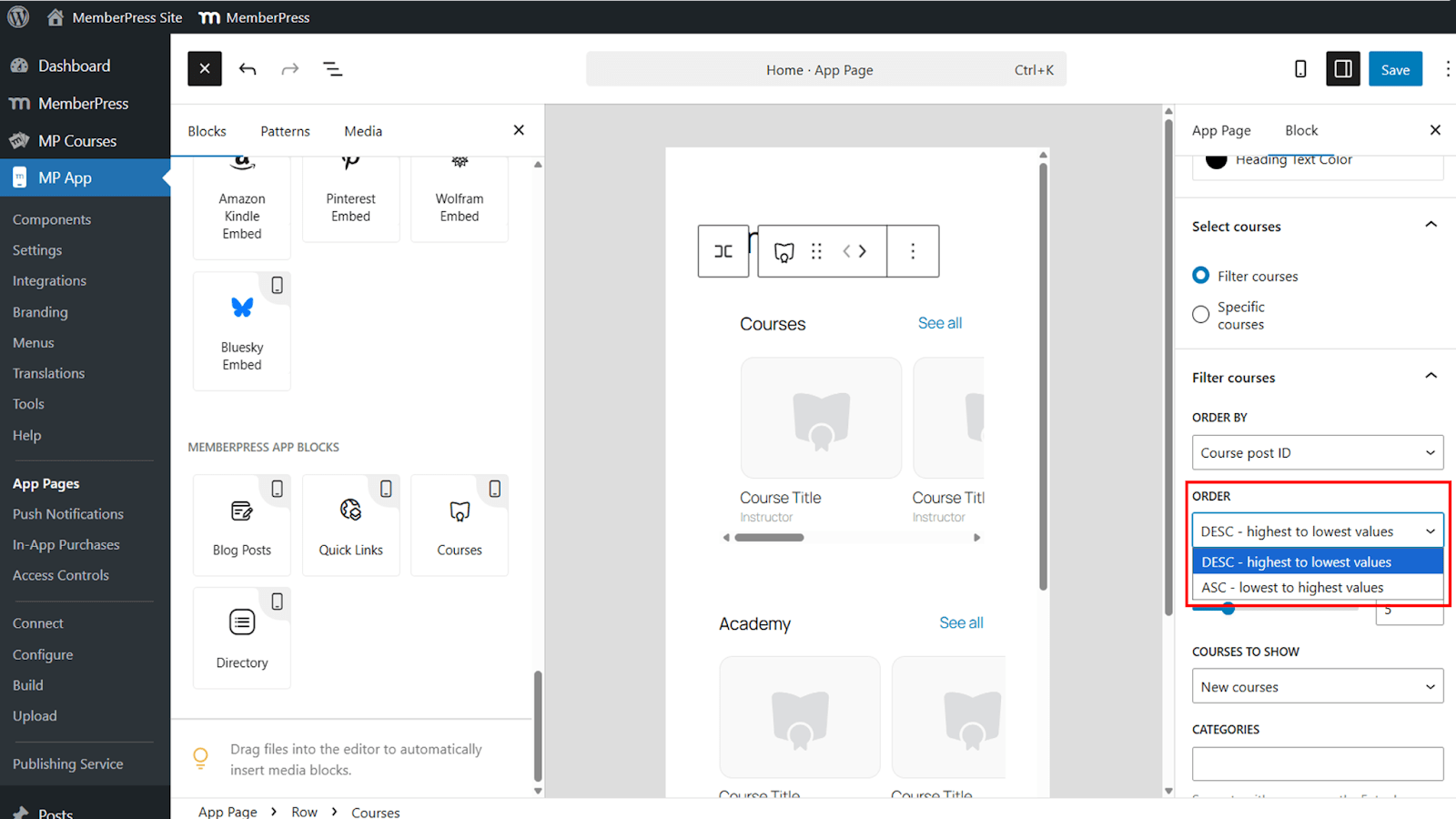
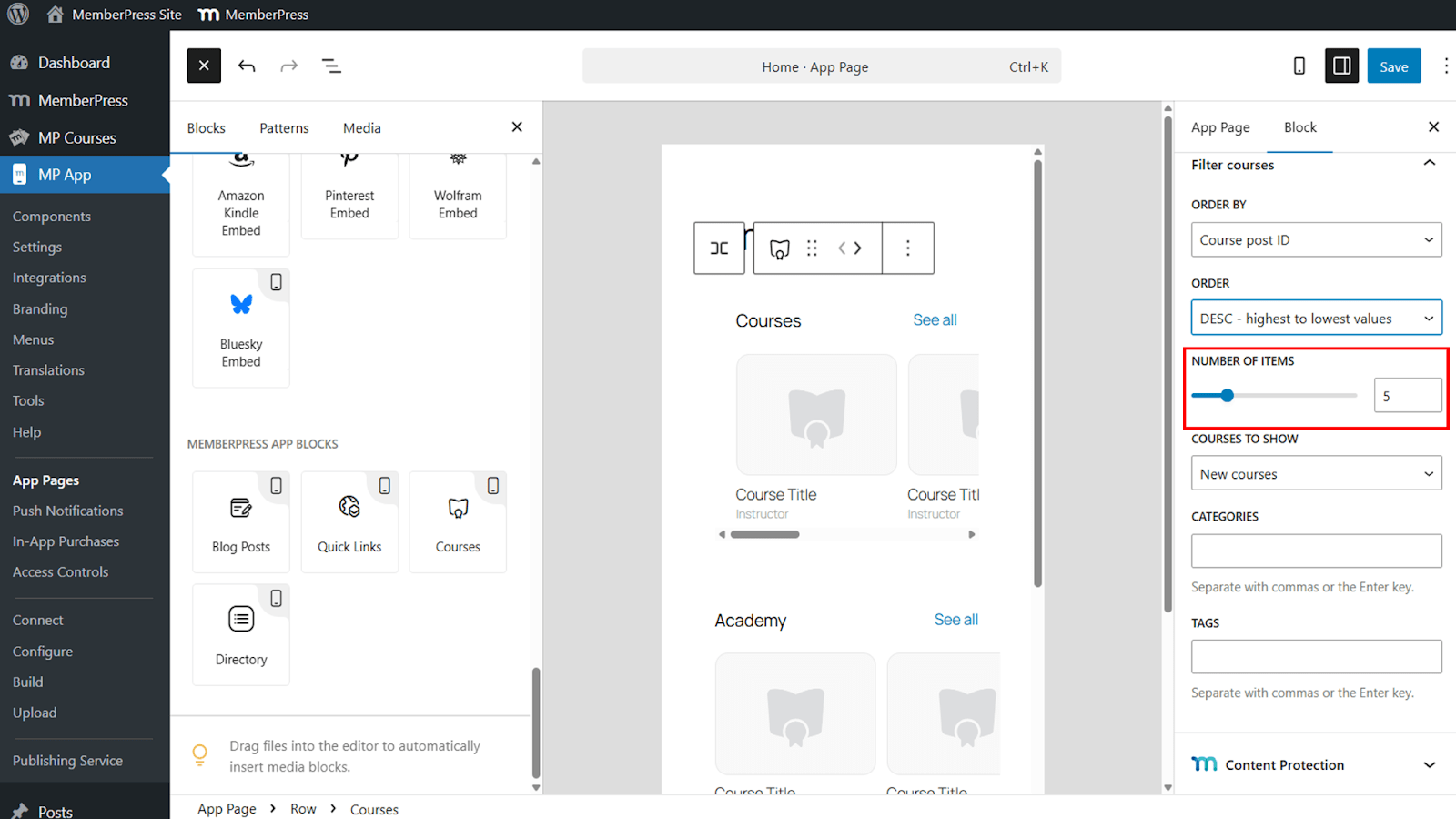
- Legen Sie die Anzahl der im Karussell angezeigten Kurse fest.
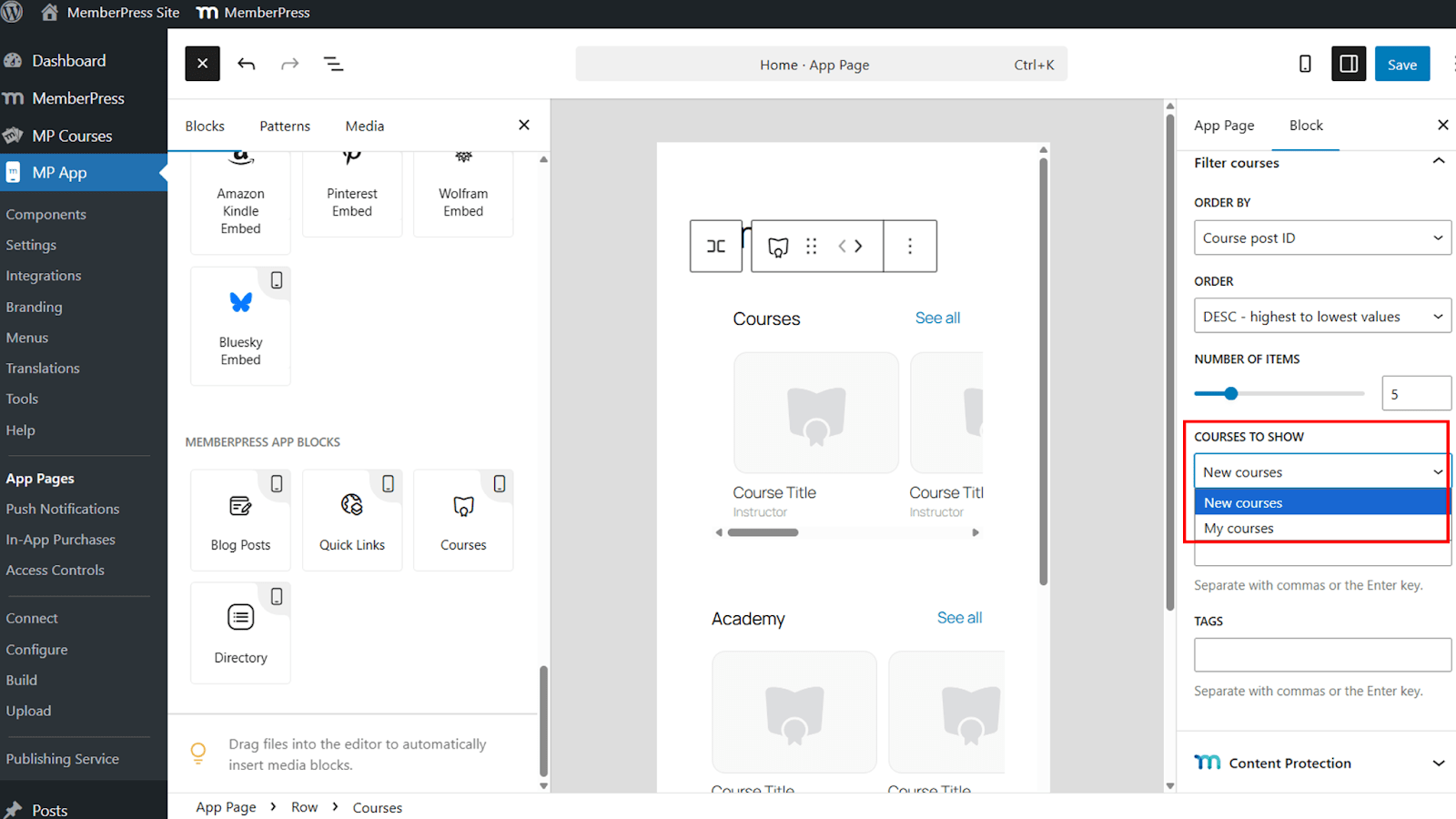
- Anzeige Neue Kurse oder Meine Kurse basierend auf dem eingeloggten Mitglied.
- Filtern Sie Kurse nach Kategorien und Tags.
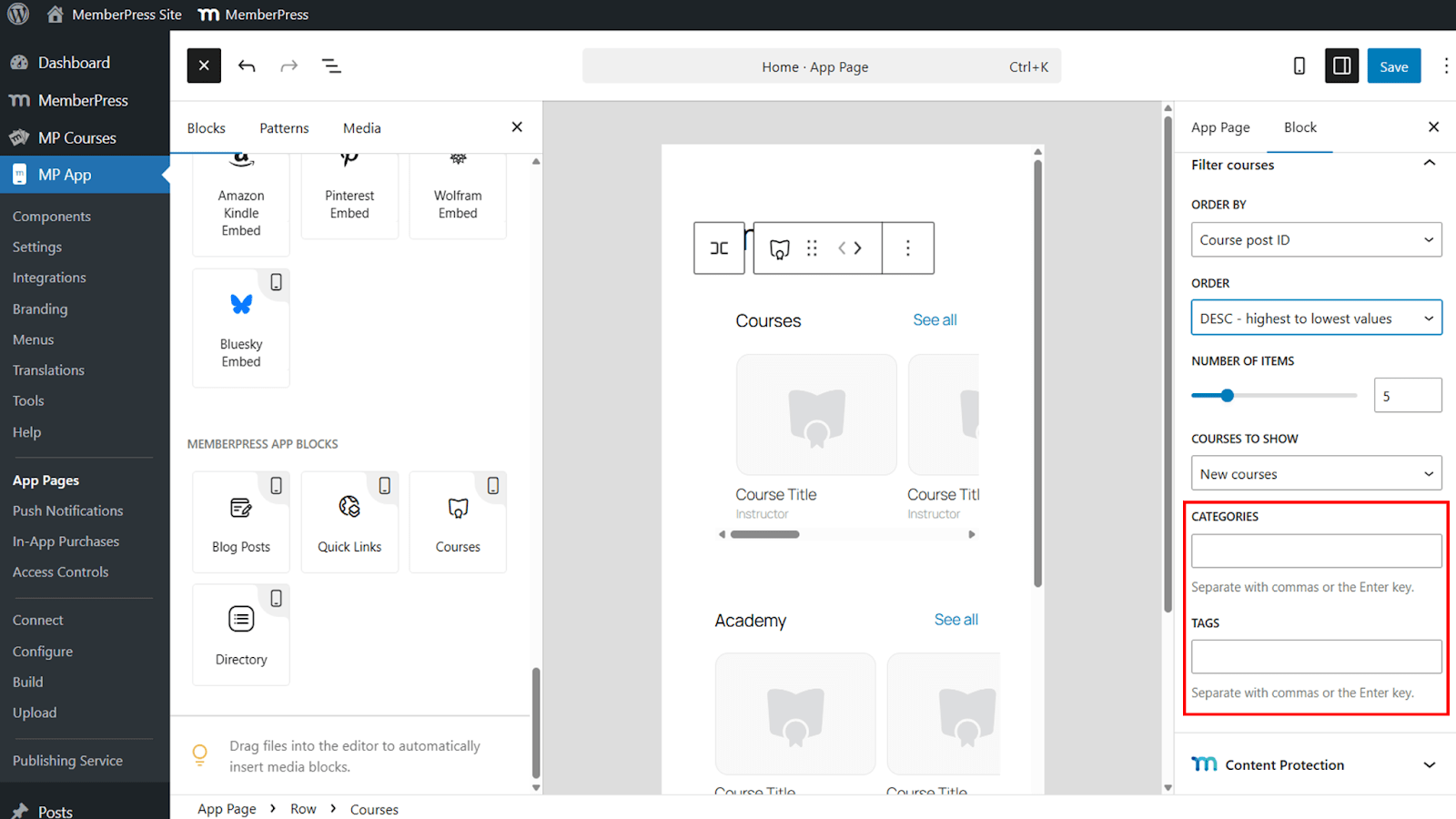
Filter sind nützlich, um bestimmte Gruppen von Kursen hervorzuheben und bieten eine feinkörnige Steuerung der Kurssichtbarkeit in der MemberPress iOS/Android-App.
Auswahl bestimmter Kurse
Die gezielte Kursauswahl ermöglicht die manuelle Steuerung der angezeigten Inhalte.
- Wechsel von gefilterten Kursen zu Spezifische Kurse.
- Wählen Sie einzelne Kurse aus, die in den Block aufgenommen werden sollen.
Diese Option ist ideal für die Hervorhebung von Sonder- oder Werbekursen.
Speichern und Überprüfen des Blocks
Wenn die Konfiguration abgeschlossen ist, speichern Sie die Änderungen, um den Block zu veröffentlichen.
- Klicken Sie auf Speichern Sie um die Blockeinstellungen zu übernehmen.
- Öffnen Sie die MemberPress iOS/Android-App auf einem mobilen Gerät.
- Navigieren Sie zu der Seite, die die Kurse Block.
- Überprüfen Sie, ob das Karussell die richtigen Kurse anzeigt.
- Tippen Sie auf einen Kurs oder Alle sehen um die korrekte Navigation zu bestätigen.
Es können mehrere Kursblöcke auf derselben Seite hinzugefügt werden, jeder mit einem eigenen Titel und eigenen Filtern, was eine Segmentierung der Inhalte in der gesamten App ermöglicht.










 DE
DE  EN
EN  ES
ES  FR
FR  PT
PT 