

Aunque MemberPress y el Reservas en Amelia Aunque estos complementos no se integran oficialmente, funcionan bien juntos. Al vincular Amelia con MemberPress, podrás gestionar quién puede reservar eventos y citas en función de los roles de usuario y las afiliaciones.
Este documento explica cómo conectar MemberPress con Amelia, para que sólo los miembros autorizados puedan hacer reservas. MemberPress puede asignar un rol adicional a los suscriptores de membresías específicas. Además, las reglas de MemberPress garantizan que sólo las personas con ese rol puedan acceder a la página de reservas.
Este documento contiene los siguientes temas:
- Configuración de las afiliaciones MemberPress
- Configuración de eventos y códigos cortos de Amelia
- Restricción de acceso (reglas MemberPress)
- Añadir paneles frontales Amelia a la cuenta MemberPress Página
Configuración de las afiliaciones MemberPress
MemberPress afiliaciones puede asignar un rol de usuario adicional y acceso a las páginas de reserva. Cree niveles de afiliación para Amelia.
Para darse de alta en MemberPress, siga los pasos que se indican a continuación:
- Vaya a Panel de control > MemberPress > Afiliaciones.
- Haga clic en el botón Añadir nuevos miembros botón.
- Crear una nueva afiliación (por ejemplo, “Miembro Premium”).
- Al crear la afiliación, desplácese hasta Opciones de afiliación > Avanzadas y marque la casilla Funciones de usuario para este abono opción.
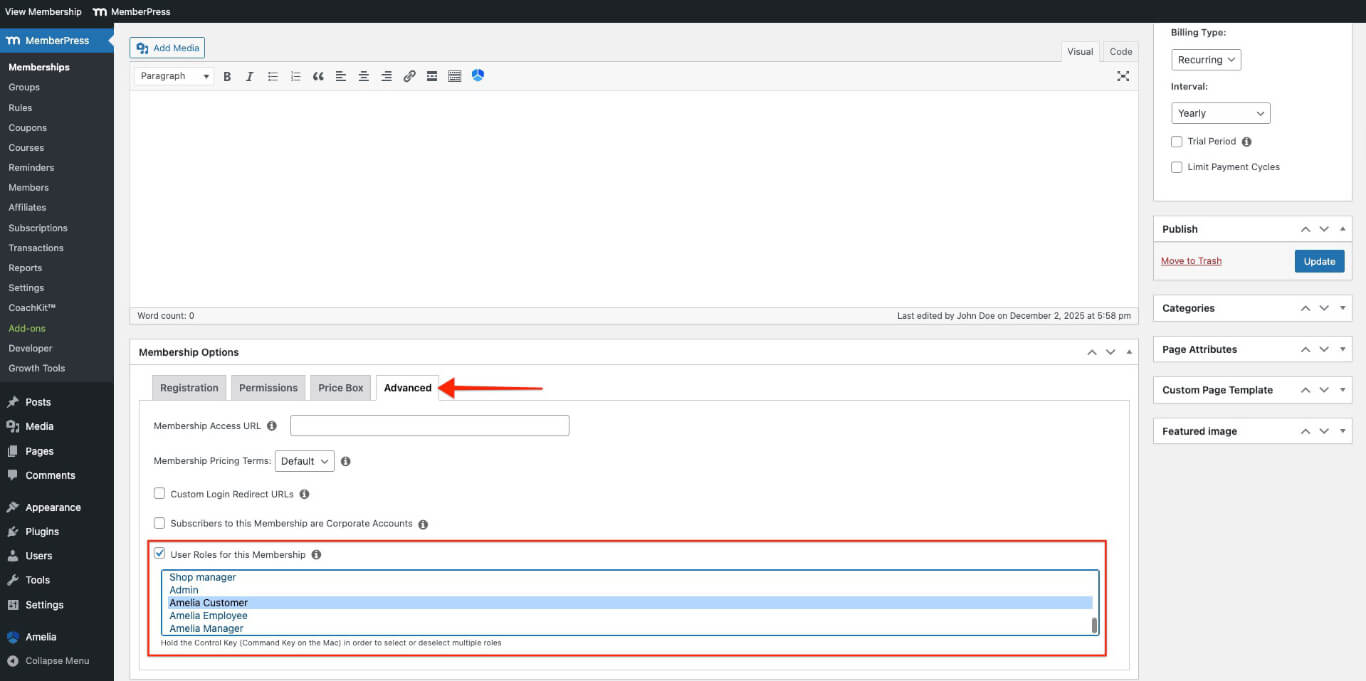
- Seleccione Cliente Amelia función para los clientes o el Amelia Empleada papel del personal.
- Haga clic en el botón Publique para guardar la afiliación.
Repita estos pasos para añadir más niveles de afiliación para diferentes roles de usuario.
Configuración de eventos Amelia
Amelia ofrece shortcodes que muestran formularios de reserva en páginas o entradas. Configure el plugin y añada funciones de reserva donde sea necesario.
Creación de un evento Amelia
- Vaya a Cuadro de mandos > Amelia > Eventos.
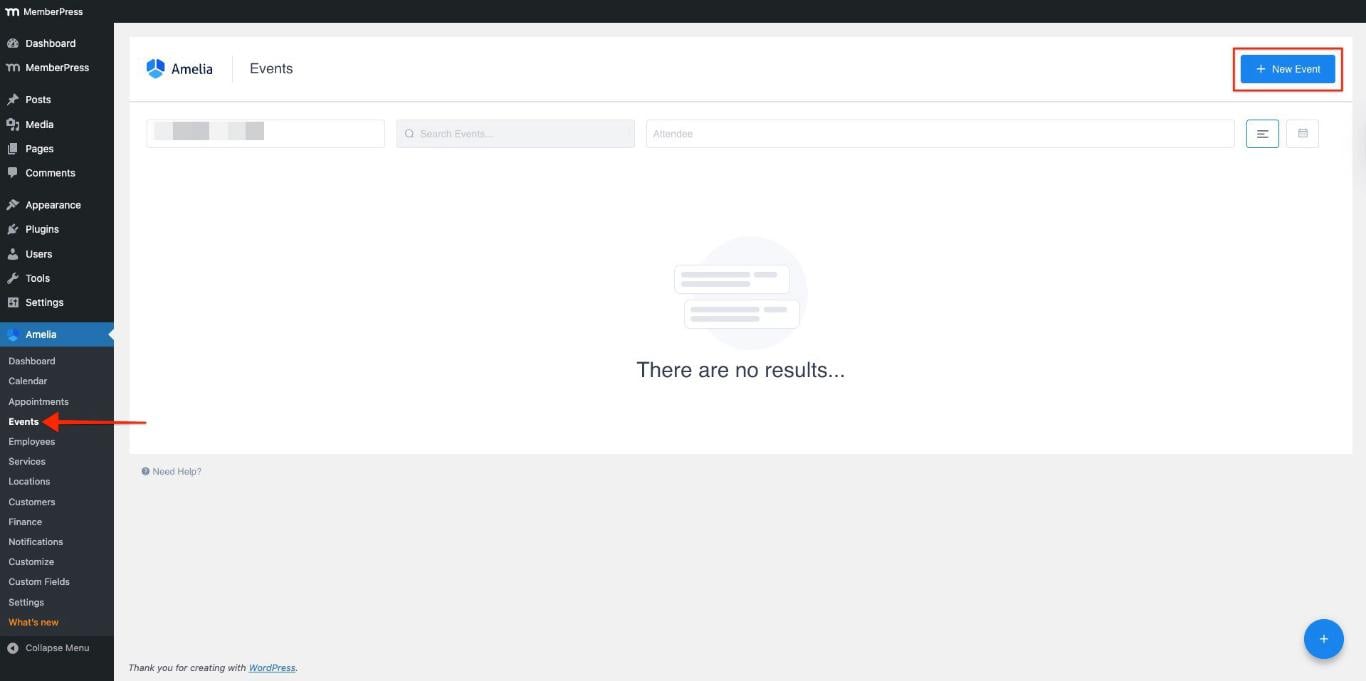
- Haga clic en el botón + Nuevo evento para crear evento(s).
- Introduzca los detalles del evento, como Nombre, Fechay Tiempo.

- Estas opciones están activadas por defecto. Puede desactivarlas para seleccionar fechas personalizadas:
- Apertura inmediata de reservas;
- Las reservas se cierran cuando empieza el evento.
- Añade el precio y el número máximo de miembros permitidos para el evento.
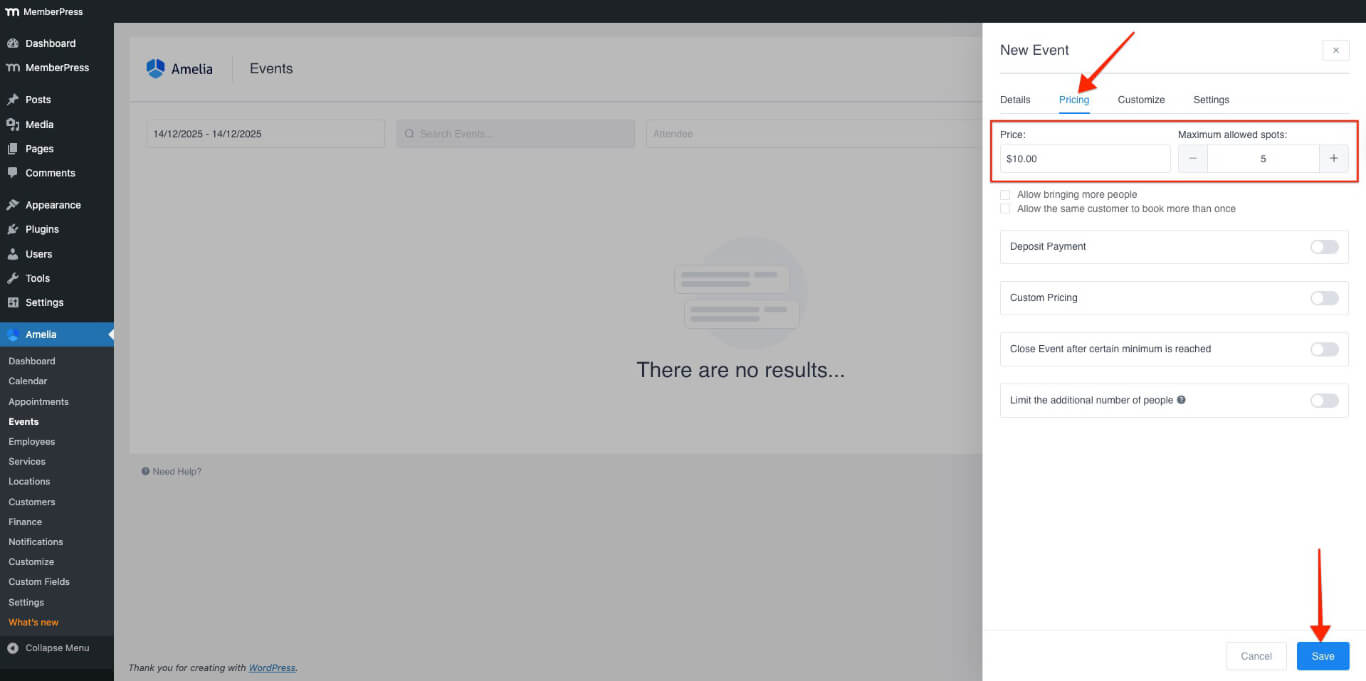
- Haga clic en el botón Guardar botón.
Cómo añadir un código corto de eventos a una página
- Navegue a una página existente o cree una nueva.
- En el editor de páginas, haga clic en el botón Amelia (si utiliza el botón Editor clásico) o añadir un Amelia - Lista de eventos (si utiliza el Editor de bloques).
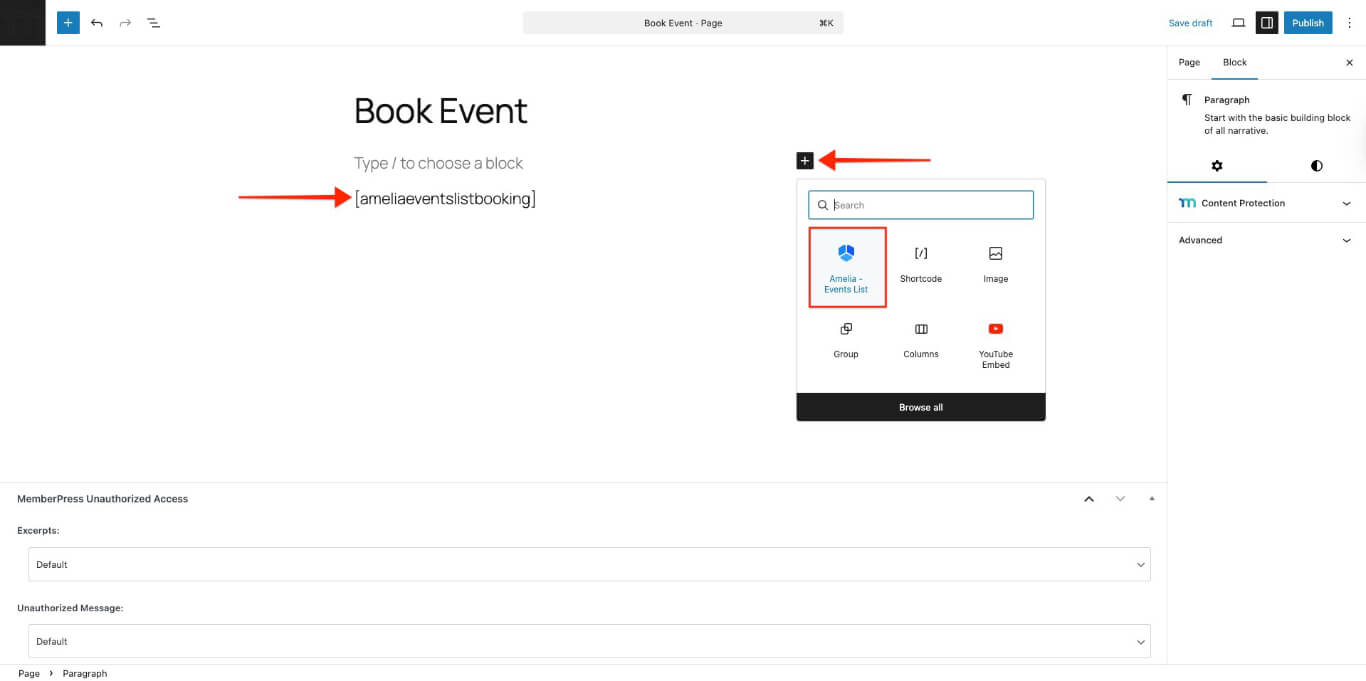
- El shortcode se insertará automáticamente en la página.
- Para la inserción manual, copie y pegue el Amelia lista de eventos reserva shortcode en el editor de páginas:
[ameliaeventslistbooking]- Haga clic en Publique para activar la página.
La siguiente sección explica cómo puede proteger esta página utilizando Normas MemberPress.
Restricción de acceso a páginas de reserva mediante reglas MemberPress
Normas MemberPress controlar qué contenido pueden ver los miembros. Utilice Reglas para proteger las páginas con formularios de reserva de Amelia.
Crear una regla de protección
- Vaya a Panel de control > MemberPress > Normas.
- Haga clic en el botón Añadir nuevo botón.
- En el Contenido protegido seleccione la opción Una sola página opción.
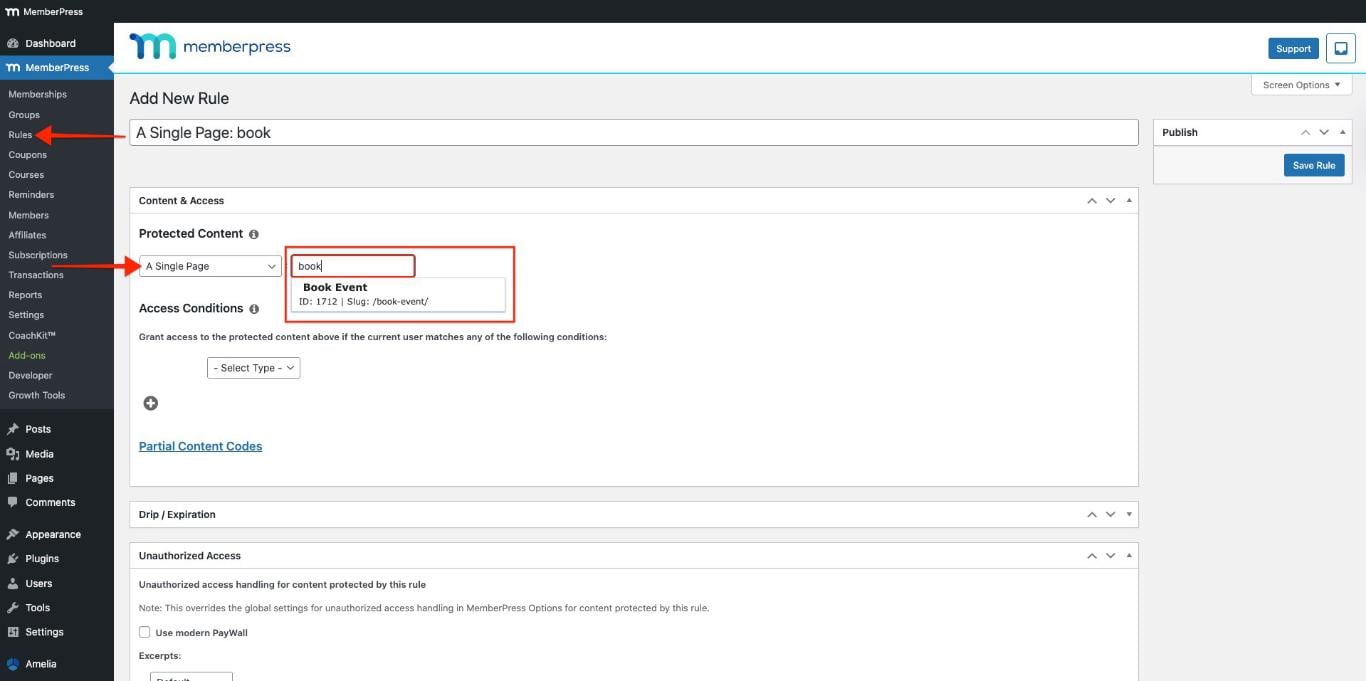
- Escriba el nombre de la página en el campo Comenzar a escribir el título y elija la página en el menú desplegable.
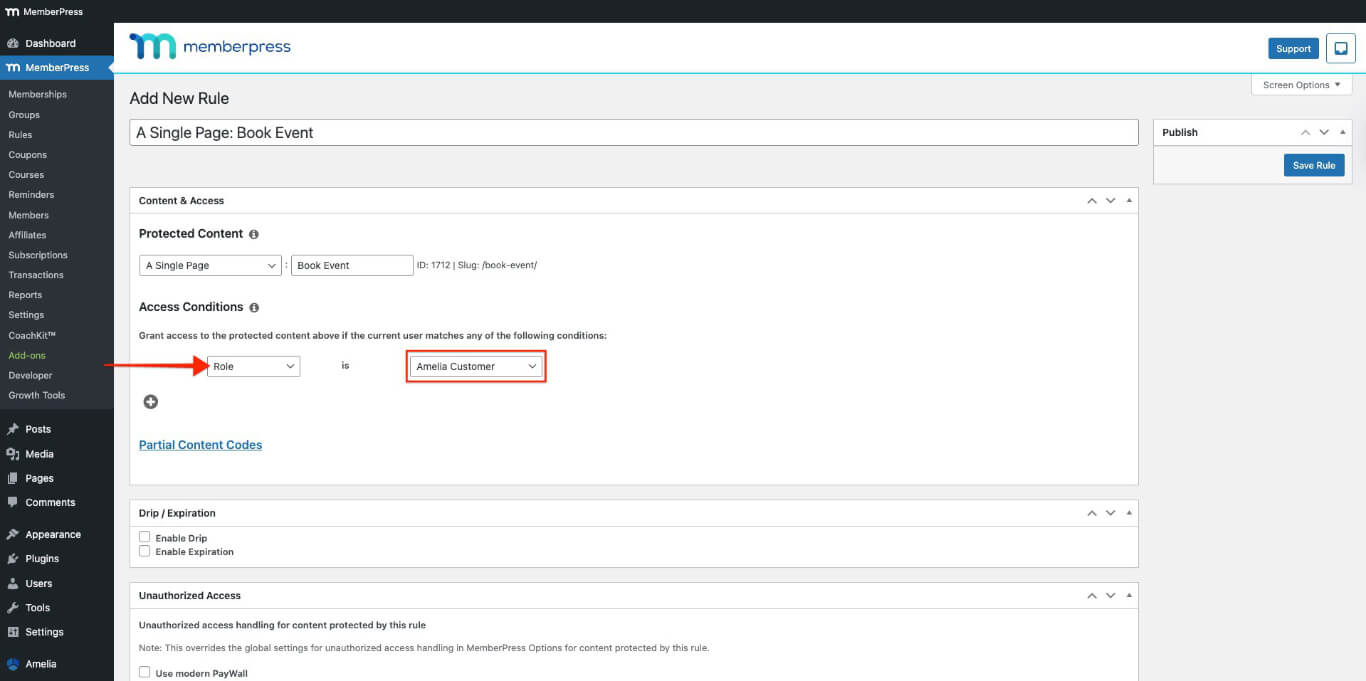
- En el Condiciones de acceso sección:
- Elija Afiliación del primer desplegable y Cliente Amelia del segundo desplegable;
- Seleccione los miembros que deben tener acceso a la página de reservas.
- Desplácese hasta el Acceso no autorizado sección.
- En el Mensaje no autorizado seleccione la opción A medida opción.
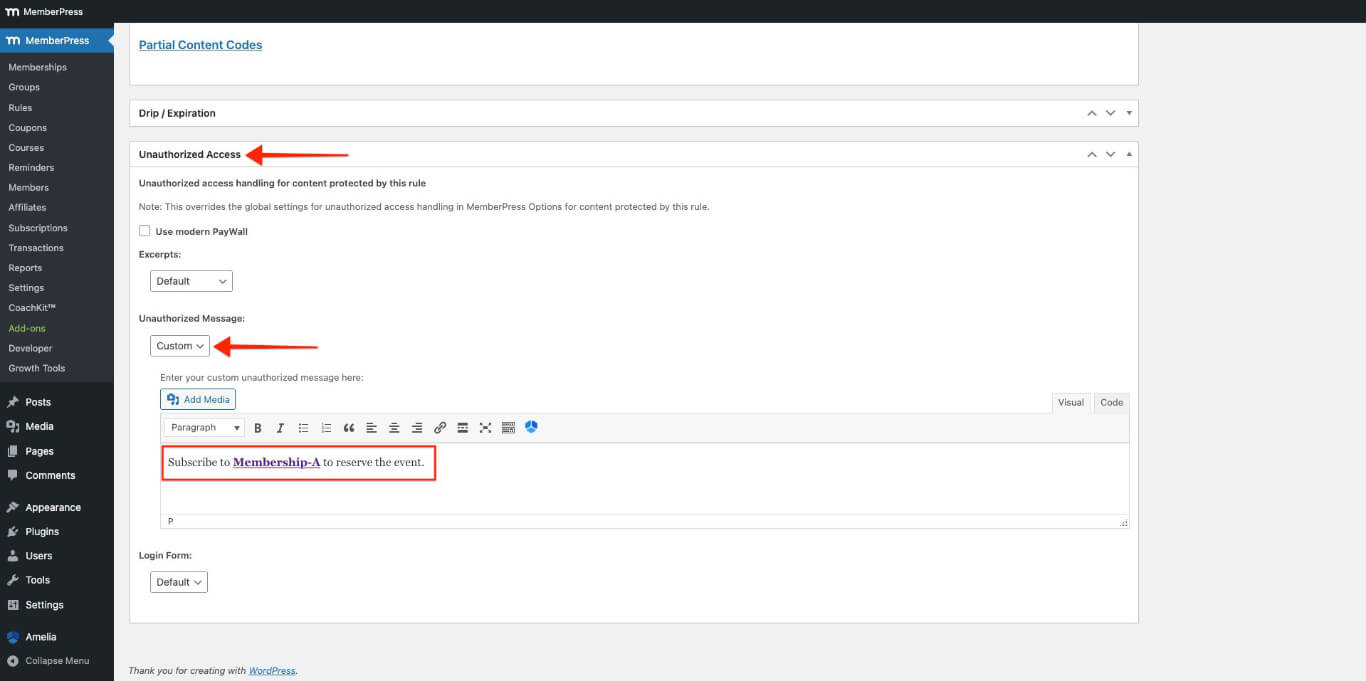
- Introduzca su mensaje personalizado para los usuarios no autorizados que accedan a esta página.
- Haga clic en el botón Salvar la regla arriba a la derecha.
Inscripción y reserva de eventos
- Ir a Panel de control > MemberPress > Afiliaciones.
- Abra la afiliación en el navegador Ventana de incógnito (privada).
- Introduzca los datos necesarios para registrarse como usuario de prueba y, a continuación, seleccione Método de pago sin conexión o Stripe. Puede utilizar Stripe Números de tarjeta de prueba para inscribirse.
- Visite el página de reserva de eventos con el shortcode.

- Haga clic en el botón Seguir leyendo para revisar el evento.
- Haga clic en el botón Reservar evento botón.
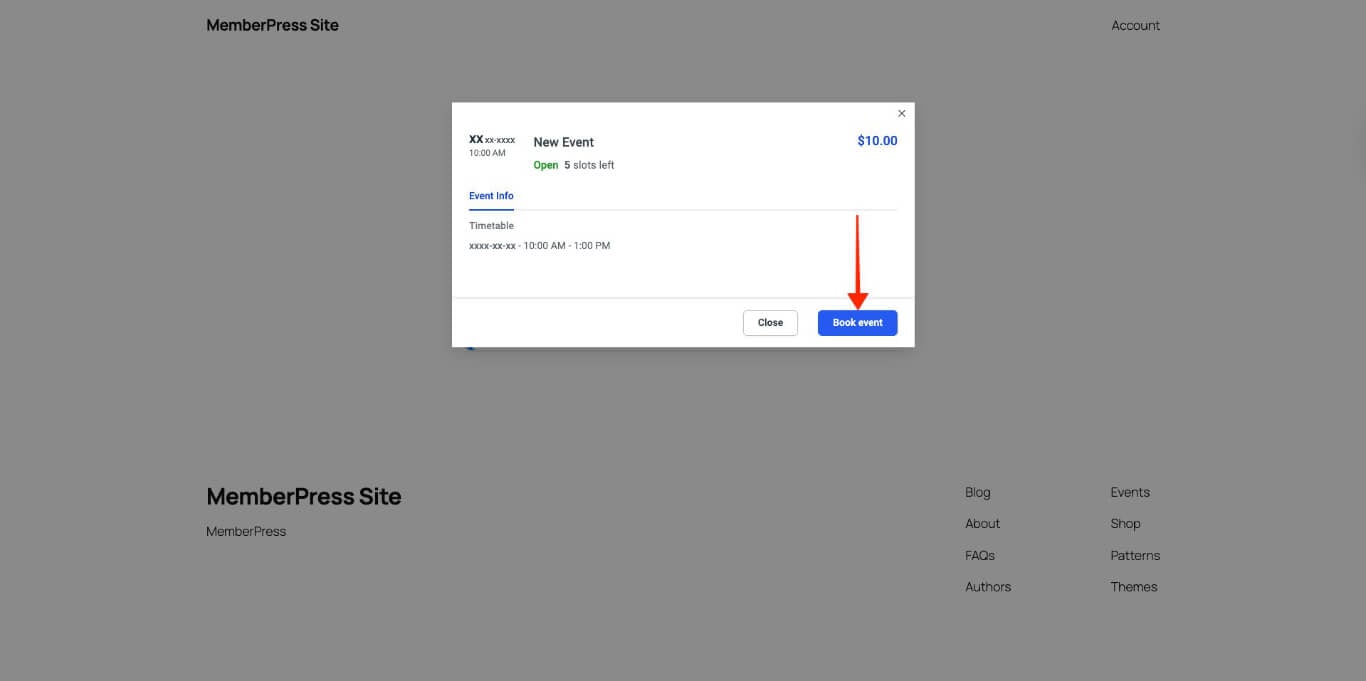
- Introduzca toda la información necesaria y pulse el botón Continúe en botón.
- Haga clic en el botón Reservar evento botón.

- Haga clic en el botón Acabado o el botón Panel de clientes botón.
Probar las páginas de reserva
Las pruebas aseguran que las Reglas MemberPress bloquean el acceso a las páginas de reserva de Amelia.
Crear varias cuentas de prueba con distintos niveles de afiliación.
- Abra su sitio en el navegador Ventana de incógnito (privada).
- Inicie sesión con una cuenta de prueba que tenga la afiliación necesaria.
- Vaya a la página de reservas y compruebe que el formulario de reserva de Amelia está visible y funciona.
- Cierra sesión e inicia sesión con una cuenta de prueba que no tenga la suscripción.
- Vaya a la página de reservas y compruebe si el mensaje de acceso no autorizado en lugar del formulario de reserva.
Si las restricciones de acceso no funcionan, comprueba el Normas MemberPress para garantizar que se eligen los niveles de afiliación y las páginas correctas.
Añadir paneles frontales Amelia a la página de cuenta MemberPress
Puede añadir paneles de clientes y empleados de Amelia a Pestañas de navegación de la cuenta MemberPress como pestañas personalizadas. Esto permite a los miembros gestionar citas y eventos directamente desde la página de su cuenta MemberPress.
Antes de añadir los paneles Amelia a la página de la cuenta, asegúrese de que la etiqueta MemberPress El complemento Pestañas de navegación de la cuenta está instalado y activado.
Además, asegúrese de que dispone de la versión premium del plugin Amelia para acceder al Panel frontal Amelia características.
Comprender los códigos cortos del panel Amelia
Amelia proporciona dos shortcodes de panel frontal para incrustar portales de clientes y empleados.
Códigos cortos del panel de clientes de Amelia
El panel de clientes muestra las citas y los eventos de los miembros. Utiliza las siguientes variantes del código corto en función de los requisitos de contenido.
Este shortcode muestra tanto citas como eventos en el panel de clientes de Amelia:
[ameliacustomerpanel appointments=1 events=1]Puede mostrar citas o eventos en el panel de cliente utilizando estas opciones:
- Supresión de eventos=1 mostrará sólo citas:
[ameliacustomerpanel appointments=1]- Eliminación de citas=1 mostrará sólo eventos:
[ameliacustomerpanel events=1]Códigos cortos del panel de empleados de Amelia
El ’Panel de empleados» muestra las citas y los eventos de los miembros del personal. Utiliza las siguientes variantes del código corto en función de los requisitos de contenido:
Este shortcode muestra tanto citas como eventos en el Panel de Empleados de Amelia:
[ameliaemployeepanel appointments=1 events=1]Puede mostrar citas o eventos en el panel de empleado utilizando estas opciones:
- Supresión de eventos=1 mostrará sólo citas:
[ameliaemployeepanel appointments=1]- Eliminación de citas=1 mostrará sólo eventos:
[ameliaemployeepanel events=1]Añadir paneles Amelia como fichas de página de cuenta
Sigue estos pasos para añadir paneles Amelia a la página de la cuenta MemberPress:
- Vaya a Panel de control > MemberPress > Cuenta.
- Activar las pestañas de navegación de la cuenta y añadir una nueva pestaña de navegación.

- Pegue el Panel de clientes de Amelia Front-end shortcode para eventos.
[ameliacustomerpanel events=1]- Haga clic en el botón Opciones de actualización botón.
- Crear otra pestaña para el Panel de empleados, siguiendo los pasos 1 a 4 anteriores.
Las nuevas pestañas aparecerán en Página de la cuenta MemberPress.
Activación de los paneles de empleados y clientes
Sigue estos pasos para activar el panel de empleados y el panel de clientes de Amelia.
Habilitar el Panel de Empleados
- Ir a la Página de la cuenta MemberPress.
- Haga clic en el botón Panel de empleados creada en la pestaña sección anterior de la barra lateral izquierda.
- Copie el URL desde la barra de direcciones del navegador.
- Navegue hasta el Panel de control > Amelia > Configuración.
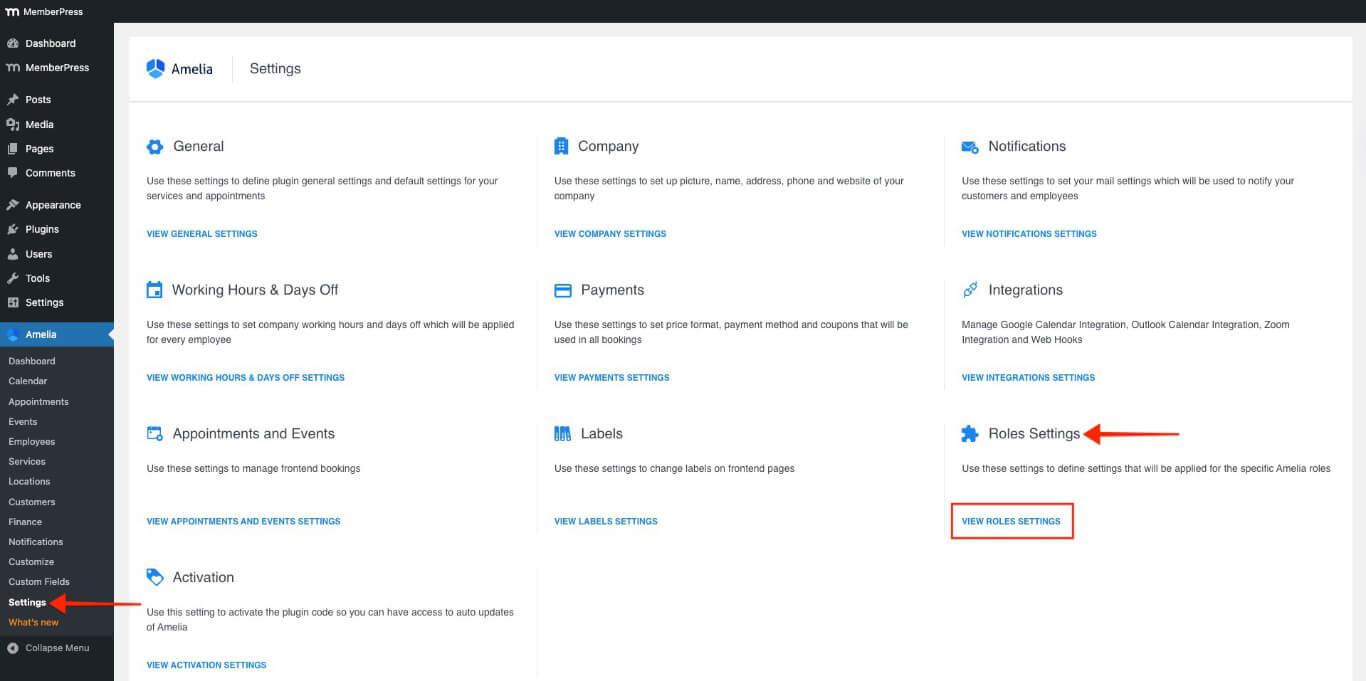
- En virtud de la Configuración de roles haga clic en el botón Ver configuración de roles botón.
- Desde el Empleado active la casilla Habilitar Panel de Empleados opción EN. En URL de la página del panel de empleados aparecerá el campo.
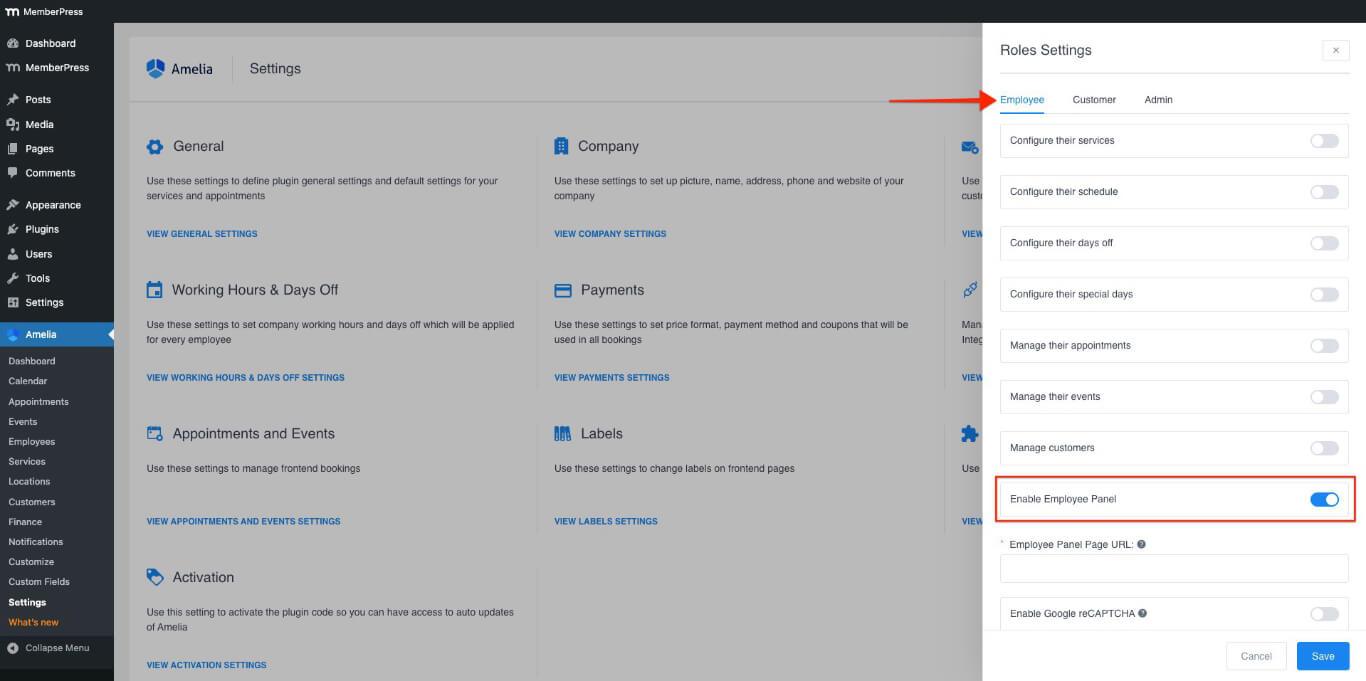
- En el URL de la página del panel de empleados pegue la URL de la página Panel de empleados ficha.
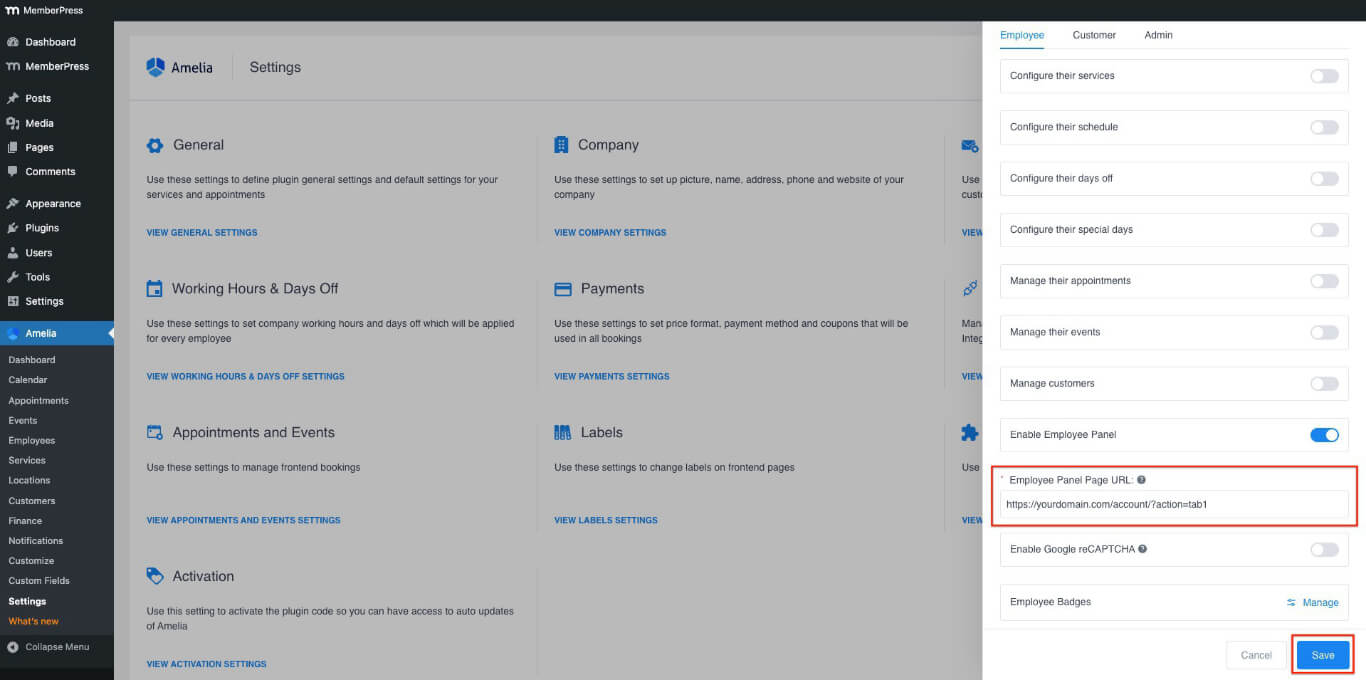
- Haga clic en el botón Guardar botón.
Activar el panel de clientes
- Ir a la Página de la cuenta MemberPress.
- Haga clic en el botón Panel de clientes creada en la pestaña sección anterior de la barra lateral izquierda.
- Copie el URL desde la barra de direcciones del navegador.
- Navegue hasta el Panel de control > Amelia > Configuración.
- En virtud de la Configuración de roles haga clic en el botón Ver configuración de roles botón.
- Desde el Clientes active la casilla Activar el panel de clientes opción EN. En URL de la página del panel de clientes aparecerá el campo.
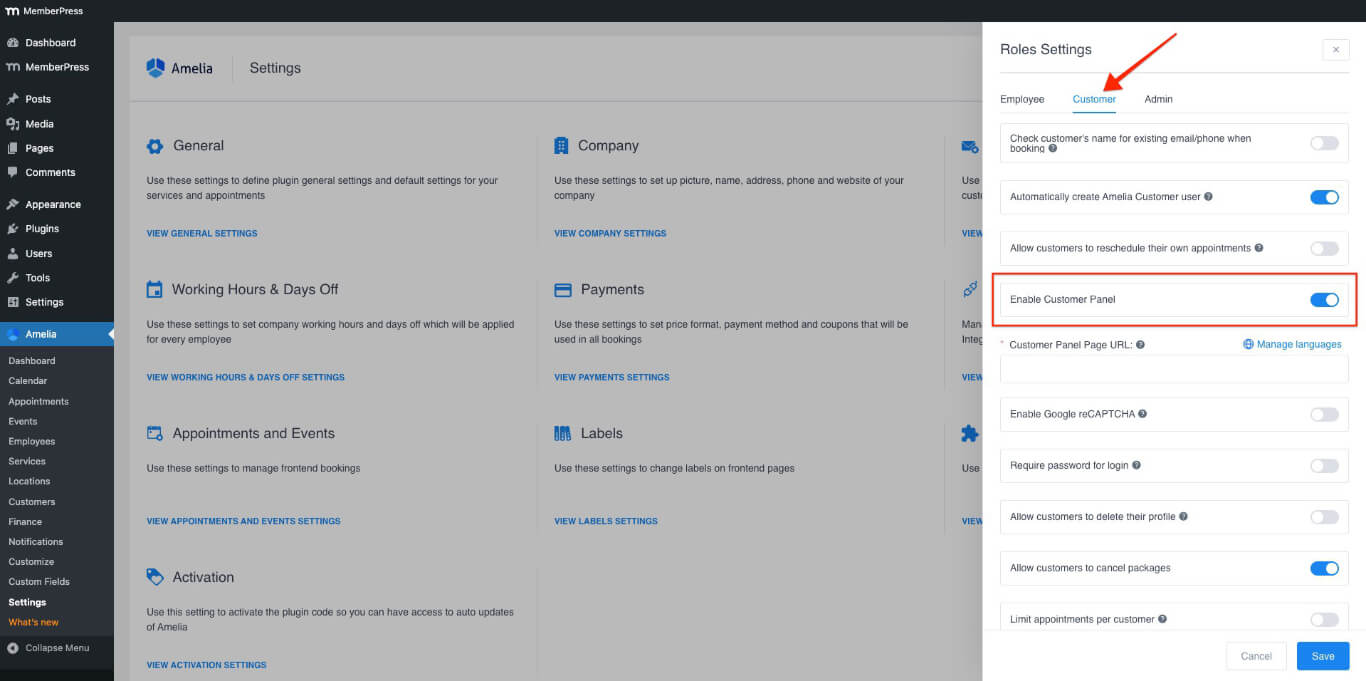
- En el URL de la página del panel de clientes pegue la URL de la página Panel de clientes ficha.
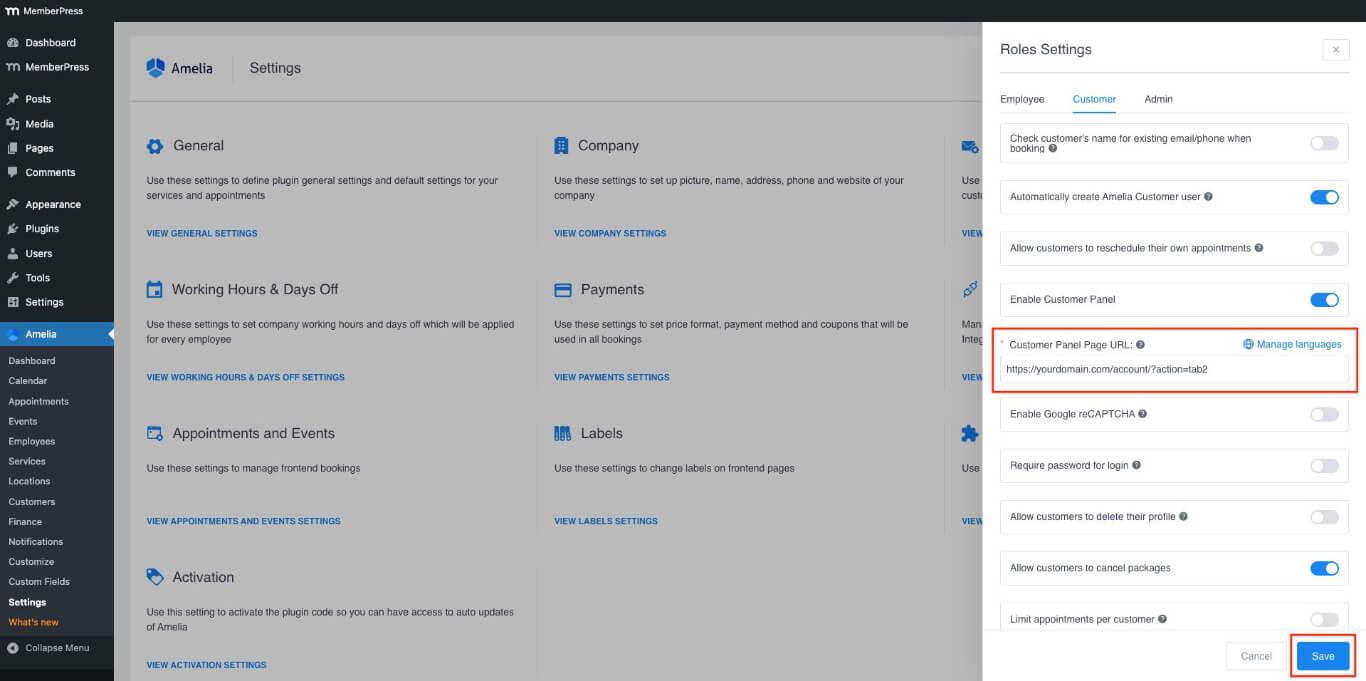
- Haga clic en el botón Guardar botón.
Prueba del panel Amelia Front-end
Después de añadir los paneles Amelia a la página de la cuenta, verifica la integración siguiendo estos pasos:
- Abra su sitio en el navegador Ventana de incógnito (privada).
- Inicie sesión con una cuenta de prueba que tenga la afiliación y la reserva de eventos/citas necesarias.
- Navegue hasta el Página de la cuenta en la parte delantera.
- Haga clic en el botón Panel de clientes de la barra lateral izquierda.
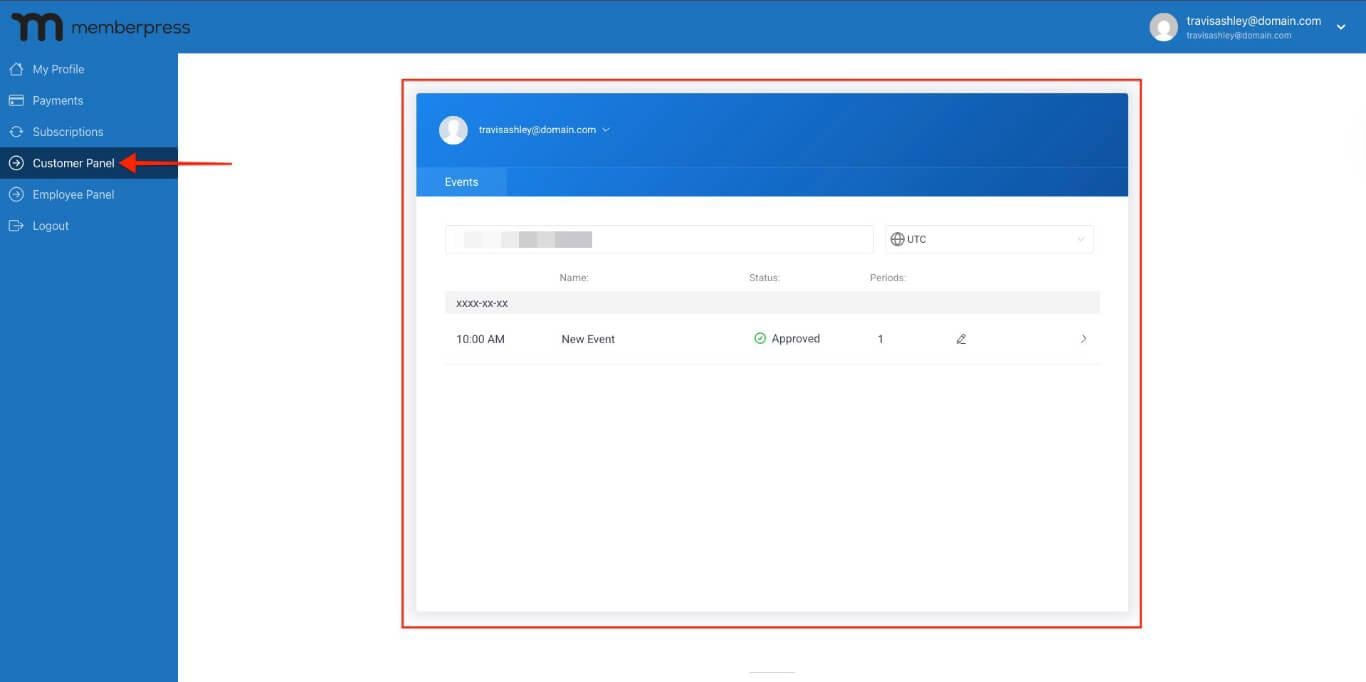
- Compruebe que las citas y los eventos se muestran correctamente según la configuración del shortcode.
Restringir la visibilidad de la pestaña
Puedes gestionar qué miembros ven las pestañas personalizadas con reglas MemberPress. Por ejemplo, puede ocultar la pestaña Panel de empleados de los usuarios con el Cliente Amelia función. Para configurar los ajustes de visibilidad, cree un nuevo MemberPress Regla para proteger las lengüetas.










 ES
ES  EN
EN  FR
FR  DE
DE  PT
PT 