

La configuración de iOS MemberPress AppKit establece la base para la generación de compilaciones, la sincronización de compras dentro de la aplicación y la publicación de aplicaciones.
Este documento explica cómo crear ID de paquete, automatizar la firma de certificados y los perfiles de aprovisionamiento, registrar la aplicación en App Store Connect y configurar las credenciales en WordPress.
Identificadores de paquetes
Los ID de paquete identifican de forma exclusiva la aplicación en plataformas iOS. El ID de paquete debe utilizar notación de dominio inversa con al menos dos segmentos separados por puntos. Los ID de paquete de aplicaciones de prueba añaden .test al ID de paquete de lanzamiento para aislar las pruebas.
Creación de identificadores de paquetes
La creación del ID de paquete se produce en la cuenta de desarrollador de Apple.
- Regístrese en desarrollador.apple.com.
- Vaya a Certificados, identificadores y perfiles.
- Haga clic en Identificadores en la barra lateral.
- Haga clic en el botón + para crear un nuevo identificador.
- Seleccione ID de aplicación de los tipos de identificadores.
- Haga clic en Continúe en para proceder.
- Introduzca un Descripción para el identificador de la aplicación.
- Introduzca el ID del paquete utilizando la notación de dominio inverso.
- Consulte Notificaciones push en la lista de capacidades.
- Consulte Iniciar sesión con Apple en la lista de capacidades.
- Haga clic en Continúe en para revisar la configuración.
- Haga clic en Regístrese en para crear el identificador.
- Repita los pasos 3-12 para el ID del paquete de la aplicación de prueba, añadiendo .test al identificador.
Automatización de la firma de certificados
La automatización de certificados de firma genera los certificados necesarios para la firma de aplicaciones.
- Vaya a Panel > MP AppKit > Configurar > Ajustes de iOS.
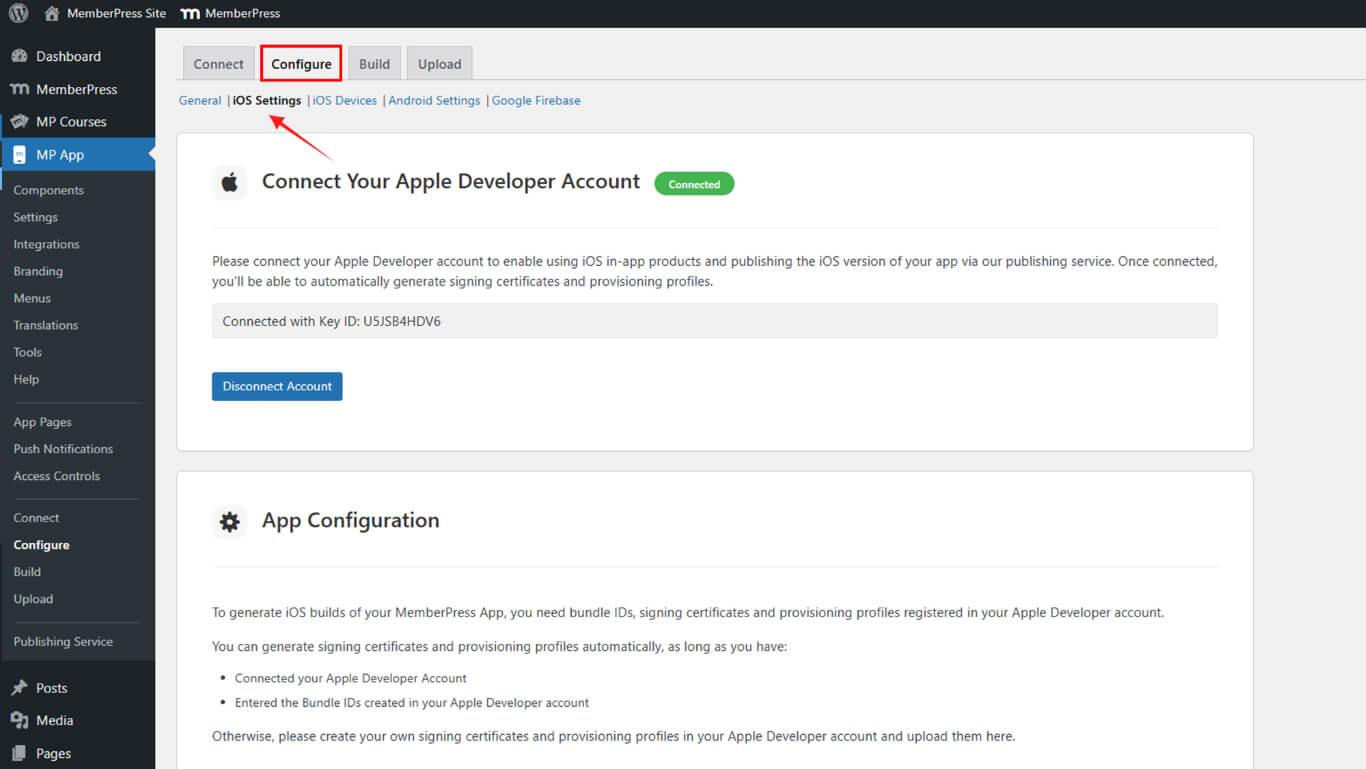
- Desplácese hasta el Firma de certificados sección.
- Compruebe el Generación automática de certificados de firma casilla de verificación.
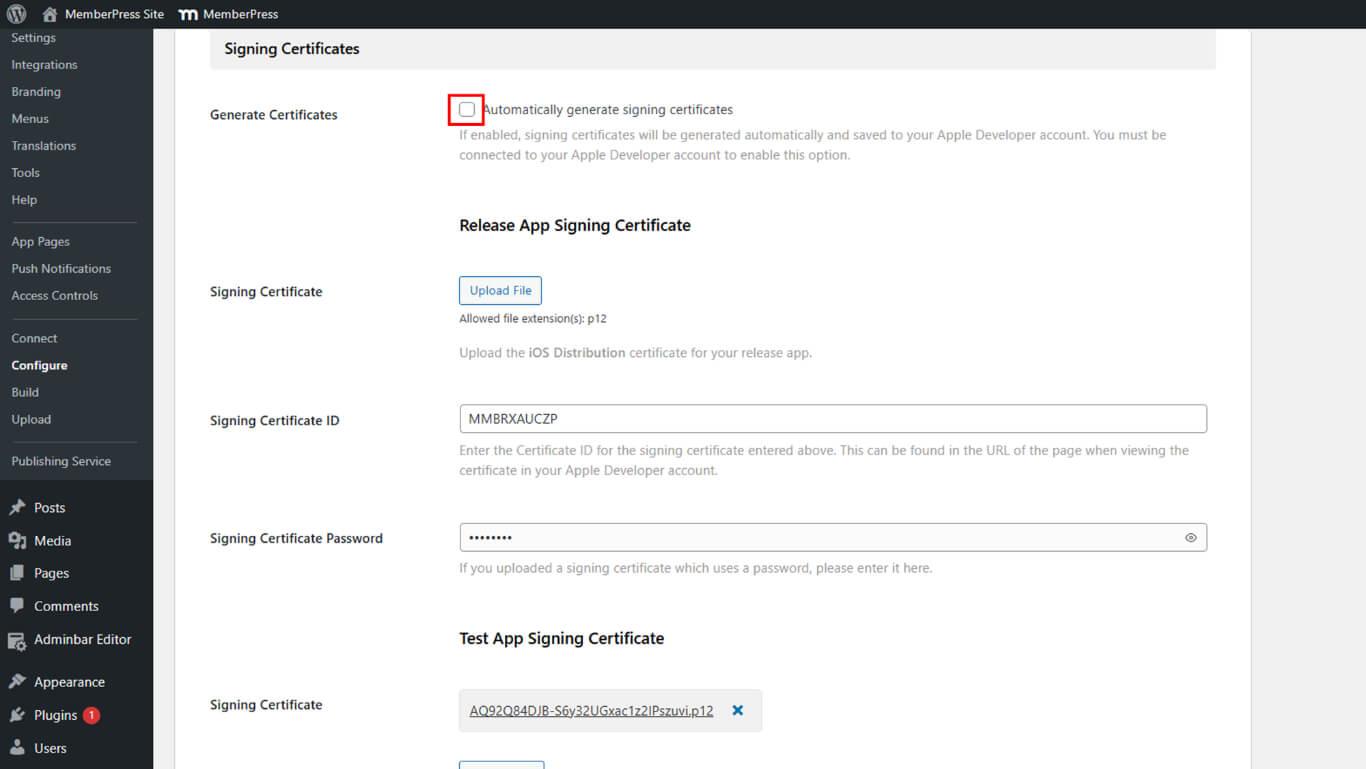
- Haga clic en Guardar cambios.
- Compruebe que el certificado de firma de liberación aparece en la lista de certificados.
- Compruebe que el certificado de firma de prueba aparece en la lista de certificados.
Automatización de los perfiles de aprovisionamiento
La automatización del perfil de aprovisionamiento crea los perfiles necesarios para la distribución de aplicaciones.
- Vaya a Panel > MP AppKit > Configurar > Ajustes de iOS.
- Desplácese hasta el Perfiles de aprovisionamiento sección.
- Compruebe el Generación automática de perfiles de aprovisionamiento casilla de verificación.
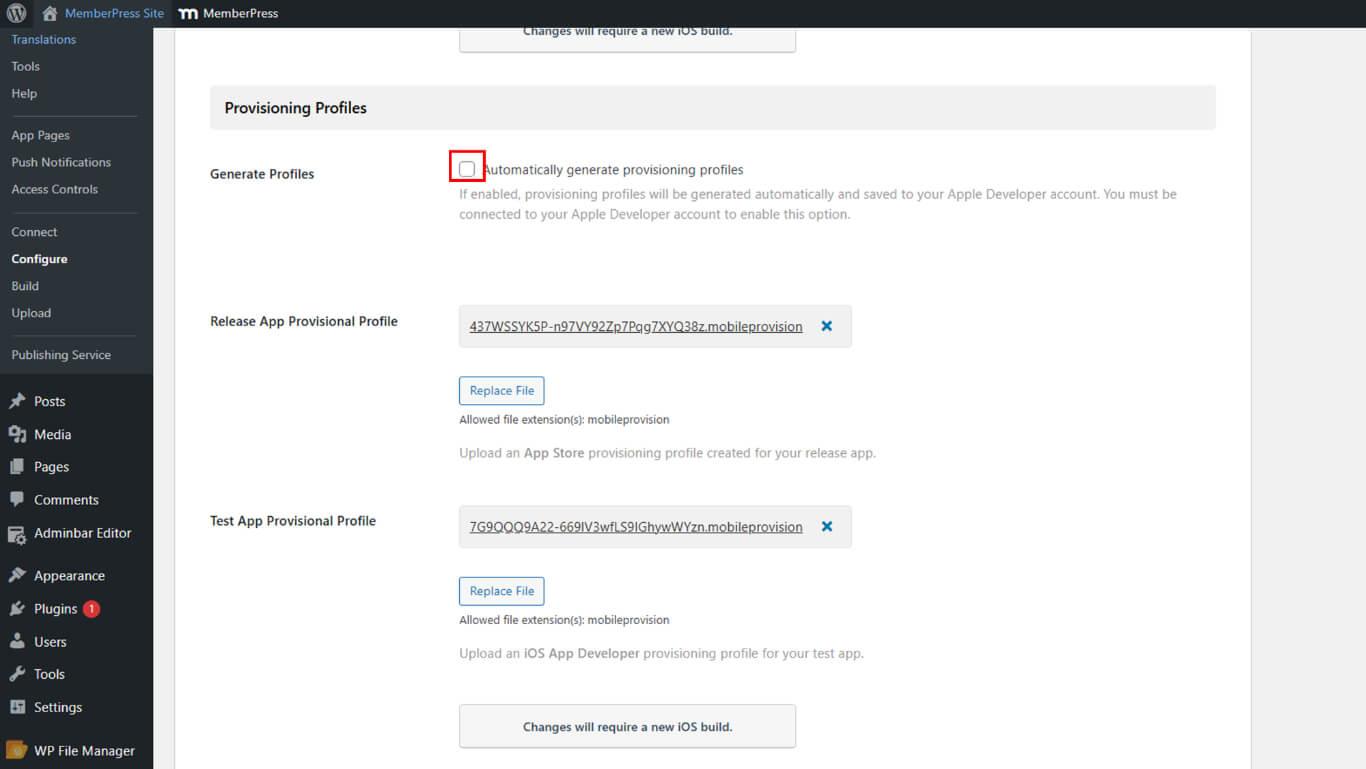
- Haga clic en Guardar cambios.
- Compruebe que el perfil de liberación aparece en la lista de perfiles.
- Compruebe que el perfil de transferencia de prueba aparece en la lista de perfiles.
Registro de la aplicación en App Store Connect
El registro de aplicaciones en App Store Connect permite su envío y publicación.
- Regístrese en appstoreconnect.apple.com con tu cuenta de desarrollador de Apple.
- Haga clic en Mis aplicaciones en la navegación.
- Haga clic en el botón + para añadir una nueva aplicación.
- Seleccione Nueva aplicación en el menú desplegable.
- Seleccione iOS como plataforma.
- Introduzca el Nombre de la aplicación en el campo del nombre.
- Seleccione Lengua principal del menú desplegable de idiomas.
- Seleccione la liberación ID del paquete del menú desplegable ID de paquete.
- Introduzca un SKU con fines de seguimiento interno.
- Establecer Acceso de usuarios a Completo o Limitado.
- Haga clic en Cree para registrar la aplicación.
Importar Bundle IDs en WordPress
Los ID de paquete deben importarse a WordPress para la configuración de la compilación.
- Vaya a Panel > MP AppKit > Configurar > Ajustes de iOS.
- Desplácese hasta el Sección de ID de paquetes.
- Haga clic en Actualizar ID de paquete para recuperar identificadores de la cuenta de desarrollador de Apple.
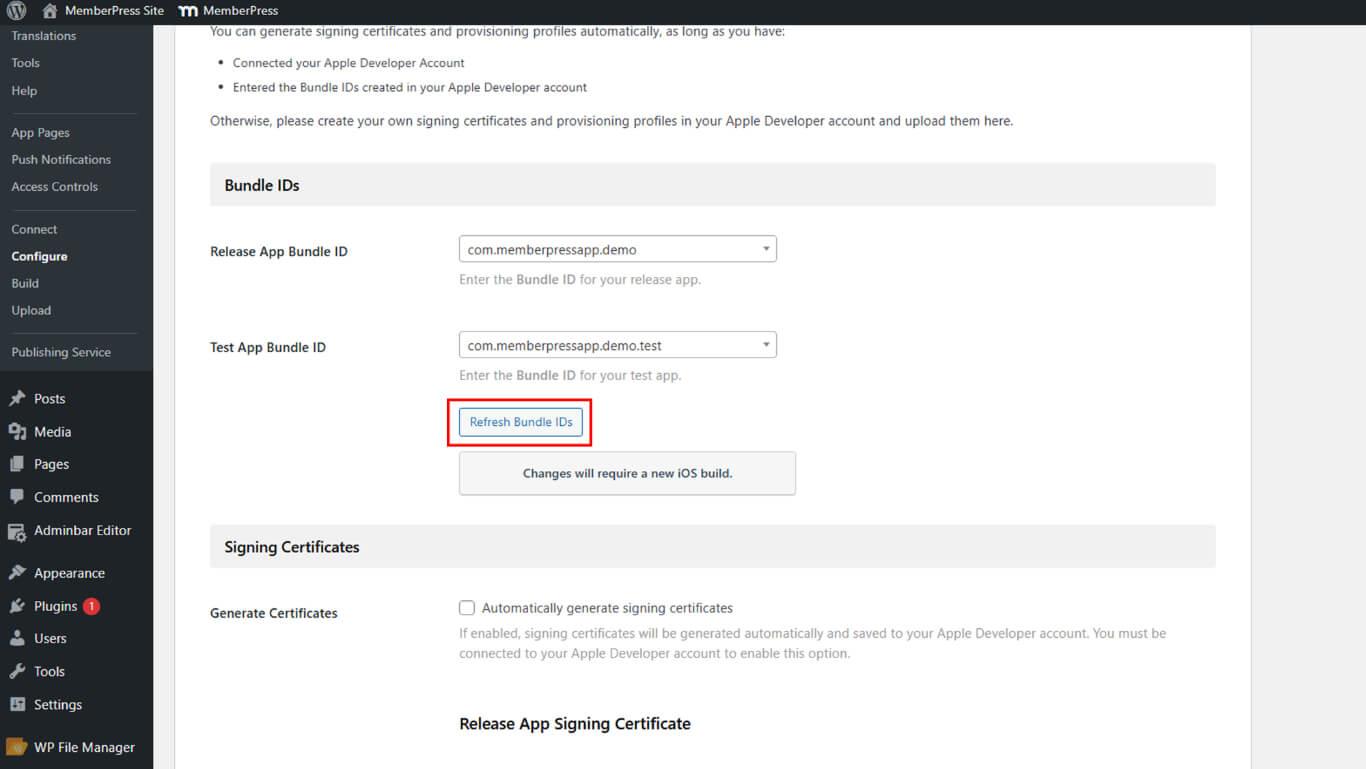
- Localice el ID del paquete de aplicaciones de lanzamiento desplegable.
- Seleccione el ID del paquete de publicación en las opciones desplegables.
- Localice el ID del paquete de aplicaciones de prueba desplegable.
- Seleccione el ID del paquete de prueba en las opciones desplegables.
- Desplácese hasta el Información de la aplicación sección.
- Vaya a App Store Connect para recuperar el ID de la aplicación de Apple.
- Copie el ID de la aplicación de Apple desde App Information en App Store Connect.
- Pegue el ID de la aplicación de Apple en el campo ID de la aplicación de Apple en WordPress.
- Haga clic en Guardar cambios.
Generación del secreto compartido específico de la aplicación
El secreto compartido específico de la aplicación permite verificar las compras dentro de la aplicación.
- Vaya a App Store Connect en appstoreconnect.apple.com.
- Haga clic en Mis aplicaciones en la navegación.
- Seleccione la aplicación registrada en la lista de aplicaciones.
- Desplácese hasta el Secreto compartido específico de la aplicación sección.
- Haga clic en Gestione para abrir la gestión del secreto compartido.
- Haga clic en Generar secreto compartido específico de la aplicación.
- Copie el valor secreto generado.
- Vaya a Panel de control > MP AppKit > Configurar > Ajustes de iOS en WordPress.
- Localice el Secreto compartido específico de la aplicación campo.
- Pega el valor secreto copiado en el campo.
- Haga clic en Guardar cambios.










 ES
ES  EN
EN  FR
FR  DE
DE  PT
PT 