

La integración de Google Fonts permite una tipografía personalizada que se ajusta a las directrices de estilo de la marca. La importación de fuentes requiere una clave API de Google Fonts válida.
Este documento explica cómo configurar la clave API, importar fuentes y aplicar tipografía en toda la aplicación.
Comprender la integración de Google Fonts
Google Fonts ofrece una amplia gama de opciones tipográficas para personalizar la tipografía de las aplicaciones. La configuración de la clave API conecta la aplicación con la biblioteca de Google Fonts. Las fuentes importadas se pueden aplicar a diversos elementos de la interfaz, como el texto del cuerpo, los encabezados y las etiquetas de navegación.
Configuración de la clave API de Google Fonts
La configuración de la clave API permite la función de búsqueda e importación de fuentes.
- Vaya a Panel > MP AppKit > Integraciones > Google Fonts.
- Haga clic en Obtener una clave junto al campo Clave API de Google Fonts.
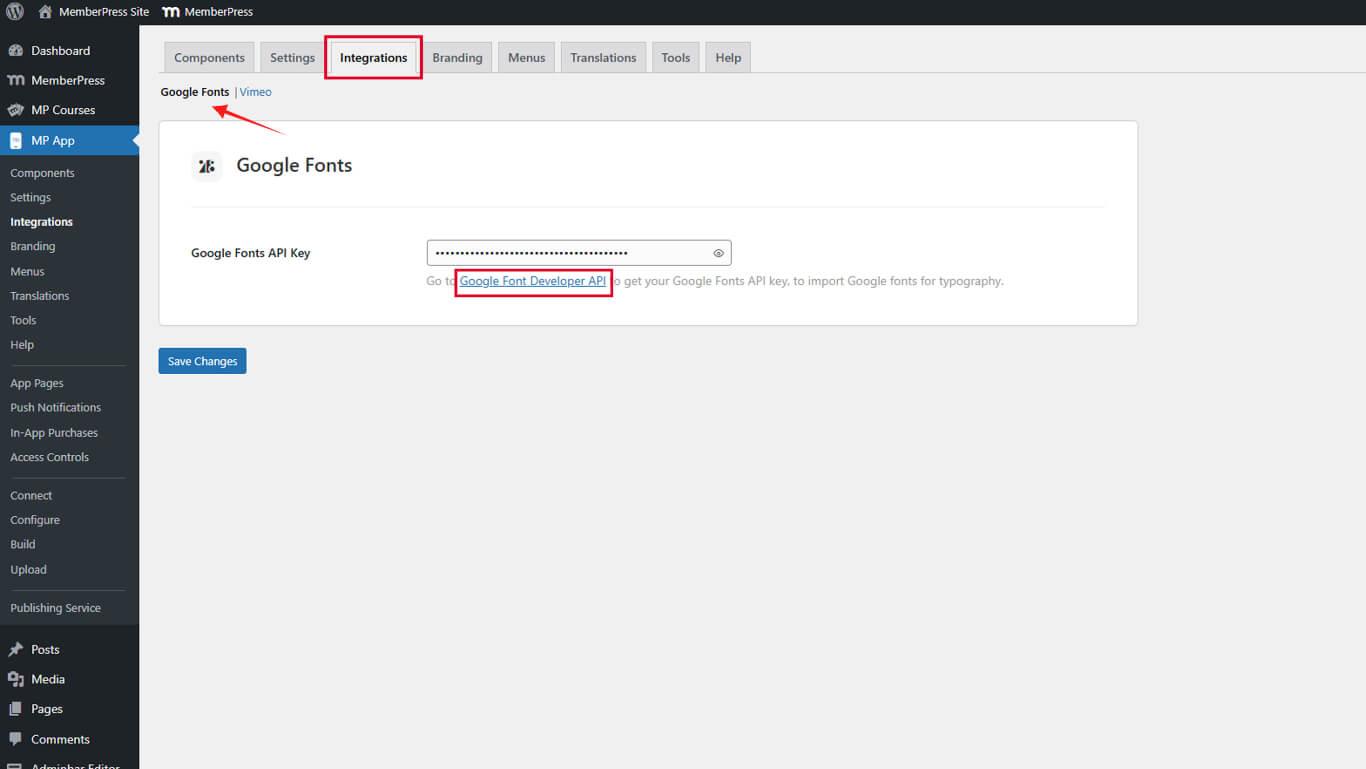
- La Consola de desarrolladores de Google se abre en una nueva pestaña del navegador.
- Desplácese hacia abajo y haga clic en Obtener una clave en la página Obtener y utilizar una clave API.
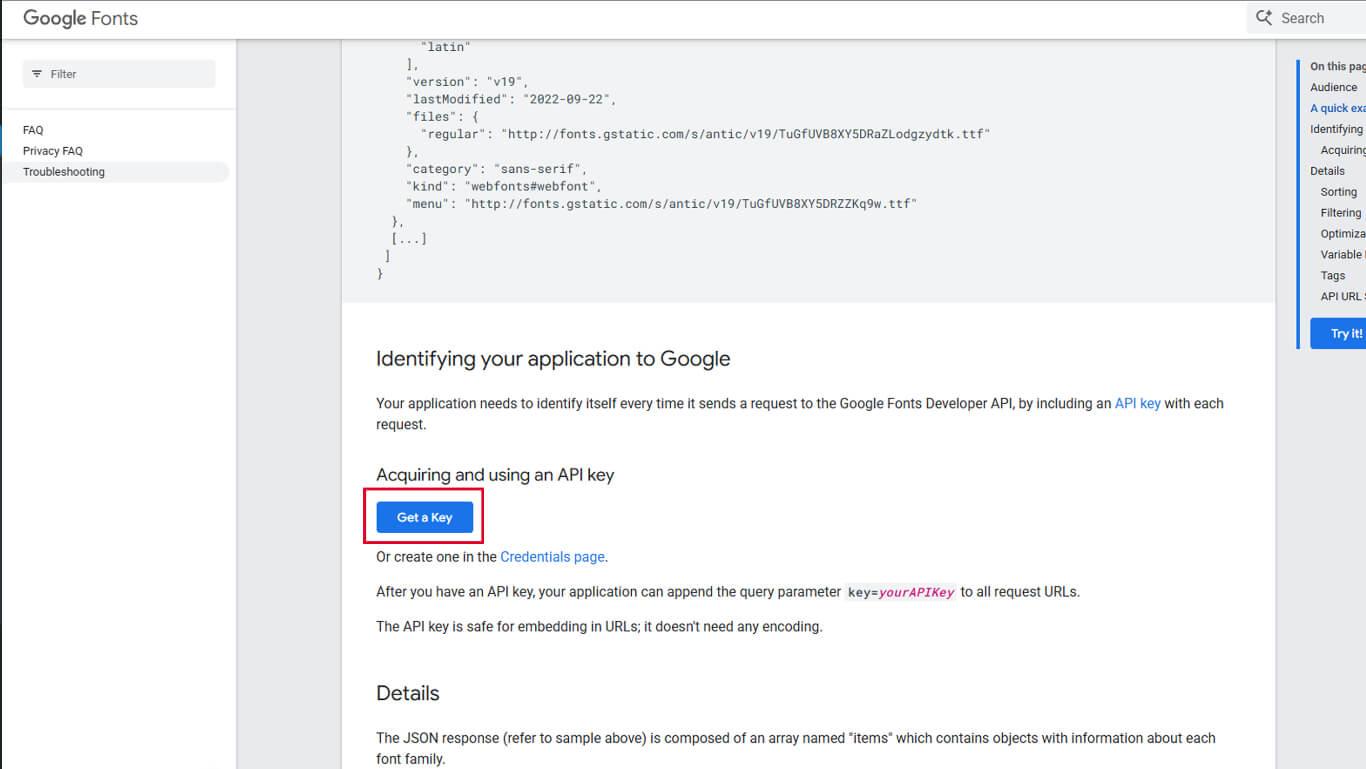
- Inicie sesión con una cuenta de Google si se le solicita.
- Cree un nuevo proyecto o seleccione uno existente de la lista.
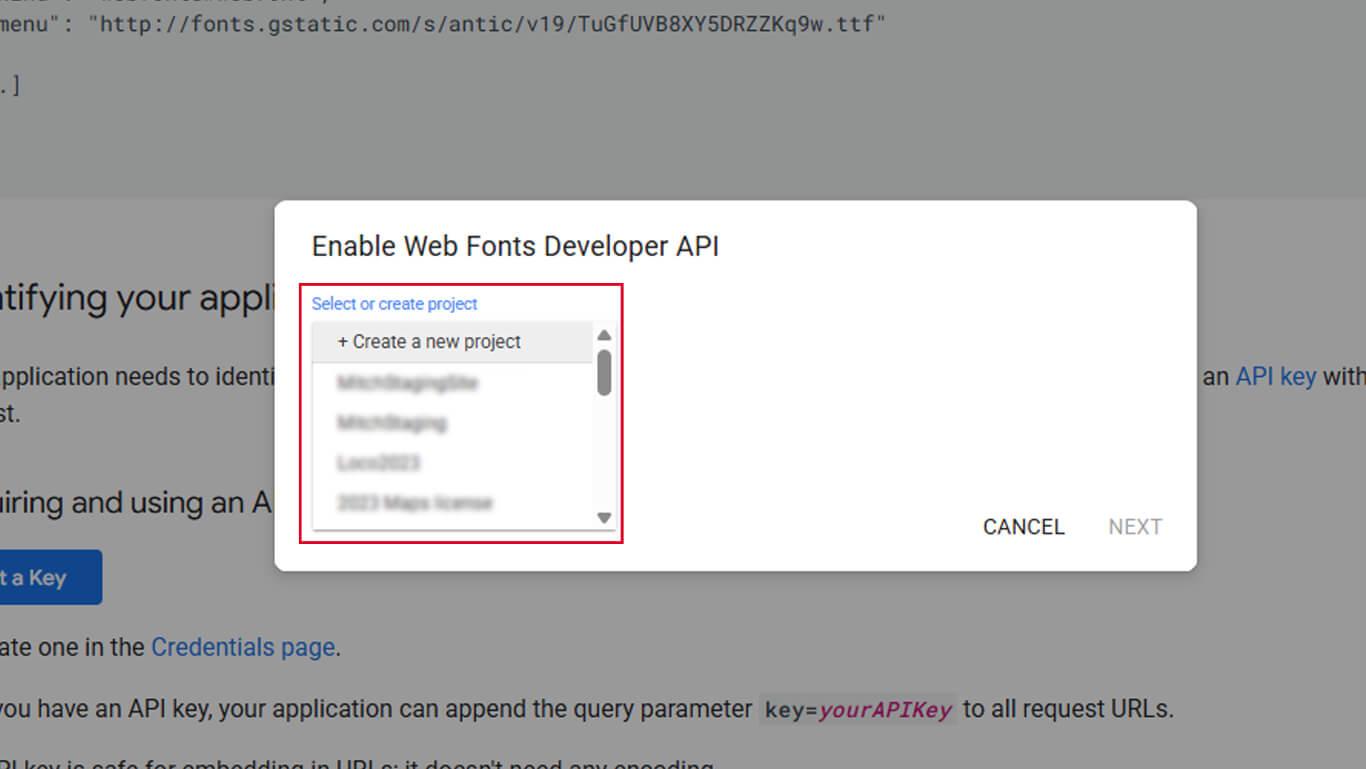
- Introduzca un nombre para el proyecto en el campo «Nombre del proyecto».
- Confirmar habilitación de API.
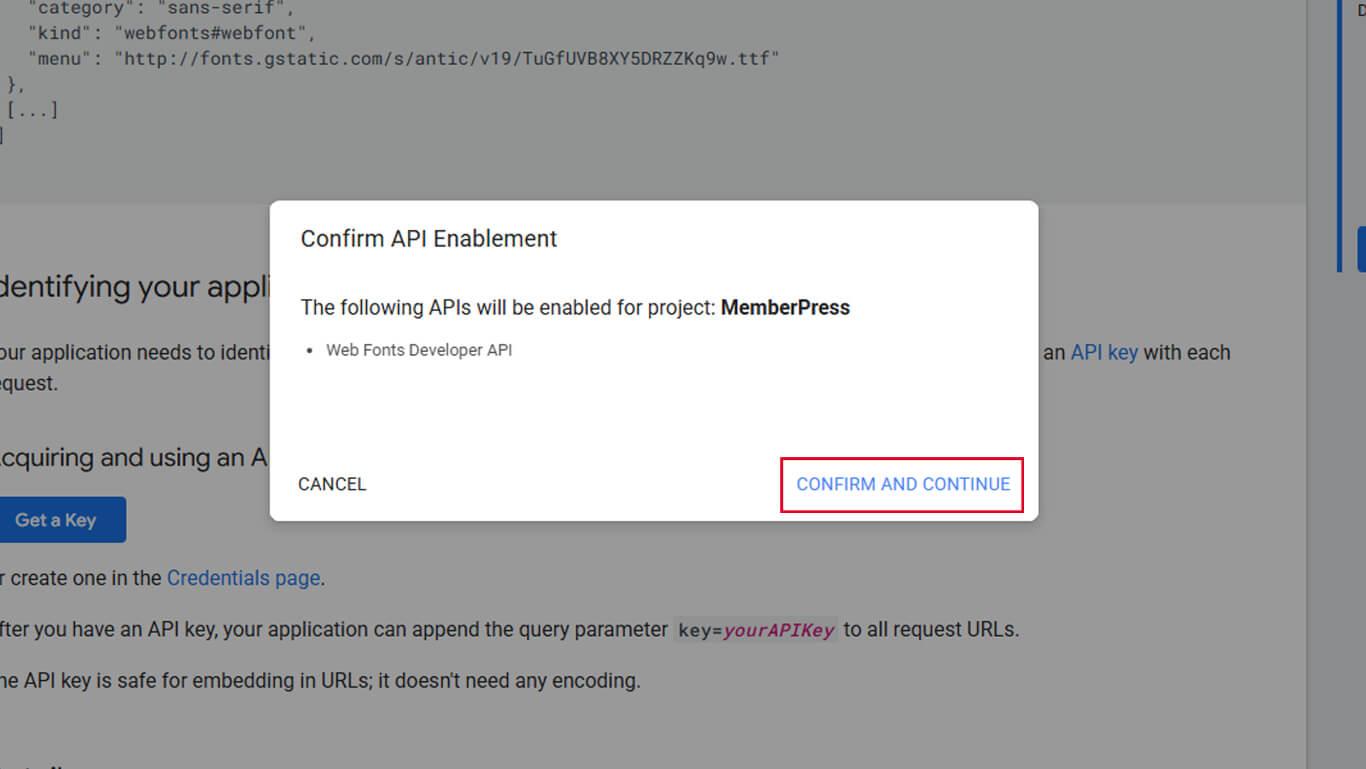
- Haga clic en Mostrar clave.
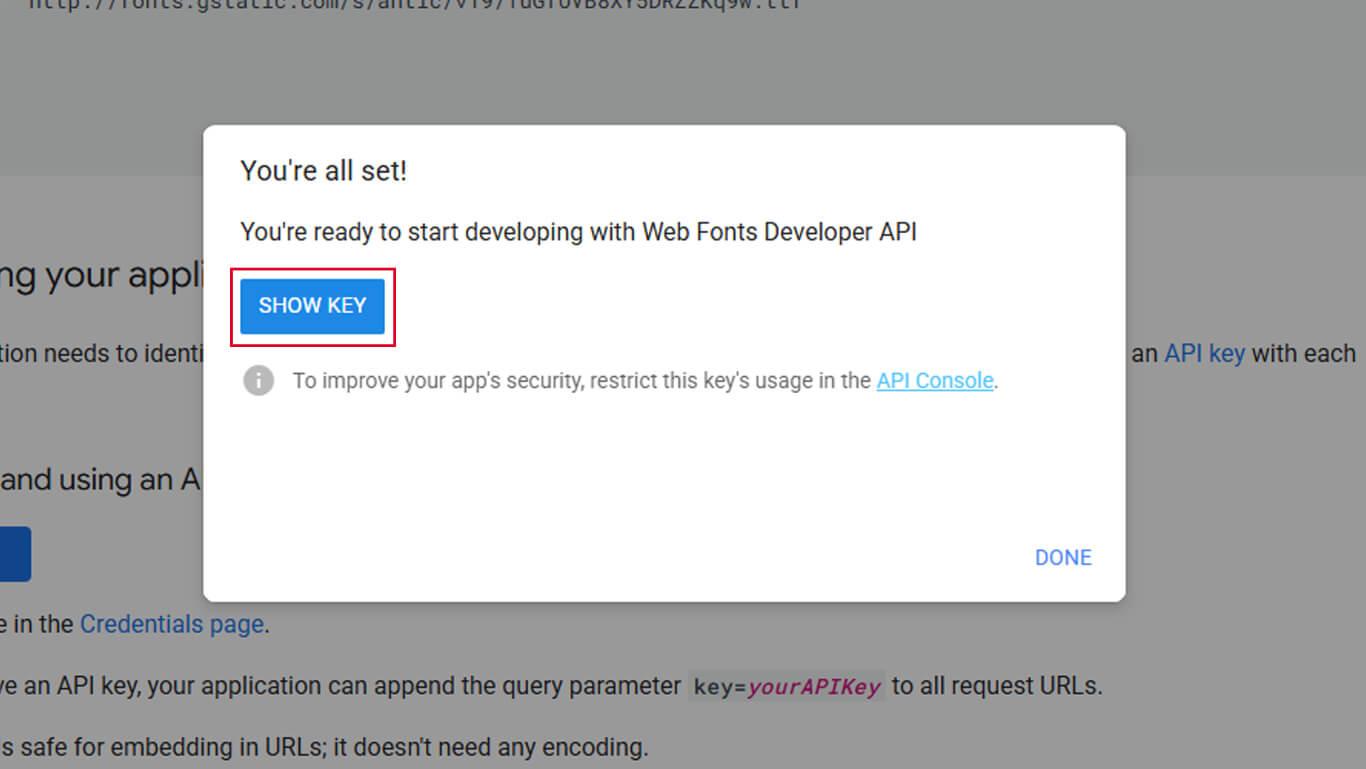
- Copie la clave API generada del campo que se muestra.
- Volver a Panel > MP AppKit > Integraciones > Google Fonts.
- Pega la clave API en el campo Clave API de Google Fonts.
- Haga clic en Guardar cambios.
Importación de fuentes de Google
La importación de fuentes añade tipos de letra a la lista de fuentes disponibles para la tipografía de la aplicación.
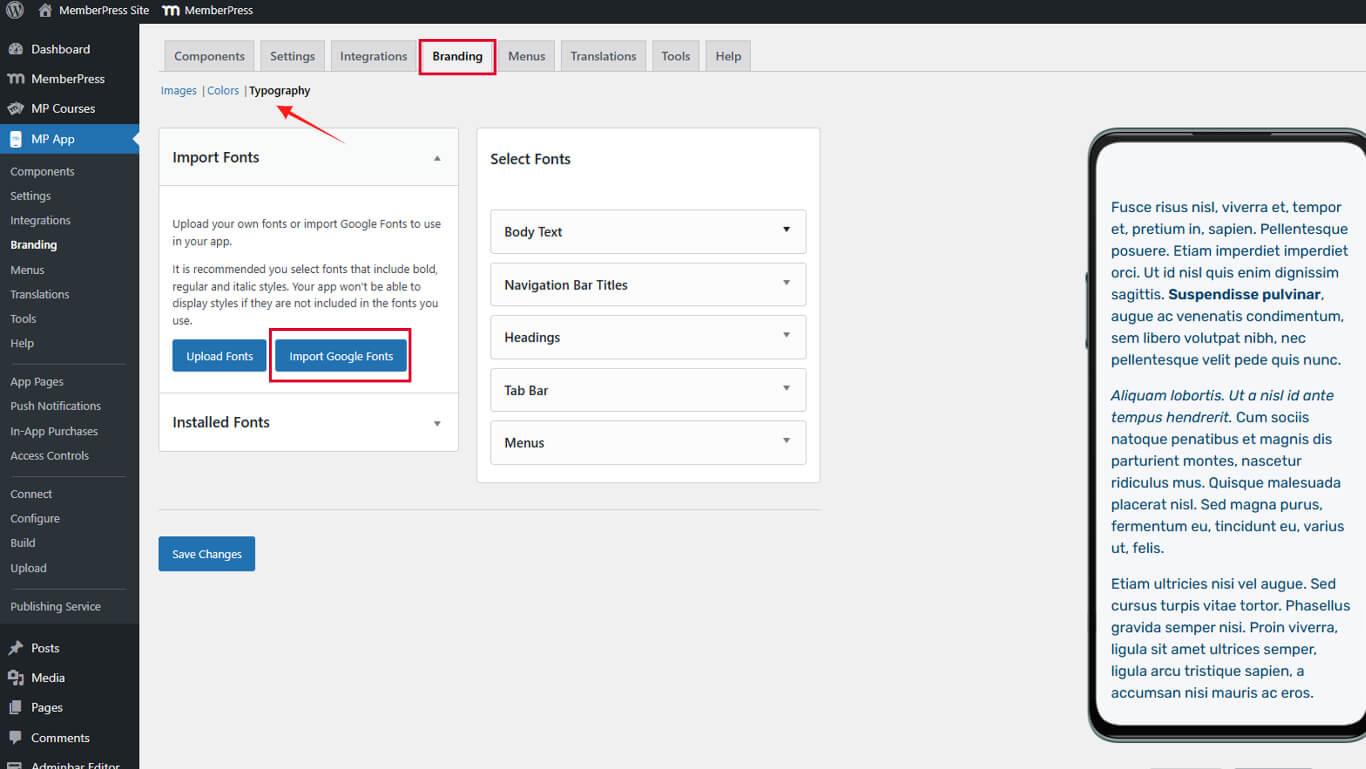
- Vaya a Panel > MP AppKit > Marca > Tipografía.
- Localice el Importar fuentes de Google sección.
- Haga clic en Importar fuentes de Google para abrir el navegador de fuentes.
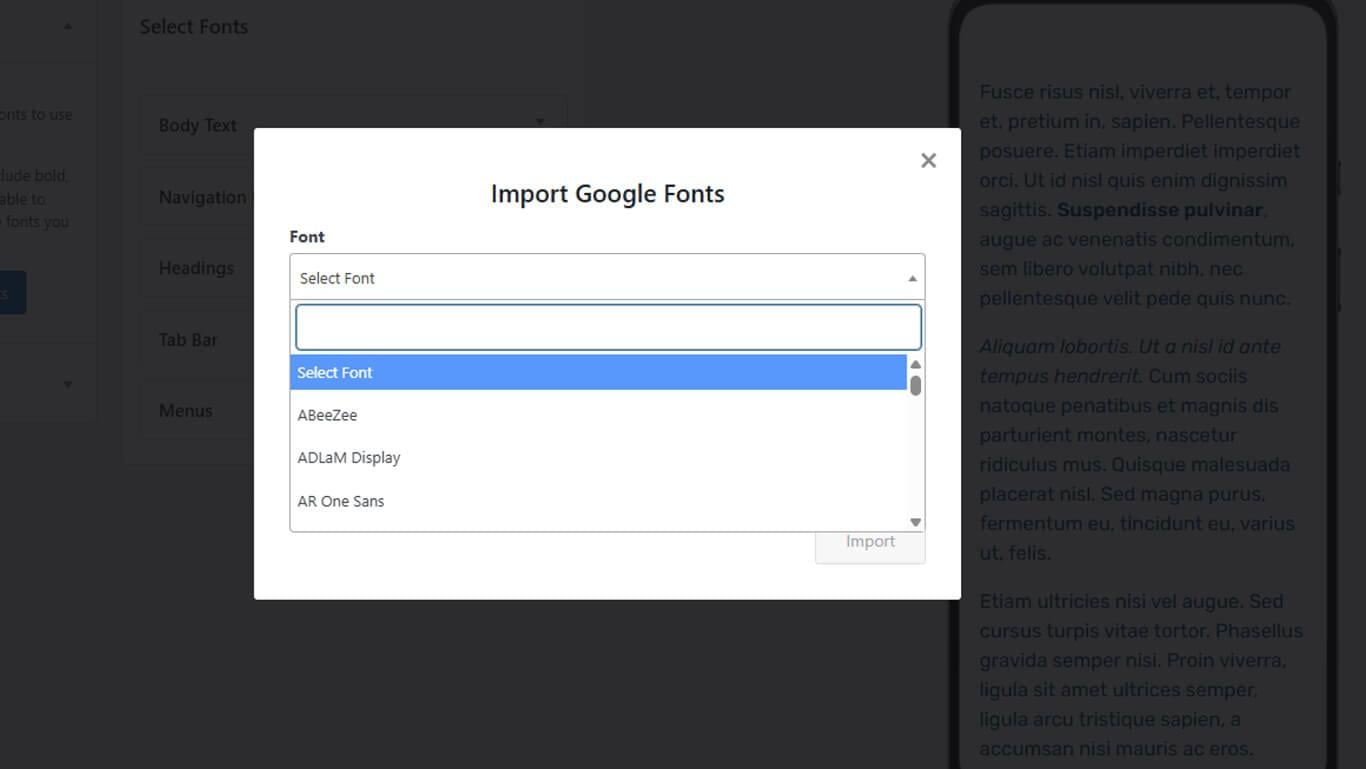
- Explora las fuentes disponibles o utiliza el campo de búsqueda para encontrar tipos de letra específicos.
- Seleccione la fuente deseada de los resultados de búsqueda o de la lista.
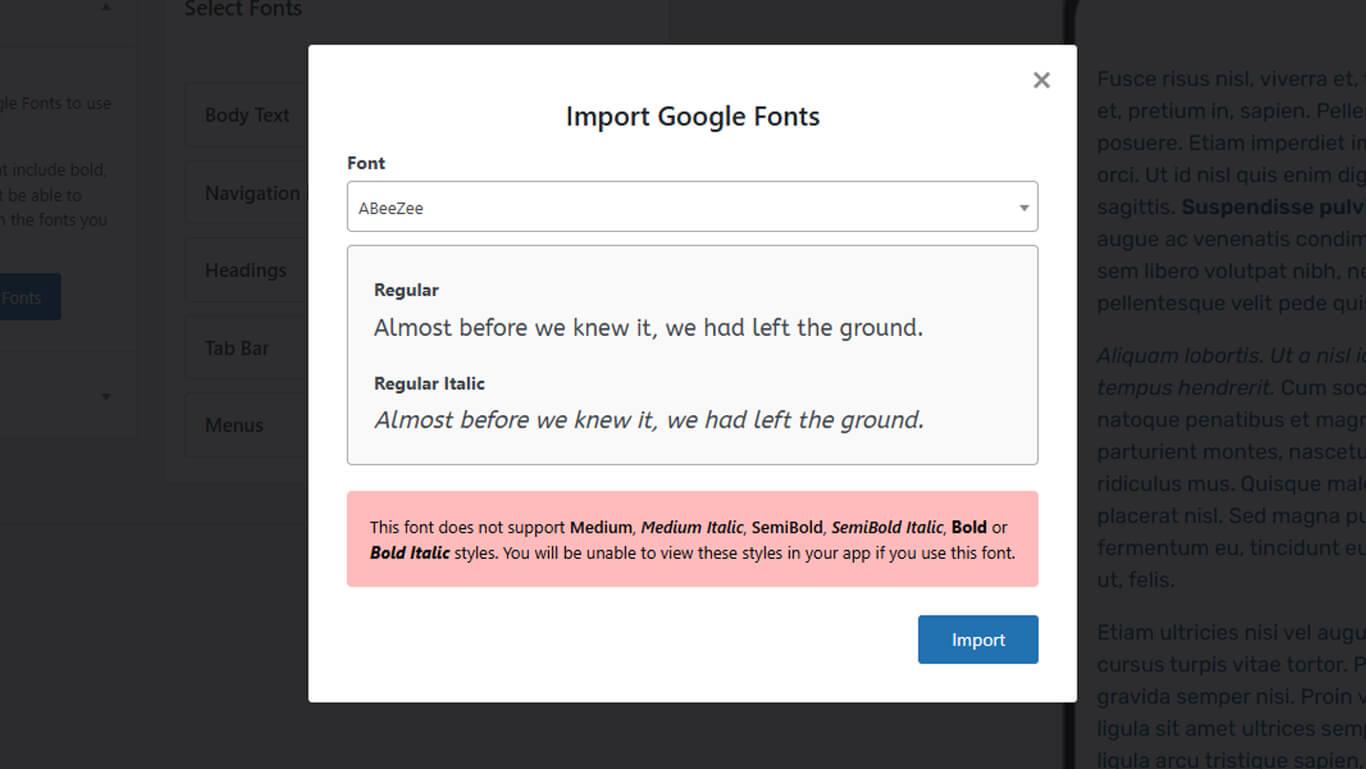
- Haga clic en Importar para añadir la fuente a las fuentes disponibles.
Aplicación de fuentes importadas
Las fuentes importadas aparecen en la configuración tipográfica para su asignación a los elementos de la interfaz.
- Vaya a Panel > MP AppKit > Marca > Tipografía.
- Desplácese hasta el elemento de la interfaz que requiere la asignación de fuente.
- Seleccione la fuente deseada en el menú desplegable de familias de fuentes para:
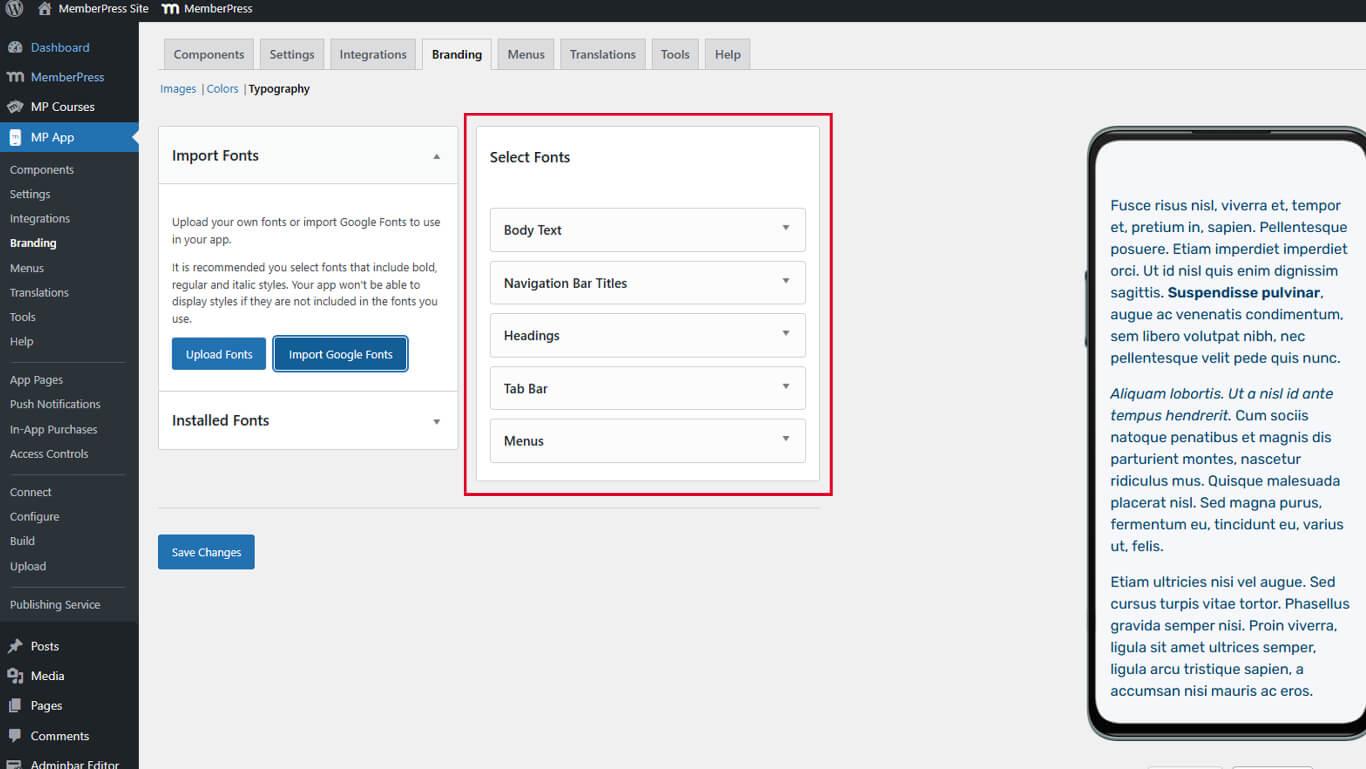
- Texto del cuerpo para la tipografía del contenido principal;
- Encabezados para los niveles de encabezado H1 a H6;
- Títulos de la barra de navegación para el texto del encabezado;
- Etiquetas de la barra de pestañas para el texto de navegación inferior;
- Menús para el texto del elemento del menú.
- Ajuste el tamaño de la fuente en los campos de tamaño si es necesario.
- Configure estilos de fuente adicionales según sea necesario.
- Haga clic en Guardar cambios para aplicar las selecciones de fuente.
Los cambios de fuente se aplican globalmente en todas las pantallas de la aplicación utilizando los elementos de interfaz seleccionados.










 ES
ES  EN
EN  FR
FR  DE
DE  PT
PT 