

El complemento MemberPress AppKit amplía los sitios web impulsados por MemberPress a los dispositivos móviles, permitiendo a los miembros acceder al contenido a través de aplicaciones dedicadas. MemberPress ofrece un servicio Done-For-You (DFY) en el que el equipo de MemberPress se encarga de crear y configurar la aplicación móvil.
Para crear y publicar la aplicación para Android, el equipo de MemberPress necesita acceso de administrador a Google Play Console. Este documento proporciona instrucciones paso a paso para invitar a MemberPress como usuario administrador.
Comprender los requisitos de acceso del equipo
Conceder acceso de administrador a Google Play Console permite al equipo de MemberPress:
- gestionar la configuración de la aplicación,
- Configurar compras dentro de la aplicación.,
- gestionar otros servicios esenciales para la aplicación Android.
El equipo de MemberPress necesita permisos específicos de Google Play Console para ofrecer asistencia y gestión completas de la aplicación:
- Nivel de acceso de administrador proporciona un control completo sobre la configuración y los ajustes de la aplicación. Los permisos de administrador permiten a los miembros del equipo gestionar todos los aspectos de la configuración y el mantenimiento de la aplicación.
- Gestión de compras dentro de la aplicación Requiere acceso de administrador para la configuración y sincronización del producto. El equipo configura los niveles de suscripción, los precios y los ajustes de facturación.
- Control de configuración de la aplicación Permite configurar la marca, los metadatos y las funciones. El acceso de administrador permite personalizar y optimizar la aplicación de forma integral.
- Supervisión de suscripciones Proporciona la gestión de la facturación periódica y el acceso de los miembros. El equipo supervisa el estado de las suscripciones y resuelve los problemas de facturación.
- Gestión continua mantiene el funcionamiento continuo de las aplicaciones y las actualizaciones. El acceso del equipo permite ofrecer asistencia proactiva y ajustes de configuración.
El proceso de invitación implica Añadir el correo electrónico del equipo MemberPress. (appsup@memberpress.com) como usuario administrador a través de Google Play Console.
Requisitos previos
Antes de continuar, deben cumplirse los siguientes requisitos:
- Una cuenta activa de desarrollador de Google Play.;
- Acceso de propietario o administrador a Google Play Console.
Invitar a MemberPress con acceso de administrador
La invitación de acceso de administrador concede al equipo de la aplicación MemberPress los permisos necesarios para la gestión y configuración de la aplicación.
- Navegue hasta el Consola de Google Play e inicie sesión con las credenciales de propietario o administrador.
- En la barra lateral izquierda, haz clic en Usuarios y permisos.
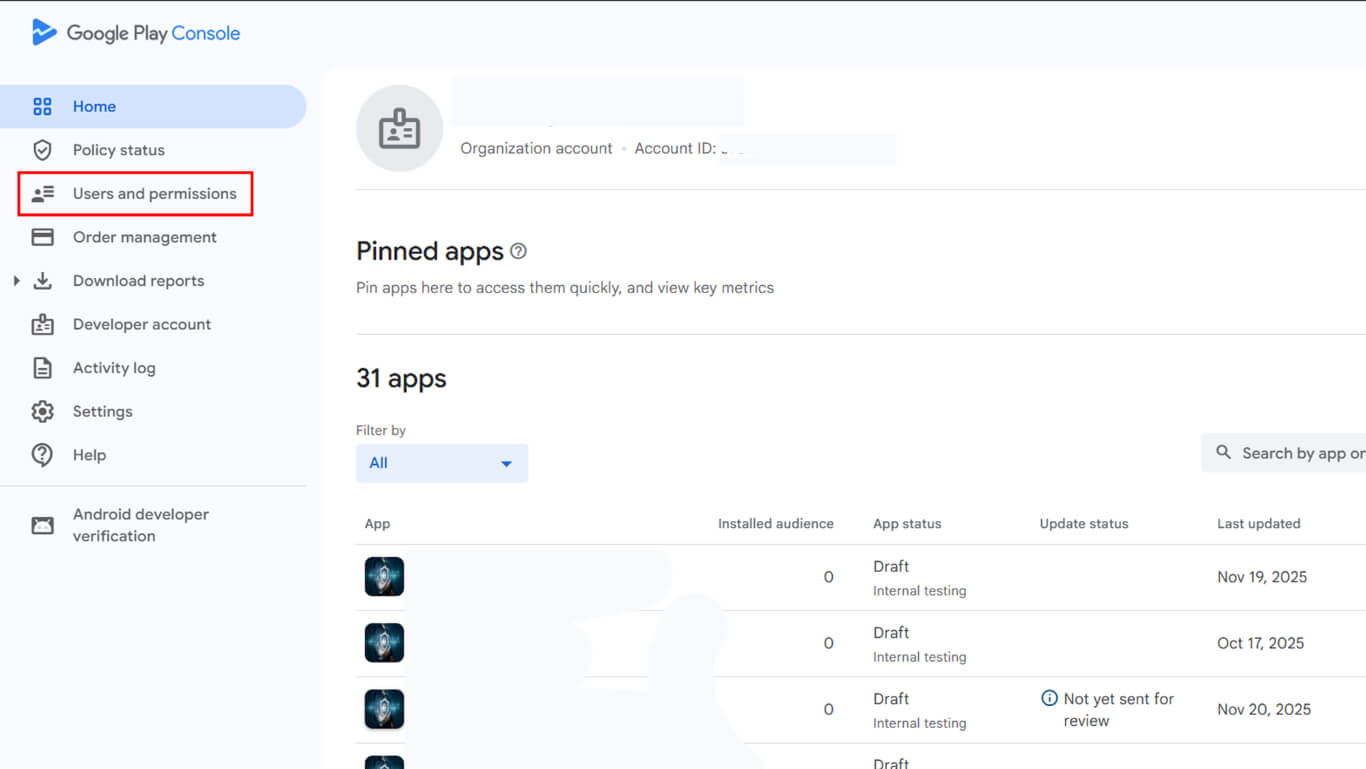
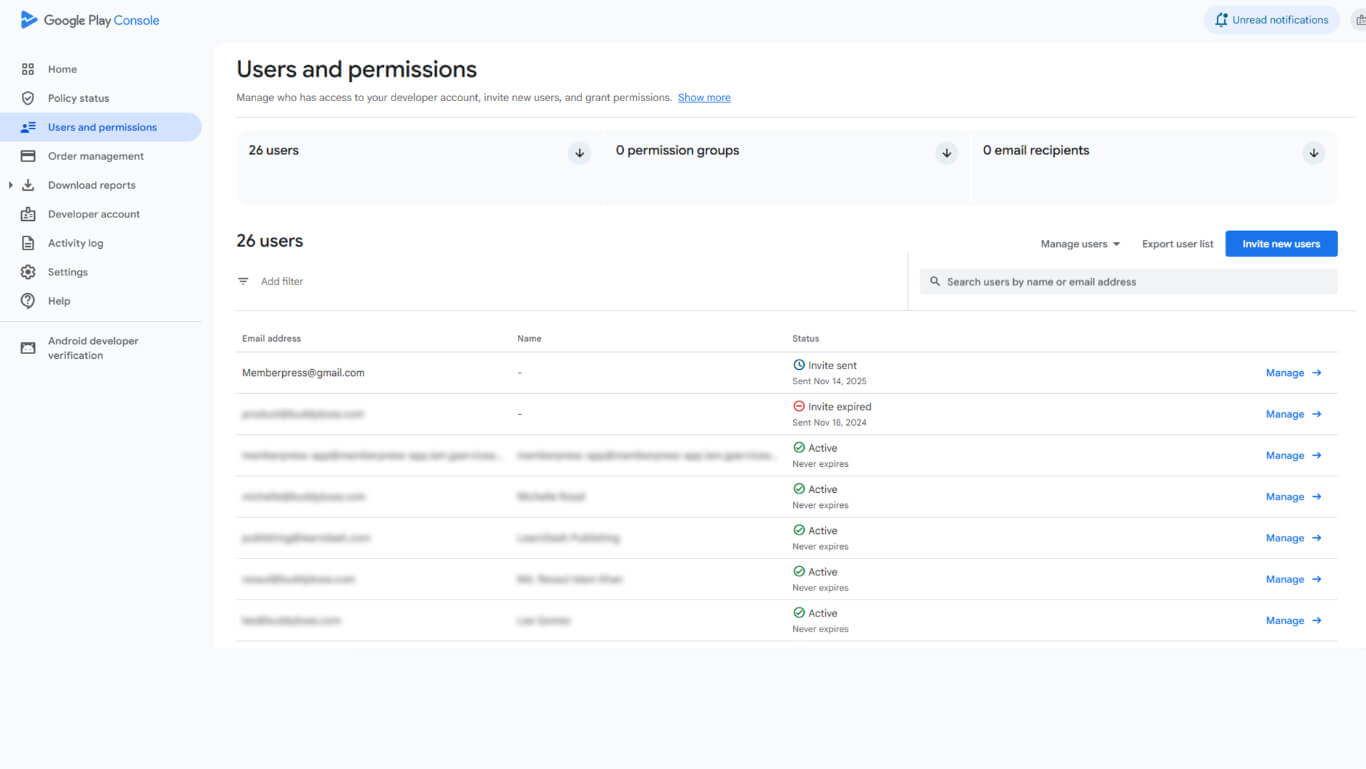
- Haga clic en el botón Invitar a nuevos usuarios en la esquina superior derecha.
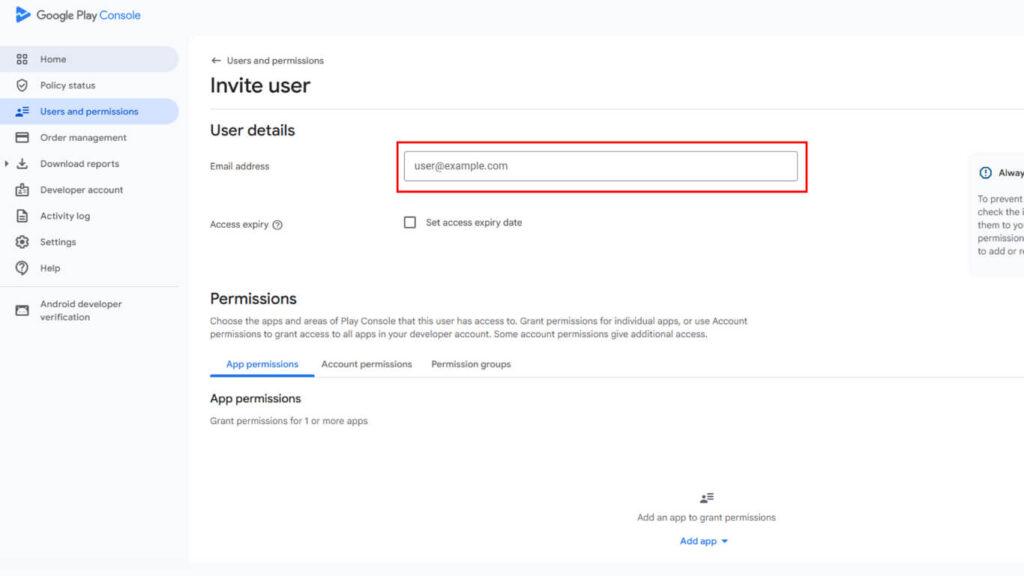
- En el Dirección de correo electrónico campo, introduzca el
appsup@memberpress.comdirección.
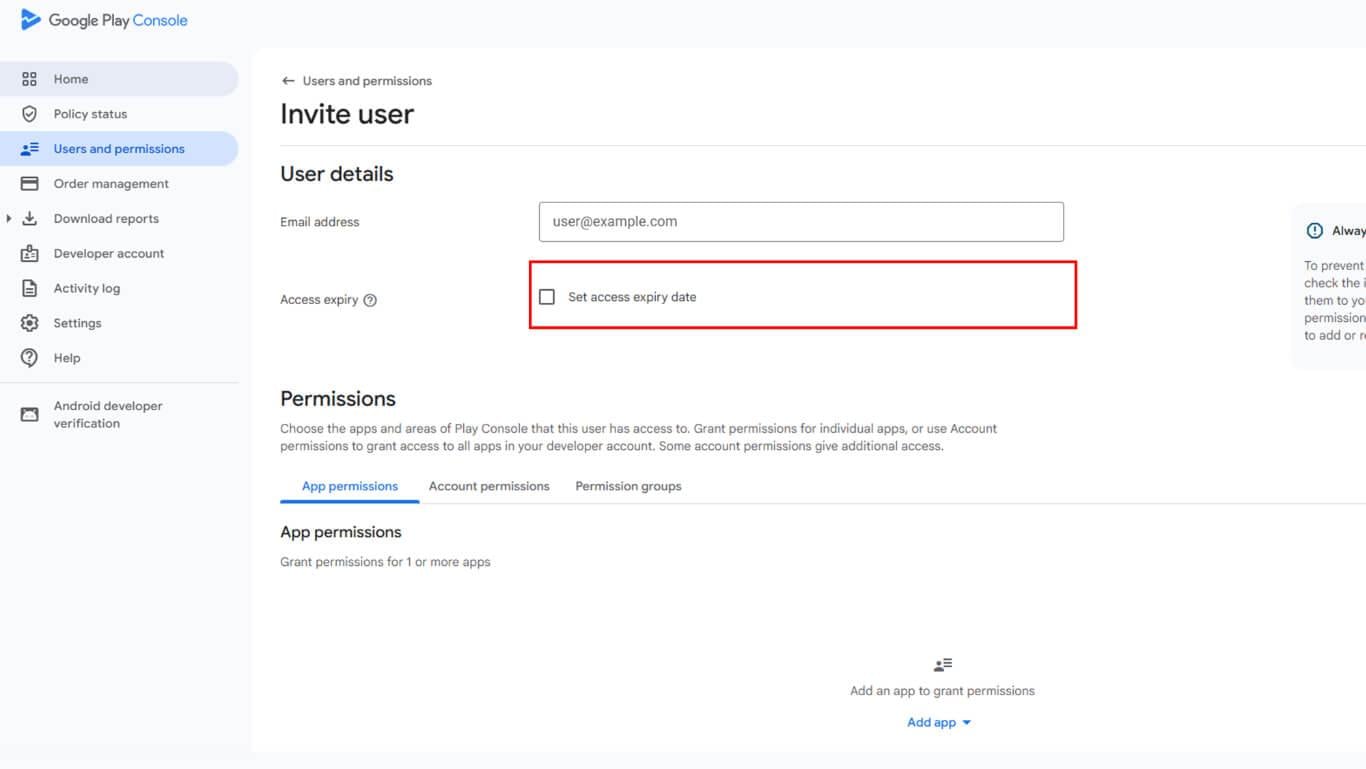
- Asegúrese de que Establecer fecha de caducidad del acceso es la opción sin marcar para conceder acceso continuo.
- Haga clic en el botón Permisos de la aplicación pestaña. A continuación, haga clic en Añadir aplicación para seleccionar la(s) aplicación(es) que gestionará MemberPress y, a continuación, Solicitar para confirmar la selección de la aplicación.
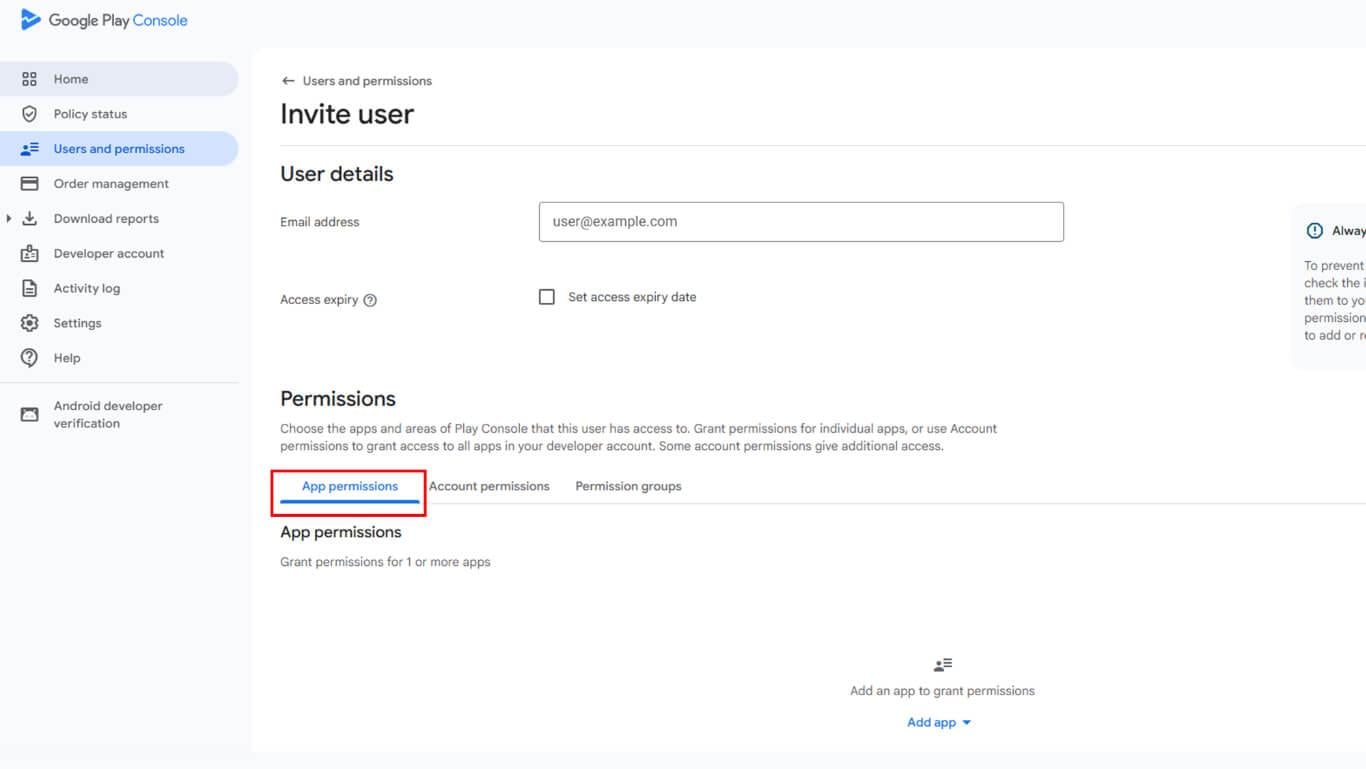
- En el modal de permisos, seleccione Administrador (todos los permisos)y haga clic en Solicitar para confirmar la selección del permiso.
- Haga clic en Invitar usuario para enviar la invitación.
El equipo MemberPress aceptará la invitación y obtendrá acceso a Google Play Console.
Notas importantes
- La invitación debe aceptarse en un plazo de 30 días. Si la invitación caduca, se debe enviar una nueva.
- El usuario invitado debe iniciar sesión en Google Play Console utilizando la misma dirección de correo electrónico con la que recibió la invitación.
- Los permisos de administrador permiten al equipo de MemberPress gestionar la configuración de la aplicación, las compras dentro de la aplicación, las suscripciones y otros servicios esenciales.
Solución de problemas
La sección “Usuarios y permisos” no es visible en la consola.
Confirma que la cuenta que estás usando tiene acceso de propietario o administrador en el proyecto correcto de Google Play.
El botón “Invitar a nuevos usuarios” está desactivado.
Comprueba que la cuenta tiene el Gestionar usuarios permiso en la configuración del usuario.
Se ha introducido el correo electrónico, pero no se ha recibido confirmación.
Verifique que la dirección de correo electrónico se haya ingresado exactamente como se proporcionó. El equipo de MemberPress debe revisar su bandeja de entrada, incluida la carpeta de correo no deseado.
Es necesario cambiar los permisos después de enviar la invitación.
En Usuarios y permisos, haga clic en el menú de tres puntos junto a la entrada MemberPress para Permisos de edición o Eliminar acceso.
Revocación del acceso
Una vez completado el servicio DFY, se puede revocar el acceso si se desea.
- Navegue hasta el Consola de Google Play e inicia sesión.
- En la barra lateral izquierda, haz clic en Usuarios y permisos.
- Busca el usuario MemberPress en la lista de usuarios.
- Haga clic en el menú de tres puntos situado junto a la entrada del usuario.
Seleccione Eliminar acceso y confirme la eliminación.










 ES
ES  EN
EN  FR
FR  DE
DE  PT
PT 