

El bloque de la aplicación Cursos destaca los cursos seleccionados en las páginas de la aplicación mediante un diseño de carrusel deslizable. Este bloque permite a los usuarios acceder rápidamente a los cursos destacados o consultar el índice completo de cursos en el sitio de WordPress conectado.
Este documento explica cómo añadir, configurar y gestionar el bloque Cursos en MemberPress AppKit.
Comprender el bloque de aplicaciones de los cursos
El bloque de la aplicación Cursos muestra los cursos en un carrusel horizontal deslizable dentro de la aplicación. Los miembros pueden tocar un curso individual para ver sus detalles o seleccionar Ver todo para abrir el índice completo de cursos desde el sitio de WordPress. El bloque puede personalizarse para mostrar cursos filtrados o seleccionados manualmente en función de criterios específicos.
Acceso a las páginas de la aplicación
Puede añadir y configurar el bloque Curso en el editor de App Pages.
- Vaya a Panel de control > MP AppKit > Páginas de aplicaciones.
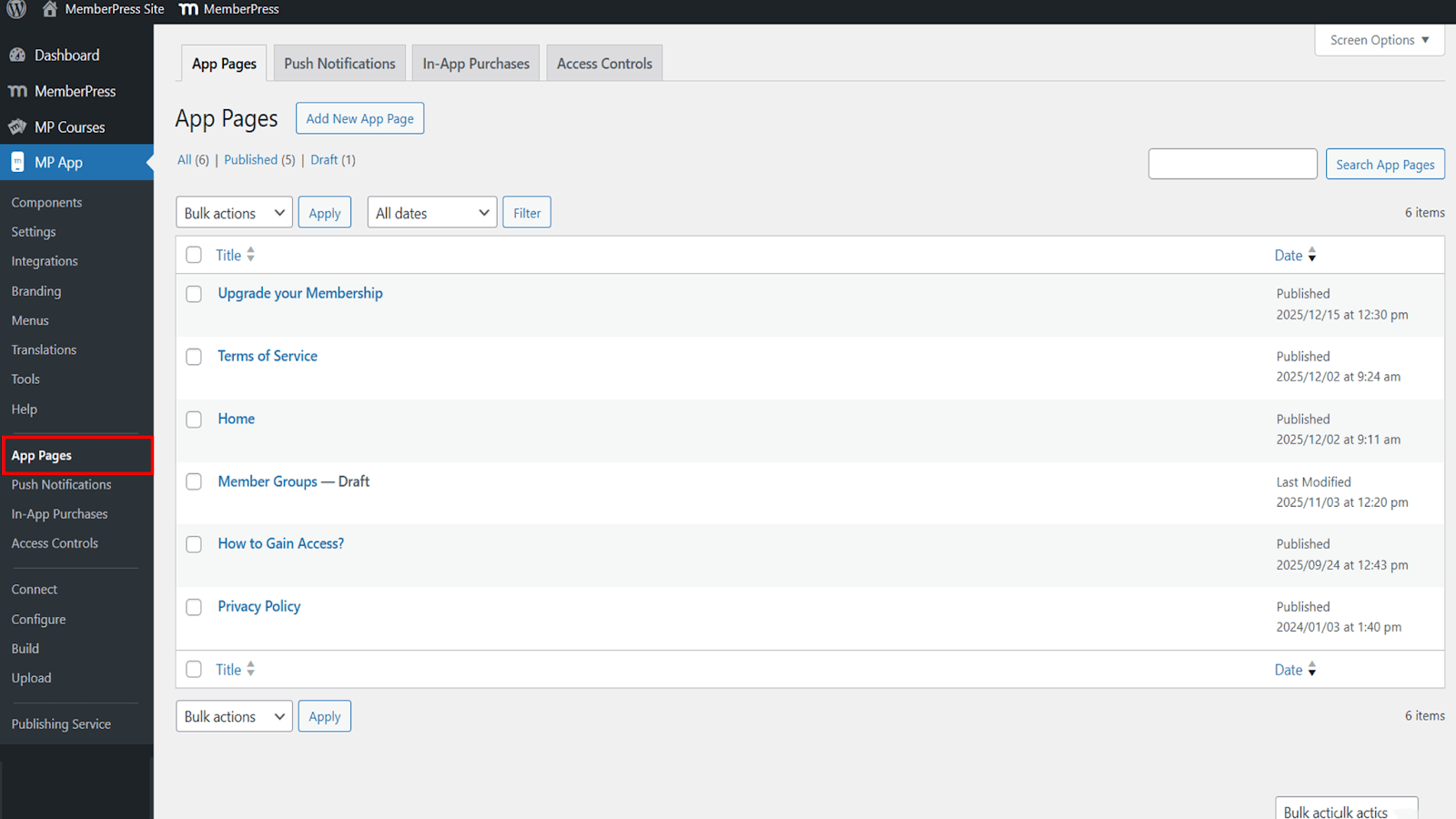
- Abra una página existente, como la página de inicio, o cree una nueva página para editarla.
Añadir el bloque de cursos
El bloque Cursos está disponible en la biblioteca de bloques MemberPress AppKit.
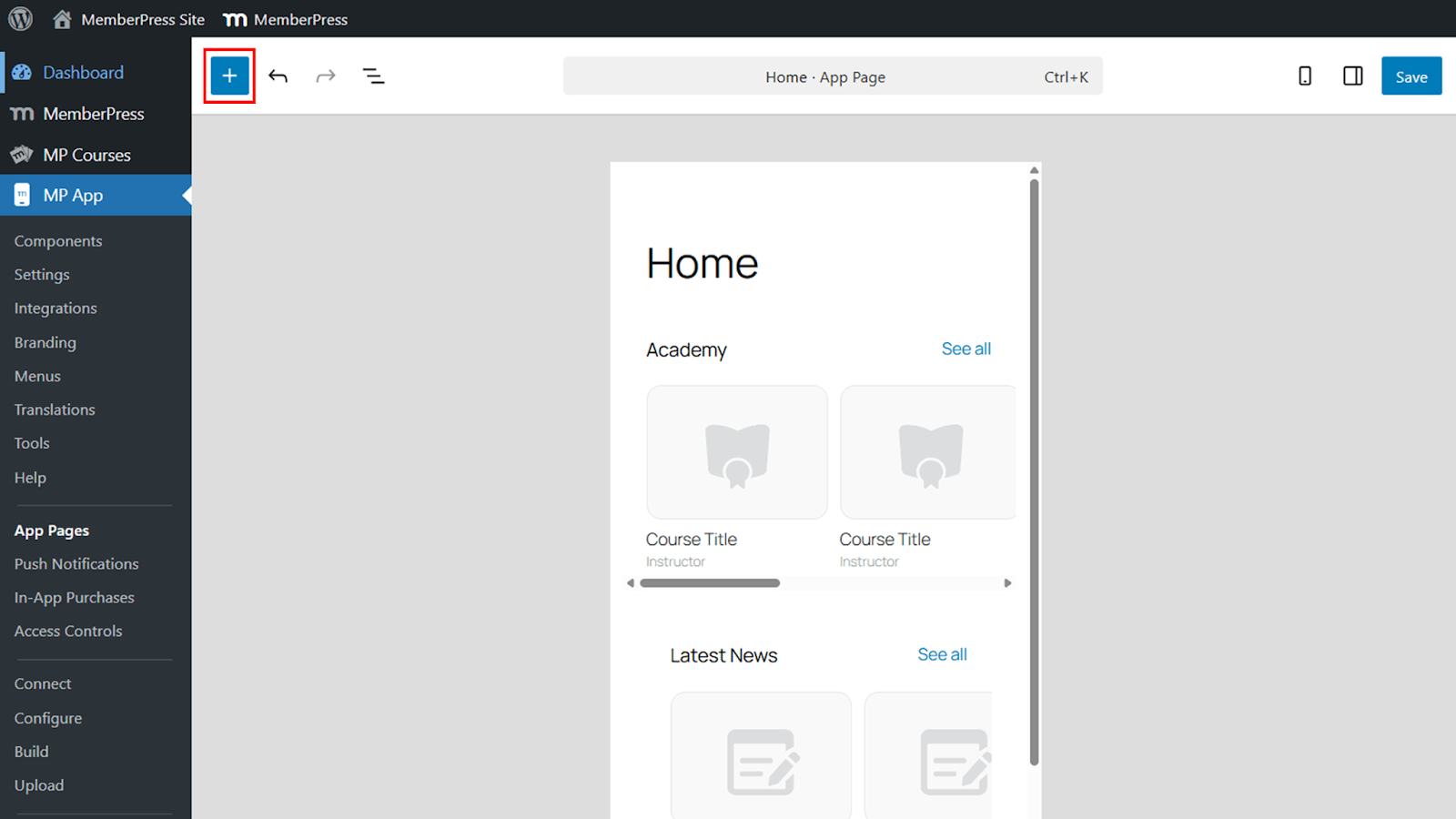
- Haz clic en el icono +.
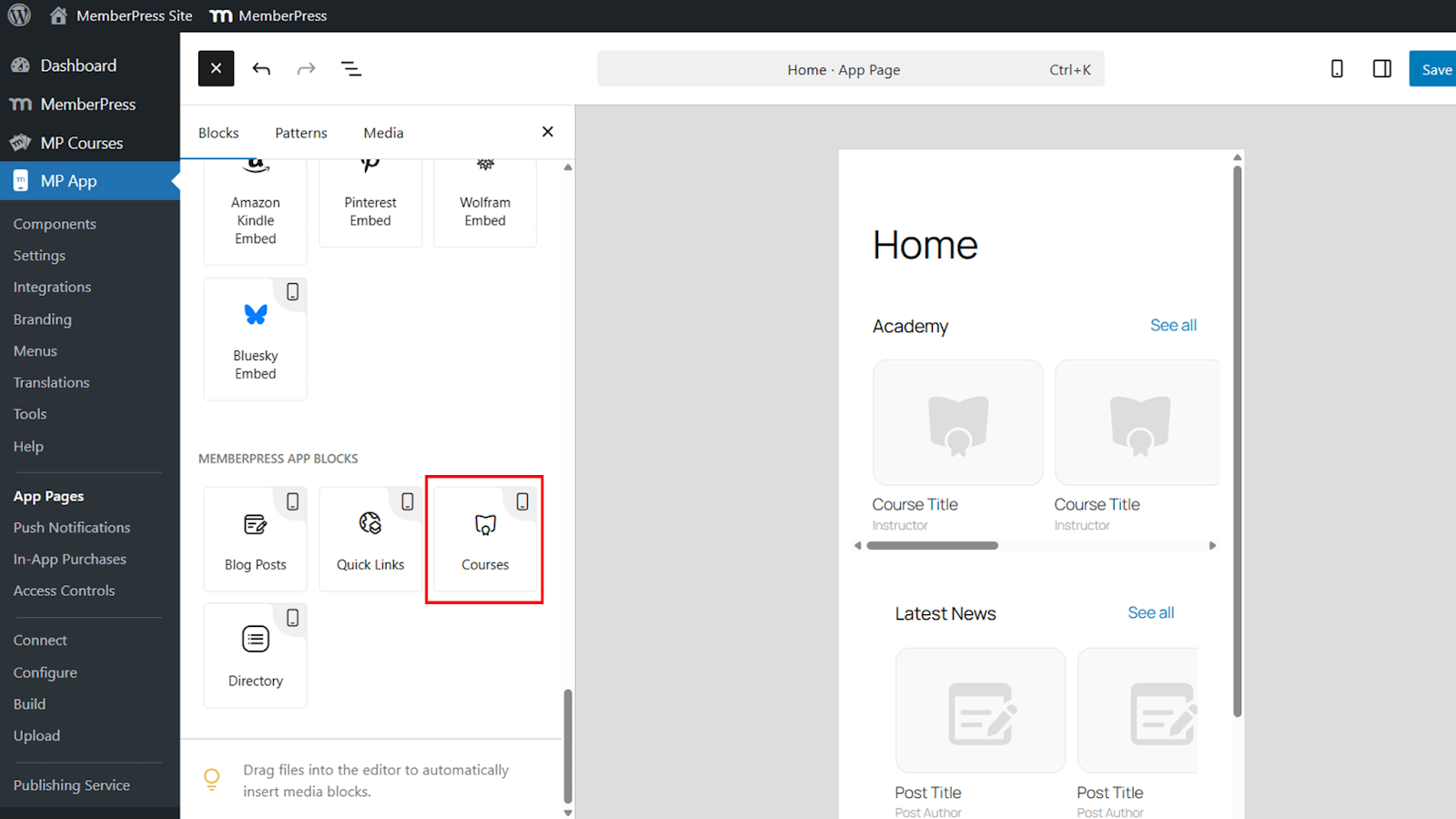
- Seleccione Cursos del bloque Bloques de aplicaciones MemberPress sección.
- Mueva el bloque a la posición deseada en la página.
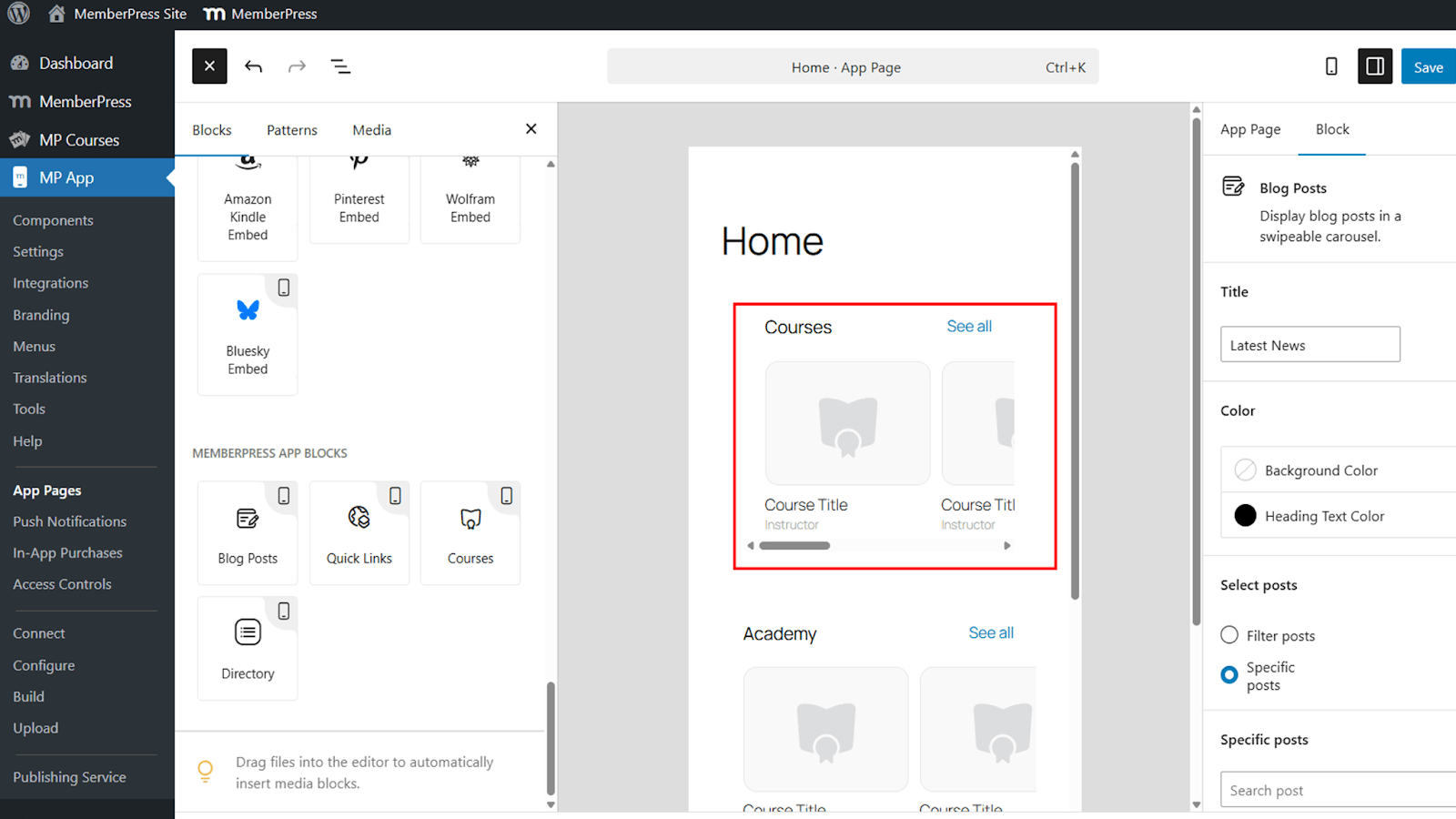
Una vista previa en tiempo real muestra cómo aparecerá el bloque dentro de la aplicación.
Configuración del bloque de cursos
El bloque Cursos ofrece múltiples opciones de configuración para controlar la apariencia y el contenido.
Título
- Localice el Título campo.
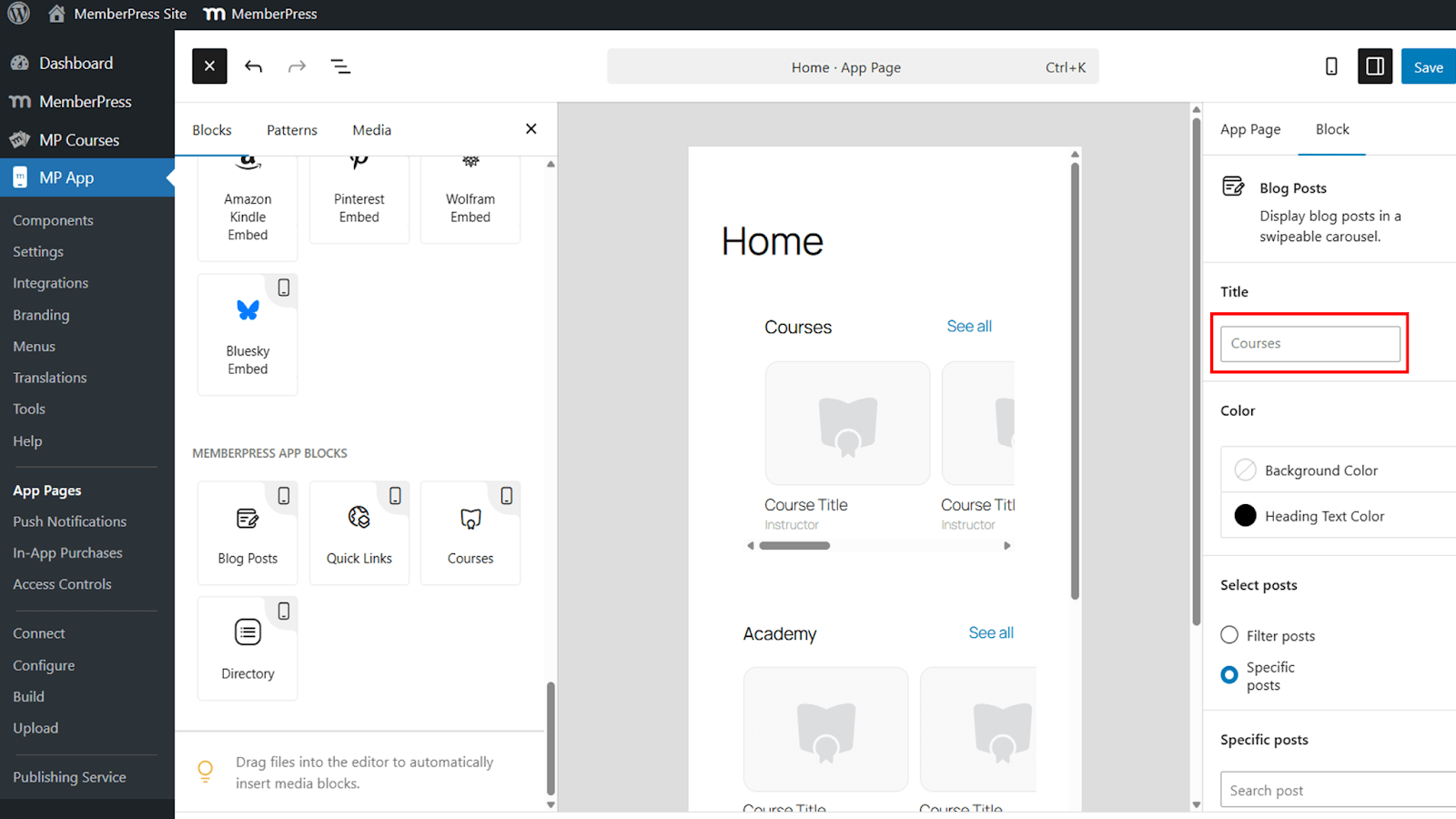
- Cambiar el nombre del título del bloque por defecto Cursos para adaptarse a la marca o al contexto, como Academia.
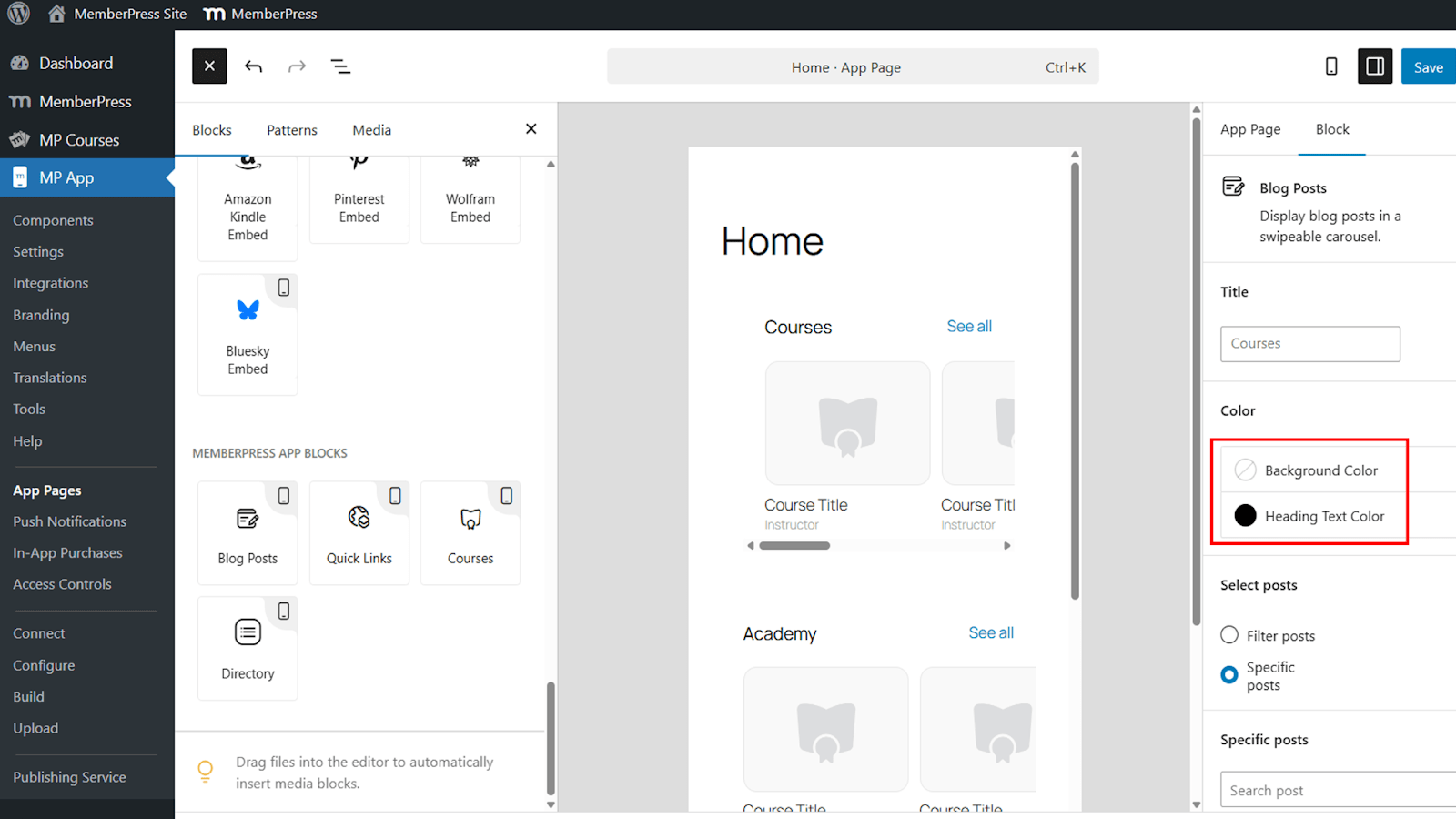
Color de fondo y de encabezado
- Asigne un color de fondo al bloque o déjelo transparente para que combine con el diseño de la página.
Opciones de visualización de contenidos
- Elija si desea mostrar los cursos mediante filtros o cursos específicos.
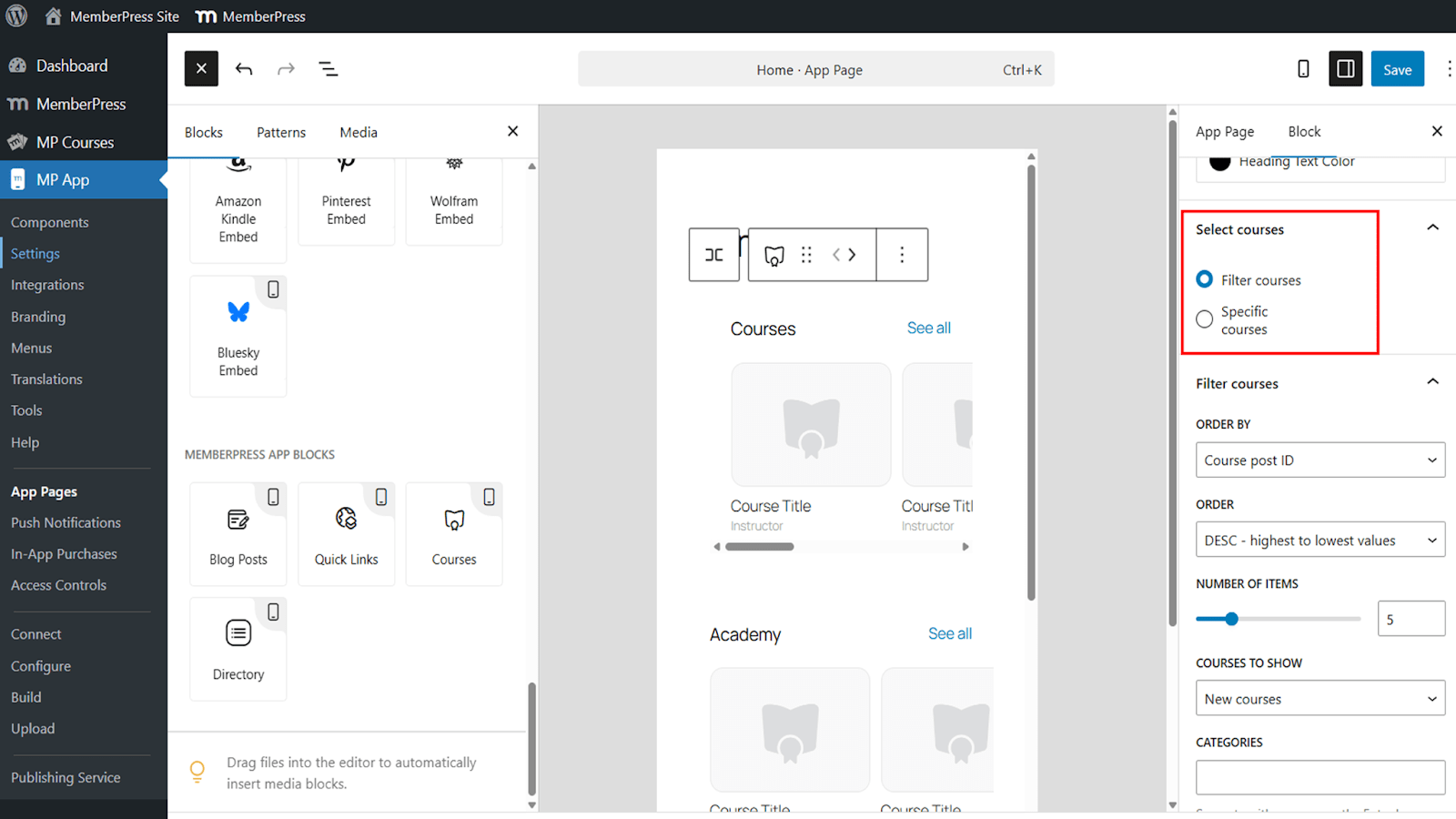
Uso de filtros para mostrar cursos
Los filtros permiten un control dinámico de los cursos que aparecen en el carrusel.
- Ordene los cursos por ID de curso, título o fecha de publicación.
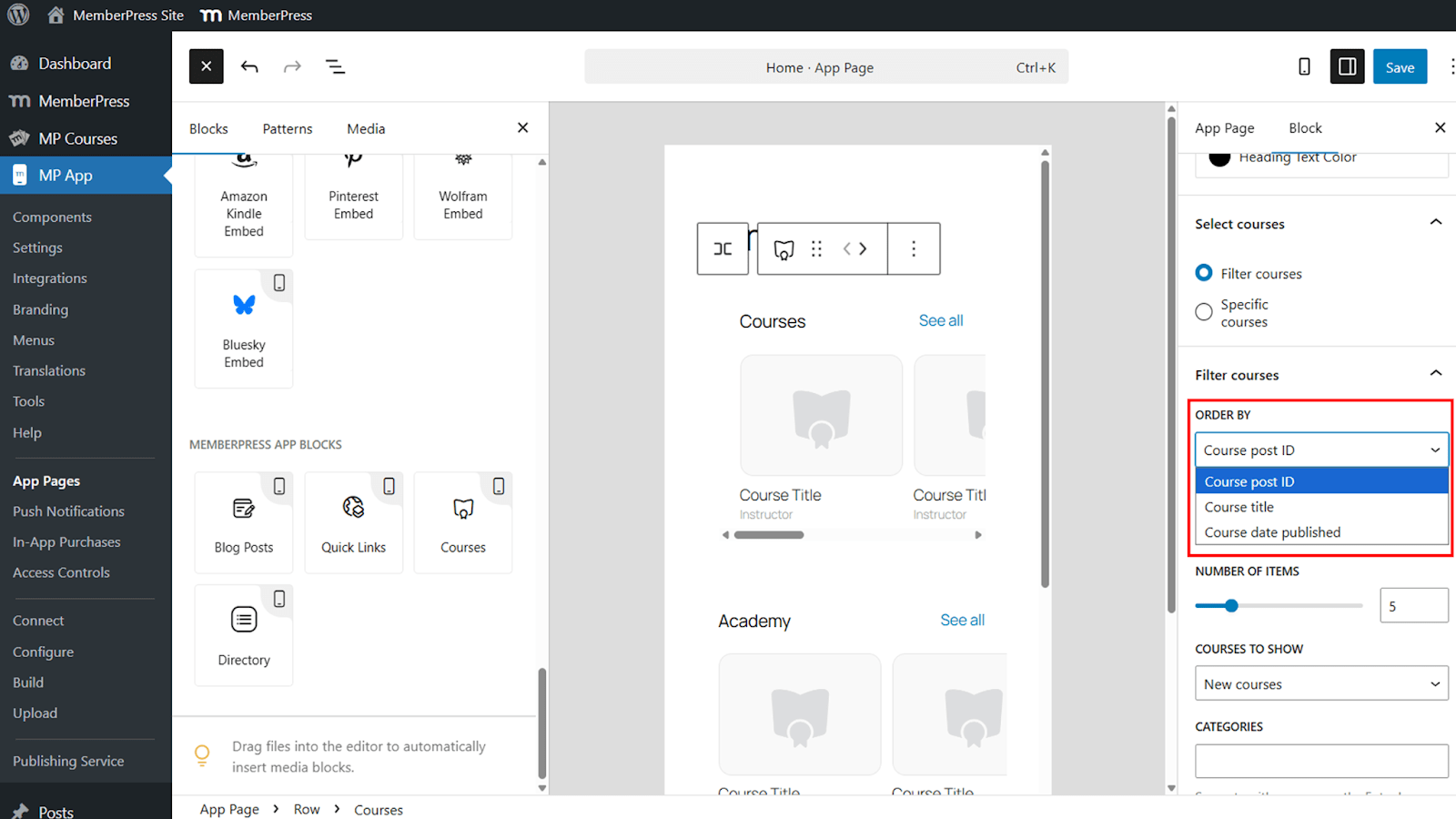
- Elija orden ascendente o descendente.
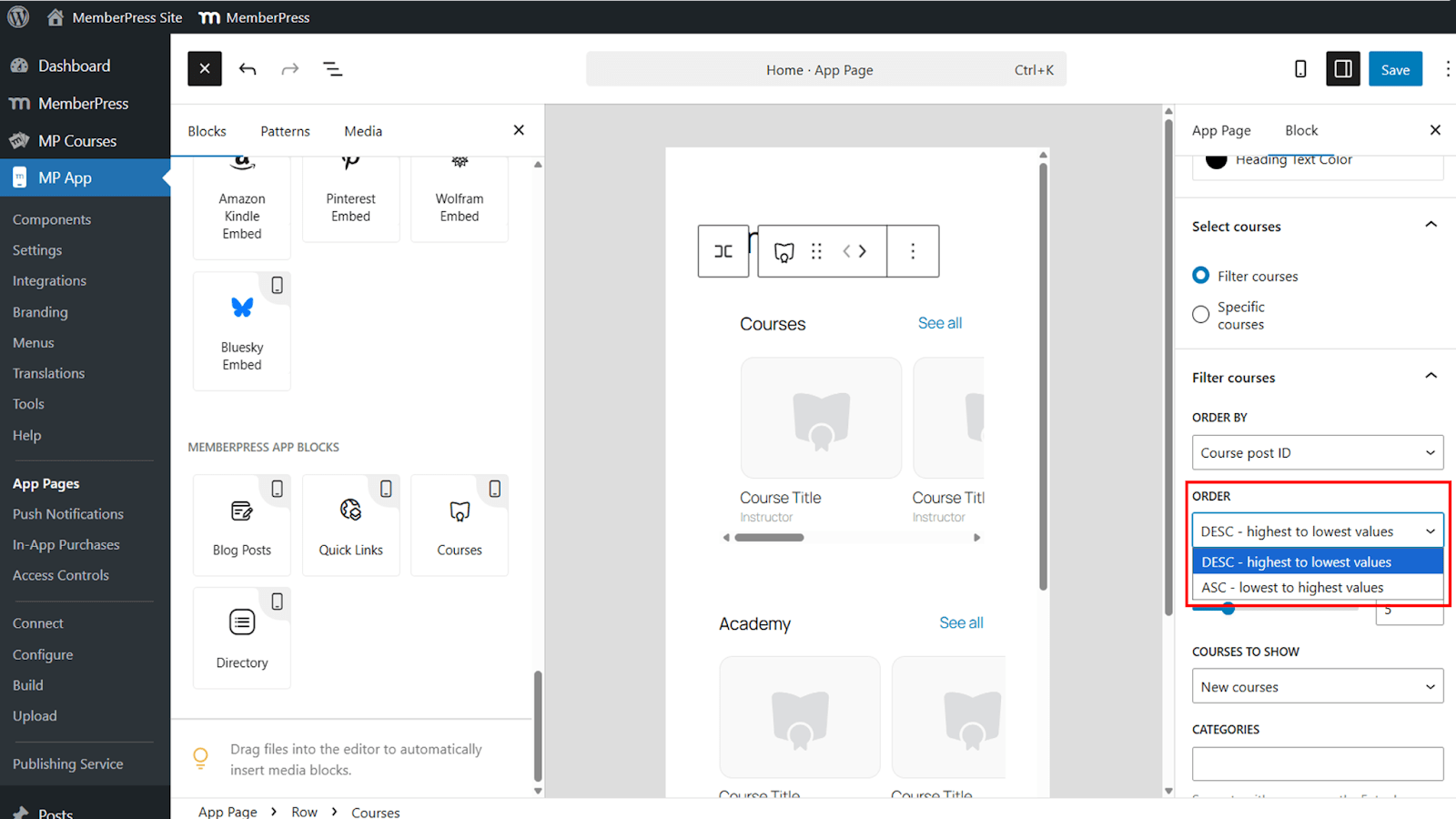
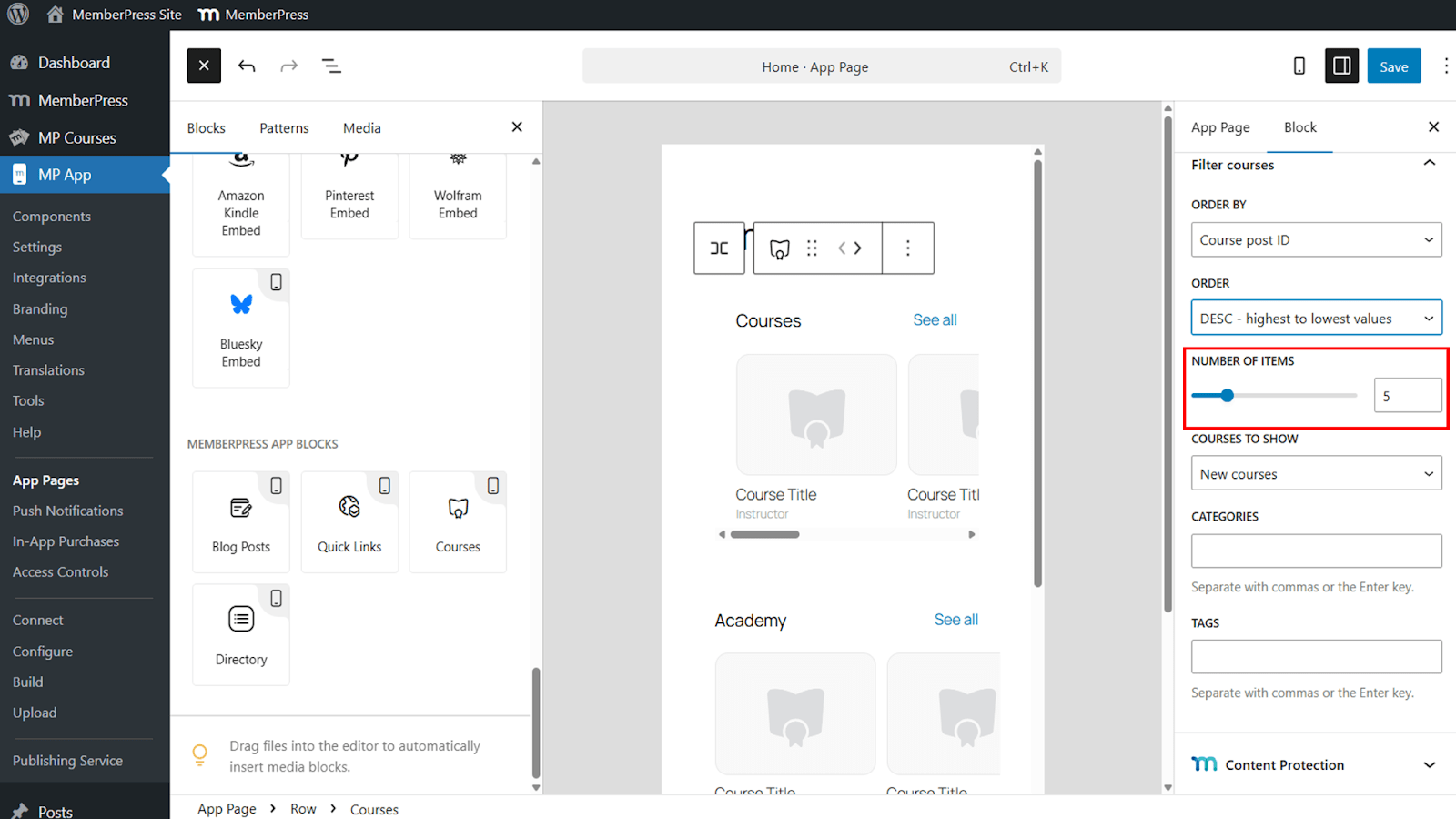
- Establezca el número de cursos mostrados en el carrusel.
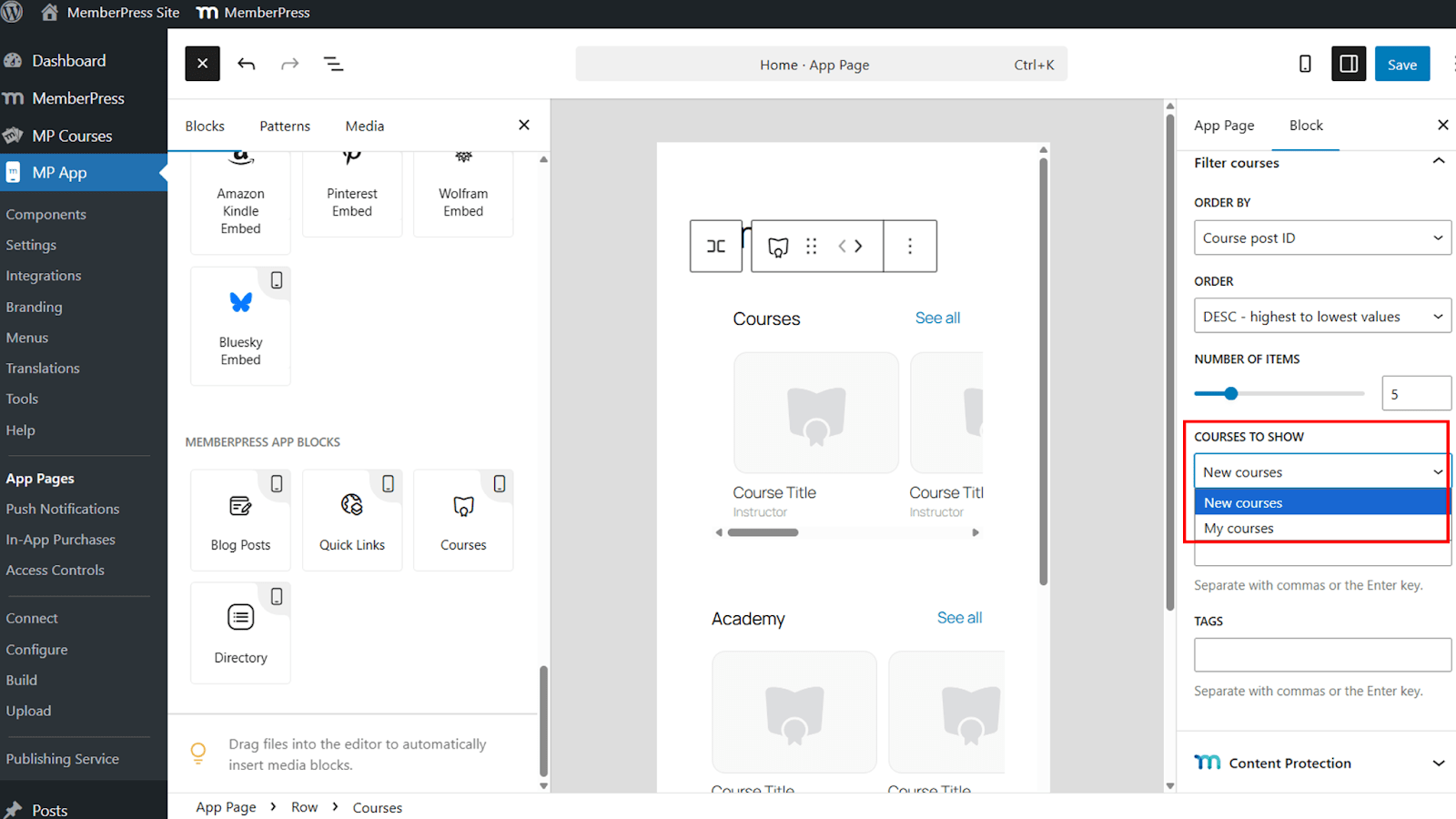
- Mostrar Nuevos cursos o Mis cursos en función del miembro conectado.
- Filtre los cursos mediante categorías y etiquetas.
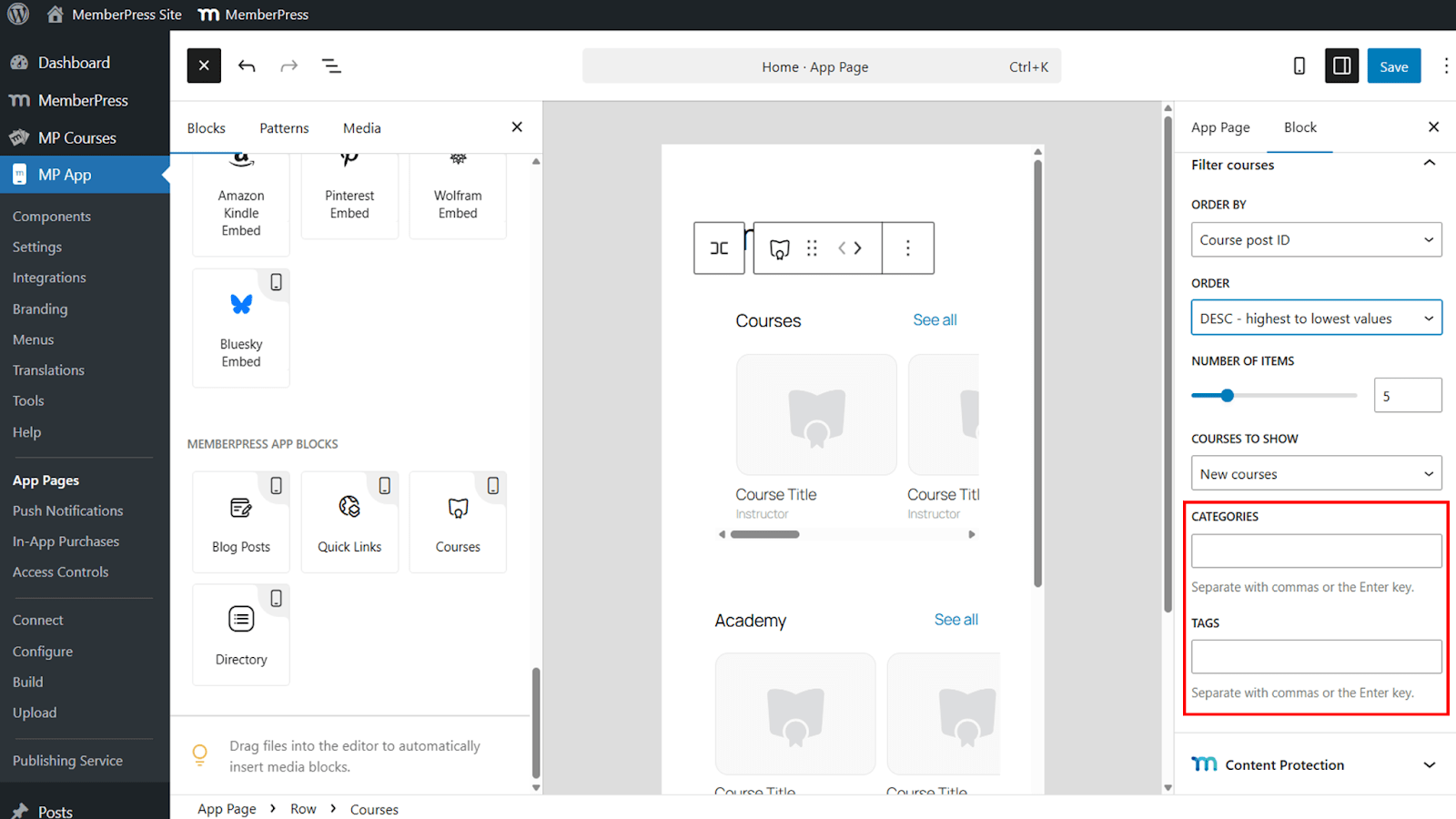
Los filtros son útiles para resaltar grupos específicos de cursos y proporcionan un control preciso sobre la visibilidad de los cursos en la aplicación MemberPress iOS/Android.
Selección de cursos específicos
La selección de cursos específicos permite controlar manualmente el contenido mostrado.
- Pasar de cursos filtrados a Cursos específicos.
- Seleccione cursos individuales para incluirlos en el bloque.
Esta opción es ideal para destacar cursos destacados o promocionales.
Guardar y verificar el bloque
Una vez finalizada la configuración, guarde los cambios para publicar el bloque.
- Haga clic en Guardar para aplicar los ajustes del bloque.
- Abra el Aplicación MemberPress iOS/Android en un dispositivo móvil.
- Navegue hasta la página que contiene el Cursos bloque.
- Compruebe que el carrusel muestra los cursos correctos.
- Pulse un curso o Ver todo para confirmar la correcta navegación.
Se pueden añadir varios bloques de cursos a la misma página, cada uno con su propio título y filtros, lo que permite segmentar el contenido en toda la aplicación.










 ES
ES  EN
EN  FR
FR  DE
DE  PT
PT 