

Conceder al propietario del equipo acceso a su proyecto Firebase les permite configurar notificaciones push, análisis y otros servicios de backend para su MemberPress AppKit sin restricciones.
Esta guía le mostrará cómo invitar al equipo MemberPress como colaborador Propietario en la Consola Firebase.
Comprender los requisitos de acceso del equipo
El equipo de MemberPress necesita permisos específicos para el proyecto Firebase para la gestión y el soporte integral del servicio backend.
Nivel de acceso del propietario Proporciona un control completo sobre la configuración y los servicios del proyecto Firebase. Los permisos de propietario permiten a los miembros del equipo gestionar todos los aspectos de la configuración y el mantenimiento del backend.
Gestión de notificaciones push Requiere acceso de propietario para la configuración de Firebase Cloud Messaging. El equipo configura los servicios de entrega de notificaciones y mensajería.
Configuración de análisis Permite configurar el seguimiento de eventos y la supervisión del comportamiento de los usuarios. El acceso de propietario permite una personalización completa de los análisis.
Control del servicio backend Proporciona gestión de funciones de autenticación, bases de datos y almacenamiento. El equipo mantiene la funcionalidad adecuada del backend para el funcionamiento de las aplicaciones.
Gestión continua Mantiene las operaciones y actualizaciones continuas del servicio Firebase. El acceso del equipo permite un soporte proactivo y ajustes de configuración.
Añadir MemberPress AppKit Team como propietario
La invitación de propietario concede al equipo MemberPress los permisos necesarios para la configuración y gestión del proyecto Firebase.
- Ir a console.firebase.google.com e inicia sesión.
- Haga clic en el proyecto al que desea conectarse.
- Haga clic en el botón Ajustes Icono de engranaje junto a «Descripción general del proyecto».
- Seleccione Usuarios y permisos desde el menú.
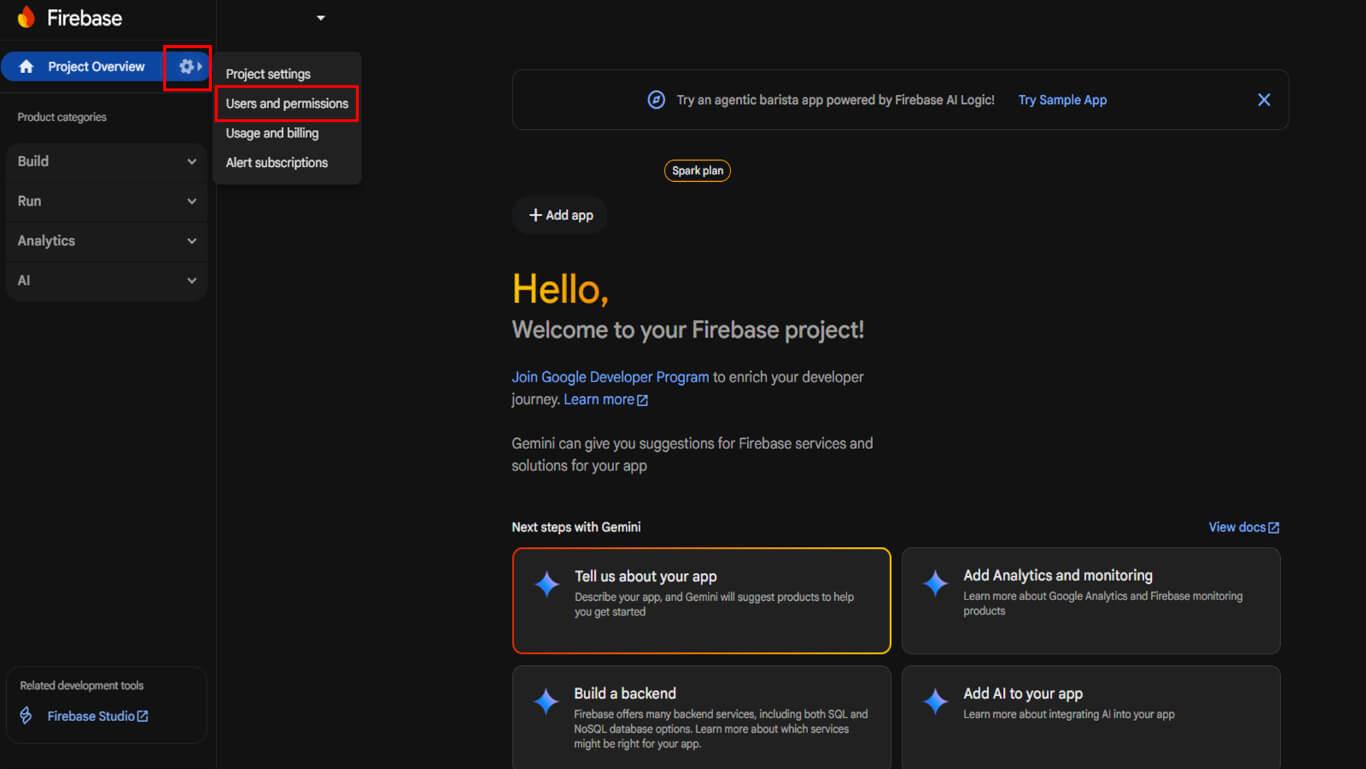
- Haga clic en Añadir miembro.
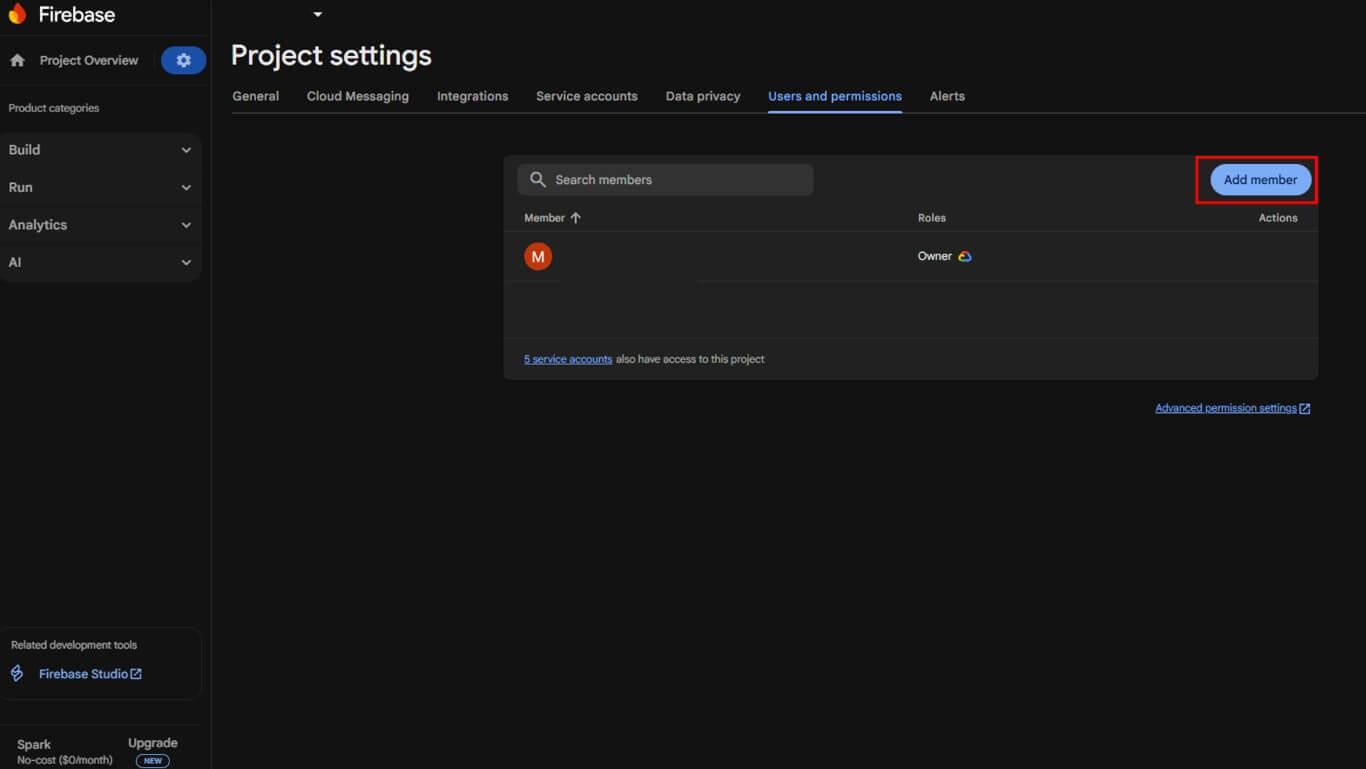
- Para Correo electrónico, introduzca appsup@memberpress.com.
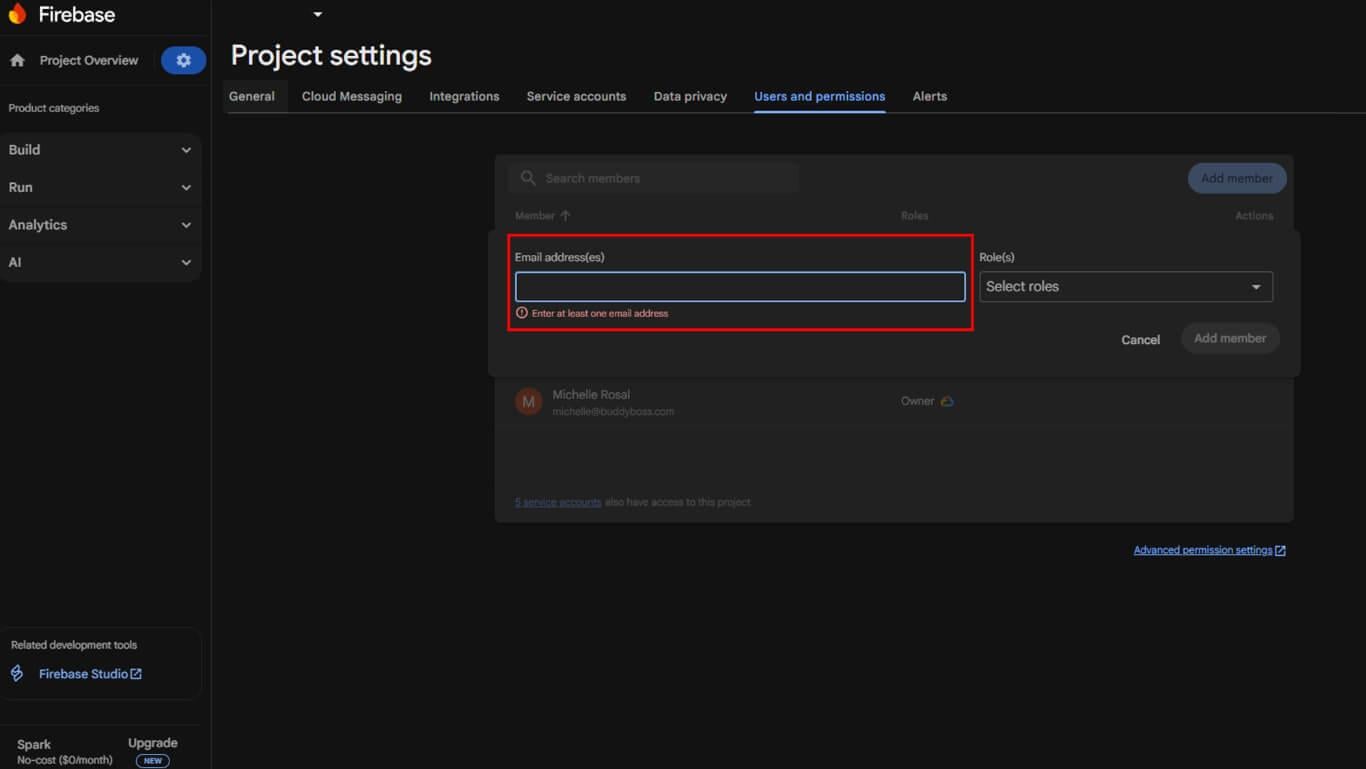
- En Papelseleccione Propietario.
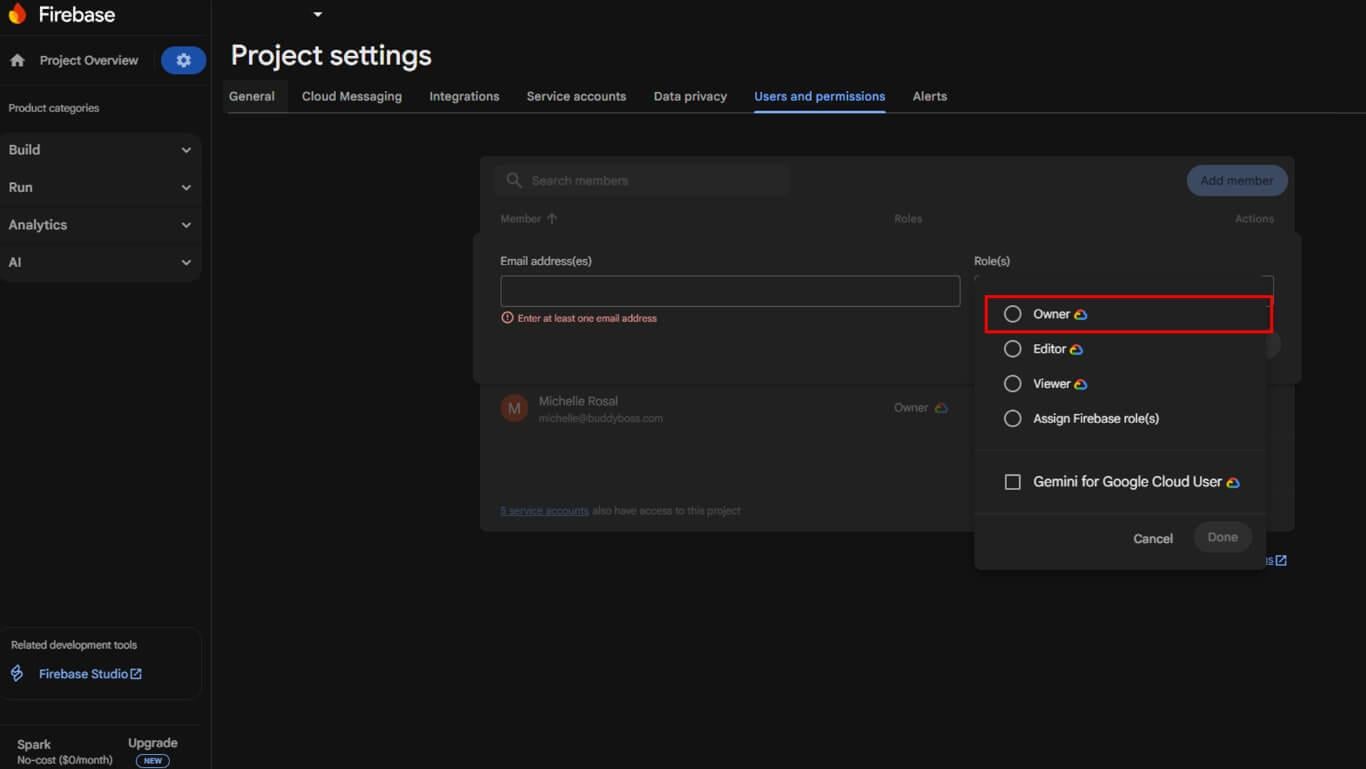
- Haga clic en Añadir miembro.
El equipo MemberPress recibirá la invitación y la aceptará, completando así la configuración.










 ES
ES  EN
EN  FR
FR  DE
DE  PT
PT 