

Los contenidos restringidos requieren una comunicación clara que explique las limitaciones de acceso y los pasos a seguir. El mensaje restringido predeterminado aparece cuando los usuarios encuentran contenido bloqueado en la aplicación.
Este documento explica cómo configurar el contenido de los mensajes, personalizar los botones de llamada a la acción y activar los teasers de contenido para las páginas restringidas.
Comprensión del mensaje restringido predeterminado
El mensaje restringido predeterminado aparece cuando los usuarios intentan acceder a contenido protegido por reglas de acceso. Este mensaje comunica por qué se deniega el acceso y guía a los usuarios hacia las acciones que permiten el acceso. Las reglas de acceso individuales pueden anular el mensaje predeterminado con contenido personalizado, pero el mensaje predeterminado proporciona mensajes coherentes en todo el contenido restringido sin necesidad de personalización específica.
Acceso a la configuración predeterminada de mensajes
La configuración predeterminada de mensajes restringidos controla los mensajes globales para todo el contenido protegido.
- Vaya a Panel > MP AppKit > Configuración > Controles de acceso.
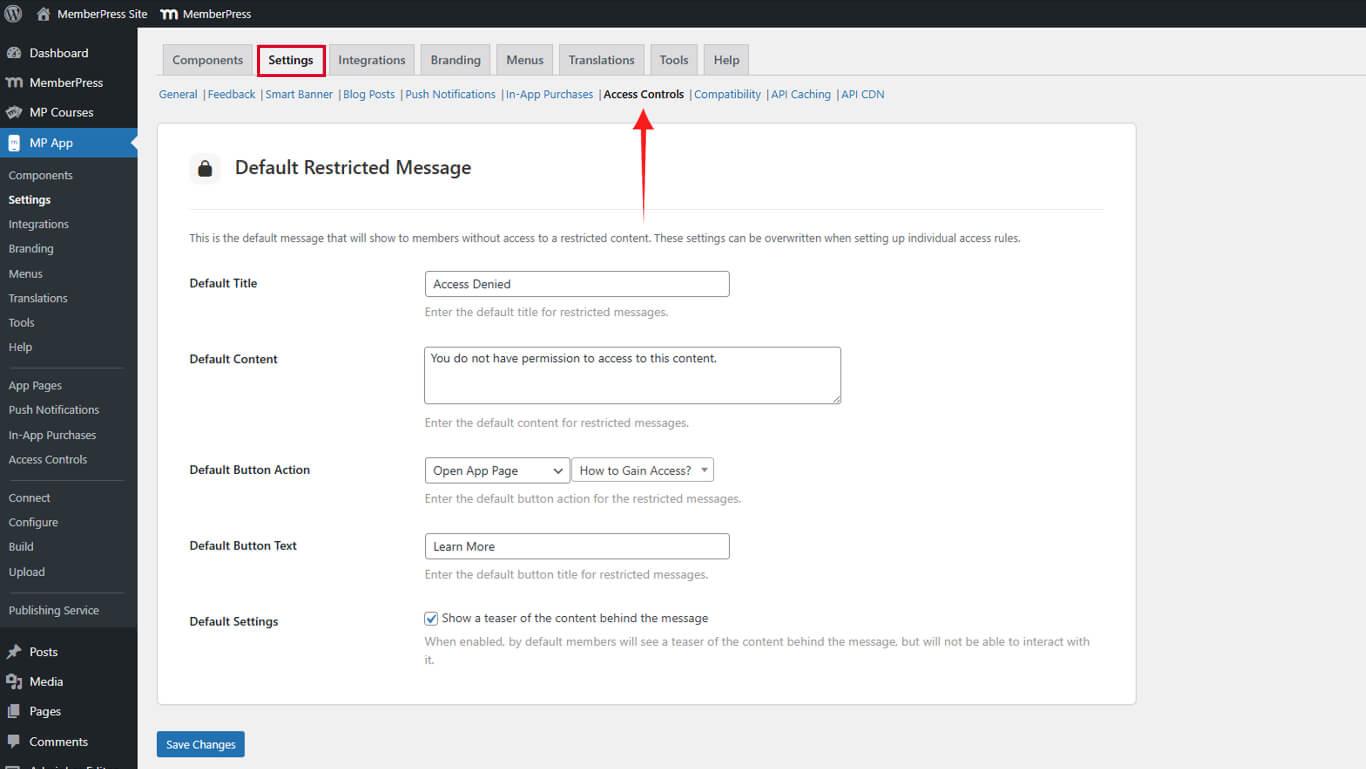
- Localice el Mensaje restringido predeterminado sección.
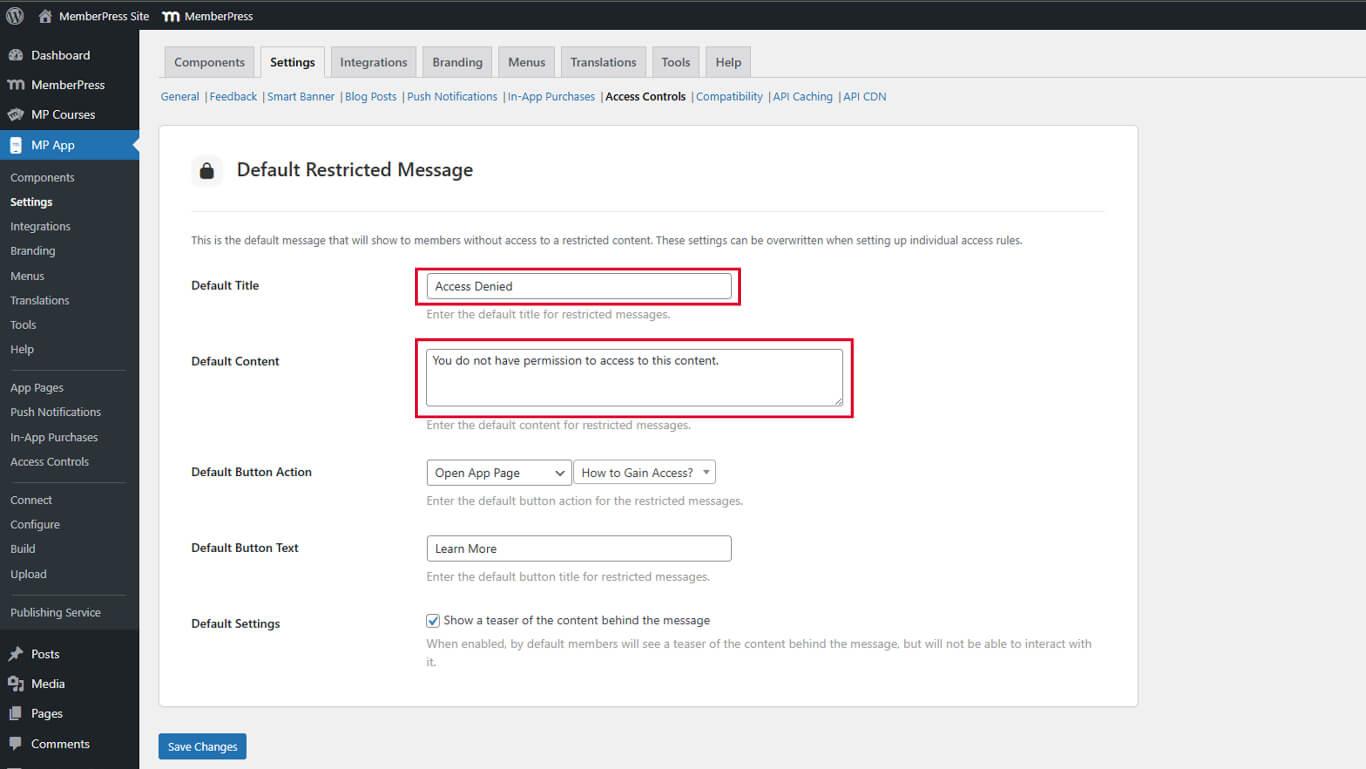
- En el Título predeterminado campo, introduzca un título claro y conciso que describa la restricción de acceso.
- En el Contenido predeterminado campo, introduzca un texto explicativo en el que se detallen los requisitos de acceso.
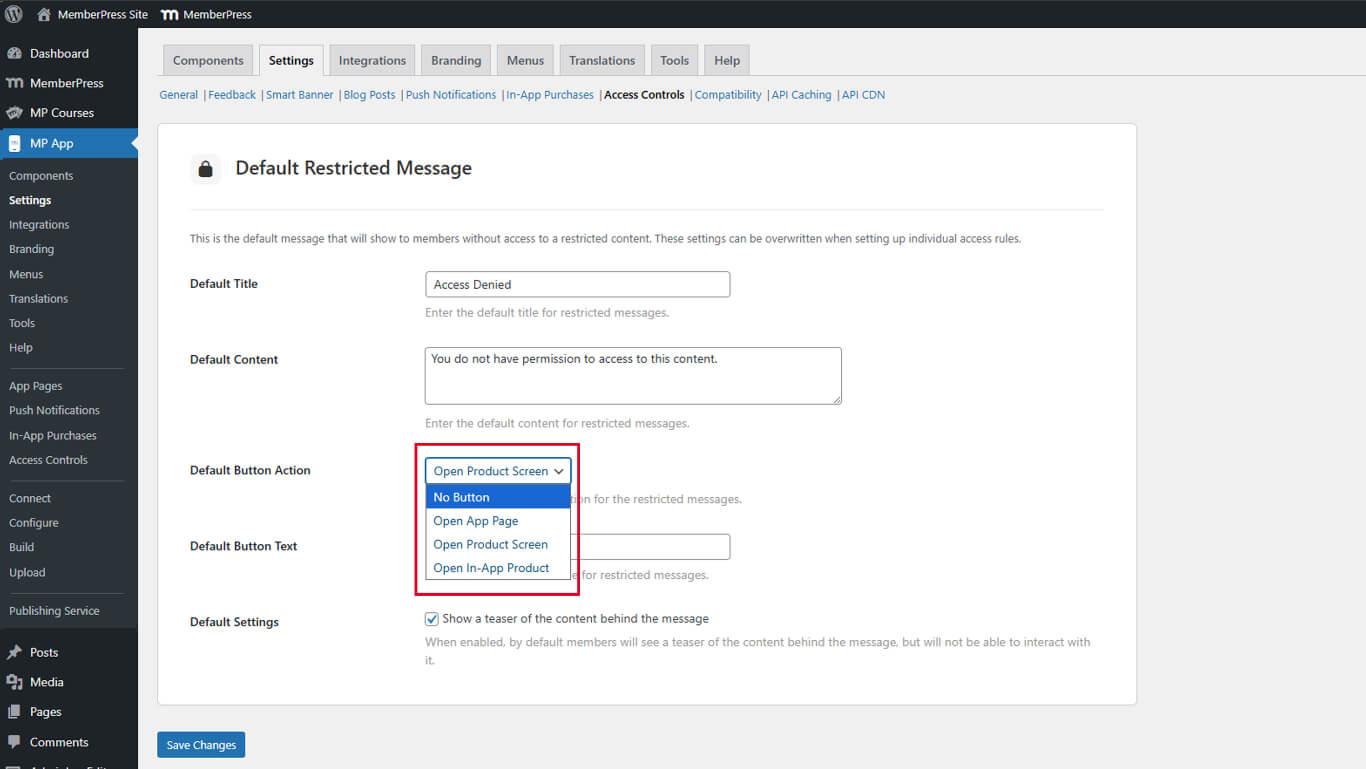
- En Acción predeterminada del botón, seleccione el comportamiento adecuado en el menú desplegable:
- Sin botón: No muestra ninguna llamada a la acción.
- Abrir página de la aplicación: Dirige a los usuarios a una página de aplicación personalizada.
- Abrir pantalla de producto: Muestra las opciones de membresía disponibles.
- Abrir producto en la aplicación: Muestra una oferta específica de membresía.
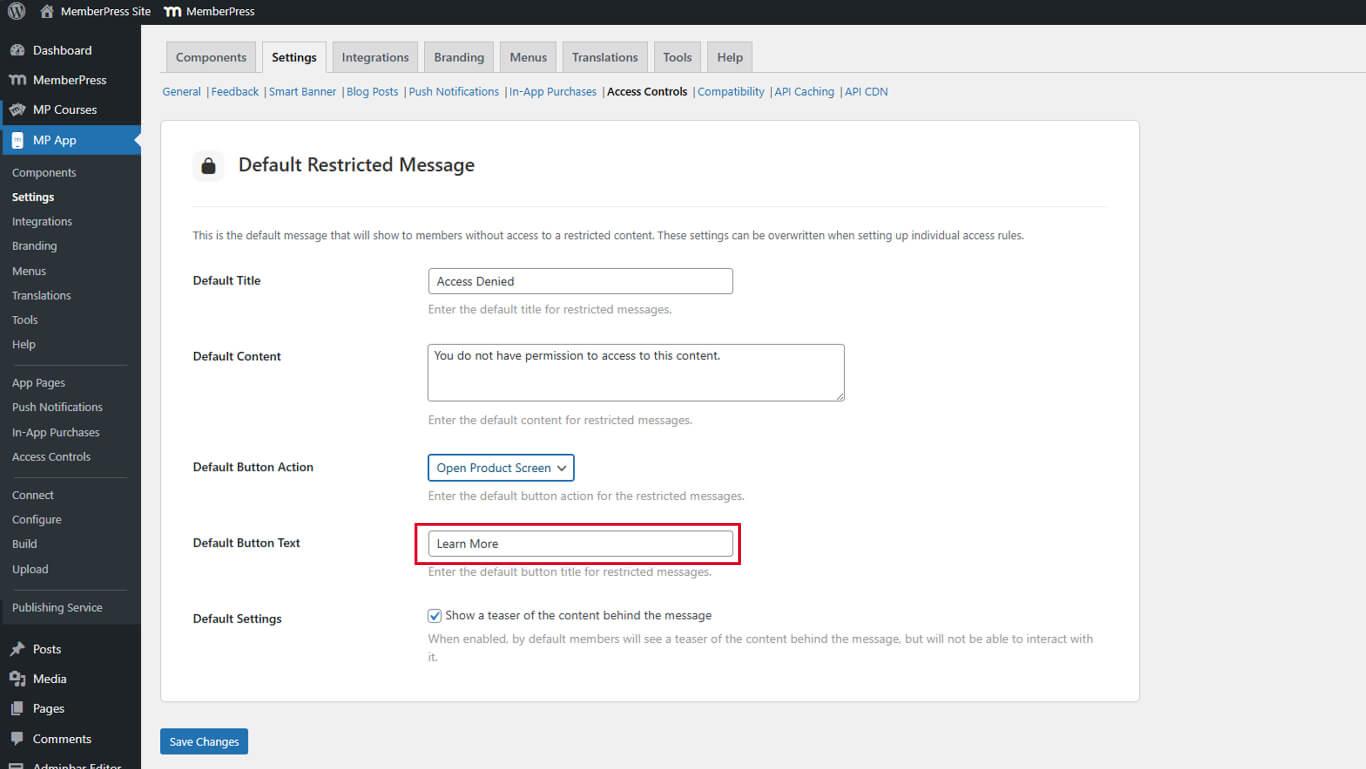
- En el Texto del botón campo, introduzca la etiqueta descriptiva para el botón de llamada a la acción.
- Localice el Mostrar avance Casilla de verificación debajo de «Mensaje restringido predeterminado».
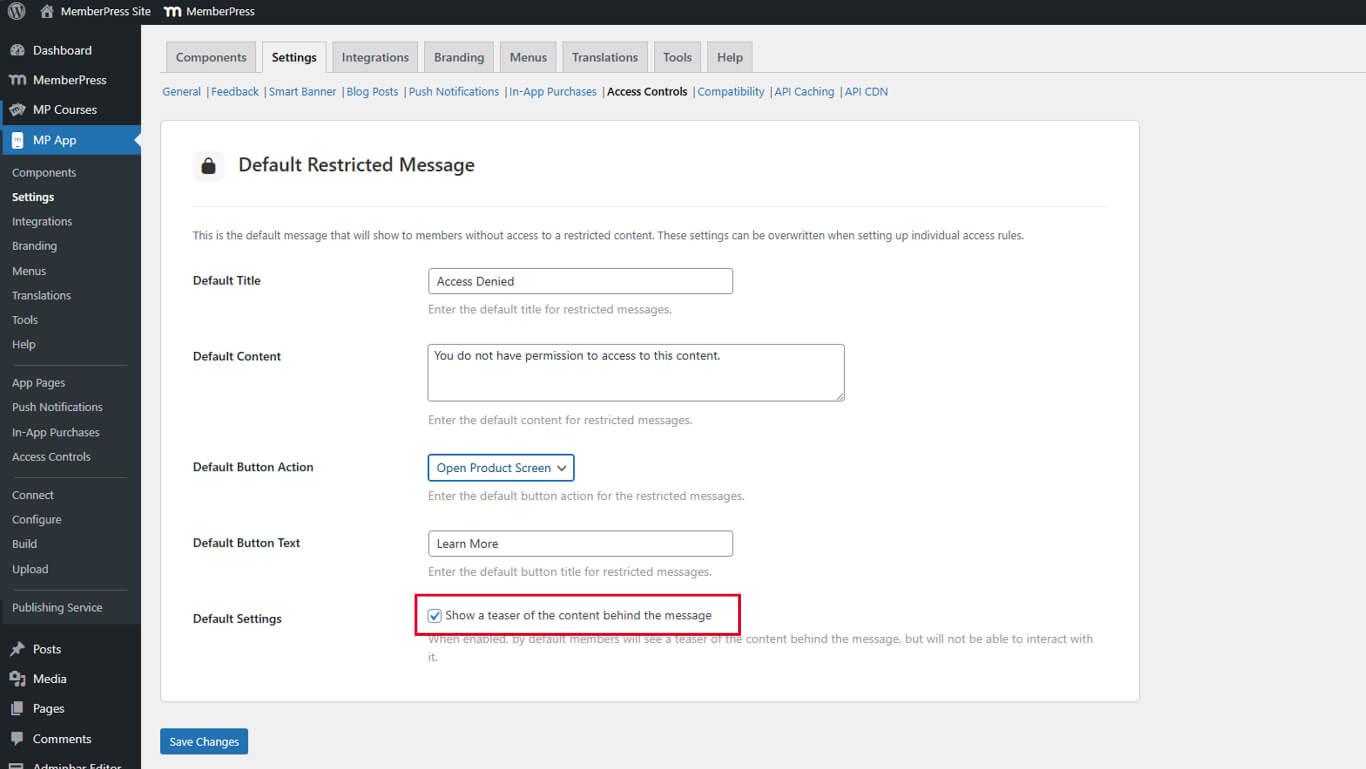
- Marque la casilla para habilitar la función de vista previa del contenido.
- Haga clic en Guardar cambios.










 ES
ES  EN
EN  FR
FR  DE
DE  PT
PT 