

Los Grupos de Acceso organizan a los miembros en categorías basadas en atributos de perfil, planes de membresía o roles de usuario. Estos grupos constituyen la base del sistema de controles de acceso y determinan a qué contenido de la aplicación pueden acceder los miembros.
Este documento explica cómo crear Grupos de Acceso, gestionar la pertenencia a grupos y solucionar problemas comunes de configuración de grupos.
¿Qué son los grupos de acceso?
Los grupos de acceso definen segmentos de miembros dentro de la aplicación agrupando usuarios que comparten atributos comunes. Estos atributos incluyen la inscripción en un plan de afiliación, funciones de usuario de WordPress o condiciones de perfil personalizadas. Una vez creados, los grupos de acceso pueden aplicarse a páginas, menús y contenidos de la aplicación para controlar la visibilidad en función de las cualificaciones de los miembros.
Habilitación del componente de controles de acceso
Los Controles de Acceso deben estar activados antes de poder crear Grupos de Acceso.
- Vaya a Panel > MP AppKit > Componentes.
- Localizar Controles de acceso en la lista de componentes.
- Haga clic en Activar junto a Controles de acceso.
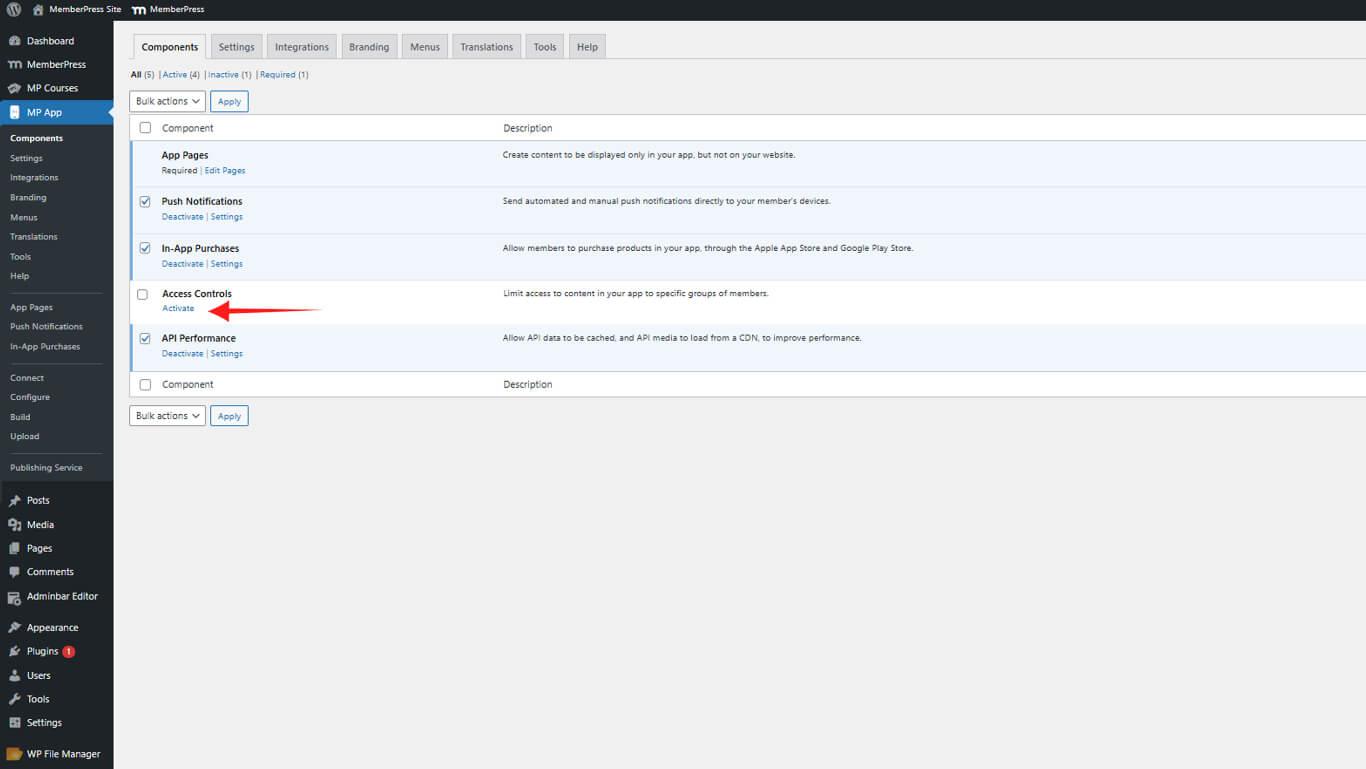
Después de la activación, Controles de acceso aparecen en el menú de administración de WordPress bajo MP App.
Creación de grupos de acceso
Los grupos de acceso se crean definiendo las condiciones que deben cumplir los miembros para pertenecer a un grupo.
- Vaya a Panel > MP AppKit > Controles de acceso > Grupos de acceso.
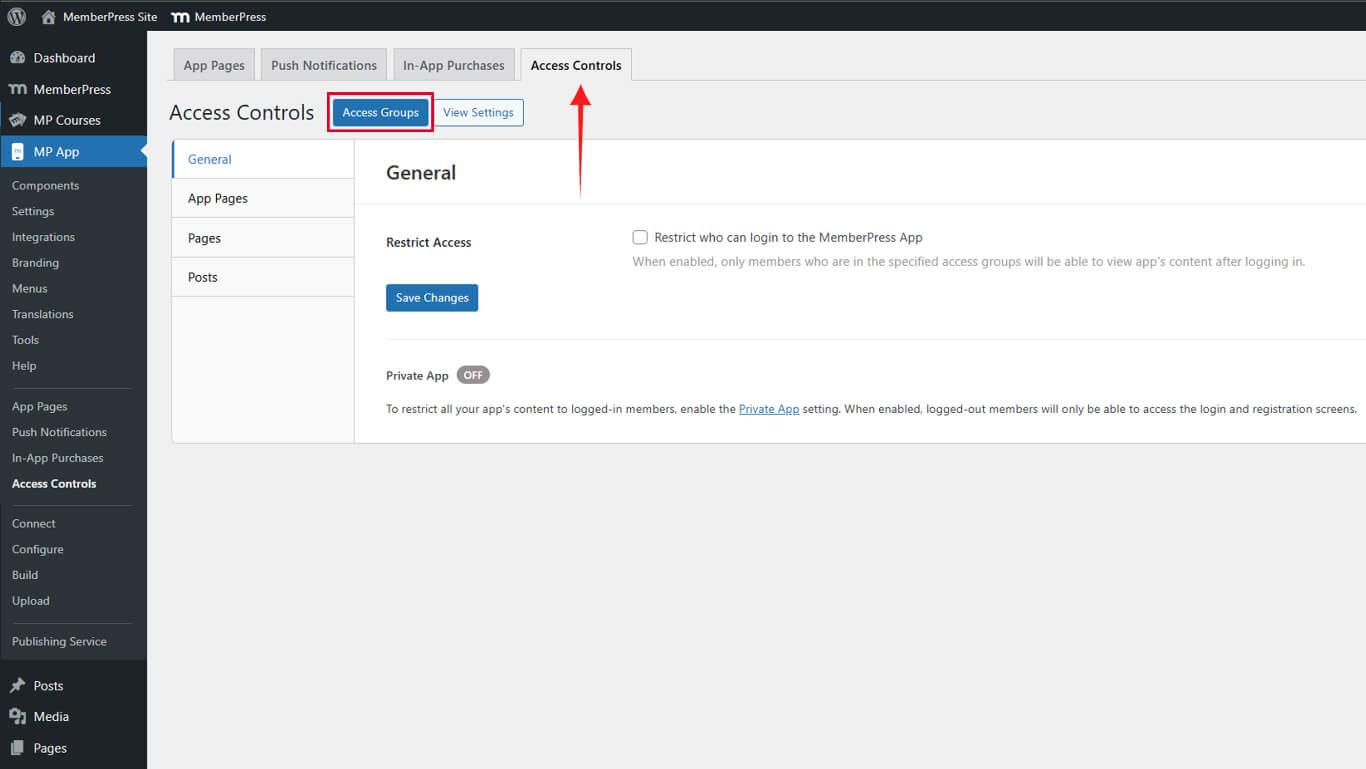
- Haga clic en Añadir grupo.
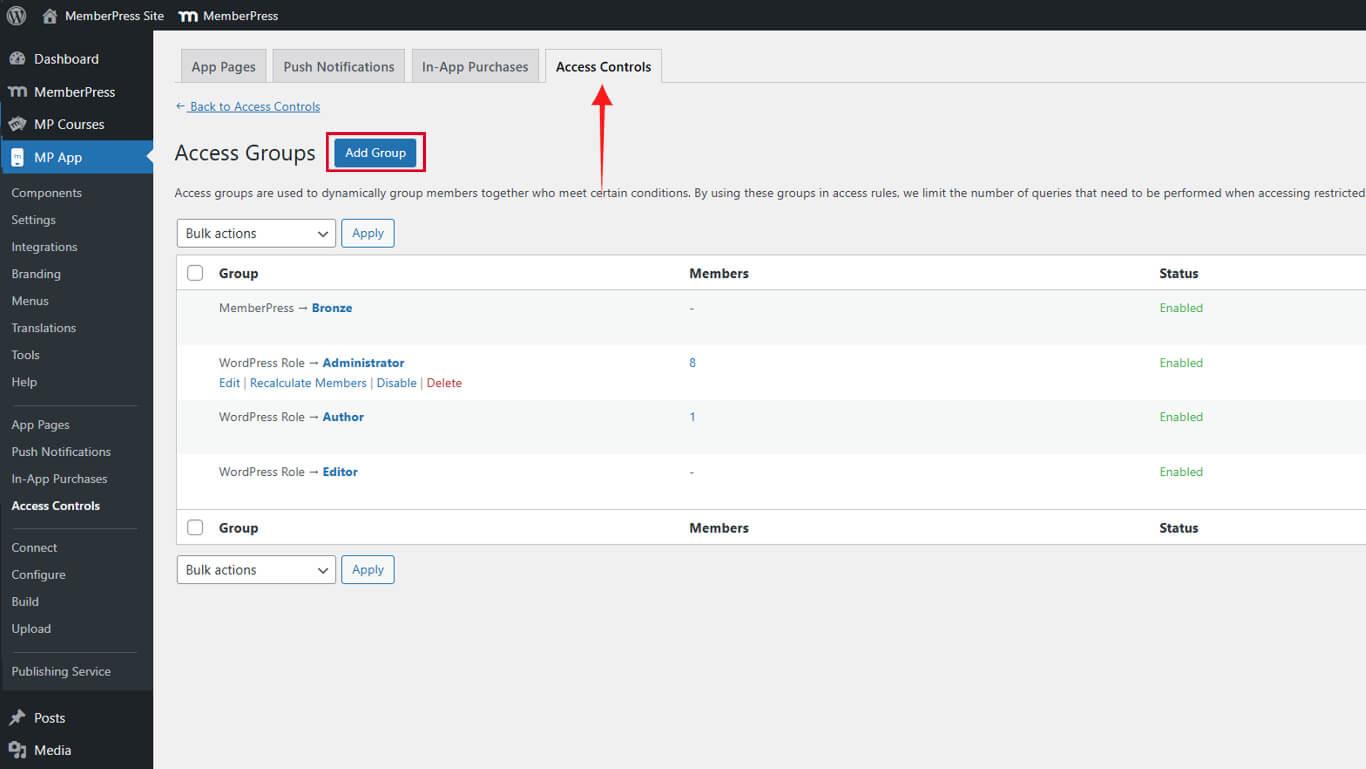
- Seleccione una Tipo de condición en el menú desplegable:
- Función de WordPress para la agrupación por funciones;
- MemberPress para un filtrado avanzado.
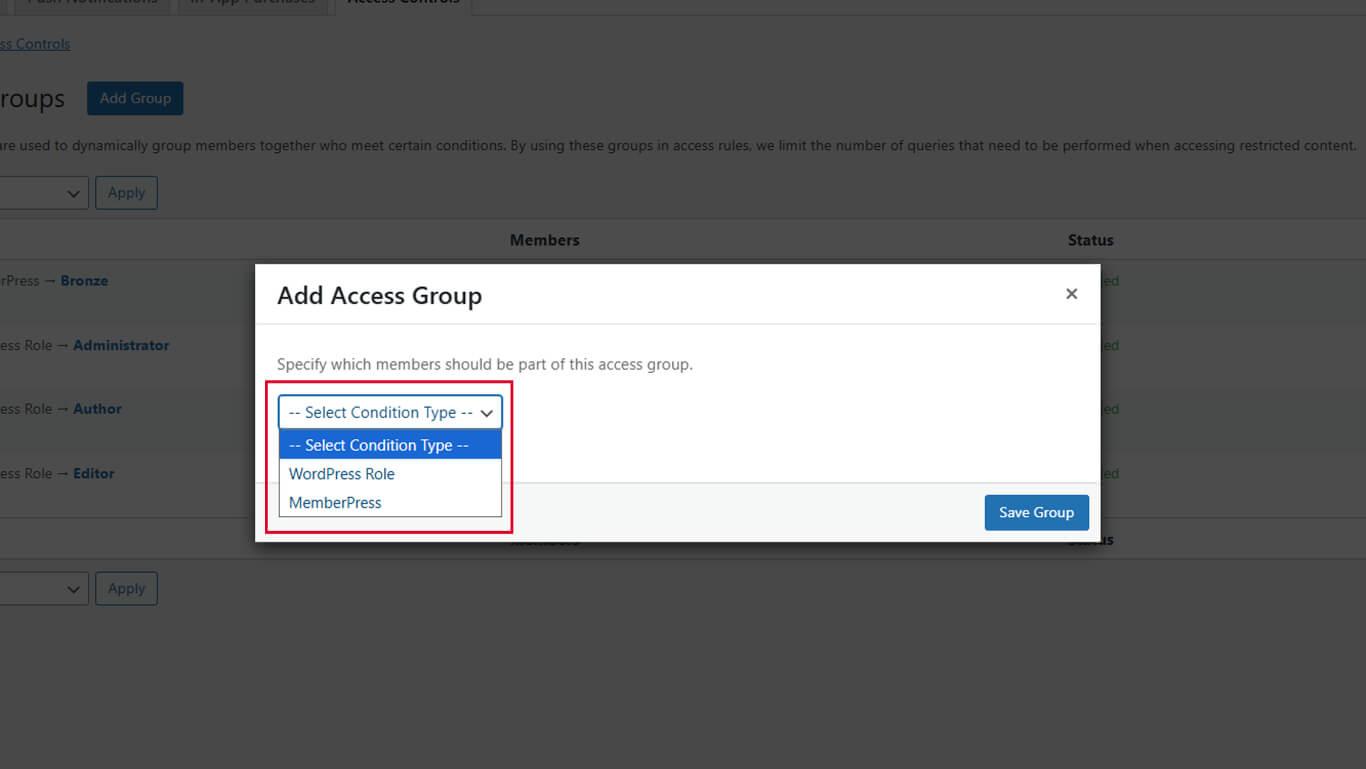
- Seleccione el elemento específico en el desplegable secundario si se le solicita.
- Haga clic en Guardar grupo.
El sistema calcula automáticamente el número de miembros que cumplen las condiciones del grupo al guardar.
Gestión de la pertenencia a grupos
La pertenencia a un grupo se actualiza automáticamente cuando cambian los atributos de los miembros. El recálculo manual garantiza la exactitud del recuento de miembros.
Recálculo de los miembros del grupo
El recuento de miembros puede requerir un nuevo cálculo manual tras actualizaciones masivas o importaciones de datos.
- Vaya a Panel > MP AppKit > Controles de acceso > Grupos de acceso.
- Localice el grupo que requiere un nuevo cálculo.
- Pase el ratón sobre el nombre del grupo para ver los enlaces de acción.
- Haga clic en Recalcular diputados.
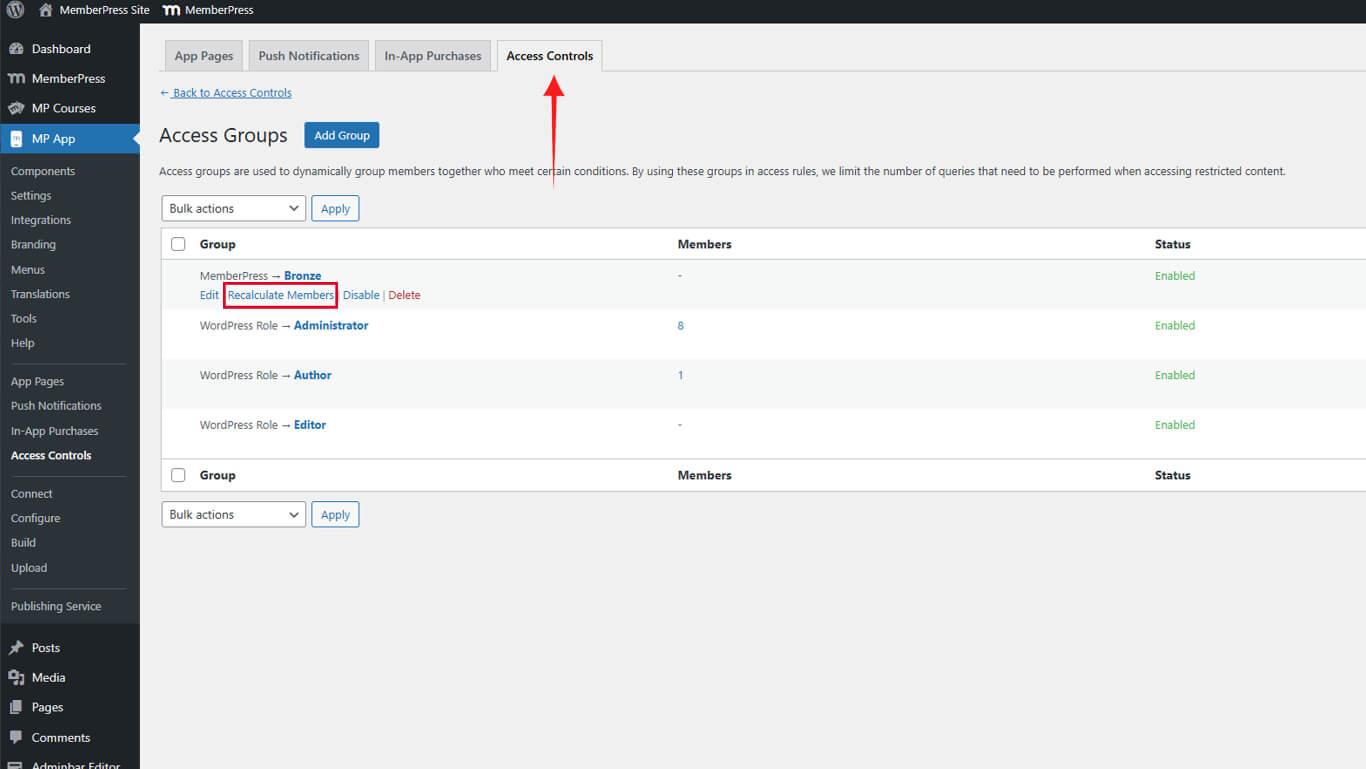
- Actualice la página para ver el recuento actualizado de miembros.
El proceso de recálculo revisa todos los usuarios y actualiza la pertenencia a los grupos en función de las condiciones actuales.
Ver los miembros del grupo
La lista de miembros muestra qué usuarios pertenecen a cada Grupo de Acceso.
- Vaya a Panel > MP AppKit > Herramientas > Calcular miembros.
- Localiza el grupo a revisar.
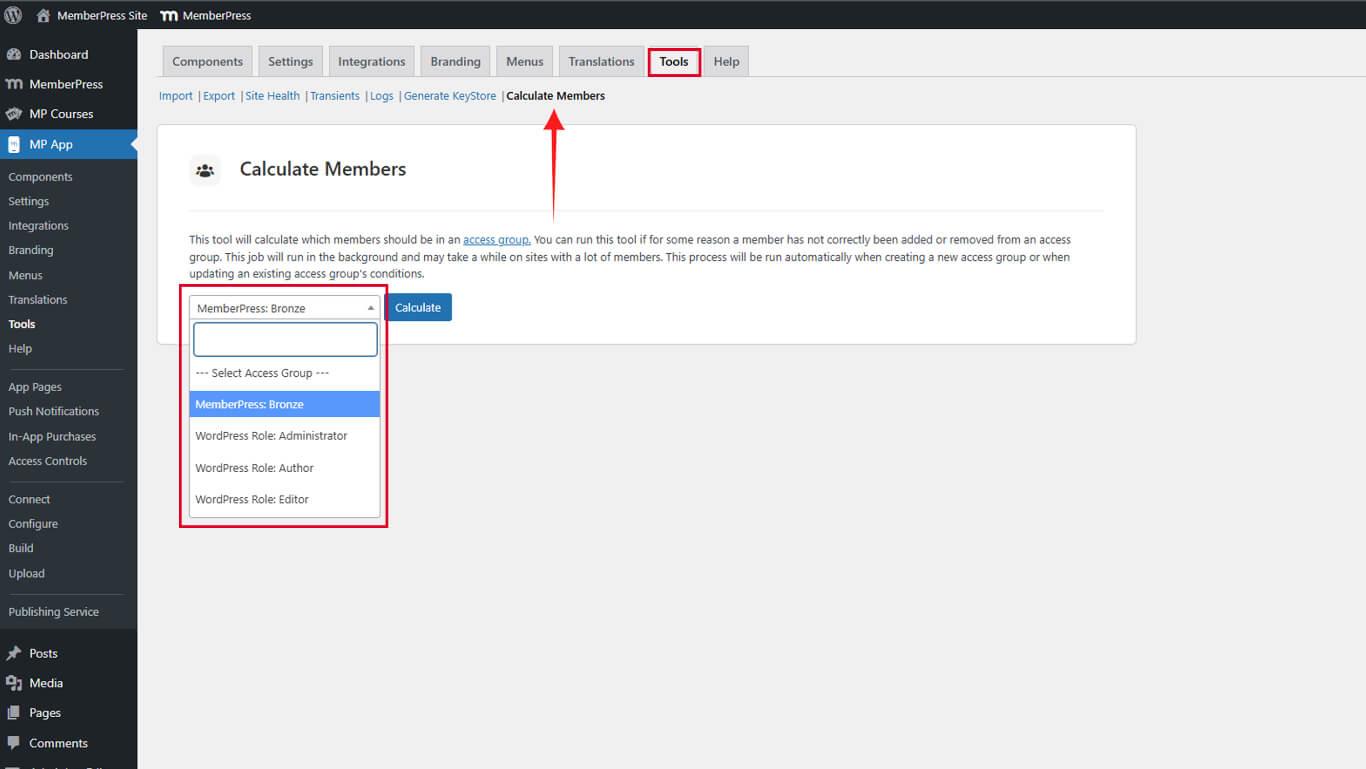
- Haga clic en Calcule.
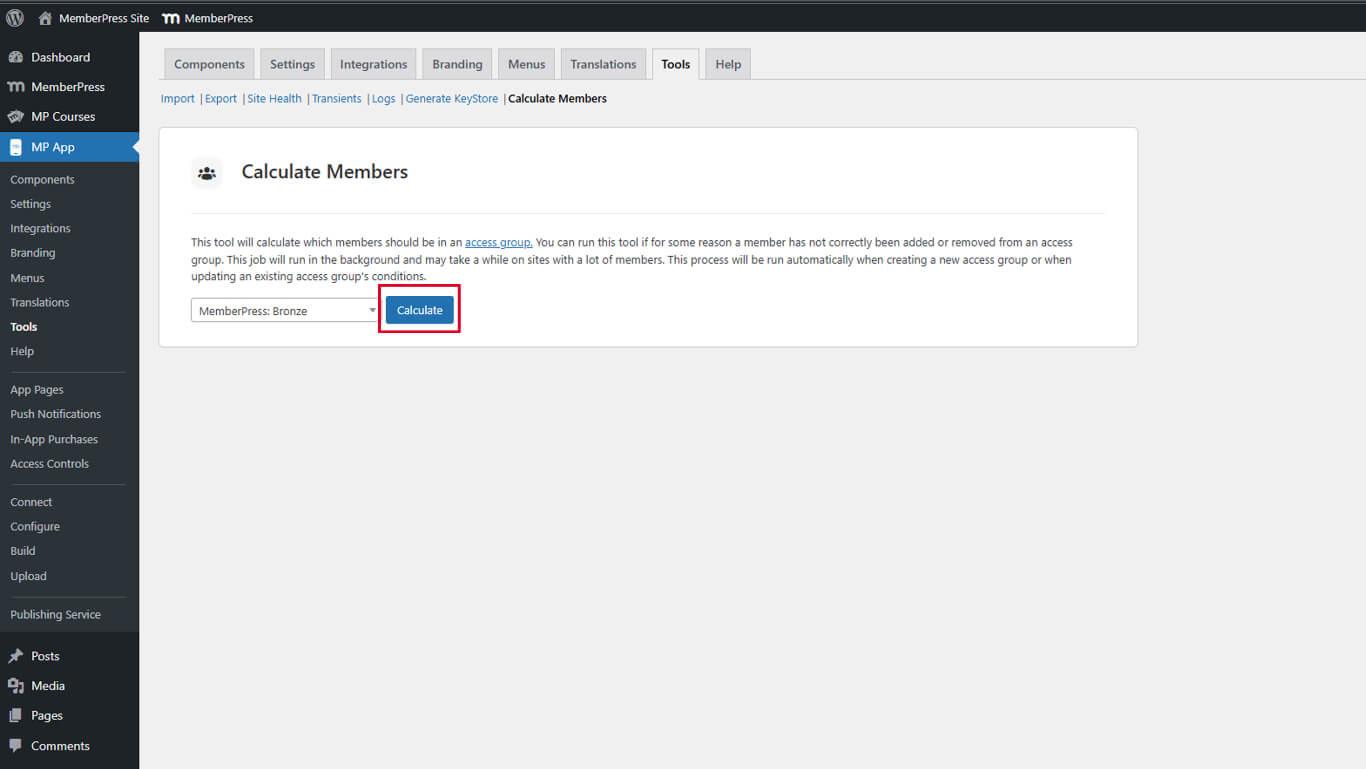
- Revisa la lista de miembros que pertenecen al grupo.
Las listas de miembros se actualizan en tiempo real en función de las condiciones actuales del grupo y de los atributos del usuario.
Edición de grupos de acceso
Los Grupos de Acceso existentes pueden modificarse para ajustar las condiciones o los nombres de los grupos.
- Vaya a Panel > MP AppKit > Controles de acceso > Grupos de acceso.
- Localice el grupo que desea modificar.
- Pase el ratón por encima del nombre del grupo y haga clic en Editar.
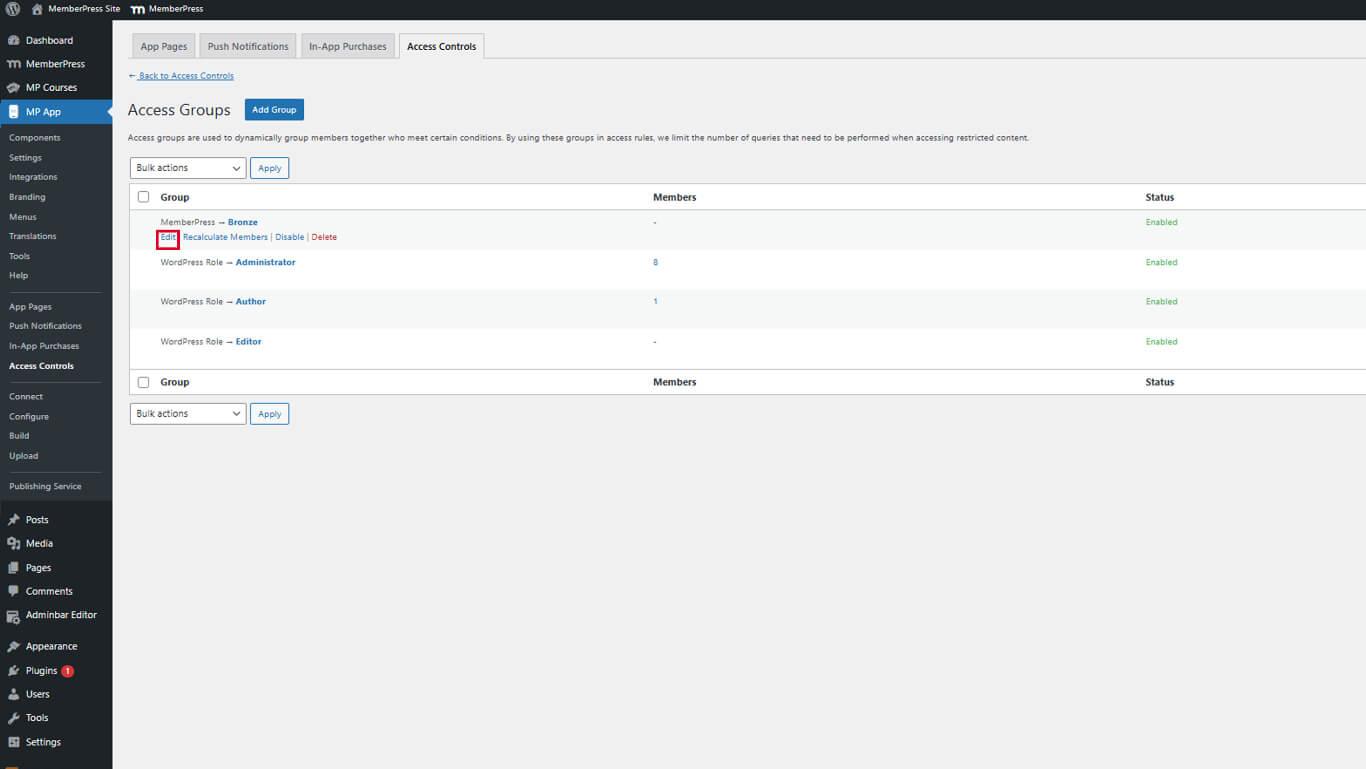
- Actualizar el Tipo de condición según sea necesario.
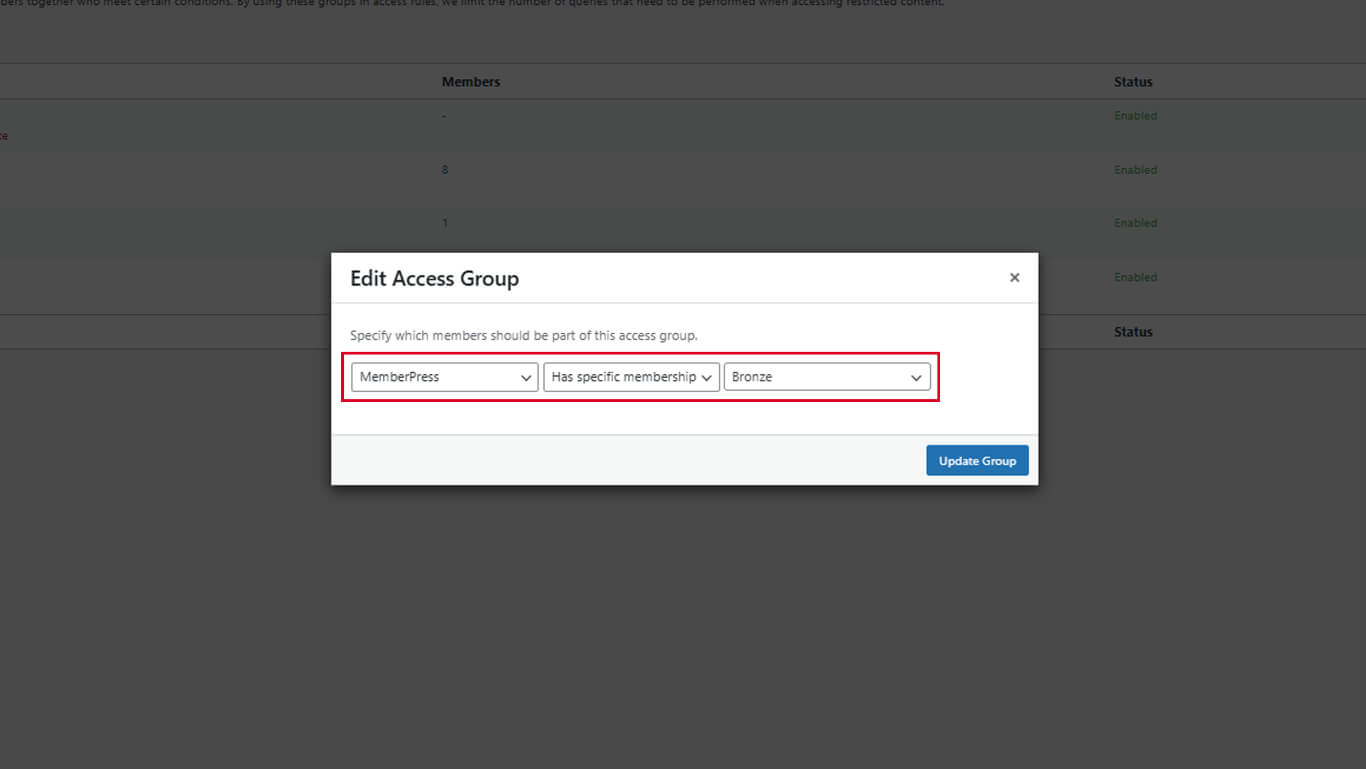
- Haga clic en Grupo de actualización.
- Haga clic en Recalcular diputados para actualizar la afiliación en función de las nuevas condiciones.
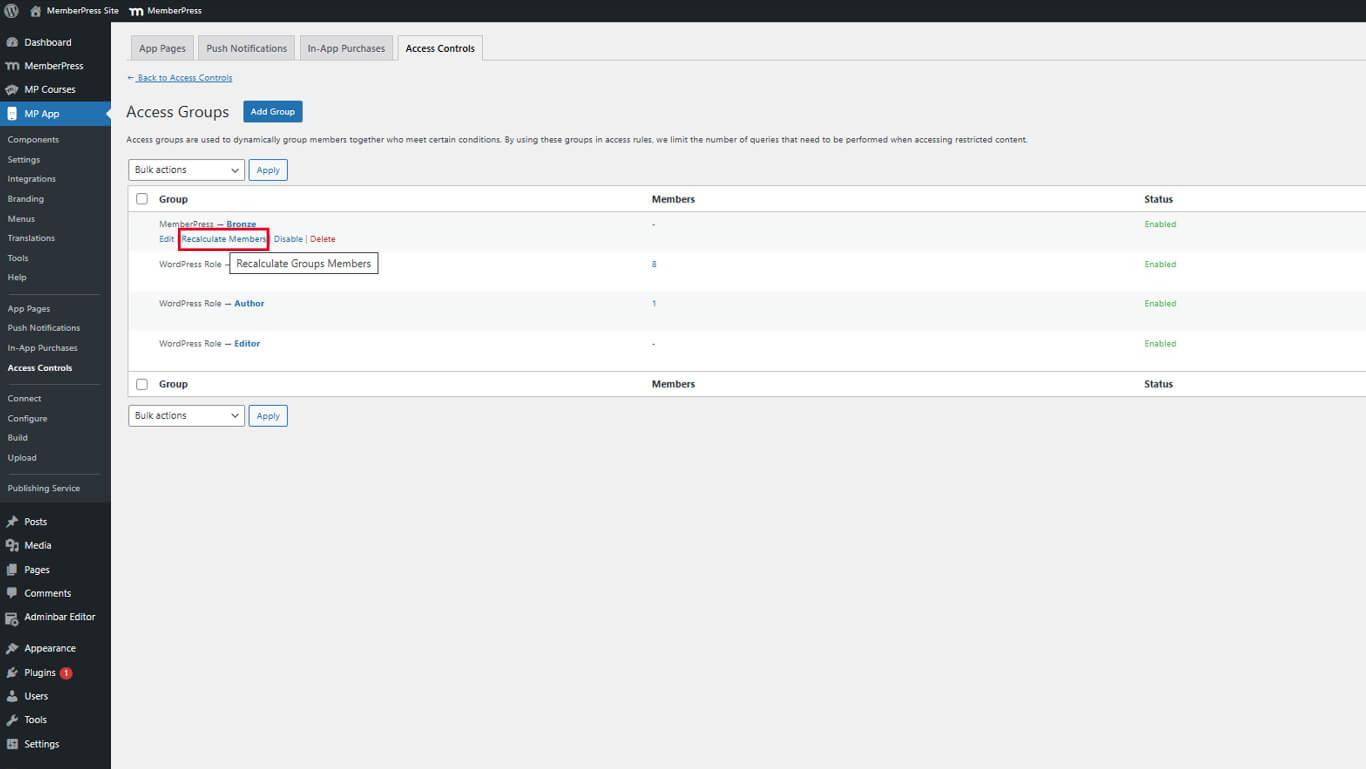
La modificación de las condiciones del grupo no recalcula automáticamente el número de miembros. El recálculo manual garantiza la exactitud del recuento de miembros tras las modificaciones.
Eliminación de grupos de acceso
Los Grupos de Acceso pueden eliminarse cuando ya no sean necesarios.
- Vaya a Panel > MP AppKit > Controles de acceso > Grupos de acceso.
- Localice el grupo que desea eliminar.
- Pase el ratón por encima del nombre del grupo y haga clic en Borrar.
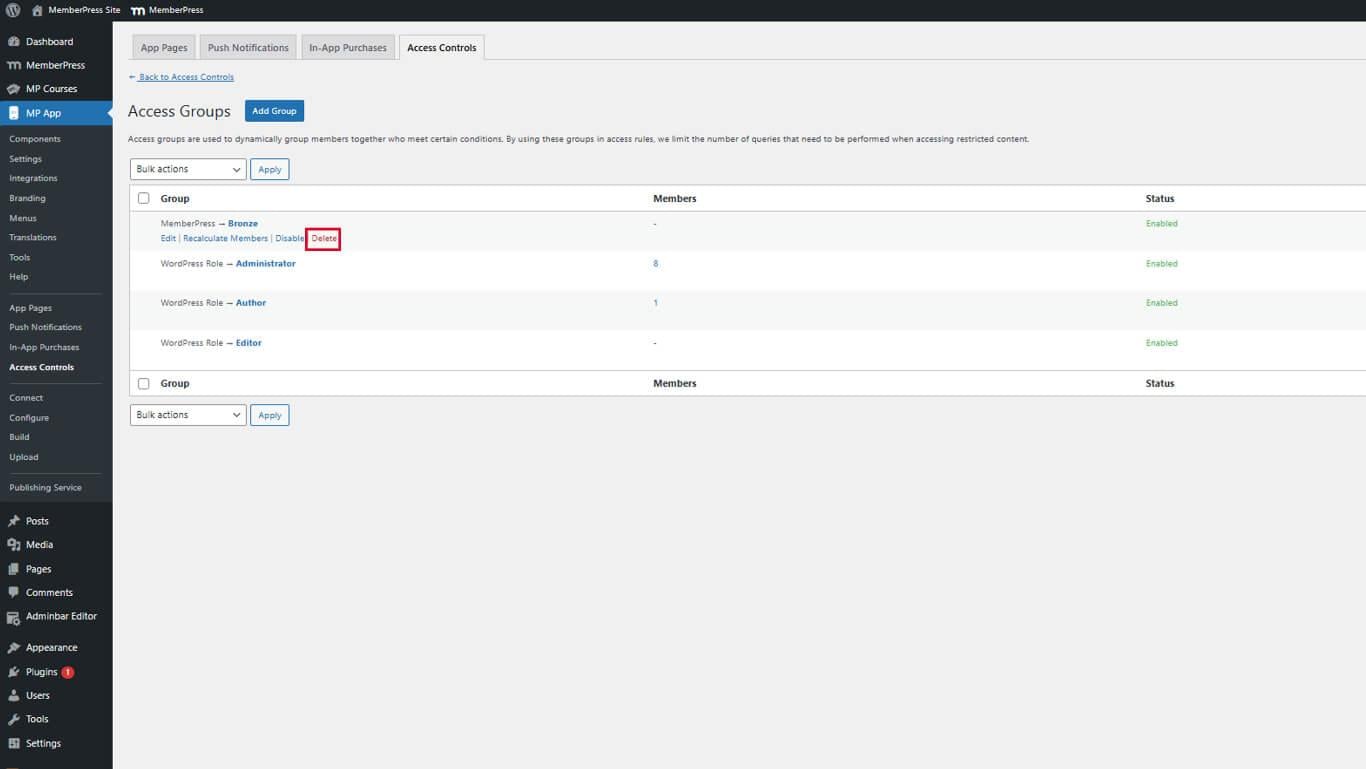
- Confirme la eliminación cuando se le solicite.










 ES
ES  EN
EN  FR
FR  DE
DE  PT
PT 