

La configuración de aplicaciones Android requiere la configuración del ID de aplicación, la generación de certificados KeyStore y el registro del ID de aplicación en Google Play Console. En este documento se explica cómo configurar el ID de aplicación, generar e importar certificados de almacén de claves y registrar el ID de aplicación.
Comprender los requisitos de identificación de la aplicación
El ID de aplicación identifica de forma exclusiva la aplicación en Google Play Store. El ID de aplicación debe constar de al menos dos segmentos separados por puntos que sigan unas reglas de formato específicas. Una configuración adecuada del ID de aplicación evita conflictos con otras aplicaciones.
Los requisitos de formato del identificador de la solicitud incluyen:
- Al menos dos segmentos separados por puntos;
- Cada segmento empieza por una letra;
- Contiene sólo letras, números y guiones bajos;
- No utilizado por ninguna otra aplicación en Google Play;
- Las versiones de prueba añaden .test al ID de la aplicación.
Configuración del ID de aplicación
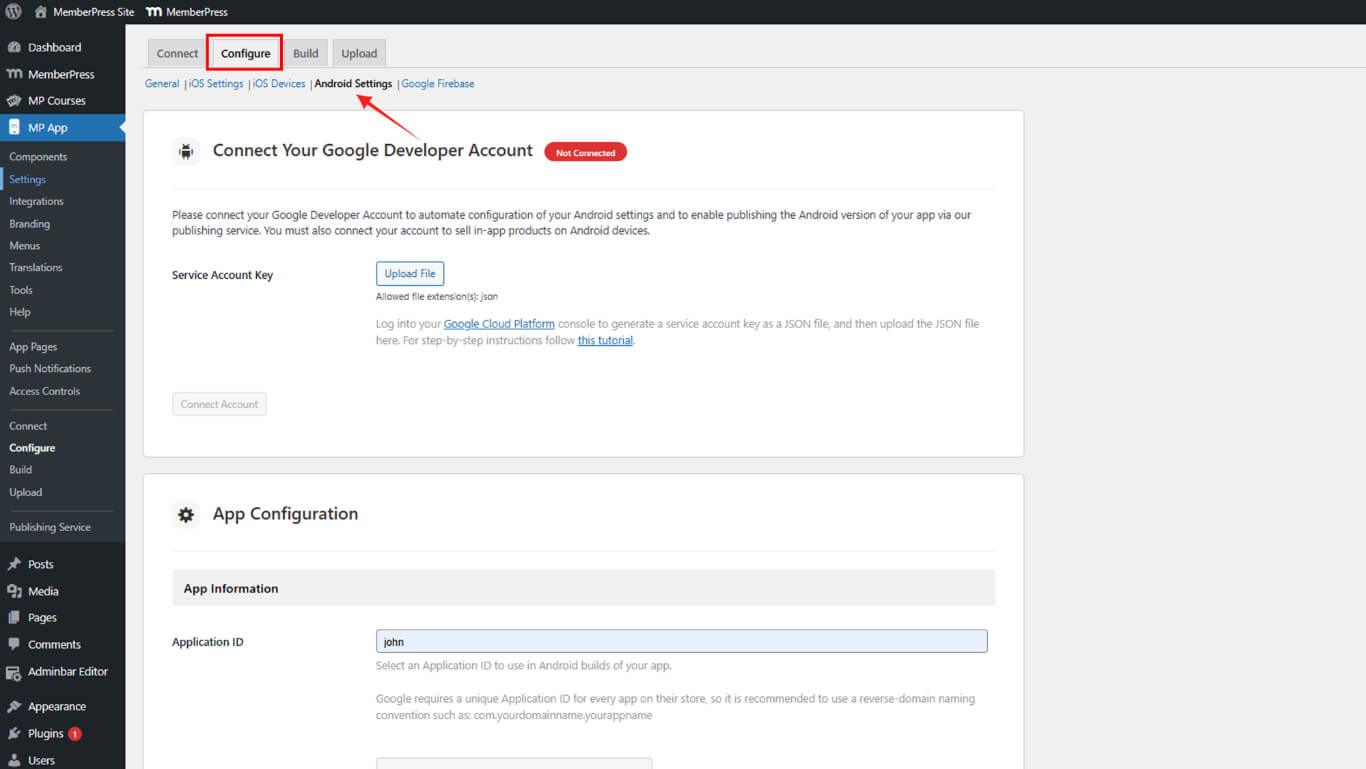
La configuración del ID de aplicación se realiza en los Ajustes de Android.
- Vaya a Panel > MP AppKit > Configurar > Ajustes de Android.
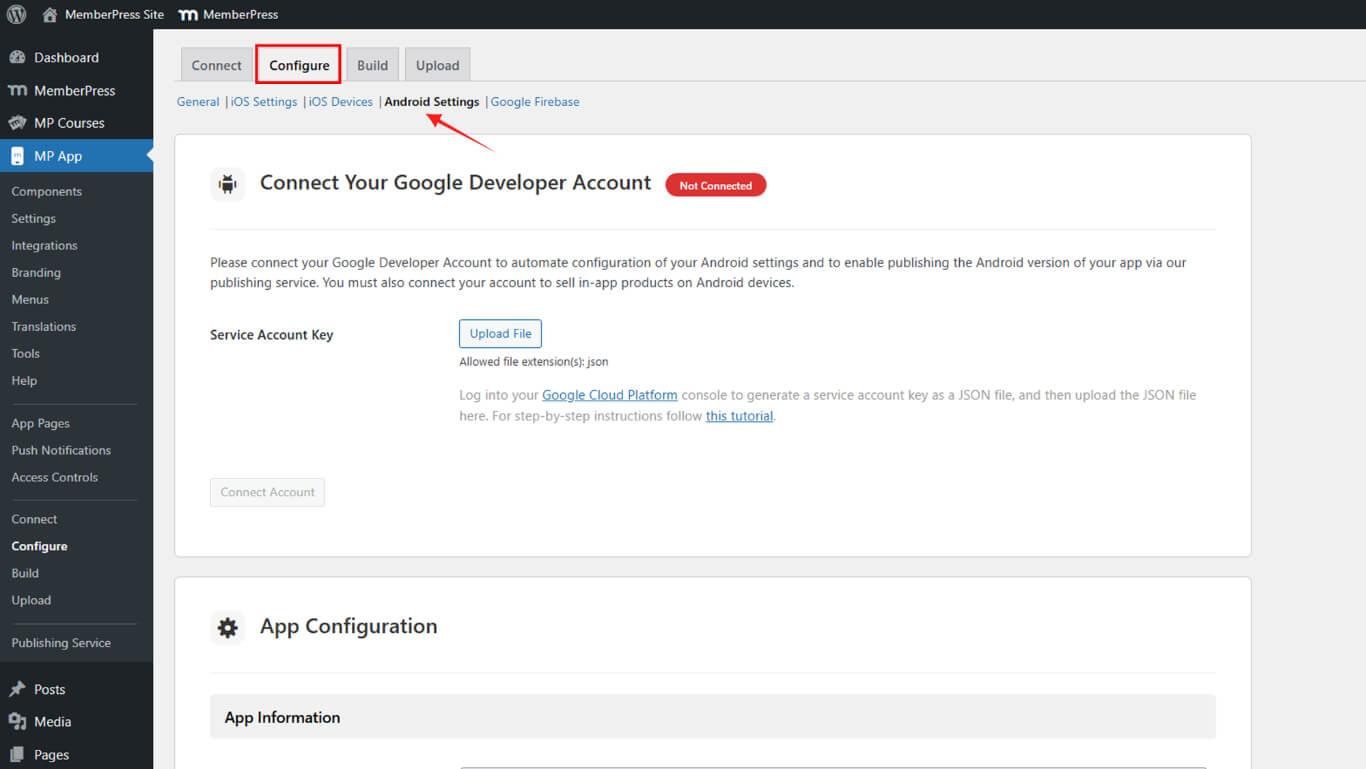
- Localice el Configuración de la aplicación sección.
- Introduzca el ID de aplicación elegido en el campo ID de aplicación.
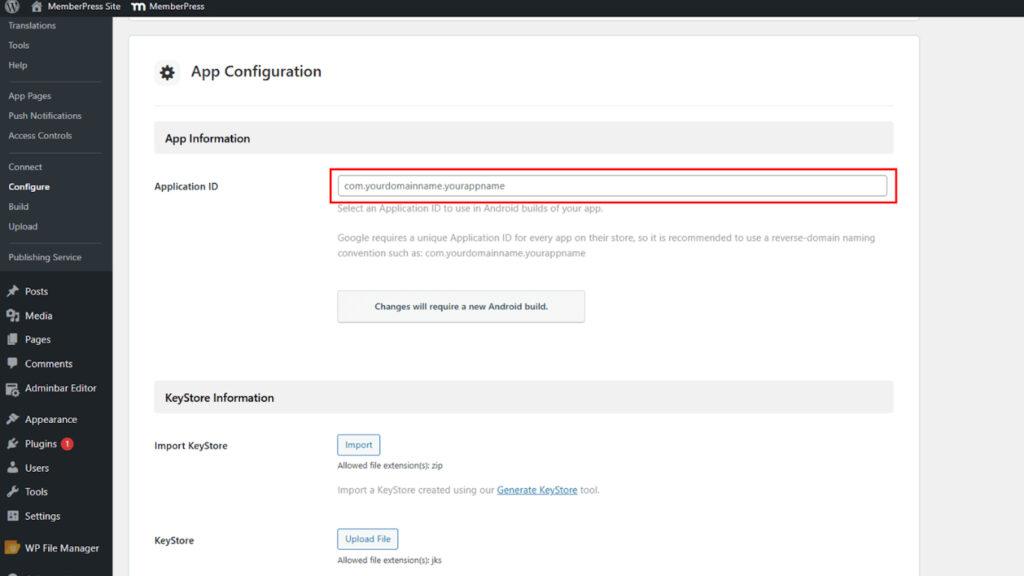
- Haga clic en Guardar cambios.
La reserva del ID de la aplicación se produce a través del registro en Google Play Console para evitar conflictos con otras aplicaciones.
Generación de certificados KeyStore
La generación de certificados KeyStore crea el certificado de firma necesario para las compilaciones de aplicaciones Android.
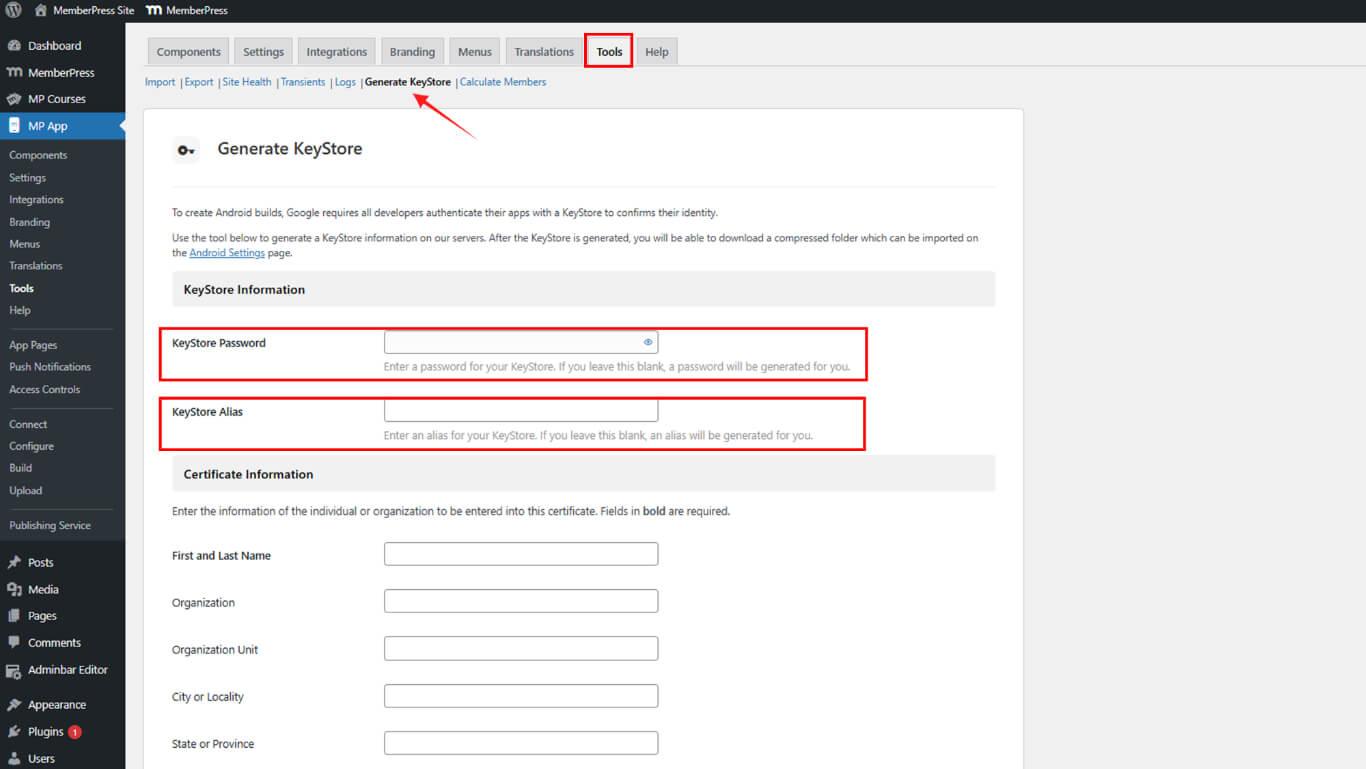
- Vaya a Panel > MP AppKit > Herramientas > Generar almacén de claves.
- Introduzca un Contraseña KeyStore en el campo de contraseña.
- Introduzca un Alias de almacén de claves en el campo de alias o déjelo en blanco para la generación automática.
- Entre en Nombre en el campo del nombre.
- Entre en Apellido en el campo del apellido.
- Si lo desea, introduzca Organización en el ámbito de la organización.
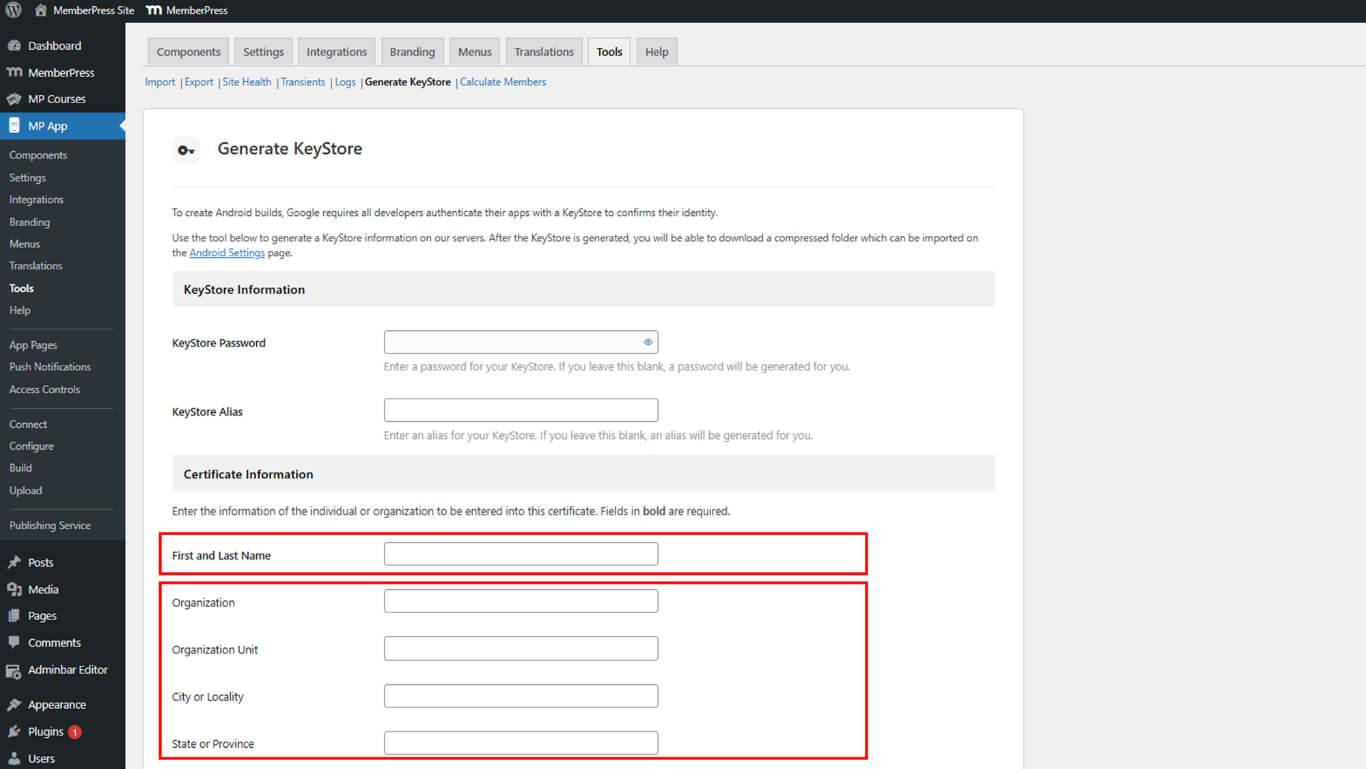
- Rellene los demás datos del certificado como desee.
- Haga clic en Genere para crear el almacén de claves.
- Marque la casilla de confirmación reconociendo la responsabilidad de la copia de seguridad de KeyStore.
- Haga clic en Descargar para guardar el archivo ZIP que contiene el almacén de claves.
Importar certificado de almacén de claves
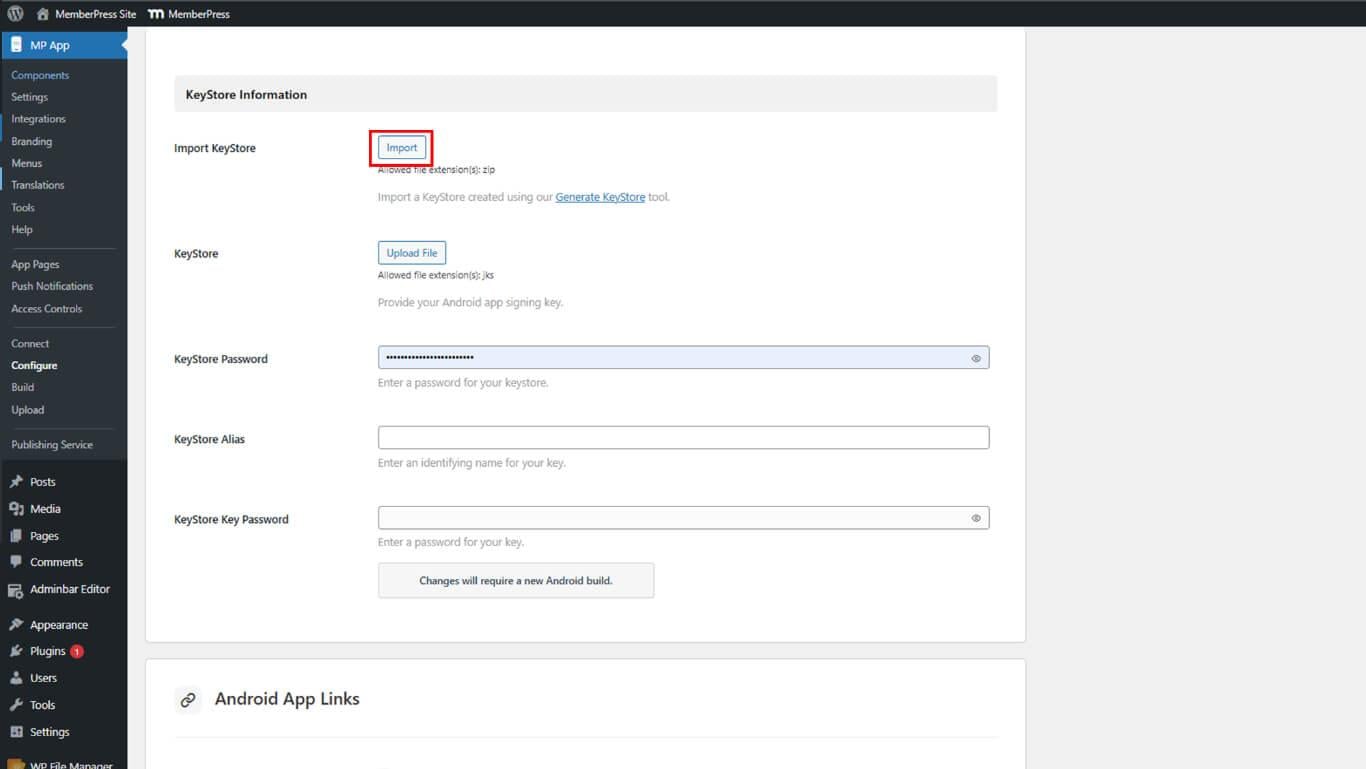
La importación de KeyStore añade el certificado generado a WordPress para la firma de compilación.
- Vaya a Panel > MP AppKit > Configurar > Ajustes de Android.
- Localice el Información sobre KeyStore sección.
- Haga clic en Importar para abrir el selector de archivos.
- Seleccione el archivo ZIP KeyStore descargado.
- Haga clic en Guardar cambios para finalizar la importación.
Registro del ID de la aplicación en Google Play
El registro del identificador de la aplicación reserva el identificador e impide que otros lo reclamen.
- Generar una compilación de la aplicación de lanzamiento en Panel > MP AppKit > Construir.
- Inicie sesión en Google Play Console en play.google.com/console.
- Vaya a Todas las aplicaciones y selecciona la aplicación.
- Haga clic en Edición > Producción en la barra lateral.
- Haga clic en Crear nueva versión para empezar a crear la versión.
- Localice el Paquetes de aplicaciones sección.
- Haga clic en Cargar para abrir el selector de archivos.
- Seleccione el archivo AAB creado con el ID de aplicación.
- Haga clic en Guardar para registrar el ID de la aplicación.










 ES
ES  EN
EN  FR
FR  DE
DE  PT
PT 