

Enlaces universales de Apple permiten que las URL de sitios web se abran directamente en la aplicación iOS, eliminando los redireccionamientos de Safari para una navegación fluida. La configuración de Universal Links requiere la capacidad de dominios asociados en la cuenta de desarrollador de Apple, la regeneración del perfil de aprovisionamiento y la activación de la configuración del complemento. Este documento explica cómo habilitar los dominios asociados, regenerar perfiles, activar Universal Links y verificar la configuración.
Enlaces universales de Apple
Los enlaces universales de Apple conectan las URL de los sitios web con las pantallas de las aplicaciones móviles. Cuando un usuario toca un enlace en un dispositivo iOS, el contenido se abre en la aplicación y no en el navegador Safari. Este comportamiento crea transiciones fluidas entre la web y la aplicación.
Habilitación de dominios asociados
La función de dominios asociados debe estar activada en la cuenta de desarrollador de Apple antes de que funcionen los enlaces universales.
- Acceda a la cuenta de desarrollador de Apple en appleid.apple.com.
- Vaya a Certificados, identificadores y perfiles sección.
- Haga clic en Identificadores en la barra lateral.
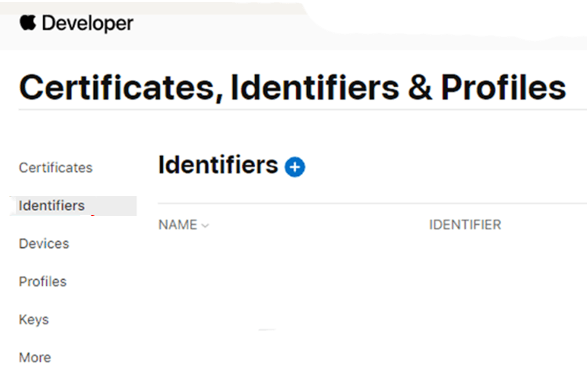
- Seleccione el App ID MemberPress de la lista de identificadores.
- Haga clic en el botón Capacidades ficha.
- Compruebe el Dominios asociados casilla de verificación.
- Haga clic en Guardar para activar la capacidad.
Regeneración de perfiles de aprovisionamiento
Los perfiles de aprovisionamiento deben ser regenerados para incluir la capacidad de Dominios Asociados.
- Vaya a Panel > MP AppKit > Configurar > Ajustes de iOS.
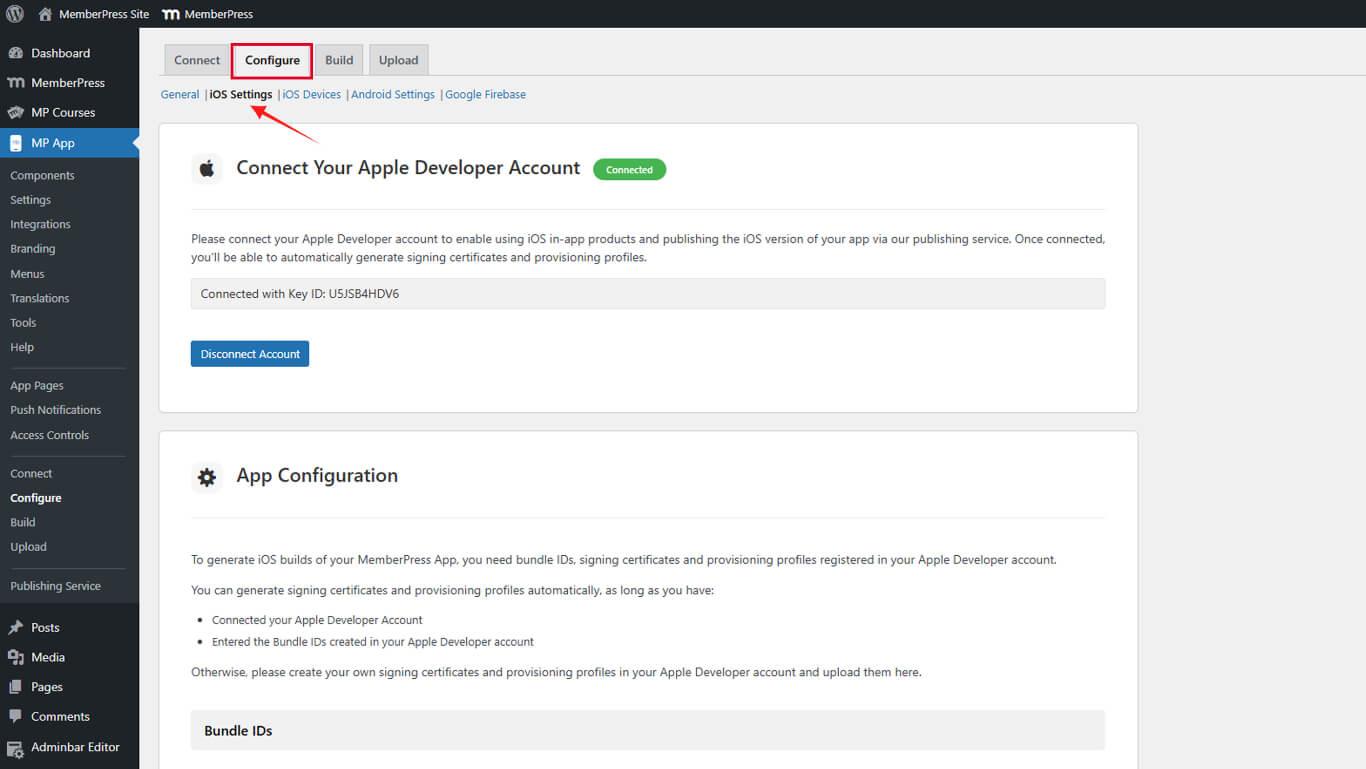
- Desplácese hasta el Perfiles de aprovisionamiento sección.
- Desmarque la casilla Generación automática de perfiles de aprovisionamiento casilla de verificación.
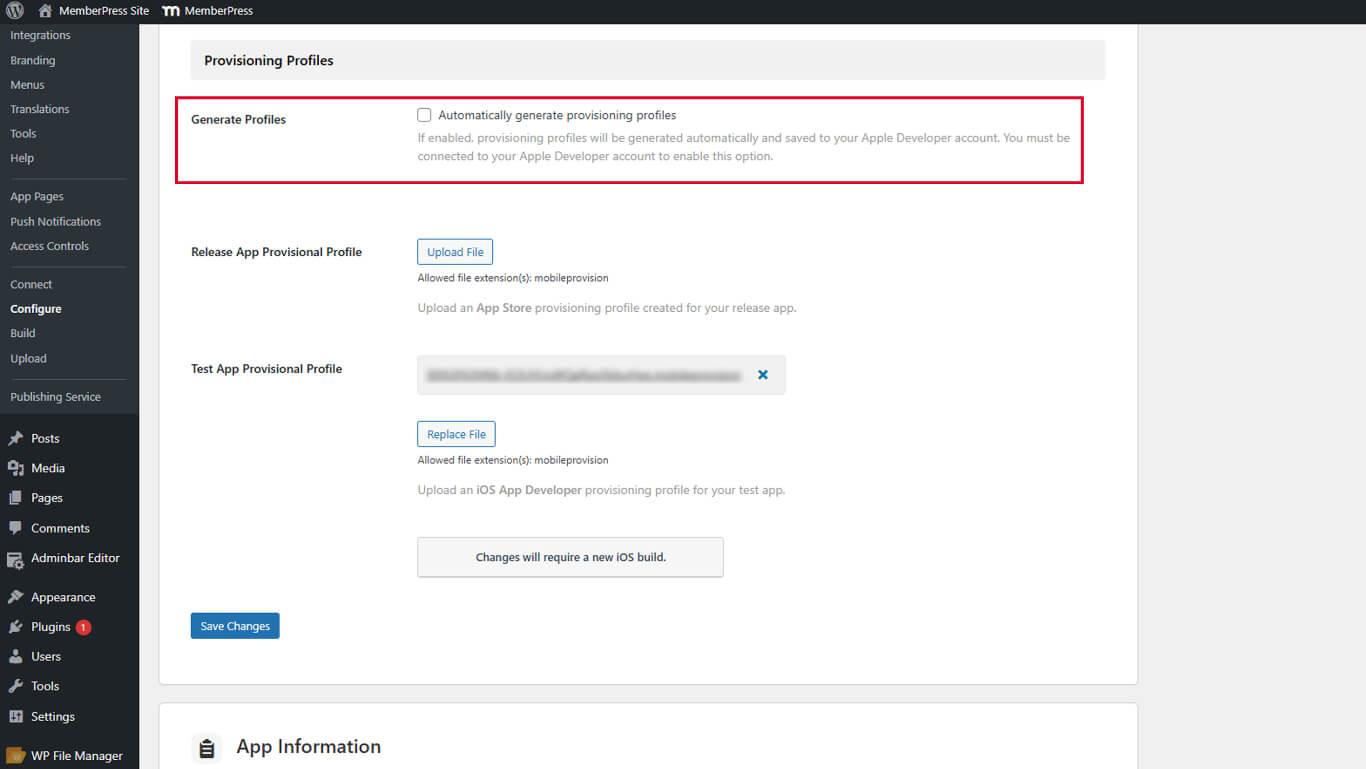
- Haga clic en Guardar cambios.
- Haga clic en el botón X junto a cada perfil de aprovisionamiento existente para eliminarlo.
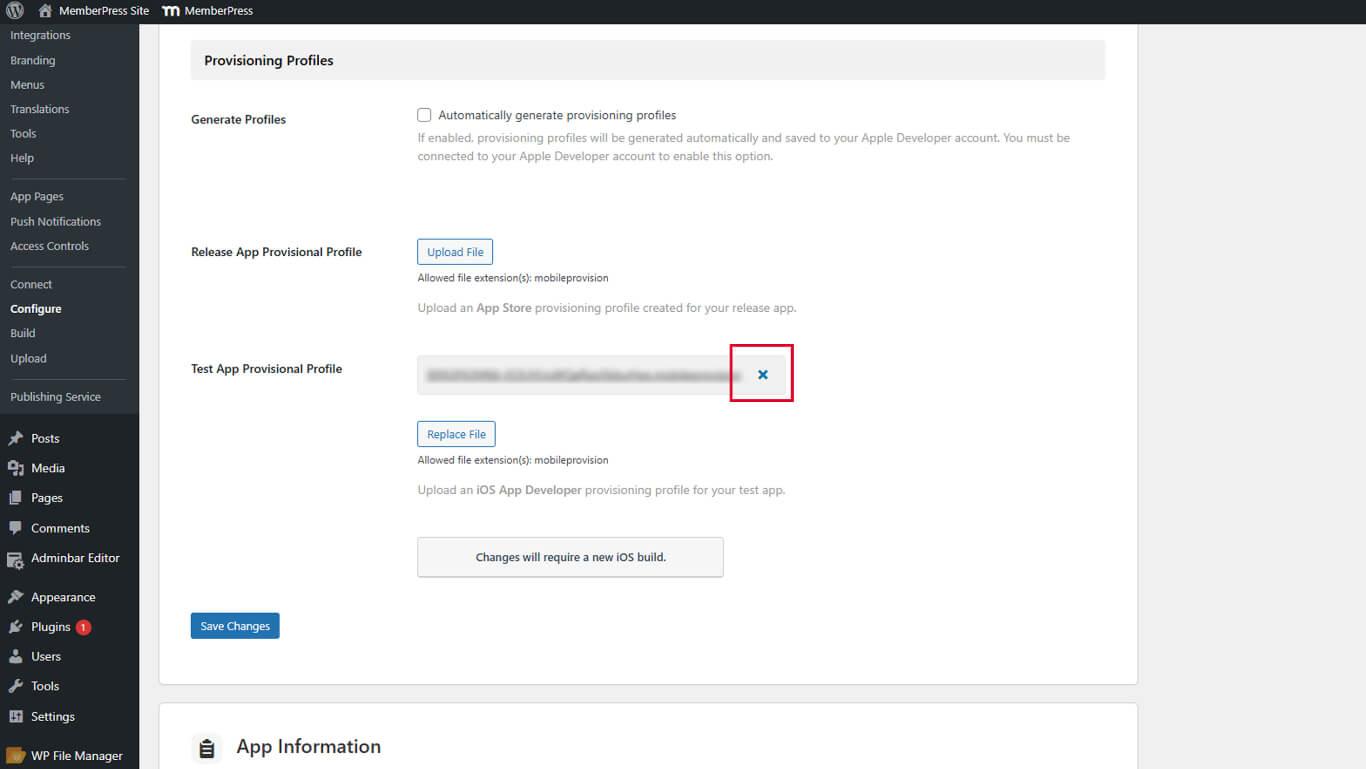
- Haga clic en Guardar cambios después de borrar todos los perfiles.
- Compruebe el Generación automática de perfiles de aprovisionamiento casilla de verificación.
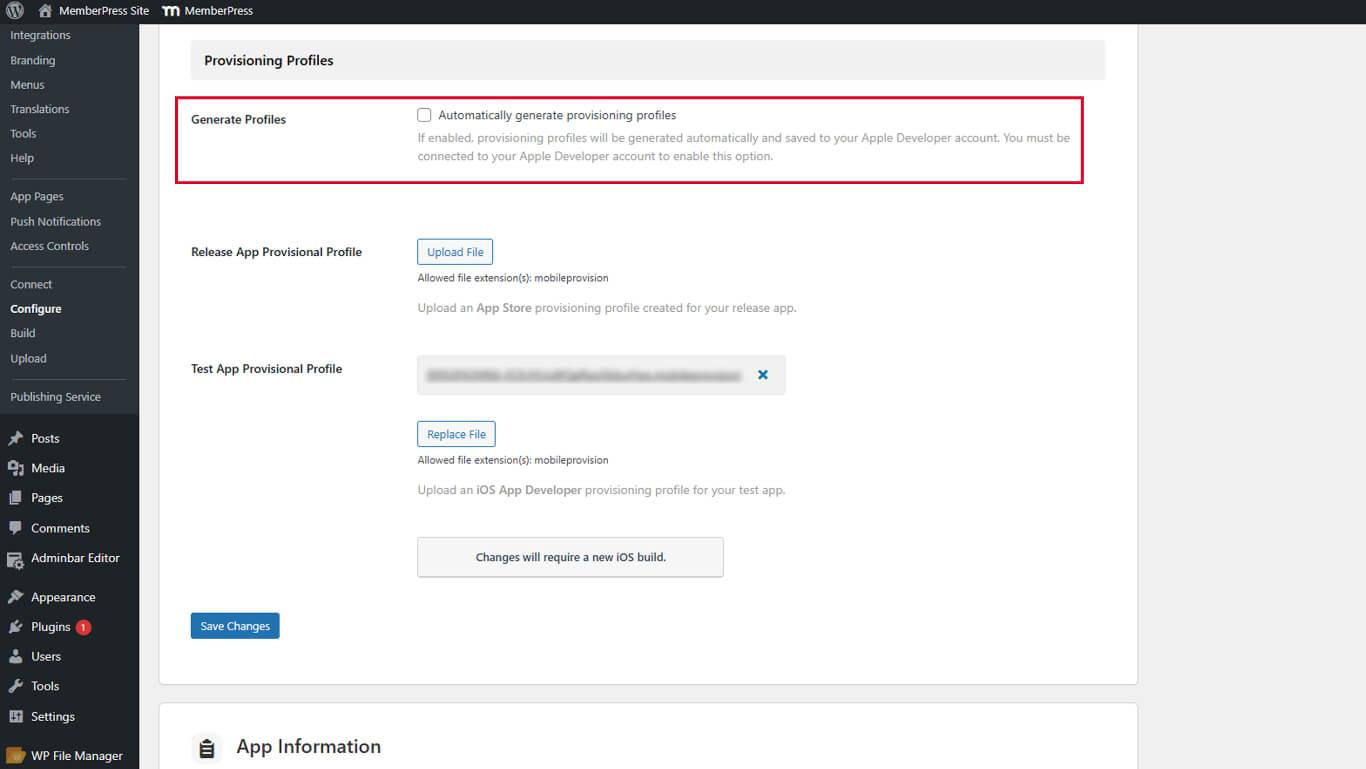
- Haga clic en Guardar cambios para crear nuevos perfiles.
Los nuevos perfiles de aprovisionamiento incluyen la capacidad de Dominios Asociados necesaria para los Enlaces Universales.
Activar enlaces universales
La activación de Universal Links se produce a través de la configuración de Ajustes de iOS.
- Vaya a Panel > MP AppKit > Configurar > Ajustes de iOS.
- Desplácese hasta el Enlaces universales sección.
- Compruebe el Activar enlaces universales casilla de verificación.
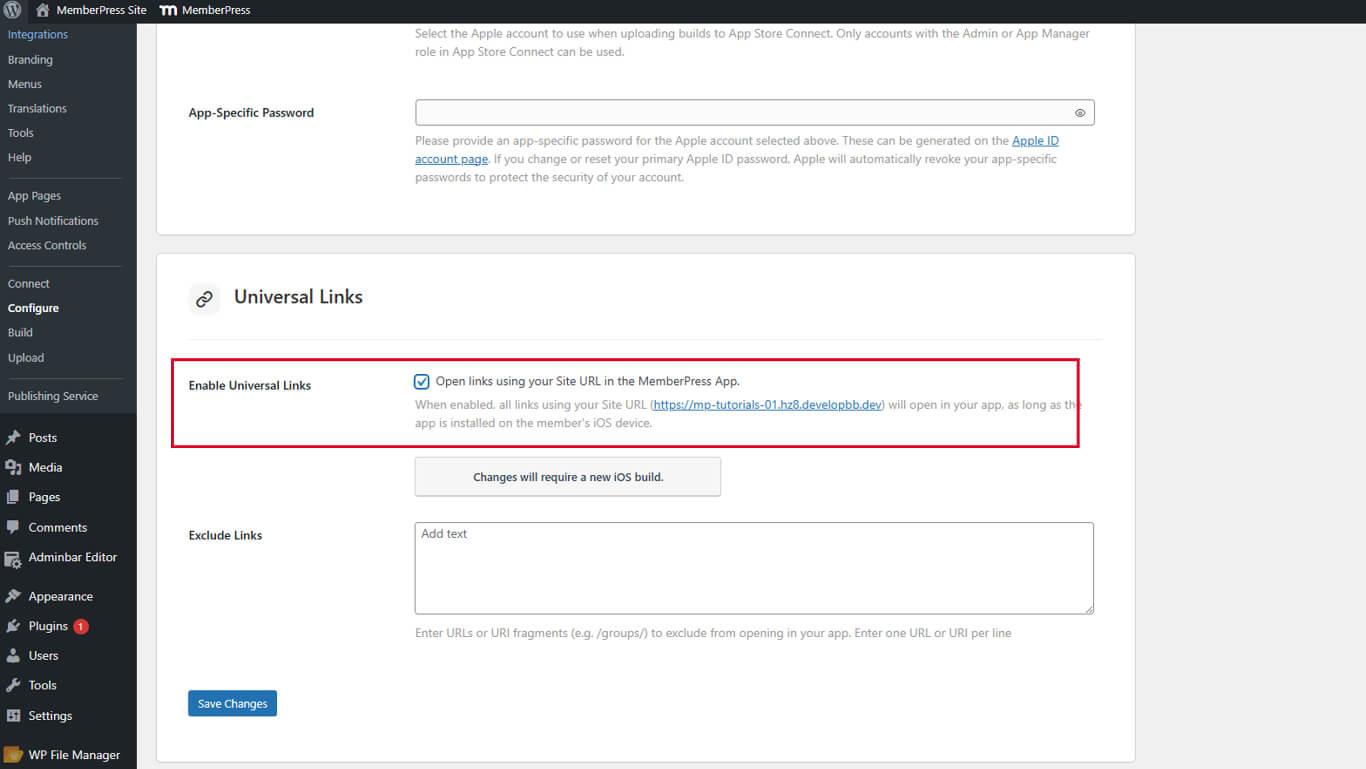
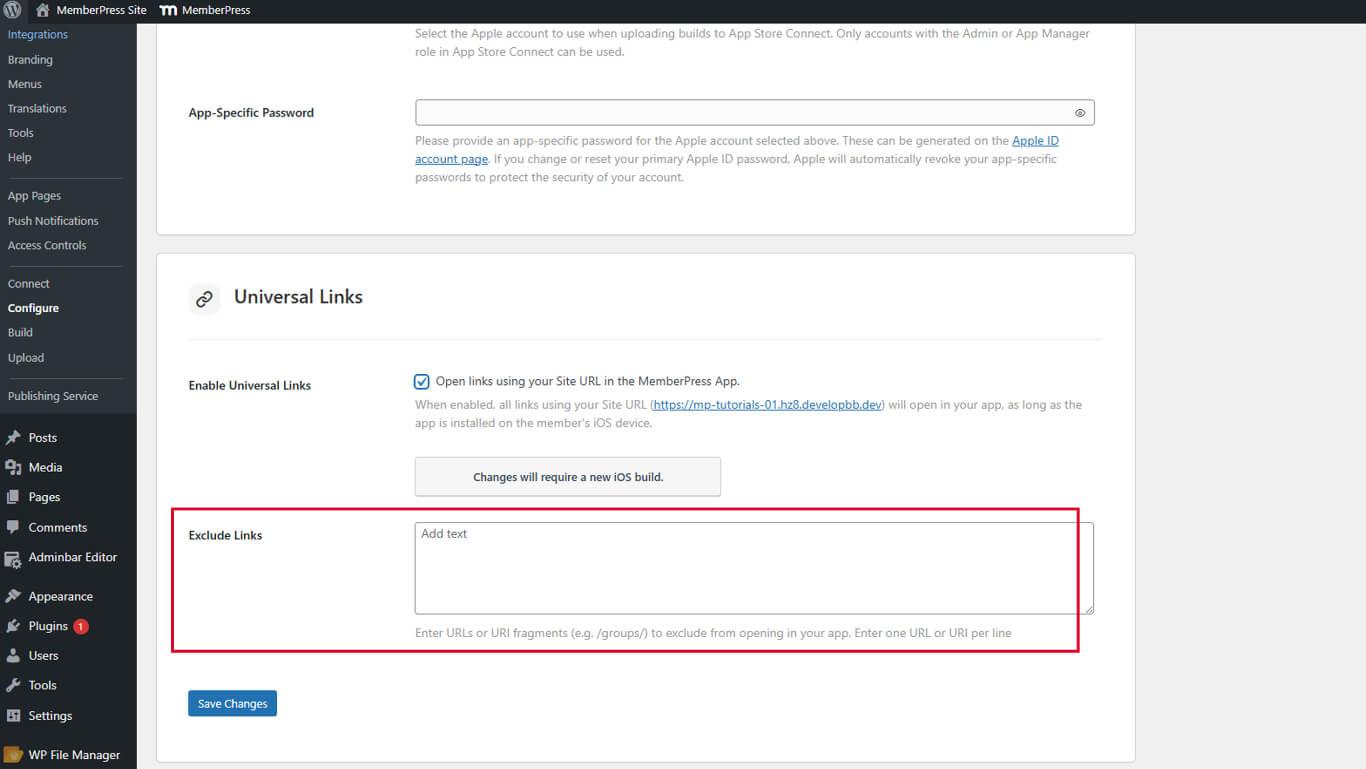
- Localice el Enlaces excluidos para exclusiones de URL opcionales.
- Introduzca patrones de URL para excluir de la apertura de la aplicación si es necesario.
- Haga clic en Guardar cambios.
Enlaces excluidos
El campo Enlaces excluidos especifica los patrones de URL que deben abrirse en Safari en lugar de en la aplicación.
Introduzca patrones de URL o rutas que no deben activar la apertura de la aplicación. Se pueden listar múltiples exclusiones con cada patrón en una línea separada.
Verificación del fichero de asociación
La verificación del archivo de asociación confirma la correcta configuración de Universal Links.
- Abre un navegador web en cualquier dispositivo.
- Vaya a https://yourdomain.com/.well-known/apple-app-site-association/, sustituyendo tudominio.com con la URL real del sitio.
- Compruebe que la respuesta JSON se muestra en el navegador.
- Confirme que JSON contiene identificadores de aplicaciones en la respuesta.
- Compruebe que las rutas admitidas aparecen en la estructura JSON.










 ES
ES  EN
EN  FR
FR  DE
DE  PT
PT 