

Mensajería en la nube Google Firebase potencia las notificaciones push en las plataformas Android e iOS. La integración con Firebase permite enviar alertas en tiempo real a los afiliados a través de la aplicación móvil.
Este documento cubre la creación de un proyecto Firebase, la habilitación de la API, la generación de claves de servicio, el registro de aplicaciones móviles y la carga de archivos de configuración.
Comprender la integración de Firebase
Firebase Cloud Messaging entrega notificaciones push a los dispositivos de los miembros a través de plataformas iOS y Android. La API Firebase V1 proporciona la infraestructura de mensajería actual, sustituyendo a los sistemas de mensajería heredados. La configuración correcta de Firebase requiere la creación del proyecto, la activación de la API, la generación de la clave de la cuenta de servicio y el registro de la aplicación para ambas plataformas.
Creación de un proyecto Firebase
La creación de proyectos Firebase establece la base para la entrega de notificaciones push.
- Inicie sesión en la consola de Firebase en console.firebase.google.com.
- Haga clic en Crear un nuevo proyecto Firebase en la página de proyectos.
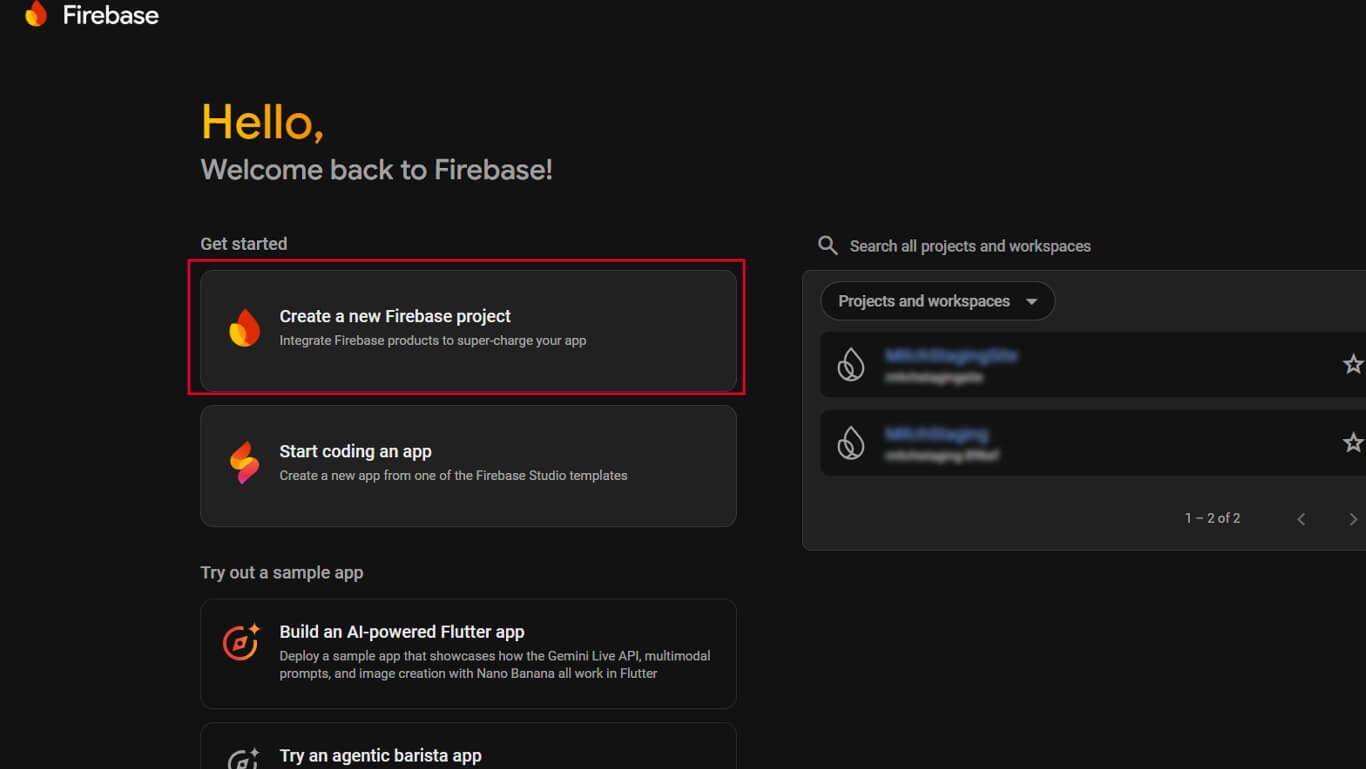
- Introduzca un nombre para el proyecto en el campo «Nombre del proyecto».
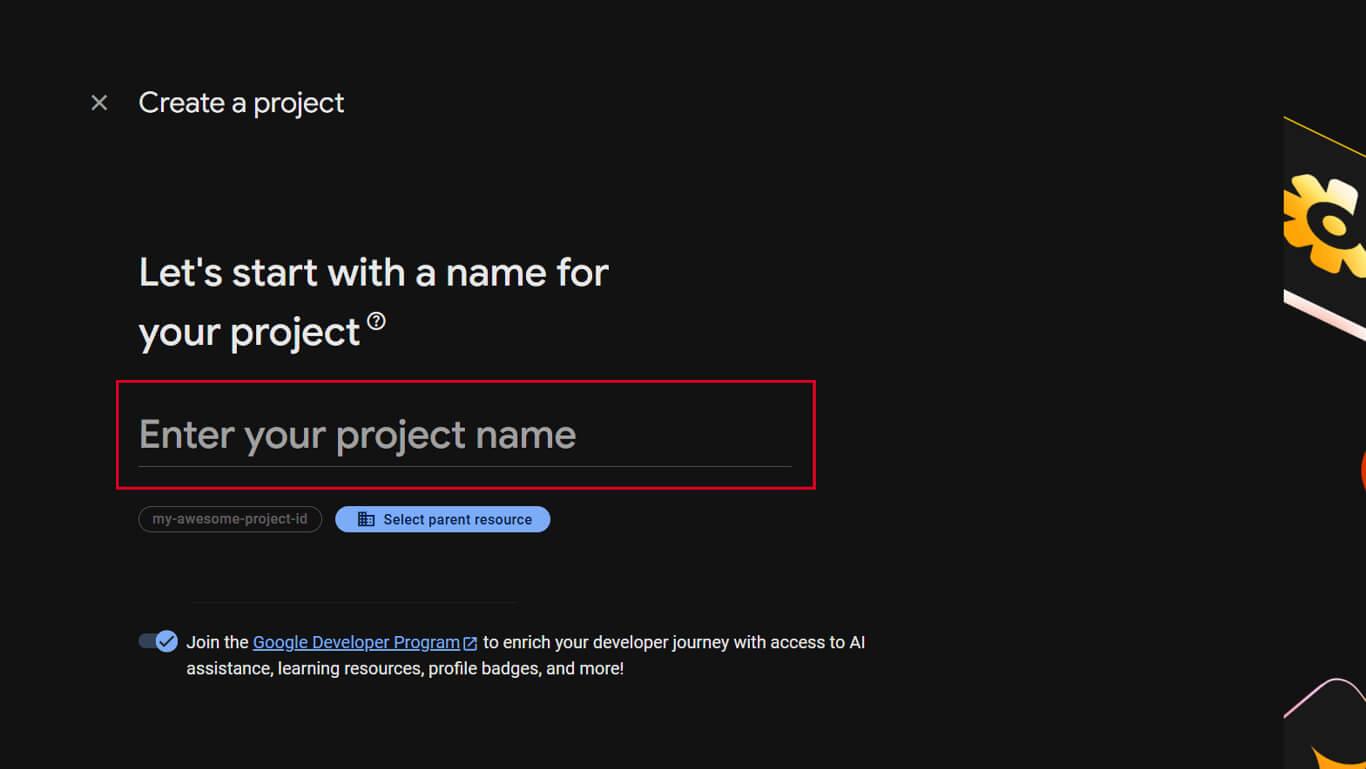
- Haga clic en Continúe en para pasar al siguiente paso.
- Activar opcionalmente Google Analytics accionando el interruptor.
- Seleccione o acepte el valor predeterminado Analítica si está activada.
- Haga clic en Crear proyecto para finalizar la creación del proyecto.
- Espere a que finalice la configuración del proyecto.
- Haga clic en Continúe en para abrir el nuevo cuadro de mandos del proyecto.
Habilitación de la API de mensajería en la nube Firebase
Firebase Cloud Messaging API debe estar habilitada antes de que funcionen las notificaciones push.
- Haga clic en el botón Ajustes en el proyecto Firebase.
- Seleccione Configuración del proyecto en el menú desplegable.
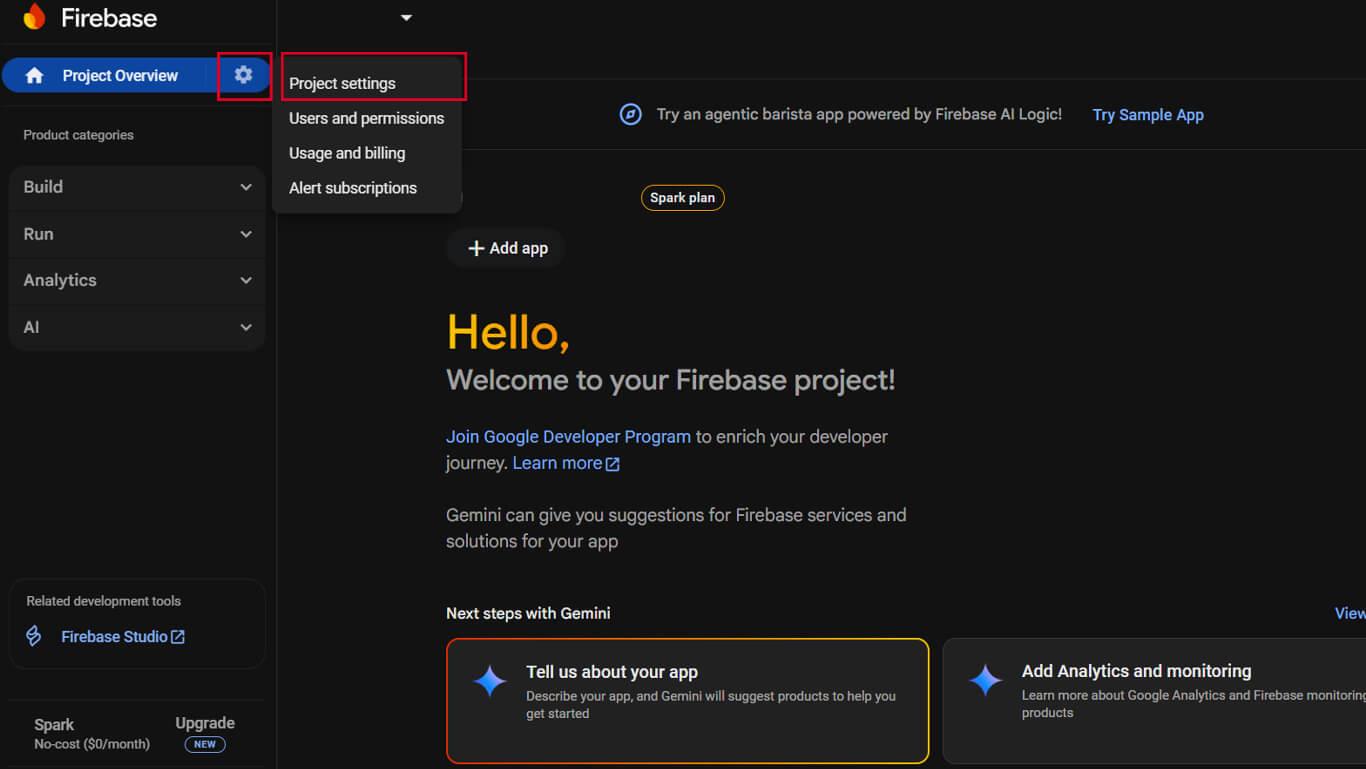
- Haga clic en el botón Mensajería en la nube ficha.
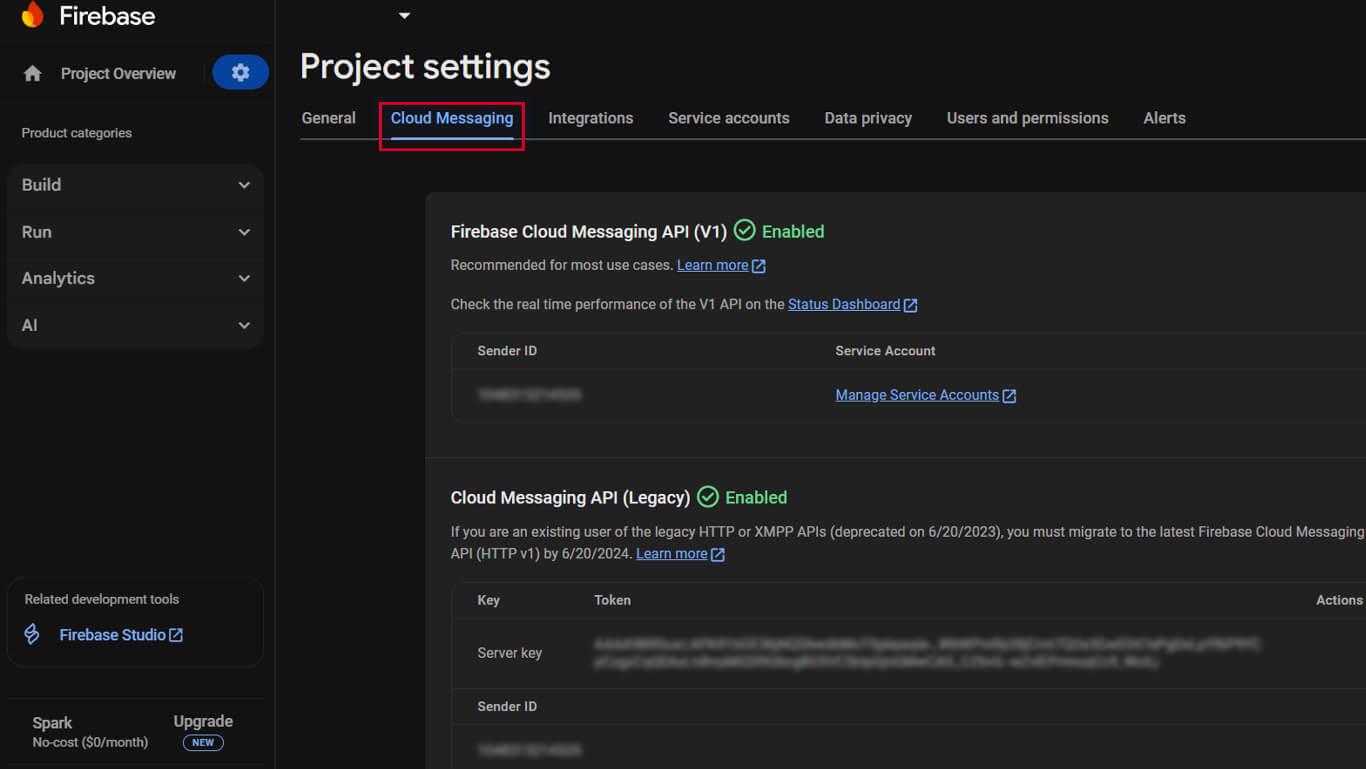
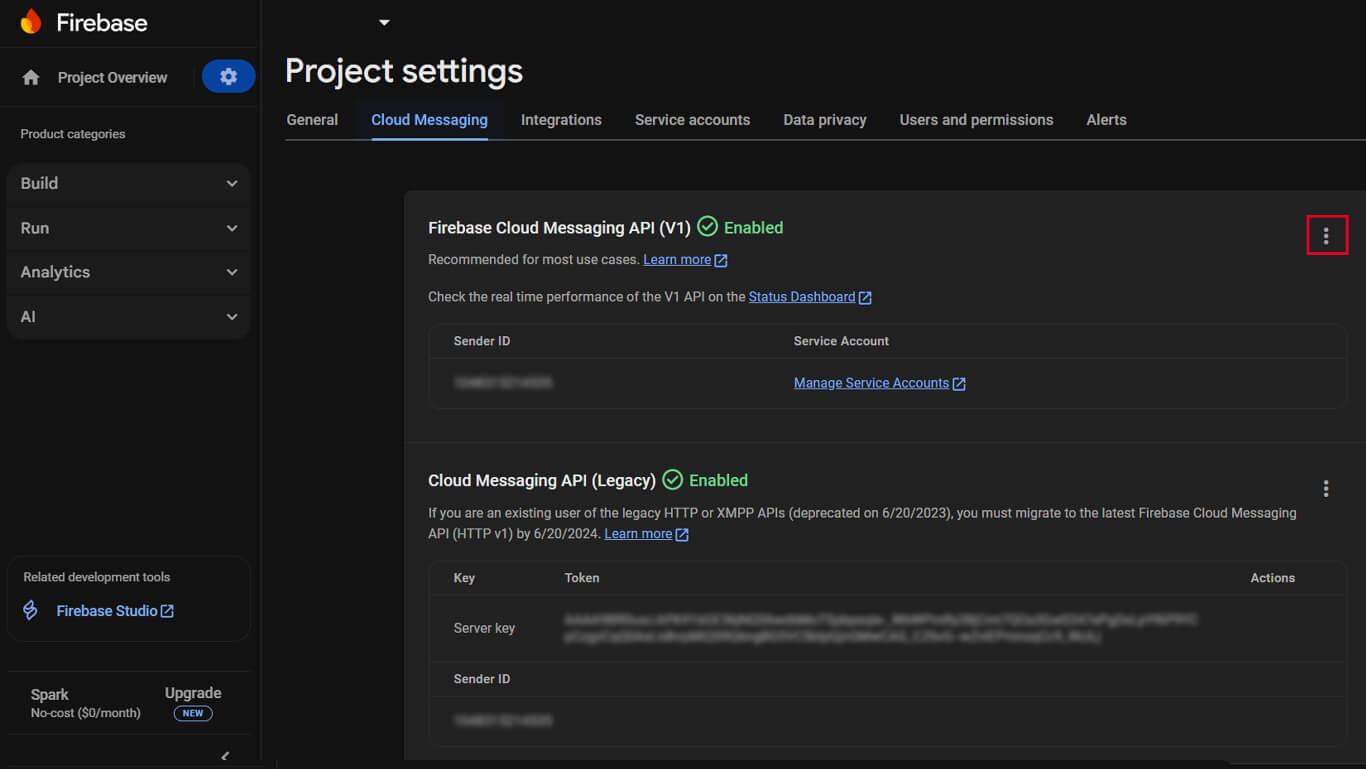
- Verifique el API de mensajería en la nube Firebase muestra un verde “Activado” indicador.
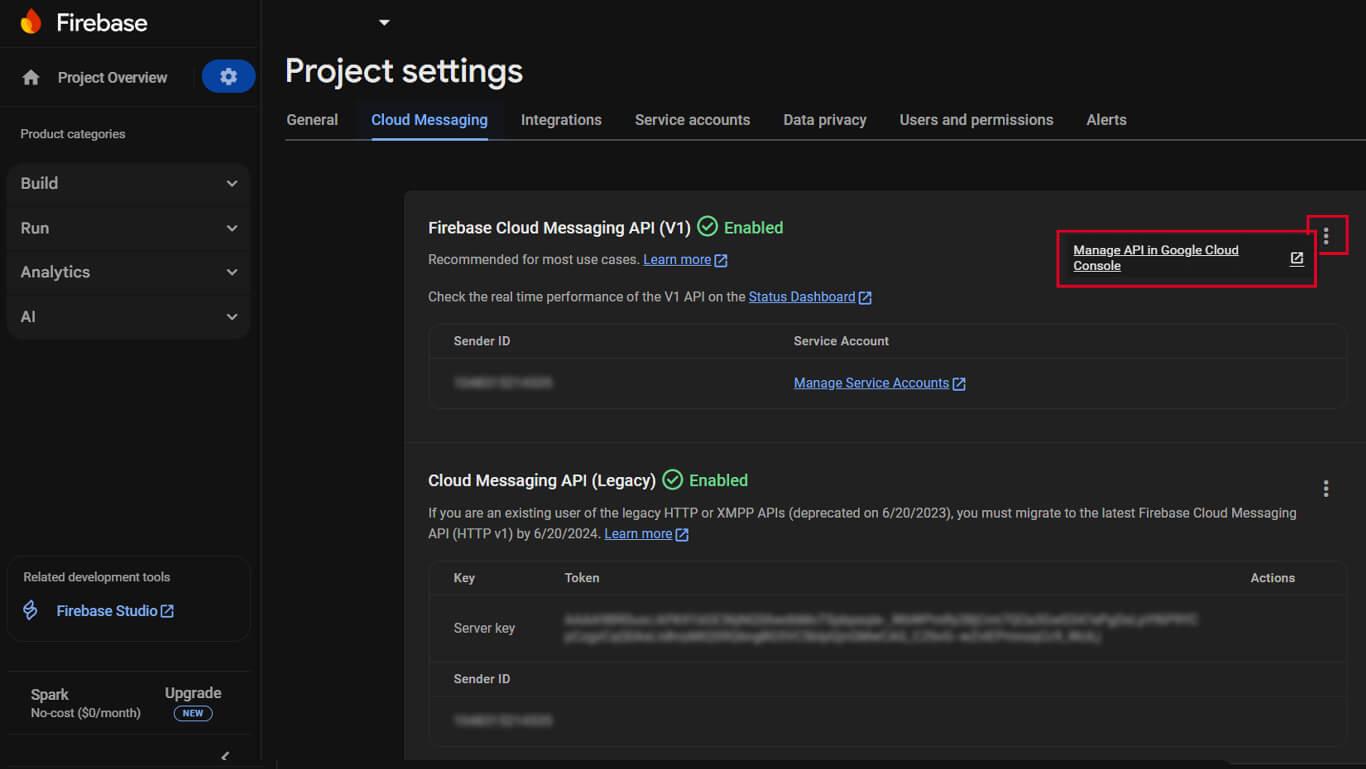
- Si el API de mensajería en la nube Firebase (V1) no está activado, haz clic en el menú ⋮.
- Seleccione Administrar API en Google Cloud Console desde el menú.
- Haga clic en Activar en el API de mensajería en la nube página.
- Confirme que el estado de la API es “Activado“.
La API de mensajería en la nube de Firebase (V1) sustituye a la API de mensajería en la nube heredada para mejorar la funcionalidad.
Generación de la clave de cuenta de servicio Firebase
La clave de la cuenta de servicio proporciona autenticación para que WordPress envíe notificaciones push a través de Firebase.
- Vaya a Configuración del proyecto > Cuentas de servicio en la consola Firebase.
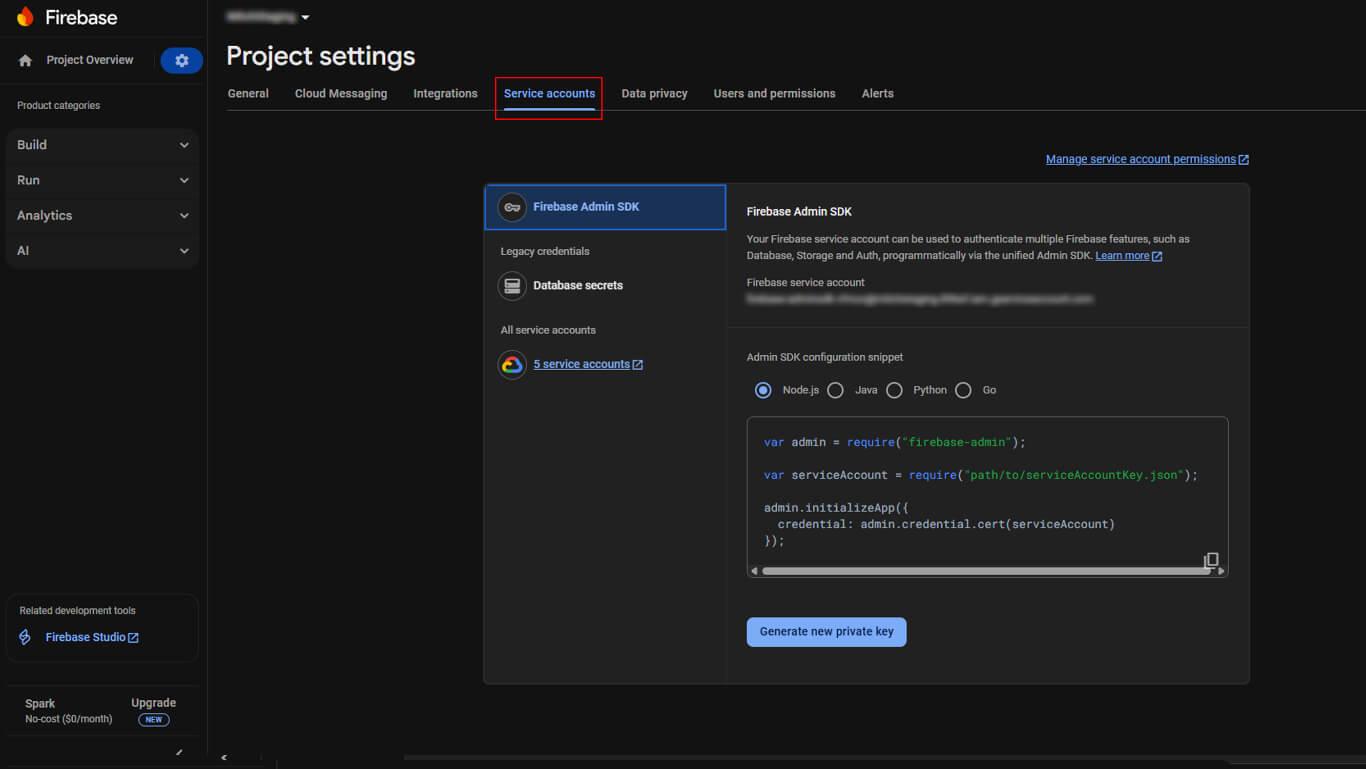
- Desplácese hasta el SDK de administración de Firebase sección.
- Haga clic en el botón Generar nueva clave privada botón.
- Haga clic en Generar clave en la ventana emergente de confirmación.
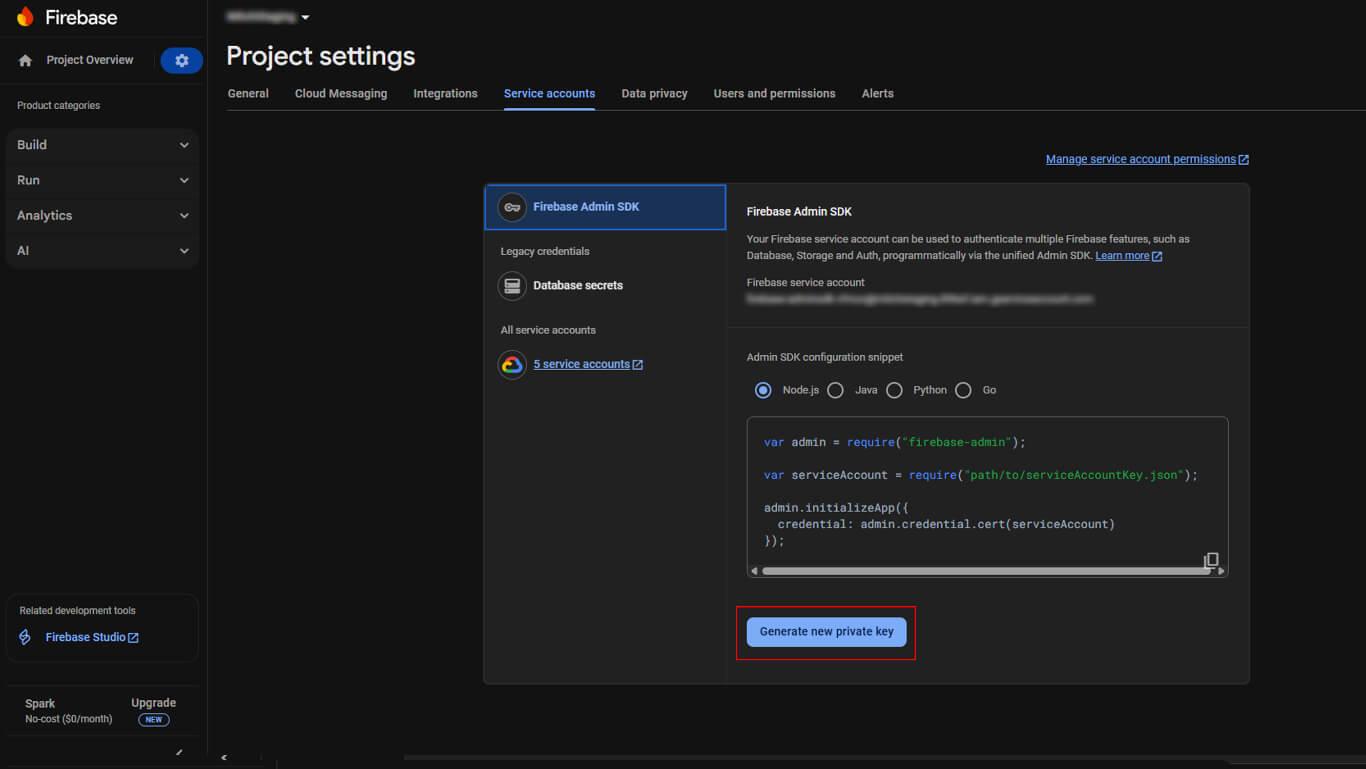
- Guarde el archivo JSON descargado en una ubicación segura.
Creación de una aplicación Firebase para iOS
El registro de aplicaciones iOS conecta el AppKit MemberPress con Firebase para las notificaciones push de iOS.
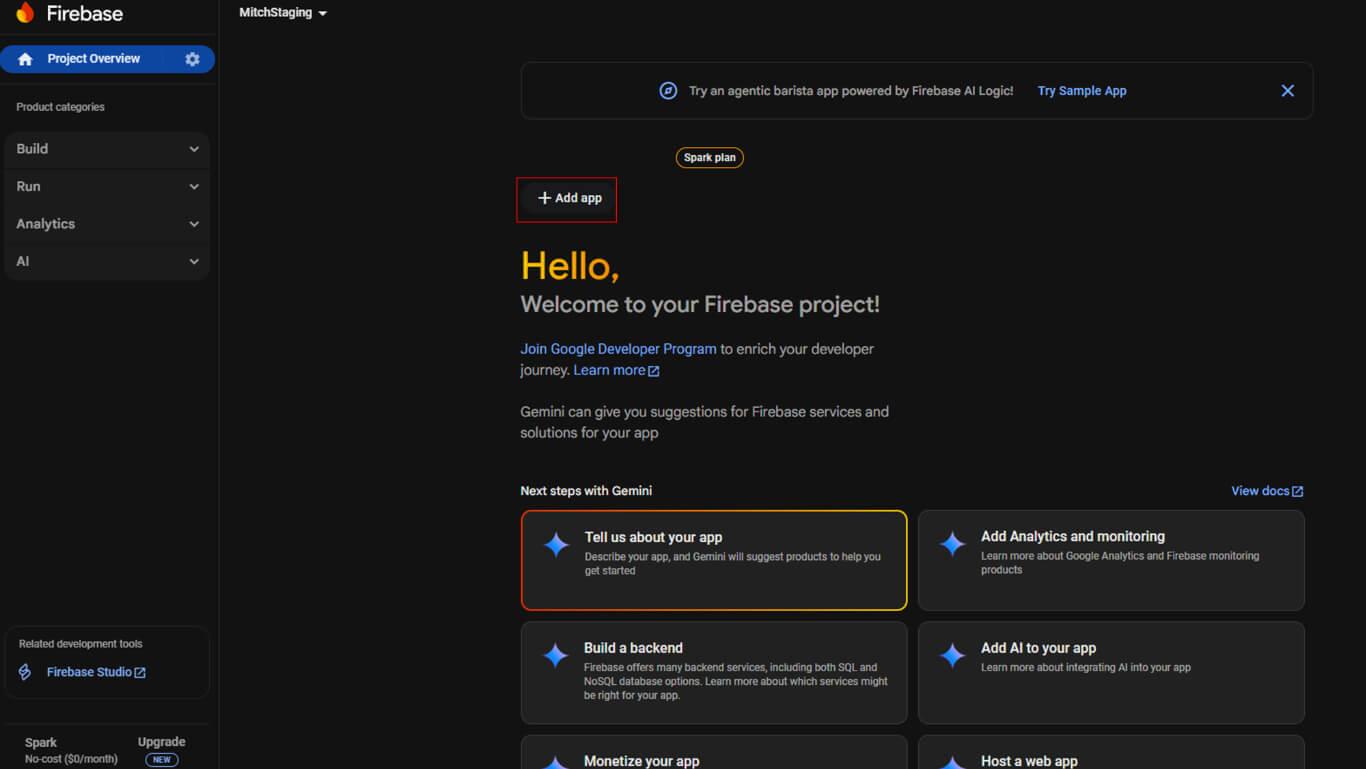
- Pulse el botón +. Añadir aplicación en el panel de control del proyecto Firebase.
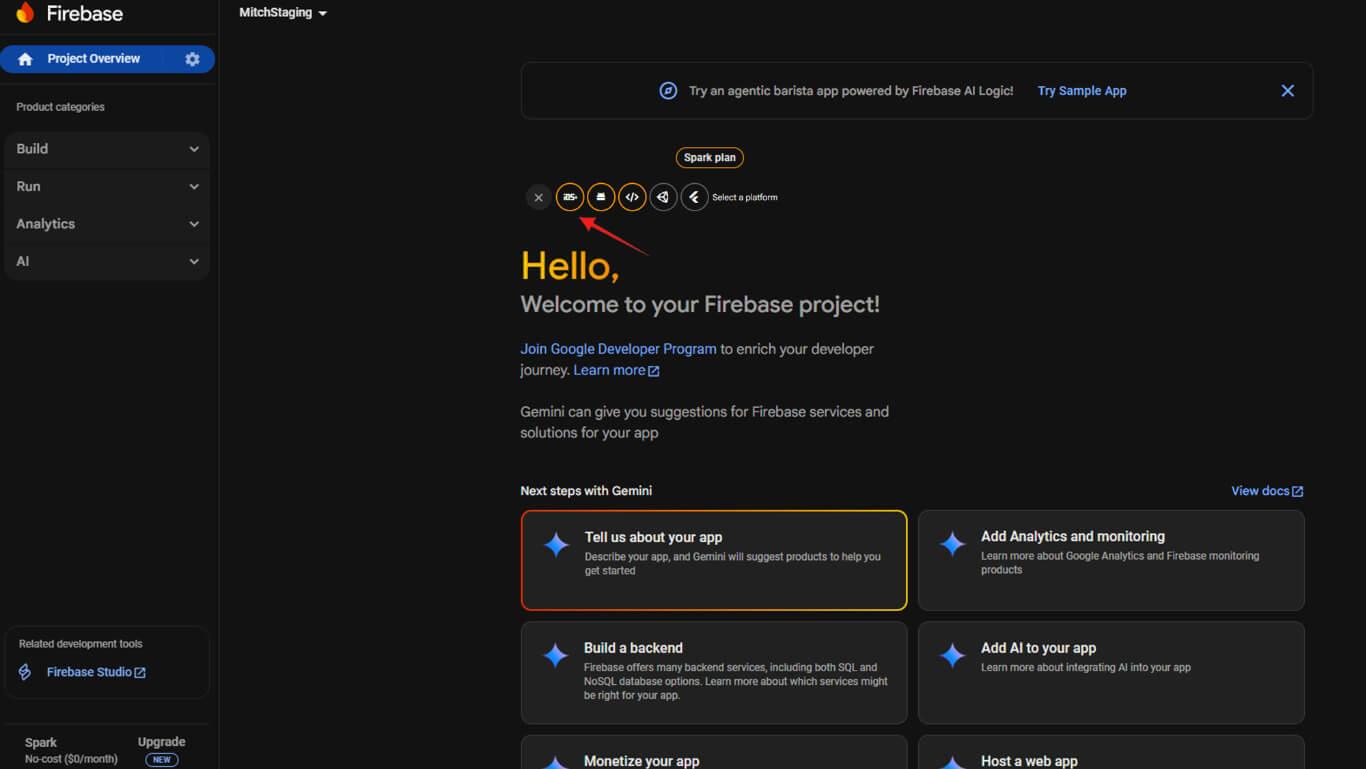
- Haga clic en el botón iOS para iniciar el registro de la aplicación iOS.
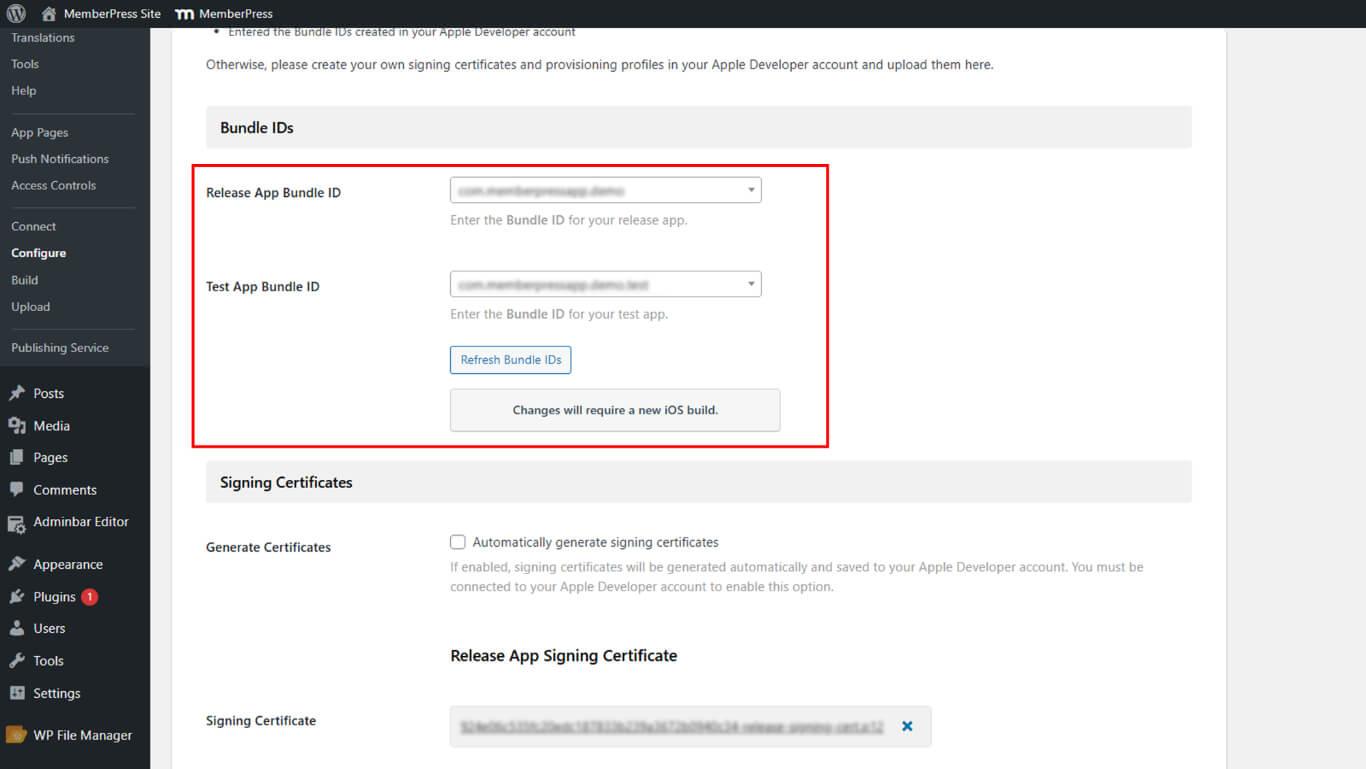
- Vaya a Panel > MP AppKit > Configurar > Ajustes de iOS en WordPress.
- Copie el ID del paquete desde la página de Ajustes de iOS.
- Vuelva a la consola Firebase y pegue el ID del paquete.
- (Opcional) Añade el apodo de tu aplicación y el ID de App Store.
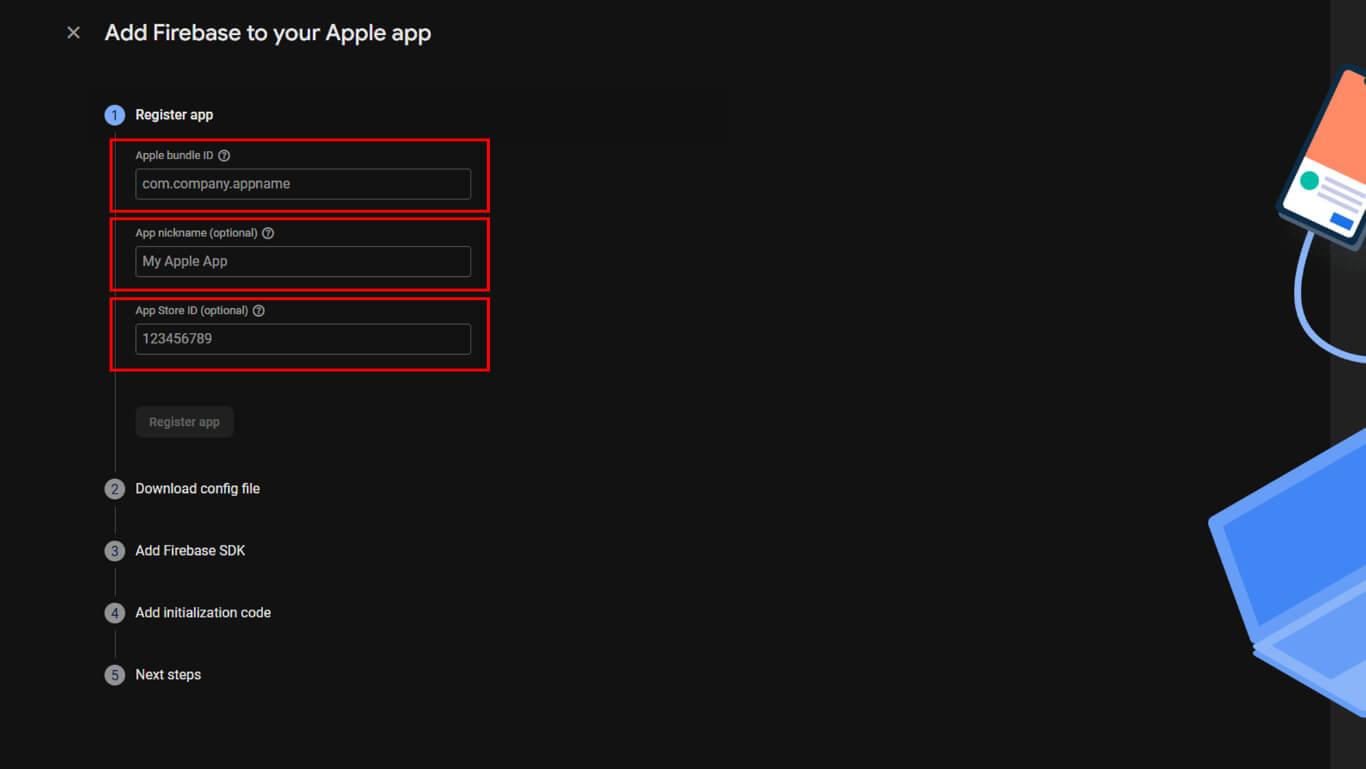
- Haga clic en Registrar aplicación para crear la aplicación iOS.
- Descargar el GoogleService-Info.plist archivo.
- Haga clic en Siguiente a través de los pasos de configuración restantes.
- Haga clic en Continuar con la consola para finalizar el registro de la aplicación iOS.
Creación de Firebase Android App
El registro de aplicaciones Android conecta el MemberPress AppKit con Firebase para las notificaciones push de Android.
- Pulsa + Añadir aplicación en el panel de control del proyecto Firebase si aún no está abierto.
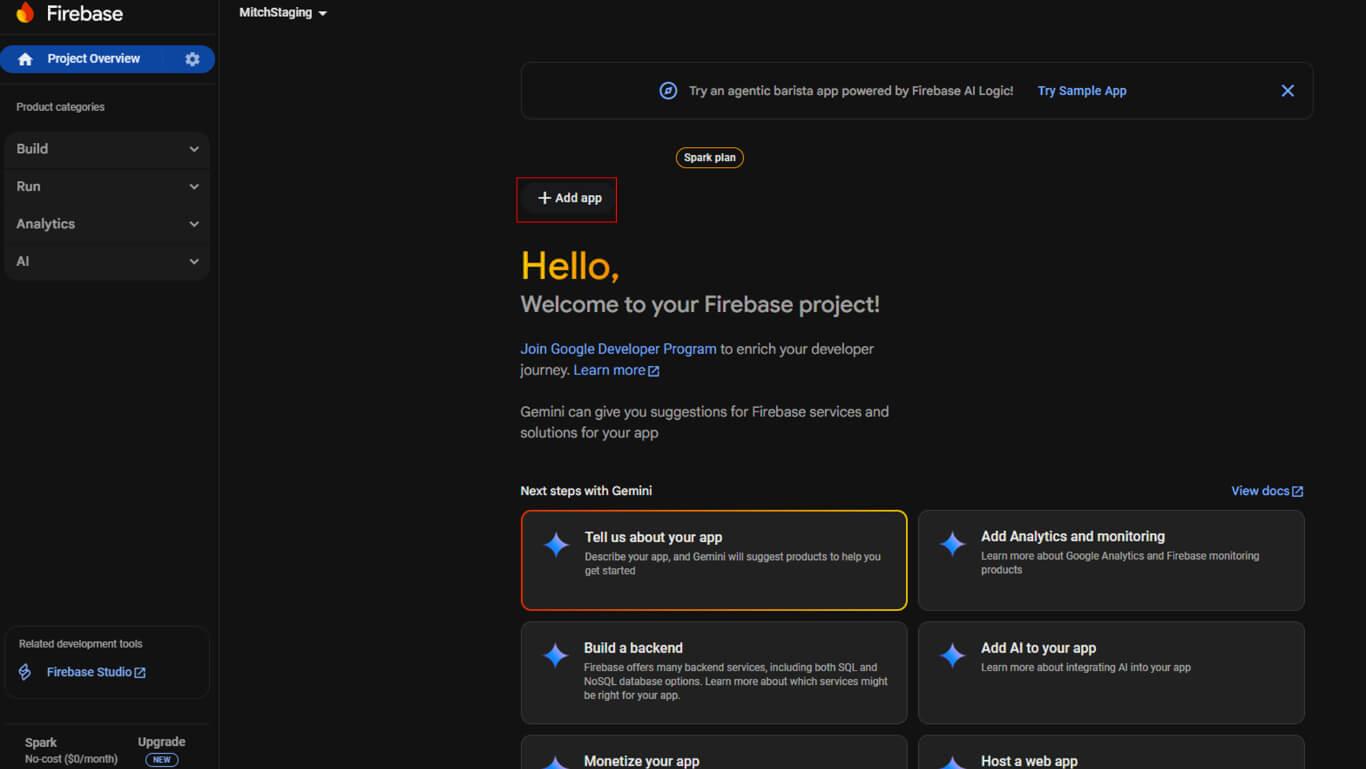
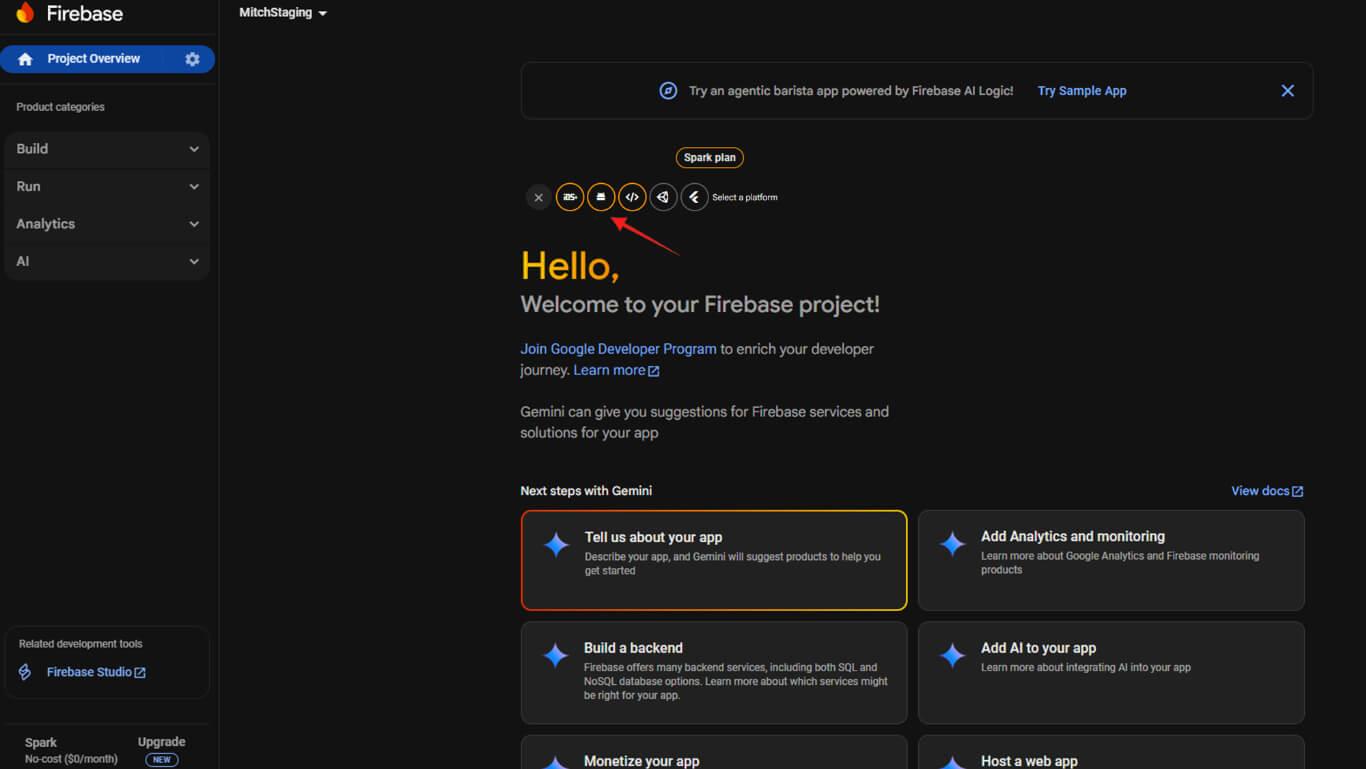
- Haga clic en el botón Android para iniciar el registro de la aplicación Android.
- Vaya a Panel > MP AppKit > Configurar > Ajustes de Android en WordPress.
- Copie el Identificación de la solicitud desde la página de Ajustes de Android.
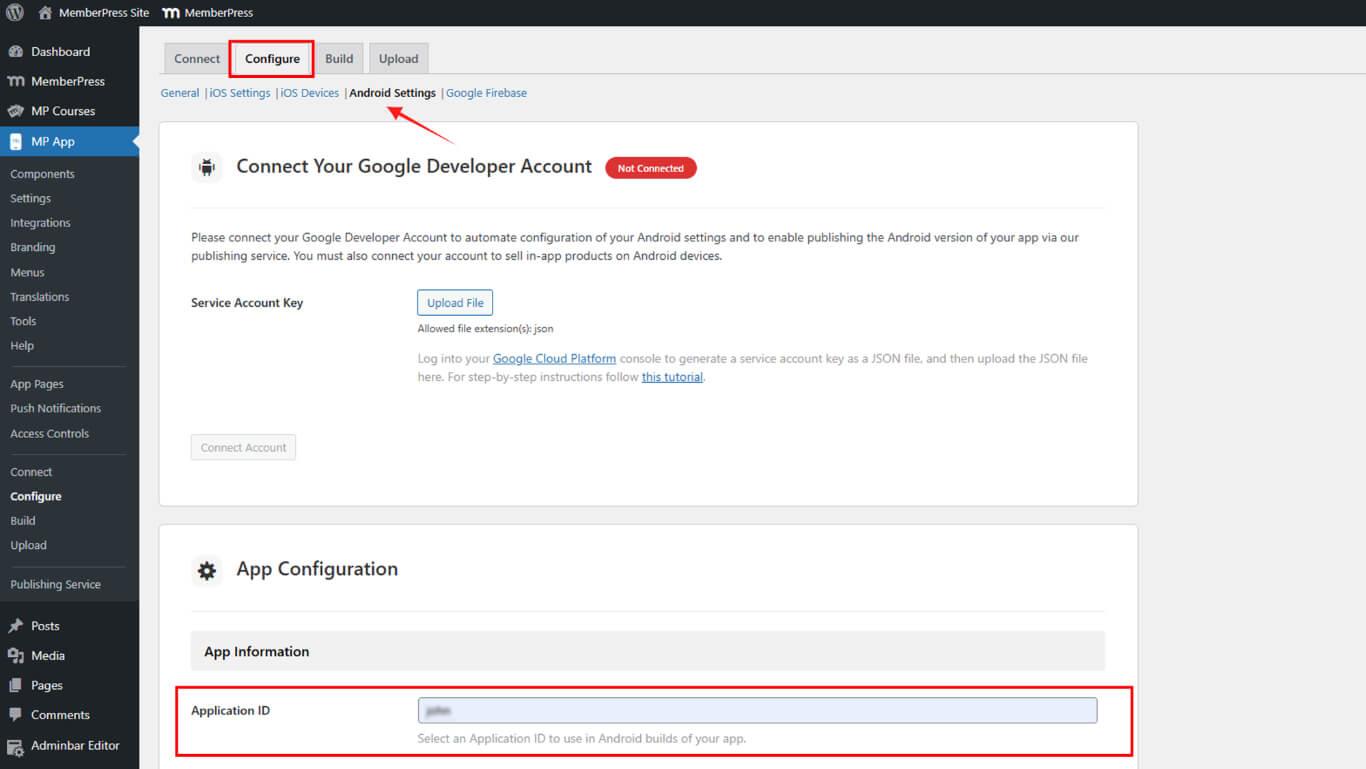
- Vuelva a la consola Firebase y pegue el ID de la aplicación.
- (Opcional) Añade el apodo de tu aplicación.
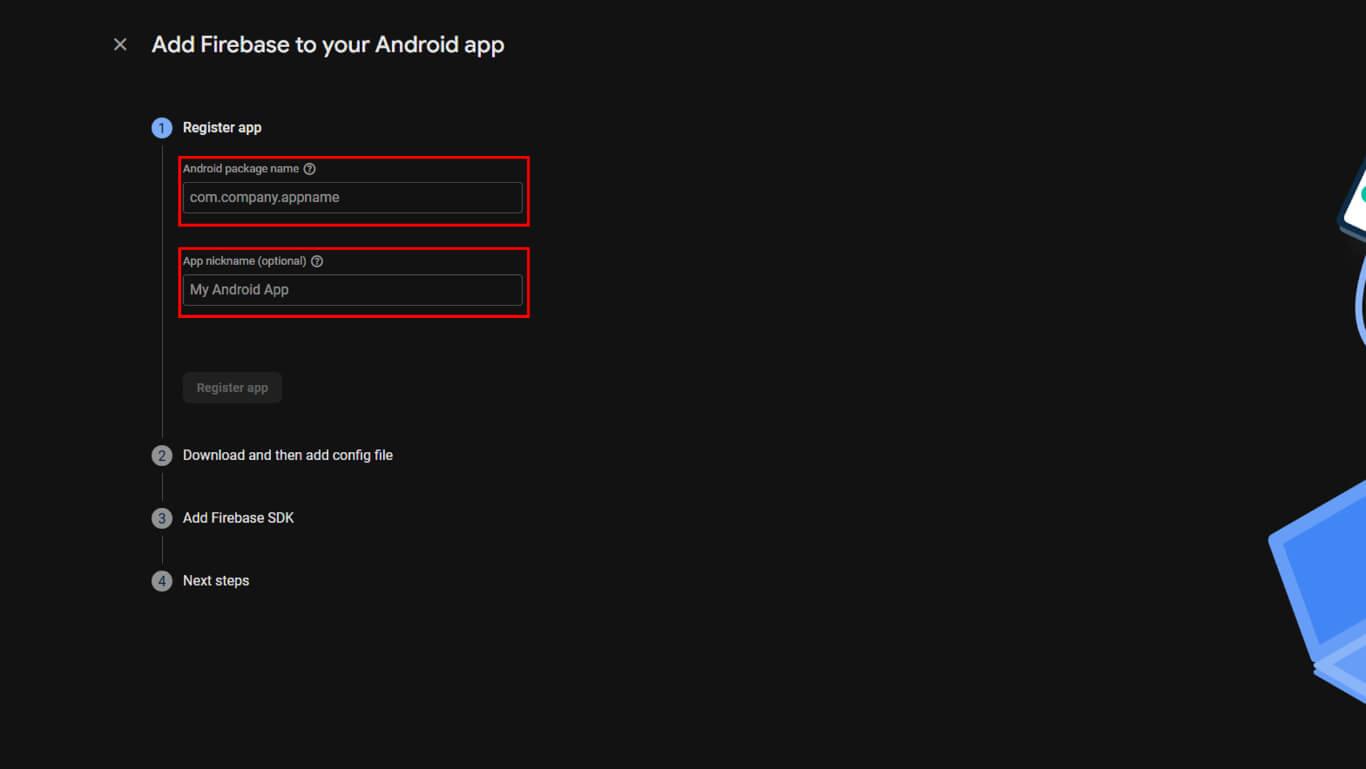
- Haga clic en Registrar aplicación para crear la aplicación Android.
- Descargar el servicios-google.json archivo.
- Haga clic en Siguiente a través de los pasos 2-4 del asistente de configuración.
- Haga clic en Hecho para finalizar el registro de la aplicación Android.
Conexión de Firebase a MemberPress AppKit
Los archivos de configuración de Firebase deben subirse a WordPress para que funcionen las notificaciones push.
- Vaya a Panel > MP AppKit > Configurar > Google Firebase.
- Localice el API de mensajería en la nube Firebase V1 sección.
- Haga clic en Cargar junto al campo de la clave de la cuenta de servicio.
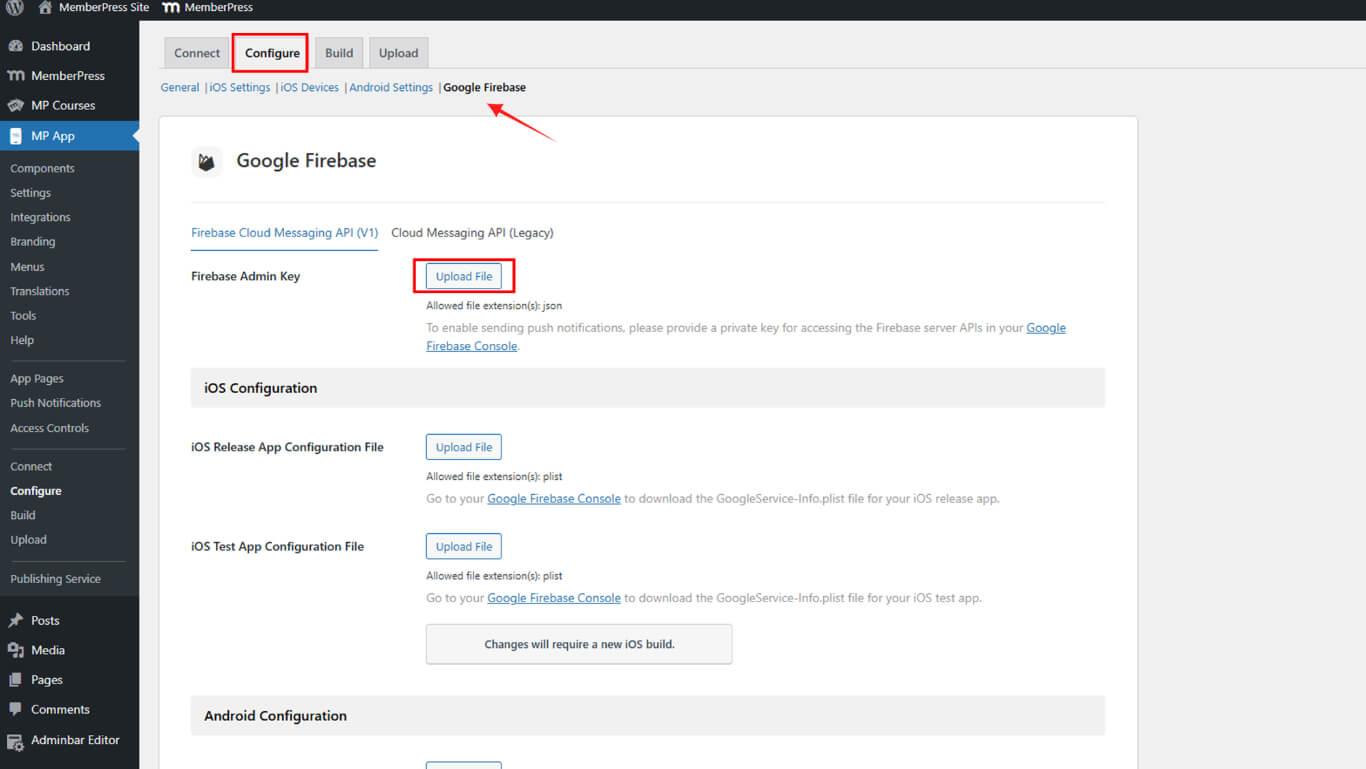
- Seleccione el archivo de cuenta de servicio JSON descargado.
- Haga clic en Cargar junto al campo Archivo de configuración de iOS.
- Seleccione GoogleService-Info.plist para iOS.
- Haga clic en Cargar junto al campo Archivo de configuración de Android.
- Seleccione servicios-google.json para Android.
- Opcionalmente, cargue los archivos de configuración de la aplicación de prueba en las secciones de prueba.
- Haga clic en Guardar configuración para finalizar la configuración de Firebase.
La configuración de la API Firebase V1 sustituye a la API Legacy Cloud Messaging para mejorar la entrega de notificaciones push.
Verificación de la configuración de Firebase
La verificación de la configuración de Firebase garantiza la correcta configuración de la funcionalidad de notificaciones push.
- Vaya a Panel > MP AppKit > Configurar > Google Firebase.
- Compruebe que el archivo de clave de cuenta de servicio se ha cargado correctamente.
- Confirme que el archivo de configuración iOS aparece en la sección iOS.
- Confirme que el archivo de configuración de Android aparece en la sección Android.
- Compruebe que Guardar configuración después de la carga.
- Vaya a la consola Firebase y compruebe que aparecen las aplicaciones para iOS y Android.
- Confirme que la API de mensajería en la nube Firebase muestra un “Activado” estado.
Una configuración adecuada de Firebase permite probar las notificaciones push y enviarlas a los dispositivos de los miembros.










 ES
ES  EN
EN  FR
FR  DE
DE  PT
PT 