

Las notificaciones push envían alertas en tiempo real a los dispositivos móviles de los afiliados. Estas alertas informan a los afiliados sobre nuevos contenidos, actualizaciones de afiliación y eventos importantes de la cuenta.
Este documento explica cómo habilitar las notificaciones push, configurar la integración con Firebase, gestionar los tipos de notificaciones automatizadas y enviar notificaciones manuales a los miembros.
Notificaciones Push
Las notificaciones push llegan a los miembros al instante sin necesidad de utilizar la aplicación. Las notificaciones aparecen en las pantallas de bloqueo de los dispositivos y en los centros de notificaciones. Los miembros pueden tocar las notificaciones para abrir directamente el contenido relevante de la aplicación. Firebase Cloud Messaging potencia la entrega de notificaciones en plataformas iOS y Android. Una configuración adecuada garantiza una entrega de notificaciones fiable y la participación de los socios.
Activación del componente de notificaciones push
Las notificaciones push deben activarse antes de iniciar la configuración.
- Vaya a Panel > MP AppKit > Componentes.
- Localizar Notificaciones push en la lista de componentes.
- Alternar Activar cambiar a En.
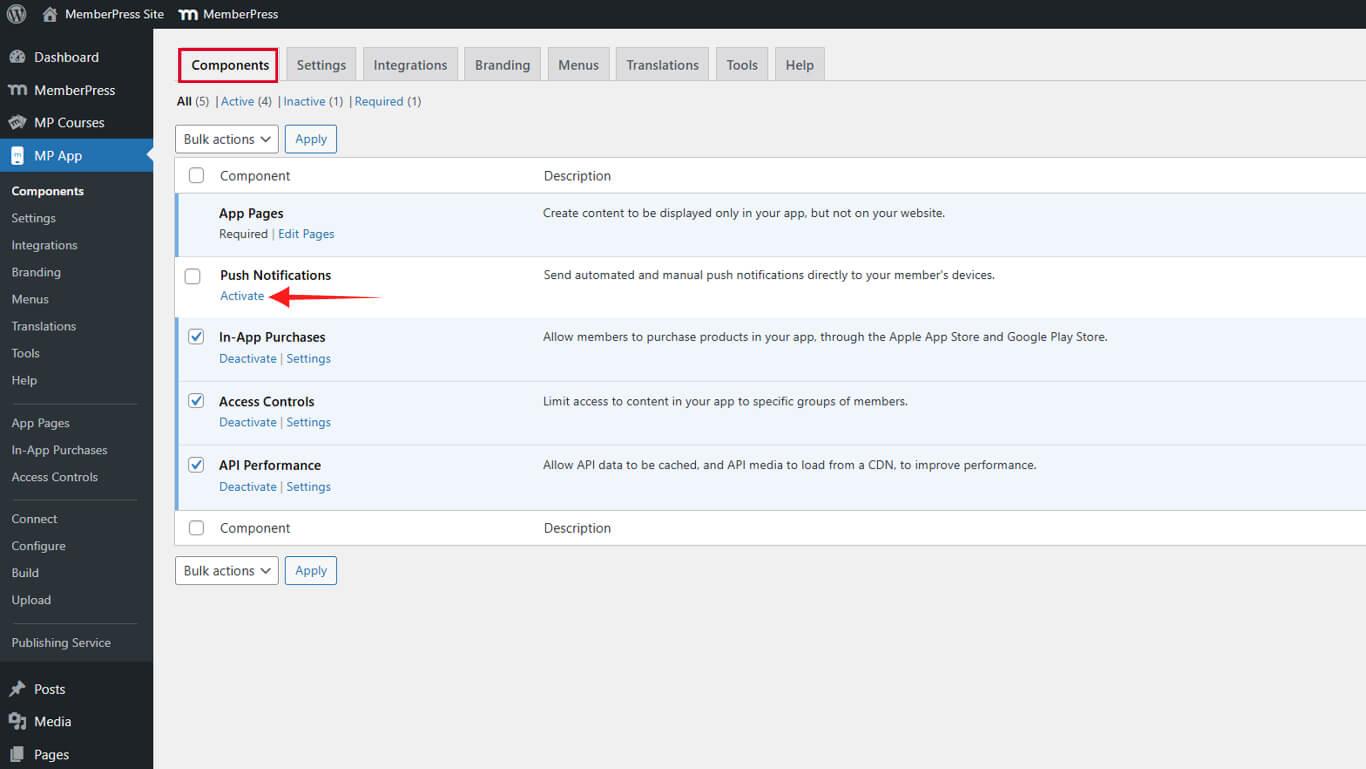
El menú de notificaciones push aparece en el panel de control de WordPress tras la activación.
Conexión de Firebase para la entrega de notificaciones
Firebase Cloud Messaging gestiona la entrega de notificaciones a dispositivos iOS y Android. La conexión requiere la configuración del proyecto Firebase y la carga de credenciales.
Creación de un proyecto Firebase
- Visite la consola Firebase en console.firebase.google.com.
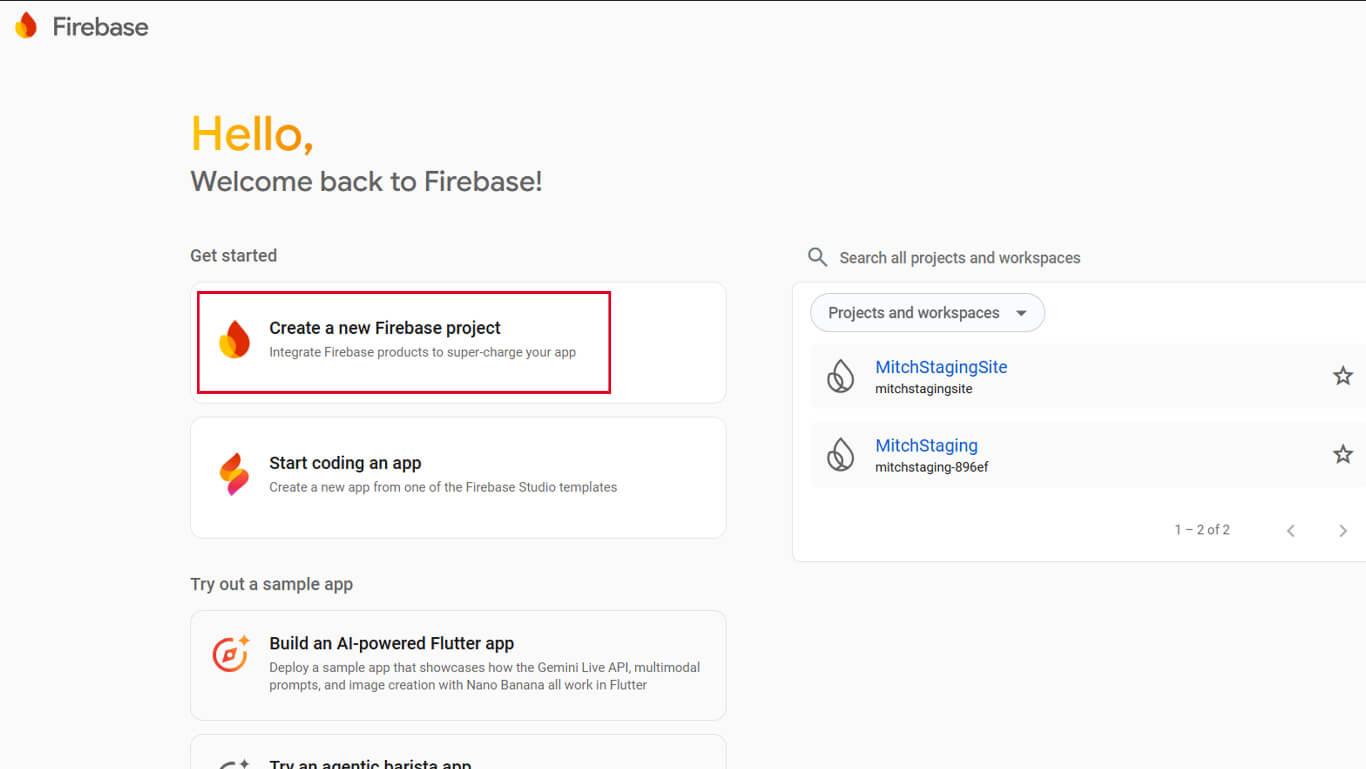
- Haga clic en Crear un nuevo proyecto Firebase o seleccione un proyecto existente.
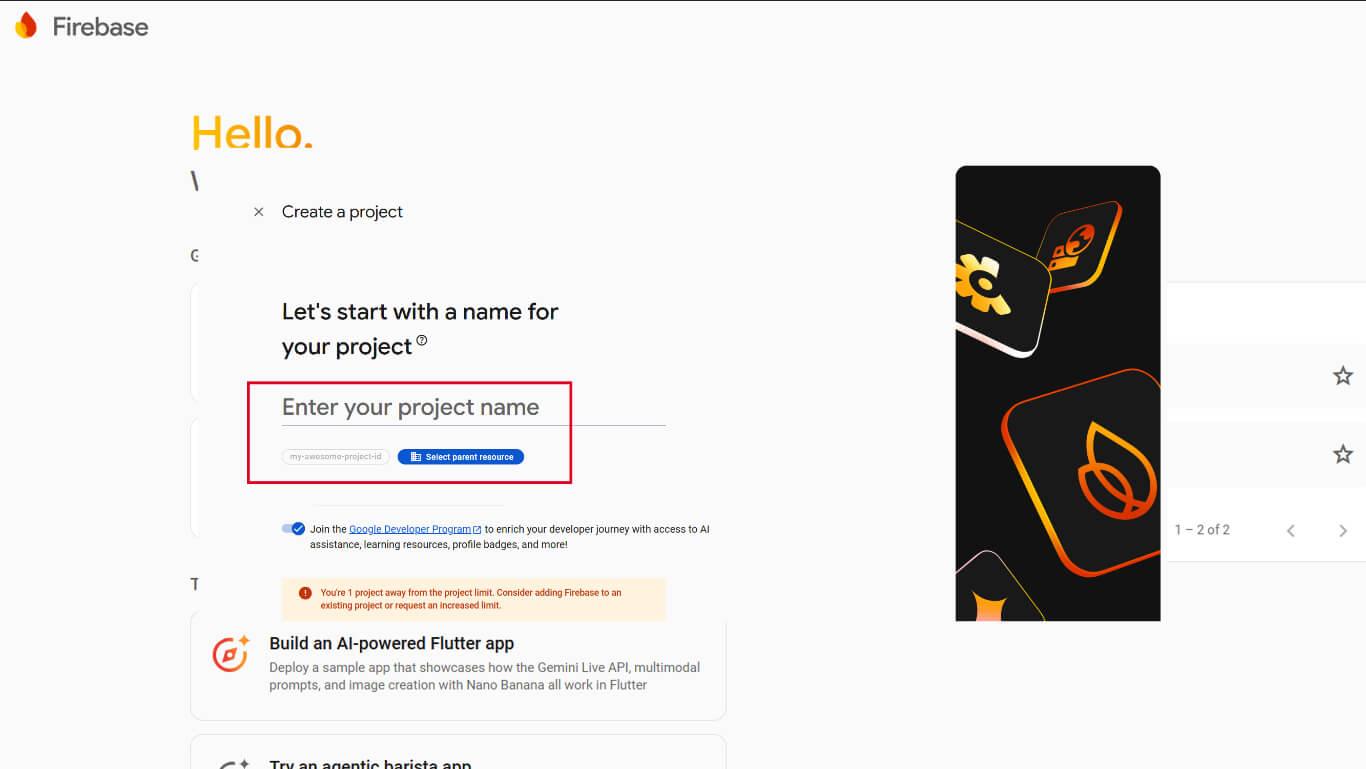
- Introduzca un nombre de proyecto y haga clic en Continúe en.
- Espere a que finalice la creación del proyecto.
La configuración del proyecto Firebase proporciona la base para la infraestructura de entrega de notificaciones.
Añadir aplicación iOS a Firebase
- En la consola Firebase, seleccione el proyecto creado.
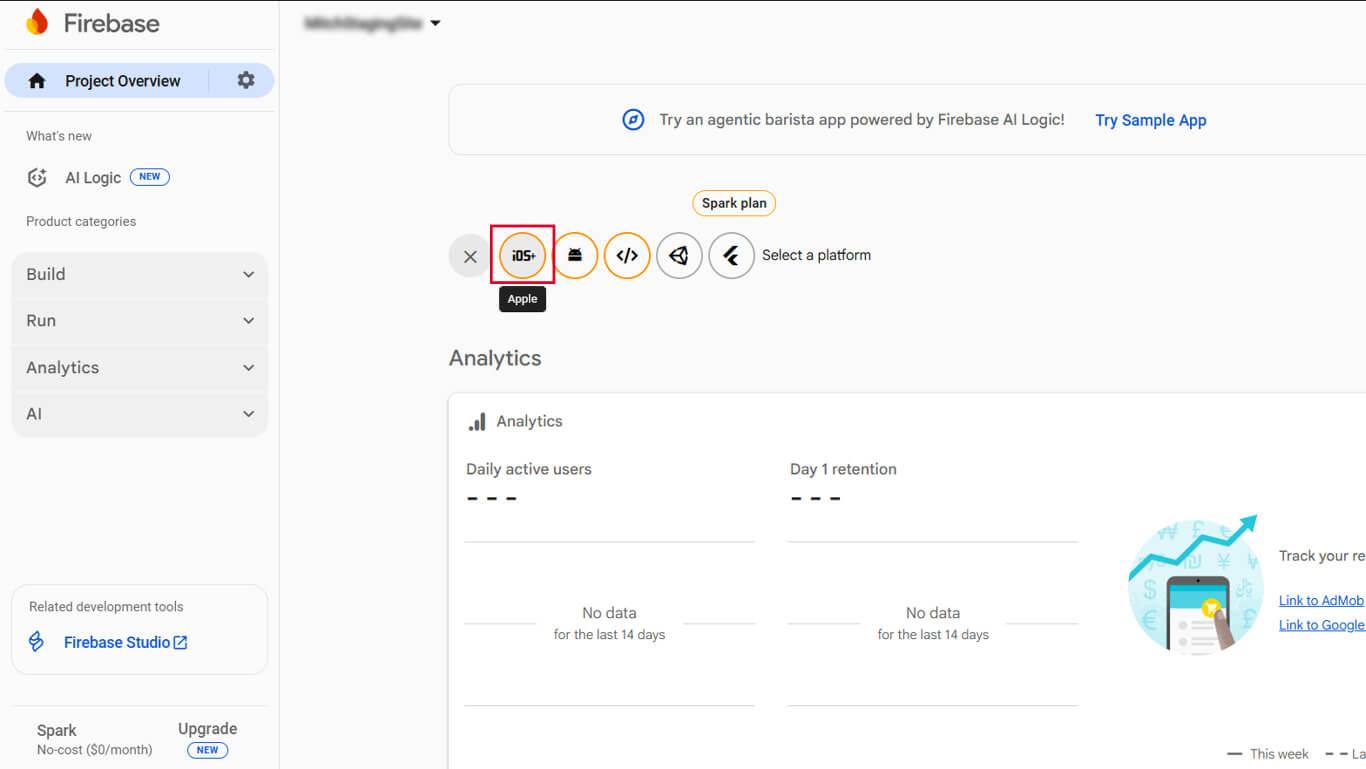
- Haga clic en Añadir aplicación.
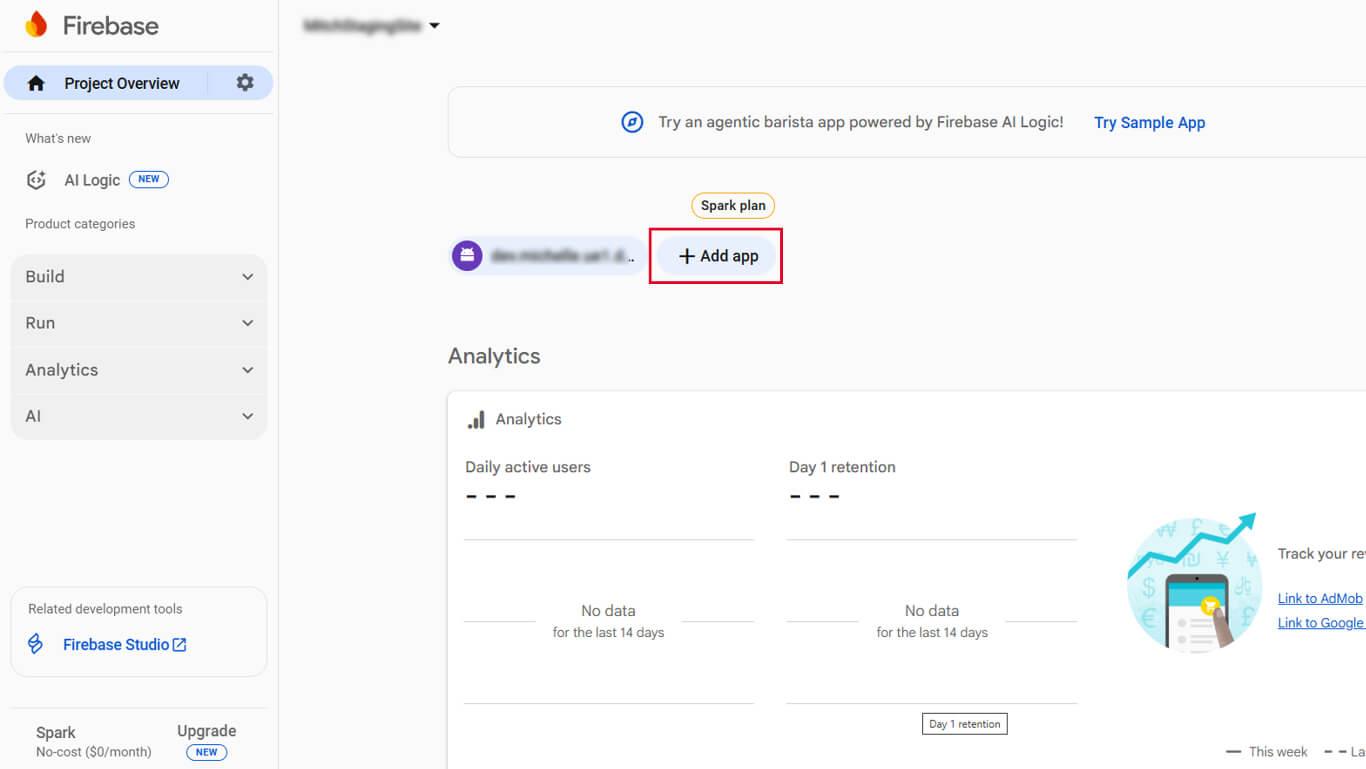
- Haga clic en el botón iOS para añadir una aplicación iOS.
- Introduzca el ID del paquete iOS en los ajustes de la aplicación MemberPress.
- Introduzca un apodo para la aplicación y haga clic en Registrar aplicación.
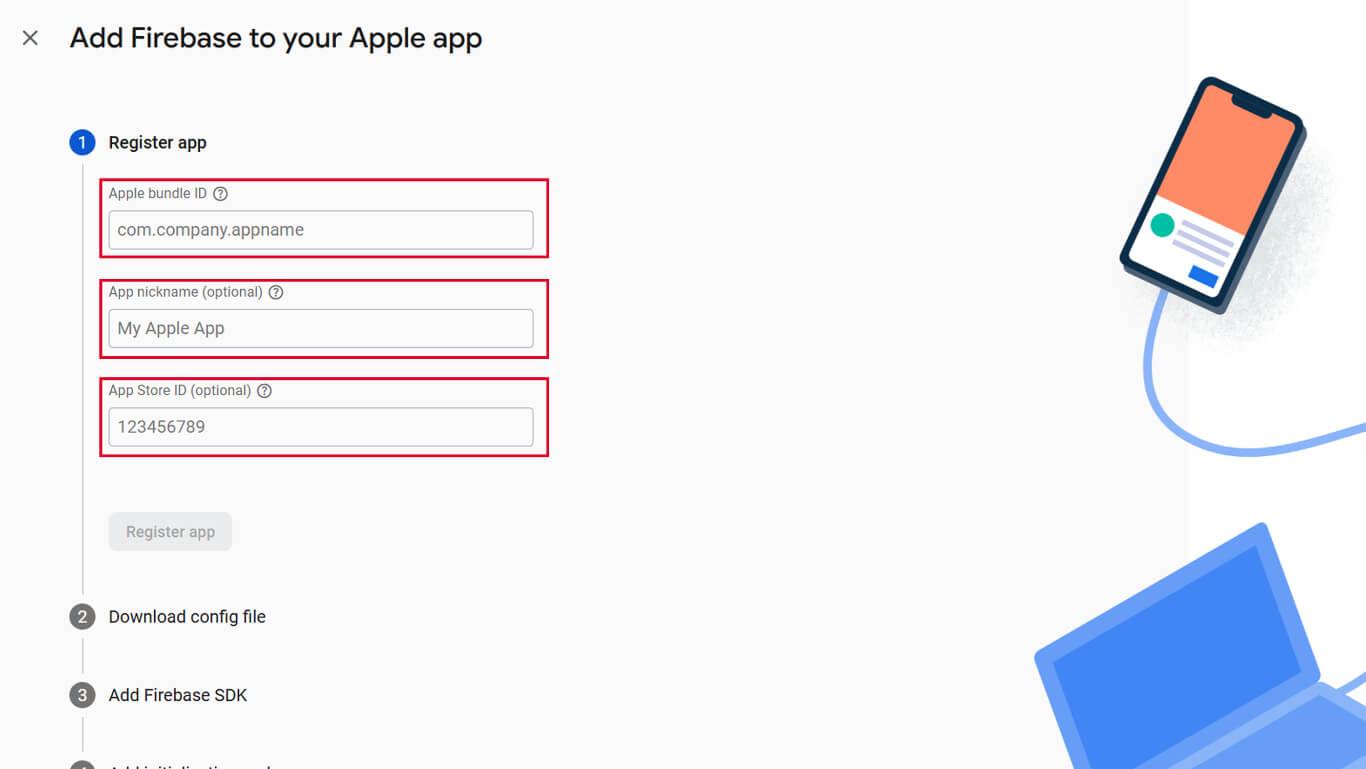
- Descargar el GoogleService-Info.plist archivo.
- Haga clic en Continúe en a través de los pasos de configuración restantes.
Añadir aplicación Android a Firebase
- En la consola Firebase, seleccione el proyecto.
- Haga clic en Añadir App.
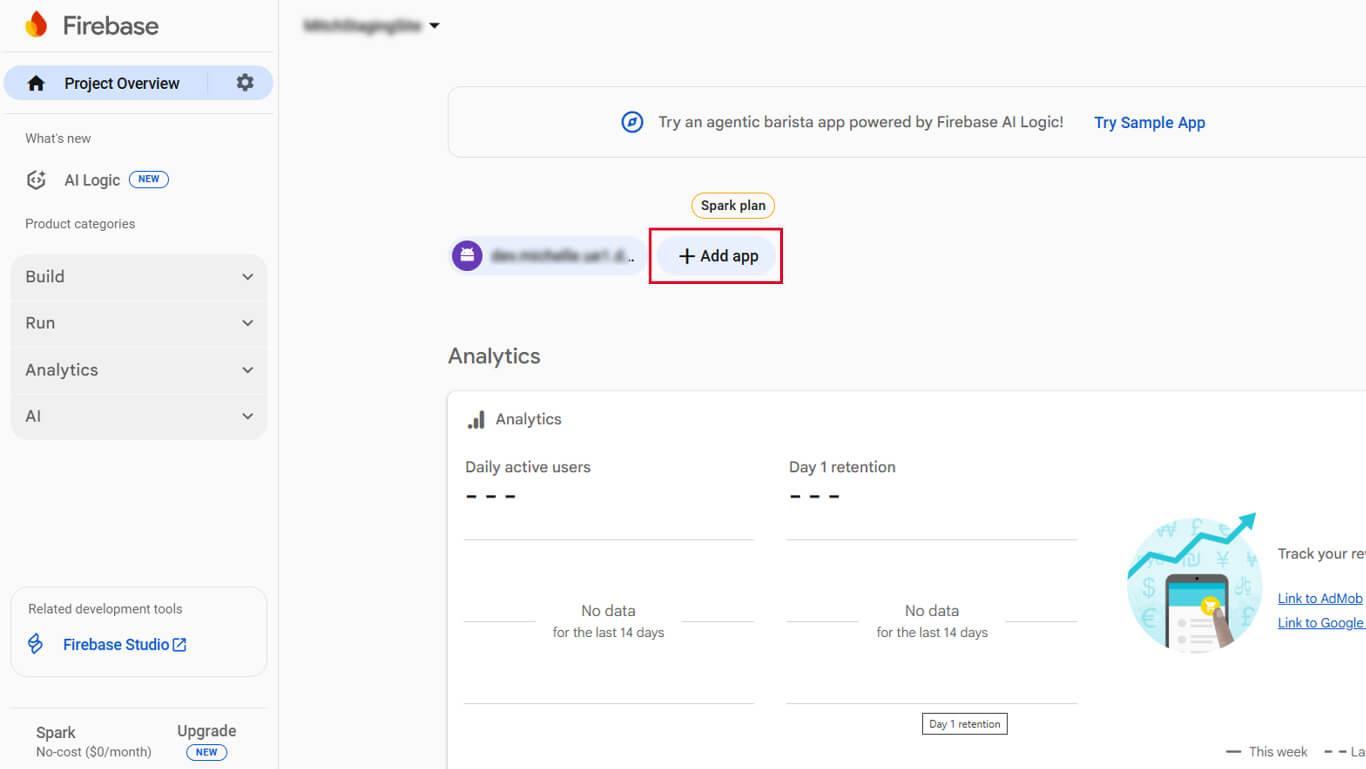
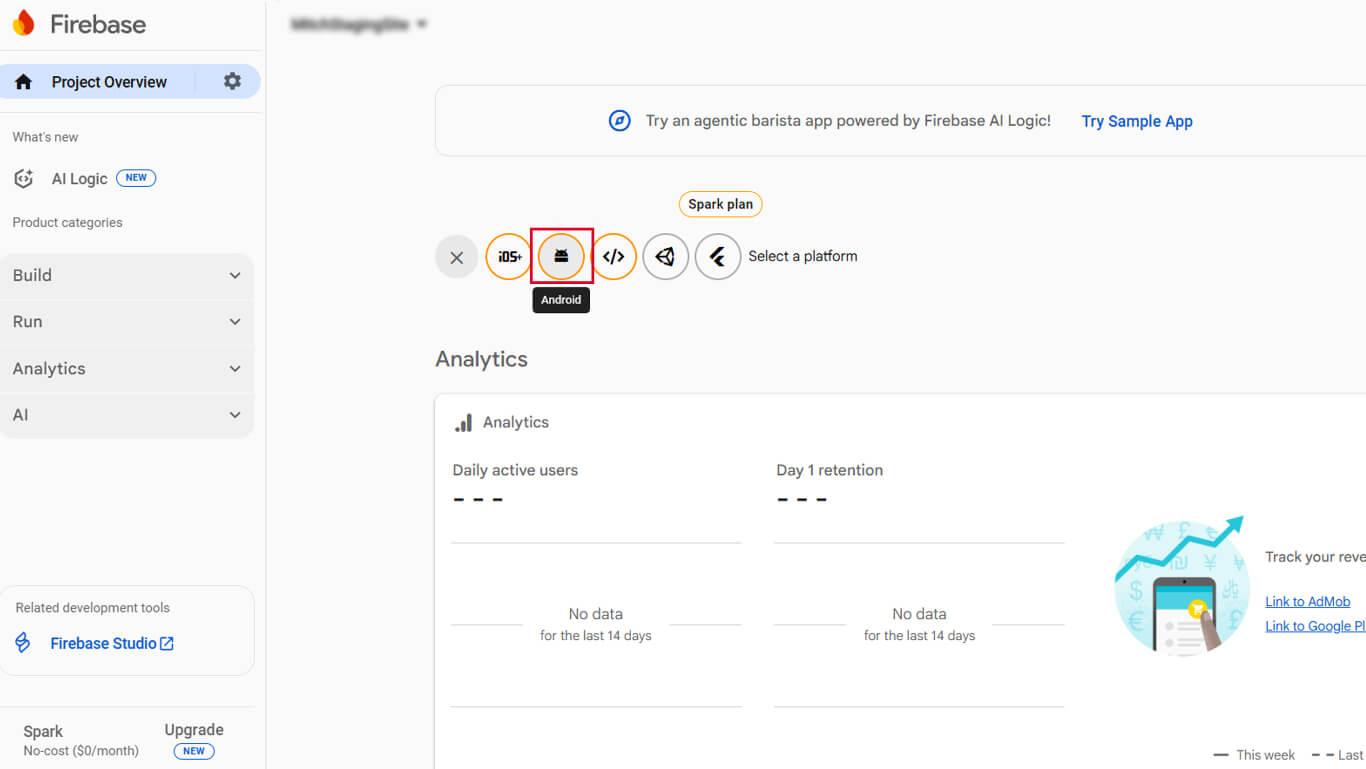
- Haga clic en el botón Android para añadir una aplicación Android.
- Introduce el nombre del paquete Android desde los ajustes de MemberPress AppKit.
- Introduzca un apodo para la aplicación y haga clic en Registrar aplicación.
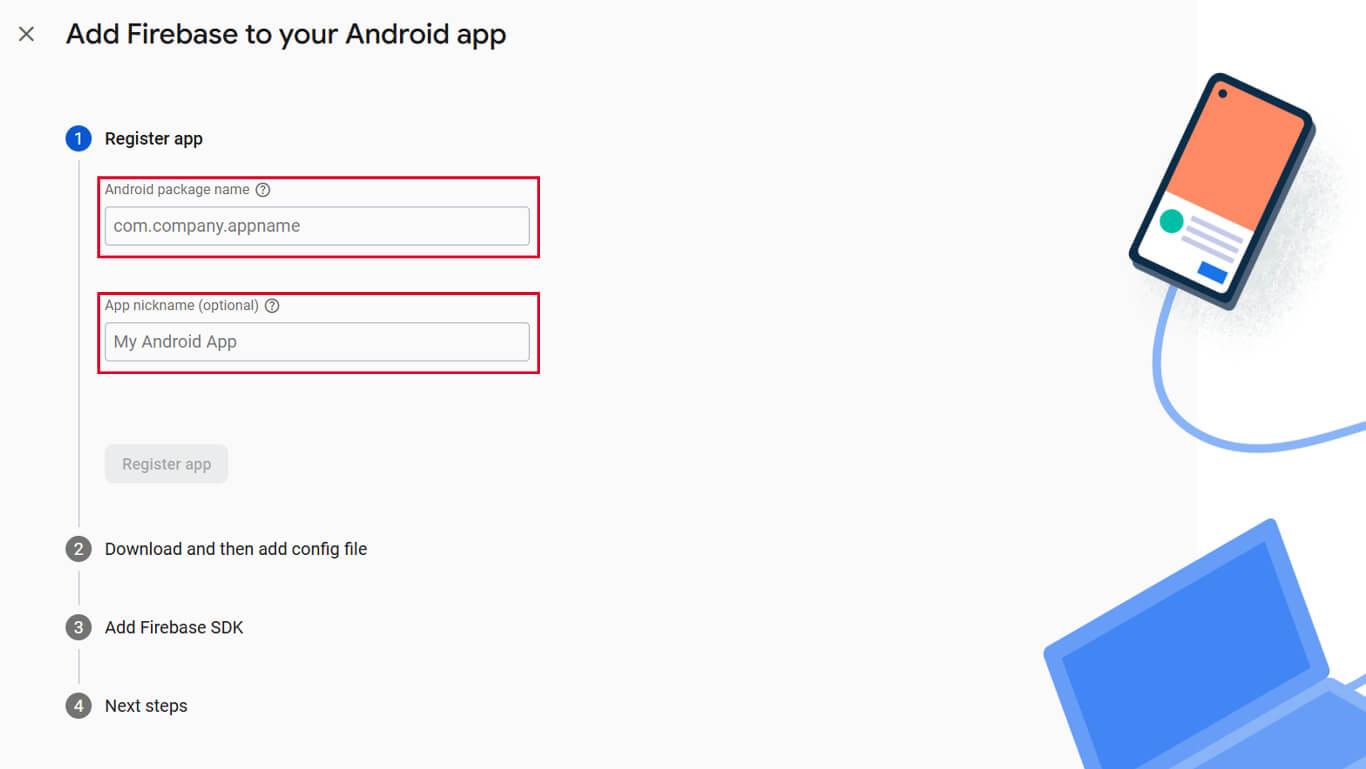
- Descargar el servicios-google.json archivo.
- Haga clic en Continúe en a través de los pasos de configuración restantes.
Obtención de las credenciales del servidor Firebase
- En la consola Firebase, vaya a Configuración del proyecto.
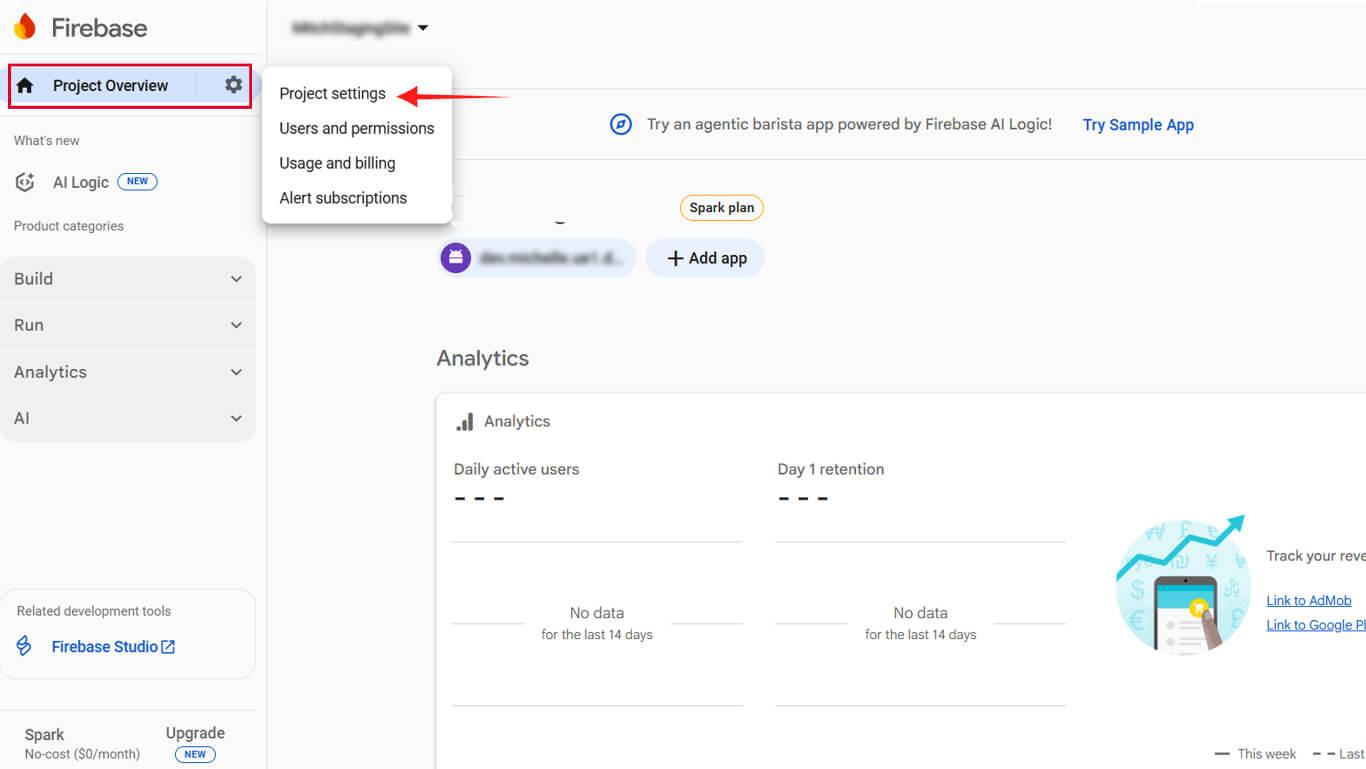
- Haga clic en el botón Mensajería en la nube ficha.
- Copie el Clave del servidor valor.
- Copie el Identificador del remitente valor.
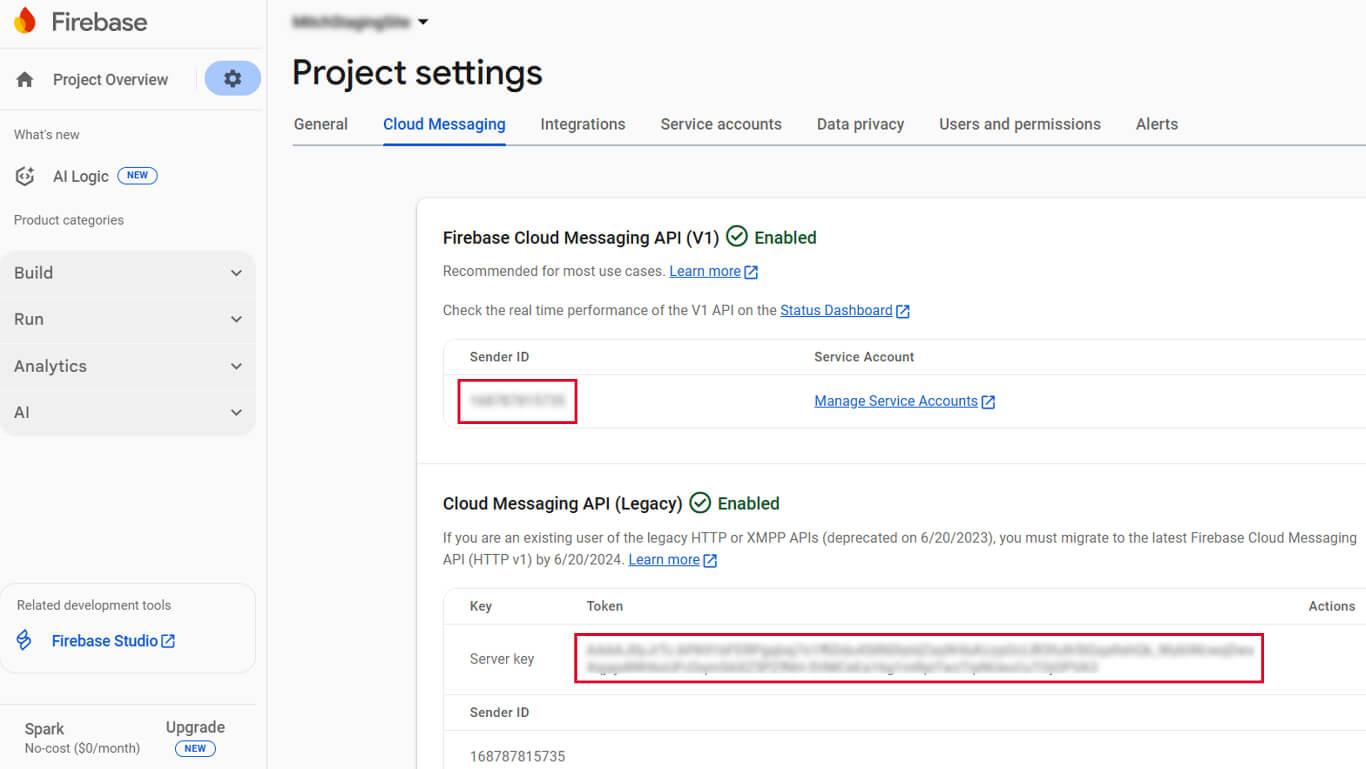
- Mantenga estos valores accesibles para la configuración de WordPress.
Las credenciales del servidor autentican la comunicación de WordPress con los servidores Firebase.
Subir la configuración de Firebase a WordPress
- Vaya a Panel > MP AppKit > Configurar > Google Firebase.
- Haga clic en Elegir archivo en Archivo de configuración de Android.
- Seleccione la descarga servicios-google.json archivo.
- Haga clic en Elegir archivo en Archivo de configuración de iOS.
- Seleccione la descarga GoogleService-Info.plist archivo.
- Introduzca el Clave del servidor en el campo Clave del servidor.
- Introduzca el Identificador del remitente en el campo ID de remitente.
- Haga clic en Guardar cambios.
Una configuración correcta permite enviar notificaciones push a los dispositivos miembros.
Configuración de tipos de notificación automática
Las notificaciones automatizadas se activan en función de eventos específicos sin intervención manual. La configuración determina qué tipos de notificaciones pueden recibir los miembros.
- Vaya a Panel > MP AppKit > Ajustes > Notificaciones Push.
- Localice el Notificaciones automáticas sección.
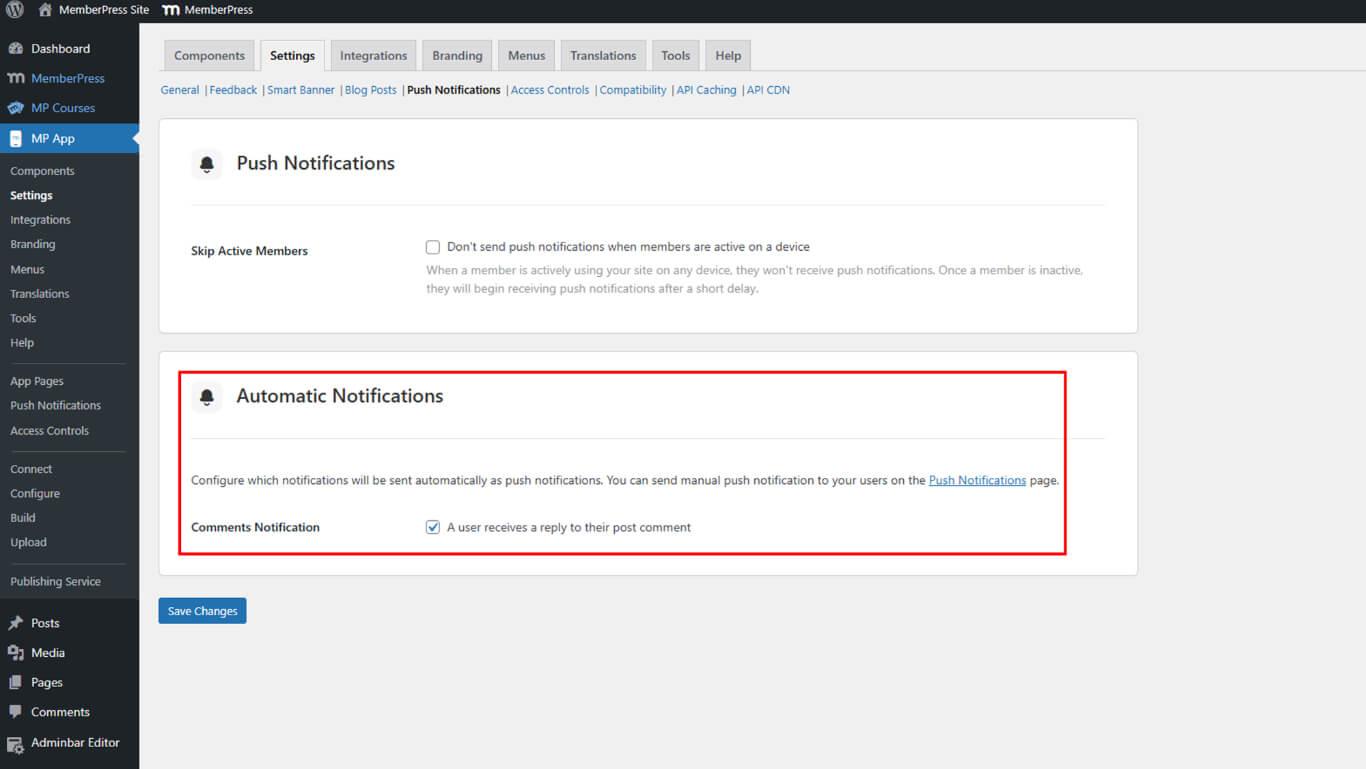
- Haga clic en Guardar cambios.










 ES
ES  EN
EN  FR
FR  DE
DE  PT
PT 