

La conexión con la cuenta de Google Developer permite la sincronización de productos dentro de la aplicación y el envío de compilaciones de Android a través de servicios de publicación automatizados.
En este documento se explica cómo crear una cuenta de servicio de Google Cloud, habilitar las API necesarias, conceder permisos a Play Console y cargar las credenciales en WordPress.
Descripción de Google Developer Connection
La conexión con la cuenta de Google Developer automatiza los flujos de trabajo para la gestión de aplicaciones Android. La autenticación de cuentas de servicio proporciona acceso seguro a los servicios de Google Play sin necesidad de compartir contraseñas. Las cuentas conectadas permiten procesos automatizados de sincronización de productos y envío de compilaciones.
Creación de aplicaciones en Google Play Console
La creación de aplicaciones en Google Play Console sienta las bases para la distribución de aplicaciones Android.
- Accede a Google Play Console en play.google.com/console.
- Haga clic en el botón Crear aplicación botón.
- Introduzca el nombre de la aplicación en el campo Nombre de la aplicación campo.
- Seleccione el idioma por defecto en Idioma predeterminado desplegable.
- Seleccione Aplicación para el tipo de aplicación.
- Seleccione si la aplicación es gratuita o de pago.
- Desplácese hasta la sección de declaraciones.
- Compruebe el Políticas del programa para desarrolladores casilla de verificación.
- Compruebe el Leyes de exportación de EE. UU. casilla de verificación.
- Haga clic en Crear aplicación para finalizar la creación de la aplicación.
Creación de un proyecto de Google Cloud
La creación del proyecto de Google Cloud proporciona el contenedor para las credenciales de la cuenta de servicio.
- Acceda a Google Cloud Console en consola.cloud.google.com.
- Accede con las credenciales de tu cuenta de Google.
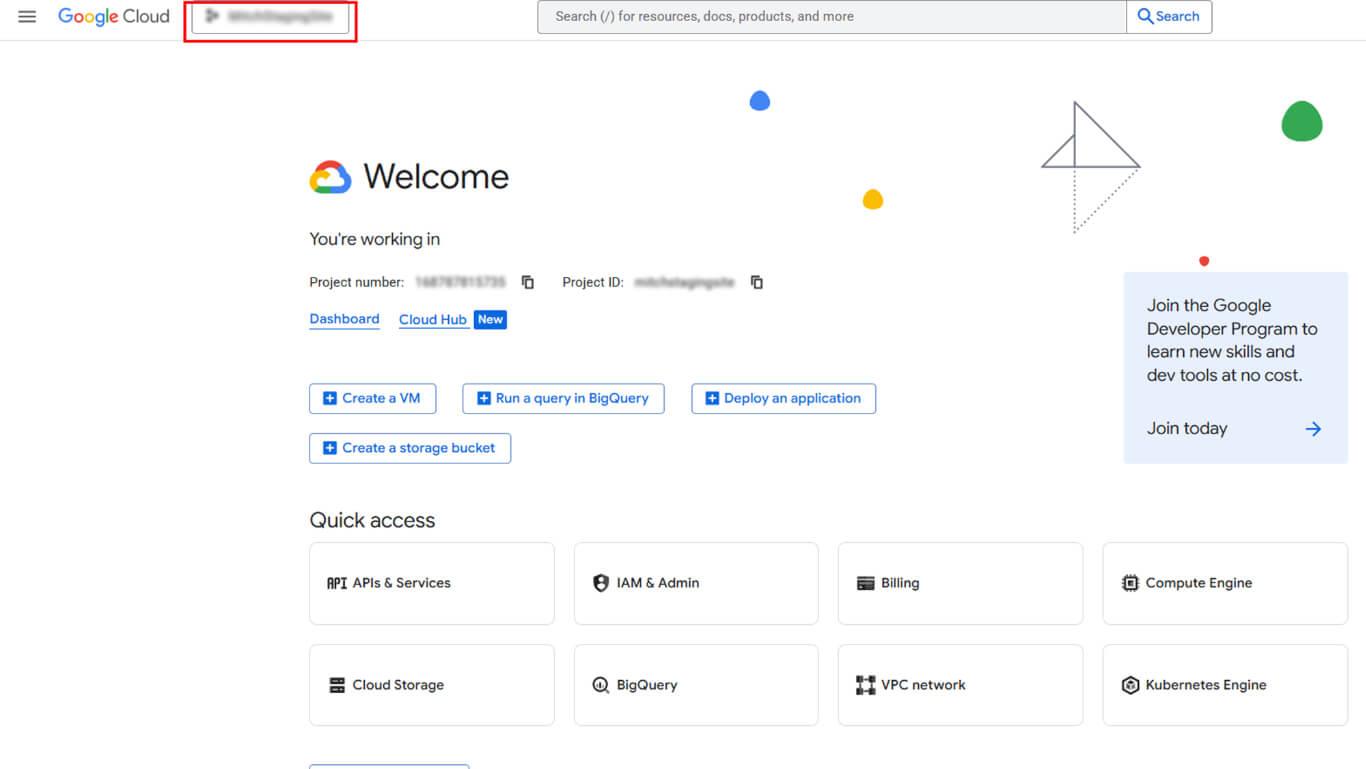
- Haga clic en el selector de proyectos situado en la parte superior de la página.
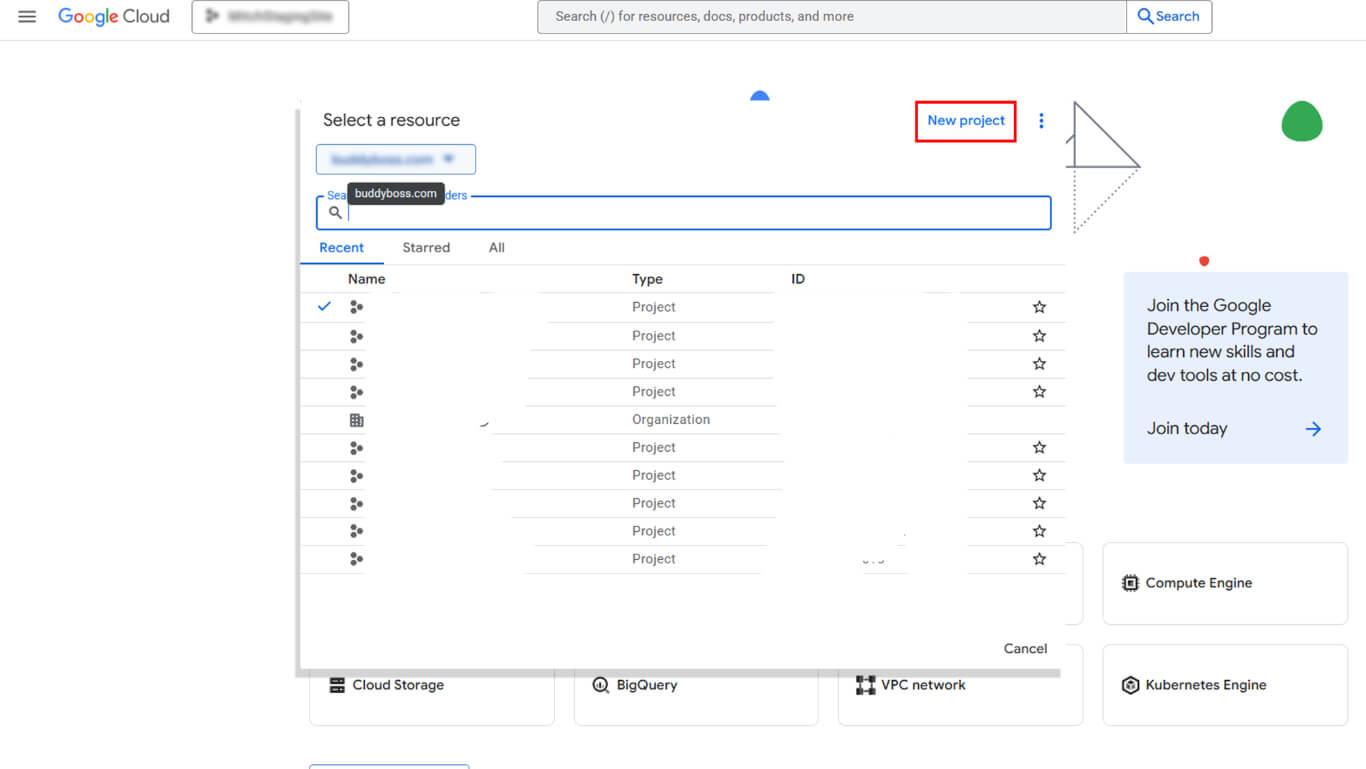
- Haga clic en NUEVO PROYECTO en el cuadro de diálogo del selector de proyectos.
- Introduzca un nombre descriptivo en el campo Nombre del proyecto campo.
- Seleccione una organización de la lista Organización si procede.
- Seleccione una ubicación en la lista Ubicación si procede.
- Haga clic en Cree para finalizar la creación del proyecto.
- Compruebe que el nuevo proyecto está seleccionado en el desplegable de la cabecera.
Habilitación de la API para desarrolladores de Android de Google Play
La activación de la API permite el acceso de la cuenta de servicio a las funciones de Google Play.
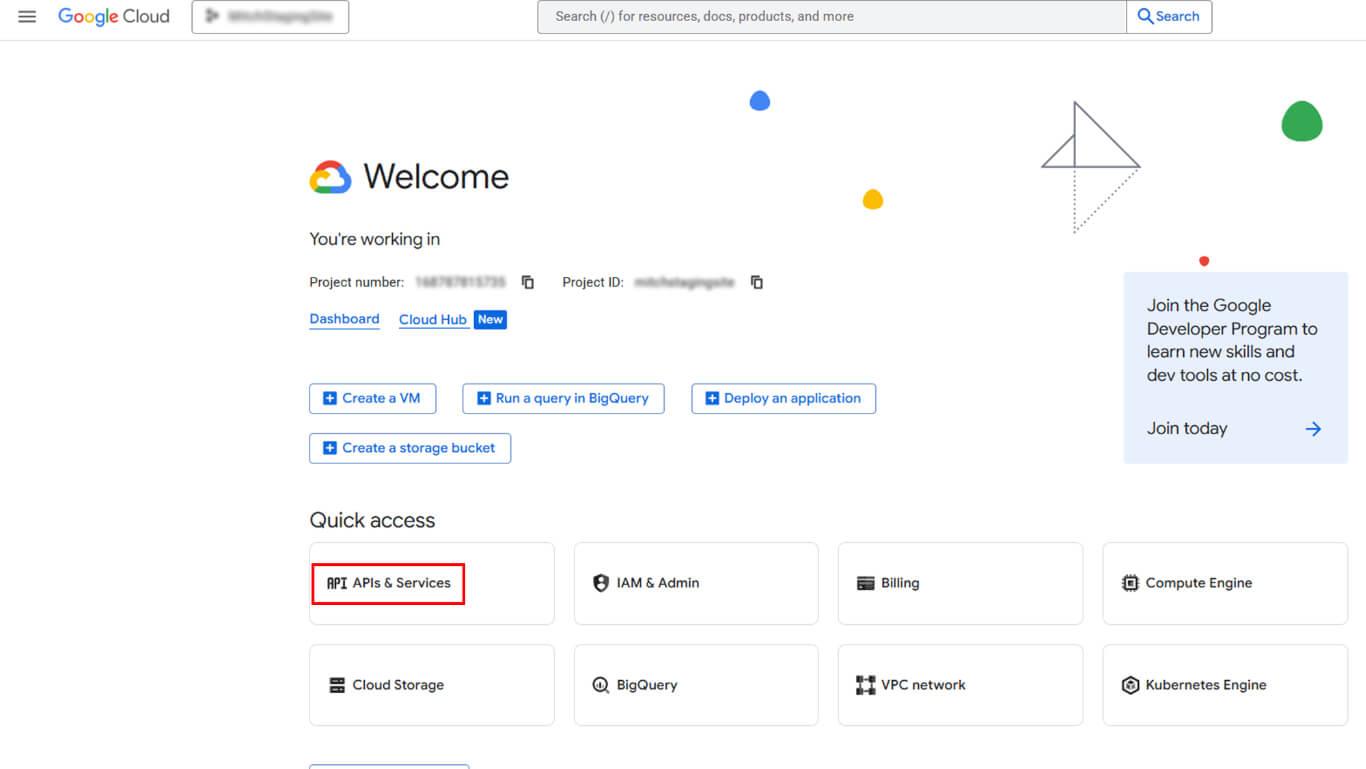
- Vaya a APIs y Servicios > Habilitar APIs y Servicios en Google Cloud Console.
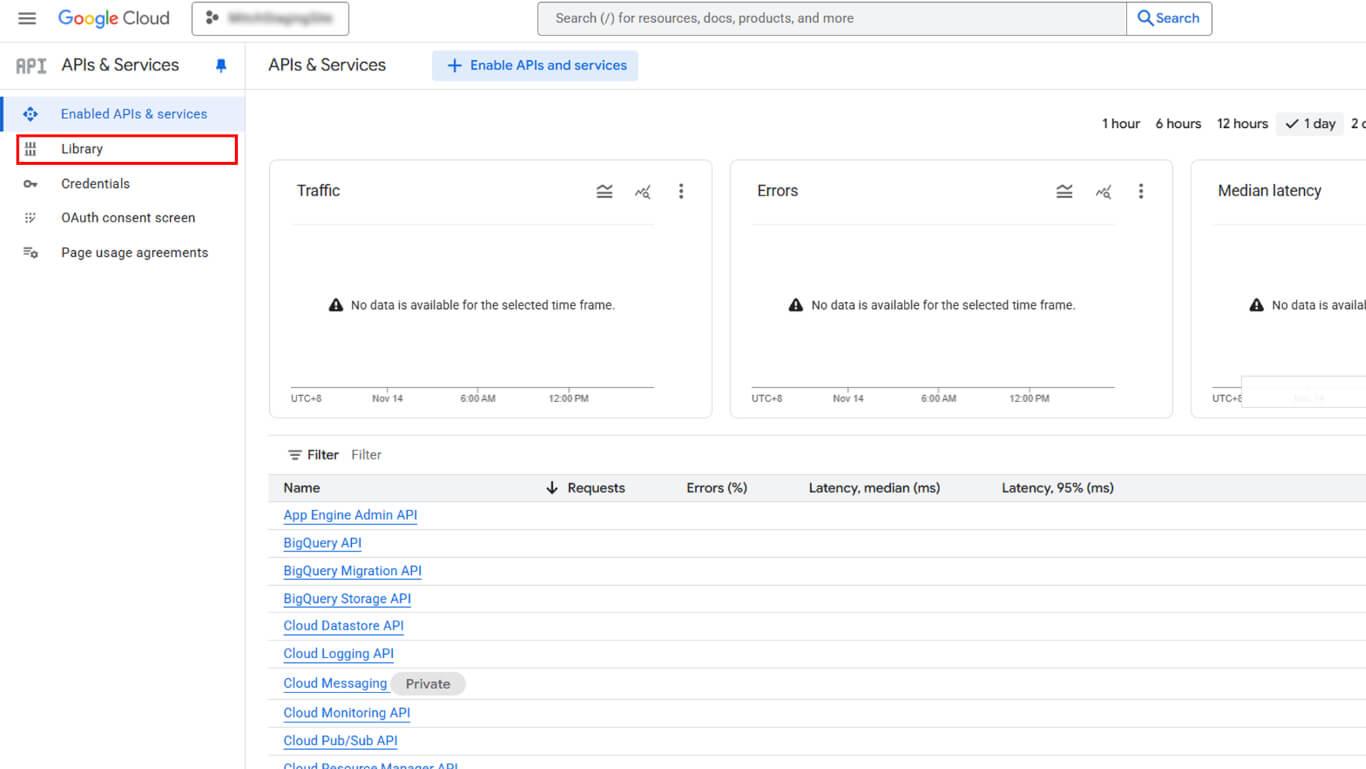
- Haga clic en Biblioteca para abrir la biblioteca API.
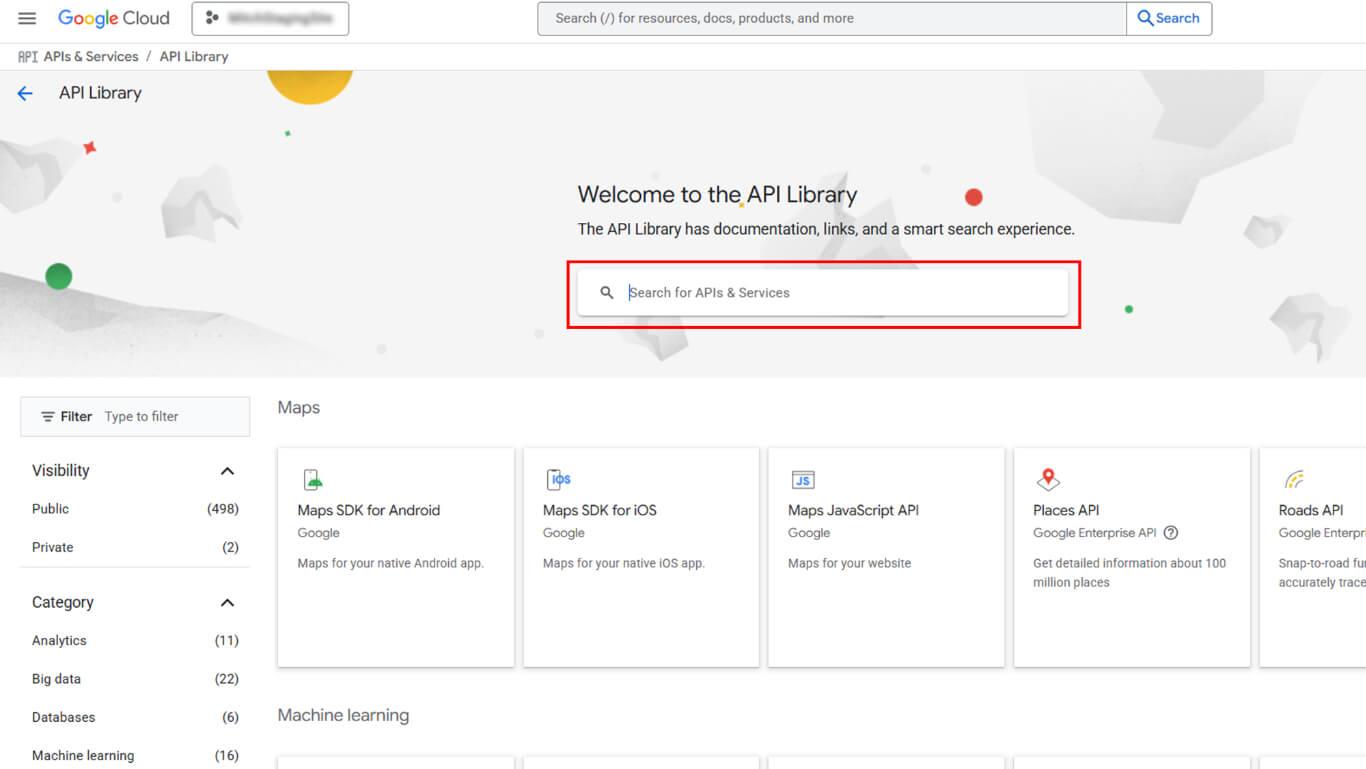
- Busca “Google Play Android Developer API” en el campo de búsqueda.
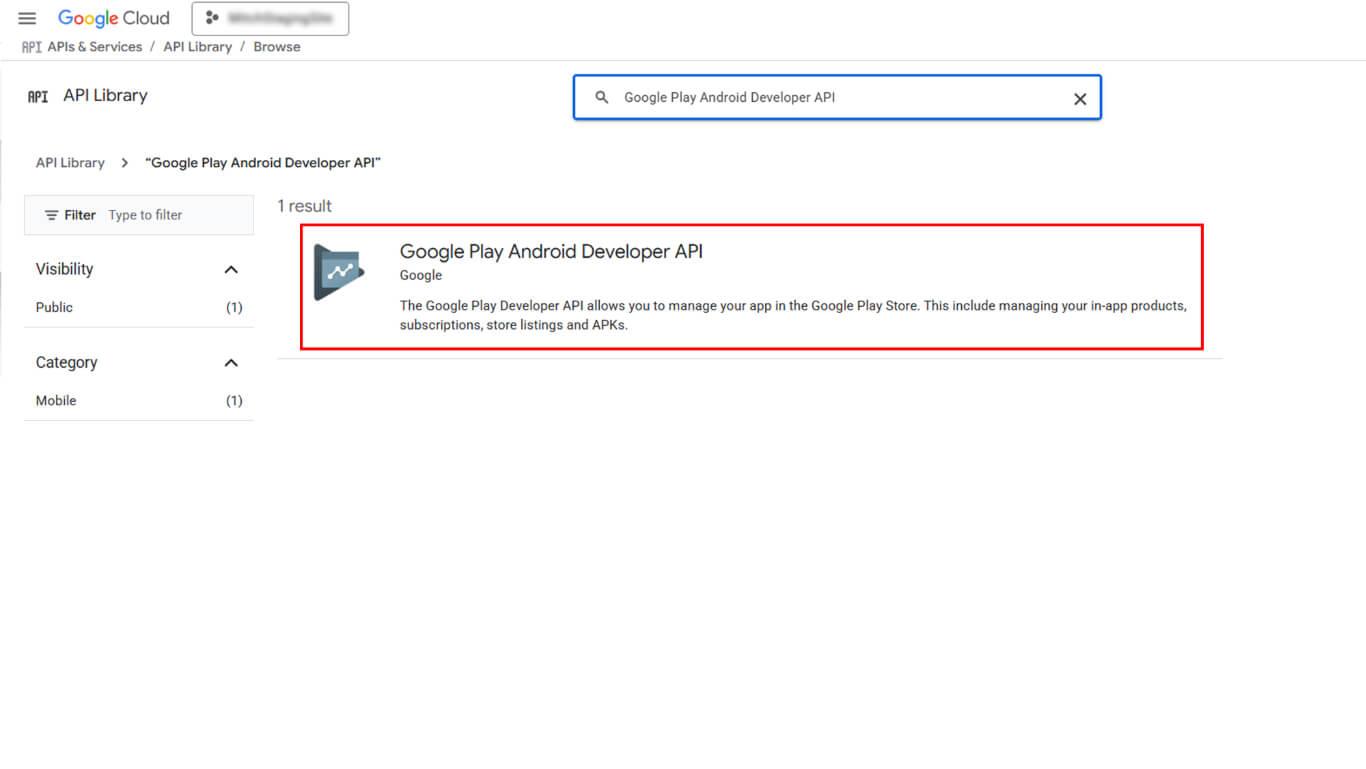
- Haga clic en API para desarrolladores de Android de Google Play en los resultados de la búsqueda.
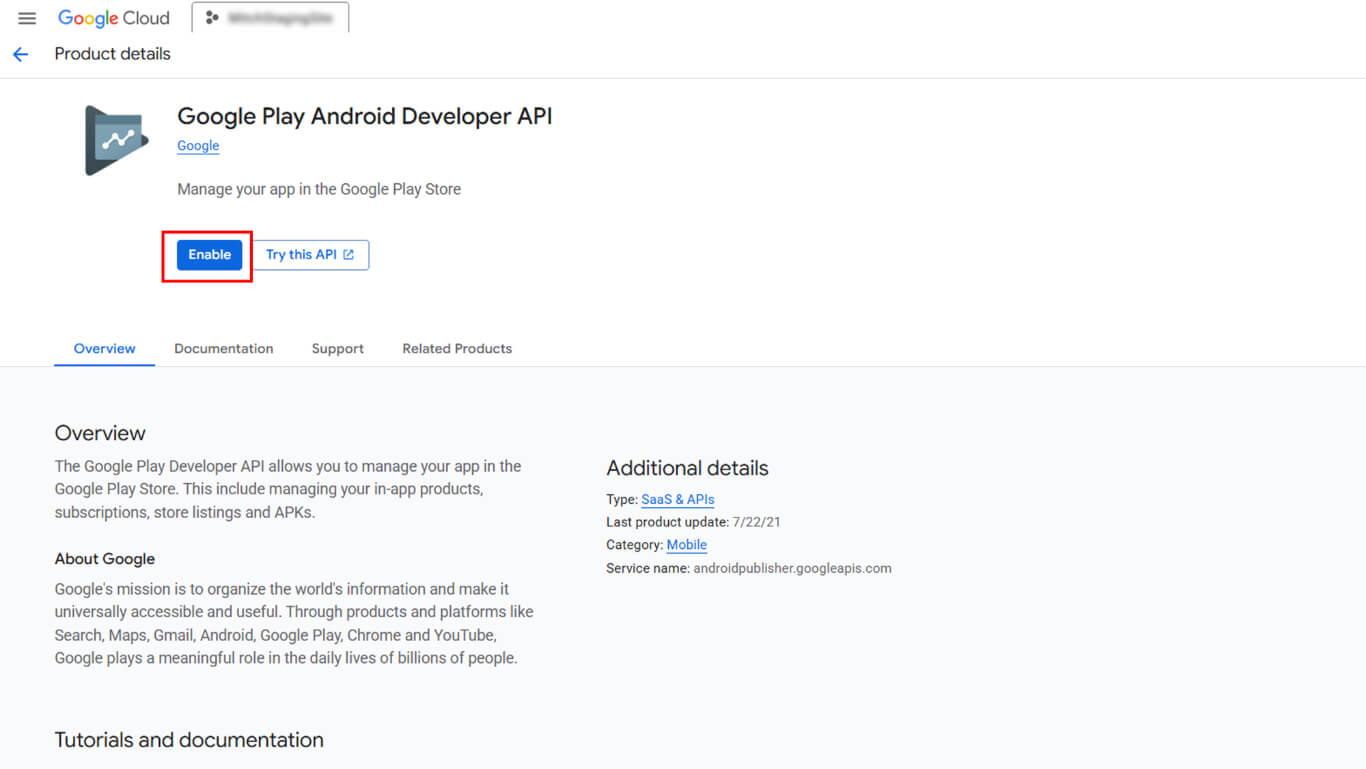
- Haga clic en ACTIVAR para activar la API.
Creación de una cuenta de servicio
La creación de una cuenta de servicio genera credenciales para el acceso automatizado a Google Play.
- Vaya a API y servicios > Credenciales en la barra lateral de Google Cloud Console.
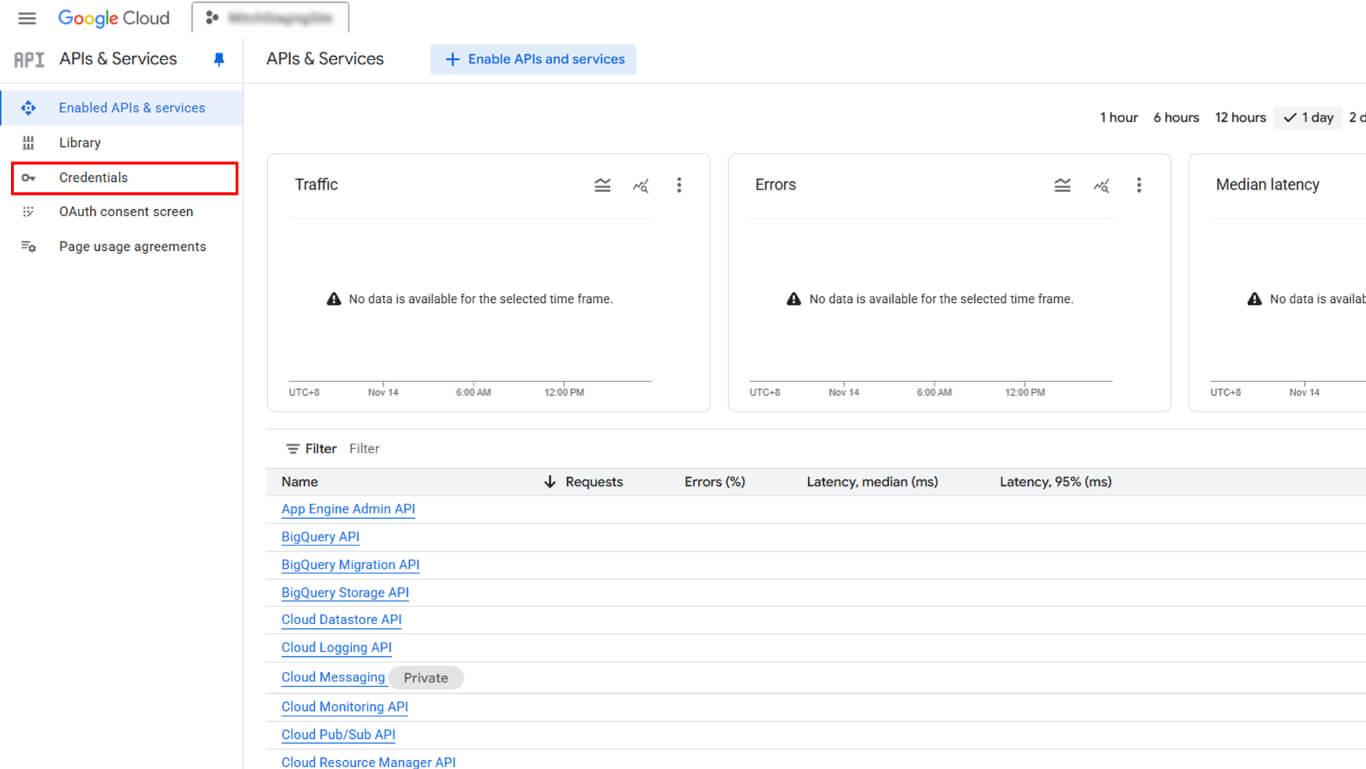
- Haga clic en Crear credenciales en la parte superior de la página.
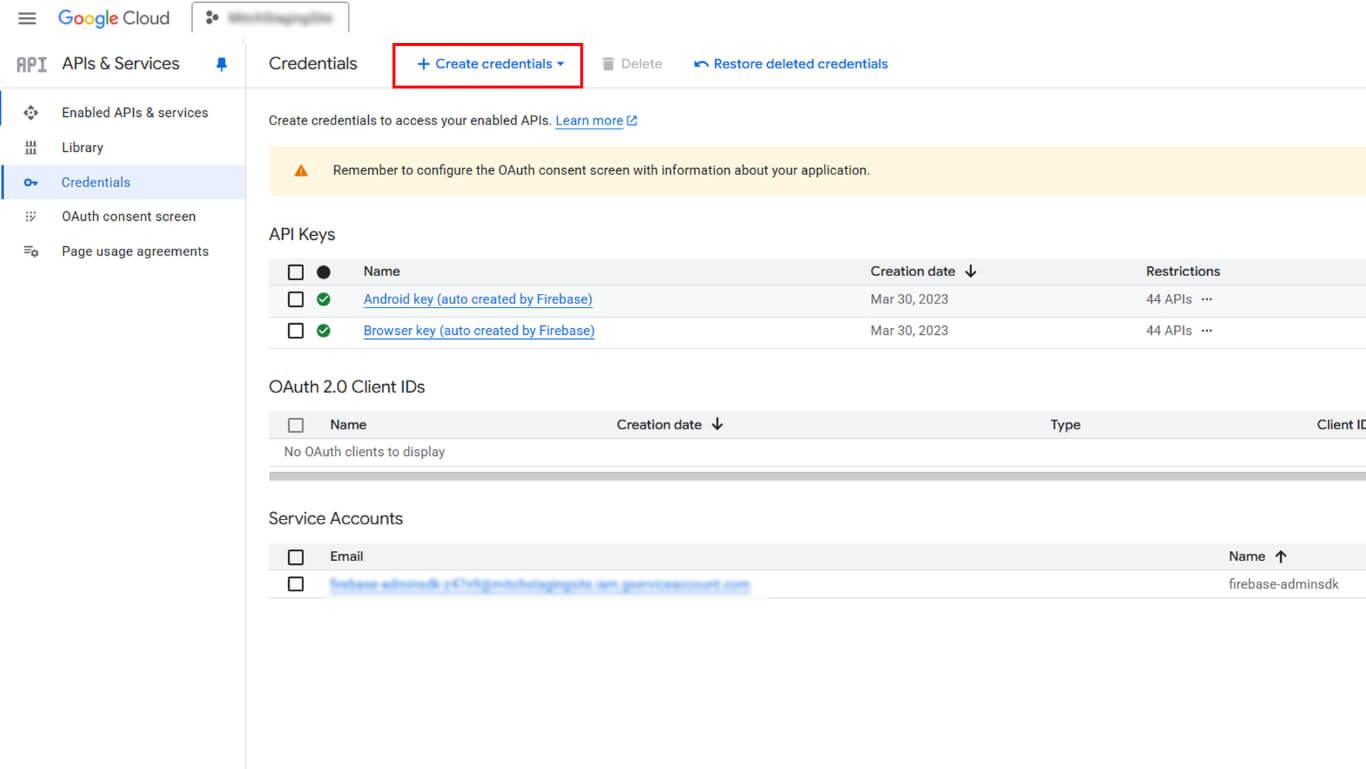
- Seleccione Cuenta de servicio del menú desplegable de tipo de credenciales.
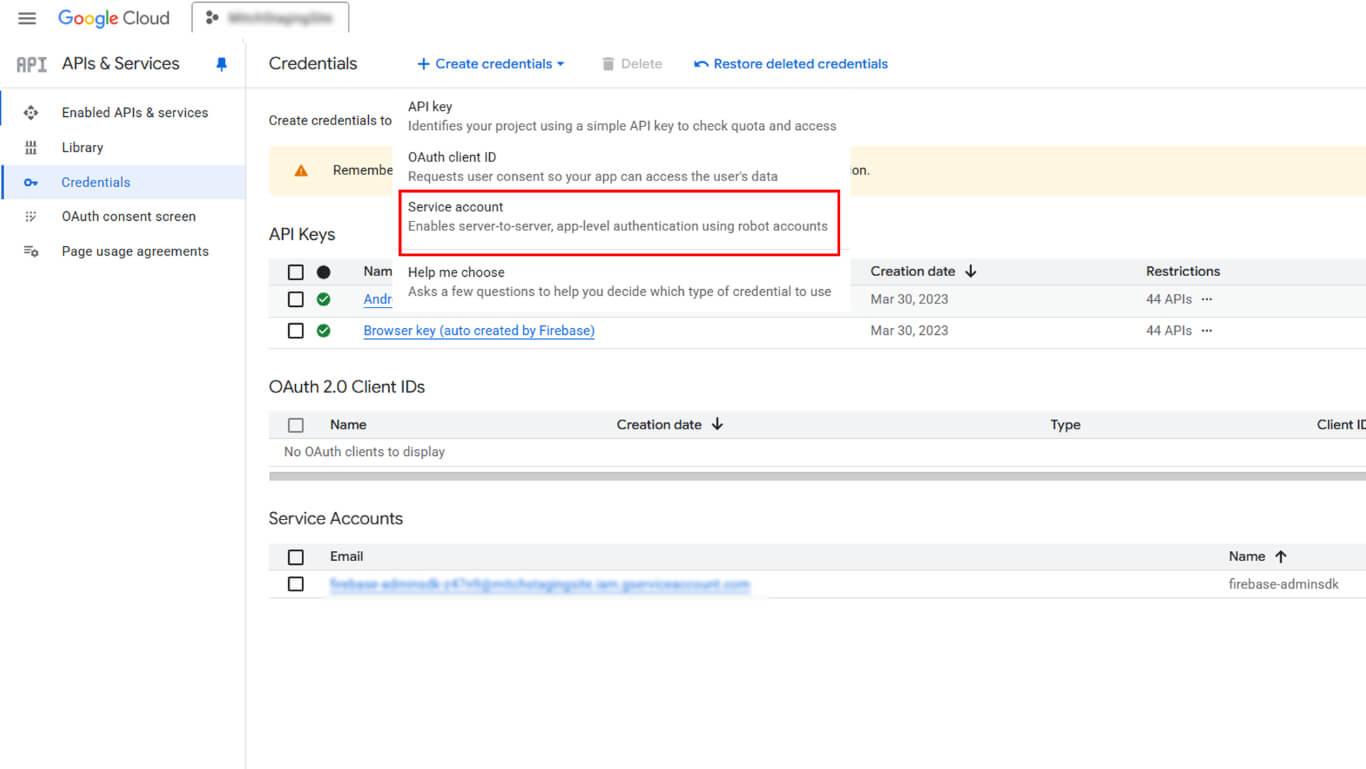
- Introduzca un nombre descriptivo en el campo Nombre de la cuenta de servicio campo.
- Haga clic en Crear y continuar.
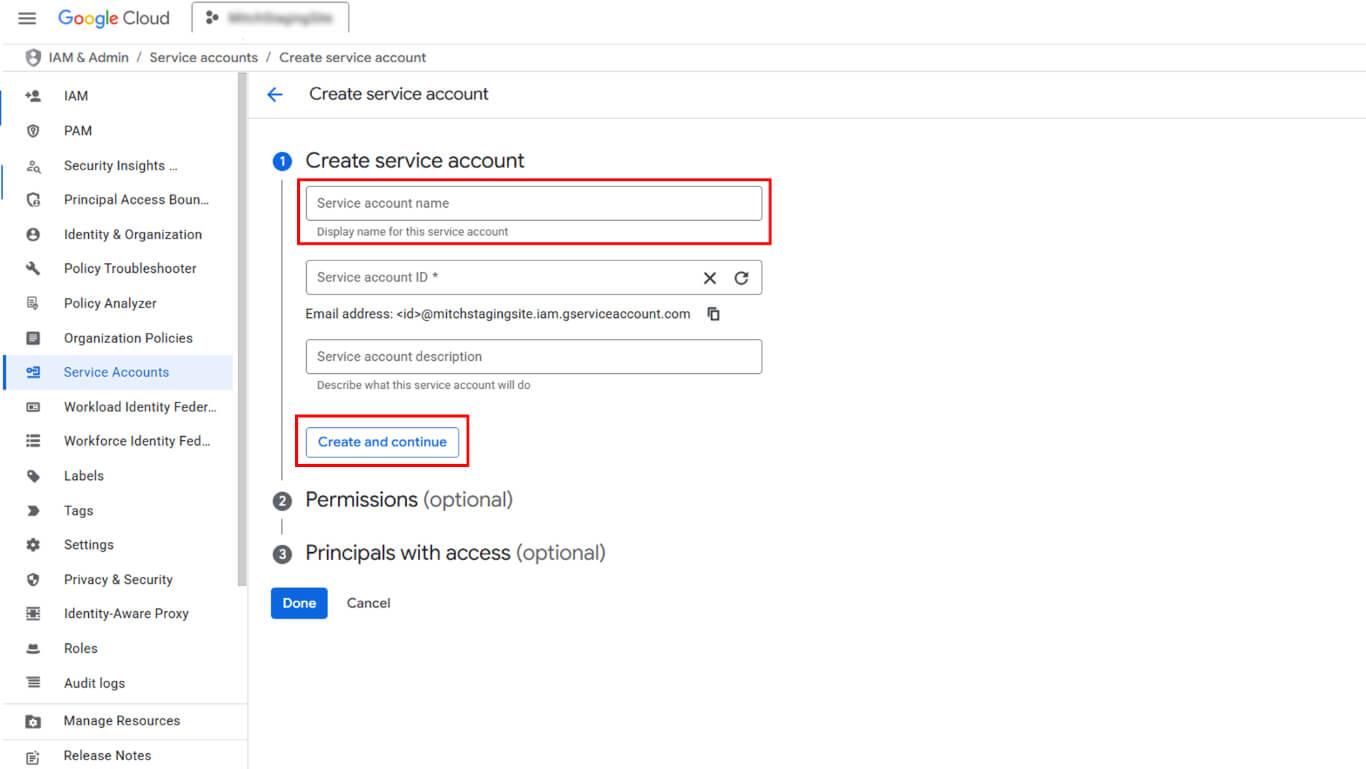
- Haga clic en Seleccionar un rol en Conceder acceso a esta cuenta de servicio.
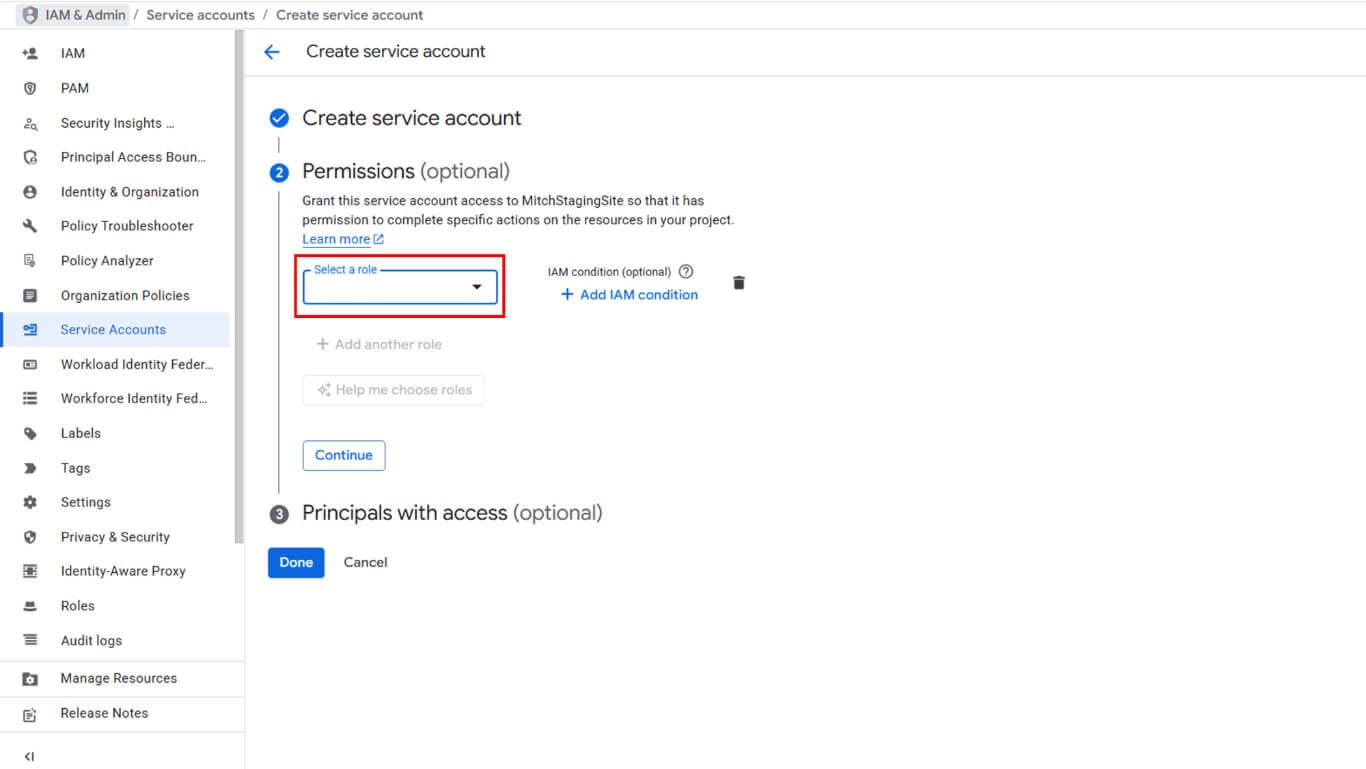
- Vaya a Básico en la jerarquía de funciones.
- Seleccione Propietario de las opciones de función.
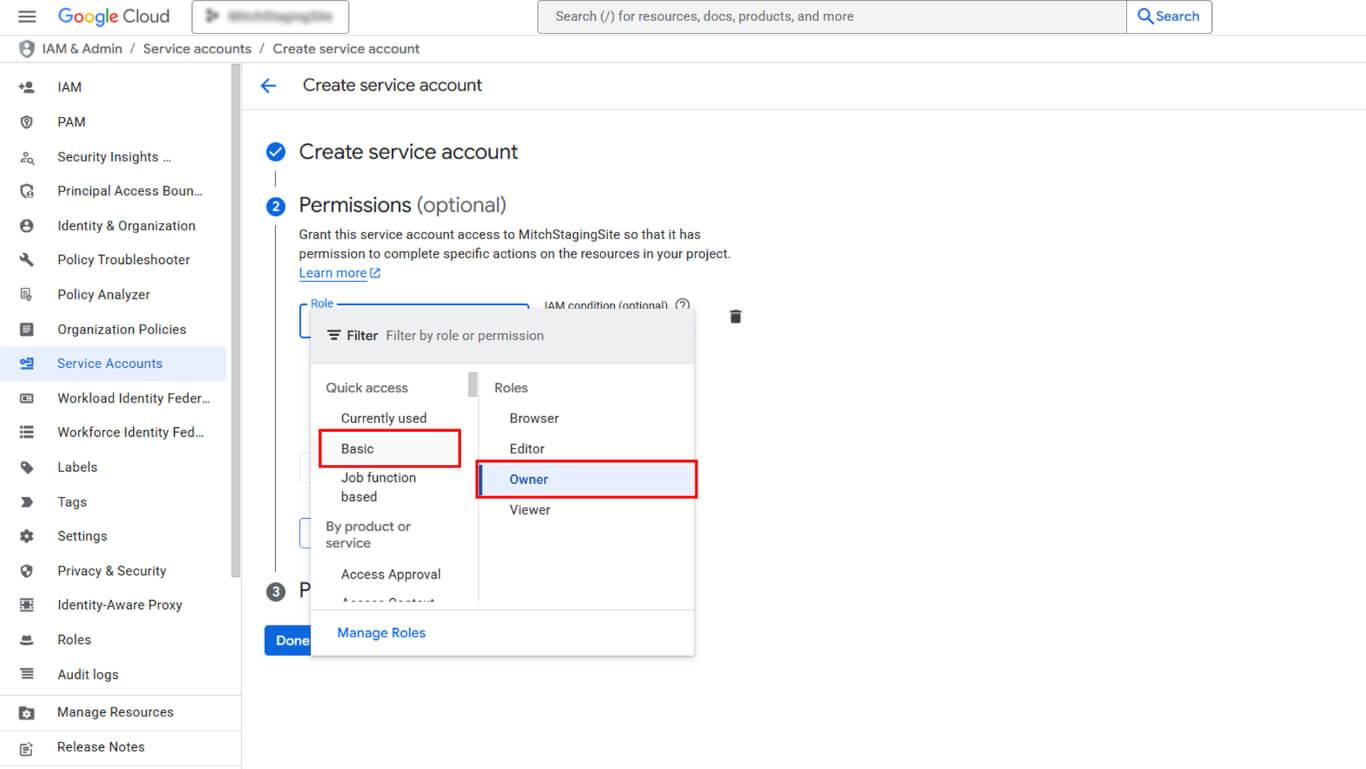
- Haga clic en Continúe en para proceder.
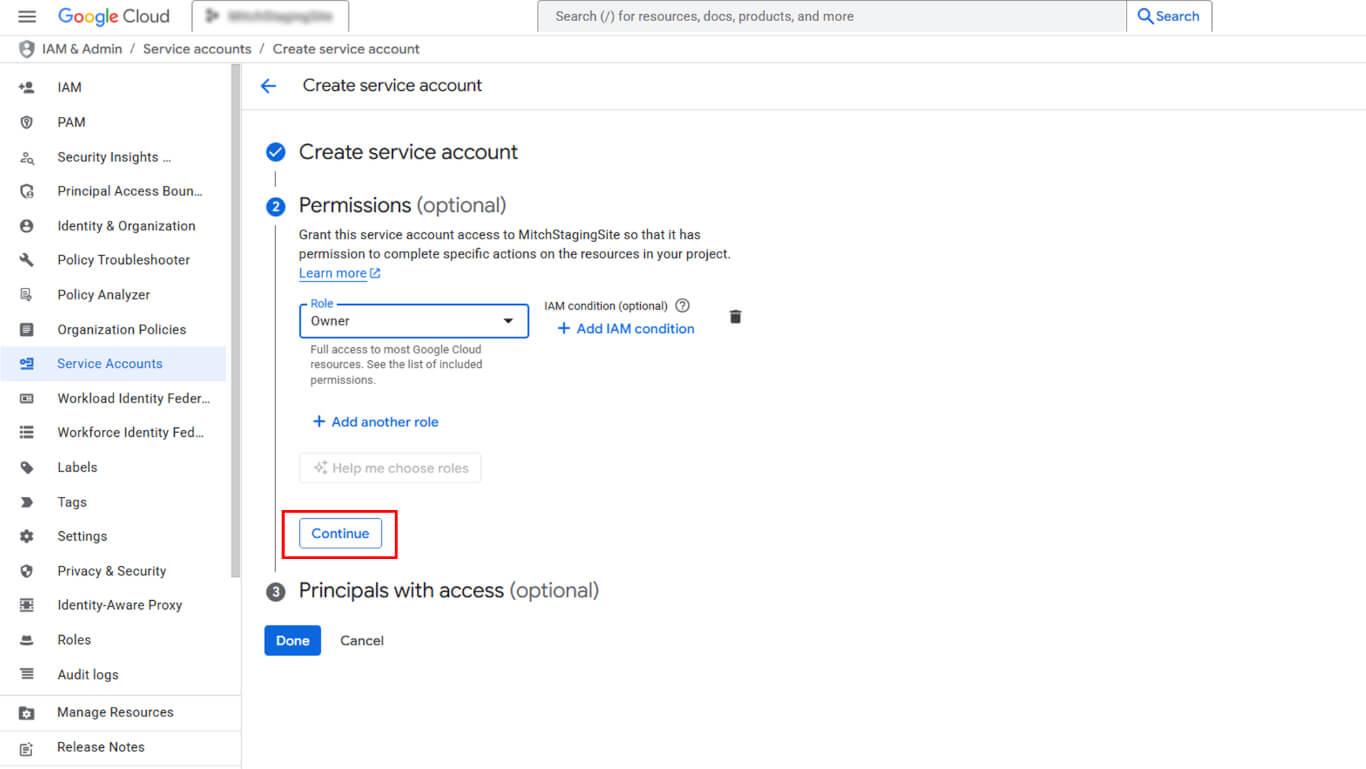
- Haga clic en Hecho para crear la cuenta de servicio.
Generar clave de cuenta de servicio
La generación de la clave de la cuenta de servicio crea el archivo JSON necesario para cargar WordPress.
- Vaya a API y servicios > Credenciales en la barra lateral de Google Cloud Console.
- Localice la cuenta de servicio creada en la lista Cuentas de servicio.
- Haga clic en el icono del lápiz situado junto al nombre de la cuenta de servicio.
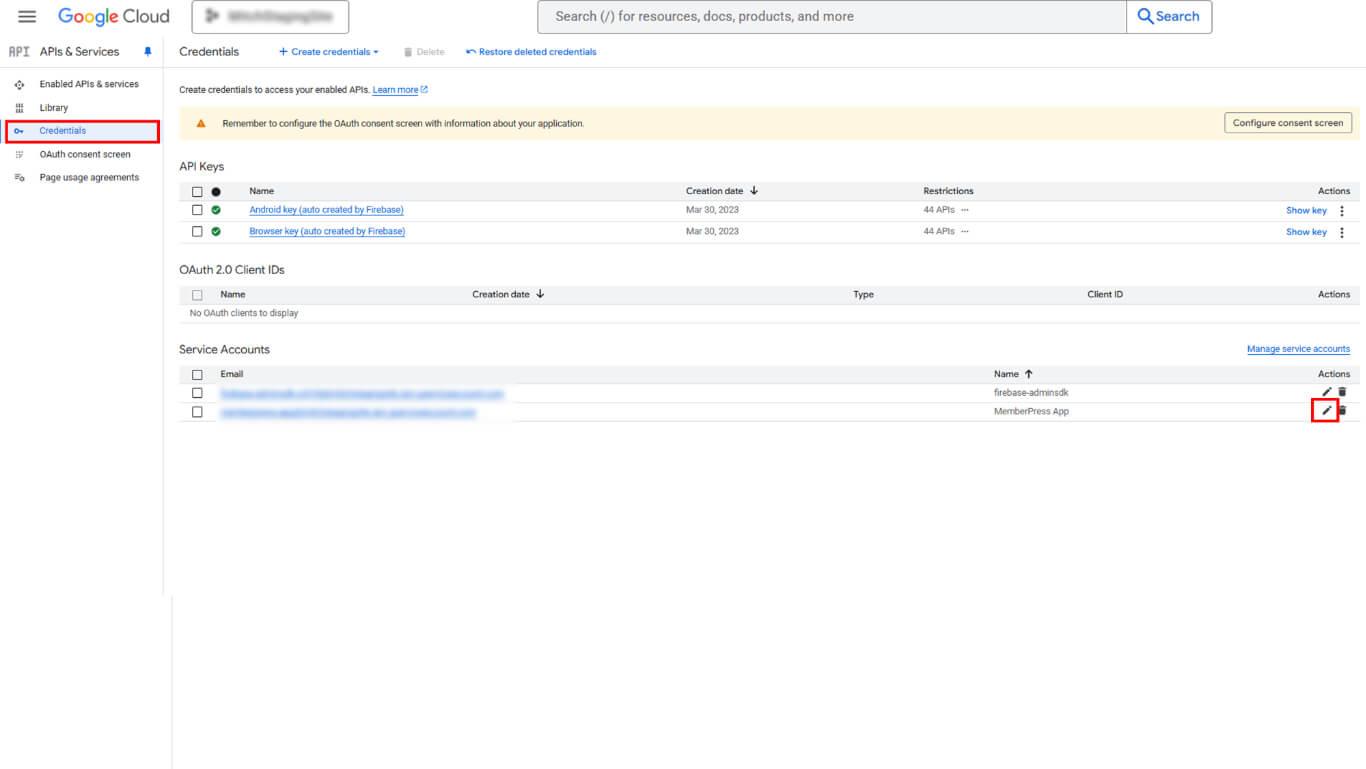
- Haga clic en el botón Claves ficha.
- Haga clic en el botón Añadir llave desplegable.
- Seleccione Crear nueva clave de las opciones.
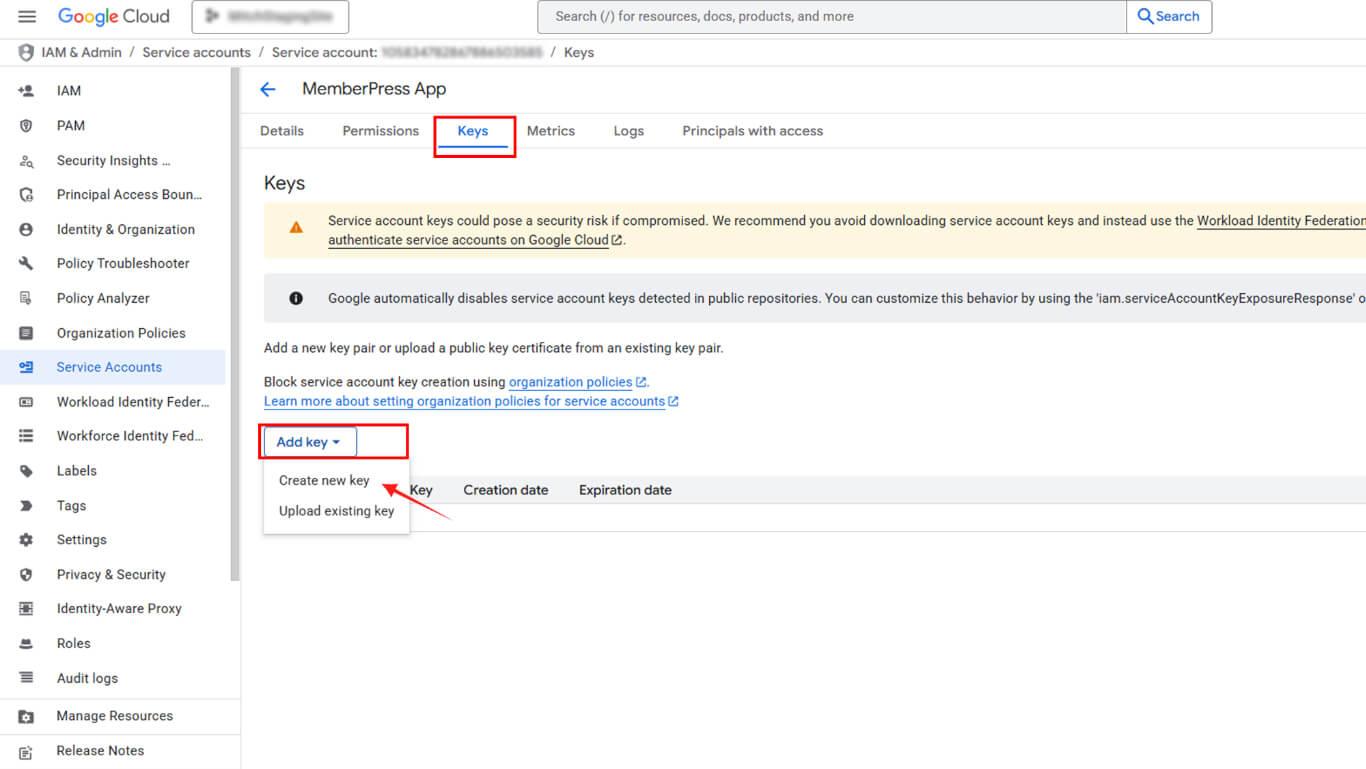
- Seleccione JSON como tipo de clave.
- Haga clic en Cree para generar y descargar la clave.
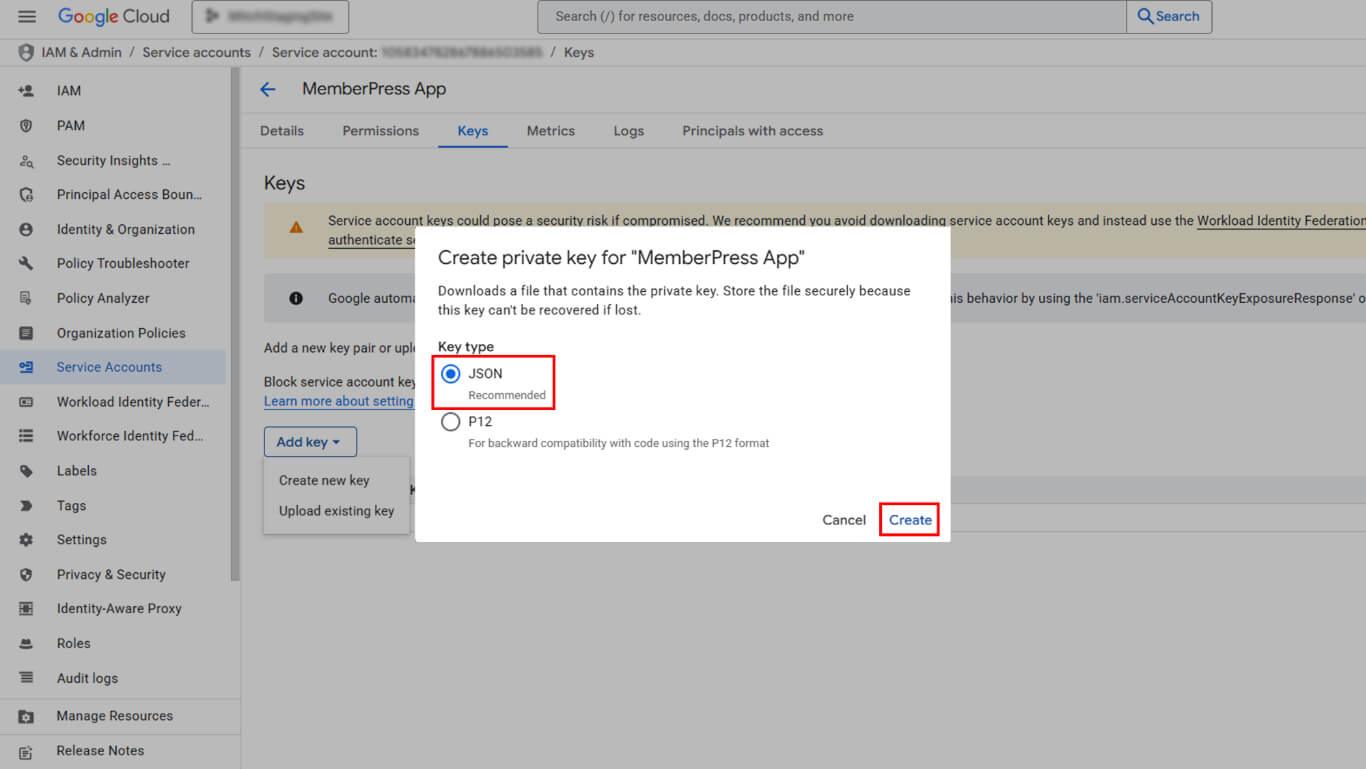
- Guarde el archivo JSON descargado de forma segura.
- Copie el Correo electrónico de la cuenta de servicio de la página de detalles.
Concesión de permisos de Play Console
Los permisos de cuenta de servicio permiten el acceso a la Consola de Reproducción para operaciones automatizadas.
- Accede a Google Play Console en play.google.com/console.
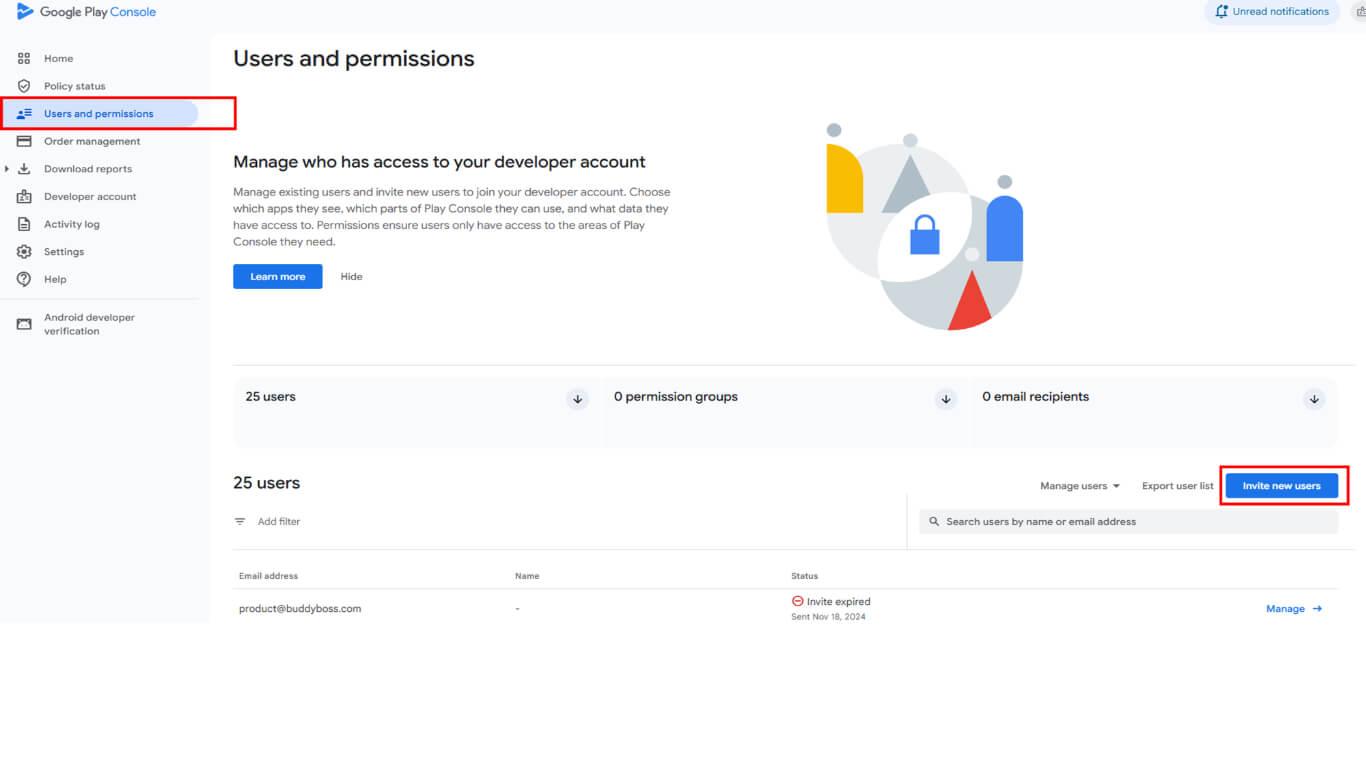
- Haga clic en Usuarios y permisos en la barra lateral izquierda.
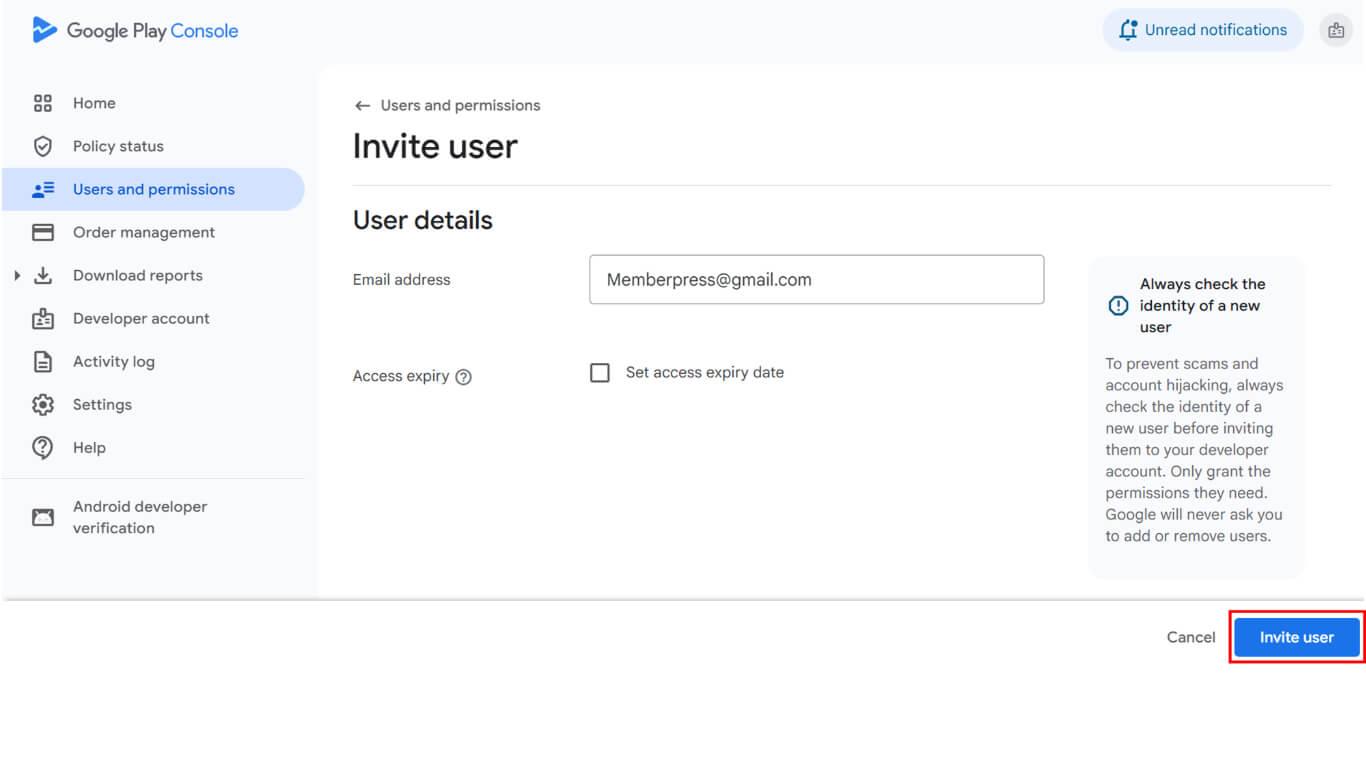
- Haga clic en el botón Invitar a nuevos usuarios botón.
- Pegue el correo electrónico de la cuenta de servicio en el campo Dirección de correo electrónico campo.
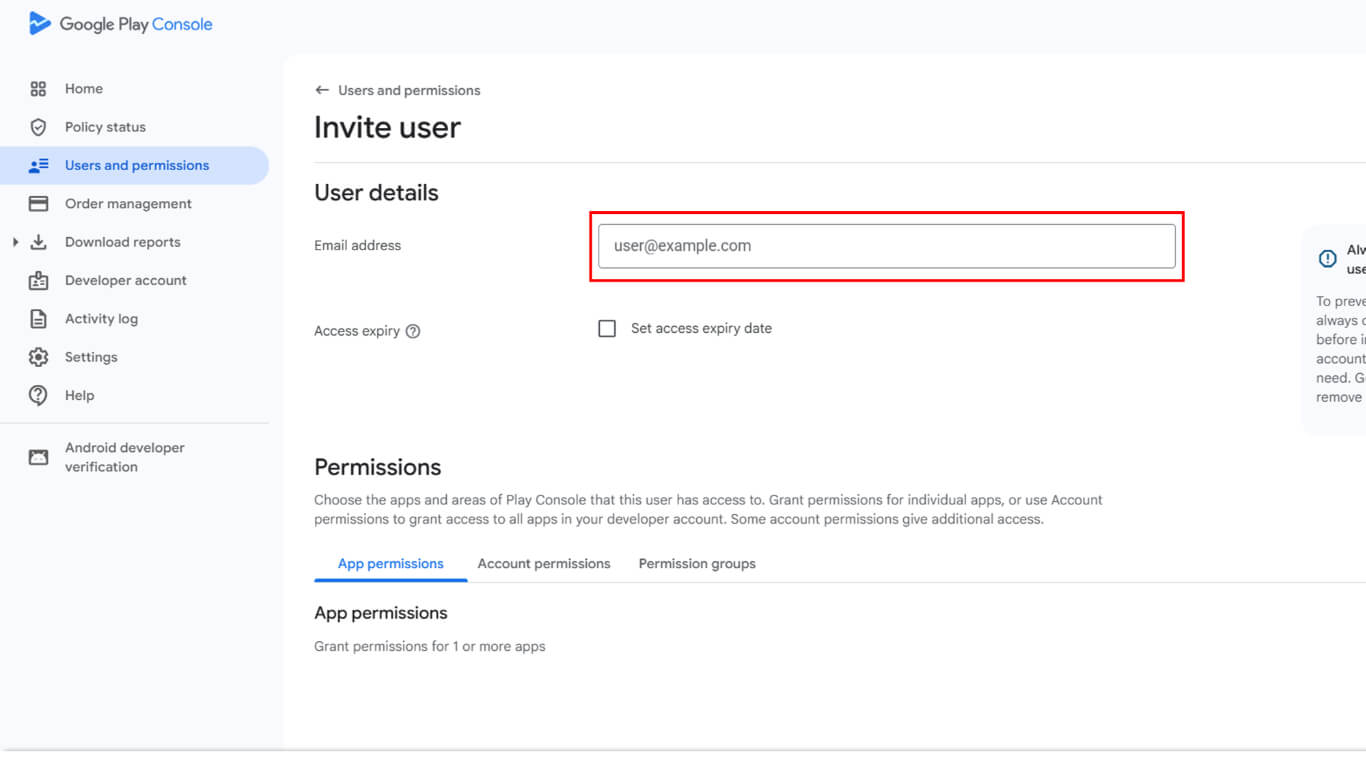
- Desplácese hasta el Permisos de la aplicación sección.
- Haga clic en Añadir aplicación para seleccionar aplicaciones accesibles.
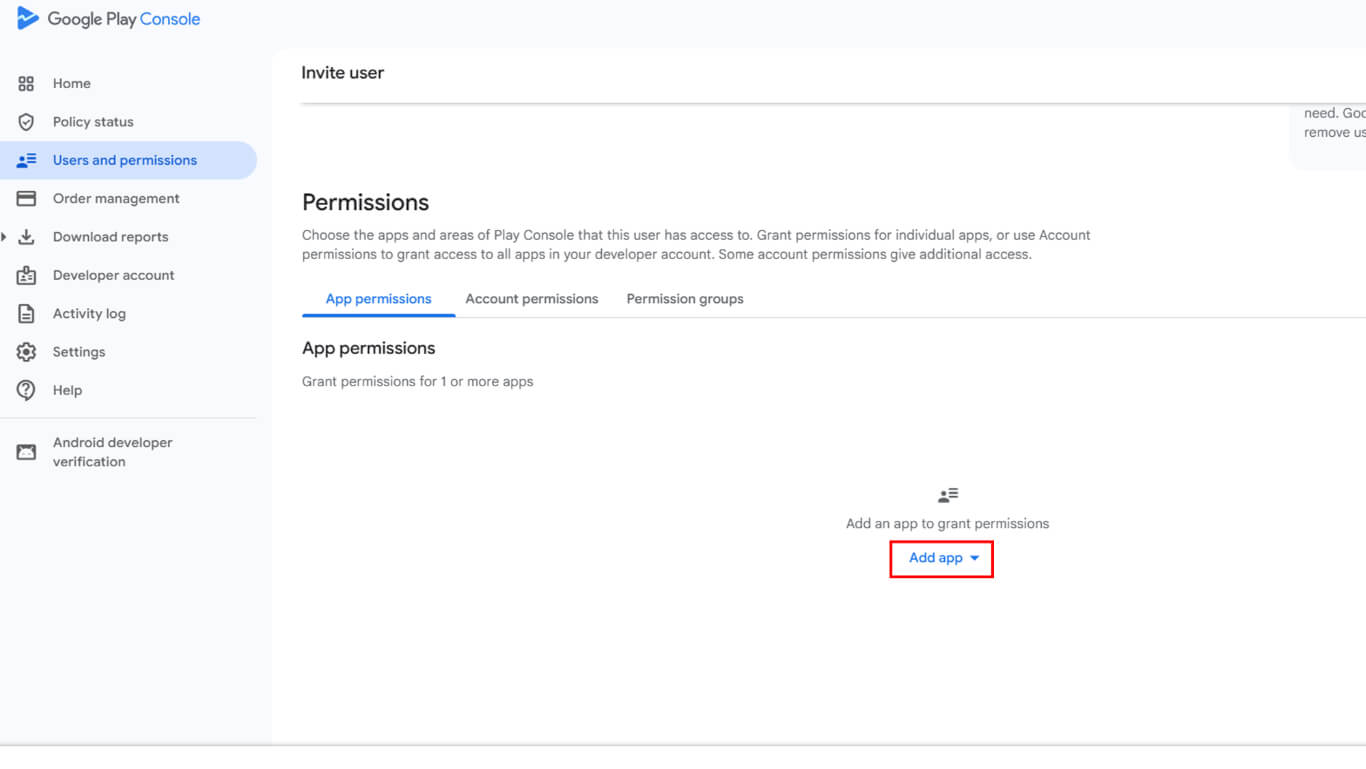
- Selecciona la aplicación de la lista de aplicaciones disponibles.
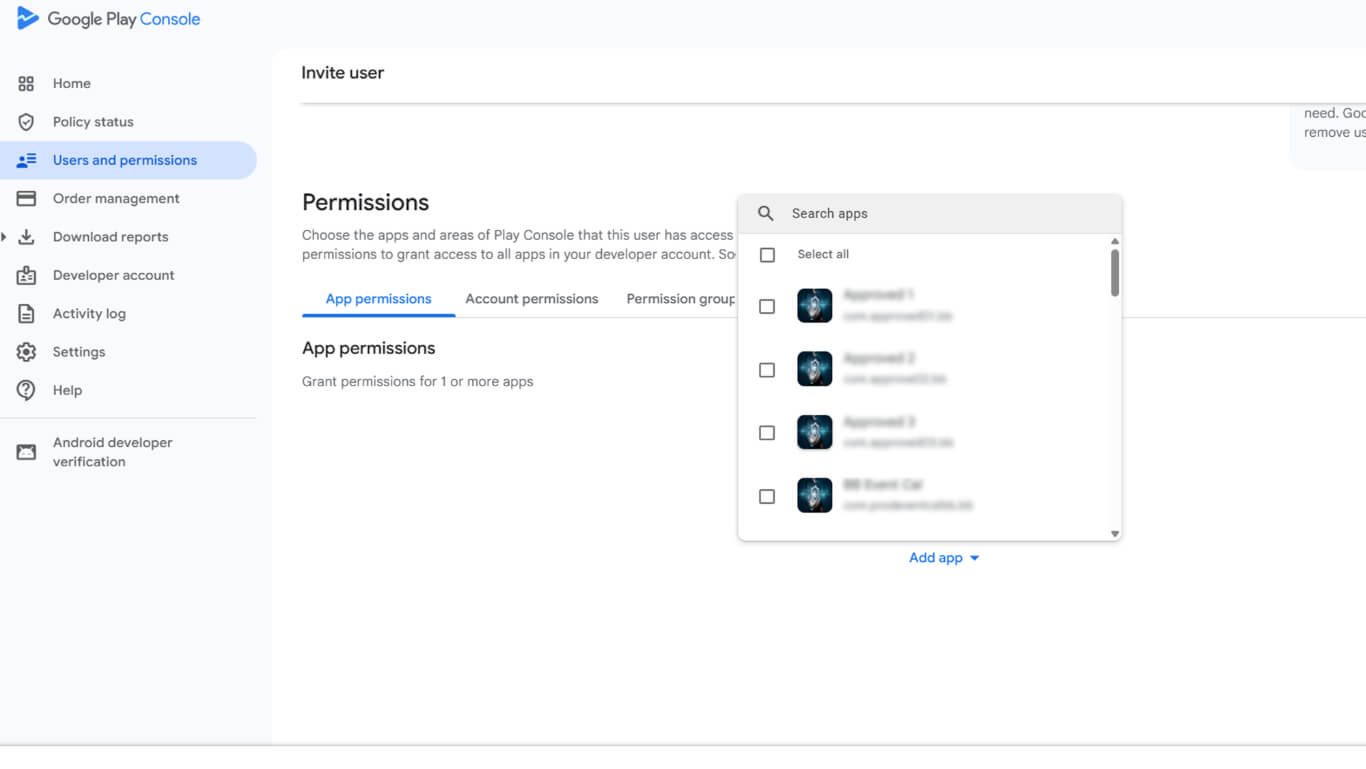
- Haga clic en Solicitar para confirmar la selección de la aplicación.
- Seleccione Admin en Permisos de cuenta para un acceso completo.
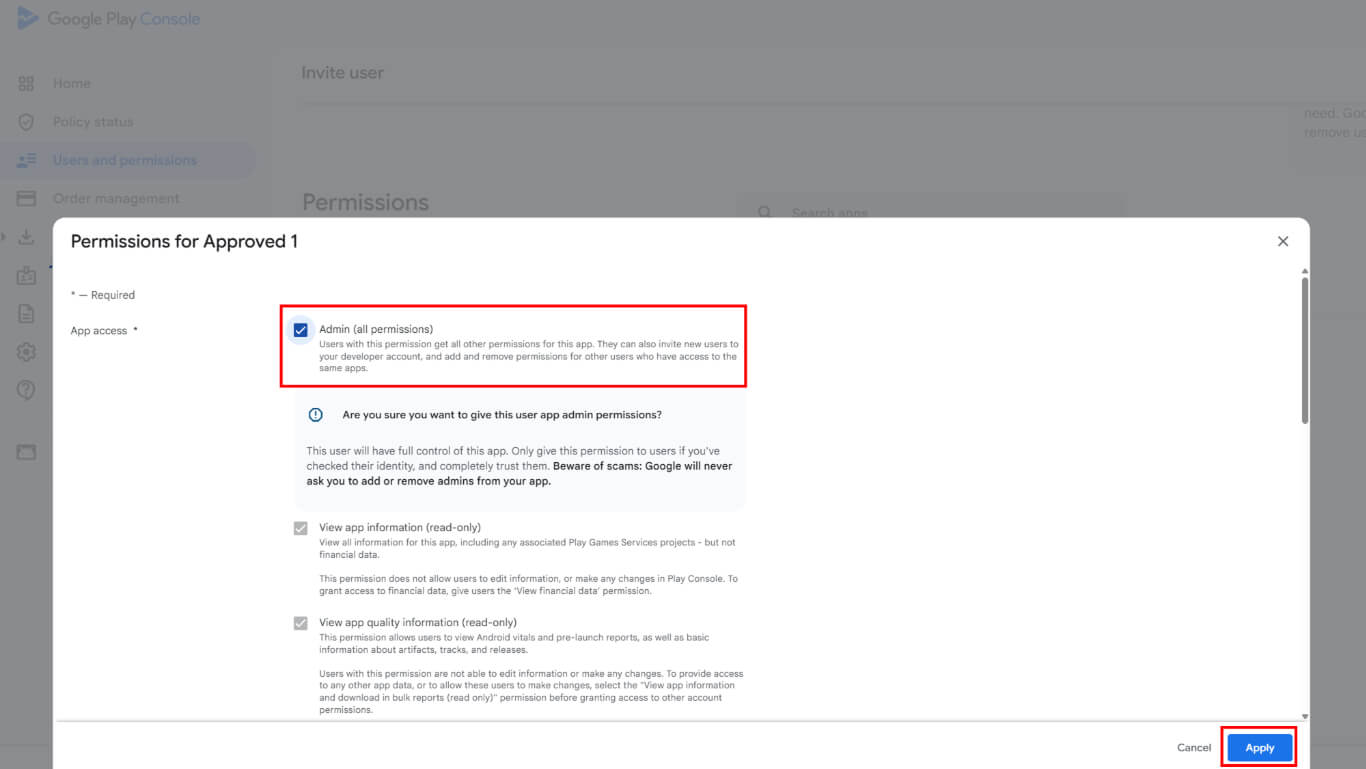
- Haga clic en Invitar usuario para enviar la invitación.
- Vaya a Usuarios de este grupo sección.
- Añade el usuario de la cuenta de servicio al grupo.
- Compruebe que la cuenta de servicio aparece con un Activo en la lista de usuarios.
Cargar la clave de la cuenta de servicio en WordPress
La carga de la clave de la cuenta de servicio conecta la cuenta de Google Developer con WordPress.
- Vaya a Panel > MP AppKit > Configurar > Ajustes de Android.
- Localice el Conecta tu cuenta de desarrollador de Google sección.
- Haga clic en Cargar archivo para abrir el selector de archivos.
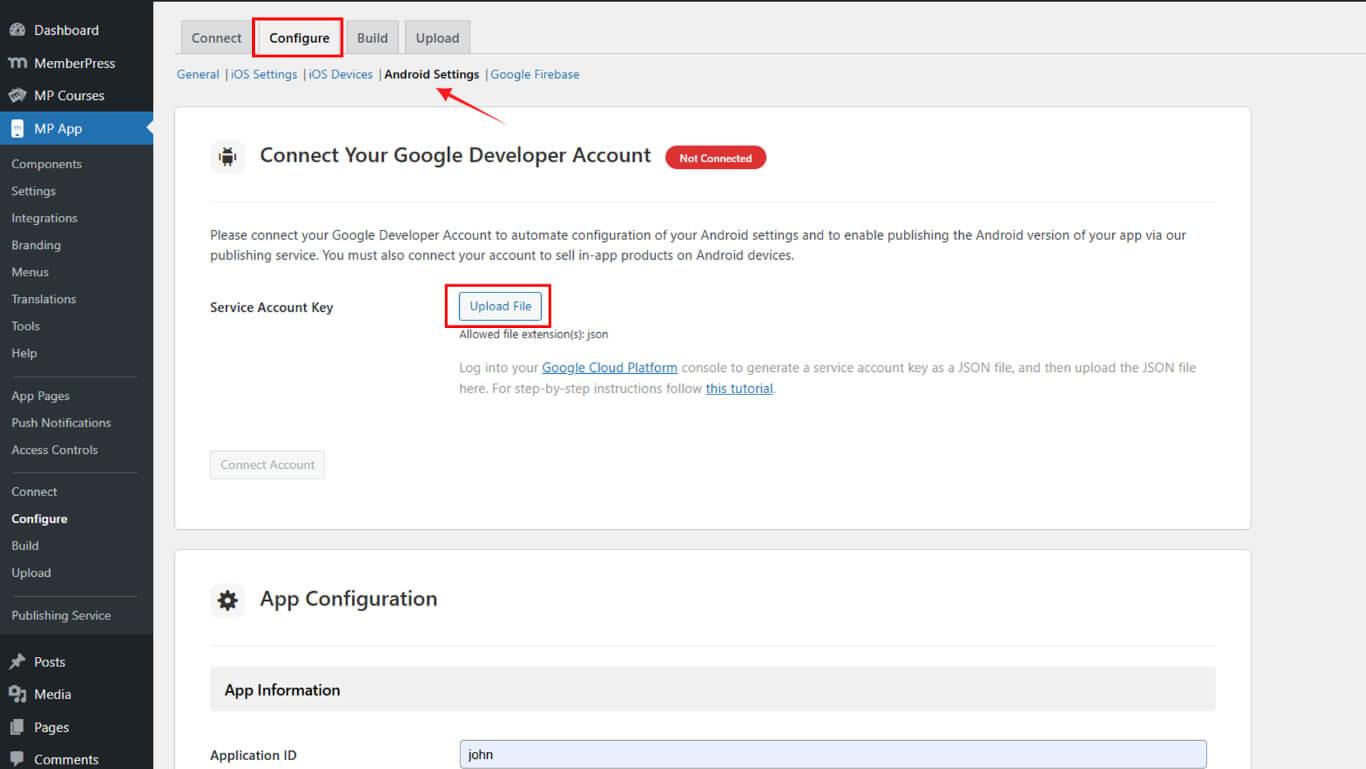
- Seleccione el archivo de claves JSON descargado del dispositivo.
- Haga clic en Conectar cuenta para establecer una conexión.
- Verificar el verde Conectado aparece el indicador.
El estado conectado confirma que la integración con la cuenta de desarrollador de Google se ha realizado correctamente.
Configuración de pruebas internas
La configuración de pruebas internas permite probar la aplicación antes de su lanzamiento público.
Navegación a las pruebas internas
- Accede a Google Play Console en play.google.com/console.
- Seleccione la aplicación en la página de inicio.
- Haga clic en Pruebas y lanzamiento > Pruebas internas en la barra lateral.
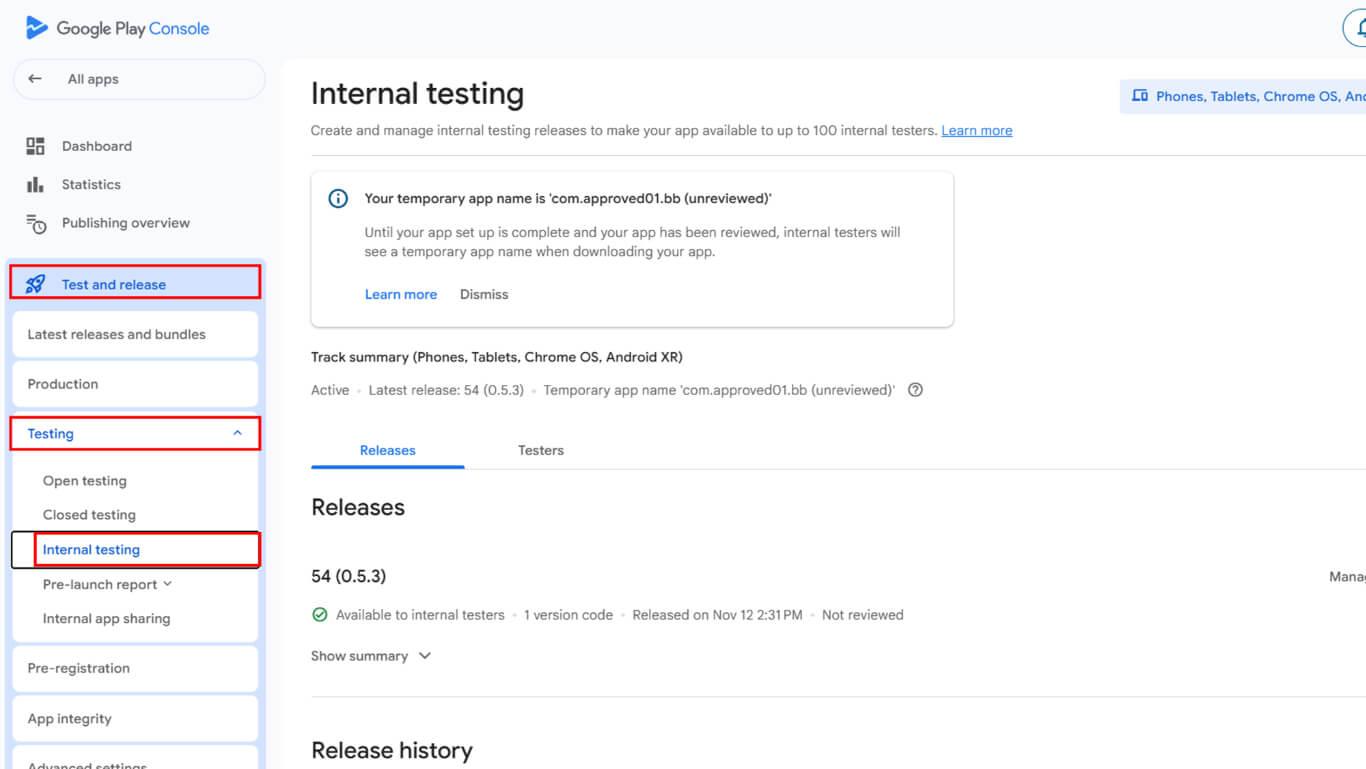
- Haga clic en Crear nueva pista si no existe ninguna pista.
- Añade direcciones de correo electrónico de probadores o grupos de Google en la sección de probadores.
- Introduzca una dirección URL o una dirección de correo electrónico para los informes de errores.
- Haga clic en Guardar para finalizar la configuración de la pista de pruebas.
Creación de una nueva versión
La creación de la versión prepara la aplicación para su distribución a los probadores.
- Vaya a Pruebas > Pruebas internas en Google Play Console.
- Haga clic en el botón Crear nueva versión botón.
- Localice el Firma de aplicaciones sección.
- Haga clic en Elija la clave de firma.
- Seleccione Utilizar la clave generada por Google opción.
- Confirme la selección de la clave de firma.
Google Play firma todos los lanzamientos utilizando la clave generada tras la confirmación de la selección.
Solicitud de construcción AAB
La solicitud de compilación de Android App Bundle se realiza a través de la interfaz de compilación de WordPress.
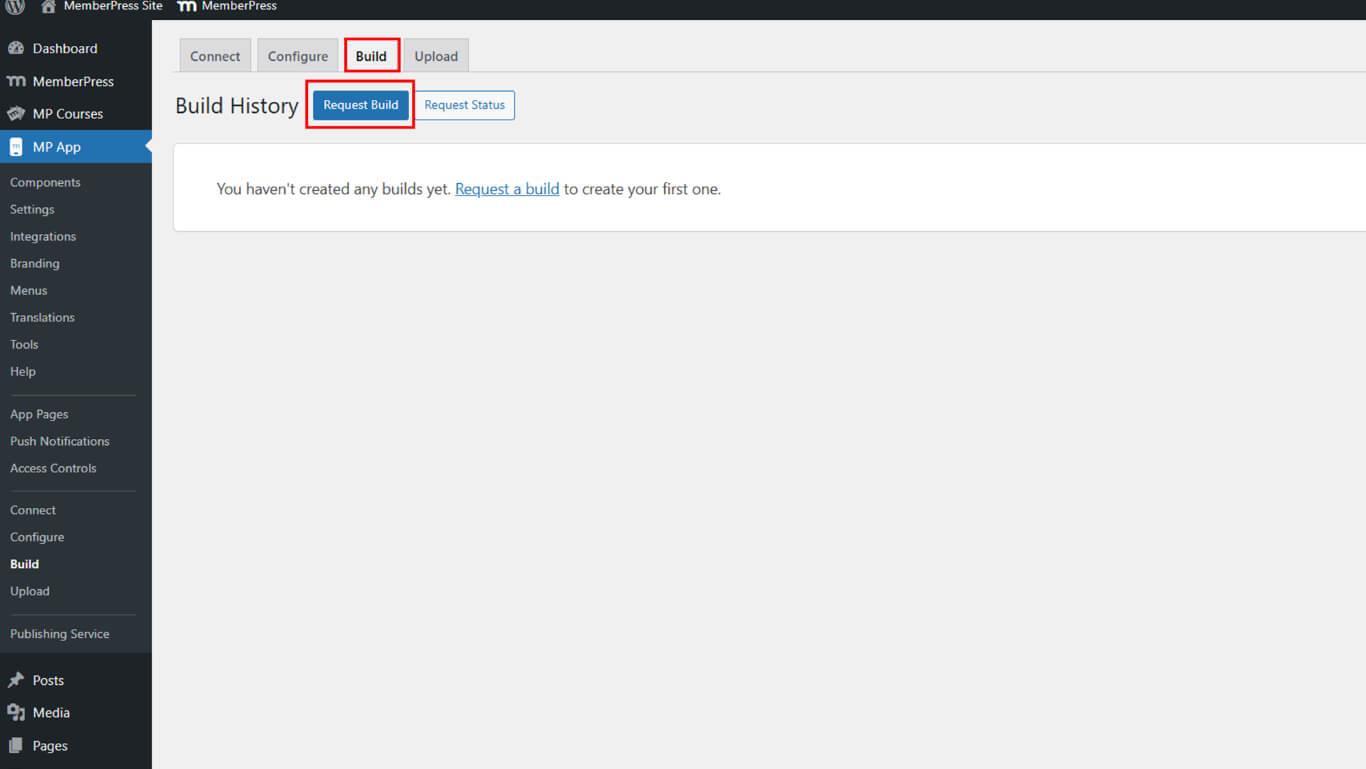
- Vaya a Panel > MP AppKit > Construir.
- Haga clic en el botón Solicitar construir botón.
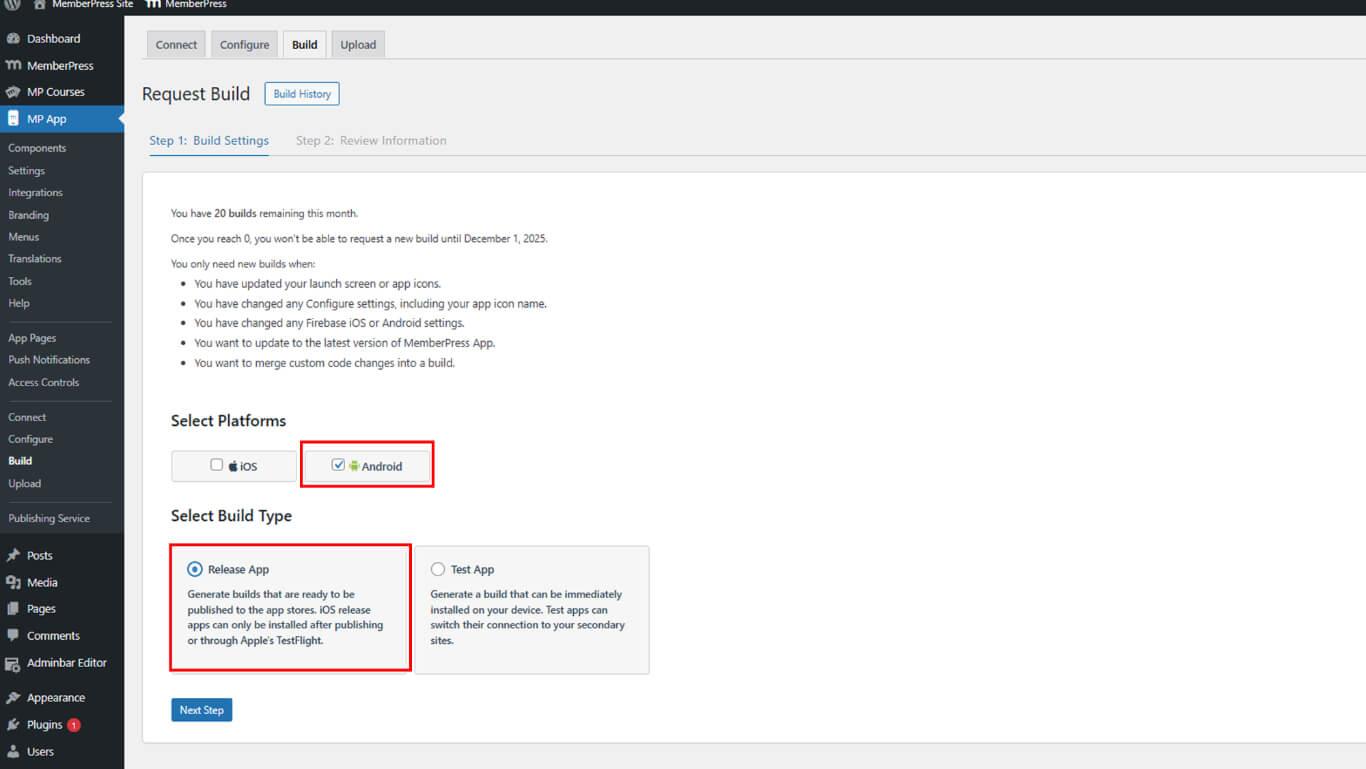
- Compruebe el Android como plataforma.
- Seleccione Liberar aplicación como tipo de construcción.
- Haga clic en Siguiente paso para proceder.
- Haga clic en Enviar solicitud de construcción para presentar la solicitud.
- Supervisar el estado de las solicitudes en Historia de la construcción.
La construcción suele completarse en 5-10 minutos tras el envío de la solicitud.
Carga de AAB en la consola Play
La carga del archivo AAB en Play Console completa la preparación de la liberación.
- Navegue hasta el Crear liberación en Google Play Console.
- Desplácese hasta el Paquetes de aplicaciones sección.
- Haga clic en Cargar para abrir la selección de archivos.
- Vaya a Panel > MP AppKit > Construcción > Historial de construcción en WordPress.
- Haga clic en Subir a Google Play Console junto a la construcción finalizada.
- Haga clic en Descargar construcción para guardar el archivo AAB.
- Vuelve al cuadro de diálogo de subida de Google Play Console.
- Seleccione el archivo AAB descargado del dispositivo.
- Espere a que se complete la carga.
- Compruebe que el paquete de aplicaciones cargado aparece en la versión.
Declaraciones obligatorias
Las declaraciones de metadatos deben completarse antes de la publicación.
- Revise los mensajes de error de metadatos mostrados.
- Haga clic en Declaración completa para abordar los requisitos.
- Vaya a la página de declaración del ID de publicidad.
- Respuesta Sí a “¿Su aplicación utiliza ID de publicidad?” si procede.
- Haga clic en Guardar para almacenar la declaración.
- Volver a la pantalla de desbloqueo.
- Haga clic en Guardar de nuevo para finalizar la liberación.
Las declaraciones completadas permiten la publicación en la vía de pruebas internas.










 ES
ES  EN
EN  FR
FR  DE
DE  PT
PT 