

El plugin MemberPress AppKit se conecta a WordPress, permitiendo la funcionalidad de aplicaciones móviles para el contenido de la membresía. Este documento explica cómo instalar el plugin MemberPress AppKit, vincularlo a WordPress con credenciales de licencia y verificar que la conexión se ha realizado correctamente.
Comprender MemberPress AppKit Conexión
El plugin MemberPress AppKit proporciona el puente entre el contenido de membresía de WordPress y las aplicaciones móviles. La instalación del plugin añade la funcionalidad necesaria para la configuración de la app, la generación de builds y la sincronización de contenidos. La autenticación de la clave de licencia conecta el sitio de WordPress con los servicios de MemberPress AppKit.
Descarga de MemberPress AppKit Plugin
La descarga del plugin se realiza a través del panel de control de la cuenta MemberPress.
- Inicie sesión en la cuenta MemberPress en el portal de cuentas.
- Vaya a Cuadro de mandos > Descargas.
- Localice el plugin MemberPress AppKit en la lista de descargas.
- Haga clic en Descargar para guardar el archivo ZIP del plugin.
Instalación de MemberPress AppKit Plugin
La instalación del plugin añade la funcionalidad MemberPress AppKit a WordPress.
- Inicie sesión en el panel de control de WordPress.
- Vaya a Plugins > Añadir nuevo plugin.
- Haga clic en el botón Subir Plugin en la parte superior de la página.
- Haga clic en Elegir archivo para abrir la selección de archivos.
- Seleccione el archivo ZIP del plugin MemberPress AppKit descargado.
- Haga clic en Instalar ahora para iniciar la instalación.
- Haga clic en Activar una vez finalizada la instalación.
Obtención de MemberPress AppKit Clave de licencia
La recuperación de la clave de licencia permite la conexión del plugin a los servicios MemberPress.
- Inicie sesión en la cuenta MemberPress en el portal de cuentas.
- Navegue hasta el Suscripciones sección.
- Localice la suscripción MemberPress AppKit.
- Haga clic en Gestione junto a la suscripción.
- Copie el Clave de licencia en la página.
Conexión de MemberPress AppKit
La introducción de la clave de licencia establece una conexión entre su sitio web y los servicios AppKit de MemberPress.
- Vaya a Panel > MP AppKit > Conectar.
- Localice el Clave de licencia campo.
- Pegue la clave de licencia copiada en el campo.
- Haga clic en Conectar para establecer una conexión.
- Espere al mensaje de confirmación de conexión.
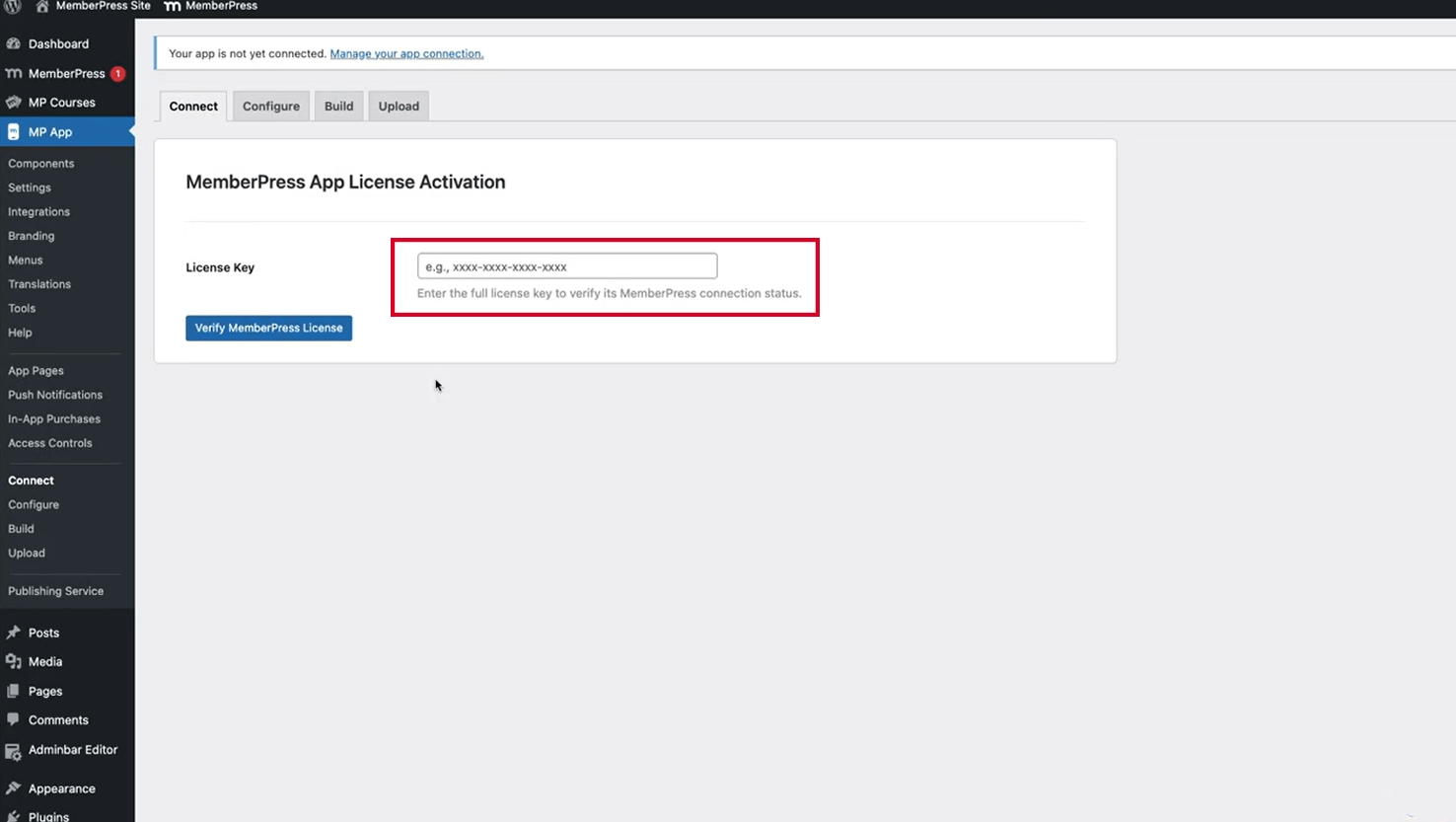
La confirmación de la conexión indica que la activación del complemento y el acceso al servicio se han realizado correctamente. El complemento ya está listo para la configuración de la aplicación y la generación de compilaciones.
Verificación del estado de la conexión
La verificación de la conexión confirma la correcta configuración del plugin.
- Vaya a Panel > MP AppKit.
- Compruebe que la página Conectar muestra el estado conectado.
- Compruebe que los elementos del menú MemberPress AppKit aparecen en la barra lateral del panel de control.
- Vaya a Panel de control > MP AppKit > Configuración para confirmar el acceso.
- Compruebe que las páginas de configuración se cargan sin errores de conexión.
Una conexión correcta permite acceder a todas las interfaces de configuración de MemberPress AppKit, incluidas las secciones Componentes, Configuración, Construcción y Menús.










 ES
ES  EN
EN  FR
FR  DE
DE  PT
PT 