

La navegación personalizada mejora la participación del usuario mostrando opciones de menú relevantes basadas en los atributos de los miembros. Las distintas versiones del menú permiten diferentes estructuras de navegación para invitados que han cerrado sesión, usuarios registrados y grupos de acceso específicos.
Este documento explica cómo crear variaciones de menú, configurar el estilo de los menús y gestionar la prioridad de los menús cuando los afiliados pueden optar a varias versiones.
Comprender las versiones de varios menús
Las múltiples versiones del menú permiten experiencias de navegación personalizadas dentro de la aplicación. Cada versión del menú se muestra a los miembros que cumplen criterios específicos, como el estado de inicio de sesión o la pertenencia a un grupo de acceso. La barra de pestañas proporciona la navegación principal en la parte inferior de la pantalla, mientras que el menú Más ofrece opciones de navegación secundarias. Ambos tipos de menú admiten múltiples versiones adaptadas a distintos segmentos de afiliados.
Creación de menús para usuarios desconectados
Los menús de miembros desconectados se muestran a los invitados que no se han autenticado. Estos menús suelen incluir opciones de inicio de sesión, registro e información pública.
- Vaya a Panel > MP AppKit > Menús > Barra de pestañas o Más menú.
- Haga clic en Crear un nuevo menú.
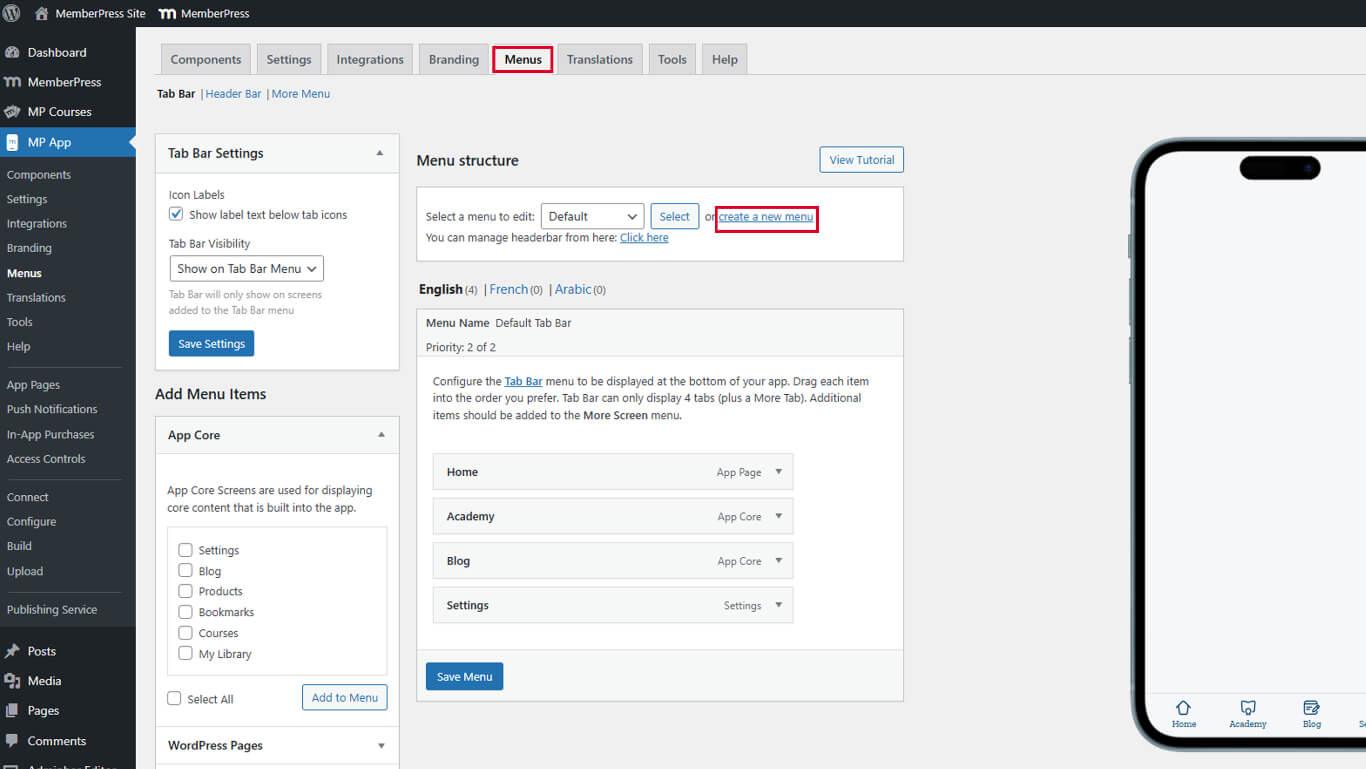
- Introduzca un nombre descriptivo en el campo Nombre del menú campo.
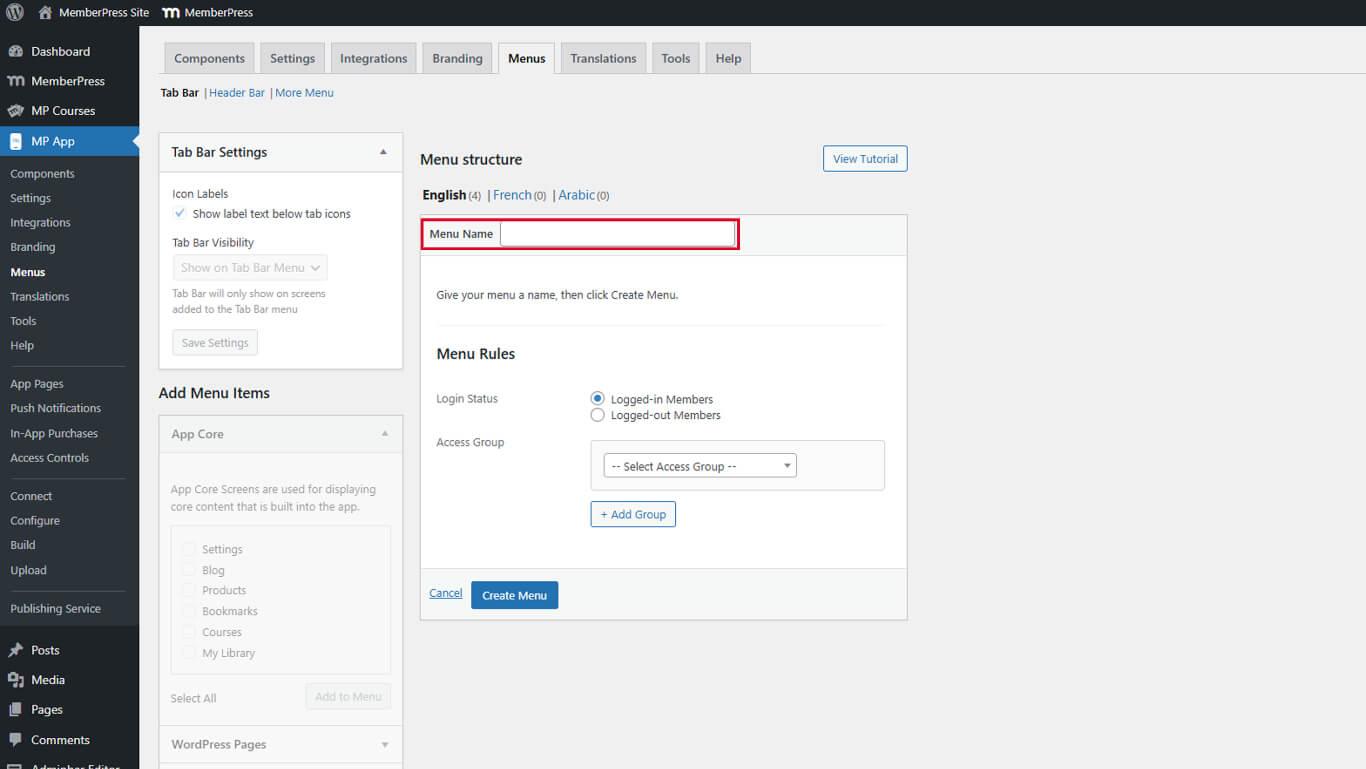
- Seleccione Miembros desconectados del Estado de la conexión desplegable.
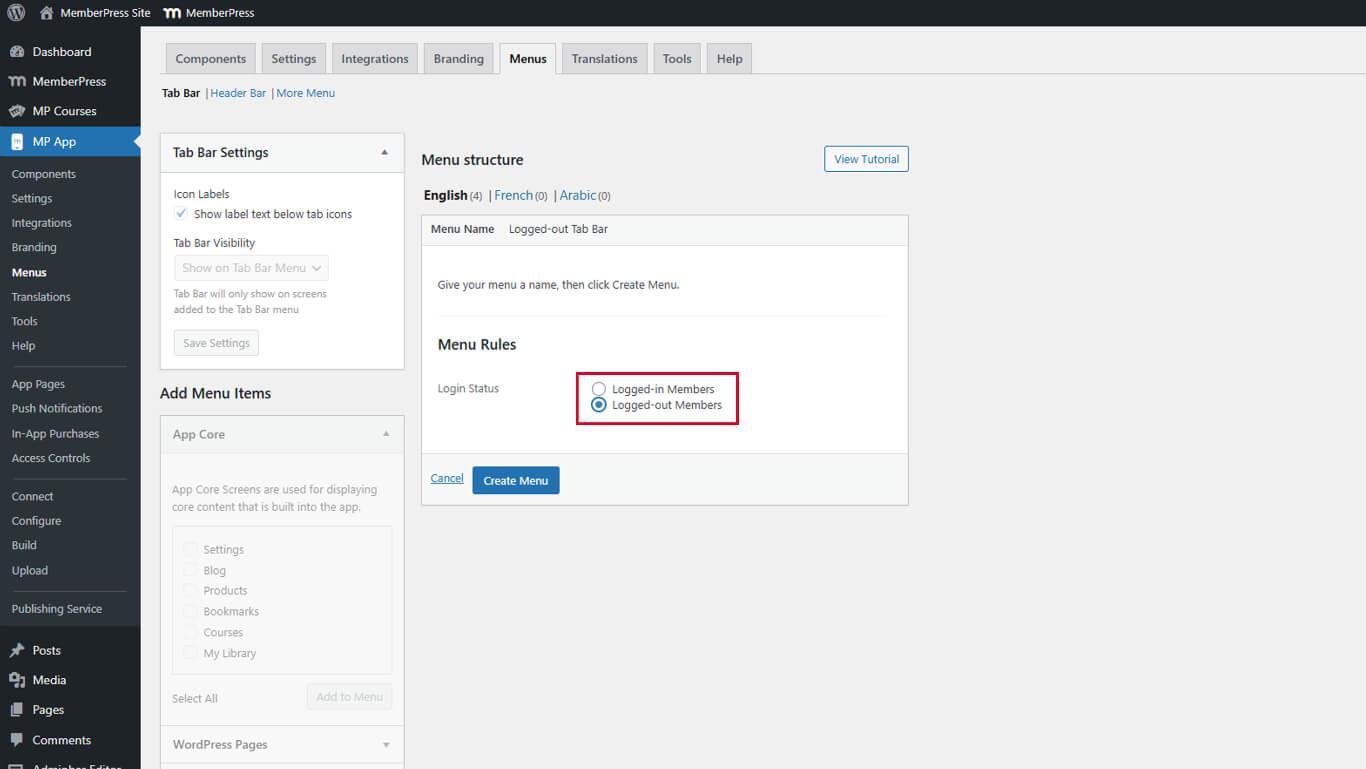
- Haga clic en Crear menú.
- Haga clic en Añadir elementos de menú para seleccionar las opciones de navegación.
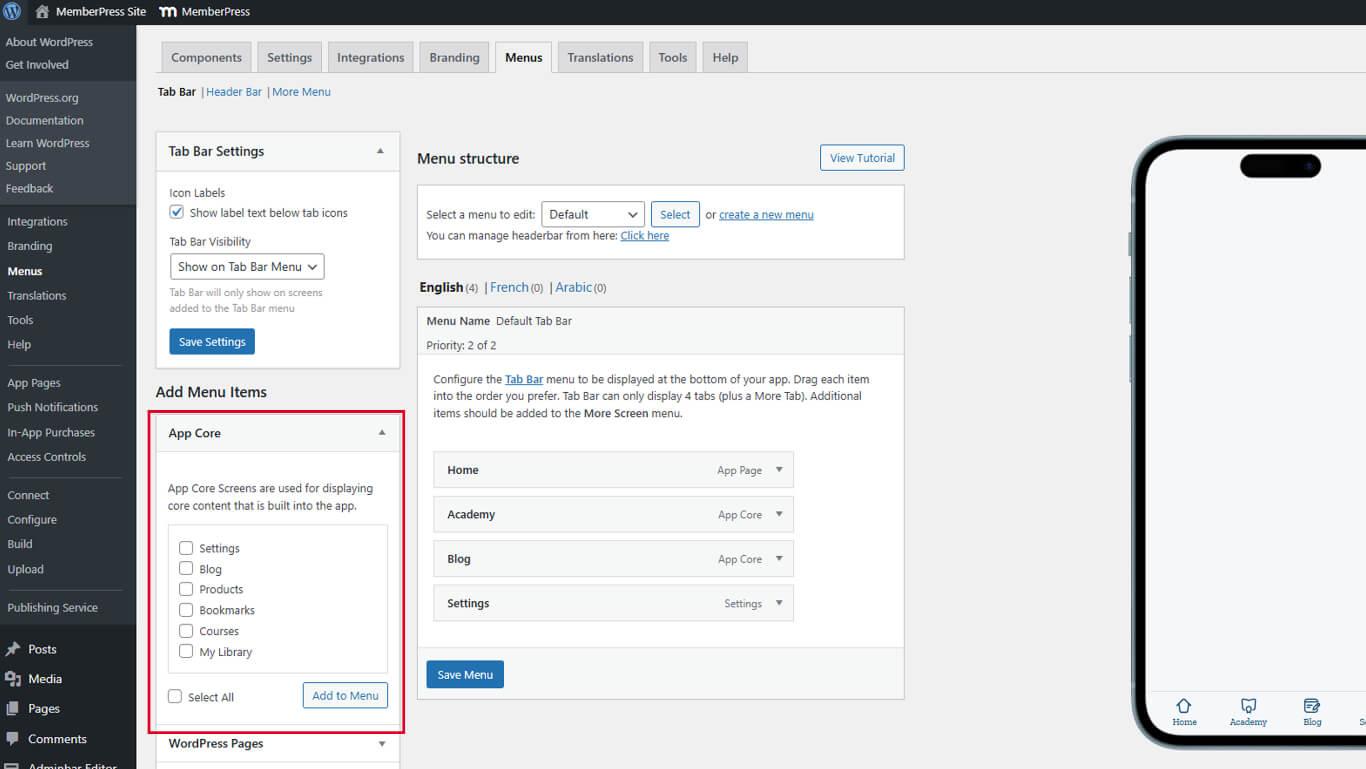
- Arrastra los elementos del menú para organizar el orden de visualización.
- Haga clic en el botón Guardar menú.
Requisitos de visibilidad del menú de invitados
Los menús de invitados sólo se muestran cuando la opción Aplicación privada está desactivada.
- Vaya a Panel > MP AppKit > Ajustes > General > Privacidad.
- Verifique el Aplicación privada no está marcada.
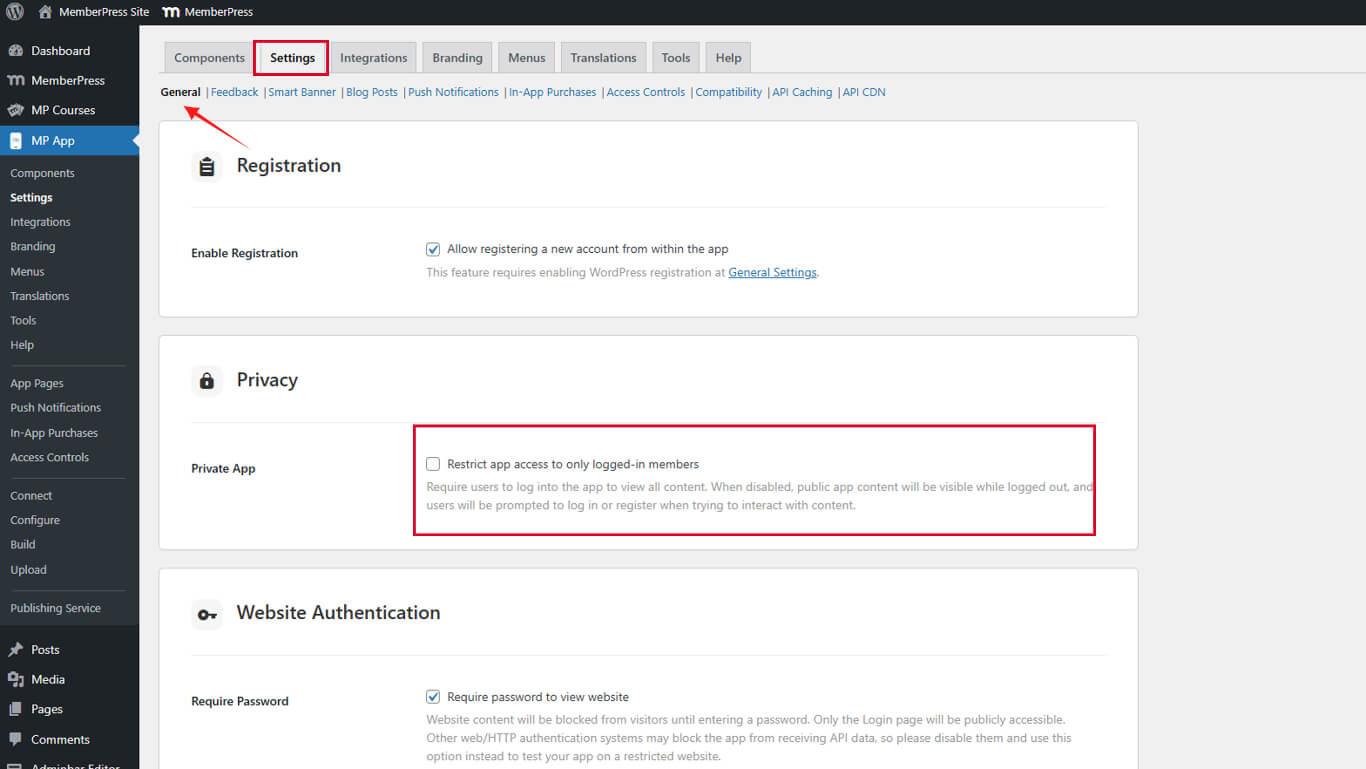
- Haga clic en Guardar cambios si se han hecho modificaciones.
Creación de menús para usuarios registrados
Los menús de los miembros registrados se muestran a los usuarios autenticados. Estos menús pueden personalizarse en función de la pertenencia a Access Group.
- Vaya a Panel > MP AppKit > Menús > Barra de pestañas o Más menú.
- Haga clic en Crear un nuevo menú.
- Introduzca un nombre descriptivo en el campo Nombre del menú campo.
- Seleccione Miembros conectados del Estado de la conexión desplegable.
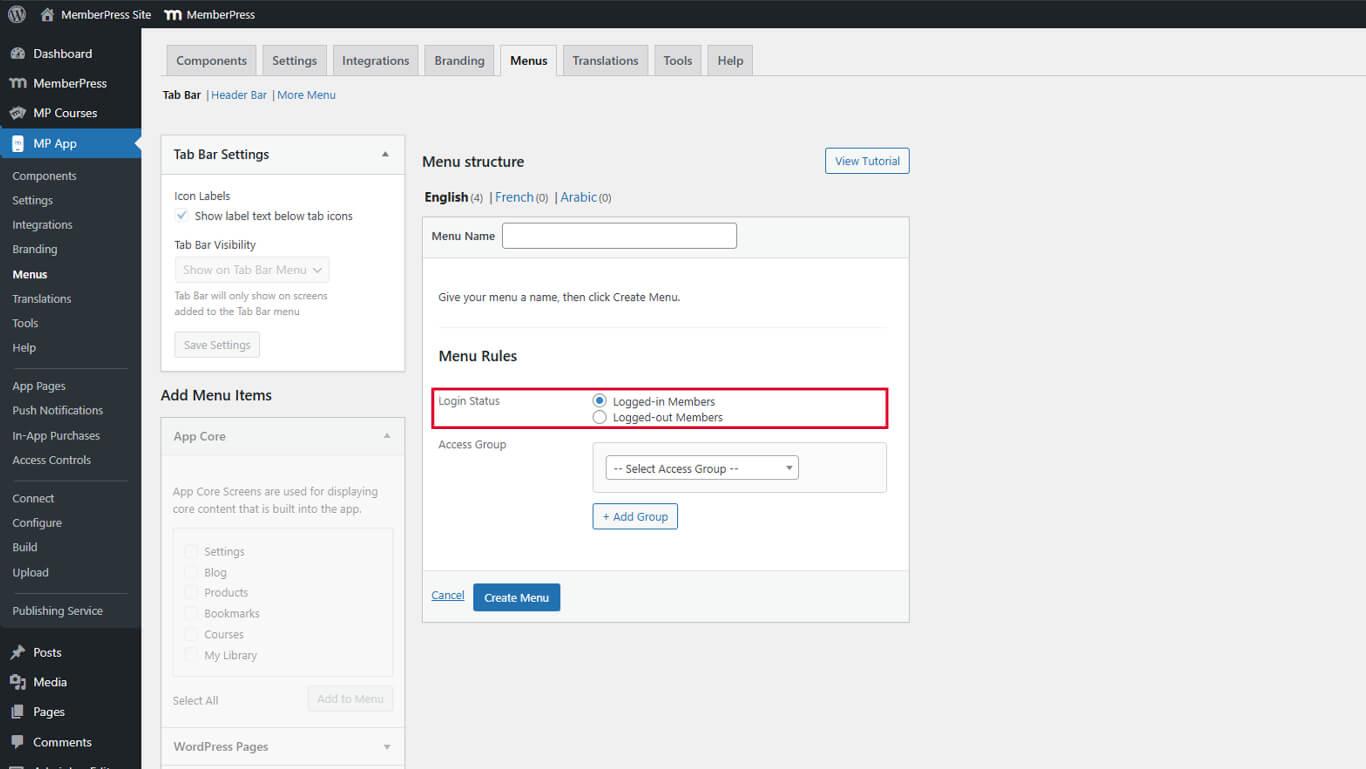
- Haga clic en Crear menú.
- Haga clic en Añadir elementos de menú para seleccionar las opciones de navegación.
- Arrastra los elementos del menú para organizar el orden de visualización.
- Haga clic en el botón Guardar menú.
Este menú se muestra a todos los usuarios autenticados, independientemente de su pertenencia a Access Group. Utilice esta opción para la navegación común a todos los miembros conectados.
Configuración del estilo de la barra de pestañas
El estilo de la barra de pestañas controla el aspecto de todas las versiones del menú de la barra de pestañas.
- Vaya a Panel > MP AppKit > Menús > Barra de pestañas.
- Toggle Etiquetas con iconos para mostrar u ocultar etiquetas de texto debajo de los iconos.
- Establecer Visibilidad de la barra de pestañas:
- Mostrar en el menú de la barra de pestañas muestra la barra de pestañas sólo en las pantallas designadas;
- Mostrar en todas las pantallas muestra la barra de pestañas en toda la aplicación.
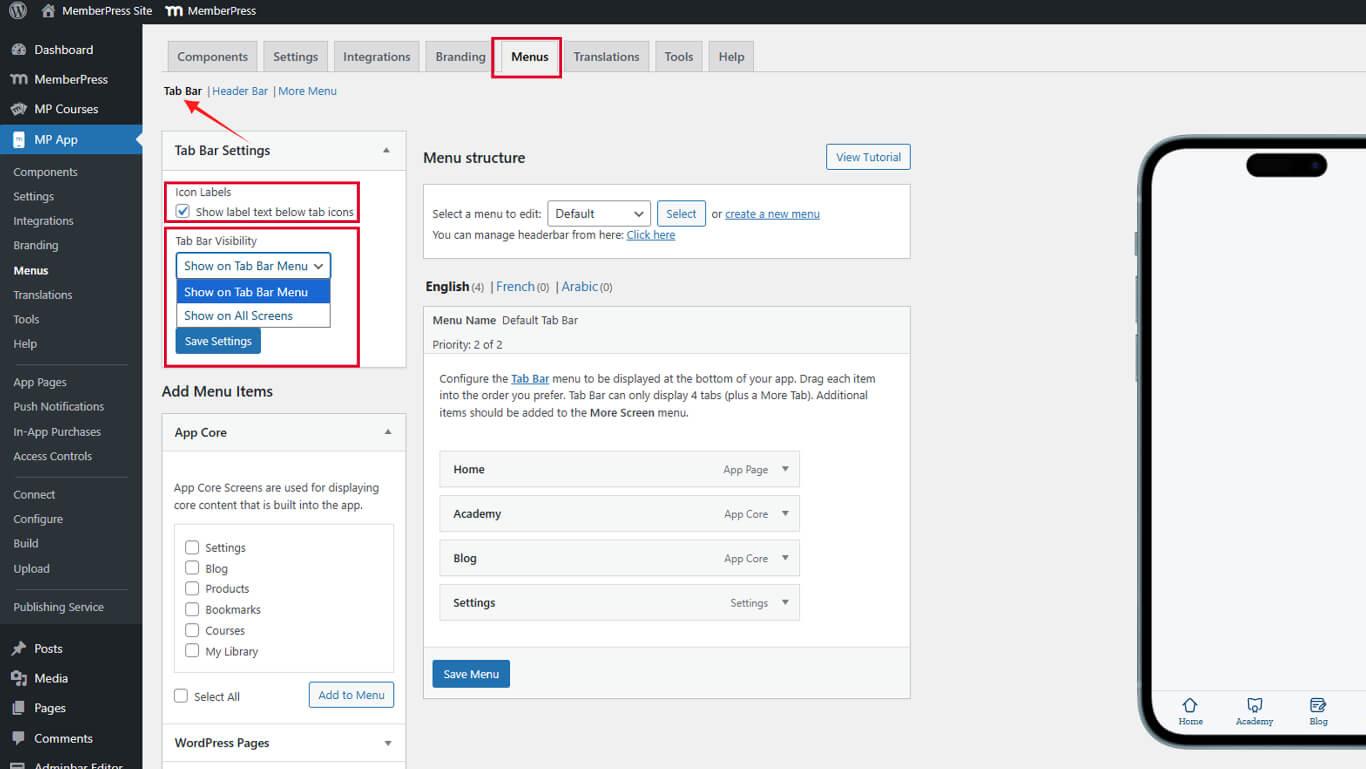
- Haga clic en Guardar configuración.










 ES
ES  EN
EN  FR
FR  DE
DE  PT
PT 