

El modo de mantenimiento restringe temporalmente el acceso a la aplicación durante las actualizaciones, la resolución de problemas o las modificaciones del backend. Los usuarios ven una pantalla de espera con la marca durante los periodos de mantenimiento.
Este documento explica cómo activar el modo de mantenimiento, personalizar la pantalla de mantenimiento y restaurar el acceso normal a la aplicación.
Comprender el modo de mantenimiento
El modo de mantenimiento evita la interacción del usuario y mantiene la coherencia de la marca. La pantalla de mantenimiento muestra el logotipo de la aplicación, el color de fondo y un mensaje personalizable. Esta función permite realizar trabajos técnicos sin exponer cambios incompletos ni interrumpir la experiencia del usuario.
Activación del modo de mantenimiento
La activación del modo de mantenimiento restringe inmediatamente el acceso a la aplicación para todos los usuarios.
- Vaya a Panel > MP AppKit > Configurar > General.
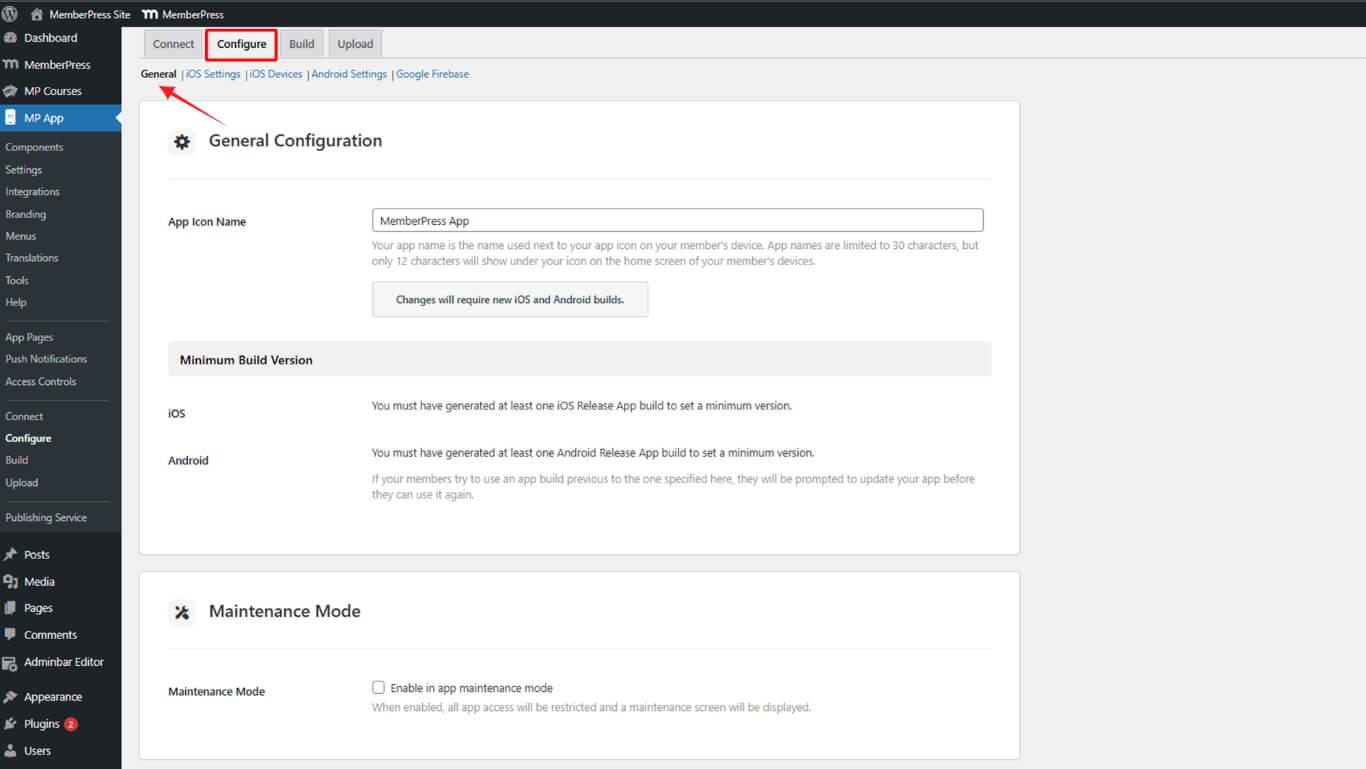
- Desplácese hasta el Modo de mantenimiento sección.
- Compruebe el Activar el modo de mantenimiento casilla de verificación.
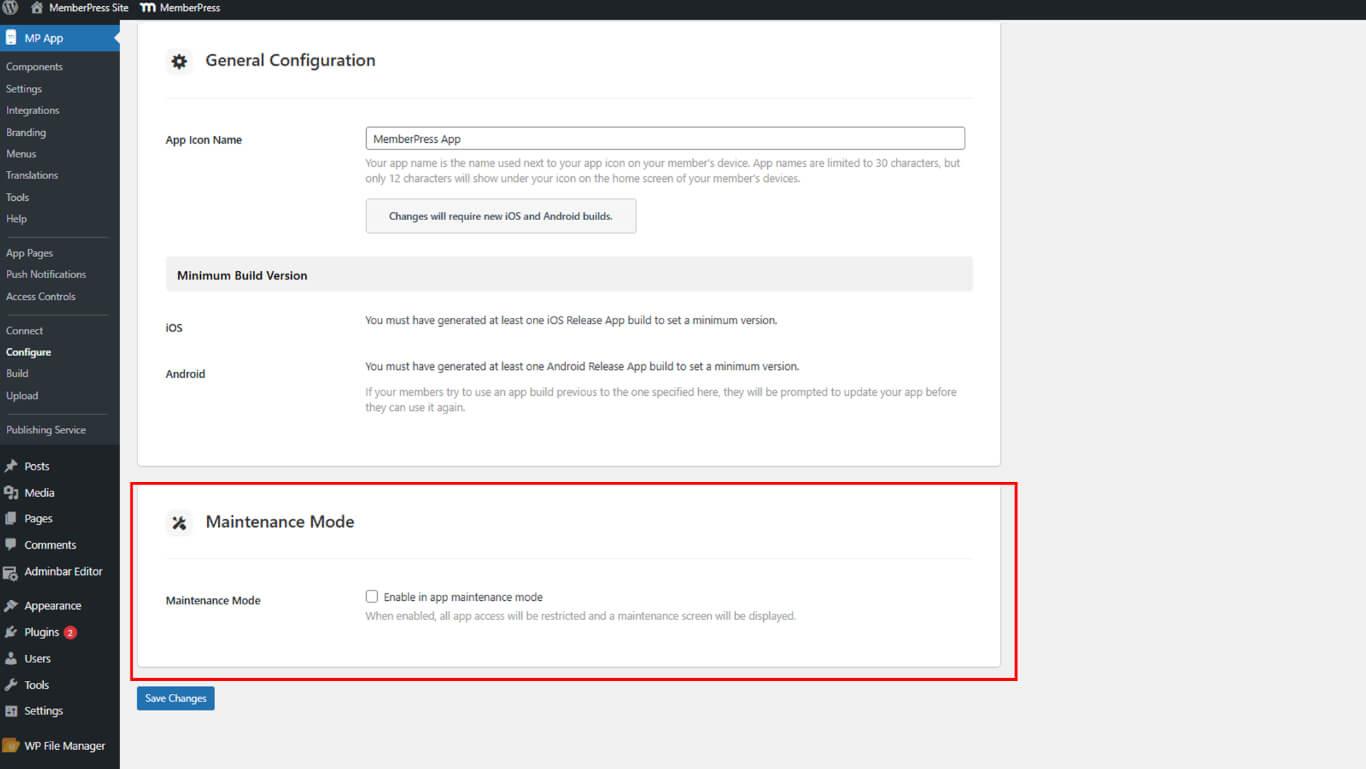
- Haga clic en Guardar cambios.
Todos los usuarios que intentan acceder a la aplicación ven la pantalla de mantenimiento tras la activación.
Comprender los elementos de la pantalla de mantenimiento
La pantalla de mantenimiento muestra tres elementos de marca durante el tiempo de inactividad.
- Logotipo de la aplicación aparece centrado en la pantalla. El sistema recupera este logotipo de Panel > MP AppKit > Marca > Pantalla de inicio de sesión > Logotipo. Si no se configura ningún logotipo, aparece un marcador de posición por defecto;
- Color de fondo rellena la pantalla detrás del logotipo y el mensaje. El sistema aplica el color de Dashboard > MP AppKit > Branding > General Background Color. El fondo predeterminado de la aplicación se muestra si no se establece un color personalizado;
- Mensaje de mantenimiento aparece debajo del logotipo como texto centrado. El mensaje por defecto es “El modo de mantenimiento está activado. Vuelva a intentarlo más tarde.” Este mensaje puede personalizarse mediante traducciones.
Desactivación del modo de mantenimiento
La desactivación del modo de mantenimiento restablece el acceso normal a la aplicación para todos los usuarios.
- Vaya a Panel > MP AppKit > Configurar > General.
- Desplácese hasta el Modo de mantenimiento sección.
- Desmarque la casilla Activar el modo de mantenimiento casilla de verificación.
- Haga clic en Guardar cambios.










 ES
ES  EN
EN  FR
FR  DE
DE  PT
PT 