

El complemento MemberPress AppKit lleva los sitios de afiliación MemberPress a plataformas móviles, ofreciendo a los miembros un cómodo acceso a través de aplicaciones iOS y Android. Para los clientes que prefieren no intervenir, MemberPress ofrece un servicio Done-For-You (DFY) en el que el equipo de MemberPress gestiona todo el proceso de creación y configuración de la aplicación.
Para configurar las notificaciones push y otros servicios en la nube para la aplicación móvil, el equipo de MemberPress necesita acceso de propietario al proyecto de Google Cloud Console. Este documento proporciona instrucciones paso a paso para conceder a MemberPress los permisos necesarios.
Comprender las funciones de IAM de Google Cloud
Google Cloud utiliza la gestión de identidades y accesos (IAM) para controlar el acceso a los recursos. Las funciones principales relevantes para esta configuración son:
- Propietario: Acceso completo a todos los recursos y configuraciones, incluida la capacidad de gestionar los permisos de IAM.;
- Redactor: Editar el acceso a todos los recursos, pero no puede administrar los permisos de IAM.;
- Espectador: Acceso de solo lectura a todos los recursos.
El equipo MemberPress requiere el Propietario función para configurar Firebase, notificaciones push y otros servicios para la aplicación móvil.
Requisitos previos
Antes de continuar, deben cumplirse los siguientes requisitos:
- Un activo Proyecto Google Cloud;
- Acceso de propietario o administrador de IAM al proyecto de Google Cloud Console.
Concesión de acceso de propietario MemberPress
- Navegue hasta el Consola de Google Cloud e iniciar sesión con el Credenciales del propietario de la organización (el usuario que creó la organización).
- En la barra superior, desde el menú desplegable del proyectoseleccione proyecto asociado a la aplicación móvil.
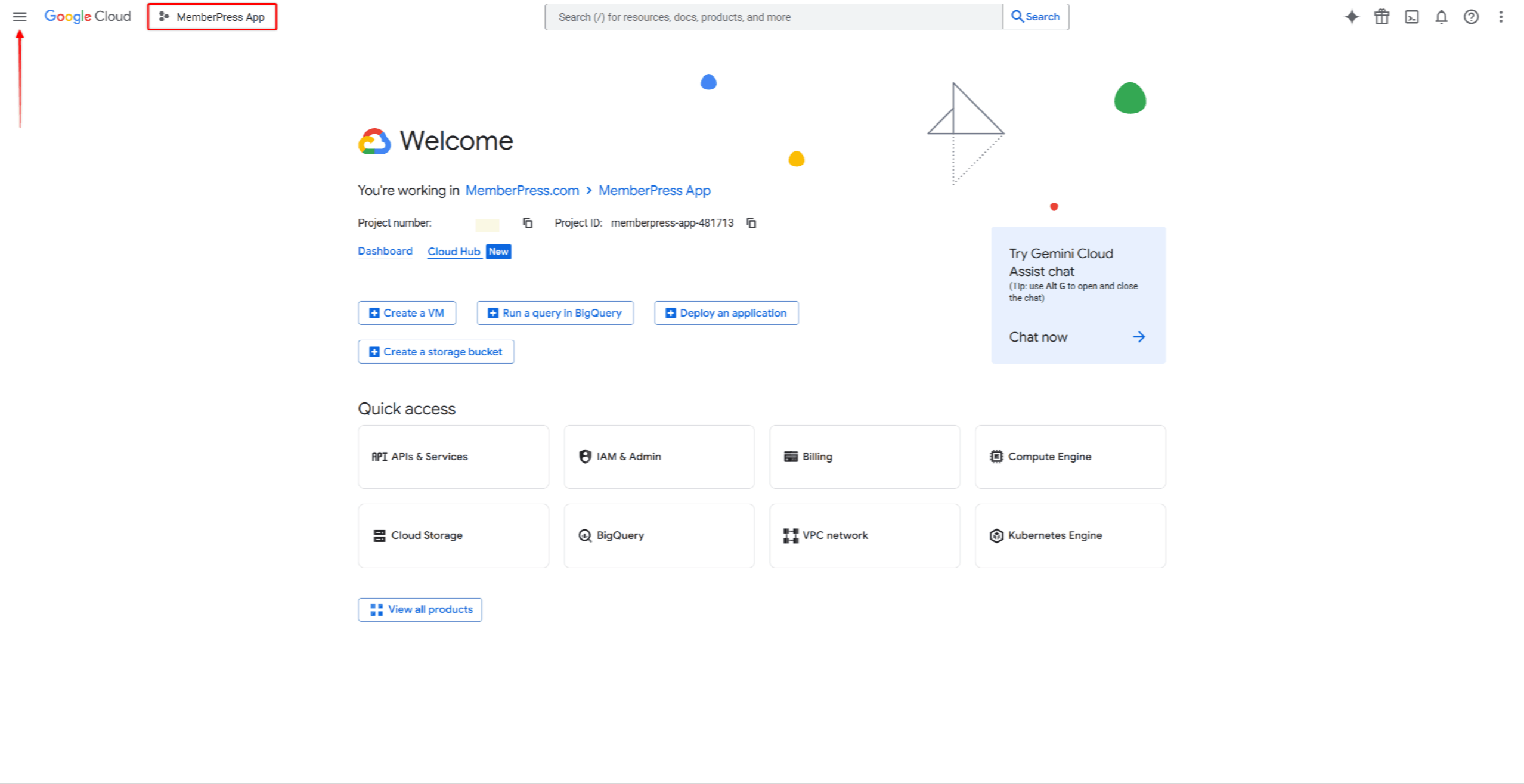
- A continuación, haz clic en el icono de hamburguesa para abrir el menú de navegación.
- En el menú de navegación de la izquierda, haz clic en IAM y administración.
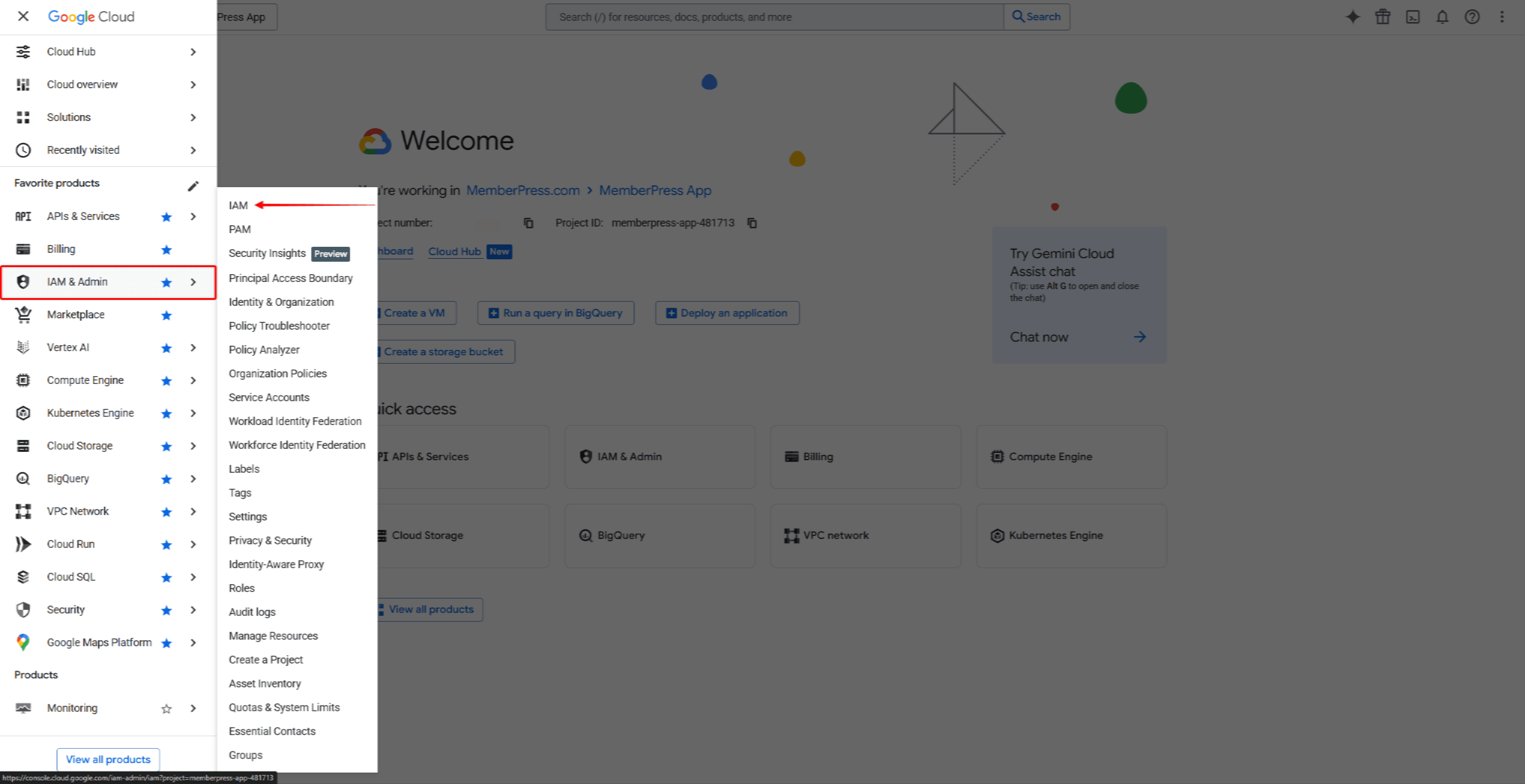
- Haga clic en IAM desde el submenú.
- Haga clic en el botón Conceder acceso botón en la parte superior de la página.

- En el Nuevos directores campo, introduzca: appsup@memberpress.com
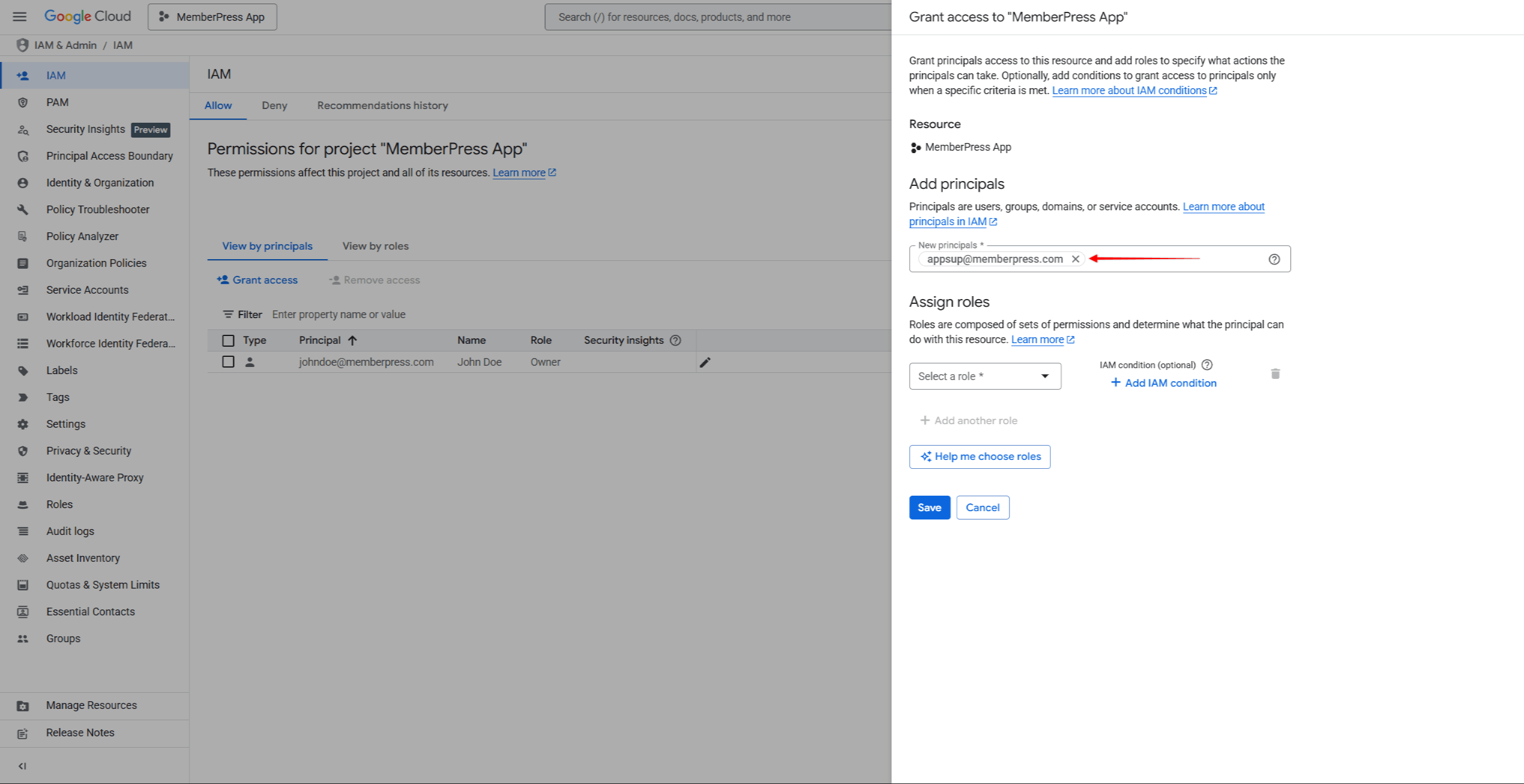
- Haga clic en el botón Seleccionar un rol menú desplegable. Seleccionar Propietario del Básico categoría de roles, o busca el término “Propietario” en el campo de búsqueda.

- Haga clic en Guardar para conceder los permisos.
En El equipo MemberPress recibirá automáticamente una notificación por correo electrónico. sobre el acceso concedido. El Los permisos entran en vigor inmediatamente..
Notas importantes
- El rol de propietario otorga acceso completo a todos los recursos del proyecto, incluida la capacidad de gestionar los permisos de otros usuarios.
- A diferencia de las invitaciones en App Store Connect y Google Play Console, los permisos de Google Cloud IAM no requieren aceptación. El acceso se concede inmediatamente después de guardar.
- El acceso concedido no caduca a menos que se revoque manualmente.
Verificación del acceso
Después de conceder el acceso, comprueba que el equipo MemberPress aparece en la lista de miembros de IAM.
- Volver a IAM & Admin > IAM en Google Cloud Console.
- Buscar appsup@memberpress.com en la lista de miembros.
- Compruebe que el Propietario El rol aparece en la lista de Papel columna.
Solución de problemas
- El botón “Conceder acceso” no está visible o está desactivado: Verifique que la cuenta que se está utilizando tenga permisos de propietario o administrador de IAM en el proyecto. Solo los usuarios con estas funciones pueden administrar los permisos de IAM.
- La dirección de correo electrónico no es válida.: Asegúrate de haber introducido la dirección de correo electrónico correcta (appsup@memberpress.com). El correo electrónico debe estar asociado a una cuenta de Google válida.
- El proyecto no es visible en el selector de proyectos.: Comprueba que la cuenta tiene acceso al proyecto. Si el proyecto se creó con otra cuenta, solicita acceso al propietario del proyecto.
- El rol de propietario no es visible en el selector de roles.: Desplácese por la lista de roles o utilice la función de búsqueda. El Propietario El rol aparece en la lista bajo Básico roles. Tenga en cuenta que algunas políticas de la organización pueden restringir la concesión del rol de propietario.
Revocación del acceso
Una vez completado el servicio DFY, se puede revocar el acceso si se desea.
- Navegue hasta el Consola de Google Cloud e inicia sesión.
- Seleccionar el proyecto del menú desplegable del proyecto.
- En la barra lateral izquierda, haz clic en IAM & Admin > IAM.
- Encuentra el appsup@memberpress.com entrada en la lista de miembros.
- Haga clic en el botón Editar principal (lápiz) junto a la entrada.
- Haga clic en el botón Borrar icono junto al Propietario papel.
- Haga clic en Guardar para eliminar los permisos.
Alternativamente, para eliminar todo acceso:
- Encuentra el appsup@memberpress.com entrada en la lista de miembros.
- Marque la casilla de verificación. junto a la entrada.
- Haga clic en Eliminar acceso en la parte superior de la página.
- Confirme la eliminación en el cuadro de diálogo.










 ES
ES  EN
EN  FR
FR  DE
DE  PT
PT 