

Firebase potencia las notificaciones push y Google Analytics opcional para MemberPress AppKit. Con Firebase, puede enviar notificaciones push nativas a los usuarios de Android e iOS, y realizar un seguimiento de la participación del usuario a través de Analytics si está habilitado.
Esta guía explica cómo crear un proyecto Firebase, registrar aplicaciones iOS y Android, configurar Cloud Messaging para notificaciones push y, opcionalmente, habilitar Google Analytics en MemberPress AppKit.
Comprender la integración de Firebase
La integración de Firebase proporciona servicios de backend para la entrega de notificaciones push y el seguimiento analítico en plataformas móviles.
Entrega de notificaciones push Permite la distribución de mensajes en tiempo real a dispositivos Android e iOS. Firebase Cloud Messaging se encarga del enrutamiento y la entrega de notificaciones a los dispositivos de los miembros.
Seguimiento analítico Supervisa la participación y el comportamiento de los usuarios dentro de la aplicación. La integración con Google Analytics proporciona información sobre la actividad de los miembros y los patrones de uso de la aplicación.
Compatibilidad multiplataforma Permite la gestión unificada de notificaciones para iOS y Android. Un único proyecto de Firebase gestiona simultáneamente las integraciones de ambas plataformas.
Flexibilidad de configuración Permite la habilitación opcional de Analytics en función de las necesidades de seguimiento. Analytics se puede habilitar o deshabilitar durante la creación del proyecto o posteriormente.
Creación de un proyecto Firebase
La creación del proyecto Firebase sienta las bases para los servicios de notificaciones push y análisis.
- Ir a Consola de Firebase.
- Haga clic en Crear proyecto.
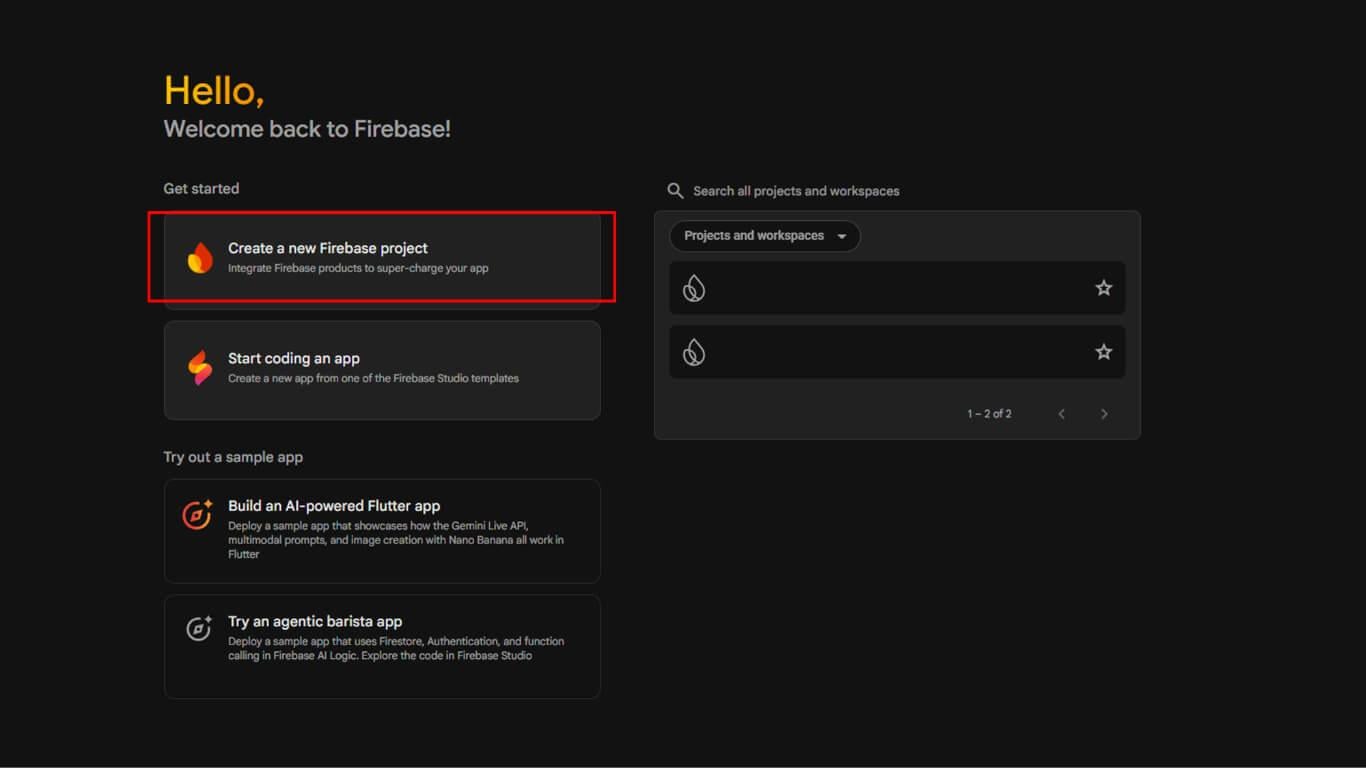
- Introduzca un Nombre del proyecto y haga clic en Continúe en.
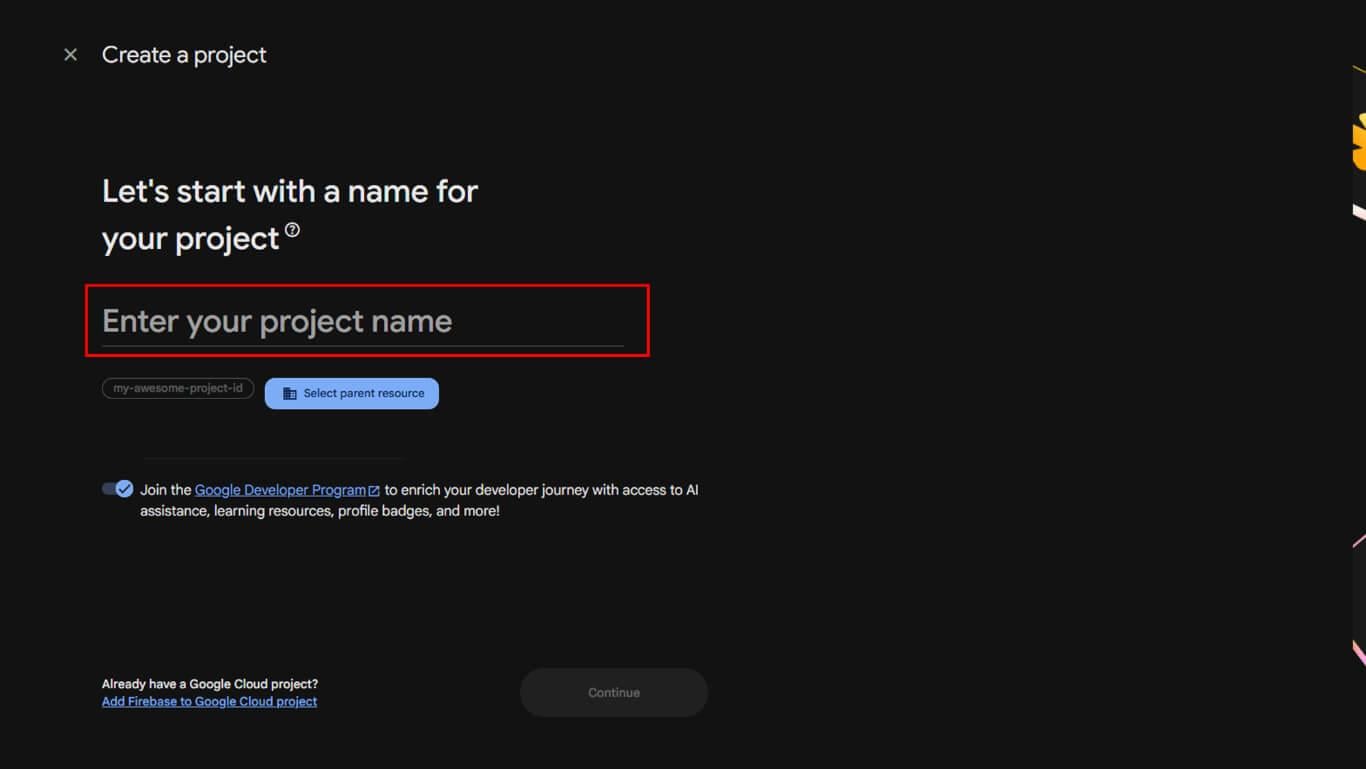
- Para habilitar Analytics, deja Habilitar Google Analytics para este proyecto Comprobado.
- Para omitir Analytics, desmarca la opción y haz clic en Continúe en.
- Si Analytics está habilitado, seleccione una cuenta existente o cree una nueva y, a continuación, haga clic en Continúe en.
- Haga clic en Crear proyecto y espera a que se inicialice.
- Haga clic en Continúe en para abrir el panel de control de tu proyecto.
Registro de la aplicación iOS
El registro de la aplicación iOS conecta la aplicación MemberPress con Firebase para el envío de notificaciones push.
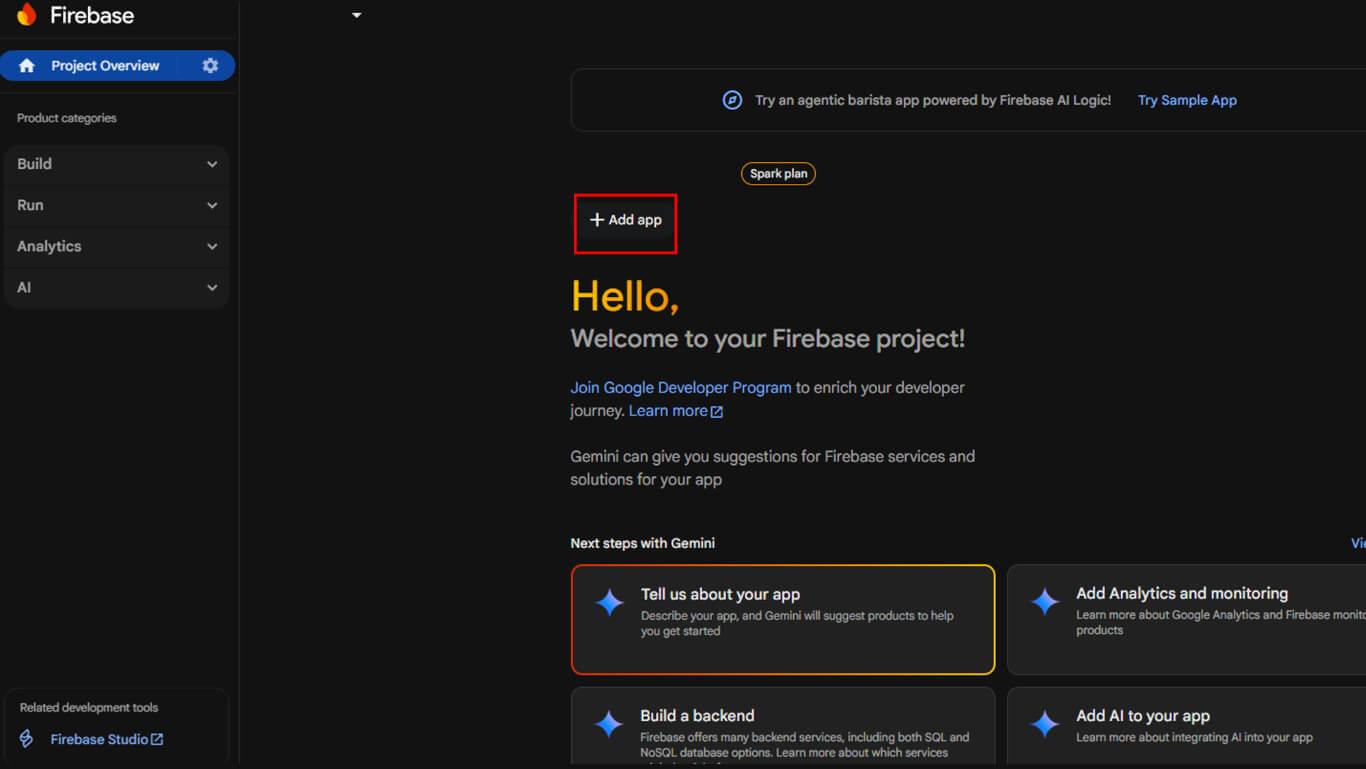
- En la descripción general del proyecto de Firebase, haz clic en el + Añadir aplicación.
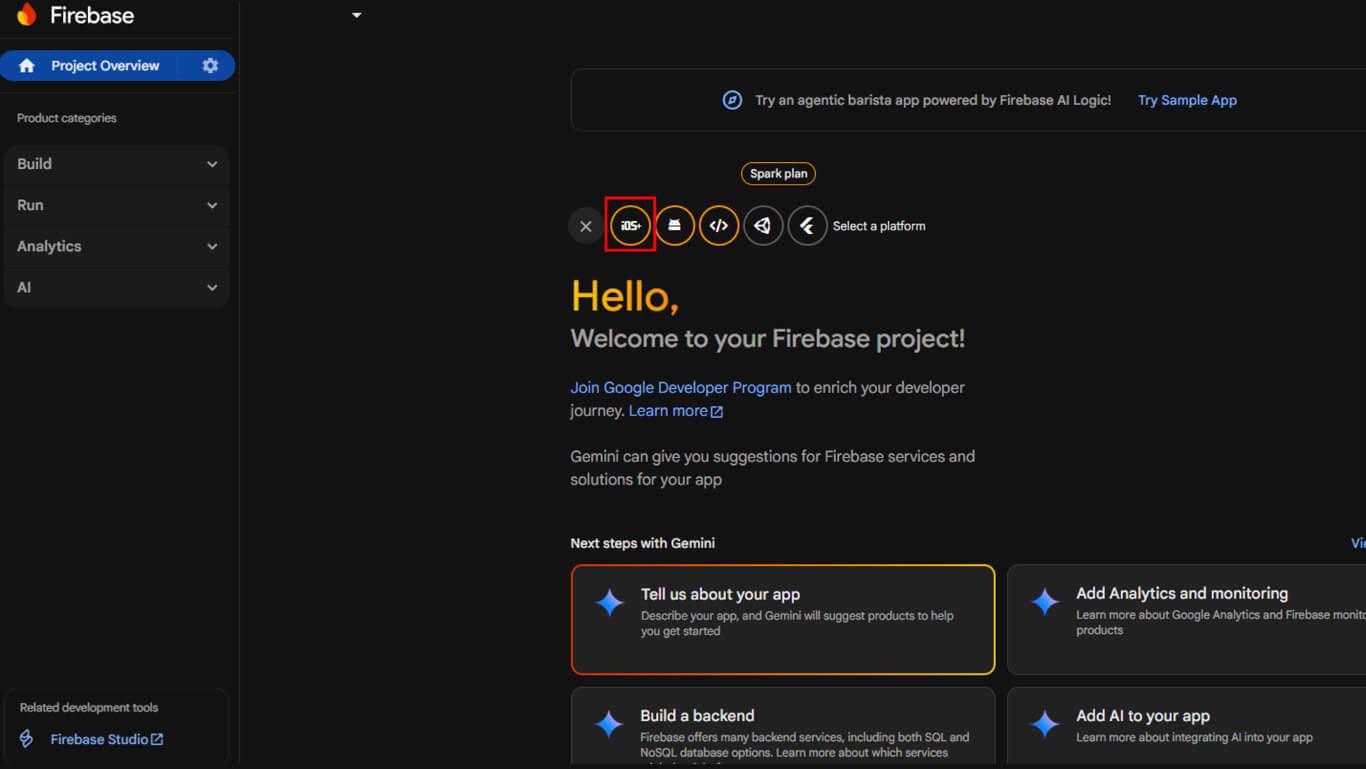
- Seleccione iOS icono en Comience añadiendo Firebase a su aplicación.
- Introduce tu aplicación iOS ID del paquete (debe coincidir con su proyecto Xcode).
- Opcionalmente, introduzca un Apodo de la aplicación y ID de la App Store.
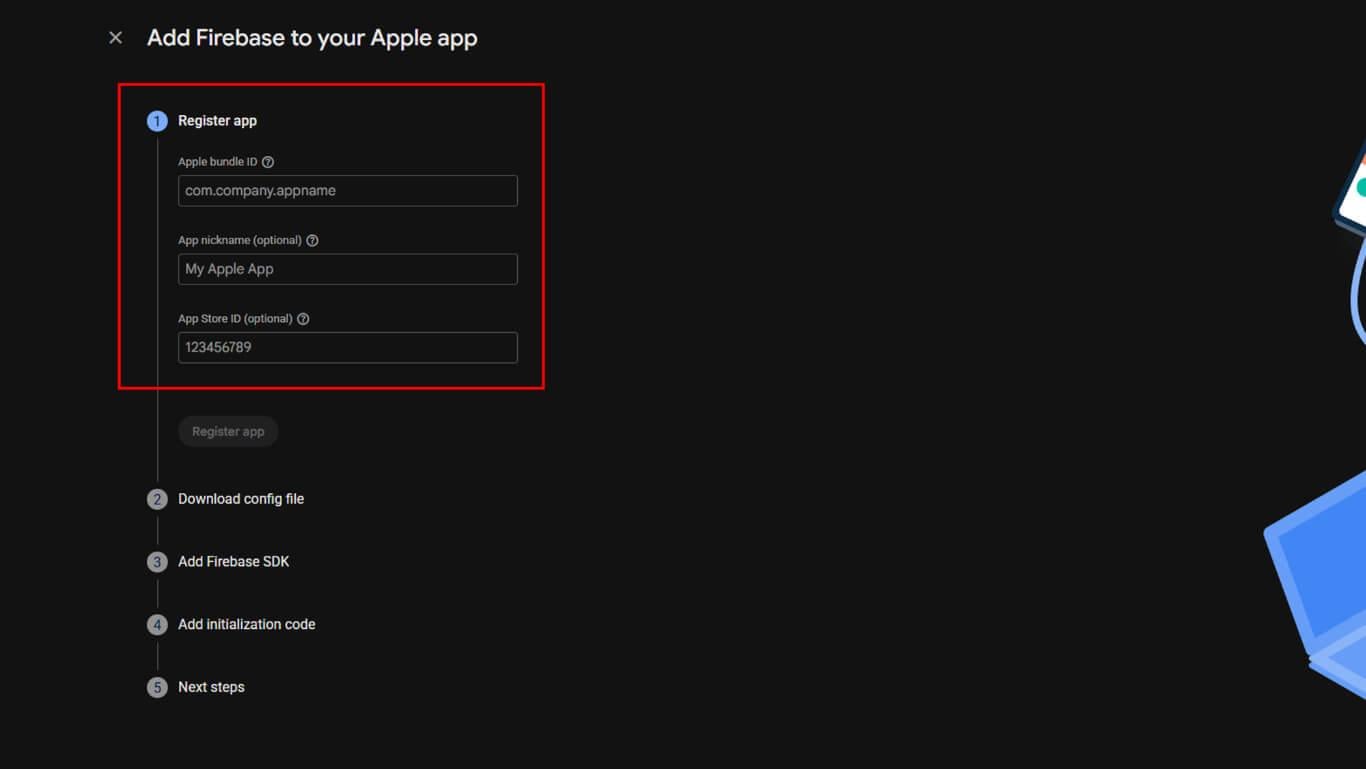
- Haga clic en el botón Registrar aplicación.
- Descargar el GoogleService-Info.plist archivo y añádalo a su proyecto Xcode.
- Siga las instrucciones de integración de CocoaPods proporcionadas y, a continuación, haga clic en Continuar con la consola.
Registro de la aplicación Android
El registro de la aplicación Android conecta la aplicación MemberPress con Firebase para el envío de notificaciones push.
- Haga clic en el botón Android icono en Comience añadiendo Firebase a su aplicación.
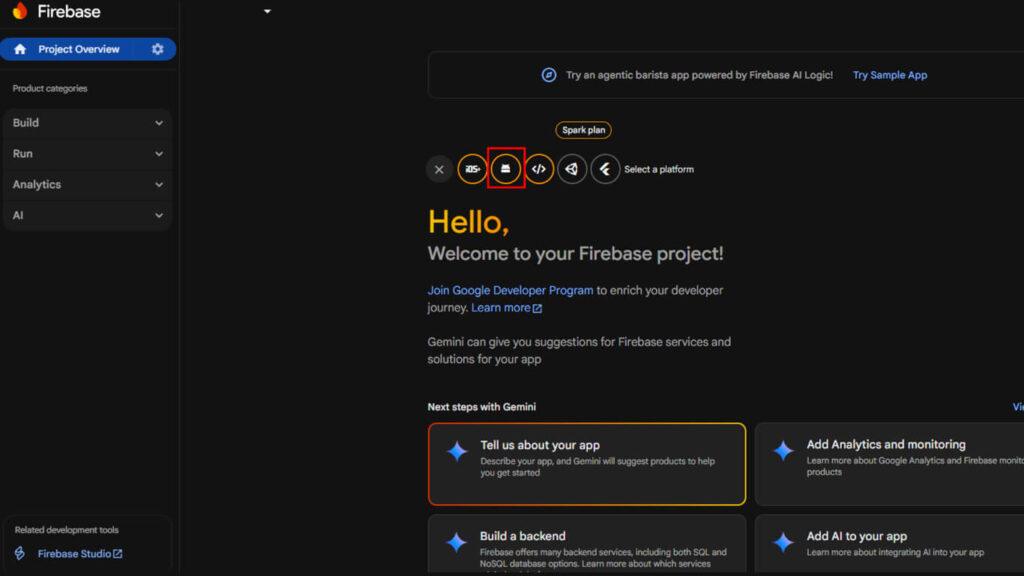
- Introduzca su Nombre del paquete Android.
- Opcionalmente, añada un Apodo de la aplicación.
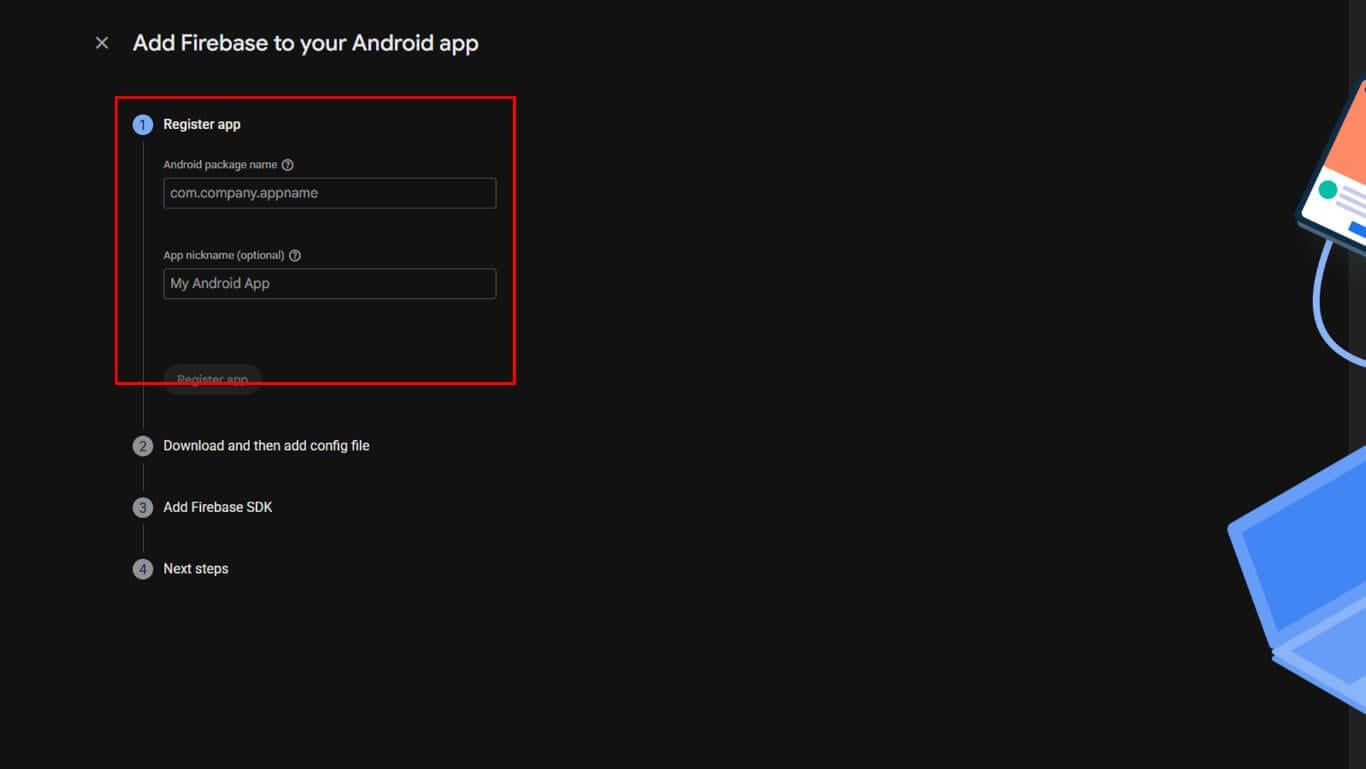
- Haga clic en el botón Registrar aplicación.
- Descargar el servicios-google.json y colócalo en tu directorio del módulo /app/.
- Añade las dependencias del SDK de Firebase en tus archivos Gradle según las instrucciones y, a continuación, haz clic en Continuar con la consola.
Configuración de notificaciones push
La configuración de notificaciones push habilita el servicio Cloud Messaging para las plataformas Android e iOS.
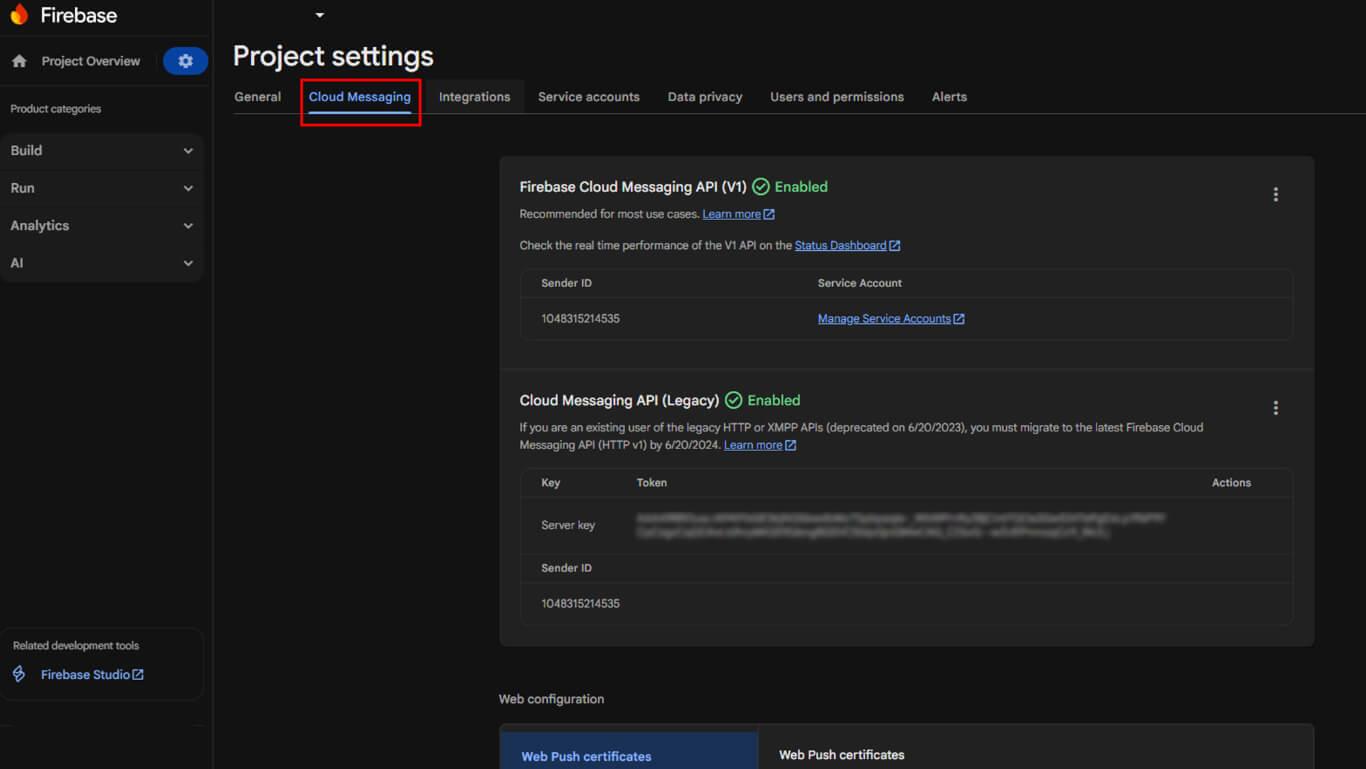
- En la consola de Firebase, haz clic en el icono de engranaje > Configuración del proyecto.
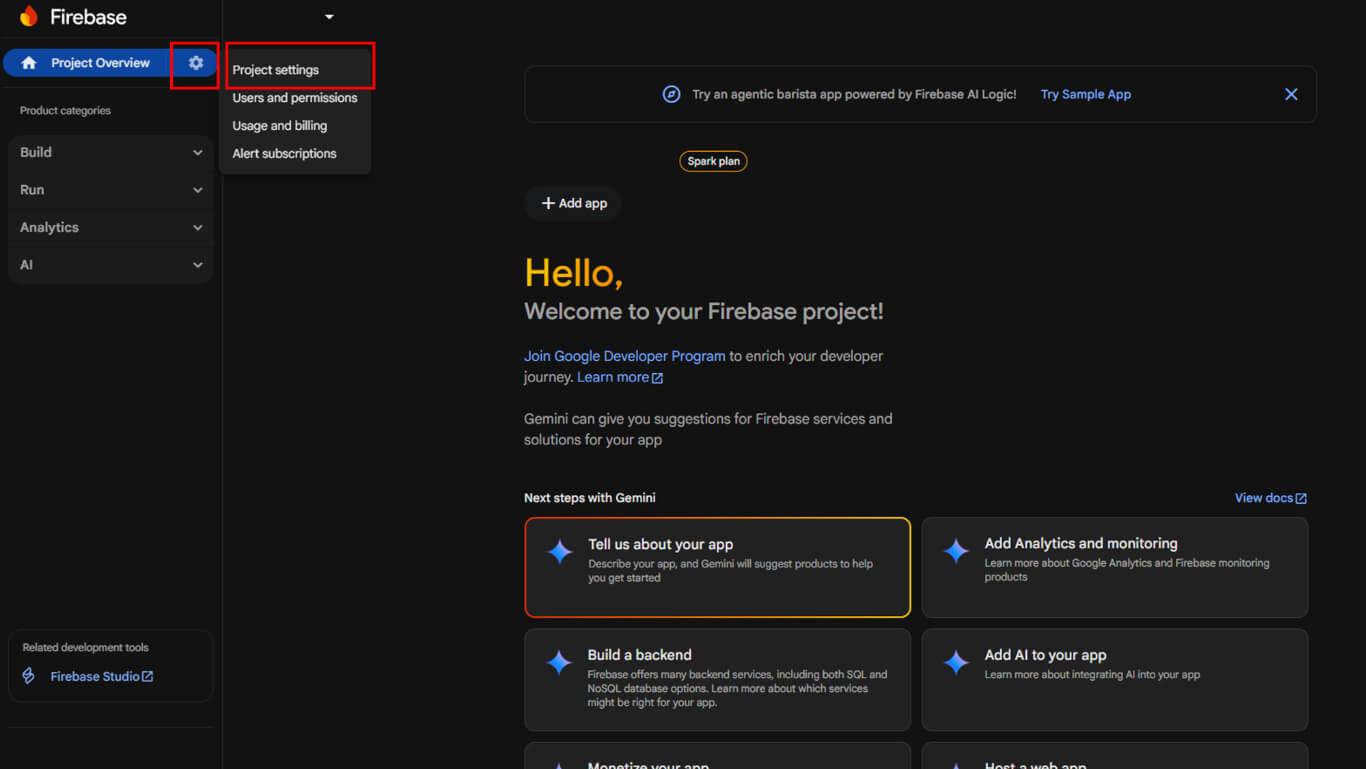
- Seleccione Mensajería en la nube ficha.
Para Android
- Copie el Clave del servidor que se muestra en la sección Mensajes en la nube.
- Copie el Identificador del remitente que se muestra en la sección Mensajes en la nube.
Para iOS (APNs)
- En Certificados APNspulse Cargar.
- Sube tu archivo de clave .p8.
- Introduzca el Identificador clave en el campo ID clave.
- Introduzca su Identificación del equipo en el campo ID del equipo.
- Haga clic en Guardar.
Habilitar Google Analytics
La habilitación de Google Analytics permite realizar un seguimiento de la interacción de los usuarios y supervisar su comportamiento dentro de la aplicación.
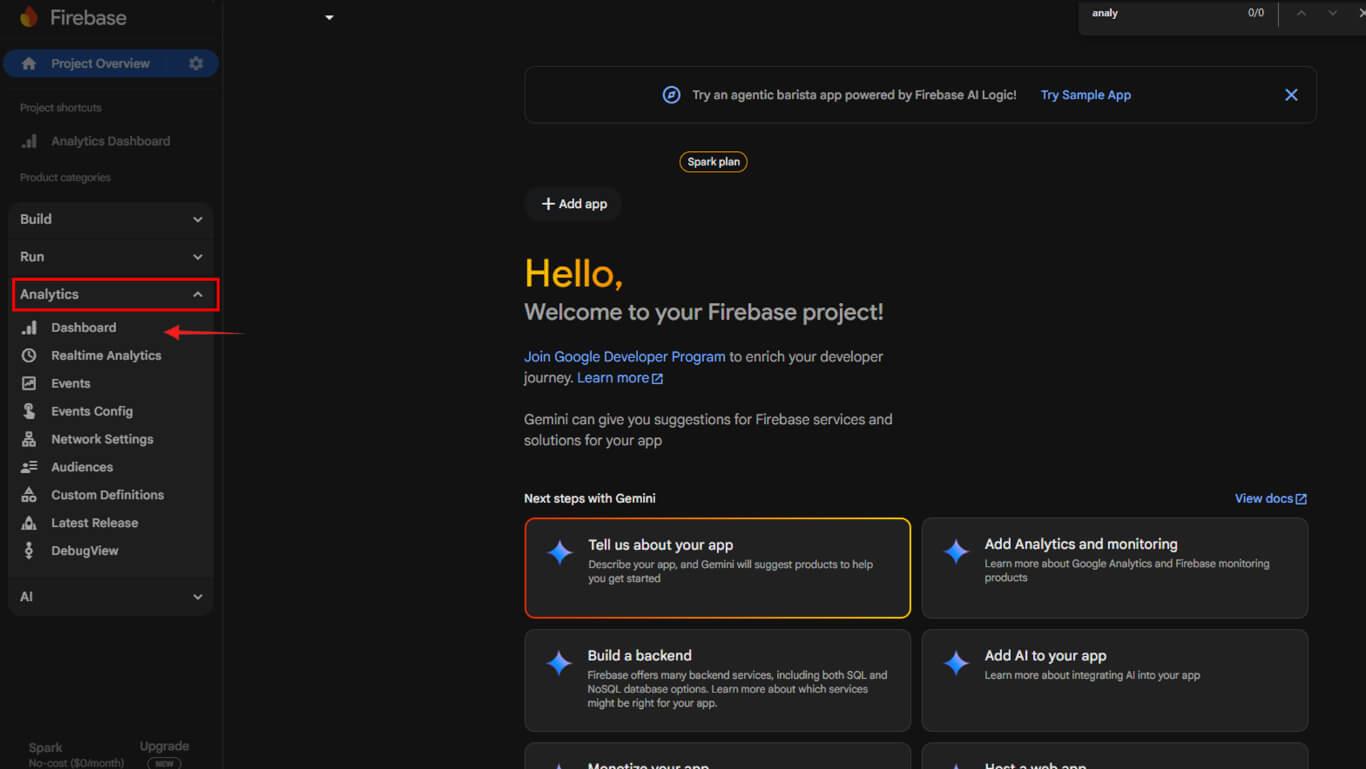
- En la consola de Firebase, vaya a Análisis > Cuadro de mandos para verificar la recopilación de datos.
- En el panel de administración de WordPress, navega hasta Panel de control > MP AppKit > Configuración > Integraciones > Firebase.
- Activar Habilitar Firebase Analytics.
- Introduzca su ID del proyecto Firebase en el campo «ID del proyecto».
- Haga clic en Guardar cambios.










 ES
ES  EN
EN  FR
FR  DE
DE  PT
PT 