

Vous pouvez appliquer automatiquement un coupon MemberPress à tous les niveaux d'adhésion. De cette façon, les membres n'ont pas à trouver, copier et coller les coupons eux-mêmes. Pour ce faire, vous pouvez ajouter un extrait de code qui remplit les codes de coupon pour eux.
Ce guide explique comment ajouter l'extrait de code et l'adapter pour qu'il utilise votre Coupons MemberPress.
Ajout de l'extrait de code
Vous pouvez ajouter l'extrait de code directement dans le fichier functions.php de votre thème enfant. Cependant, il est recommandé de l'ajouter via un plugin d'extrait de code, tel que WPCode.
Suivez les étapes ci-dessous pour installer le plugin WPCode et ajouter l'extrait de code :
- Naviguez jusqu'à la page Tableau de bord > Plugins > Ajouter un plugin.
- Rechercher WPCode et localisez le plugin.
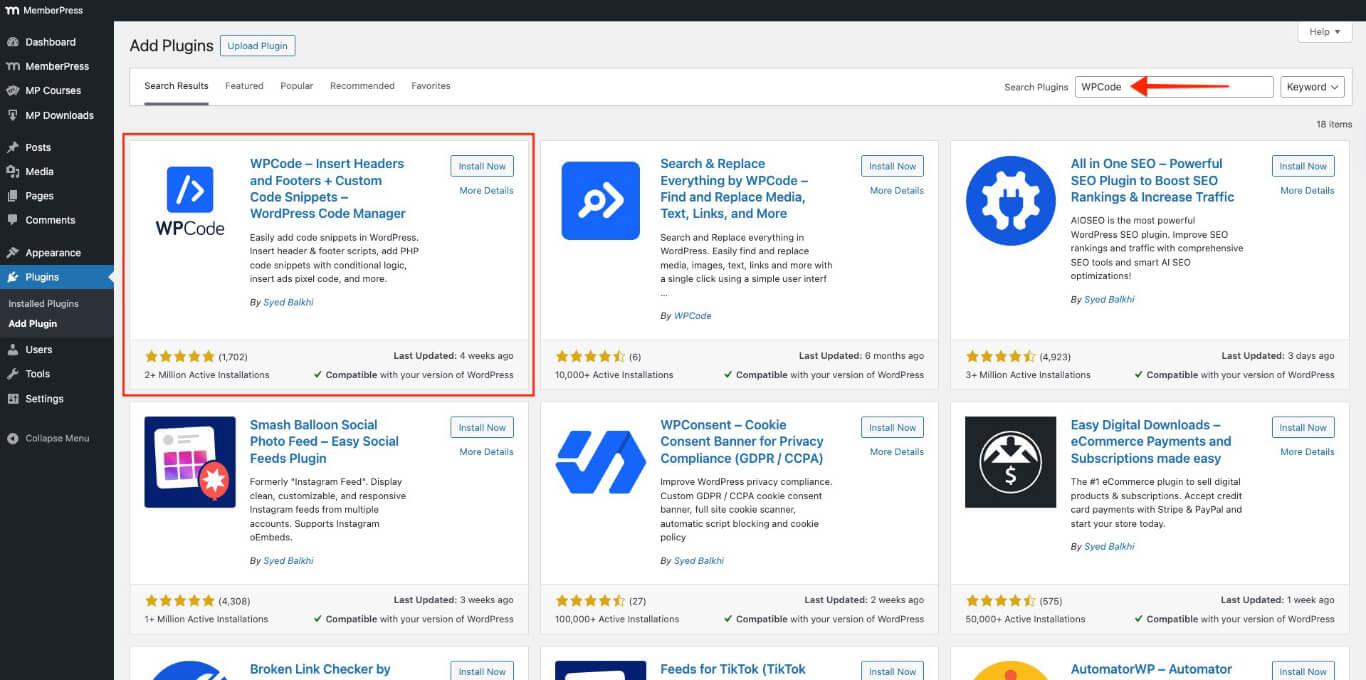
- Cliquez sur le bouton Installer maintenant bouton.
- Cliquez sur le bouton Activer bouton.
- Se rendre à l'adresse suivante Tableau de bord > Extraits de code > Ajouter un extrait > Ajouter votre code personnalisé (nouvel extrait).
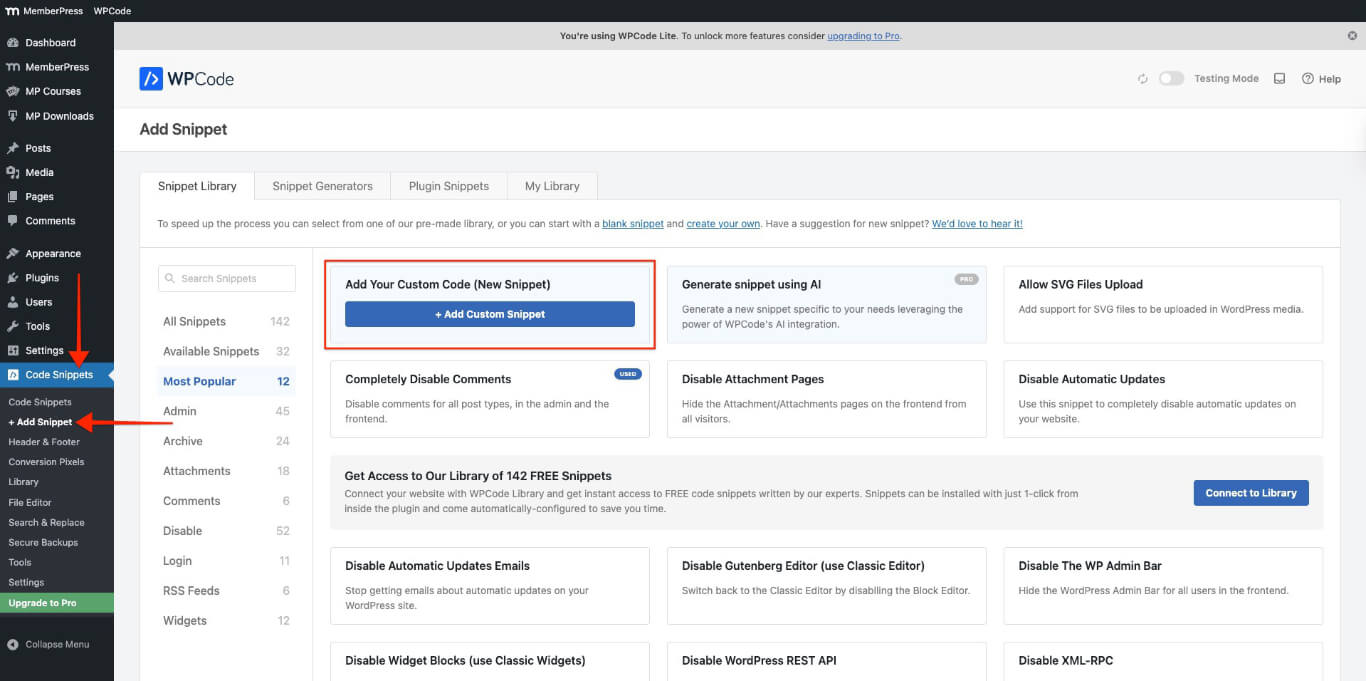
- Cliquez sur le bouton + Ajouter un extrait personnalisé bouton.
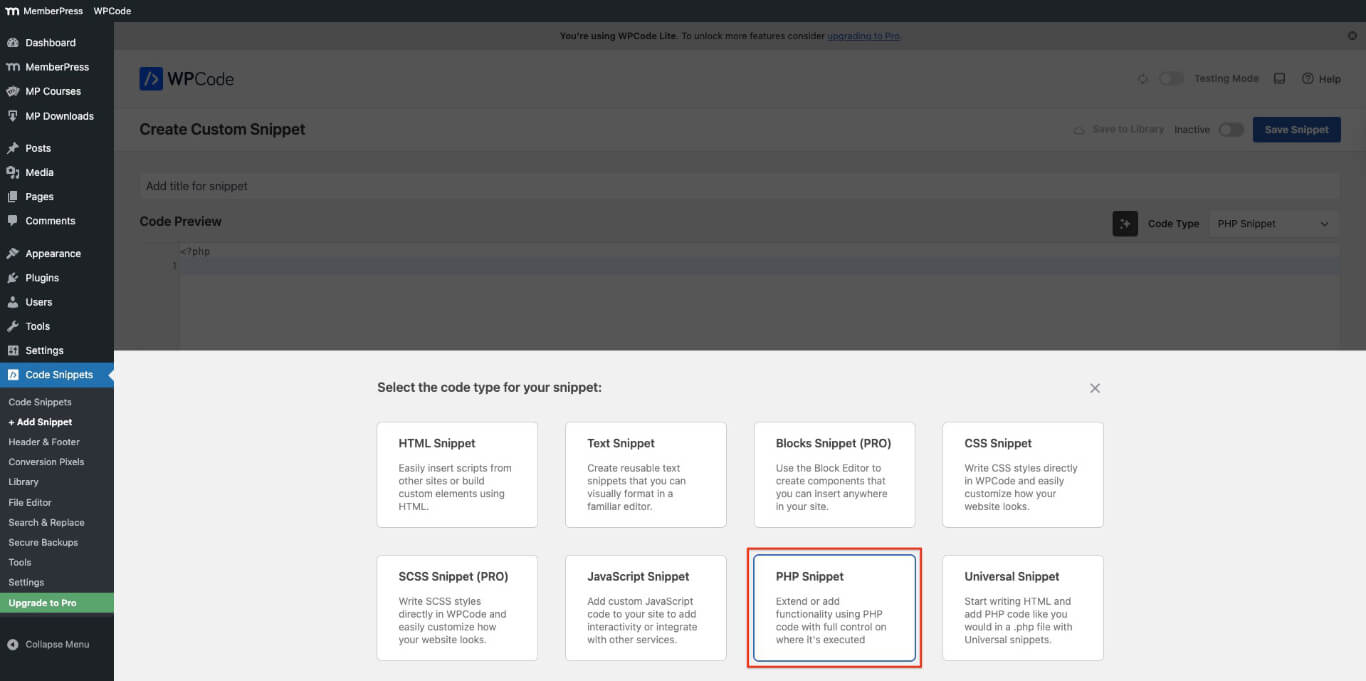
- Choisir Extrait PHP.
- Ajoutez un titre pour le snippet et collez le code suivant dans le fichier Aperçu du code section.
// Auto-Populate MemberPress Registration Coupon Codes
function mepr_auto_populate_coupon() {
?>
<script>
document.addEventListener('DOMContentLoaded', function() {

  // Attendre l'initialisation des scripts MemberPress
  setTimeout(function() {

    var c = document.querySelector('.mepr_coupon input.mepr-coupon-code') ;
    if (c) {

      // Coller le coupon ci-dessous pour remplacer 'VOTRE COUPON'
      c.value = 'VOTRE COUPON';

      // Déclencher tous les événements pertinents pour MemberPress
      ['input', 'keyup', 'change', 'blur'].forEach(function(evtName) {
        var evt = new Event(evtName, { bubbles : true }) ;
        c.dispatchEvent(evt) ;
      });
    }

  }, 300);
});
</script>
<?php
}
add_action( 'wp_head', 'mepr_auto_populate_coupon' ) ;
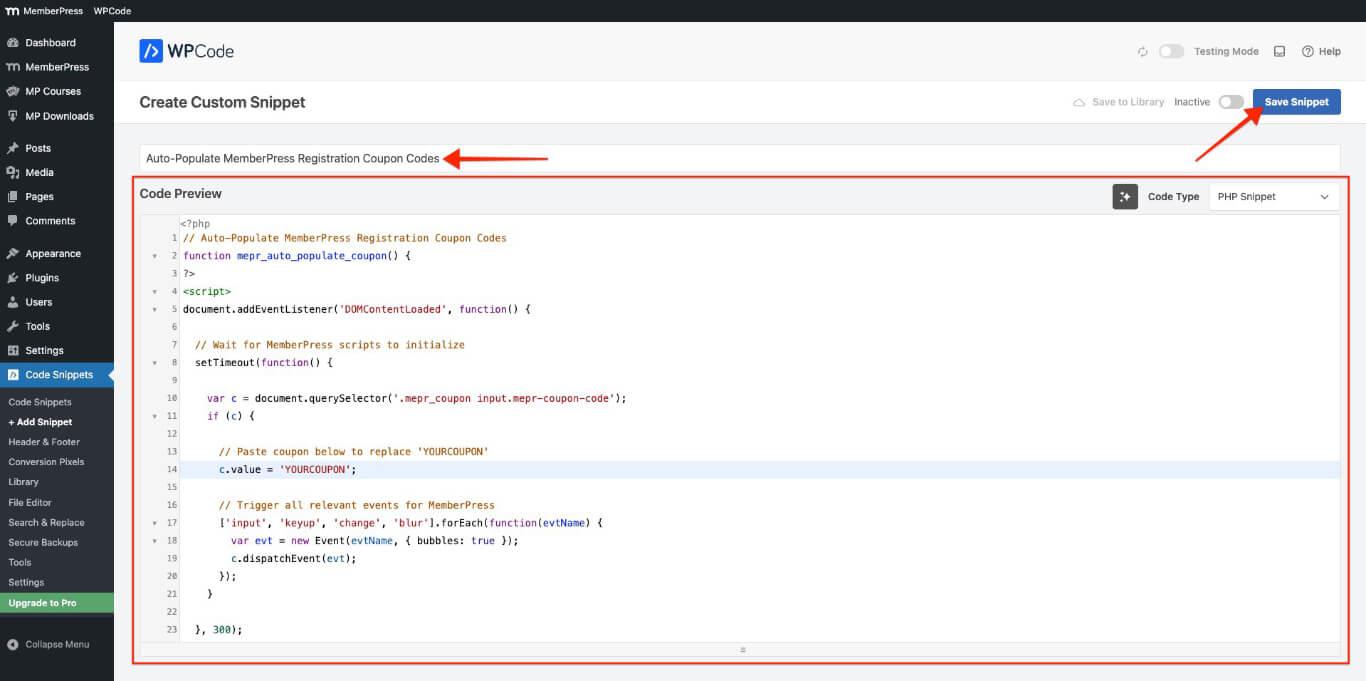
- Cliquez sur le bouton Sauvegarder l'extrait bouton.
Ajustement et activation de l'extrait de code
Suivez les étapes suivantes pour ajuster et activer l'extrait de code afin de charger automatiquement le code du coupon.
- Naviguez jusqu'à Tableau de bord > MemberPress > Coupons.
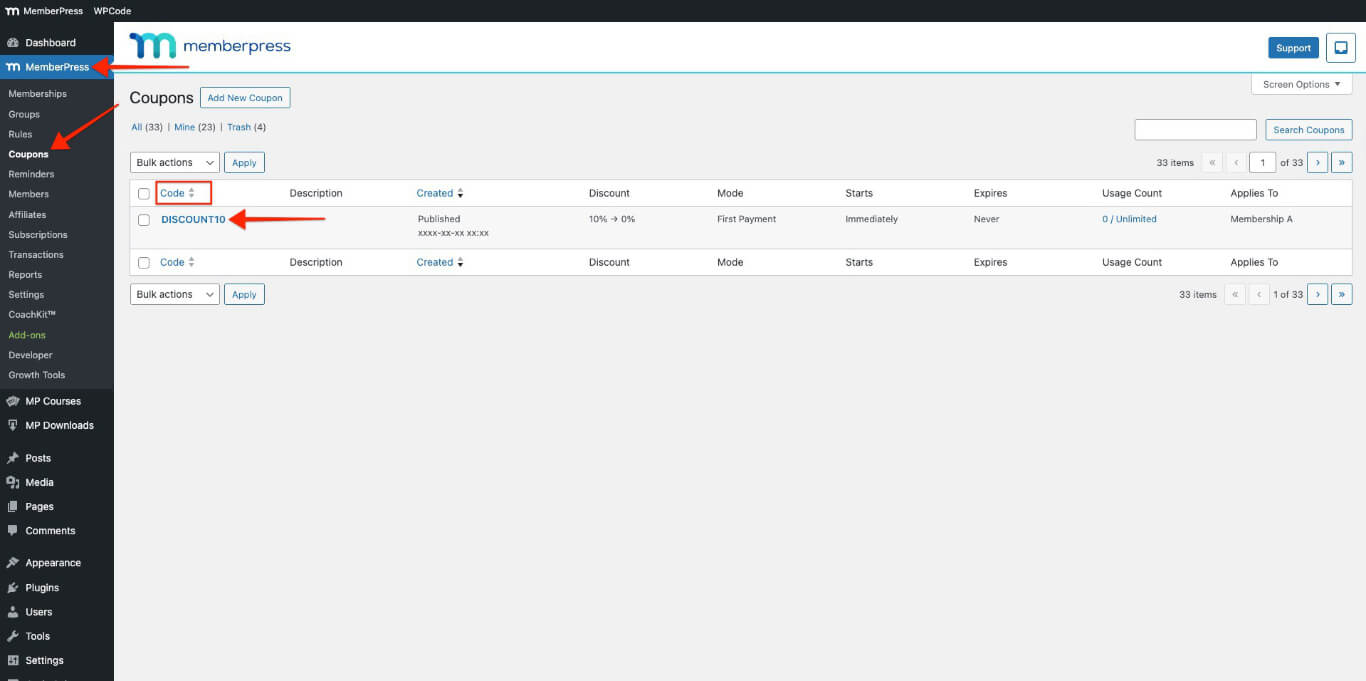
- Copiez le code du coupon à partir de la page Code colonne. Si vous n'avez pas de coupon, en créer un nouveau.
- Naviguez jusqu'à Tableau de bord > Extraits de code.
- Cliquez sur l'extrait de code qui a été ajouté dans la section section précédente.
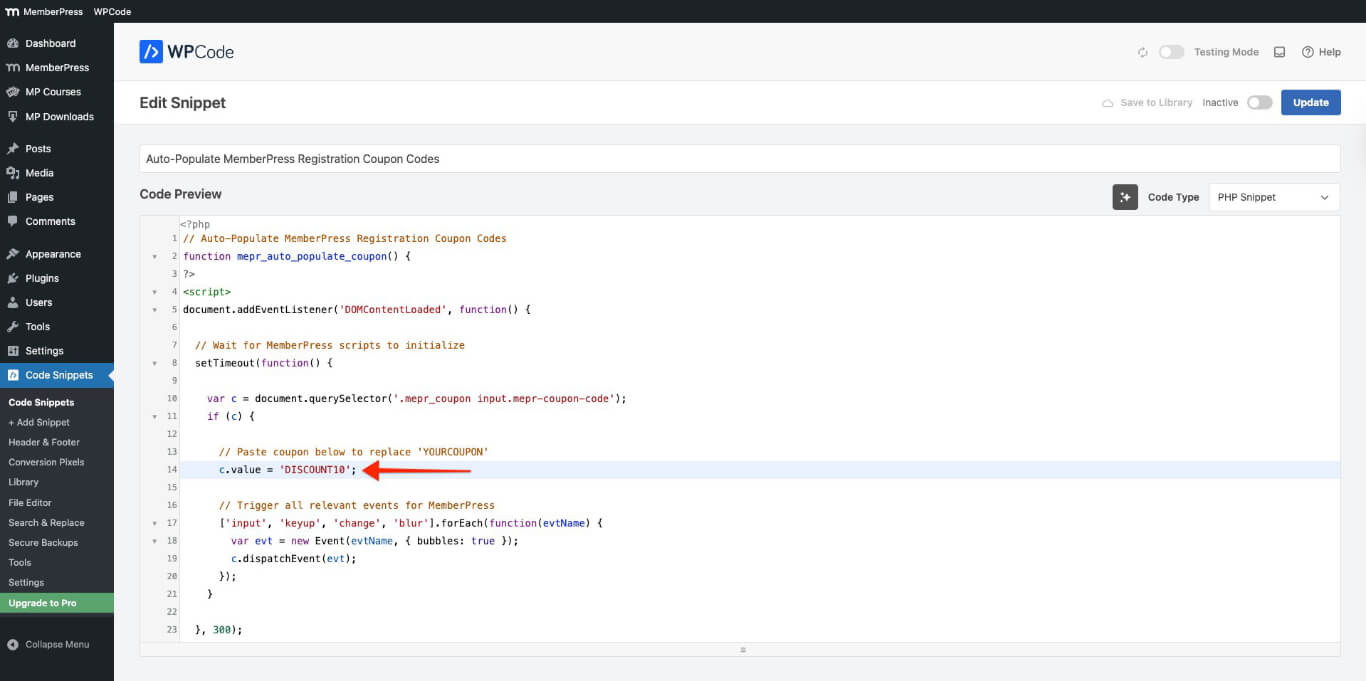
- Remplacer VOTRE COUPON dans l'extrait de code par le code que vous souhaitez utiliser sur la ligne de code suivante. Voici un exemple de remplacement de “VOTRE COUPON” avec “DISCOUNT10.”
// Coller le coupon ci-dessous pour remplacer 'VOTRE COUPON'
      c.value = 'DISCOUNT10';
- Activer le snippet.
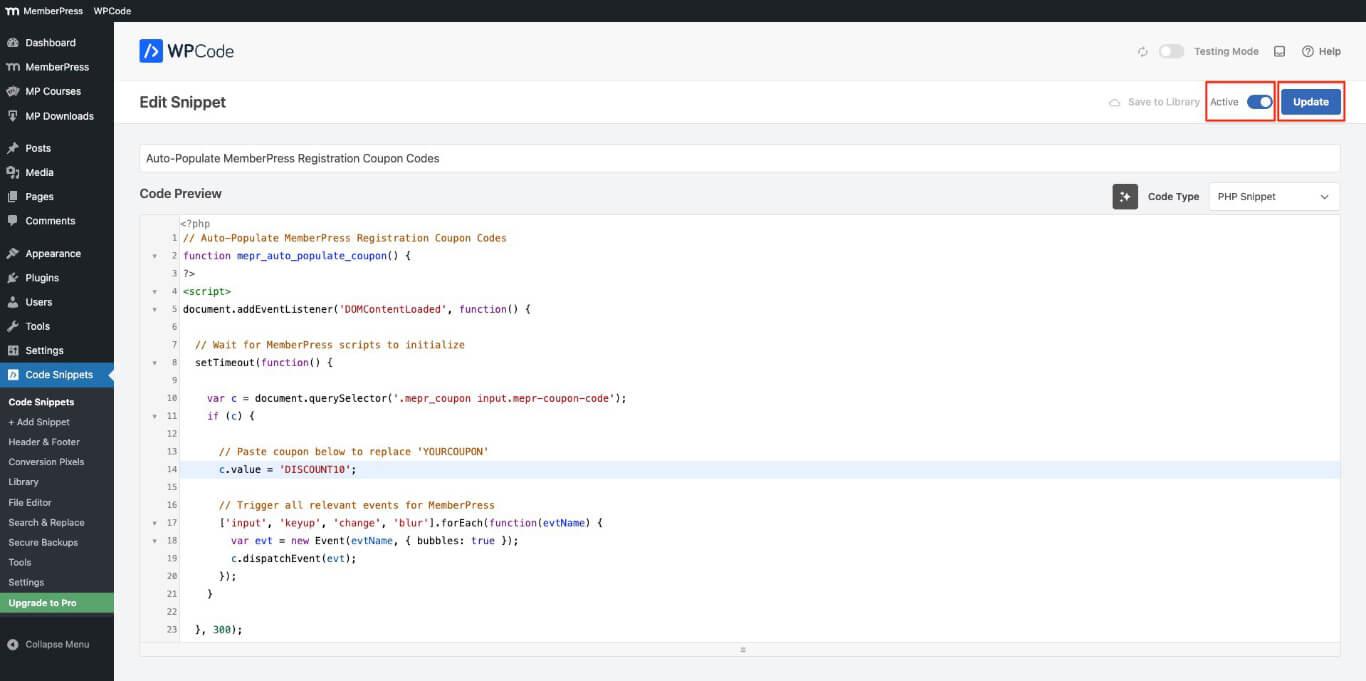
- Cliquez sur le bouton Mise à jour bouton.
Tester les codes de coupon lors de l'enregistrement
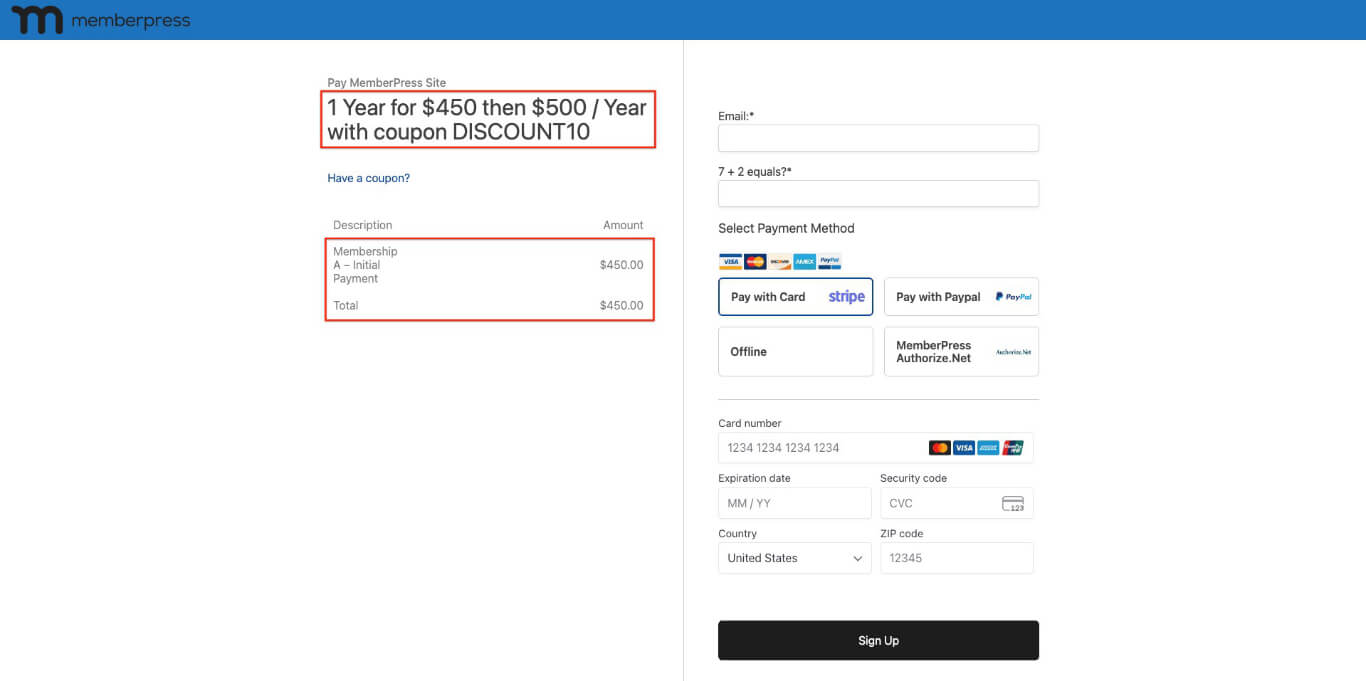
Le code de coupon ajouté dans l'extrait de code devrait s'afficher automatiquement sur les formulaires d'inscription. Pour le tester, suivez les étapes ci-dessous.
- Ouvrir n'importe quelle adhésion à partir de Tableau de bord > MemberPress > Produits dans un Fenêtre Incognito (privée) dans votre navigateur.
- Vérifiez le montant de la facture et le montant total pour vous assurer que le coupon est appliqué automatiquement.
Application automatique des codes de coupon lors de l'enregistrement
L'extrait de code applique automatiquement un code de coupon unique à tous les niveaux d'adhésion sur le site. Cela facilite l'inscription en éliminant la nécessité pour les utilisateurs de saisir manuellement le code.
Par défaut, le champ du coupon est caché dans les formulaires d'inscription de MemberPress. Les utilisateurs voient un “Disposer d'un code de réduction”En cliquant sur ce lien, un champ de saisie s'affiche pour le code du coupon. Vous pouvez ajouter un extrait de code à étendre automatiquement le champ du coupon sur tous les formulaires d'inscription MemberPress. Cela permet aux utilisateurs de voir le champ sans avoir à cliquer sur un lien.
Pour des campagnes ou des niveaux d'adhésion spécifiques, les administrateurs de site peuvent appliquer différents coupons à l'aide d'un paramètre URL. Cela signifie que les utilisateurs peuvent se voir appliquer automatiquement différents coupons en fonction du lien sur lequel ils cliquent pour s'inscrire.
En outre, WPCode permet une logique conditionnelle pour contrôler quand et pour qui le code du coupon est appliqué. Vous pouvez définir des conditions pour que le coupon ne s'applique qu'aux utilisateurs connectés ou à ceux qui ont une adhésion spécifique.










 FR
FR  EN
EN  ES
ES  DE
DE  PT
PT 