

MemberPress Android App testing vous permet de tester votre application auprès d'utilisateurs sélectionnés avant de la rendre publique. Les nouveaux comptes individuels Google Developer créés après le 13 novembre 2023 doivent satisfaire aux exigences des tests fermés avant de pouvoir accéder à la production.
Ce document explique comment créer des pistes de test fermées, ajouter des testeurs, gérer les versions et demander l'accès à la production.
Comprendre les exigences des tests fermés
Google Play Store exige que les nouveaux comptes individuels de développeurs enregistrés après le 13 novembre 2023 soient soumis à des tests fermés. Les tests fermés impliquent qu'au moins 12 testeurs utilisent l'application pendant au moins 14 jours consécutifs. L'accès à la piste de production n'est débloqué qu'après l'achèvement et l'approbation des tests fermés.
Les comptes développeurs des organisations sont exemptés des exigences de tests fermés. Les comptes de développeur enregistrés avant le 13 novembre 2023 sont également exemptés des tests fermés obligatoires. Les comptes individuels créés après la date d'exigence doivent effectuer des tests fermés avant la publication en production.
Création d'une piste d'essai fermée
La création d'une piste d'essai fermée établit l'environnement d'essai pour la distribution d'une application avant sa sortie.
- Connectez-vous à Google Play Console à l'adresse play.google.com/console.
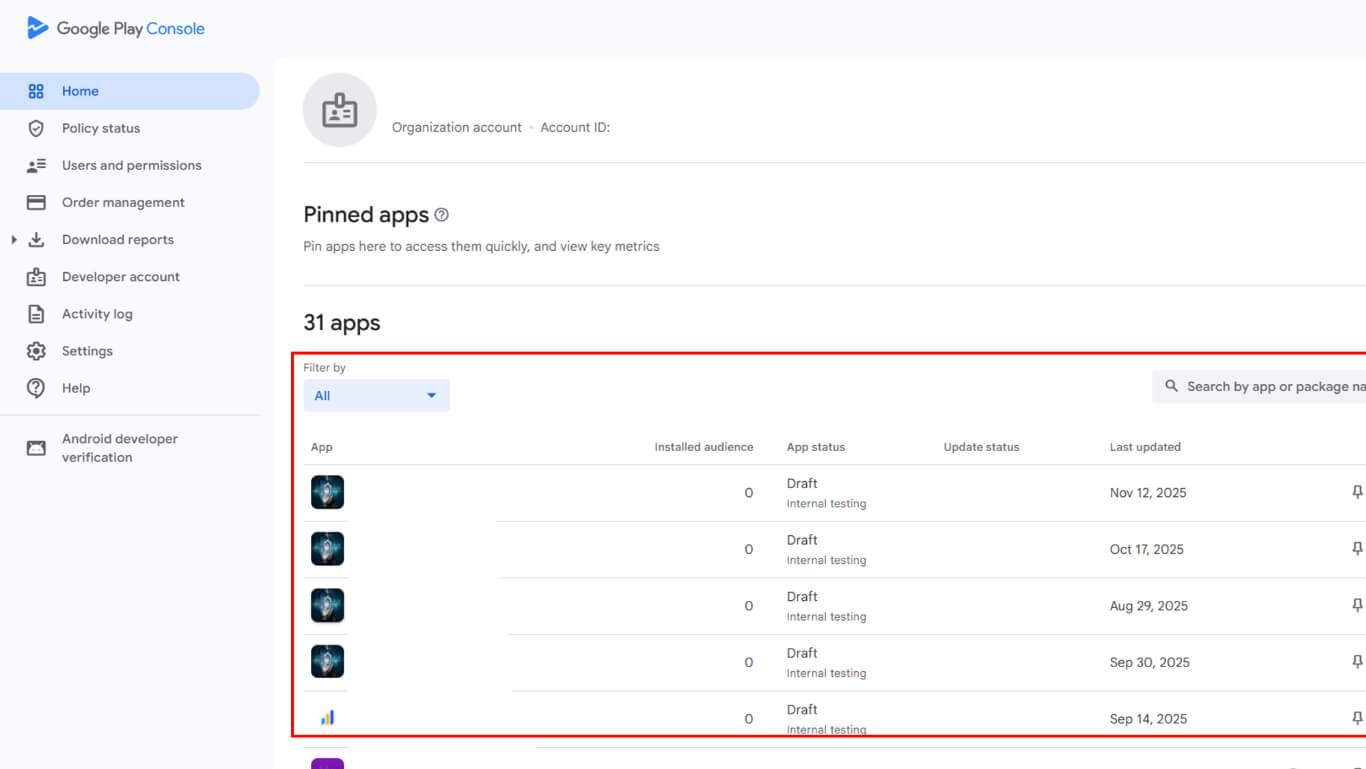
- Sélectionnez l'application dans la liste des applications.
- Naviguez jusqu'à Version > Tests > Tests fermés dans la barre latérale gauche.
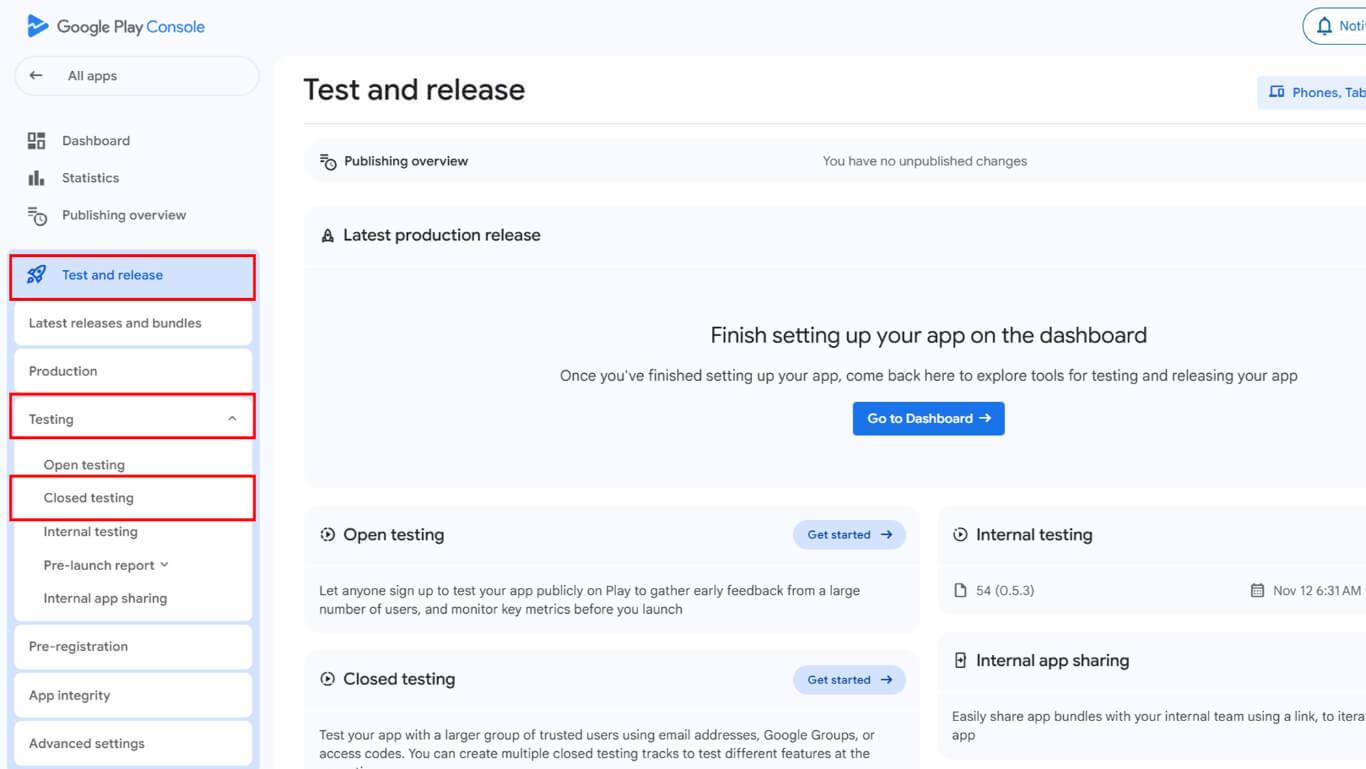
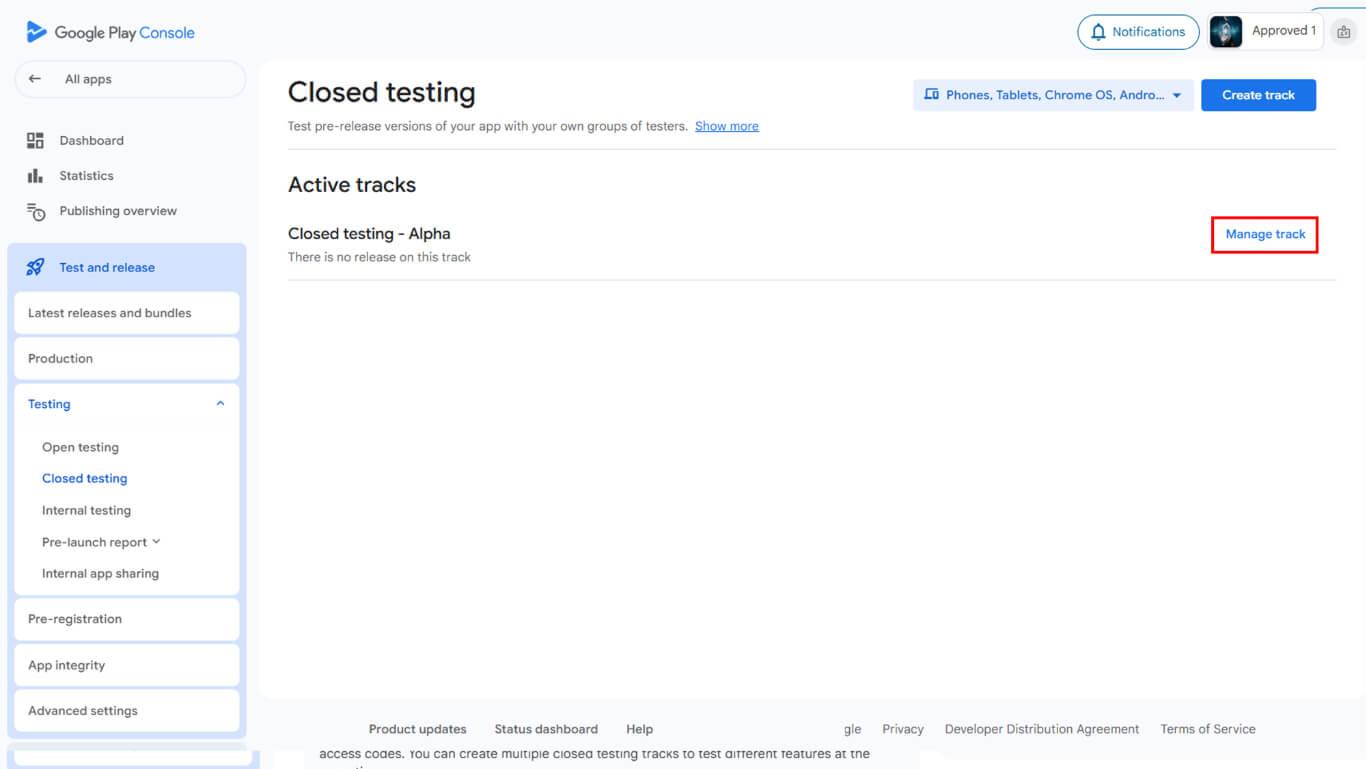
- Examiner les pistes d'essai actives disponibles.
- Cliquez sur Gérer le suivi si une piste existante est disponible.
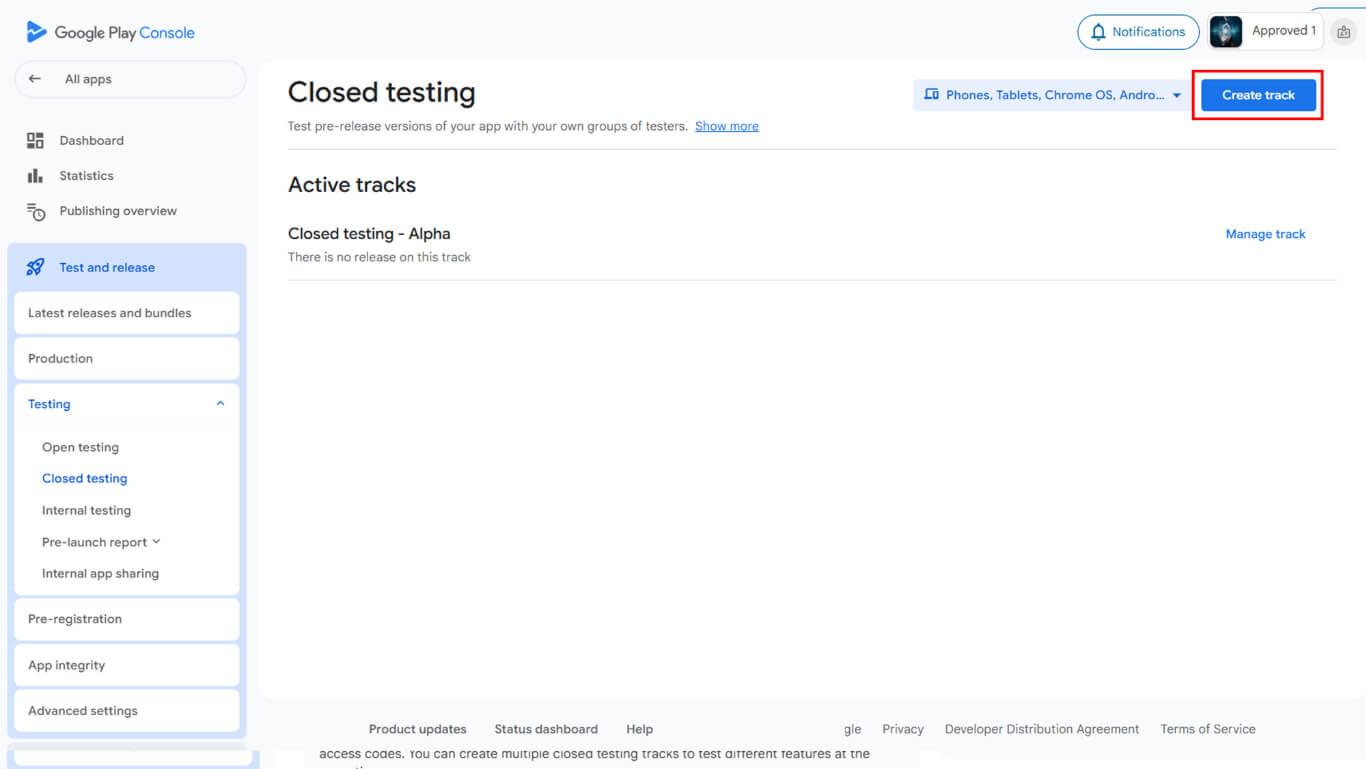
- Cliquez sur Créer une piste si vous créez une nouvelle piste de test.
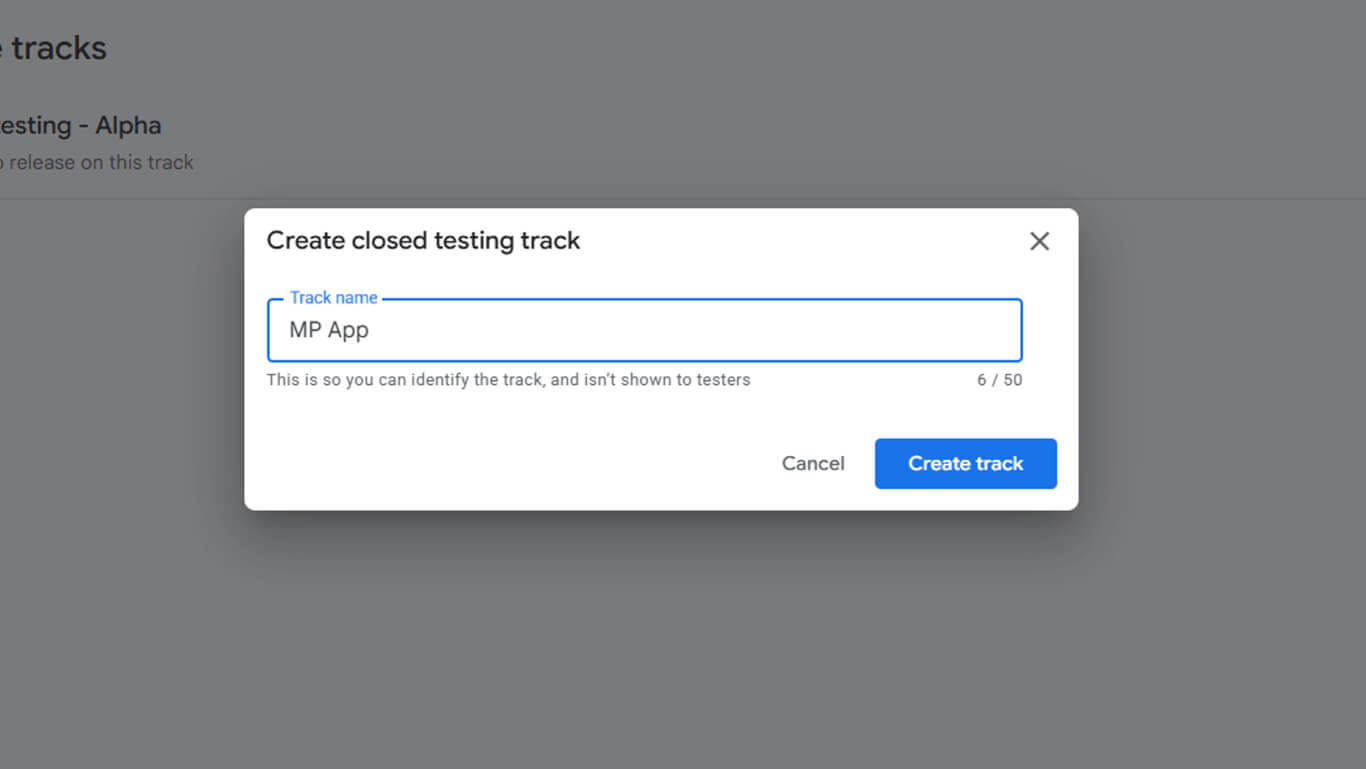
- Saisissez un nom descriptif dans le champ Nom de la piste domaine.
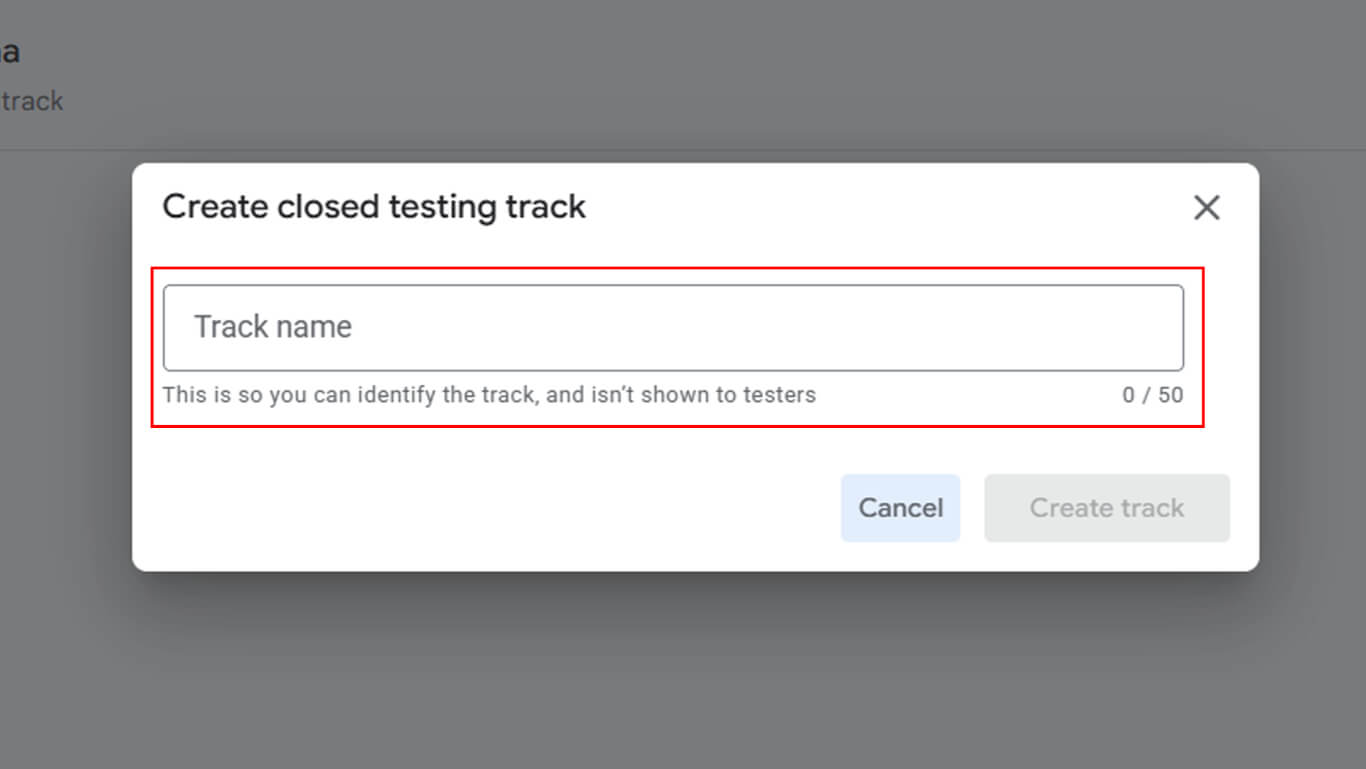
- Cliquez sur Créer une piste pour finaliser la création de la piste.
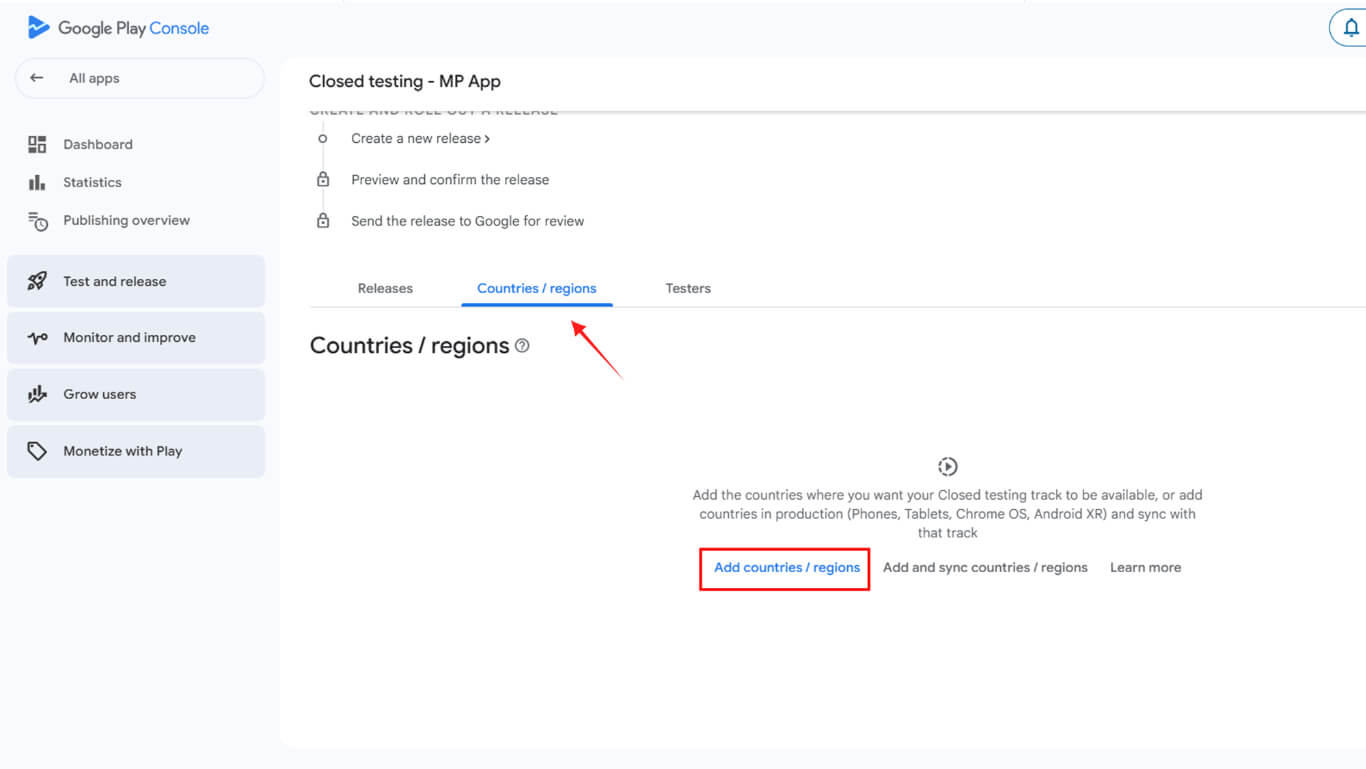
- Naviguez jusqu'à la page Pays/Régions tabulation.
- Cliquez sur Ajouter Pays/Régions.
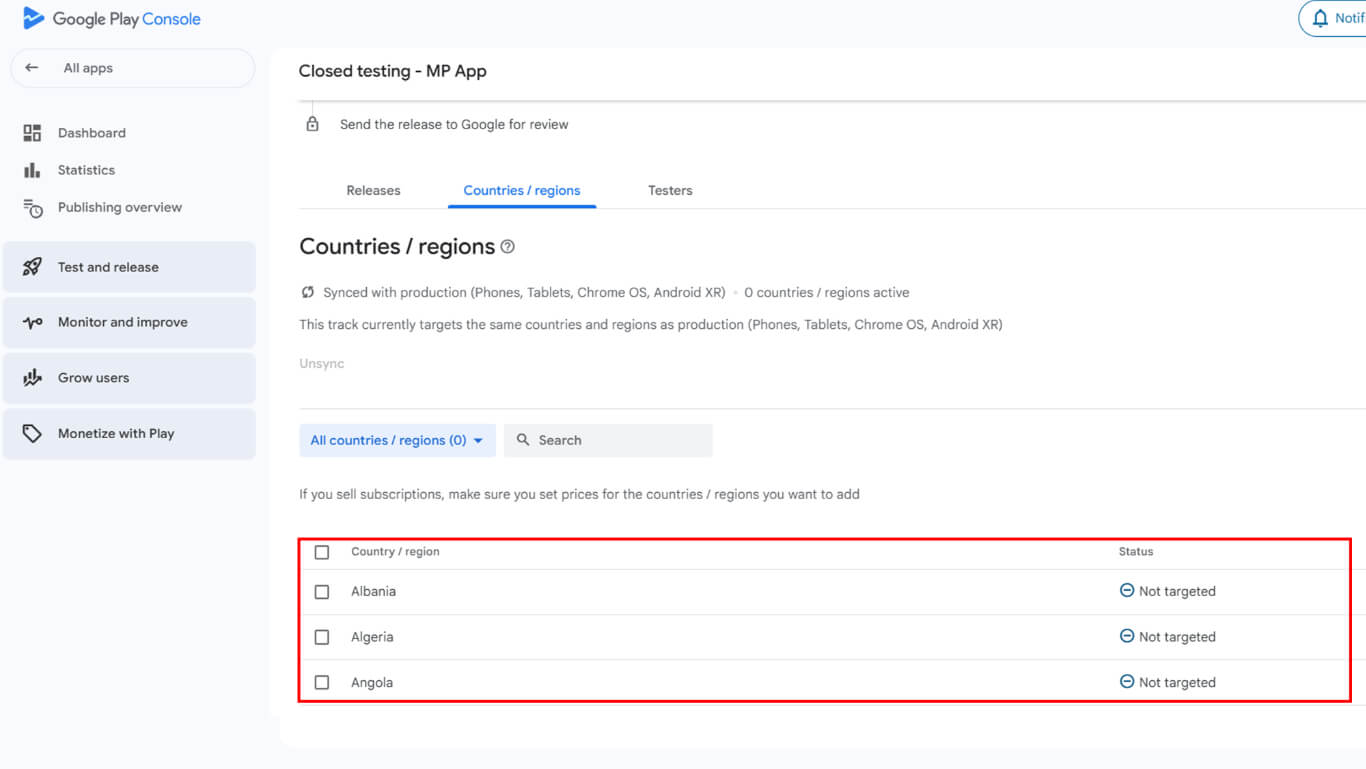
- Sélectionnez les pays dans lesquels l'application doit être disponible pour les tests.
- Cochez la case pour sélectionner tous les pays afin que les tests soient disponibles dans le monde entier.
Ajouter des testeurs à un test fermé
L'ajout d'un testeur permet à des utilisateurs spécifiques d'accéder à l'application et de la tester.
- Accédez à l'onglet Testeurs dans la piste de test fermée.
- Examiner les listes d'adresses électroniques existantes
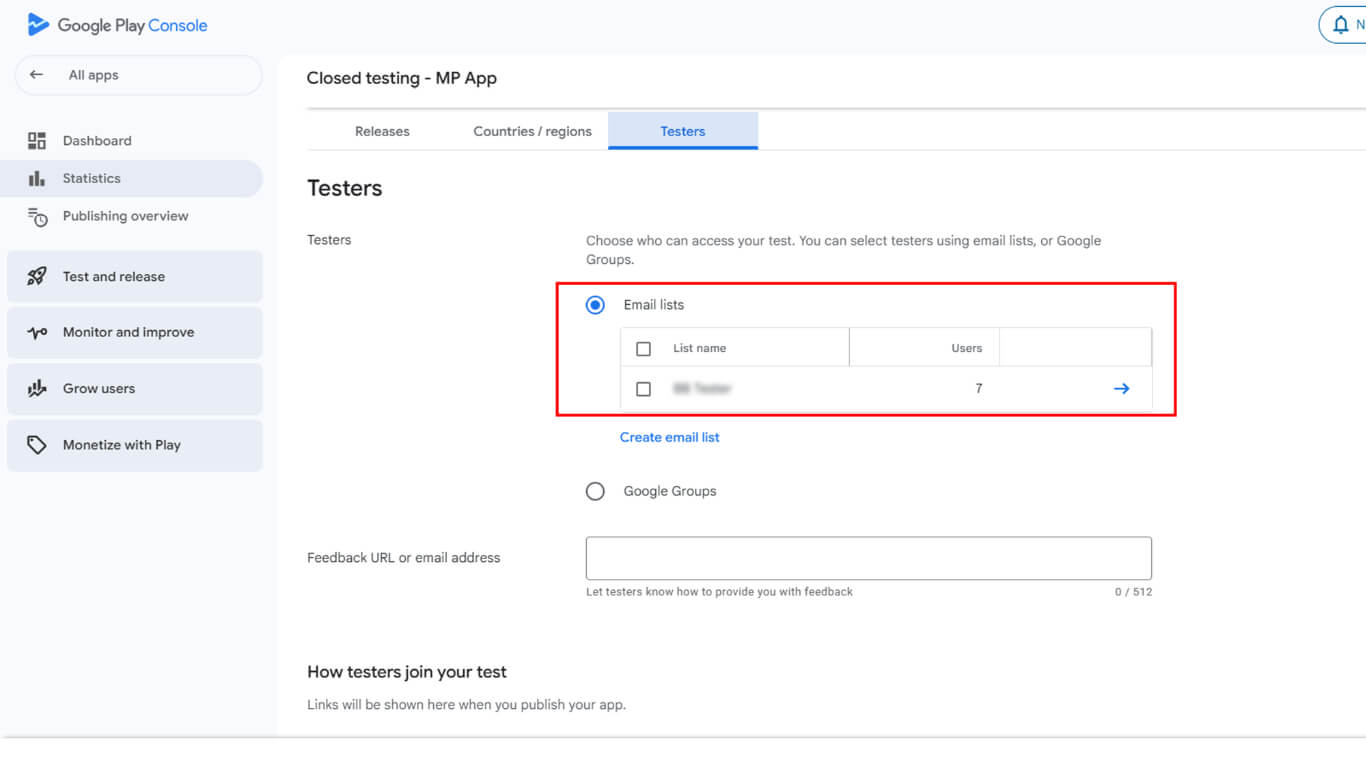
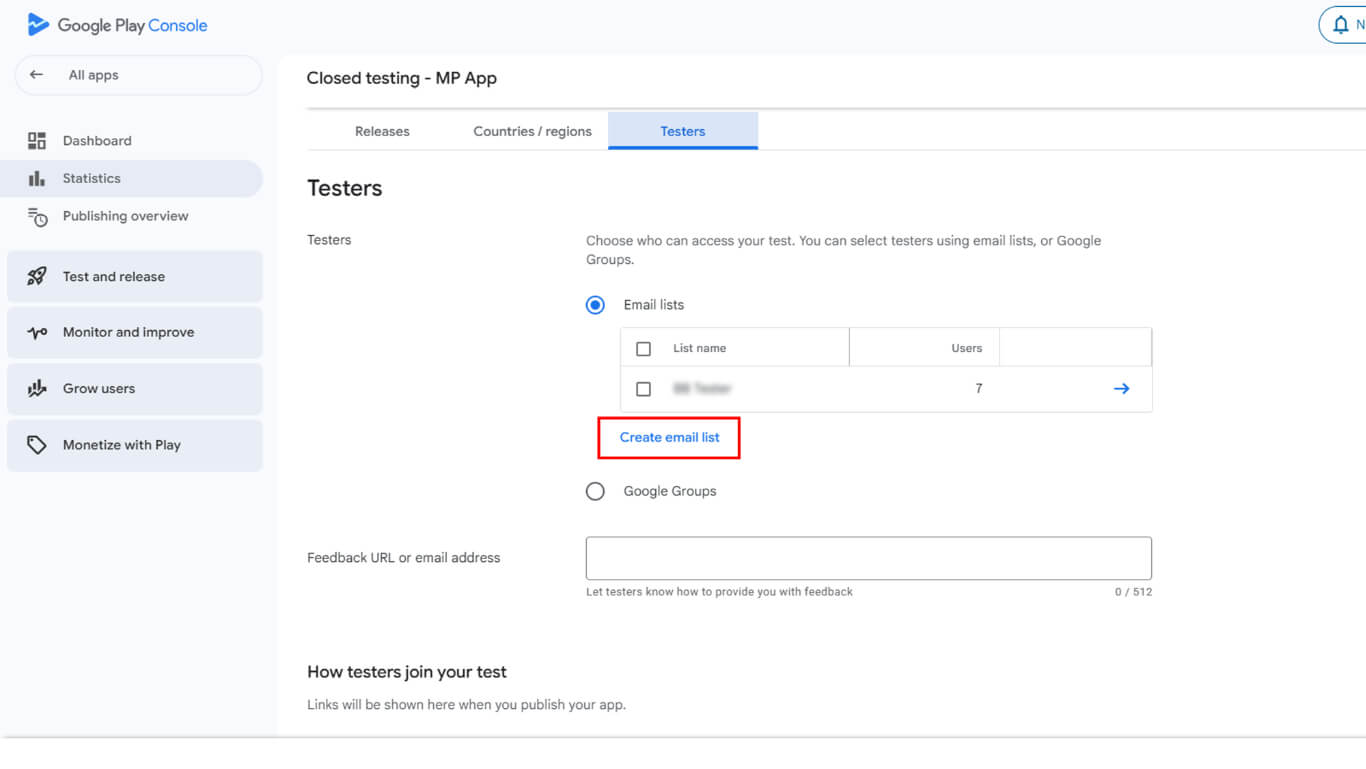
- Ou cliquer Créer Liste d'adresses électroniques.
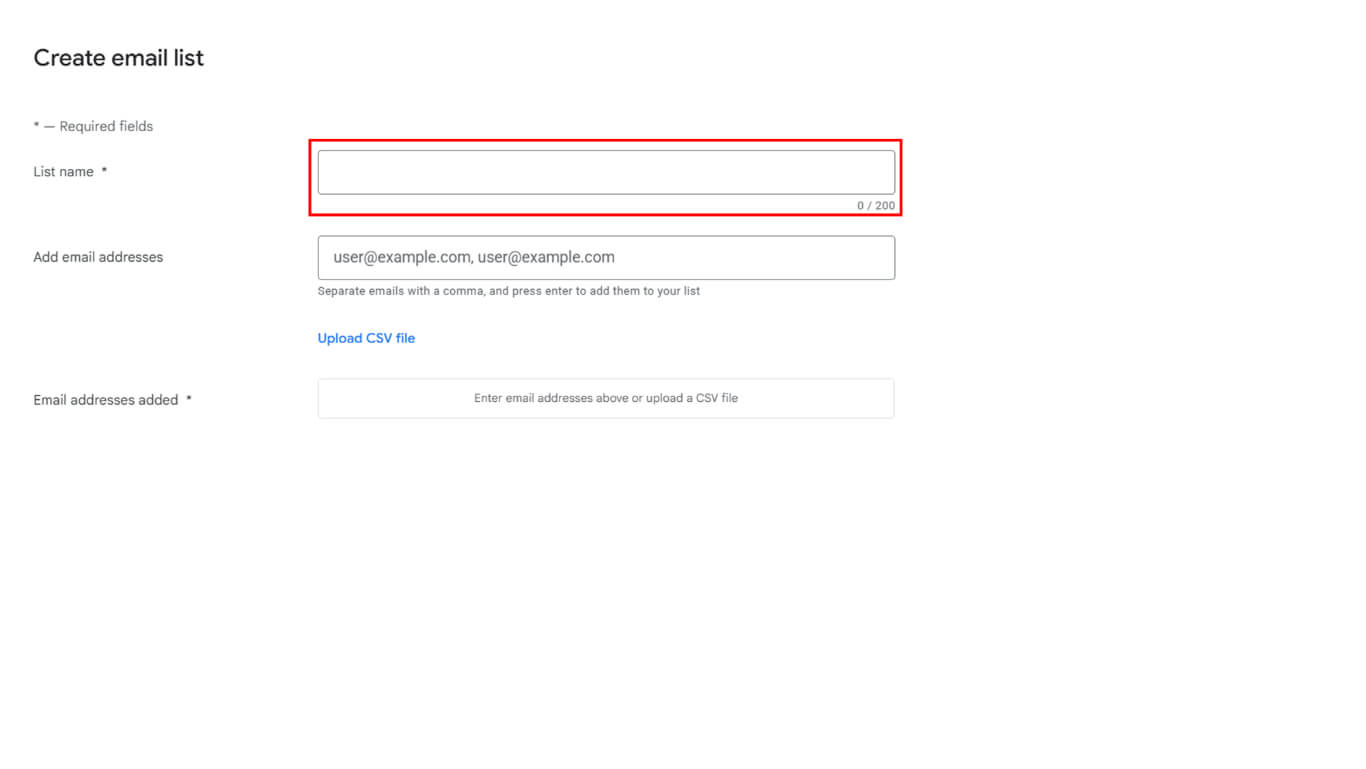
- Saisissez un nom descriptif dans le champ Champ Nom de la liste.
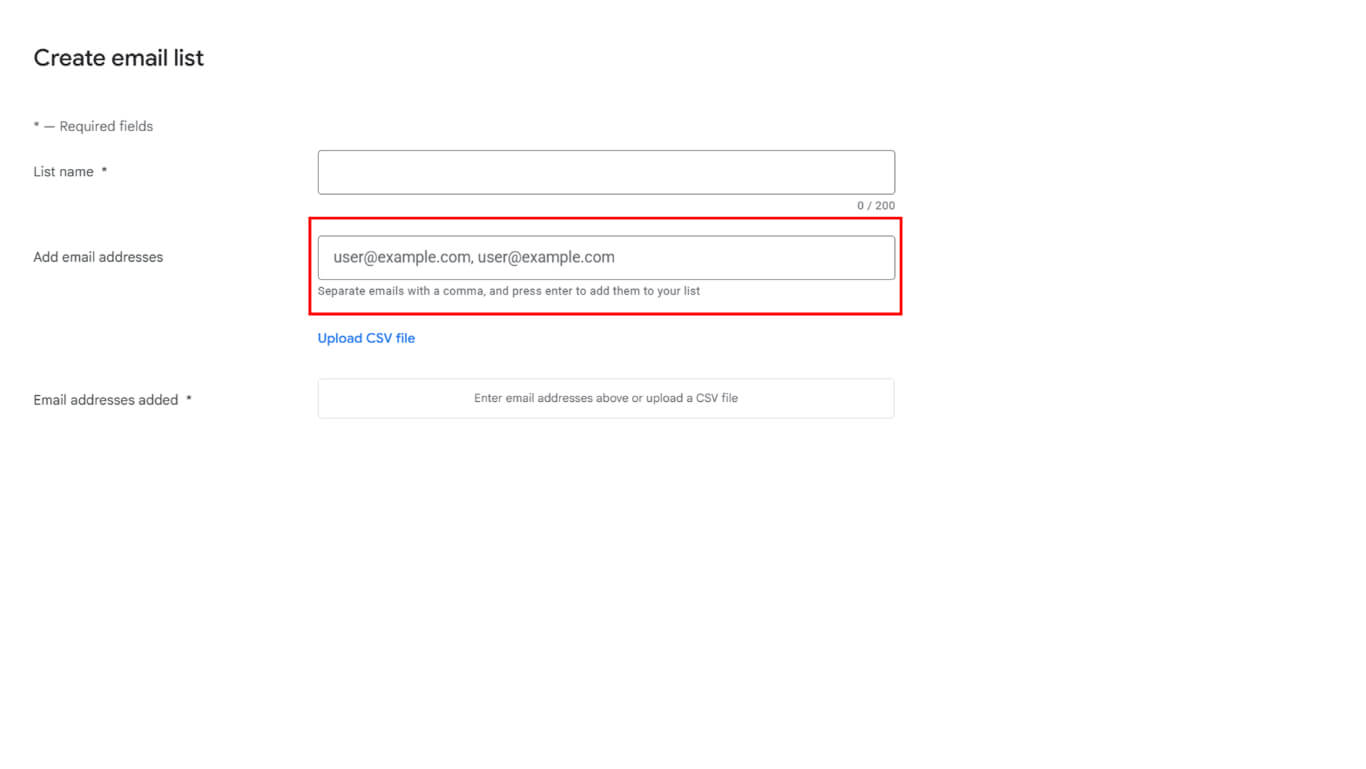
- Ajoutez au moins 12 adresses électroniques à la liste des testeurs ou téléchargez une liste CSV.
- Cliquez sur Enregistrer les modifications pour enregistrer la liste d'adresses électroniques.
- Cliquez sur Créer pour finaliser la création de la liste.
- Saisissez une URL de retour d'information ou une adresse électronique pour la soumission du retour d'information des testeurs.
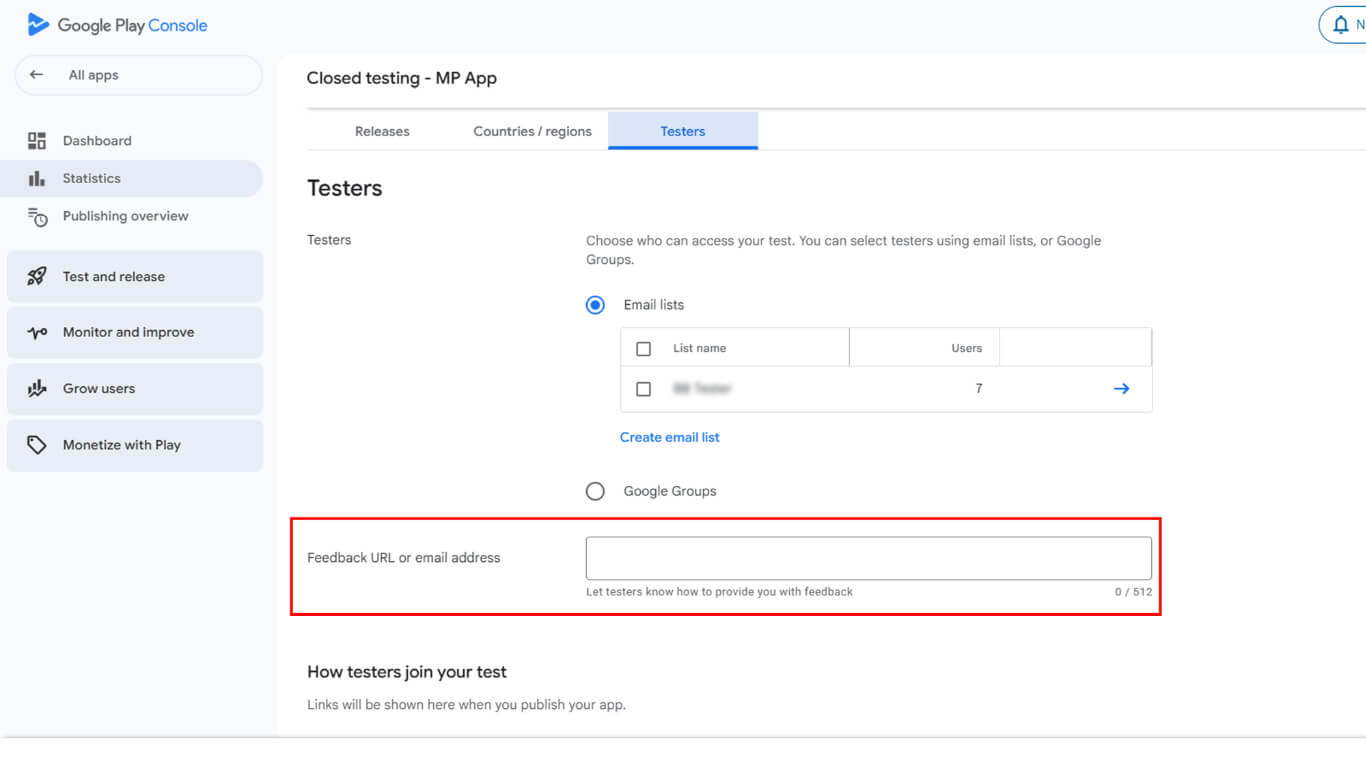
- Cliquez sur Sauvegarder pour enregistrer les informations relatives au retour d'information.
- Cliquez sur Aller à la vue d'ensemble lorsque vous y êtes invité.
Création d'une nouvelle version pour les tests fermés
La création d'une version prépare l'application à la distribution par les testeurs.
- Accédez à la piste de test fermée dans Google Play Console.
- Cliquez sur le bouton Créer une nouvelle version bouton.
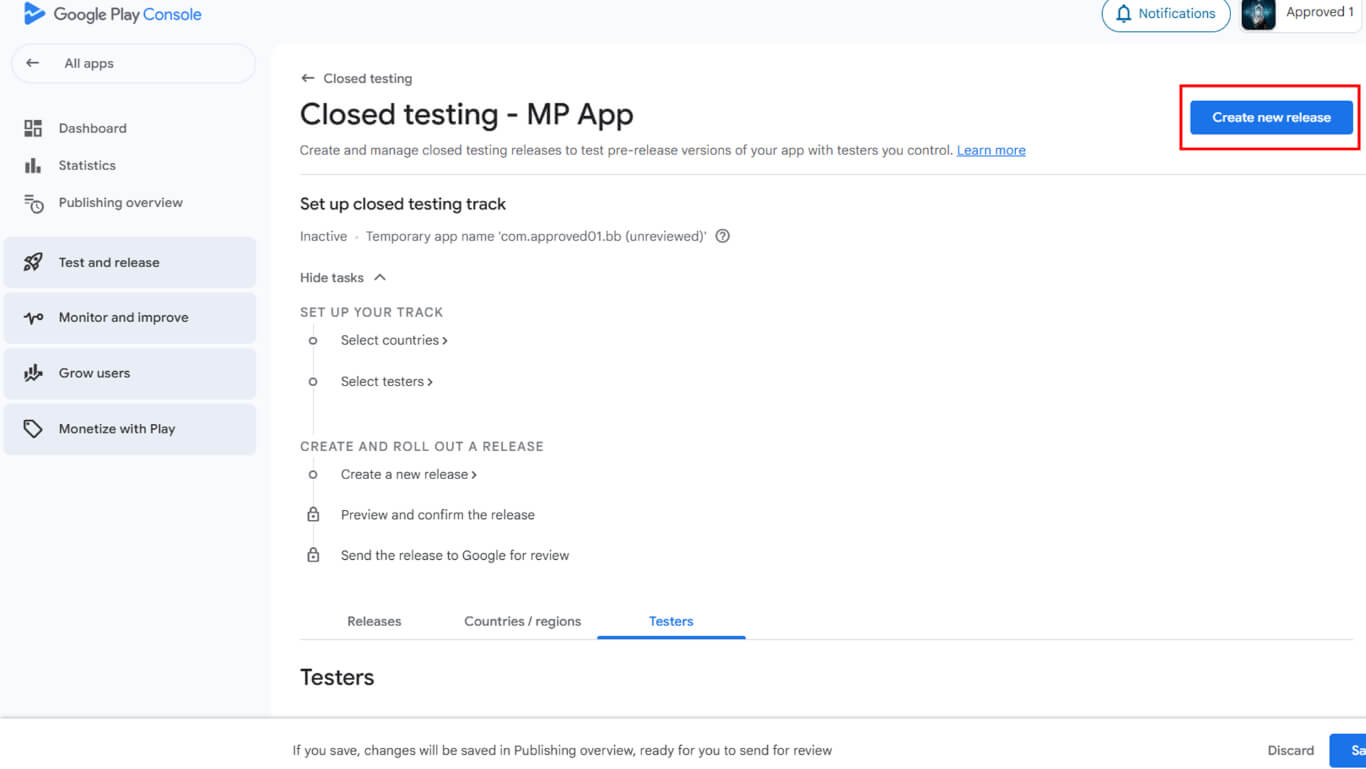
- Faites défiler jusqu'à la Ensembles d'applications section.
- Cliquez sur Télécharger pour sélectionner le fichier AAB de l'appareil.
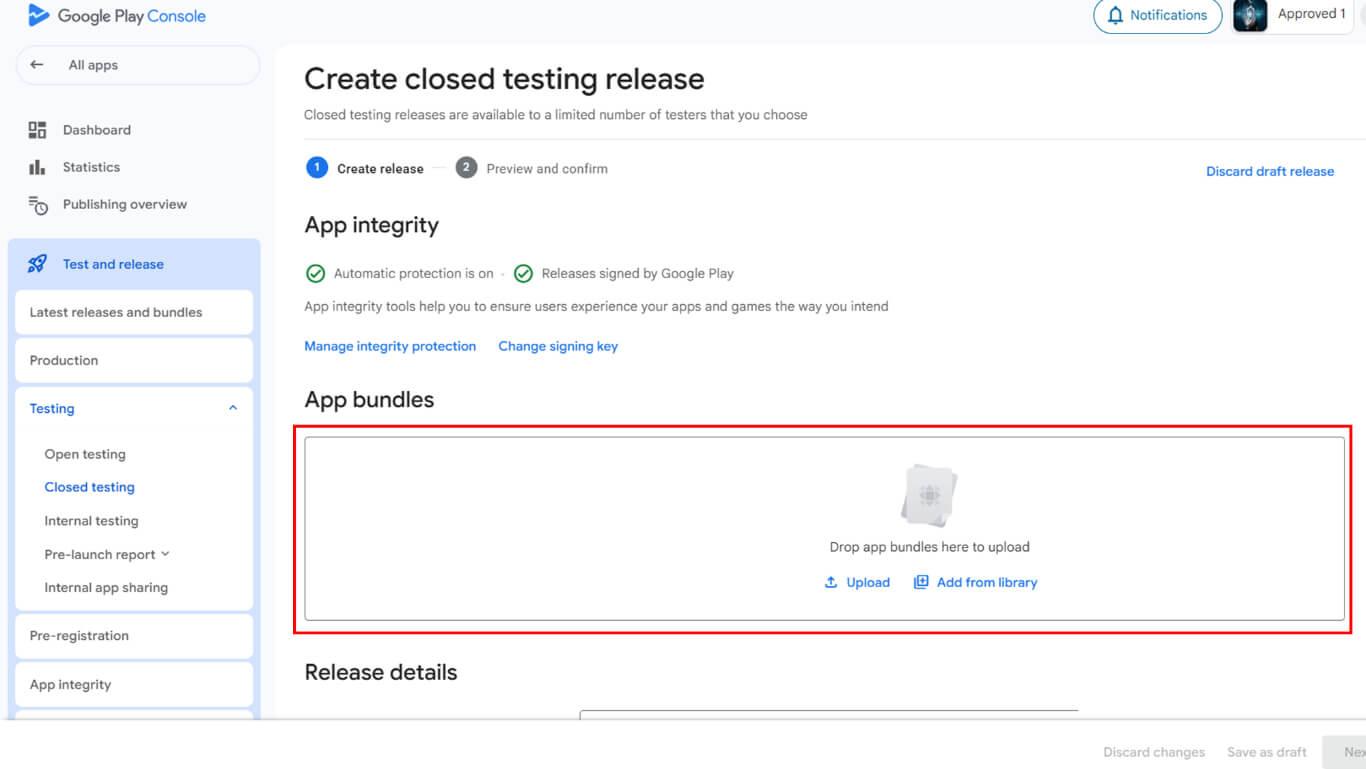
- Vous pouvez également sélectionner un OAA existant dans la bibliothèque.
- Cliquez sur Ajouter au communiqué après avoir sélectionné la construction.
- Naviguez jusqu'à la page Détails de la publication section.
- Vérifiez que le numéro de version rempli automatiquement est correct.
- Entrer Notes de mise à jour décrire les changements ou les caractéristiques.
- Cliquez sur Suivant pour procéder à l'examen.
- Cliquez sur Économiser pour enregistrer les informations relatives à la libération.
- Cliquez sur Aller à la vue d'ensemble dans la fenêtre de confirmation.
- Cliquez sur Envoyer les modifications pour révision à soumettre pour approbation.
- Confirmer la soumission dans la boîte de dialogue de confirmation.
Configuration des tests de licence
Les tests de licence limitent l'accès à l'application aux testeurs autorisés pendant la période de test.
- Naviguez jusqu'à Toutes les applications dans la barre latérale gauche de la console Google Play.
- Cliquez sur Paramètres > Test de licence dans la navigation.
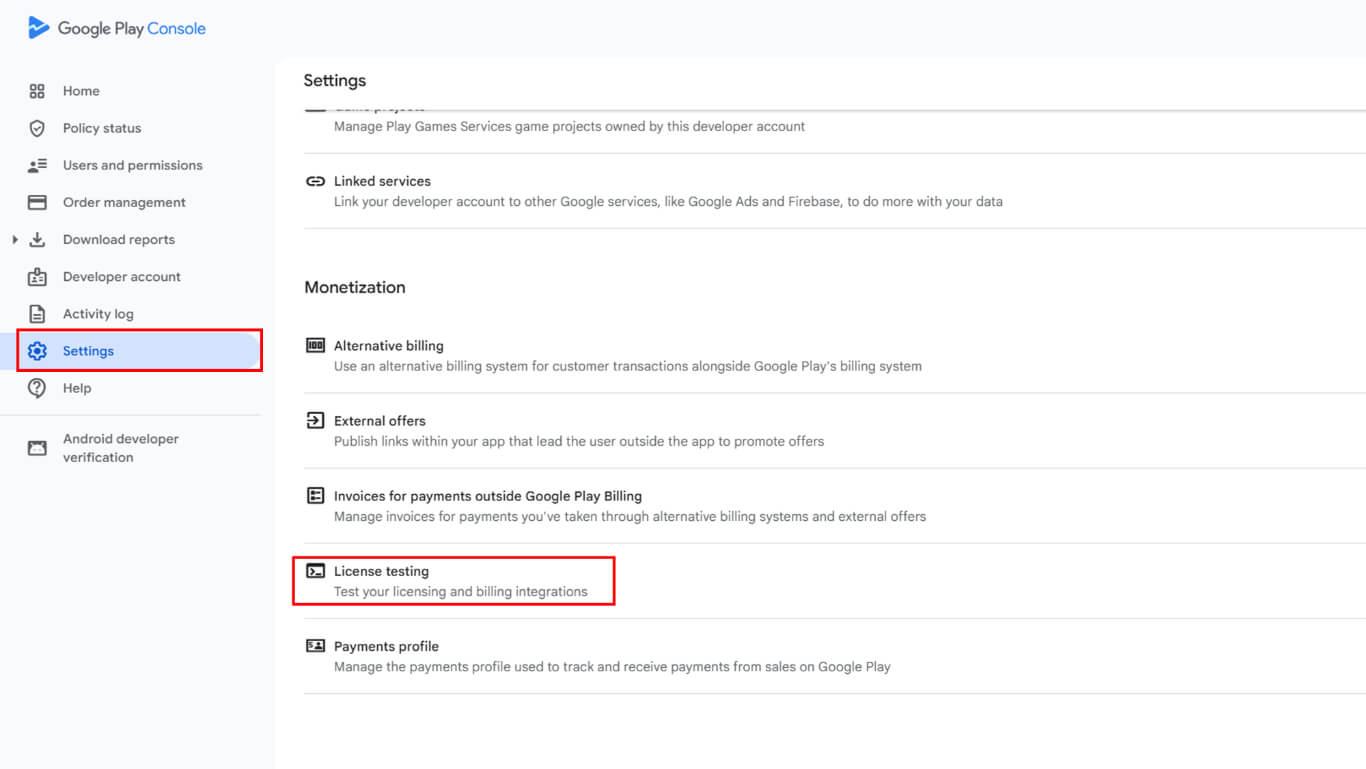
- Sélectionnez les listes d'adresses électroniques des testeurs parmi les options disponibles.
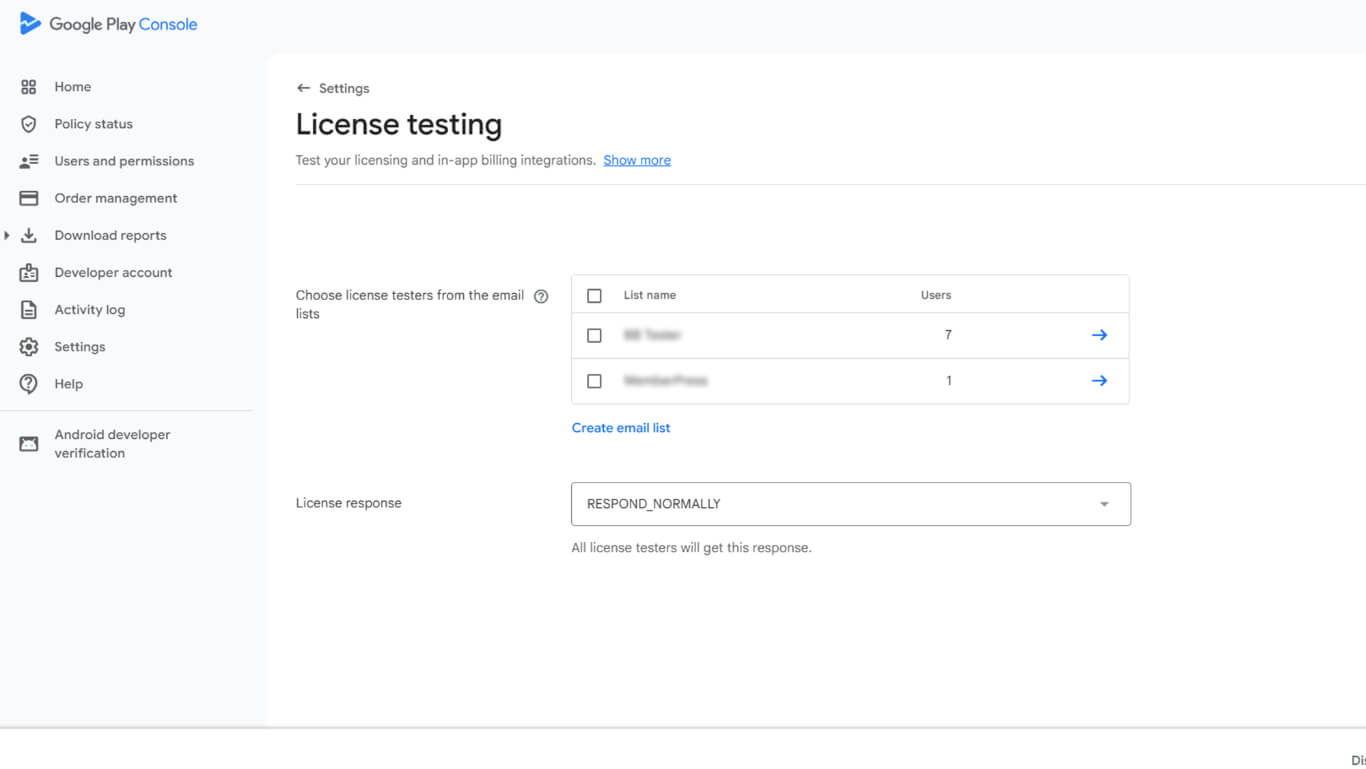
- Cliquez sur Enregistrer les modifications pour finaliser la configuration du test de licence.
Le test de licence permet de s'assurer que seuls les testeurs autorisés peuvent installer et accéder à l'application pendant la phase de test fermée.
Période de test fermée de 14 jours
La période de test permet de recueillir des informations en retour et de valider les fonctionnalités de l'application avant sa mise en production.
- Attendez la confirmation de l'approbation de Google pour la mise en place du test fermé.
- Copiez le lien du test à partir de l'aperçu de la piste de test fermée.
- Partagez le lien du test avec les 12 testeurs ou plus par courrier électronique.
- Vérifier que les testeurs s'inscrivent au test fermé en cliquant sur le lien.
- Contrôler l'engagement des testeurs tout au long de la période minimale de 14 jours.
- Recueillir le retour d'information des testeurs par le biais du canal de retour d'information désigné.
- Examiner le retour d'information afin d'identifier les améliorations à apporter avant la mise en production.
- S'assurer qu'au moins 12 testeurs utilisent activement l'application pendant 14 jours consécutifs.
Demande d'accès à la production
Les demandes d'accès à la production débloquent la piste de production pour la mise à disposition de l'application publique.
- Accédez au tableau de bord de l'application dans Console Google Play après avoir satisfait aux exigences de l'examen.
- Cliquez sur le bouton Postuler pour la production bouton.
- Examinez le questionnaire de demande d'accès à la production.
- Répondre aux questions sur le processus et les résultats du test fermé.
- Fournir des détails sur les fonctionnalités et les caractéristiques de l'application ou du jeu.
- Confirmer l'état de préparation de la production et les normes de qualité.
- Cliquez sur Soumettre pour envoyer la demande à Google.
- Attendez la décision de Google sur l'accès à la production.
Google examine généralement les demandes d'accès à la production dans un délai de 7 jours ou moins. L'onglet "Production" se déverrouille après l'approbation, ce qui permet de préparer la diffusion publique.
Publication après l'accès à la production
La préparation du lancement de la production suit l'approbation de l'accès à la production.
- Naviguez jusqu'à la page Production dans Google Play Console après approbation.
- Cliquez sur Créer une nouvelle version dans la piste de production.
- Télécharger le fichier AAB de la version finale de l'application.
- Détails complets de la version, y compris les informations sur la version et les notes de mise à jour.
- Sauvegarder la configuration de la version de production.
- Naviguez jusqu'à Tableau de bord > MP AppKit > Service de publication > Google Play Store dans WordPress.
- Cliquez sur Soumettre pour créer une demande de publication.
- L'équipe chargée de la publication gère la soumission des applications au Google Play Store.
- Surveiller le courrier électronique pour obtenir des mises à jour de l'équipe d'édition sur l'état des soumissions.
L'équipe d'édition s'occupe de la soumission finale de l'application et de la communication avec l'équipe d'évaluation du Google Play Store.










 FR
FR  EN
EN  ES
ES  DE
DE  PT
PT 