

La fonction Smart Banner invite les visiteurs mobiles à télécharger ou à ouvrir votre application MemberPress iOS/Android directement depuis votre site web. Lorsqu'un visiteur accède à votre site à partir d'un navigateur mobile, il voit une bannière avec des options pour télécharger l'application ou l'ouvrir si elle est déjà installée.
Ce guide vous explique comment configurer la Smart Banner pour les plateformes iOS et Android.
Comprendre la fonctionnalité Smart Banner
Les exigences relatives à la fonctionnalité Smart Banner définissent les configurations permettant d'inviter les visiteurs d'un site Web mobile à accéder à l'application mobile native.
Détection des visiteurs mobiles identifie les utilisateurs qui accèdent au site web à partir d'appareils mobiles, ce qui permet d'afficher des bannières ciblées. La bannière n'apparaît qu'aux utilisateurs mobiles, sans interrompre la navigation des visiteurs sur ordinateur.
Invitation au téléchargement encourage les visiteurs qui n'ont pas encore installé l'application sur leur appareil à le faire. Les liens de téléchargement redirigent les utilisateurs vers la boutique d'applications appropriée pour leur plateforme.
Capacité d'ouverture de l'application lance l'application installée directement depuis le site Web pour les utilisateurs existants. Le deep linking maintient la continuité de la session entre les expériences Web et application.
Configuration spécifique à la plateforme permet une configuration distincte des bannières pour les appareils iOS et Android. La configuration indépendante des plateformes s'adapte aux différentes exigences des boutiques d'applications.
Exigences relatives à l'identifiant d'application Utilisez les identifiants de boutique pour associer les bannières aux bonnes fiches d'application. Une configuration correcte des identifiants garantit que les utilisateurs accèdent aux téléchargements d'application souhaités.
Récupération des identifiants App Store
La récupération de l'identifiant App Store fournit les identifiants nécessaires à la configuration de Smart Banner et à la liaison avec la plateforme.
Obtenir un identifiant Apple App ID
La récupération de l'identifiant Apple App extrait l'identifiant numérique de l'URL de la fiche App Store.
- Consultez la fiche de votre application sur l'App Store d'Apple.
- Copiez l'identifiant numérique de l'application après id= dans l'URL (par exemple, 1558004735).
Obtenir l'identifiant d'application Google
La récupération de l'ID d'application Google extrait l'identifiant du package à partir de l'URL de la fiche du Play Store.
- Accédez à la fiche de votre application sur le Google Play Store.
- Copiez la valeur après id= dans l'URL (par exemple, com.ball.ribbon).
Enregistrez les deux identifiants pour les utiliser dans les étapes de configuration ci-dessous.
Configuration de la bannière intelligente Apple
La configuration Apple Smart Banner permet d'afficher une bannière sur les appareils iOS avec un lien vers l'App Store.
- Aller à Tableau de bord > MP AppKit > Configurer > Réglages iOS.
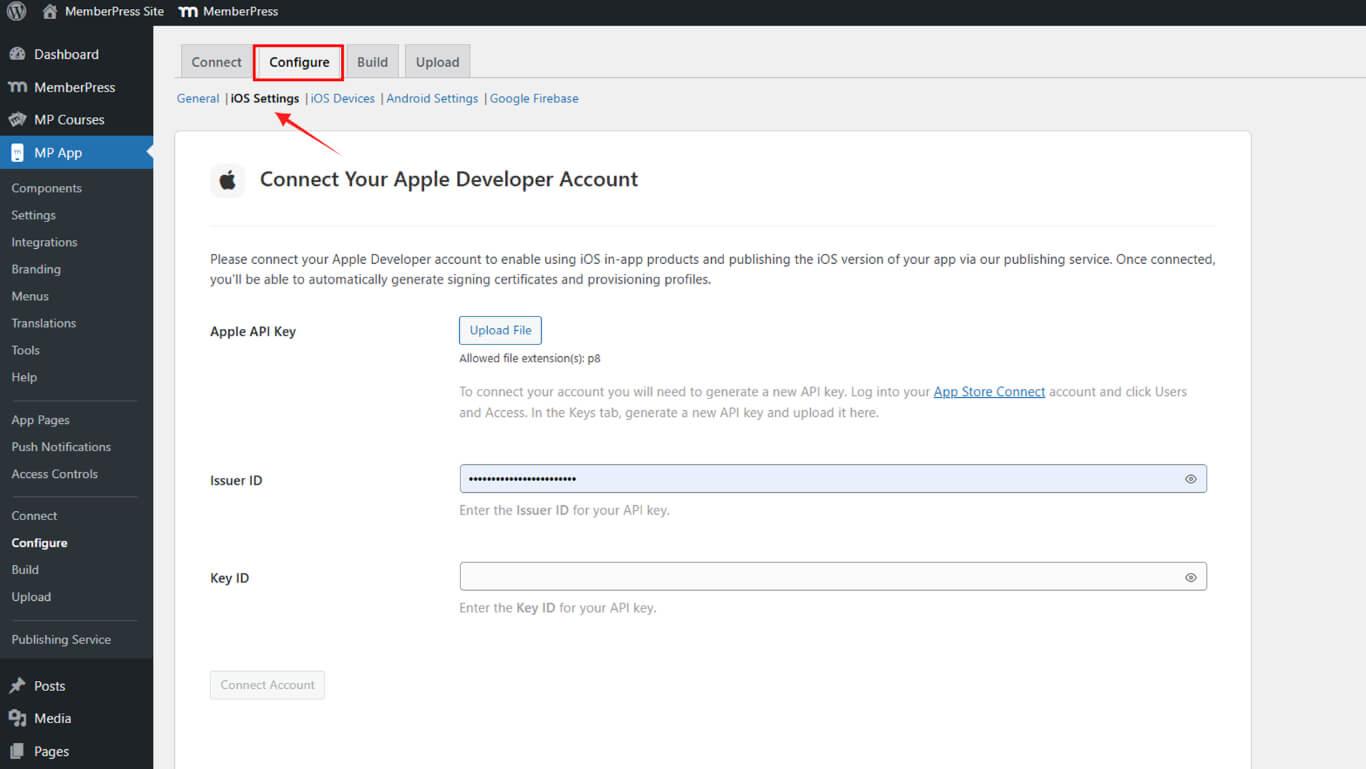
- Faites défiler jusqu'à Informations sur l'application.
- Collez votre identifiant Apple App ID dans le champ prévu à cet effet.
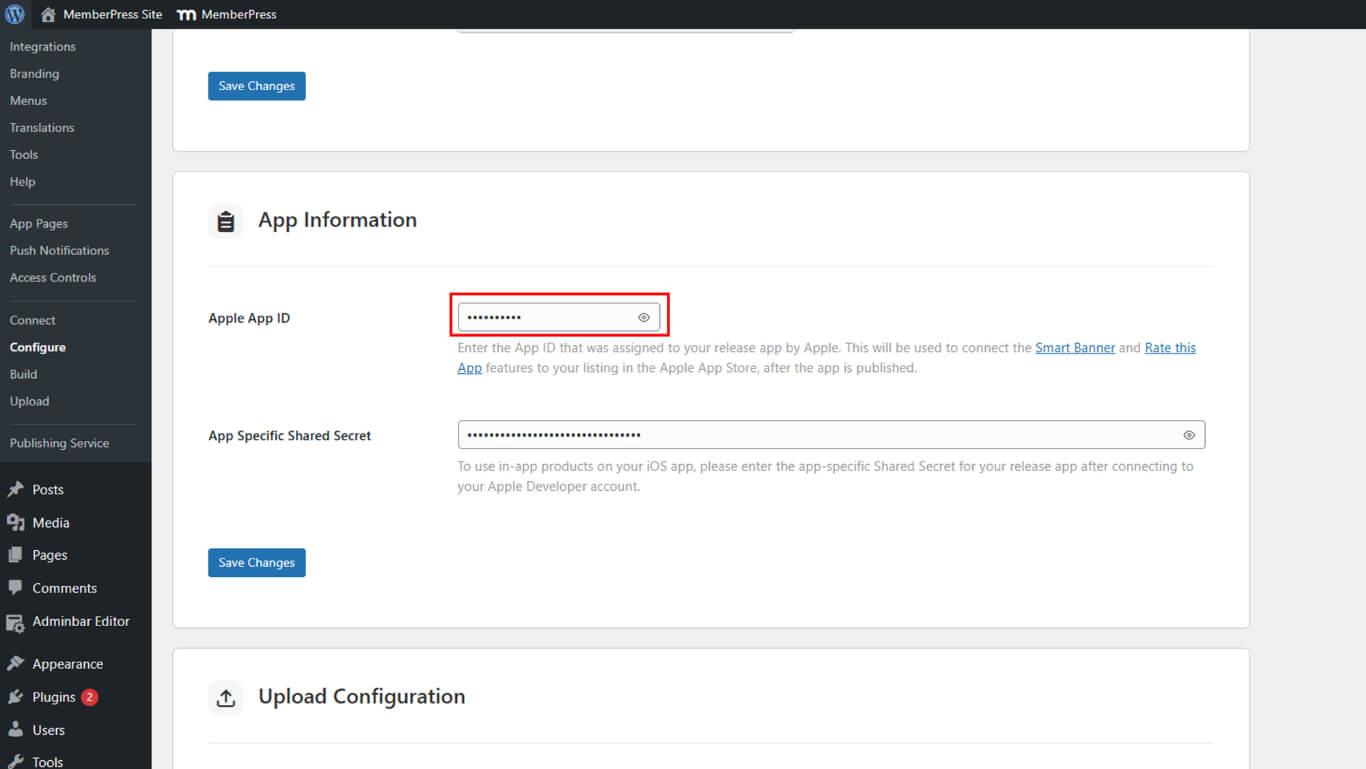
- Cliquez sur Enregistrer les modifications.
Configuration de la bannière intelligente Android
La configuration Android Smart Banner permet d'afficher une bannière sur les appareils Android avec un lien vers le Play Store.
- Aller à Tableau de bord > MP AppKit > Configurer > Paramètres Android.
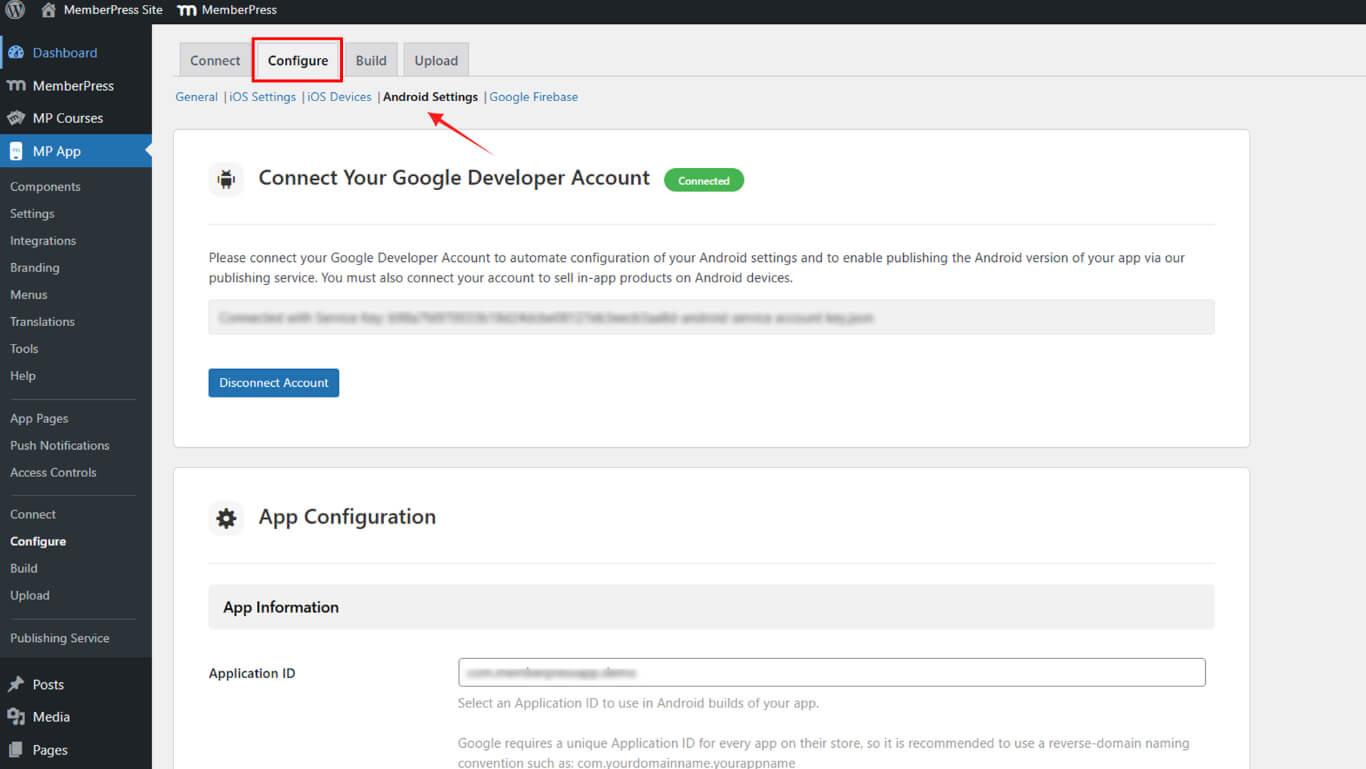
- Vérifiez que votre identifiant de candidature figure dans la liste sous Configuration de l'application.
- Assurez-vous que la boîte J'ai enregistré cet identifiant d'application dans mon compte Google Developer. est vérifié.
- Cliquez sur Enregistrer les modifications.
Activation de la bannière intelligente
L'activation des bannières intelligentes permet d'afficher des bannières pour les visiteurs du site Web mobile sur les plateformes configurées.
- Aller à Tableau de bord > MP AppKit > Réglages > Bannière intelligente.
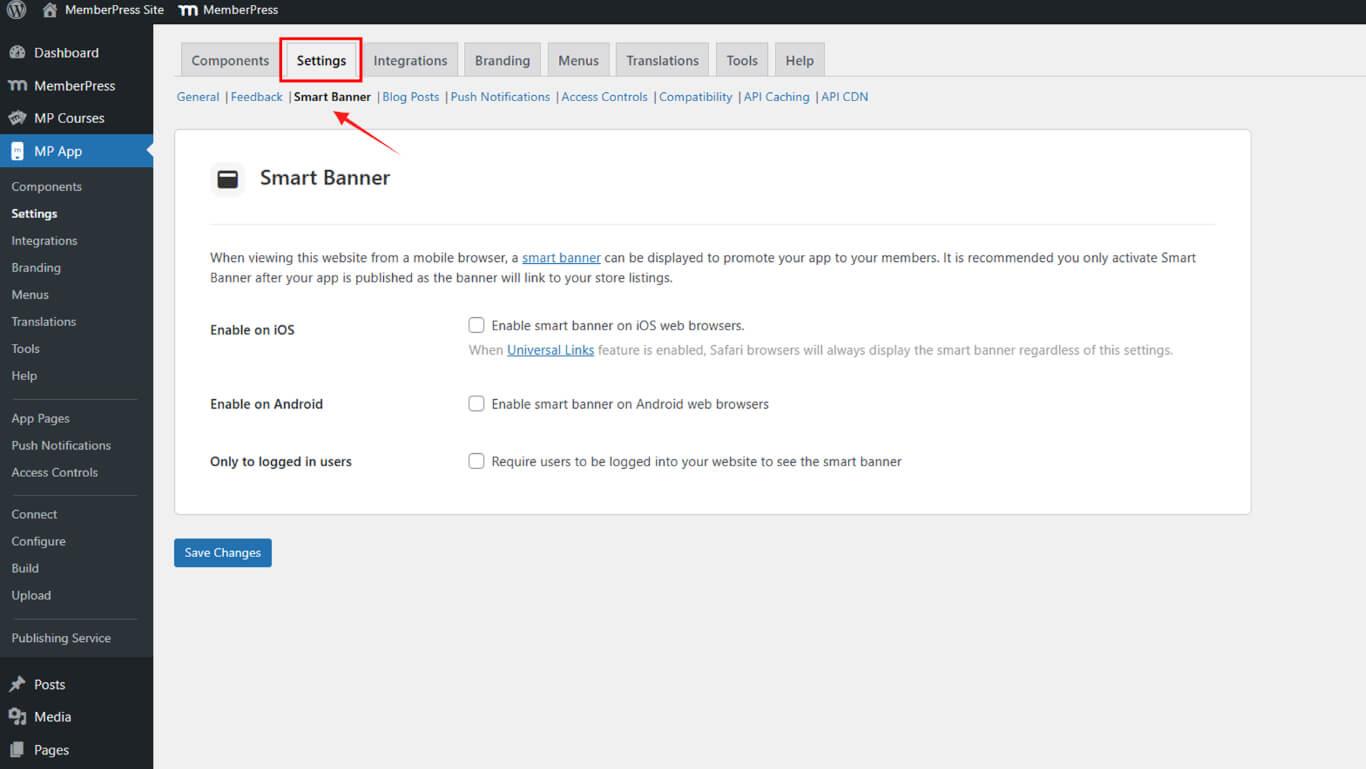
- Vérifier Activer sur iOS et/ou Activer sur Android.
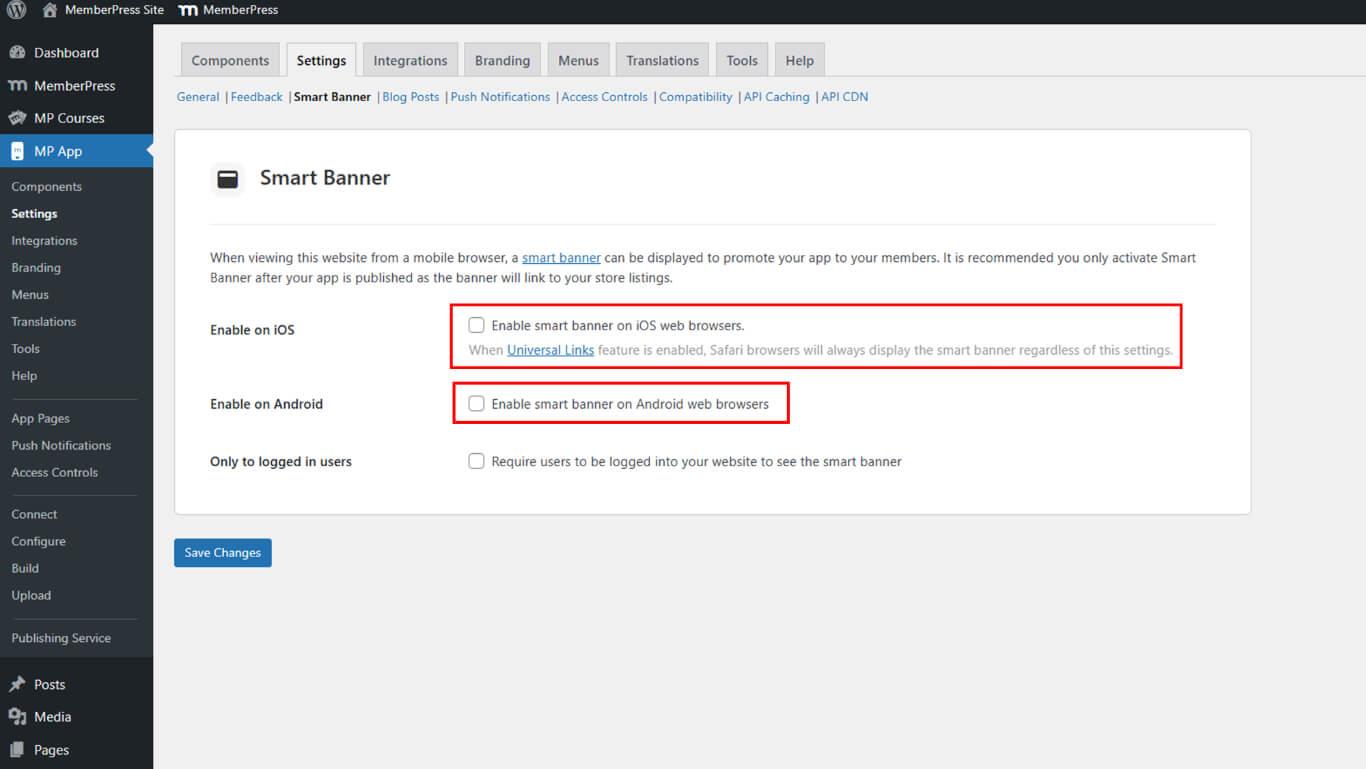
- Cliquez sur Enregistrer les modifications.










 FR
FR  EN
EN  ES
ES  DE
DE  PT
PT 