

Un compte Google Play Developer permet de publier des applications Android sur le Google Play Store. La création d'un compte nécessite la sélection d'un type de compte, la vérification de l'identité, l'établissement d'un lien avec le profil de paiement et le paiement d'un droit d'inscription unique.
Ce document explique comment créer des comptes Google Play Developer personnels et organisationnels pour distribuer l'application MemberPress.
Comprendre les types de comptes
Les comptes Google Play Developer prennent en charge deux types de comptes avec des capacités et des exigences différentes.
Comptes personnels Utilisez les informations individuelles du développeur pour la publication de l'application. Les comptes personnels affichent publiquement le nom du développeur dans les listes Google Play. Les comptes personnels conviennent aux développeurs qui ne sont pas enregistrés en tant qu'entités commerciales.
Comptes d'organisation nécessitent des informations et des documents officiels relatifs à l'entreprise. Les comptes d'organisation permettent d'ajouter des membres à l'équipe pour une gestion collaborative des applications. Les comptes d'organisation publient les applications sous le nom de l'entreprise et autorisent plusieurs utilisateurs.
Le type de compte peut être modifié de « Personnel » à « Organisation » après la création initiale. Le choix initial du type de compte doit refléter la structure actuelle de l'entreprise.
Commencer la création d'un compte développeur Google Play
L'inscription à la Play Console lance le processus de création de compte.
- Naviguez jusqu'à play.google.com/console/inscription dans un navigateur Web.
- Cliquez sur Créer un nouveau compte développeur.
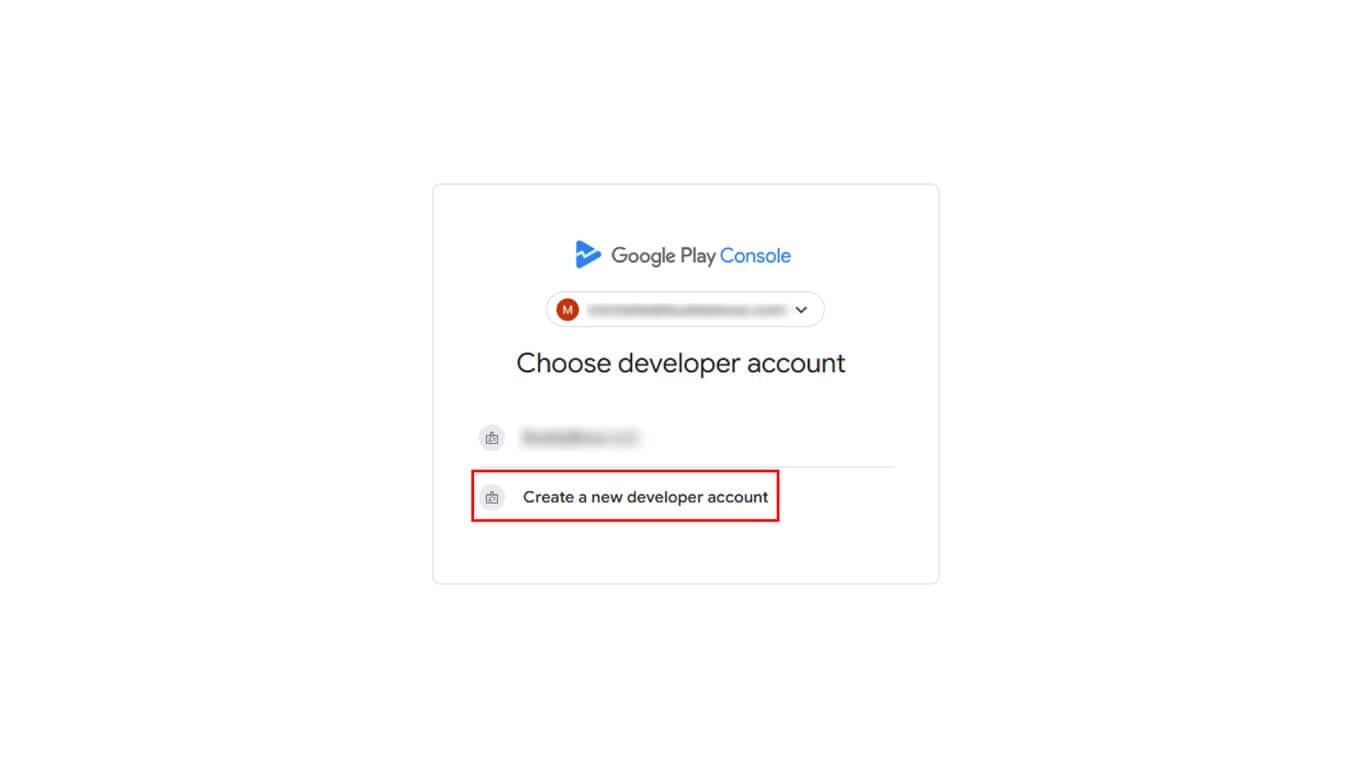
- Consultez la page de sélection du type de compte.
- Sélectionnez le type de compte correspondant aux besoins du développeur :
- Créez un compte développeur Play pour vous-même. pour les comptes personnels ;
- Créez un compte Play Developer pour votre organisation. pour les comptes d'organisation.
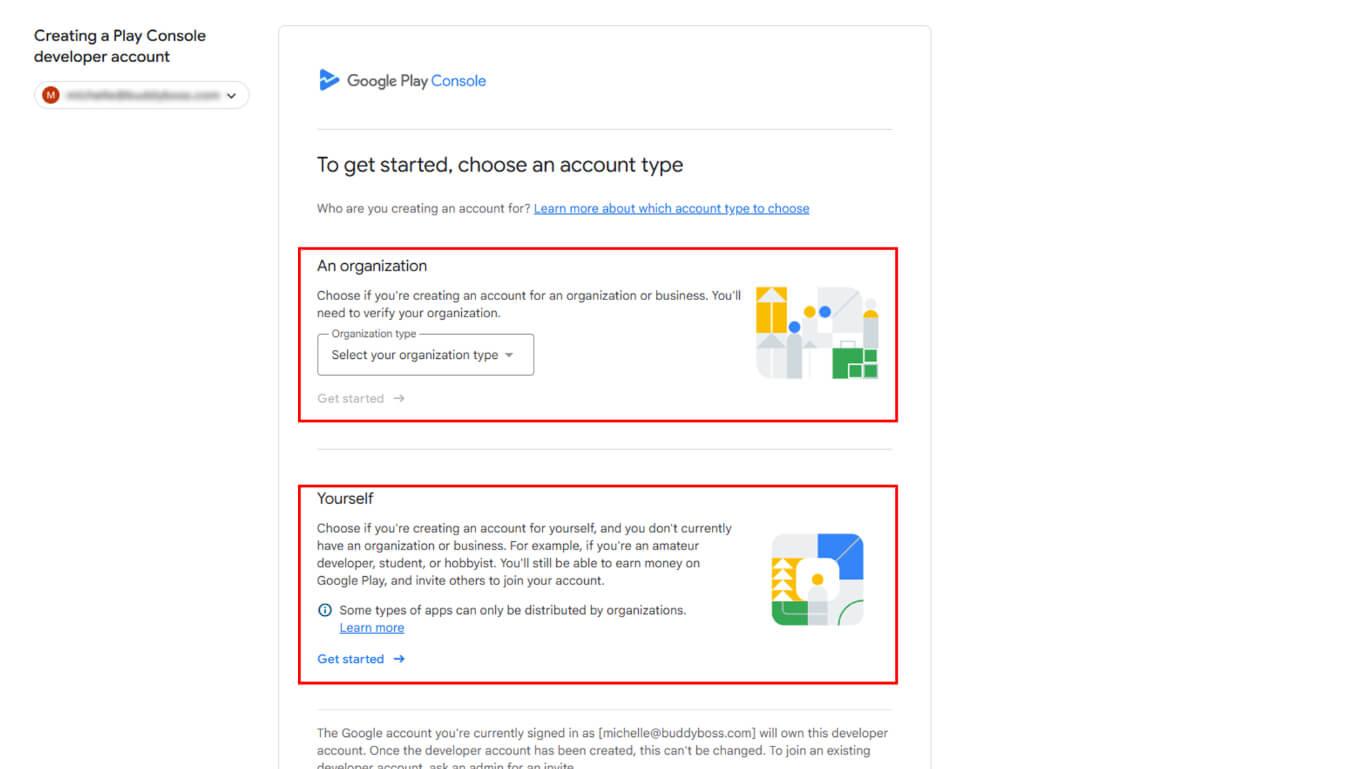
- Cliquez sur Commencer.
- Vérifiez les conditions requises pour le compte.
- Cliquez sur Continuer.
Saisie du nom du développeur
Le nom du développeur correspond au nom public qui apparaît sur Google Play.
- Entrez le nom qui sera affiché publiquement sur Google Play :
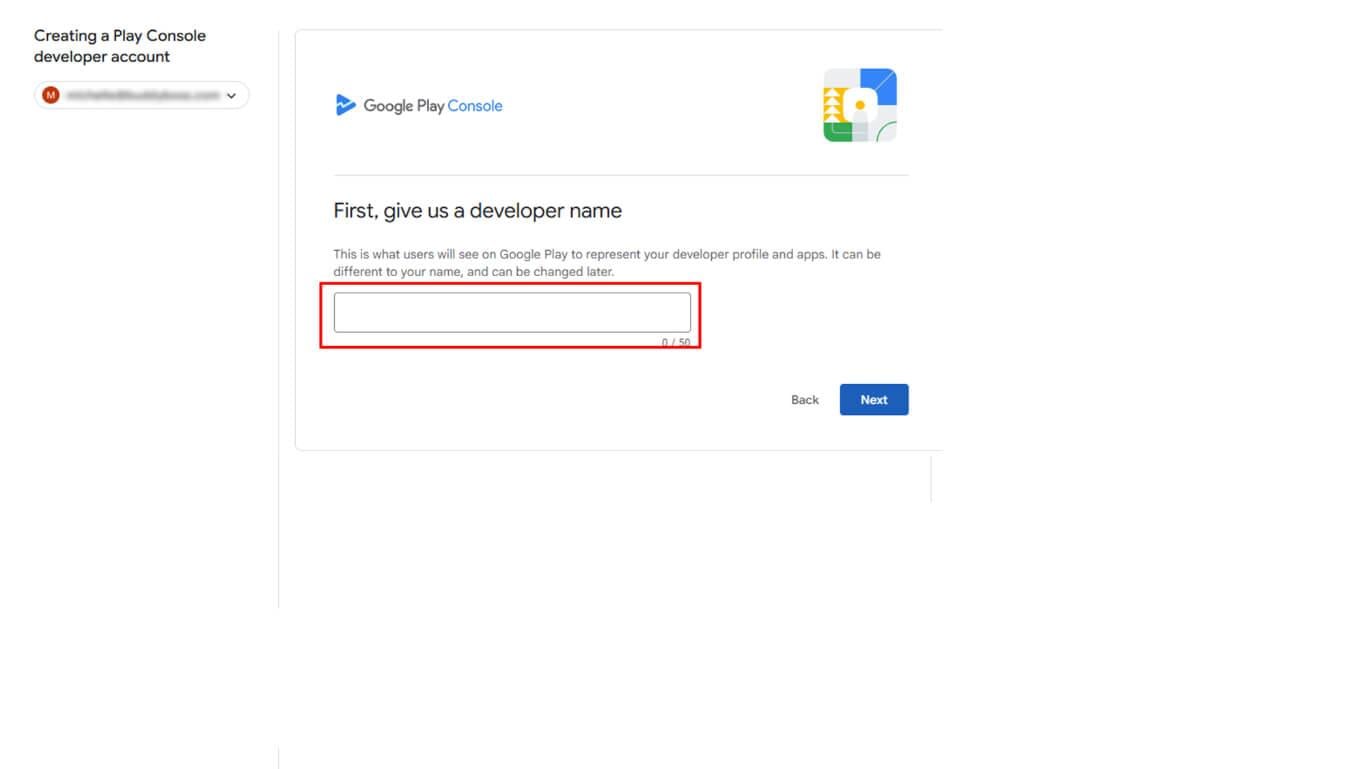
- Comptes personnels: Entrez votre nom ou votre pseudonyme de développeur ;
- Comptes d'organisation: Entrez le nom de votre entreprise ou organisation.
- Cliquez sur Suivant pour procéder à la liaison du profil de paiement.
Profil de paiement lié
Le profil de paiement permet de vérifier l'identité grâce aux informations de paiement.
- Consultez la page de liaison du profil de paiement.
- Cliquez sur Créer ou sélectionner un profil de paiement pour commencer la configuration du profil.
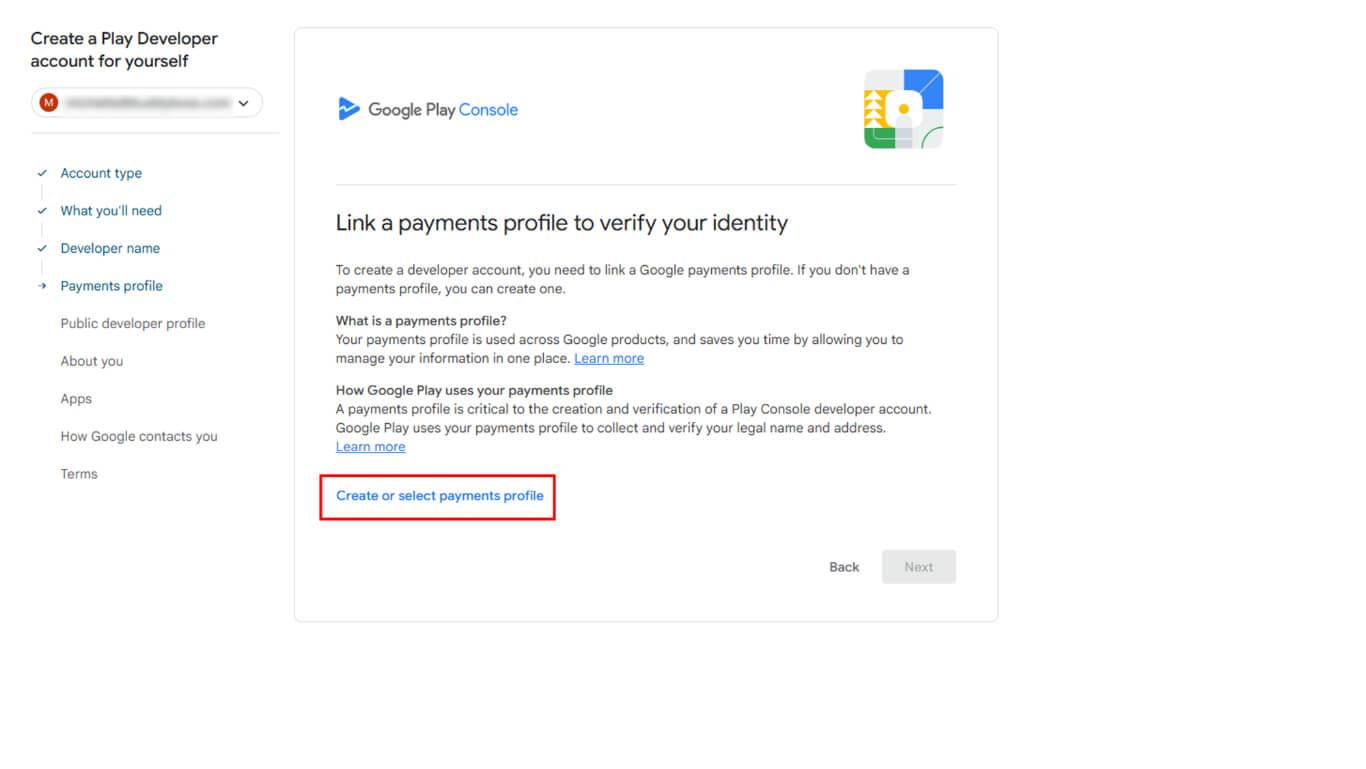
- Si aucun profil de paiement n'existe, suivez la procédure de création de profil de Google.
- Entrez les informations requises :
- Comptes personnels: Nom légal, adresse personnelle et coordonnées ;
- Comptes d'organisation: Nom légal de l'entreprise, adresse commerciale, informations fiscales et coordonnées professionnelles.
- Enregistrez le profil de paiement.
- Retournez à la page Play Console.
- Cliquez sur Suivant une fois le profil de paiement lié.
Le profil Paiements stocke les informations de paiement pour la vérification d'identité et les transactions futures.
Configuration du profil public du développeur
La configuration du profil public du développeur fournit des informations de contact visibles par les utilisateurs.
- Entrez l'adresse e-mail du développeur dans le champ « E-mail de contact » :
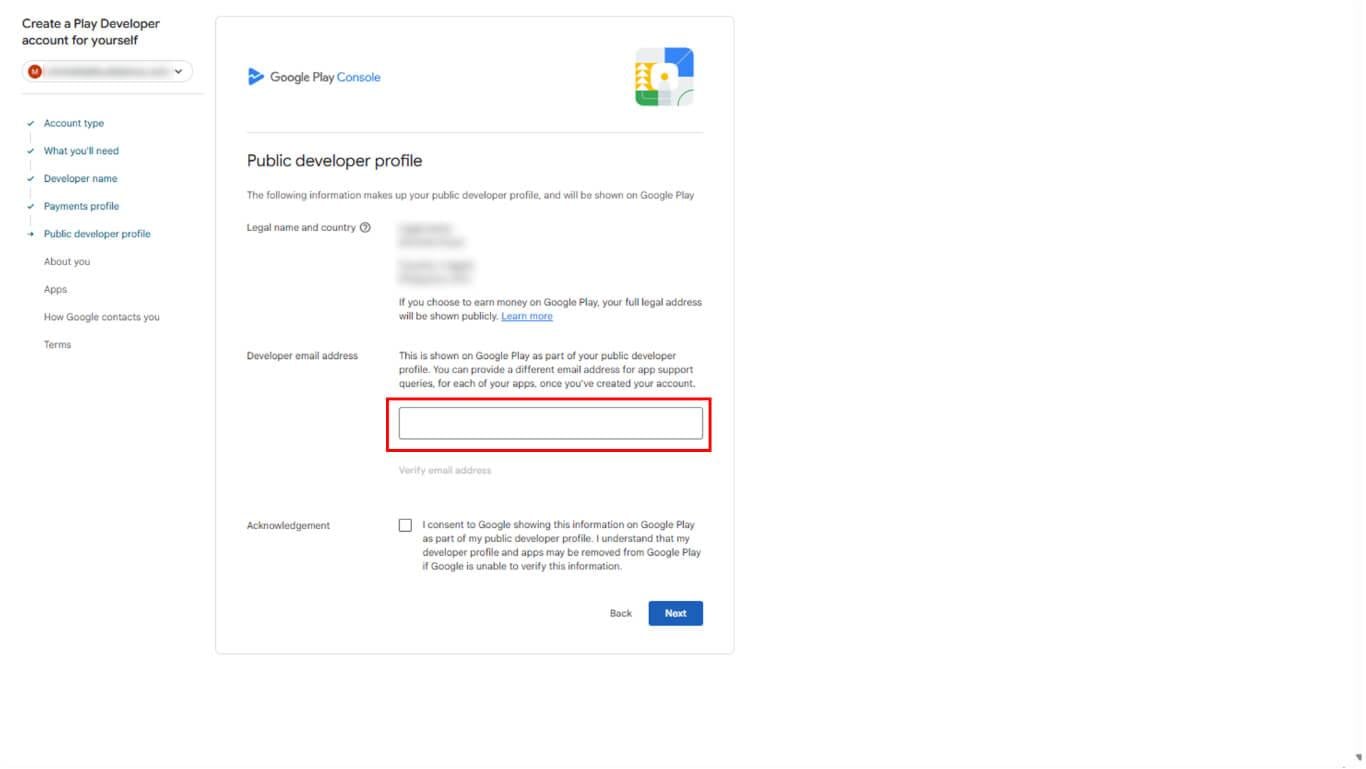
- Comptes personnels: Adresse e-mail personnelle ;
- Comptes d'organisation: Adresse e-mail professionnelle utilisant le domaine de l'entreprise.
- Cliquez sur Vérifier l'adresse e-mail
- Comptes personnels: Site web personnel ou portfolio facultatif ;
- Comptes d'organisation: URL du site Web officiel de l'entreprise.
- Cliquez sur Suivant procéder à la vérification des informations.
Fourniture d'informations relatives à la vérification d'identité
La vérification d'identité permet de confirmer les informations relatives au titulaire du compte à des fins de sécurité.
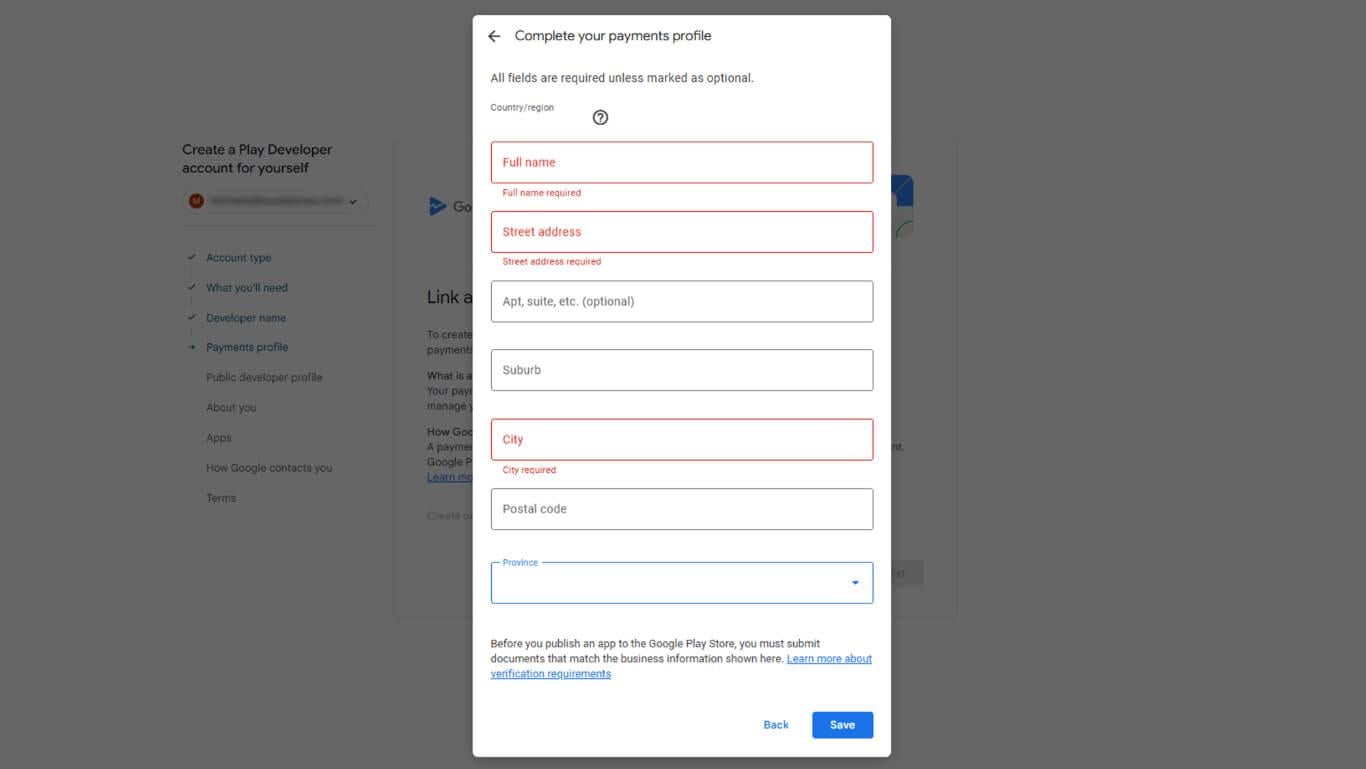
Pour les comptes personnels
- Entrez le nom légal complet dans le champ « Nom légal ».
- Sélectionnez un pays dans le menu déroulant.
- Entrez l'adresse complète dans les champs d'adresse.
- Entrez la date de naissance dans le champ « date de naissance ».
- Cliquez sur Suivant pour passer à la section consacrée à l'examen des applications.
Pour les comptes d'organisation
- Entrez le nom légal de l'entreprise exactement tel qu'il est enregistré auprès des autorités.
- Sélectionnez le pays où l'entreprise est enregistrée dans le menu déroulant des pays.
- Entrez l'adresse commerciale enregistrée dans les champs d'adresse.
- Entrez le numéro d'enregistrement de l'entreprise ou le numéro d'identification fiscale.
- Téléchargez les documents commerciaux requis si nécessaire.
- Cliquez sur Suivant pour passer à la section consacrée à l'examen des applications.
Les informations personnelles restent confidentielles et ne sont utilisées qu'à des fins de vérification d'identité.
Fournir les détails relatifs au développeur et au site
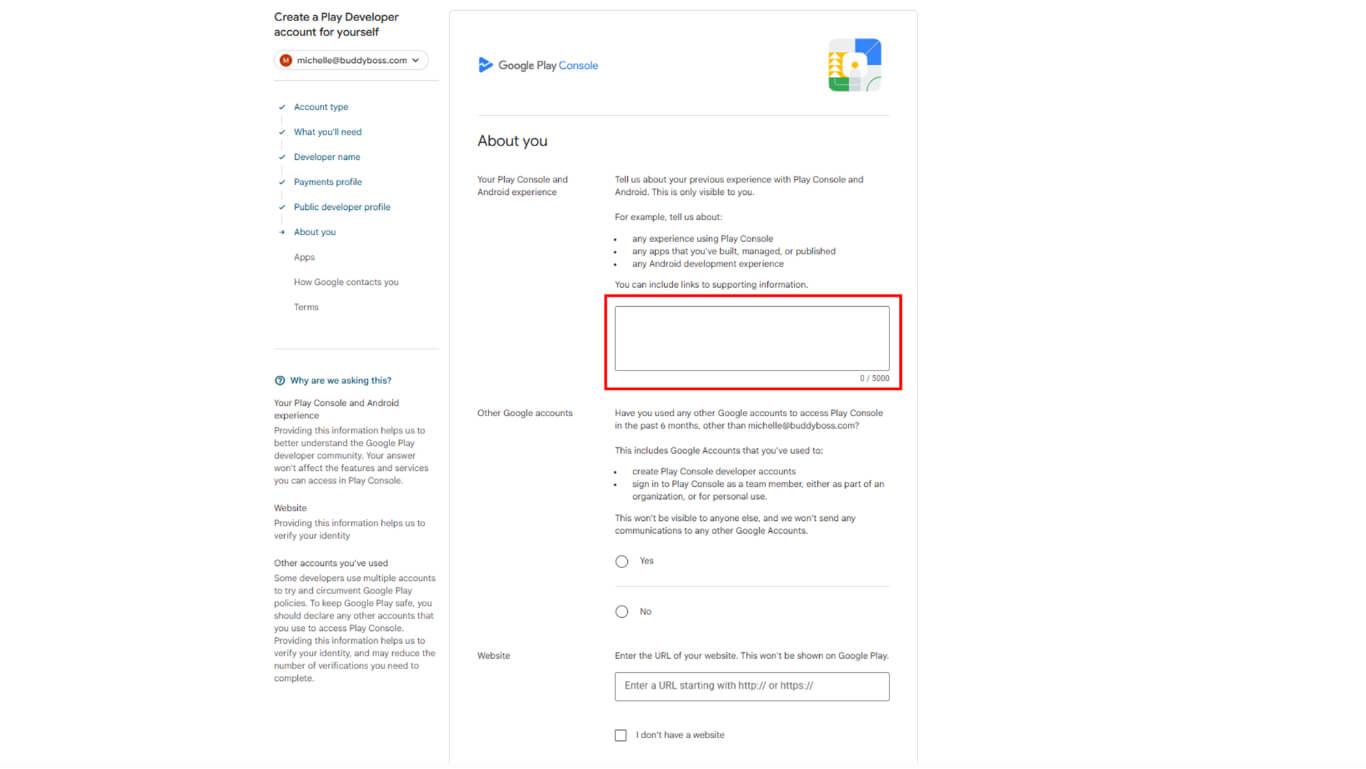
- Dans le cadre de la À propos de vous section, décrivez votre expérience en tant que développeur ou indiquez qu'il s'agit de votre première application.
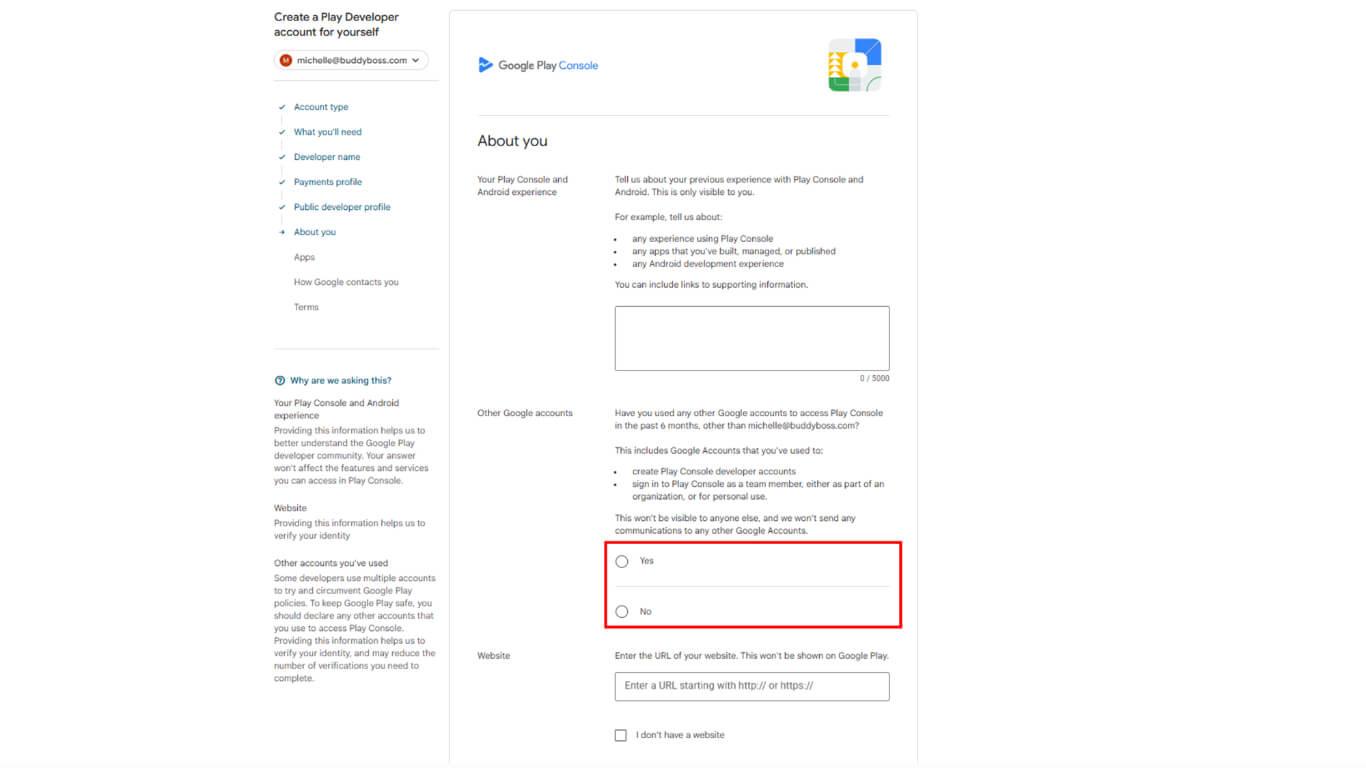
- Sous Autres comptes Google, indiquez si vous avez utilisé un autre compte pour la Play Console.
- Saisir le domaine du site web sur lequel votre plugin MemberPress AppKit est installé.
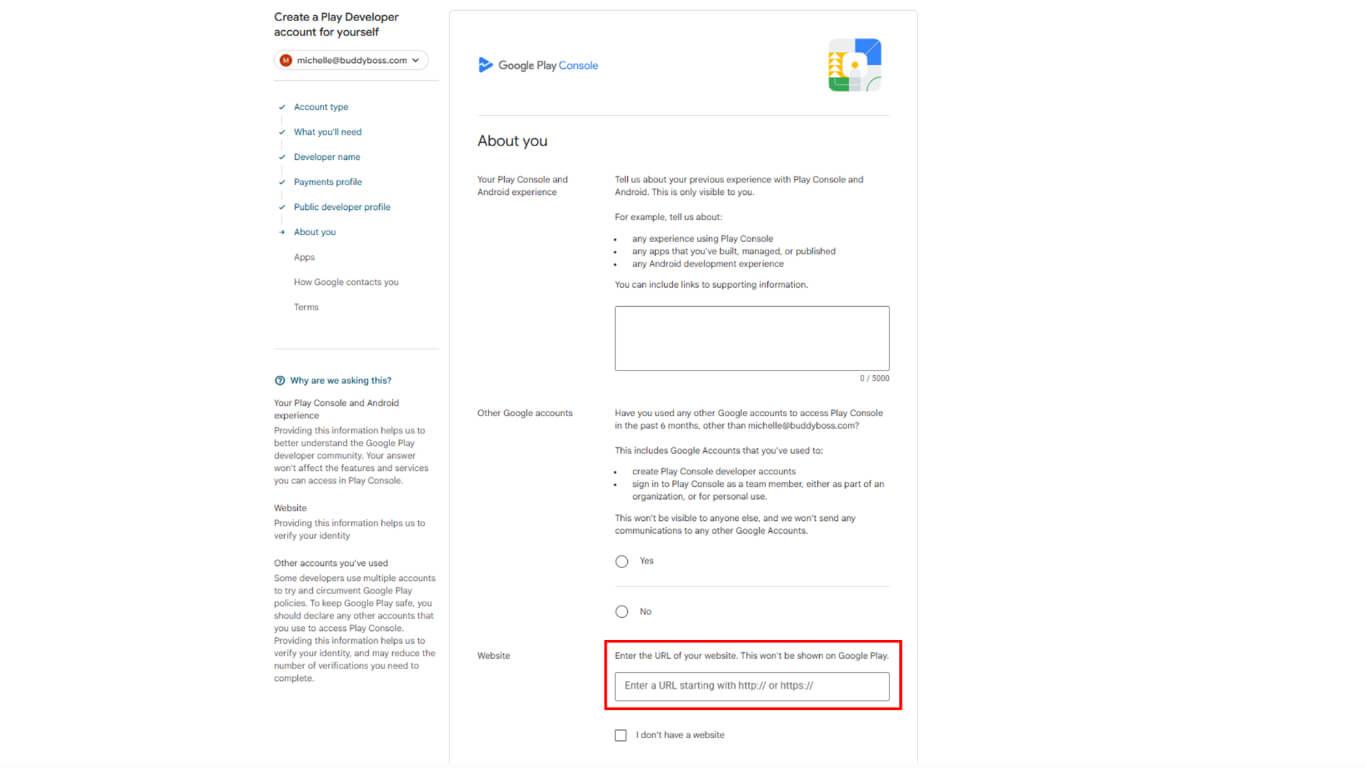
- Cliquez sur Suivant.
Le nom du développeur correspond au nom public qui apparaît sur Google Play.
- Consultez la page de saisie du nom du développeur.
- Entrez le nom qui sera affiché publiquement sur Google Play :
- Comptes personnels: Entrez votre nom ou votre pseudonyme de développeur ;
- Comptes d'organisation: Entrez le nom de votre entreprise ou organisation.
- Cliquez sur Suivant pour procéder à la liaison du profil de paiement.
Le nom du développeur peut être modifié ultérieurement dans les paramètres du compte Play Console.
Fournir des informations sur l'application
La section « Informations » de l'application rassemble des détails sur la publication prévue de l'application et sa monétisation.
Spécification du nombre d'applications
Indiquez le nombre d'applications que vous prévoyez de publier sur Google Play au cours des 12 prochains mois.
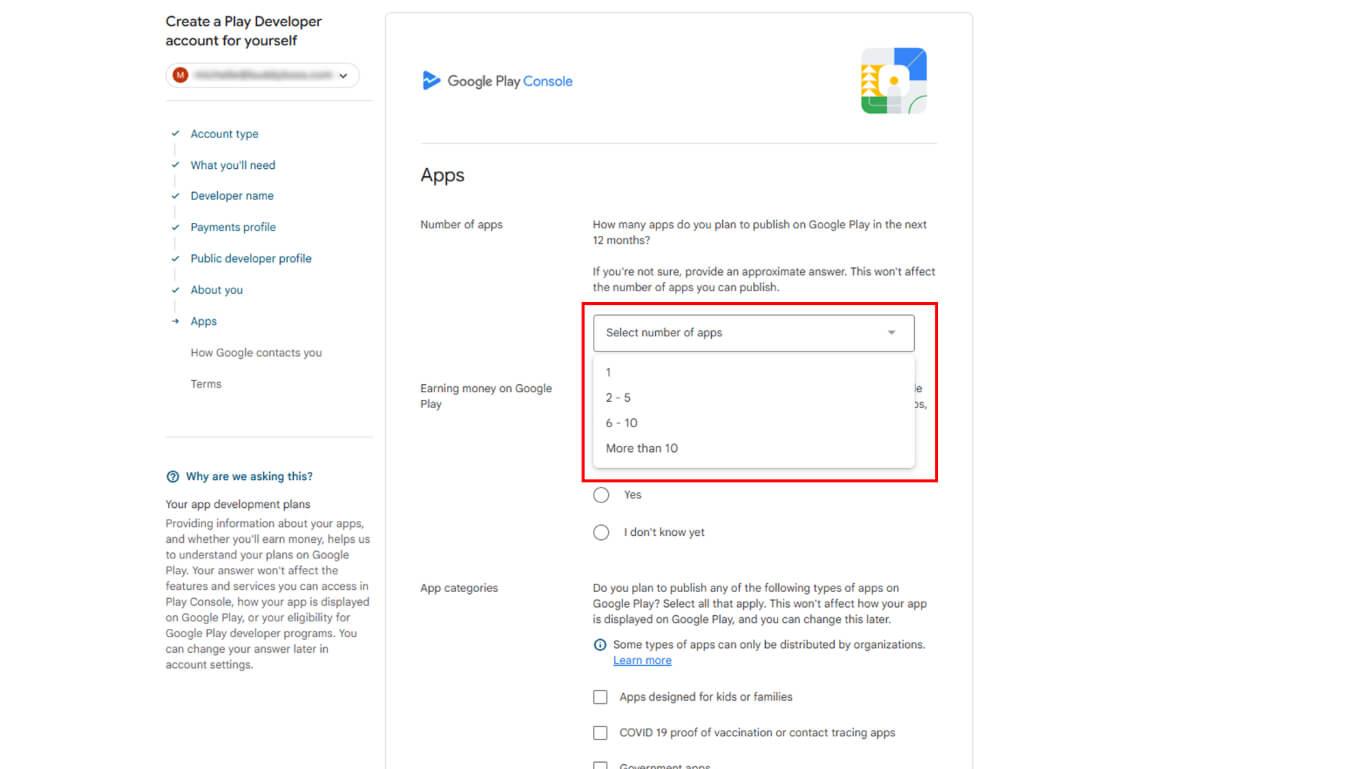
La réponse n'a aucune incidence sur le nombre réel d'applications pouvant être publiées.
Indication des plans de monétisation
- Relisez la question sur l'argent sur cette page.
- Sélectionnez l'intention de monétisation :
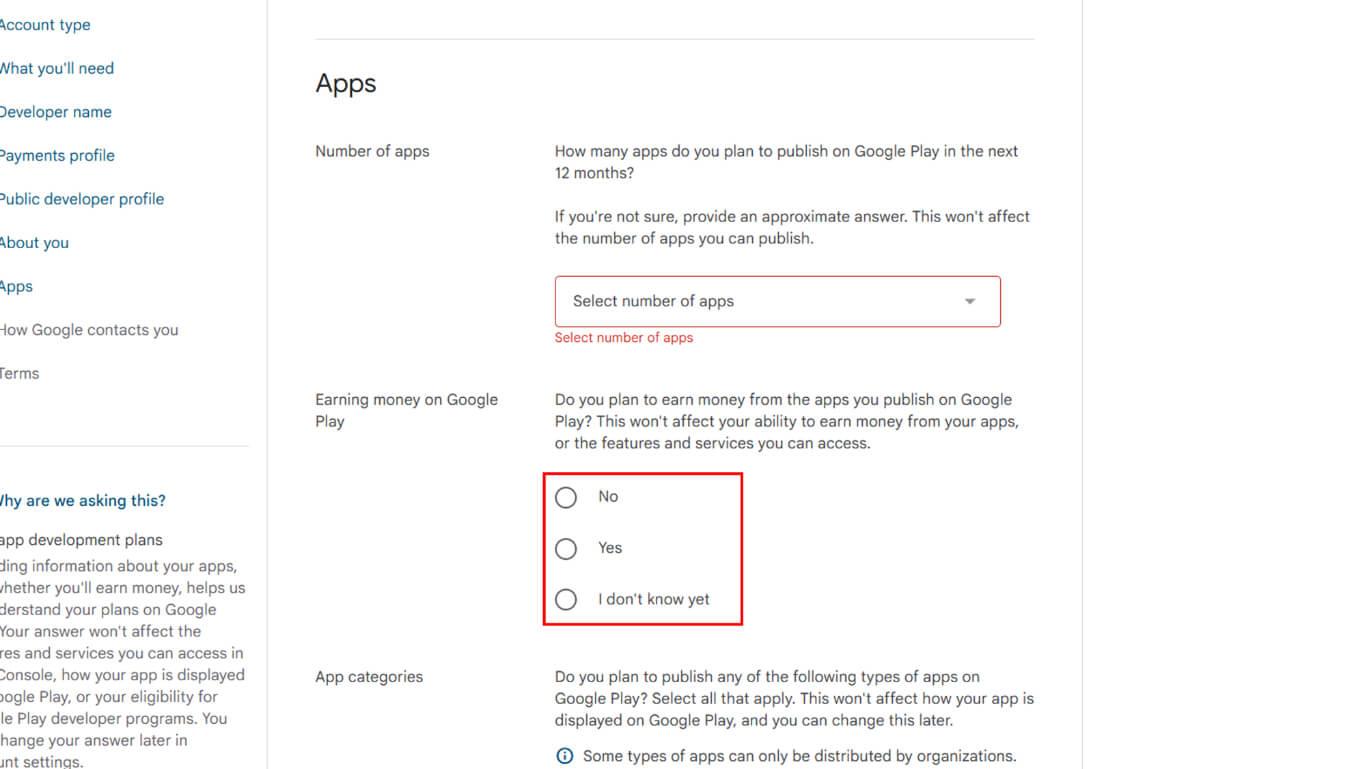
- Non : si les applications ne génèrent pas de revenus ;
- Oui : si les applications génèrent des revenus grâce aux achats, aux abonnements ou aux publicités ;
- Je ne sais pas encore : si les plans de monétisation ne sont pas encore arrêtés.
La réponse n'affecte pas les capacités de monétisation ni les fonctionnalités disponibles.
Sélectionner les catégories d'applications
- Consultez la liste des catégories d'applications sur la page.
- Sélectionnez toutes les catégories d'applications spéciales applicables parmi les options disponibles :
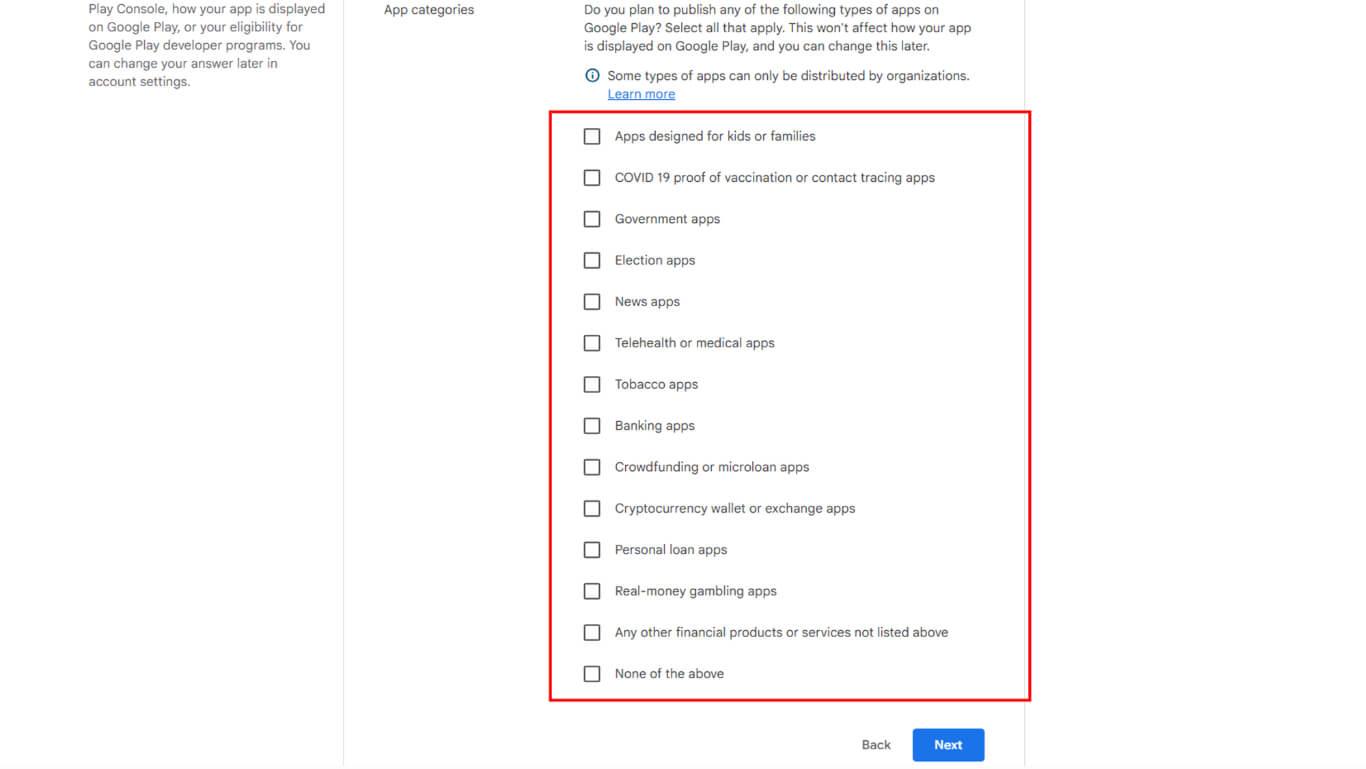
- Applications conçues pour les enfants ou les familles pour les contenus destinés aux enfants ;
- Preuve de vaccination contre la COVID-19 ou applications de traçage des contacts pour les applications liées à la pandémie ;
- Applications gouvernementales pour les services gouvernementaux officiels ;
- Applications électorales pour obtenir des informations sur les élections ou le vote ;
- Applications d'actualités pour le journalisme et les contenus d'actualité ;
- Télésanté ou applications médicales pour les services de santé ;
- Applications liées au tabac pour les produits liés au tabac ;
- Applications bancaires pour les services des institutions financières ;
- Applications de financement participatif ou de microcrédit pour les plateformes de prêt ;
- Applications de portefeuille ou d'échange de cryptomonnaies pour la monnaie numérique ;
- Applications de prêt personnel pour les prêts à la consommation ;
- Applications de jeux d'argent réel pour les services de jeux d'argent ;
- Tout autre produit ou service financier non mentionné ci-dessus pour d'autres applications financières ;
- Aucune des réponses ci-dessus si aucune catégorie particulière ne s'applique.
- La revue note que certains types d'applications ne peuvent être distribués que par des organisations.
Configuration des préférences de contact
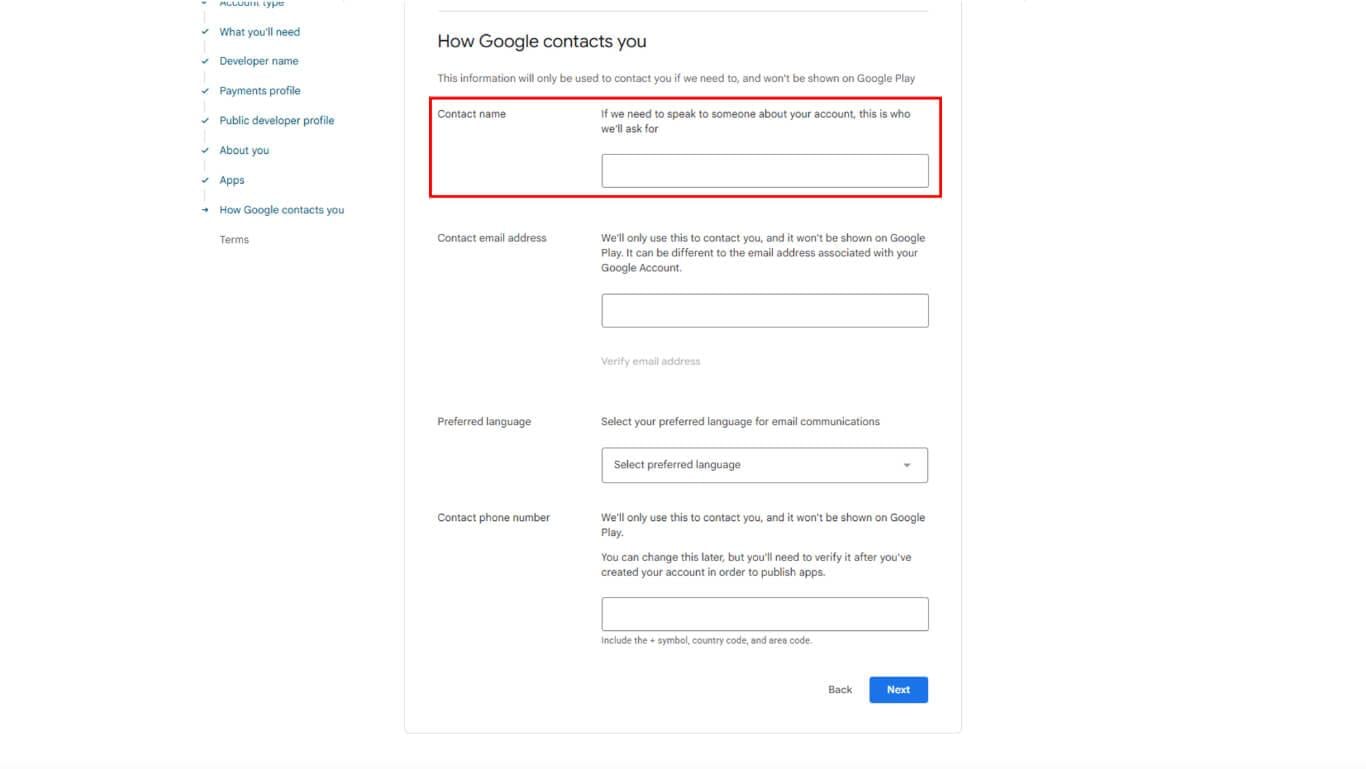
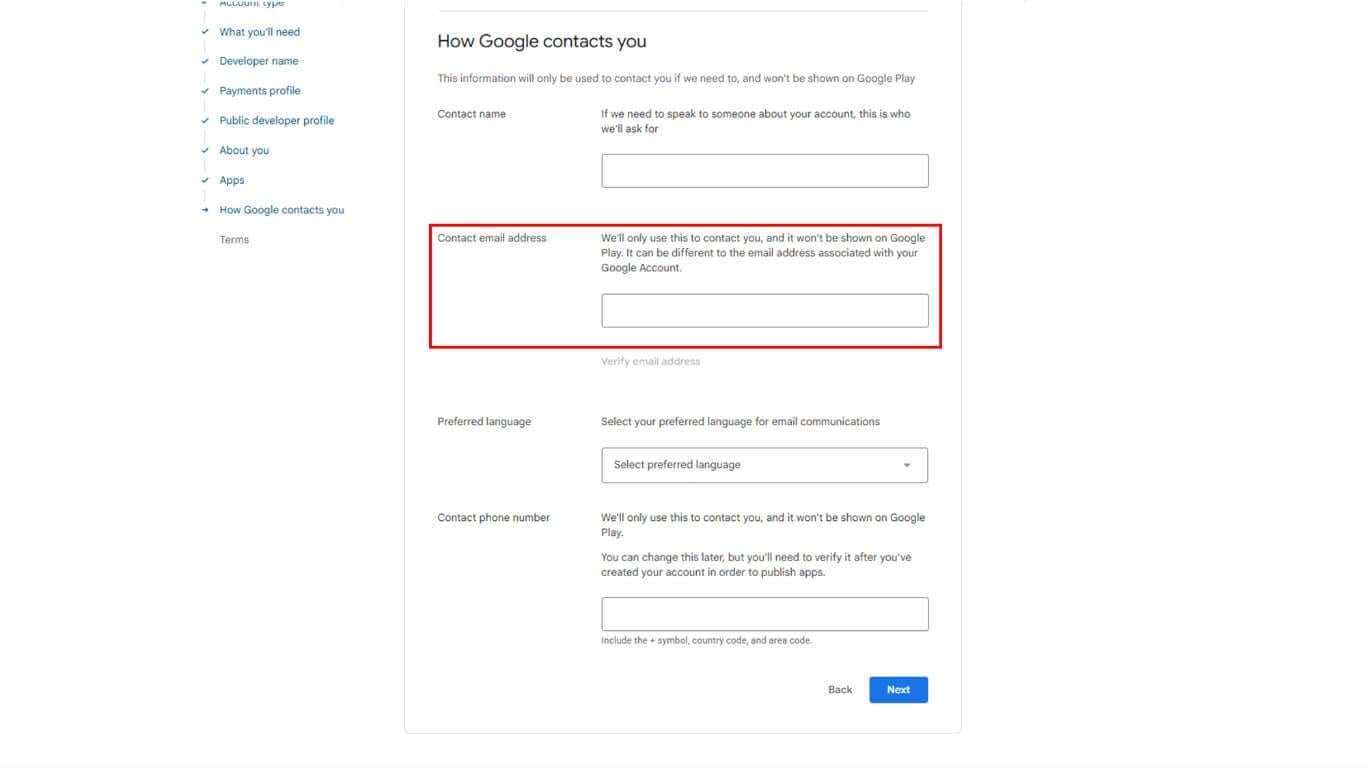
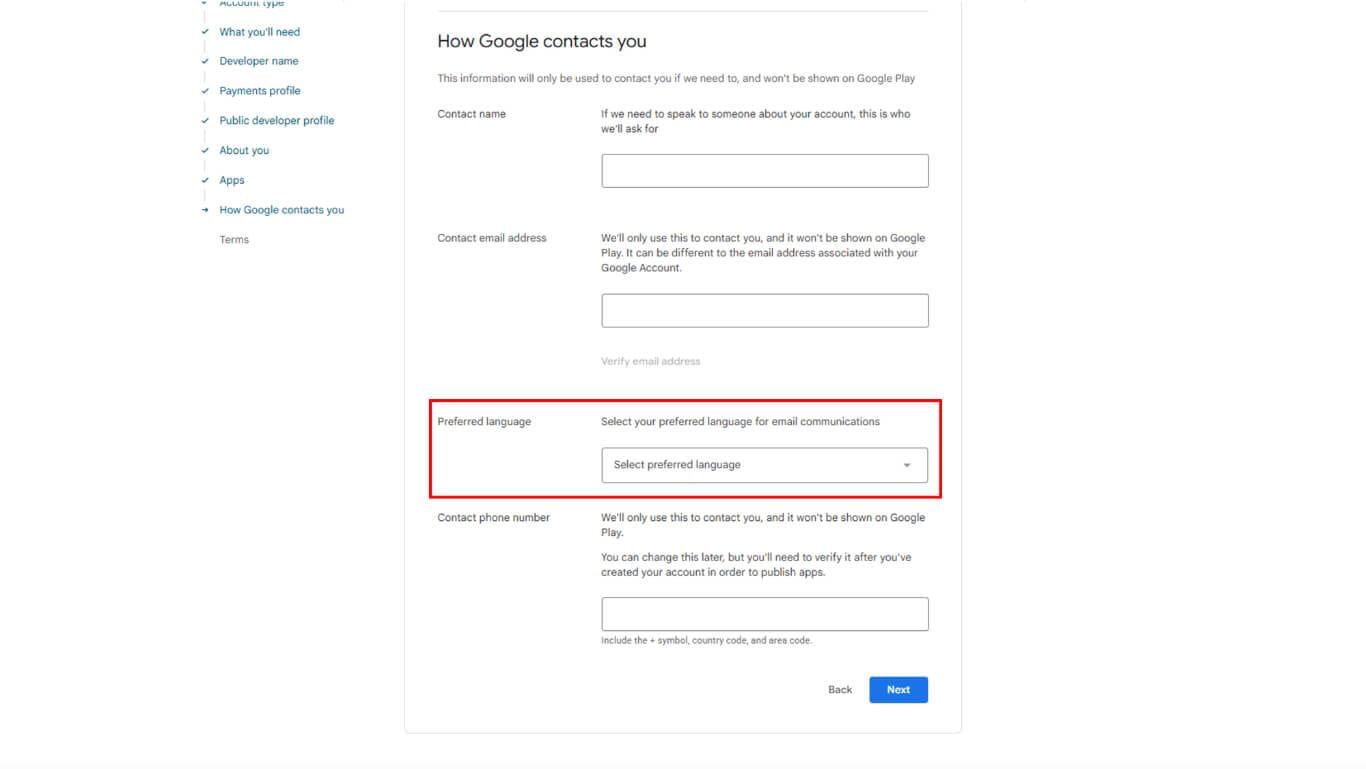
La configuration des préférences de contact spécifie les préférences en matière de méthode de communication avec Google.
- Entrez le nom de votre contact.
- Confirmez votre adresse e-mail pour recevoir les mises à jour et les notifications.
- Choisissez votre langue préférée.
- Entrez votre numéro de téléphone.
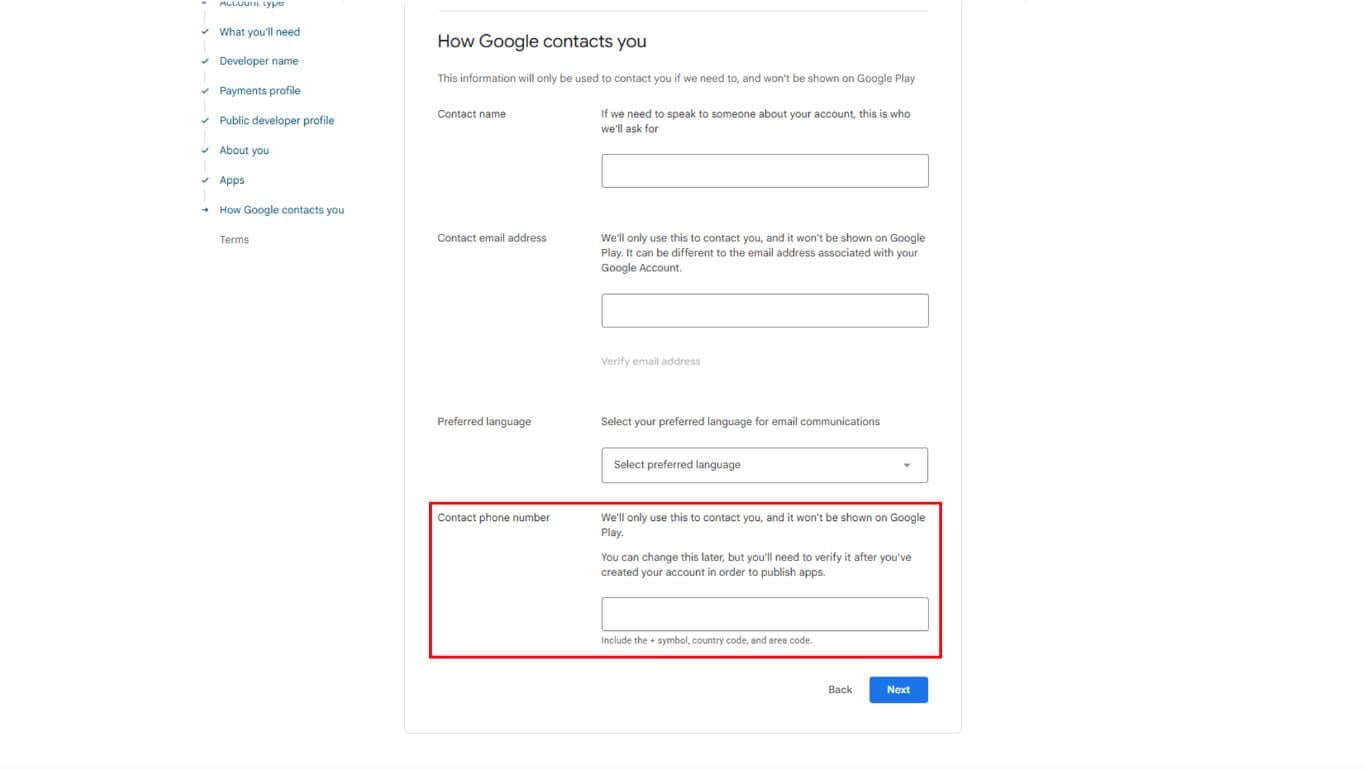
- Cliquez sur Suivant pour procéder à l'acceptation des conditions.
Accepter les conditions générales pour les développeurs
L'acceptation des conditions finalise l'accord avec les règles du programme Google Play Developer.
- Lisez attentivement le document « Conditions d'utilisation pour les développeurs Google Play ».
- Consultez les conditions supplémentaires spécifiques au type de compte, si elles sont affichées.
- Vérifier le Je suis d'accord Cochez la case après avoir pris connaissance de toutes les conditions.
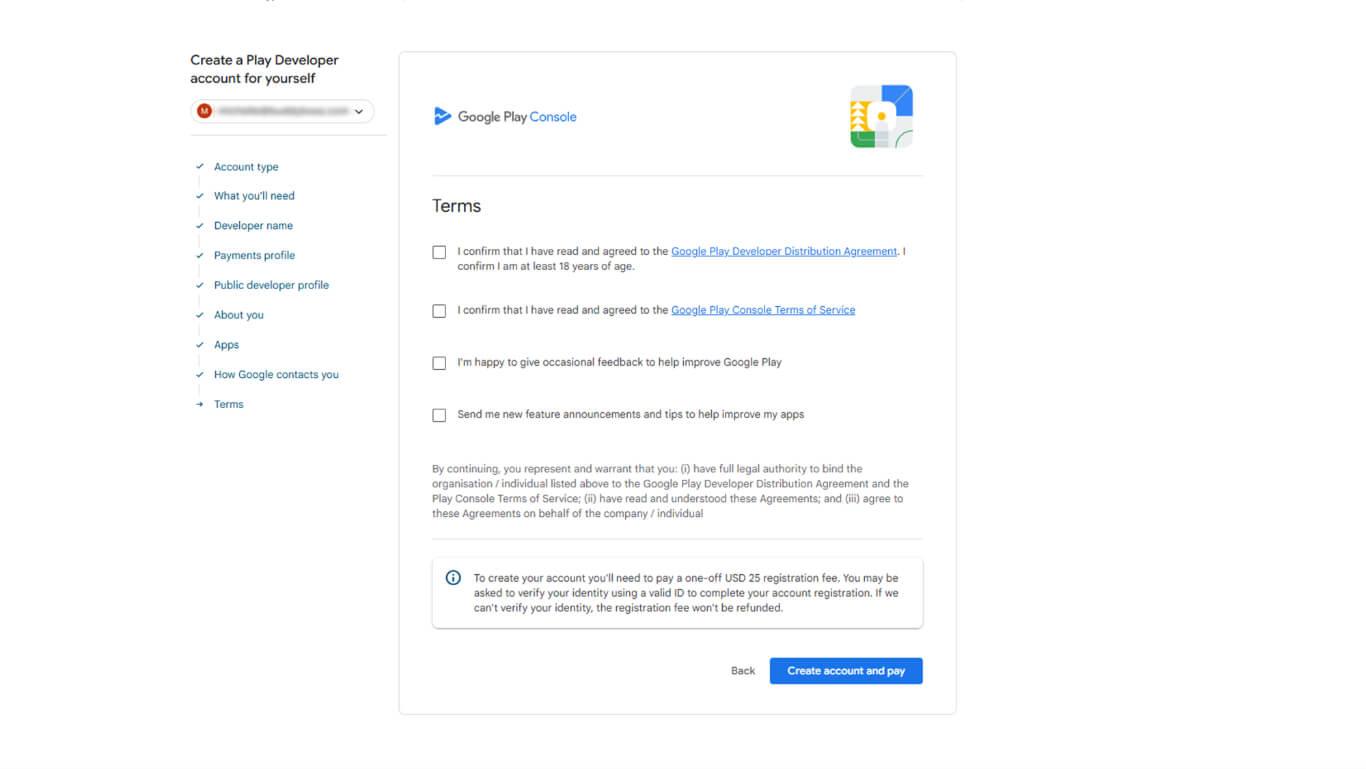
- Cliquez sur Créer un compte et payer pour procéder au paiement des frais d'inscription.
Paiement des frais d'inscription
Le paiement des frais d'inscription active le compte Google Play Developer.
- Vérifiez le montant des frais d'inscription uniques affiché.
- Sélectionnez le mode de paiement parmi les options disponibles :
- Carte de crédit pour paiement direct ;
- Carte de débit pour paiement direct ;
- Profil de paiement enregistré pour les informations de paiement stockées ;
- Comptes d'organisation: Carte de crédit professionnelle ou virement bancaire, si possible.
- Entrez les détails du paiement dans le formulaire de paiement.
- Vérifiez que les informations de facturation correspondent au profil de paiement.
- Effectuez le paiement.
- Attendez la confirmation du traitement du paiement.
- Vérifiez que le message de confirmation d'activation du compte s'affiche.










 FR
FR  EN
EN  ES
ES  DE
DE  PT
PT 