

Automatisez la gestion des versions et l'établissement de rapports sur les recettes dans MemberPress AppKit à l'aide de l'API Google Play pour les développeurs.
Ce guide vous explique comment lier votre projet Google Cloud, créer un compte de service, générer une clé JSON et le connecter dans le plugin MemberPress AppKit.
Comprendre les exigences du compte de service
Les exigences relatives au compte de service définissent les configurations nécessaires pour l'accès automatisé à l'API Google Play Console et sa gestion.
Activation de l'accès à l'API permet à MemberPress AppKit d'interagir avec la Google Play Console de manière programmatique. L'authentification du compte de service fournit un accès automatisé et sécurisé aux fonctions de gestion des applications.
Automatisation de la gestion des versions permet de télécharger des builds et de configurer des versions sans interaction manuelle avec la console. Des flux de travail automatisés rationalisent les processus de mise à jour et de soumission des applications.
Accès à la déclaration des recettes permet de récupérer des données financières à des fins d'analyse et de reporting. Les comptes de service accèdent aux revenus des abonnements et aux informations sur les transactions de manière programmatique.
Configuration des autorisations accorde des capacités spécifiques aux comptes de service pour des besoins opérationnels. Une configuration adéquate des autorisations garantit que les comptes de service peuvent effectuer les tâches de gestion requises.
Authentification par clé JSON utilise des fichiers d'identification sécurisés pour la vérification des comptes de service. Les fichiers de clés authentifient les demandes d'API sans exposer les mots de passe des comptes.
Lier le projet Google Cloud
Le projet Google Cloud relie MemberPress AppKit aux services Google Play Developer API.
- Dans l'administration de WordPress, naviguez vers Tableau de bord > MP AppKit > Configurer > Paramètres Android > Connecter votre compte Google Developer.
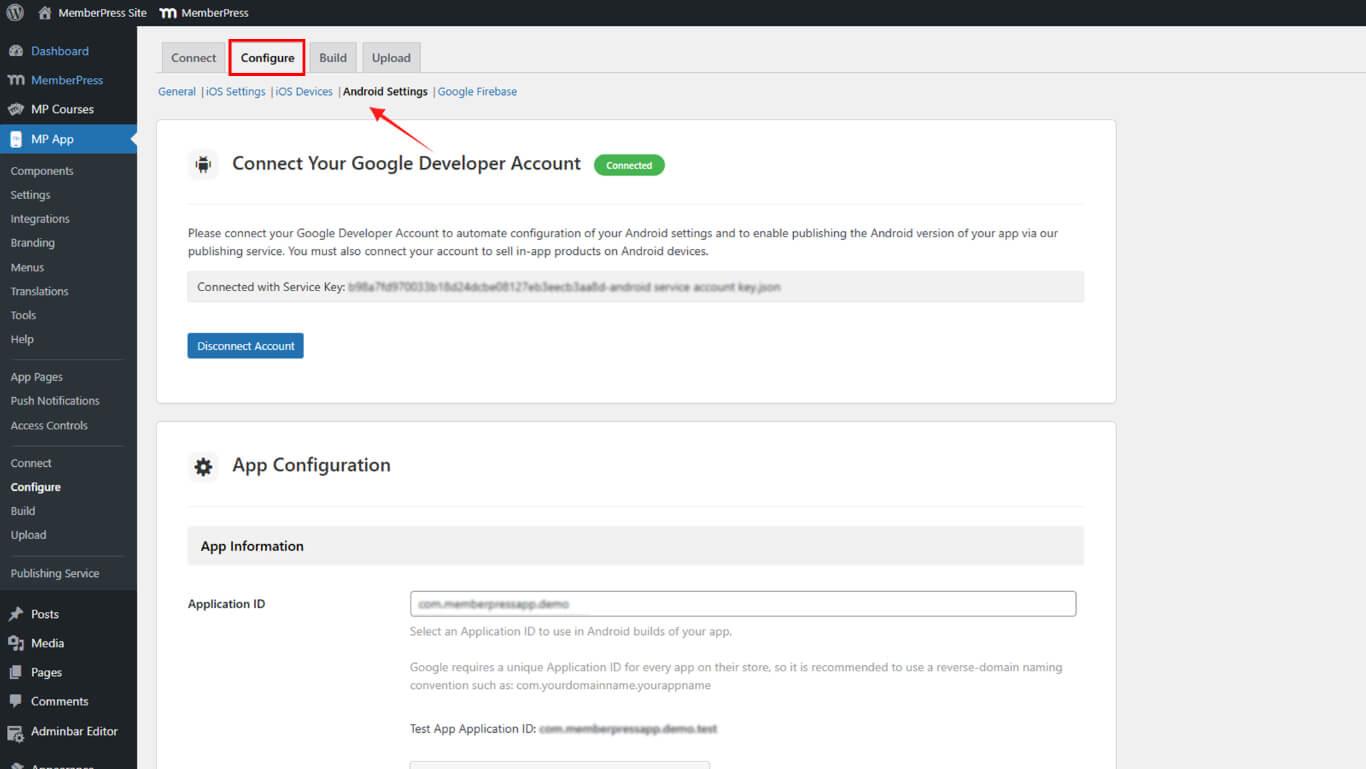
- Lorsque vous y êtes invité, choisissez Lien Projet existant ou Créer un nouveau projet dans la boîte de dialogue Google Cloud.
- Confirmez que votre projet est lié avant de poursuivre.
Création d'un compte de service
La création d'un compte de service permet d'établir l'identité pour les interactions API automatisées avec Google Play Console.
- Depuis la page d'accès à l'API dans WordPress, cliquez sur Créer un nouveau compte de service.
- Dans la fenêtre contextuelle de Google Cloud, cliquez sur le bouton Google Cloud Platform lien.
- Sélectionnez votre projet et cliquez sur Créer un compte de service.
- Saisir un Nom et cliquez sur Créer.
- Sous Sélectionnez un rôlechoisir Basique > Propriétaire, puis cliquez sur Continuer.
- Cliquez sur Terminé pour finaliser la configuration du compte de service.
Générer une clé JSON
La génération d'une clé JSON crée des informations d'authentification pour l'accès à l'API du compte de service.
- De retour sur la page d'accès à l'API, trouvez votre nouveau compte de service et cliquez sur ⋮ > Gérer les clés.
- Cliquez sur Ajouter une clé > Créer une nouvelle clé.
- Sélectionner JSON pour le type de clé et cliquez sur Créer.
- Cliquez sur Terminé pour fermer la boîte de dialogue de gestion des clés.
Octroi de permissions à la console de jeu
Les autorisations accordées à la console de jeu permettent au compte de service d'effectuer des opérations de gestion spécifiques.
- Toujours sous Accès API, cliquez sur Accorder l'accès à côté de votre compte de service.
- Activer les autorisations suivantes :
- Voir les informations sur l'application et télécharger les rapports financiers;
- Consulter les données financières, les commandes et les annulations;
- Gérer les commandes et les abonnements;
- Créer/éditer/supprimer des projets d'application;
- Mise en production;
- Exclure les appareils et utiliser la signature de l'application Play;
- Publication d'applications sur les pistes d'essai;
- Gérer les pistes de test et les listes de testeurs;
- Gérer la présence en magasin.
- Cliquez sur Inviter un utilisateur et ensuite Envoyer l'invitation.
Clé de connexion dans l'AppKit MemberPress
La connexion par clé complète la configuration de l'authentification du compte de service dans WordPress pour les opérations automatisées de l'API.
- Dans WordPress, allez à Tableau de bord > MP AppKit > Configurer > Paramètres > Accès à l'API du compte développeur.
- Sous Connectez votre compte de service, cliquez Télécharger la clé JSON et sélectionnez le fichier téléchargé.
- Cliquez sur Enregistrer les modifications.
Confirmer que l'état de la connexion affiche “Connecté“.










 FR
FR  EN
EN  ES
ES  DE
DE  PT
PT 