

L'intégration de votre application Android dans l'écosystème de Google commence par sa configuration dans la console Google Play.
Ce guide vous aide à créer une nouvelle fiche d'application, à donner un nom à votre application, à choisir sa langue par défaut, à définir son type et sa tarification, et à accepter les règles de Google afin que vous soyez prêt à la publier et à la tester dans les étapes suivantes.
Comprendre les exigences de l'App Listing
Les exigences relatives à la liste des applications définissent les configurations nécessaires à la présence sur le Google Play Store et à l'éligibilité à la distribution.
Sélection du nom de l'application établit l'identité de la marque et la possibilité d'effectuer des recherches dans le Google Play Store. Le nom de l'application apparaît dans les listes du magasin et sur les appareils des utilisateurs après l'installation.
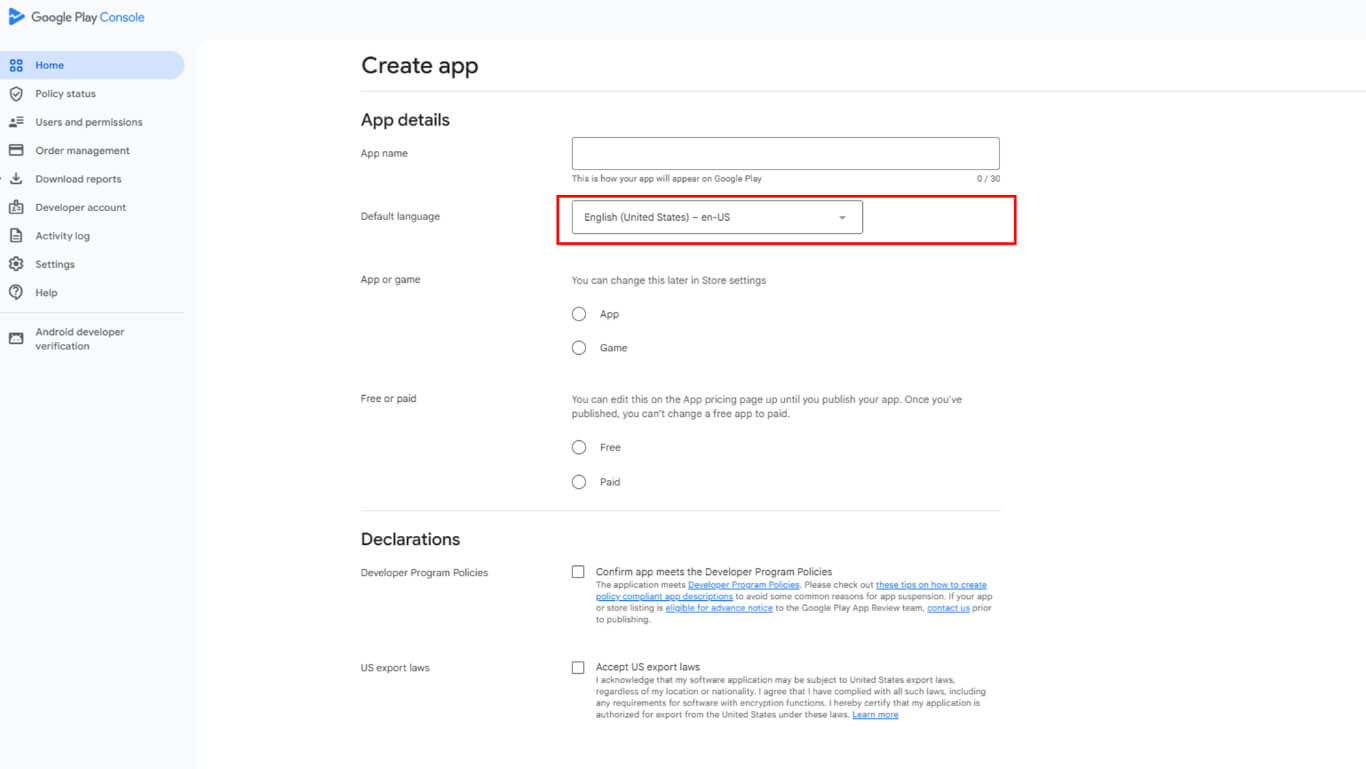
Configuration de la langue par défaut détermine la langue principale pour le contenu des listes de magasins et les communications. Le choix de la langue influe sur le ciblage initial du marché et sur la stratégie de localisation.
Spécification du type d'application catégorise l'application en tant qu'application ou jeu pour une bonne organisation de la boutique. La sélection du type influence le filtrage de la recherche et le placement de la catégorie dans la boutique.
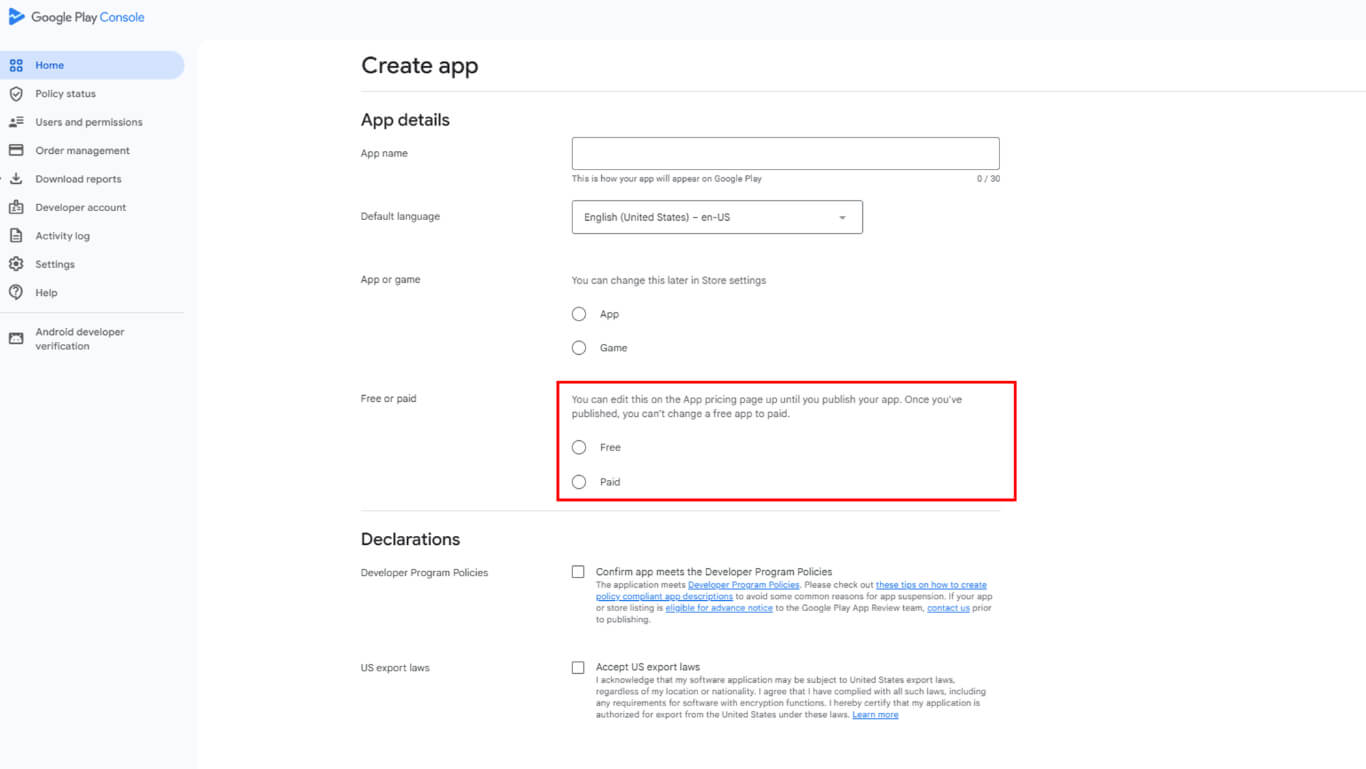
Détermination des prix définit la stratégie de monétisation initiale : distribution gratuite ou payante. La tarification peut être modifiée avant la publication, mais nécessite une réflexion approfondie sur le modèle de revenus.
Reconnaissance de la conformité à la politique confirme la compréhension des exigences de distribution de Google Play et des réglementations en matière d'exportation. L'acceptation de l'accord est obligatoire pour la publication de l'application.
Naviguer vers la console
La navigation dans la console permet d'accéder au tableau de bord du compte Google Play Developer pour les opérations de gestion des applications.
- Aller à play.google.com/console/developers.
- Connectez-vous avec le compte Google que vous avez utilisé pour vous inscrire en tant que développeur Google Play.
Démarrage d'une nouvelle application
La création d'une nouvelle application déclenche le processus de configuration de la liste dans Google Play Console.
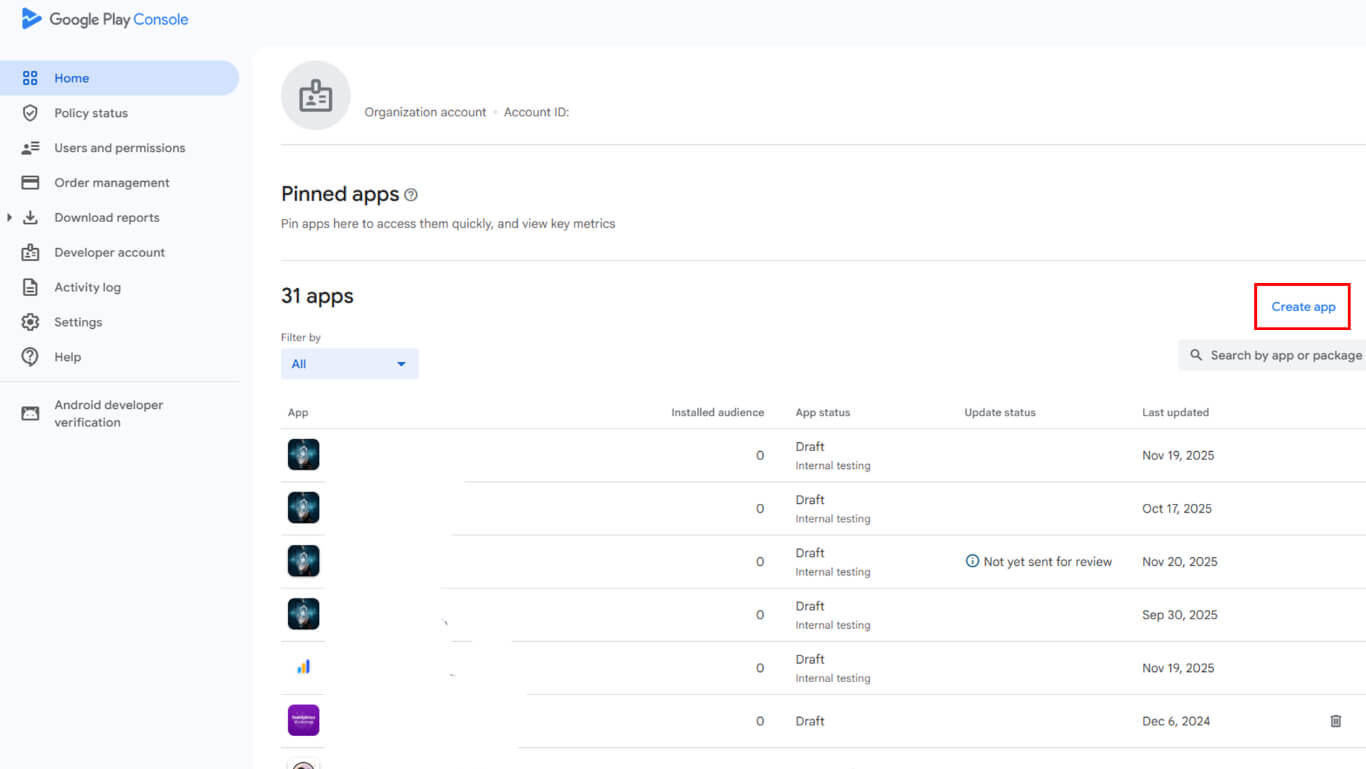
- Dans votre tableau de bord, cliquez sur Créer une application dans le coin supérieur droit.
Donner un nom à votre application
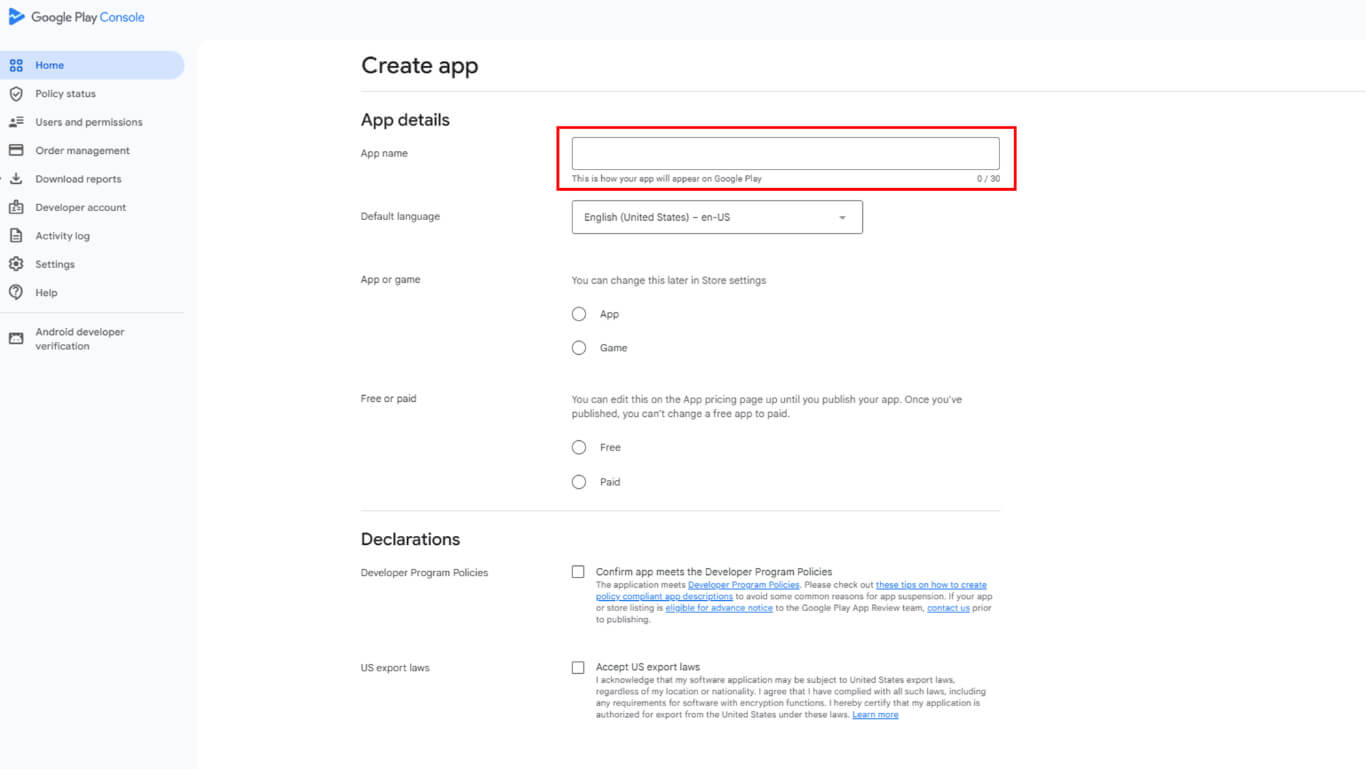
La dénomination de l'application définit l'identifiant et le nom d'affichage de l'application dans les listes du Google Play Store.
- Entrez votre Nom de l'application.
- Choisissez la Langue par défaut (par exemple, l'anglais (États-Unis)).
Spécifier le type d'application et la tarification
Le type d'application et les spécifications tarifaires définissent la catégorie d'application et l'approche de monétisation pour la distribution.
- Sous De quel type d'application s'agit-il ?, sélectionner Application (pas Jeu).
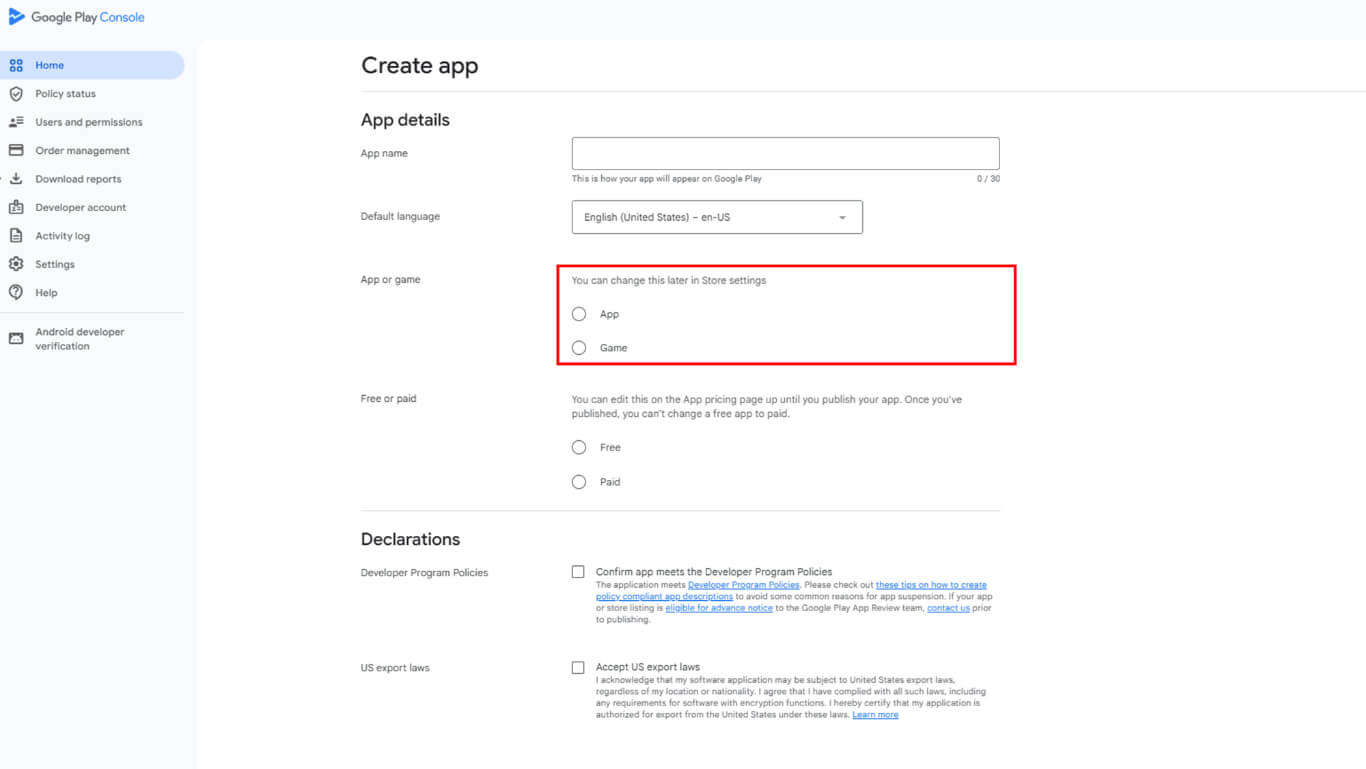
- Sous Tarificationchoisir Gratuit ou Payé.
Acceptation des règles de Google
L'accord sur les règles confirme la conformité aux exigences de distribution de Google Play et aux obligations légales.
- Vérifier Politiques du programme des développeurs.
- Vérifier Législation américaine en matière d'exportation.
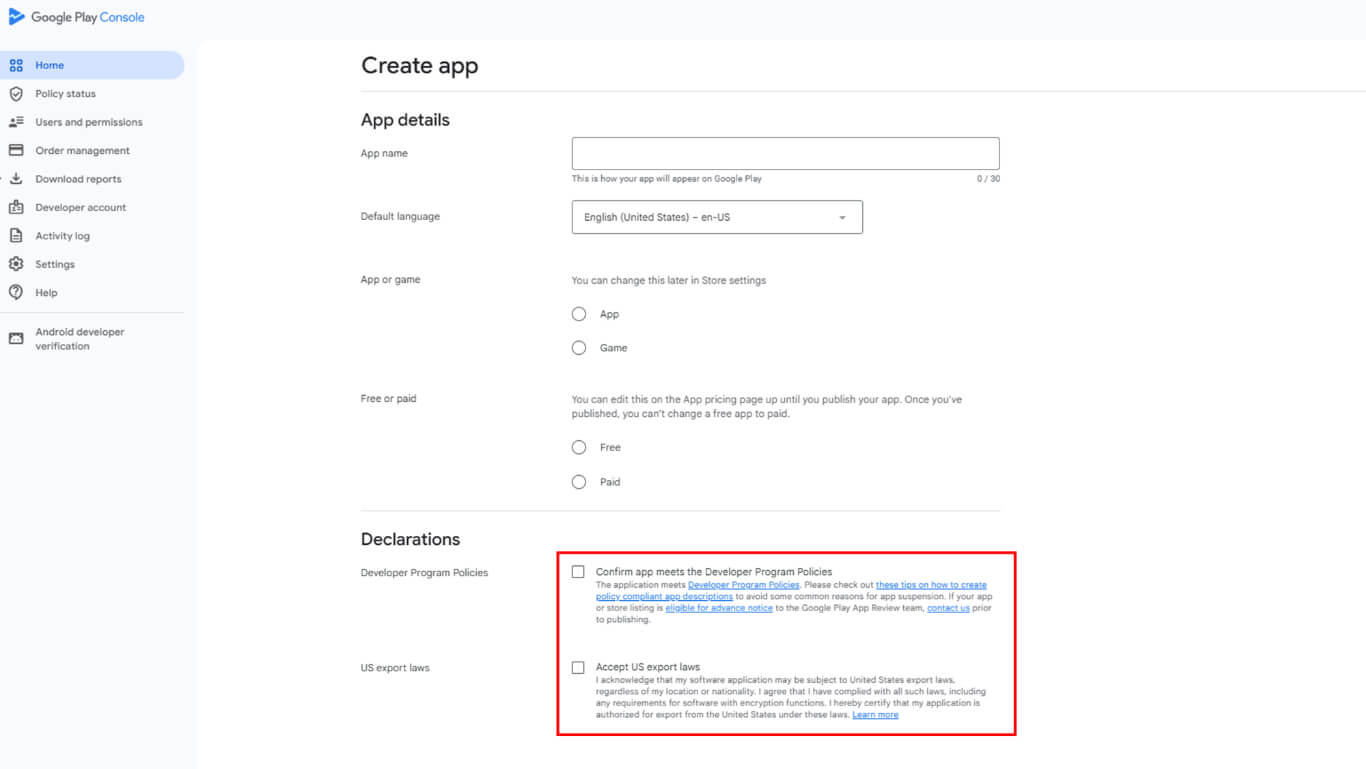
- Cliquez sur Créer une application.










 FR
FR  EN
EN  ES
ES  DE
DE  PT
PT 