

La fonction Signaler un bug permet aux membres de soumettre des rapports de bug détaillés. Les membres peuvent soumettre des rapports comprenant une description, des pièces jointes et des informations sur l'appareil directement à partir de l'application iOS/Android du MemberPress.
Ce guide vous explique comment activer la fonction Signaler un bogue dans l'AppKit MemberPress. En outre, il explique comment les utilisateurs peuvent soumettre des rapports pour un suivi et une résolution plus rapides des problèmes.
Comprendre la fonctionnalité « Signaler un bug »
Les exigences relatives à la fonctionnalité « Signaler un bug » définissent les configurations permettant la collecte des rapports de bugs soumis par les membres et leur transmission aux administrateurs.
Activation du signalement des bogues active l'interface de soumission de rapports intégrée à l'application, offrant ainsi aux membres un canal de communication direct pour signaler les problèmes. La fonctionnalité de signalement transforme les membres en contributeurs actifs à l'assurance qualité.
Configuration de la livraison des e-mails transmet les rapports soumis à l'adresse du destinataire désigné pour examen et réponse. Une configuration correcte de la messagerie électronique garantit que les rapports de bogues parviennent rapidement aux administrateurs responsables.
Prise en charge des pièces jointes multimédias permet aux membres d'inclure des images ou des vidéos documentant les problèmes ou les dysfonctionnements. Les rapports de bogues visuels fournissent un contexte, améliorant ainsi la compréhension et la reproduction des problèmes.
Inclusion des informations sur l'appareil ajoute automatiquement des détails techniques aux rapports de bogues, facilitant ainsi le dépannage et le débogage. Les données relatives à la plateforme, à la version et à l'appareil permettent de diagnostiquer efficacement les problèmes signalés.
Configuration personnalisée du sujet Permet l'organisation et le filtrage des e-mails de signalement de bogues dans la boîte de réception du destinataire. La personnalisation de l'objet améliore la gestion des rapports et les workflows de hiérarchisation.
Activation du signalement des bogues
L'activation du signalement des bogues active la fonctionnalité d'envoi de rapports dans l'interface des paramètres de l'application mobile.
- Dans votre tableau de bord WordPress, rendez-vous dans Tableau de bord > MP AppKit > Paramètres > Feedback.
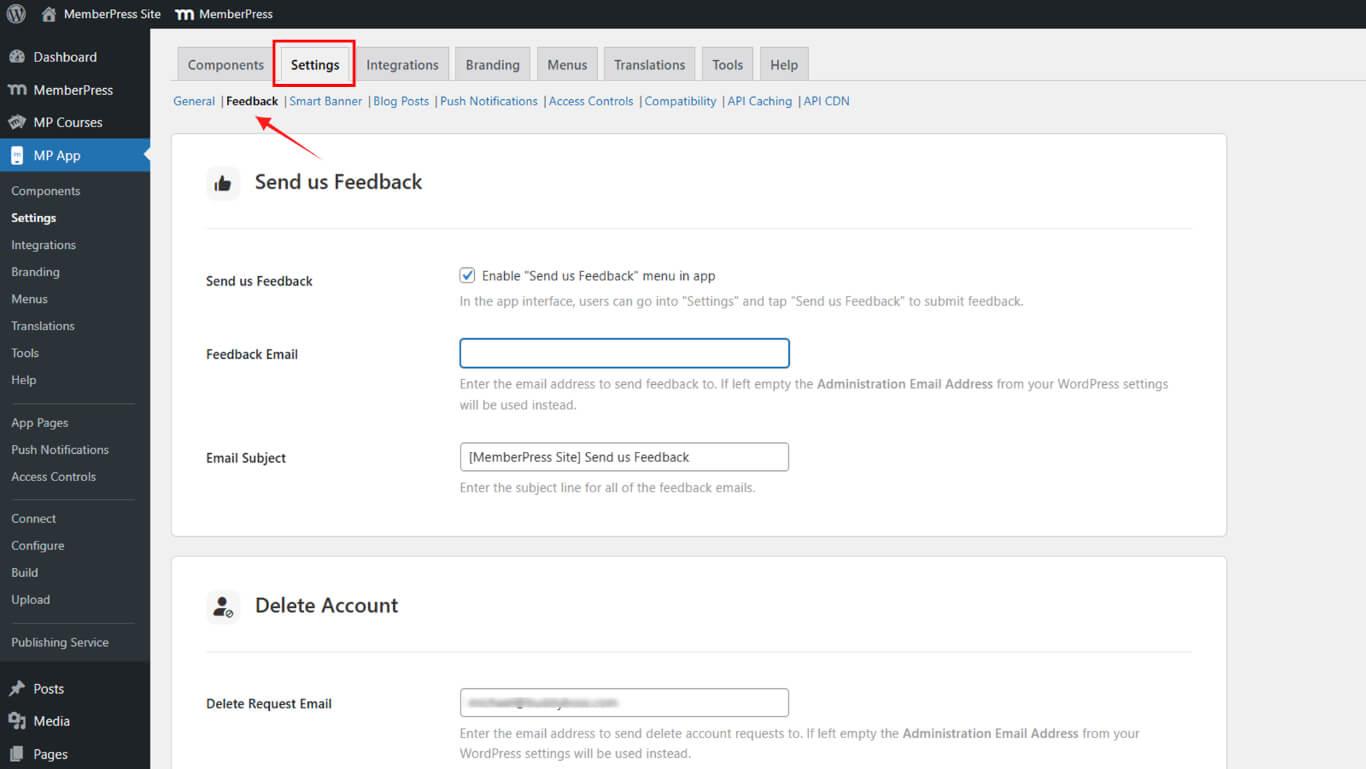
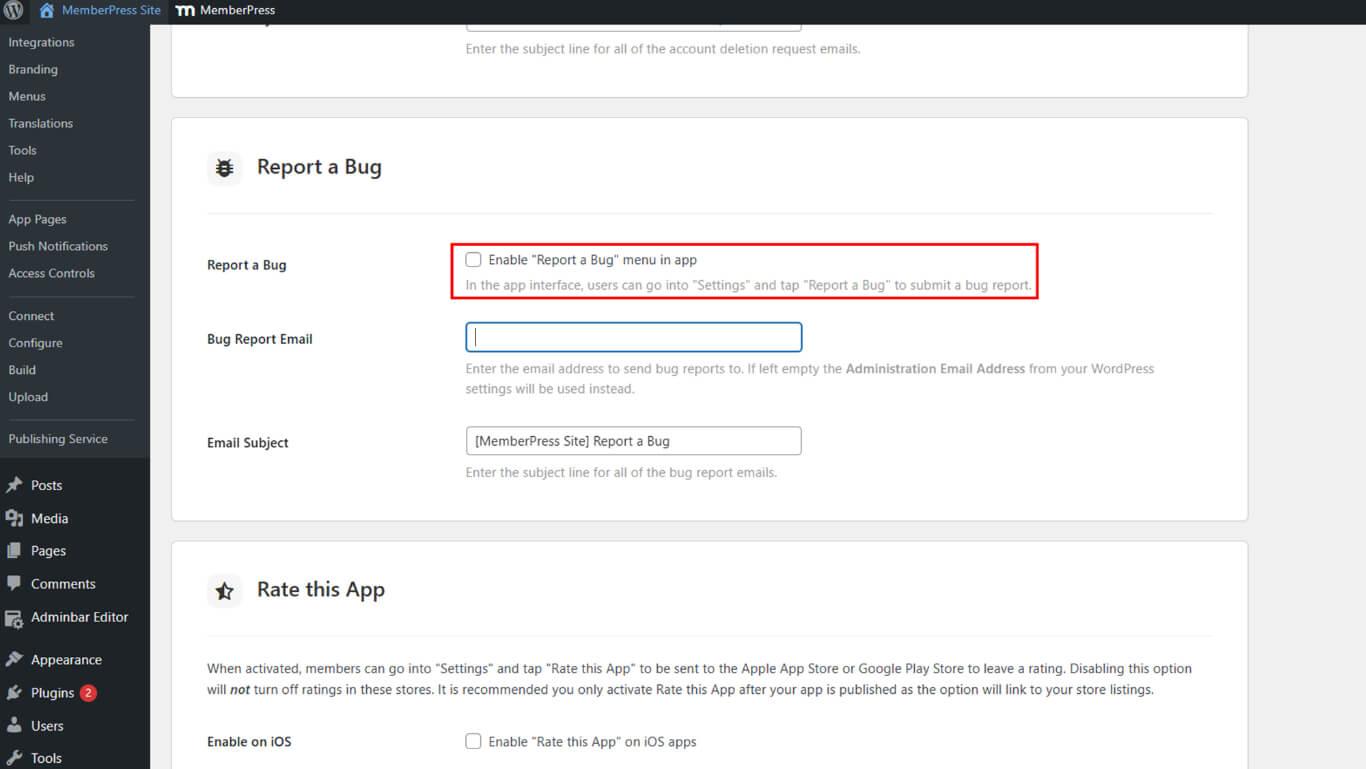
- Recherchez la section Signaler un bug.
- Vérifier le Signaler un bug case pour activer la fonctionnalité dans l'application.
Configuration du rapport de bogue par e-mail
La configuration de la messagerie électronique achemine les rapports de bogues vers le destinataire approprié pour examen et résolution du problème.
- Dans le cadre de la Rapport de bogue par e-mail Dans le champ, entrez l'adresse e-mail à laquelle les rapports de bogues doivent être envoyés.
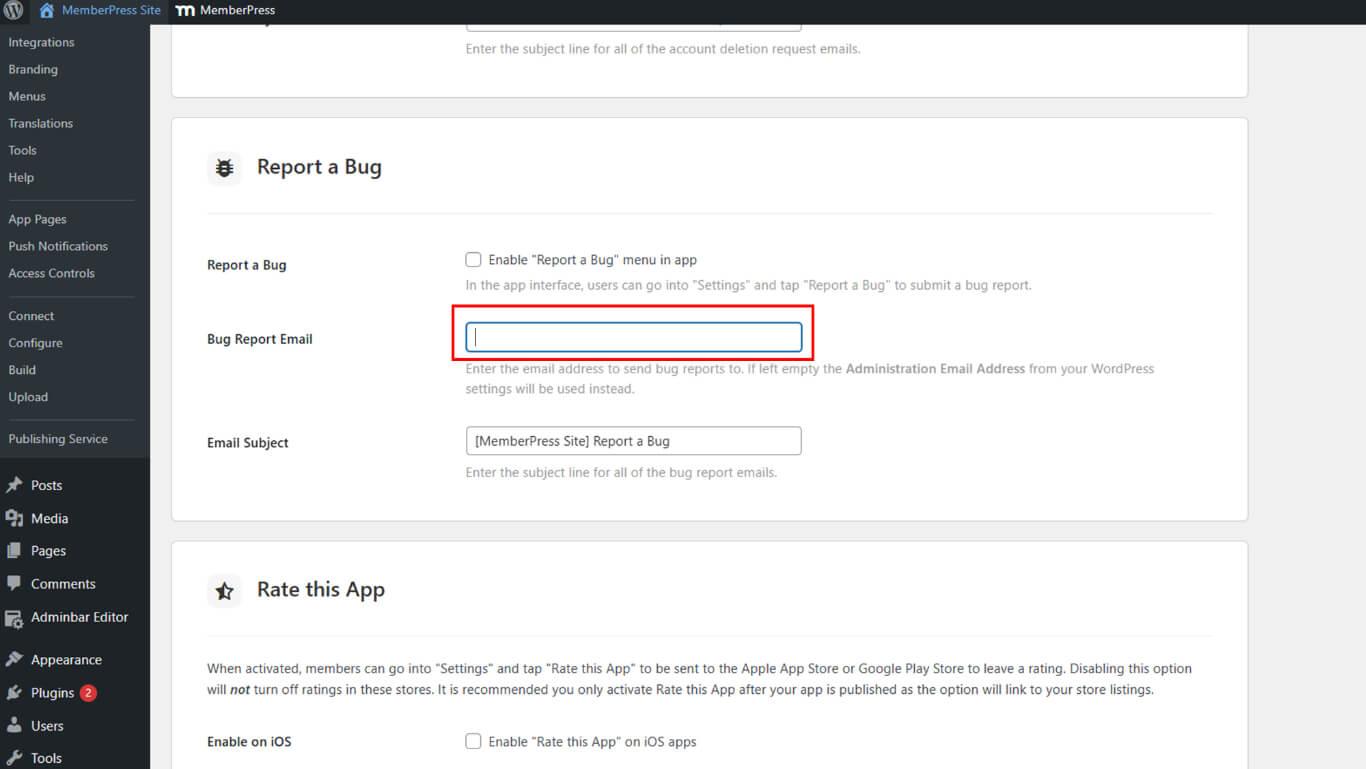
- Vous pouvez éventuellement ajouter une ligne d'objet par défaut dans le Objet de l'e-mail domaine.
- Cliquez sur Enregistrer les modifications.
Soumission d'un rapport de bogue à partir de l'application iOS/Android de MemberPress
Les membres peuvent soumettre des rapports de bogues par le biais de l'application mobile, ce qui leur permet de communiquer directement avec l'équipe d'assistance.
- Ouvrir l'application MemberPress (iOS/Android) sur un appareil mobile.
- Appuyez sur Paramètres > Signaler un bug.
- Saisissez la description du bogue.
- Appuyez éventuellement sur Télécharger une image ou une vidéo pour joindre des captures d'écran ou des vidéos.
- Appuyez sur Envoyer soumettre.
Les rapports de bogues envoyés à votre boîte de réception comprendront :
- Contenu du message
- Identifiant Apple ou compte Google
- Plateforme (iOS ou Android)
- MemberPress (iOS/Android) Version de l'application
- Version du système d'exploitation
- Modèle de l'appareil
- Adresse e-mail de l'utilisateur










 FR
FR  EN
EN  ES
ES  DE
DE  PT
PT 