

Les fonctions Share et Related Posts de l'application iOS/Android de MemberPress permettent d'accroître la visibilité du contenu et de stimuler l'engagement des utilisateurs. Les membres peuvent facilement partager les articles de blog à l'aide des options de partage natives de leur appareil, tandis que les articles connexes figurant au bas de chaque article encouragent à poursuivre la lecture.
Ce guide vous explique comment activer ces deux fonctionnalités dans MemberPress AppKit et comment elles fonctionnent dans l'application mobile.
Comprendre les fonctions de partage et d'articles connexes
Les exigences relatives aux fonctionnalités Share and Related Posts définissent les configurations permettant d'activer les fonctionnalités de distribution et de découverte de contenu dans l'affichage des articles de blog.
Partage de l'habilitation active la fonctionnalité de partage de l'appareil natif, permettant aux membres de distribuer du contenu par le biais de canaux personnels. La fonction de partage transforme les lecteurs en promoteurs de contenu, ce qui permet d'étendre la portée du contenu de manière organique.
Affichage des postes connexes un contenu contextuel pertinent, encourageant l'engagement continu et la découverte. Le contenu connexe augmente la durée de la session et la consommation de contenu par visite du membre.
Recommandations par catégorie utilisent la taxonomie des articles pour identifier et afficher les connexions entre les contenus connexes. La correspondance des catégories permet de s'assurer que les messages suggérés restent pertinents par rapport à l'article en cours.
Stratégie de contenu de repli affiche les derniers articles lorsque les associations de catégories sont indisponibles ou insuffisantes. La fonction de repli permet de s'assurer que la section connexe présente toujours du contenu, évitant ainsi les états vides.
Intégration native de la feuille de partage utilise des interfaces de partage spécifiques à chaque plateforme, offrant ainsi une expérience familière aux membres. L'intégration native inclut toutes les destinations de partage configurées sur les appareils des membres.
Activation du partage et des articles connexes
L'activation des fonctions Partager et Articles connexes permet d'activer les fonctions de distribution et de découverte de contenu dans les affichages à vue unique des articles de blog.
- Dans votre tableau de bord WordPress, rendez-vous dans Tableau de bord > MP AppKit > Paramètres > Blog Posts.
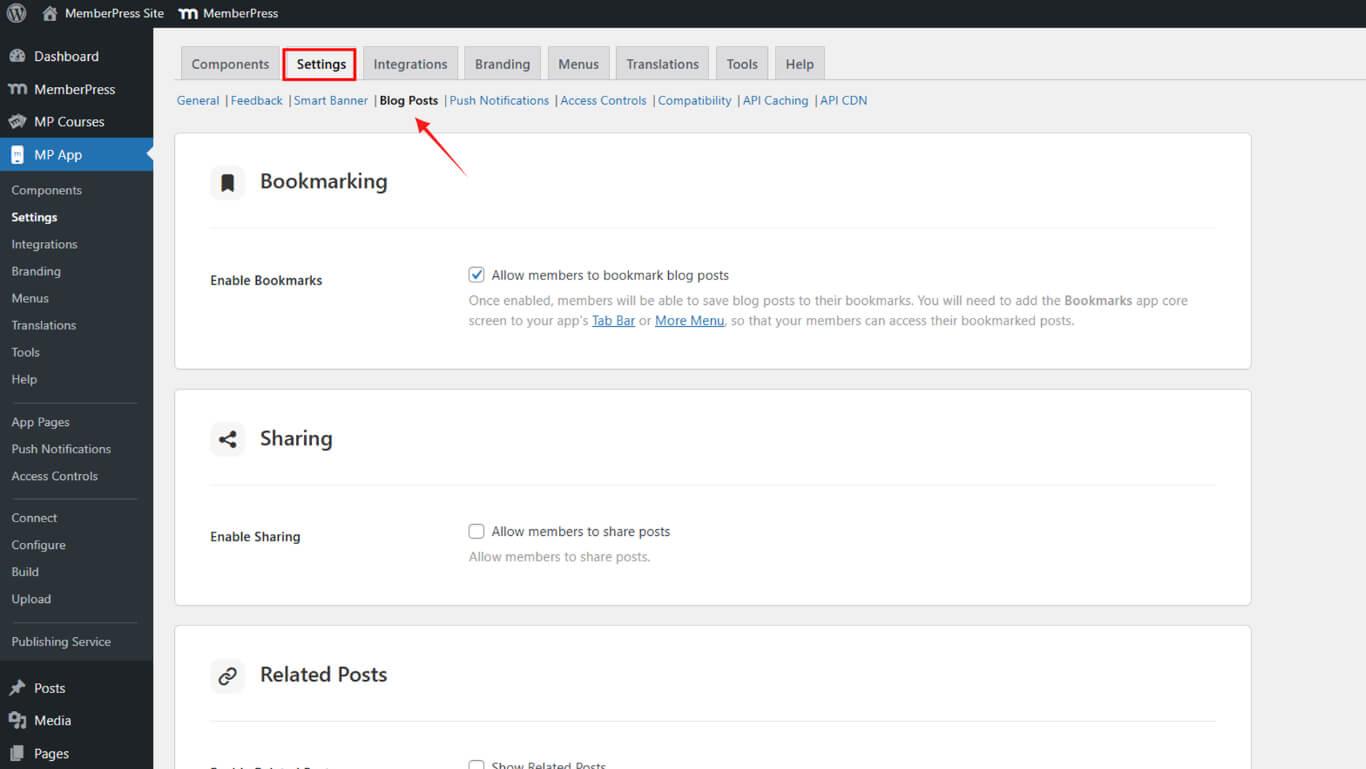
- Dans le cadre de la Signets Dans la section "Contrôle de la qualité", vérifiez les deux Activer le partage et Activer les postes connexes options.
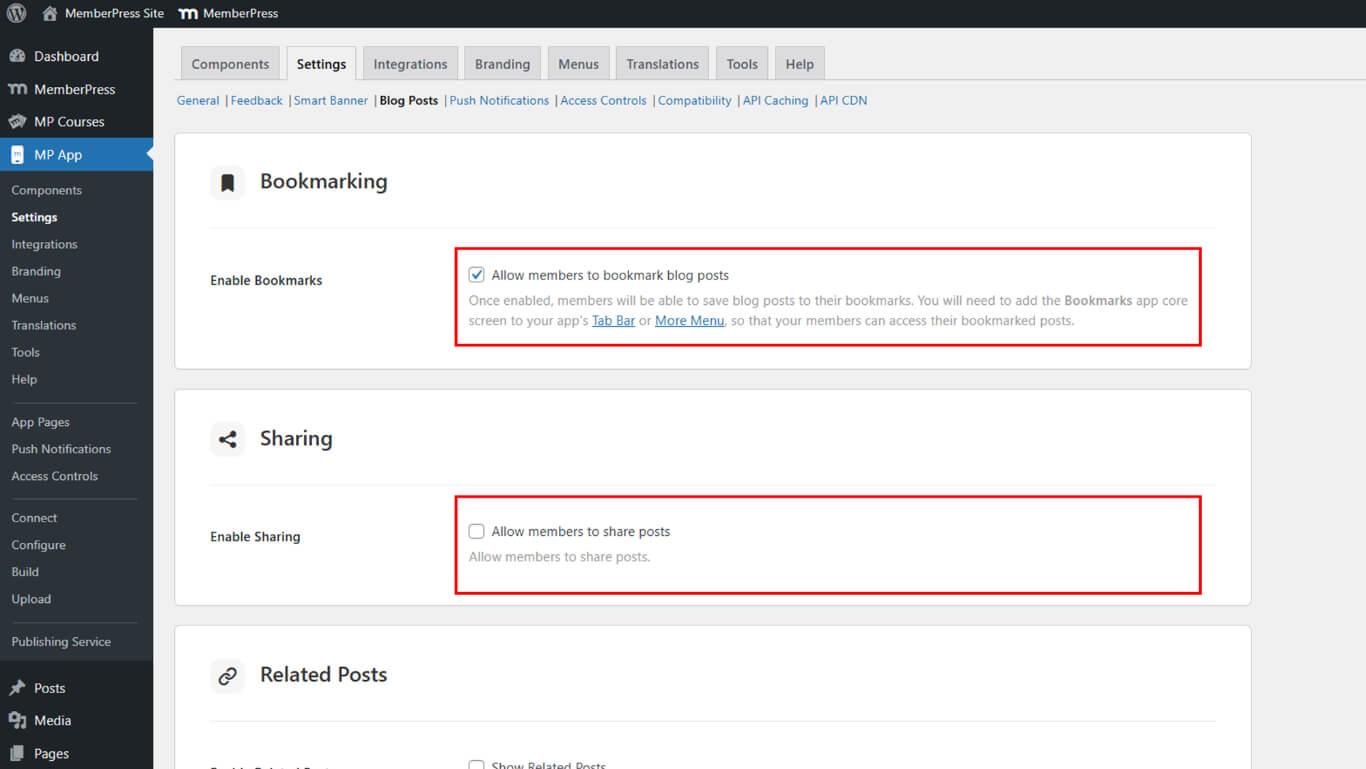
- Cliquez sur Enregistrer les modifications.
Partager un article de blog dans l'application
Le partage de billets de blog permet aux membres de diffuser du contenu par le biais de la fonctionnalité de partage native de l'appareil et des canaux personnels.
- Ouvrez l'application MemberPress iOS/Android et naviguez jusqu'à Blog Posts.
- Appuyez sur n'importe quel article pour ouvrir la vue d'un seul article.
- Appuyez sur la touche Partager à côté du bouton de commentaire.
- Utilisez la feuille de partage pour :
- Appuyez sur Copie pour copier le lien du message ; ou
- Sélectionnez une application (par exemple, Messages, WhatsApp, Facebook) pour le partager.
Affichage des articles connexes dans l'application
L'affichage des articles connexes permet de visualiser le contenu pertinent en fonction du contexte, ce qui encourage la poursuite de la lecture et la découverte de contenu.
- Faites défiler l'écran jusqu'au bas de chaque article de blog.
- Voir les articles connexes tirés de la même catégorie.
- Appuyez sur Tout voir pour découvrir d'autres contenus connexes.










 FR
FR  EN
EN  ES
ES  DE
DE  PT
PT 