

MemberPress AppKit permet site d'adhésion pour créer des applications mobiles natives iOS et Android. Ces applications affichent le contenu des adhésions et permettent aux membres de consulter les éléments protégés à partir de leurs téléphones et tablettes.
Ce document fournit une vue d'ensemble du processus complet d'installation du MemberPress AppKit. Il décrit chaque phase et explique les exigences. Les utilisateurs apprendront les étapes nécessaires à la publication d'applications mobiles fonctionnelles pour les deux plateformes.
Ce que fait MemberPress AppKit
MemberPress AppKit transforme un site web alimenté par MemberPress en une application mobile. L'application est liée au site web existant et affiche le contenu aux membres en fonction de leur adhésion. Elle affiche les messages, les pages et les cours tout en utilisant les Règles d'accès MemberPress.
L'application extrait le contenu directement du site web. Toute mise à jour du contenu du site web apparaît immédiatement dans l'application.
Choisir un parcours d'inscription
MemberPress AppKit prend en charge deux approches pour l'enregistrement des membres. Cette décision doit être prise avant de commencer le processus d'installation.
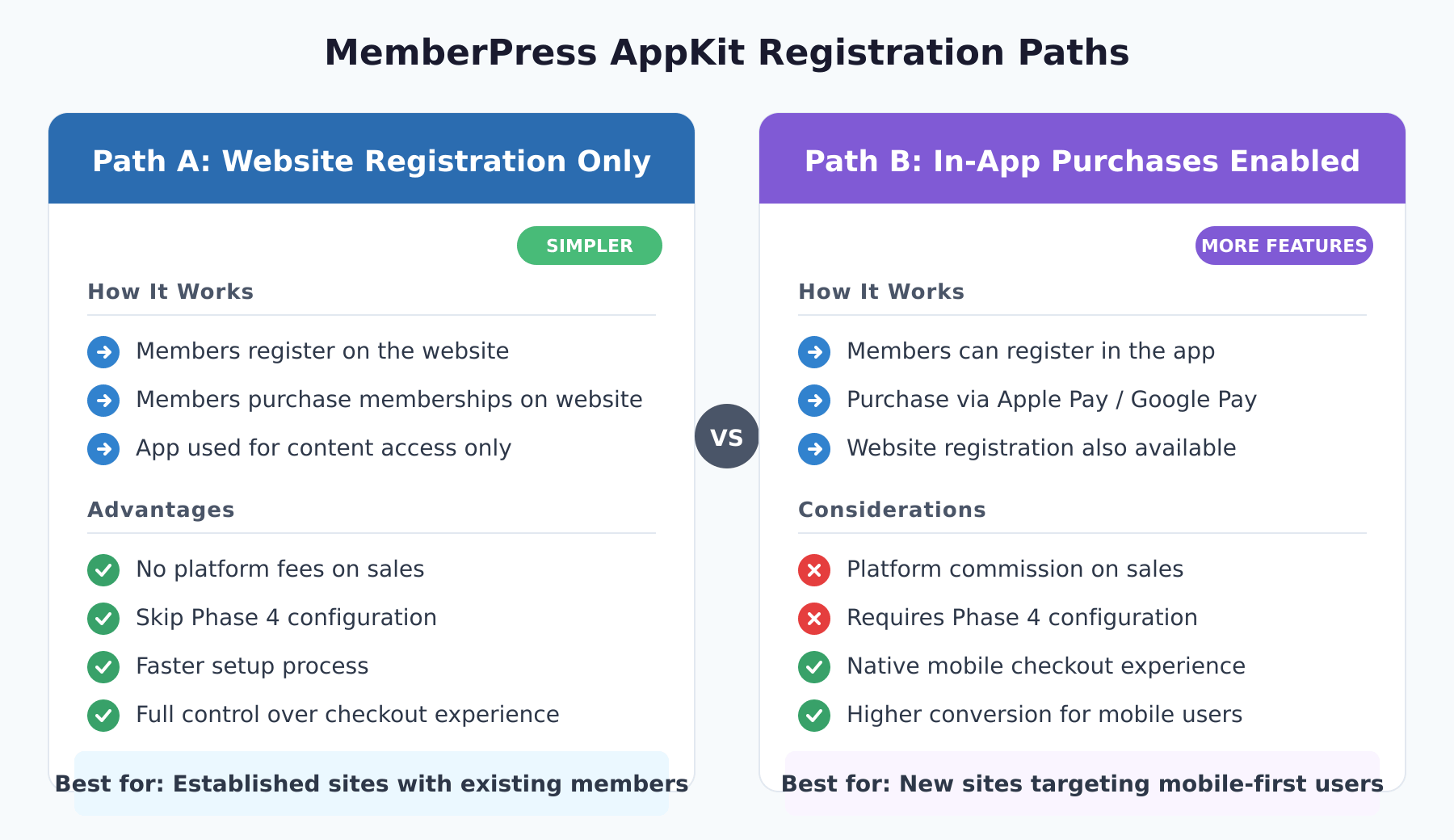
Voie A : Enregistrement du site web uniquement
Les membres s'inscrivent et acheter des adhésions uniquement via le site web. L'application fonctionne comme un outil d'accès au contenu pour les membres existants. Cette voie offre une configuration plus simple, sans frais de plateforme sur les ventes de membres. La phase 4 (achats dans l'application) peut être entièrement omise.
Voie B : Achats intégrés activés
Les membres peuvent s'inscrire et acheter des abonnements directement dans l'application en utilisant Apple Pay ou Google Pay. Cette voie doit être mieux configurée dans les deux magasins d'applications. Apple et Google prélèvent des frais sur les achats in-app. Exiger des achats in-app lors de l'inscription s'assure que les nouveaux membres choisissent un plan d'adhésion.
Aperçu du processus
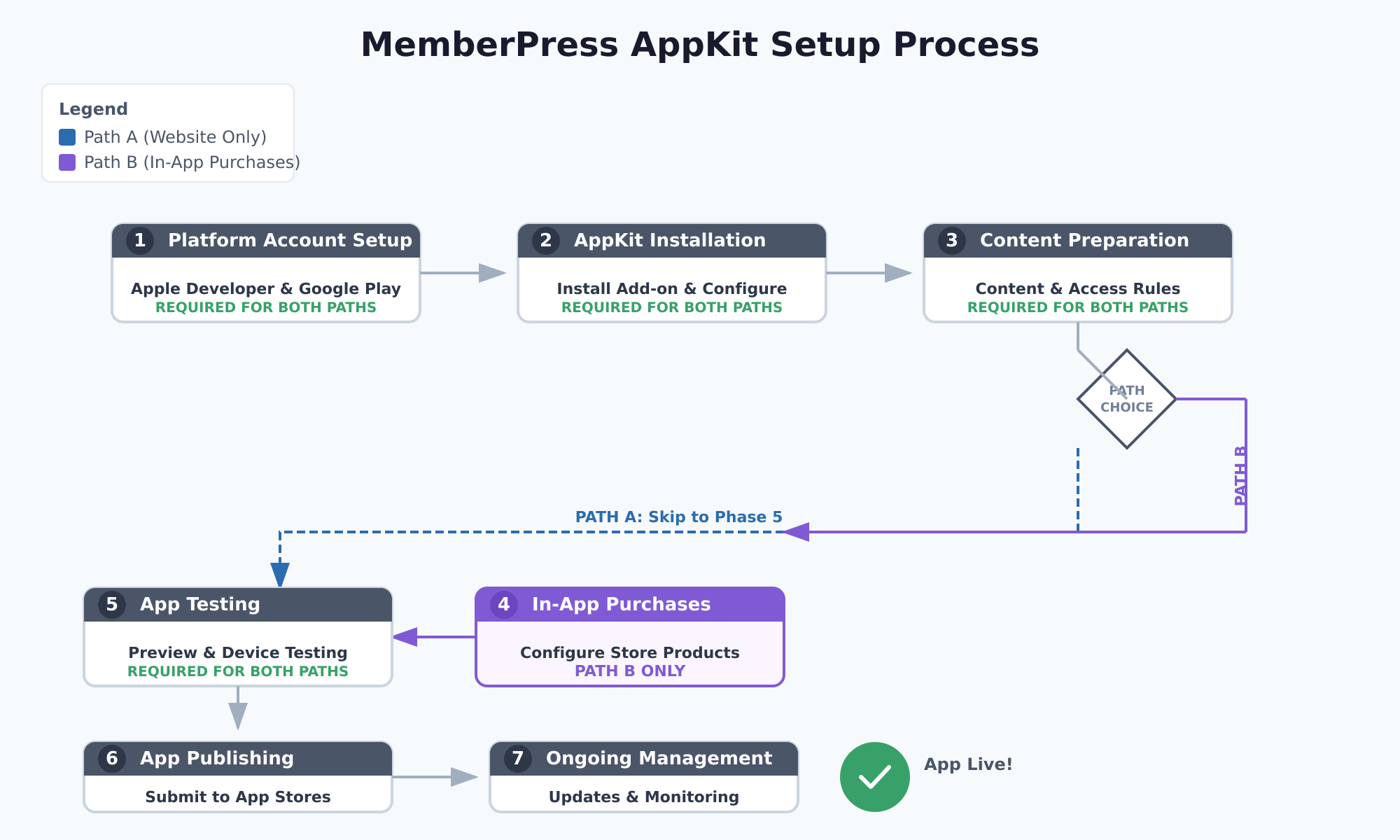
L'installation complète du MemberPress AppKit comporte sept phases. Chaque phase doit être exécutée afin d'éviter les problèmes et les erreurs d'installation.
| Phase | Description | Chemin A | Chemin B |
|---|---|---|---|
| Phase 1 | Configuration du compte de la plate-forme | Exigée | Exigée |
| Phase 2 | Installation et configuration d'AppKit | Exigée | Exigée |
| Phase 3 | Préparation du contenu et des règles d'accès | Exigée | Exigée |
| Phase 4 | Configuration des achats intégrés | Sauter | Exigée |
| Phase 5 | Test des applications | Exigée | Exigée |
| Phase 6 | Création et publication d'applications | Exigée | Exigée |
| Phase 7 | Gestion continue des applications | Exigée | Exigée |
Phase 1 : Création du compte de la plateforme
Cette phase permet de créer les comptes de développeurs nécessaires à la publication des applications. Les deux plateformes ont besoin de comptes de développeurs payants avec des contrôles d'identité.
Configuration du compte développeur Apple
Pour publier une application iOS, il faut rejoindre le Programme pour développeurs Apple ($99/an). Il donne accès à App Store Connect pour le téléchargement d'applications. Les Création d'un compte Apple Developer couvre les étapes en détail.
Pour rejoindre le programme Apple Developer :
- Naviguez jusqu'à la page Programme pour développeurs Apple page d'inscription.
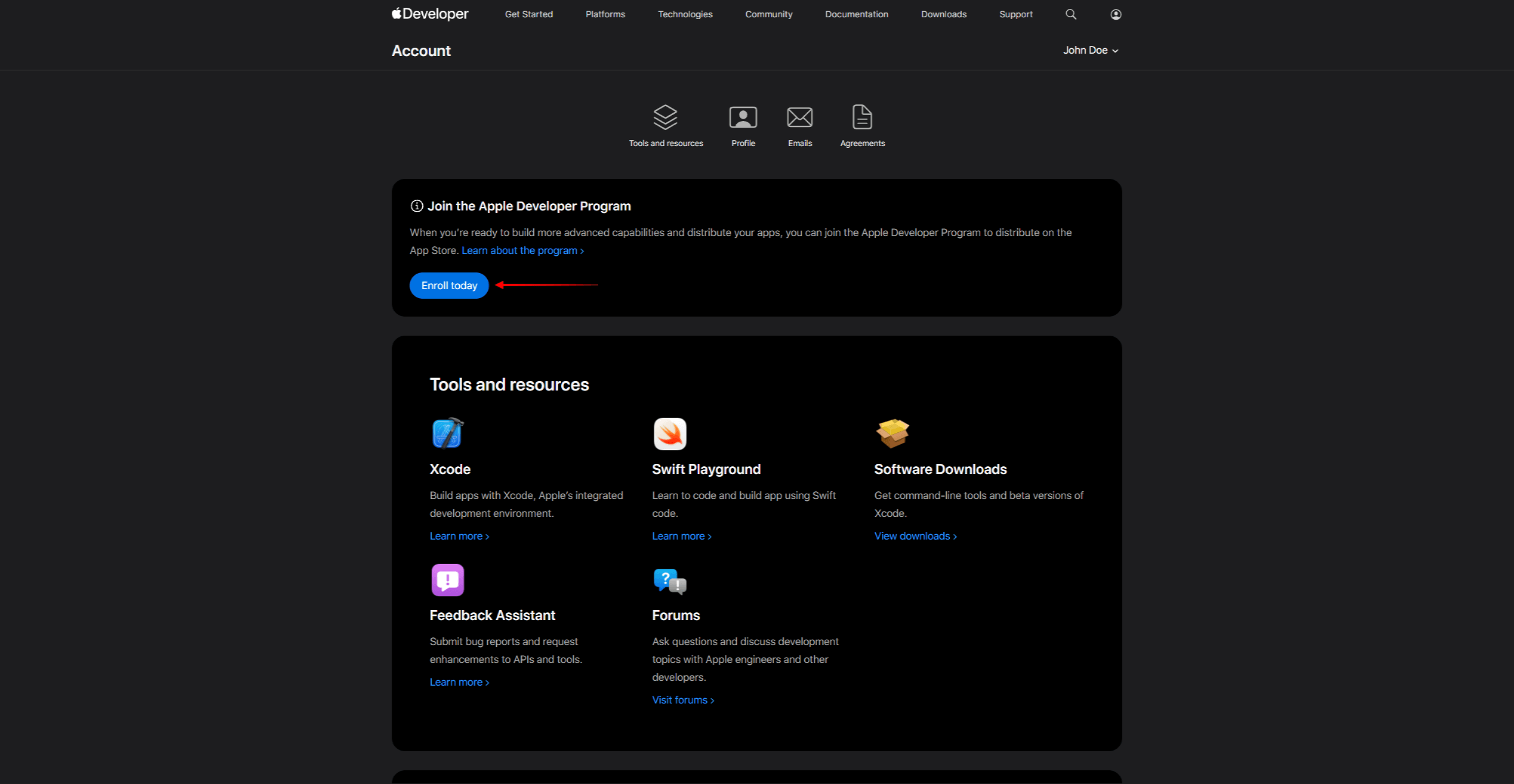
- Cliquez sur S'inscrire et connectez-vous avec un identifiant Apple.
- Sélectionnez le type de compte (Individu ou Organisation).
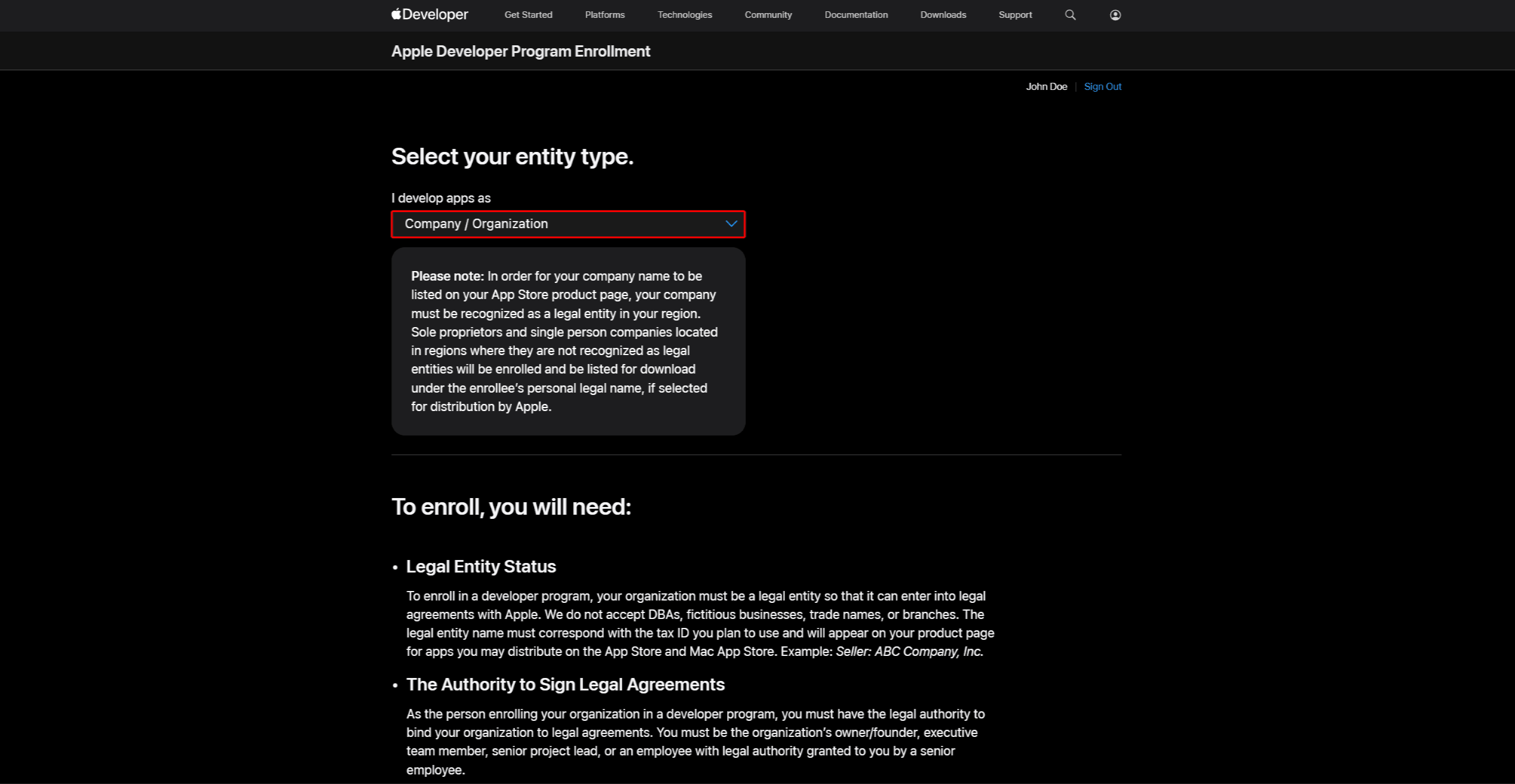
- Effectuez le contrôle d'identité et payez la cotisation annuelle $99.
- Après approbation, l'accès App Store Connect.
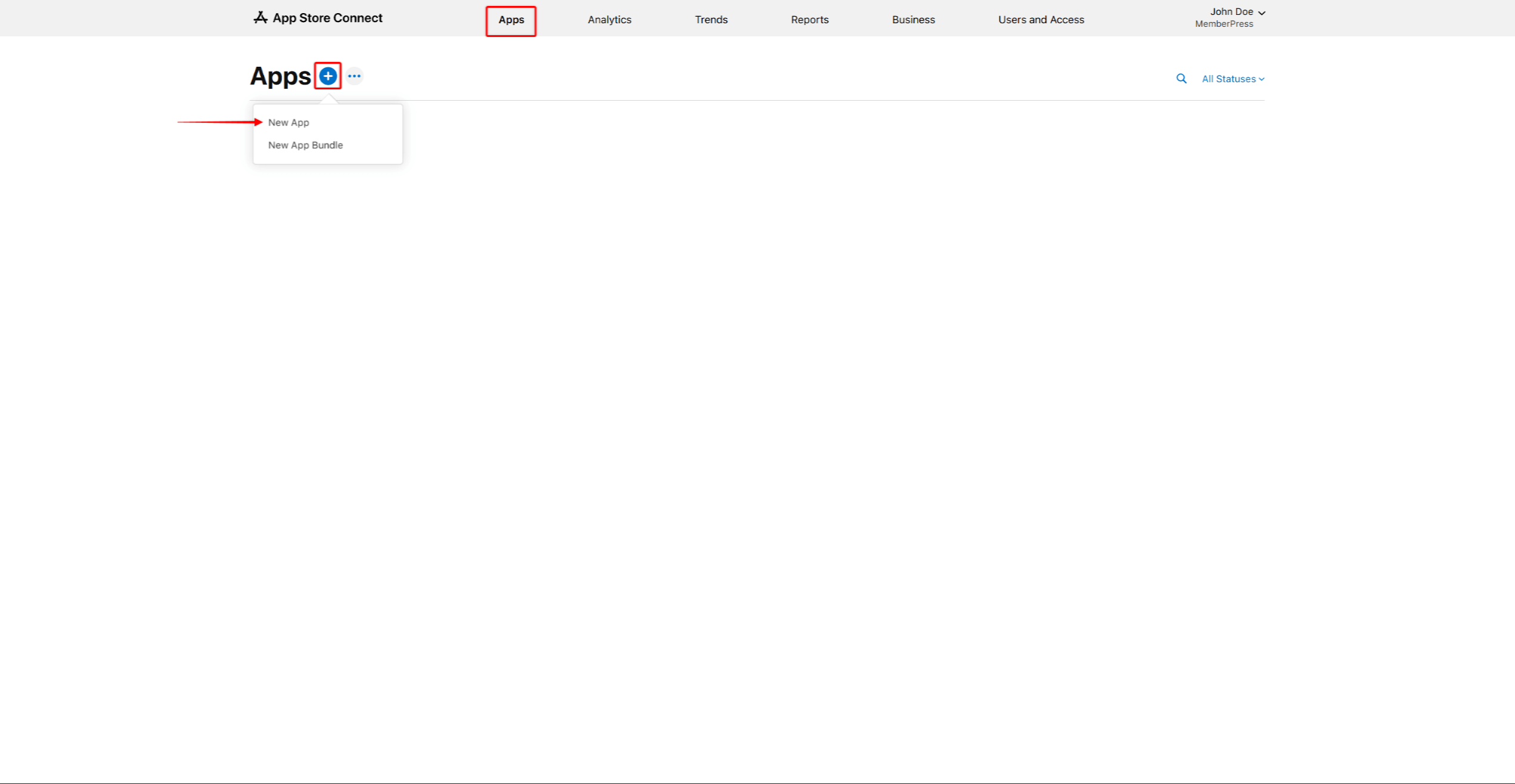
- Enregistrez un identifiant d'offre groupée dans le compte Apple Developer (format : notation de domaine inversée, par exemple,
com.companyname.appname). - Créez une liste d'applications dans App Store Connect, en sélectionnant l'identifiant de l'offre groupée et en ajoutant un numéro d'identification de l'offre groupée. SKU pour le suivi interne.
- Créez les certificats et les profils nécessaires.
- Connecter le compte Apple Developer à AppKit.
Configuration du compte développeur Google Play
La publication d'une application Android nécessite une Compte de développeur Google Play ($25 frais uniques). Cela permet d'accéder à la console Google Play pour le téléchargement d'applications. Les Configuration du compte Google Play Developer couvre les étapes en détail.
Pour créer un compte Google Play Developer :
- Naviguez jusqu'à la page Console Google Play page d'inscription.
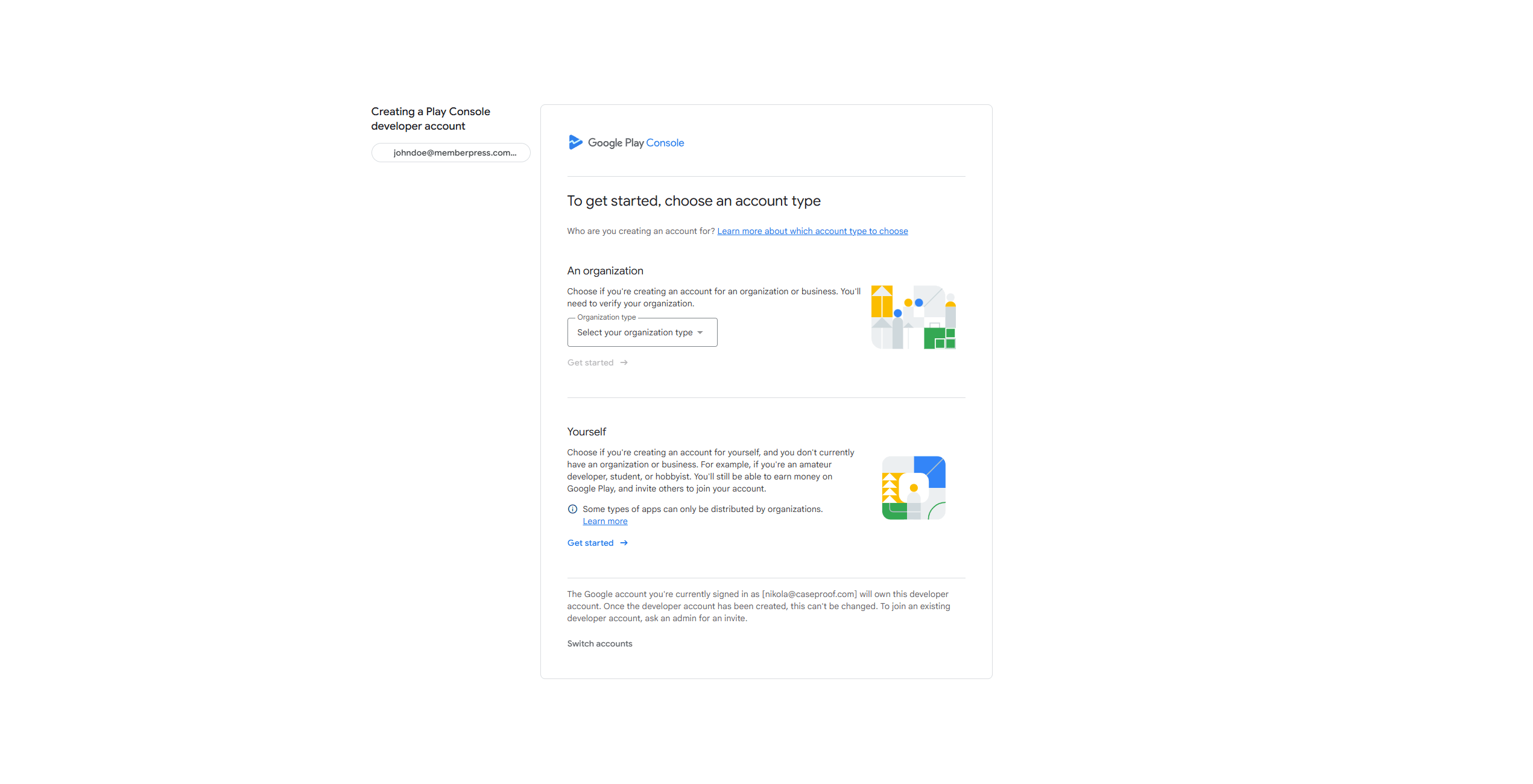
- Connectez-vous avec un compte Google et acceptez les conditions.
- Payez les frais d'inscription $25 et complétez le contrôle d'identité.
- Une fois la vérification effectuée, créez un espace réservé à l'inscription de l'application.
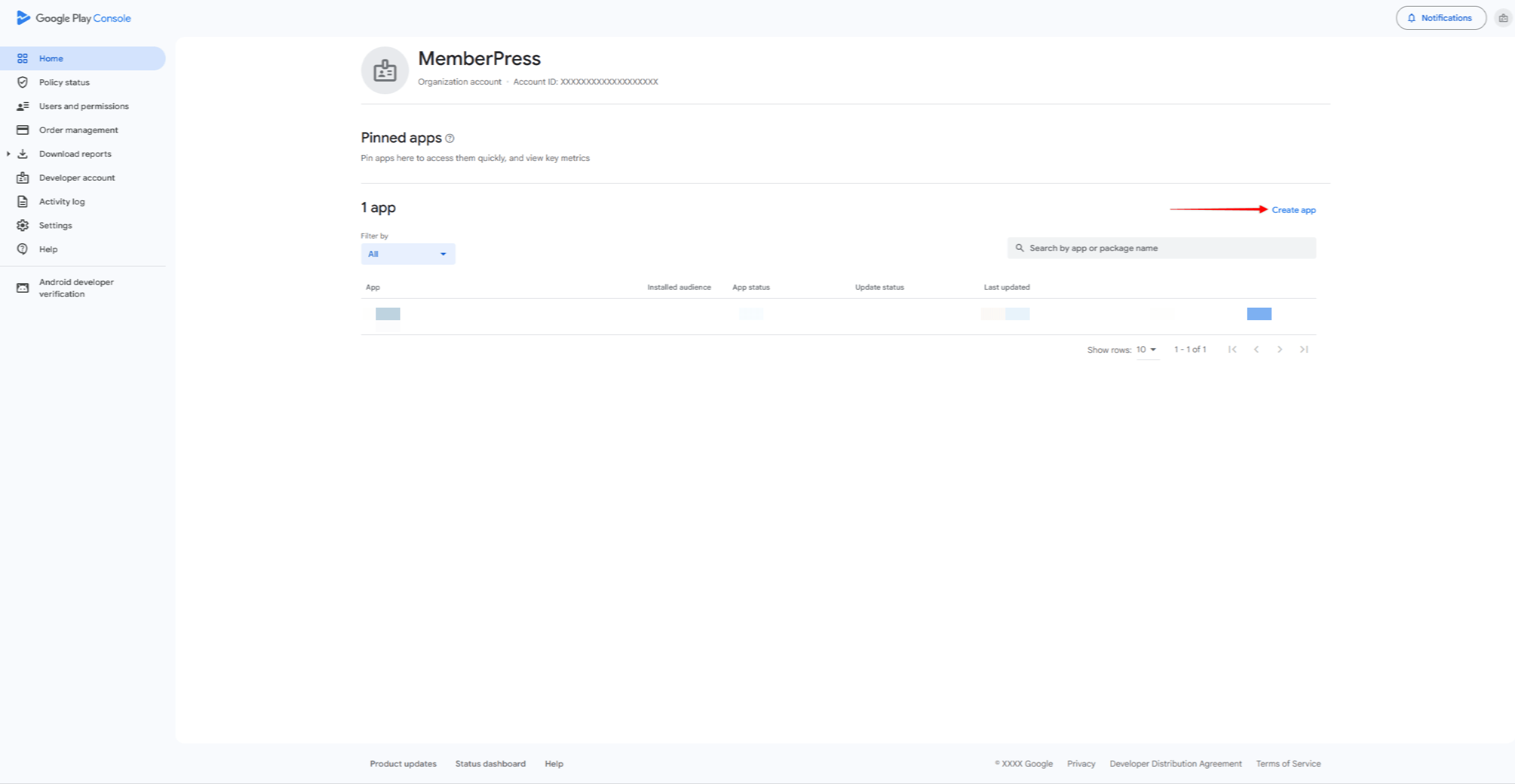
- Créer une clé de téléchargement pour la signature de l'application.
- Connecter le compte Google Developer à AppKit.
Phase 2 : Installation et configuration d'AppKit
Cette phase permet d'installer le module complémentaire MemberPress AppKit et de définir les paramètres de base de l'application. Cela comprend image de marque, couleurs, typographie, et les options de connexion.
Avant de commencer, assurez-vous qu'un Licence MemberPress (plan de lancement, de croissance ou d'expansion). Le plan clé de licence doit être activée. Une Certificat SSL est nécessaire, l'API REST doit être activée, et l'option hébergement compatible est nécessaire.
Installation d'AppKit
MemberPress AppKit est un module complémentaire distinct qui nécessite son propre abonnement annuel. L'application Guide de connexion à AppKit montre comment l'installer et l'activer.
- Naviguez jusqu'à la page MemberPress AppKit et acheter l'abonnement AppKit.
- Téléchargez le plugin AppKit à partir de Compte > Téléchargements sur le site web MemberPress.
- Installer le plugin via Tableau de bord > Plugins > Ajouter un nouveau plugin > Télécharger un plugin.
- Obtenez la clé de licence AppKit à partir de Compte > Téléchargements sur le site web MemberPress.
- Naviguez jusqu'à Tableau de bord > MP AppKit > Connecter et saisissez la clé de licence.
- Vérifier que le bouton vert “Actif” s'affiche pour confirmer que le lien fonctionne.
Paramètres de l'application
Les Paramètres comporte neuf sous-options permettant de configurer le comportement de l'application.
- Naviguez jusqu'à Tableau de bord > MP AppKit > Paramètres.
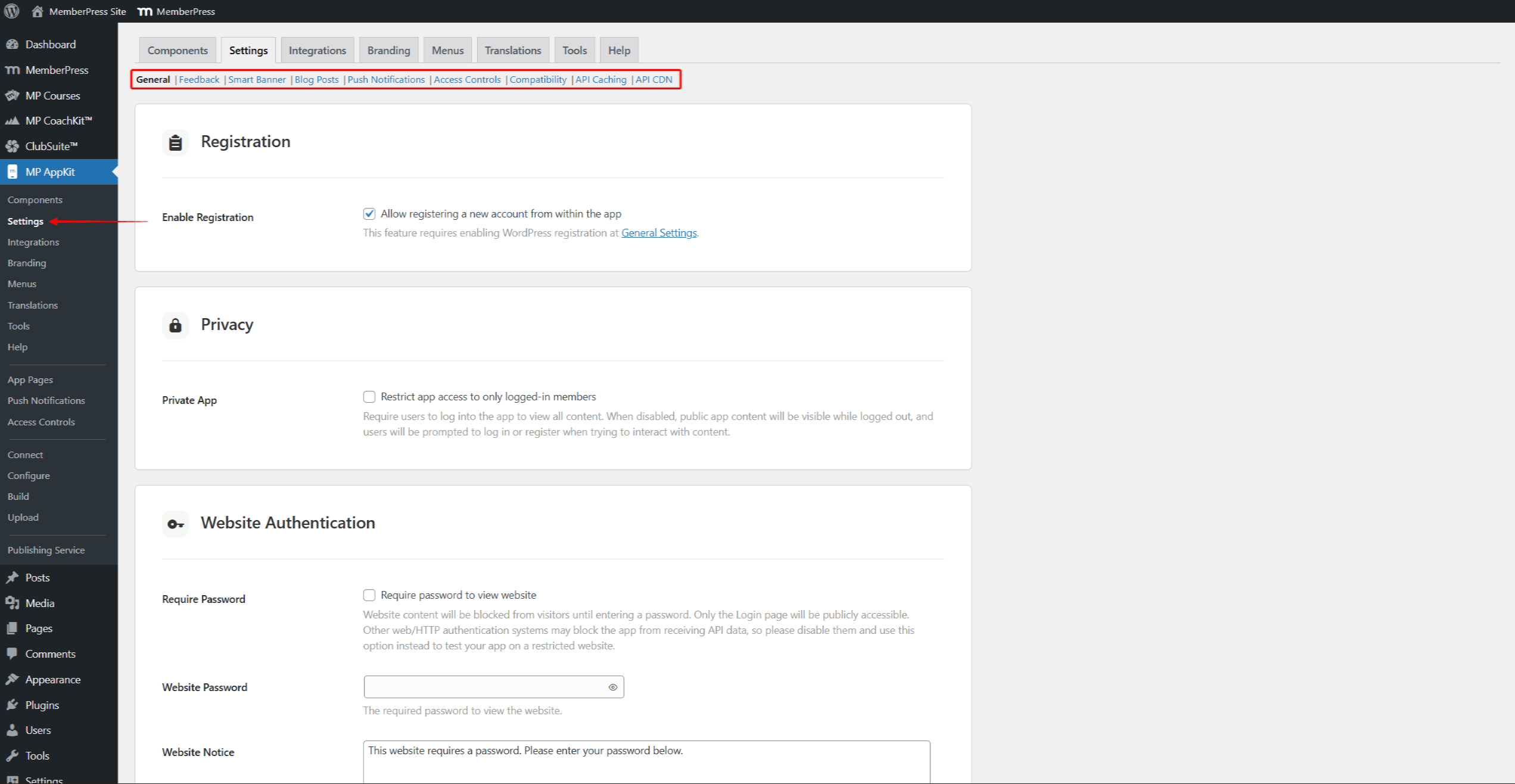
- Configurer les options si nécessaire :
- Général - l'inscription, la protection de la vie privée et la connexion ;
- Retour d'information - les commentaires des utilisateurs et les fonctions d'évaluation des applications ;
- Bannière intelligente - bannière de site web promouvant l'application ;
- Articles de blog - les signets, le partage et les articles connexes ;
- Notifications push - les types de notification et l'automatisation ;
- Contrôles d'accès - la messagerie à contenu restreint ;
- Compatibilité - la gestion des liens externes ;
- Mise en cache API - l'augmentation de la vitesse ;
- API CDN - réseau de diffusion de contenu.
- Cliquez sur Enregistrer les modifications après avoir configuré chaque option.
Composants AppKit
MemberPress AppKit comporte plusieurs parties qui peuvent être activées ou désactivées en fonction de vos besoins. L'AppKit Pages de l'application est obligatoire et ne peut être désactivée.
- Naviguez jusqu'à Tableau de bord > MP AppKit > Composants.
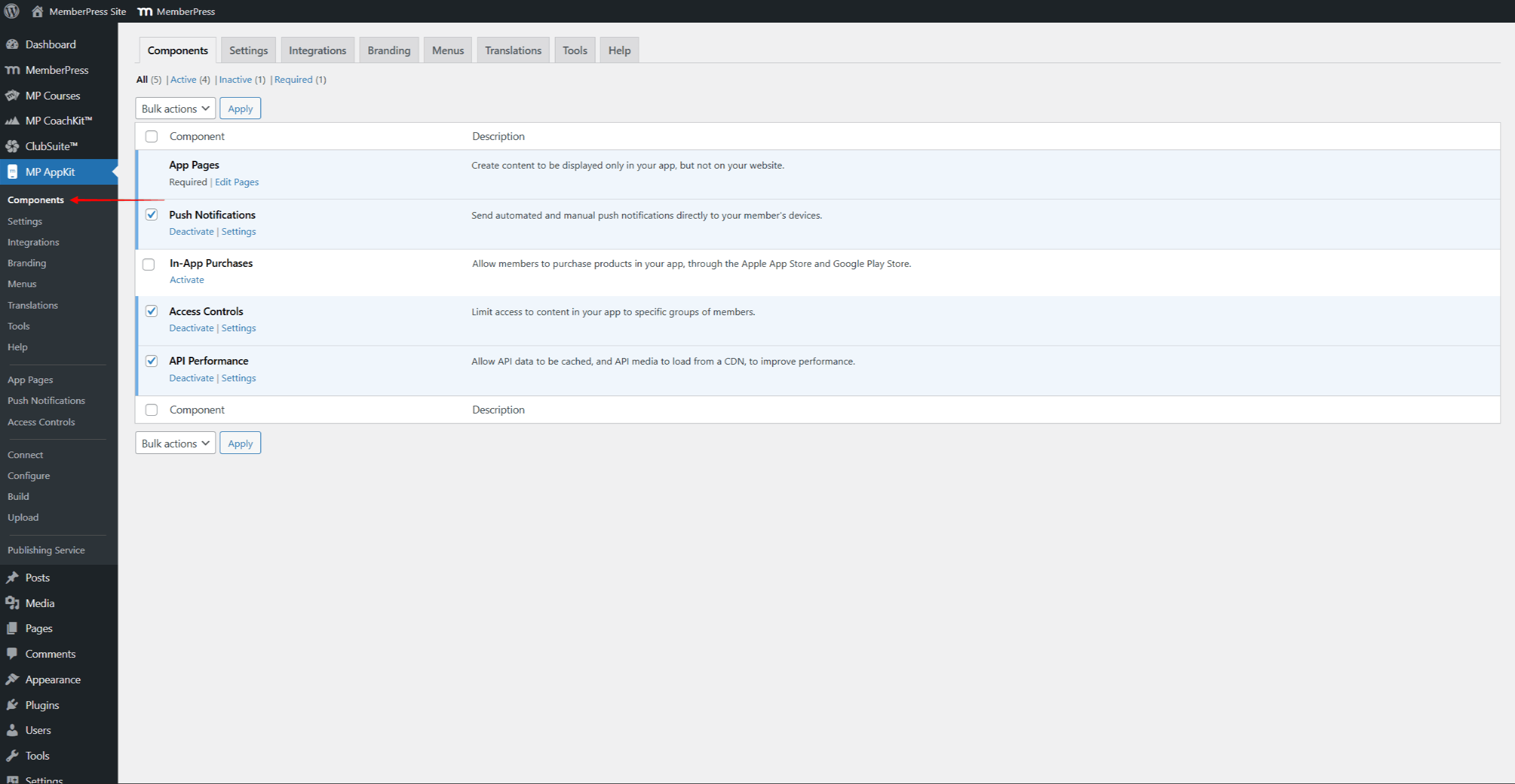
- Examinez les composants disponibles :
- Notifications push - vous permet d'envoyer des messages push aux utilisateurs de l'application ;
- Achats intégrés - permet aux utilisateurs d'acheter des abonnements dans l'application ;
- Contrôles d'accès - contrôle l'accès au contenu en fonction de l'appartenance à un groupe ;
- Performances de l'API - active la mise en cache pour un chargement plus rapide.
- Tous les composants sont activés par défaut, à l'exception de Achats intégrés.
- Activez ou désactivez les composants si nécessaire et cliquez sur Enregistrer les modifications.
Connexion à la plate-forme
Les paramètres de connexion à la plateforme relient AppKit aux listes de la boutique d'applications. Chaque plateforme requiert des identifiants et des certificats spécifiques pour créer et publier des applications.
- Naviguez jusqu'à Tableau de bord > MP AppKit > Configureret cliquez sur le bouton Réglages iOS menu.
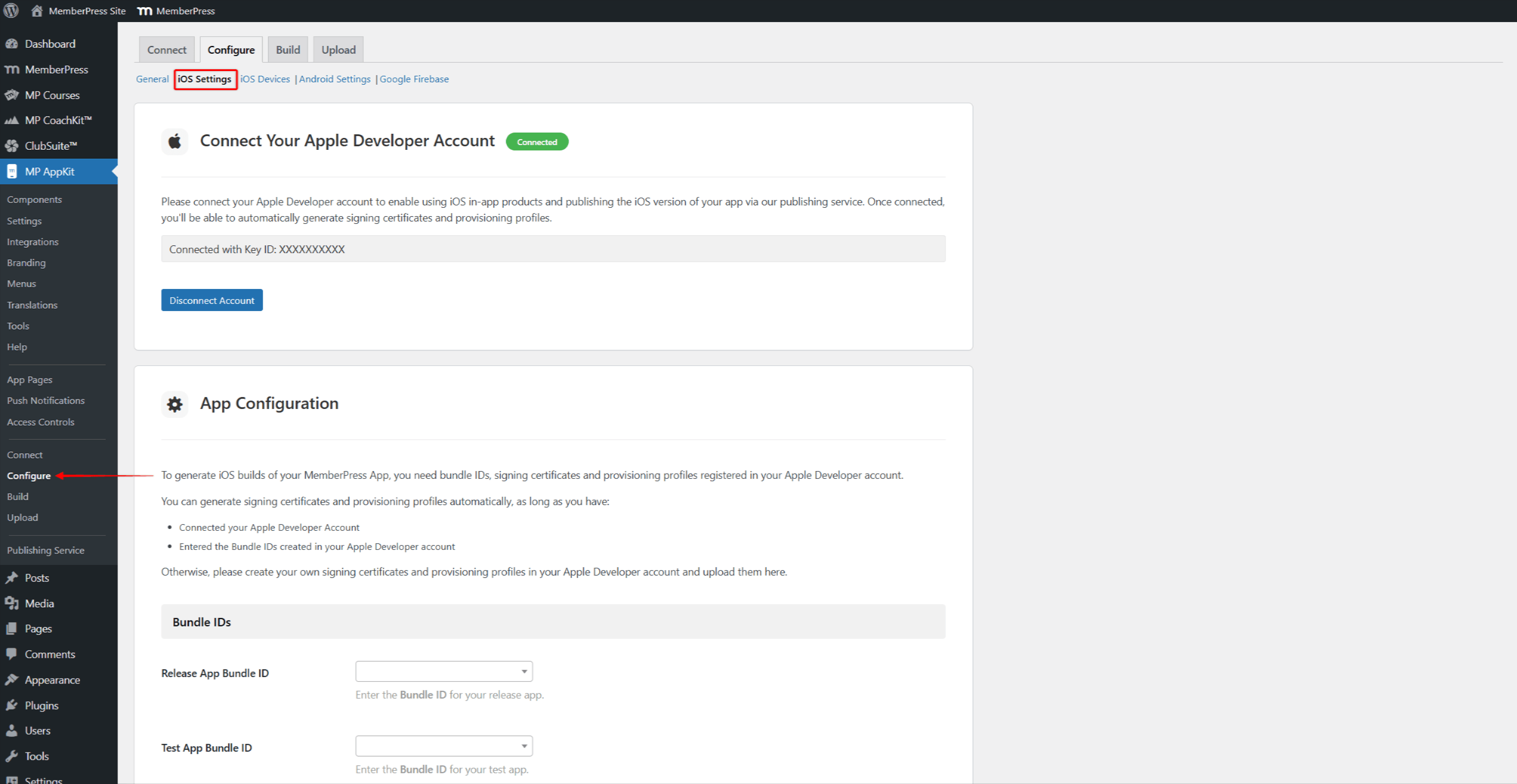
- Suivre le Guide de configuration des réglages iOS pour configurer les Bundle IDs, les Signing Certificates, les Provisioning Profiles et les App Information.
- Activer Liens universels pour les liens profonds.
- Cliquez sur Enregistrer les modifications.
- Ensuite, connectez l'application que vous avez créée dans votre Google Play Console. Cliquez sur l'icône Paramètres Android menu.
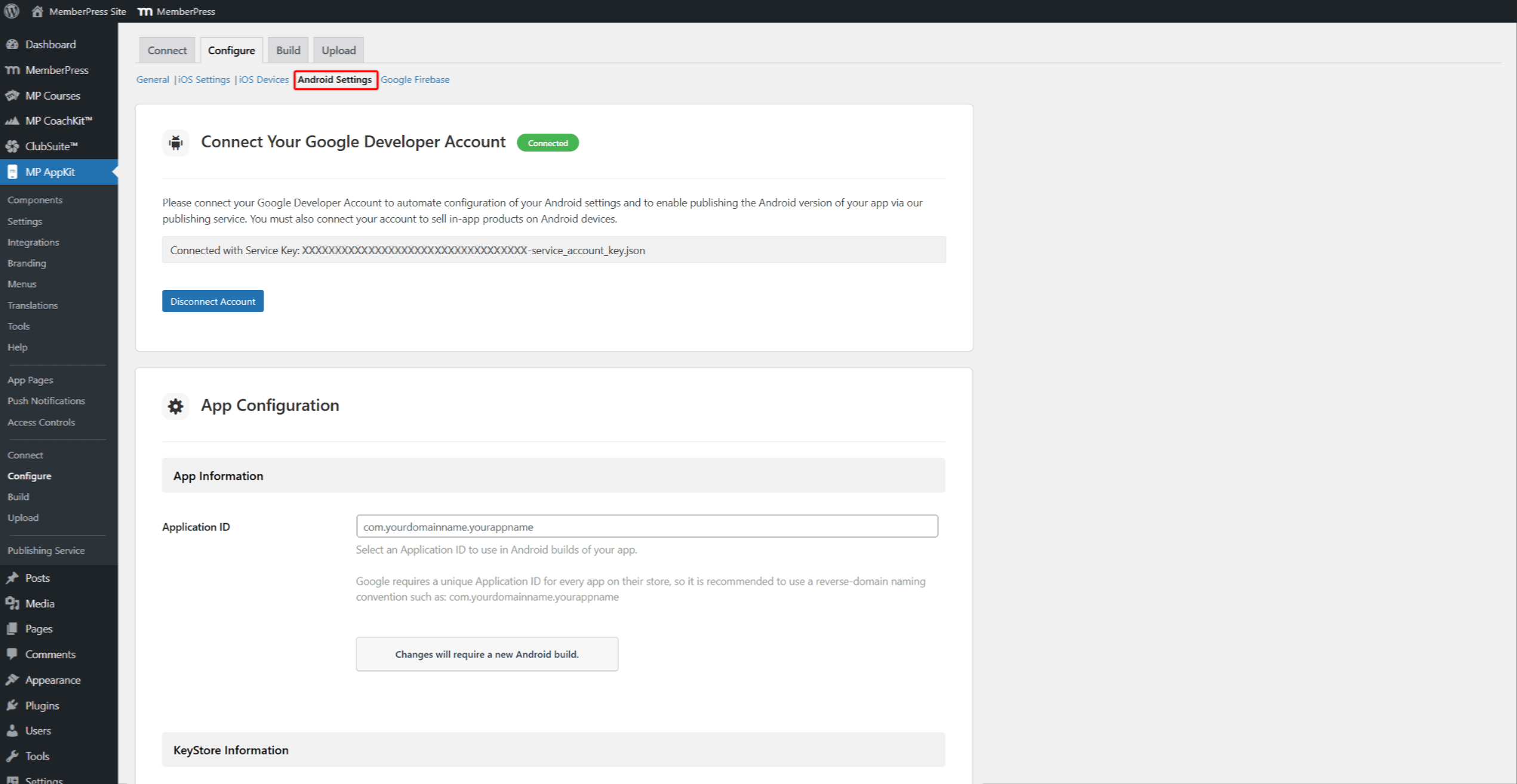
- Suivre le Guide de configuration des paramètres Android pour configurer l'identifiant de l'application et les informations du porte-clés.
- Activer Liens vers les applications Android pour les liens profonds.
- Cliquez sur Enregistrer les modifications.
- Cliquez sur le bouton Google Firebase et suivez les instructions du sous-menu Guide d'installation de Google Firebase pour activer les notifications push.
Phase 3 : Configuration du contenu et de la navigation
Cette phase met en place le contenu de l'application et les menus de navigation. Les articles et les cours MemberPress sont synchronisés à partir du site web. Les pages de l'application affichent un contenu personnalisé uniquement dans l'application. Les page d'accueil de l'application définit le premier écran que les utilisateurs voient. Traductions de textes vous permettent de traduire le texte de l'application dans d'autres langues.
Avant de commencer, assurez-vous qu'au moins un l'adhésion existe et Règles MemberPress sont mis en place.
Pages de l'application
Les pages d'application sont des écrans personnalisés affichés uniquement dans l'application mobile. Ces pages sont construites à l'aide de l'outil L'éditeur Gutenberg avec une largeur adaptée aux écrans mobiles.
- Naviguez jusqu'à Tableau de bord > MP AppKit > App Pages.
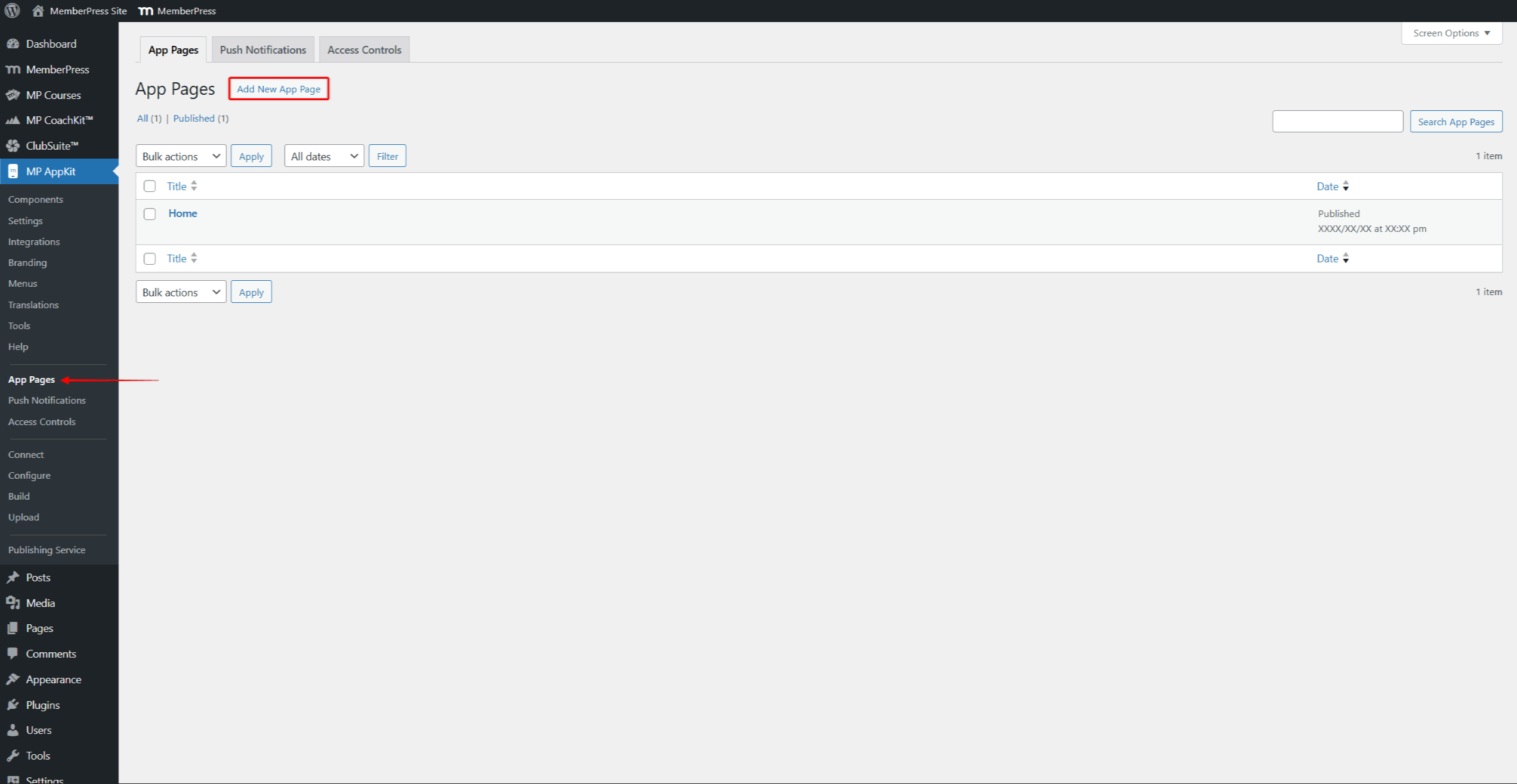
- Cliquez sur Ajouter une nouvelle page d'application pour créer une nouvelle page.
- Ajouter du contenu à l'aide des blocs Gutenberg, notamment MemberPress Blocs AppKit et le Bloc de cours.
- Cliquez sur Publier pour enregistrer la page.
Menu Configuration
Les paramètres des menus permettent de contrôler la navigation dans l'application. Trois zones de menu sont disponibles : Barre d'onglets (navigation du bas), Barre d'en-tête (navigation par le haut) et More Menu (éléments supplémentaires). Icônes de menu personnalisées et plusieurs versions de menu offrent davantage de possibilités de configuration de la navigation.
- Naviguez jusqu'à Tableau de bord > MP AppKit > Menus.
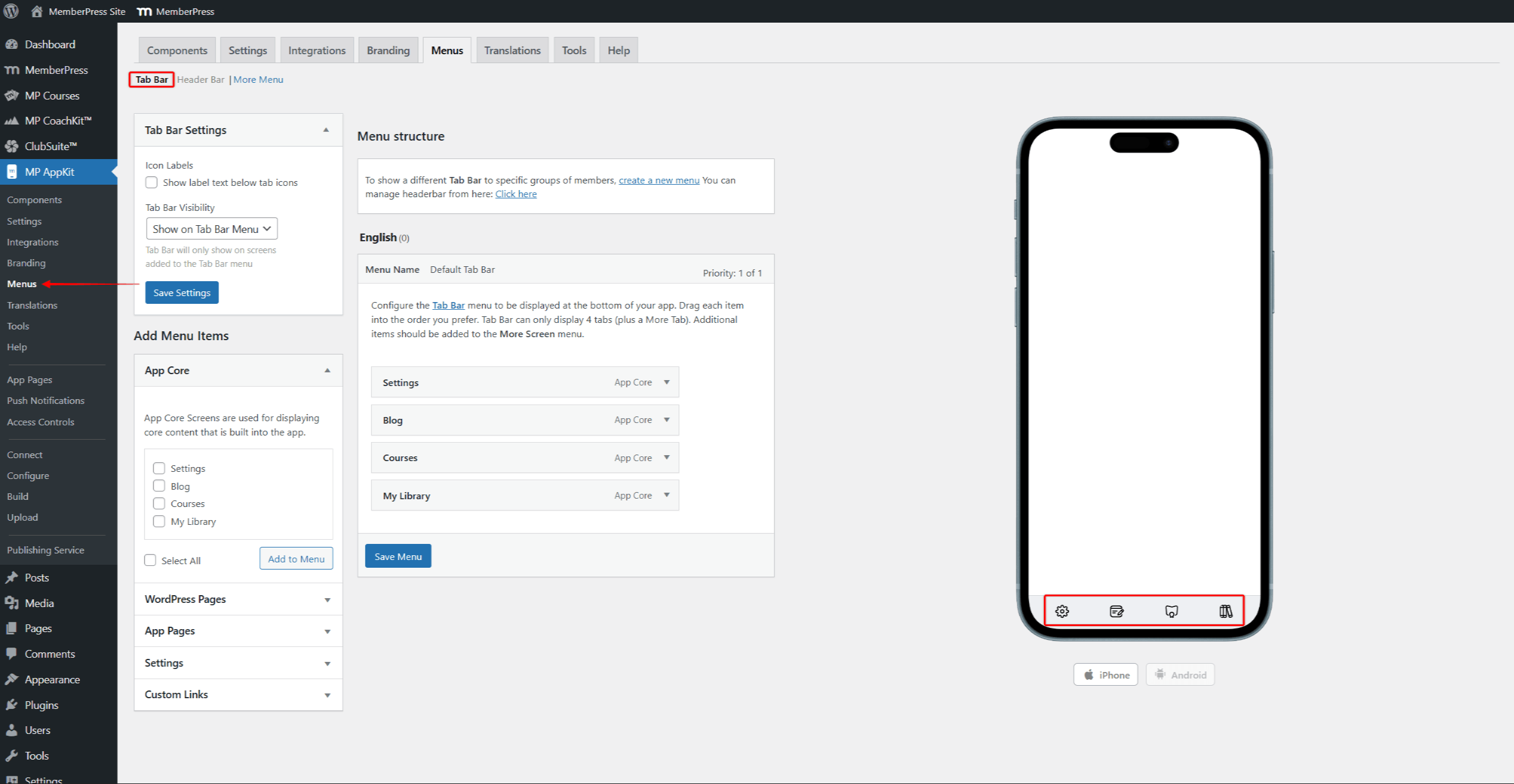
- Mettre en place le Barre d'onglets avec les éléments de navigation principaux (jusqu'à 4 onglets plus Plus).
- Mettre en place le Barre d'en-tête avec des boutons de navigation supérieurs.
- Mettre en place le Plus de menu avec des éléments de navigation supplémentaires.
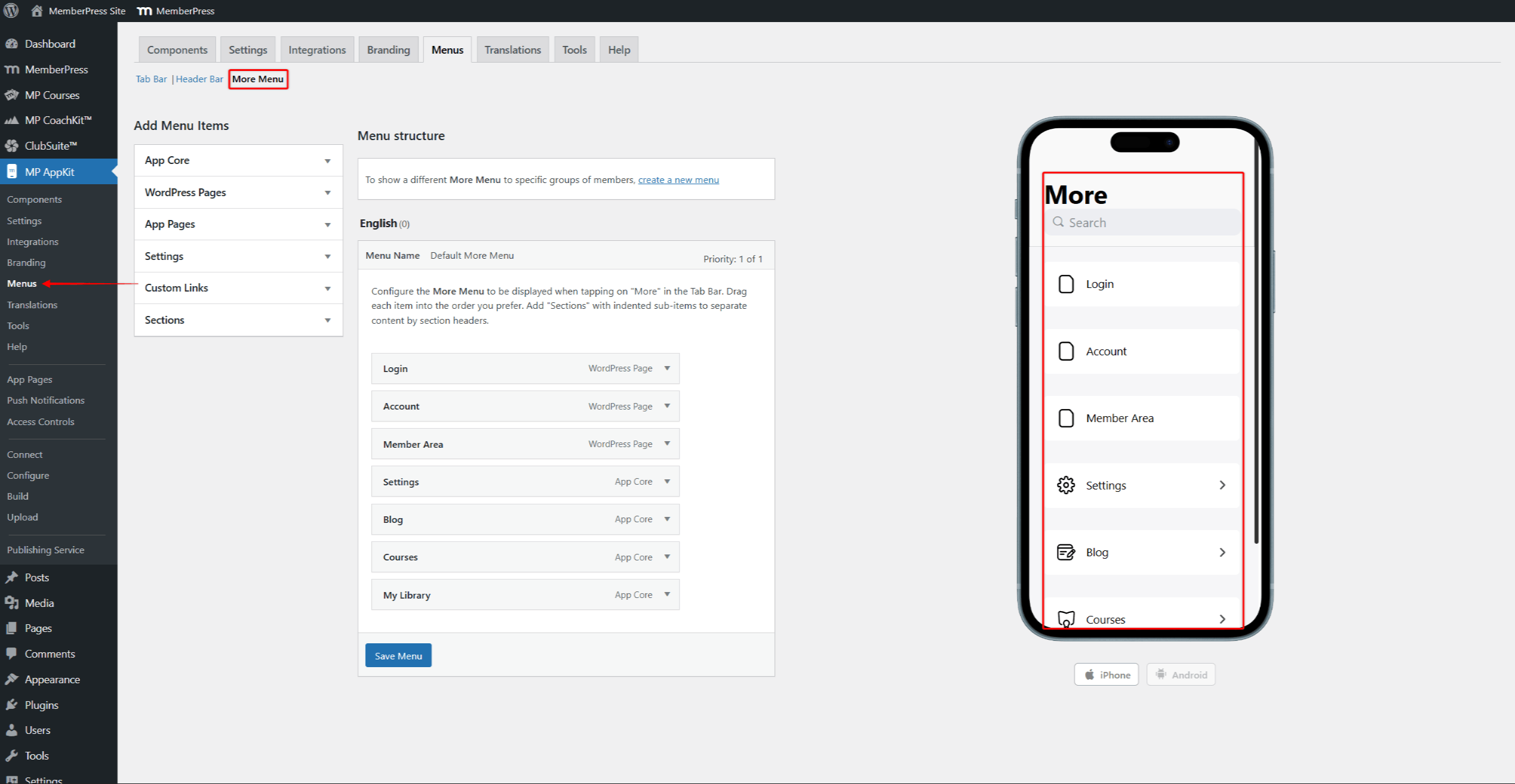
- Cliquez sur Sauvegarder le menu après avoir configuré chaque menu.
Contrôles d'accès
L'application utilise les règles d'accès de MemberPress. L'application Page Contrôles d'accès vous permet d'ajouter des règles pour un contenu spécifique. Groupes d'accès permettent d'organiser l'accès au contenu en fonction du niveau d'adhésion. Les message restreint par défaut s'affiche lorsque les utilisateurs tentent de visualiser un contenu protégé.
- Naviguez jusqu'à Tableau de bord > MemberPress > Règles et réviser les règles existantes.
- Créer des règles supplémentaires si nécessaire.
- Naviguez jusqu'à Tableau de bord > MP AppKit > Contrôles d'accès.
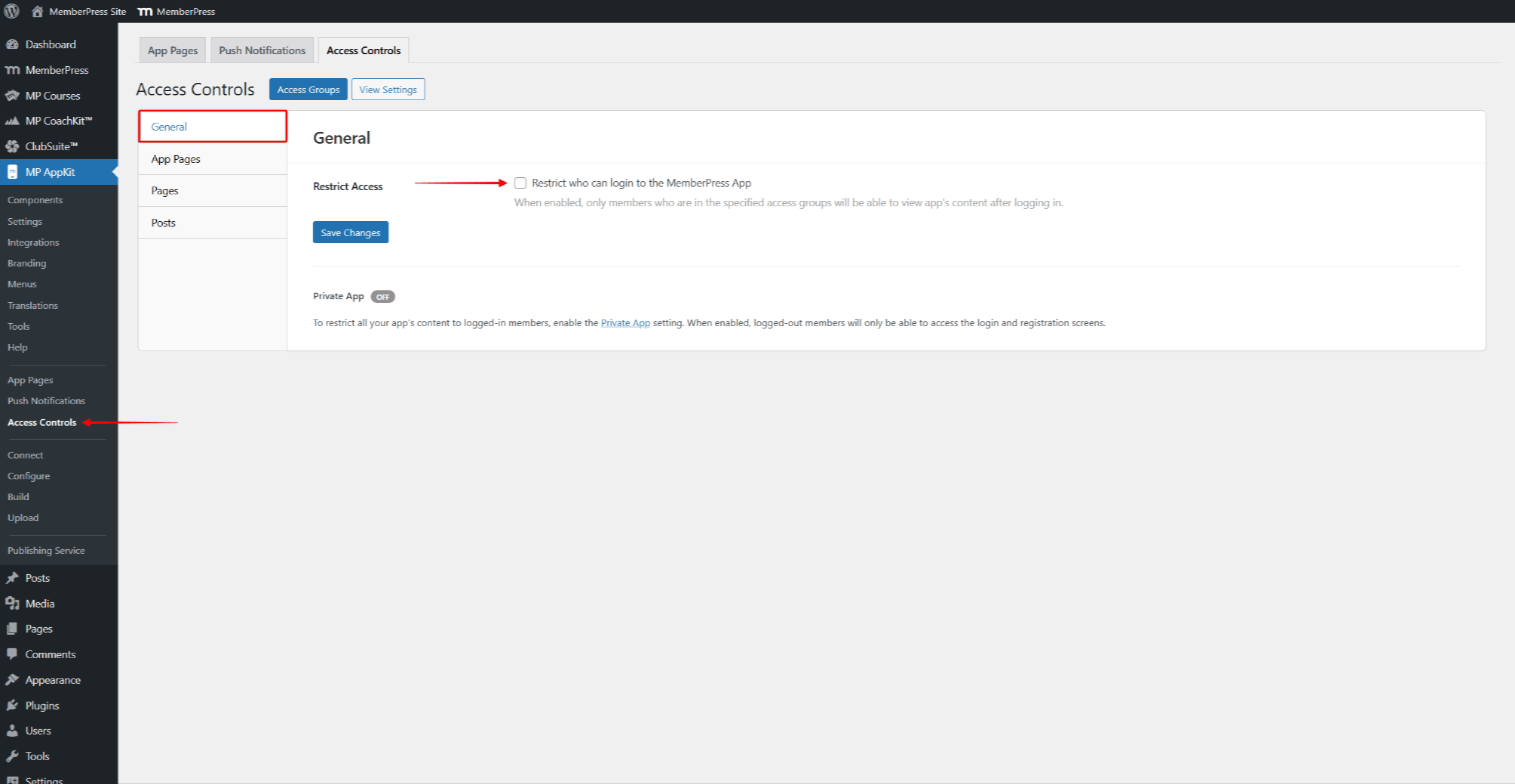
- Sur le site Général trouver l'onglet Restreindre l'accès section.
- Activer “Restreindre qui peut se connecter à l'application MemberPress” pour limiter l'accès à l'application à des groupes d'accès spécifiques.
- Pour rendre l'application totalement privée, activez l'option Paramètres de l'application privée à Tableau de bord > MP AppKit > Paramètres > Général > Confidentialité.
- Cliquez sur le bouton Pages de l'application, Pagesou Postes pour ajouter des règles à un contenu spécifique.
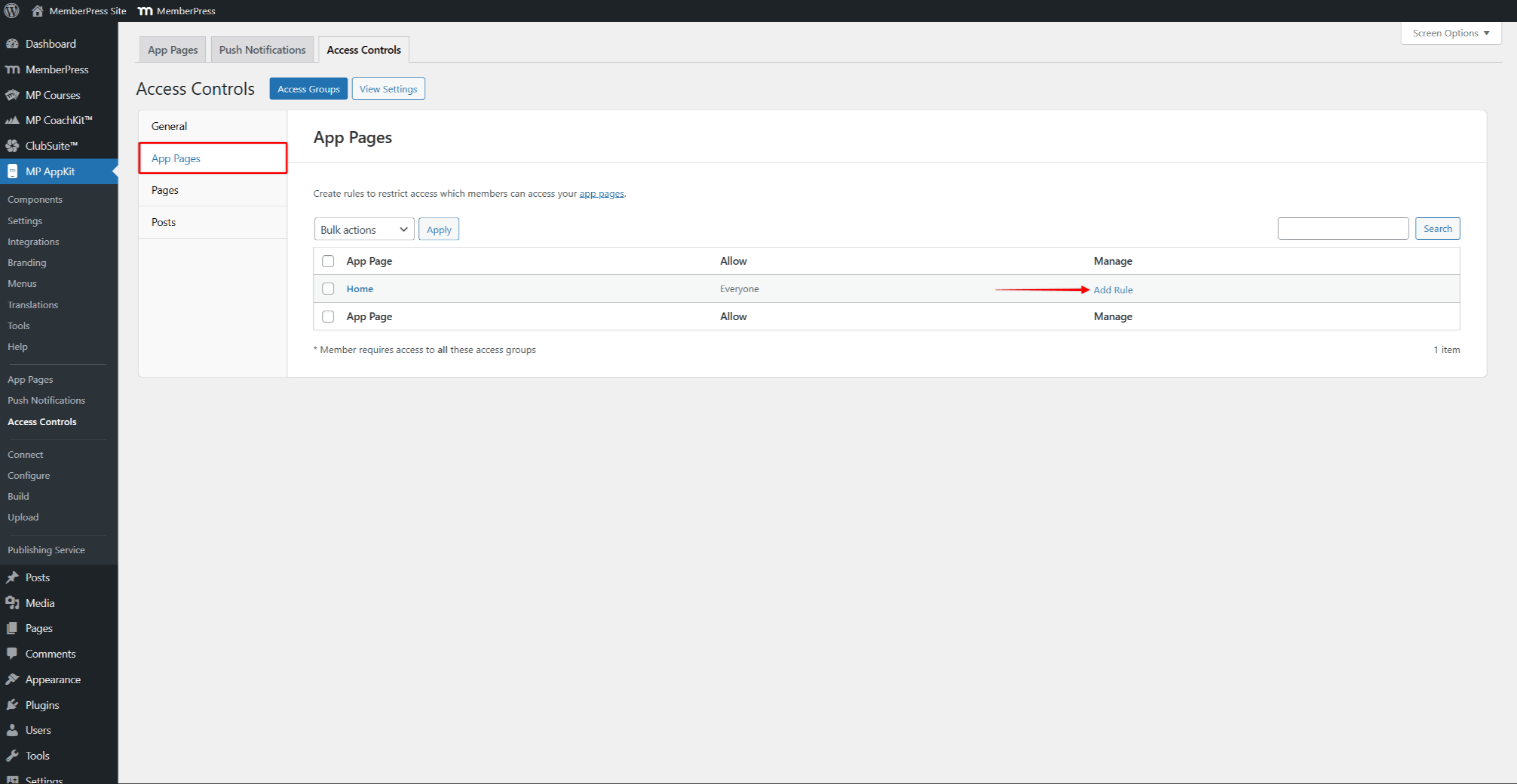
- Sur ces pages, vous pouvez ajouter des règles spécifiques aux éléments. Cliquez sur Ajouter une règle à côté de n'importe quel élément pour restreindre ce contenu aux membres connectés ou à des groupes d'accès spécifiques.
- Cliquez sur Enregistrer les modifications.
Phase 4 : Configuration des achats intégrés
Cette phase n'est requise que pour les utilisateurs de la voie B. Les utilisateurs du chemin A doivent passer à la phase 5. Les Configuration des achats In-App présente toutes les étapes de la configuration.
Avant de commencer cette phase, assurez-vous que le Achats intégrés est activée à l'adresse Tableau de bord > MP AppKit > Composants.
Les deux magasins d'applications exigent que des produits d'achat in-app soient créés avant que l'application puisse vendre des adhésions. Chaque adhésion à MemberPress nécessite un produit correspondant dans les deux boutiques. Groupes d'abonnement organiser les produits d'adhésion connexes pour les options de mise à niveau et de rétrogradation.
Configuration des produits de l'App Store
- En App Store Connect, sélectionnez l'application et cliquez sur Abonnements dans la barre latérale.
- Créer des produits correspondant à chaque adhésion. Sélectionner Abonnement auto-renouvelable pour les adhésions récurrentes. Les Guide des produits intégrés à iOS explique la configuration et les types de produits.
- En Console Google Play, naviguer jusqu'à Monétiser avec le jeu.
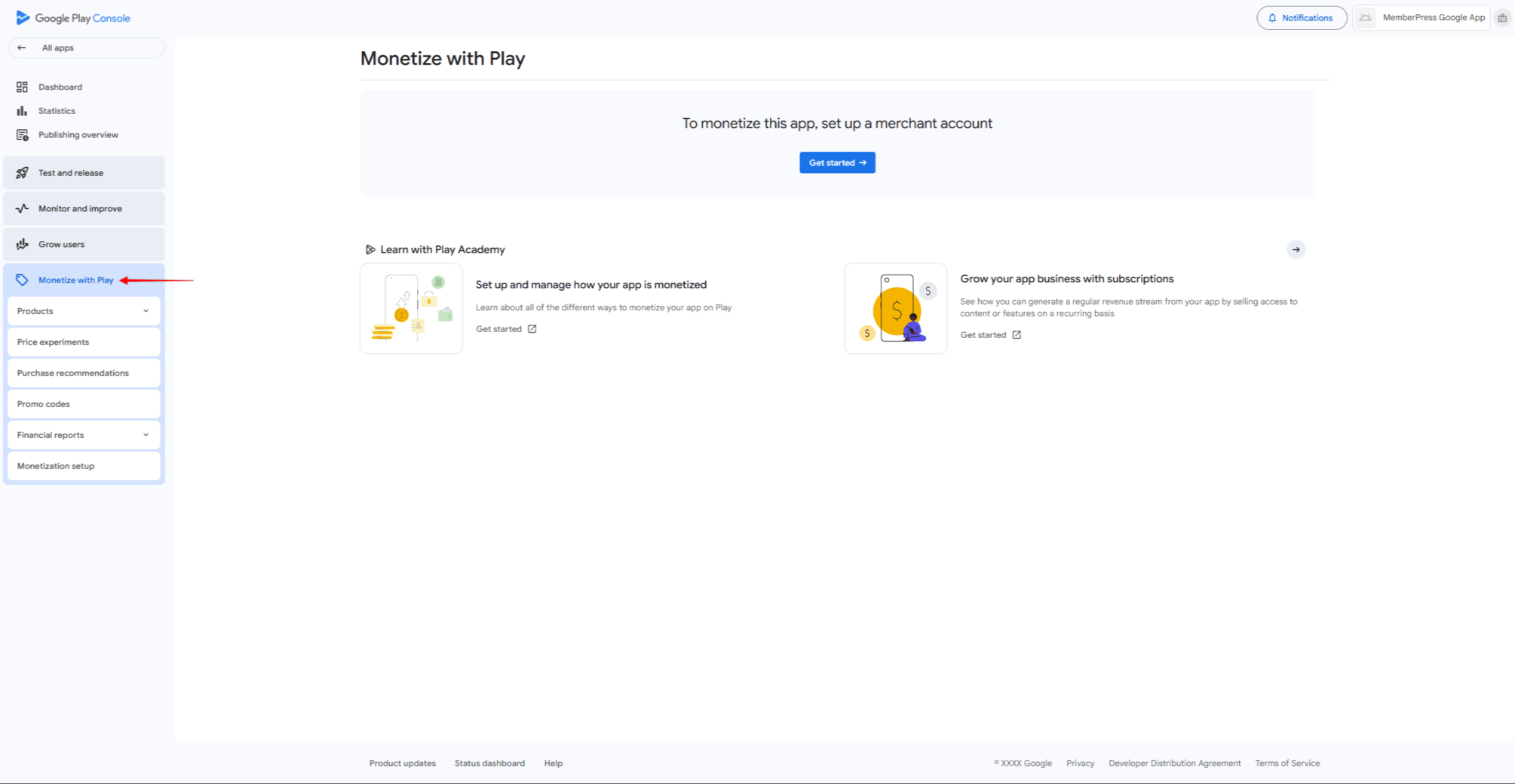
- Après l'ouverture du compte marchand, naviguez vers Monétiser > Produits > Abonnements.
- Créez des produits assortis en utilisant les mêmes identifiants de produit pour faciliter le suivi. Les produits Guide des achats In-App Android montre les étapes de la configuration.
Produits de connexion à MemberPress
Après avoir créé des produits dans les deux boutiques en ligne, associez-les à des adhésions à MemberPress :
- Naviguez jusqu'à Tableau de bord > MP AppKit > Achats In-App > Produits.
- Cliquez sur Ajouter un nouveau pour créer un produit.
- Saisir un Nom du produit, optionnel Titre d'appel, Descriptionet Avantages.
- Vérifier Affichage sur l'écran Produits et sélectionnez Payé comme type de produit.
- Sous iOS Store, vérifier Activer et cliquez sur Synchronisation avec Apple pour récupérer les produits disponibles.
- Sélectionnez le produit App Store Connect correspondant dans la liste.
- Sous Magasin Android, vérifier Activer et cliquez sur Synchronisation avec Google pour récupérer les produits disponibles.
- Sélectionnez le produit Google Play correspondant dans la liste.
- Sous Type d'intégration, sélectionner L'adhésion et choisissez le plan d'affiliation à lier.
- Cliquez sur Publier pour sauvegarder le produit.
- Répétez l'opération pour chaque adhésion nécessitant un achat in-app.
Phase 5 : Test de l'application
Cette phase permet de tester le fonctionnement de l'application avant de l'envoyer. Apple et Google rejettent les applications qui présentent des bogues évidents ou des fonctionnalités défectueuses.
Test des appareils
Les applications de test permettent de tester l'application sur des appareils réels avant de la soumettre. Testez avec de nombreux comptes d'utilisateurs pour vérifier que les règles d'accès fonctionnent correctement.
- Naviguez jusqu'à Tableau de bord > MP AppKit > Build et cliquez sur Demander une compilation.
- Sélectionnez la plate-forme (iOS ou Android), puis sélectionnez Application de test comme type de construction.
- Une fois la compilation terminée, elle apparaît dans le fichier Historique de construction liste.
Pour les applications de test iOS, il faut d'abord enregistrer les dispositifs d'essai à Tableau de bord > MP AppKit > Configurer > Périphériques iOS. Cliquez ensuite sur le bouton Installer sur un appareil iOS pour l'installer via un code QR ou télécharger le fichier IPA. L'application Guide de construction des tests iOS montre les étapes complètes.
Pour les applications de test Android, cliquez sur le bouton Installer sur un appareil Android pour l'installer via le code QR ou télécharger le fichier APK. L'application Guide des versions de test d'Android montre les étapes complètes. Les applications de test Android ne nécessitent pas l'enregistrement de l'appareil.
Les utilisateurs du chemin B doivent également tester les achats in-app en utilisant des comptes de bac à sable iOS et des testeurs de licence Android. Avant la soumission à l'App Store, sélectionner une version d'examen iOS pour l'équipe de révision d'Apple.
Phase 6 : Création et publication d'applications
Cette phase permet de créer les versions finales des applications et de les envoyer aux magasins d'applications. Les deux plateformes examinent les applications avant qu'elles ne soient mises en ligne. Les deux plateformes examinent les applications avant leur mise en ligne. guide de création d'applications couvre la création d'applications pour les deux plateformes.
Préparer les éléments du listing de l'app store (captures d'écran, descriptions) et s'assurer que l'URL de la politique de confidentialité est accessible. L'application MemberPress App Publishing Service offre de l'aide pour le processus de soumission.
Soumission d'une application iOS
- Naviguez jusqu'à Tableau de bord > MP AppKit > Build et cliquez sur Demander une compilation.
- Sélectionner iOS comme plateforme, alors Lancer l'application comme type de construction. Les Génération d'applications pour la version iOS indique les étapes à suivre.
- Une fois la construction terminée, cliquez sur le bouton Soumettre pour publication sur la carte de construction.
- Cliquez sur Télécharger sur App Store Connect pour télécharger directement depuis AppKit. L'application Guide d'upload des builds iOS montre les étapes.
- En App Store Connect, complète Informations sur l'application, téléchargez des captures d'écran, sélectionnez la construction et cliquez sur Soumettre pour examen. Les Liste de contrôle pour la publication sur l'App Store liste tous les éléments nécessaires.
Soumission d'applications Android
- Naviguez jusqu'à Tableau de bord > MP AppKit > Build et cliquez sur Demander une compilation.
- Sélectionner Android comme plateforme, alors Lancer l'application comme type de construction. Les Génération d'applications pour Android indique les étapes à suivre.
- Une fois la construction terminée, cliquez sur le bouton Soumettre pour publication sur la carte de construction.
- Cliquez sur Télécharger vers Google Play Console pour télécharger directement, ou cliquez sur Télécharger le fichier AAB pour le téléchargement manuel.
- En Console Google Play, naviguer jusqu'à Version > Tests > Tests fermés et téléchargez le fichier AAB. Pour les déploiements échelonnés, utilisez essais en circuit fermé avant la production.
- Compléter Liste des magasins, télécharger des captures d'écran, compléter Classification du contenuet cliquez sur Début du déploiement. Les Liste de contrôle pour la publication sur Google Play liste tous les éléments nécessaires.
Phase 7 : Gestion continue de l'application
Les applications publiées doivent être entretenues régulièrement. Prévoyez des mises à jour pour corriger les bogues et fonctionner avec les nouvelles versions du système d'exploitation. Les Mise à jour de l'application iOS et Mise à jour de l'application Android indiquent les étapes à suivre pour les nouvelles versions. Mode maintenance vous permet de limiter brièvement l'accès aux applications lors des mises à jour importantes.
Consultez les évaluations de l'App Store et de Google Play, et répondez rapidement aux commentaires des utilisateurs. Suivez les rapports d'accidents et regardez Performance de l'API pour assurer le bon fonctionnement de l'application.
Résumé
MemberPress AppKit vous permet de créer des applications mobiles natives pour les sites d'adhésion en suivant sept étapes dans l'ordre.
Avant de commencer la phase 1 :
- Vérifier les besoins du site web (HTTPS, PHP 7.4+, WordPress 5.8+).
- Assurez-vous qu'un plan MemberPress actif est en place (plan de lancement, de croissance ou d'expansion).
- Choisissez entre la voie A (enregistrement sur le site web) et la voie B (achats in-app).
- Rassembler les éléments visuels (icône de l'application, écran d'accueil, captures d'écran).
- Préparer les informations relatives à la carte de crédit pour les frais de compte du développeur.
Commencez la phase 1 en créant un compte Apple Developer et un compte Google Play Developer.










 FR
FR  EN
EN  ES
ES  DE
DE  PT
PT 