

Le module complémentaire MemberPress AppKit permet d'intégrer les sites d'adhésion MemberPress aux plates-formes mobiles, offrant aux membres un accès pratique par le biais d'applications iOS et Android. Pour les clients qui préfèrent une approche sans intervention, MemberPress propose un service "Done-For-You" (DFY) dans lequel l'équipe de MemberPress gère l'ensemble du processus de création et de configuration de l'application.
Pour configurer les notifications push et d'autres services cloud pour l'application mobile, l'équipe MemberPress a besoin d'un accès propriétaire au projet Google Cloud Console. Ce document fournit des instructions étape par étape pour accorder à MemberPress les autorisations requises.
Comprendre les rôles IAM dans Google Cloud
Google Cloud utilise la gestion des identités et des accès (IAM) pour contrôler l'accès aux ressources. Les principaux rôles concernés par cette configuration sont les suivants :
- Propriétaire : Accès complet à toutes les ressources et tous les paramètres, y compris la possibilité de gérer les autorisations IAM ;
- Rédacteur en chef : Modifier l'accès à toutes les ressources, mais ne peut pas gérer les autorisations IAM ;
- Spectateur : Accès en lecture seule à toutes les ressources.
L'équipe MemberPress a besoin de Propriétaire rôle permettant de configurer Firebase, les notifications push et d'autres services pour l'application mobile.
Conditions préalables
Avant de continuer, les conditions suivantes doivent être remplies :
- Un système actif Projet Google Cloud;
- Accès propriétaire ou administrateur IAM au projet Google Cloud Console.
Accorder l'accès propriétaire MemberPress
- Naviguez jusqu'à la page Console Google Cloud et connectez-vous avec le Identifiants du propriétaire de l'organisation (l'utilisateur qui a créé l'organisation).
- Dans la barre supérieure, à partir du menu déroulant du projet, sélectionnez l'option projet associé à l'application mobile.
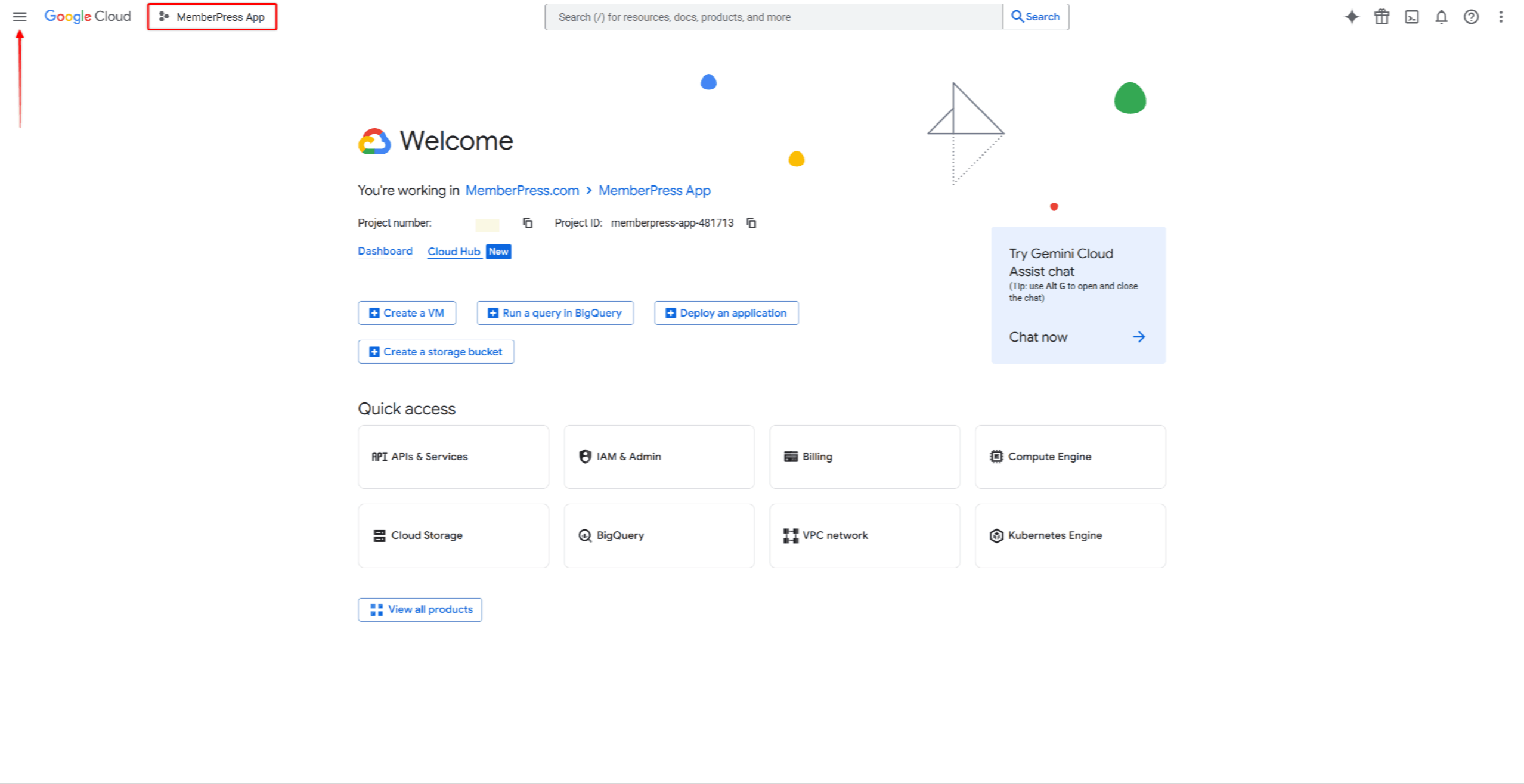
- Ensuite, cliquez sur l'icône hamburger pour ouvrir le menu de navigation.
- Dans le menu de navigation situé à gauche, cliquez sur IAM et administration.
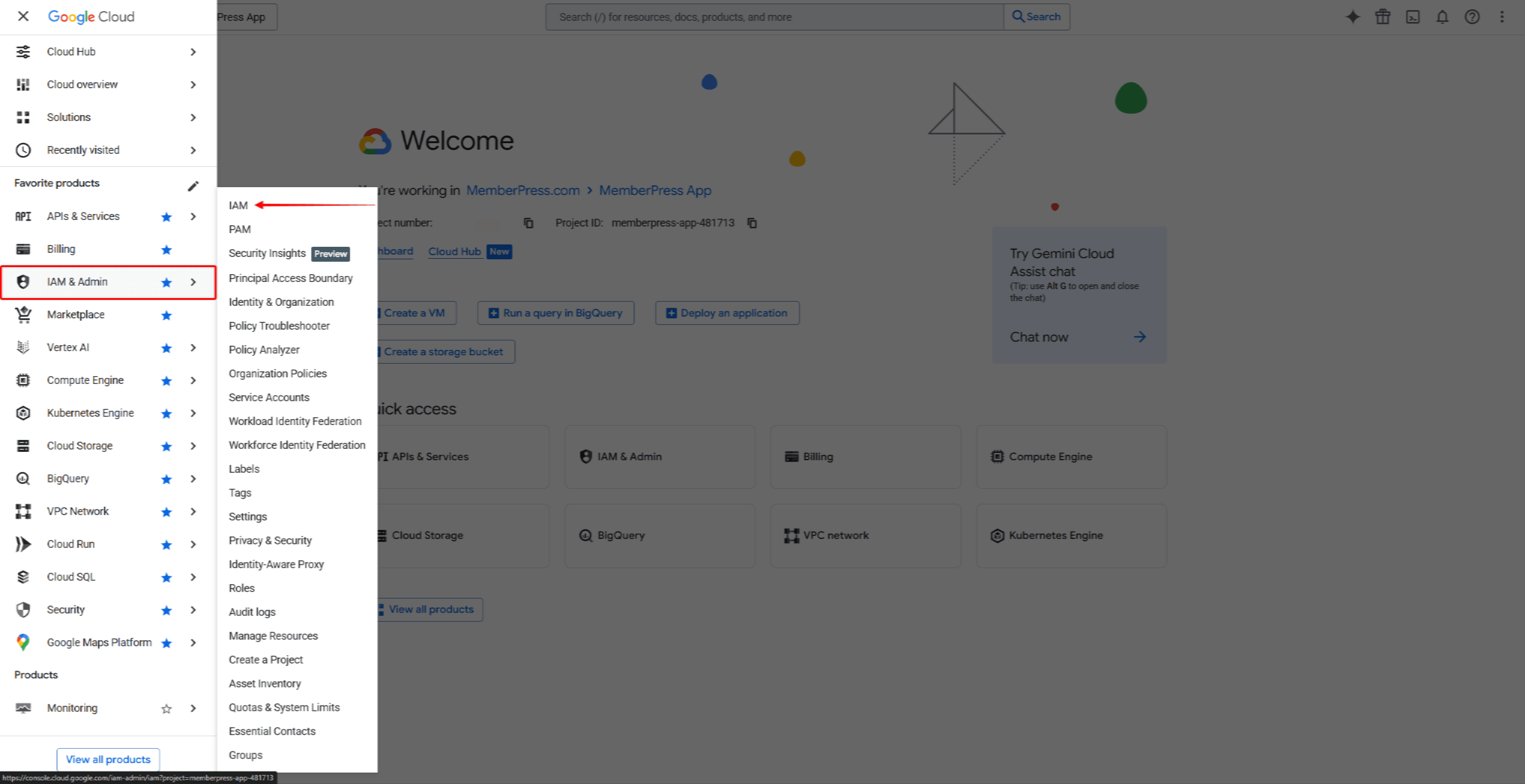
- Cliquez sur IAM dans le sous-menu.
- Cliquez sur le bouton Accorder l'accès bouton en haut de la page.

- Dans le cadre de la Nouveaux directeurs champ, entrez : appsup@memberpress.com
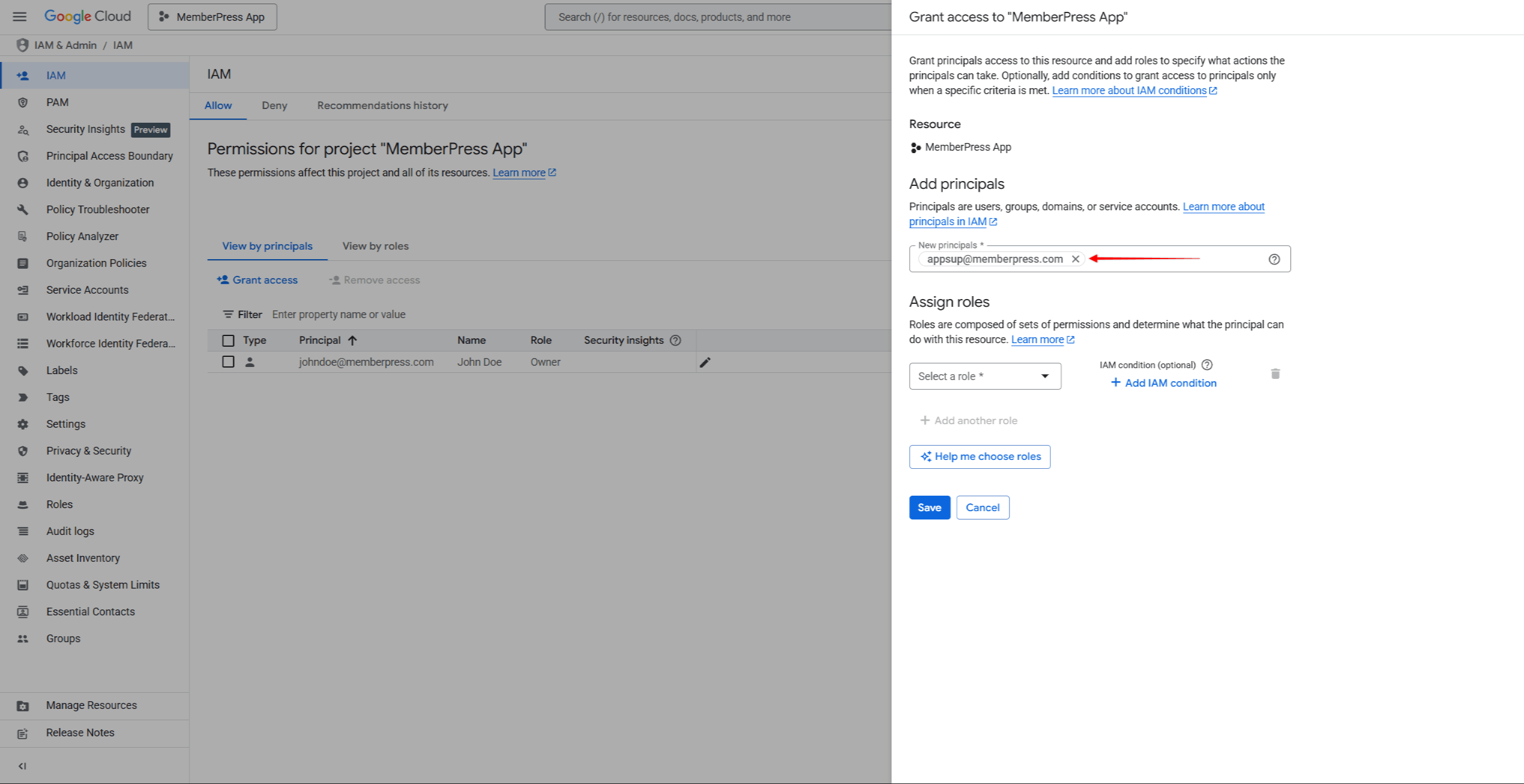
- Cliquez sur le bouton Sélectionnez un rôle menu déroulant. Sélectionner Propriétaire de la De base catégorie de rôles, ou recherchez le terme “Propriétaire” dans le champ de recherche.

- Cliquez sur Économiser pour accorder les autorisations.
Les L'équipe MemberPress recevra automatiquement une notification par e-mail. concernant l'accès accordé. Le les autorisations prennent effet immédiatement.
Remarques importantes
- Le rôle Propriétaire accorde un accès complet à toutes les ressources du projet, y compris la possibilité de gérer les autorisations des autres utilisateurs.
- Contrairement aux invitations dans App Store Connect et Google Play Console, les autorisations Google Cloud IAM ne nécessitent pas d'acceptation. L'accès est accordé immédiatement après l'enregistrement.
- L'accès accordé n'expire pas, sauf s'il est révoqué manuellement.
Vérification de l'accès
Après avoir accordé l'accès, vérifiez que l'équipe MemberPress apparaît dans la liste des membres IAM.
- Revenir à IAM & Admin > IAM dans la console Google Cloud.
- Rechercher appsup@memberpress.com dans la liste des membres.
- Vérifier que le Propriétaire rôle est répertorié dans le Rôle colonne.
Dépannage
- Le bouton “Accorder l'accès” n'est pas visible ou est désactivé: Vérifiez que le compte utilisé dispose des autorisations Propriétaire ou Administrateur IAM sur le projet. Seuls les utilisateurs disposant de ces rôles peuvent gérer les autorisations IAM.
- L'adresse e-mail n'est pas acceptée.: Assurez-vous d'avoir saisi la bonne adresse e-mail (appsup@memberpress.com). L'adresse e-mail doit être associée à un compte Google valide.
- Le projet n'est pas visible dans le sélecteur de projet.: Vérifiez que le compte a accès au projet. Si le projet a été créé sous un autre compte, demandez l'accès au propriétaire du projet.
- Le rôle Propriétaire n'est pas visible dans le sélecteur de rôles.: Faites défiler la liste des rôles ou utilisez la fonction de recherche. Le Propriétaire rôle est répertorié sous De base rôles. Notez que certaines politiques d'organisation peuvent restreindre l'attribution du rôle de propriétaire.
Révocation de l'accès
Une fois le service DFY terminé, l'accès peut être révoqué si vous le souhaitez.
- Naviguez jusqu'à la page Console Google Cloud et connectez-vous.
- Sélectionnez le projet dans le menu déroulant du projet.
- Dans la barre latérale gauche, cliquez sur IAM & Admin > IAM.
- Trouver le appsup@memberpress.com entrée dans la liste des membres.
- Cliquez sur le bouton Modifier le principal (crayon) à côté de l'entrée.
- Cliquez sur le bouton Supprimer icône à côté du Propriétaire rôle.
- Cliquez sur Économiser pour supprimer les autorisations.
Sinon, pour supprimer tous les accès :
- Trouver le appsup@memberpress.com entrée dans la liste des membres.
- Cochez la case. à côté de l'entrée.
- Cliquez sur Supprimer l'accès en haut de la page.
- Confirmer la suppression dans la boîte de dialogue.










 FR
FR  EN
EN  ES
ES  DE
DE  PT
PT 