

Lancez votre application iOS sans effort grâce au service de publication AppKit de MemberPress. Notre équipe examine votre application pour s'assurer qu'elle est conforme aux directives de l'App Store d'Apple et la publie en utilisant votre compte de développeur.
Suivez ce guide pour mettre en ligne votre application rapidement et sans heurts.
Comprendre la publication sur l'App Store d'Apple
Les exigences de publication de l'App Store d'Apple définissent les configurations et les soumissions nécessaires à la distribution d'applications iOS via la boutique officielle d'Apple.
Assistance au service de publication fournit une évaluation professionnelle garantissant la conformité aux directives de l'App Store avant la soumission. L'évaluation par une équipe réduit le risque de rejet et accélère le délai d'approbation.
Processus de téléchargement de la construction transfère les fichiers IPA compilés vers App Store Connect pour examen et distribution. Une configuration de téléchargement appropriée permet le test TestFlight et la mise en production.
Soumission d'une critique d'application envoie les versions finalisées de l'application à Apple afin qu'elles soient vérifiées quant à leur conformité aux directives. Le processus d'examen évalue la fonctionnalité, le contenu et l'exactitude des métadonnées.
Résolution du rejet traite les commentaires d'Apple via les outils de communication App Store Connect. Une réponse rapide aux motifs de refus accélère la nouvelle soumission et l'approbation.
Gestion des versions permet la mise à jour continue des applications grâce à des enregistrements d'applications et des workflows de soumission établis. Les nouvelles versions suivent un processus de soumission similaire en utilisant les configurations d'applications existantes.
Avant de commencer
La préparation préalable à la soumission garantit que toutes les exigences sont remplies avant de lancer le processus de publication.
- Suivez toutes les étapes de la liste de contrôle pour la publication sur l'App Store d'Apple.
- Finalisez les personnalisations de votre application.
- Générez les captures d'écran nécessaires pour votre application en marque blanche.
Découvrez comment utiliser le service de publication d'applications MP.
Téléchargement du fichier IPA
Le téléchargement du fichier IPA permet de récupérer la version compilée iOS pour le téléchargement sur App Store Connect et la préparation de la distribution.
- Dans votre administration WordPress, allez dans Tableau de bord > MP AppKit > Build.
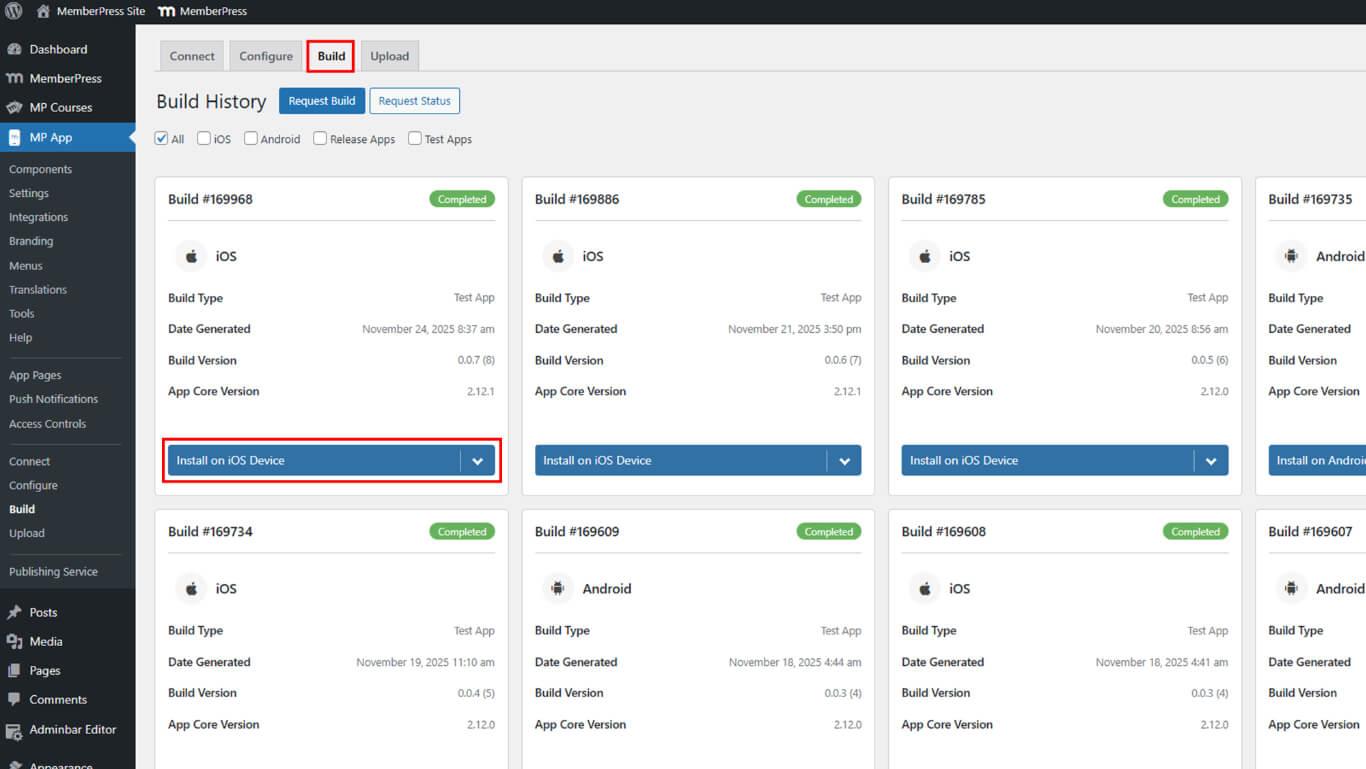
- Recherchez la version que vous souhaitez publier. Cliquez sur Installer sur un appareil iOS.
- Cliquez sur Télécharger le fichier IPA.
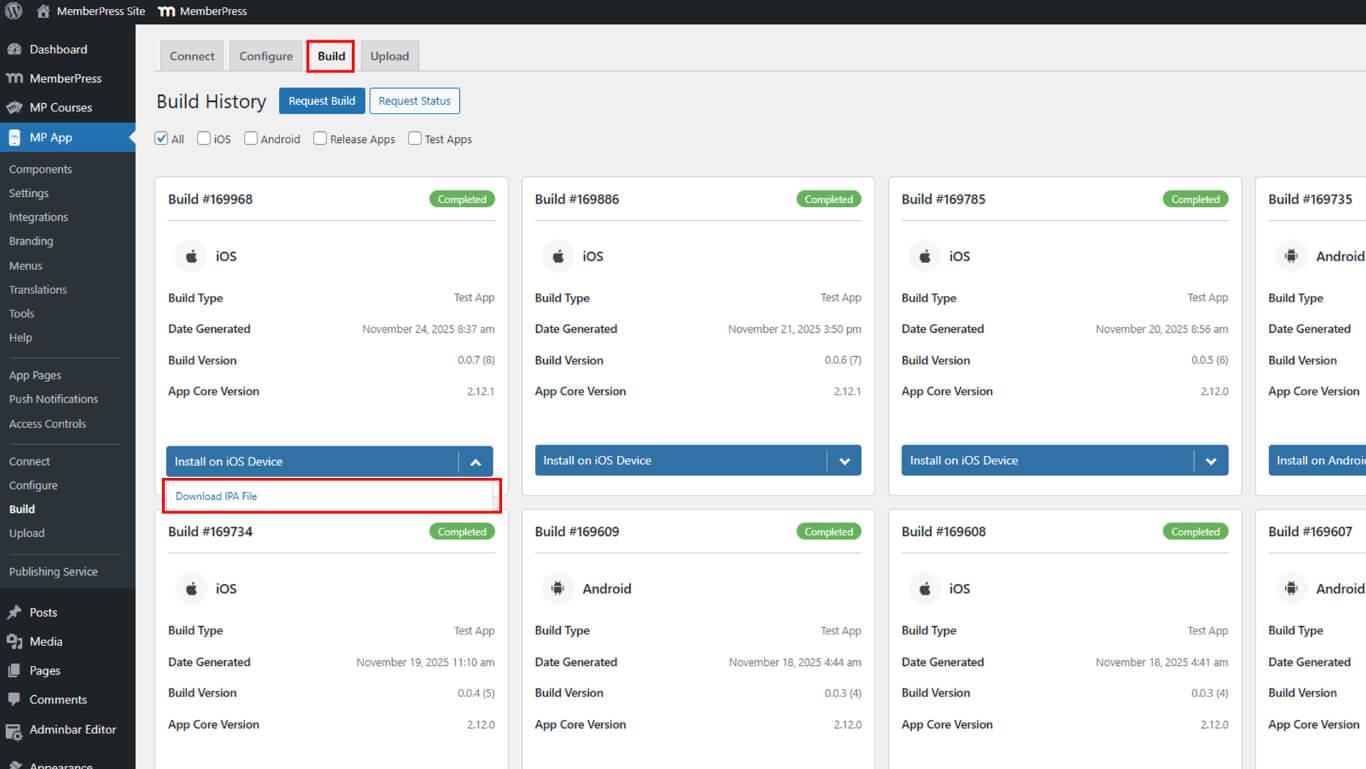
- Enregistrez le fichier IPA sur votre ordinateur.
Téléchargement de la version finale sur App Store Connect
Créez un transfert de téléchargement de l'application compilée vers la section TestFlight, ce qui permet l'attribution d'une version et la soumission d'une évaluation.
Vous devrez télécharger votre build dans la section TestFlight de votre application dans App Store Connect. Une fois dans TestFlight, attribuez le build à une version de l'application, qui pourra ensuite être soumise à Apple pour examen. Consultez la documentation complète sur le téléchargement de builds iOS vers App Store Connect pour obtenir un tutoriel plus détaillé.
Pour télécharger une version du MemberPress AppKit, suivez les étapes suivantes :
- Dans l'administration WordPress, allez dans Tableau de bord > MP AppKit > Télécharger > Apple App Store.
- Sélectionnez la version iOS Release App à télécharger.
- Cliquez sur Télécharger la version.
Soumission à Apple pour examen
La soumission de la révision envoie la version téléchargée à Apple pour vérification de la conformité aux directives de l'App Store.
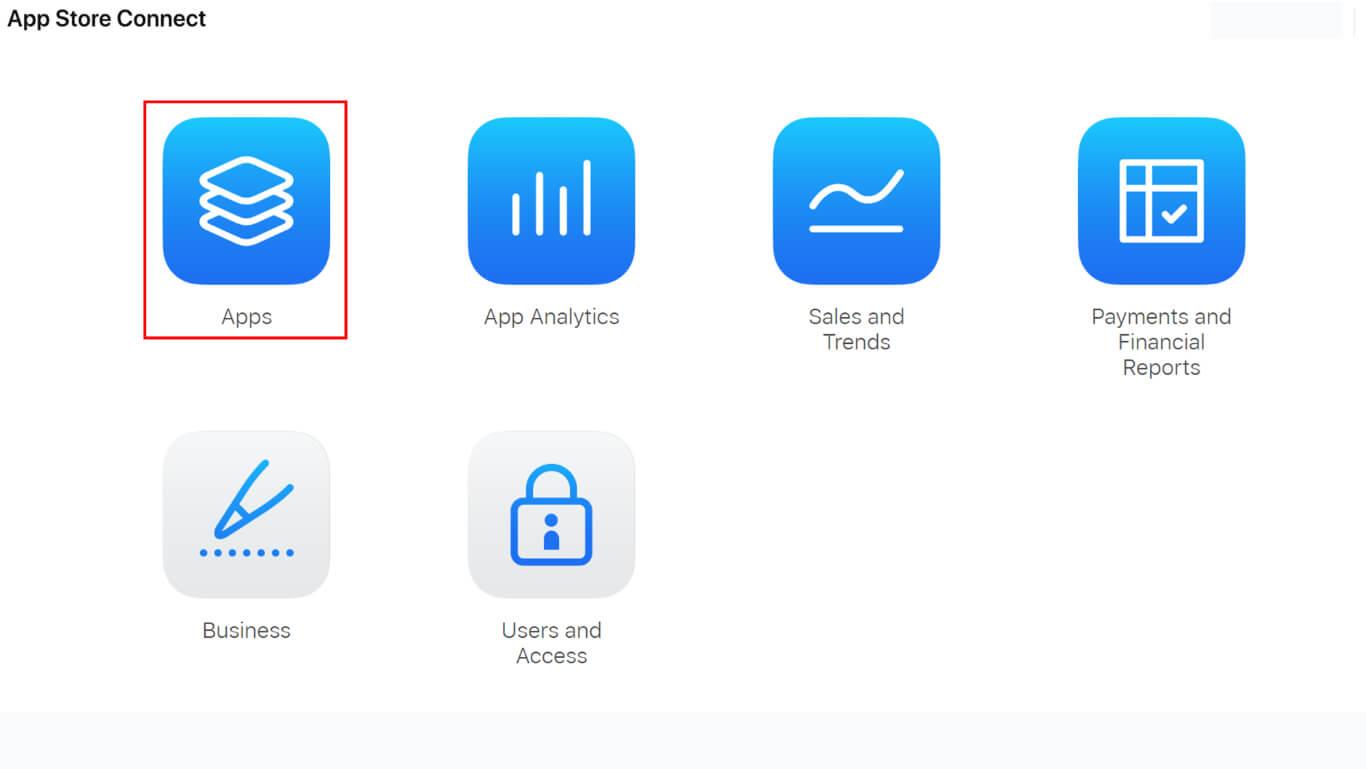
- Connectez-vous à App Store Connect.
- Cliquez sur Applications, puis sélectionnez votre application.
- Dans la barre latérale, cliquez sur la version de l'application que vous avez préparée lors de la vérification de la liste de contrôle de publication.
- Faites défiler jusqu'à la Construire section et cliquez sur le + symbole.
- Sélectionnez la version de l'application Release App que vous souhaitez associer à cette version de l'application, puis cliquez sur Terminé.
- Cliquez sur Ajouter pour révision dans le coin supérieur droit.
- Si vous avez mis à jour les informations d'une application, cliquez sur Continuer lorsque vous y êtes invité.
- Vous pouvez consulter les éléments que vous avez ajoutés pour examen dans le Évaluation de l'application section de la barre latérale.
- Répondez aux questions relatives à la conformité en matière d'exportation et téléchargez tous les documents d'autorisation de cryptage requis.
- Dans le cadre de la Évaluation de l'application cliquez sur Soumettre à l'examen de l'application.
Répondre aux refus d'Apple
La réponse au rejet traite les commentaires d'Apple via la communication App Store Connect, permettant ainsi la résolution des problèmes et la nouvelle soumission.
Si Apple rejette votre soumission pour non-conformité avec les directives d'examen de l'App Store, vous pouvez correspondre avec Apple via la section Examen des applications jusqu'à ce que vous soumettiez à nouveau la version. Vous pouvez inclure des pièces jointes, telles que des captures d'écran ou des documents justificatifs. Si le rejet est dû à des problèmes de métadonnées (captures d'écran, descriptions de la boutique, etc.), vous pouvez corriger le problème et soumettre à nouveau la même version sans avoir à effectuer un nouveau téléchargement.
Pour lire et répondre aux communications provenant d'Apple :
- Connectez-vous à App Store Connect et cliquez sur Mes applications, puis sélectionnez votre application.
- Cliquez sur le lien en haut qui indique les problèmes non résolus.
- Dans le cadre de la En cours cliquez sur Résolution à côté de la soumission que vous souhaitez examiner.
- Cliquez sur Répondre à l'évaluation de l'application, tapez votre réponse et joignez tous les fichiers nécessaires (captures d'écran ou pièces justificatives).
- Cliquez sur Répondre pour envoyer votre réponse.
Après approbation par Apple
La publication après approbation s'effectue en fonction des préférences de publication configurées lors de la préparation de la soumission.
- Si vous choisissez la publication automatique, votre application sera mise en ligne dans les 24 heures.
- Si une date précise est prévue, il sera publié à cette date.
- Si vous avez opté pour la publication manuelle, connectez-vous à App Store Connect pour publier votre application.
Soumettre de nouvelles versions de votre application
La soumission d'une nouvelle version publie les mises à jour de l'application via les enregistrements d'application établis, selon un processus de révision similaire.
- Créez une nouvelle version en utilisant le même enregistrement d'application créé pour la version originale.
- Téléchargez votre nouvelle version de l'application.
- Soumettez-le à Apple pour examen.










 FR
FR  EN
EN  ES
ES  DE
DE  PT
PT 