

Firebase alimente les notifications push et Google Analytics optionnel pour l'AppKit MemberPress. Avec Firebase, vous pouvez envoyer des notifications push natives aux utilisateurs d'Android et d'iOS, et suivre l'engagement des utilisateurs grâce à Analytics s'il est activé.
Ce guide explique comment créer un projet Firebase, enregistrer des applications iOS et Android, configurer Cloud Messaging pour les notifications push et, éventuellement, activer Google Analytics dans MemberPress AppKit.
Comprendre l'intégration Firebase
L'intégration Firebase fournit des services backend pour la diffusion de notifications push et le suivi analytique sur toutes les plateformes mobiles.
Envoi de notifications push permet la distribution de messages en temps réel vers les appareils Android et iOS. Firebase Cloud Messaging gère le routage et la livraison des notifications vers les appareils des membres.
Suivi analytique surveille l'engagement et le comportement des utilisateurs au sein de l'application. L'intégration de Google Analytics fournit des informations sur l'activité des membres et les habitudes d'utilisation de l'application.
Prise en charge multiplateforme permet une gestion unifiée des notifications pour iOS et Android. Un seul projet Firebase gère simultanément les intégrations des deux plateformes.
Flexibilité de configuration permet l'activation facultative des analyses en fonction des besoins de suivi. Les analyses peuvent être activées ou désactivées lors de la création du projet ou ultérieurement.
Création d'un projet Firebase
La création d'un projet Firebase établit les bases des services de notifications push et d'analyse.
- Aller à Console Firebase.
- Cliquez sur Créer un projet.
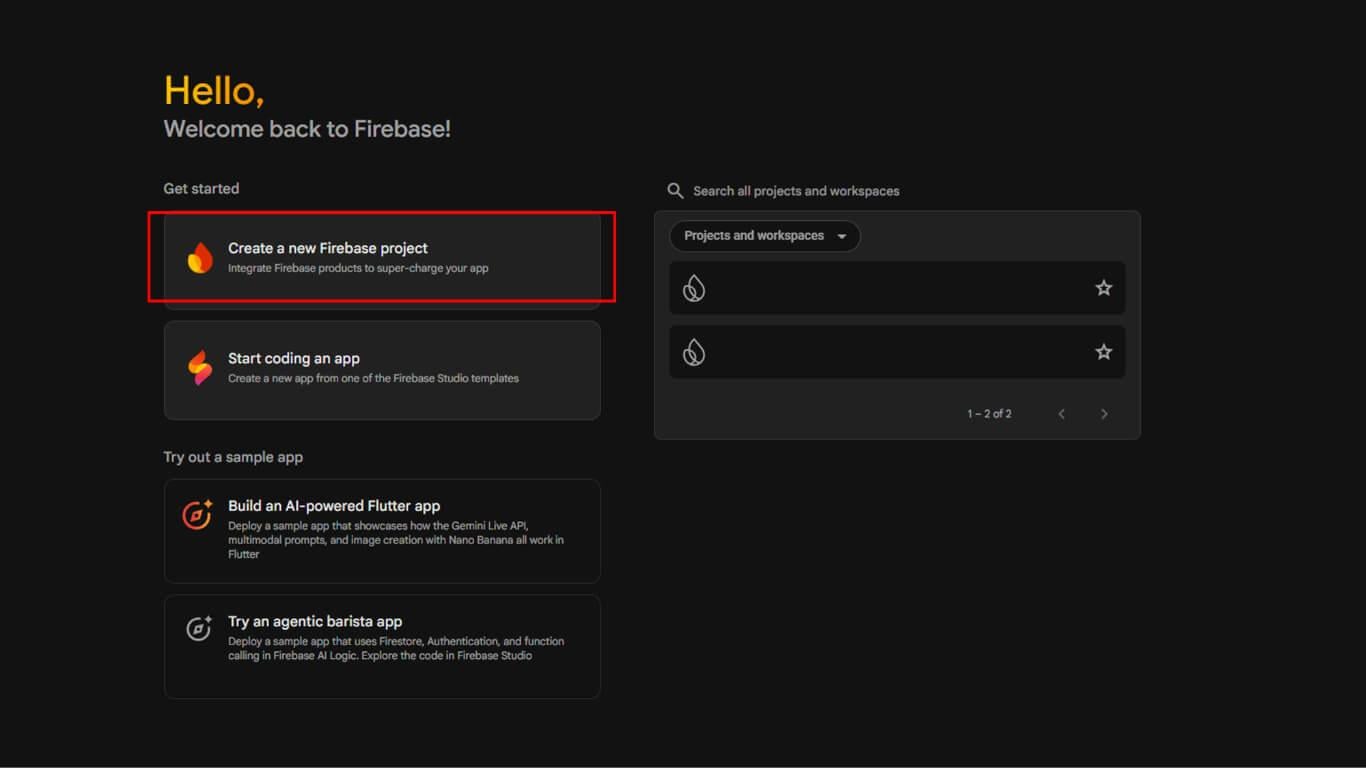
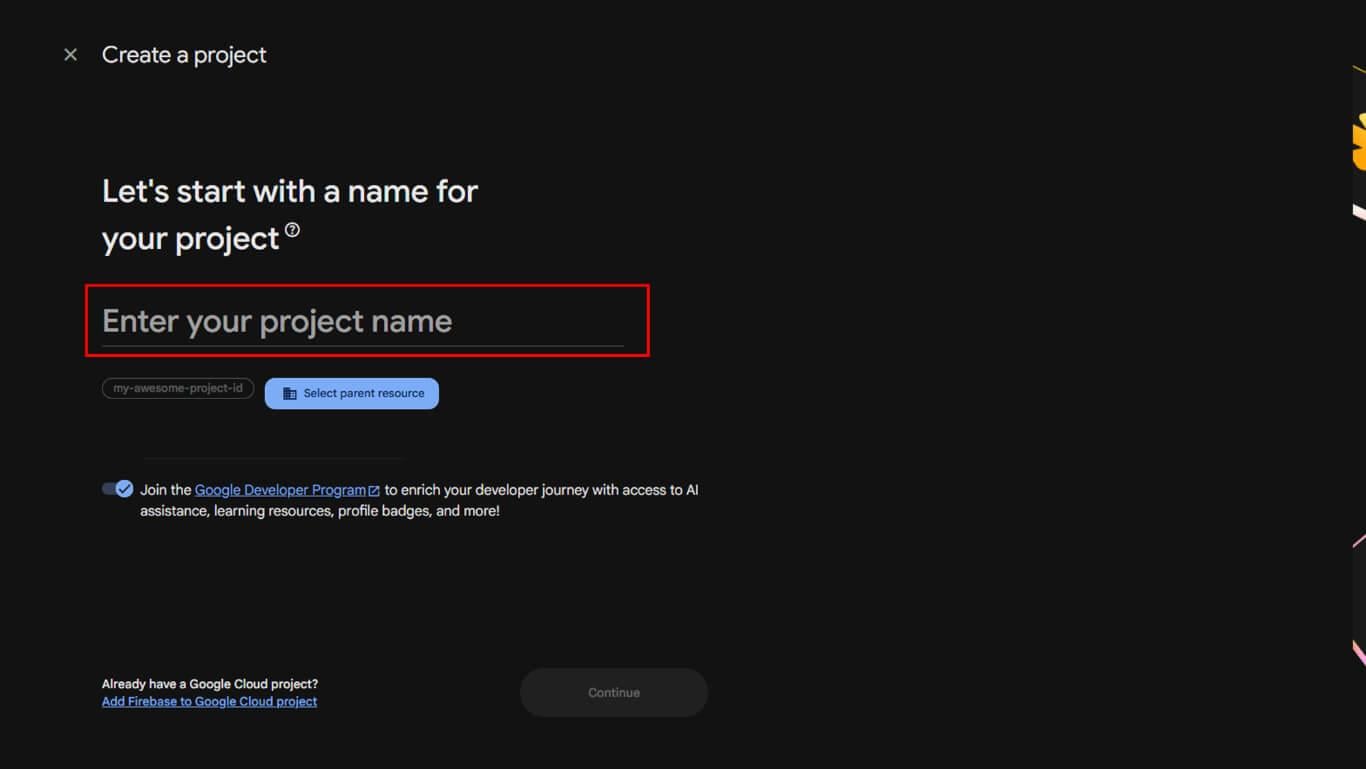
- Saisir un Nom du projet et cliquez sur Continuer.
- Pour activer Analytics, laissez Activer Google Analytics pour ce projet vérifié.
- Pour ignorer Analytics, décochez l'option et cliquez sur Continuer.
- Si Analytics est activé, sélectionnez un compte existant ou créez-en un nouveau, puis cliquez sur Continuer.
- Cliquez sur Créer un projet et attendez l'initialisation.
- Cliquez sur Continuer pour ouvrir le tableau de bord de votre projet.
Enregistrement d'une application iOS
L'enregistrement de l'application iOS connecte l'application MemberPress à Firebase pour la transmission des notifications push.
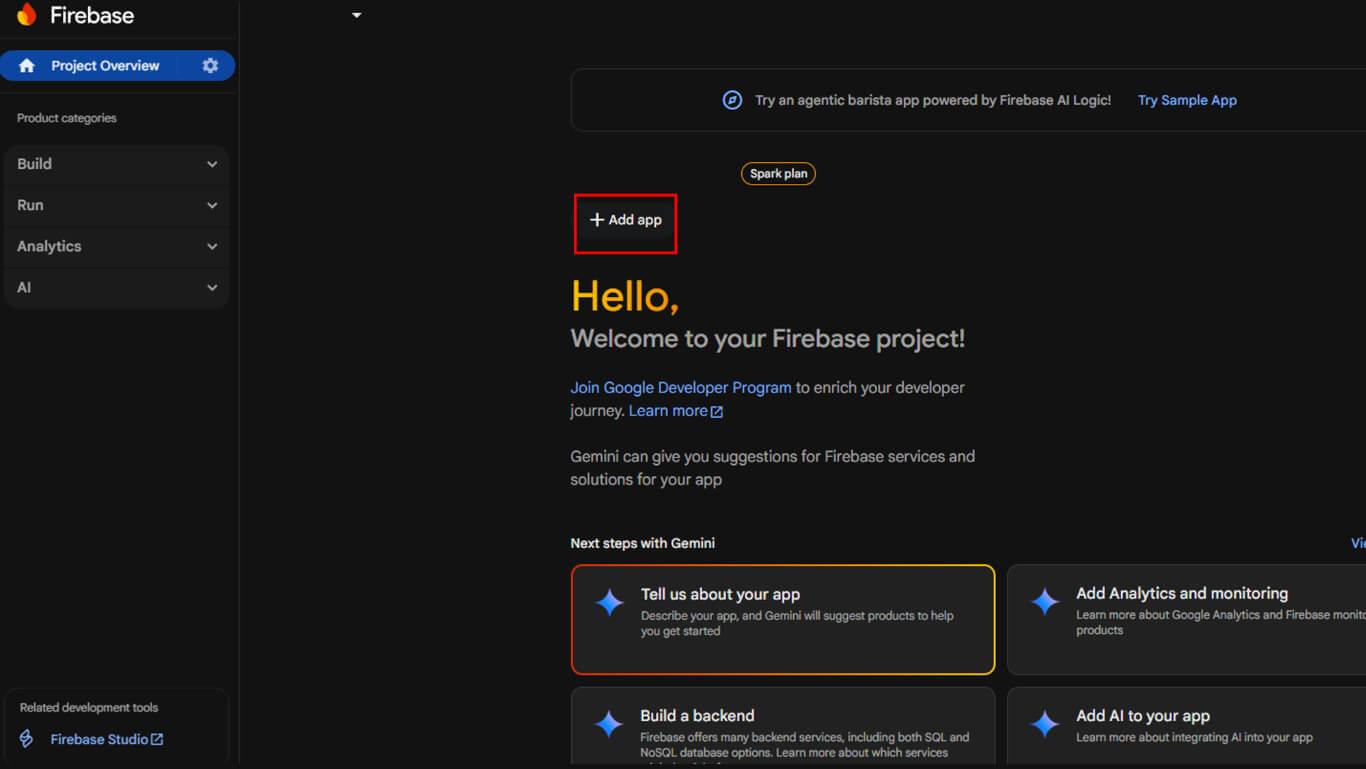
- Dans la présentation du projet Firebase, cliquez sur le bouton + Ajouter une application.
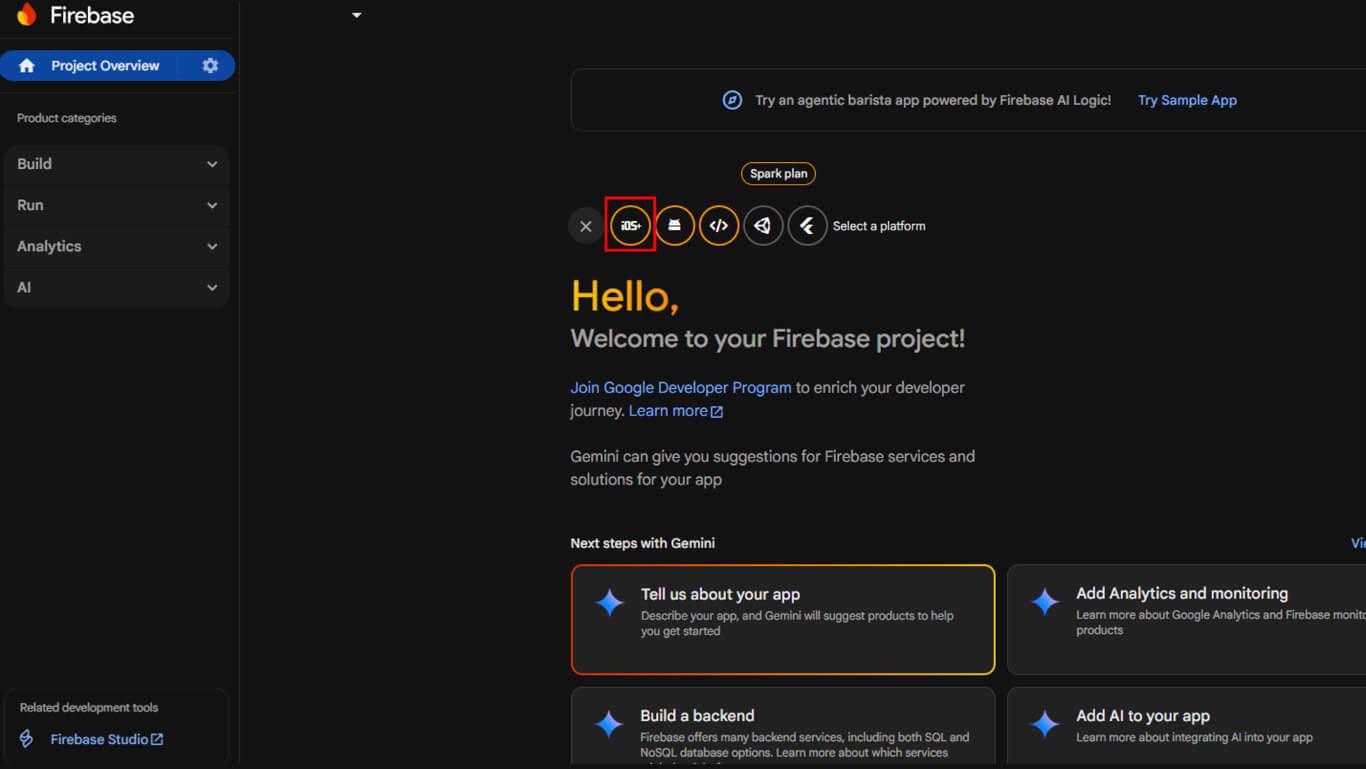
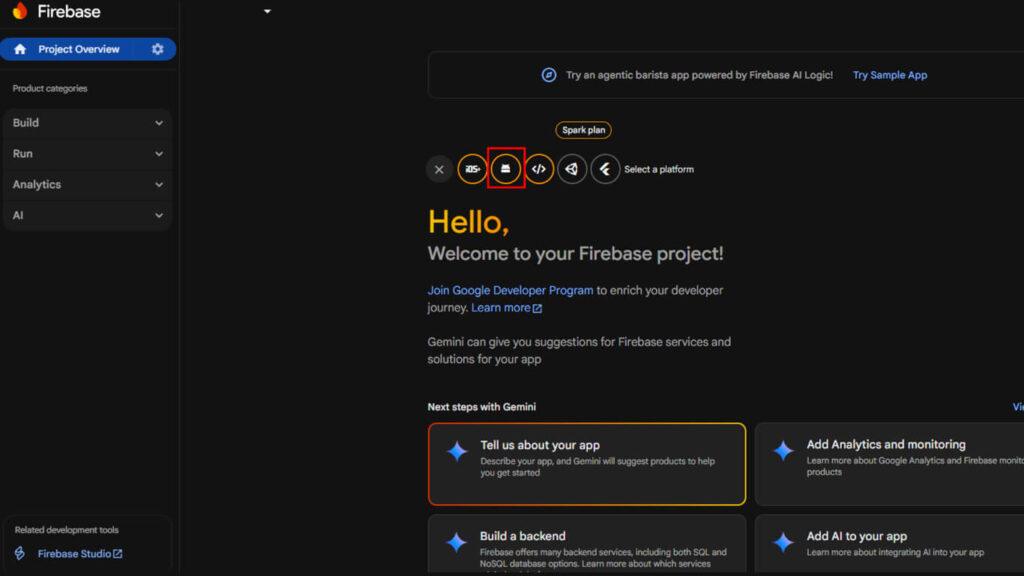
- Sélectionnez l'option iOS icône sous « Commencez par ajouter Firebase à votre application ».
- Entrez votre application iOS Identifiant du bundle (doit correspondre à votre projet Xcode).
- Entrez éventuellement un Surnom de l'application et Identifiant App Store.
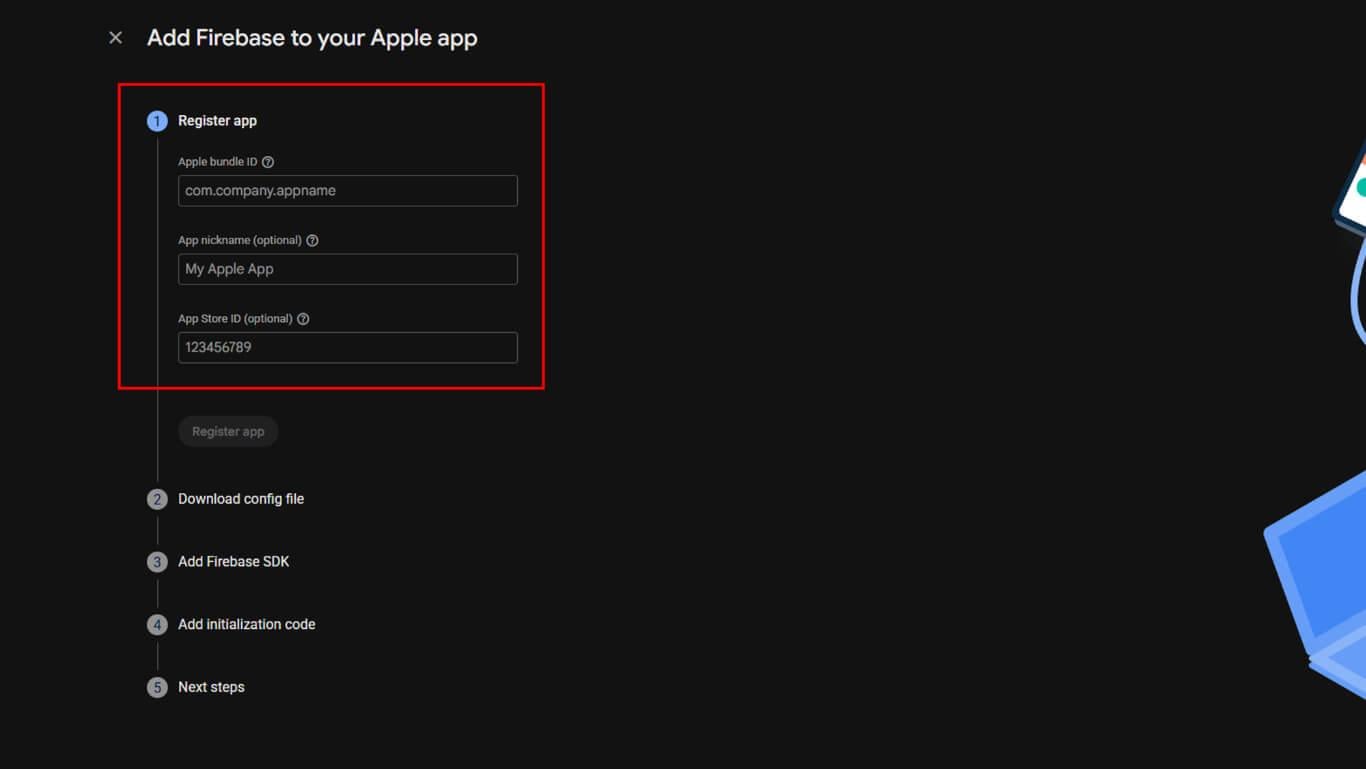
- Cliquez sur le bouton Enregistrer l'application.
- Télécharger le GoogleService-Info.plist fichier et ajoutez-le à votre projet Xcode.
- Suivez les instructions d'intégration CocoaPods fournies, puis cliquez sur Continuer à consoler.
Enregistrement d'une application Android
L'enregistrement de l'application Android connecte l'application MemberPress à Firebase pour la livraison des notifications push.
- Cliquez sur le bouton Android icône sous « Commencez par ajouter Firebase à votre application ».
- Entrez votre Nom du package Android.
- Ajoutez éventuellement un Surnom de l'application.
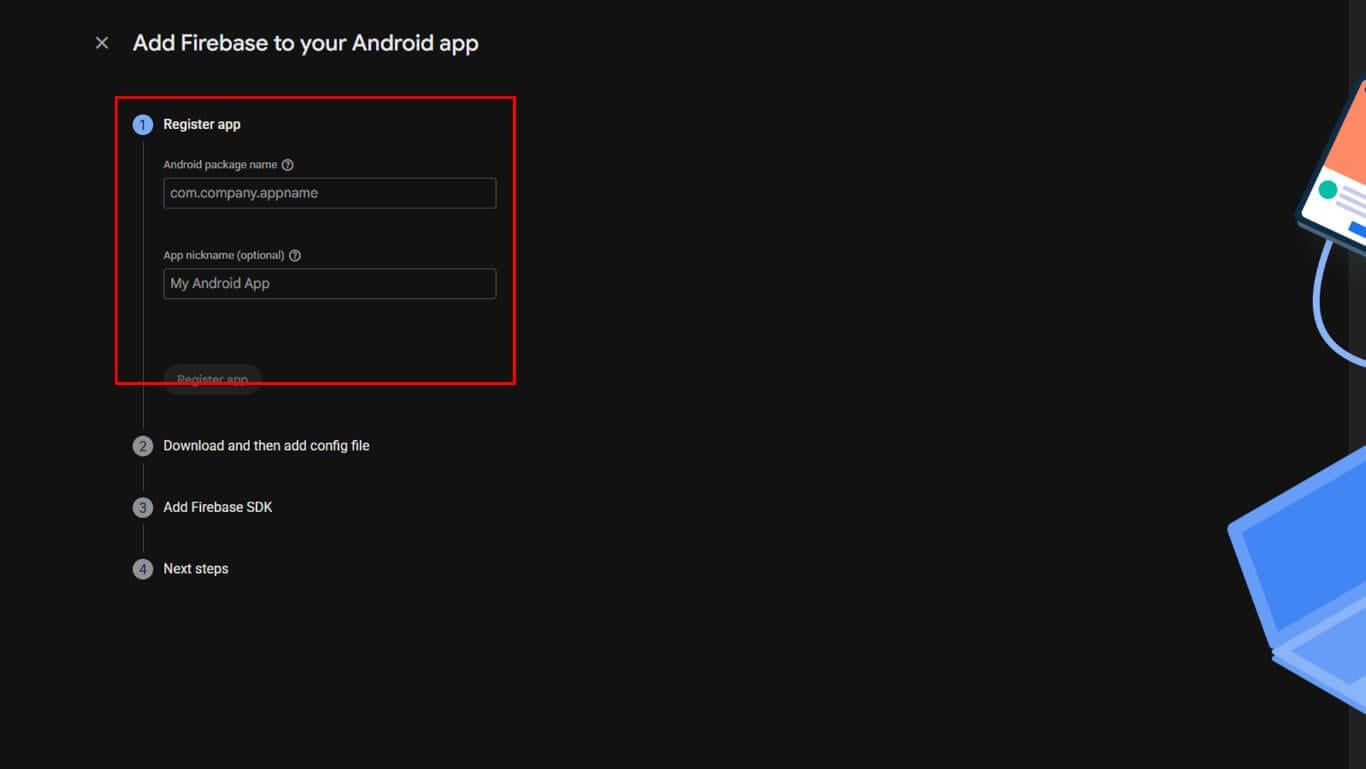
- Cliquez sur le bouton Enregistrer l'application.
- Télécharger le google-services.json et placez-le dans votre répertoire de modules /app/.
- Ajoutez les dépendances du SDK Firebase dans vos fichiers Gradle comme indiqué, puis cliquez sur Continuer à consoler.
Configuration des notifications push
La configuration des notifications push active le service Cloud Messaging pour les plateformes Android et iOS.
- Dans la console Firebase, cliquez sur le bouton icône en forme de roue dentée > Paramètres du projet.
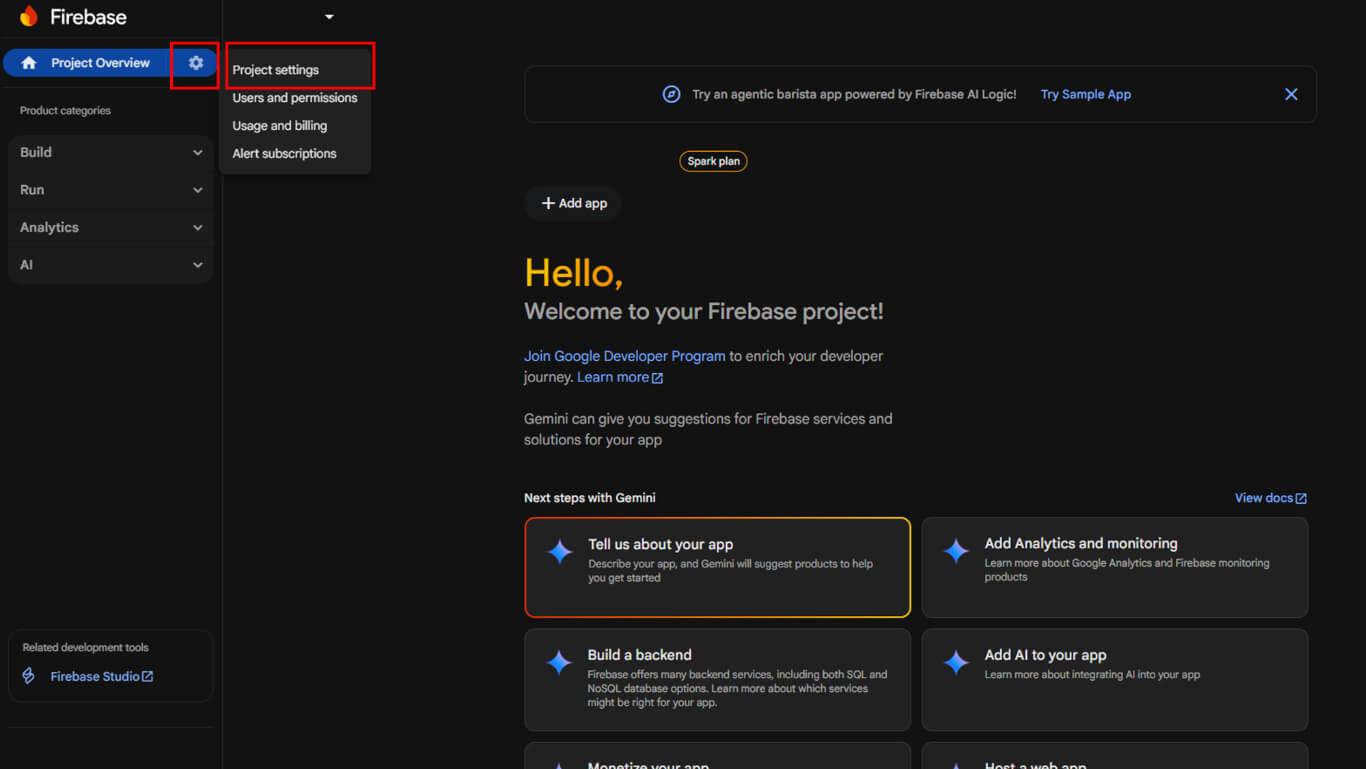
- Sélectionnez l'option Messagerie cloud tabulation.
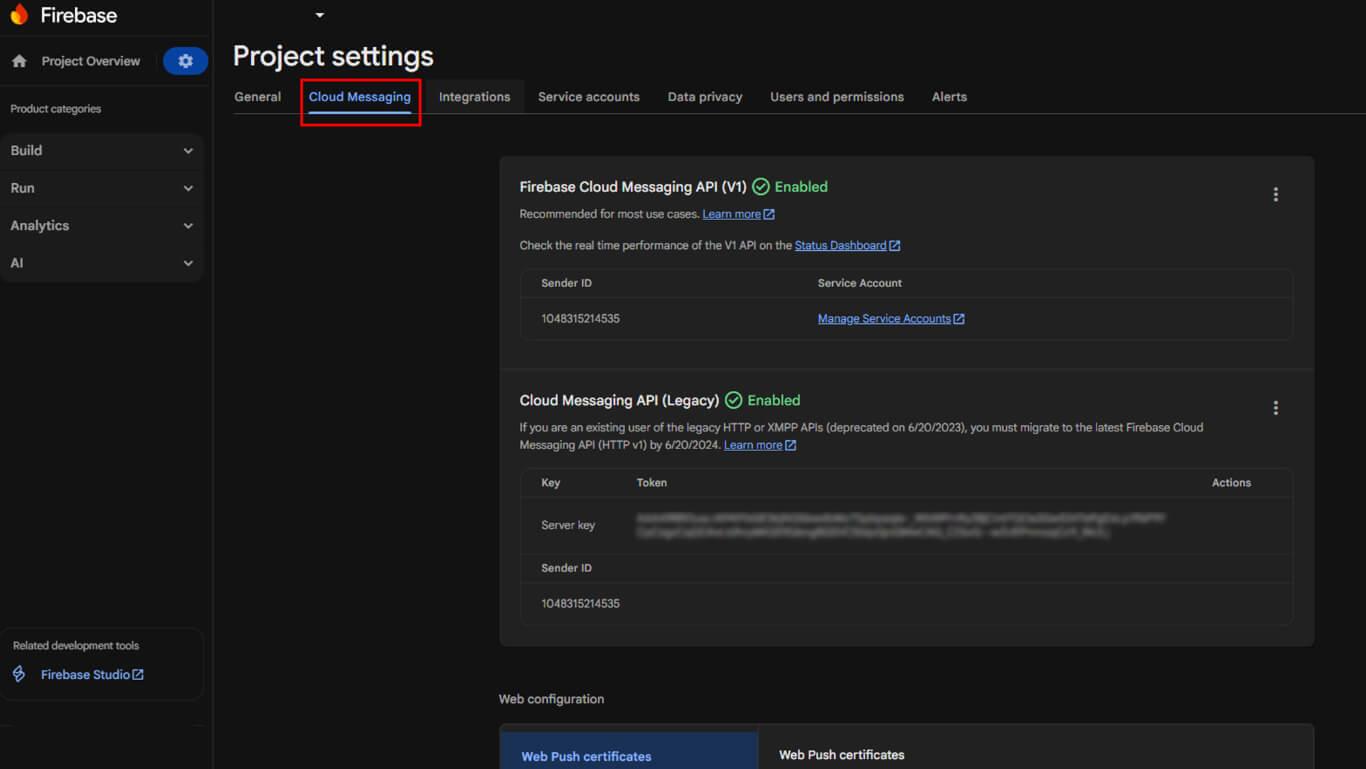
Pour Android
- Copier le Clé serveur affiché dans la section Messagerie Cloud.
- Copier le Identifiant de l'expéditeur affiché dans la section Messagerie Cloud.
Pour iOS (APN)
- Sous Certificats APN, cliquez Télécharger.
- Téléchargez votre fichier clé .p8.
- Entrez le Identifiant clé dans le champ ID clé.
- Entrez votre Identifiant de l'équipe dans le champ ID de l'équipe.
- Cliquez sur Économiser.
Activation de Google Analytics
L'activation de Google Analytics permet de suivre l'engagement des utilisateurs et de surveiller leur comportement au sein de l'application.
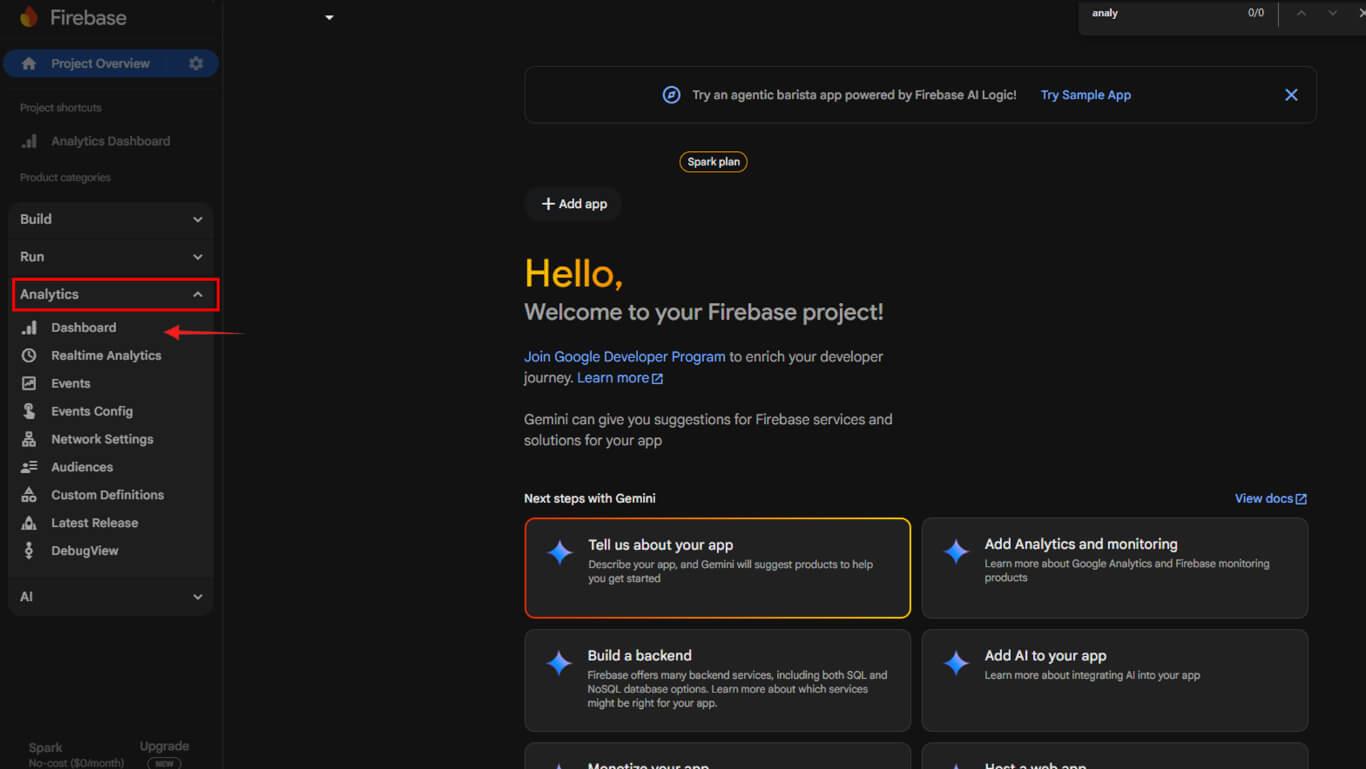
- Dans la console Firebase, accédez à Analyse > Tableau de bord pour vérifier la collecte des données.
- Dans l'administration WordPress, accédez à Tableau de bord > MP AppKit > Paramètres > Intégrations > Firebase.
- Basculer sur Activer Firebase Analytics.
- Entrez votre Identifiant du projet Firebase dans le champ « Identifiant du projet ».
- Cliquez sur Enregistrer les modifications.










 FR
FR  EN
EN  ES
ES  DE
DE  PT
PT 