

Le bloc d'application Cours met en évidence les cours sélectionnés sur les pages de l'application à l'aide d'une disposition en carrousel. Ce bloc permet aux membres d'accéder rapidement aux cours présentés ou de parcourir l'index complet des cours sur le site WordPress connecté.
Ce document explique comment ajouter, configurer et gérer le bloc Cours dans MemberPress AppKit.
Comprendre le bloc d'applications des cours
Le bloc de l'application Cours affiche les cours dans un carrousel horizontal, que l'on peut faire glisser dans l'application. Les membres peuvent appuyer sur un cours individuel pour en afficher les détails ou sélectionner Tout voir pour ouvrir l'index complet des cours à partir du site WordPress. Le bloc peut être personnalisé pour afficher des cours filtrés ou sélectionnés manuellement en fonction de critères spécifiques.
Accès aux pages de l'application
Vous pouvez ajouter et configurer le bloc Cours dans l'éditeur des pages de l'application.
- Naviguez jusqu'à Tableau de bord > MP AppKit > App Pages.
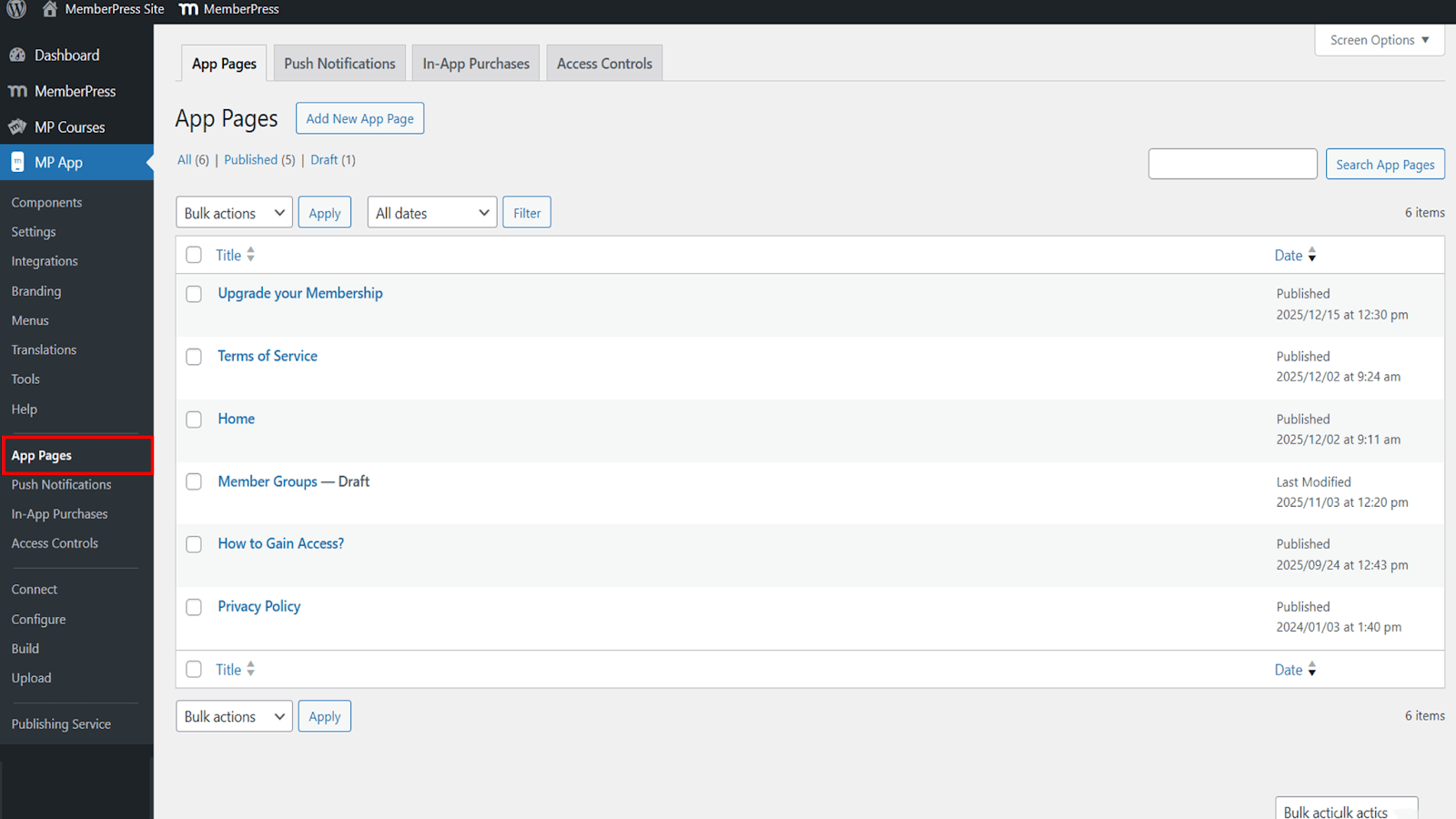
- Ouvrez une page existante, telle que la page d'accueil, ou créez une nouvelle page à éditer.
Ajout du bloc Cours
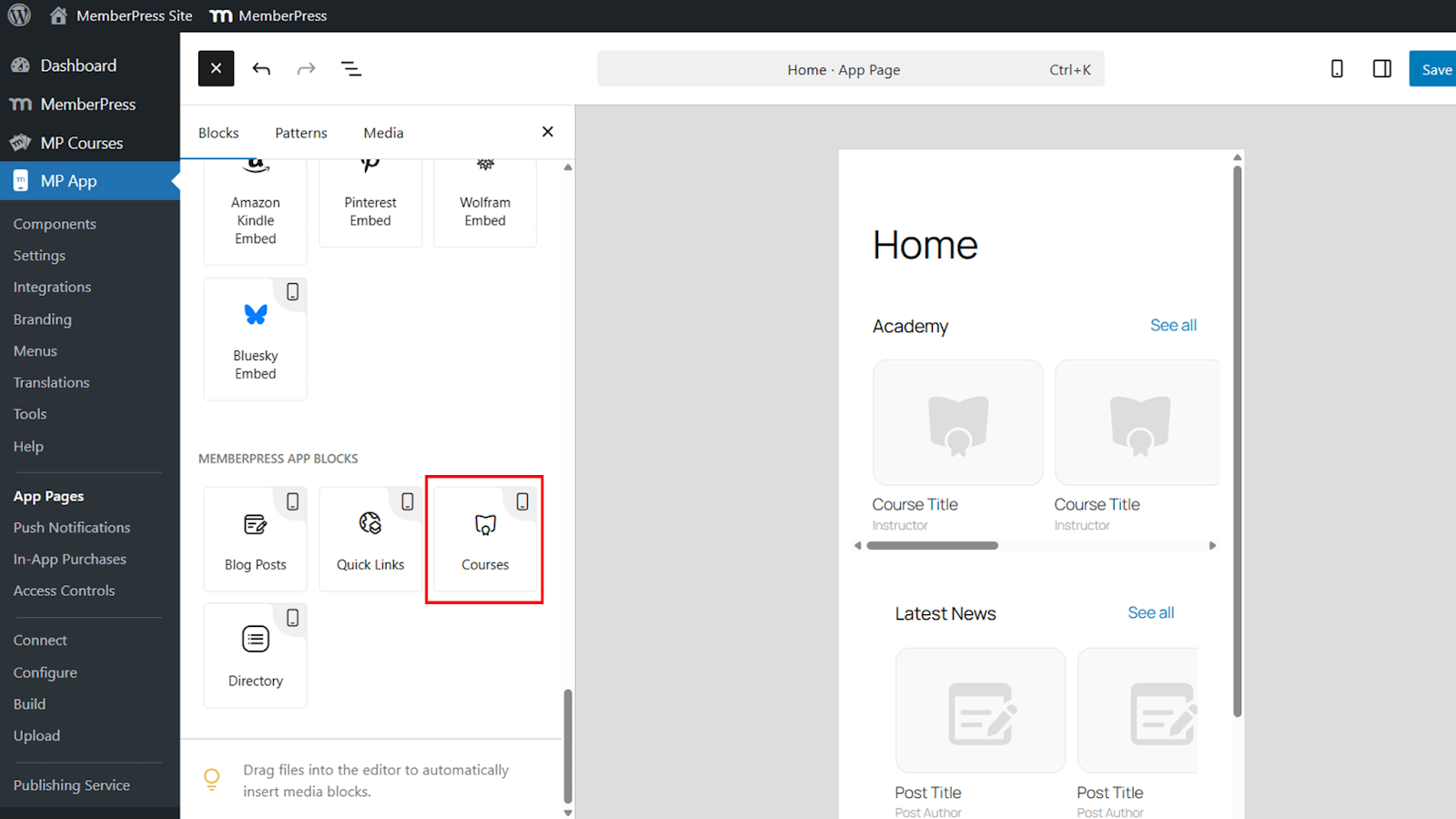
Le bloc Cours est disponible dans la bibliothèque de blocs MemberPress AppKit.
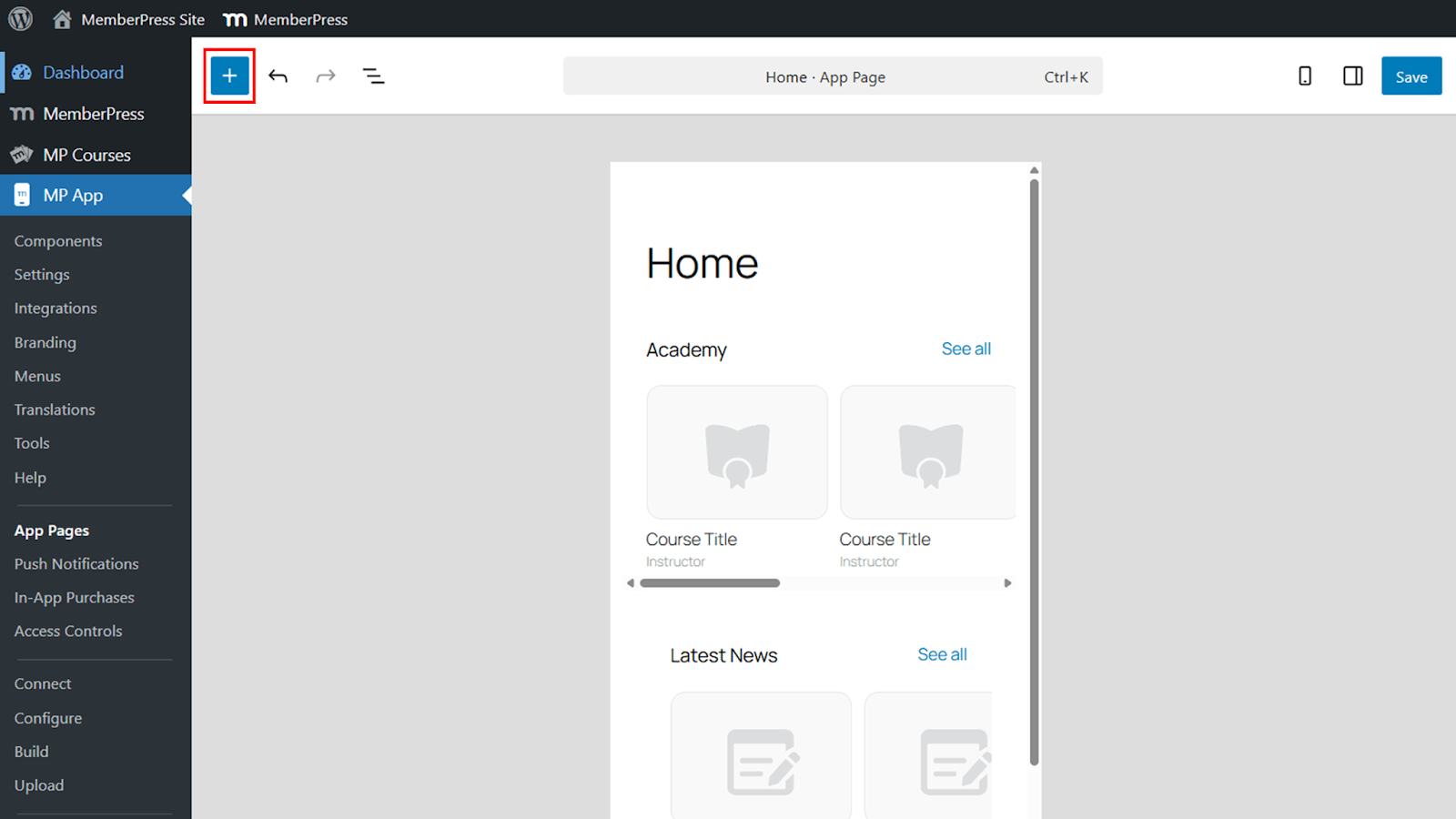
- Cliquez sur l'icône +.
- Sélectionnez l'option Cours du bloc Blocs d'application MemberPress section.
- Déplacez le bloc à la position souhaitée sur la page.
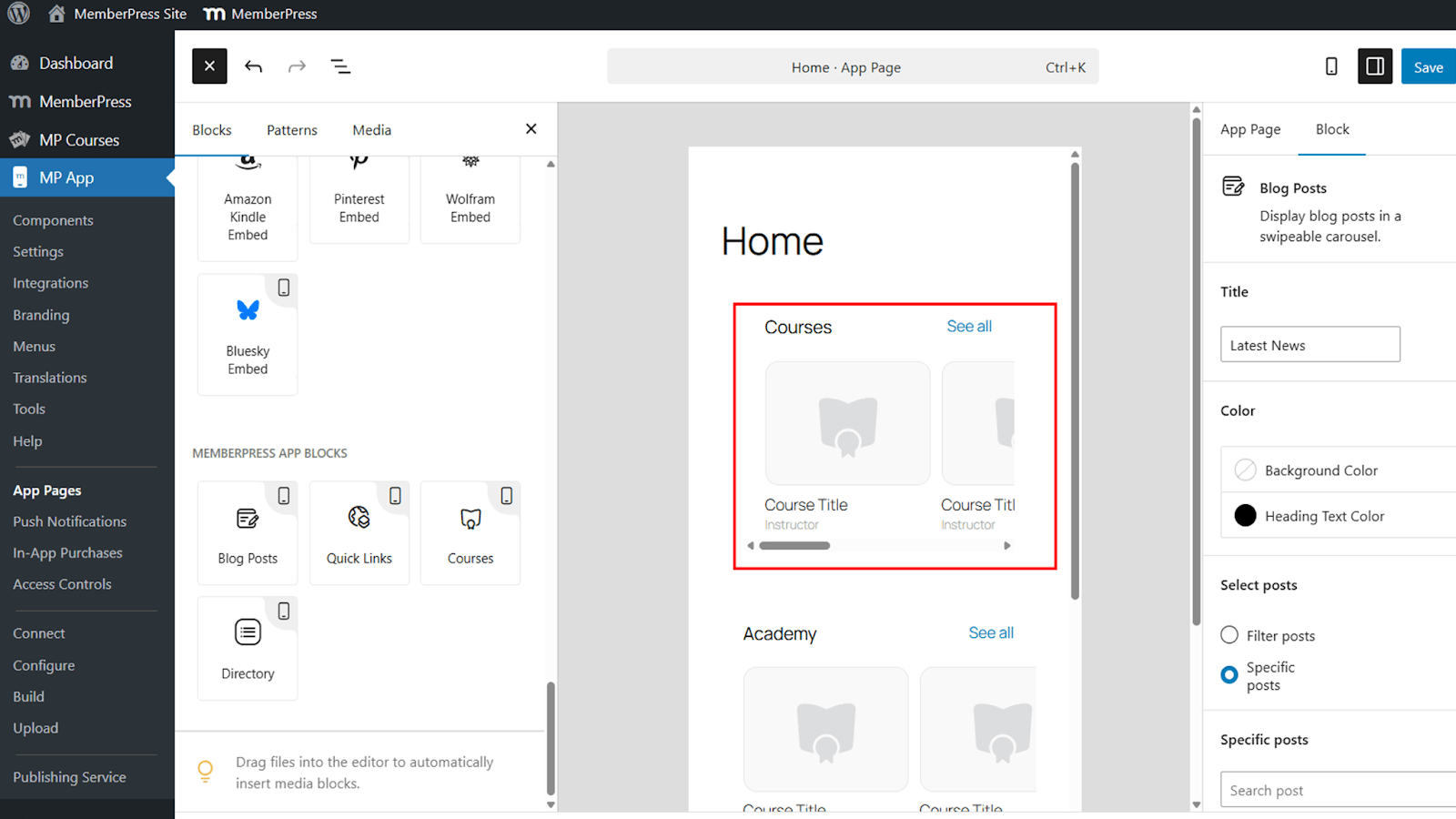
Un aperçu en temps réel montre comment le bloc apparaîtra dans l'application.
Configuration du bloc Cours
Le bloc Cours offre de multiples options de configuration pour contrôler l'apparence et le contenu.
Titre
- Localiser le Titre domaine.
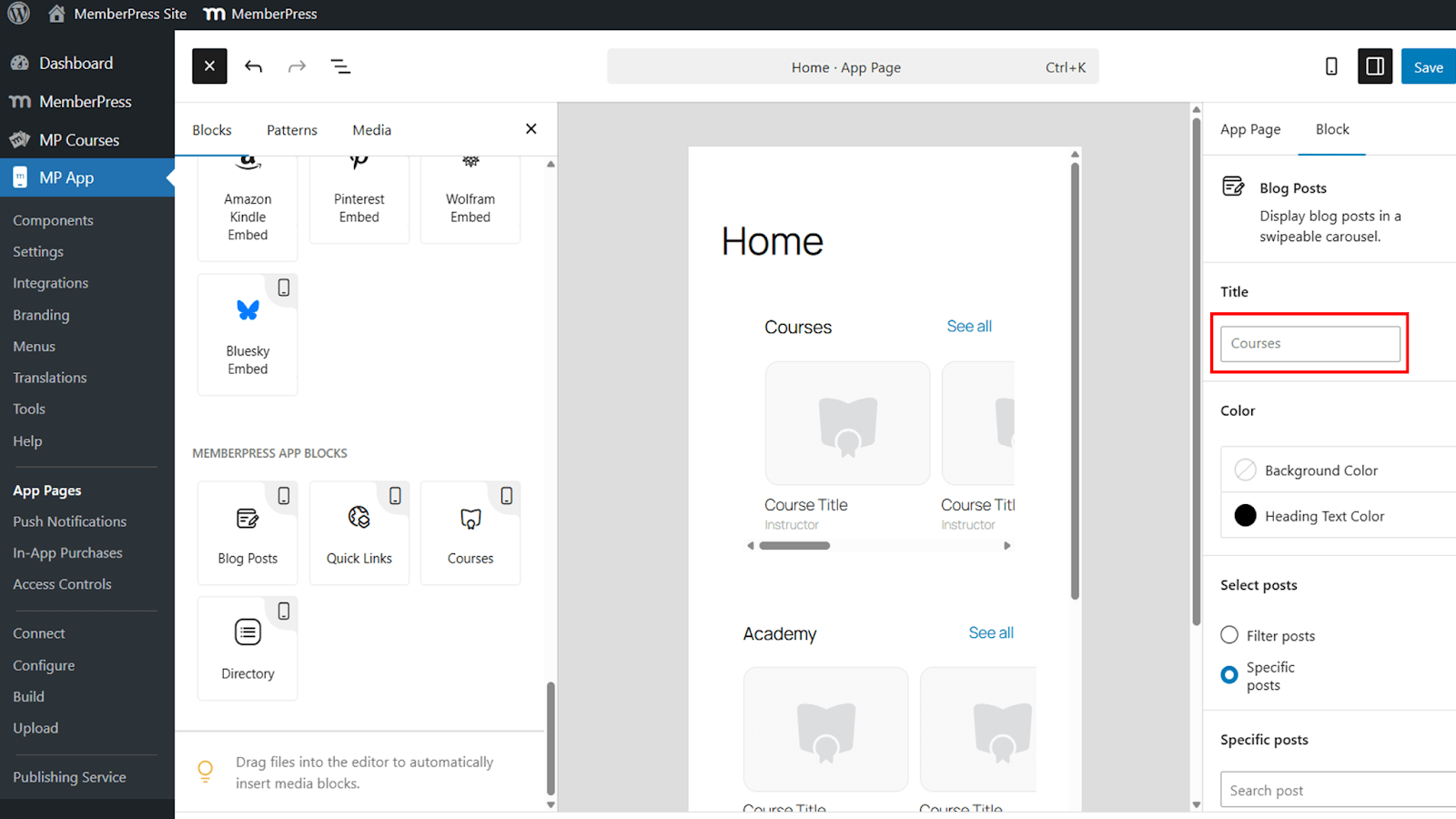
- Renommer le titre du bloc à partir du titre par défaut Cours en fonction de l'image de marque ou du contexte, par exemple Académie.
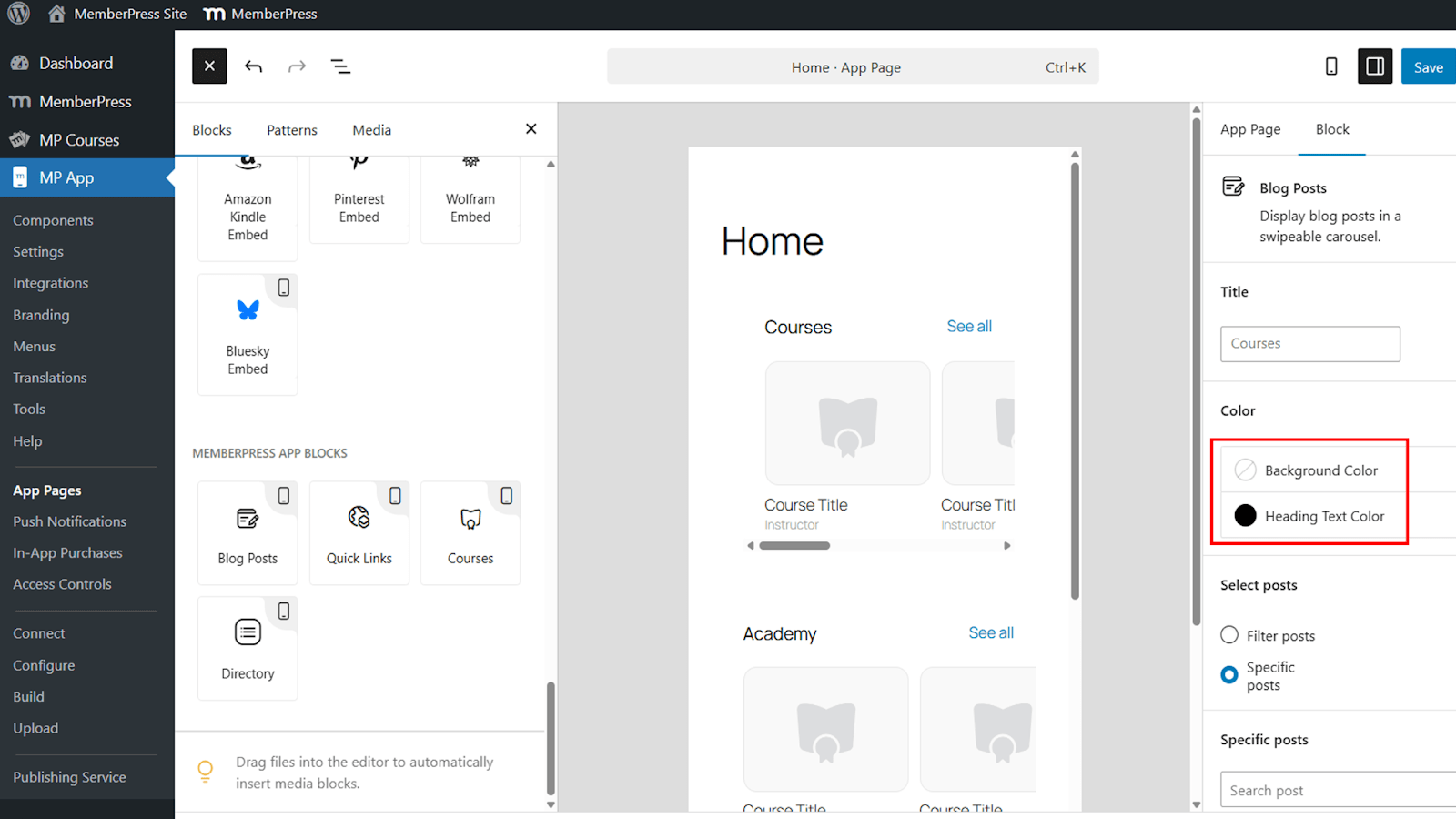
Couleur de l'arrière-plan et de l'en-tête
- Attribuez une couleur d'arrière-plan au bloc ou laissez-le transparent pour qu'il se fonde dans la conception de la page.
Options d'affichage du contenu
- Choisissez d'afficher ou non les formations à l'aide de filtres ou cours spécifiques.
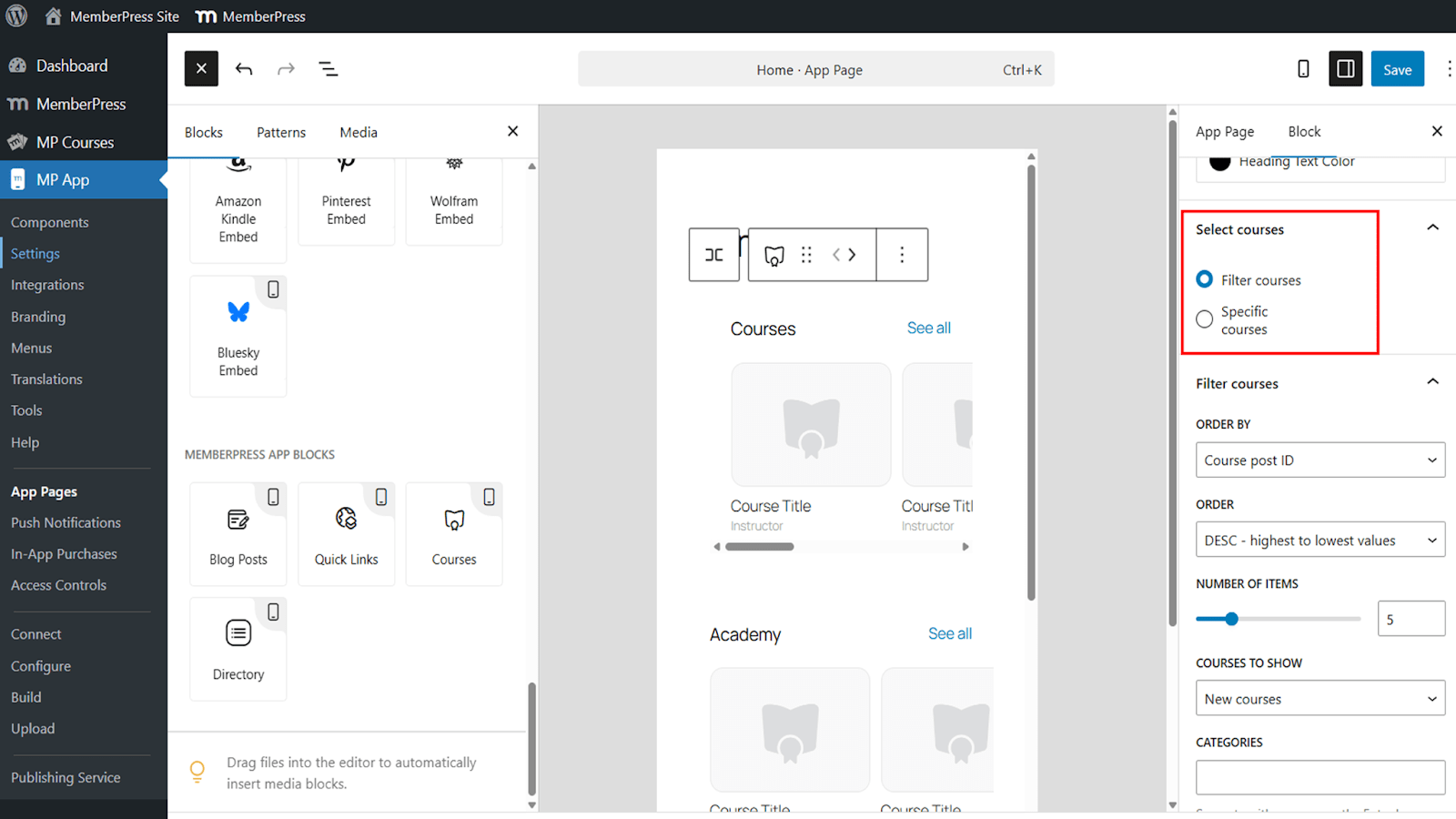
Utilisation de filtres pour afficher les cours
Les filtres permettent un contrôle dynamique des cours qui apparaissent dans le carrousel.
- Trier les cours par identifiant, titre ou date de publication.
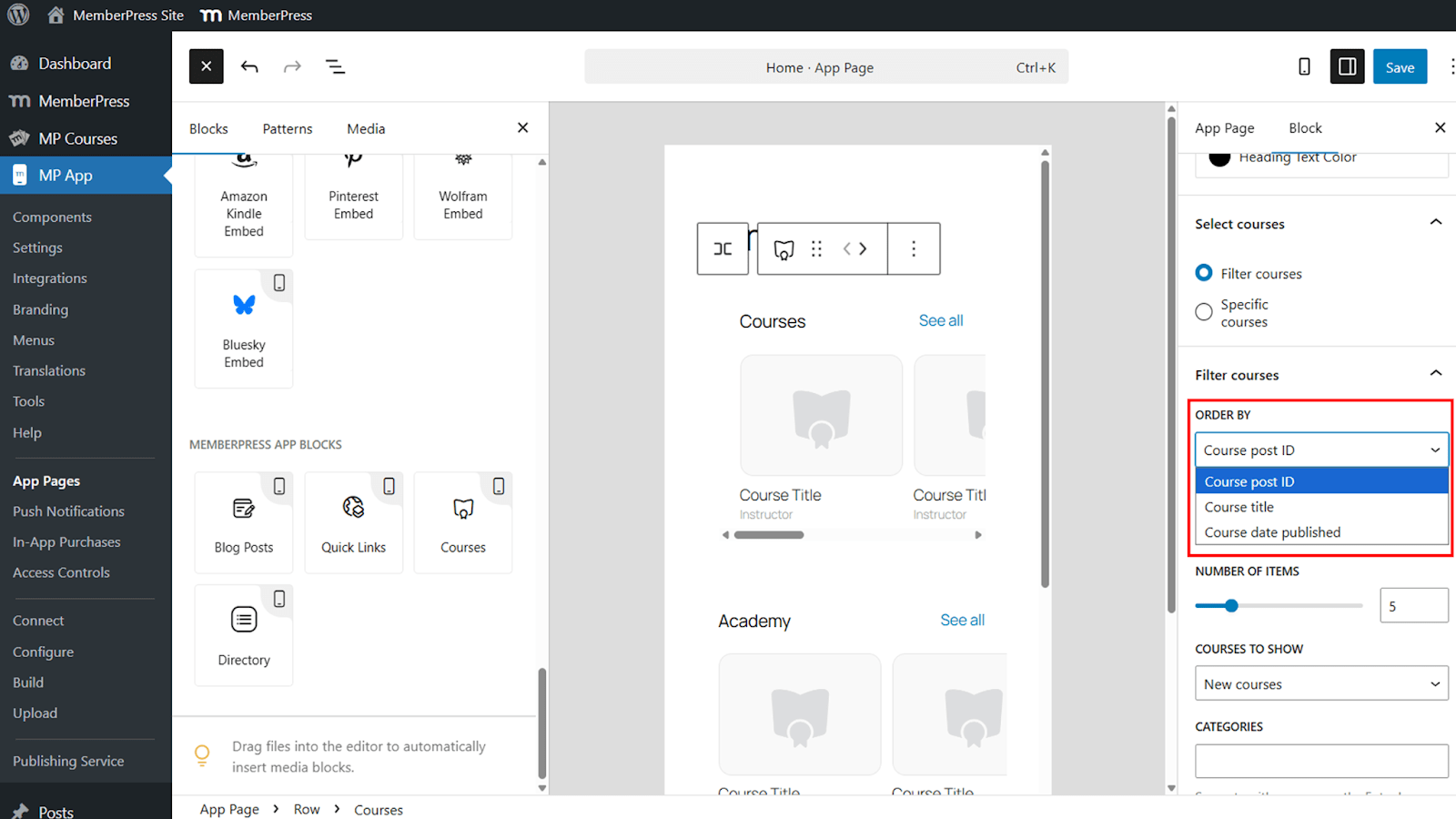
- Choisissez l'ordre croissant ou décroissant.
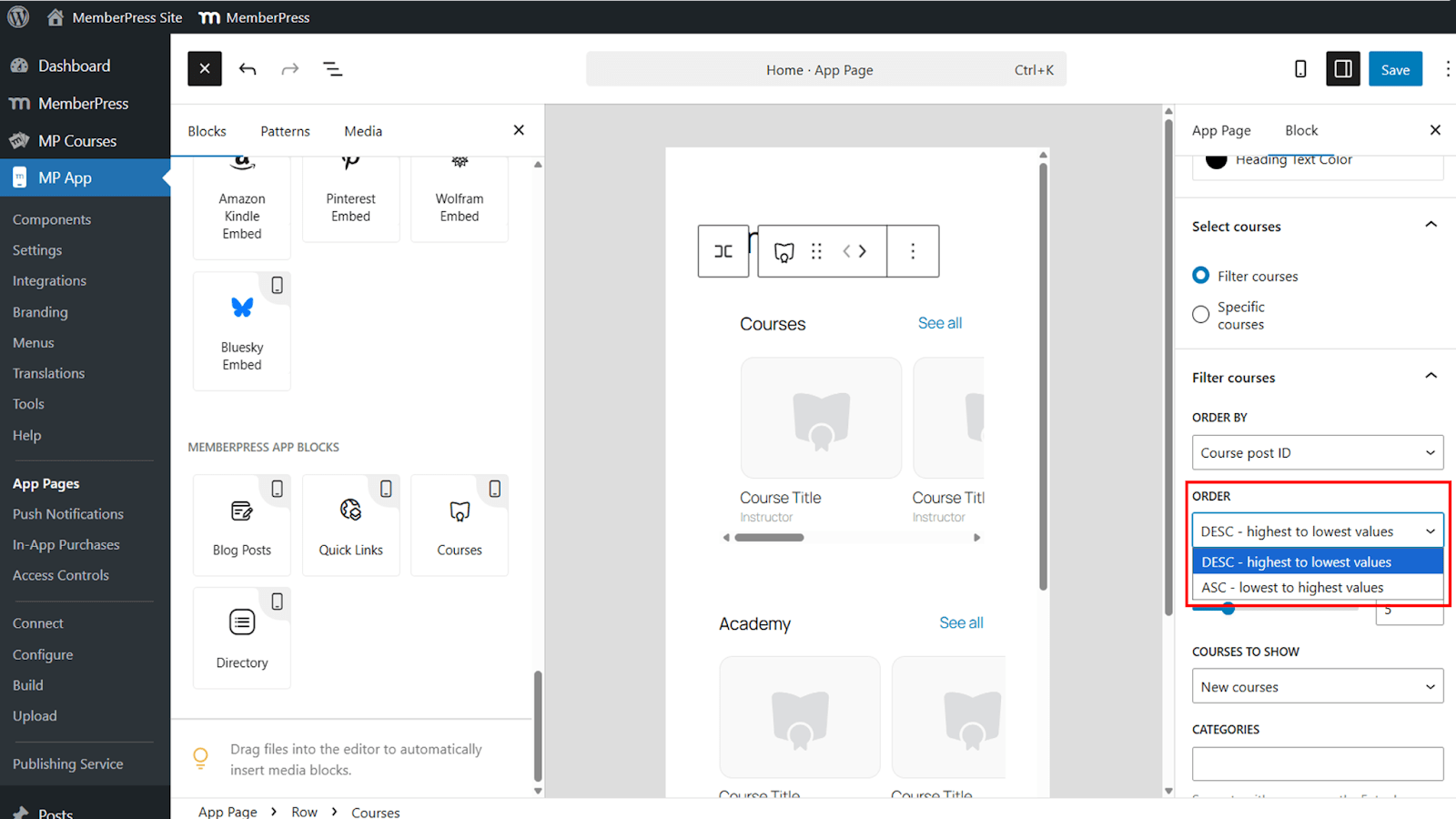
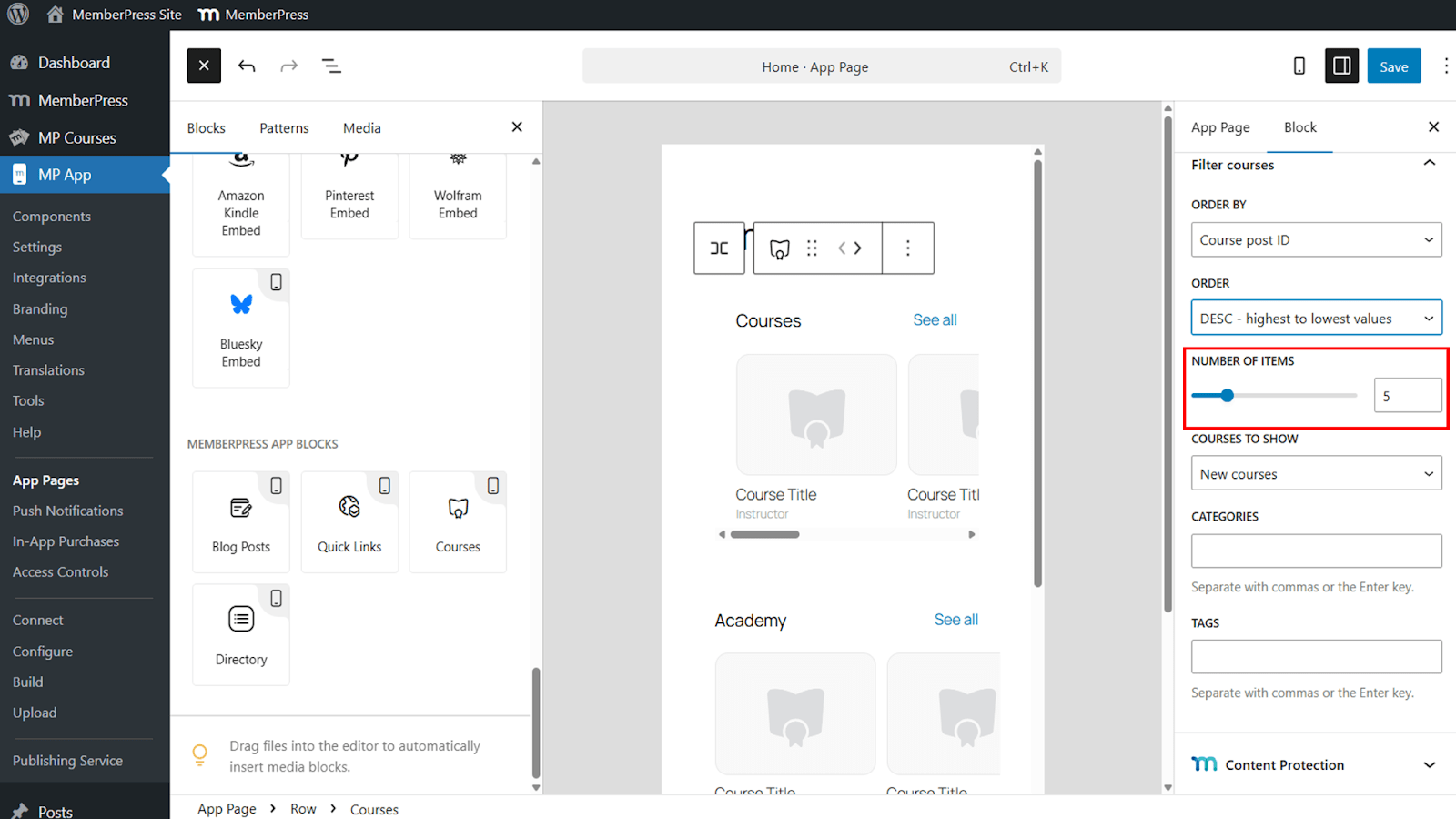
- Définir le nombre de cours affichés dans le carrousel.
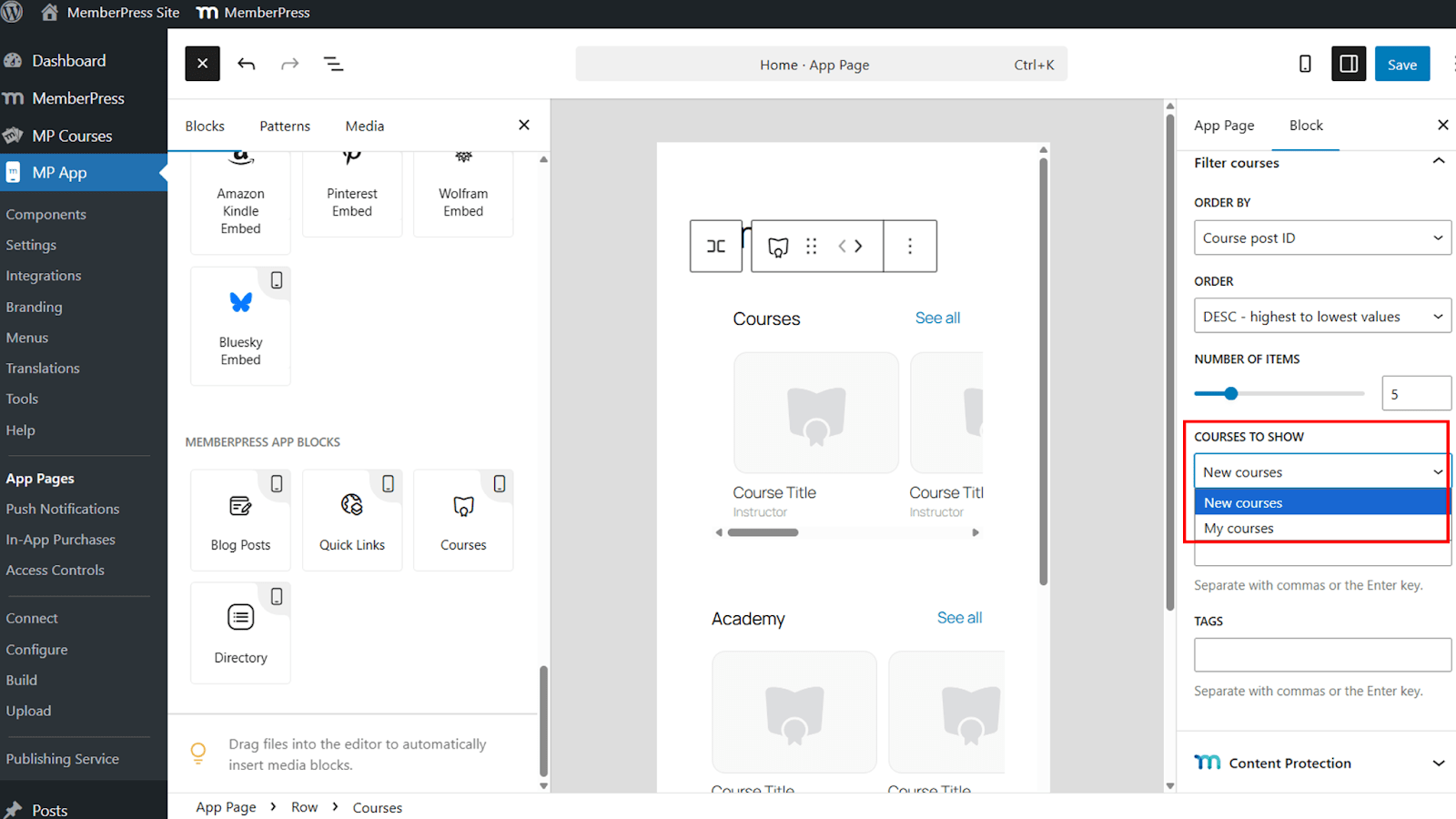
- Affichage Nouveaux cours ou Mes cours en fonction du membre connecté.
- Filtrer les cours à l'aide de catégories et d'étiquettes.
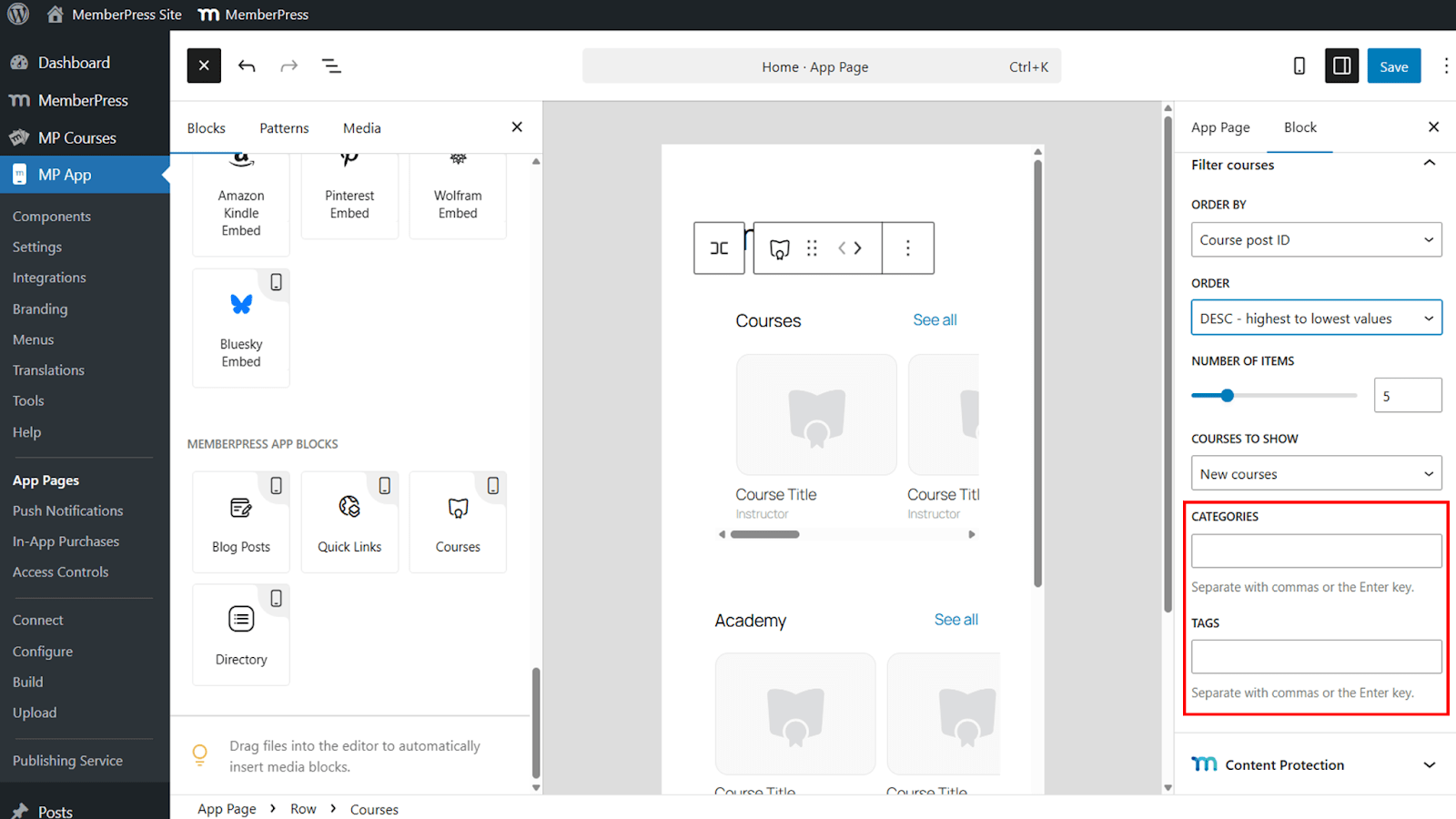
Les filtres sont utiles pour mettre en évidence des groupes de cours spécifiques et permettent de contrôler finement la visibilité des cours dans l'application MemberPress iOS/Android.
Sélection de cours spécifiques
La sélection de cours spécifiques permet de contrôler manuellement le contenu affiché.
- Passer de cours filtrés à Cours spécifiques.
- Sélectionnez les cours individuels à inclure dans le bloc.
Cette option est idéale pour mettre en valeur les cours vedettes ou promotionnels.
Sauvegarde et vérification du bloc
Une fois la configuration terminée, enregistrez les modifications pour publier le bloc.
- Cliquez sur Économiser pour appliquer les paramètres du bloc.
- Ouvrir le MemberPress iOS/Android app sur un appareil mobile.
- Naviguez jusqu'à la page contenant le Cours bloc.
- Vérifiez que le carrousel affiche les cours corrects.
- Appuyez sur un cours ou Tout voir pour confirmer la bonne navigation.
Plusieurs blocs de cours peuvent être ajoutés à la même page, chacun avec son propre titre et ses propres filtres, ce qui permet de segmenter le contenu dans l'application.










 FR
FR  EN
EN  ES
ES  DE
DE  PT
PT 