

Embora MemberPress e o Reserva de Amelia Embora os plug-ins não sejam oficialmente integrados, eles funcionam bem juntos. Vincular o Amelia ao MemberPress permite que você gerencie quem pode agendar eventos e compromissos com base nas funções e nas associações dos usuários.
Este documento explica como conectar o MemberPress ao Amelia, para que apenas membros autorizados possam fazer reservas. O MemberPress pode atribuir uma função adicional aos assinantes de associações específicas. Além disso, as regras do MemberPress garantem que apenas aqueles com a função possam acessar a página de reservas.
Este documento contém os seguintes tópicos:
- Configurando associações MemberPress
- Configurando eventos e códigos de atalho do Amelia
- Restrição de acesso (regras MemberPress)
- Adicionando painéis front-end Amelia à conta MemberPress Página
Configurando associações MemberPress
MemberPress associações pode atribuir uma função adicional ao usuário e acesso às páginas de reservas. Crie níveis de adesão para a Amelia.
Para criar uma conta no MemberPress, siga os passos abaixo:
- Navegue até Painel de controle > MemberPress > Associações.
- Clique no botão Adicionar novo membro botão.
- Criar uma nova associação (por exemplo, “Membro Premium”).
- Ao criar a conta, role para baixo até Opções de associação > Avançado e verifique a guia Funções do usuário para esta associação opção.
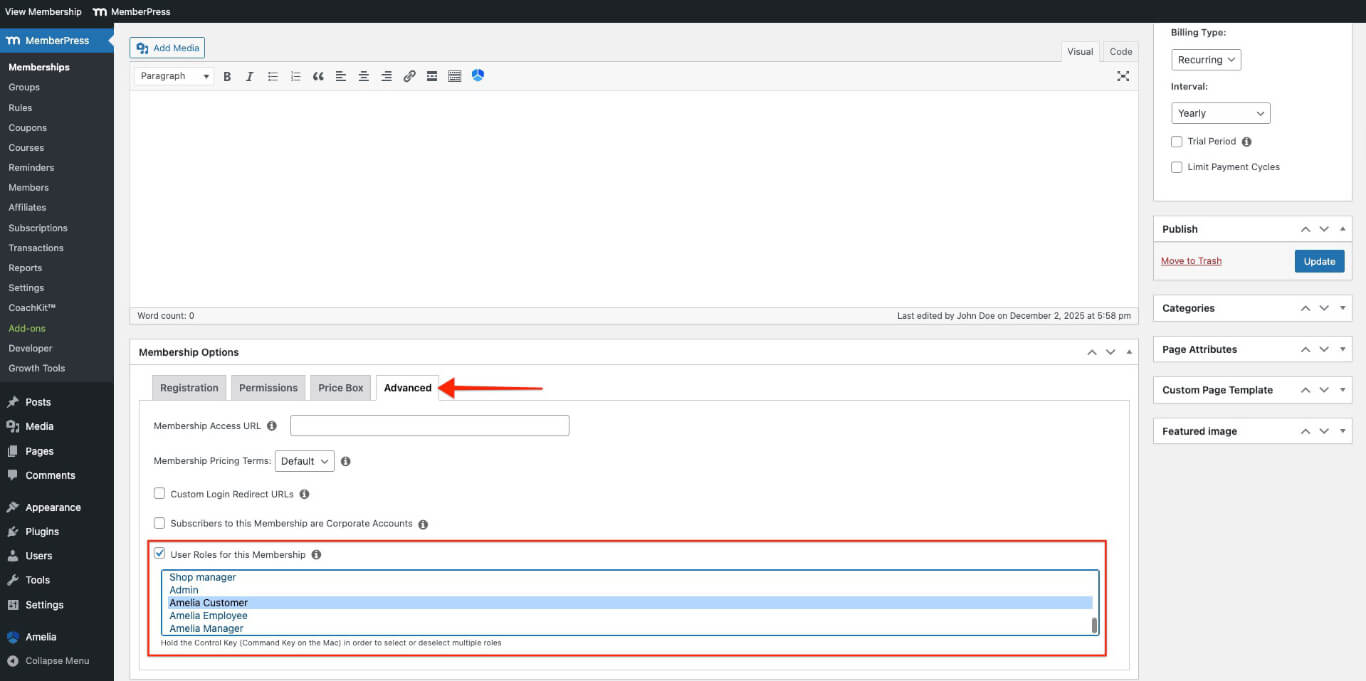
- Selecione o Cliente Amelia função para os clientes ou para o Funcionária da Amelia função para a equipe.
- Clique no botão Publicar para salvar a inscrição.
Repita estas etapas para adicionar mais níveis de adesão para diferentes funções de usuário.
Configurando os eventos da Amelia
A Amelia oferece códigos de atalho que mostram formulários de reserva em páginas ou publicações. Configure o plugin e adicione funcionalidades de reserva onde necessário.
Criando um evento Amelia
- Navegue até Painel > Amelia > Eventos.
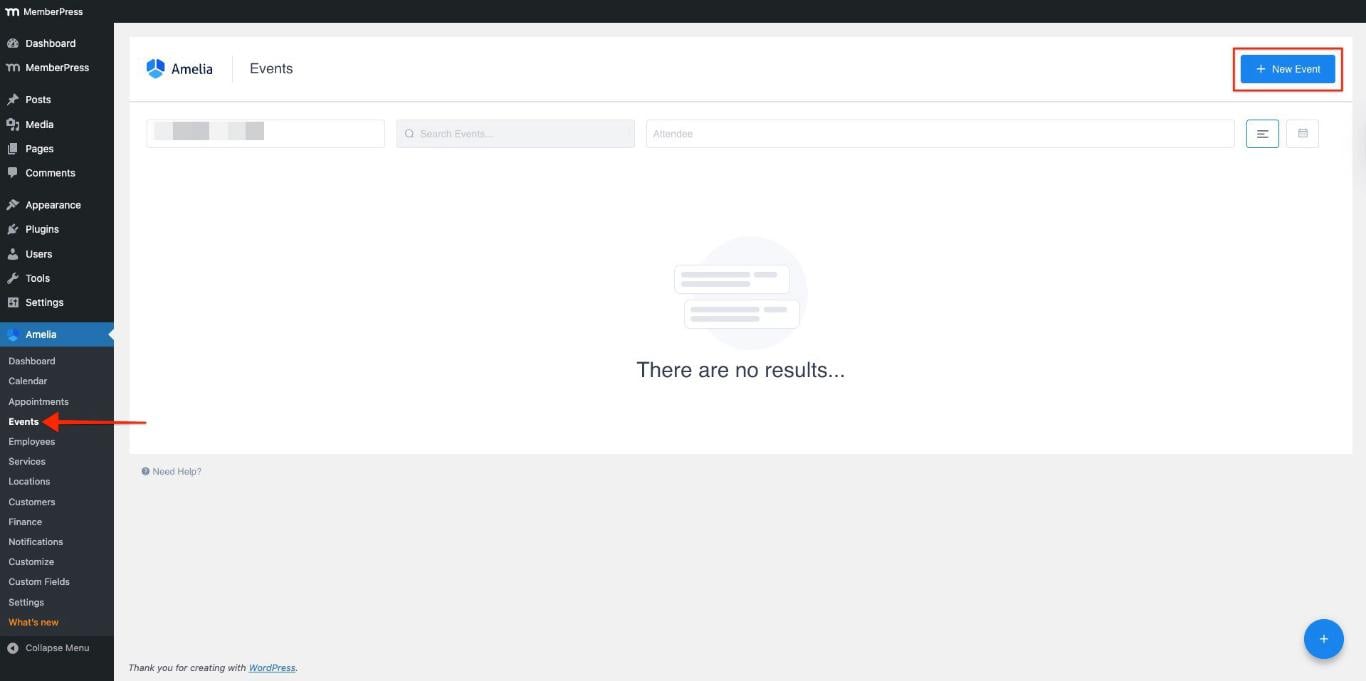
- Clique no botão + Novo evento botão para criar evento(s).
- Insira os detalhes do evento, tais como: Nome, Datae Tempo.

- Essas opções estão ativadas por padrão. Você pode desativá-las para selecionar datas personalizadas:
- As reservas abrem imediatamente;
- As reservas encerram quando o evento começar..
- Adicione o preço e o número máximo de participantes permitidos para o evento.
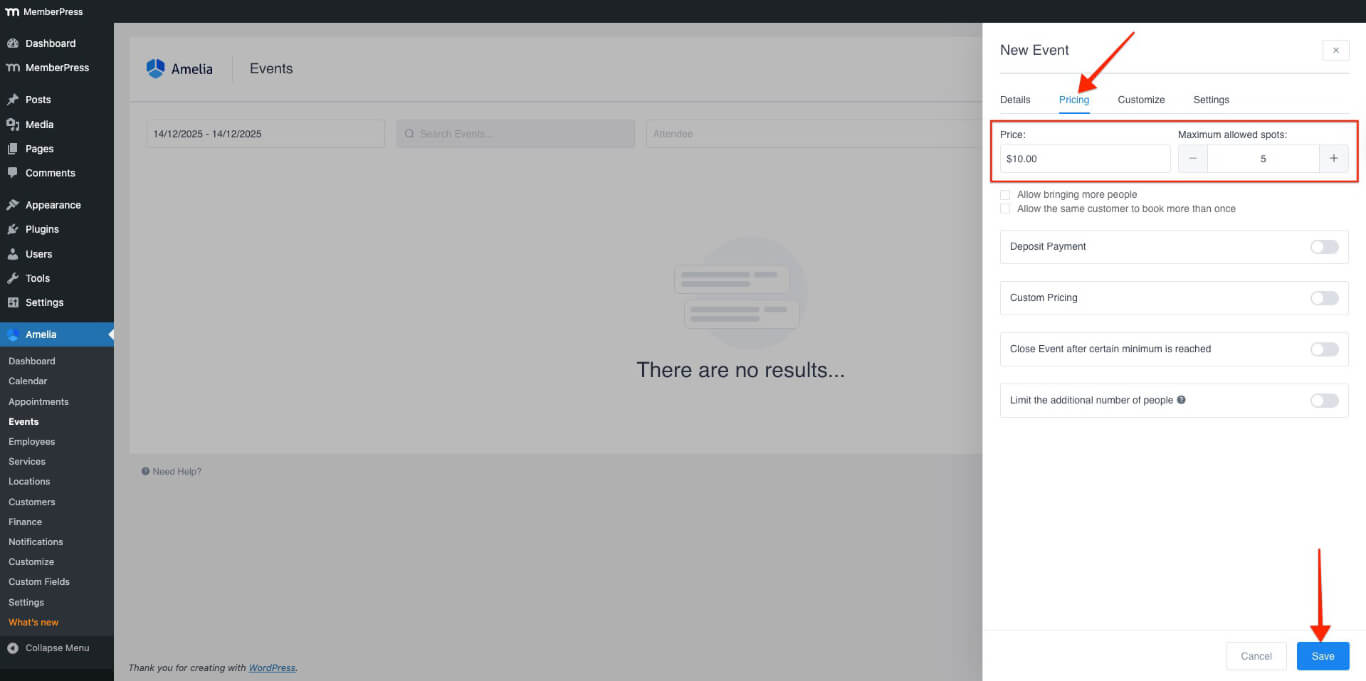
- Clique no botão Salvar botão.
Adicionando o código de evento a uma página
- Navegue até uma página existente ou crie uma nova página.
- No editor de páginas, clique no Amelia botão de ícone (se estiver usando o Editor clássico) ou adicione um Amelia – Lista de Eventos bloco (se estiver usando o Editor de Blocos).
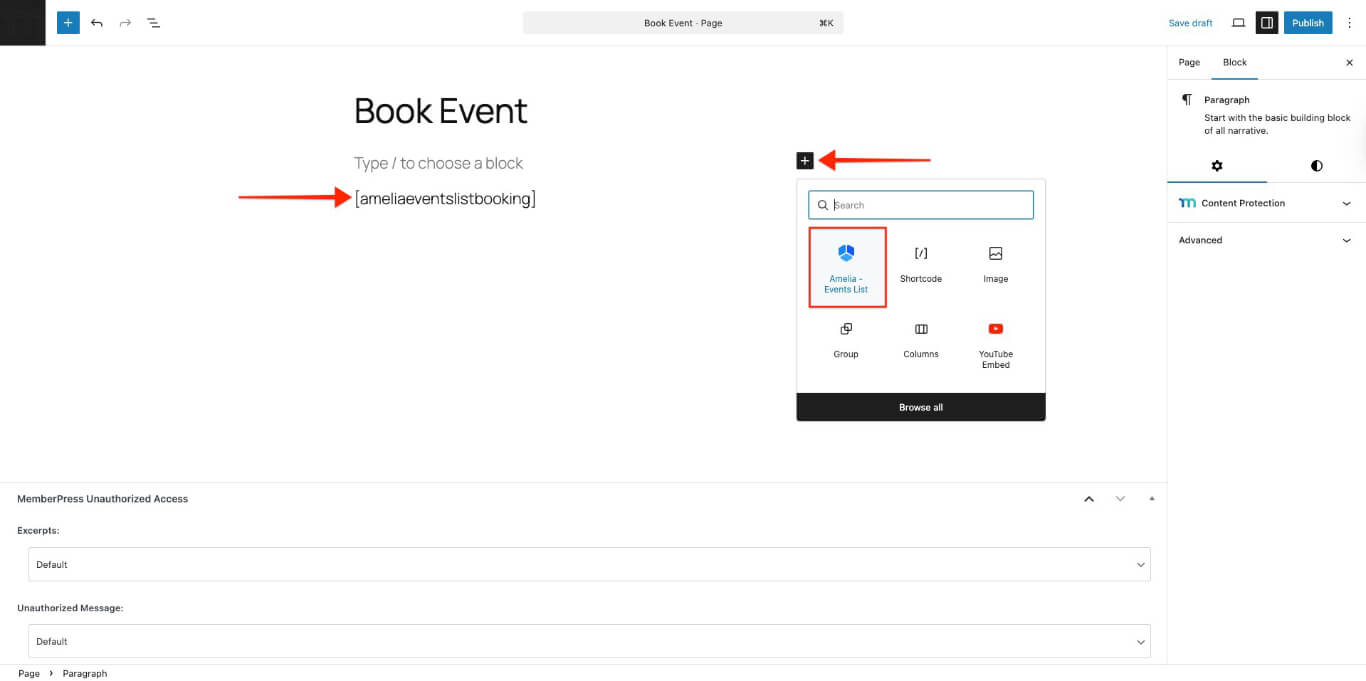
- O código curto será inserido automaticamente na página.
- Para inserção manual, copie e cole o Código de reserva da lista de eventos Amelia no editor de páginas:
[ameliaeventslistbooking]- Clique em Publicar para ativar a página.
A seção a seguir explica como você pode proteger esta página usando Regras do MemberPress.
Restringindo o acesso às páginas de reservas usando regras MemberPress
Regras do MemberPress Controle quais conteúdos os membros podem ver. Use regras para proteger páginas com formulários de reserva Amelia.
Criar uma regra de proteção
- Navegue até Painel de controle > MemberPress > Regras.
- Clique no botão Adicionar novo botão.
- No Conteúdo protegido menu suspenso, selecione o Uma única página opção.
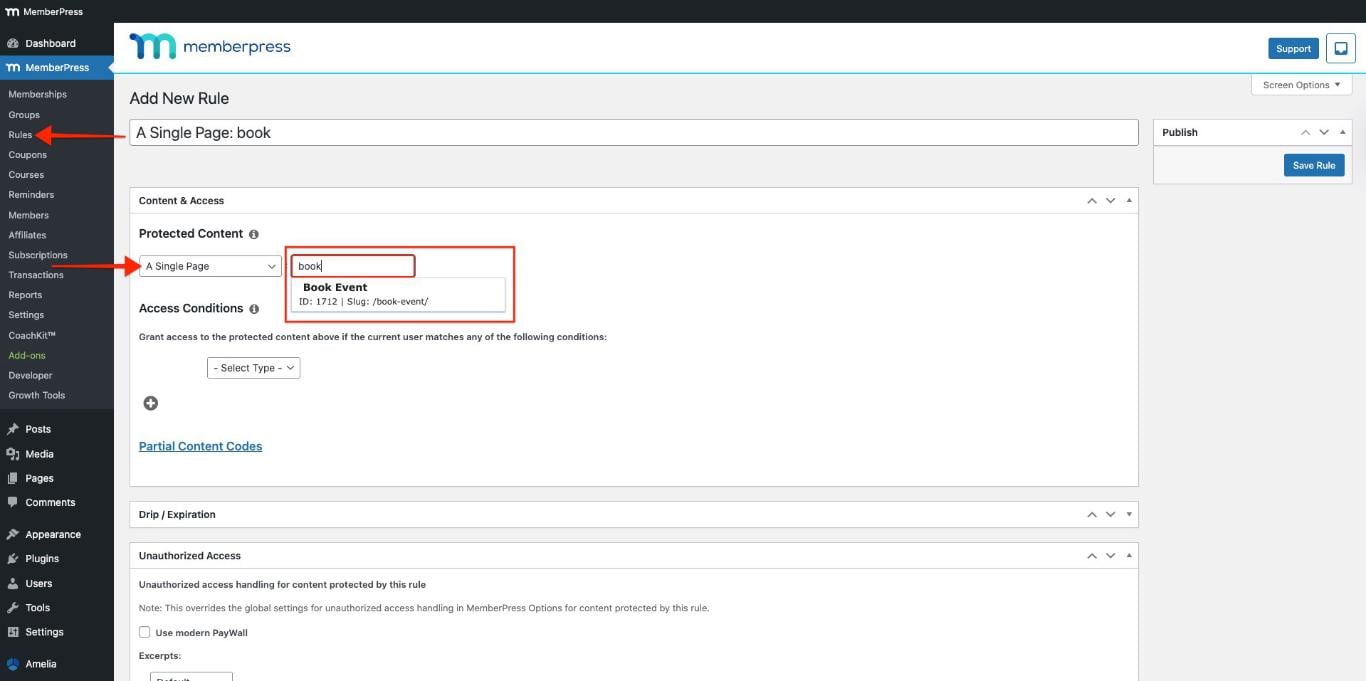
- Digite o nome da página no campo Comece a digitar o título campo e selecione a página no menu suspenso.
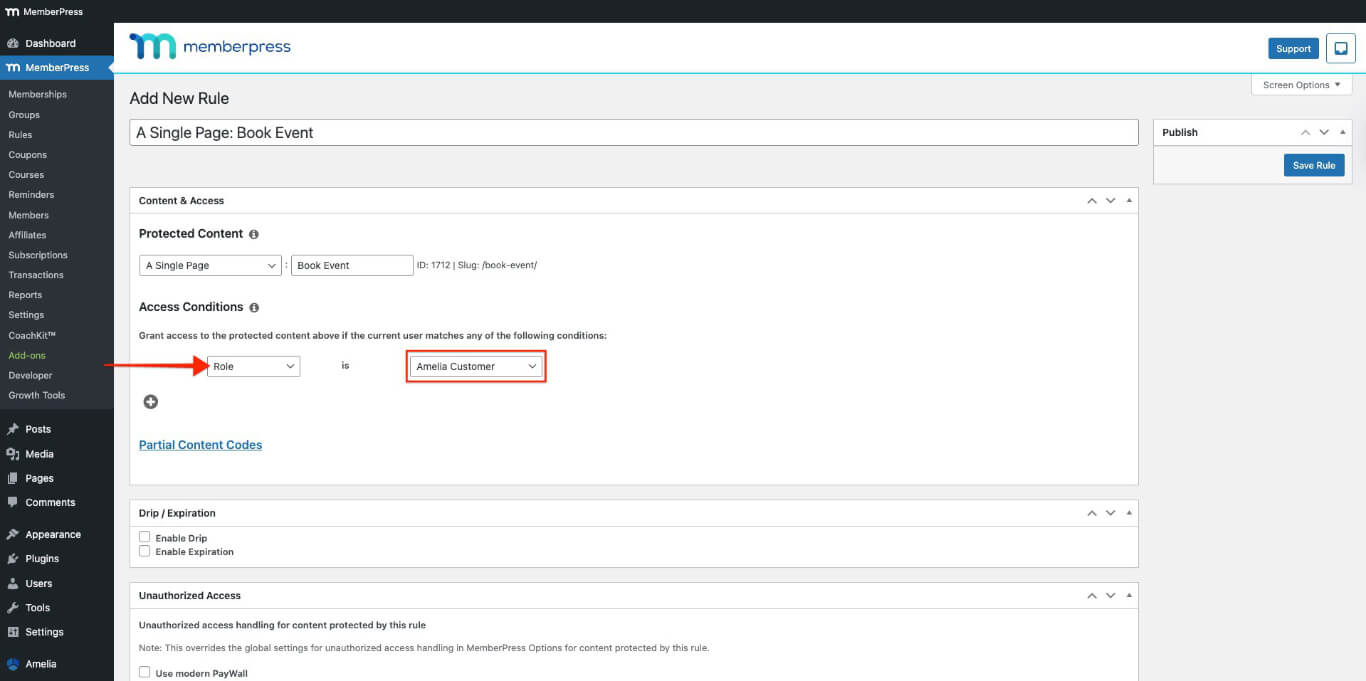
- No Condições de acesso seção:
- Escolha Associação da primeira lista suspensa e Cliente Amelia do segundo menu suspenso;
- Selecione os membros que devem ter acesso à página de reservas.
- Role para baixo até a seção Acesso não autorizado seção.
- No Mensagem não autorizada menu suspenso, selecione o Personalizado opção.
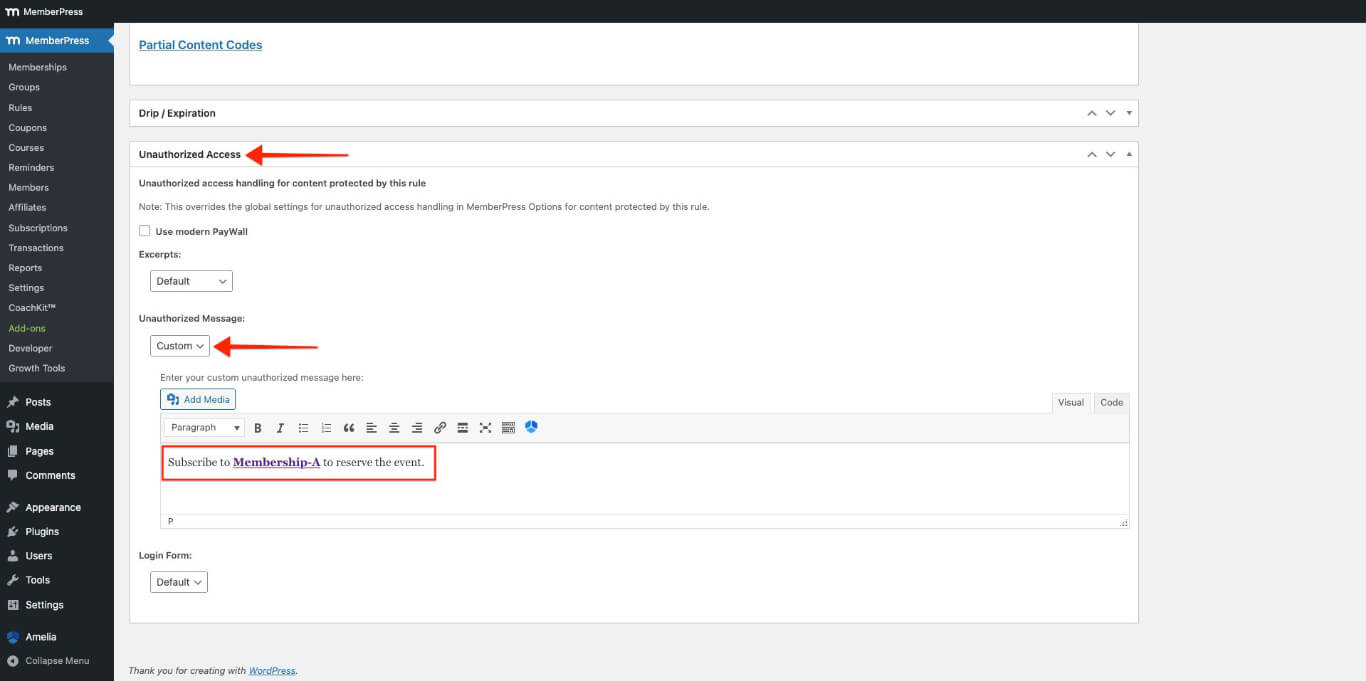
- Insira sua mensagem personalizada para usuários não autorizados que acessarem esta página.
- Clique no botão Salvar regra botão no canto superior direito.
Inscrever-se para a adesão e reservar o evento
- Ir para Painel de controle > MemberPress > Associações.
- Abra a associação no seu navegador. Janela anônima (privada).
- Insira os detalhes necessários para se inscrever como usuário de teste e selecione uma das seguintes opções: Método de pagamento offline ou Listrado. Você pode usar Números do cartão de teste Stripe para se inscrever.
- Visite o página de reserva de eventos com o código abreviado.

- Clique no botão Leia mais para rever o evento.
- Clique no botão Reservar evento botão.
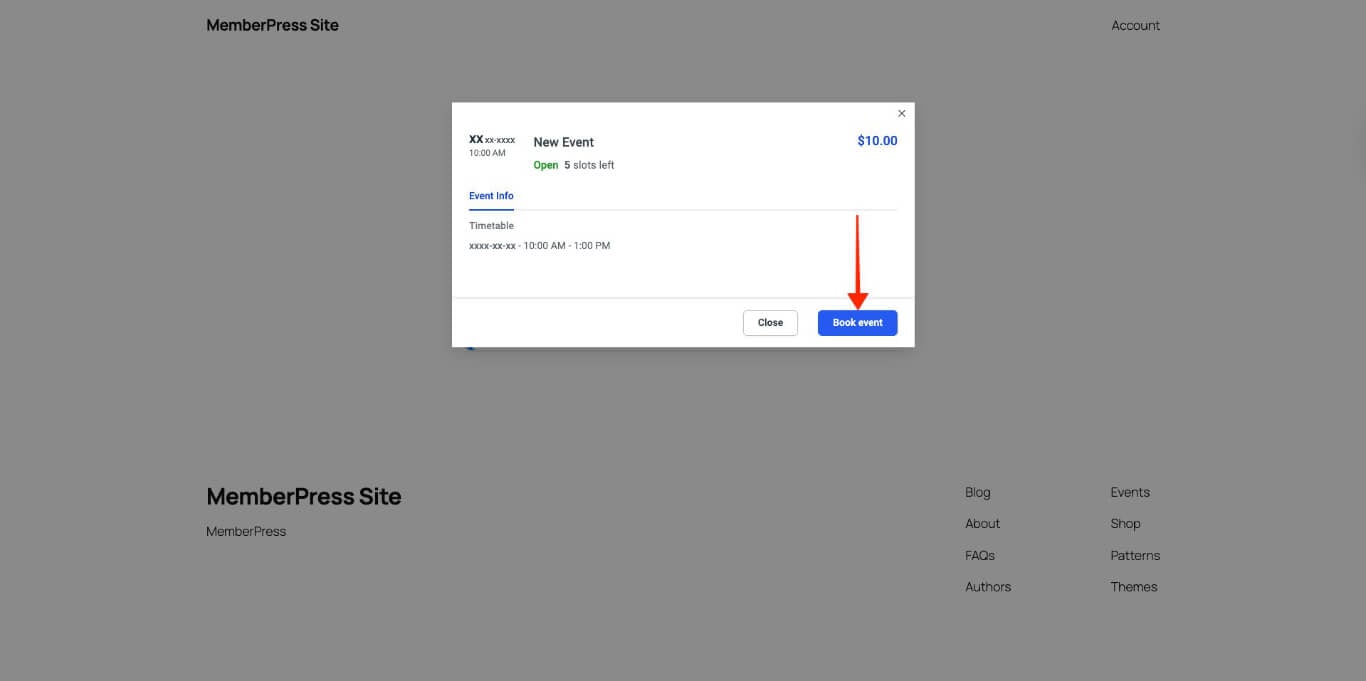
- Insira todas as informações necessárias e clique em Continuar botão.
- Clique no botão Reservar evento botão.

- Clique no botão Finalizar botão ou o Painel do Cliente botão.
Testando as páginas de reservas
Os testes garantem que as regras MemberPress bloqueiam o acesso às páginas de reservas da Amelia.
Crie várias contas de teste com diferentes níveis de adesão.
- Abra seu site em um navegador Janela anônima (privada).
- Faça login com uma conta de teste que tenha a assinatura necessária.
- Acesse a página de reservas e verifique se o formulário de reservas da Amelia está visível e funcionando.
- Saia da sua conta e faça login com uma conta de teste que não tenha a assinatura.
- Acesse a página de reservas e verifique se o mensagem de acesso não autorizado aparece em vez do formulário de reserva.
Se as restrições de acesso não estiverem funcionando, verifique o Regras do MemberPress para garantir que os níveis de adesão e as páginas corretas sejam escolhidos.
Adicionando painéis front-end Amelia à página da conta MemberPress
Você pode adicionar painéis de clientes e funcionários da Amelia para Guias de navegação da conta MemberPress como guias personalizadas. Isso permite que os membros gerenciem compromissos e eventos diretamente da página da sua conta MemberPress.
Antes de adicionar painéis Amelia à página da conta, certifique-se de que o O complemento MemberPress Account Navigation Tabs está instalado e ativado..
Além disso, certifique-se de que possui o versão premium do plugin Amelia para acessar o Painel frontal Amelia características.
Entendendo os códigos de atalho do painel Amelia
A Amelia fornece dois códigos de atalho do painel frontal para incorporar portais de clientes e funcionários.
Códigos de atalho do Painel do Cliente Amelia
O Painel do Cliente exibe os compromissos e eventos dos membros. Utilize as seguintes variações do código de atalho, de acordo com as necessidades do conteúdo.
Este código curto exibe tanto compromissos quanto eventos no Painel do Cliente Amelia:
[painel do cliente Amelia compromissos=1 eventos=1]Você pode mostrar compromissos ou eventos no painel do cliente usando estas opções:
- Removendo eventos=1 será exibido somente com hora marcada:
[painel do cliente Amelia compromissos=1]- Removendo compromissos=1 será exibido apenas eventos:
[painel do cliente Amelia eventos=1]Códigos de atalho do painel de funcionários da Amelia
O Painel de Funcionários exibe os compromissos e eventos dos membros da equipe. Use as seguintes variações de código de atalho de acordo com os requisitos de conteúdo:
Este código curto exibe tanto compromissos quanto eventos no Painel de Funcionários da Amelia:
[painel de funcionários da Amelia compromissos=1 eventos=1]Você pode exibir compromissos ou eventos no painel do funcionário usando estas opções:
- Removendo eventos=1 será exibido somente com hora marcada:
[painel de funcionários da Amelia compromissos=1]- Removendo compromissos=1 será exibido apenas eventos:
[painel de funcionários da Amelia eventos=1]Adicionando painéis Amelia como guias da página da conta
Siga estas etapas para adicionar painéis Amelia à página da conta MemberPress:
- Navegue até Painel > MemberPress > Conta.
- Ative as guias de navegação da conta e adicione uma nova guia de navegação.

- Colar o Painel do cliente front-end Amelia código abreviado para eventos.
[ameliacustomerpanel events=1]- Clique no botão Opções de atualização botão.
- Crie outra guia para o Painel de Funcionários, seguindo os passos 1 a 4 acima.
As novas guias aparecerão na MemberPress Página da conta.
Ativando os painéis de funcionários e clientes
Siga estas etapas para ativar o painel de Funcionários e o painel de Clientes do Amelia.
Ativar o Painel do Funcionário
- Vá para o MemberPress Página da conta.
- Clique no botão Painel de Funcionários guia criada no seção anterior na barra lateral esquerda.
- Copiar o URL na barra de URL do navegador.
- Navegue até a seção Painel > Amelia > Configurações.
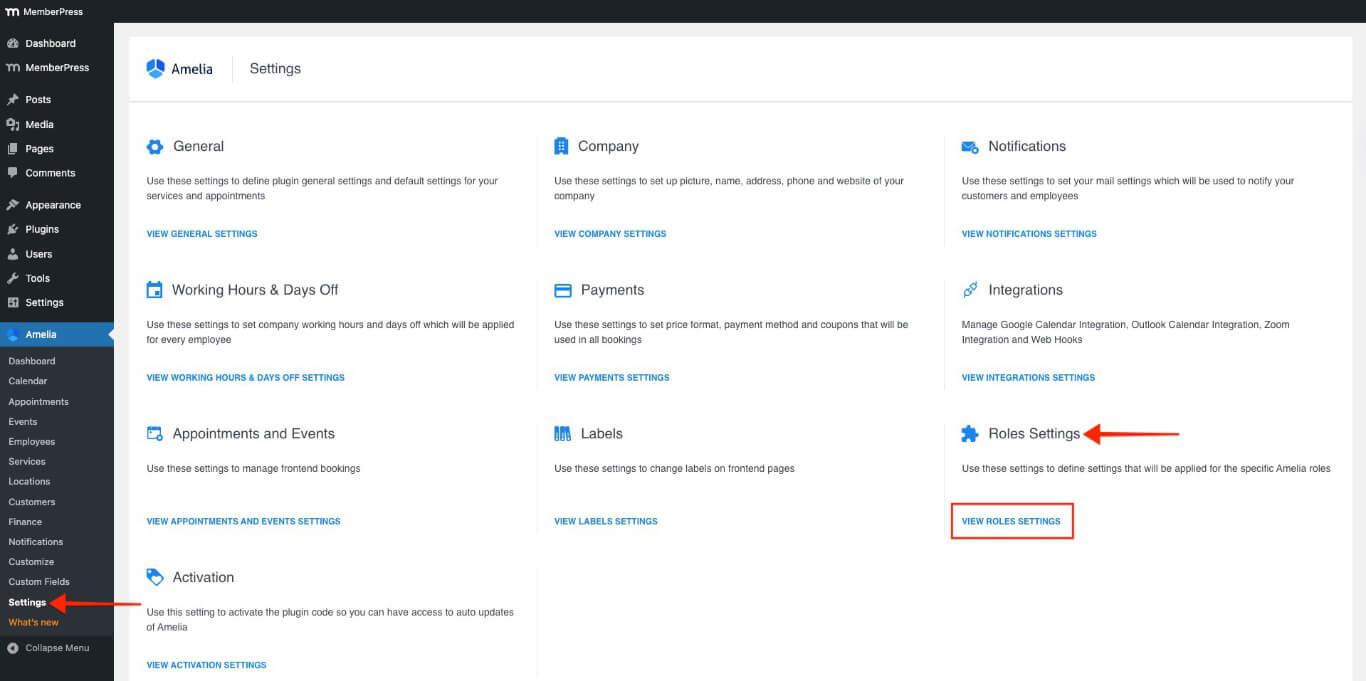
- Sob o Configurações de funções clique na seção Ver configurações de funções botão.
- Do Funcionário guia, alterne o Ativar Painel do Funcionário opção ON. O URL da página do painel dos funcionários O campo aparecerá.
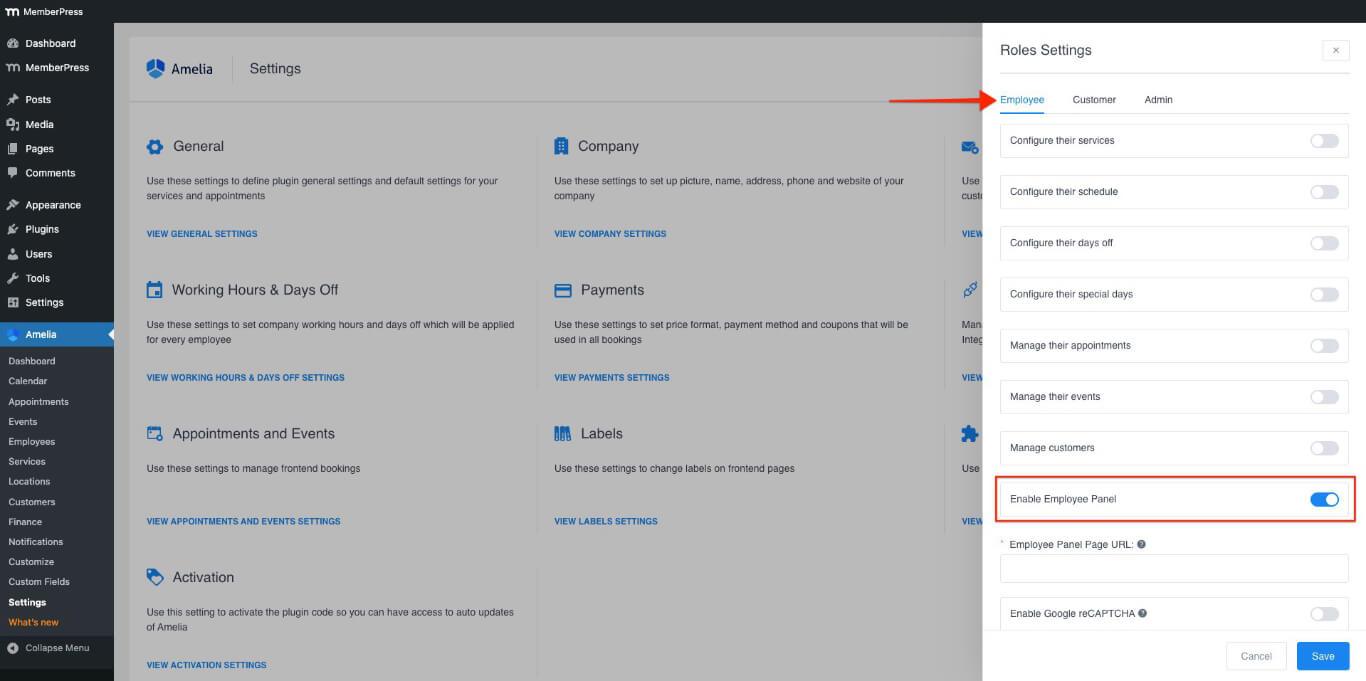
- No URL da página do painel dos funcionários campo, cole a URL para o Painel de Funcionários guia.
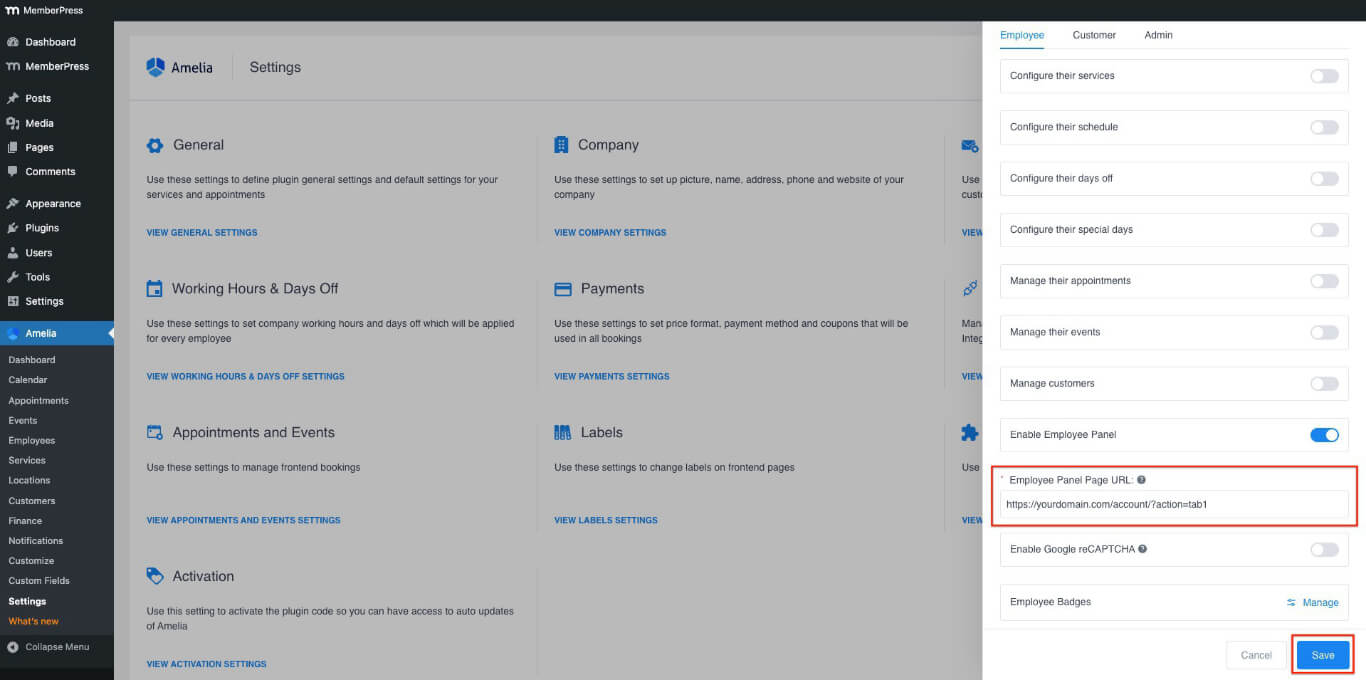
- Clique no botão Salvar botão.
Ativar o Painel do Cliente
- Vá para o MemberPress Página da conta.
- Clique no botão Painel do Cliente guia criada no seção anterior na barra lateral esquerda.
- Copiar o URL na barra de URL do navegador.
- Navegue até a seção Painel > Amelia > Configurações.
- Sob o Configurações de funções clique na seção Ver configurações de funções botão.
- Do Clientes guia, alterne o Ativar Painel do Cliente opção ON. O URL da página do painel do cliente O campo aparecerá.
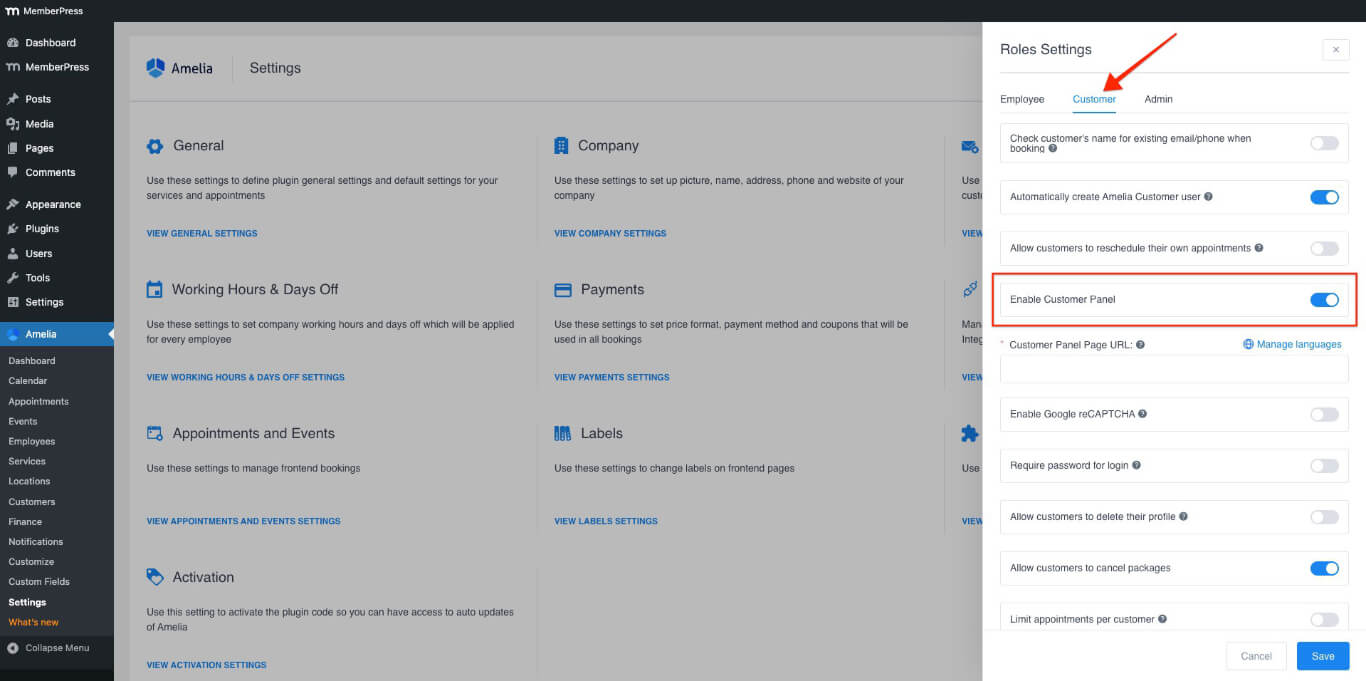
- No URL da página do painel do cliente campo, cole a URL para o Painel do Cliente guia.
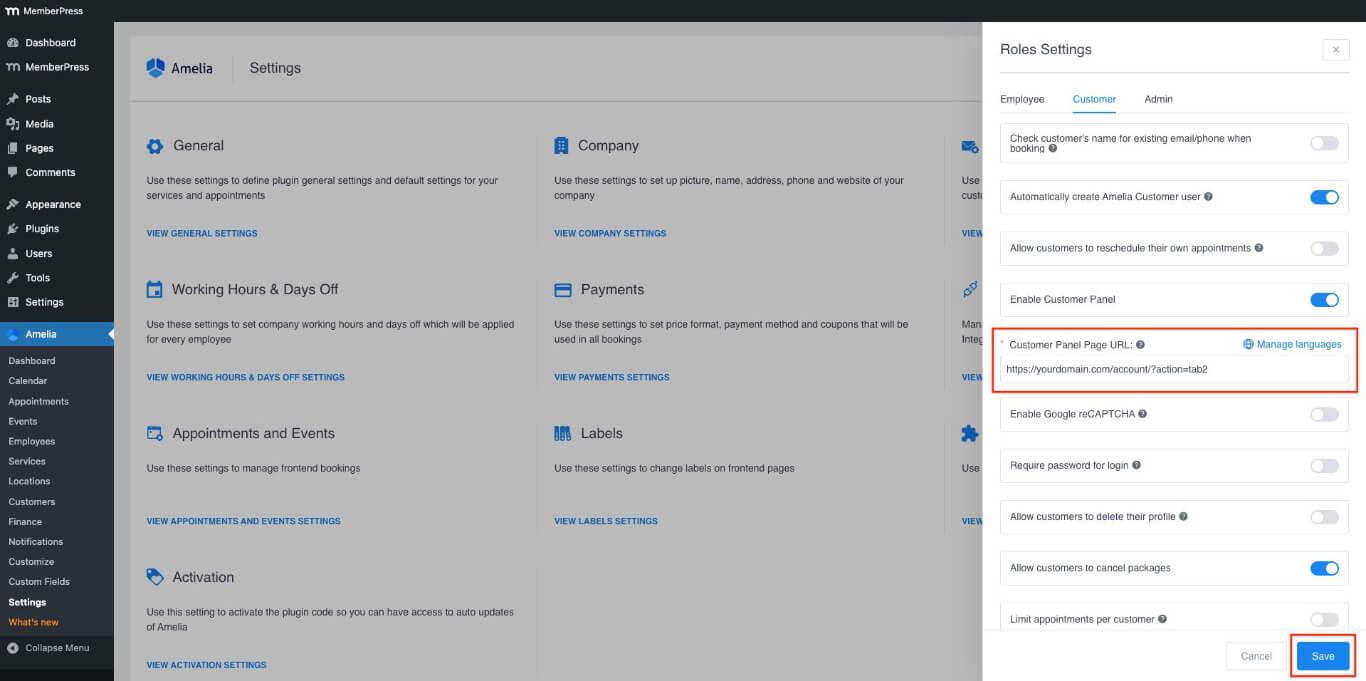
- Clique no botão Salvar botão.
Testando o painel frontal do Amelia
Após adicionar os painéis Amelia à página da conta, verifique a integração seguindo estas etapas:
- Abra seu site em um navegador Janela anônima (privada).
- Faça login com uma conta de teste que tenha a assinatura necessária e a reserva de evento/compromisso.
- Navegue até a seção Página da conta na parte frontal.
- Clique no botão Painel do Cliente guia na barra lateral esquerda.
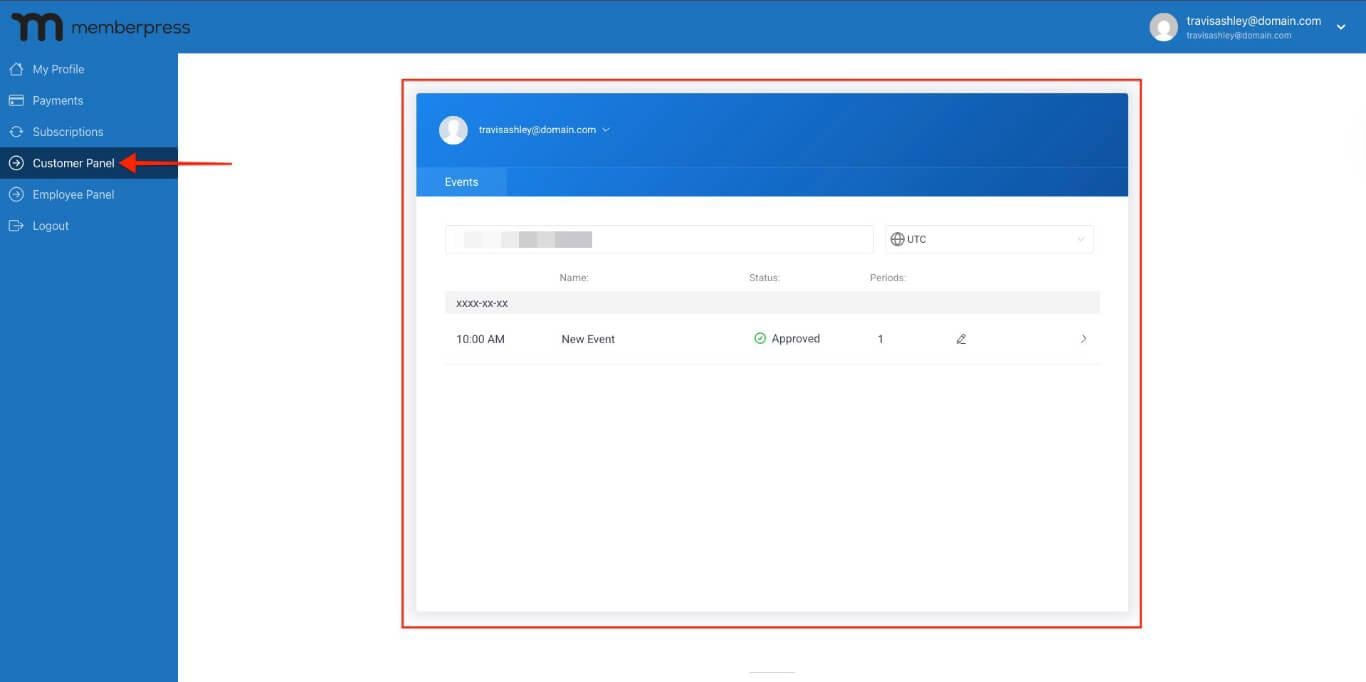
- Verifique se os compromissos e eventos são exibidos corretamente com base na configuração do código de atalho.
Restringindo a visibilidade da guia
Você pode gerenciar quais membros veem guias personalizadas com regras MemberPress. Por exemplo, você pode ocultar a Painel de Funcionários guia dos usuários com o Cliente Amelia função. Para configurar as definições de visibilidade, crie um novo Regra MemberPress para proteger as guias.










 PT
PT  EN
EN  ES
ES  FR
FR  DE
DE 