

Você pode aplicar automaticamente um cupom MemberPress a todos os níveis de assinatura. Dessa forma, os membros não precisam procurar, copiar e colar os cupons eles mesmos. Para fazer isso, você pode: adicionar um trecho de código que preencherá os códigos dos cupons para eles.
Este guia explica como adicionar o trecho de código e ajustá-lo para usar seu Cupons MemberPress.
Adicionando o trecho de código
Você pode adicionar o trecho de código diretamente ao arquivo functions.php do seu tema filho. No entanto, é recomendável adicioná-lo por meio de um plugin de trechos de código, como o Código WPC.
Siga as etapas abaixo para instalar o plugin WPCode e adicionar o trecho de código:
- Navegue até a seção Painel > Plugins > Adicionar Plugin.
- Procurar por Código WPC e localize o plugin.
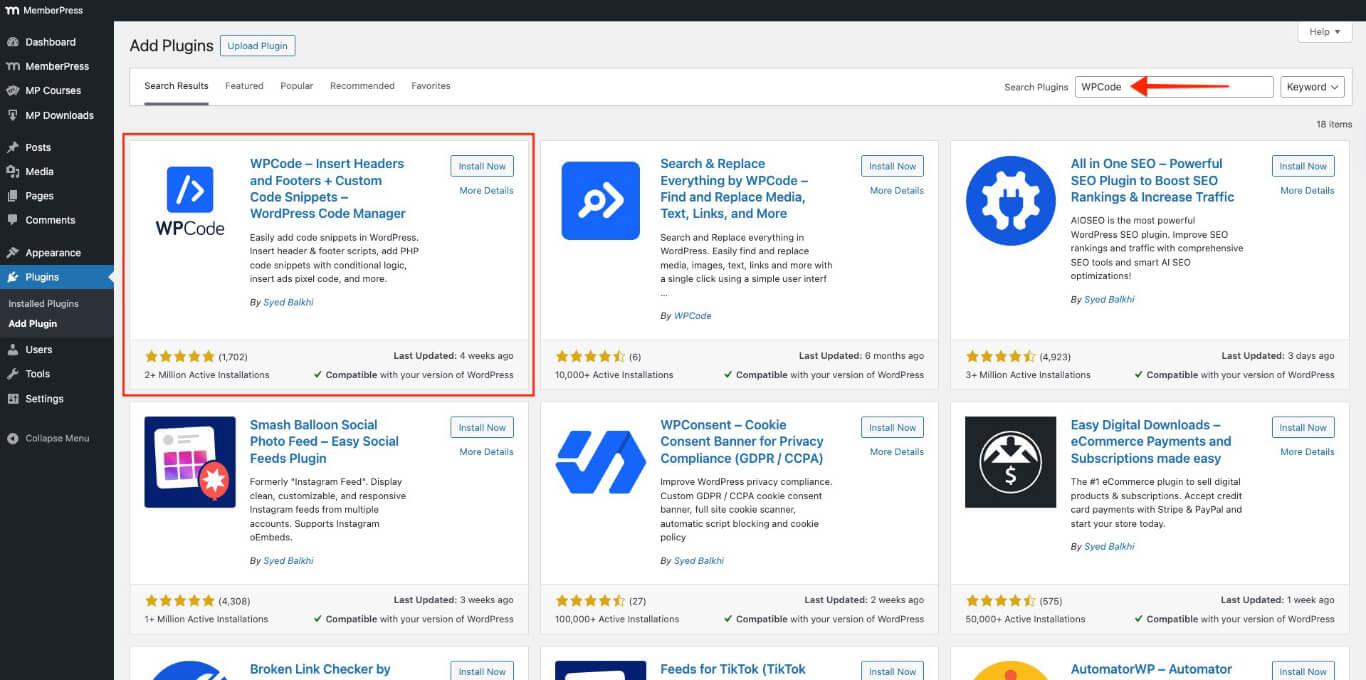
- Clique no botão Instalar agora botão.
- Clique no botão Ativar botão.
- Vá para Painel > Trechos de código > Adicionar trecho > Adicione seu código personalizado (novo trecho).
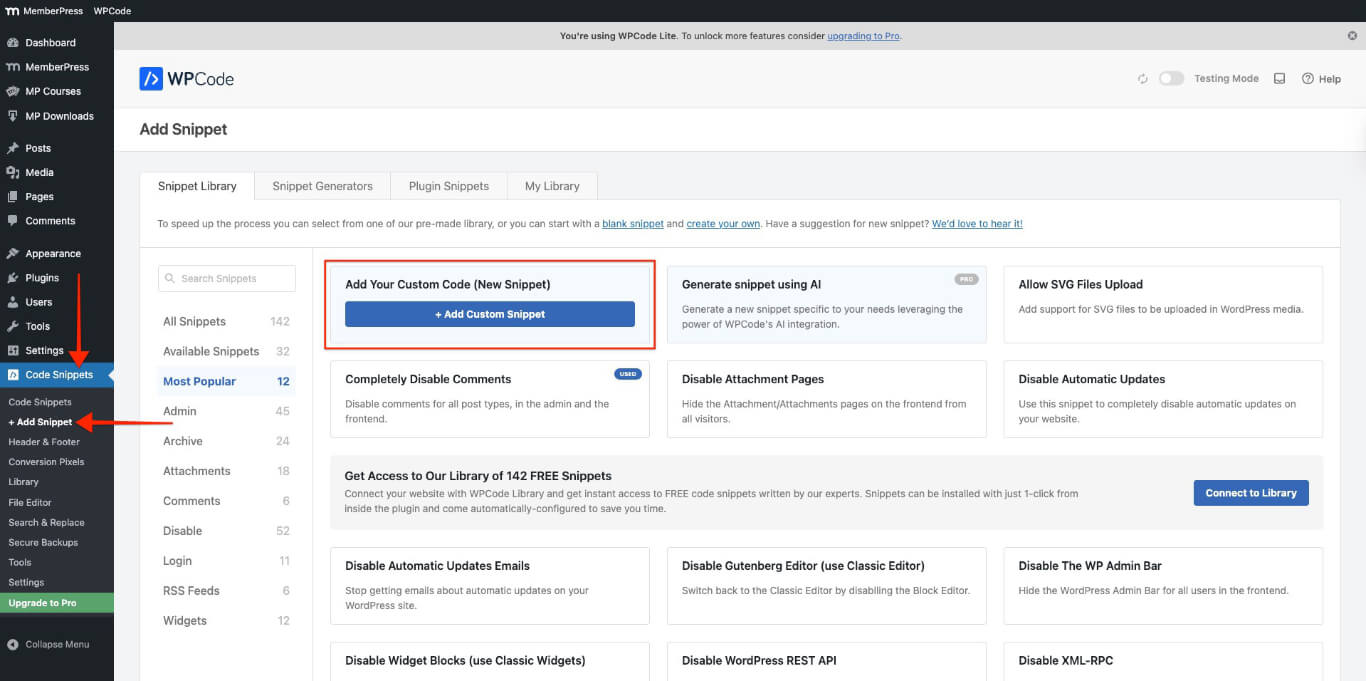
- Clique no botão + Adicionar trecho personalizado botão.
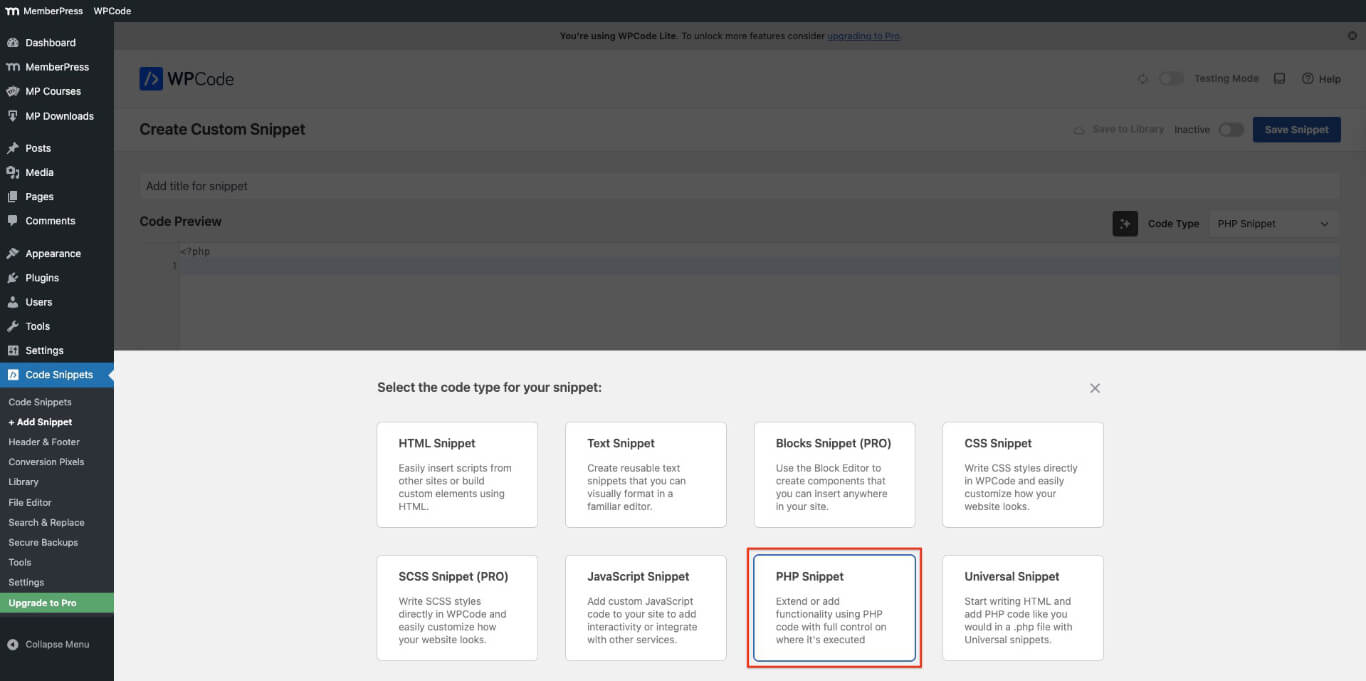
- Escolha Snippet de PHP.
- Adicione um título para o trecho e cole o seguinte código no Pré-visualização do código seção.
// Preenchimento automático dos códigos do cupom de registro MemberPress
função mepr_auto_populate_coupon() {
?>
<script>
document.addEventListener('DOMContentLoaded', função() {

  // Aguarde a inicialização dos scripts MemberPress
  setTimeout(função() {

    var c = document.querySelector('.mepr_coupon input.mepr-coupon-code');
    if (c) {

      // Cole o cupom abaixo para substituir 'SEU CUPOM'
      c.valor = 'SEU CUPOM';

      // Acionar todos os eventos relevantes para MemberPress
      ['input', 'keyup', 'change', 'blur'].forEach(função(evtName) {
        var evt = novo Evento(nomeDoEvento, { bolhas: verdadeiro });
        c.dispatchEvent(evt);
      });
    }

  }, 300);
});
</script>
<?php
}
add_action( 'wp_head', 'mepr_auto_populate_coupon' );
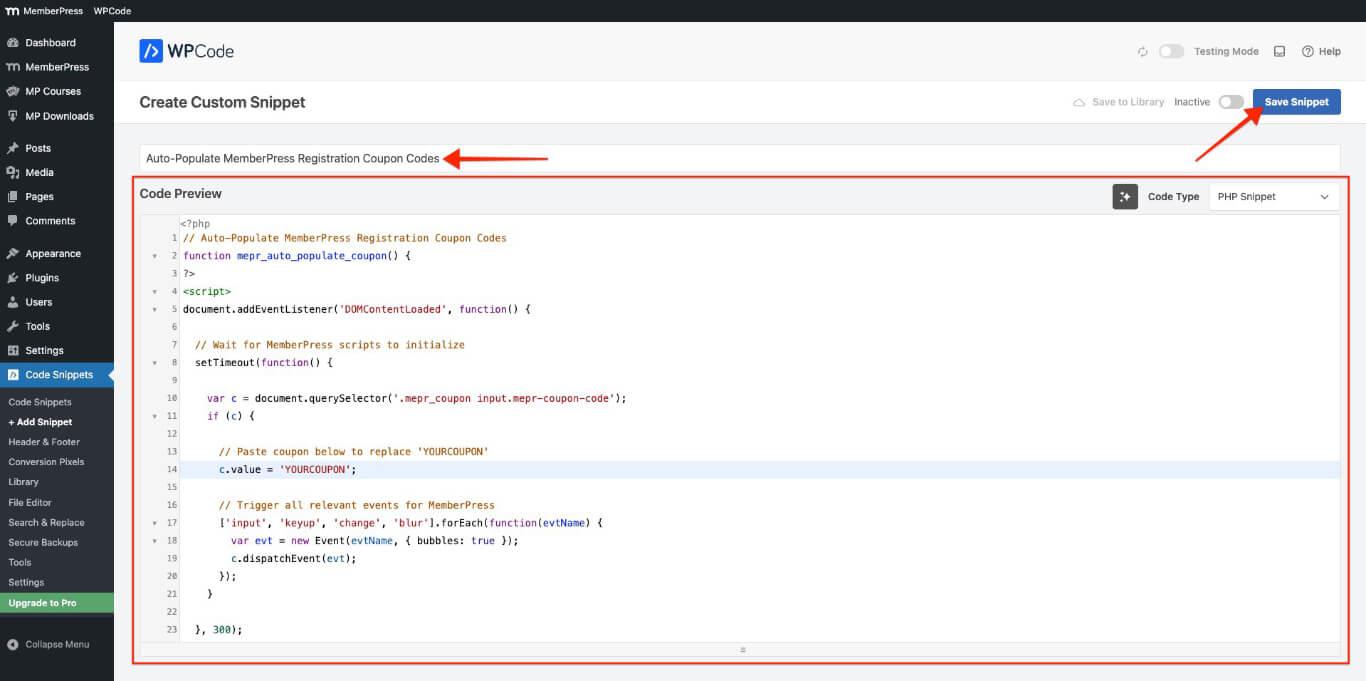
- Clique no botão Salvar trecho botão.
Ajustando e ativando o trecho de código
Siga estas etapas para ajustar e ativar o trecho de código para carregar automaticamente o código do cupom.
- Navegue até Painel > MemberPress > Cupons.
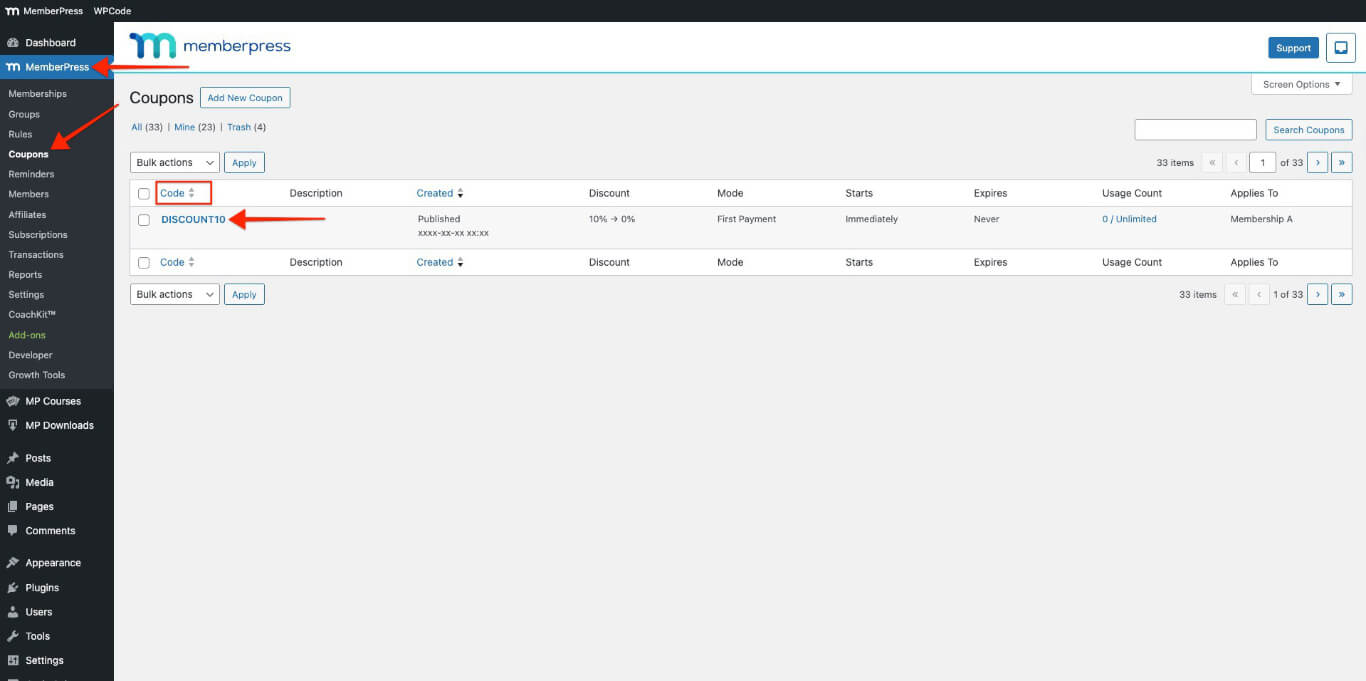
- Copie o código do cupom da Código coluna. Se você não tiver um cupom, criar um novo.
- Navegue até Painel > Trechos de código.
- Clique no trecho de código que foi adicionado no seção anterior.
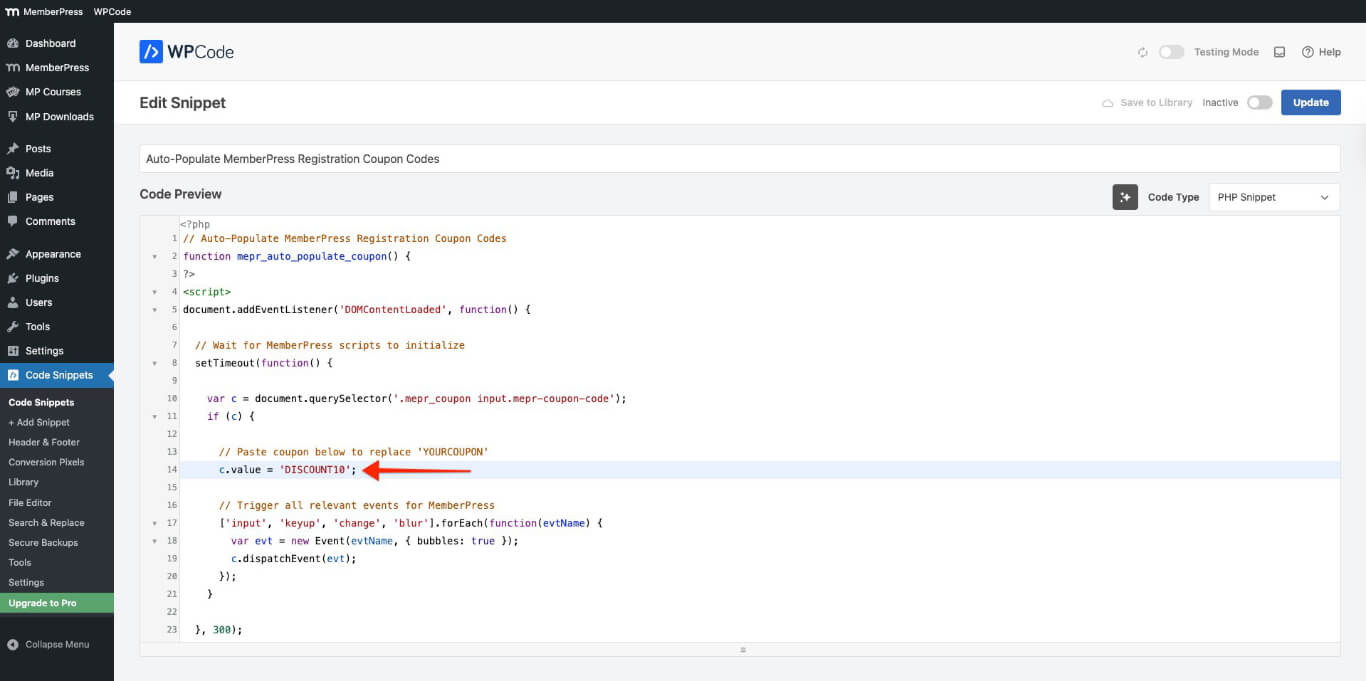
- Substituir SEU CUPOM no trecho de código com o código que você deseja usar na linha de código seguinte. Aqui está um exemplo de como substituir “SEU CUPOM” com “DESCONTO10.”
// Cole o cupom abaixo para substituir 'SEU CUPOM'
      c.valor = 'DESCONTO10';
- Ative o snippet.
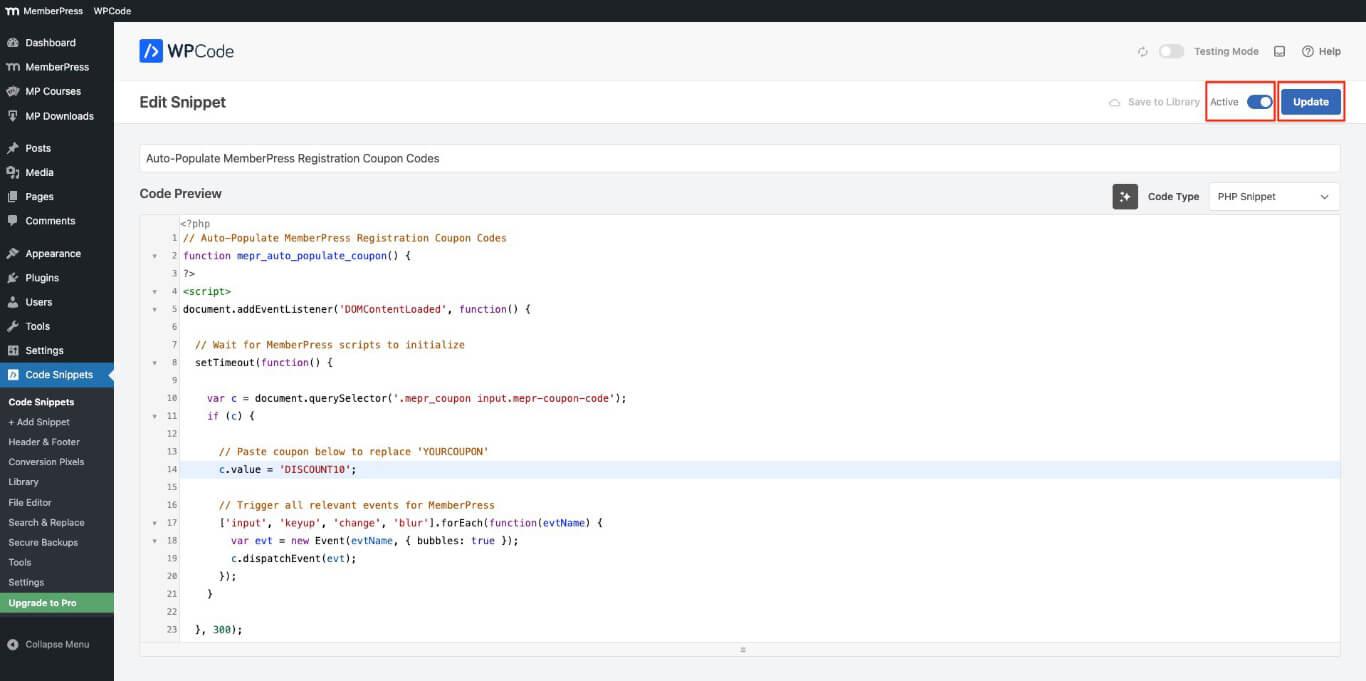
- Clique no botão Atualização botão.
Testando os códigos de cupom durante o registro
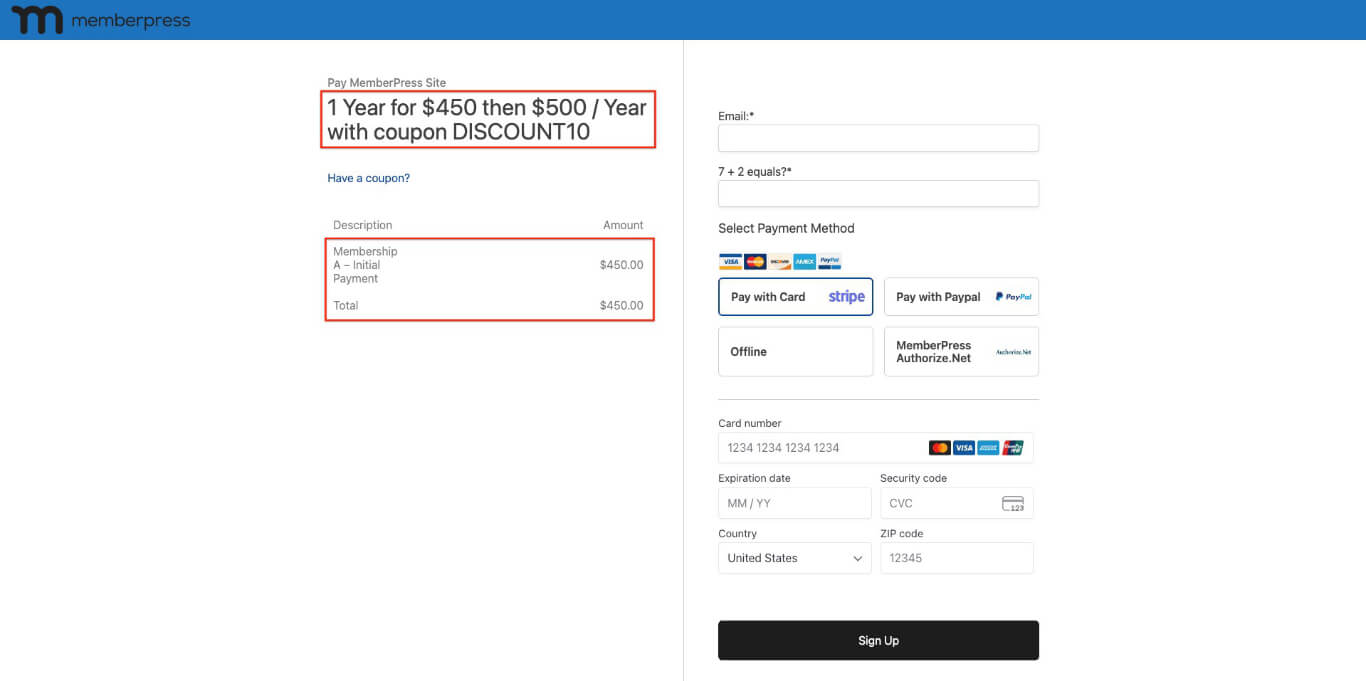
O código do cupom adicionado no trecho de código deve ser preenchido automaticamente nos formulários de registro. Para testá-lo, siga as etapas abaixo.
- Abra qualquer assinatura a partir de Painel de controle > MemberPress > Associações em um Janela anônima (privada) no seu navegador.
- Verifique o valor da fatura e o valor total para garantir que o cupom seja aplicado automaticamente.
Aplicando códigos promocionais automaticamente no registro
O trecho de código aplica automaticamente um único código de cupom a todos os níveis de assinatura do site. Isso facilita a inscrição, eliminando a necessidade de os usuários inserirem o código manualmente.
Por padrão, o campo do cupom fica oculto nos formulários de registro MemberPress. Os usuários veem um “Tenha um código de desconto”link; ao clicar nele, é exibido um campo de entrada para o código do cupom. Você pode adicionar um trecho de código para expandir automaticamente o campo do cupom em todos os formulários de registro MemberPress. Isso garante que os usuários vejam o campo sem clicar em um link.
Para campanhas específicas ou níveis de adesão, os administradores do site podem aplicar diferentes cupons usando um parâmetro de URL. Isso significa que os usuários podem ter diferentes cupons aplicados automaticamente com base no link em que clicam para se registrar.
Além disso, O WPCode permite lógica condicional para controlar quando e para quem o código do cupom é aplicado. Você pode definir condições para garantir que o cupom se aplique apenas a usuários conectados ou àqueles com uma assinatura específica.










 PT
PT  EN
EN  ES
ES  FR
FR  DE
DE 