

Os App Links para Android possibilitam uma integração profunda entre o aplicativo móvel e o site, permitindo que os membros abram URLs específicos diretamente no aplicativo. A configuração dos App Links cria experiências móveis perfeitas e garante que os links de conteúdo da comunidade sejam abertos no contexto correto.
Este documento explica como obter impressões digitais de certificados, ativar App Links e verificar a configuração.
Noções básicas sobre links de aplicativos Android
Os links de aplicativos Android conectam URLs de sites a telas de aplicativos específicos. Quando os membros tocam nos links em dispositivos Android, o conteúdo é aberto no aplicativo e não em um navegador da Web. Esse comportamento cria transições perfeitas entre as experiências na Web e no aplicativo.
Obtenção da impressão digital do certificado SHA-256
A recuperação da impressão digital do certificado do Google Play Console permite a verificação de links de aplicativos.
- Faça login no Google Play Console em play.google.com/console com a conta de desenvolvedor do Google.
- Navegue até Todos os aplicativos no console.
- Selecione o aplicativo na lista de aplicativos.
- Clique no botão Teste e liberação guia.
- Navegue até Integridade do aplicativo > Assinatura do aplicativo.
- Localize o Impressão digital do certificado SHA-256 para a chave de assinatura do aplicativo.
- Copie o valor da impressão digital do certificado SHA-256.
O valor da impressão digital do certificado será usado na configuração das definições do aplicativo MemberPress.
Ativação de links de aplicativos Android
A ativação do App Links ocorre por meio da configuração das Configurações do Android.
- Navegue até Painel de controle > MP AppKit > Configurar > Configurações do Android.
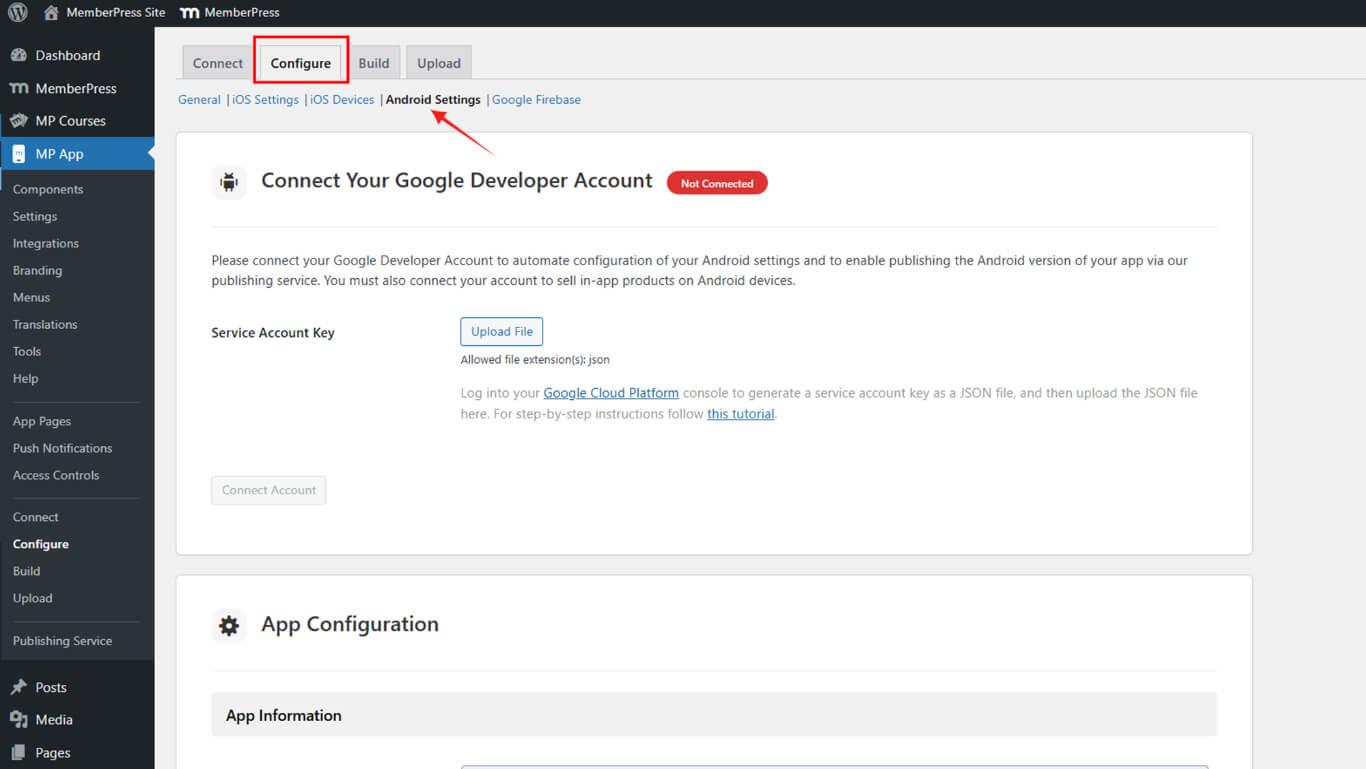
- Role até o Link do aplicativo para Android seção.
- Verifique o Ativar links de aplicativos Android caixa de seleção.
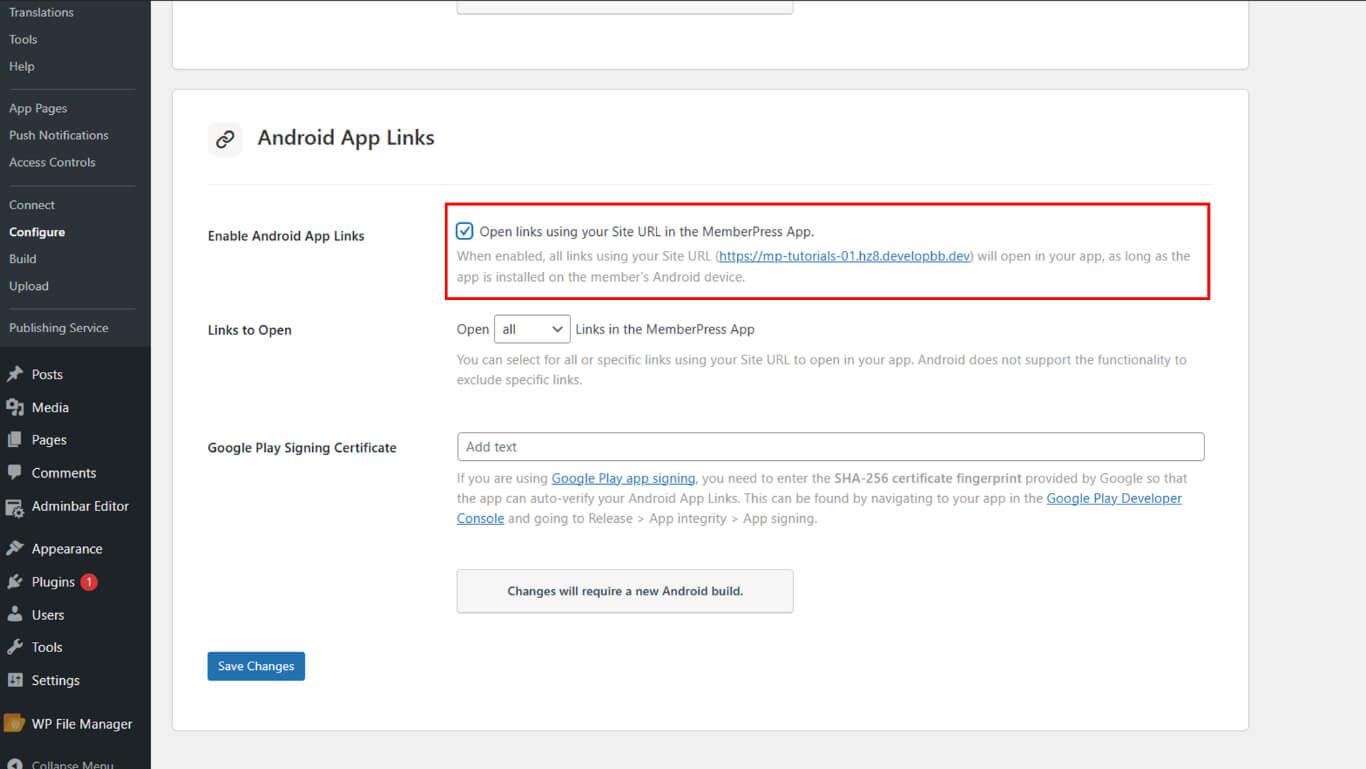
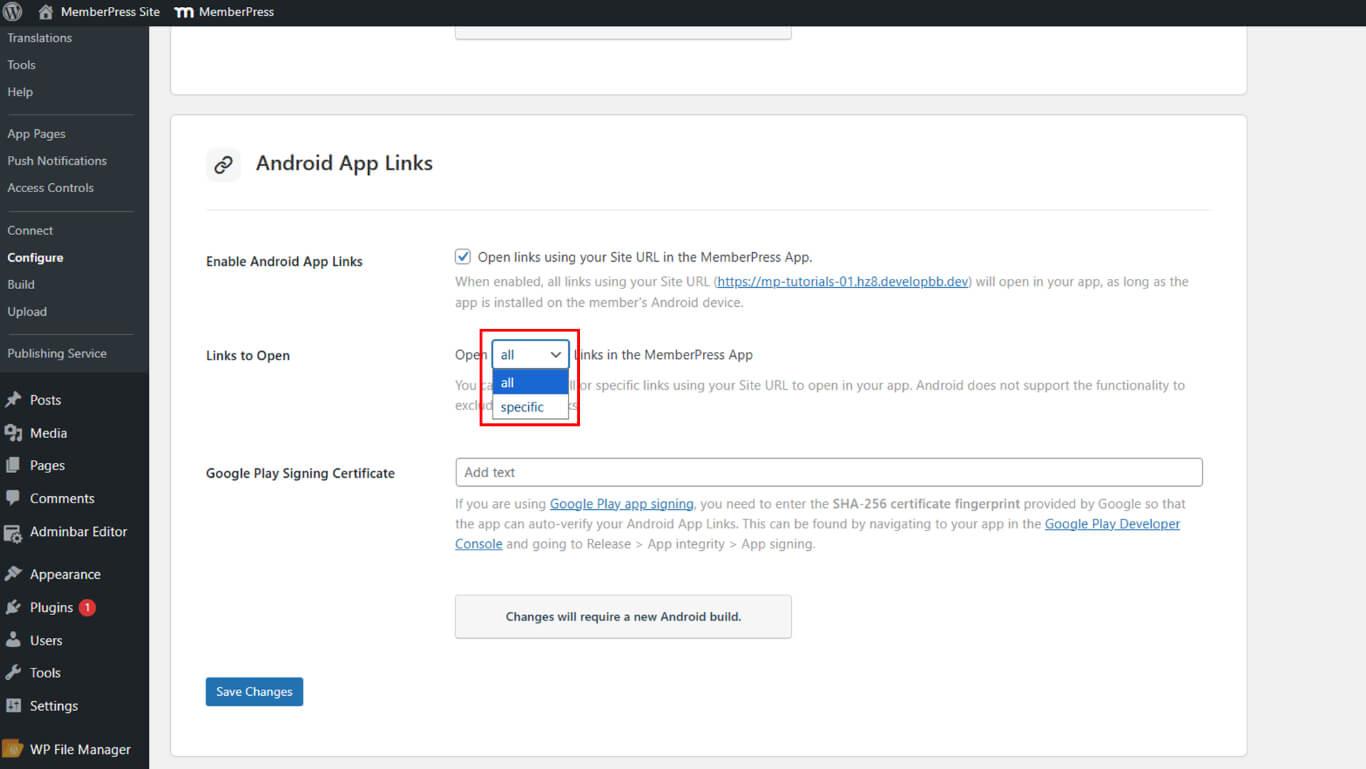
- Localize o Links para abrir opção.
- Selecione a preferência de tratamento de links:
- Todos para abrir todos os links de sites no aplicativo;
- Links específicos para abrir apenas URLs selecionados no aplicativo.
- Cole a impressão digital do certificado SHA-256 no campo Certificado de assinatura do Google Play campo.
- Clique em Salvar alterações.
- Navegue até Painel de controle > MP AppKit > Construir.
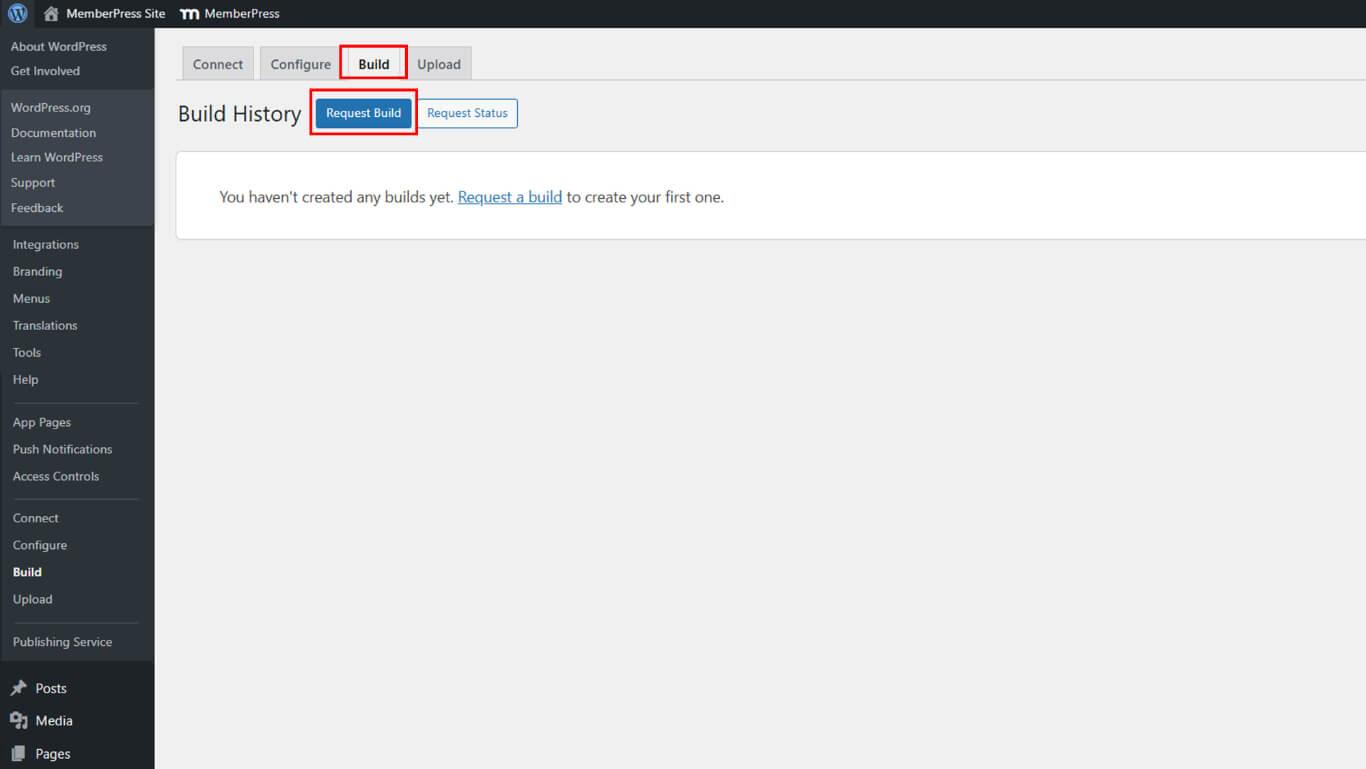
- Solicite uma nova compilação do Android para aplicar a configuração do App Links.
Verificação do arquivo JSON de links de ativos
A verificação do arquivo JSON do Asset Links confirma a configuração adequada do App Links.
- Abra um navegador da Web em qualquer dispositivo.
- Navegue até https://yourdomain.com/.well-known/assetlinks.json/, substituindo yourdomain.com com o URL real do site.
- Verifique se a resposta JSON é exibida no navegador.
- Confirmar que o JSON inclui uma entrada com a impressão digital do certificado SHA-256.
- Verifique se o nome do pacote aparece na estrutura JSON.
- Verifique se todas as chaves de assinatura de aplicativos adicionadas aparecem no arquivo.
Uma resposta JSON válida confirma que o Android pode verificar a associação de links de aplicativos entre o site e o aplicativo.










 PT
PT  EN
EN  ES
ES  FR
FR  DE
DE 