

A configuração do aplicativo Android requer a configuração do ID do aplicativo, a geração do certificado do KeyStore e o registro do ID do aplicativo no Google Play Console. Este documento explica como configurar o ID do aplicativo, gerar e importar certificados do KeyStore e registrar o ID do aplicativo.
Compreensão dos requisitos de ID do aplicativo
O ID do aplicativo identifica de forma exclusiva o aplicativo na Google Play Store. O ID do aplicativo deve consistir em pelo menos dois segmentos separados por pontos, seguindo regras de formatação específicas. A configuração adequada do ID do aplicativo evita conflitos com outros aplicativos.
Os requisitos de formatação do ID do aplicativo incluem:
- Pelo menos dois segmentos separados por pontos;
- Cada segmento começa com uma letra;
- Contém apenas letras, números e sublinhados;
- Não utilizado por nenhum outro aplicativo no Google Play;
- As compilações de teste acrescentam .test ao ID do aplicativo.
Configuração do ID do aplicativo
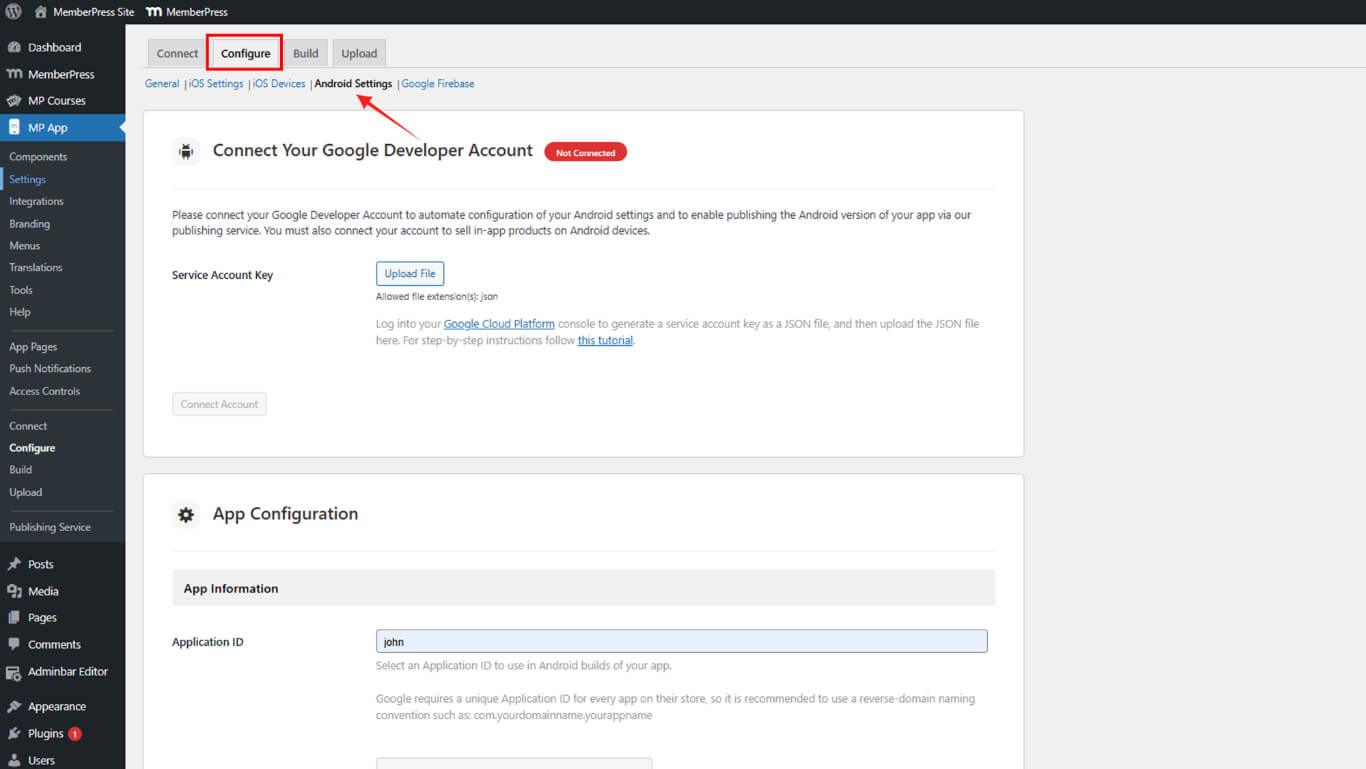
A configuração do ID do aplicativo ocorre nas configurações do Android.
- Navegue até Painel de controle > MP AppKit > Configurar > Configurações do Android.
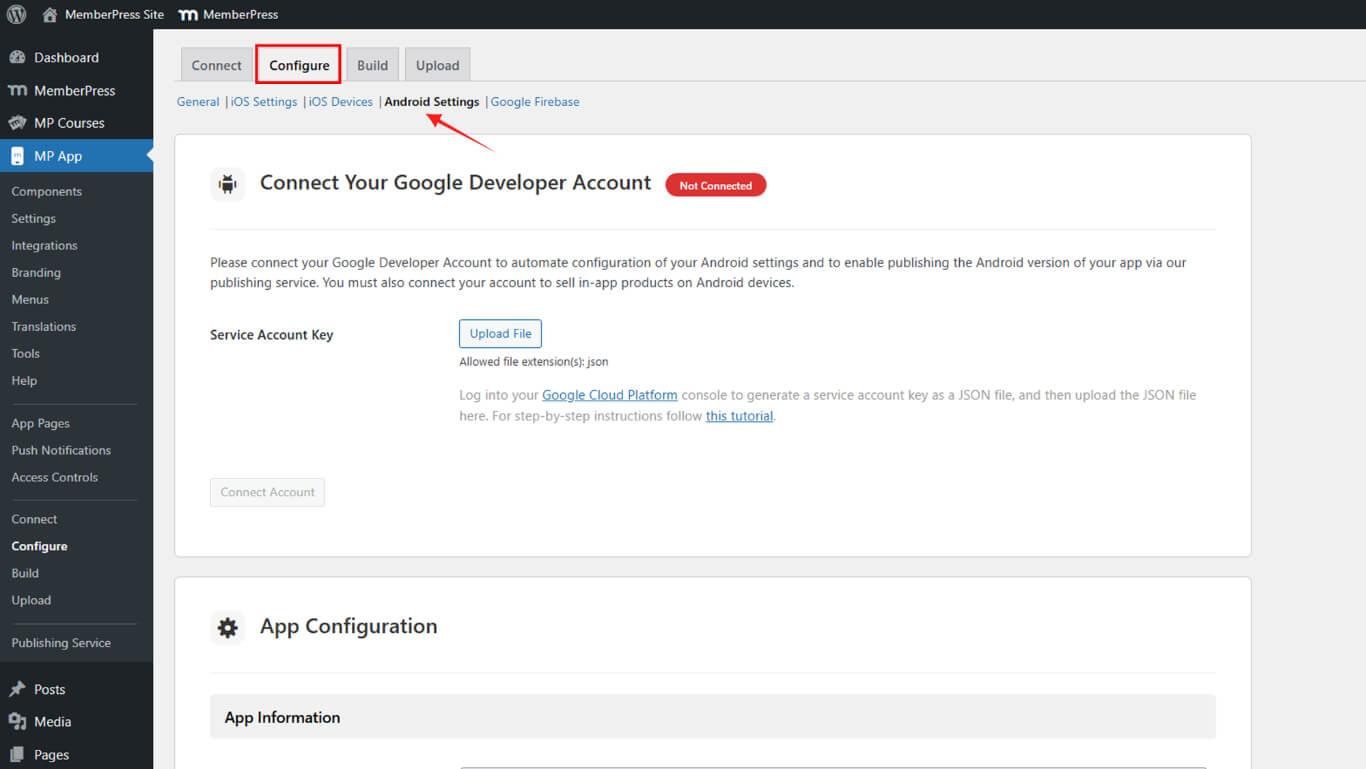
- Localize o Configuração do aplicativo seção.
- Digite o ID do aplicativo escolhido no campo ID do aplicativo.
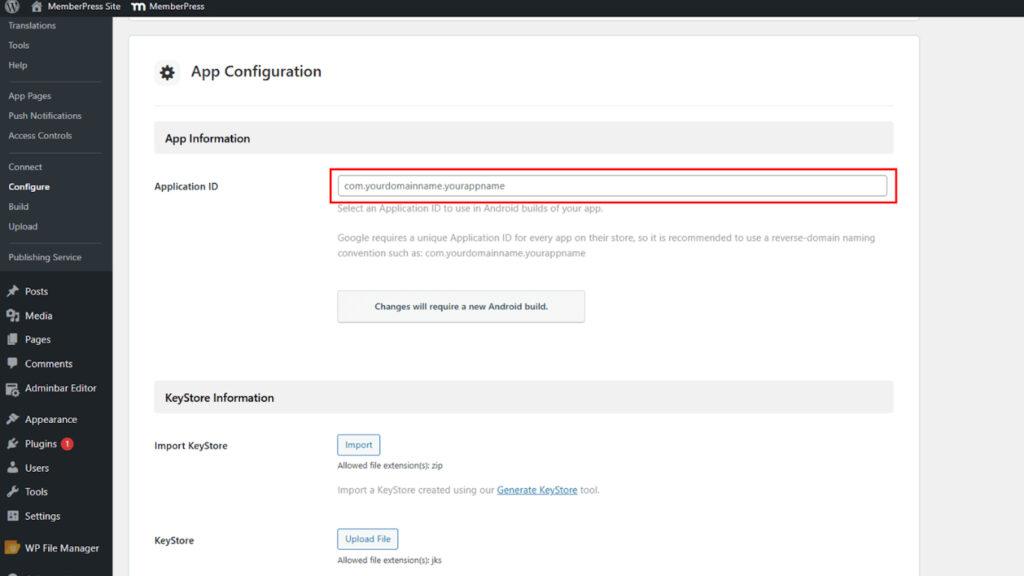
- Clique em Salvar alterações.
A reserva do ID do aplicativo ocorre por meio do registro no Google Play Console para evitar conflitos com outros aplicativos.
Geração do certificado do KeyStore
A geração de certificados do KeyStore cria o certificado de assinatura necessário para compilações de aplicativos Android.
- Navegue até Painel de controle > MP AppKit > Tools > Generate KeyStore.
- Digite um Senha do KeyStore no campo de senha.
- Digite um Alias do KeyStore no campo de alias ou deixe em branco para geração automática.
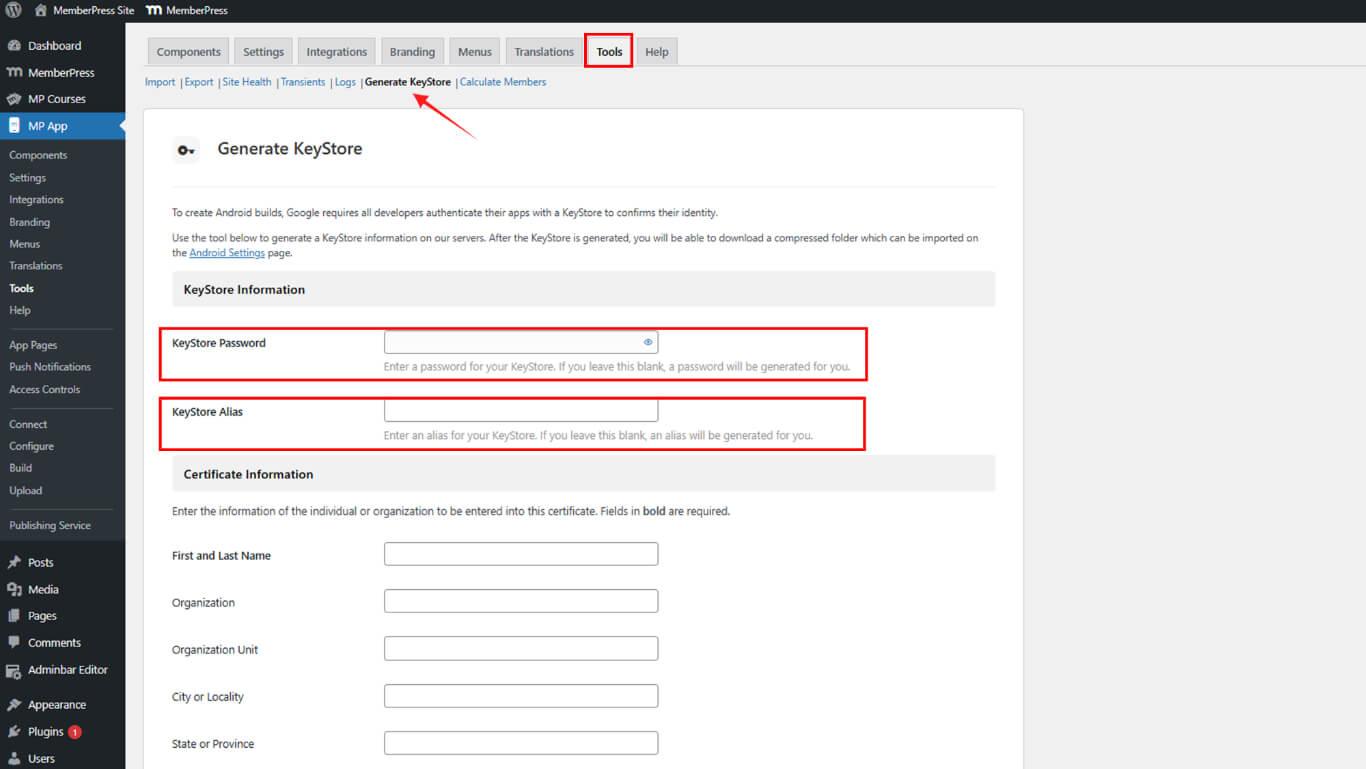
- Entrar Primeiro nome no campo do primeiro nome.
- Entrar Sobrenome no campo do sobrenome.
- Opcionalmente, insira Organização no campo da organização.
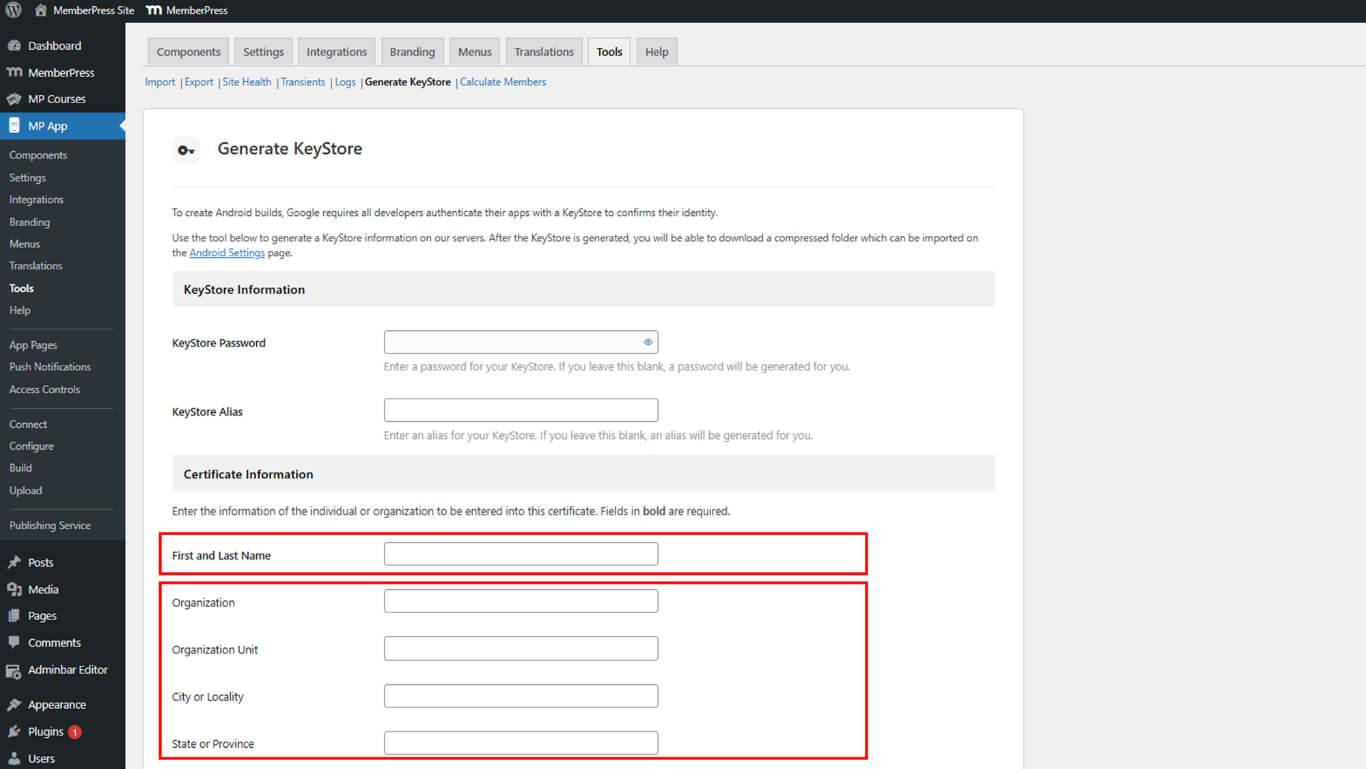
- Preencha os detalhes restantes do certificado conforme desejado.
- Clique em Gerar para criar o KeyStore.
- Marque a caixa de seleção de confirmação, reconhecendo a responsabilidade pelo backup do KeyStore.
- Clique em Baixar para salvar o arquivo ZIP que contém o KeyStore.
Importação do certificado do KeyStore
A importação do KeyStore adiciona o certificado gerado ao WordPress para assinatura de compilação.
- Navegue até Painel de controle > MP AppKit > Configurar > Configurações do Android.
- Localize o Informações do KeyStore seção.
- Clique em Importação para abrir o seletor de arquivos.
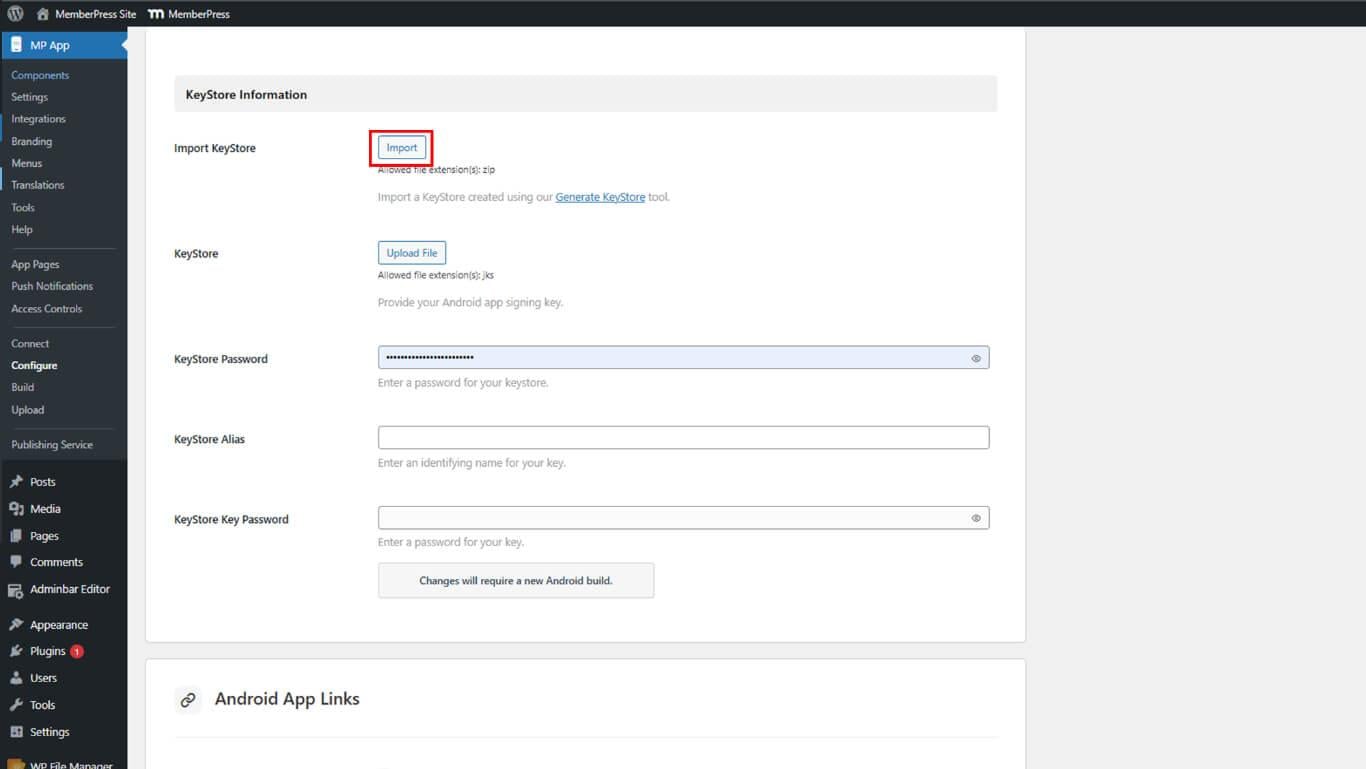
- Selecione o arquivo ZIP do KeyStore baixado.
- Clique em Salvar alterações para finalizar a importação.
Registro do ID do aplicativo no Google Play
O registro do ID do aplicativo reserva o identificador e impede que outros o reivindiquem.
- Gerar uma compilação do aplicativo de liberação em Painel de controle > MP AppKit > Construir.
- Faça login no Google Play Console em play.google.com/console.
- Navegue até Todos os aplicativos e selecione o aplicativo.
- Clique em Lançamento > Produção na barra lateral.
- Clique em Criar nova versão para começar a criar a versão.
- Localize o Pacotes de aplicativos seção.
- Clique em Carregar para abrir o seletor de arquivos.
- Selecione o arquivo AAB criado com o ID do aplicativo.
- Clique em Salvar para registrar o ID do aplicativo.










 PT
PT  EN
EN  ES
ES  FR
FR  DE
DE 