

O cache de API reduz as consultas ao banco de dados armazenando as respostas da API na memória de acesso rápido. Essa otimização acelera o tempo de carregamento de feeds, menus, páginas e conteúdo de associação.
Este documento explica como ativar o cache de API, verificar a instalação, definir as configurações de cache e solucionar problemas comuns de cache.
Entendendo o cache de API
O cache da API armazena dados acessados com frequência na memória, em vez de consultar o banco de dados do WordPress para cada solicitação. A primeira solicitação recupera os dados do banco de dados e os armazena em cache. As solicitações subsequentes servem os dados diretamente do cache, resultando em tempos de resposta mais rápidos e redução da carga do servidor.
Habilitando o componente de desempenho da API
O componente Desempenho da API deve ser ativado antes que a configuração do cache possa começar.
- Navegue até Painel de controle > MP AppKit > Componentes.
- Localizar Desempenho da API na lista de componentes.
- Clique em Ativar.
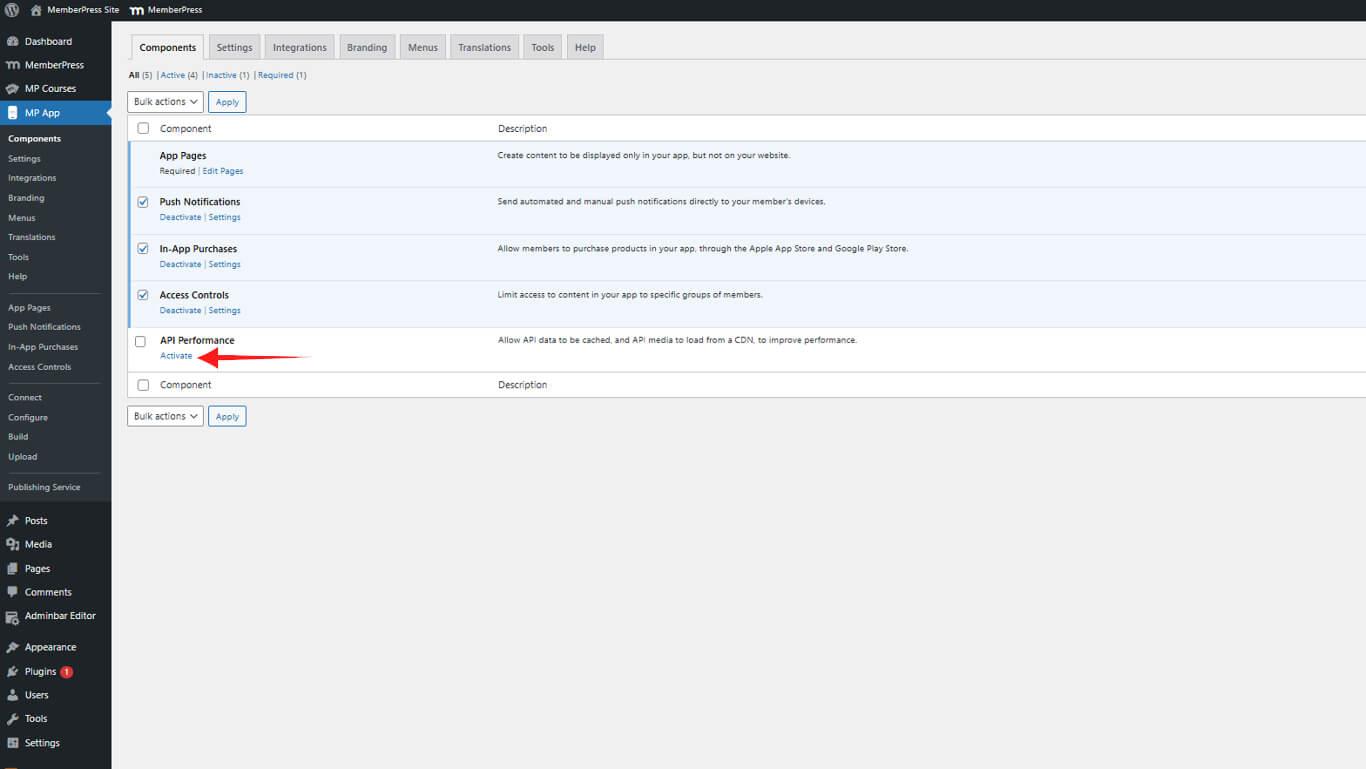
O componente API Performance oferece recursos de cache e outras funcionalidades de otimização para o aplicativo.
Verificando a instalação do plugin obrigatório
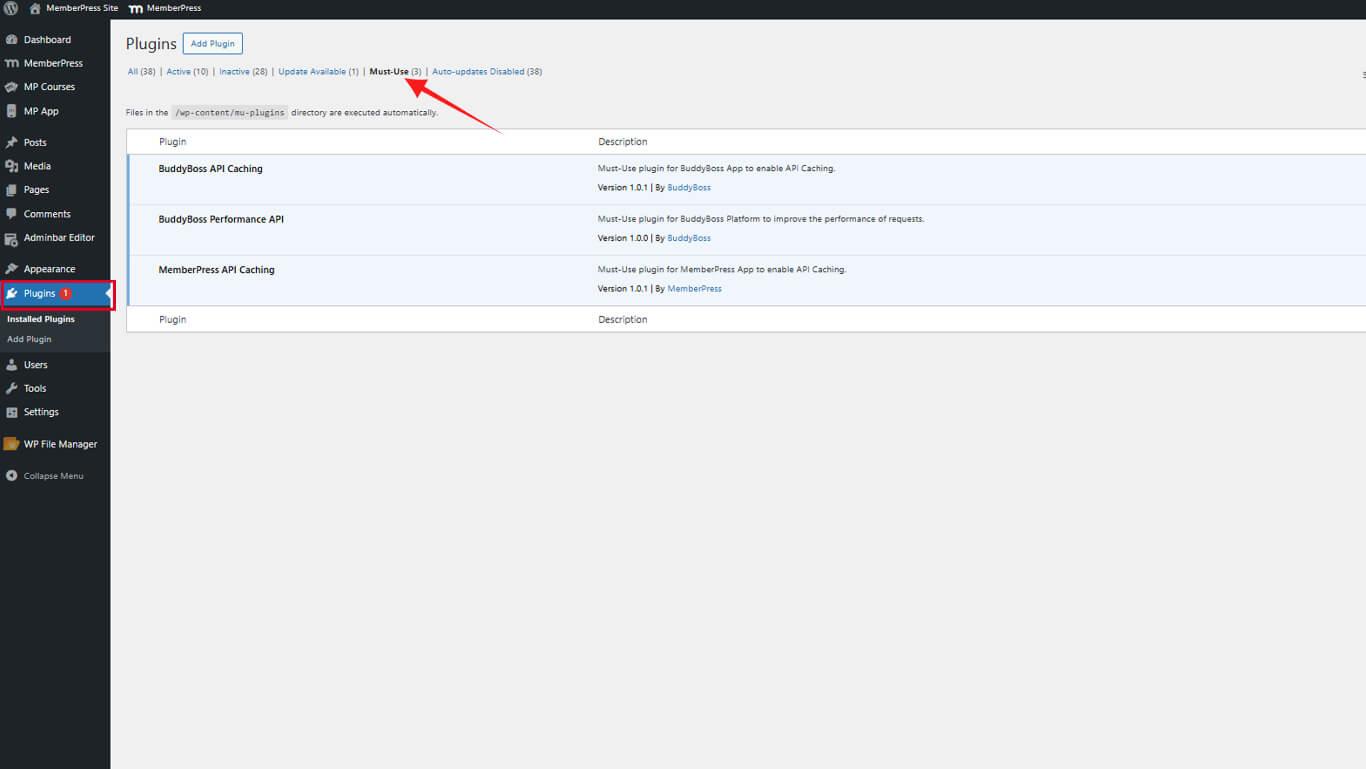
O API Caching requer um plugin obrigatório para funcionar corretamente. A verificação garante que o plugin esteja instalado corretamente.
- Navegue até Painel > Plugins > Indispensáveis.
- Confirme que Cache da API do MemberPress aparece na lista de plugins.
Configurando as definições do cache
As configurações de cache determinam quais tipos de conteúdo utilizam a funcionalidade de cache.
- Navegue até Painel de controle > MP AppKit > Configurações > Cache de API.
- Selecione as caixas de seleção para os tipos de conteúdo a serem armazenados em cache:
- MemberPress
- Páginas do aplicativo
- Publicações do blog
- Comentários do blog
- Categorias do blog
- Marcar como favorito
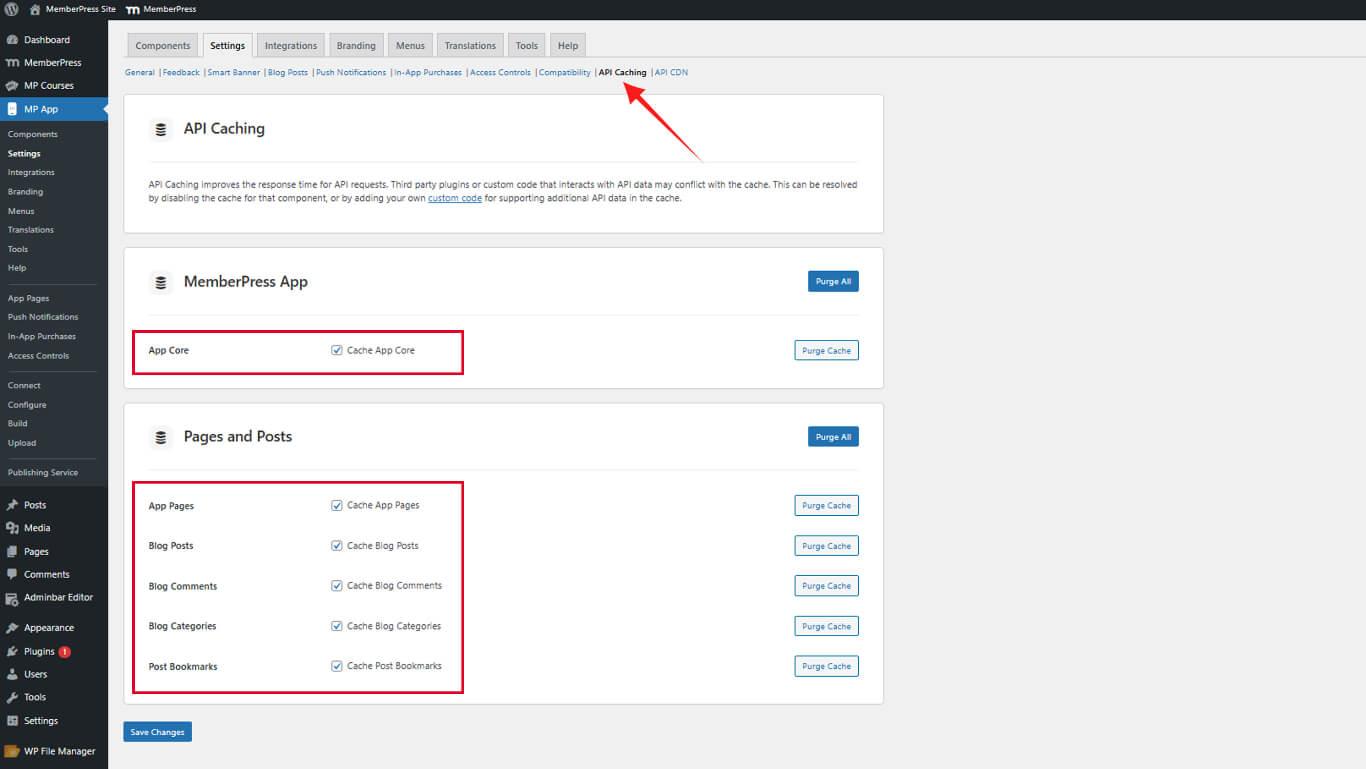
- Clique em Salvar alterações.
Gerenciando dados em cache
Os dados armazenados em cache devem ser eliminados quando ocorrerem atualizações de conteúdo para garantir que os usuários vejam as informações atuais.
Limpar itens individuais do cache
- Navegue até Painel de controle > MP AppKit > Configurações > Cache de API.
- Localize o tipo de conteúdo armazenado em cache que precisa ser eliminado.
- Clique em Limpar cache ao lado do item específico.
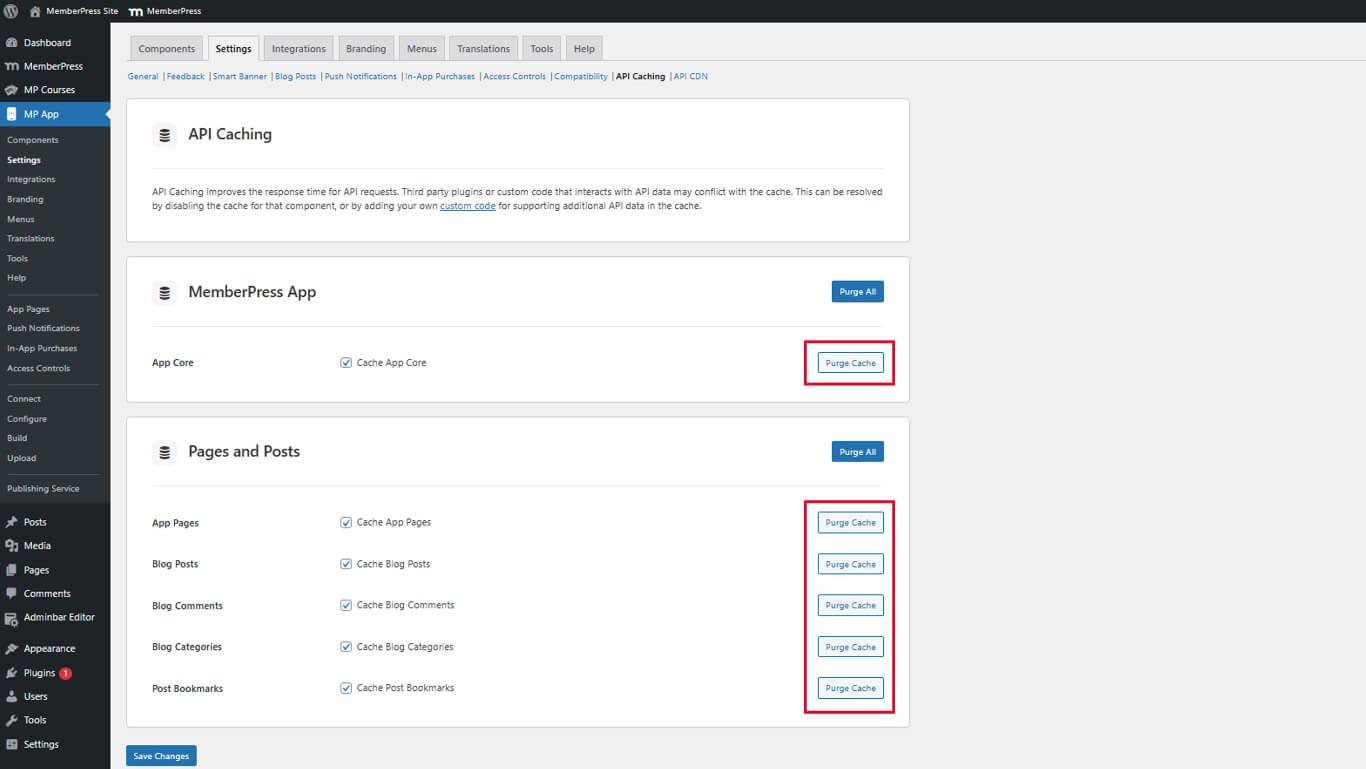
A limpeza individual do cache permite a limpeza seletiva sem afetar outros conteúdos armazenados em cache.
Limpar todos os dados armazenados em cache
- Navegue até Painel de controle > MP AppKit > Configurações > Cache de API.
- Clique em Limpar tudo na parte superior das configurações de cache.
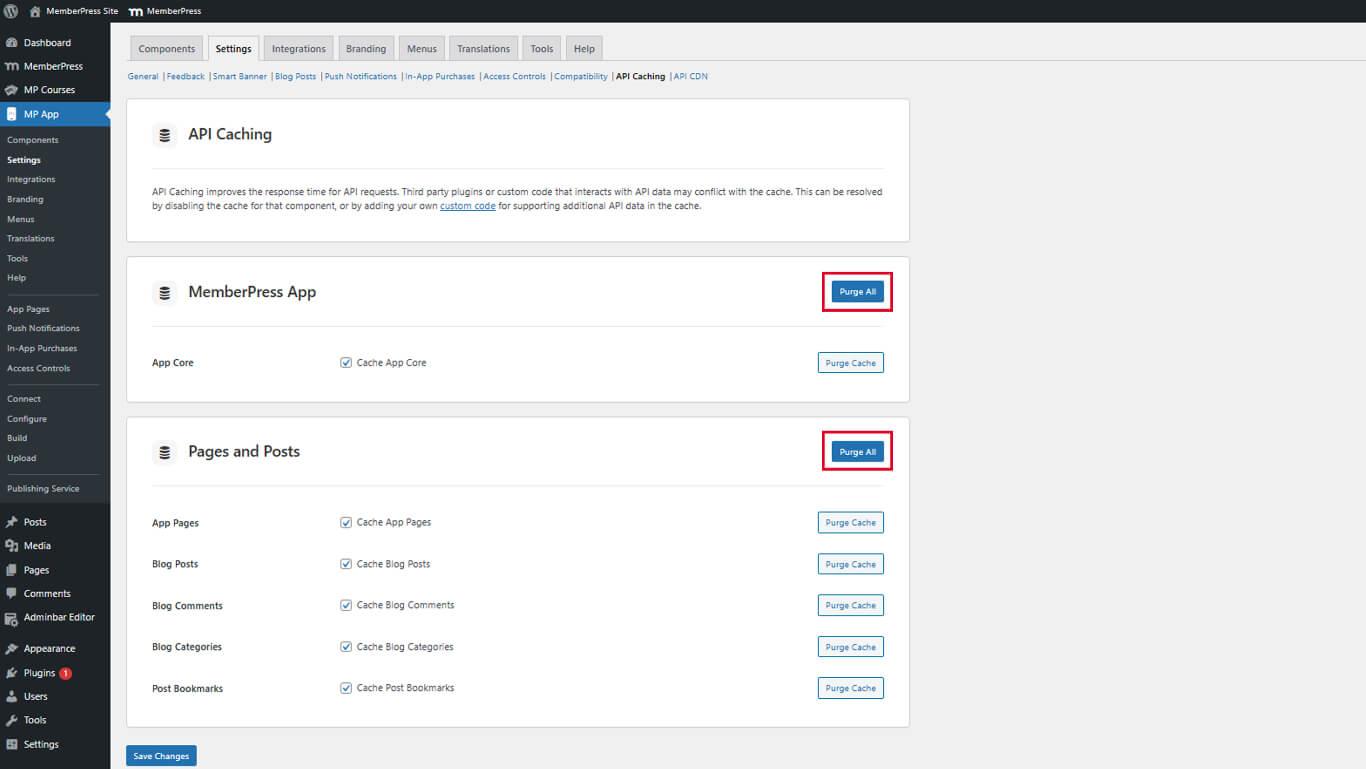
Todos os dados armazenados em cache são apagados imediatamente, e os novos dados são preenchidos na próxima solicitação da API.
Entendendo o comportamento do cache
O cache da API segue um fluxo de trabalho previsível que equilibra o desempenho com a atualização dos dados.
Processo de solicitação inicial
Quando um usuário solicita conteúdo em cache pela primeira vez:
- A API recebe a solicitação do aplicativo.
- A API consulta o banco de dados do WordPress para obter os dados solicitados.
- A API armazena a resposta no sistema de cache.
- A API retorna os dados ao usuário.
Esta solicitação inicial passa por tempos de consulta padrão do banco de dados.
Processo de solicitação subsequente
Depois que os dados são armazenados em cache, as solicitações futuras seguem um caminho otimizado:
- A API recebe a solicitação do aplicativo.
- A API recupera os dados diretamente da memória cache.
- A API retorna os dados armazenados em cache instantaneamente para o usuário.
As solicitações em cache são concluídas significativamente mais rápido do que as consultas ao banco de dados.
Limpeza automática do cache
O cache é limpo automaticamente quando ocorrem alterações no conteúdo:
- Novas postagens ou páginas são publicadas;
- Atualizações ou exclusões de conteúdo existente;
- Os níveis de adesão mudam;
- As configurações do plugin foram modificadas.
A limpeza automática garante que os usuários recebam dados atualizados sem intervenção manual.










 PT
PT  EN
EN  ES
ES  FR
FR  DE
DE 