

As cores consistentes da marca aprimoram o design do aplicativo, reforçam a identidade e melhoram a usabilidade. As configurações de cores do MemberPress AppKit permitem a personalização de planos de fundo, botões, elementos de navegação e destaques de conteúdo.
Este documento explica como configurar esquemas de cores para todas as seções do aplicativo e visualizar as alterações nas plataformas iOS e Android.
Entendendo a configuração de cores
As configurações de cor controlam a aparência visual em todo o aplicativo, incluindo planos de fundo, texto, botões, barras de navegação e elementos interativos. Cada configuração de cor afeta componentes específicos da interface. As visualizações em tempo real exibem as alterações de cor em modelos iOS e Android. A configuração adequada das cores garante a consistência da marca e mantém a legibilidade em diferentes contextos de tela.
Acessando as configurações de cor
Todas as configurações de cores são feitas na interface de cores da marca.
- Navegue até Painel de controle > MP AppKit > Branding > Cores.
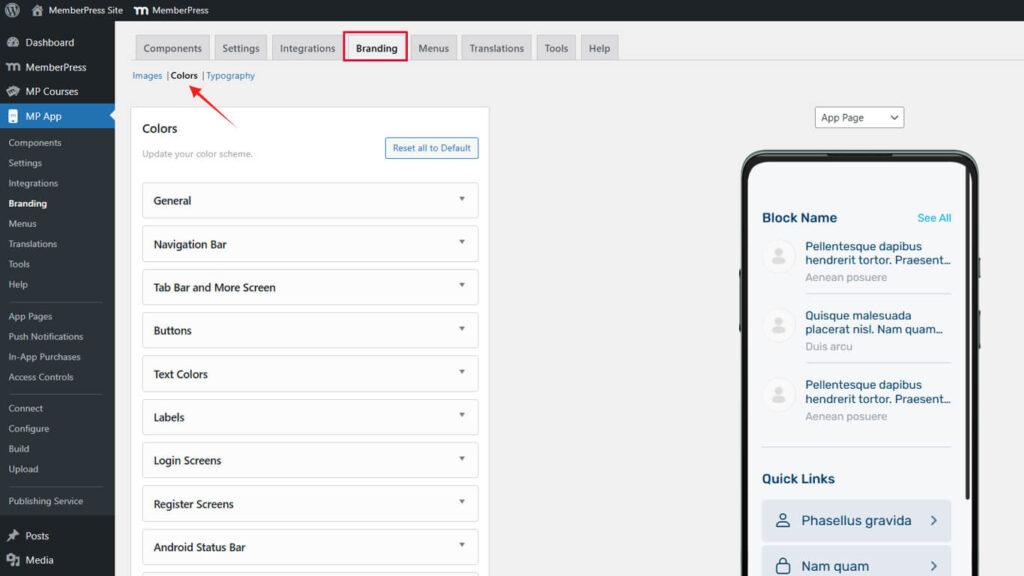
Configurando cores gerais
As cores gerais definem os elementos principais da interface em todo o aplicativo.
- Navegue até Painel de controle > MP AppKit > Branding > Cores.
- Localize o Geral seção.
- Clique no botão Cor de fundo amostra.
- Selecione uma cor usando o seletor de cores ou insira um código hexadecimal.
- Clique no botão Cor de fundo alternada amostra.
- Selecione uma cor contrastante para seções de conteúdo alternativo.
- Clique no botão Imagem colorida de fundo amostra.
- Selecione uma cor para os fundos dos espaços reservados para imagens.
- Clique no botão Cor da borda amostra.
- Selecione uma cor sutil para as bordas e divisórias dos elementos.
- Clique no botão Cor de destaque amostra.
- Selecione uma cor proeminente para destaques e ênfase.
As alterações são visualizadas imediatamente nas simulações da página do aplicativo, da página do diretório e da página do menu.
Compreender os objetivos gerais das cores
Cada cor geral tem funções específicas na interface.
Cor de fundo preenche as áreas e páginas de conteúdo principal. Essa cor deve proporcionar um contraste ideal com as cores do texto para facilitar a leitura.
Cor de fundo alternada diferencia seções ou cartões dentro das páginas. Essa cor deve contrastar sutilmente com o fundo principal, mantendo uma aparência coesa.
Imagem colorida de fundo exibe atrás das imagens durante o carregamento ou quando as imagens não estão disponíveis. Essa cor deve complementar o conteúdo típico da imagem sem criar transições discordantes.
Cor da borda define os limites e divisórias dos elementos. Esta cor deve ser suficientemente subtil para não se destacar, mas suficientemente visível para proporcionar estrutura.
Cor de destaque destaca elementos interativos e informações importantes. Essa cor deve se destacar de forma proeminente, ao mesmo tempo em que complementa o esquema de cores geral.
Personalizando as cores da barra de navegação
As cores da barra de navegação afetam os cabeçalhos do aplicativo e os elementos de navegação superiores.
- Navegue até Painel de controle > MP AppKit > Identidade visual > Cores.
- Localize o Barra de navegação seção.
- Clique no botão Cor de fundo amostra.
- Selecione uma cor para o fundo da barra de navegação.
- Clique no botão Cor do texto amostra.
- Selecione uma cor que garanta a legibilidade em relação ao fundo.
- Clique no botão Cor do link amostra.
- Selecione uma cor para os links de navegação e o texto interativo.
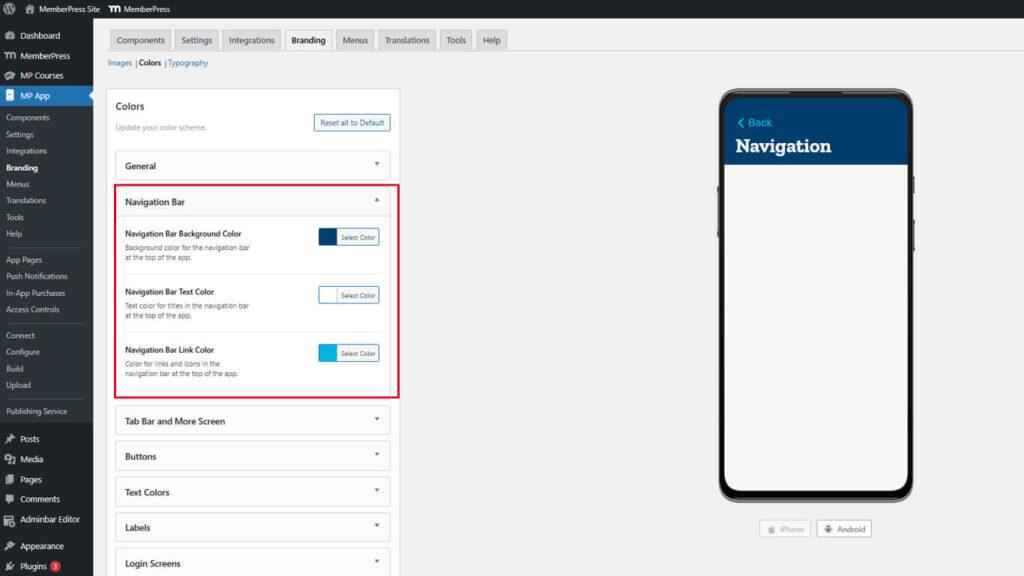
A pré-visualização da barra de navegação é atualizada imediatamente na maquete do cabeçalho.
Garantindo a legibilidade da navegação
As cores da navegação devem manter um contraste suficiente para garantir a acessibilidade.
Estilo da barra de guias e tela Mais
A barra de guias e as cores da tela controlam a aparência da navegação inferior e do menu de transbordamento.
- Navegue até Painel de controle > MP AppKit > Branding > Cores.
- Localize o Barra de guias e mais seção.
- Clique no botão Cor de fundo da barra de guias amostra.
- Selecione uma cor para o fundo da barra de guias.
- Clique no botão Cor padrão do ícone amostra.
- Selecione uma cor para os ícones de navegação inativos.
- Clique no botão Ícone Cor ativa amostra.
- Selecione uma cor proeminente para os ícones de navegação ativos.
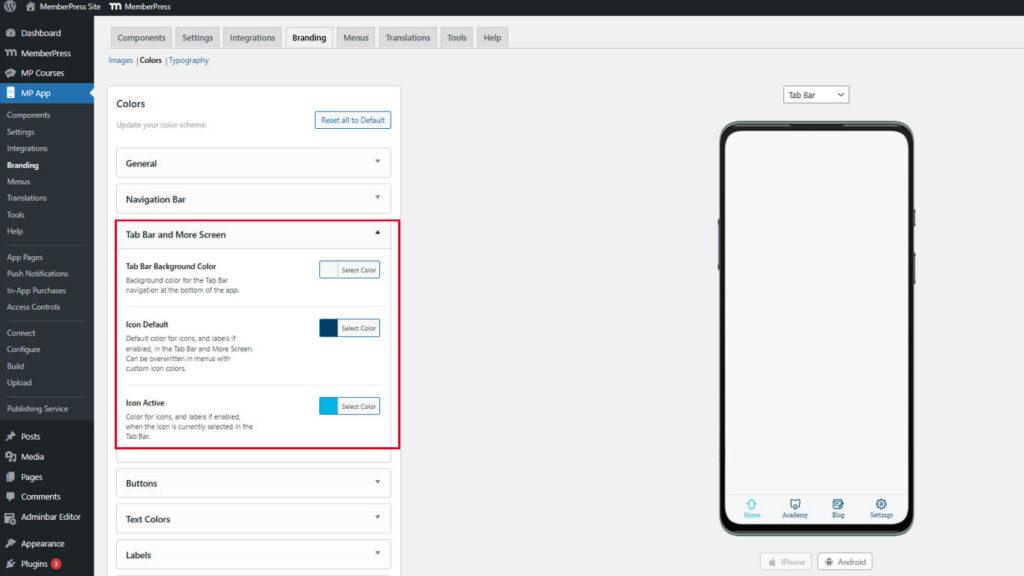
Atualização das pré-visualizações para mostrar a aparência da barra de guias com as cores selecionadas.
Diferenciando ícones ativos e inativos
As cores dos ícones devem indicar claramente o estado da navegação.
A cor do ícone ativo deve contrastar fortemente com a cor padrão para indicar a localização atual. Os membros devem reconhecer imediatamente qual seção estão visualizando. A diferenciação insuficiente causa confusão na navegação e uma experiência ruim para o usuário.
Personalizando estilos de botões
As cores dos botões definem a aparência dos elementos interativos em todo o aplicativo.
- Navegue até Painel de controle > MP AppKit > Branding > Cores.
- Localize o Botões seção.
- Clique no botão Cor de fundo do botão principal amostra.
- Selecione uma cor proeminente para os botões de ação principais.
- Clique no botão Cor do texto do botão principal amostra.
- Selecione uma cor contrastante para o texto do botão.
- Clique no botão Cor de fundo do botão secundário amostra.
- Selecione uma cor sutil para os botões de ação secundários.
- Clique no botão Cor do texto do botão secundário amostra.
- Selecione uma cor de texto apropriada para os botões secundários.
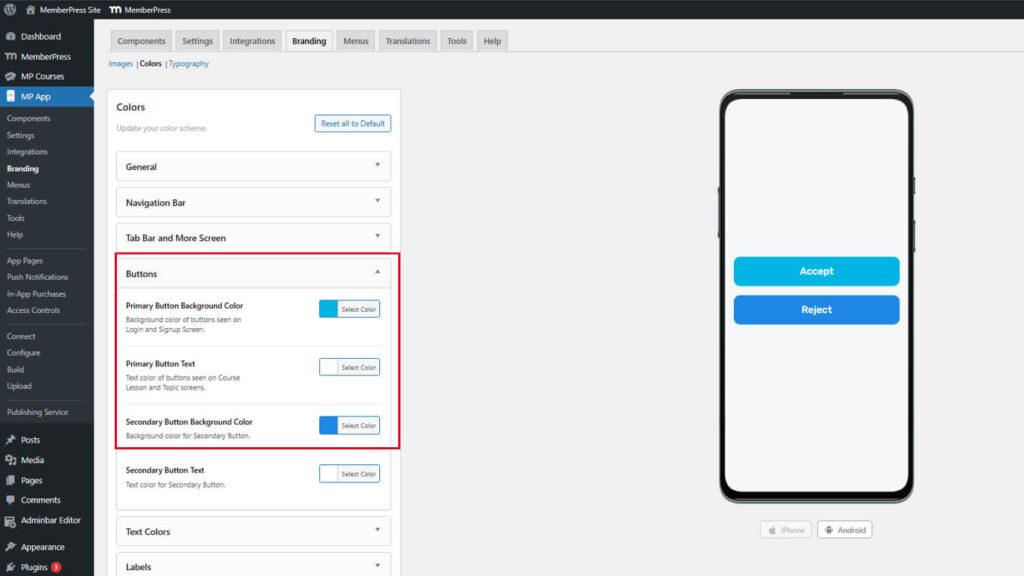
As atualizações da pré-visualização dos botões mostram como os botões aparecem em vários contextos.
Hierarquias de botões distintivas
Os botões primários e secundários devem indicar claramente a importância da ação.
Os botões primários representam as principais ações, como “Comprar”, “Enviar” ou “Continuar”. Esses botões devem usar cores fortes e que chamem a atenção. Os botões secundários representam ações alternativas, como “Cancelar” ou “Voltar”. Esses botões devem usar cores mais discretas que complementem, mas não concorram com os botões primários.
Ajustando as cores do texto
As cores do texto controlam a legibilidade e a hierarquia do conteúdo em todo o aplicativo.
- Navegue até Painel de controle > MP AppKit > Branding > Cores.
- Localize o Cores do texto seção.
- Clique no botão Cor do texto do título amostra.
- Selecione uma cor proeminente para os títulos e cabeçalhos das seções.
- Clique no botão Cor do texto do corpo amostra.
- Selecione uma cor de fácil leitura para o texto do conteúdo principal.
- Clique no botão Cor do texto da descrição amostra.
- Selecione uma cor ligeiramente suave para descrições complementares.
- Clique no botão Cor do texto meta amostra.
- Selecione uma cor sutil para carimbos de data/hora e metadados.
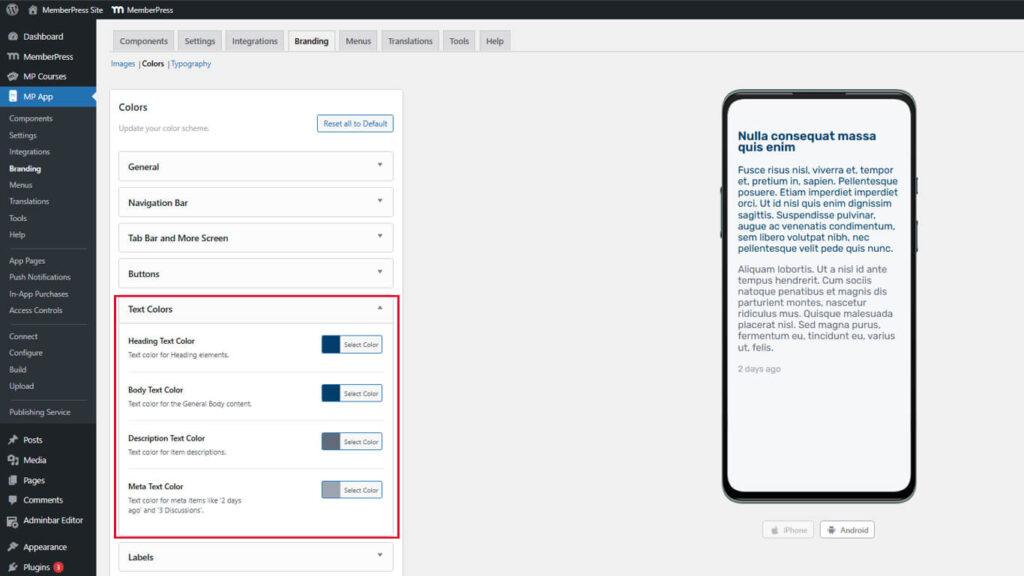
A pré-visualização do texto mostra como os diferentes níveis de texto aparecem com as cores selecionadas.
Estabelecendo uma hierarquia de texto
As cores do texto devem criar uma hierarquia visual clara para a leitura do conteúdo.
O texto do título deve ser o mais proeminente para indicar o início da seção. O corpo do texto deve oferecer ótima legibilidade para leituras prolongadas. O texto descritivo deve ser distinguível, mas menos proeminente que o corpo do texto. O metatexto deve ser sutil o suficiente para não distrair do conteúdo principal.
Etiquetas de estilo
As cores das etiquetas afetam as tags, os emblemas e os indicadores de status em todo o aplicativo.
- Navegue até Painel de controle > MP AppKit > Branding > Cores.
- Localize o Etiquetas seção.
- Clique no botão Cor de fundo da etiqueta amostra.
- Selecione uma cor para o fundo das etiquetas.
- Clique no botão Cor do texto da etiqueta amostra.
- Selecione uma cor contrastante para o texto da etiqueta.
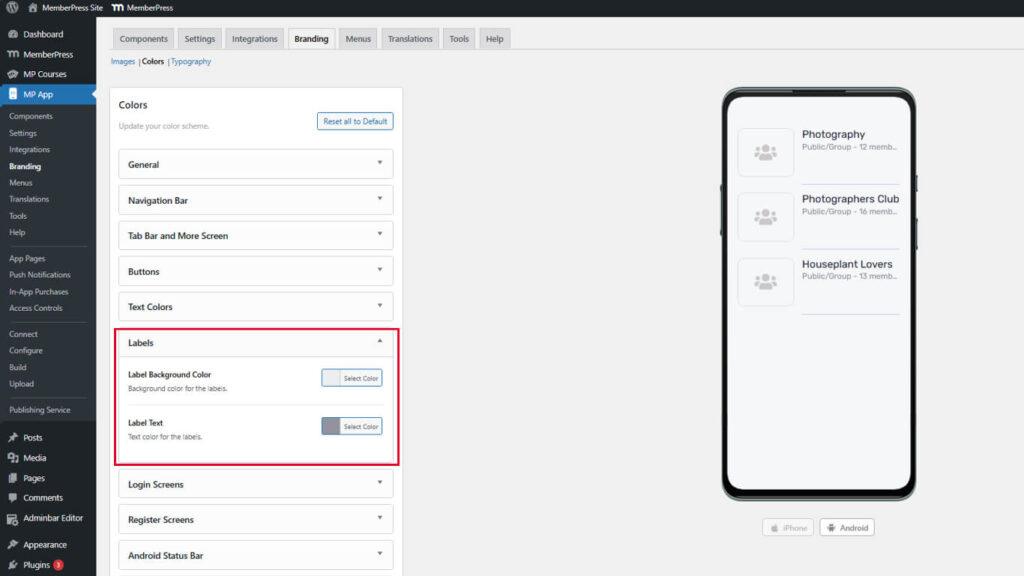
A pré-visualização da etiqueta mostra a aparência nas vistas de lista e detalhada.
Garantindo a visibilidade da etiqueta
As etiquetas devem permanecer visíveis em diferentes fundos de página.
A cor de fundo da etiqueta deve contrastar com o fundo da página onde as etiquetas aparecem. O texto da etiqueta deve manter um forte contraste com o fundo da etiqueta para facilitar a leitura. As etiquetas aparecem frequentemente em fundos variados, pelo que a seleção de cores deve ter em conta múltiplos contextos.
Personalizando as cores da tela de login
As cores da tela de login definem a aparência da página de autenticação.
- Navegue até Painel de controle > MP AppKit > Branding > Cores.
- Localize o Telas de login seção.
- Configure as seguintes amostras de cores:
- Cor de fundo para o fundo da página de login;
- Fundo do campo de entrada para fundos de campos de formulário;
- Borda do campo de entrada para contornos de campo;
- Texto do campo de entrada para a cor do texto inserido;
- Fundo do botão para fundos de botões de ação;
- Texto do botão para a cor do texto do botão.
- Analise as pré-visualizações das telas de Login e Esqueci a senha.
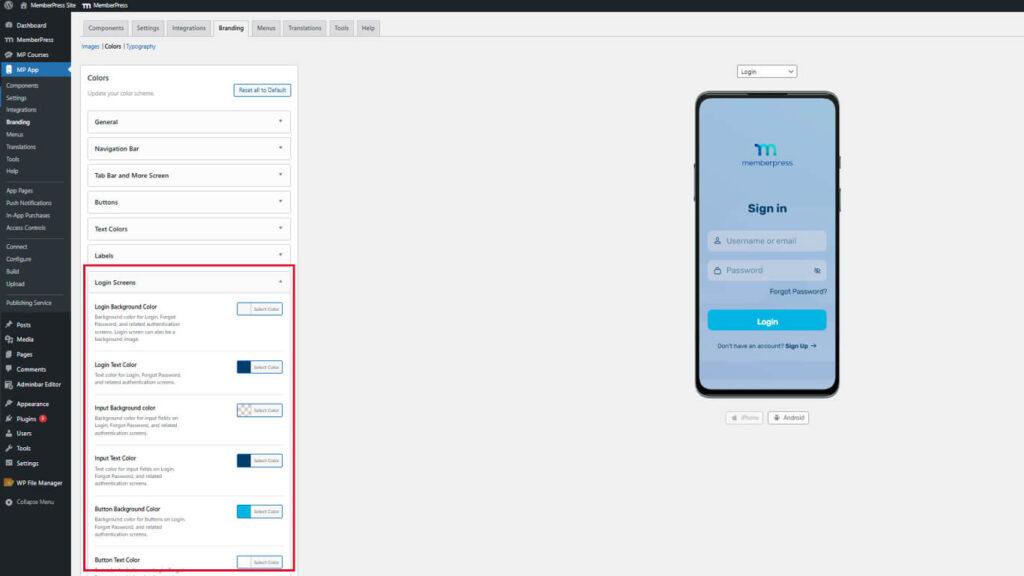
A pré-visualização da tela de login exibe páginas de autenticação com as cores selecionadas.
Estilo das cores da tela de registro
As cores da tela de registro definem a aparência da página de criação da conta.
- Navegue até Painel de controle > MP AppKit > Identidade visual > Cores.
- Localize o Telas de registro seção.
- Configure as seguintes amostras de cores:
- Cor de fundo para o fundo da página de registro;
- Fundo do campo de entrada para fundos de campos de formulário;
- Borda do campo de entrada para contornos de campo;
- Texto do campo de entrada para a cor do texto inserido;
- Fundo do botão para fundos de botões de ação;
- Texto do botão para a cor do texto do botão.
- Revise a pré-visualização da tela de registro.
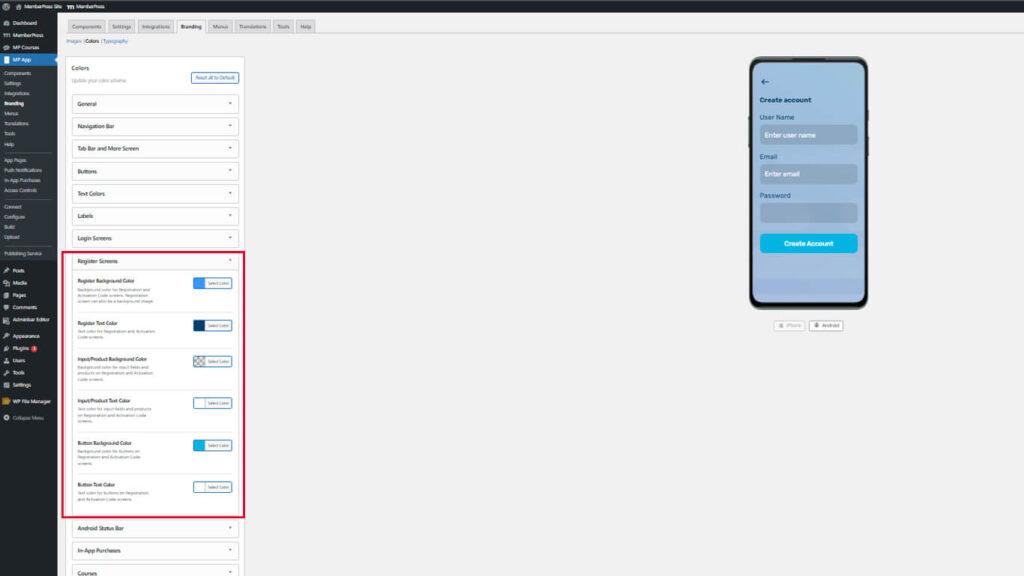
O uso de cores consistentes entre as telas de login e registro cria experiências de autenticação coesas.
Configurando a cor da barra de status do Android
A cor da barra de status do Android afeta a aparência da barra de status do dispositivo na parte superior da tela.
- Navegue até Painel de controle > MP AppKit > Branding > Cores.
- Localize o Barra de status do Android seção.
- Clique no botão Cor de fundo do status amostra.
- Selecione uma cor que combine ou complemente a barra de navegação.
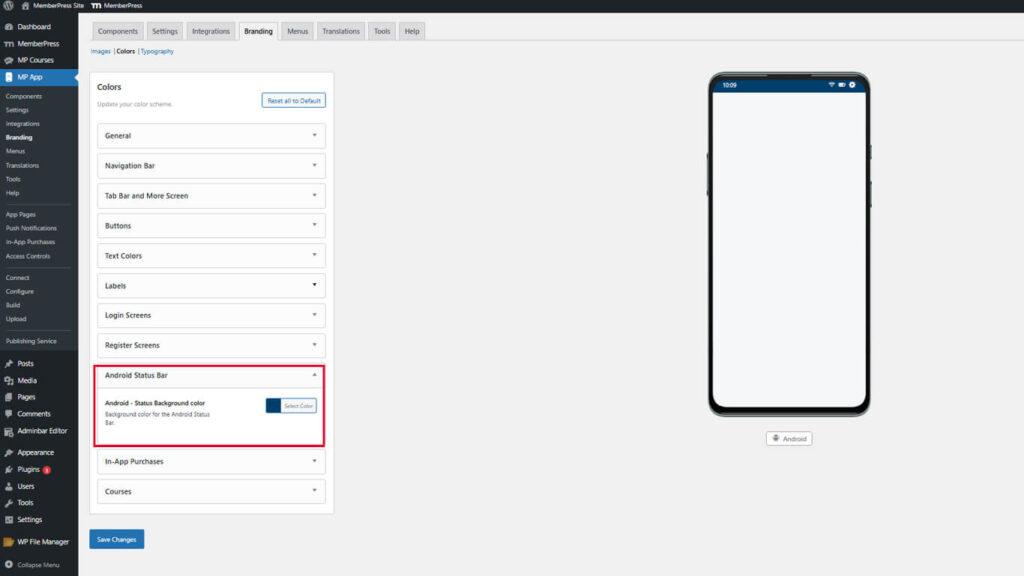
A pré-visualização da cor da barra de estado é atualizada apenas na maquete do dispositivo Android. Esta configuração não afeta os dispositivos iOS.
Personalizando as cores das compras no aplicativo
As cores das compras no aplicativo destacam os produtos e benefícios da assinatura.
- Navegue até Painel de controle > MP AppKit > Branding > Cores.
- Localize o Compras no aplicativo seção.
- Clique no botão Cor da marca de seleção do status de compra amostra.
- Selecione uma cor para as marcas de seleção que indicam as assinaturas adquiridas.
- Clique no botão Cor da marca de verificação dos benefícios amostra.
- Selecione uma cor para as marcas de seleção que listam os benefícios da associação.
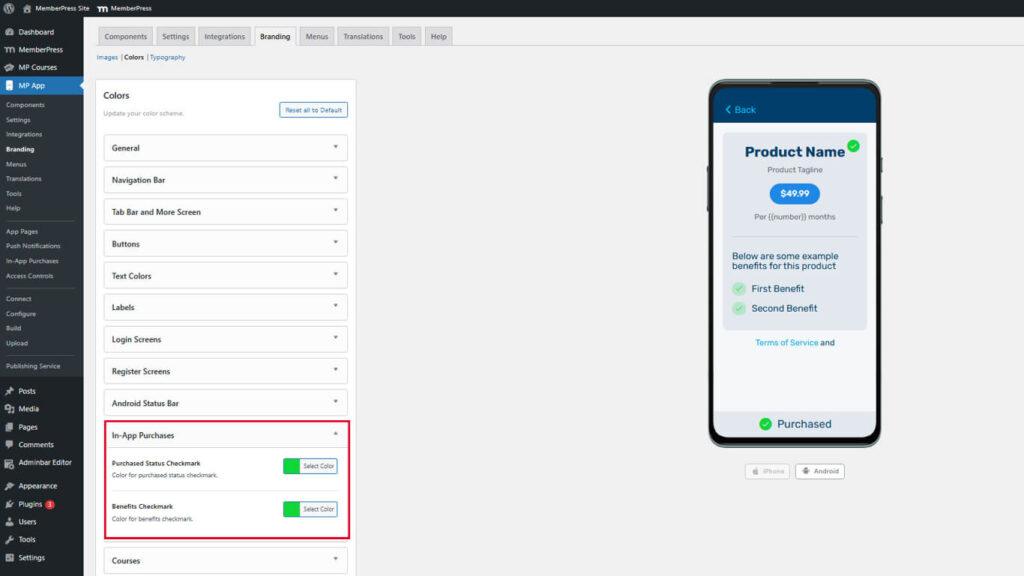
A pré-visualização da tela de compra exibe listas de produtos com cores de marcação configuradas.
Destacando o status da compra
As cores das marcas de seleção devem indicar claramente a conclusão da compra e a inclusão dos benefícios.
As marcas de verificação do status de compra devem usar cores positivas e afirmativas, como o verde, para indicar transações bem-sucedidas. As marcas de verificação dos benefícios devem complementar a cor do status de compra, mantendo-se distintas. O contraste suficiente com as cores de fundo garante a visibilidade em diferentes contextos de tela.
Salvar configuração de cores
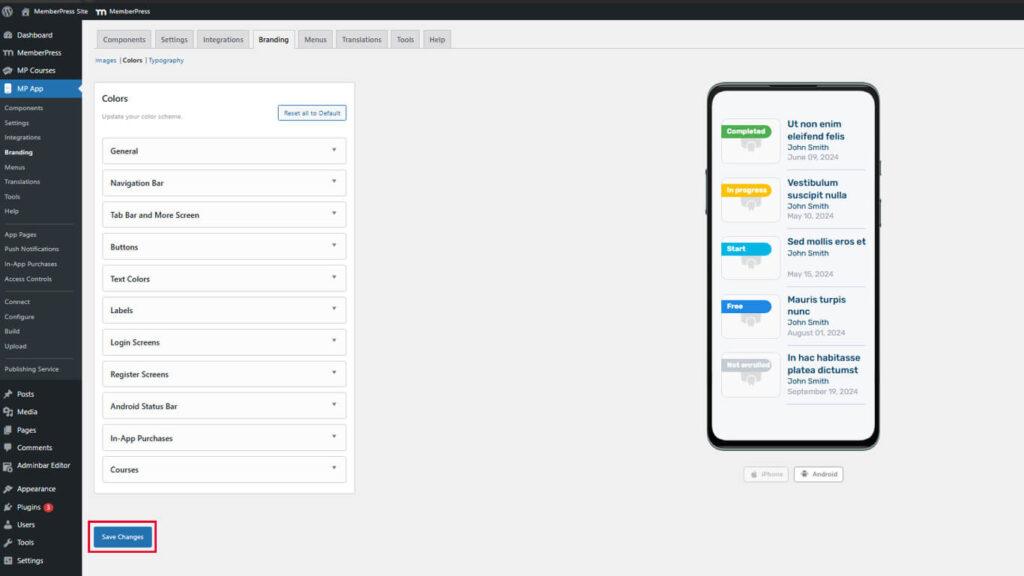
Todas as seleções de cores devem ser salvas antes de entrarem em vigor.
- Revise todas as cores configuradas nas maquetes de pré-visualização.
- Role até o final da página. Painel de controle > MP AppKit > Identidade visual > Cores página.
- Clique em Salvar alterações.
- Aguarde a mensagem de confirmação indicando que o salvamento foi bem-sucedido.










 PT
PT  EN
EN  ES
ES  FR
FR  DE
DE 