

Links universais da Apple permitem que os URLs de sites sejam abertos diretamente no aplicativo iOS, eliminando os redirecionamentos do Safari para uma navegação perfeita. A configuração dos Universal Links requer o recurso Associated Domains na conta de desenvolvedor da Apple, a regeneração do perfil de provisionamento e a ativação das configurações do plug-in. Este documento explica como ativar Associated Domains, regenerar perfis, ativar Universal Links e verificar a configuração.
Entendendo os links universais da Apple
Os Apple Universal Links conectam URLs de sites a telas de aplicativos móveis. Quando os membros tocam nos links em dispositivos iOS, o conteúdo é aberto no aplicativo em vez de no navegador Safari. Esse comportamento cria transições perfeitas entre as experiências na Web e no aplicativo.
Habilitação de domínios associados
O recurso Associated Domains (Domínios associados) deve ser ativado na conta de desenvolvedor da Apple antes da função Universal Links.
- Faça login na conta de desenvolvedor da Apple em appleid.apple.com.
- Navegue até Certificados, identificadores e perfis seção.
- Clique em Identificadores na barra lateral.
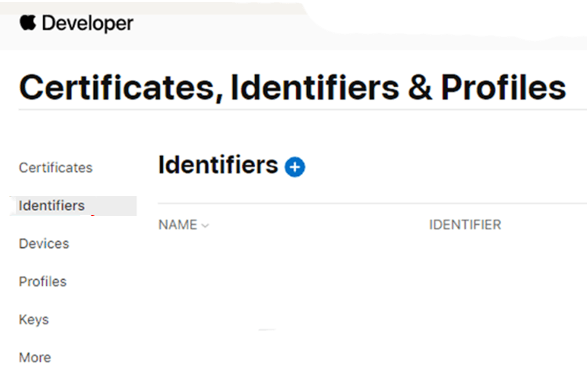
- Selecione o ID do aplicativo MemberPress na lista de identificadores.
- Clique no botão Recursos guia.
- Verifique o Domínios associados caixa de seleção.
- Clique em Salvar para ativar o recurso.
Regeneração de perfis de provisionamento
Os perfis de provisionamento devem ser gerados novamente para incluir o recurso de domínios associados.
- Navegue até Painel de controle > MP AppKit > Configurar > Ajustes do iOS.
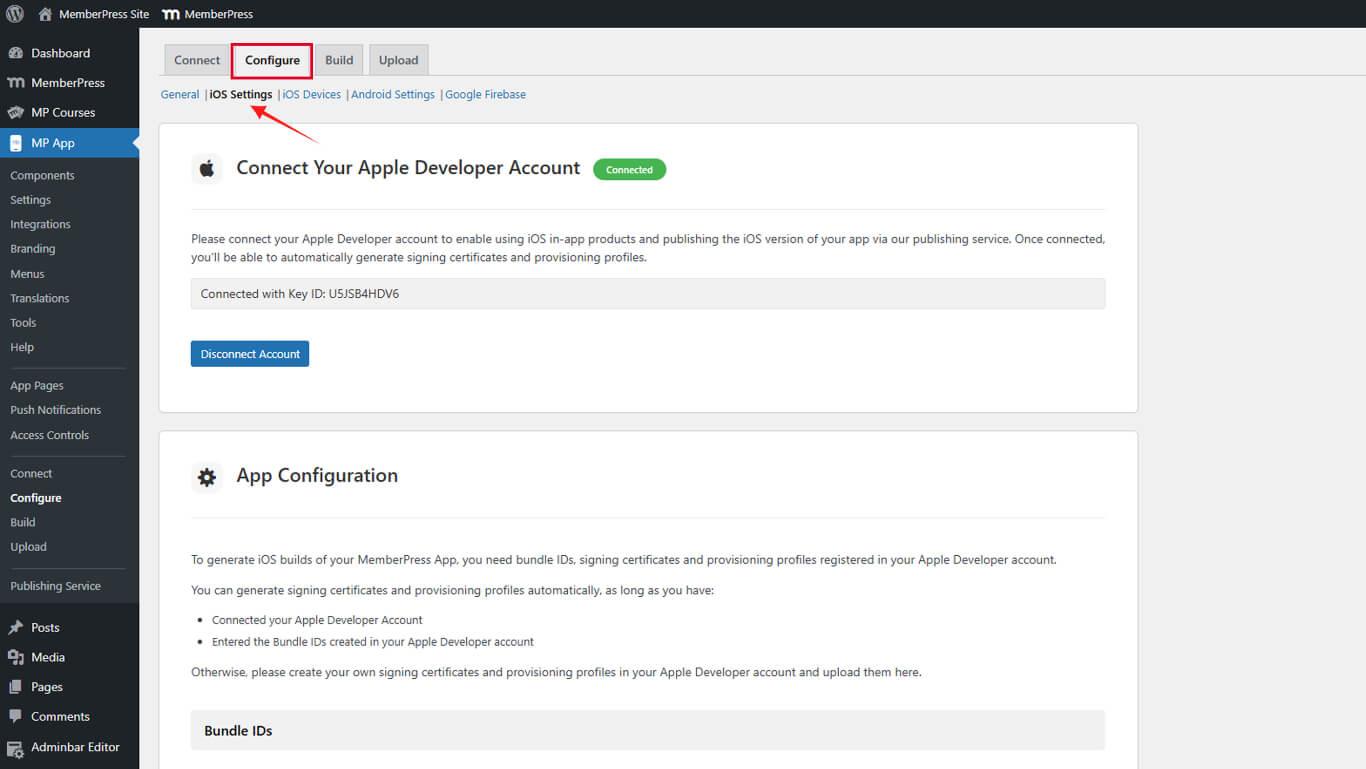
- Role até o Perfis de provisionamento seção.
- Desmarque a opção Gerar automaticamente perfis de provisionamento caixa de seleção.
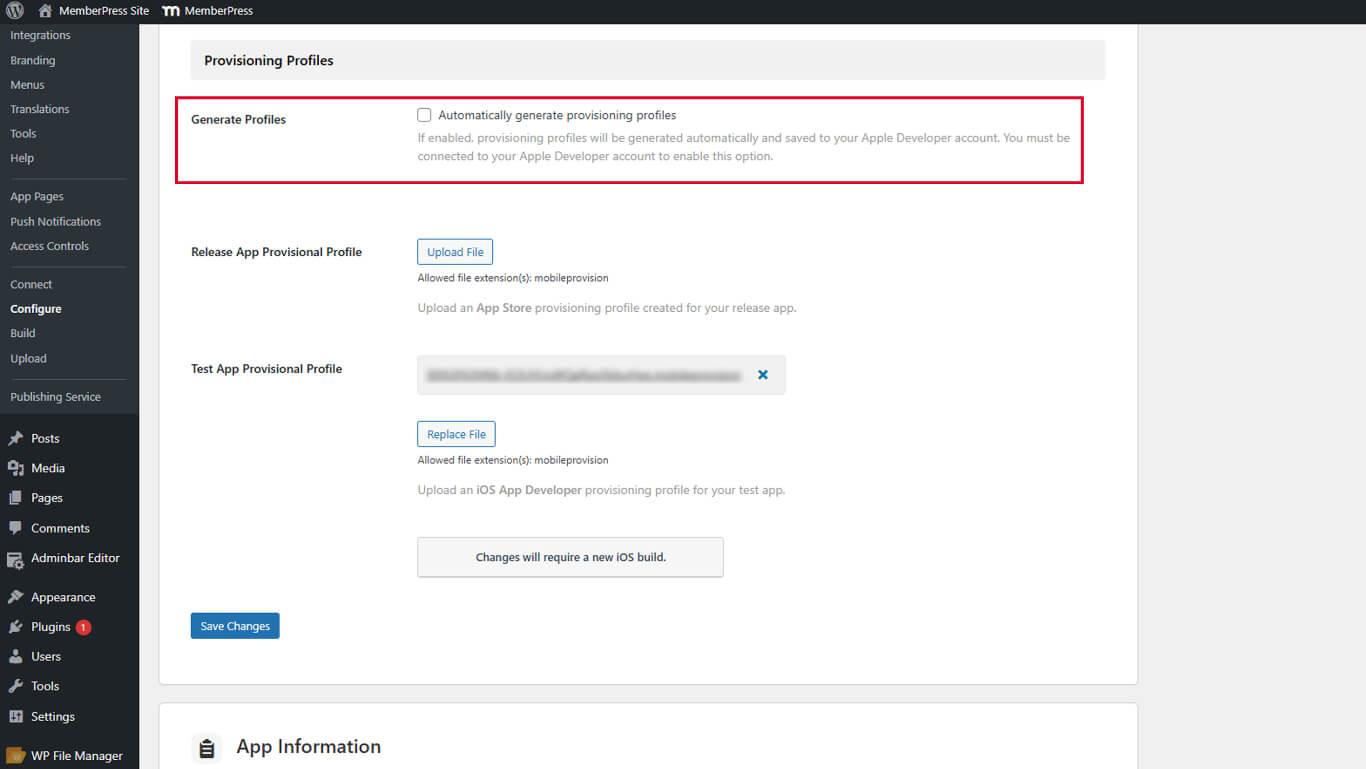
- Clique em Salvar alterações.
- Clique no botão X ao lado de cada perfil de provisionamento existente para excluí-lo.
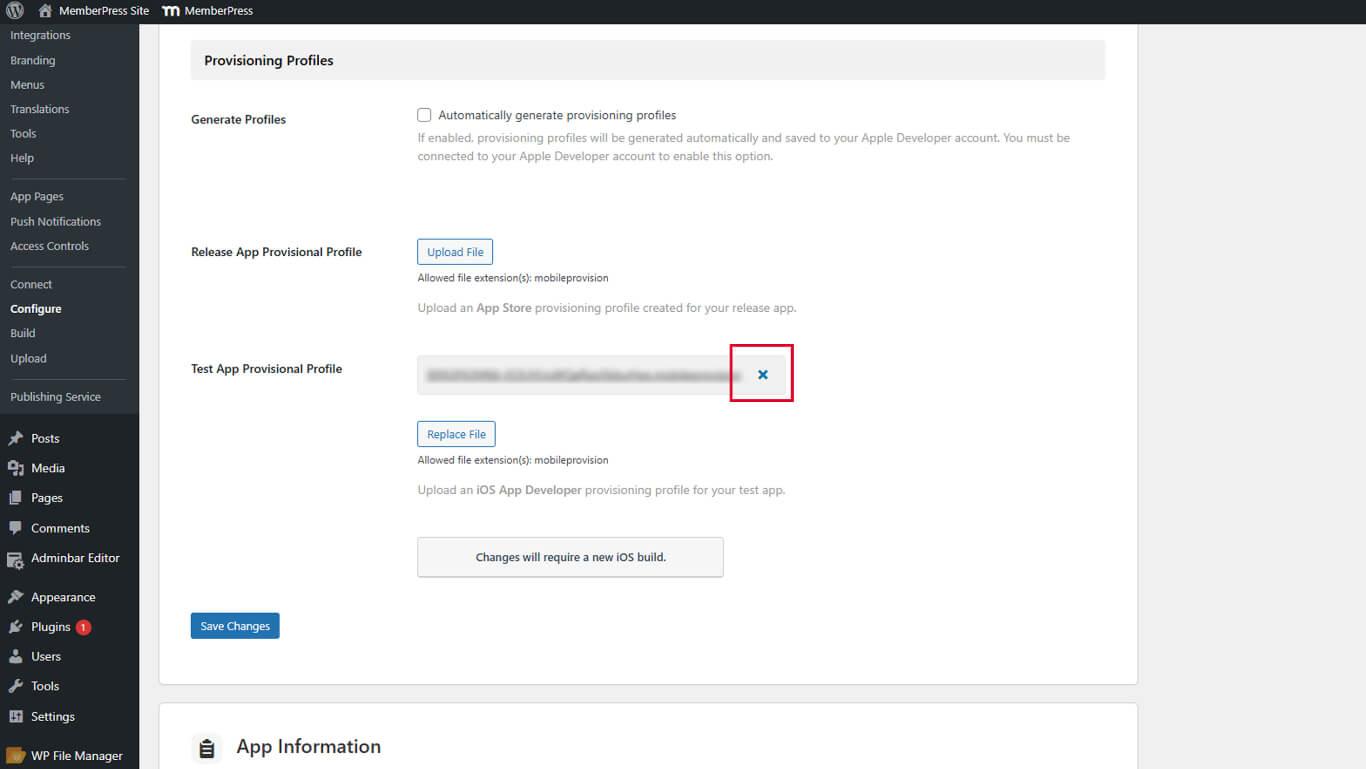
- Clique em Salvar alterações depois de excluir todos os perfis.
- Verifique o Gerar automaticamente perfis de provisionamento caixa de seleção.
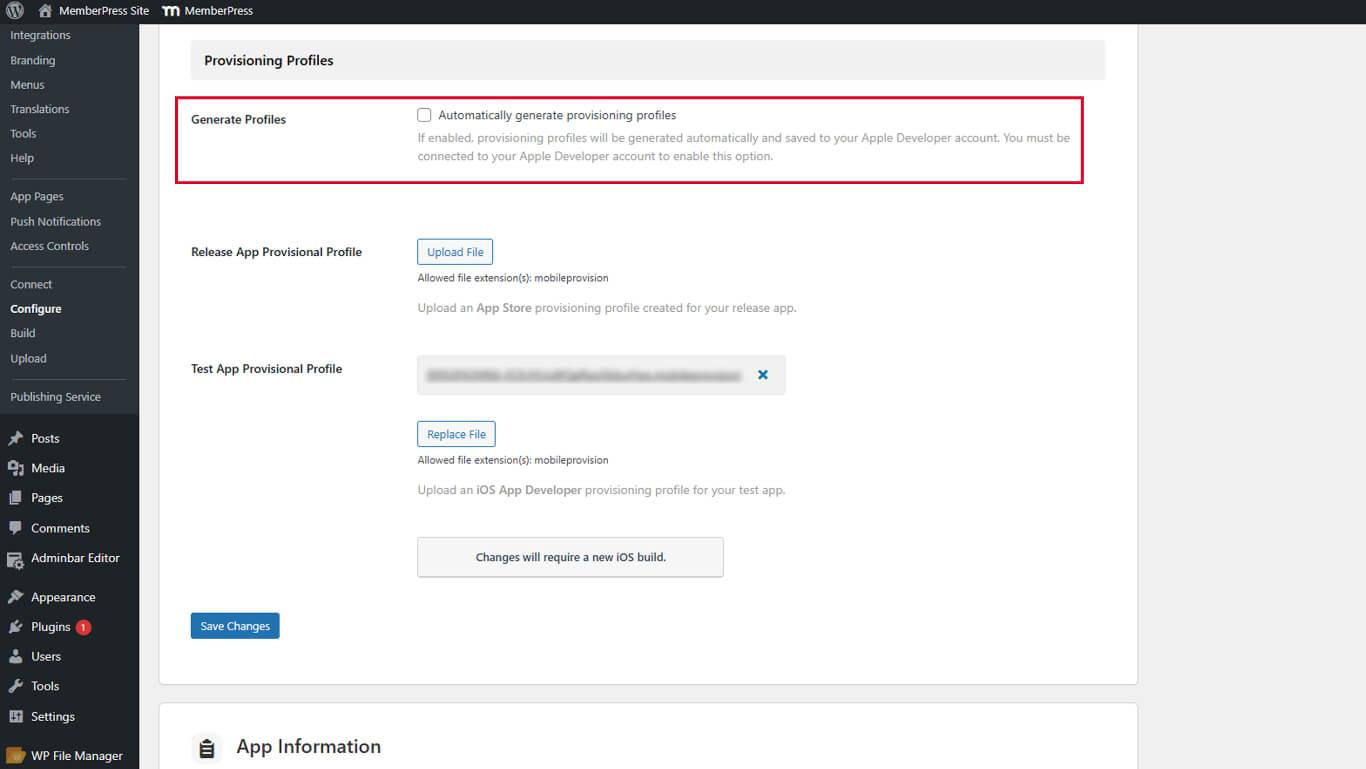
- Clique em Salvar alterações para criar novos perfis.
Os novos perfis de provisionamento incluem o recurso Associated Domains necessário para Universal Links.
Ativação de links universais
A ativação do Universal Links ocorre por meio da configuração dos Ajustes do iOS.
- Navegue até Painel de controle > MP AppKit > Configurar > Ajustes do iOS.
- Role até o Links universais seção.
- Verifique o Ativar links universais caixa de seleção.
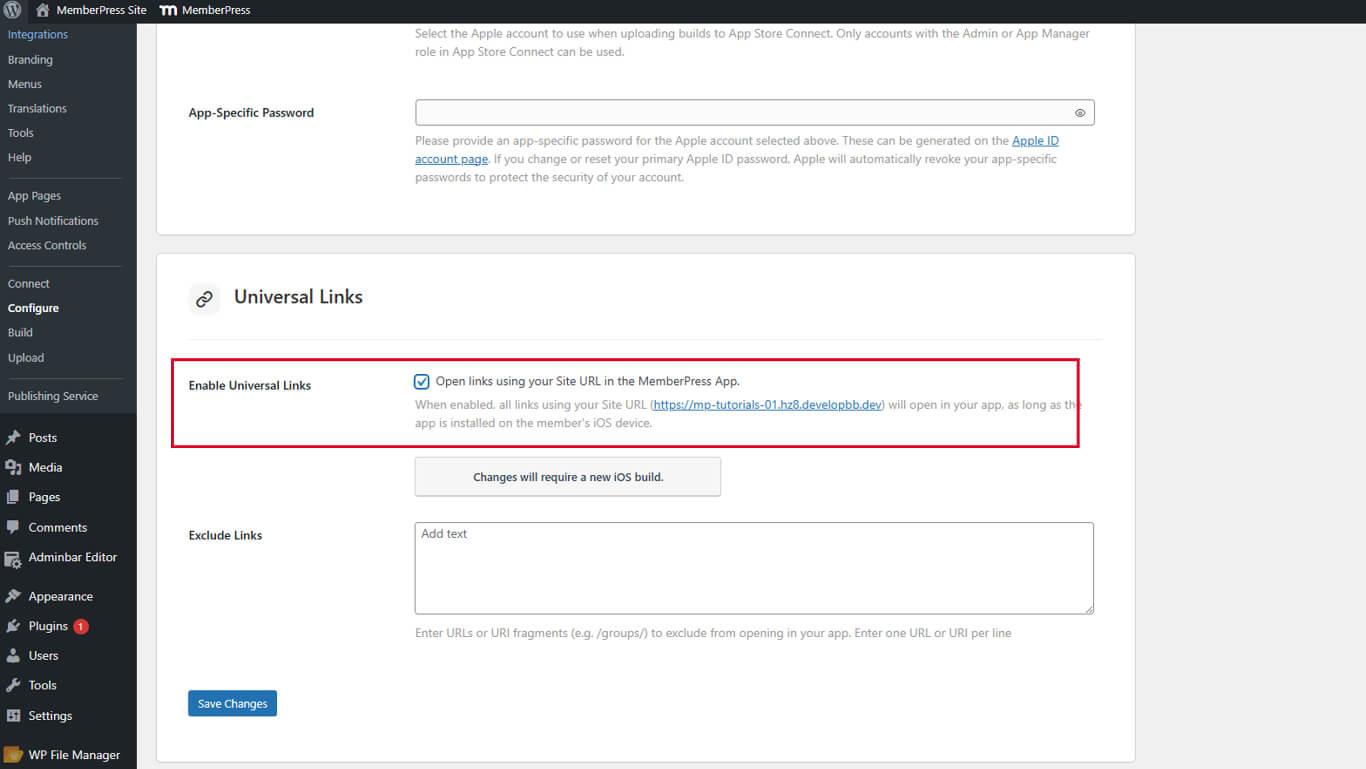
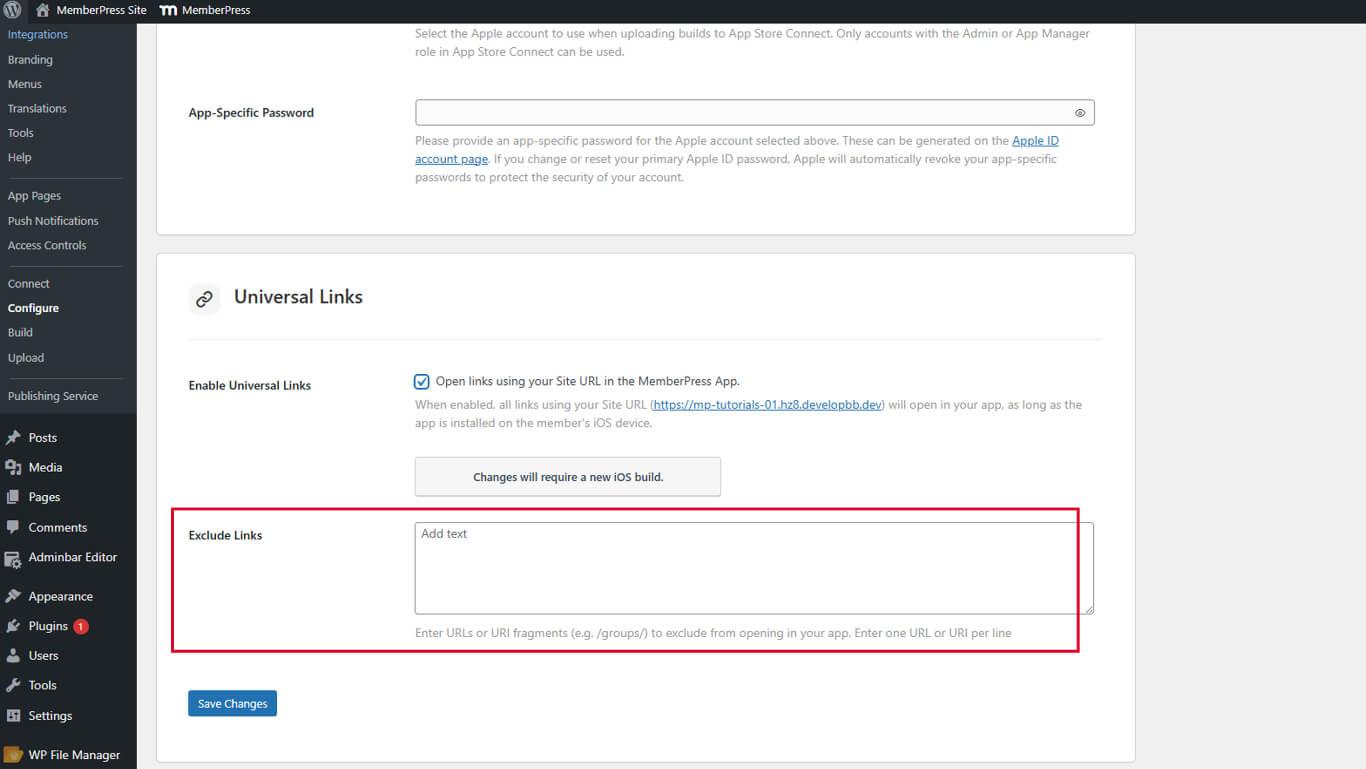
- Localize o Links excluídos para exclusões opcionais de URL.
- Insira padrões de URL para excluir da abertura do aplicativo, se necessário.
- Clique em Salvar alterações.
Entendendo os links excluídos
O campo Links excluídos especifica padrões de URL que devem ser abertos no Safari em vez de no aplicativo.
Insira padrões ou caminhos de URL que não devem acionar a abertura do aplicativo. Várias exclusões podem ser listadas com cada padrão em uma linha separada.
Verificação do arquivo de associação
A verificação do arquivo de associação confirma a configuração adequada do Universal Links.
- Abra um navegador da Web em qualquer dispositivo.
- Navegue até https://yourdomain.com/.well-known/apple-app-site-association/, substituindo yourdomain.com com o URL real do site.
- Verifique se a resposta JSON é exibida no navegador.
- Confirme se o JSON contém identificadores de aplicativos na resposta.
- Verifique se os caminhos compatíveis aparecem na estrutura JSON.










 PT
PT  EN
EN  ES
ES  FR
FR  DE
DE 