

O deep linking direciona os usuários para telas específicas do aplicativo usando URLs. Essa funcionalidade permite o acesso a conteúdo direcionado, incluindo postagens de blog, páginas de associação, ofertas de produtos e telas de configurações.
Este documento explica como configurar links diretos para vários tipos de conteúdo e implementá-los na navegação do aplicativo.
Entendendo o Deep Linking
Os deep links abrem telas de aplicativos específicos quando os usuários tocam nos URLs. Os links funcionam de forma semelhante aos URLs de sites, mas abrem telas de aplicativos nativos em vez de páginas da Web. Os links diretos aprimoram a experiência do usuário, eliminando as etapas de navegação e direcionando os membros para o conteúdo relevante imediatamente. Os tipos de conteúdo compatíveis incluem páginas do WordPress, posts, páginas de aplicativos e produtos no aplicativo.
Acessar as configurações do Deep Link
Os links diretos são configurados por meio de configurações de menu e interfaces específicas de conteúdo.
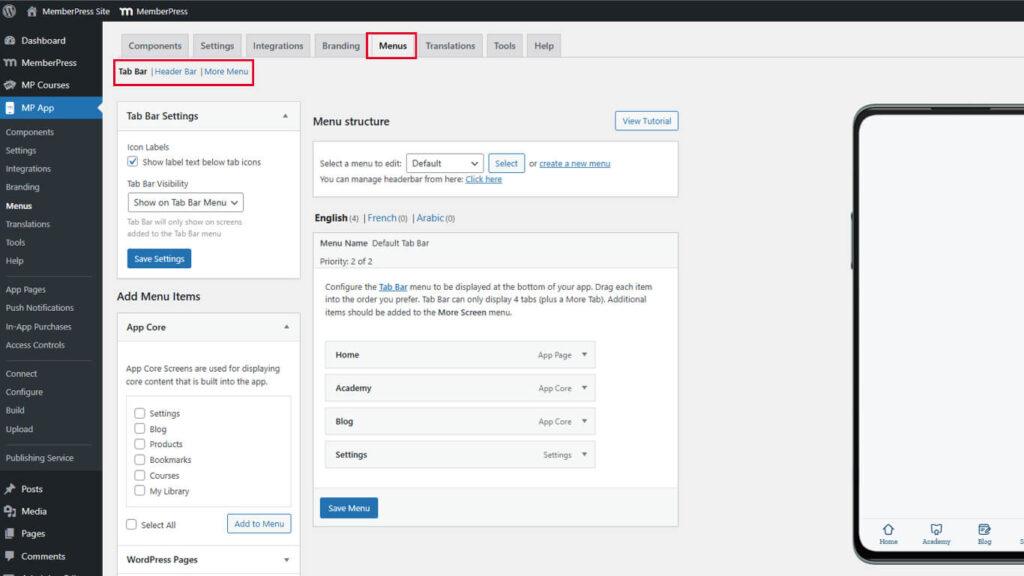
- No seu painel do WordPress, vá para MP AppKit > Menus.
- Escolha Menu da barra de guias ou Menu Mais telas, dependendo de onde você deseja que o link apareça.
Links para páginas e posts do WordPress
As páginas e postagens do WordPress podem ser vinculadas diretamente nos menus do aplicativo.
- Navegue até Painel de controle > MP AppKit > Menus.
- Selecione o menu para adição de links.
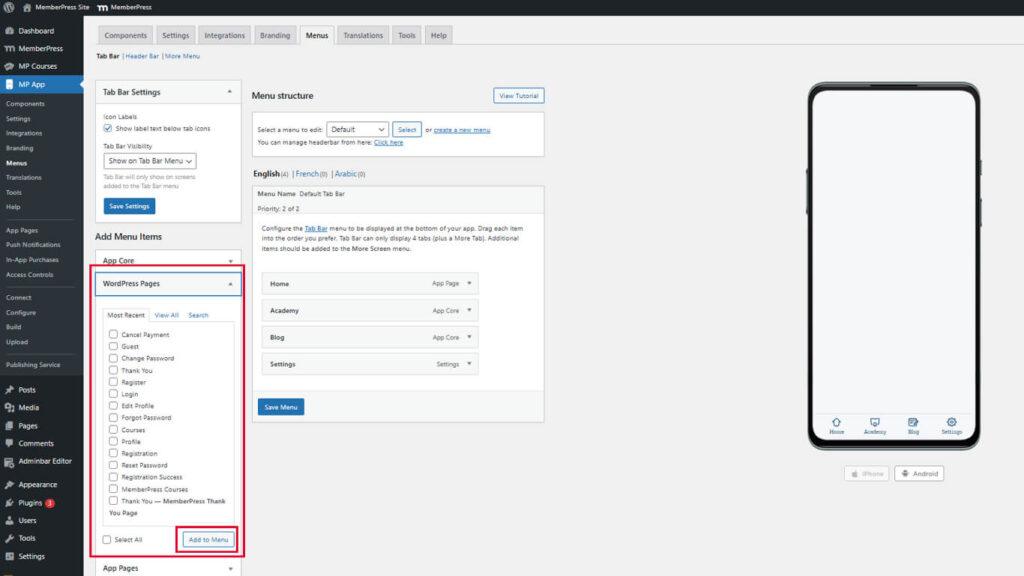
- Localize o Páginas do WordPress ou Publicações seção.
- Localize a página ou postagem desejada na lista.
- Marque a caixa de seleção ao lado do item de conteúdo.
- Clique em Adicionar ao menu.
- Arraste o novo item de menu para a posição desejada.
- Clique no botão Salvar menu.
Como alternativa, podem ser adicionados URLs personalizados para páginas ou posts específicos.
Adição de URLs de páginas personalizadas
- Navegue até Painel de controle > MP AppKit > Menus.
- Selecione o menu para adição de links.
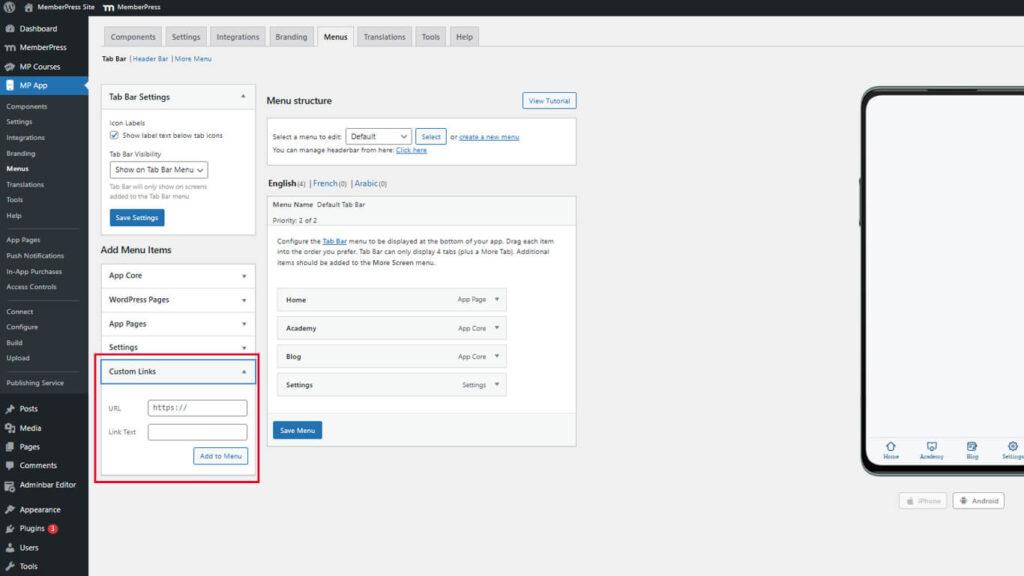
- Localize o Links personalizados seção.
- Digite o URL completo da página ou do post no campo URL.
- Digite o texto de exibição no campo Texto do link campo.
- Clique em Adicionar ao menu.
- Arraste o item de menu para a posição desejada.
- Clique no botão Salvar menu.
Os URLs personalizados oferecem flexibilidade para criar links para conteúdo específico que não aparece na lista de páginas do WordPress.
Link para páginas de aplicativos
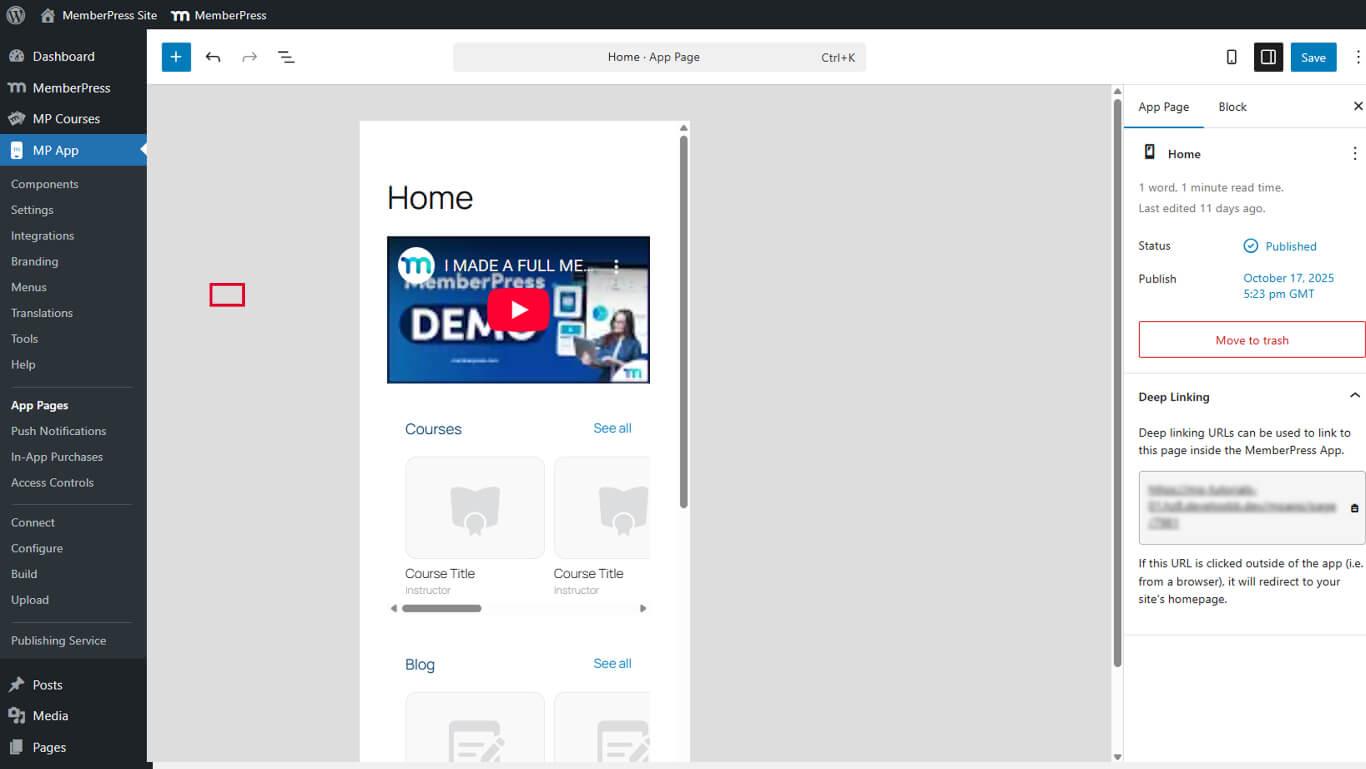
- Ir para Painel de controle > MP AppKit > Páginas de aplicativos e edite a página desejada.
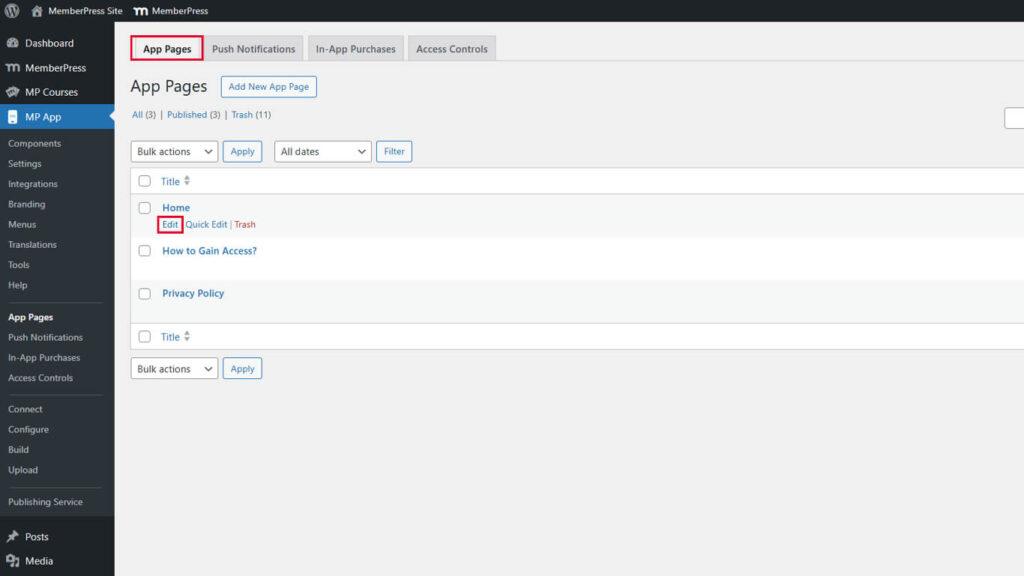
- Na barra lateral, expanda a seção Página do aplicativo e localize a guia Deep Linking seção.
- Adicione o URL.
Link para produtos no aplicativo
Os produtos no aplicativo representam planos ou ofertas de associação que podem ser comprados por meio do aplicativo. Cada produto tem um URL de deep link exclusivo.
- Ir para Painel de controle > MP AppKit > Compras no aplicativo > Produtos e editar um produto.
- Role para baixo até a seção Deep Linking e copie o URL (por exemplo, https://yourdomain.com/mpapp/products/1).
- Use o link em menus ou botões nas páginas de aplicativos.
Os slugs de tela suportados incluem:
- notificações
- iap_produtos
- E outros, conforme definido em sua configuração de tela personalizada.
Link para as telas de configurações
As telas de configurações fornecem acesso às preferências da conta, controles de notificação e opções de privacidade. Seções específicas de configurações podem ser vinculadas diretamente.
- Abaixo de Links personalizados, clique em Adicionar ao menu.
- Use qualquer um desses formatos para as configurações:
- /mpapp/settings/
- /mpapp/settings/login-information/
- /mpapp/settings/push-notifications/
- /mpapp/settings/email-preferences/
- /mpapp/settings/privacy-settings/
- /mpapp/settings/
- Salve seu menu para aplicar as alterações.










 PT
PT  EN
EN  ES
ES  FR
FR  DE
DE 