

Mensagens na nuvem do Google Firebase permite notificações push nas plataformas Android e iOS. A integração com o Firebase permite alertas em tempo real para os membros por meio do aplicativo móvel.
Este documento aborda a criação de um projeto do Firebase, a ativação da API, a geração de chaves de serviço, o registro de aplicativos móveis e o upload de arquivos de configuração.
Entendendo a integração com o Firebase
O Firebase Cloud Messaging fornece notificações por push aos dispositivos dos membros nas plataformas iOS e Android. A API Firebase V1 fornece a infraestrutura de mensagens atual, substituindo os sistemas de mensagens legados. A configuração adequada do Firebase requer a criação do projeto, a ativação da API, a geração da chave da conta de serviço e o registro do aplicativo para ambas as plataformas.
Criando um projeto Firebase
A criação do projeto Firebase estabelece a base para a entrega de notificações por push.
- Faça login no console do Firebase em console.firebase.google.com.
- Clique em Criar um novo projeto do Firebase na página de projetos.
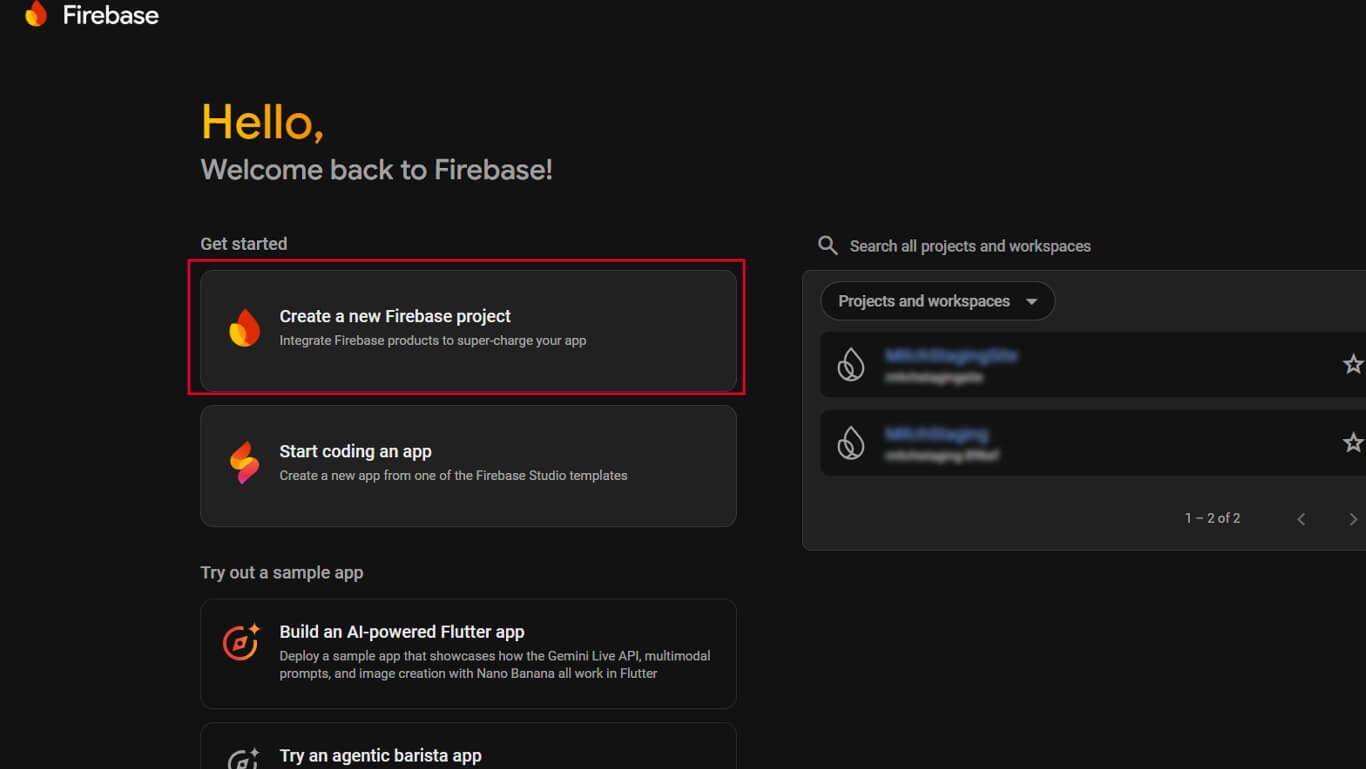
- Insira um nome para o projeto no campo nome do projeto.
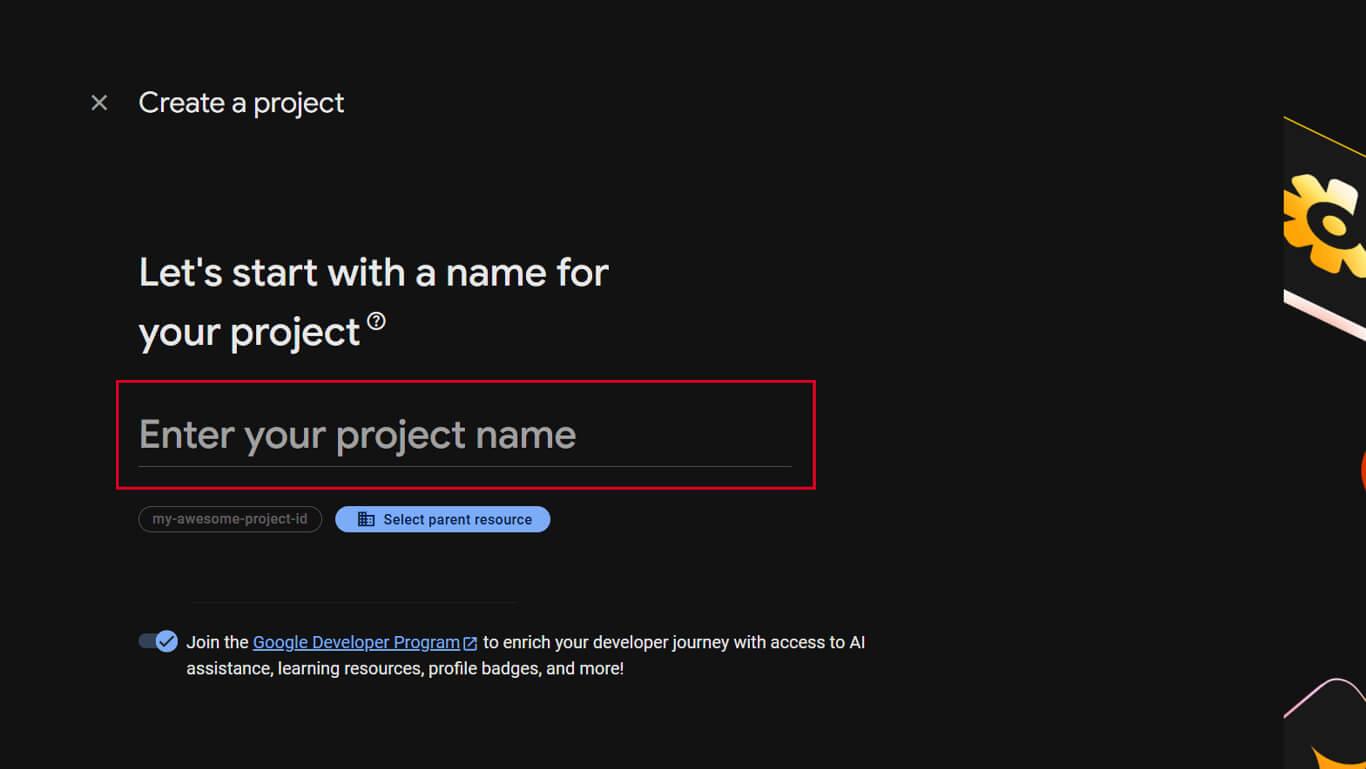
- Clique em Continuar para prosseguir para a próxima etapa.
- Opcionalmente, habilite Google Analytics alternando a chave.
- Selecione ou aceite o padrão Análises se ativado.
- Clique em Criar projeto para finalizar a criação do projeto.
- Aguarde a conclusão da configuração do projeto.
- Clique em Continuar para abrir o novo painel do projeto.
Ativação da API de mensagens do Firebase Cloud
A Firebase Cloud Messaging API deve estar ativada antes que as notificações push funcionem.
- Clique no botão Configurações ícone de engrenagem no projeto Firebase.
- Selecione Configurações do projeto no menu suspenso.
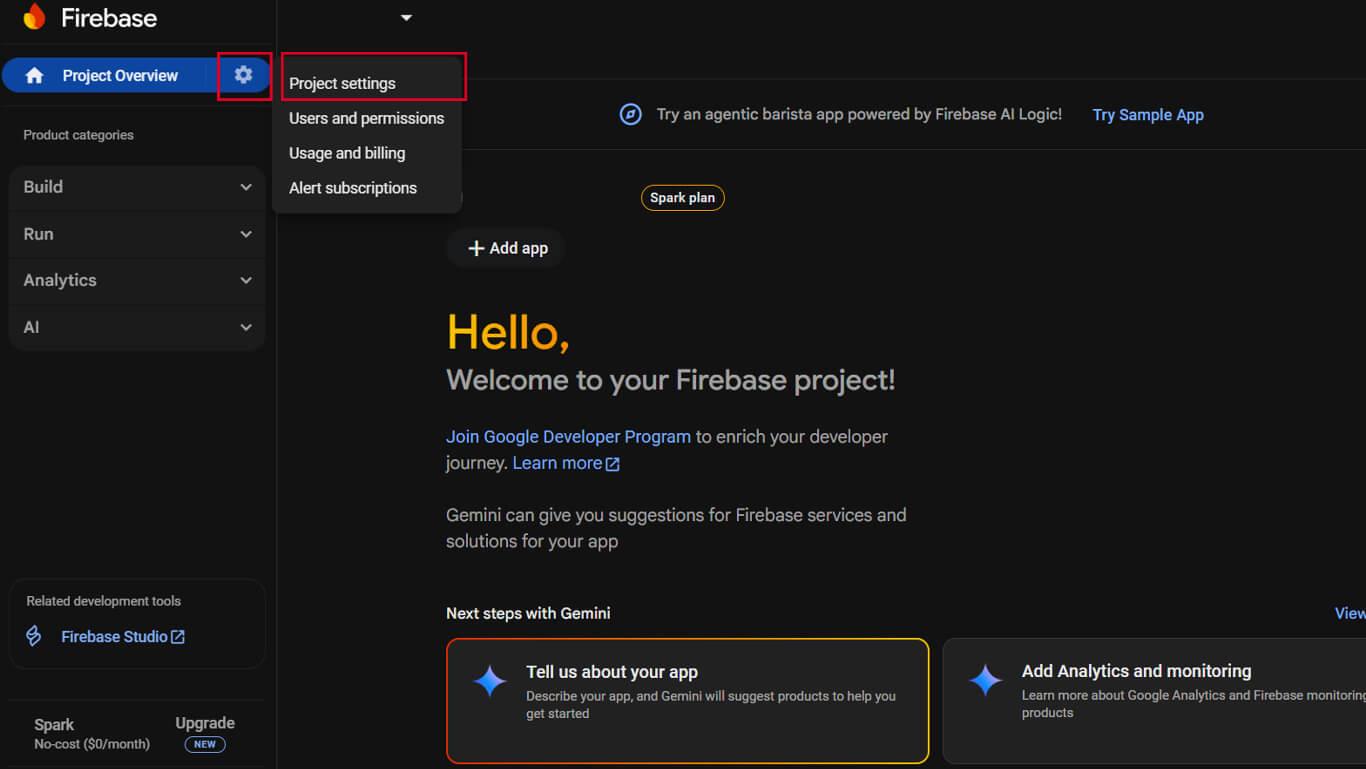
- Clique no botão Mensagens na nuvem guia.
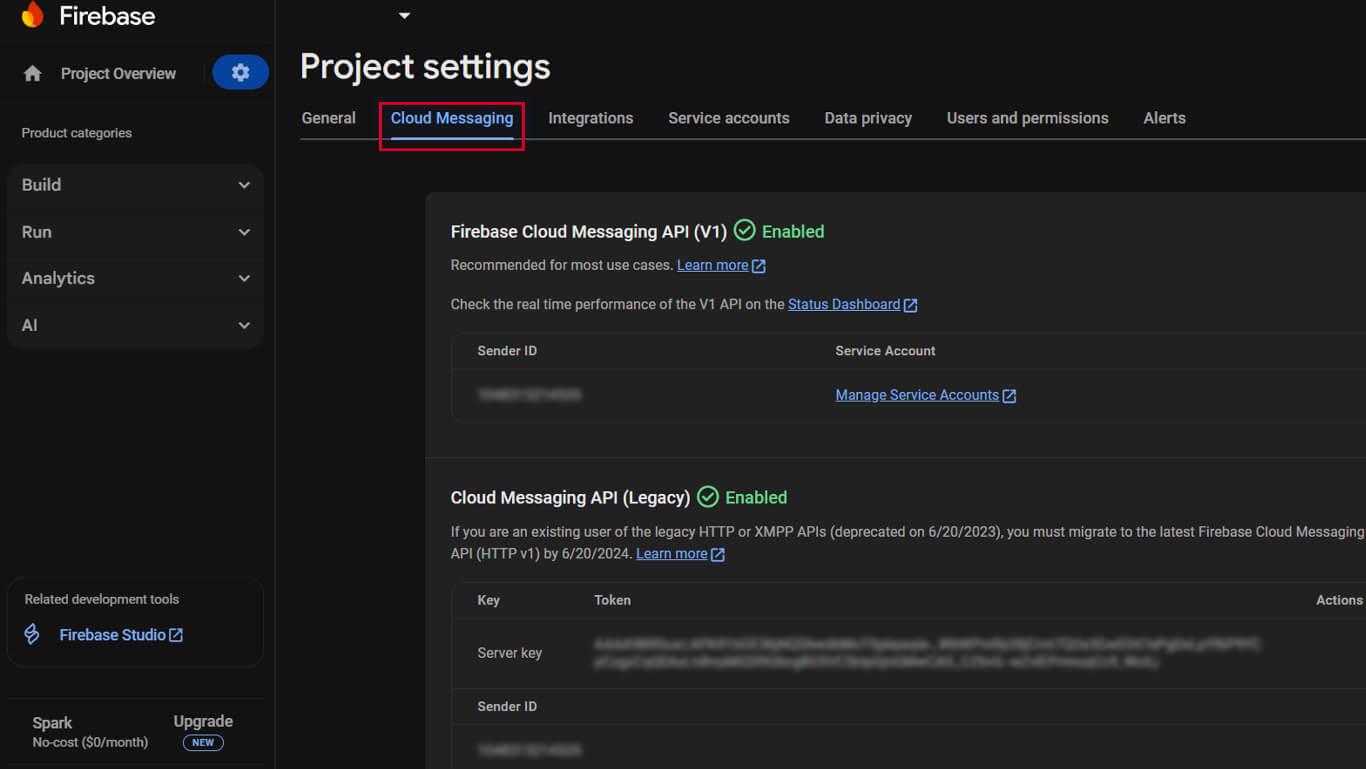
- Verifique o API de mensagens do Firebase Cloud mostra um “Ativado” indicador.
- Se o API de mensagens em nuvem do Firebase (V1) não estiver ativado, clique no menu ⋮.
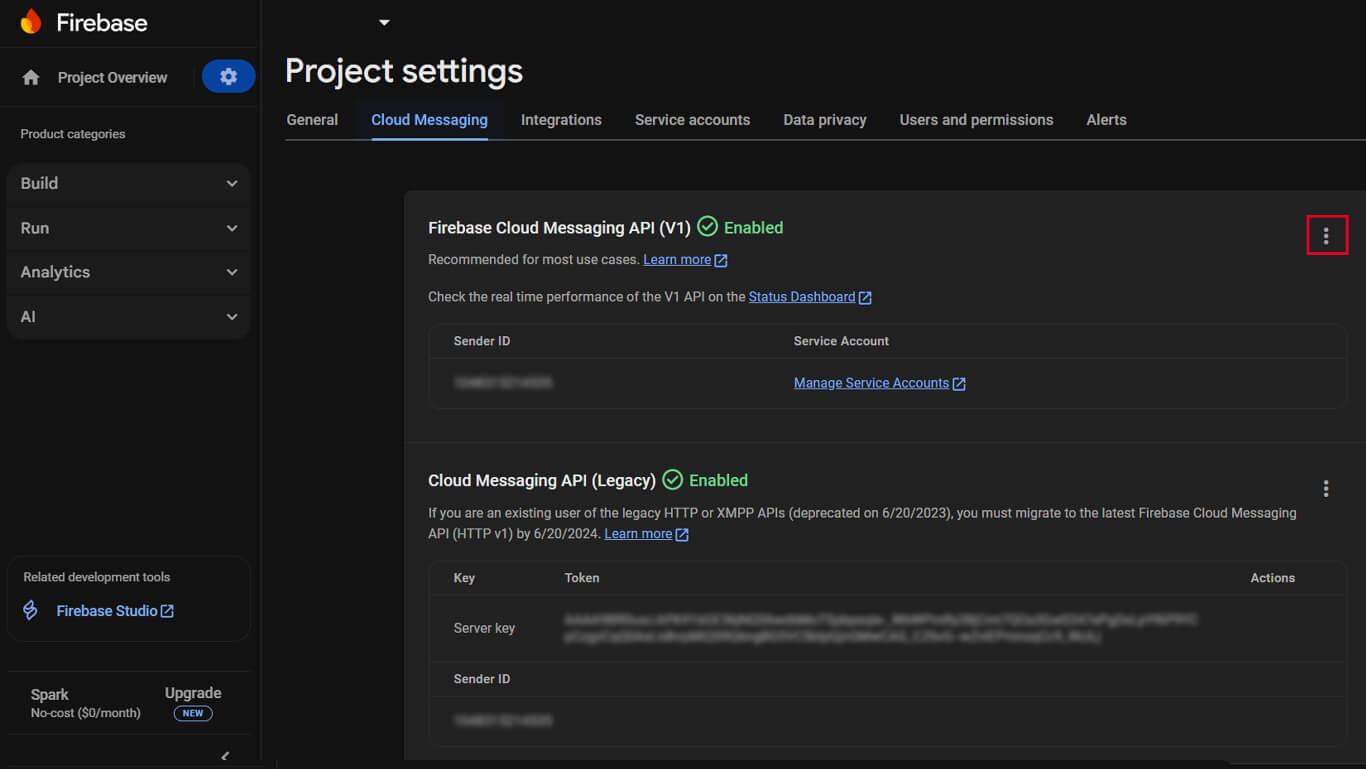
- Selecione Gerenciar a API no Google Cloud Console no menu.
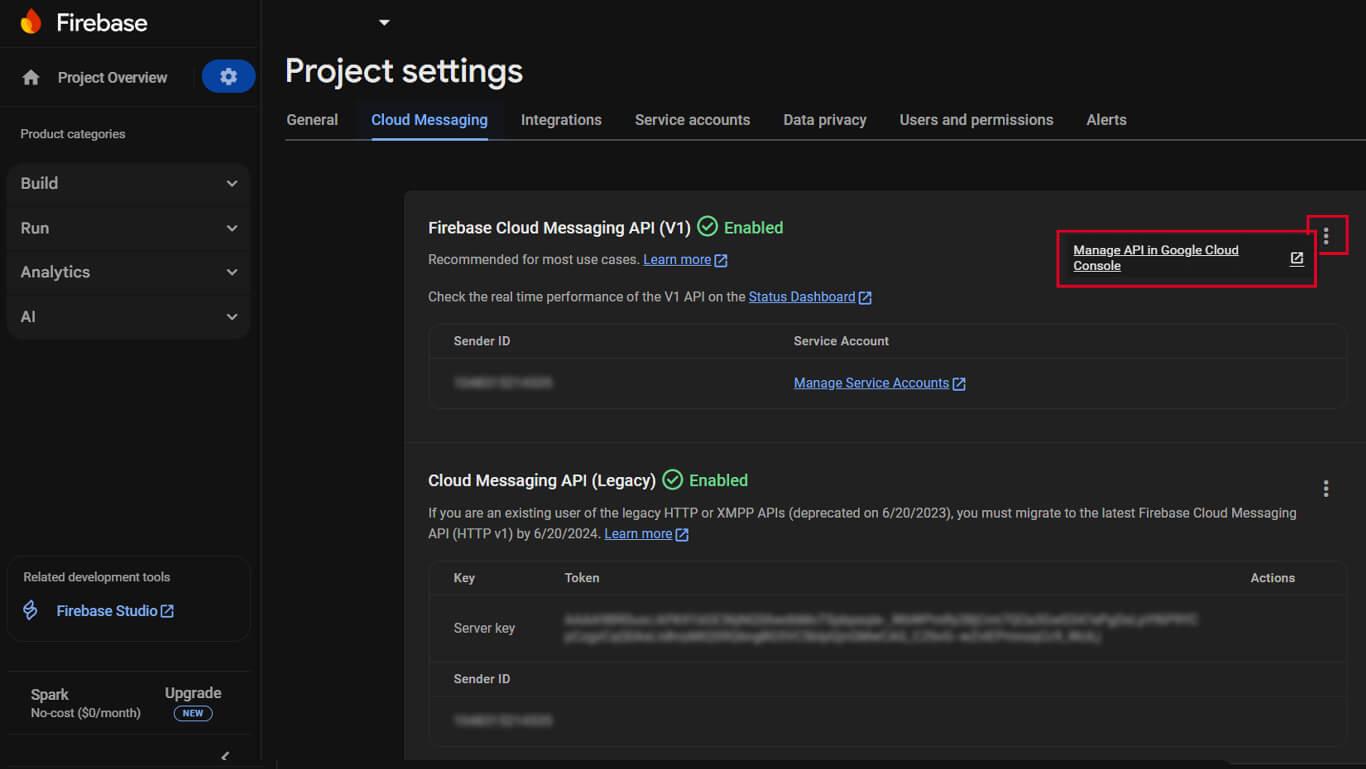
- Clique em Ativar no API de mensagens na nuvem página.
- Confirme se o status da API é exibido como “Ativado“.
O Firebase Cloud Messaging API (V1) substitui o Legacy Cloud Messaging API para melhorar a funcionalidade.
Geração da chave da conta de serviço do Firebase
A chave da conta de serviço fornece autenticação para que o WordPress envie notificações por push por meio do Firebase.
- Navegue até Configurações do projeto > Contas de serviço no console do Firebase.
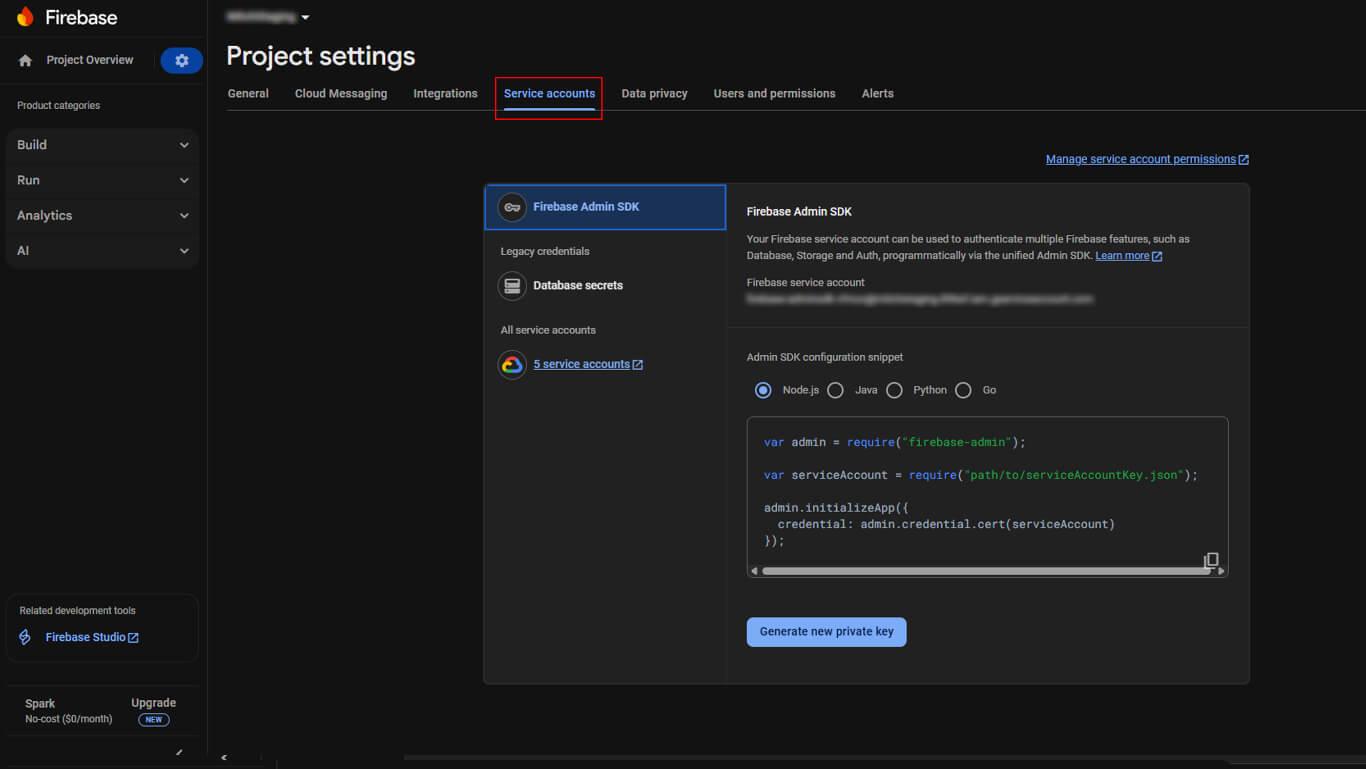
- Role até o SDK de administração do Firebase seção.
- Clique no botão Gerar nova chave privada botão.
- Clique em Gerar chave na janela pop-up de confirmação.
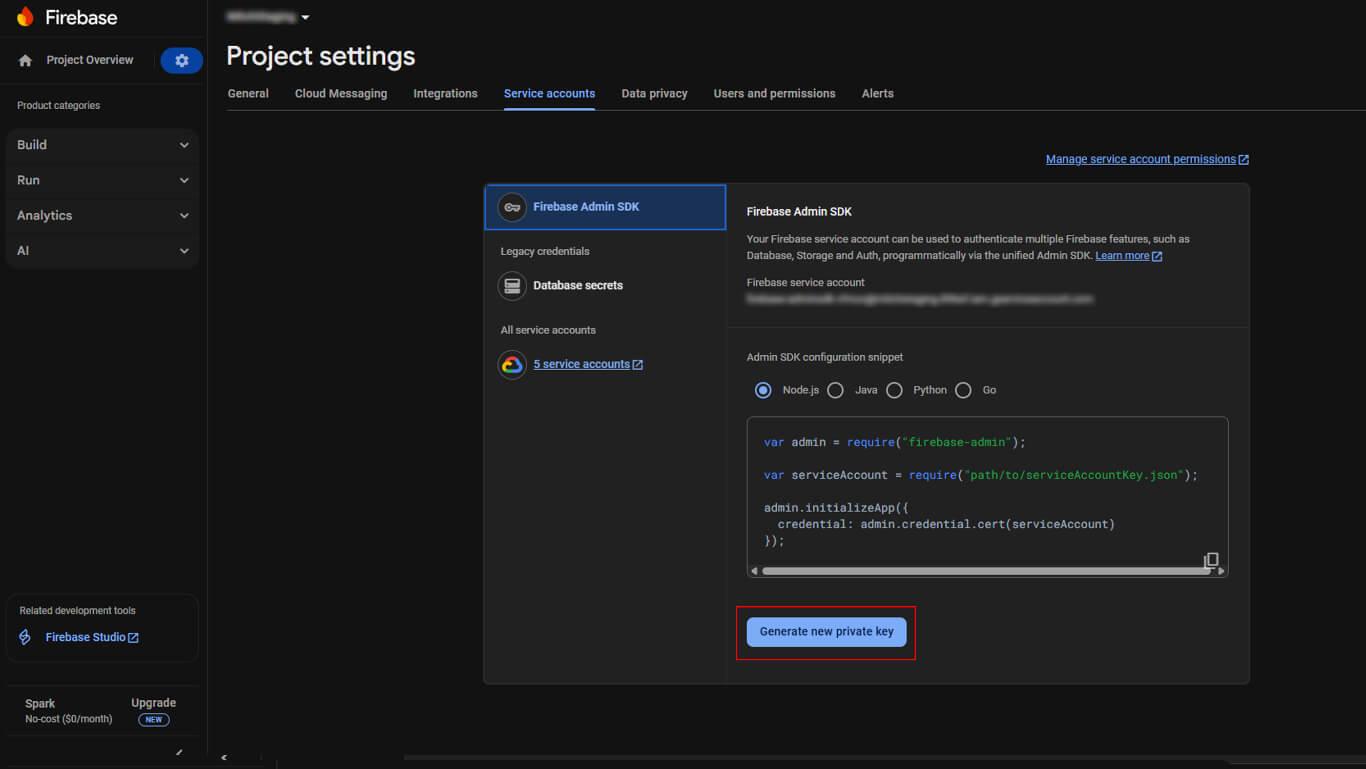
- Salve o arquivo JSON baixado em um local seguro.
Criação de um aplicativo Firebase para iOS
O registro do aplicativo iOS conecta o AppKit MemberPress ao Firebase para notificações push do iOS.
- Clique no botão + Adicionar aplicativo no painel do projeto Firebase.
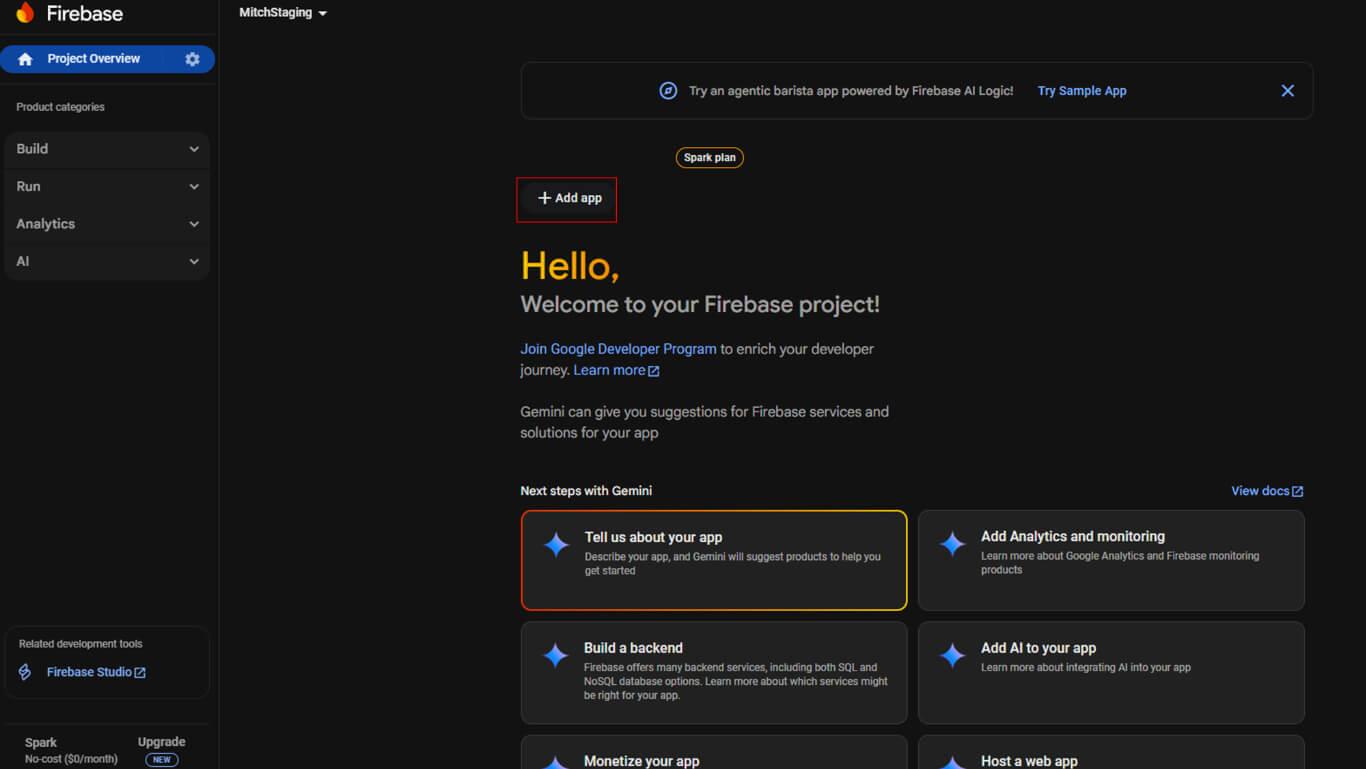
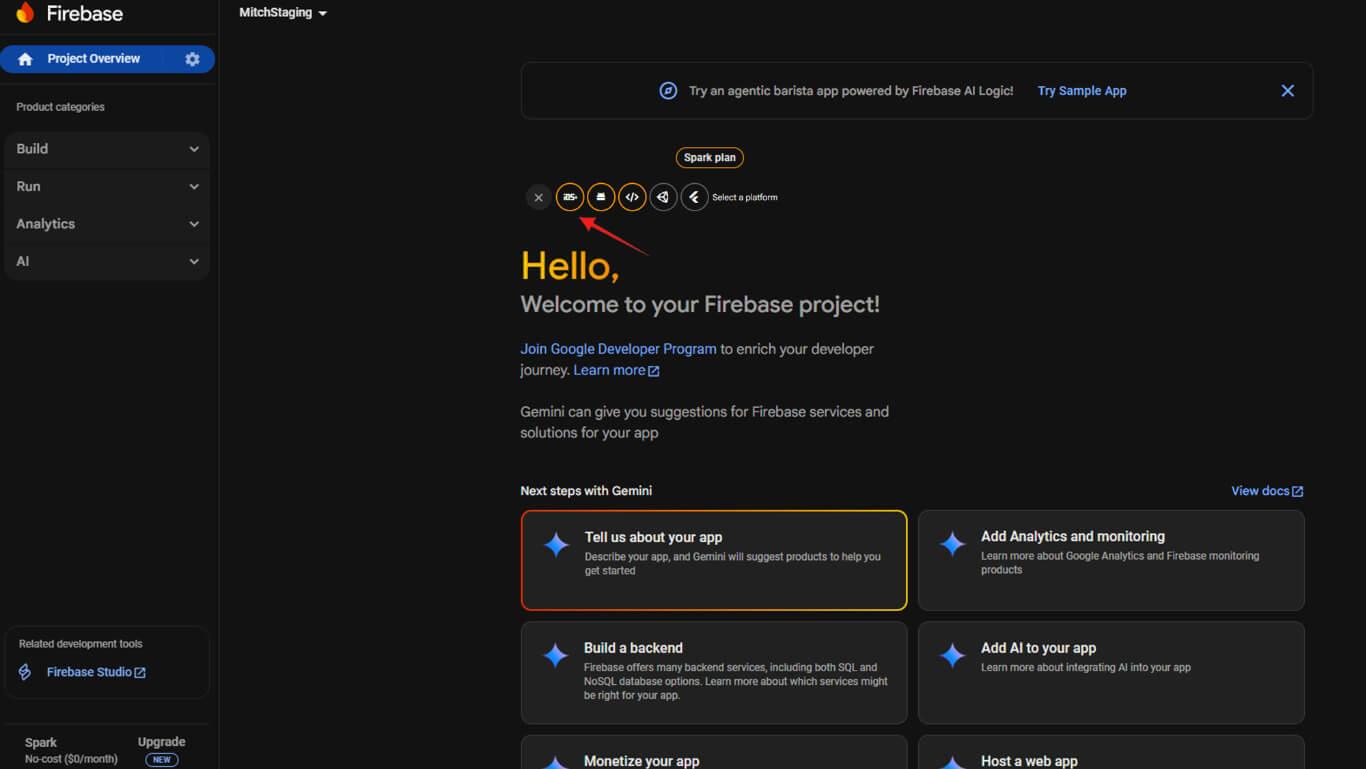
- Clique no botão iOS para iniciar o registro do aplicativo iOS.
- Navegue até Painel de controle > MP AppKit > Configurar > Ajustes do iOS em WordPress.
- Copiar o ID do pacote na página Ajustes do iOS.
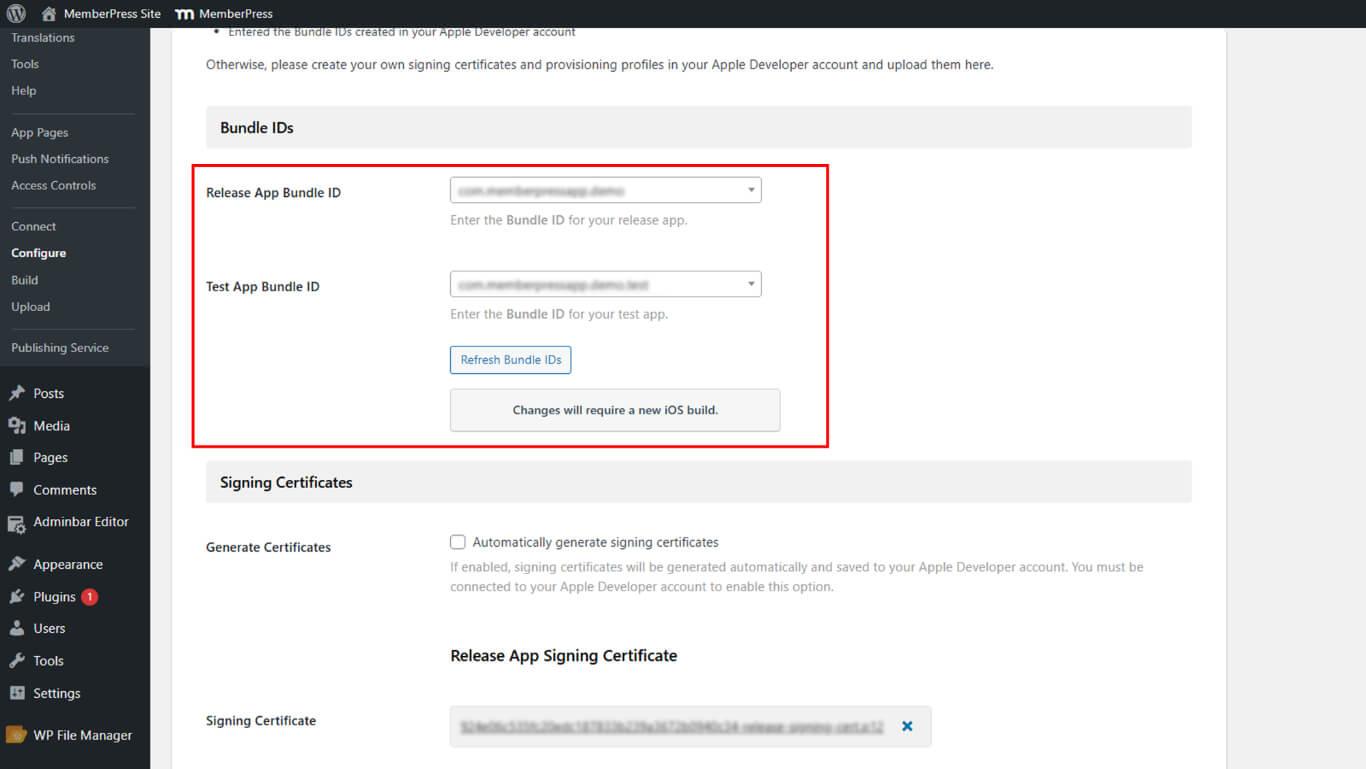
- Retorne ao Console do Firebase e cole o ID do pacote.
- (Opcional) Adicione o apelido do aplicativo e o ID da App Store.
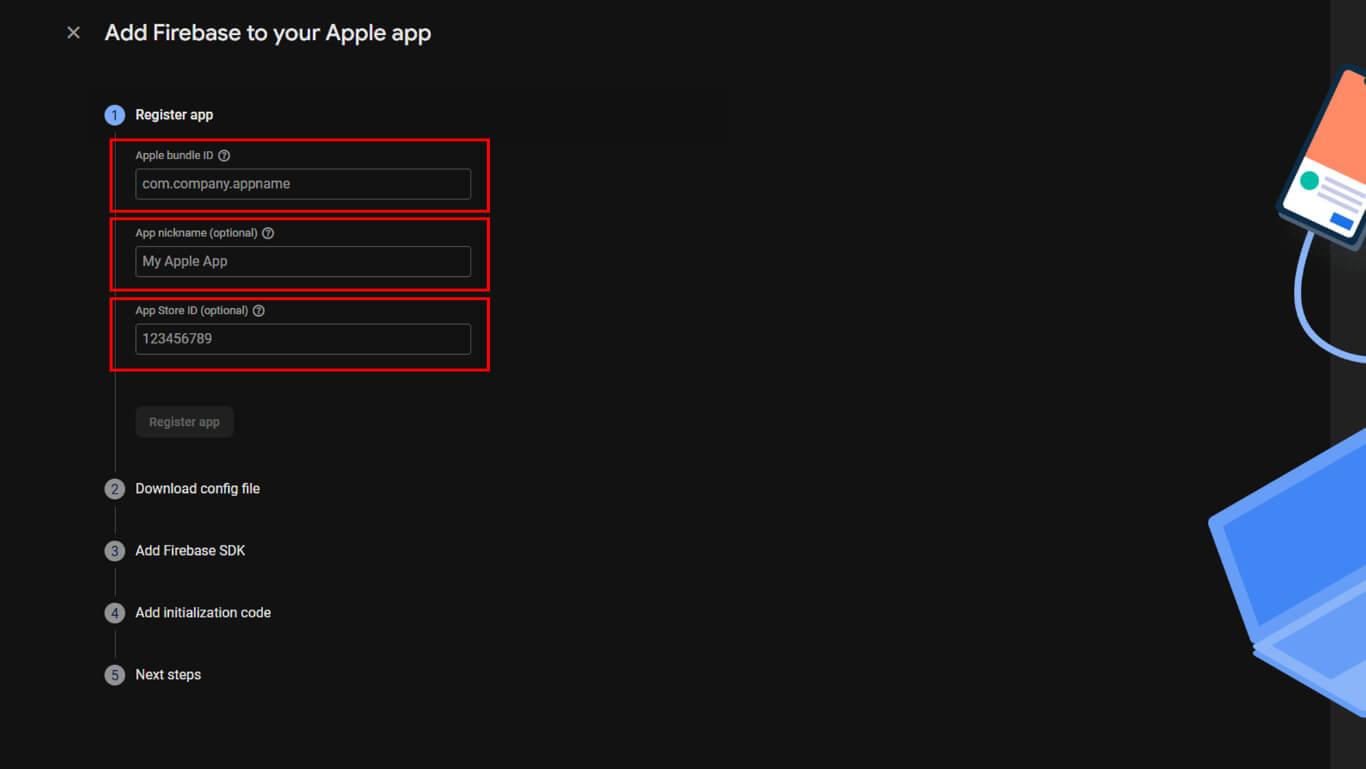
- Clique em Registrar aplicativo para criar o aplicativo iOS.
- Faça o download do GoogleService-Info.plist arquivo.
- Clique em Próximo nas demais etapas de configuração.
- Clique em Continuar para o console para concluir o registro do aplicativo iOS.
Criação do aplicativo Firebase para Android
O registro do aplicativo Android conecta o MemberPress AppKit ao Firebase para notificações push do Android.
- Clique em + Adicionar aplicativo no painel do projeto Firebase, se ele ainda não estiver aberto.
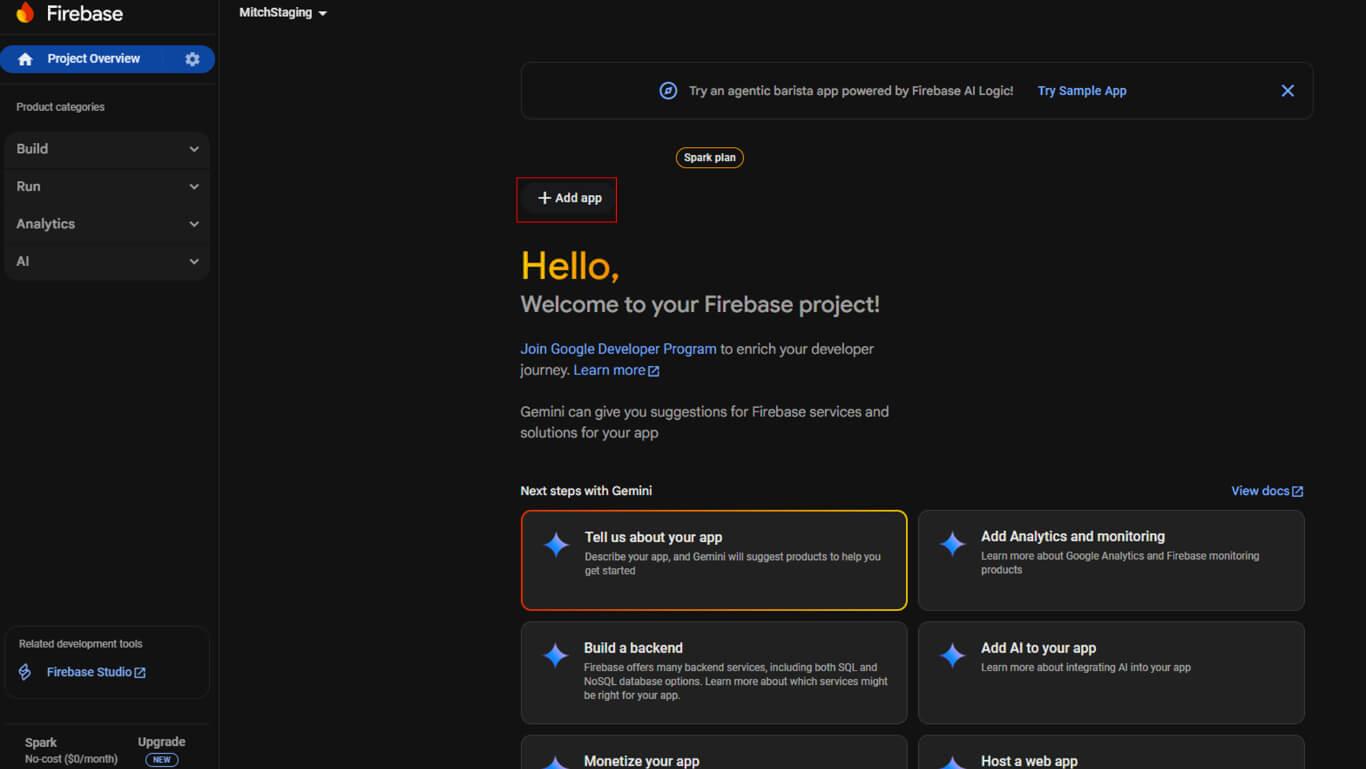
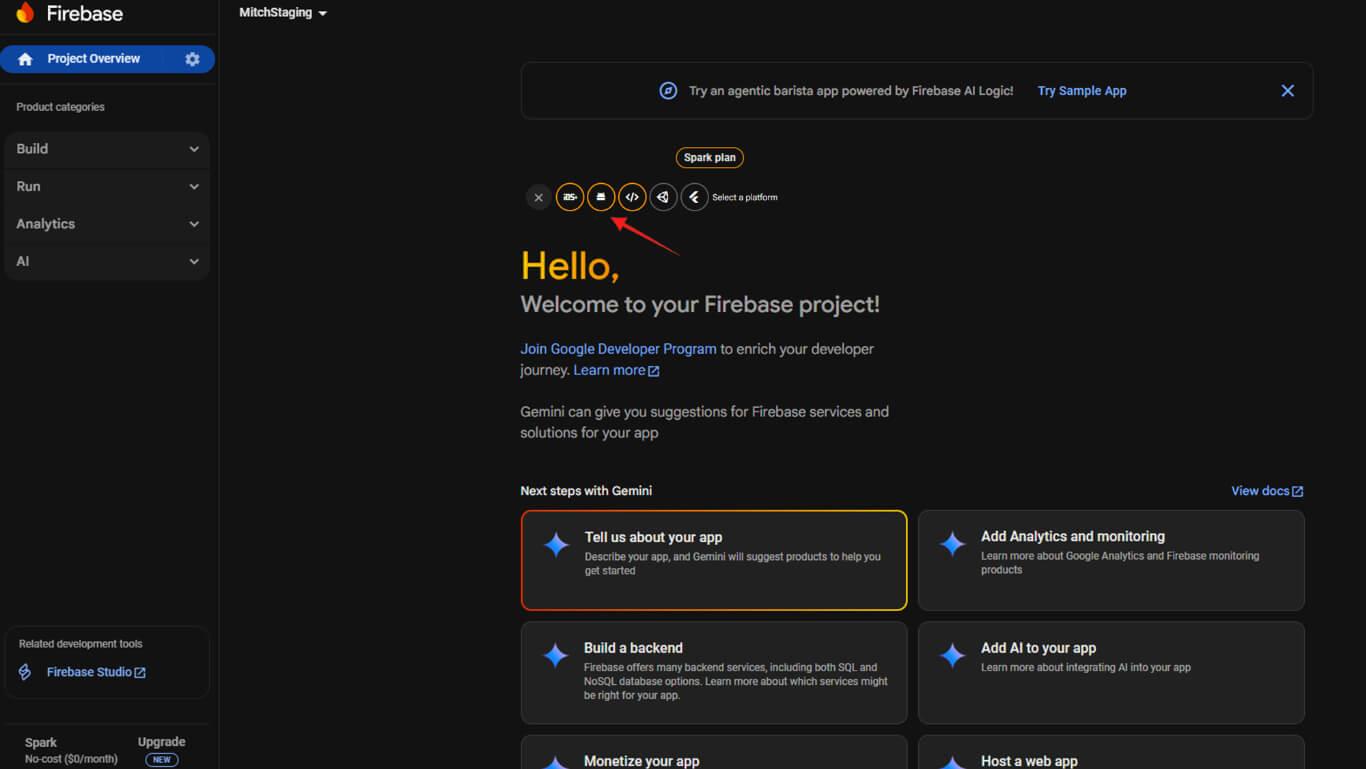
- Clique no botão Android para iniciar o registro do aplicativo Android.
- Navegue até Painel de controle > MP AppKit > Configurar > Configurações do Android em WordPress.
- Copiar o ID do aplicativo na página Configurações do Android.
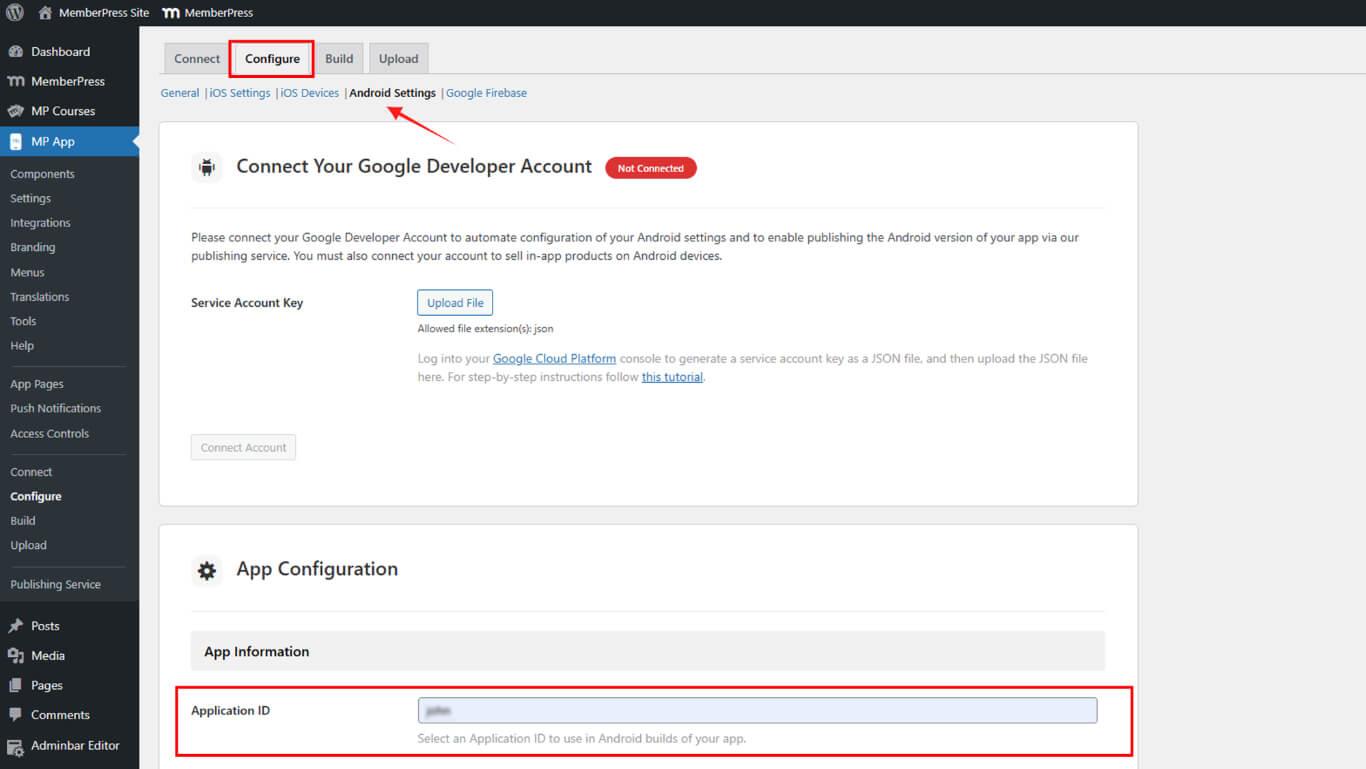
- Volte ao Console do Firebase e cole o ID do aplicativo.
- (Opcional) Adicione o apelido do aplicativo.
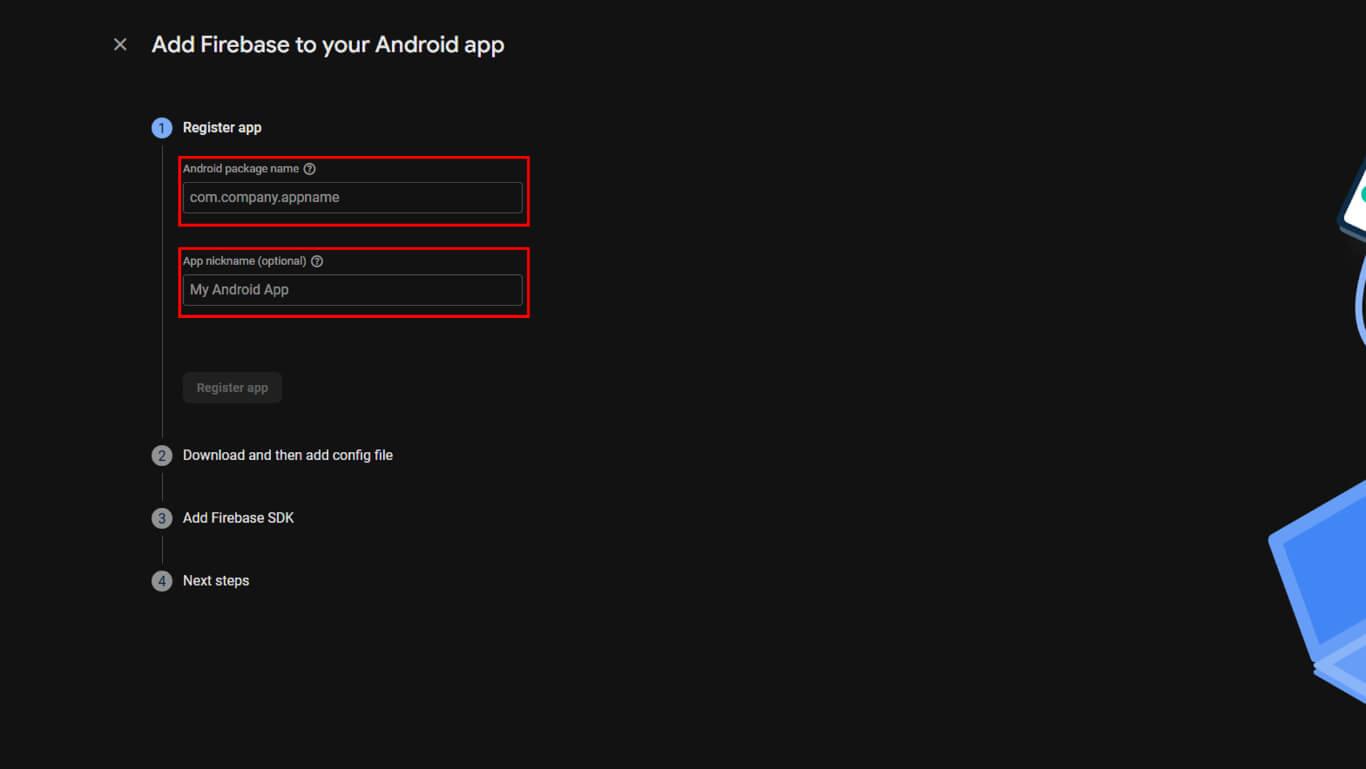
- Clique em Registrar aplicativo para criar o aplicativo Android.
- Faça o download do google-services.json arquivo.
- Clique em Próximo nas etapas 2 a 4 do assistente de configuração.
- Clique em Feito para concluir o registro do aplicativo Android.
Conexão do Firebase ao AppKit do MemberPress
Os arquivos de configuração do Firebase devem ser carregados no WordPress para a funcionalidade de notificação por push.
- Navegue até Painel de controle > MP AppKit > Configurar > Google Firebase.
- Localize o API de mensagens em nuvem do Firebase V1 seção.
- Clique em Carregar ao lado do campo de chave da conta de serviço.
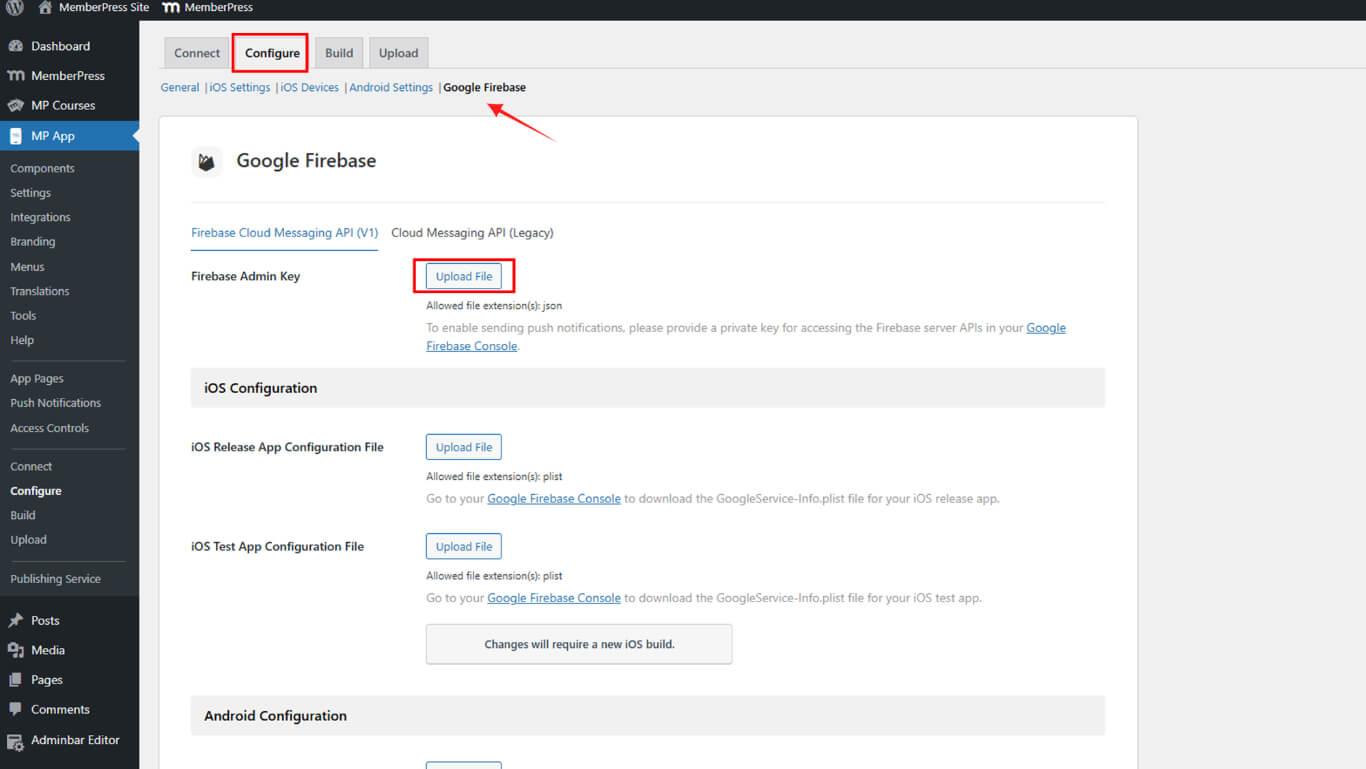
- Selecione o arquivo de conta de serviço JSON baixado.
- Clique em Carregar ao lado do campo iOS Configuration File (Arquivo de configuração do iOS).
- Selecione o GoogleService-Info.plist para iOS.
- Clique em Carregar ao lado do campo Android Configuration File (Arquivo de configuração do Android).
- Selecione o google-services.json para Android.
- Opcionalmente, carregue os arquivos de configuração do aplicativo de teste nas seções de teste.
- Clique em Salvar configurações para finalizar a configuração do Firebase.
A configuração da API Firebase V1 substitui a API Legacy Cloud Messaging para melhorar o fornecimento de notificações por push.
Verificação da configuração do Firebase
A verificação da configuração do Firebase garante a configuração adequada da funcionalidade de notificação por push.
- Navegue até Painel de controle > MP AppKit > Configurar > Google Firebase.
- Verifique se o arquivo de chave da conta de serviço foi carregado com êxito.
- Confirme se o arquivo de configuração do iOS é exibido na seção iOS.
- Confirme se o arquivo de configuração do Android é exibido na seção Android.
- Verifique se Salvar configurações foi clicado após os uploads.
- Navegue até o Firebase Console e verifique se os aplicativos iOS e Android aparecem.
- Confirme se a API do Firebase Cloud Messaging mostra uma mensagem “Ativado” status.
A configuração adequada do Firebase permite o teste e o envio de notificações por push para os dispositivos dos membros.










 PT
PT  EN
EN  ES
ES  FR
FR  DE
DE 