

A configuração do AppKit do iOS MemberPress estabelece a base para a geração de compilações, a sincronização de compras no aplicativo e a publicação de aplicativos.
Este documento explica como criar IDs de pacotes, Automatize a assinatura de certificados e perfis de provisionamento, registre o aplicativo no App Store Connect e configure as credenciais no WordPress.
Entendendo os identificadores de pacote
As IDs de pacote identificam exclusivamente o aplicativo em plataformas iOS. O ID do pacote deve usar a notação de domínio reverso com pelo menos dois segmentos separados por pontos. Os IDs de pacote de aplicativos de teste acrescentam .test ao ID do pacote de versão para isolamento de teste.
Criação de identificadores de pacotes
A criação do ID do pacote ocorre na conta de desenvolvedor da Apple.
- Faça login em desenvolvedor.apple.com.
- Navegue até Certificados, identificadores e perfis.
- Clique em Identificadores na barra lateral.
- Clique no botão + para criar um novo identificador.
- Selecione IDs de aplicativos dos tipos de identificadores.
- Clique em Continuar para prosseguir.
- Digite um Descrição para o identificador do aplicativo.
- Digite o ID do pacote usando a notação de domínio reverso.
- Verificar Notificações push na lista de recursos.
- Verificar Fazer login com a Apple na lista de recursos.
- Clique em Continuar para revisar a configuração.
- Clique em Registro para criar o identificador.
- Repita as etapas de 3 a 12 para o ID do pacote do aplicativo de teste, acrescentando .test ao identificador.
Automatização da assinatura de certificados
A automação de certificados de assinatura gera os certificados necessários para a assinatura de aplicativos.
- Navegue até Painel de controle > MP AppKit > Configurar > Ajustes do iOS.
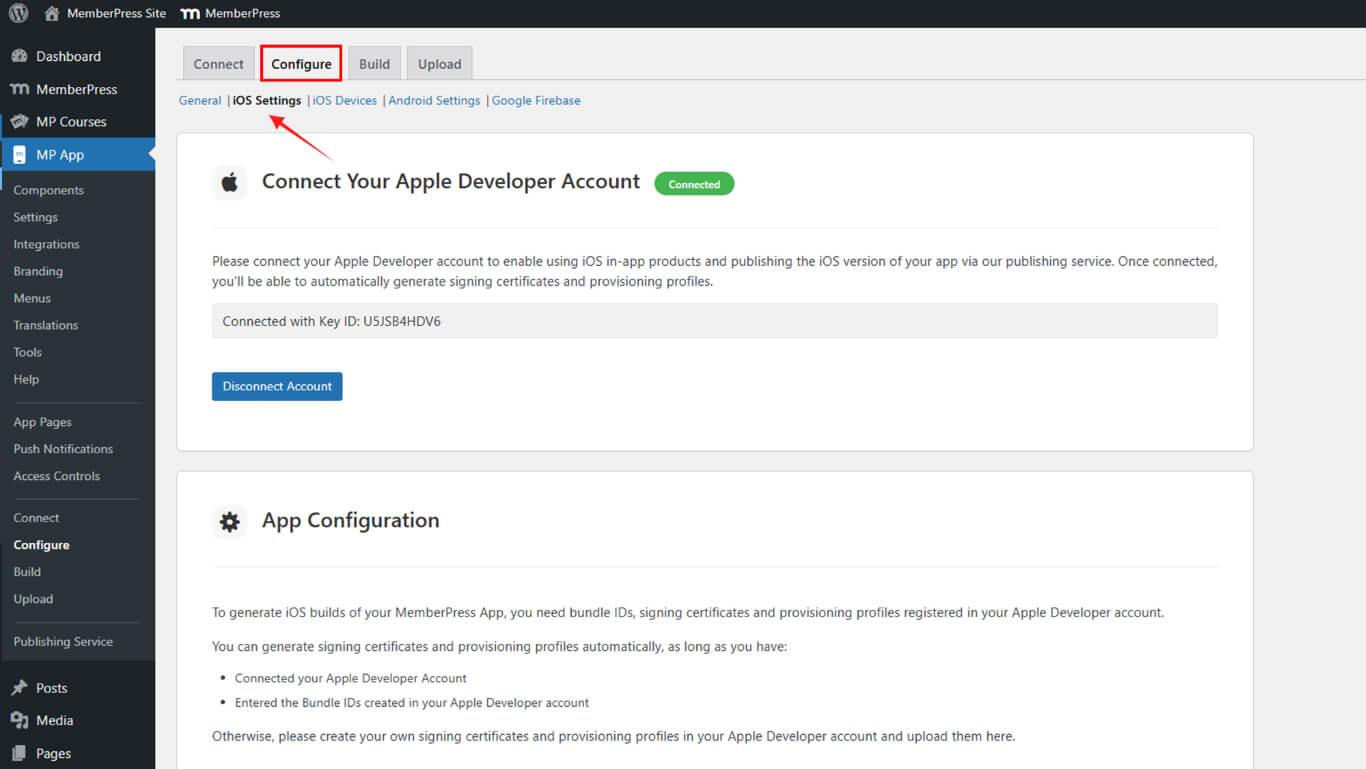
- Role até o Assinatura de certificados seção.
- Verifique o Gerar automaticamente certificados de assinatura caixa de seleção.
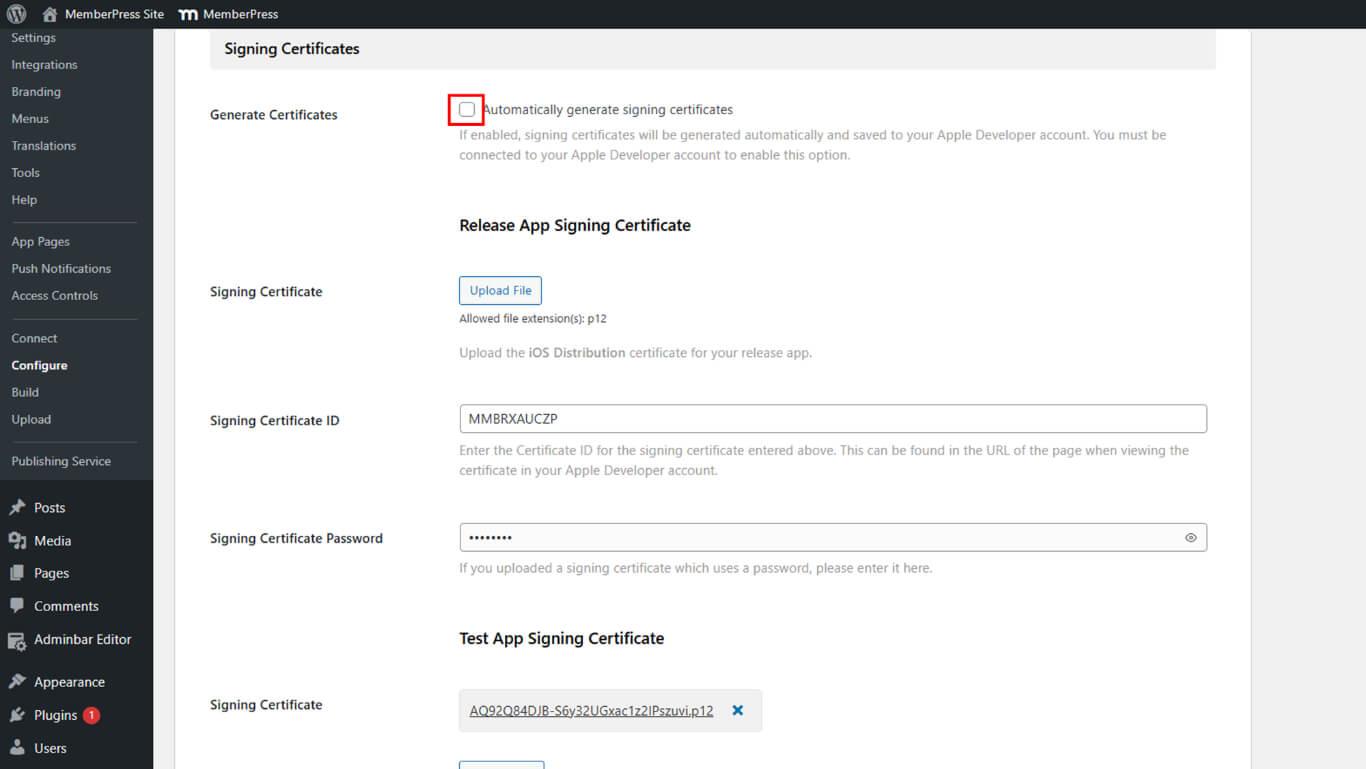
- Clique em Salvar alterações.
- Verifique se o certificado de assinatura de liberação aparece na lista de certificados.
- Verifique se o certificado de assinatura de teste aparece na lista de certificados.
Automatização de perfis de provisionamento
A automação do perfil de provisionamento cria os perfis necessários para a distribuição de aplicativos.
- Navegue até Painel de controle > MP AppKit > Configurar > Ajustes do iOS.
- Role até o Perfis de provisionamento seção.
- Verifique o Gerar automaticamente perfis de provisionamento caixa de seleção.
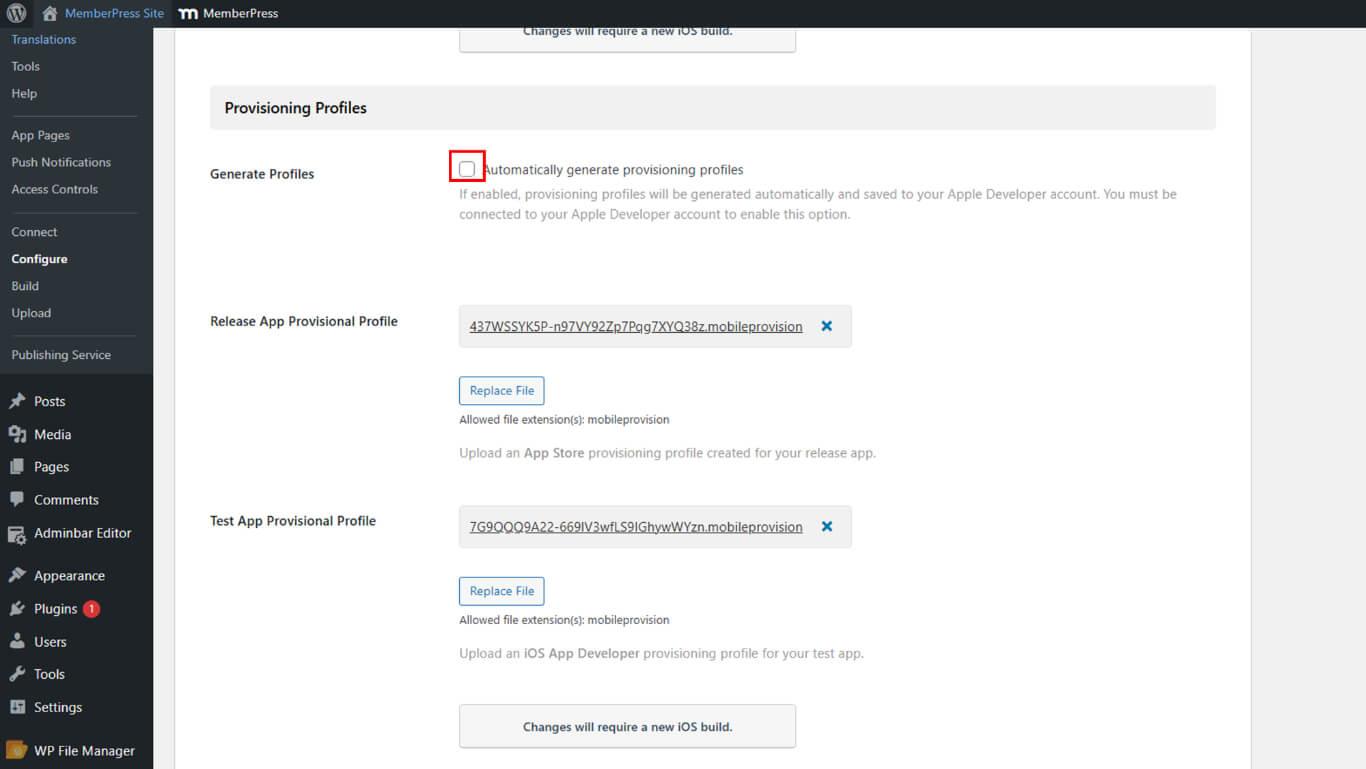
- Clique em Salvar alterações.
- Verifique se o perfil de provisionamento Release aparece na lista de perfis.
- Verifique se o perfil de provisionamento de teste aparece na lista de perfis.
Registro do aplicativo no App Store Connect
O registro de aplicativos no App Store Connect permite o envio e a publicação de aplicativos.
- Faça login em appstoreconnect.apple.com com sua conta de desenvolvedor da Apple.
- Clique em Meus aplicativos na navegação.
- Clique no botão + para adicionar um novo aplicativo.
- Selecione Novo aplicativo no menu suspenso.
- Selecione iOS como plataforma.
- Digite o Nome do aplicativo no campo de nome.
- Selecione Idioma principal na lista suspensa de idiomas.
- Selecione a liberação ID do pacote no menu suspenso ID do pacote.
- Digite um SKU para fins de rastreamento interno.
- Conjunto Acesso do usuário para Completo ou Limitado.
- Clique em Criar para registrar o aplicativo.
Importação de IDs de pacote para o WordPress
Os IDs de pacote devem ser importados para o WordPress para configuração de compilação.
- Navegue até Painel de controle > MP AppKit > Configurar > Ajustes do iOS.
- Role até o Seção IDs de pacotes.
- Clique em Atualizar IDs de pacotes para recuperar identificadores da conta de desenvolvedor da Apple.
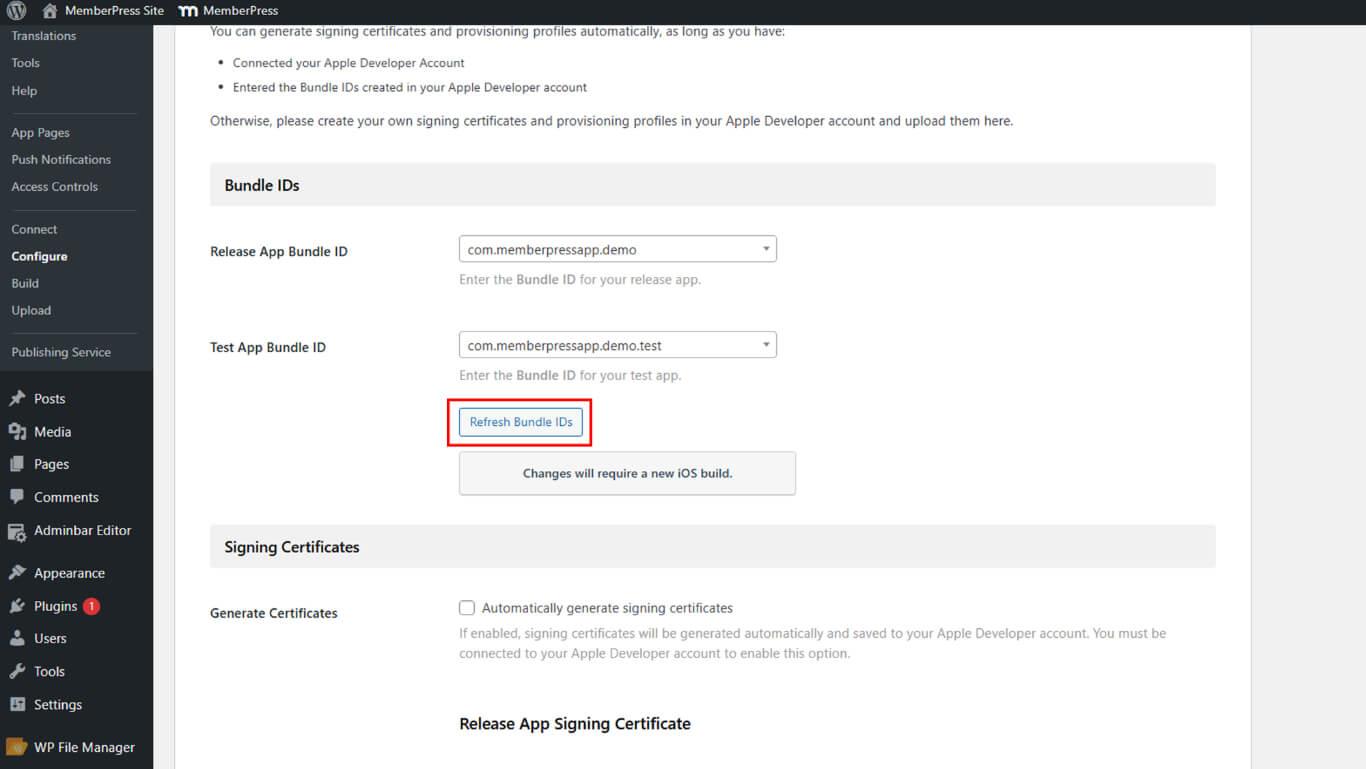
- Localize o ID do pacote do aplicativo de liberação lista suspensa.
- Selecione o ID do pacote de liberação nas opções suspensas.
- Localize o ID do pacote de aplicativos de teste lista suspensa.
- Selecione o ID do pacote de teste nas opções do menu suspenso.
- Role até o Informações sobre o aplicativo seção.
- Navegue até App Store Connect para recuperar o ID do aplicativo da Apple.
- Copie o ID do aplicativo Apple das informações do aplicativo no App Store Connect.
- Cole o ID do aplicativo da Apple no campo ID do aplicativo da Apple no WordPress.
- Clique em Salvar alterações.
Geração de segredo compartilhado específico do aplicativo
O segredo compartilhado específico do aplicativo permite a verificação de compras no aplicativo.
- Navegue até o App Store Connect em appstoreconnect.apple.com.
- Clique em Meus aplicativos na navegação.
- Selecione o aplicativo registrado na lista de aplicativos.
- Role até o Segredo compartilhado específico do aplicativo seção.
- Clique em Gerenciar para abrir o gerenciamento de segredos compartilhados.
- Clique em Gerar segredo compartilhado específico do aplicativo.
- Copie o valor secreto gerado.
- Navegue até Painel de controle > MP AppKit > Configurar > Configurações do iOS em WordPress.
- Localize o Segredo compartilhado específico do aplicativo campo.
- Cole o valor secreto copiado no campo.
- Clique em Salvar alterações.










 PT
PT  EN
EN  ES
ES  FR
FR  DE
DE 