

As notificações por push fornecem alertas em tempo real aos dispositivos móveis dos membros. Esses alertas informam os membros sobre novos conteúdos, atualizações de associação e eventos importantes da conta.
Este documento explica como ativar as notificações por push, configurar a integração com o Firebase, gerenciar os tipos de notificação automatizada e enviar notificações manuais aos membros.
Entendendo as notificações push
As notificações push chegam aos membros instantaneamente sem exigir o uso do aplicativo. As notificações aparecem nas telas de bloqueio dos dispositivos e nas centrais de notificação. Os membros podem tocar nas notificações para abrir diretamente o conteúdo relevante do aplicativo. O Firebase Cloud Messaging potencializa a entrega de notificações nas plataformas iOS e Android. A configuração adequada garante a entrega confiável de notificações e o envolvimento dos membros.
Ativação do componente de notificações por push
As notificações push devem ser ativadas antes do início da configuração.
- Navegue até Painel de controle > MP AppKit > Componentes.
- Localizar Notificações push na lista de componentes.
- Alternar o Ativar mudar para Em.
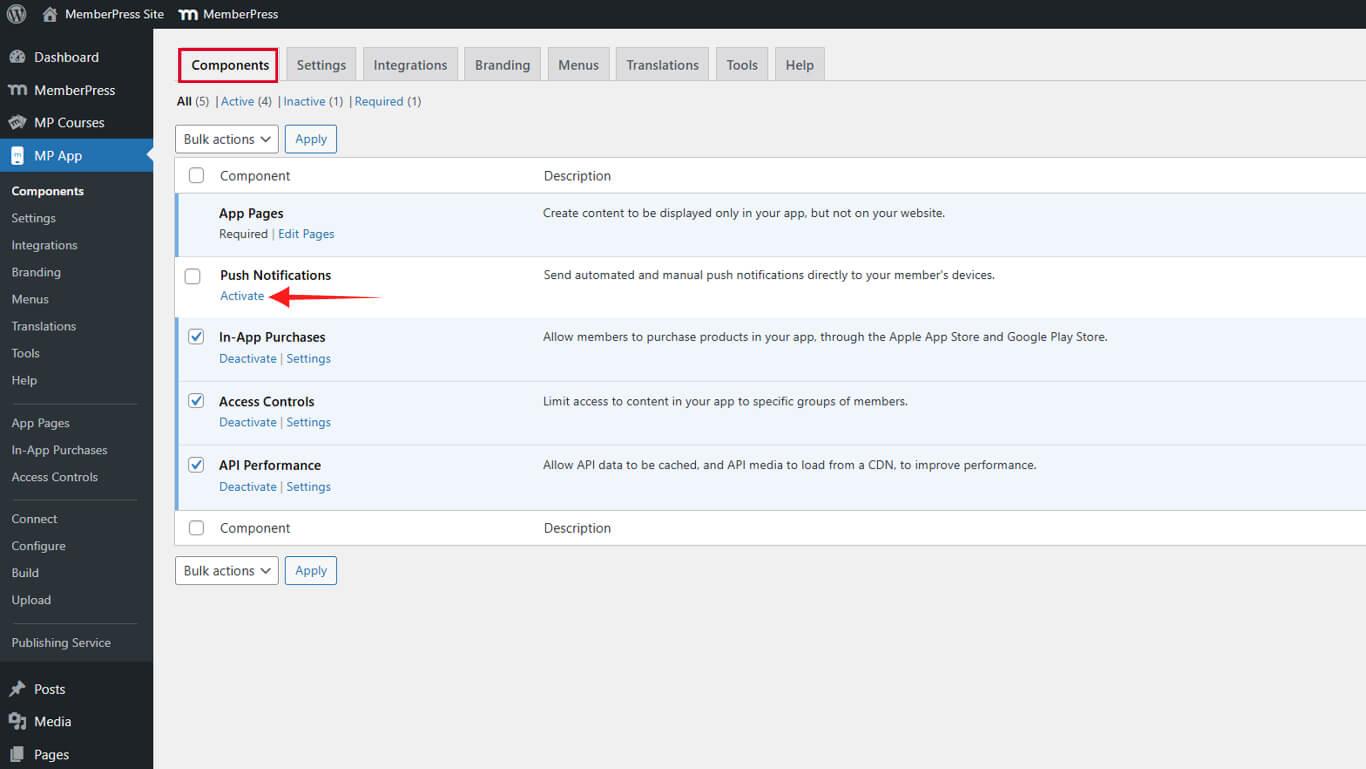
O menu Push Notifications é exibido no painel do WordPress após a ativação.
Conexão do Firebase para entrega de notificações
O Firebase Cloud Messaging lida com a entrega de notificações para dispositivos iOS e Android. A conexão requer a configuração do projeto Firebase e o upload de credenciais.
Criando um projeto Firebase
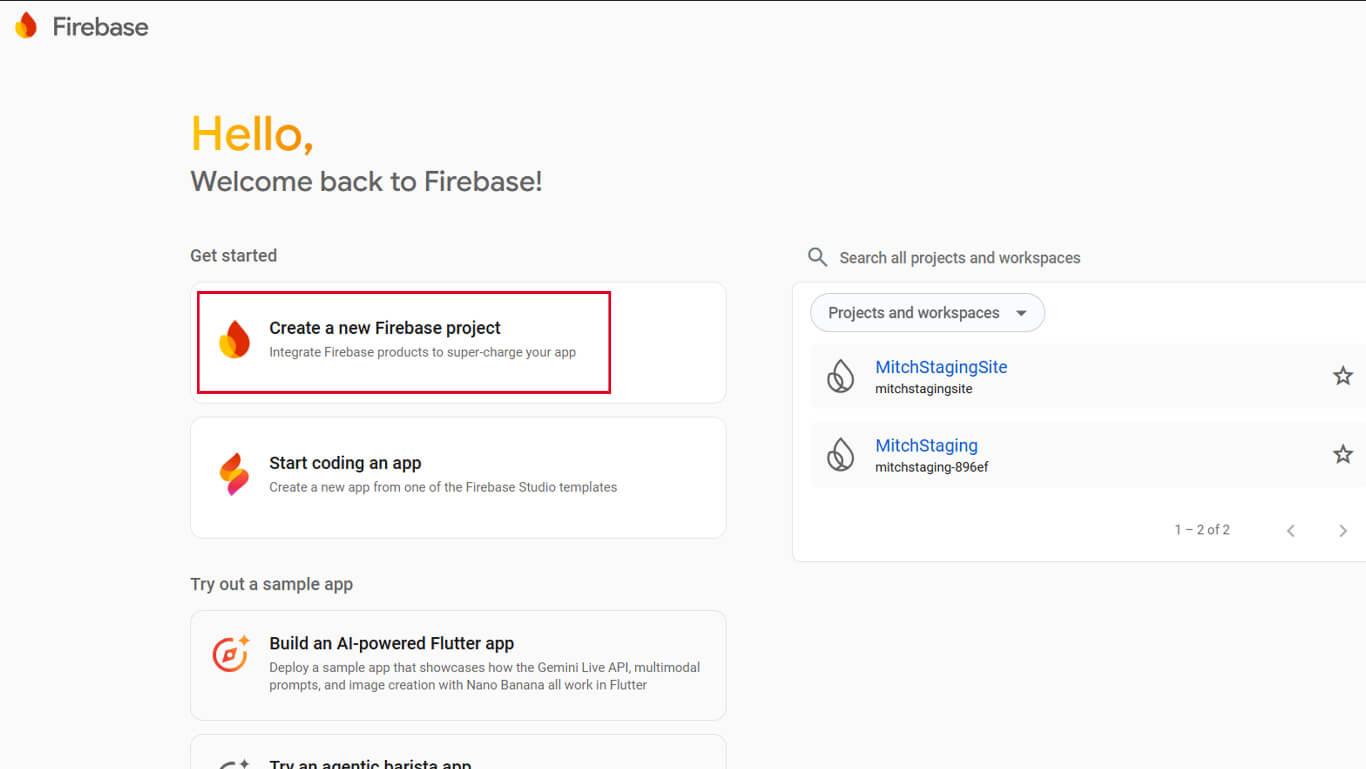
- Visite o console do Firebase em console.firebase.google.com.
- Clique em Criar um novo projeto do Firebase ou selecione um projeto existente.
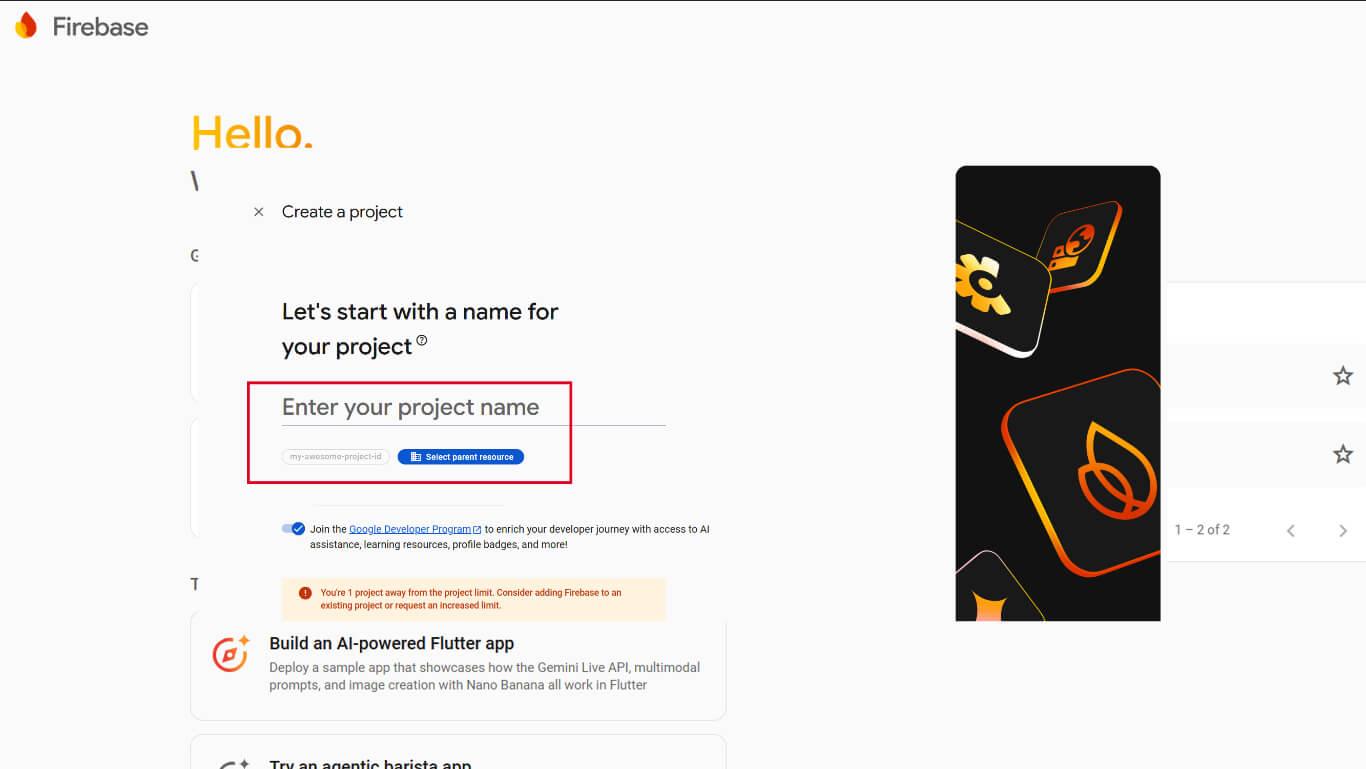
- Digite um nome de projeto e clique em Continuar.
- Aguarde a conclusão da criação do projeto.
A configuração do projeto Firebase fornece a base para a infraestrutura de fornecimento de notificações.
Como adicionar um aplicativo iOS ao Firebase
- No Console do Firebase, selecione o projeto criado.
- Clique em Adicionar aplicativo.
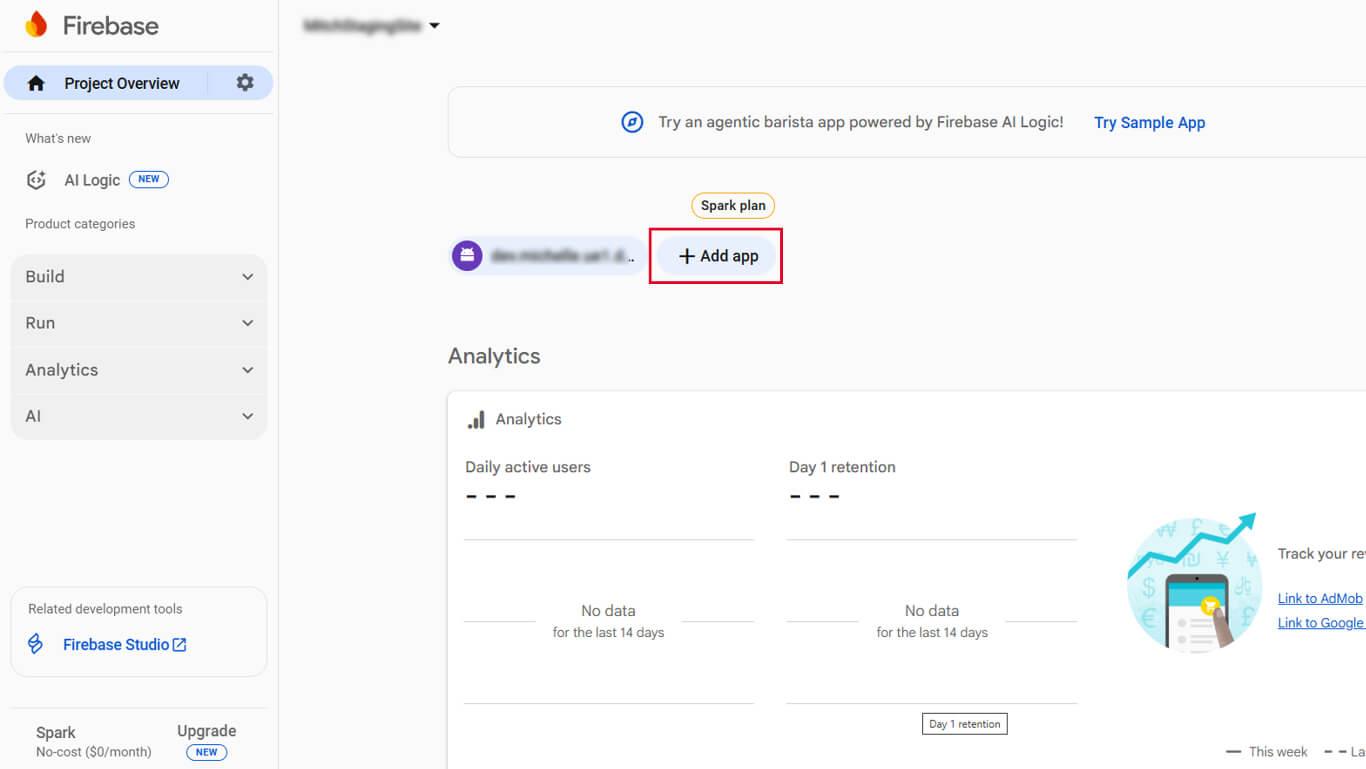
- Clique no botão iOS para adicionar um aplicativo iOS.
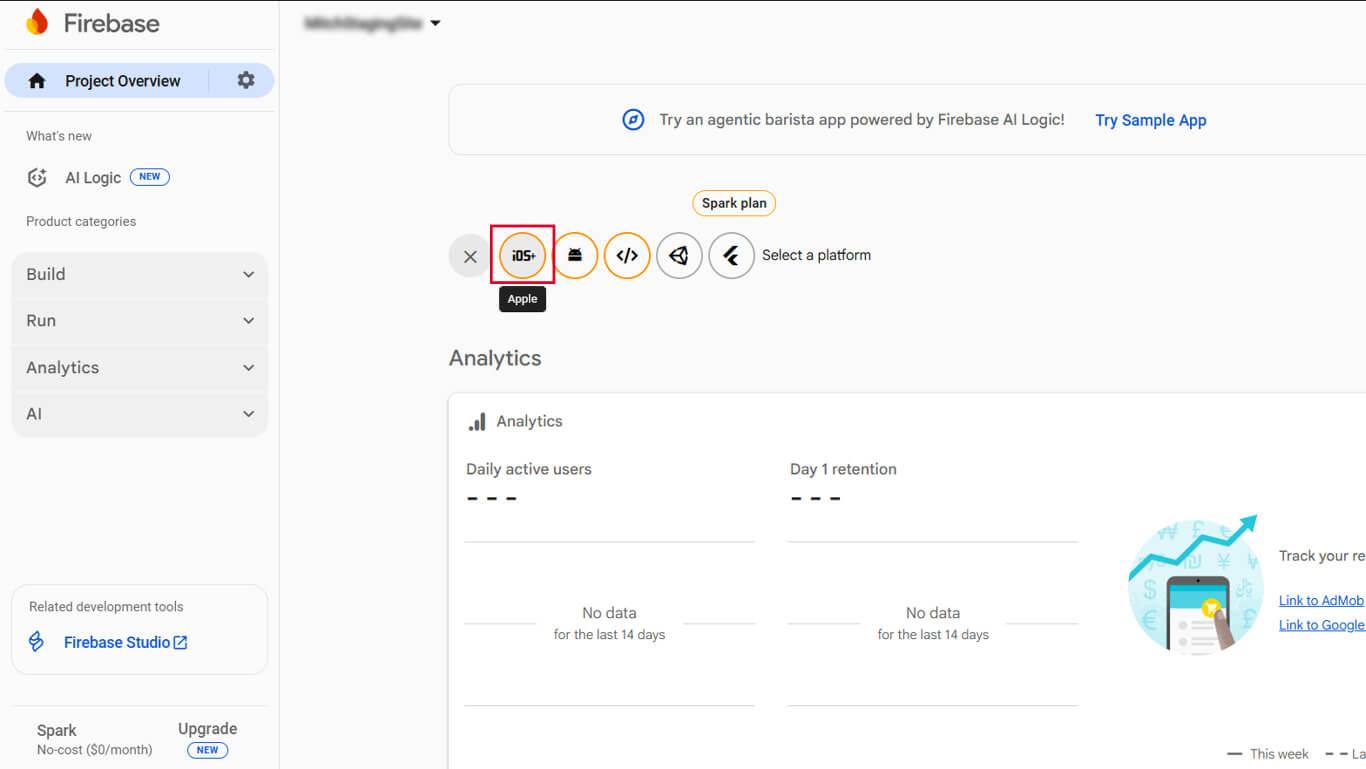
- Digite o ID do pacote do iOS nas configurações do aplicativo MemberPress.
- Digite um apelido de aplicativo e clique em Registrar aplicativo.
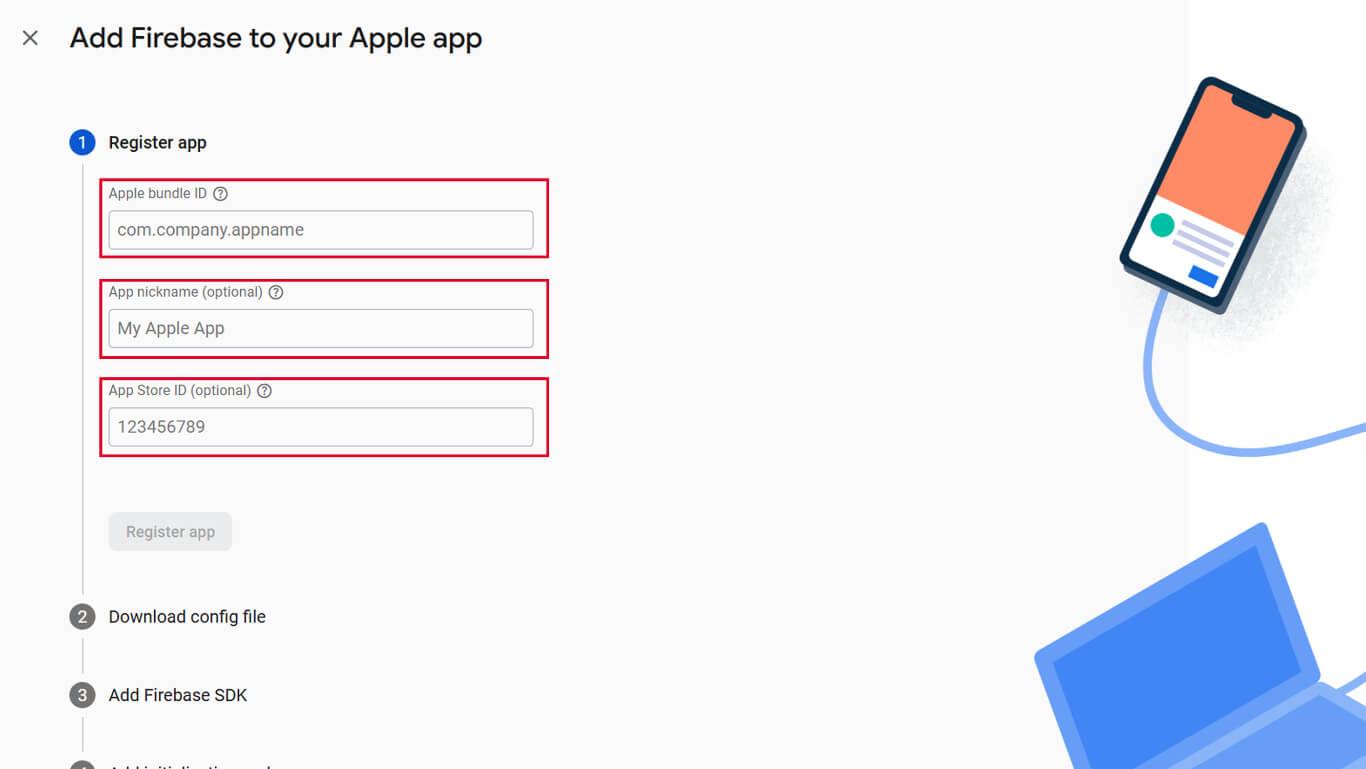
- Faça o download do GoogleService-Info.plist arquivo.
- Clique em Continuar nas demais etapas de configuração.
Adição de um aplicativo Android ao Firebase
- No Console do Firebase, selecione o projeto.
- Clique em Adicionar aplicativo.
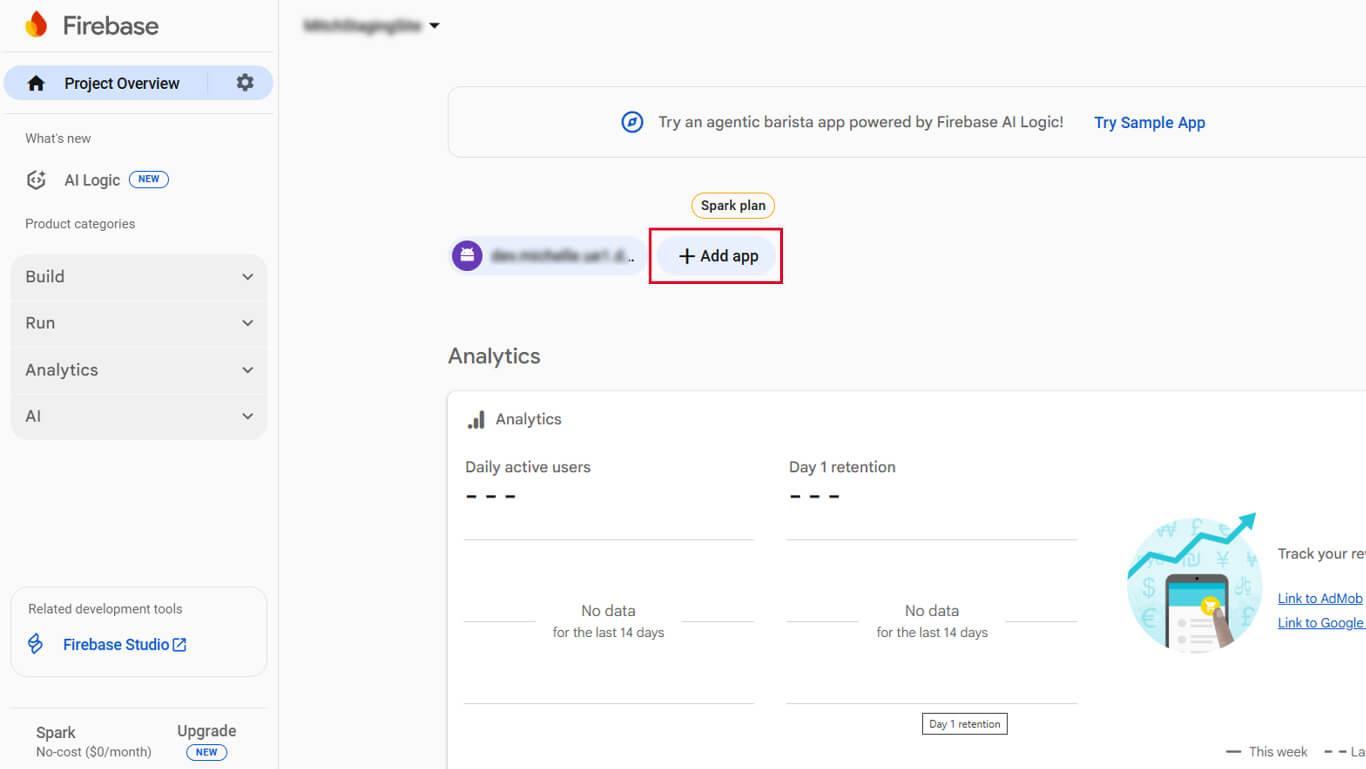
- Clique no botão Android para adicionar um aplicativo Android.
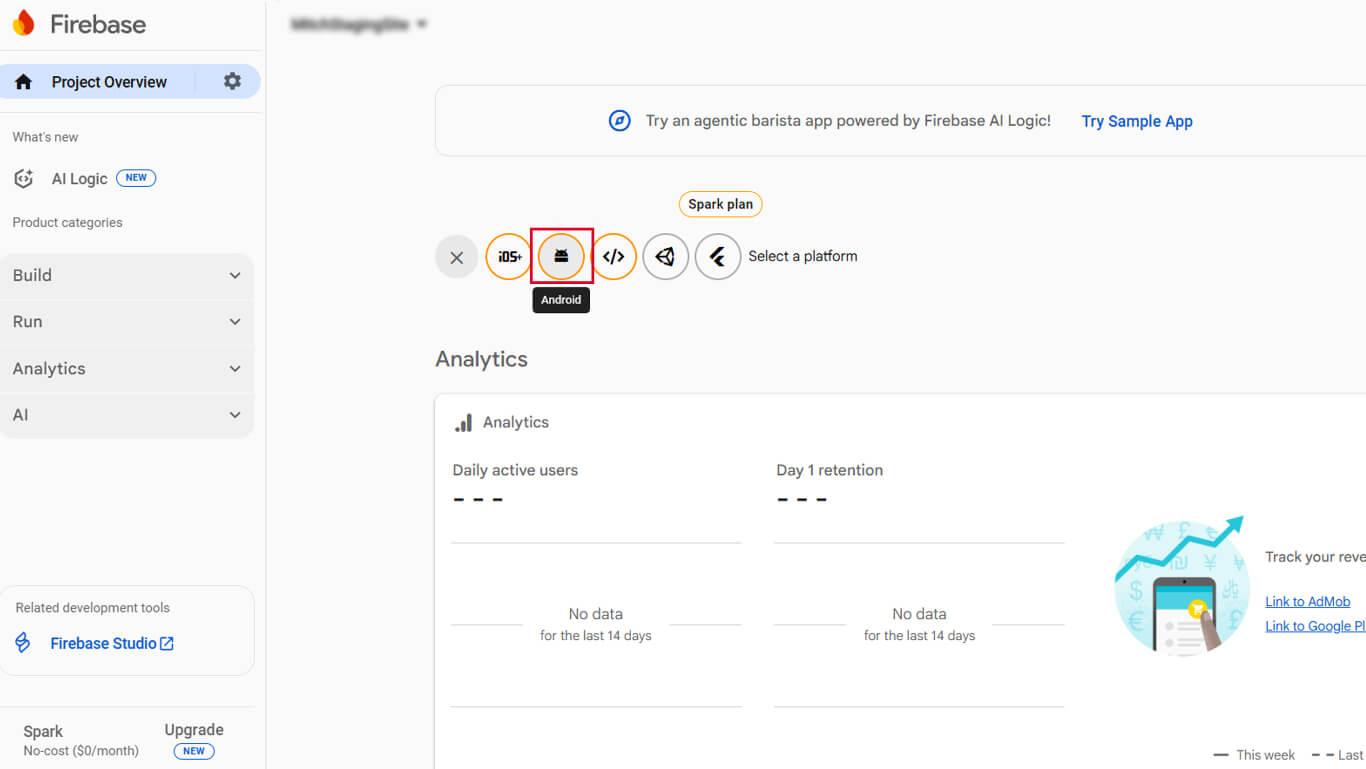
- Digite o nome do pacote Android nas configurações do AppKit do MemberPress.
- Digite um apelido de aplicativo e clique em Registrar aplicativo.
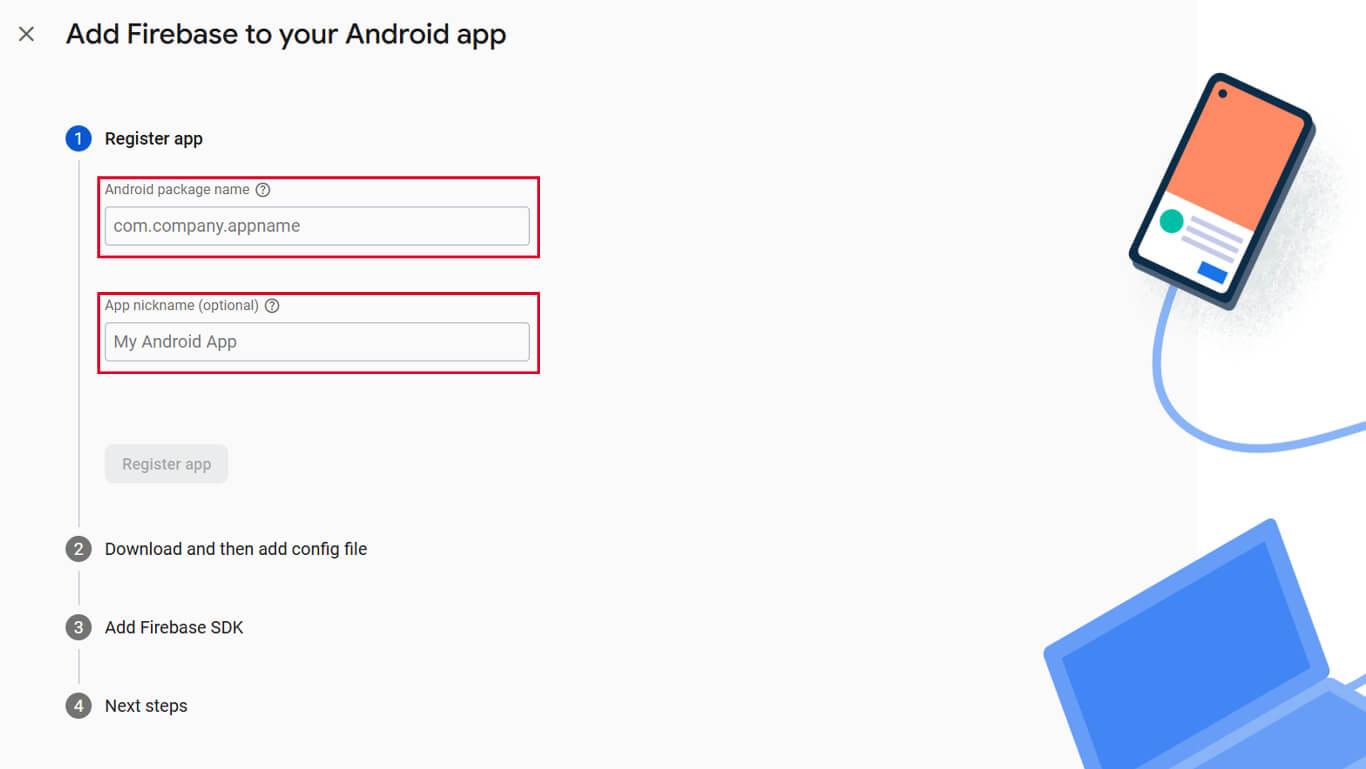
- Faça o download do google-services.json arquivo.
- Clique em Continuar nas demais etapas de configuração.
Obtenção de credenciais do servidor Firebase
- No console do Firebase, navegue até Configurações do projeto.
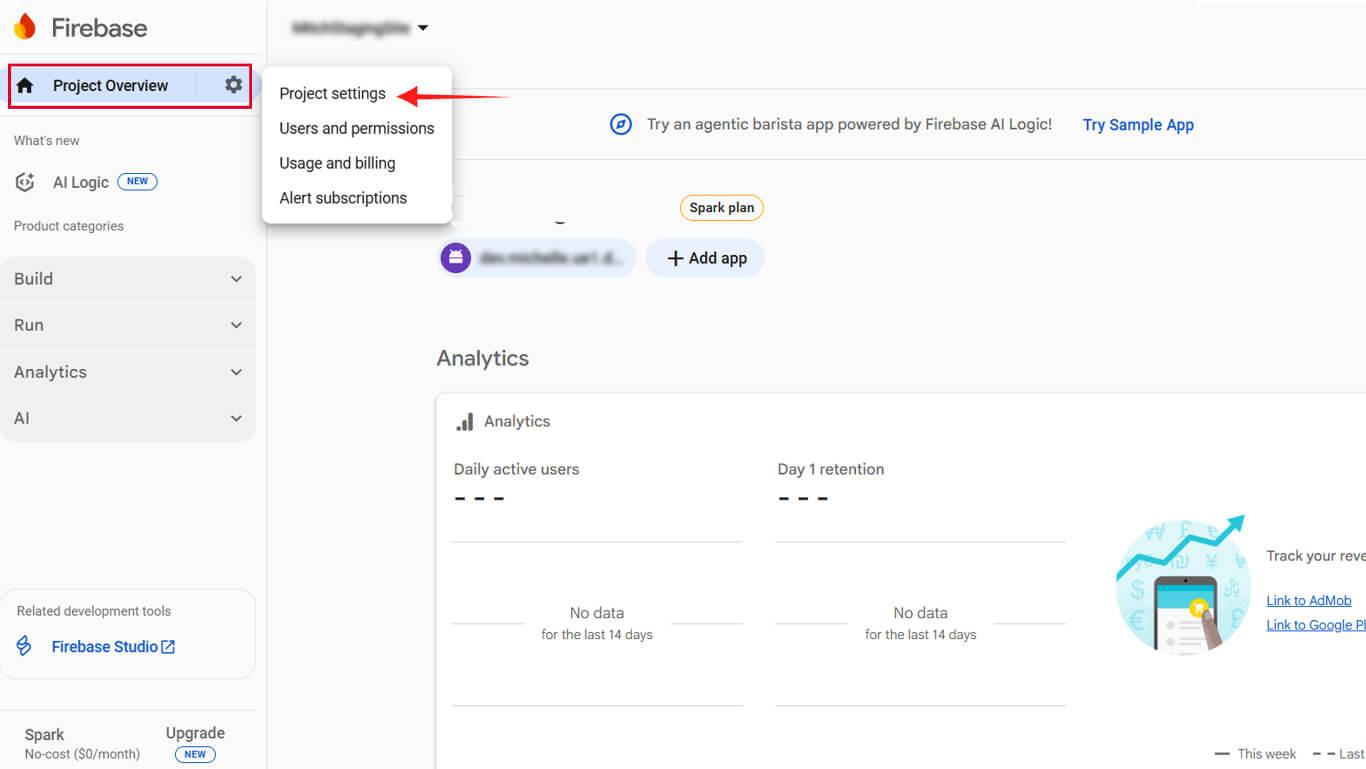
- Clique no botão Mensagens na nuvem guia.
- Copiar o Chave do servidor valor.
- Copiar o ID do remetente valor.
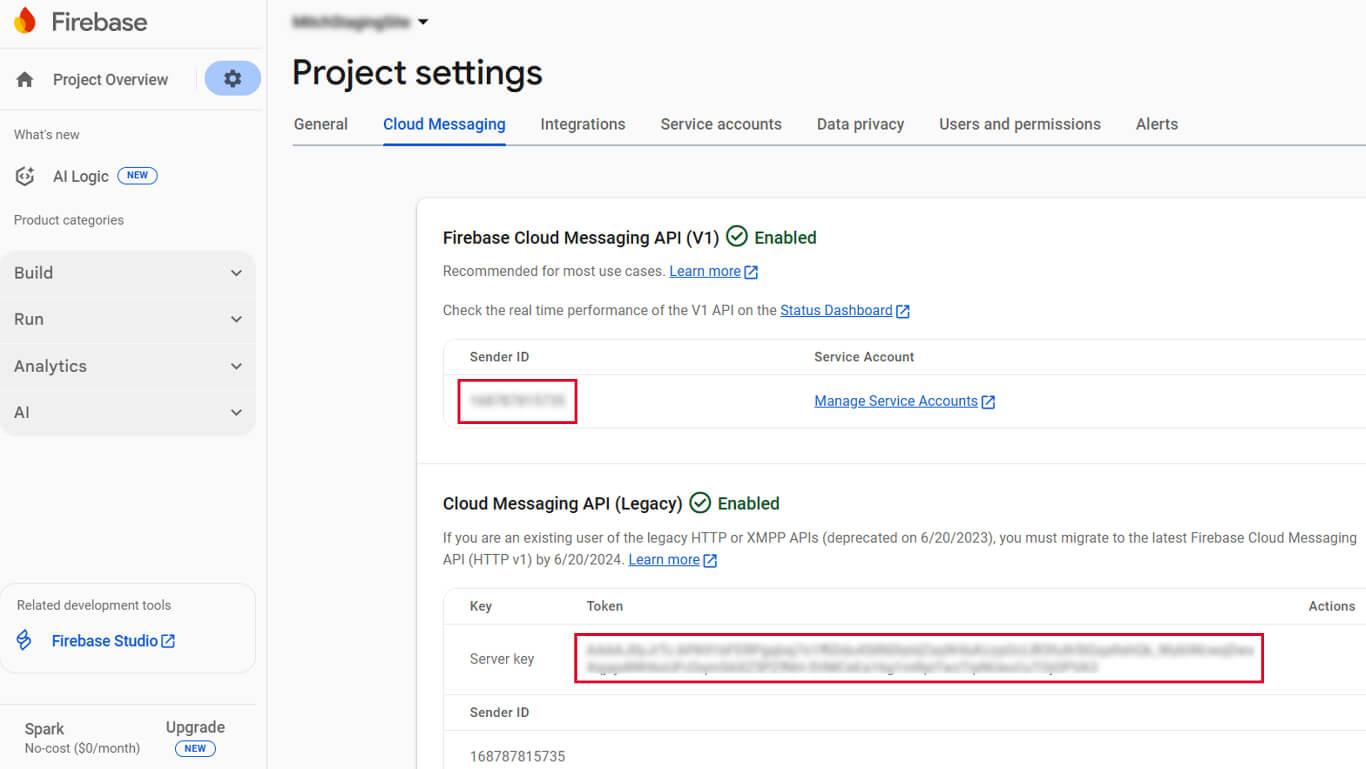
- Mantenha esses valores acessíveis para a configuração do WordPress.
As credenciais do servidor autenticam a comunicação do WordPress com os servidores do Firebase.
Como fazer upload da configuração do Firebase para o WordPress
- Navegue até Painel de controle > MP AppKit > Configurar > Google Firebase.
- Clique em Selecionar arquivo em Android Configuration File (Arquivo de configuração do Android).
- Selecione o download google-services.json arquivo.
- Clique em Selecionar arquivo em iOS Configuration File (Arquivo de configuração do iOS).
- Selecione o download GoogleService-Info.plist arquivo.
- Digite o Chave do servidor no campo Server Key (Chave do servidor).
- Digite o ID do remetente no campo ID do remetente.
- Clique em Salvar alterações.
A configuração bem-sucedida permite a entrega de notificações push aos dispositivos membros.
Configuração de tipos de notificação automatizada
As notificações automatizadas são acionadas com base em eventos específicos sem intervenção manual. A configuração determina quais tipos de notificação os membros podem receber.
- Navegue até Painel de controle > MP AppKit > Settings > Push Notifications.
- Localize o Notificações automáticas seção.
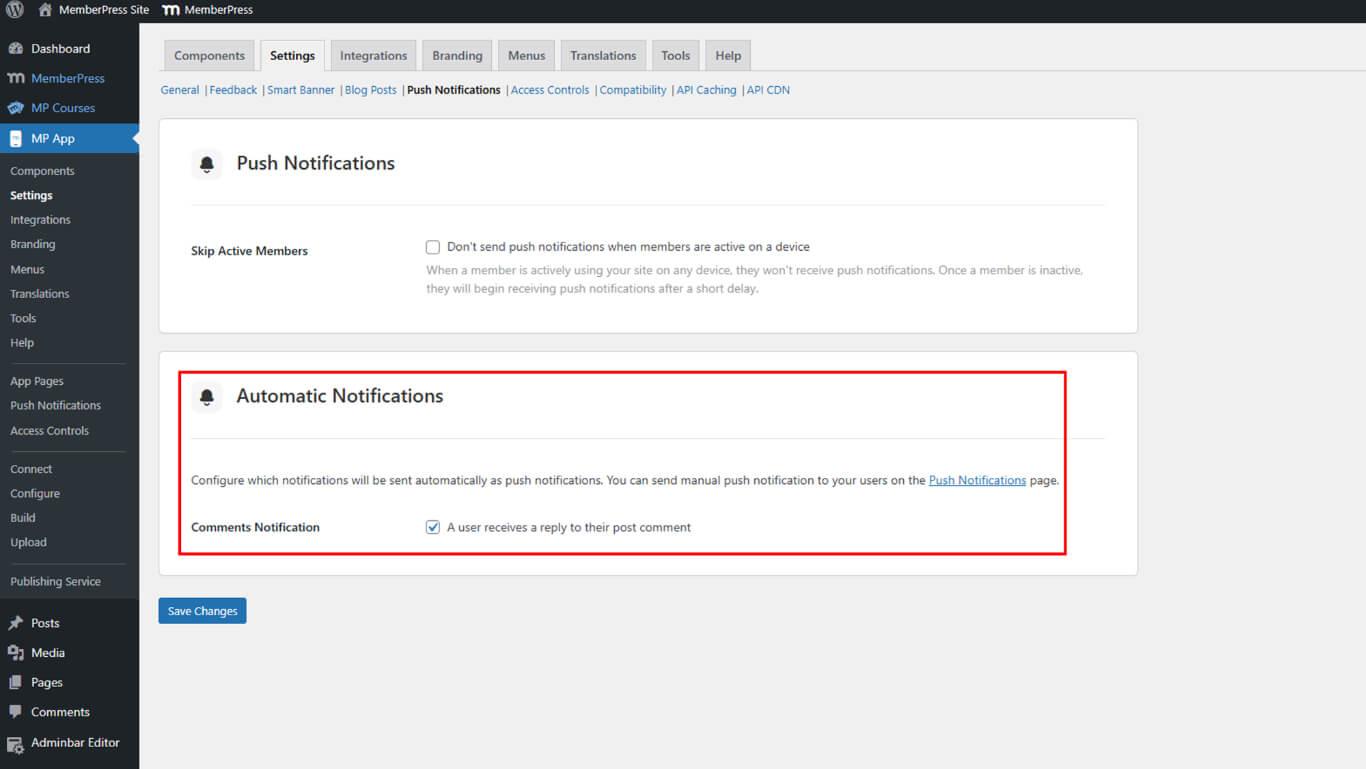
- Clique em Salvar alterações.










 PT
PT  EN
EN  ES
ES  FR
FR  DE
DE 