

Os menus Tab Bar e More Screen fornecem navegação primária e secundária em aplicativos móveis. A personalização do menu cria experiências de navegação de marca alinhadas à estrutura organizacional e às necessidades dos membros.
Este documento explica como configurar itens de navegação, organizar seções de menu, personalizar ícones e cores e visualizar alterações na navegação.
Entendendo a barra de guias e mais navegação na tela
A navegação da barra de guias é exibida na parte inferior das telas dos dispositivos móveis, proporcionando acesso rápido às seções principais do aplicativo. Até quatro itens podem ocupar as posições da barra de guias, com a quinta posição reservada para o menu Mais. A navegação da tela Mais contém itens secundários acessados através do ícone do menu Mais. A organização do menu e a seleção de ícones criam experiências de navegação coesas, apoiando o envolvimento dos membros e a descoberta de conteúdo.
Acessando as configurações do menu
A configuração do menu é feita na interface de configurações do menu.
- Navegue até Painel de controle > MP AppKit > Menus.
- Verifique o Menu da barra de guias A guia está ativa.
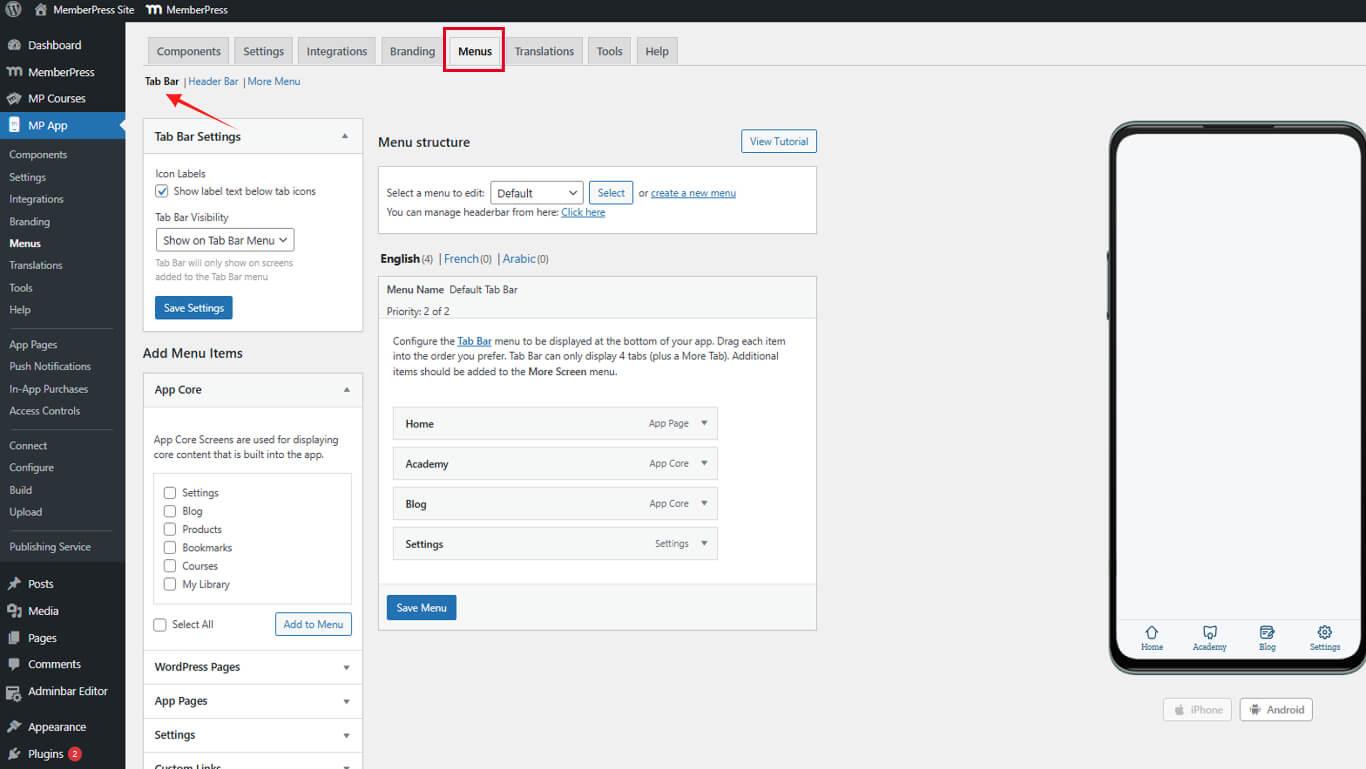
- Clique no botão Menu Mais telas guia para acessar a navegação secundária.
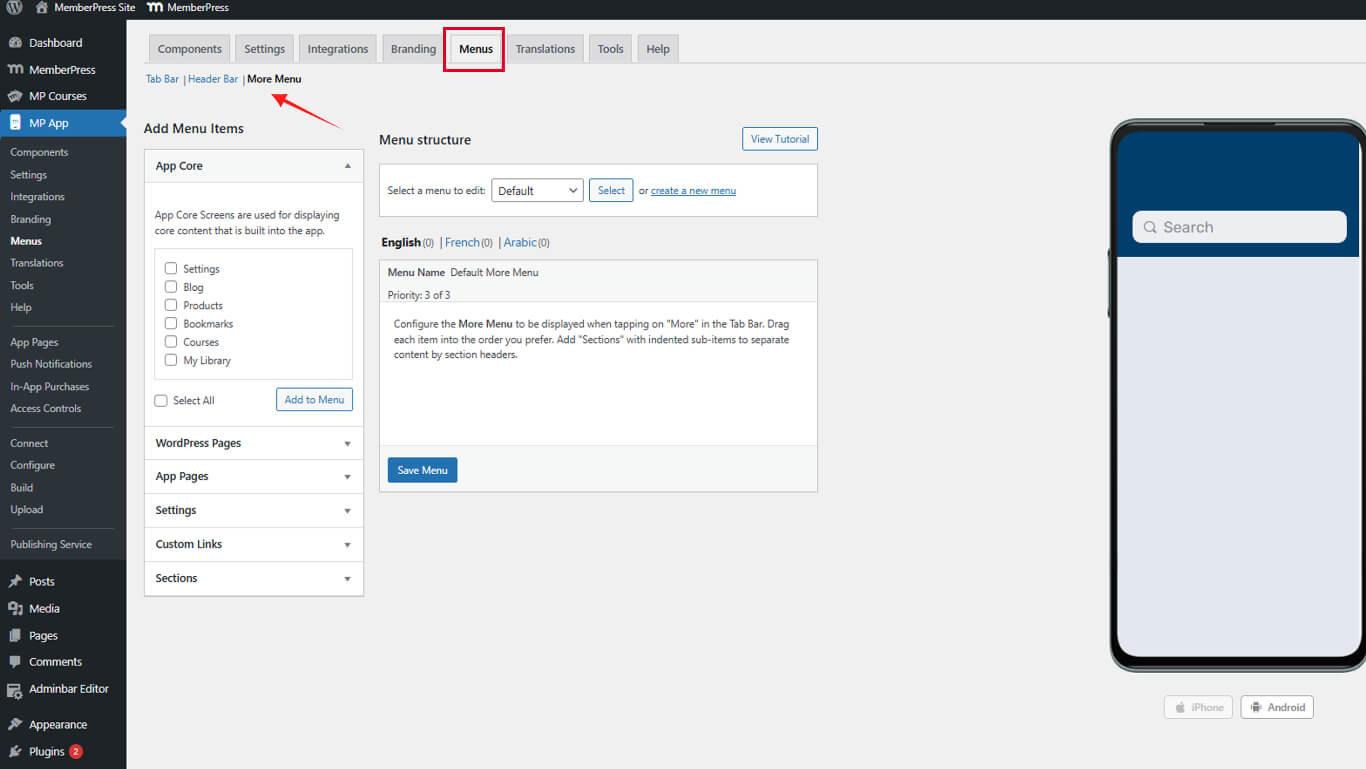
Os menus da barra de guias e da tela Mais são configurados independentemente, com diferentes estruturas organizacionais.
Limpar itens de navegação existentes
Começar com menus vazios simplifica a reconfiguração da navegação.
Limpar o menu da barra de guias
- Navegue até Painel de controle > MP AppKit > Menus.
- Clique no botão Menu suspenso, em seguida, selecione Remover para cada item.
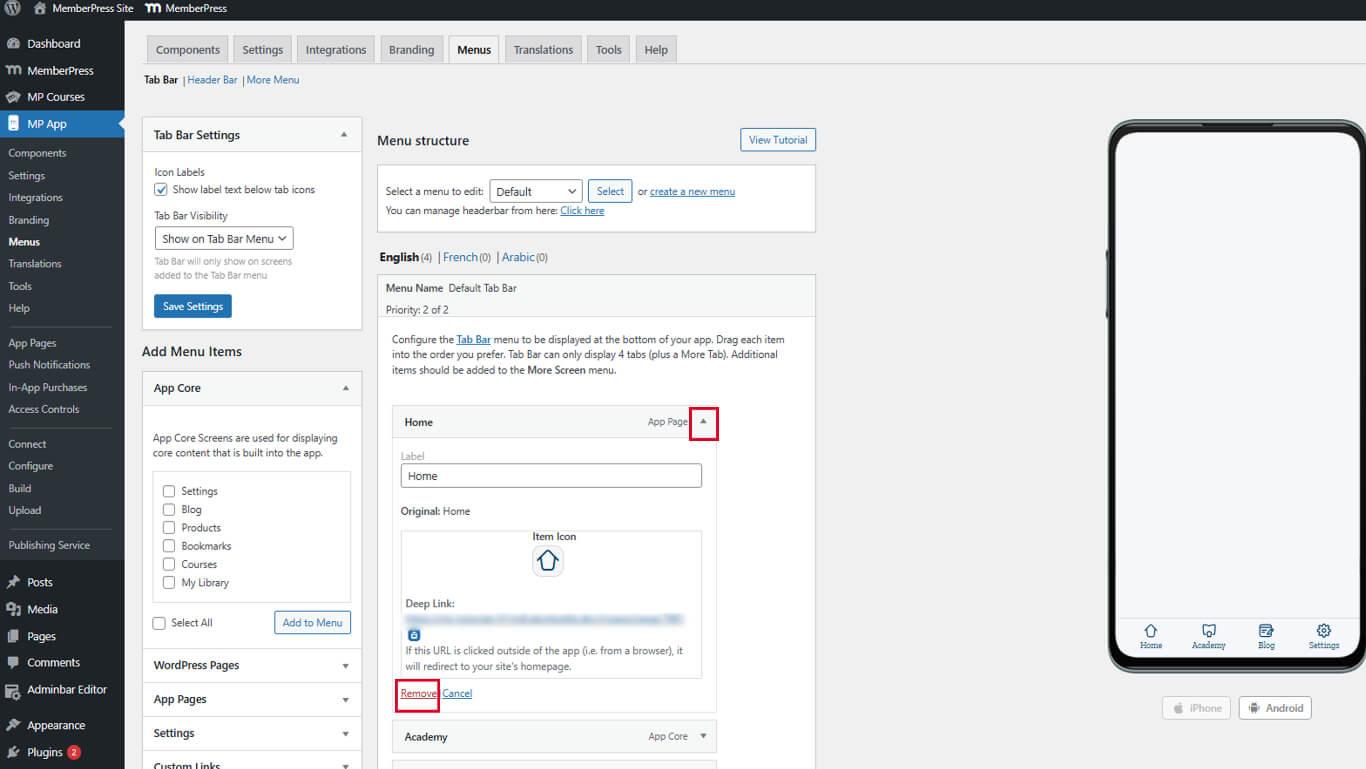
- Repita até que o Menu da Barra de Guias esteja vazio.
A limpeza dos itens existentes evita conflitos durante a reconfiguração.
Limpar mais menu da tela
- Clique no botão Menu Mais telas guia.
- Localize cada item do menu existente.
- Clique em Remover ao lado de cada item.
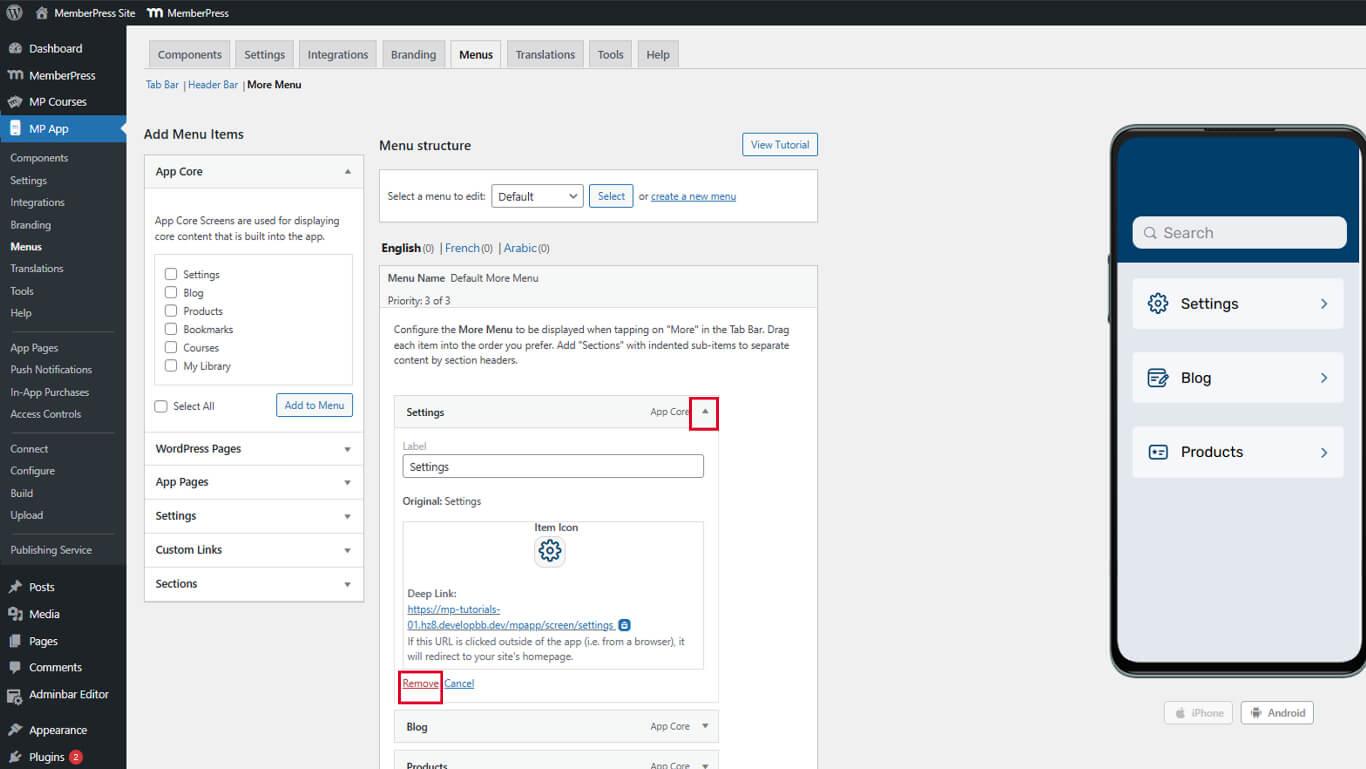
- Repita até que o menu Mais tela esteja vazio.
Os menus vazios fornecem bases claras para uma estrutura de navegação deliberada.
Adicionando itens ao menu da barra de guias
Os itens da barra de guias fornecem navegação principal para seções acessadas com frequência.
Adicionando telas do aplicativo principal
- Navegue até Painel de controle > MP AppKit > Menus.
- Localize o Núcleo do aplicativo seção nos itens disponíveis.
- Localizar Configurações e clique em Adicionar ao menu.
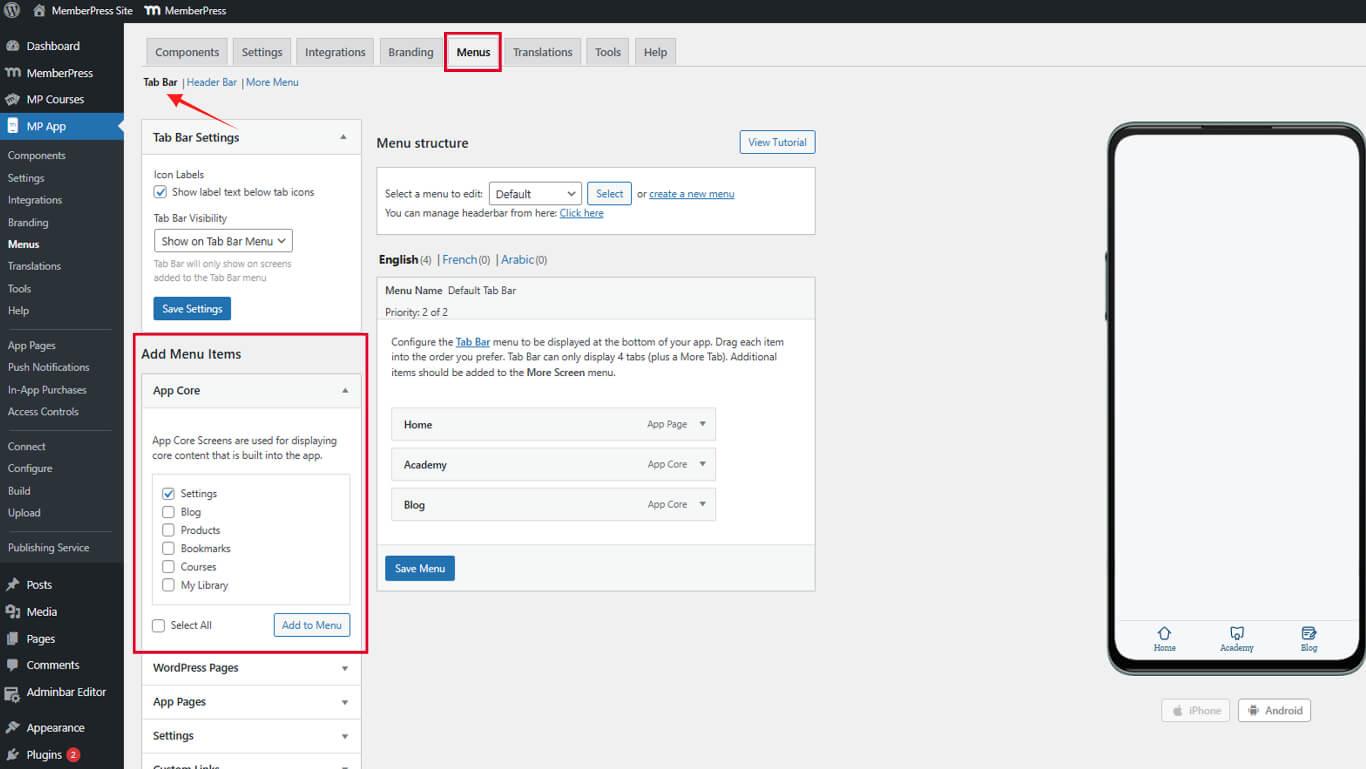
- Arraste os itens do menu para organizar a ordem de exibição.
- Clique no botão Salvar menu.
As configurações devem permanecer acessíveis para gerenciamento de conta e configuração do aplicativo.
Adicionando páginas de aplicativos
- Localize o Páginas do aplicativo seção em itens disponíveis.
- Encontre a página inicial ou a página do aplicativo do grupo de membros.
- Marque a caixa de seleção ao lado do nome da página.
- Clique em Adicionar ao menu.
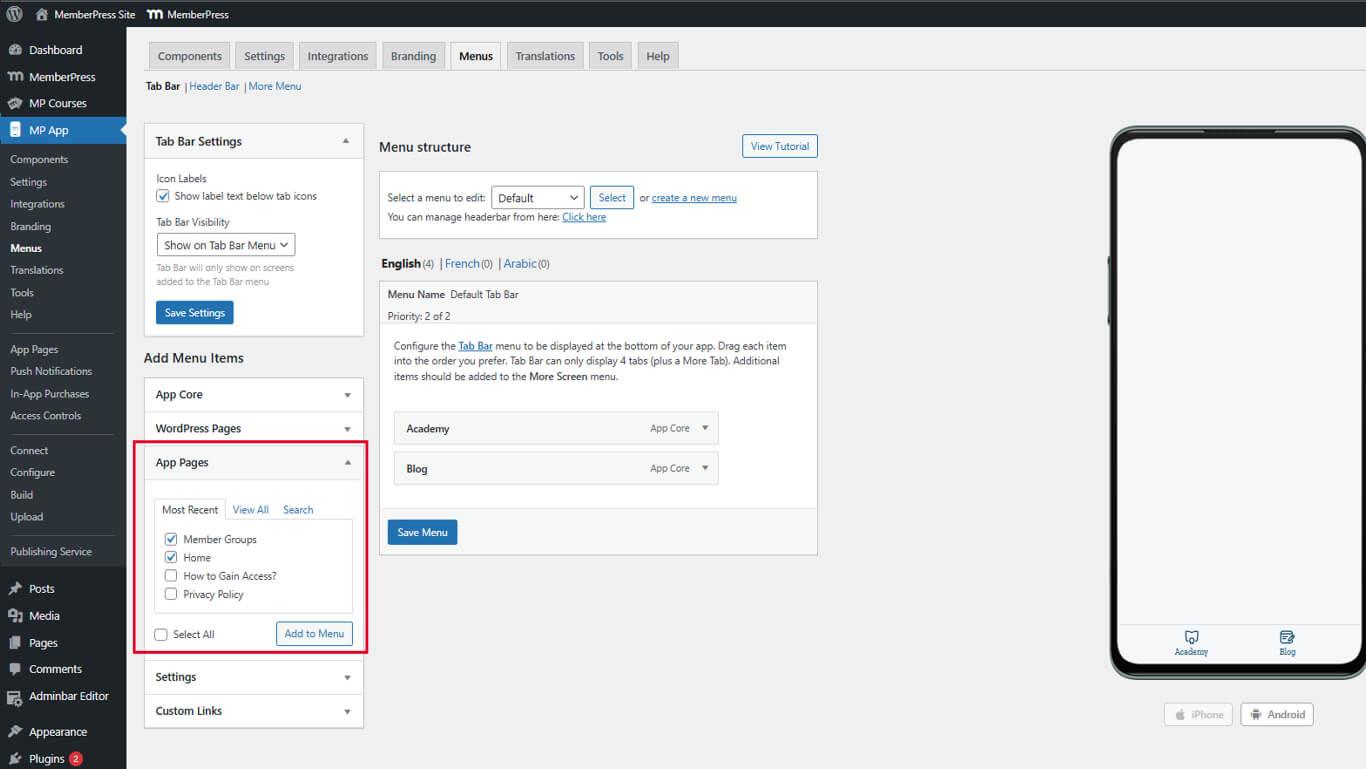
- Arraste o item para a posição desejada na ordem do menu.
- Clique no botão Salvar menu.
As páginas de aplicativos fornecem destinos de conteúdo personalizados para itens de navegação.
Adicionando acesso ao blog
- Navegue até Painel de controle > MP AppKit > Menus e role até a seção Núcleo do aplicativo seção.
- Localizar Blog na lista de itens disponíveis.
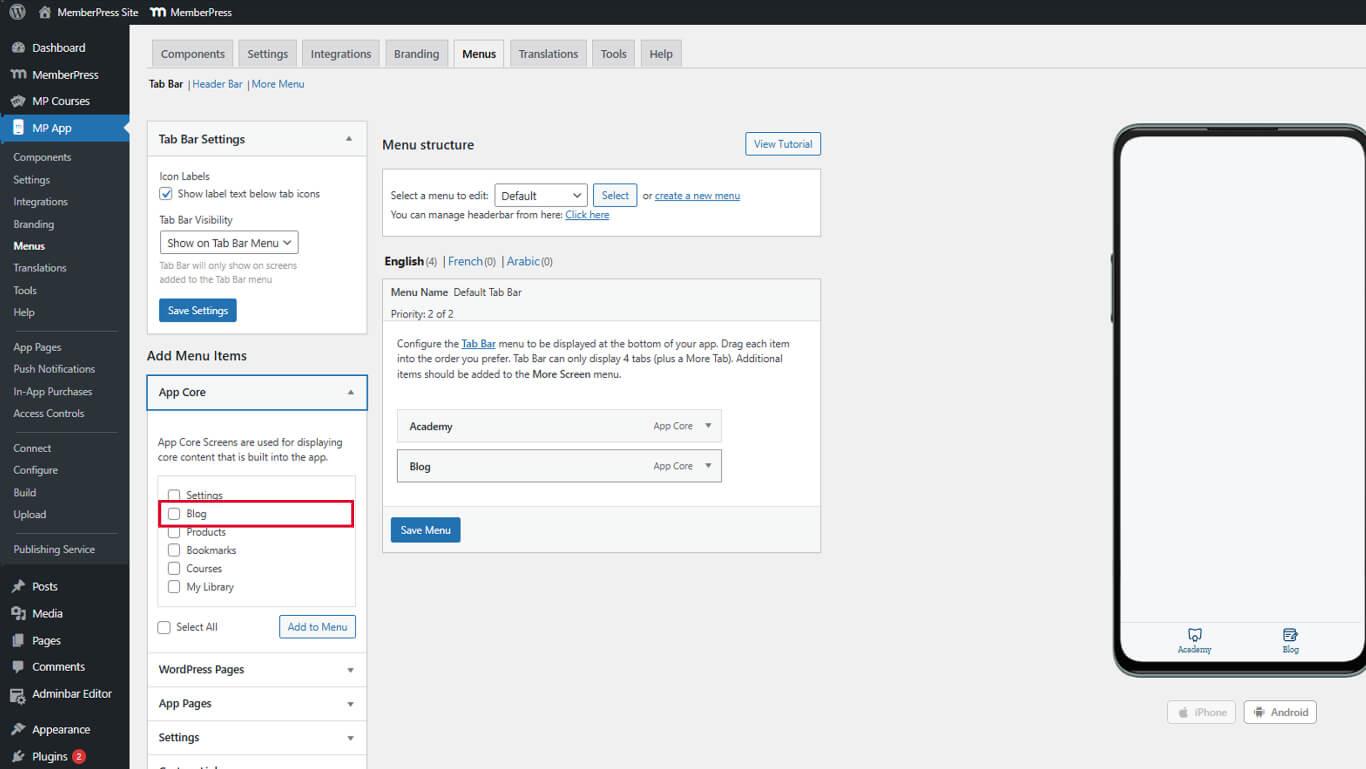
- Clique em Adicionar ao menu.
- Arraste o Blog para a posição desejada na Barra de Guias.
- Clique no botão Salvar menu.
O acesso ao blog promove o envolvimento com o conteúdo e a retenção de membros.
Adicionando itens ao menu da tela Mais
Mais itens da tela fornecem navegação secundária para seções complementares.
Adicionando itens de gerenciamento de conta
- Navegue até Painel de controle > MP AppKit > Menus.
- Clique no botão Menu Mais telas guia.
- Localize o Núcleo do aplicativo seção.
- Localizar Produtos ou Marcar nos itens disponíveis.
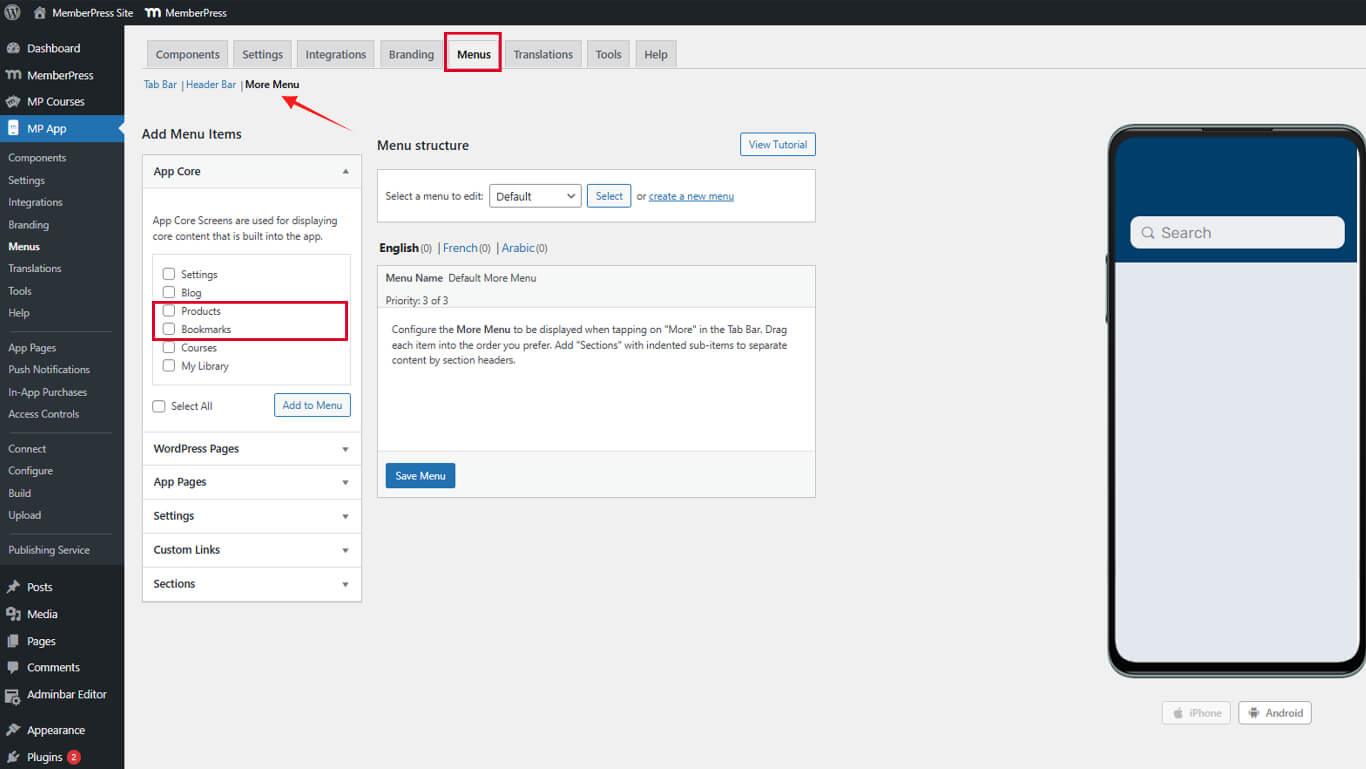
- Clique em Adicionar ao menu.
- Clique em Adicionar ao menu ao lado de Configurações.
- Clique no botão Salvar menu.
Os itens de gerenciamento de conta devem permanecer facilmente acessíveis, mesmo na navegação secundária.
Criando seções do menu
As seções organizam os itens da tela em grupos lógicos.
Adicionando cabeçalhos de seção
- Navegue até Painel de controle > MP AppKit > Menus.
- Clique no botão Mais Menu guia.
- Localizar Seçõese clique em Adicionar seção acima da lista de itens do menu.
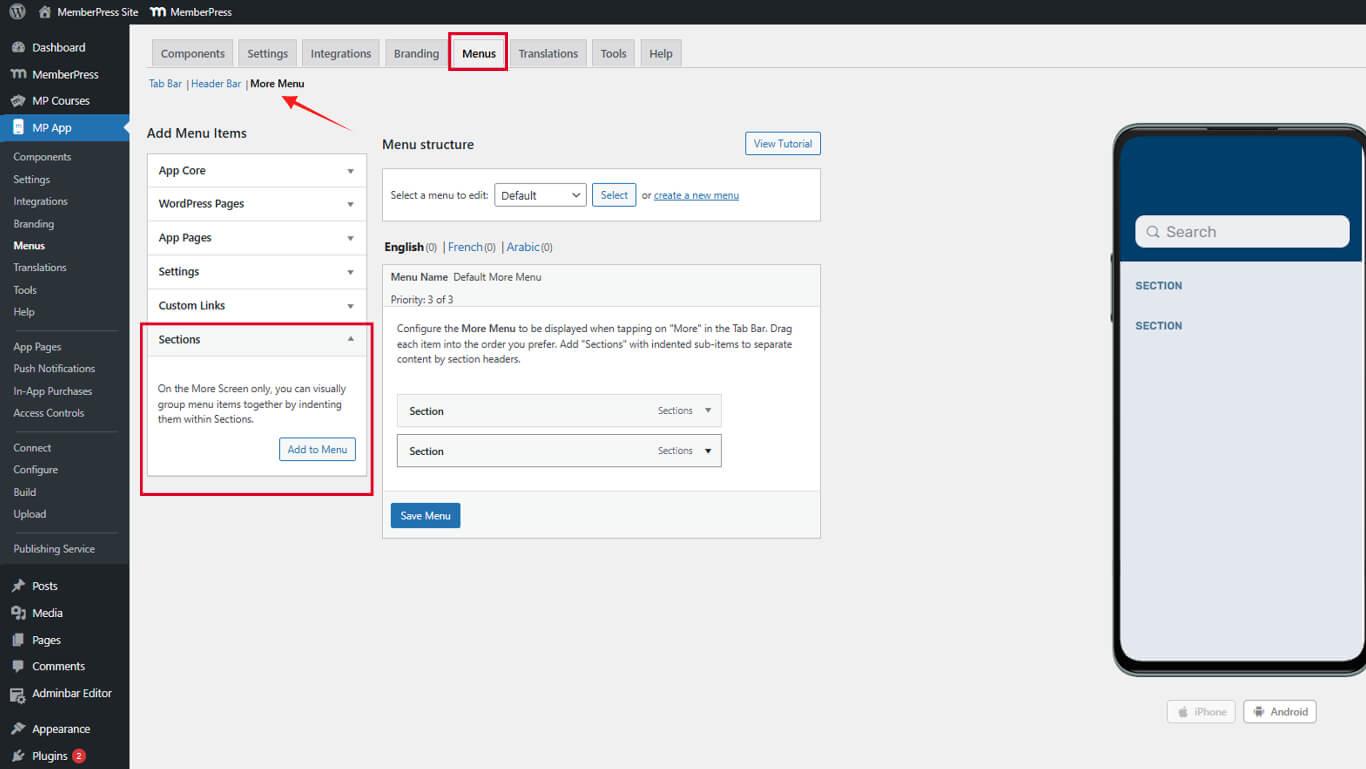
- Insira um nome de seção no Título da seção campo.
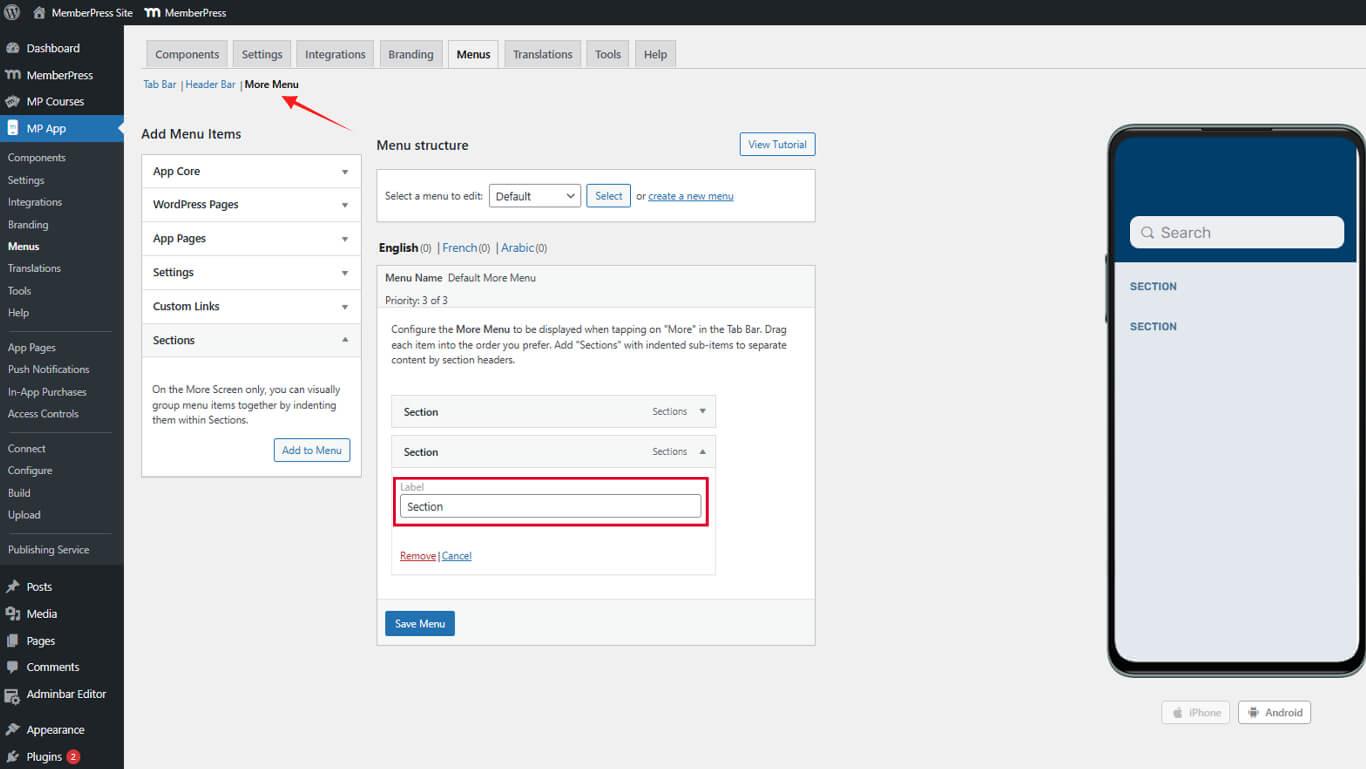
- Clique em Adicionar seção para criar a seção.
Os títulos das seções aparecem como rótulos não clicáveis no menu Mais.
Organizando itens em seções
- Localize os itens do menu para agrupar em uma seção.
- Arraste os itens para baixo do cabeçalho da seção relevante.
- Repita para todos os itens que exigem organização por seção.
- Clique no botão Salvar menu.
O recuo visual indica relações hierárquicas entre seções e itens.
Personalizando ícones de itens do menu
Os ícones fornecem pistas visuais de navegação e consistência da marca.
Selecionando ícones de itens da barra de guias
- Navegue até Painel de controle > MP AppKit > Menus.
- Localize um item do menu que exija personalização do ícone.
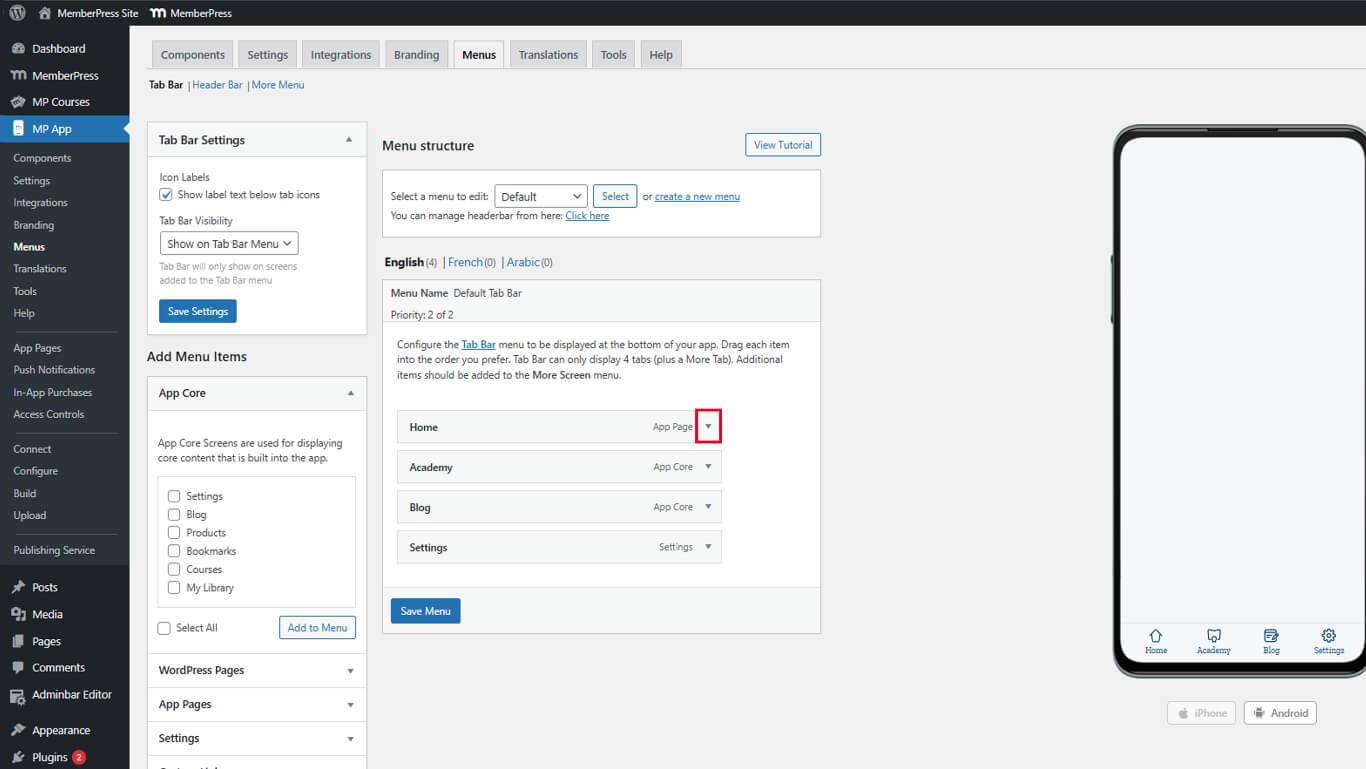
- Clique na seta suspensa ao lado do nome do item.
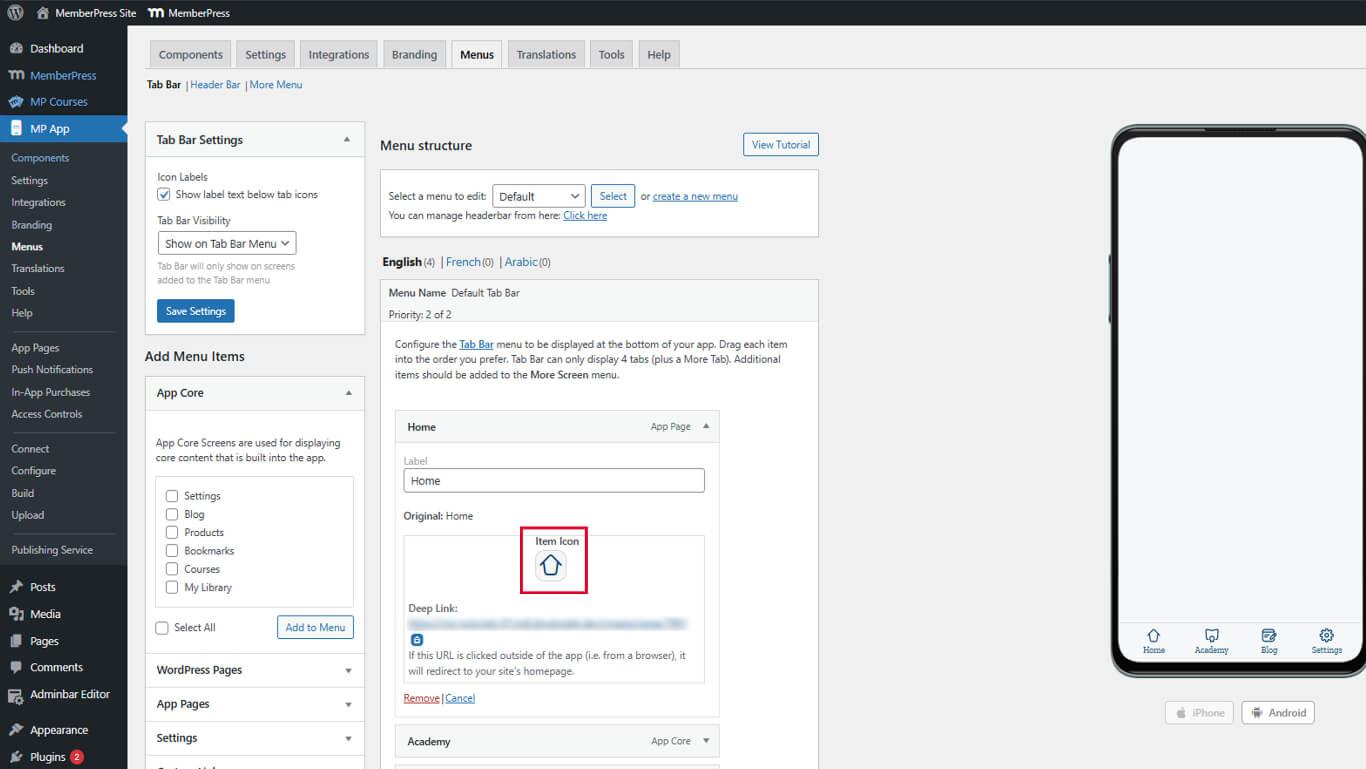
- Encontre o Ícone do item seção nas configurações expandidas.
- Clique na caixa do ícone para abrir o Painel de Seleção de Ícones.
- Navegue pelos ícones disponíveis no pacote de ícones.
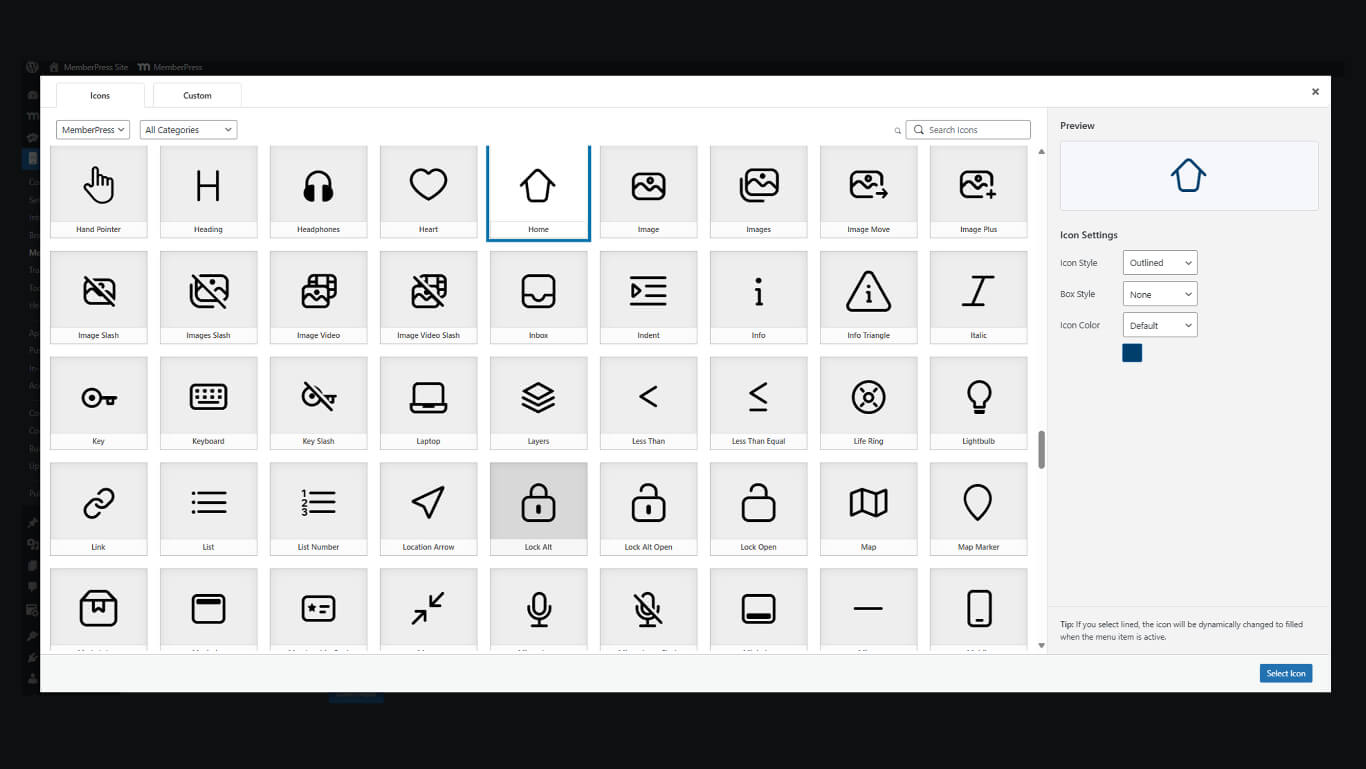
- Clique em um ícone para selecioná-lo.
- Clique no botão Selecionar ícone para aplicar o ícone.
- Clique no botão Salvar menu.
Repita esse processo para todos os itens da barra de guias que exigem ícones personalizados.
Selecionando mais ícones de itens da tela
- Clique no botão Menu Mais telas guia.
- Localize um item do menu que exija personalização do ícone.
- Clique na seta suspensa ao lado do nome do item.
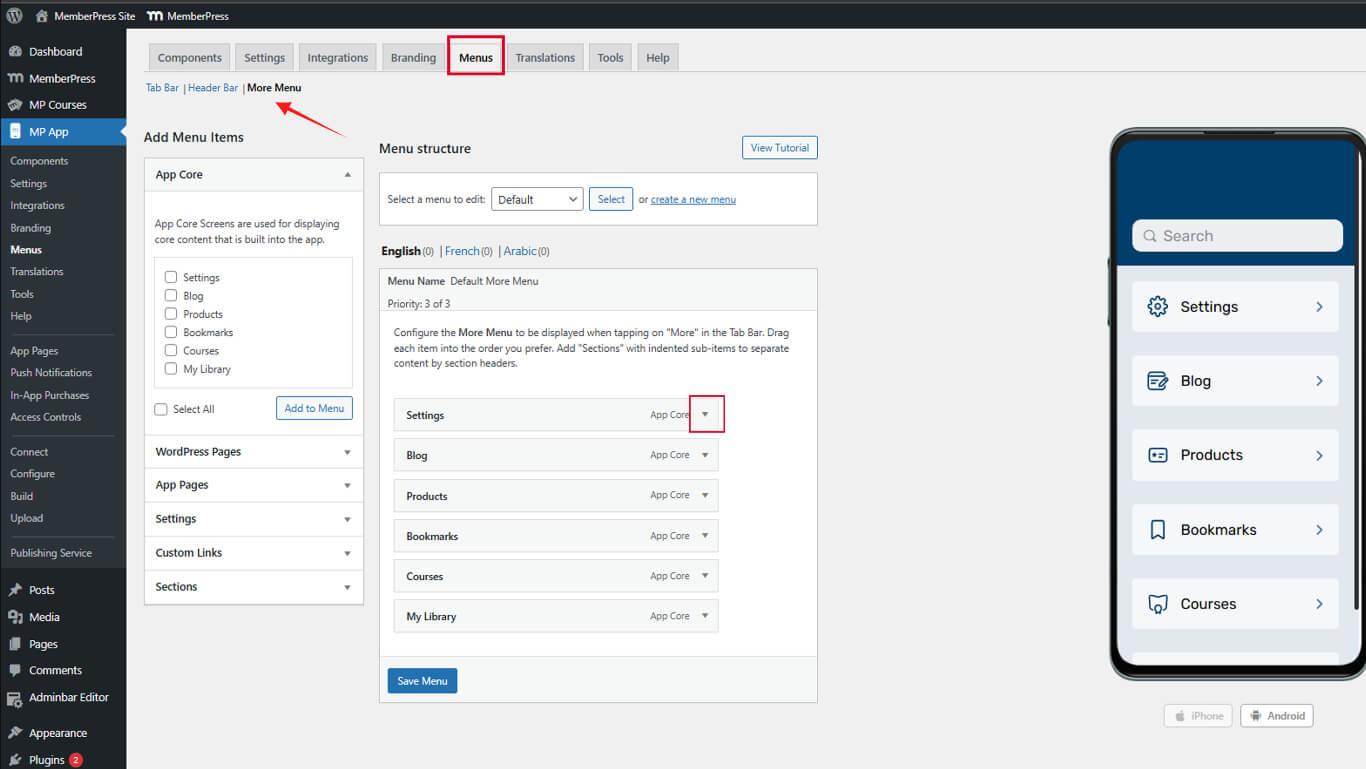
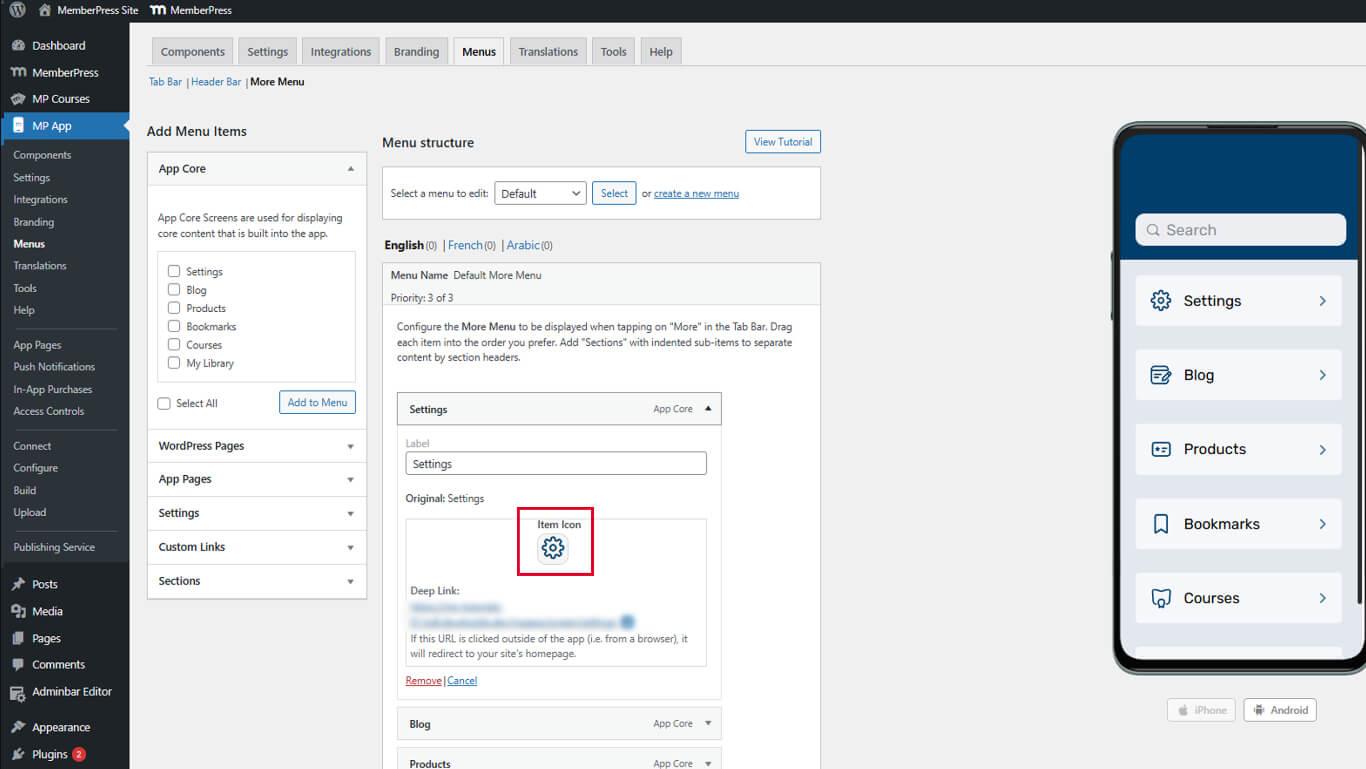
- Encontre o Ícone do item seção.
- Clique na caixa do ícone para abrir o Painel de Seleção de Ícones.
- Selecione um ícone apropriado.
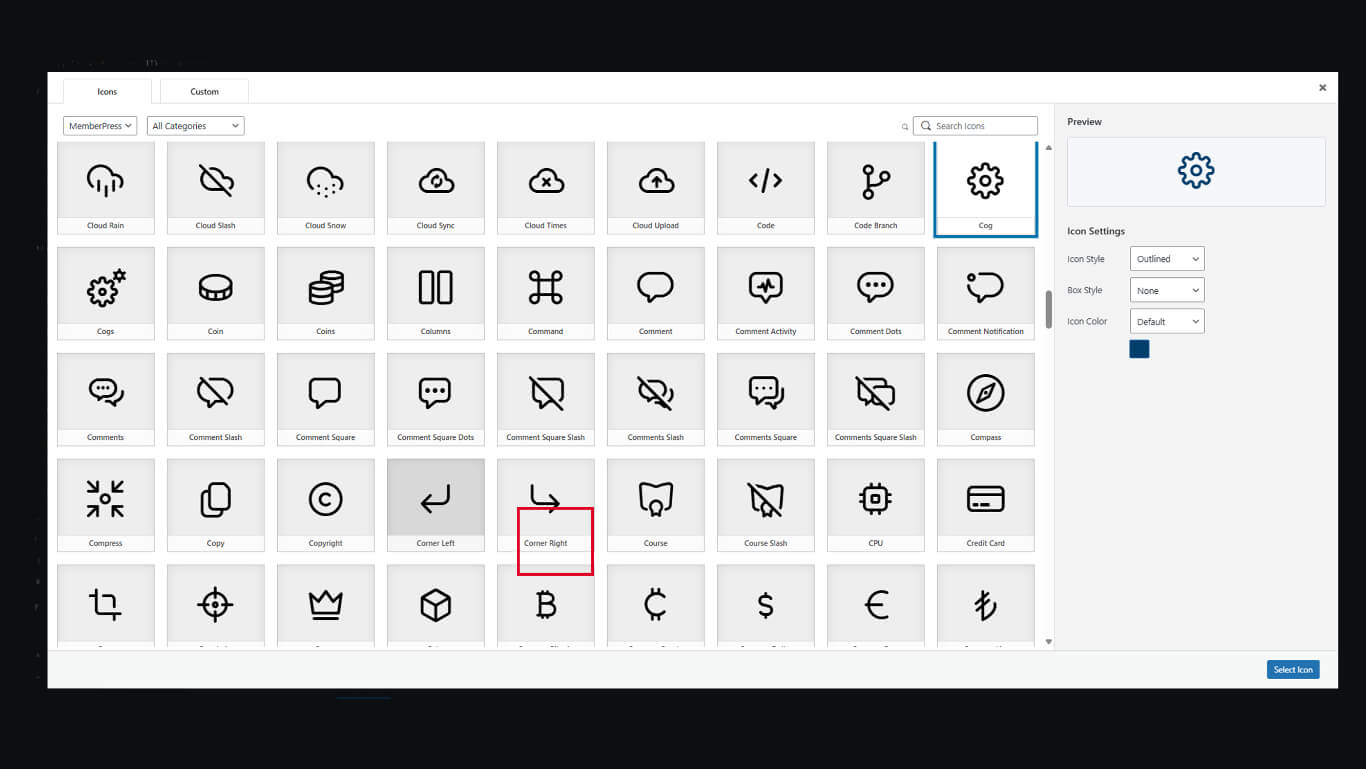
- Clique no botão Selecionar ícone.
- Repita para itens adicionais.
- Clique no botão Salvar menu.
Mais ícones na tela são opcionais, mas melhoram a clareza da navegação visual.
Personalizando o texto do item do menu
O texto do item do menu fornece rótulos de navegação e suporte à acessibilidade.
Editando rótulos de itens
- Navegue até Painel de controle > MP AppKit > Menus.
- Localize um item do menu que precise de modificação de rótulo.
- Clique na seta suspensa ao lado do nome do item.
- Encontre o Etiqueta campo.
- Insira o texto personalizado do rótulo substituindo o padrão.
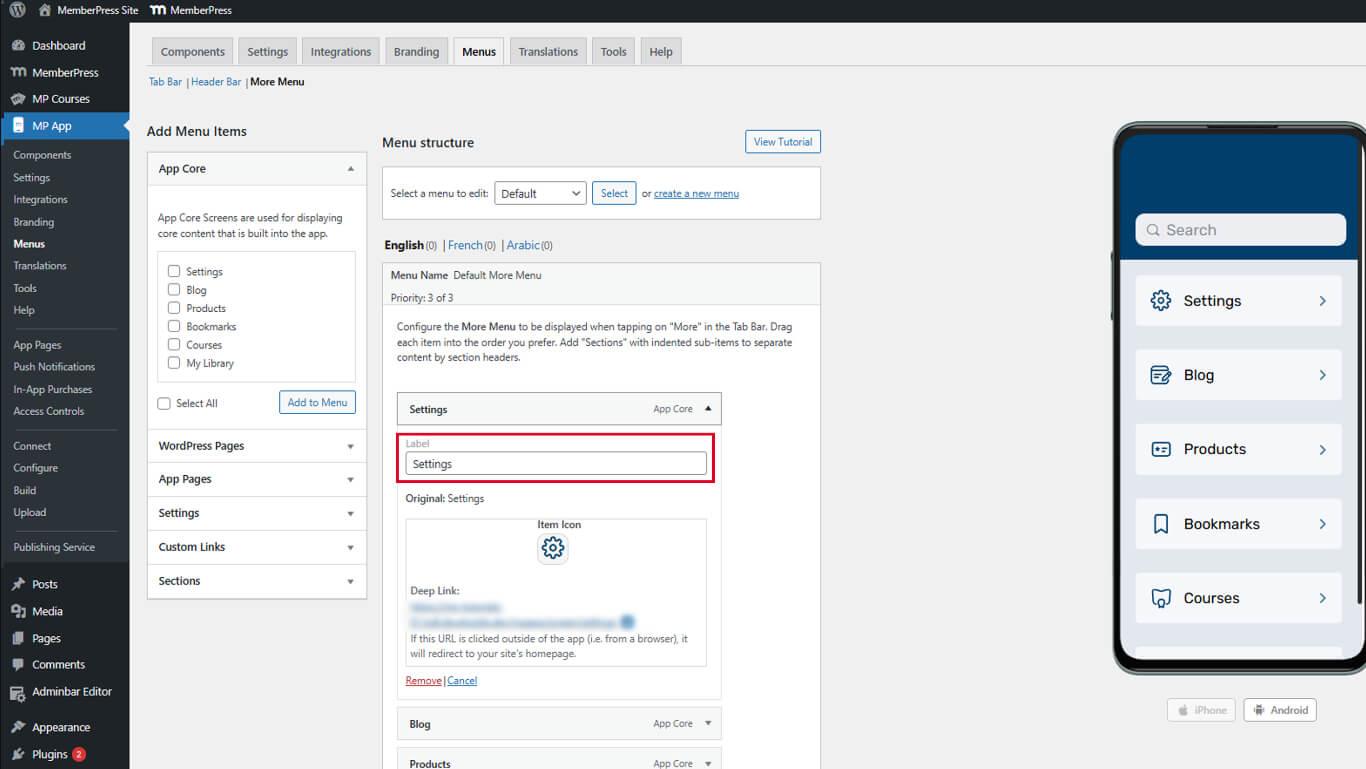
- Clique no botão Salvar menu.
As etiquetas personalizadas esclarecem os objetivos de navegação quando os nomes padrão são ambíguos.
Organizando a ordem dos itens do menu
A ordem dos itens afeta a acessibilidade da navegação e o fluxo de trabalho dos membros.
Organizando itens da barra de guias
- Navegue até Painel de controle > MP AppKit > Menus.
- Verifique o Menu da barra de guias A guia está ativa.
- Clique e arraste os itens do menu para reordenar as posições.
- Coloque os itens acessados com mais frequência nas posições mais à esquerda.
- Clique no botão Salvar menu após organizar os itens.
Organizando mais itens na tela
- Clique no botão Menu Mais telas guia.
- Clique e arraste os itens para reordená-los dentro das seções.
- Arraste as seções para reordenar os agrupamentos de seções.
- Organize os itens em ordem lógica ou com base na frequência.
- Clique no botão Salvar menu.
A ordem das telas deve refletir relações lógicas ou frequência de uso.










 PT
PT  EN
EN  ES
ES  FR
FR  DE
DE 