

Os ícones da barra de guias fornecem a navegação principal nos aplicativos móveis. A personalização dos ícones aumenta a consistência visual e o alinhamento da marca. Este documento explica como personalizar os ícones da barra de guias, aplicar estilos de exibição e visualizar as alterações nos ícones dentro do aplicativo.
Noções básicas sobre a configuração do ícone da barra de guias
Os ícones da Tab Bar são exibidos na parte inferior das telas dos celulares para acesso rápido à navegação. O pacote de ícones oferece várias opções de estilo, incluindo variações preenchidas, de contorno, circulares e quadradas. Os ícones antigos permanecem disponíveis para preferências de aparência familiares. A personalização dos ícones afeta a aparência visual e a experiência de navegação dos membros.
Entendendo a estrutura da barra de guias
A estrutura da barra de guias limita o número de itens de navegação diretamente acessíveis.
Um máximo de quatro itens podem ser exibidos na barra de guias principal. A quinta posição é automaticamente reservada para o menu More (Mais).
Mais Excesso de menu contém itens de navegação adicionais além dos quatro espaços da barra de guias. Os membros tocam no ícone More (Mais) para acessar a navegação de estouro.
Consistência dos ícones melhora a clareza da navegação. Use estilos de ícones semelhantes em todos os itens da barra de guias para obter uma aparência coesa.
Acesso às configurações da barra de guias
A configuração do ícone da barra de guias ocorre na interface de configurações do menu.
- Navegue até Painel de controle > MP AppKit > Menus.
- Localize o Menu da barra de guias seção.
- Verifique se os itens de navegação foram adicionados ao menu da barra de guias.
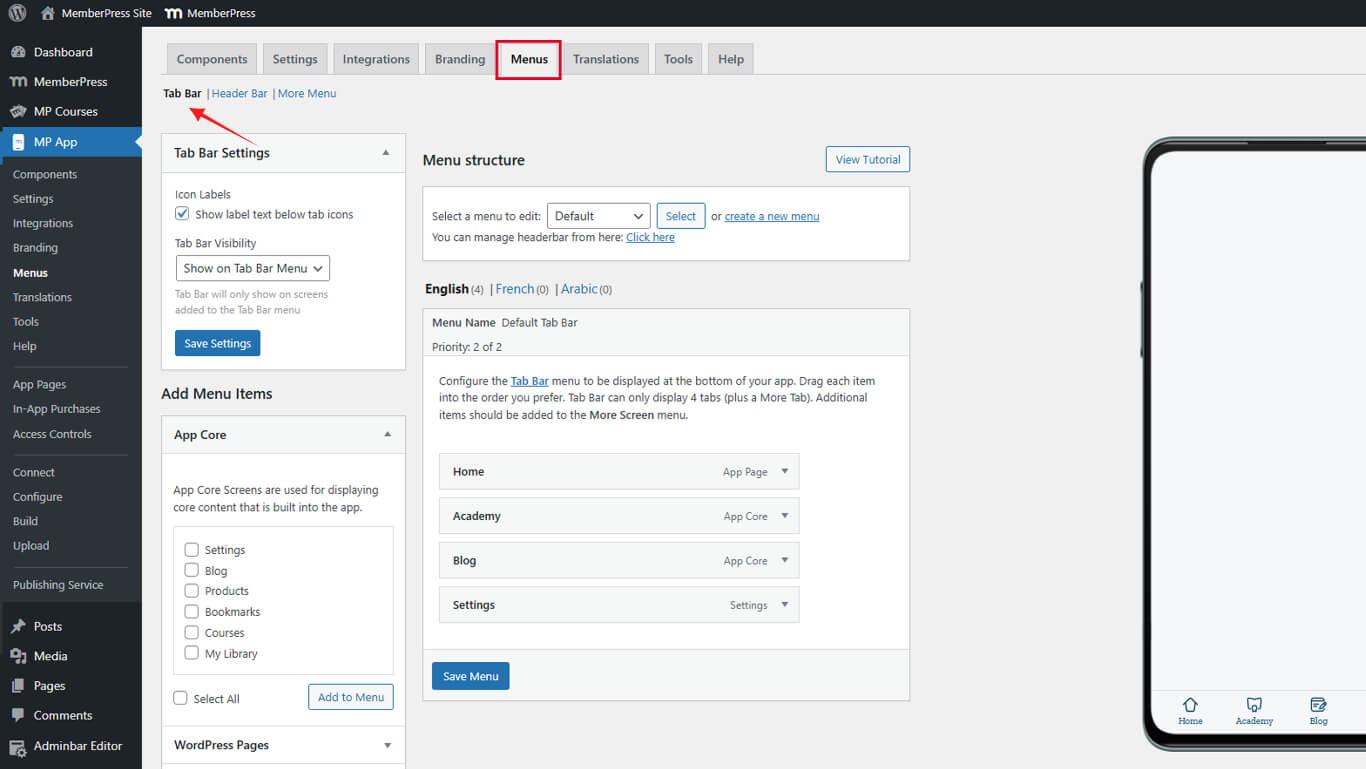
Personalização de ícones de itens de menu da barra de guias
Cada item de menu da Tab Bar oferece suporte à personalização de ícones individuais.
- Navegue até Painel de controle > MP AppKit > Menus.
- Localize o item de menu Tab Bar que requer a personalização do ícone.
- Clique na seta suspensa ao lado do nome do item de menu.
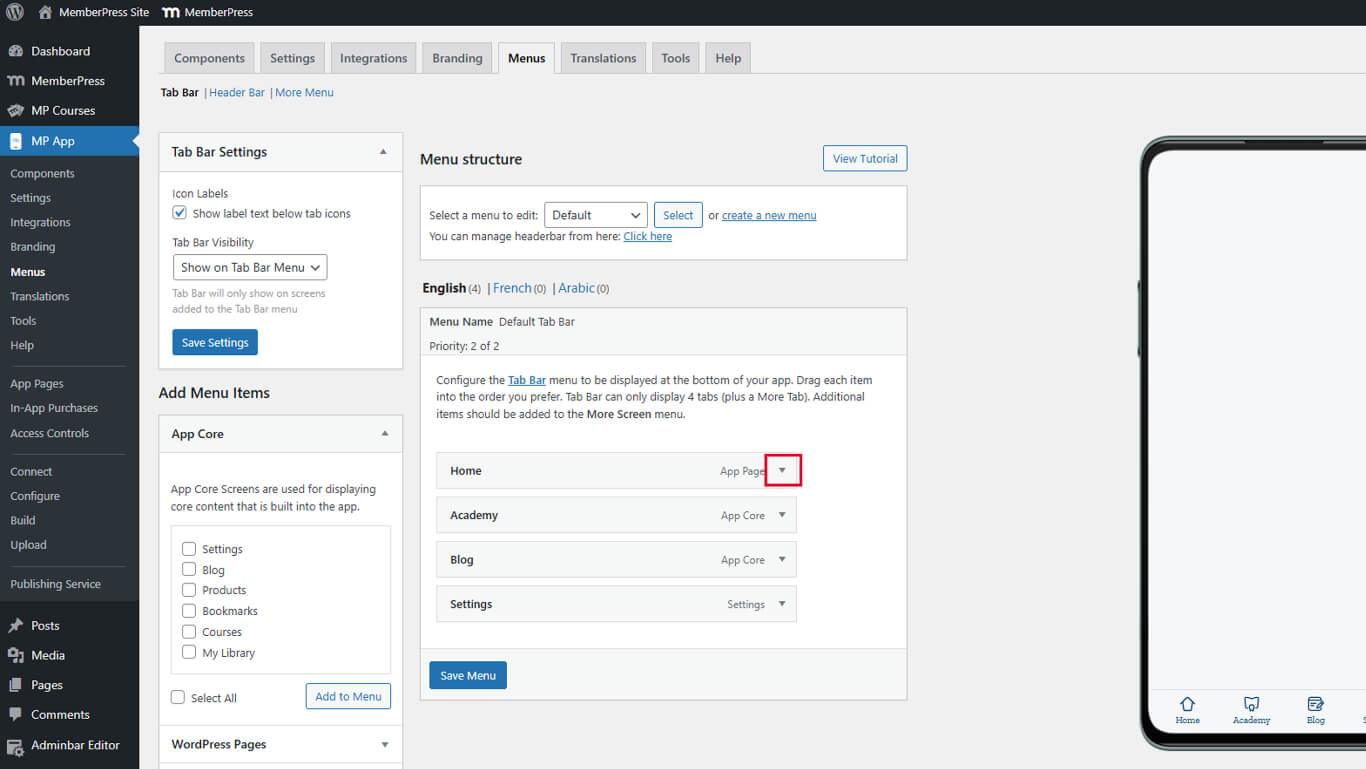
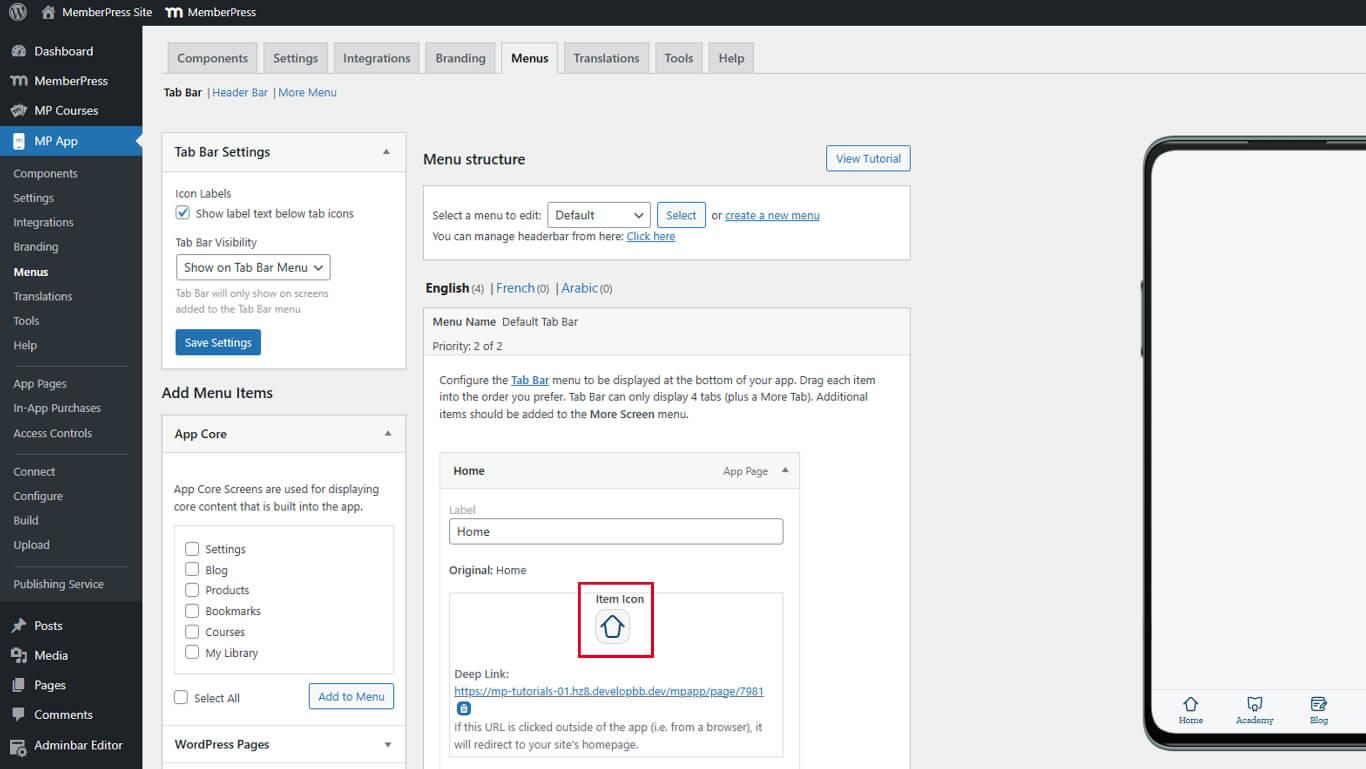
- Encontre o Ícone do item seção nas configurações expandidas.
- Clique na caixa de ícone para abrir a janela Painel de seleção de ícones.
- Localize um ícone que represente a função do item de menu e selecione-o.
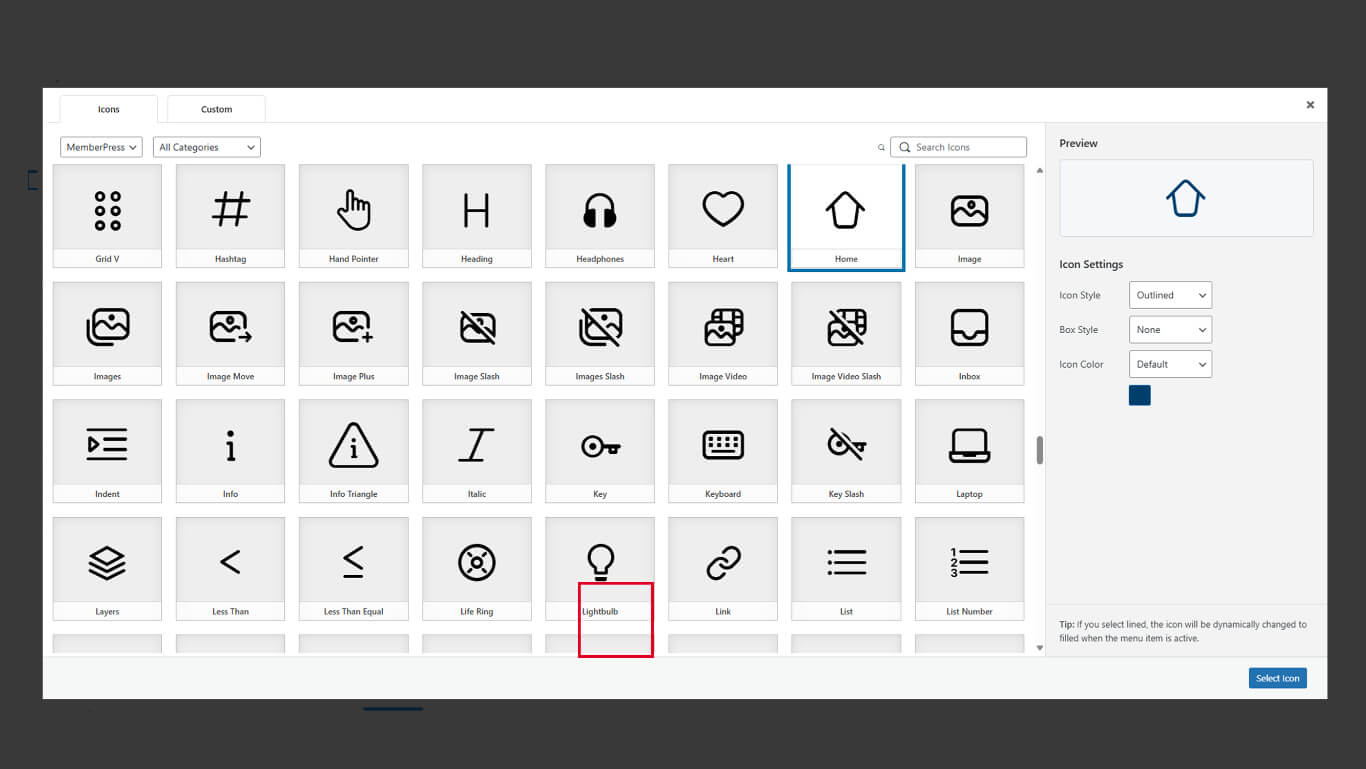
Configuração de estilos de exibição de ícones
Os estilos de exibição controlam a aparência do ícone e a ênfase visual.
Definição do estilo do ícone
- Localize o Estilo do ícone no painel de seleção de ícones.
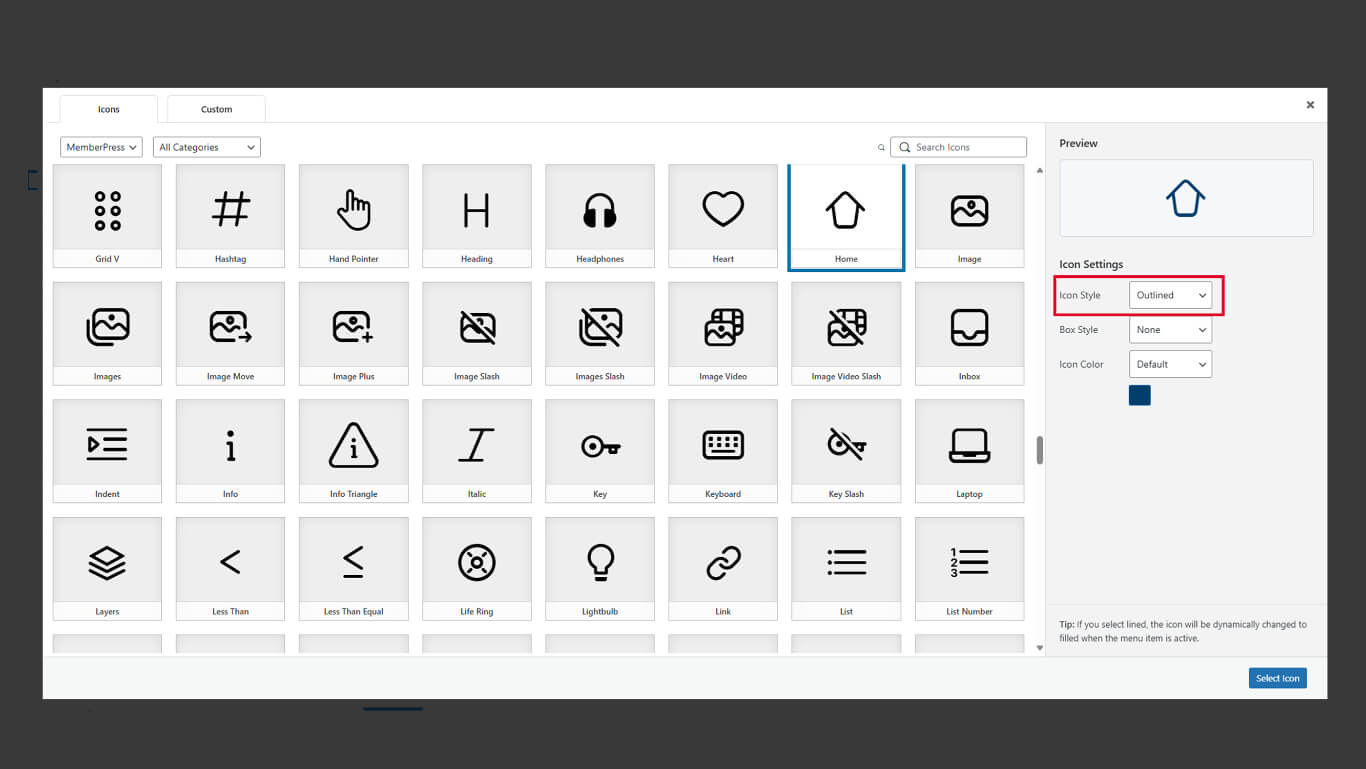
- Selecione o estilo desejado:
- Preenchido para formas sólidas de ícones;
- Esboço para formas de ícones baseadas em linhas.
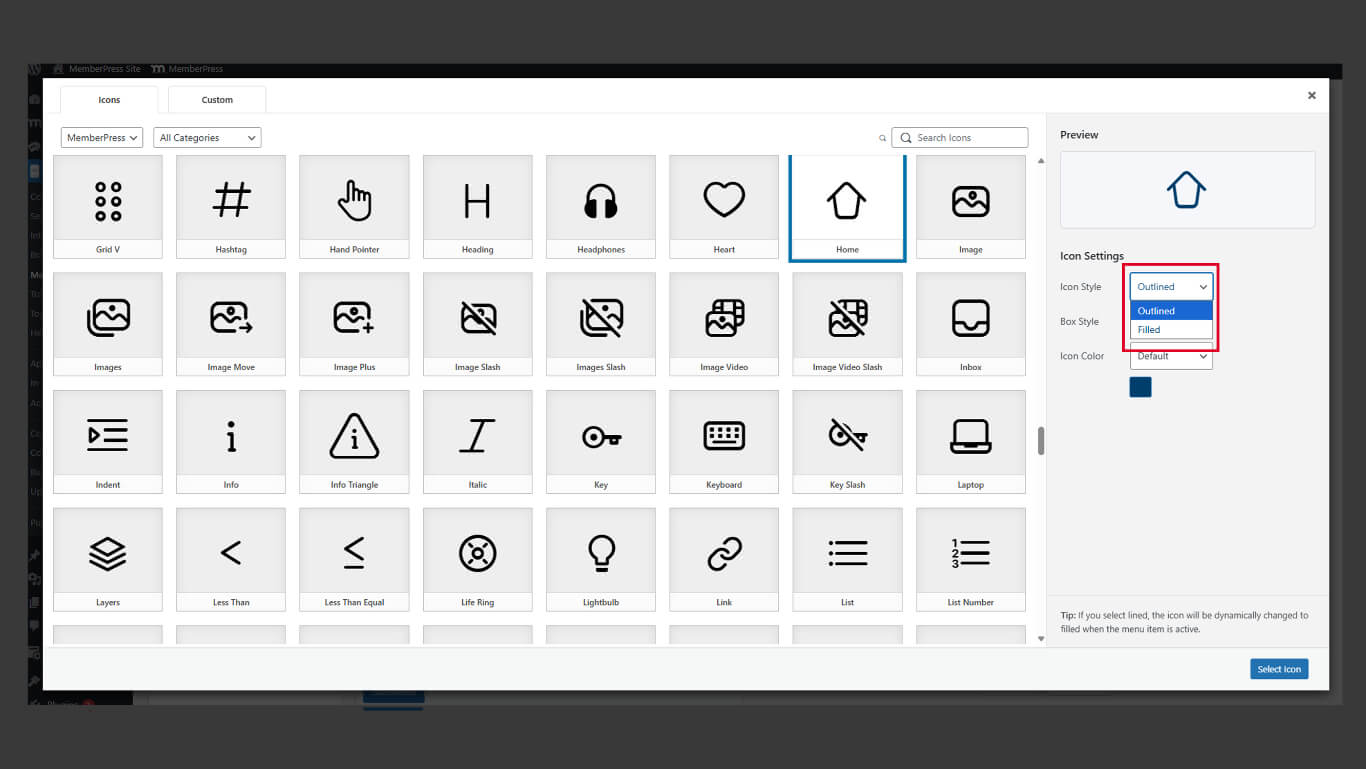
- Revise a visualização do ícone com o estilo selecionado.
Os estilos preenchidos proporcionam um peso visual mais forte para os estados ativos. Os estilos de contorno oferecem uma aparência mais leve para os estados inativos.
Configuração do estilo da caixa
- Localize o Estilo da caixa no painel de seleção de ícones.
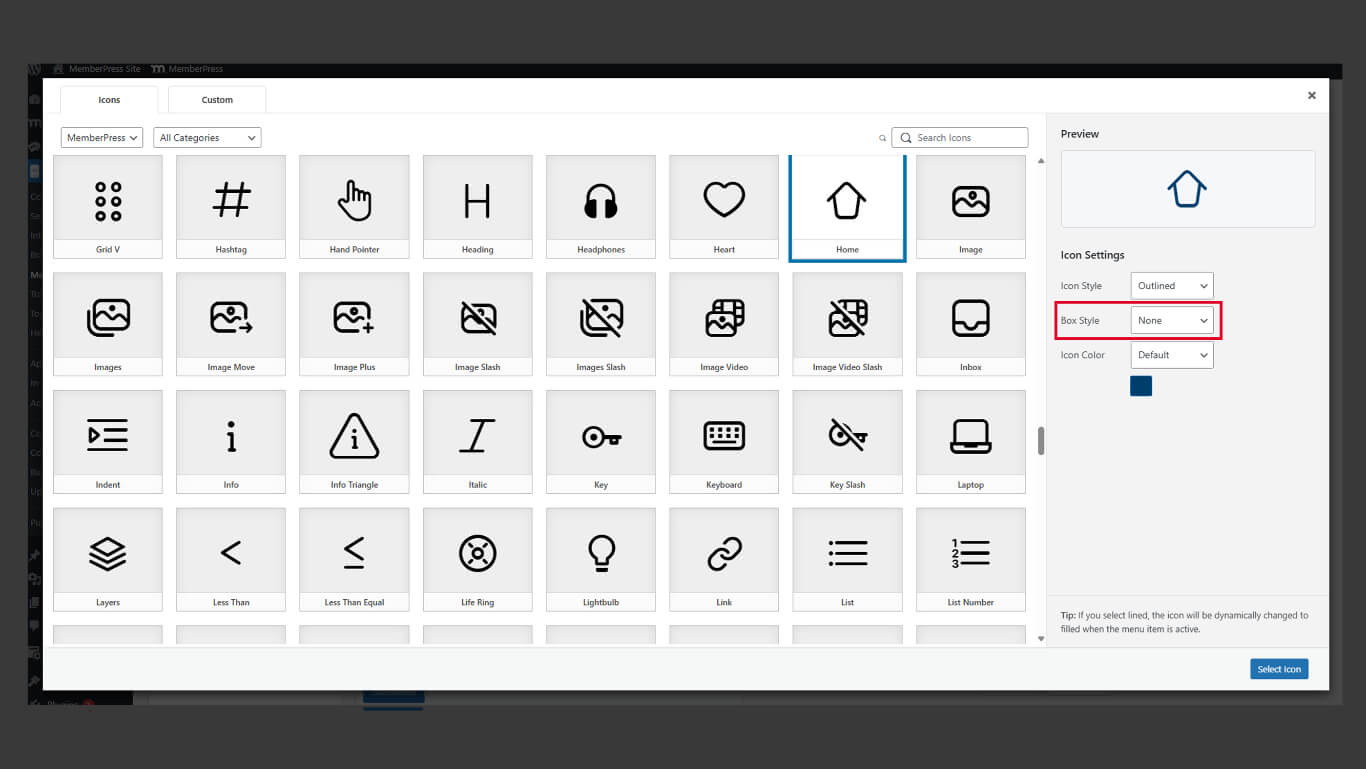
- Selecione o estilo desejado:
- Circular para fundos de ícones redondos;
- Quadrado para fundos de ícones retangulares;
- Nenhum para ícones sem formas de fundo.
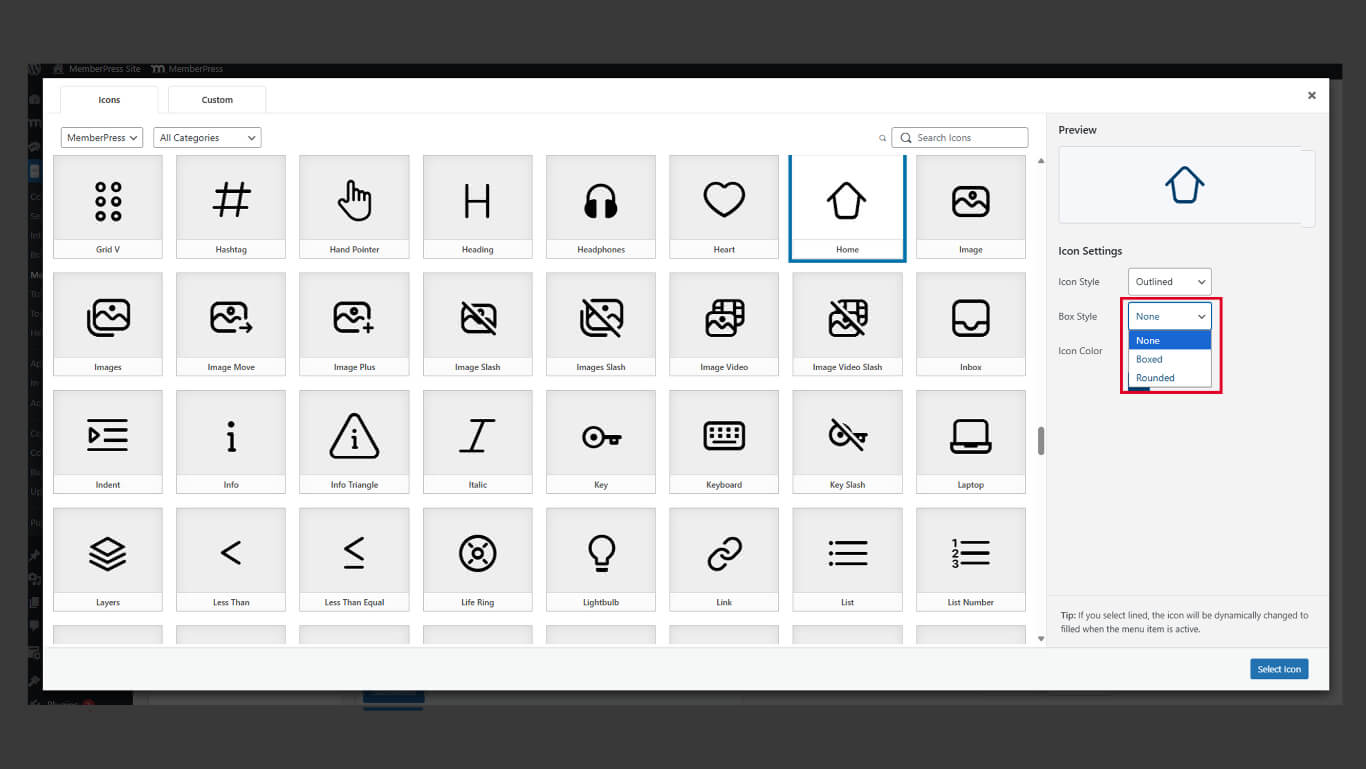
- Revise a visualização do ícone com o estilo de caixa selecionado.
Os estilos de caixa adicionam contêineres visuais ao redor dos ícones. As formas de fundo melhoram o tamanho do alvo da torneira e a consistência visual.
Definição da cor do ícone
- Localize o Cor do ícone no painel de seleção de ícones.
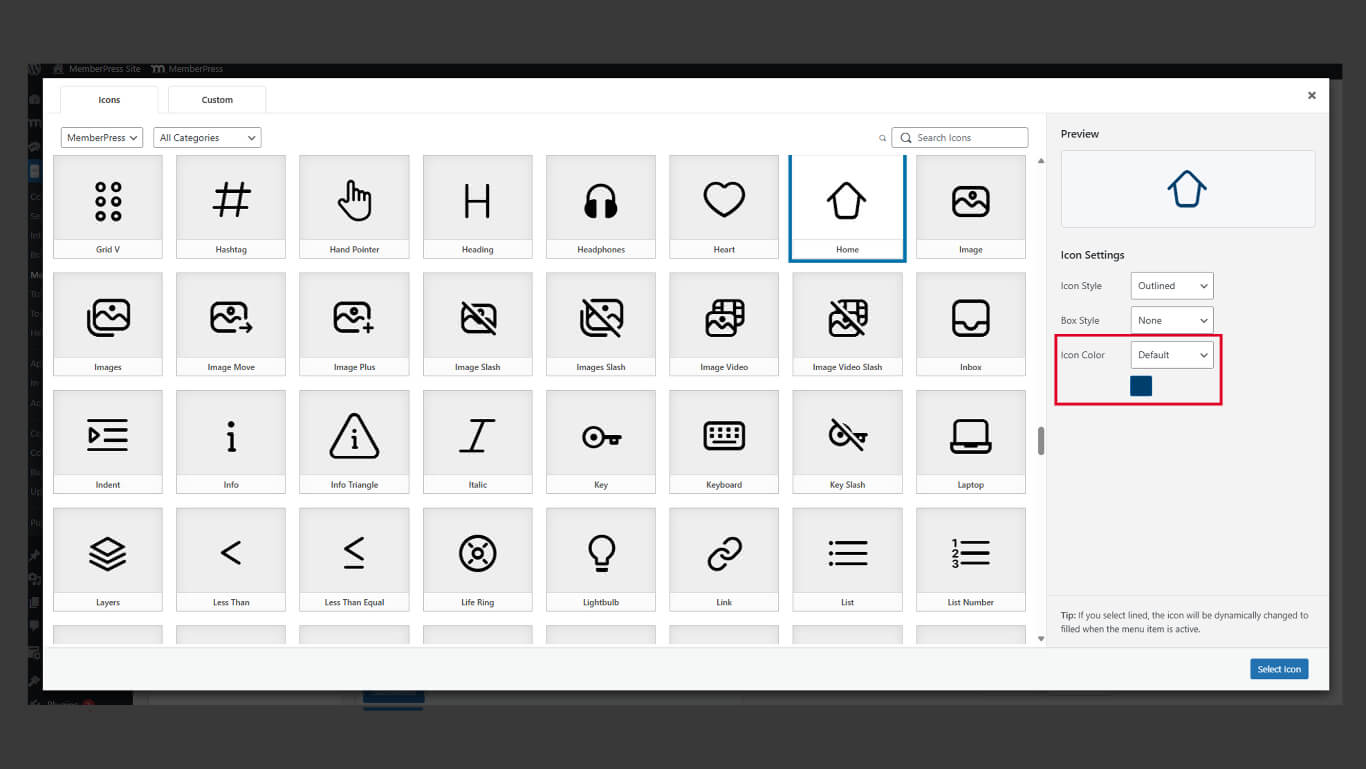
- Selecione se deseja usar o estilo de cor padrão ou personalizado.
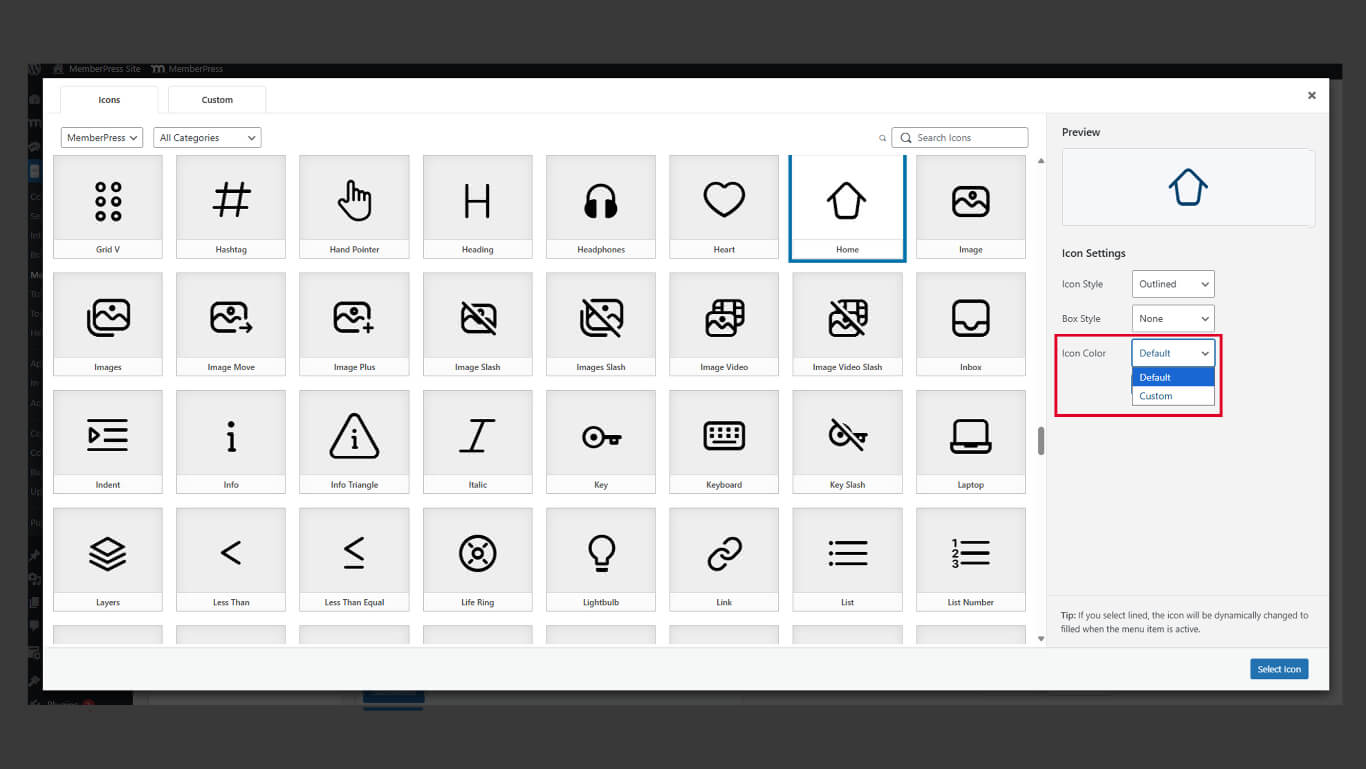
As cores dos ícones devem manter contraste suficiente com os fundos da barra de guias para garantir a visibilidade.
Usando o Legacy Icon Pack
Os ícones herdados fornecem uma aparência familiar para aplicativos que usam designs de ícones anteriores.
- Navegue até Painel de controle > MP AppKit > Menus.
- Abra a lista suspensa de itens de menu.
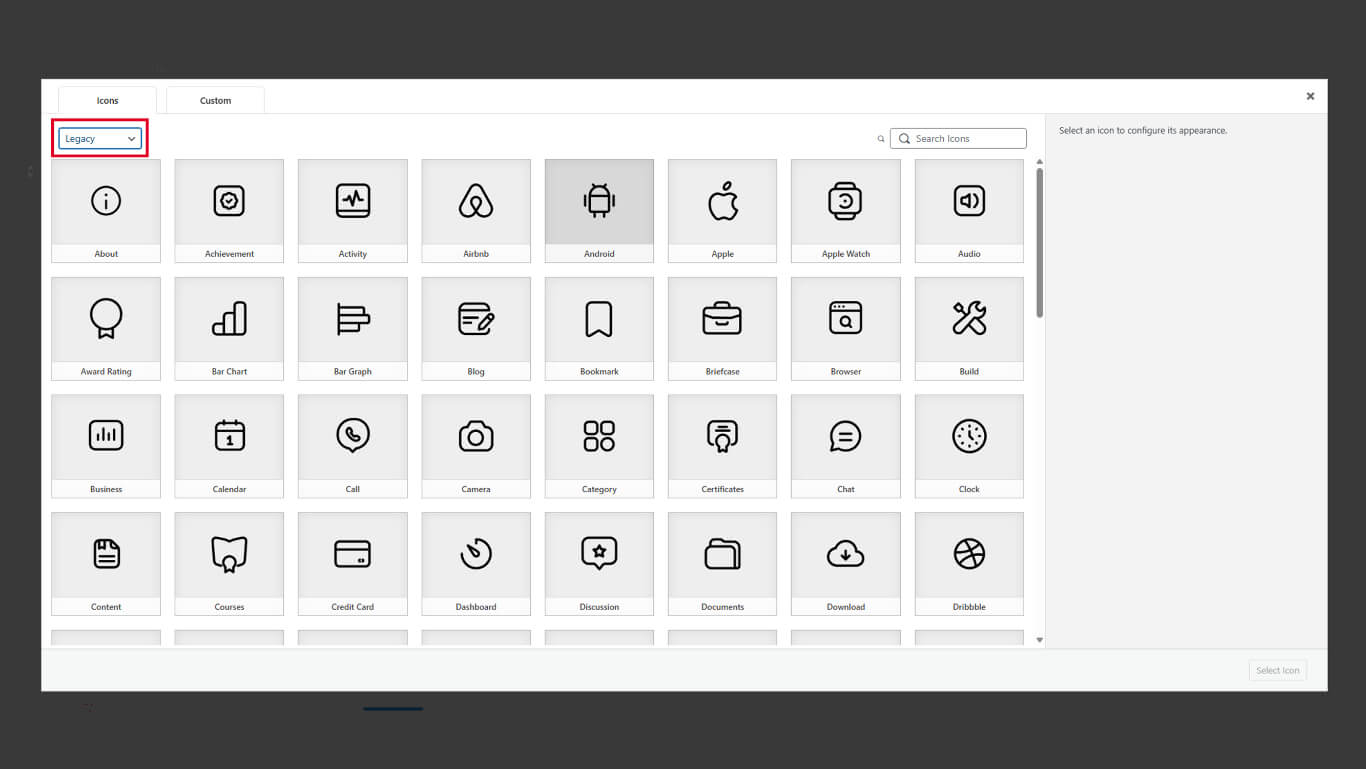
- Clique no botão Legado guia.
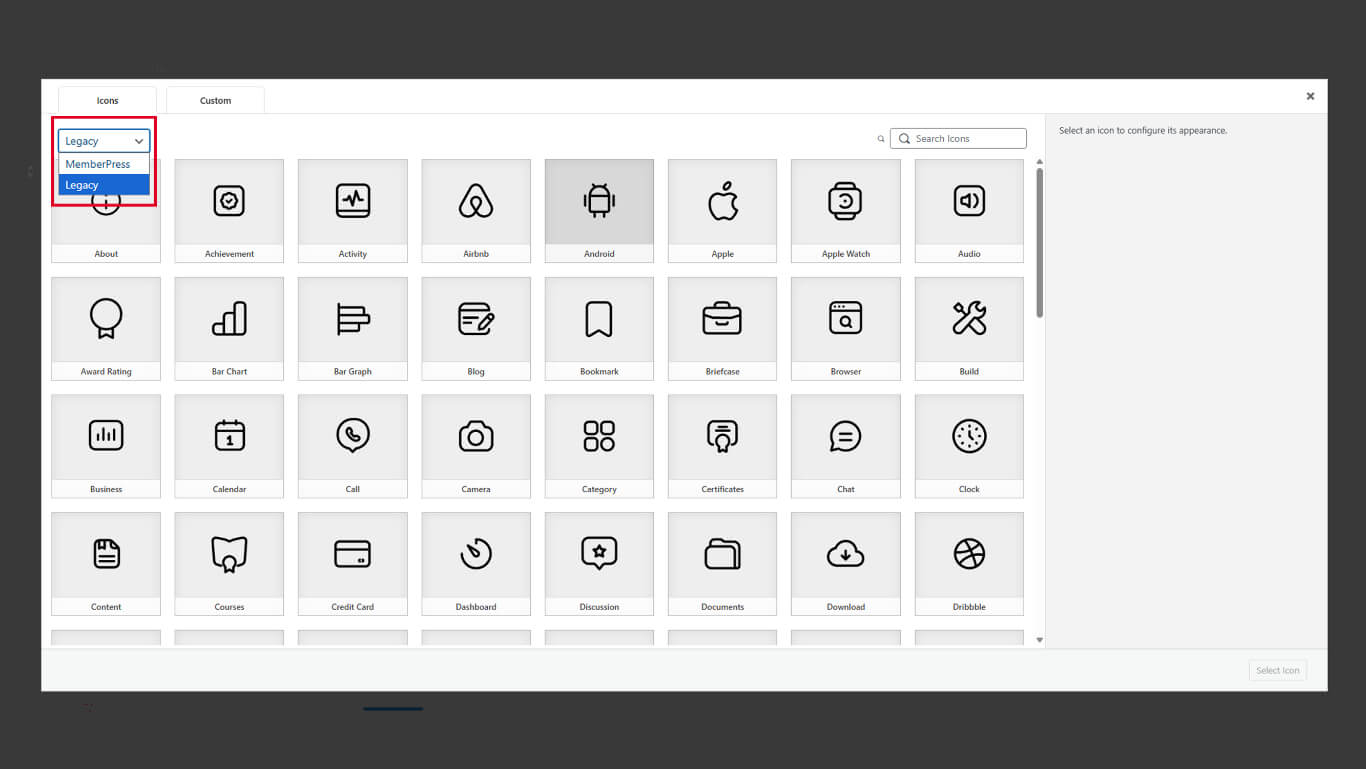
- Selecione um ícone do conjunto de ícones clássicos.
- Clique no botão Selecionar ícone para confirmar a seleção.
- Clique no botão Salvar menu para aplicar as alterações.
Ícones antigos e atualizados podem ser misturados no mesmo menu da barra de guias. A seleção consistente de estilos melhora a coesão visual.










 PT
PT  EN
EN  ES
ES  FR
FR  DE
DE 