

O Bloco de diretório exibe listagens de conteúdo do WordPress no estilo de arquivo em páginas de aplicativos. Esse bloco cria diretórios de conteúdo organizados com metadados personalizáveis, funcionalidade de pesquisa e opções de filtragem.
Este documento explica como adicionar o bloco de diretório, definir as configurações de exibição e otimizar as listagens de diretório para o envolvimento dos membros.
Entendendo o bloco de diretório
O Bloco de Diretório apresenta coleções de posts, páginas ou tipos de posts personalizados do WordPress em formatos de lista estruturados. Os membros podem navegar, pesquisar e filtrar conteúdo dentro dos diretórios. O bloco suporta imagens em destaque, avatares de autores, exibição de metadados e opções de classificação. Os Blocos de Diretório devem ocupar páginas inteiras do aplicativo, sem outros blocos, devido aos requisitos de layout em tela cheia.
Limitações do bloco de diretório
Os blocos de diretório exigem ocupação exclusiva da página. Vários blocos não podem coexistir com blocos de diretório na mesma página.
Requisito de bloco único: Os blocos de diretório devem ser os únicos blocos em uma página de aplicativo. Adicionar blocos adicionais gera erros de configuração.
Layout em tela cheia: Os blocos de diretório utilizam todo o espaço da tela para uma navegação ideal pelo conteúdo. Layouts misturados com outros blocos comprometem a funcionalidade do diretório.
Prevenção de erros: Remova todos os outros blocos antes de adicionar Blocos de Diretório. Adicione Blocos de Diretório apenas a Páginas de Aplicativos vazias.
Adicionando o bloco de diretório
Os blocos de diretório são adicionados por meio da interface do editor da página do aplicativo.
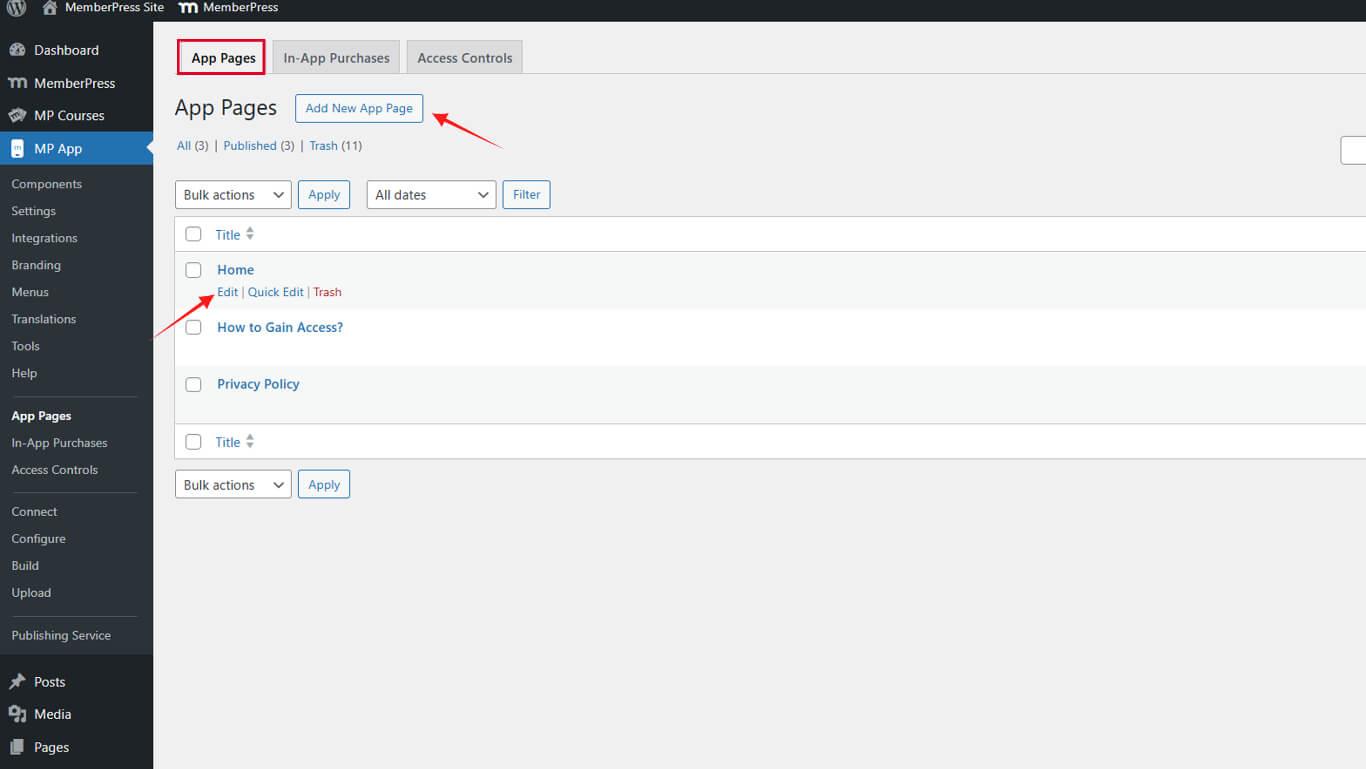
- Navegue até Painel de controle > MP AppKit > Páginas de aplicativos.
- Clique em Adicionar novo para criar uma nova página de aplicativo ou Editar uma página vazia existente.
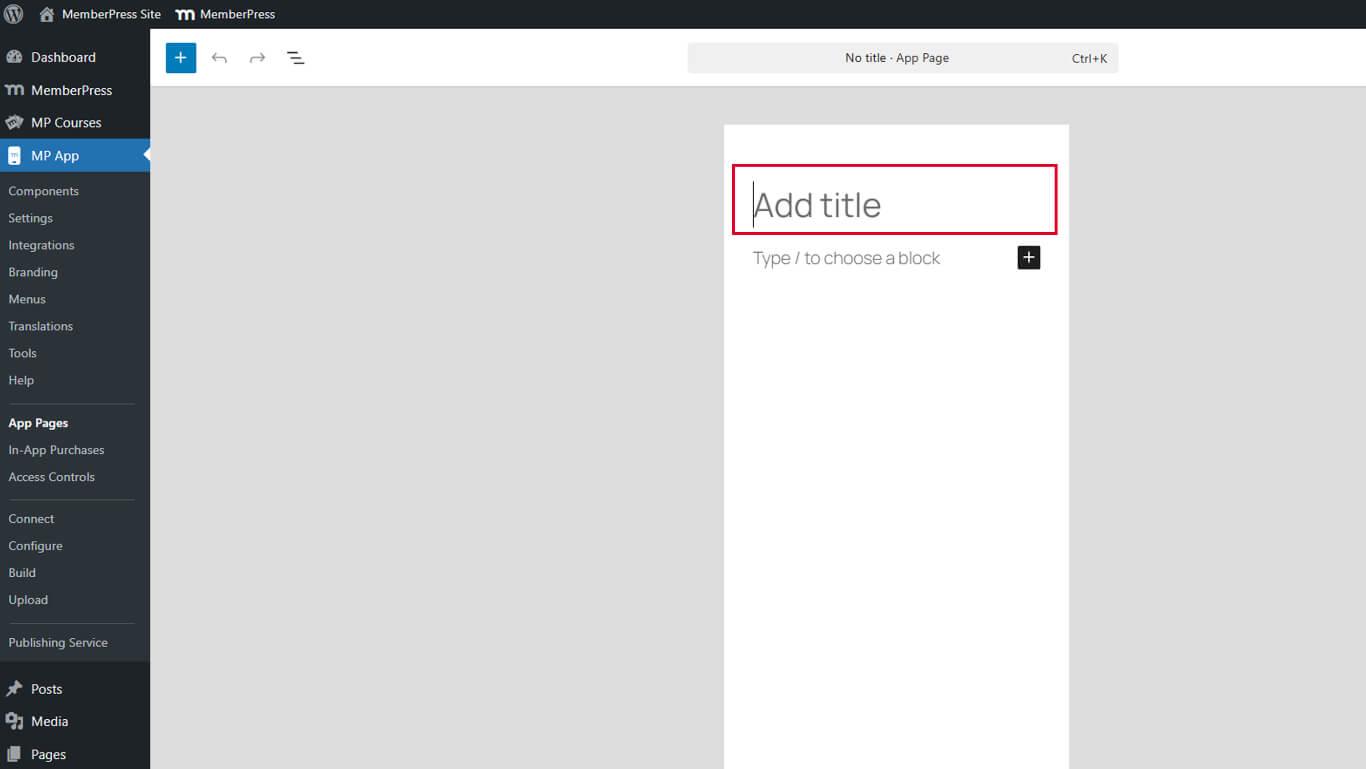
- Insira um título para a página no campo Título campo.
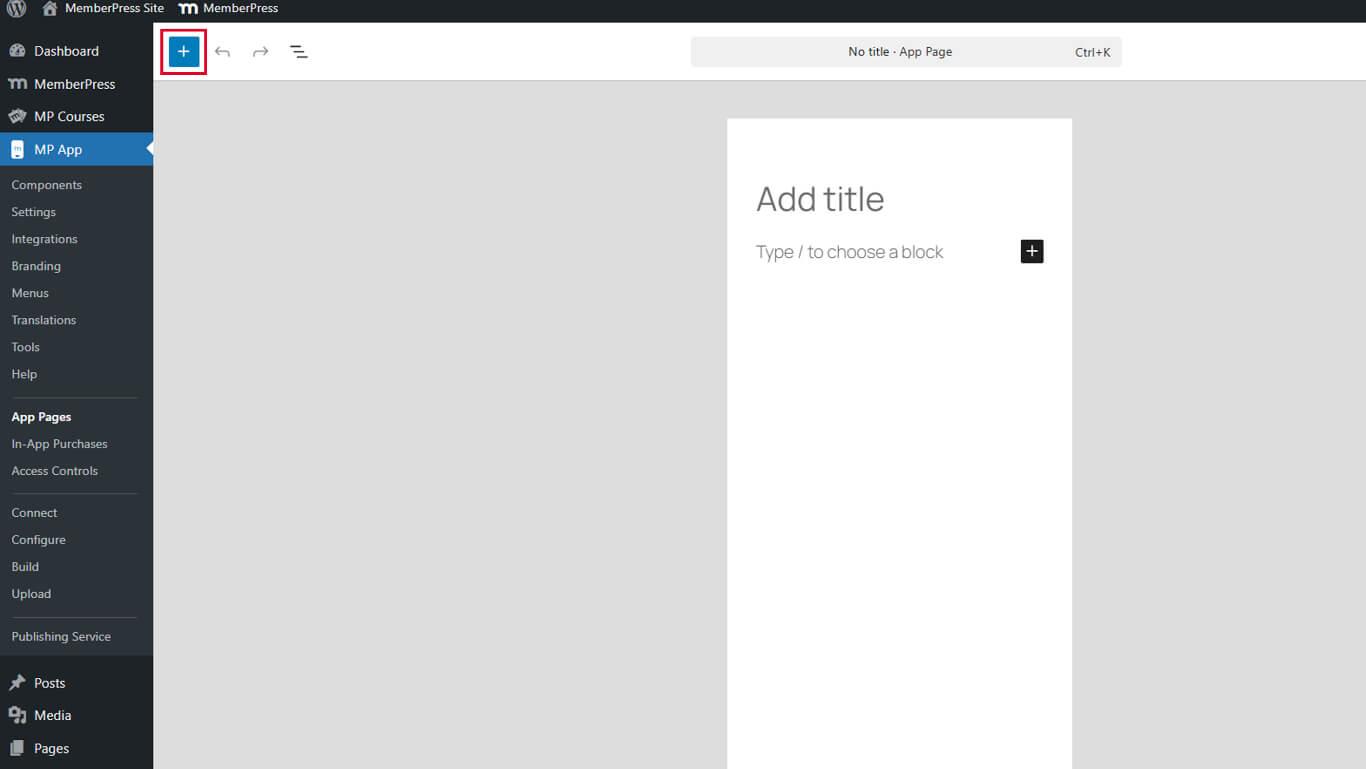
- Clique no botão Alternar Inseridor de Bloco ícone na barra de ferramentas do editor.
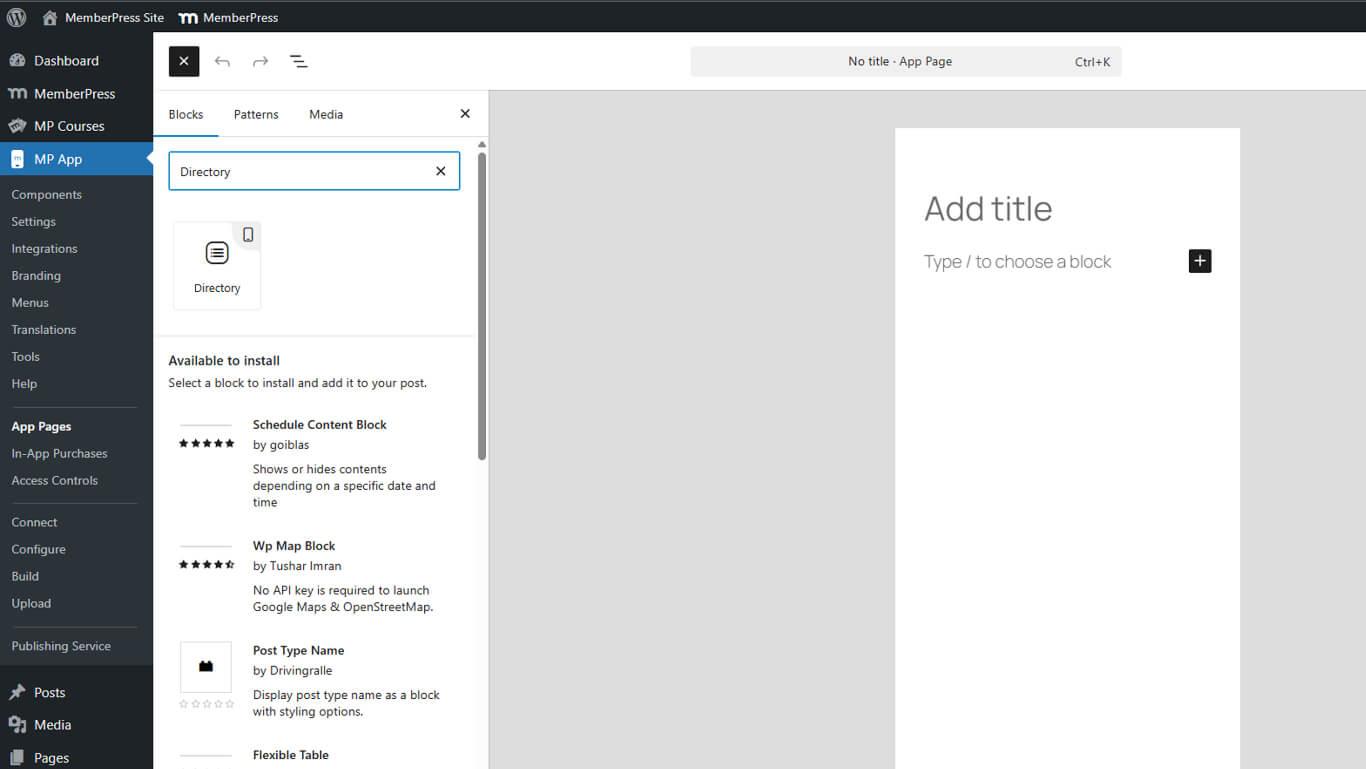
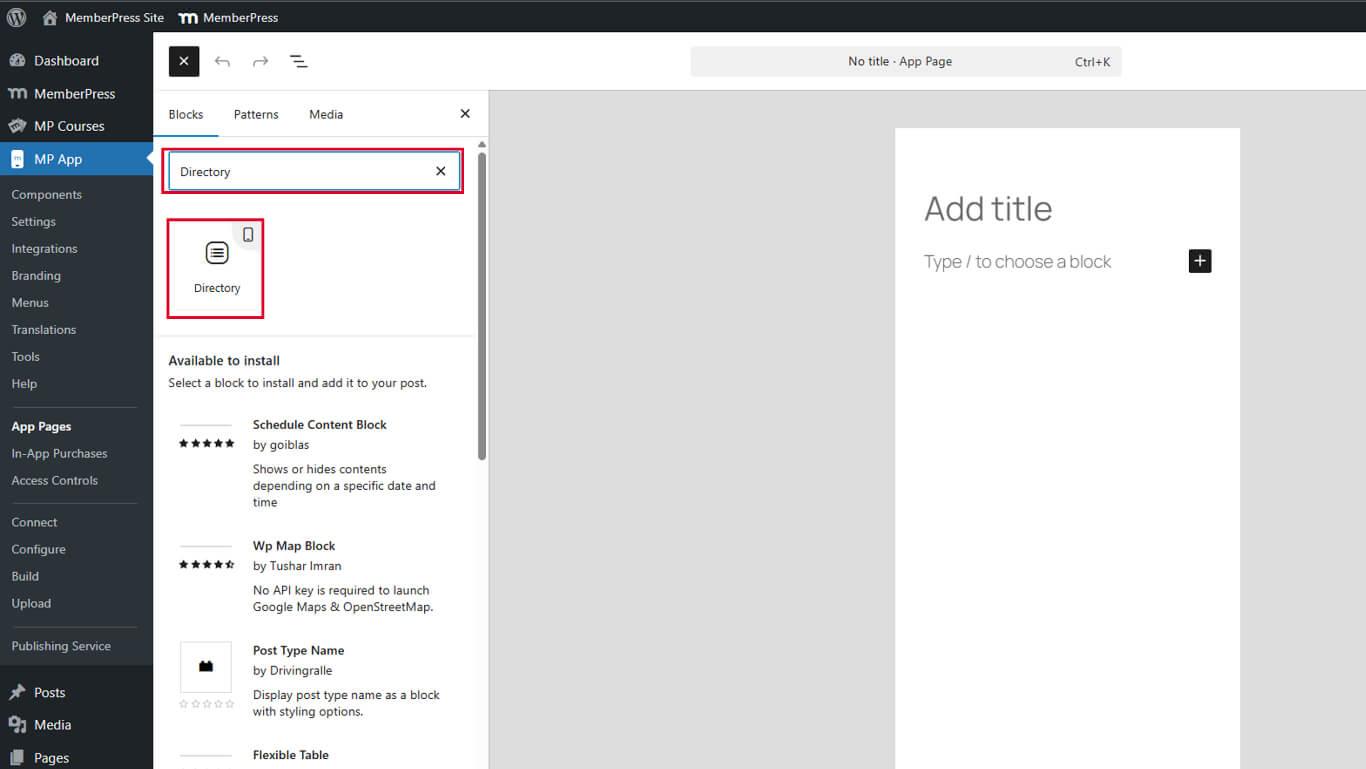
- Digite “Diretório” no campo de pesquisa do bloco.
- Arraste o Bloco de diretório na tela da página.
- Clique em Publicar ou Atualização para salvar a página.
O Bloco de Diretório exibe uma pré-visualização esquelética com rótulos de metadados de espaço reservado após a inserção.
Entendendo a visualização do diretório
A pré-visualização do esqueleto mostra a estrutura do diretório durante a configuração.
Etiquetas de espaço reservado indique as posições dos campos de metadados. As etiquetas são exibidas como “META 1”, “META 2”, “META 3” e “META 4”, representando os espaços de metadados disponíveis.
Pré-visualização do layout demonstra como o conteúdo aparecerá no diretório. O conteúdo real preenche esses espaços reservados no aplicativo publicado.
Orientação de configuração ajuda a identificar oportunidades de personalização. Os espaços reservados indicam visualmente onde os campos de metadados serão exibidos.
Configurando as definições do bloco de diretório
As configurações do Bloco de diretório controlam a fonte de conteúdo, as opções de exibição e o comportamento de classificação.
Selecionando o tipo de postagem
A seleção do tipo de postagem determina qual conteúdo preenche o diretório.
- Selecione o bloco de diretório no editor de páginas.
- Localize o Configurações de bloco barra lateral à direita.
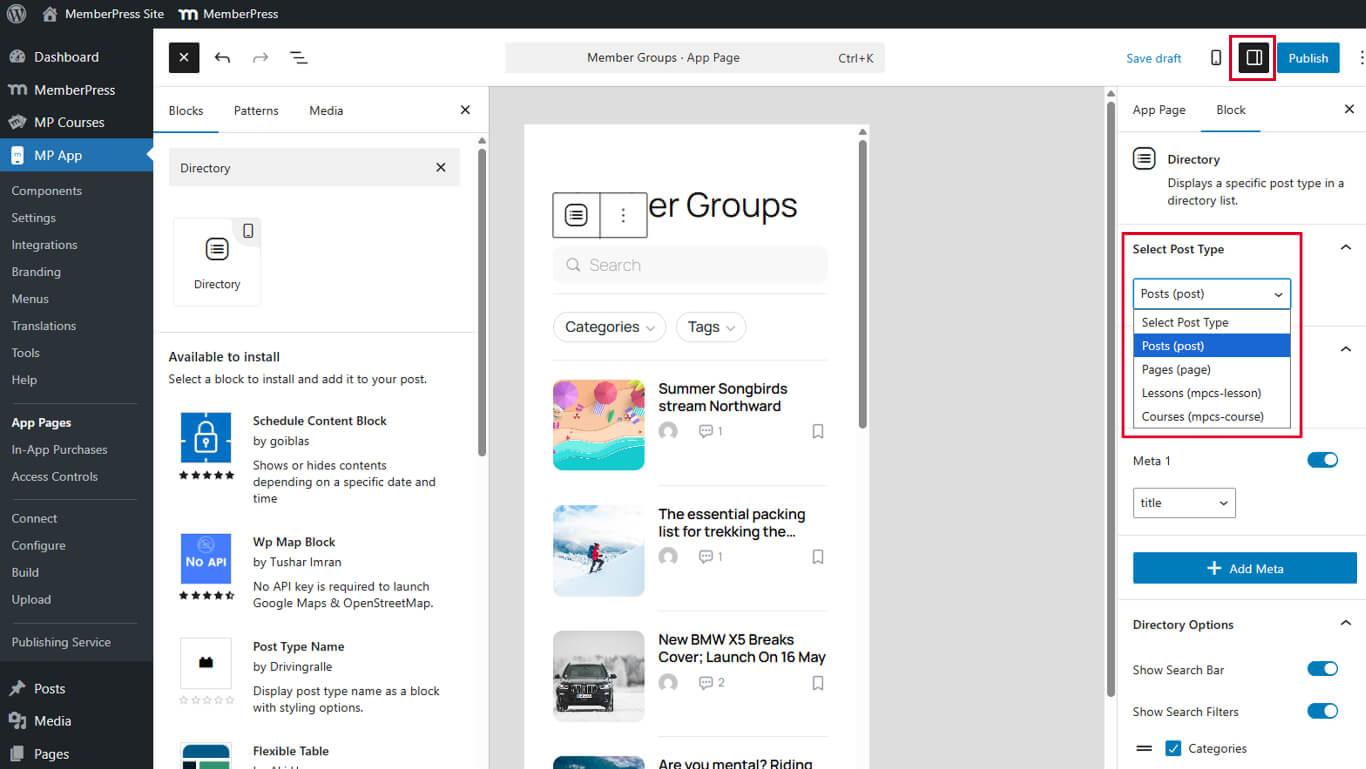
- Encontre o Selecione o tipo de publicação menu suspenso em Configurações do bloco.
- Escolha o tipo de postagem desejado das opções disponíveis:
- Publicações para publicações em blogs;
- Páginas para páginas WordPress;
- Tipos de publicações personalizadas para tipos de conteúdo especializados.
- Clique em Atualizar/Publicar para salvar a página.
O conteúdo do diretório é atualizado imediatamente com base no tipo de postagem selecionado.
Ativando imagens em destaque
As imagens em destaque fornecem contexto visual nas listagens do diretório.
- Selecione o Bloco de Diretório no editor de páginas.
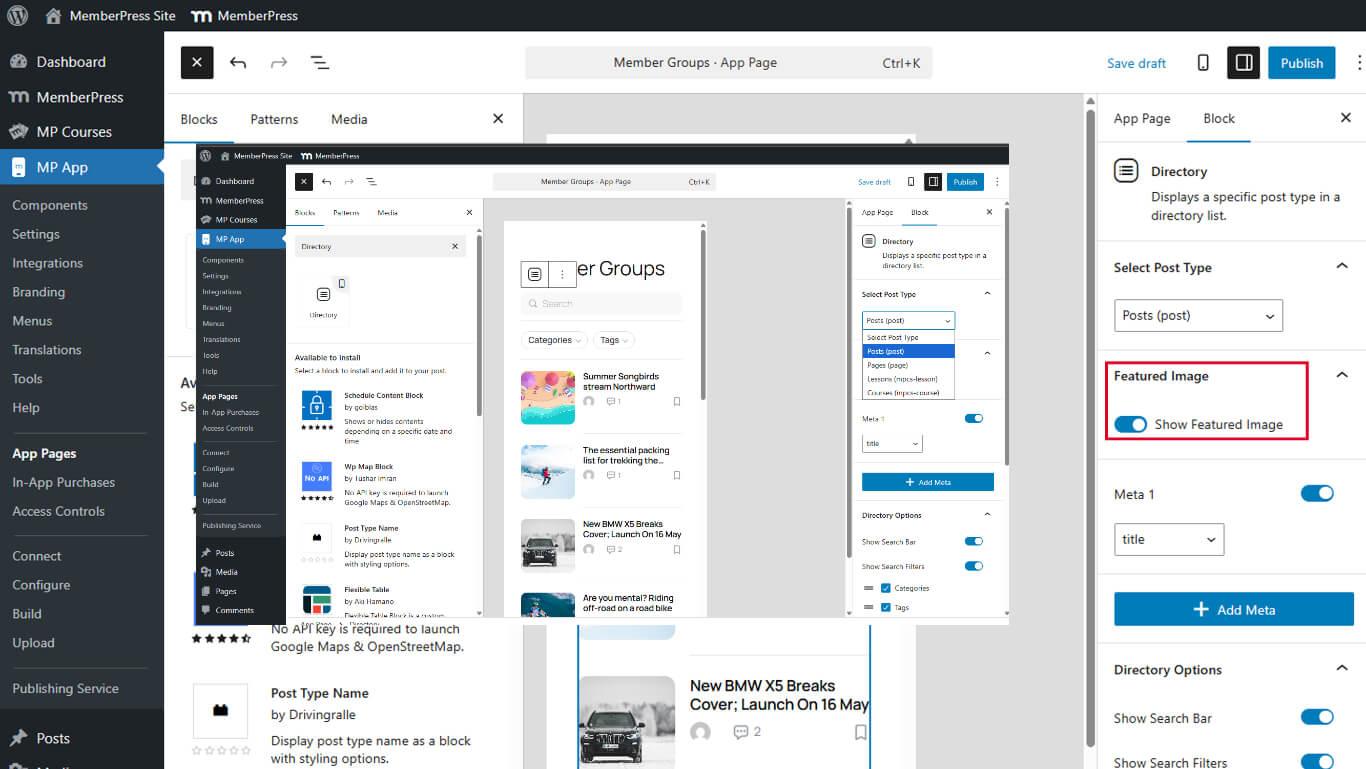
- Localize o Mostrar imagem em destaque alterne em Configurações do bloco.
- Alterne o interruptor para Em para ativar a exibição da imagem em destaque.
- Clique em Atualização para salvar a página.
As imagens em destaque são exibidas como miniaturas nos itens da lista do diretório, quando disponíveis. O conteúdo sem imagens em destaque exibe gráficos substitutos.
Configurando a exibição de metadados
Os campos de metadados fornecem contexto adicional sobre os itens do diretório. É possível exibir até quatro campos de metadados por item.
Adicionando o primeiro campo de metadados
- Selecione o Bloco de Diretório no editor de páginas.
- Role até o Metadados seção em Configurações do bloco.
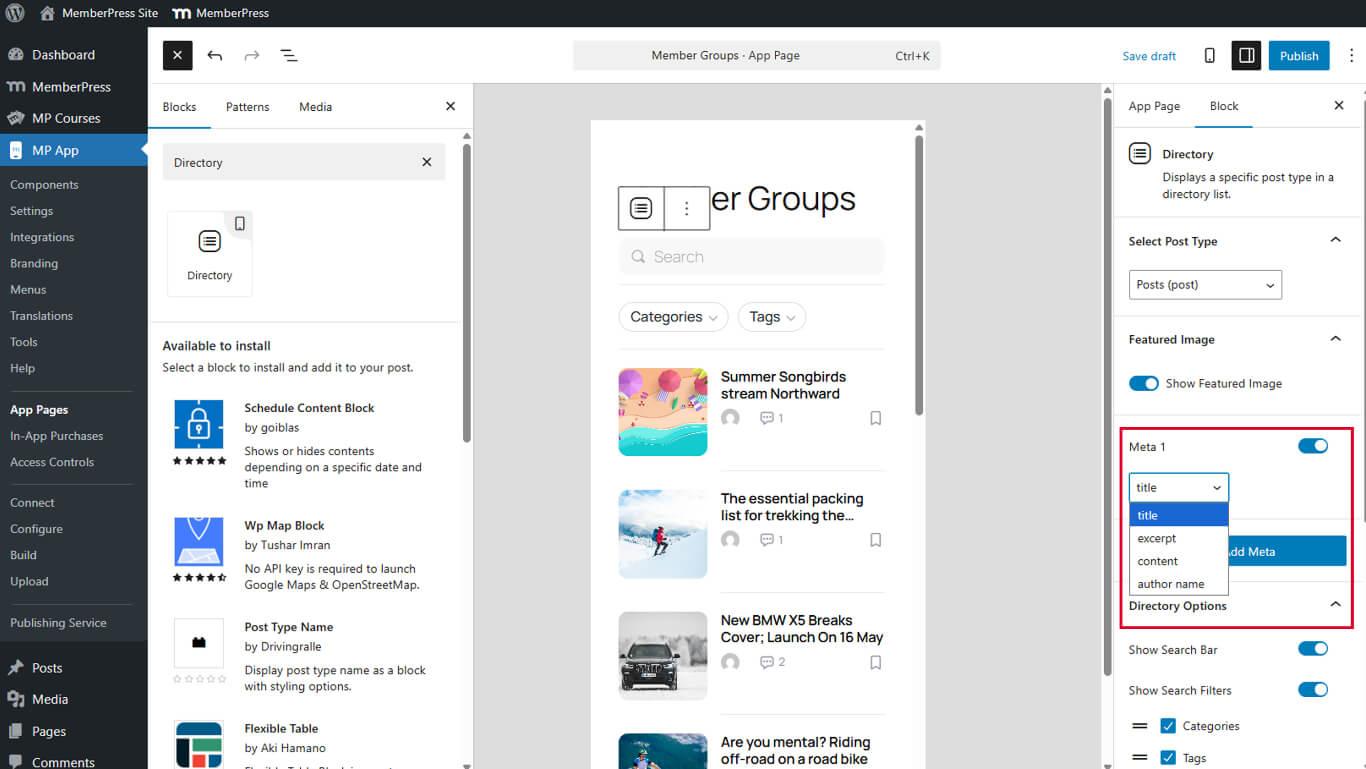
- Alternar Meta 1 para Em.
- Selecione o campo de metadados desejado na lista Meta 1 lista suspensa:
- Título
- Excerto
- Conteúdo
- Nome do autor
- Clique em Atualização para salvar a página.
O primeiro campo de metadados é exibido na posição do espaço reservado META 1.
Adicionando campos de metadados adicionais
- Clique em Adicionar Meta abaixo do primeiro campo de metadados.
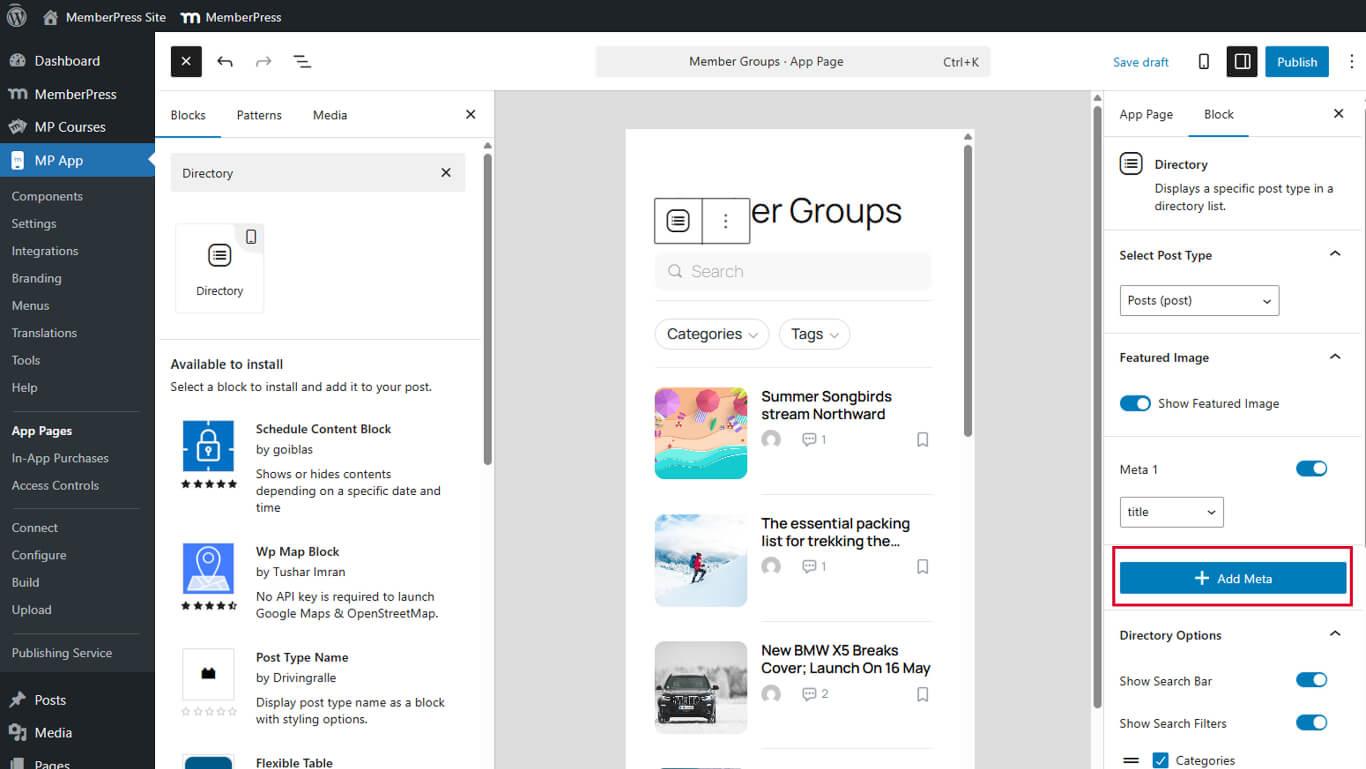
- Selecione o campo desejado no menu suspenso.
- Repita as etapas 1 a 3 para adicionar até quatro campos de metadados no total.
- Clique em Atualização para salvar a página.
Os campos de metadados são exibidos na ordem em que são adicionados. Reorganize os campos ajustando sua ordem de configuração.
Configurando as opções do diretório
As opções do diretório permitem recursos interativos e melhorias na exibição.
Ativando a funcionalidade de pesquisa
As barras de pesquisa permitem que os membros encontrem conteúdo específico dentro dos diretórios.
- Alternar Mostrar barra de pesquisa para Em.
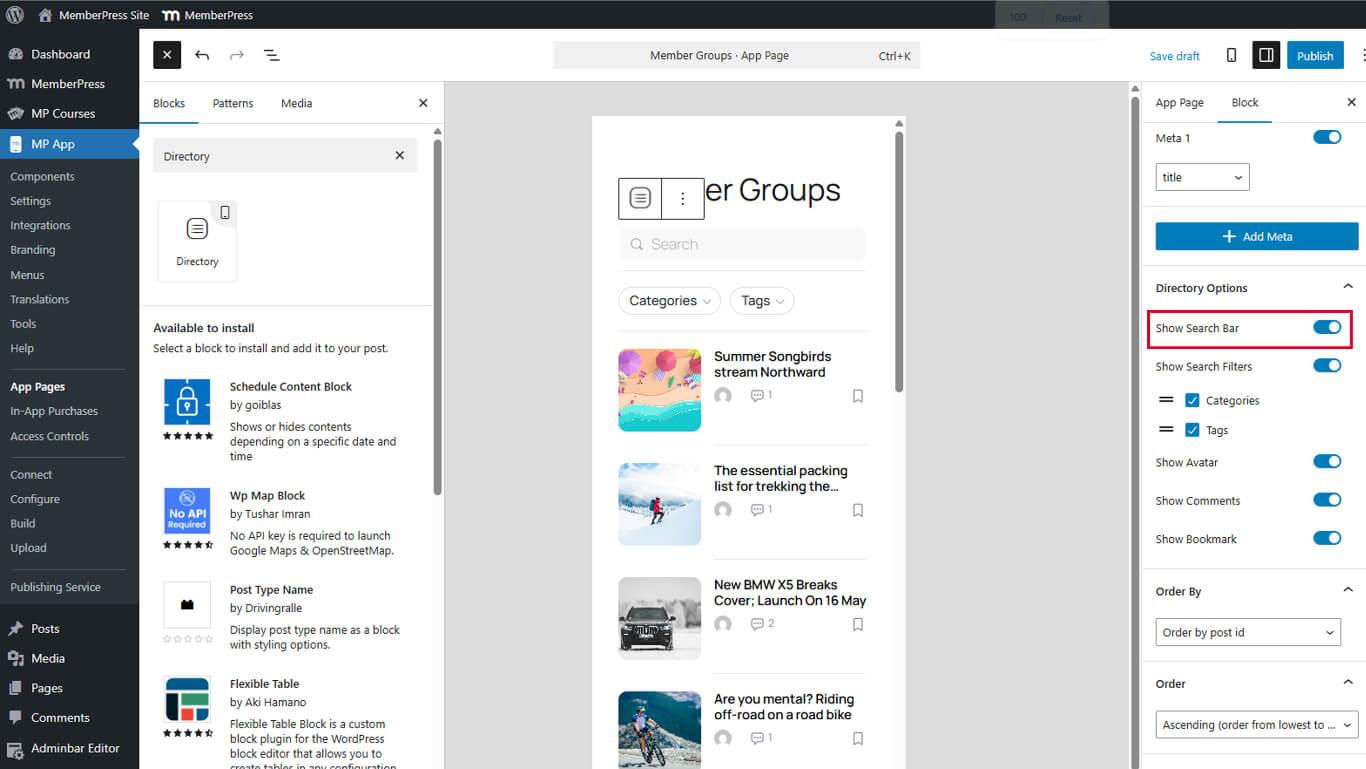
- Clique em Atualização para salvar a página.
As barras de pesquisa aparecem na parte superior das telas do diretório no aplicativo publicado.
Ativando filtros de pesquisa
Os filtros de pesquisa refinam os resultados da pesquisa por categorias ou taxonomias.
- Alternar Mostrar filtro de pesquisa para Em em Opções do diretório.
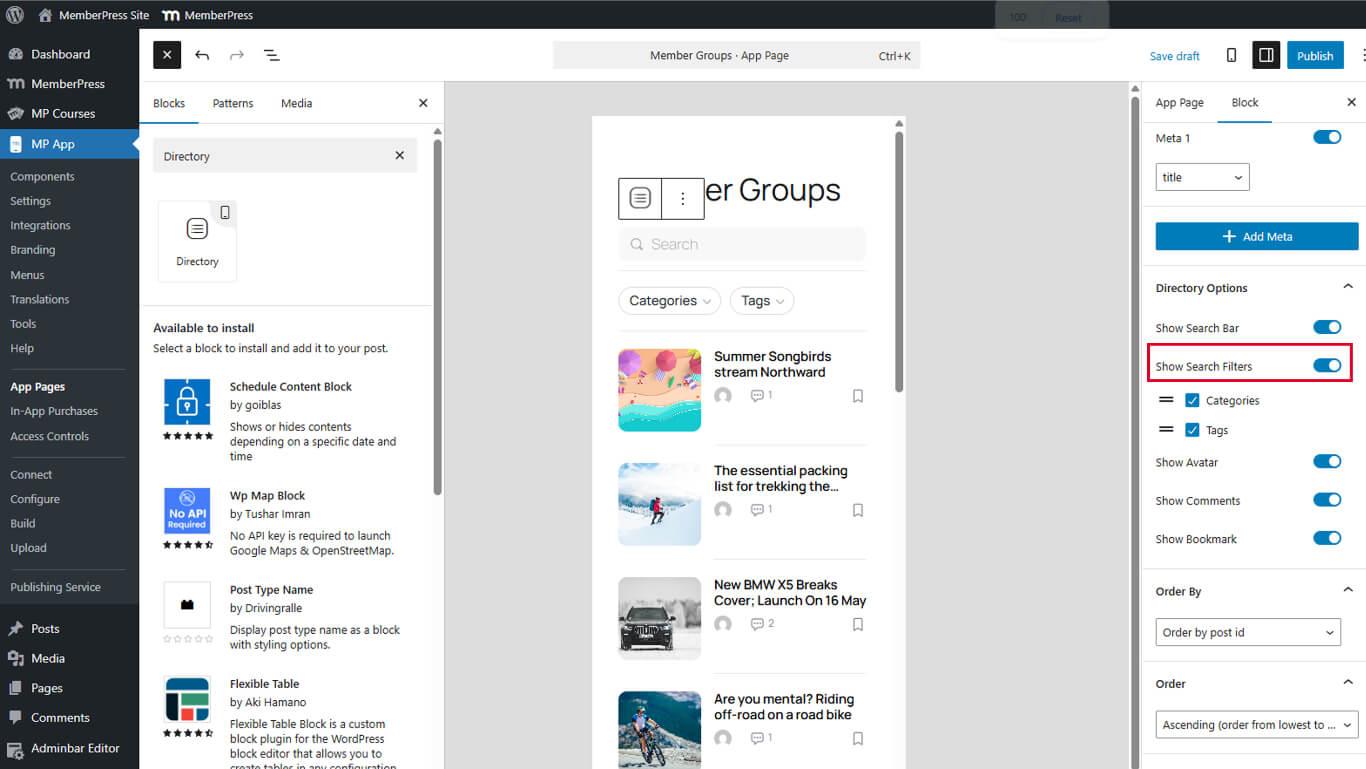
- Clique em Atualização para salvar a página.
Os filtros de pesquisa aparecem ao lado das barras de pesquisa quando ambas as opções estão ativadas. Os filtros oferecem seleções de categorias ou tags para resultados mais específicos.
Ativando avatares de autores
Os avatares dos autores identificam visualmente os criadores de conteúdo nas listas de diretórios.
- Alternar Avatar para Em em Opções do diretório.
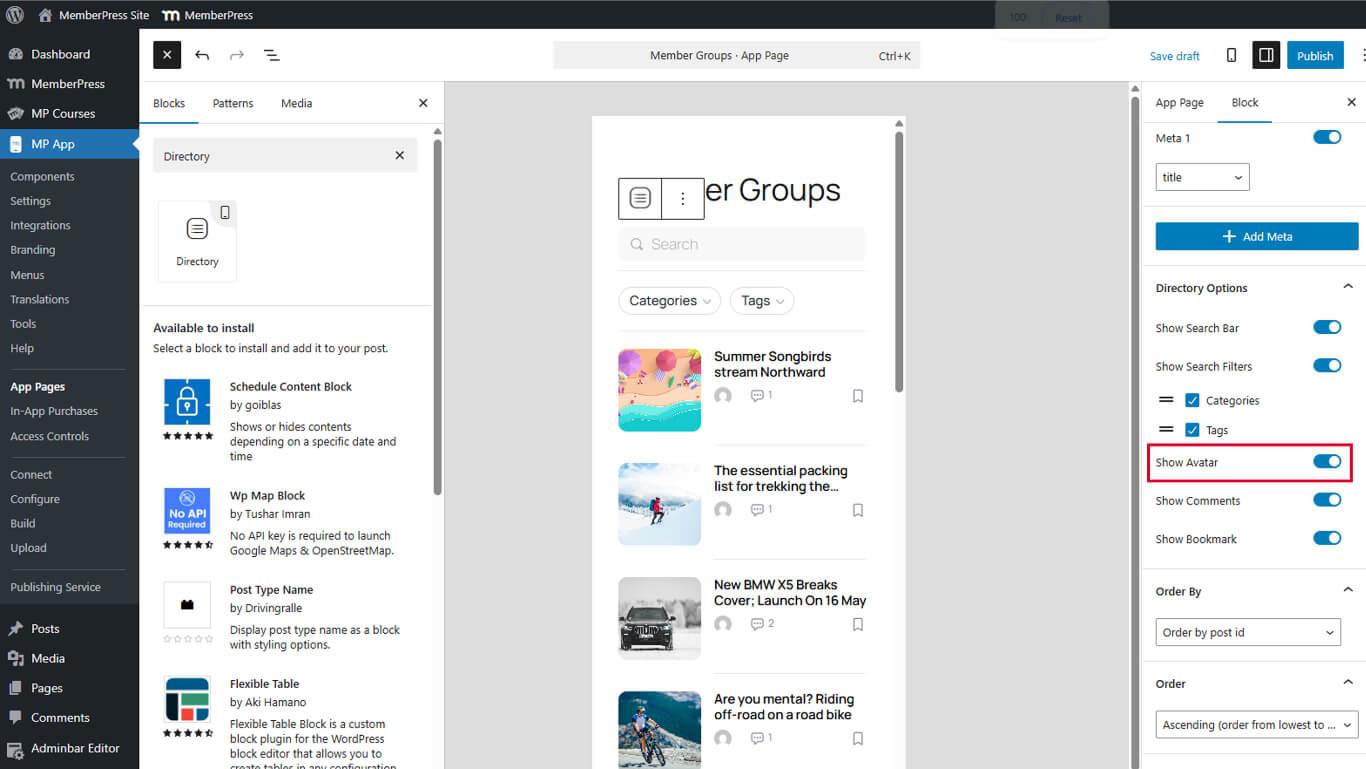
- Clique em Atualização para salvar a página.
Os avatares dos autores são exibidos como pequenas imagens circulares ao lado dos títulos dos conteúdos. Os avatares requerem imagens de perfil do autor configuradas no WordPress.
Ativando a contagem de comentários
A contagem de comentários indica a atividade de discussão sobre os itens de conteúdo.
- Alternar Mostrar comentário para Em em Opções do diretório.
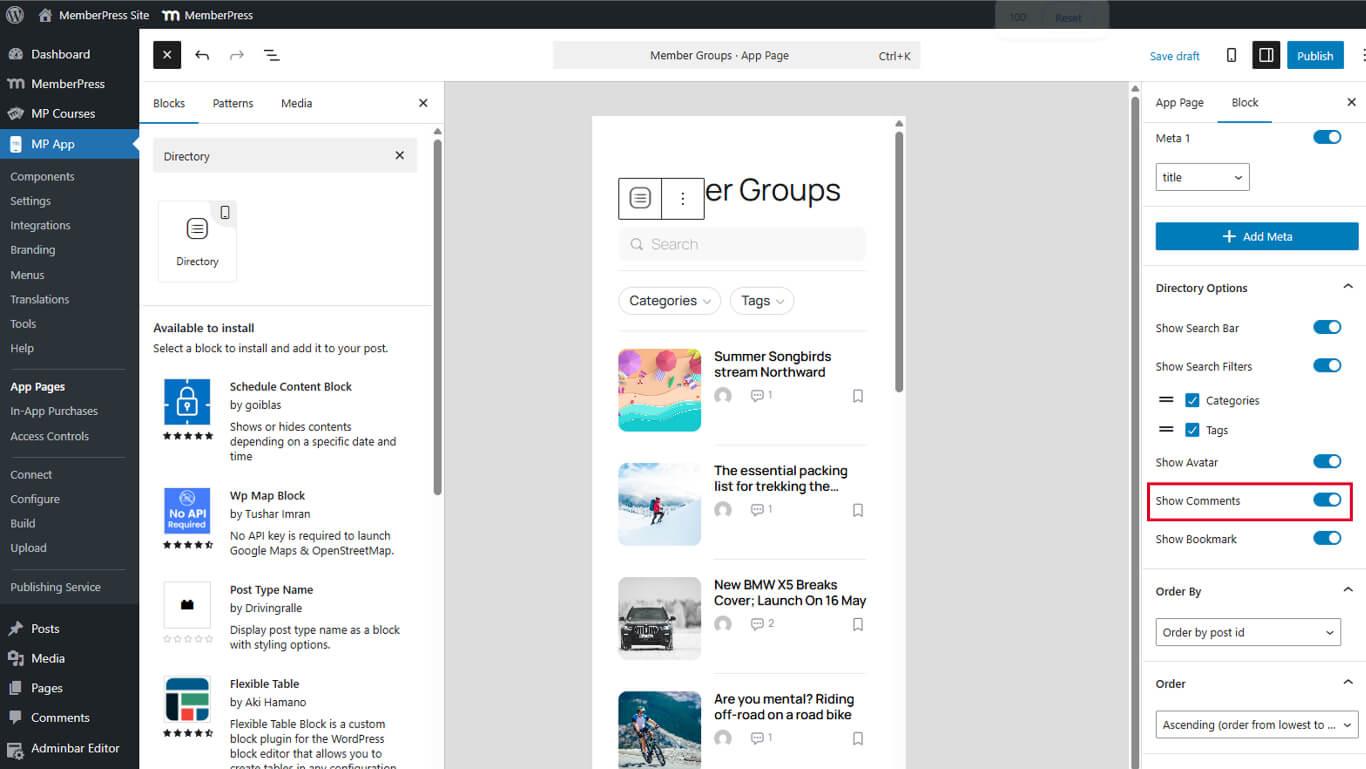
- Clique em Atualização para salvar a página.
A contagem de comentários é exibida como números com ícones de comentários nas listas de diretórios. A contagem é atualizada à medida que os membros adicionam comentários.
Ativando os favoritos
Os marcadores permitem que os membros salvem conteúdo para acesso posterior.
- Alternar Mostrar marcador para Em em Opções do diretório.
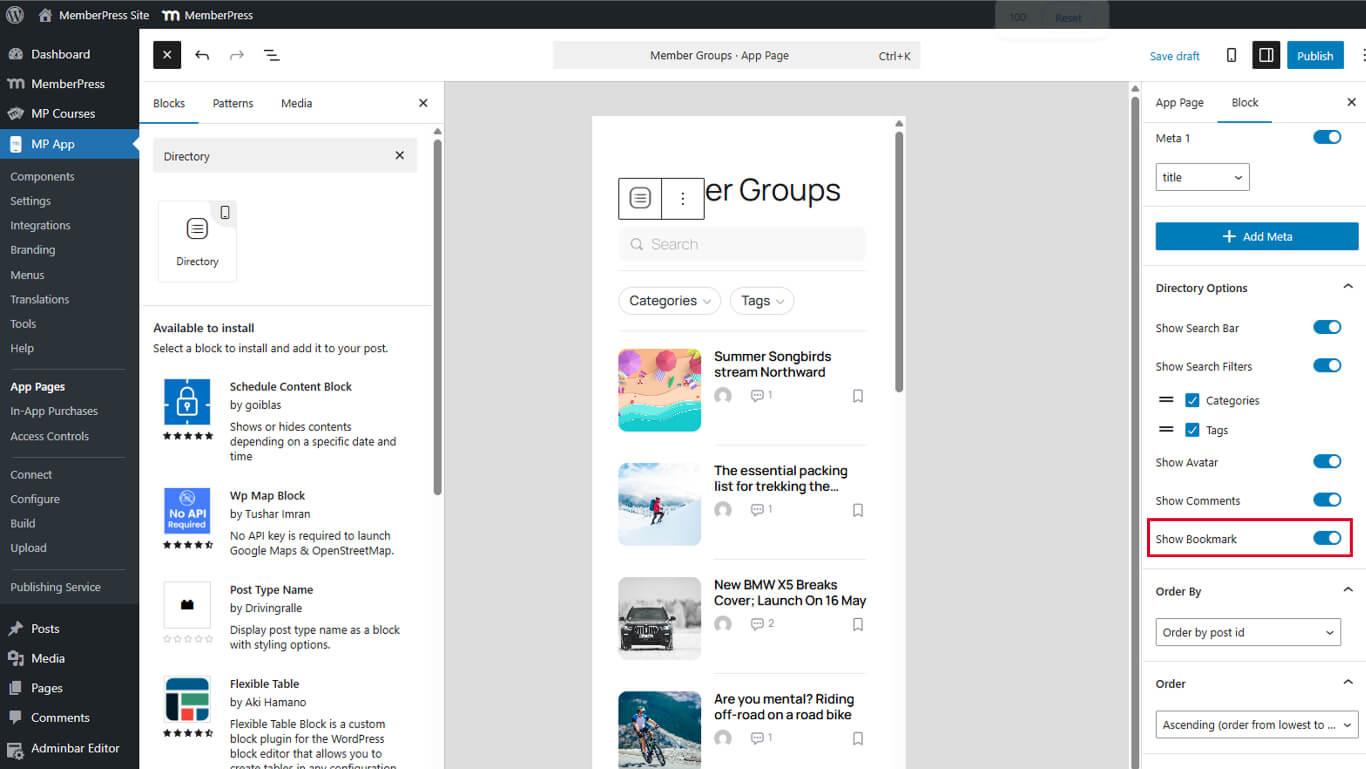
- Clique em Atualização para salvar a página.
Os ícones de favoritos são exibidos nas listas de diretórios. Os membros tocam nos ícones para marcar ou remover o marcador do conteúdo.
Configurando as opções de classificação
As opções de classificação controlam a ordem do conteúdo dentro dos diretórios.
Definindo o campo Ordenar por
- Selecione o bloco de diretório no editor de páginas.
- Localize o Pedido por menu suspenso em Configurações do bloco.
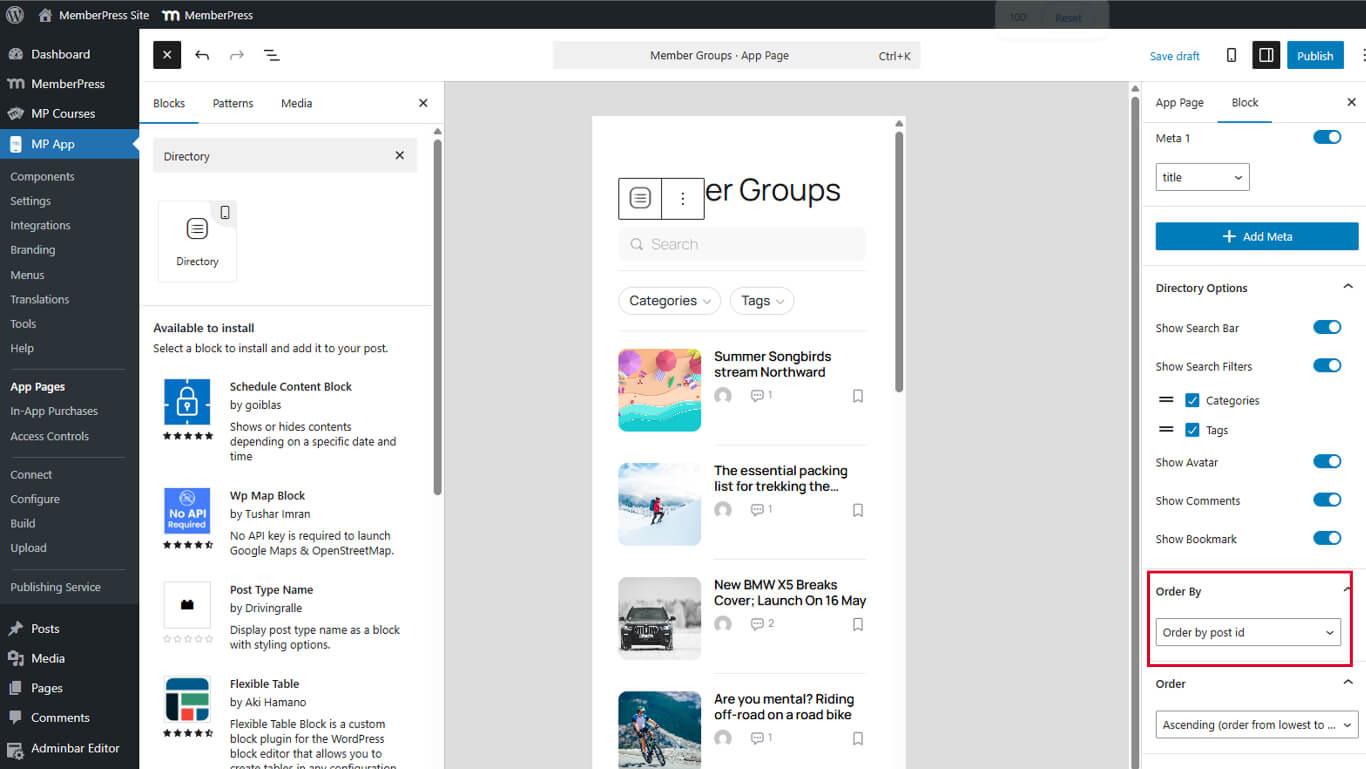
- Selecione o campo de classificação:
- Data para ordenação cronológica;
- Título para ordenação alfabética;
- Modificado para conteúdo atualizado recentemente;
- Pedido do menu para pedidos manuais.
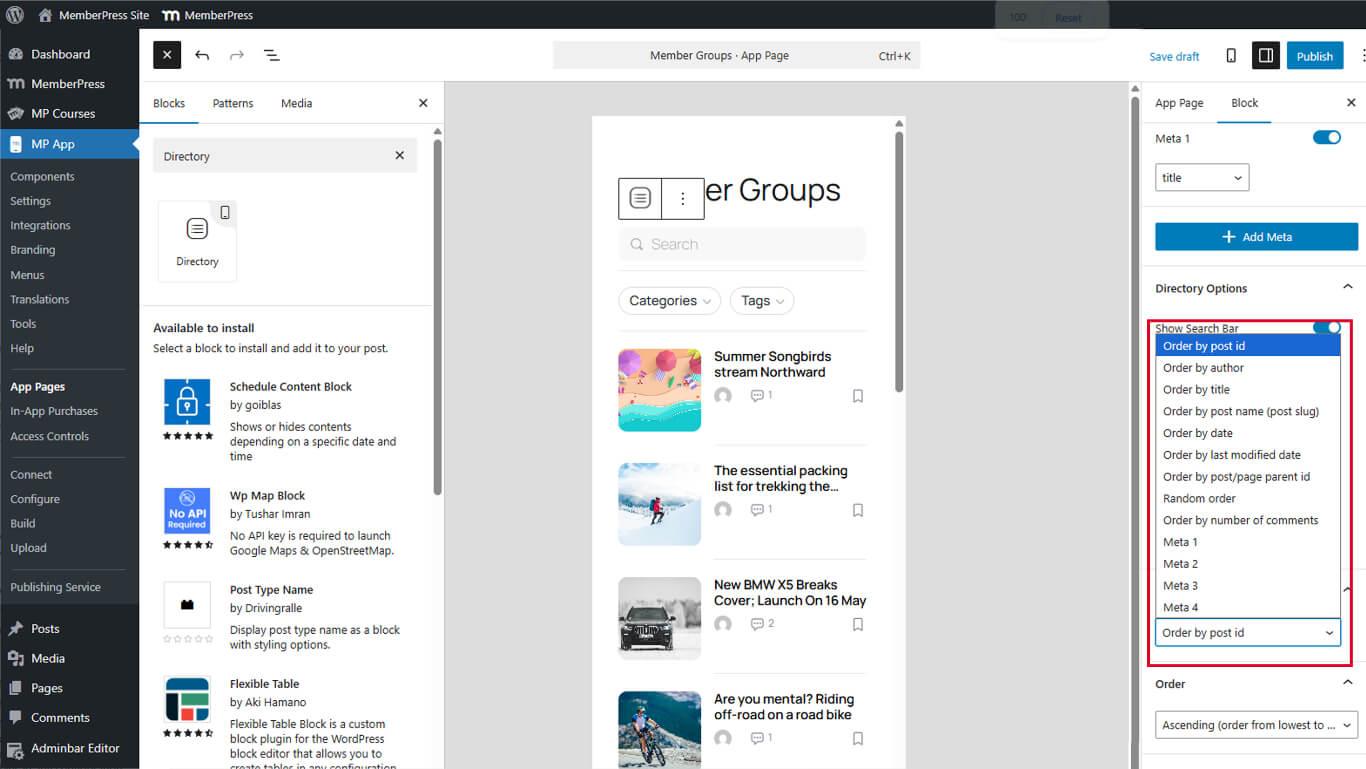
- Clique em Atualização para salvar a página.
O campo de classificação determina qual atributo de conteúdo controla a ordem de exibição.
Definindo a direção da ordem
- Localize o Pedido menu suspenso abaixo de Ordenar por.
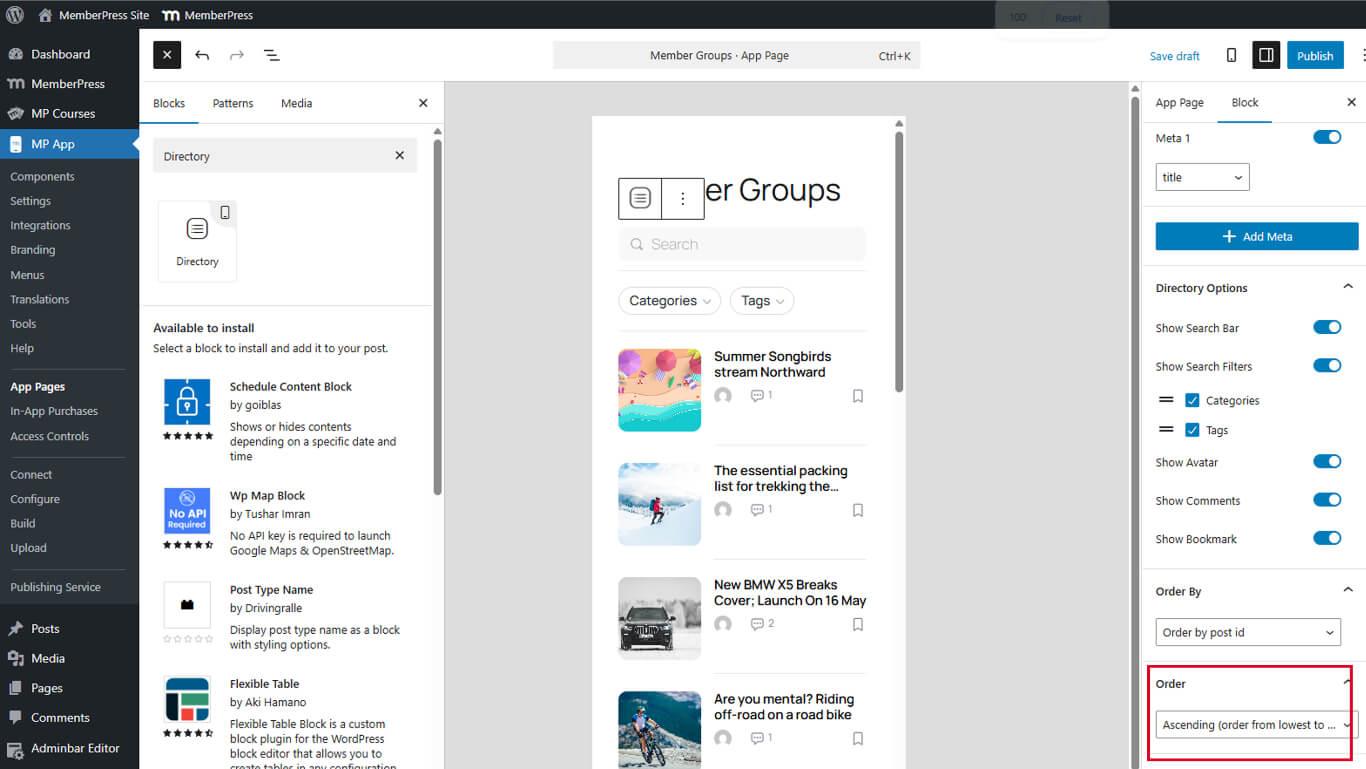
- Selecione a direção da classificação:
- Ascendente para ordenação de A a Z ou da mais antiga para a mais recente;
- Descendente para ordenação Z-A ou mais recente primeiro.
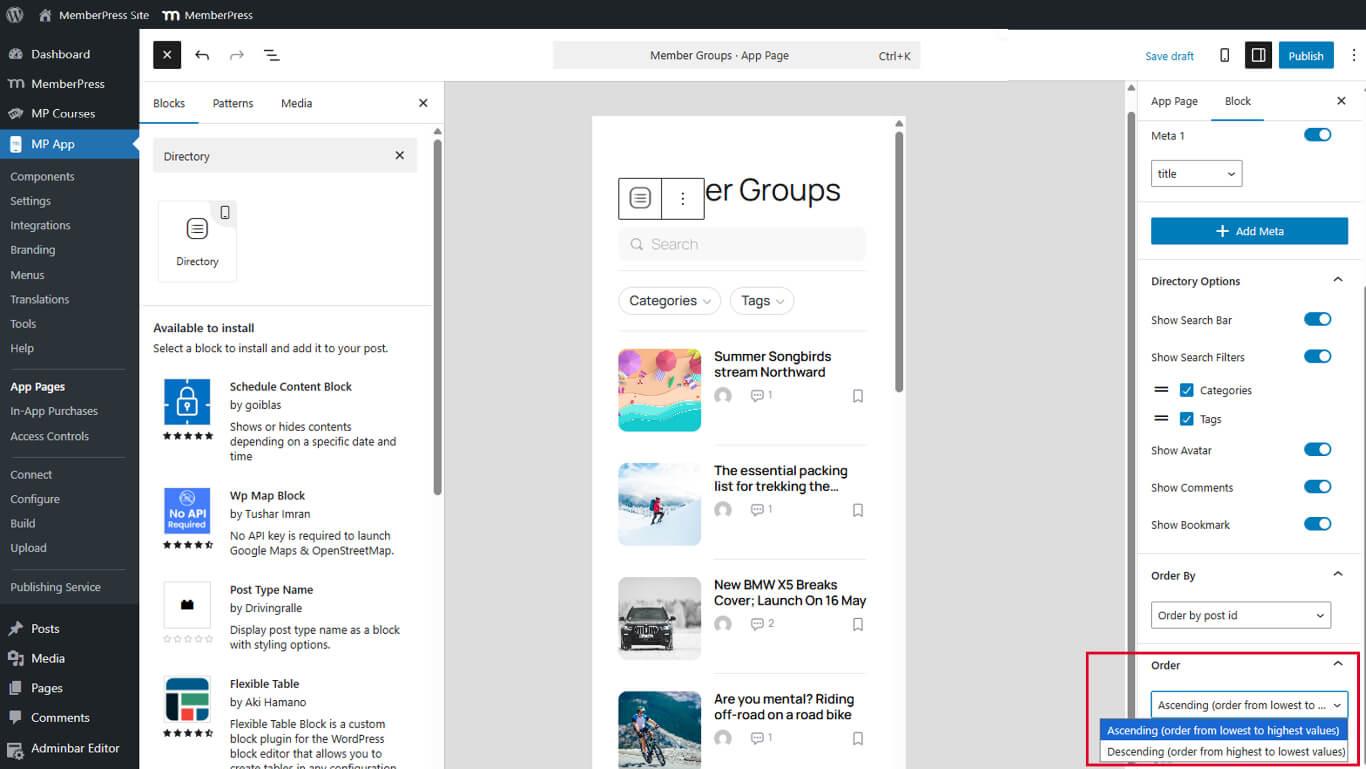
- Clique em Atualização para salvar a página.
A direção da classificação (ordem) funciona em combinação com o campo de classificação. A ordem decrescente por data exibe primeiro o conteúdo mais recente.
Excluindo blocos de diretório
Os blocos de diretório podem ser removidos quando não forem mais necessários.
- Navegue até Painel de controle > MP AppKit > Páginas de aplicativos.
- Abra a página contendo o Bloco de Diretório.
- Selecione o bloco de diretório no editor.
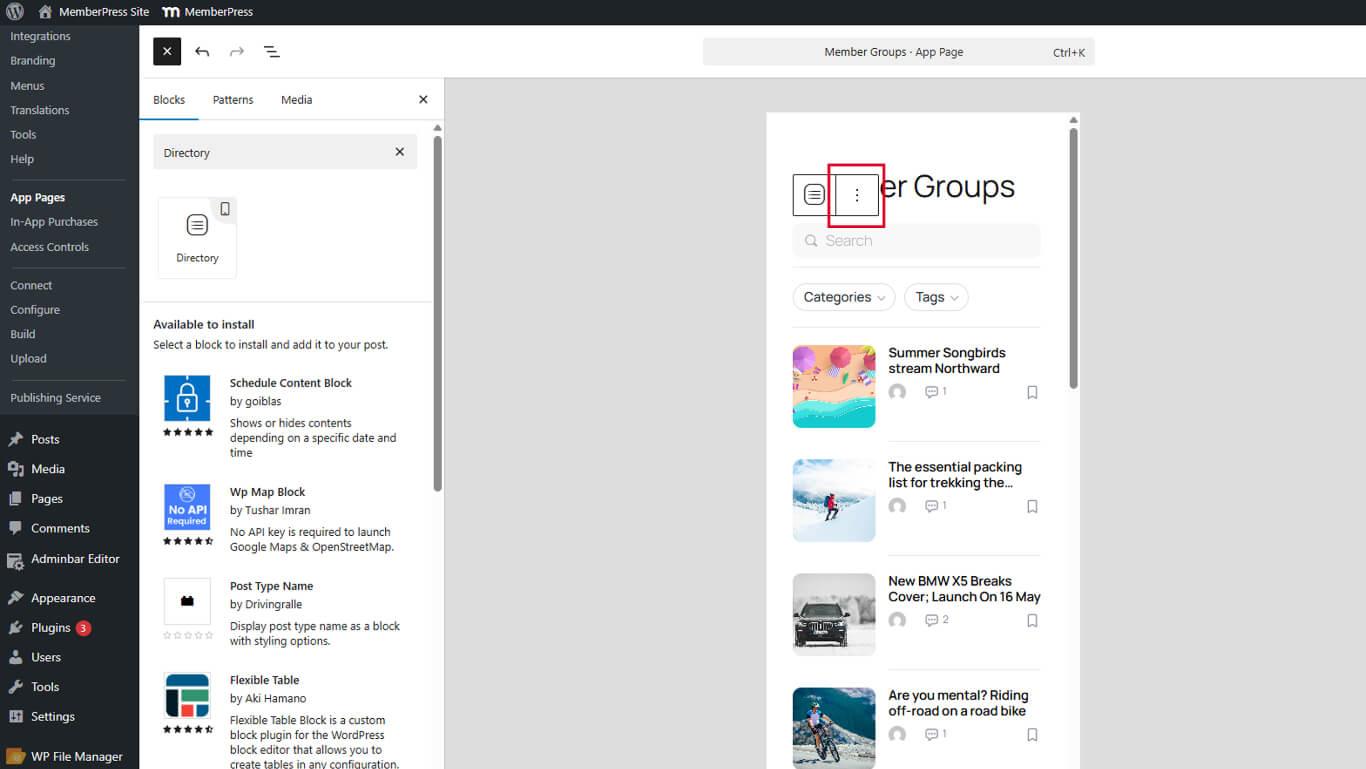
- Clique no botão Opções menu (três pontos verticais) na barra de ferramentas do bloco.
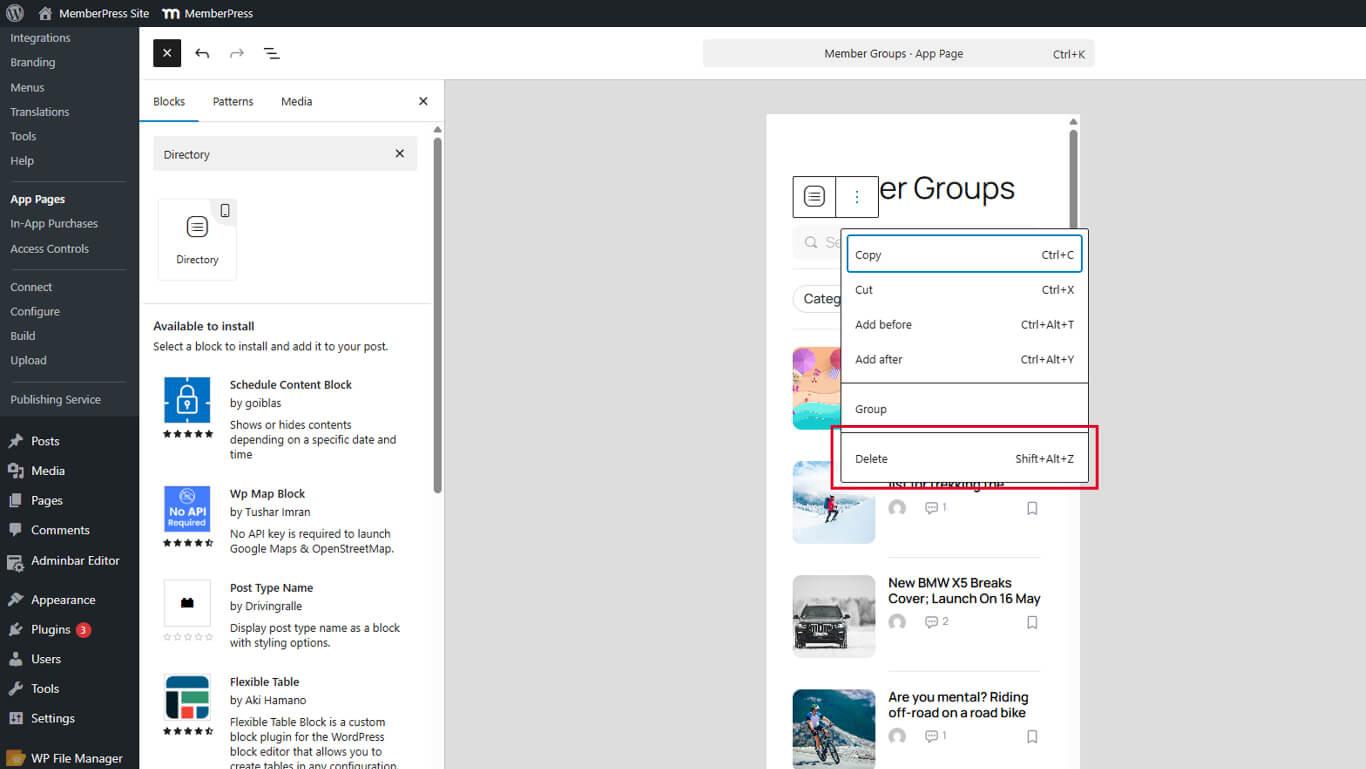
- Clique em Excluir.
- Clique em Atualização para salvar a página.
A remoção dos blocos de diretório permite que outros tipos de blocos sejam adicionados à página.










 PT
PT  EN
EN  ES
ES  FR
FR  DE
DE 