

A tipografia estabelece a identidade da marca e melhora a legibilidade do conteúdo nos aplicativos móveis. O AppKit do MemberPress suporta a configuração de fontes personalizadas usando o Google Fonts ou arquivos de fontes carregados.
Este documento explica como importar fontes, atribuir tipografia às seções do aplicativo e otimizar a exibição de texto para o envolvimento dos membros.
Entendendo a configuração tipográfica
A configuração tipográfica controla as famílias, estilos e tamanhos das fontes em todo o aplicativo. As fontes personalizadas alinham a aparência do aplicativo com as diretrizes da marca e melhoram a consistência visual. A integração com o Google Fonts oferece amplas opções de fontes sem a necessidade de gerenciamento de arquivos. O upload de fontes personalizadas oferece suporte a fontes proprietárias da marca. A configuração tipográfica adequada melhora a legibilidade e reforça a identidade da marca em todas as telas do aplicativo.
Compreender os benefícios da tipografia
A tipografia personalizada oferece múltiplas vantagens em termos de experiência do usuário e branding.
Reforço da identidade da marca ocorre através do uso consistente do tipo de letra. Os membros associam fontes específicas ao reconhecimento e confiança da marca.
Otimização da legibilidade melhora através da seleção adequada da fonte. Tipos de letra bem projetados aumentam a compreensão e reduzem o cansaço visual.
Consistência do design surge da tipografia unificada em todas as telas. O uso coeso das fontes cria uma aparência profissional e refinada.
Melhoria da acessibilidade resultados do tamanho e peso adequados das fontes. A tipografia legível atende aos membros com diferentes capacidades visuais.
Acessando as configurações de tipografia
Toda a configuração da tipografia é feita na interface de tipografia da marca.
- Navegue até Painel de controle > MP AppKit > Branding > Tipografia.
- Localize o Importar fontes seção.
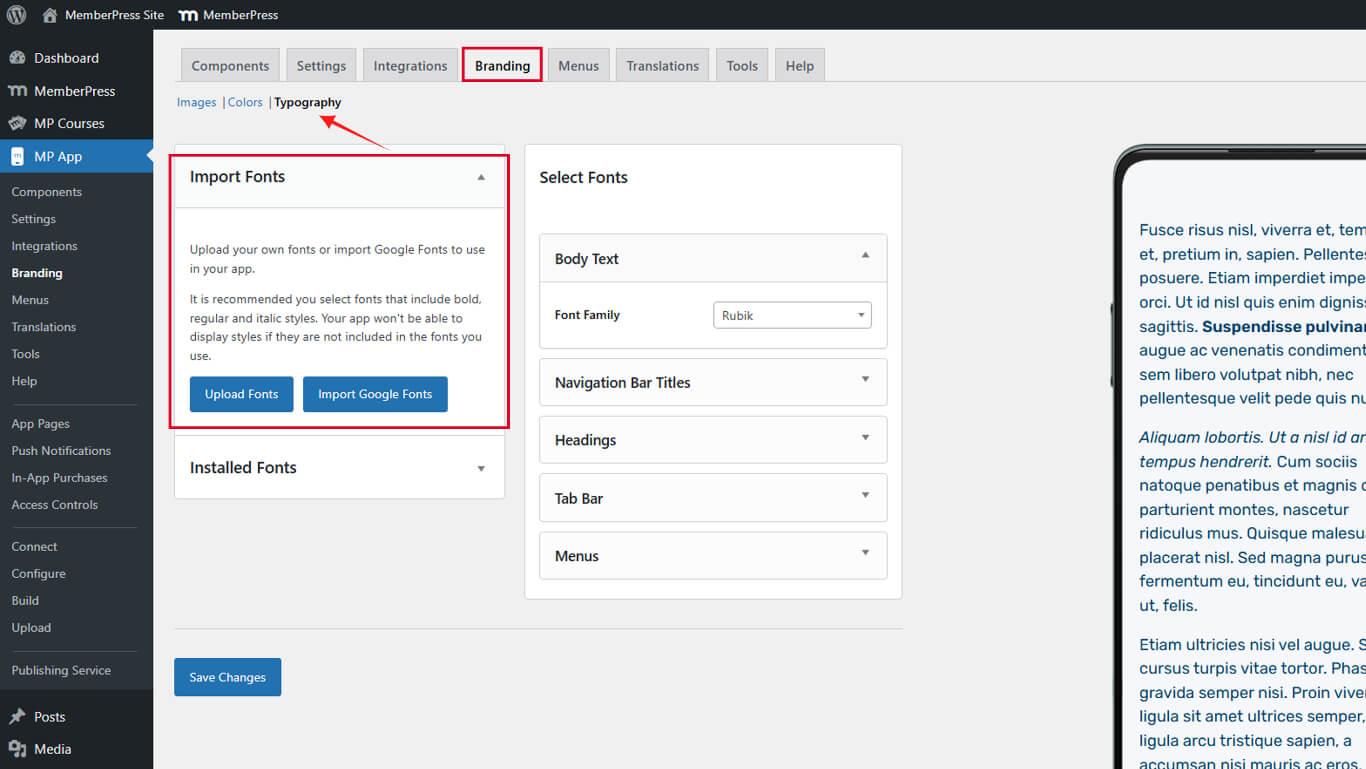
As configurações tipográficas controlam tanto as importações de fontes quanto as atribuições de fontes específicas para cada seção.
Carregando fontes personalizadas
As fontes personalizadas adicionam tipos de letra exclusivos à biblioteca de fontes do aplicativo.
- Navegue até Painel de controle > MP AppKit > Branding > Tipografia.
- Clique em Carregar fontes na seção Importar fontes.
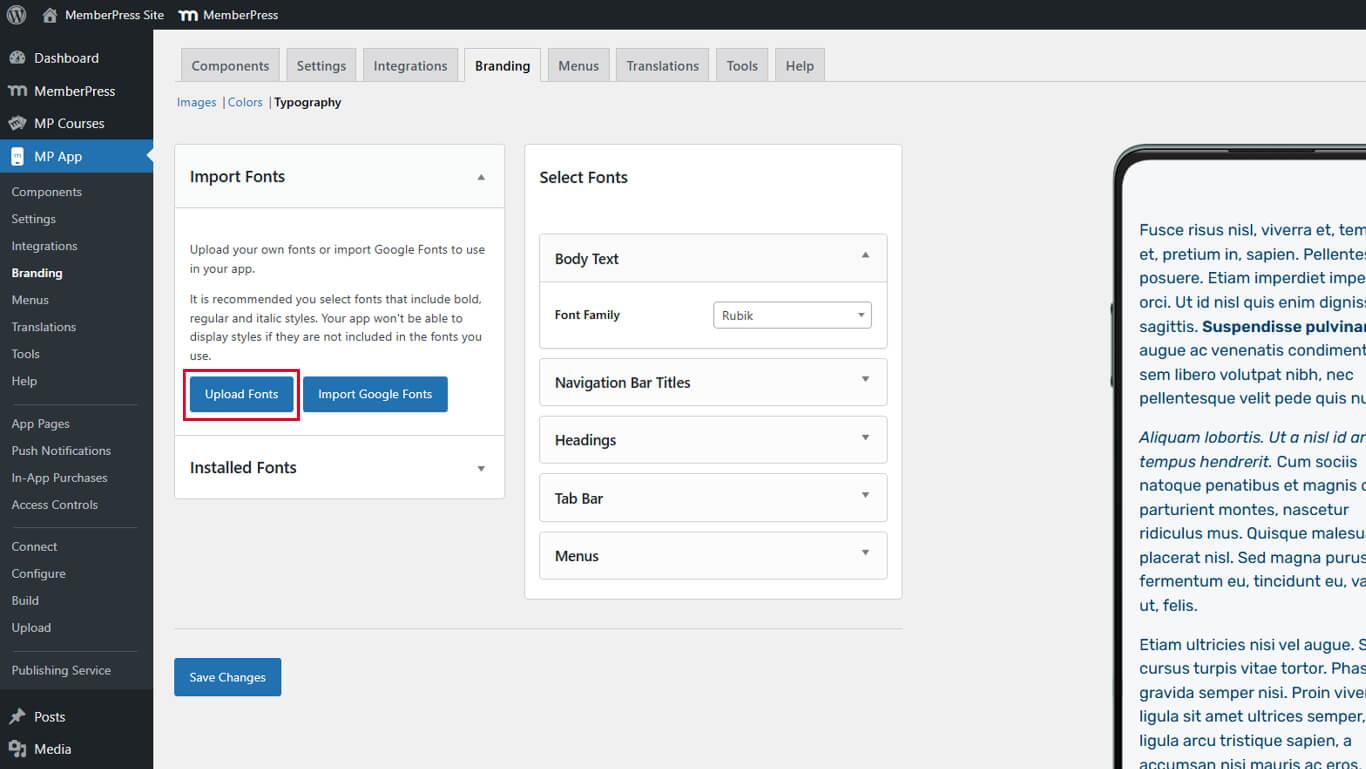
- Clique em Selecionar arquivo na caixa de diálogo de upload.
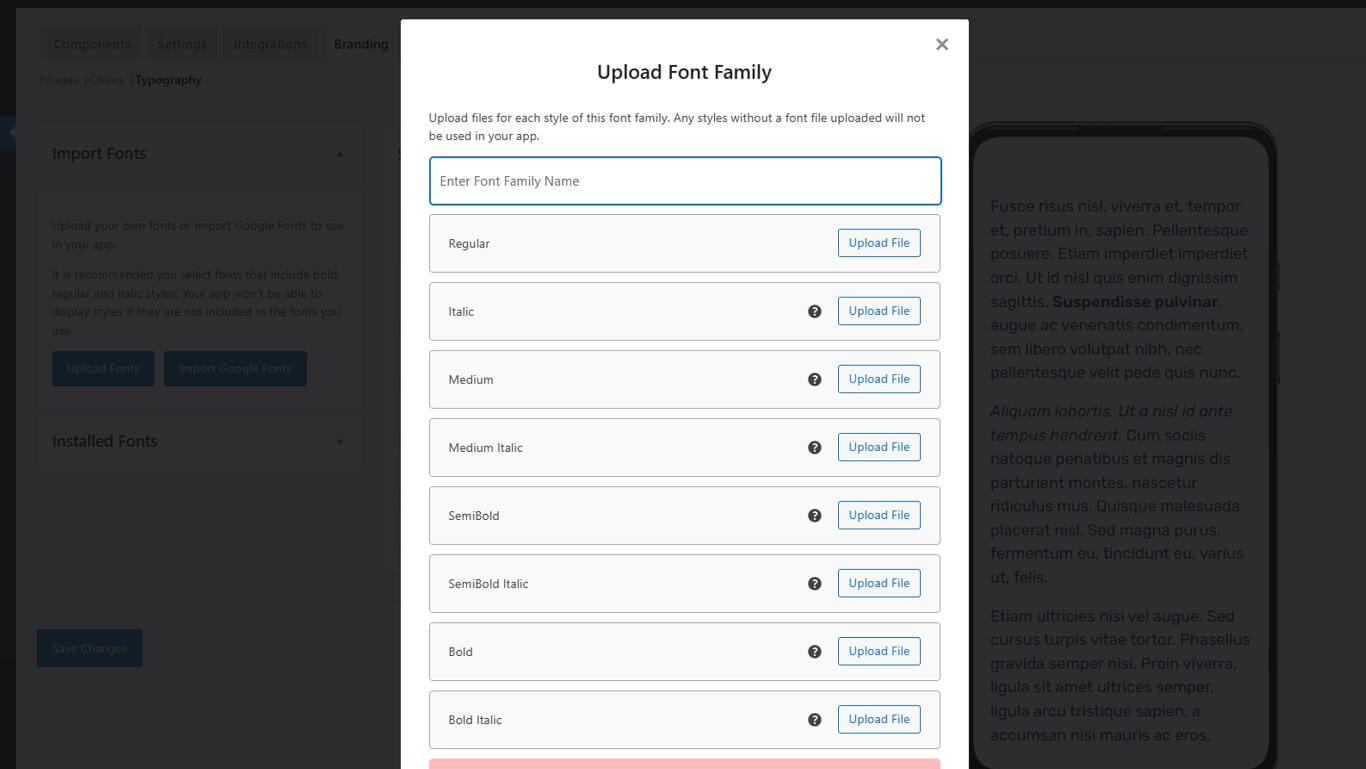
- Selecione um arquivo de fonte no dispositivo.
- Verifique se o formato do arquivo é TTF, OTF ou WOFF.
- Clique em Carregar para concluir a importação.
- Verifique se a fonte aparece em Fontes importadas.
As fontes carregadas ficam imediatamente disponíveis para atribuição às seções do aplicativo.
Formatos de arquivo de fonte suportados
Diferentes formatos de fonte oferecem compatibilidade e recursos variados.
Fonte TrueType (TTF) oferece ampla compatibilidade entre plataformas. Os arquivos TTF funcionam de maneira confiável na maioria dos contextos.
Fonte OpenType (OTF) oferece recursos tipográficos avançados. OTF suporta conjuntos de caracteres estendidos e ligaduras.
Formato de fonte aberta para a web (WOFF) otimiza a entrega de fontes para contextos da web. Os arquivos WOFF são compactados de forma eficiente para tamanhos menores.
Carregue fontes no formato correspondente aos arquivos de origem. Evite converter entre formatos, pois isso pode prejudicar a qualidade.
Importando fontes do Google
A integração do Google Fonts adiciona fontes da web à biblioteca de fontes do aplicativo.
- Navegue até Painel de controle > MP AppKit > Branding > Tipografia.
- Clique em Importar fontes do Google na seção Importar fontes.
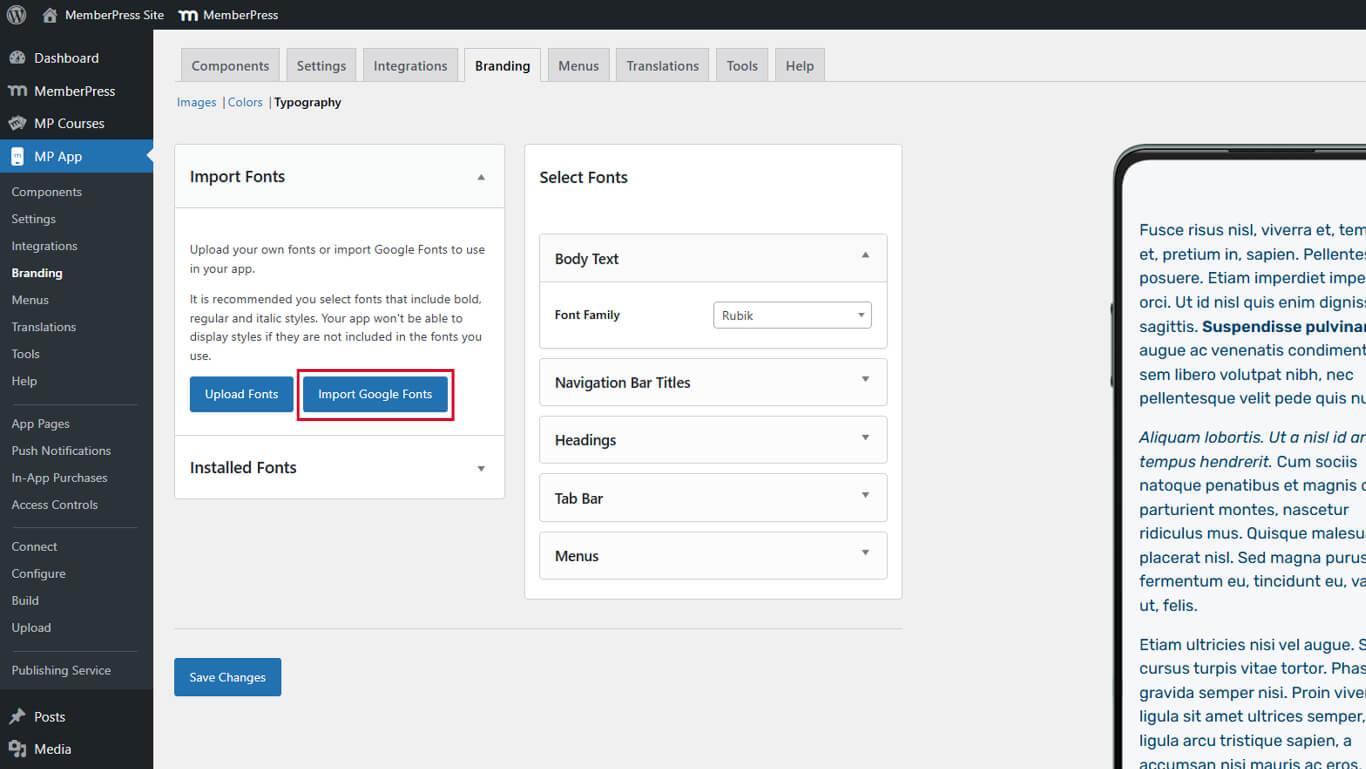
- Navegue pelas fontes disponíveis ou utilize o campo de pesquisa.
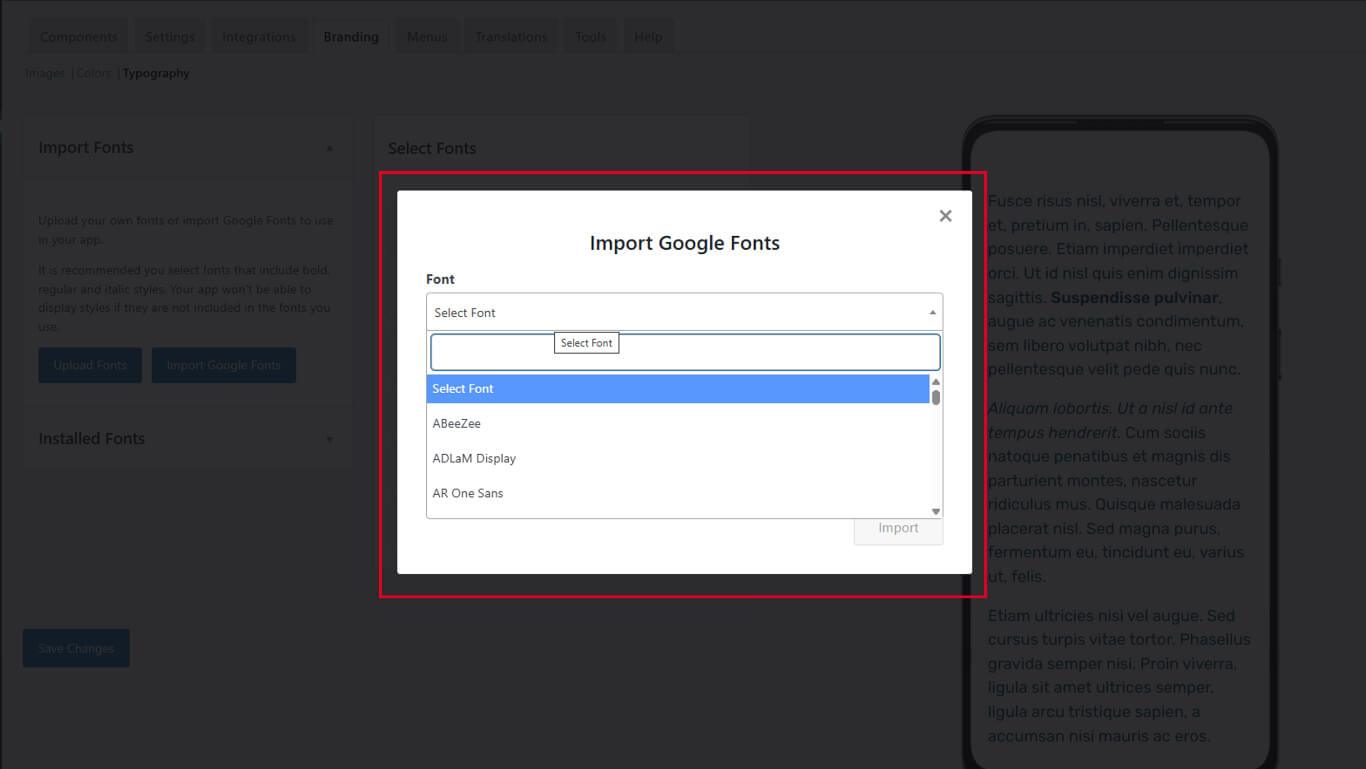
- Digite o nome de uma fonte no campo de pesquisa para filtrar os resultados.
- Clique no nome de uma fonte para visualizar estilos e detalhes.
- Analise as espessuras e estilos de fonte disponíveis na pré-visualização.
- Observe quaisquer avisos de compatibilidade para a fonte selecionada.
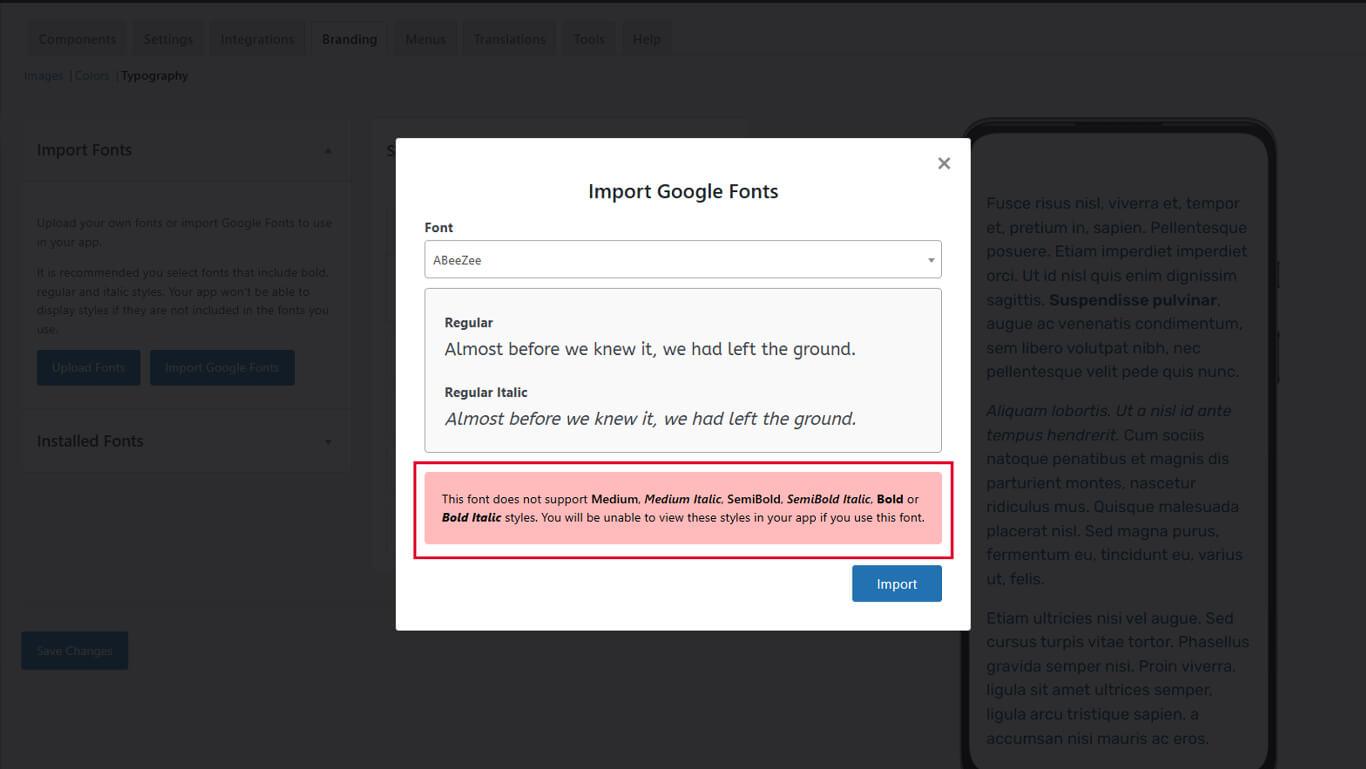
- Clique em Importação para adicionar a fonte à biblioteca.
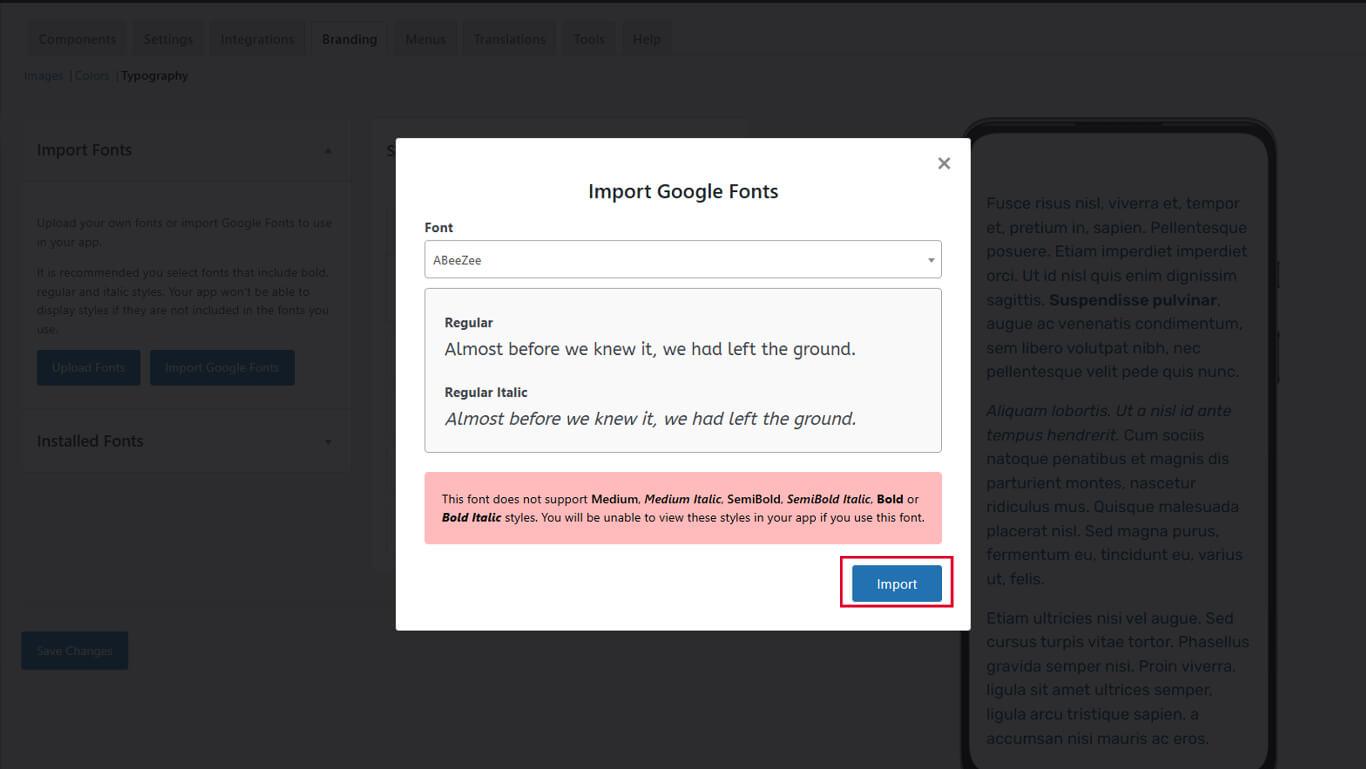
- Verifique se a fonte aparece em Fontes importadas.
As fontes importadas do Google incluem automaticamente todos os pesos e estilos disponíveis.
Atribuir fontes às seções do aplicativo
As atribuições de fontes controlam a tipografia para elementos específicos da interface.
Atribuir fonte ao corpo do texto
O corpo do texto serve como conteúdo principal em todo o aplicativo.
- Navegue até Painel de controle > MP AppKit > Branding > Tipografia.
- Role até o Texto do corpo seção.
- Clique no botão Família de fontes lista suspensa.
- Selecione uma fonte.
- Revise o painel de visualização ao vivo para verificar a aparência.
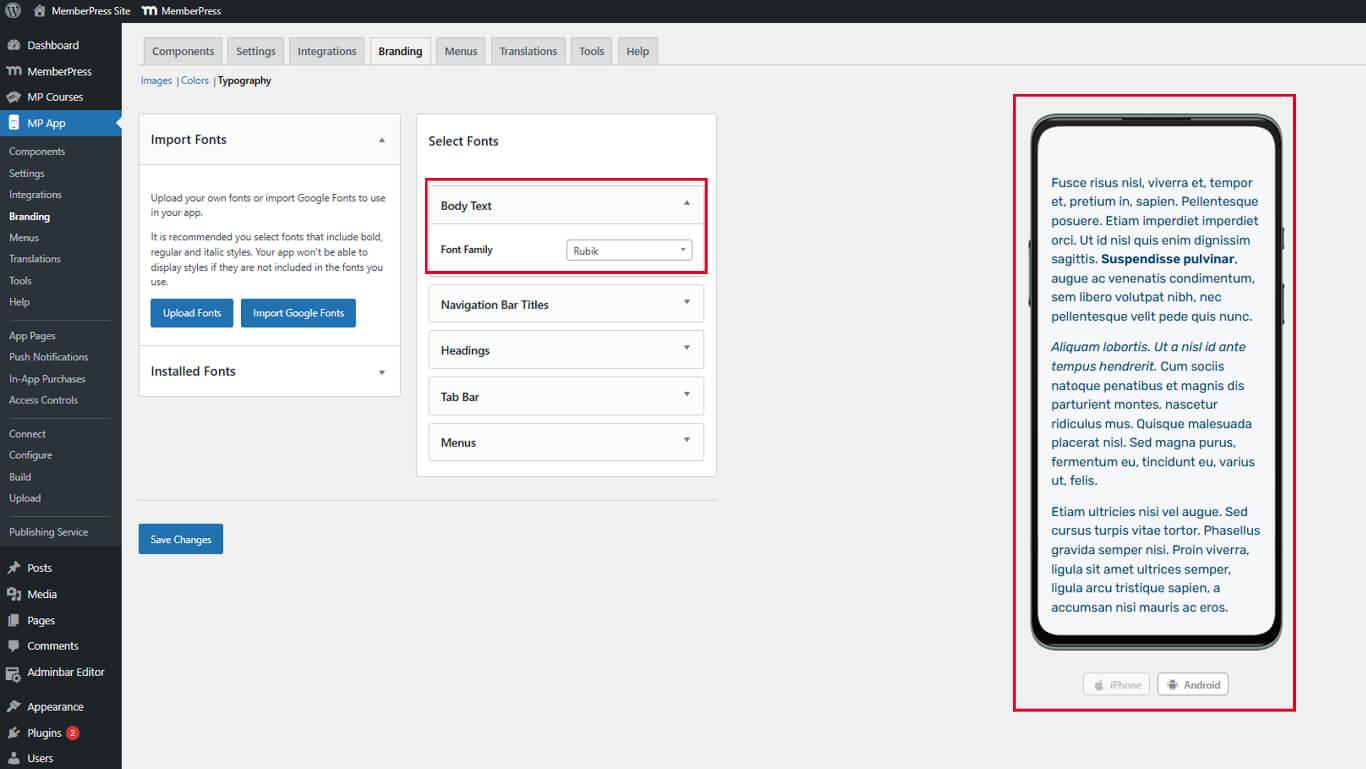
A fonte do texto do corpo afeta as postagens do blog, o conteúdo da página e o texto geral em todo o aplicativo.
Atribuir títulos à barra de navegação Fonte
Os títulos da barra de navegação aparecem nos cabeçalhos dos aplicativos e nos títulos das páginas.
- Localize o Títulos da barra de navegação seção.
- Clique no botão Família de fontes lista suspensa.
- Selecione uma fonte.
- Revise a visualização da barra de navegação no painel de visualização ao vivo.
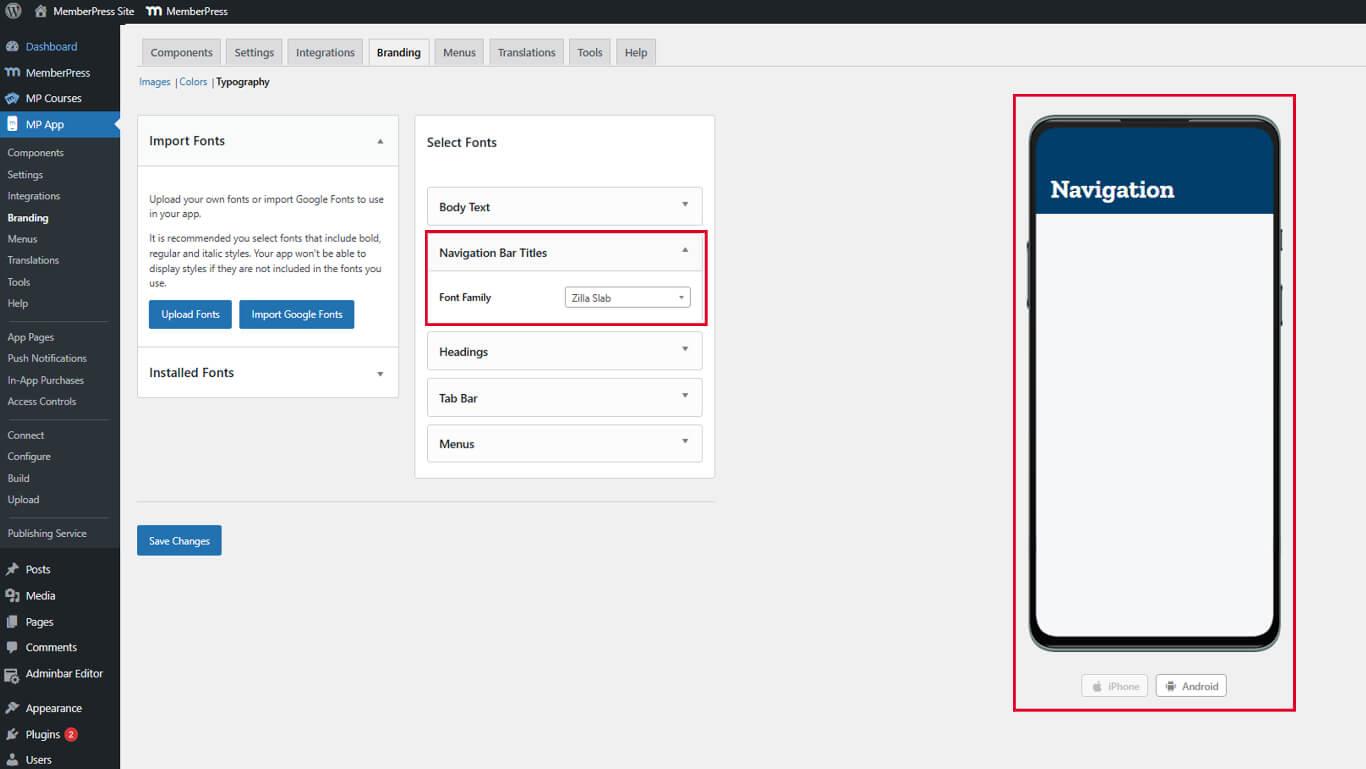
A tipografia da barra de navegação deve permanecer clara e legível a distâncias de visualização típicas.
Atribuir títulos Fonte
Os títulos organizam o conteúdo por meio de uma exibição visual.
- Localize o Títulos seção.
- Clique no botão Família de fontes lista suspensa.
- Selecione uma fonte.
- Revise a hierarquia dos títulos no painel de visualização ao vivo.
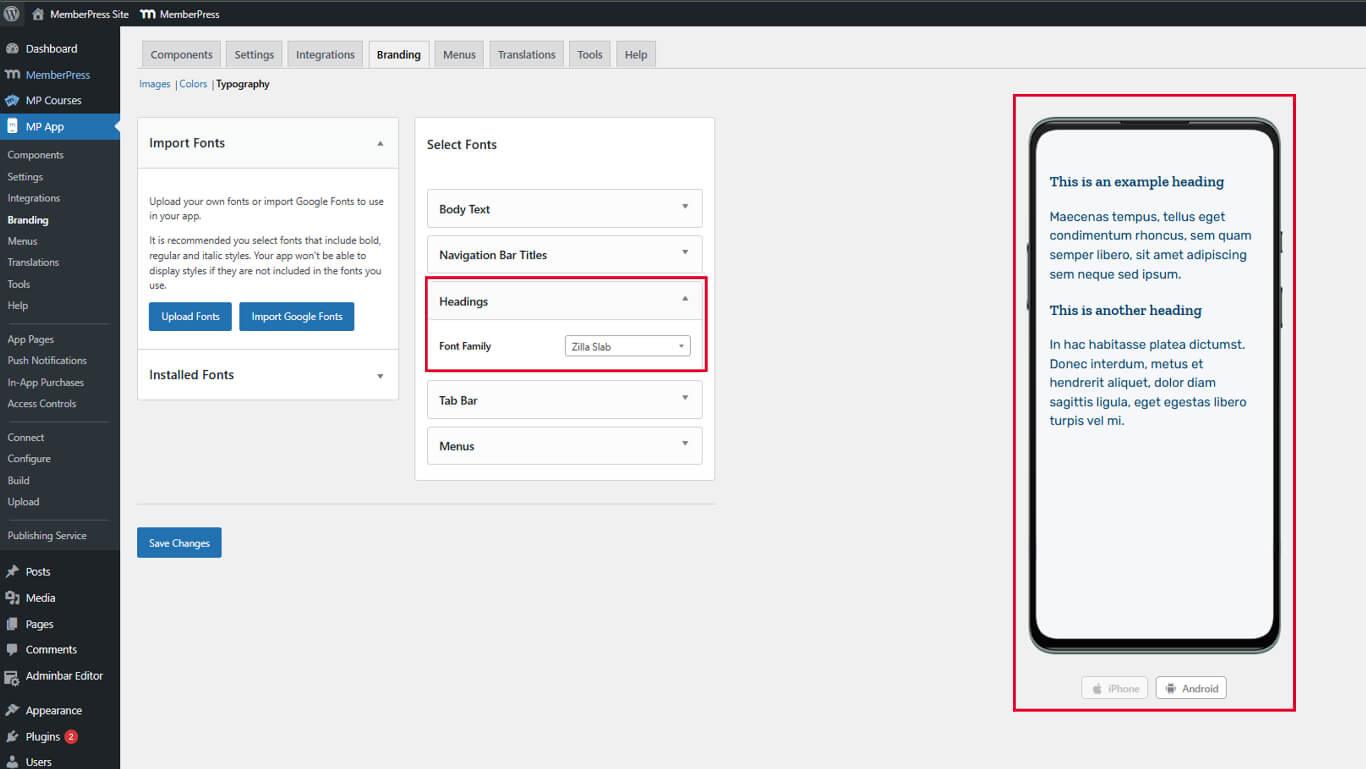
Os tipos de letra dos títulos devem proporcionar uma diferenciação visual clara em relação ao corpo do texto.
Atribuir rótulos à barra de guias Fonte
Os rótulos da barra de guias identificam as opções de navegação inferiores.
- Localize o Rótulos da barra de guias seção.
- Clique no botão Família de fontes lista suspensa.
- Selecione uma fonte.
- Revise a pré-visualização da barra de guias no painel de pré-visualização ao vivo.
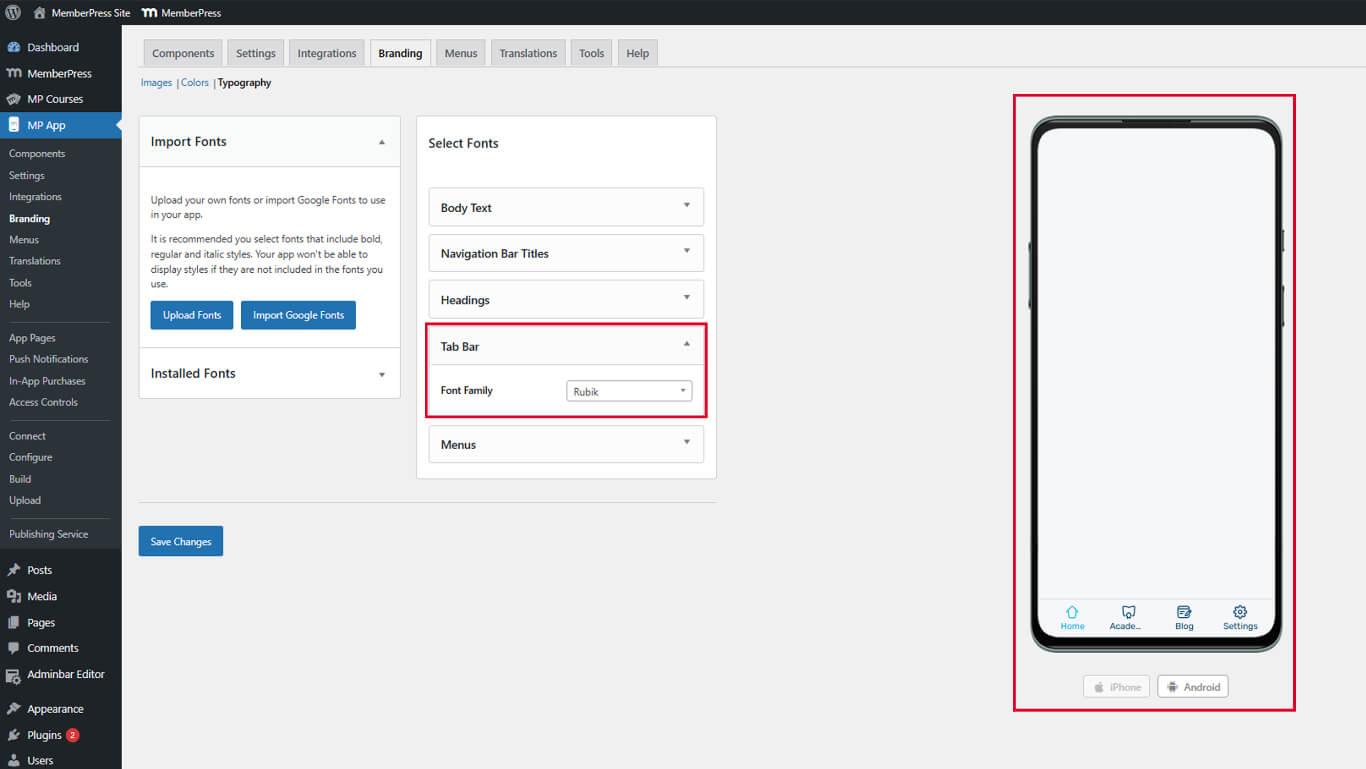
As fontes da barra de guias devem permanecer legíveis em tamanhos pequenos nas telas dos dispositivos móveis.
Atribuir fontes aos menus
As fontes do menu controlam o texto dos itens de navegação na barra de guias e no menu Mais.
- Localize o Menus seção.
- Clique no botão Família de fontes lista suspensa.
- Selecione uma fonte.
- Revise a pré-visualização do menu no painel de pré-visualização ao vivo.
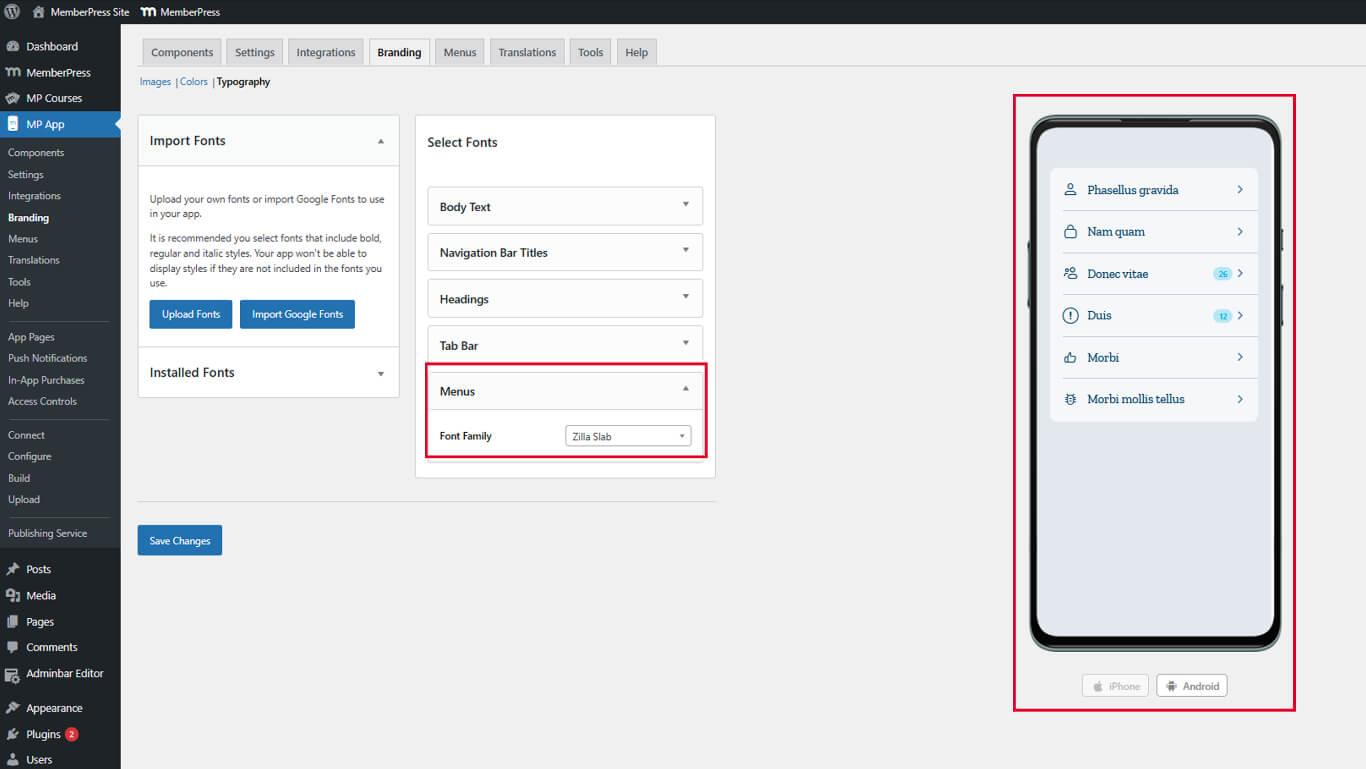
As fontes do menu devem ser legíveis para uma navegação rápida.










 PT
PT  EN
EN  ES
ES  FR
FR  DE
DE 