

A conexão com a conta de desenvolvedor do Google permite a sincronização de produtos no aplicativo e o envio de compilações do Android por meio de serviços de publicação automatizados.
Este documento explica como criar uma conta de serviço do Google Cloud, ativar as APIs necessárias, conceder permissões do Play Console e fazer upload de credenciais para o WordPress.
Entendendo o Google Developer Connection
A conexão da conta de desenvolvedor do Google automatiza os fluxos de trabalho para o gerenciamento de aplicativos Android. A autenticação da conta de serviço fornece acesso seguro aos serviços do Google Play sem compartilhamento de senha. As contas conectadas permitem a sincronização automatizada de produtos e processos de envio de compilação.
Criação de aplicativo no Google Play Console
A criação de aplicativos no Google Play Console estabelece a base para a distribuição de aplicativos Android.
- Navegue até o Google Play Console em play.google.com/console.
- Clique no botão Criar aplicativo botão.
- Digite o nome do aplicativo no campo Nome do aplicativo campo.
- Selecione o idioma padrão na lista Idioma padrão lista suspensa.
- Selecione o Aplicativo para o tipo de aplicativo.
- Selecione se o aplicativo é gratuito ou pago.
- Role até a seção de declarações.
- Verifique o Políticas do Programa para Desenvolvedores caixa de seleção.
- Verifique o Leis de exportação dos EUA caixa de seleção.
- Clique em Criar aplicativo para finalizar a criação do aplicativo.
Criação do projeto Google Cloud
A criação do projeto do Google Cloud fornece o contêiner para as credenciais da conta de serviço.
- Navegue até o Google Cloud Console em console.cloud.google.com.
- Faça login com as credenciais de sua conta do Google.
- Clique no seletor de projetos na parte superior da página.
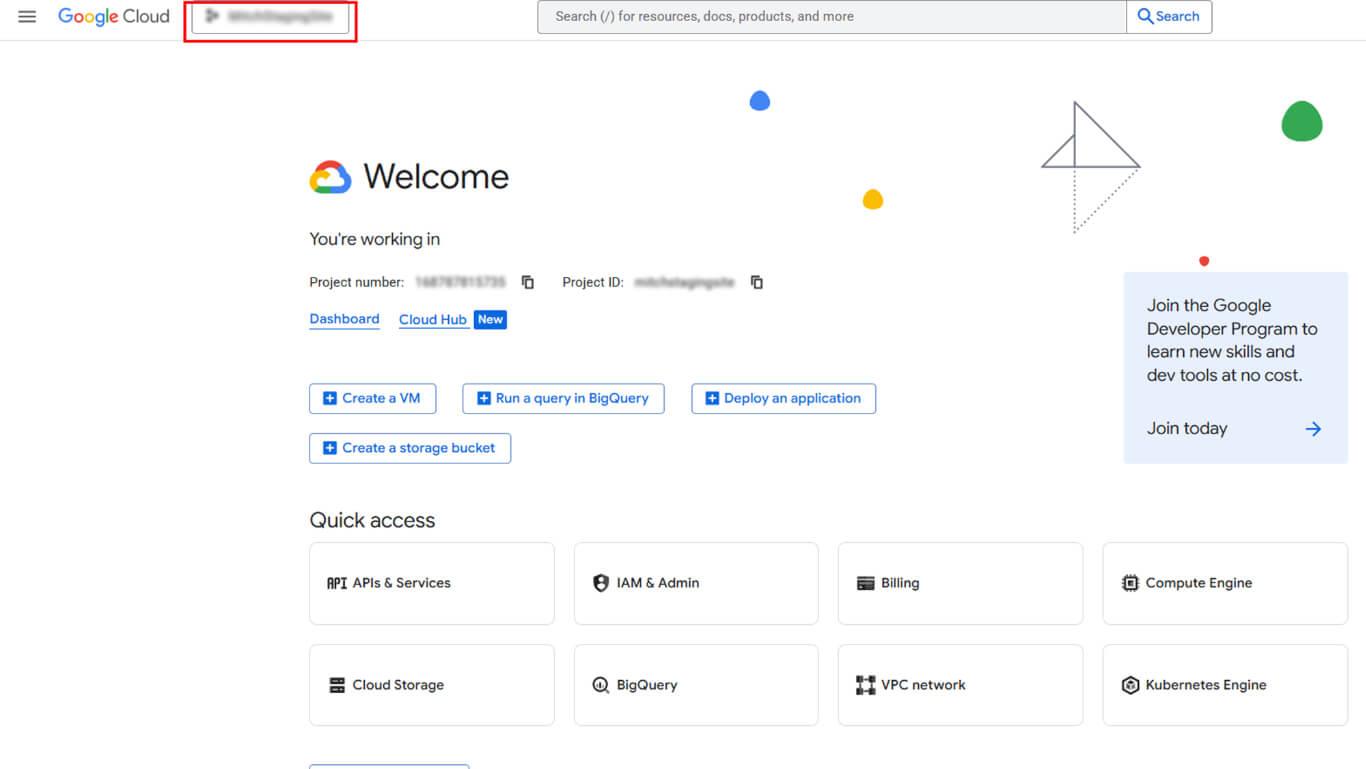
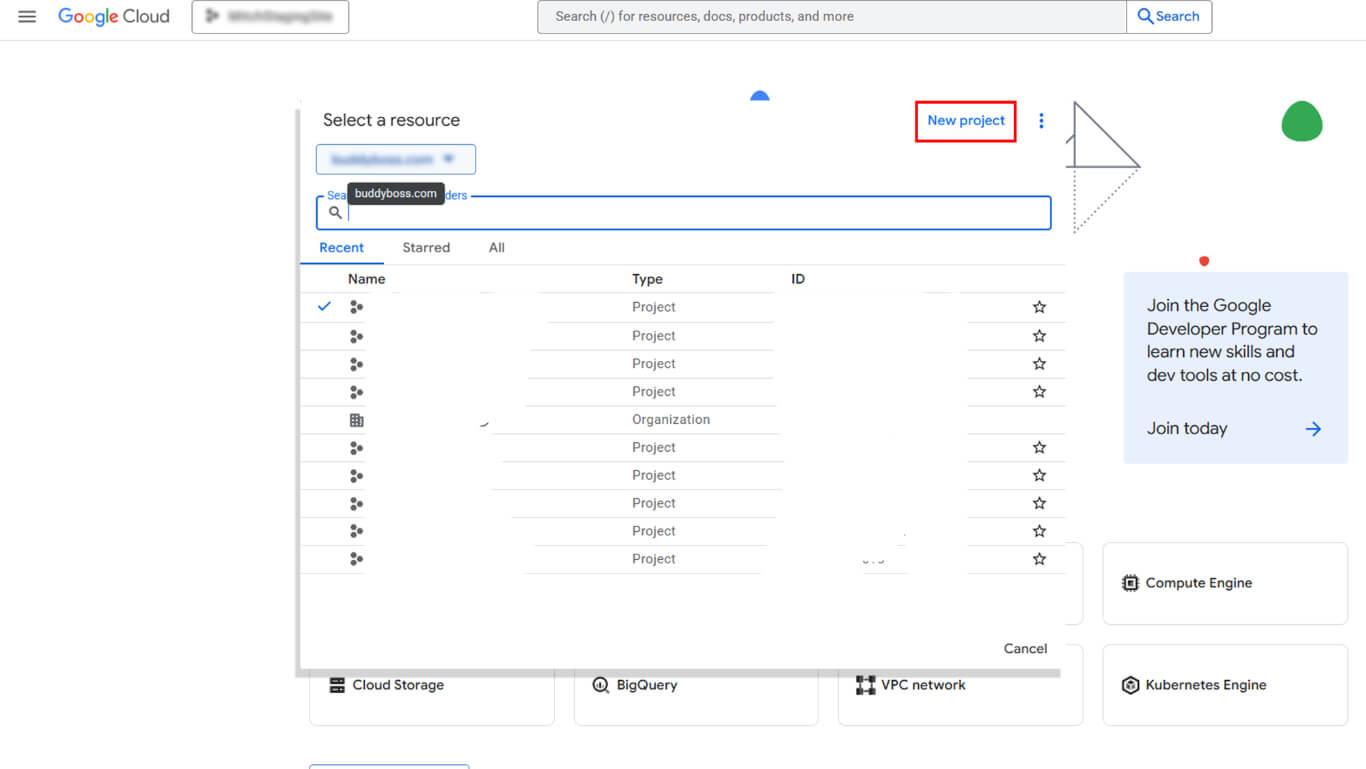
- Clique em NOVO PROJETO na caixa de diálogo do seletor de projetos.
- Insira um nome descritivo no campo Nome do projeto campo.
- Selecione uma organização na lista Organização se aplicável.
- Selecione um local na lista Localização se aplicável.
- Clique em Criar para finalizar a criação do projeto.
- Verifique se o novo projeto está selecionado no menu suspenso do cabeçalho.
Ativação da API de desenvolvedor do Android do Google Play
A ativação da API permite o acesso da conta de serviço à funcionalidade do Google Play.
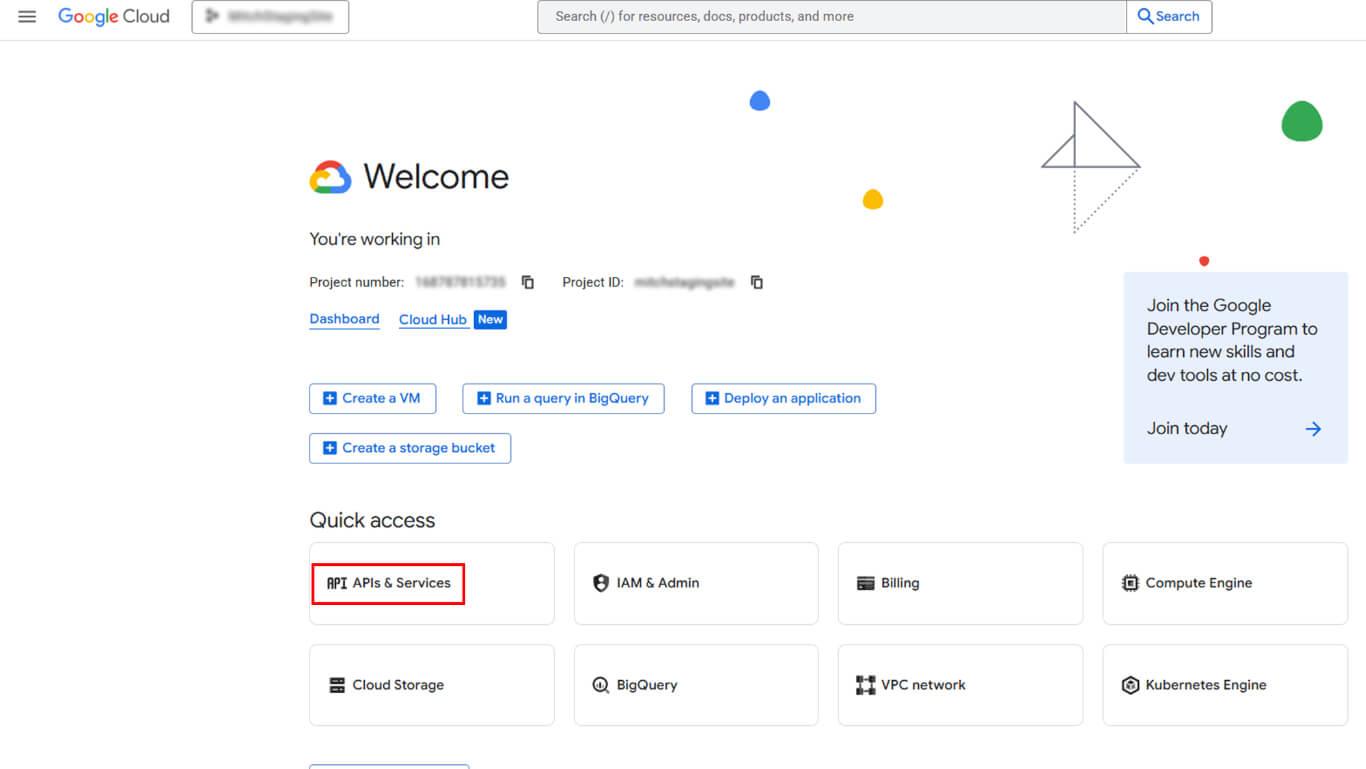
- Navegue até APIs e serviços > Ativar APIs e serviços no Google Cloud Console.
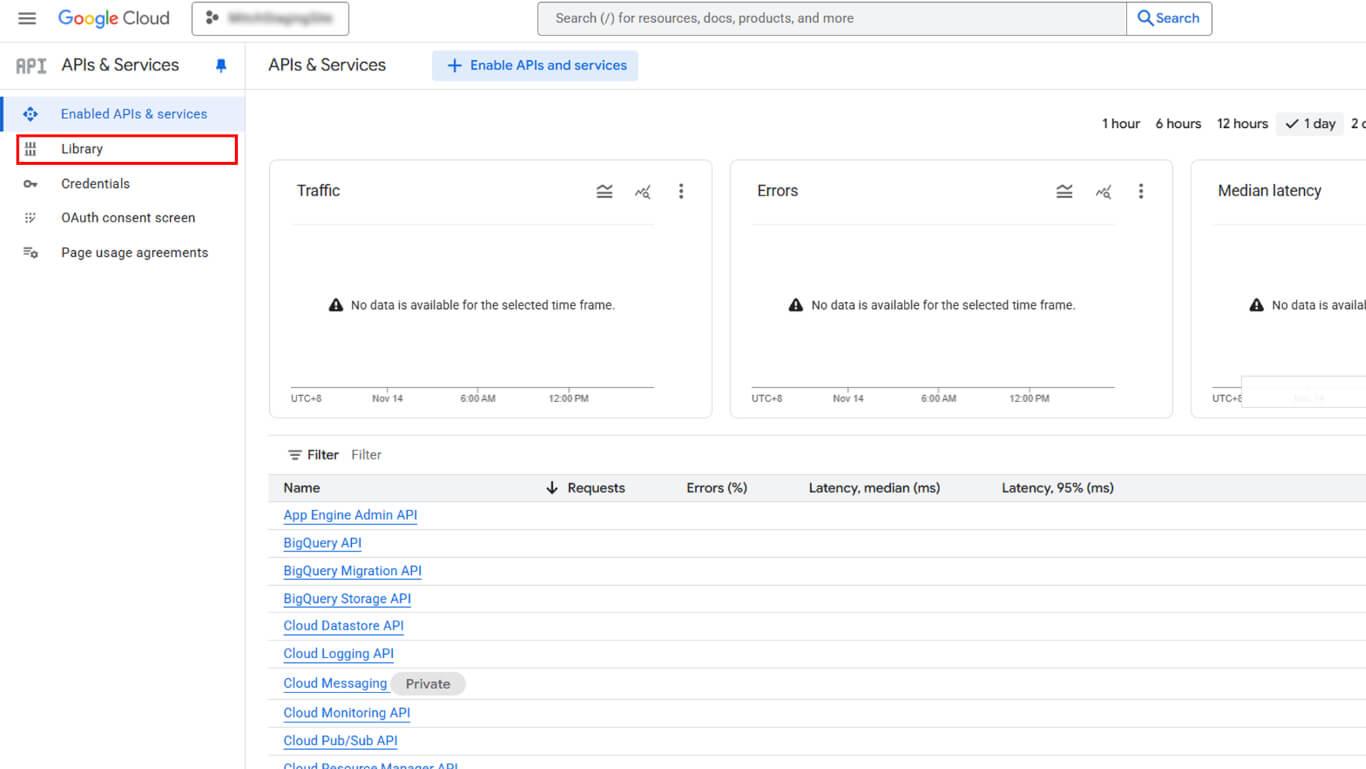
- Clique em Biblioteca para abrir a biblioteca da API.
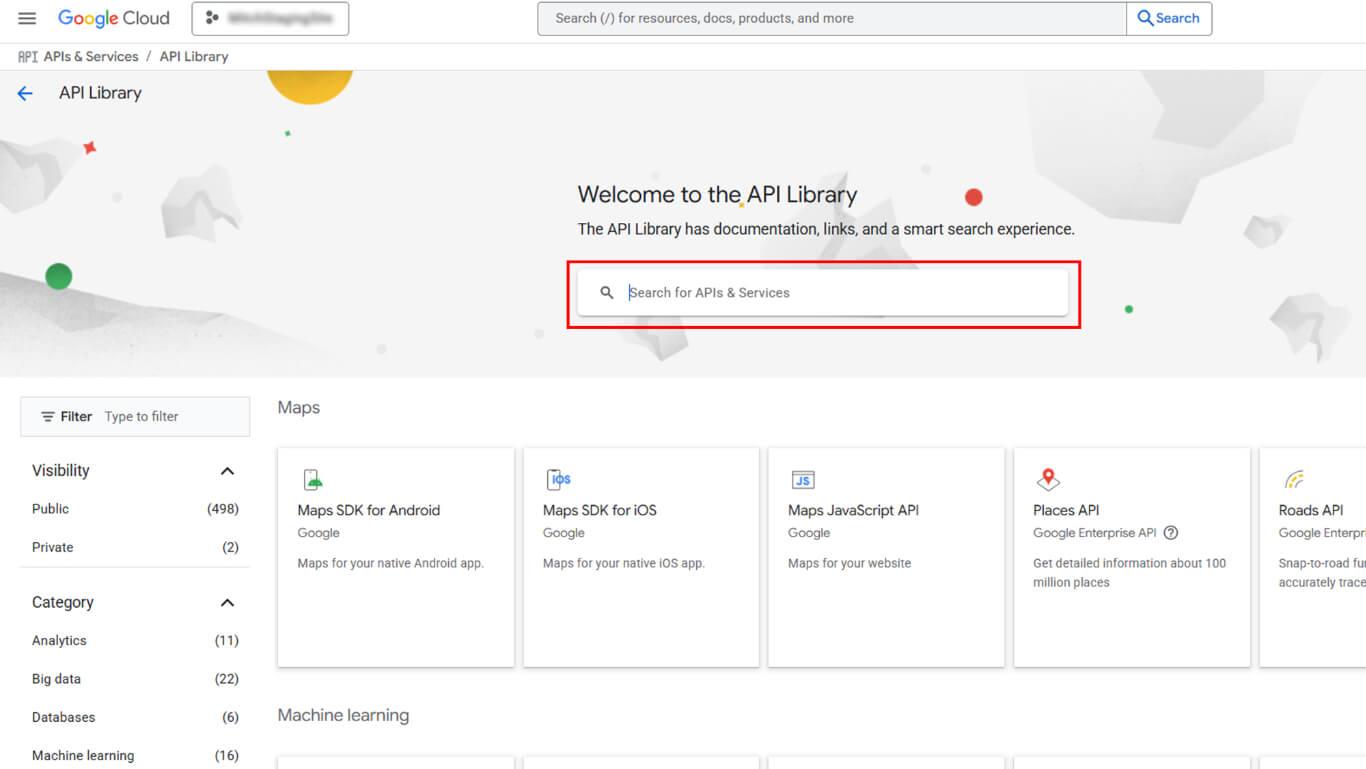
- Procure por “Google Play Android Developer API” no campo de pesquisa.
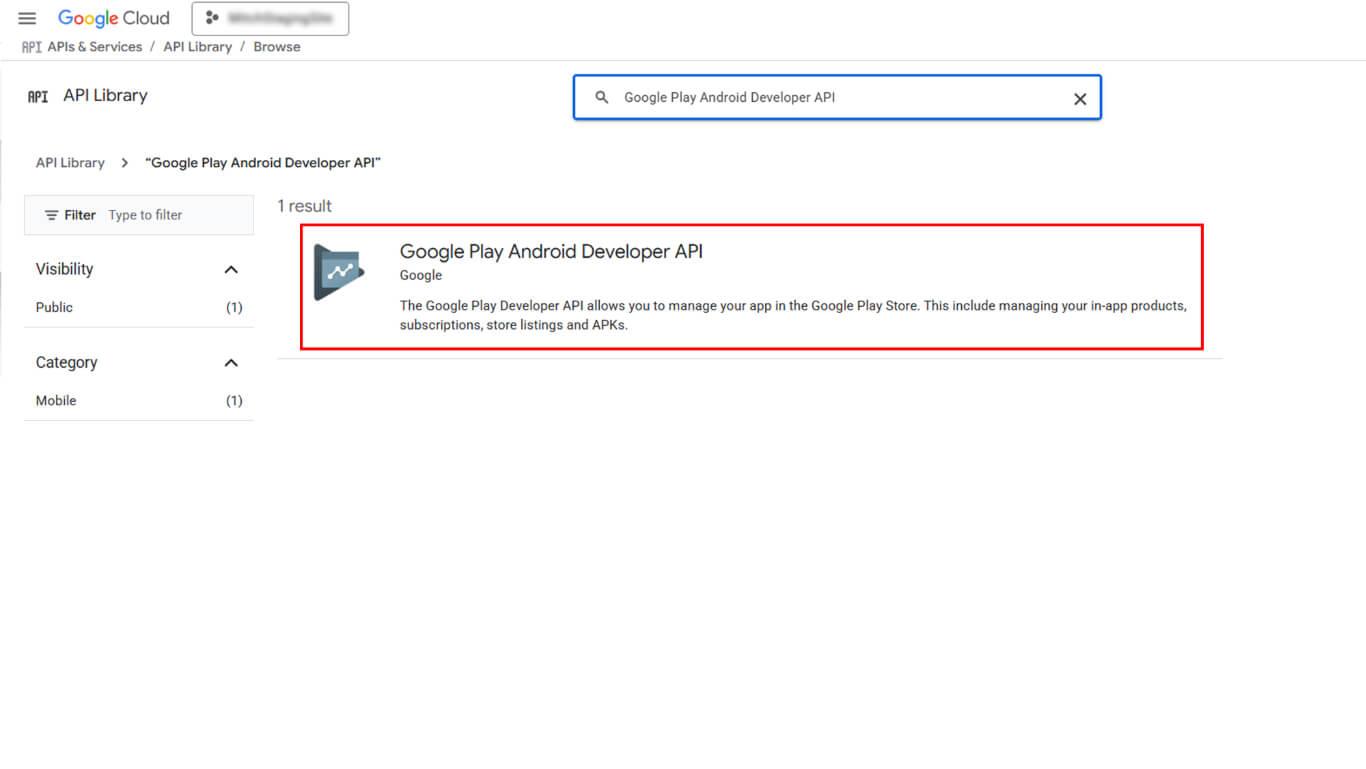
- Clique em API de desenvolvedor do Android do Google Play nos resultados da pesquisa.
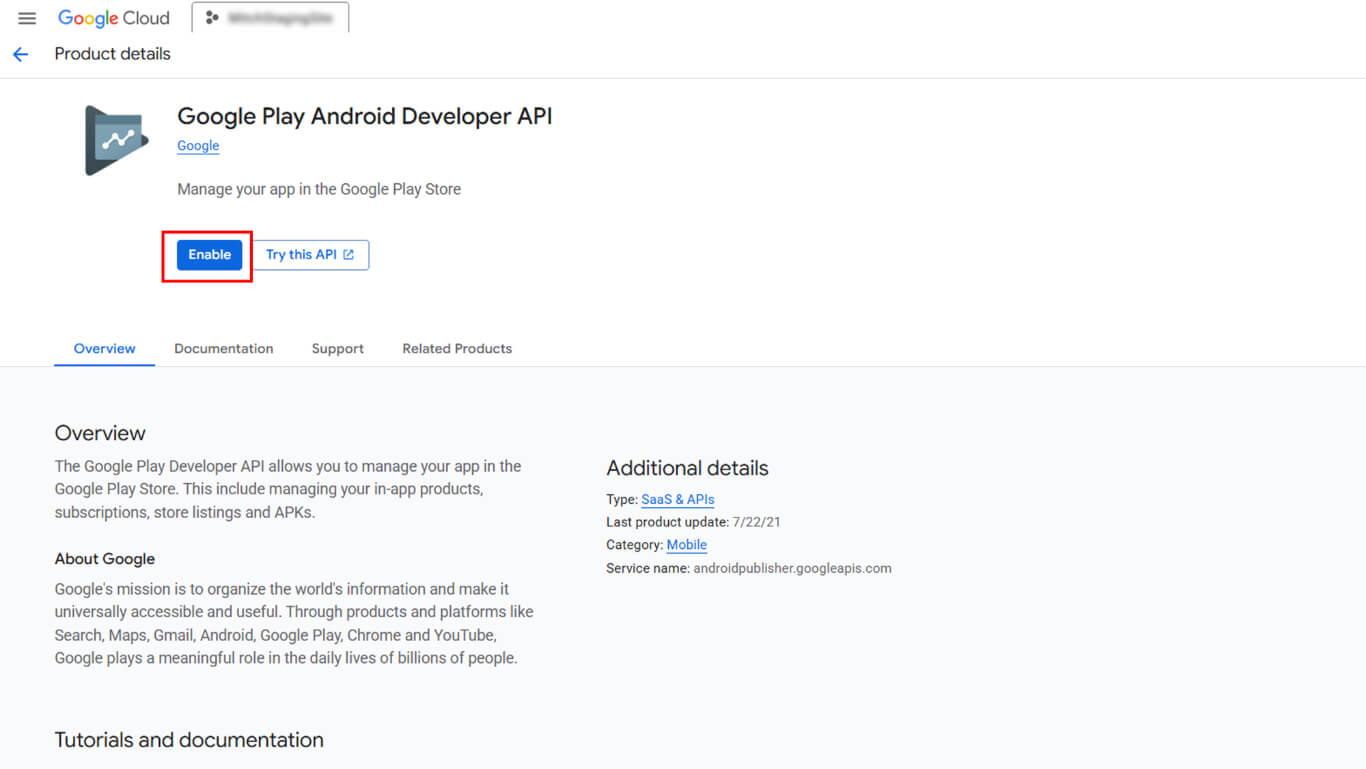
- Clique em ATIVAR para ativar a API.
Criação de conta de serviço
A criação da conta de serviço gera credenciais para acesso automatizado ao Google Play.
- Navegue até APIs e serviços > Credenciais na barra lateral do Google Cloud Console.
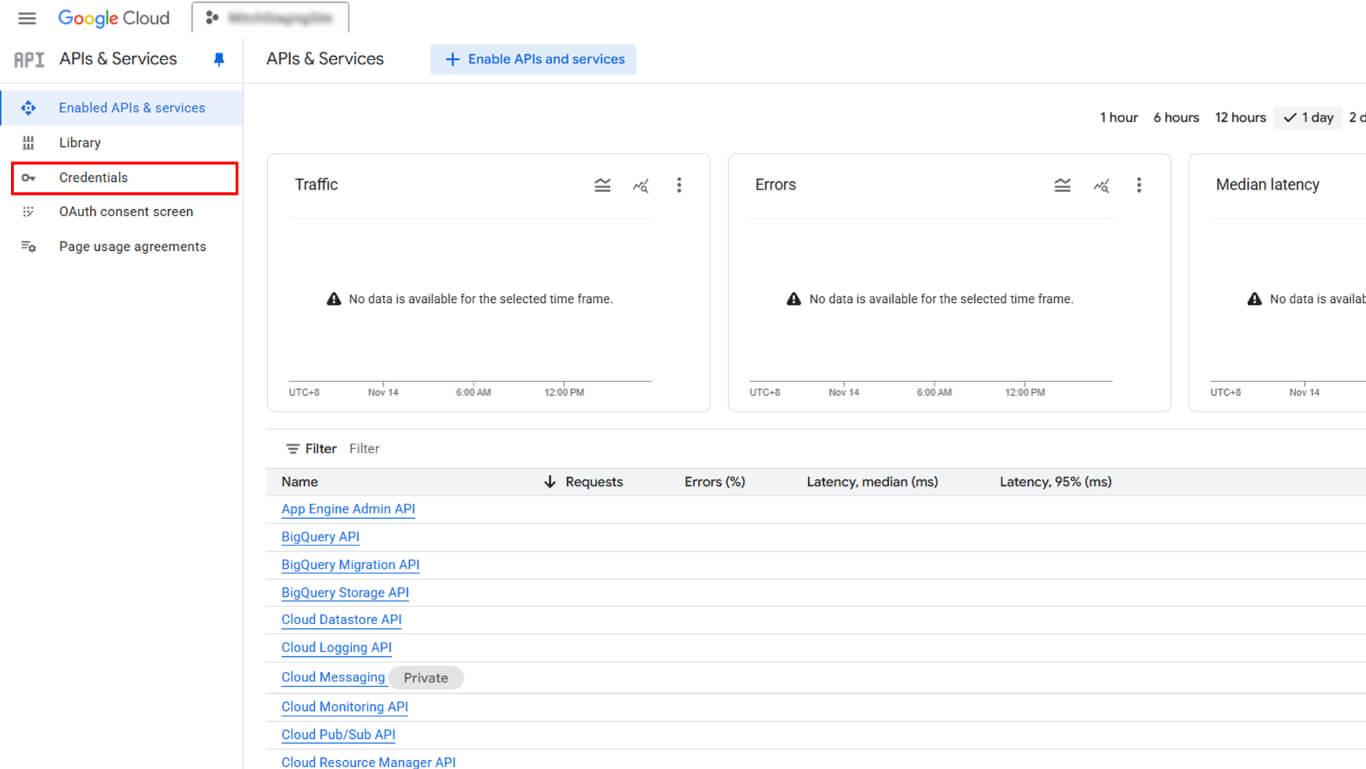
- Clique em Criar credenciais na parte superior da página.
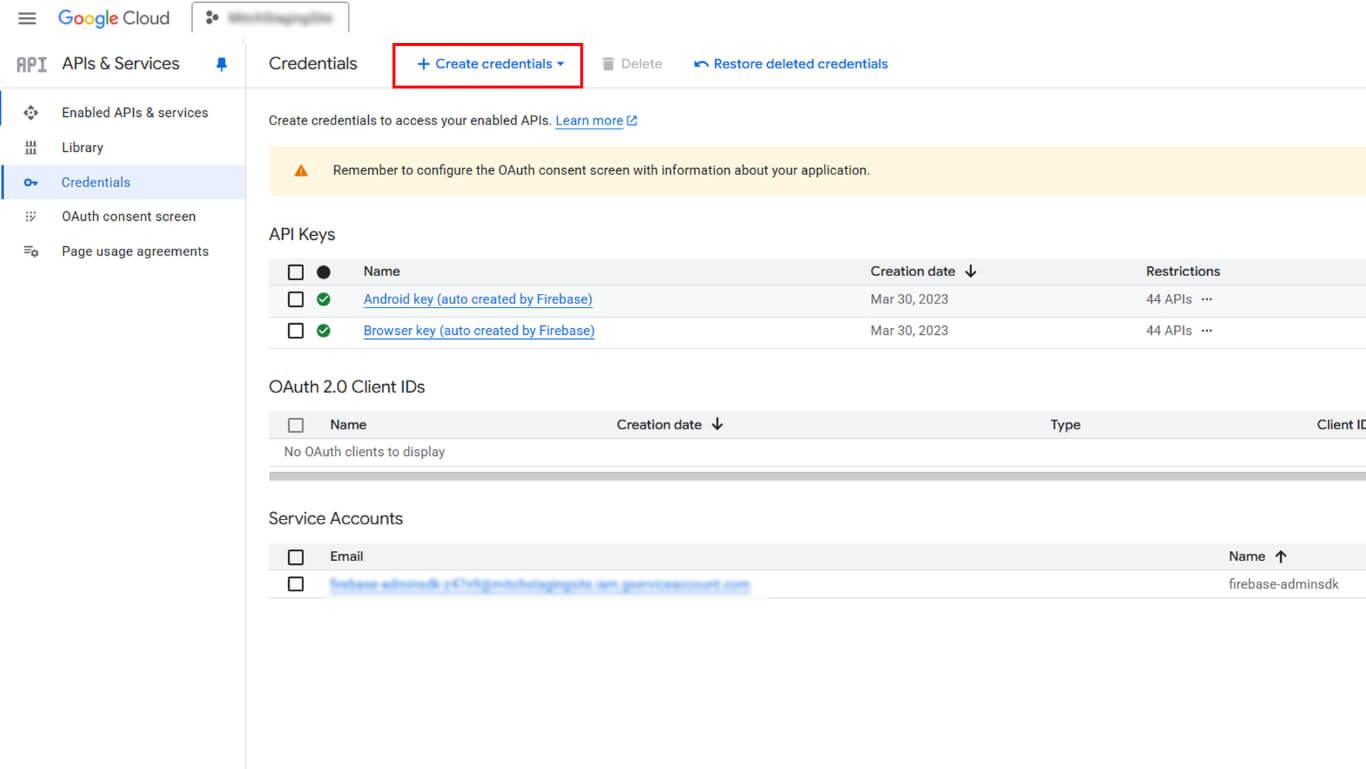
- Selecione Conta de serviço no menu suspenso de tipo de credenciais.
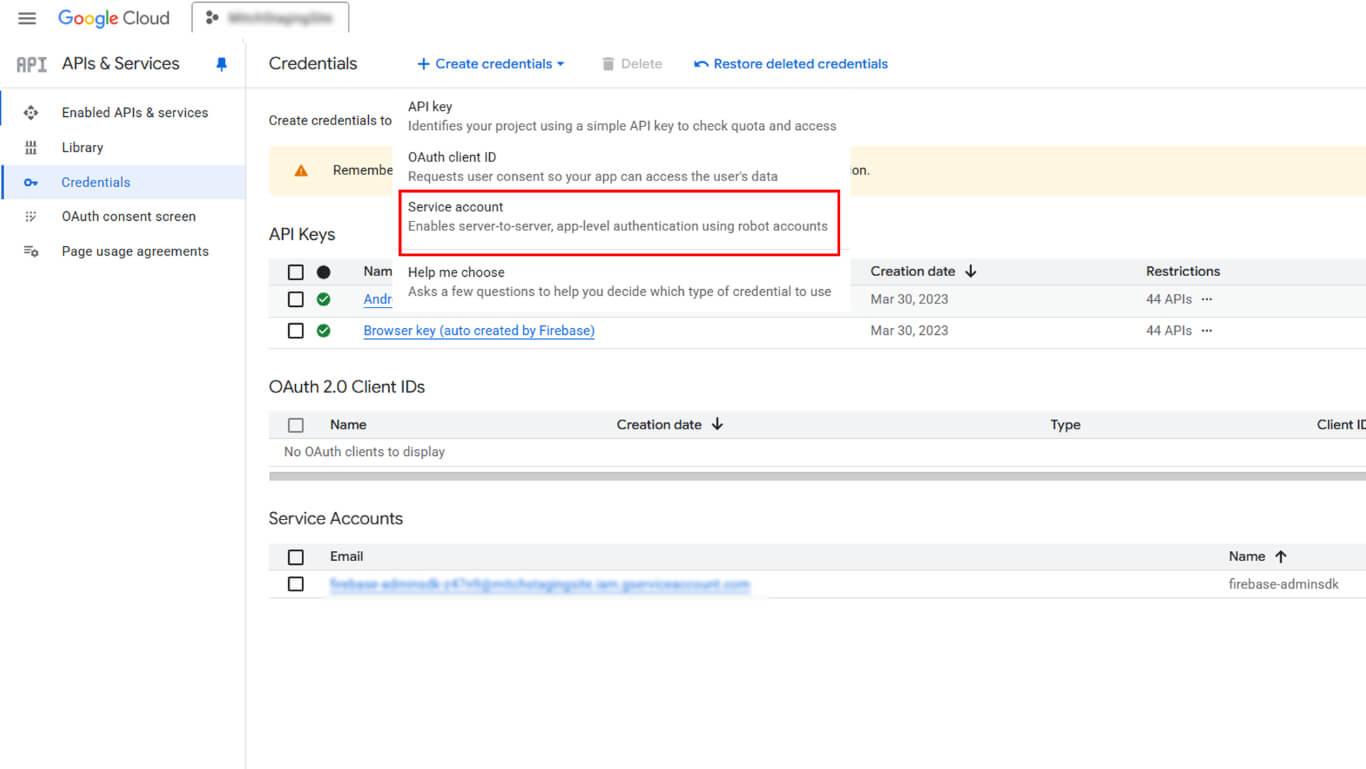
- Insira um nome descritivo no campo Nome da conta de serviço campo.
- Clique em Criar e continuar.
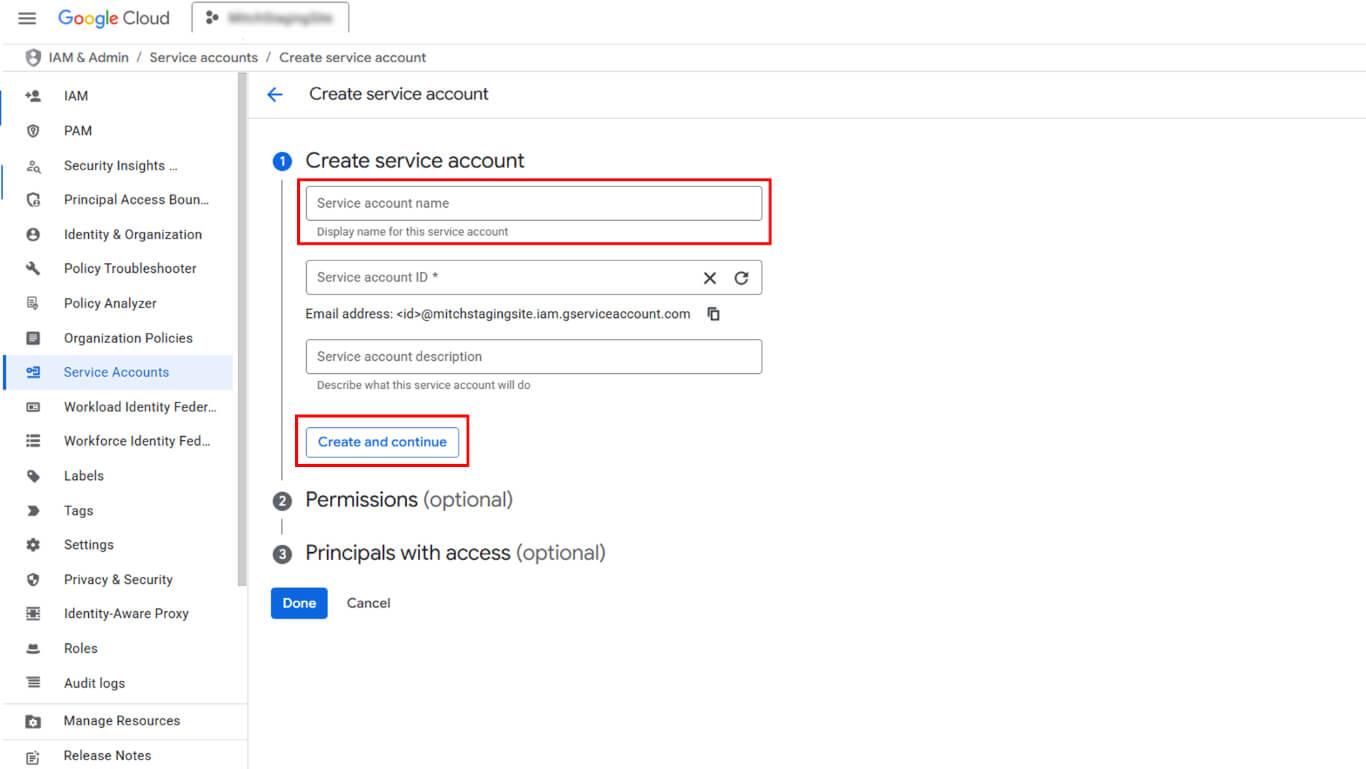
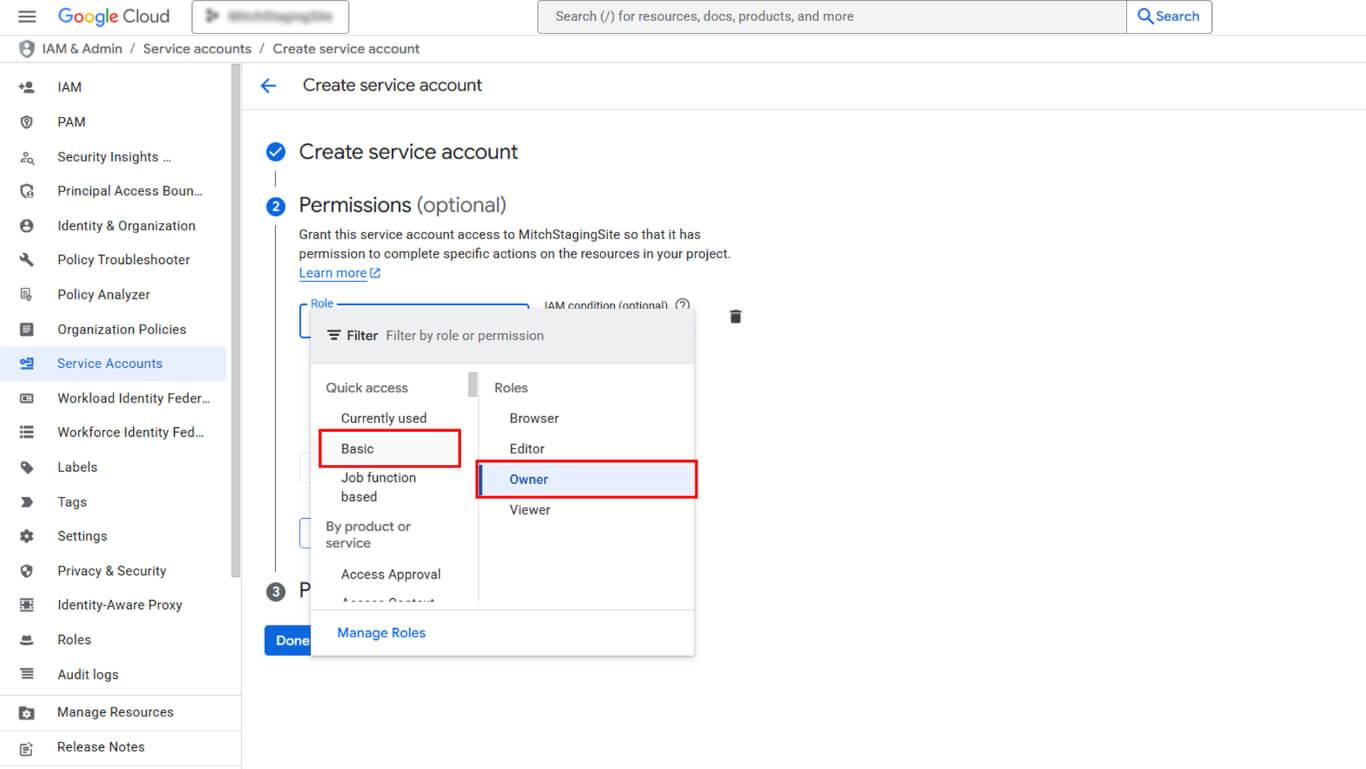
- Clique em Selecione uma função no menu suspenso Conceder acesso a essa conta de serviço.
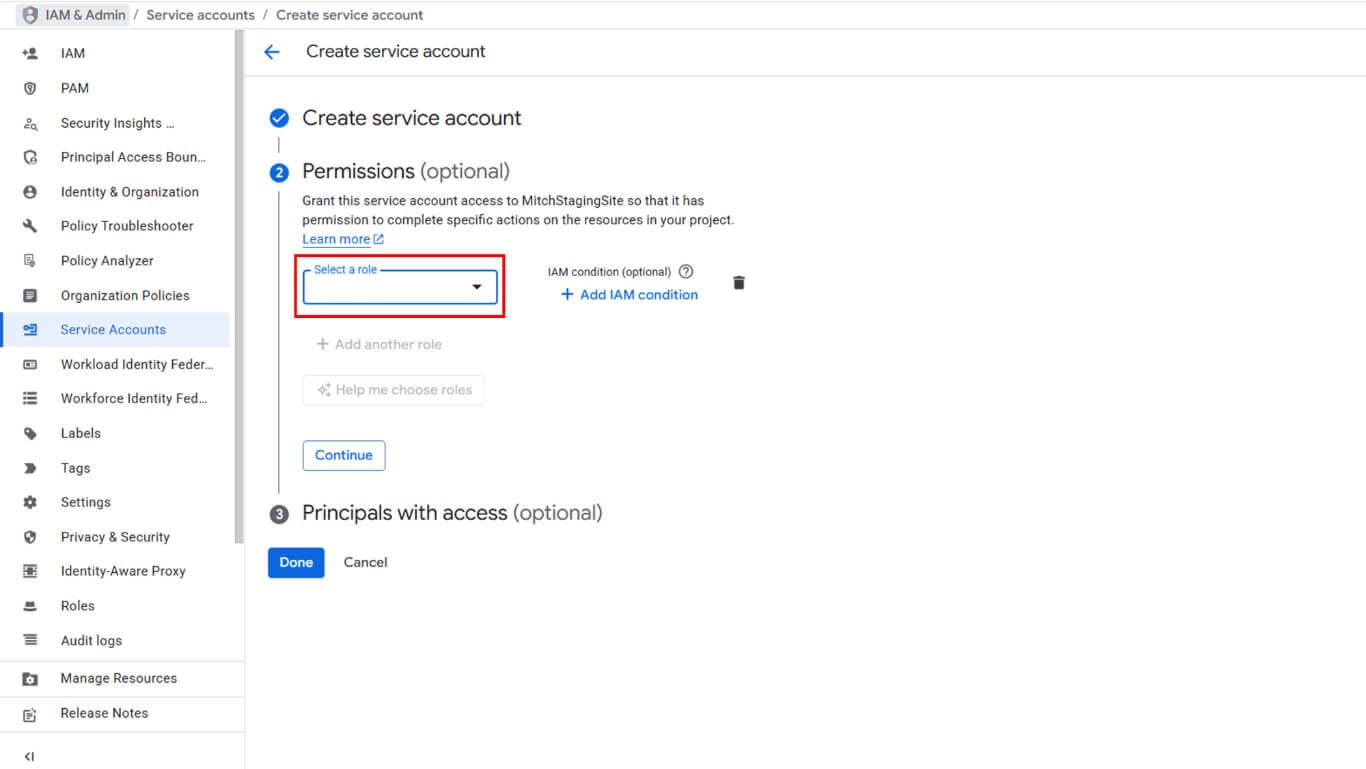
- Navegue até Básico na hierarquia de funções.
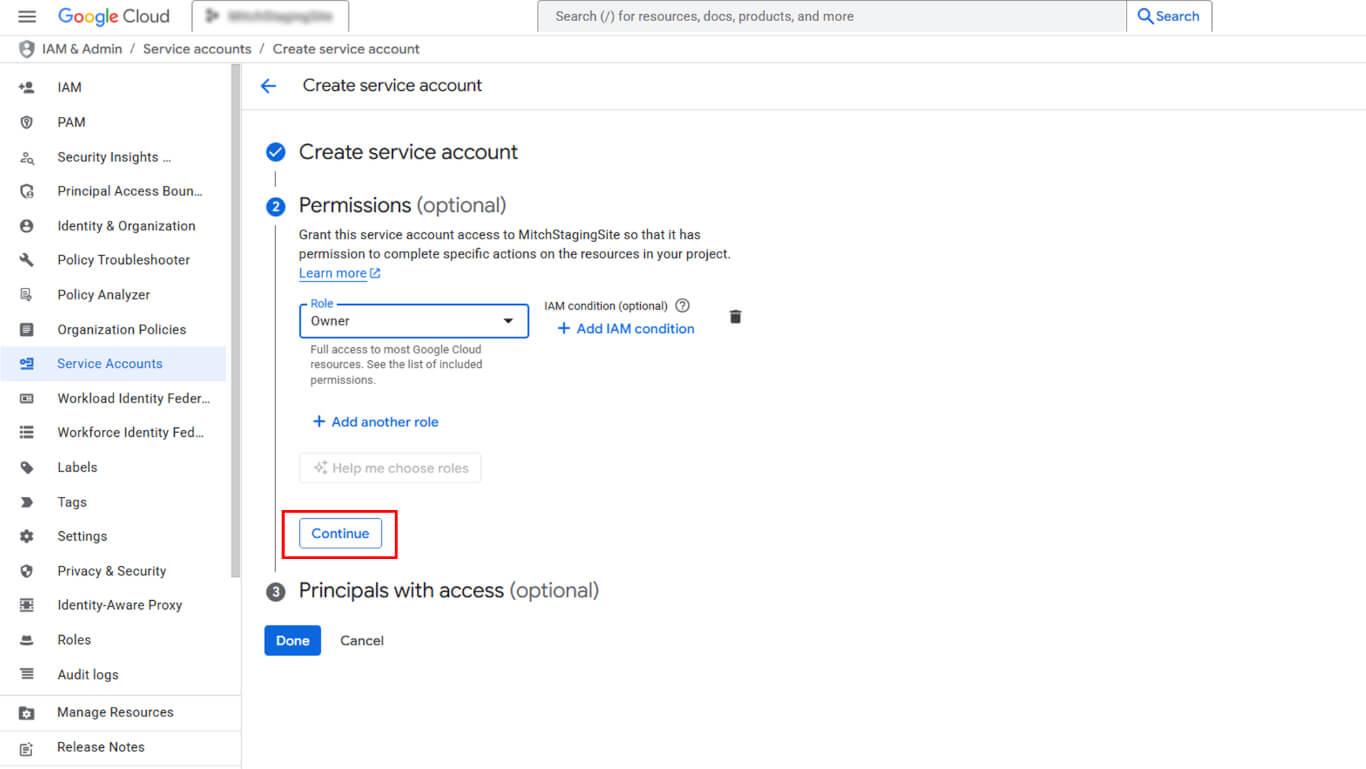
- Selecione Proprietário nas opções de função.
- Clique em Continuar para prosseguir.
- Clique em Feito para criar a conta de serviço.
Geração de chave de conta de serviço
A geração da chave da conta de serviço cria o arquivo JSON necessário para o upload do WordPress.
- Navegue até APIs e serviços > Credenciais na barra lateral do Google Cloud Console.
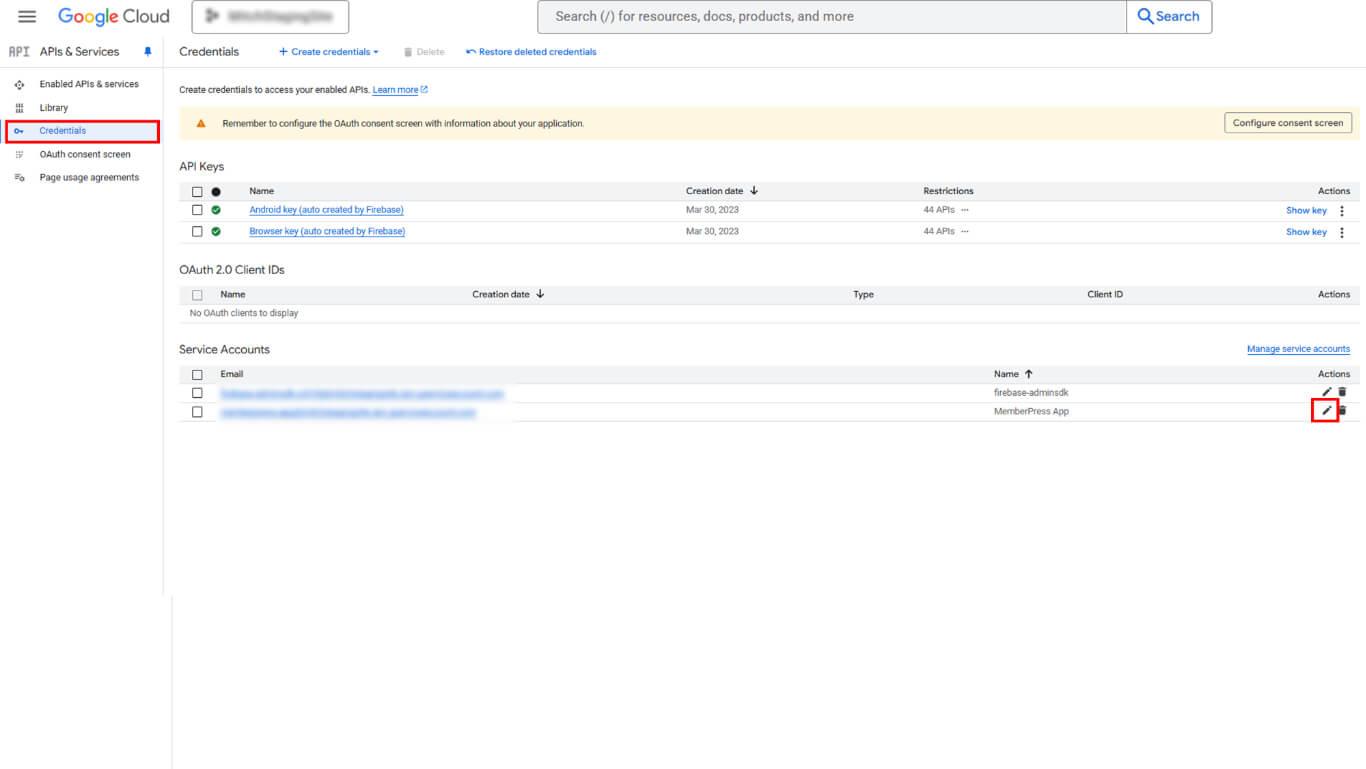
- Localize a conta de serviço criada na lista Contas de serviço.
- Clique no ícone de lápis ao lado do nome da conta de serviço.
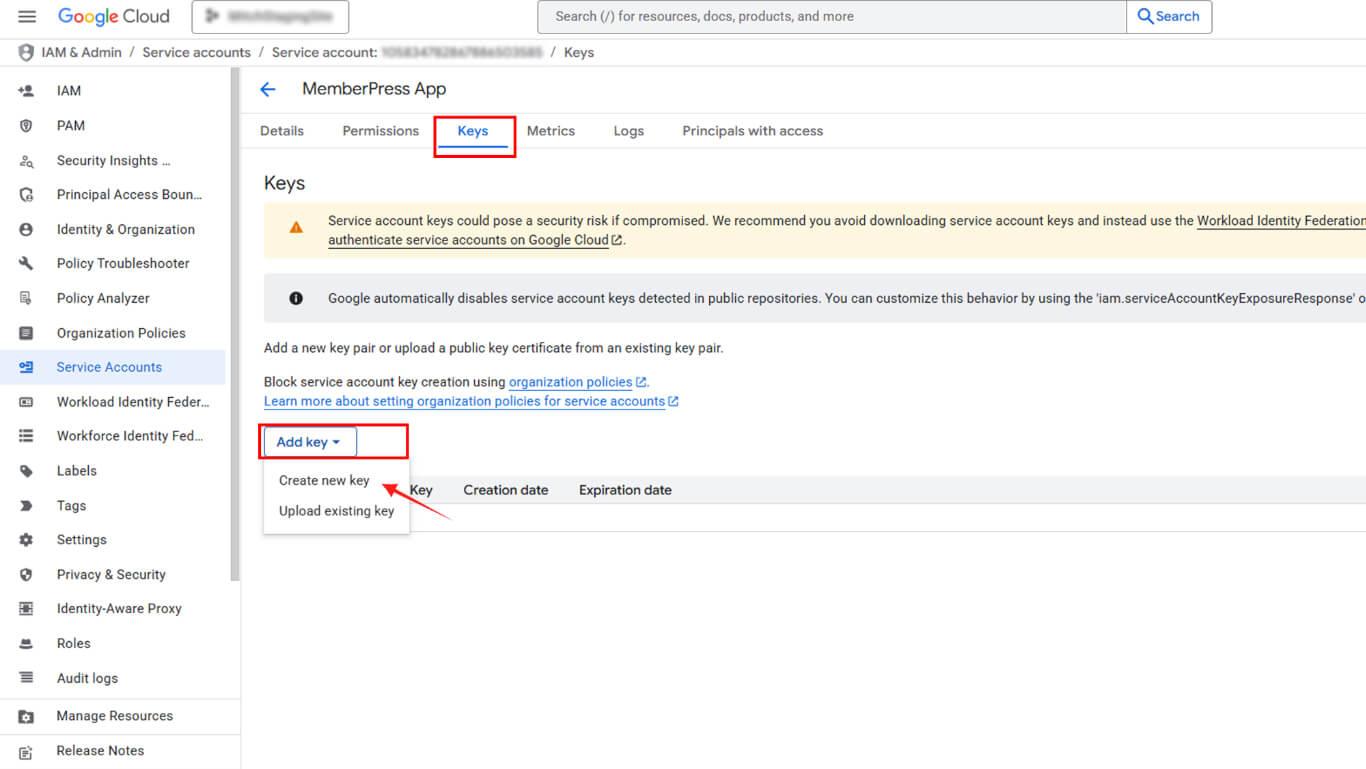
- Clique no botão Chaves guia.
- Clique no botão Adicionar chave lista suspensa.
- Selecione Criar nova chave nas opções.
- Selecione JSON como o tipo de chave.
- Clique em Criar para gerar e baixar a chave.
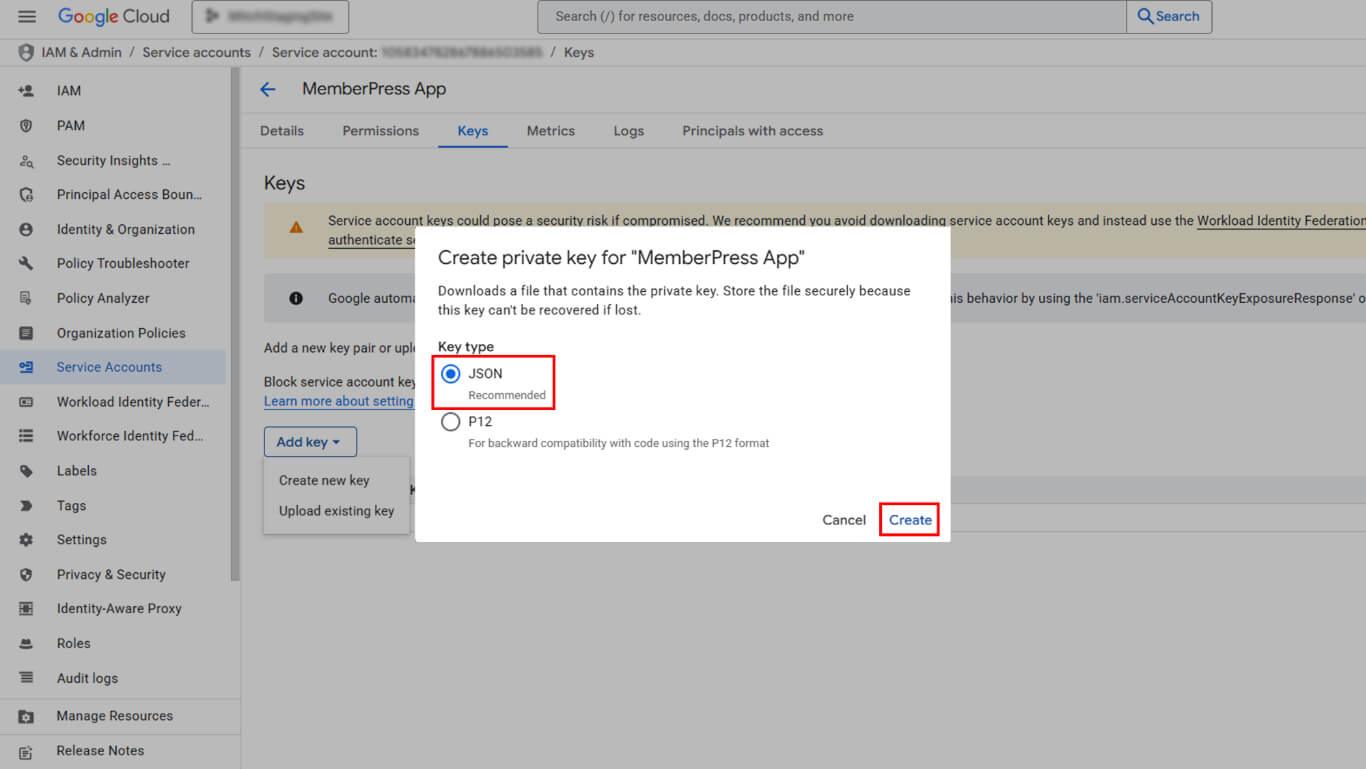
- Salve o arquivo JSON baixado de forma segura.
- Copiar o E-mail da conta de serviço na página de detalhes.
Concessão de permissões do console do Play
As permissões da conta de serviço permitem o acesso ao Play Console para operações automatizadas.
- Navegue até o Google Play Console em play.google.com/console.
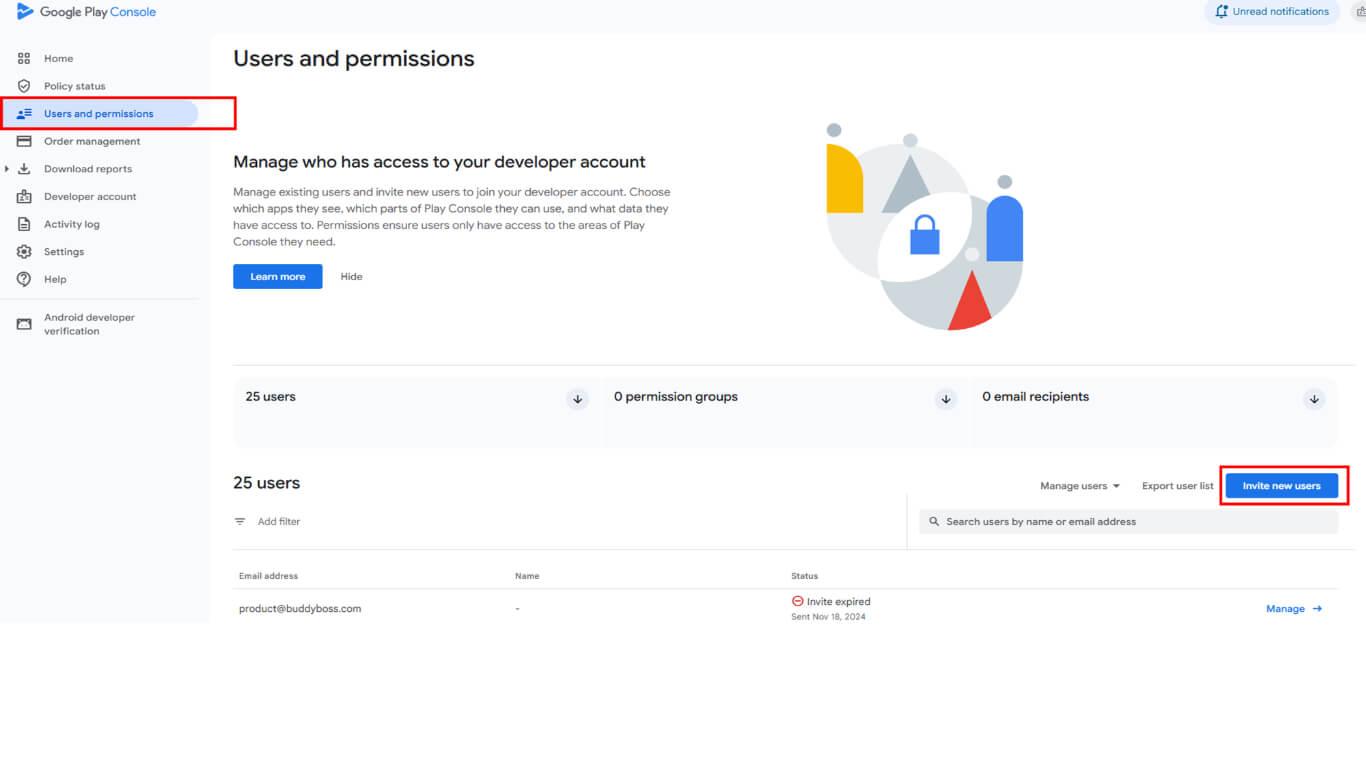
- Clique em Usuários e permissões na barra lateral esquerda.
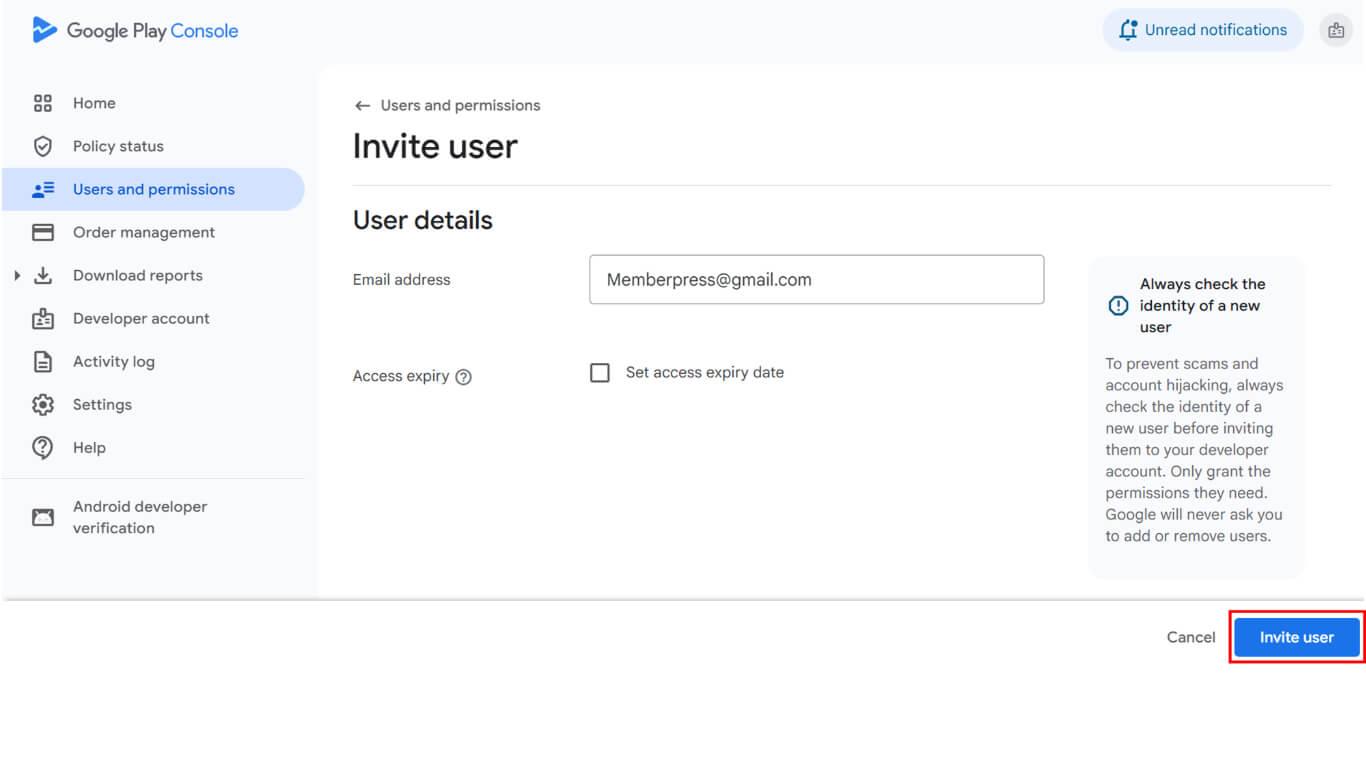
- Clique no botão Convide novos usuários botão.
- Cole o e-mail da conta de serviço no campo Endereço de e-mail campo.
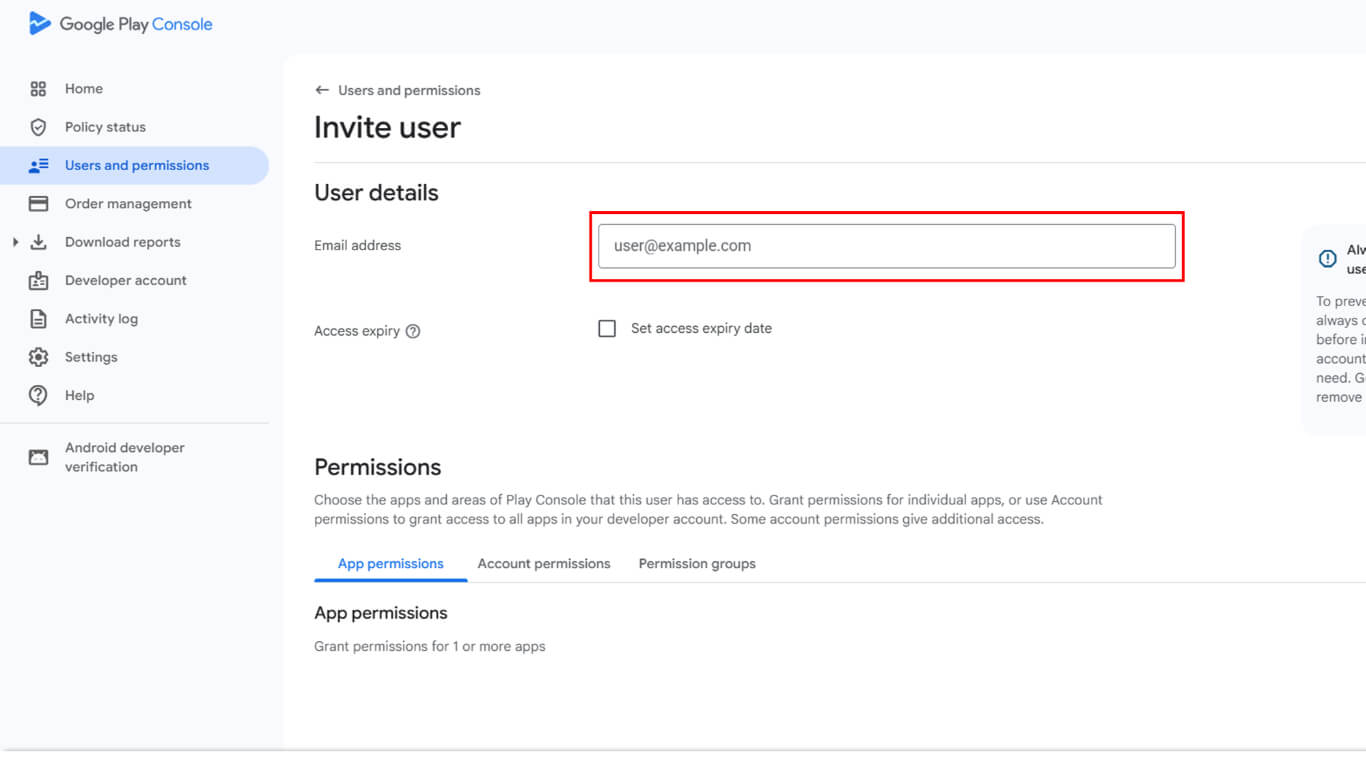
- Role para baixo até a seção Permissões do aplicativo seção.
- Clique em Adicionar aplicativo para selecionar aplicativos acessíveis.
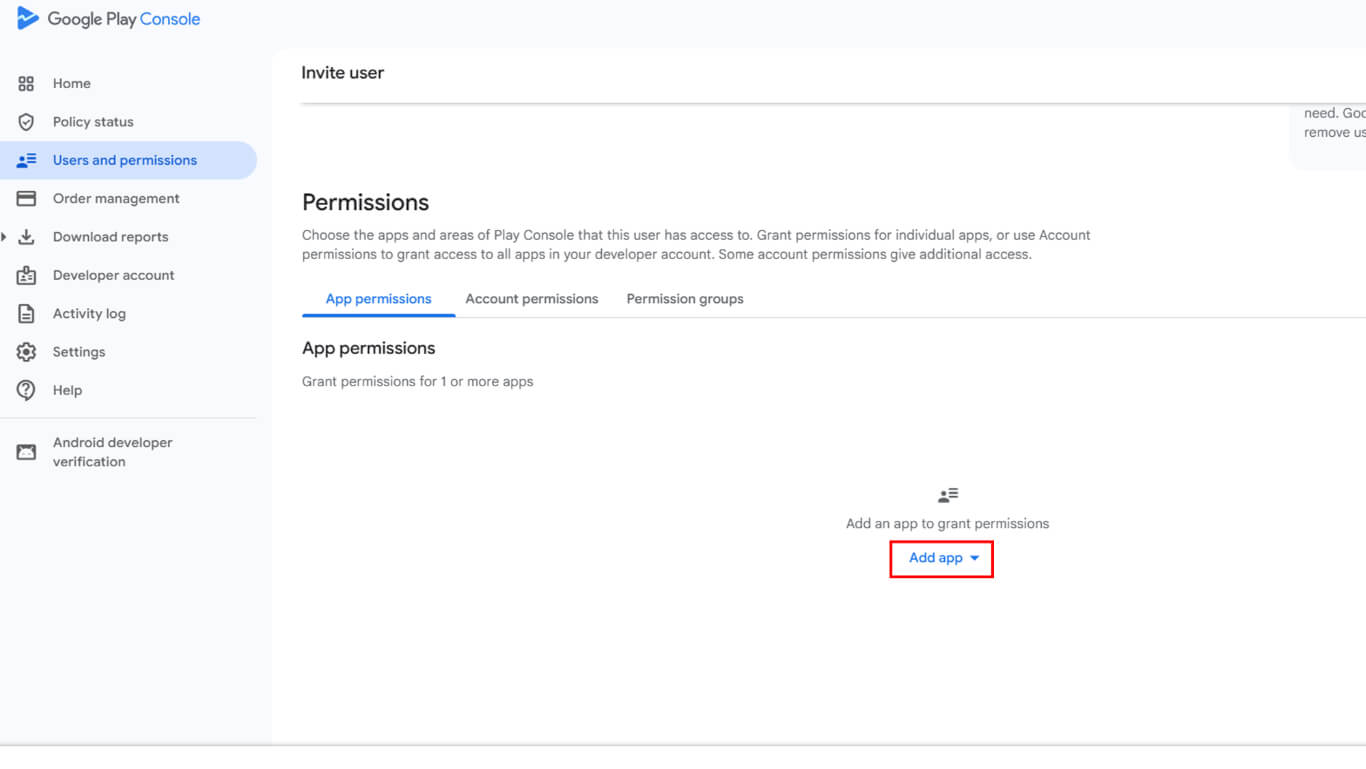
- Selecione o aplicativo na lista de aplicativos disponíveis.
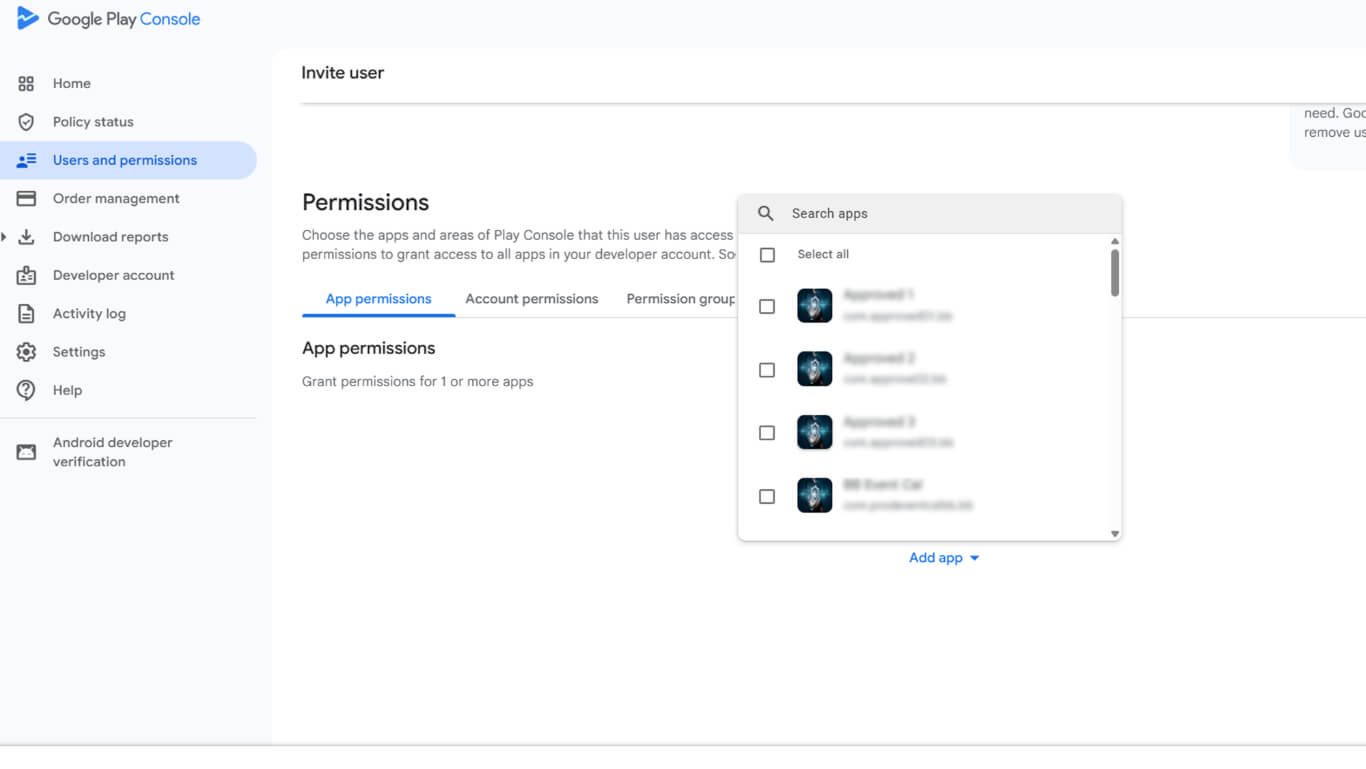
- Clique em Aplicar para confirmar a seleção do aplicativo.
- Selecione Administrador sob Permissões de conta para acesso total.
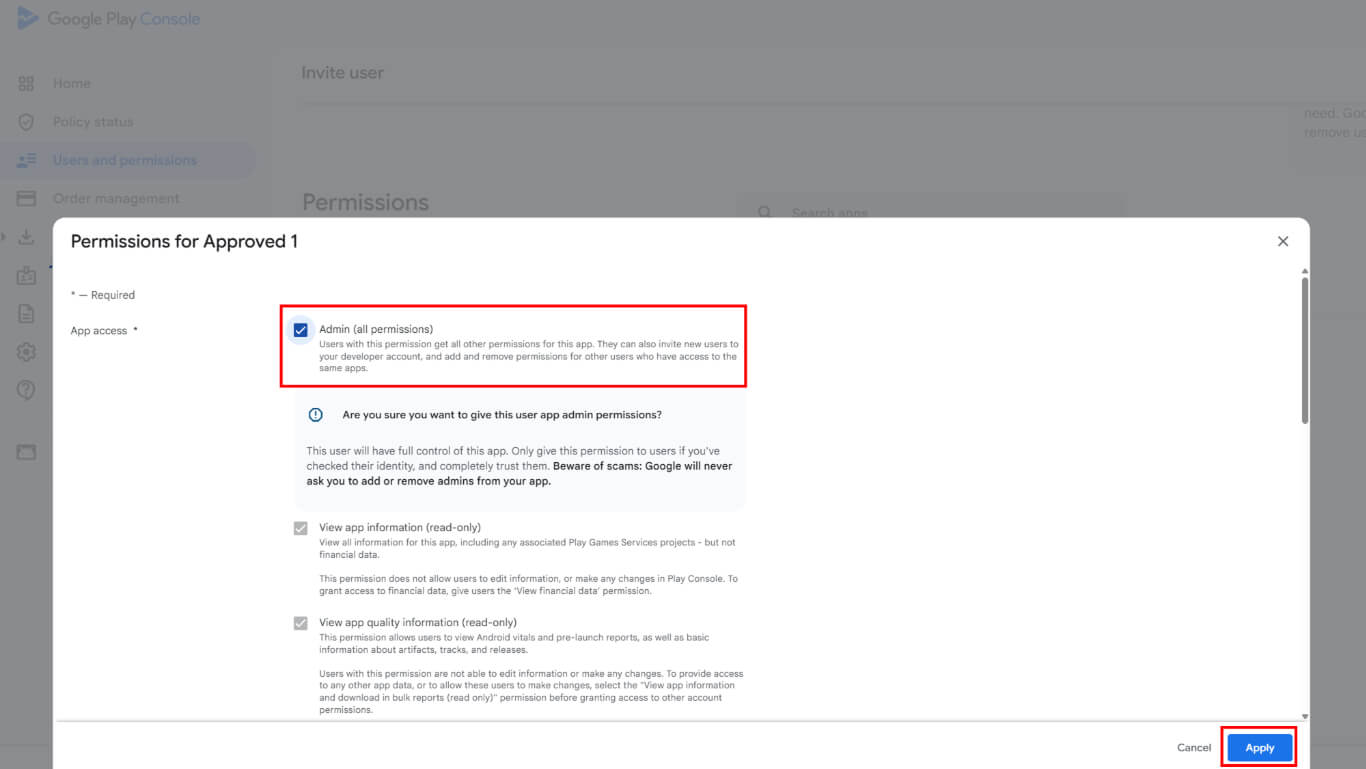
- Clique em Convidar usuário para enviar o convite.
- Navegue até Usuários deste grupo seção.
- Adicione o usuário da conta de serviço ao grupo.
- Verifique se a conta de serviço aparece com um Ativo na lista de usuários.
Como fazer upload da chave da conta de serviço para o WordPress
O upload da chave da conta de serviço conecta a conta de desenvolvedor do Google ao WordPress.
- Navegue até Painel de controle > MP AppKit > Configurar > Configurações do Android.
- Localize o Conecte sua conta de desenvolvedor do Google seção.
- Clique em Carregar arquivo para abrir o seletor de arquivos.
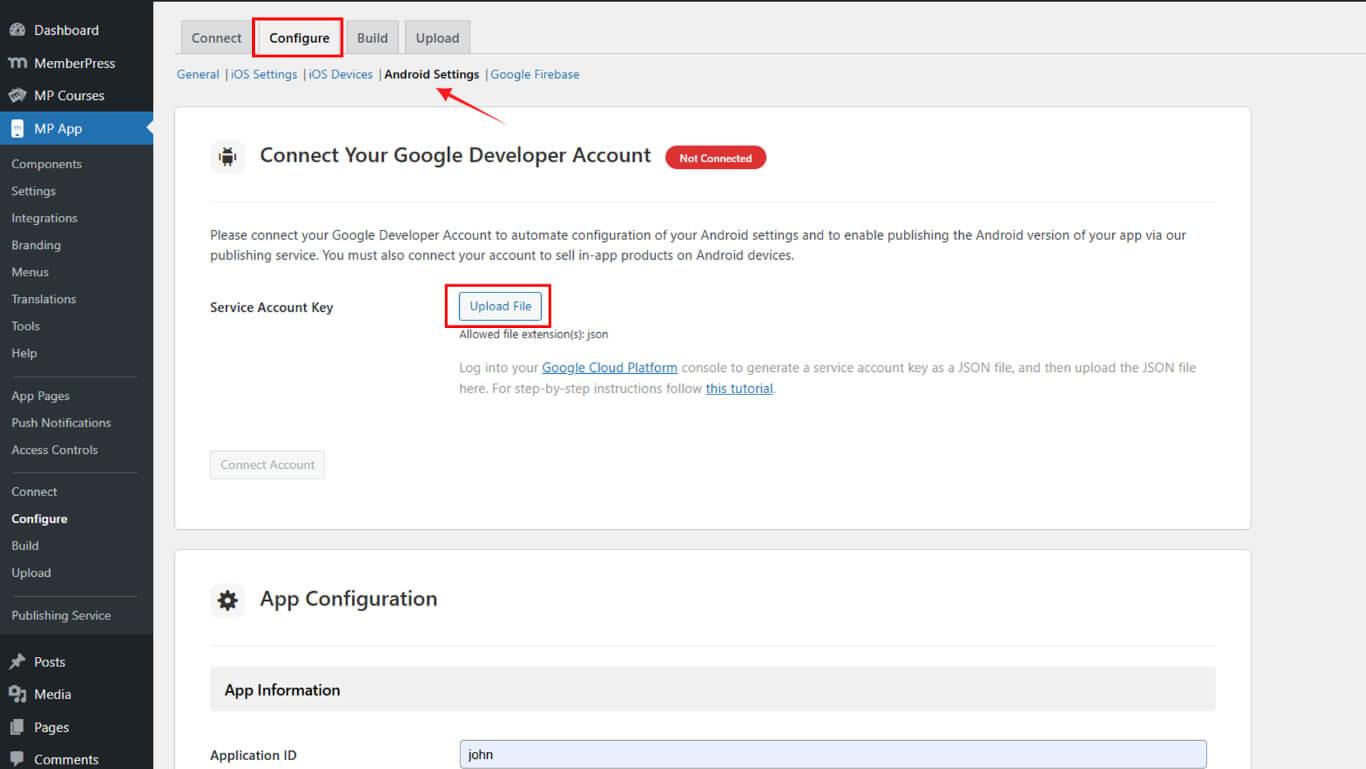
- Selecione o arquivo de chave JSON baixado do dispositivo.
- Clique em Conectar conta para estabelecer uma conexão.
- Verifique se a cor verde Conectado é exibido.
O status conectado confirma a integração bem-sucedida com a conta de desenvolvedor do Google.
Configuração de testes internos
A configuração de testes internos permite testar o aplicativo antes do lançamento público.
Navegando para o teste interno
- Navegue até o Google Play Console em play.google.com/console.
- Selecione o aplicativo na página inicial.
- Clique em Testes e liberações > Testes internos na barra lateral.
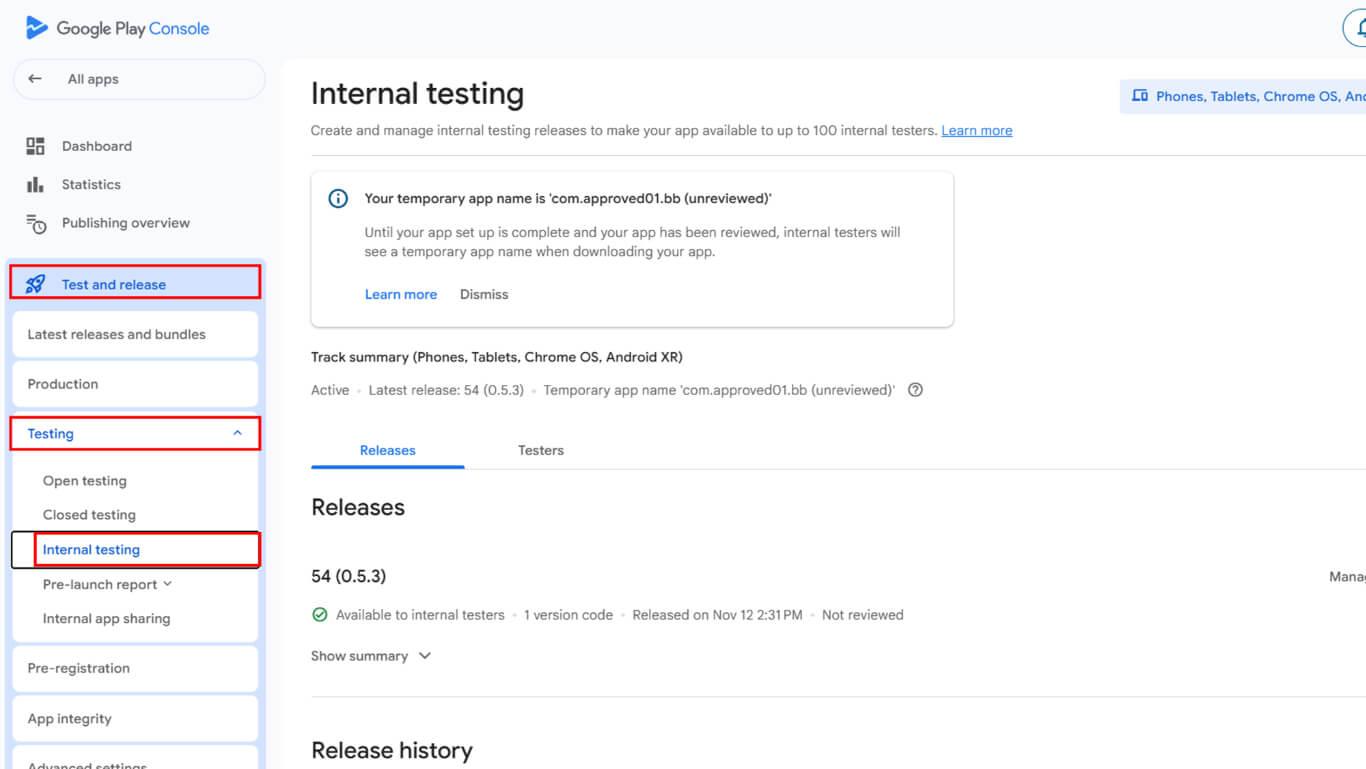
- Clique em Criar nova trilha se não houver nenhuma trilha.
- Adicione endereços de e-mail de testadores ou Grupos do Google na seção de testadores.
- Insira um URL de feedback ou endereço de e-mail para relatórios de bugs.
- Clique em Salvar para finalizar a configuração da pista de testes.
Criação de nova versão
A criação da versão prepara o aplicativo para distribuição aos testadores.
- Navegue até Testes > Testes internos no Google Play Console.
- Clique no botão Criar nova versão botão.
- Localize o Assinatura de aplicativos seção.
- Clique em Escolha a chave de assinatura.
- Selecione o Use a chave gerada pelo Google opção.
- Confirme a seleção da chave de assinatura.
O Google Play assina todas as versões usando a chave gerada após a confirmação da seleção.
Solicitação de construção de AAB
A solicitação de compilação do Android App Bundle ocorre por meio da interface de compilação do WordPress.
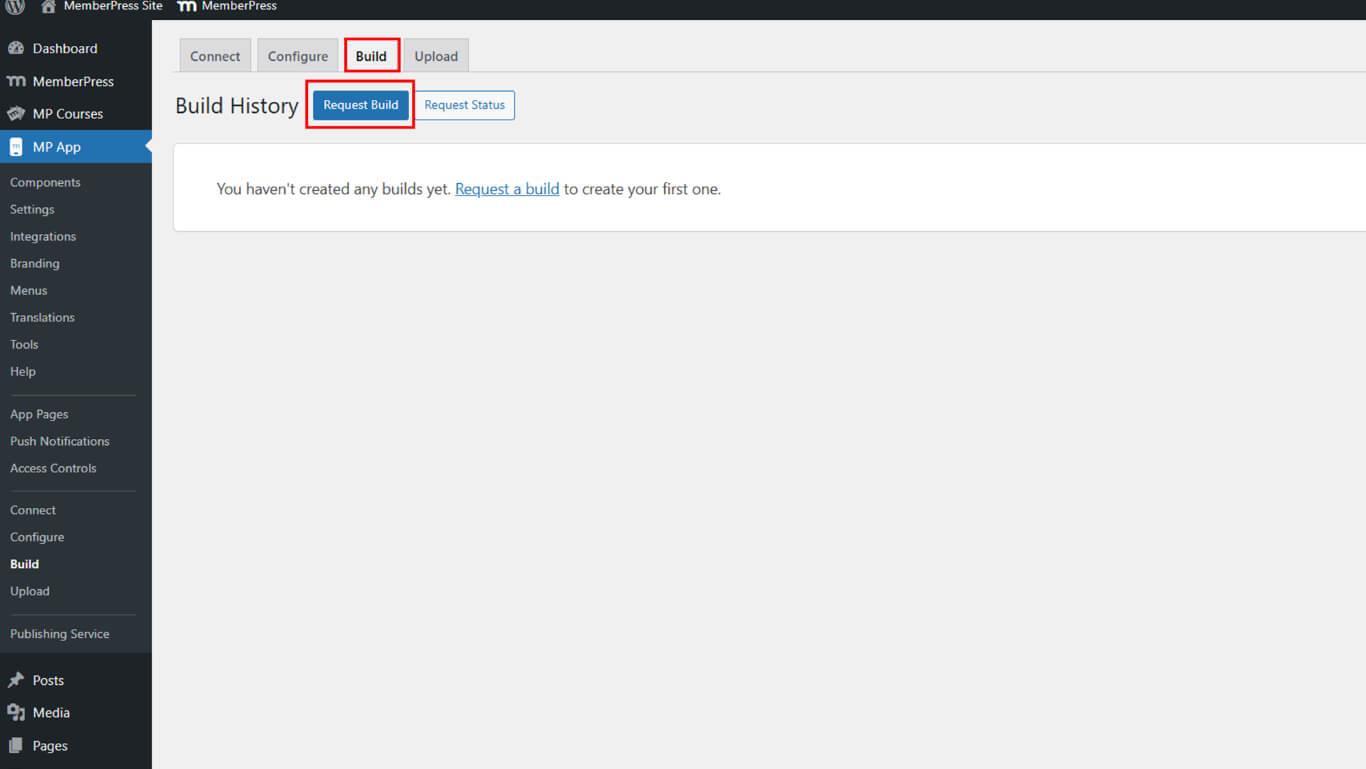
- Navegue até Painel de controle > MP AppKit > Construir.
- Clique no botão Solicitar compilação botão.
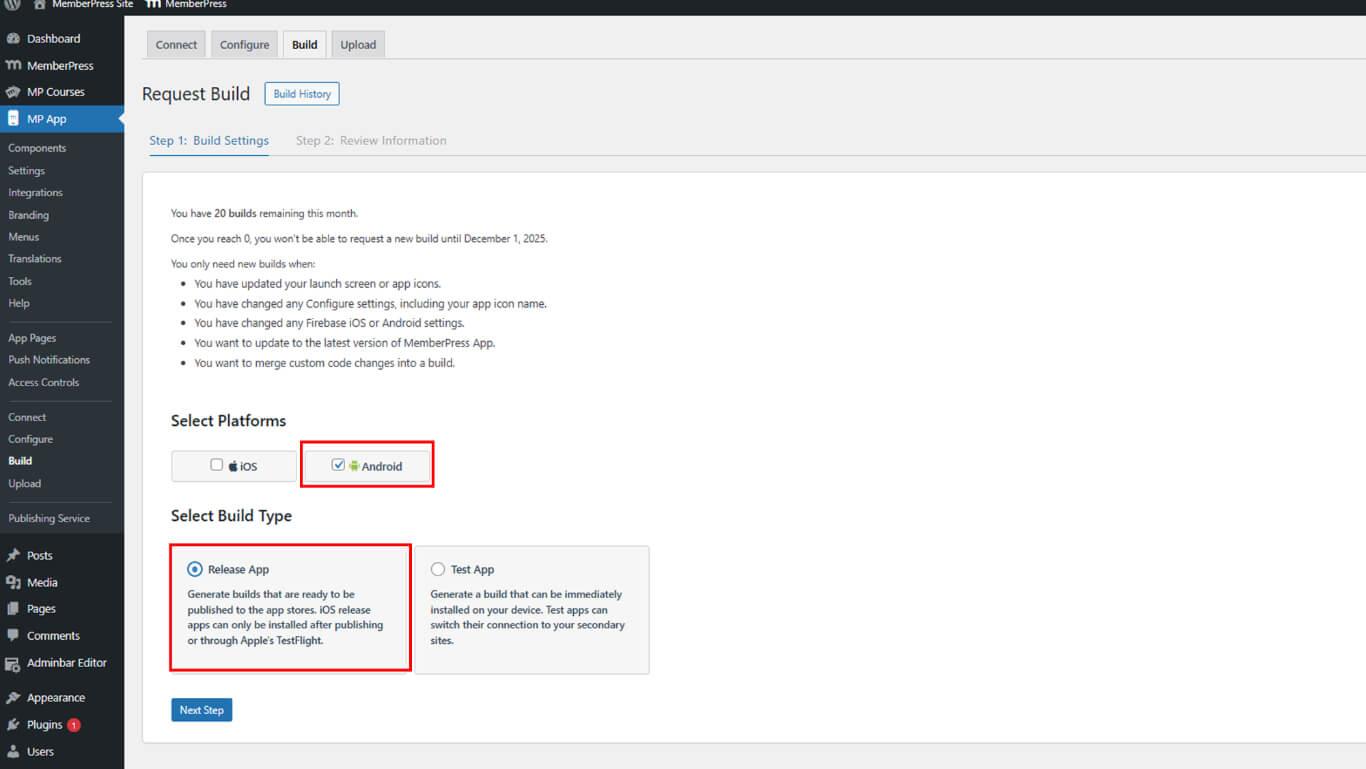
- Verifique o Android como a plataforma.
- Selecione Lançar aplicativo como o tipo de compilação.
- Clique em Próxima etapa para prosseguir.
- Clique em Enviar solicitação de compilação para enviar a solicitação.
- Monitorar o status da solicitação em Histórico de construção.
Normalmente, a conclusão da construção ocorre dentro de 5 a 10 minutos após o envio da solicitação.
Carregamento do AAB para o Play Console
O upload do arquivo AAB para o Play Console conclui a preparação da versão.
- Navegue até a seção Criar liberação na tela do Google Play Console.
- Role até o Pacotes de aplicativos seção.
- Clique em Carregar para abrir a seleção de arquivos.
- Navegue até Painel de controle > MP AppKit > Build > Histórico de compilação em WordPress.
- Clique em Fazer upload para o Google Play Console ao lado da construção concluída.
- Clique em Construção de download para salvar o arquivo AAB.
- Retorne à caixa de diálogo de upload do Console do Google Play.
- Selecione o arquivo AAB baixado do dispositivo.
- Aguarde a conclusão do upload.
- Verifique se o pacote de aplicativos carregado aparece na versão.
Preenchimento das declarações necessárias
As declarações de metadados devem ser concluídas antes da publicação.
- Revise todas as mensagens de erro de metadados exibidas.
- Clique em Declaração completa para atender aos requisitos.
- Navegue até a página de declaração do Advertising ID.
- Resposta Sim para “Seu aplicativo usa ID de publicidade?”, se aplicável.
- Clique em Salvar para armazenar a declaração.
- Retorne à tela de liberação.
- Clique em Salvar novamente para finalizar a liberação.
As declarações concluídas permitem a publicação da liberação na trilha de testes internos.










 PT
PT  EN
EN  ES
ES  FR
FR  DE
DE 